

Page 1

USER MANUAL
Android Smartphone
SKU:VM2090PDKIT180
For more information, refer to the user manual at www.pcd.com
1
Page 2

Using this guide
Thank you for purchasing this PCD mobile device.
This device will provide you with high quality mobile communication and entertainment
based on PCD’s exceptional technology and high standards.
This guide has been specially designed to guide you through the basics of your device,
such as assembling and getting started with the device.
• Please read this guide carefully before using your device to ensure safe and correct
use.
• The descriptions in this guide are based on the default settings of your device.
• Please keep this guide for future reference.
You can get more detailed descriptions and instructions for using the device's features
from user manual. Visit the PCD website (http://www.pcd.com/
user manual.
Instructional icons
Before you start, familiarize yourself with the icons you will see in this guide:
Warning - situations that could cause injury to yourself or others.
Caution - situations that could cause damage to your device or other
equipment.
Note - notes, usage tips, or additional information.
) to view your device's
2
Page 3

► Refer to - pages with related information; for example: ► p.12 (represents “see
page 12”).
Followed by - the order of options or menus you must select to perform a step;
for
example: Home screen, open the application list and select Messaging →New
message (represents Messaging, followed by New message).
[ ] Square brackets-device keys; for example: [
Copyright information
Rights to all technologies and products that comprise this device are the property of
their respective owners:
• This product has an Android platform based on Linux which can be expanded by a
variety of JavaScript-based software.
• Google™, Android Market™, Google Mail™, and YouTube™ are trademarks of
Google, Inc.
• Java™ is a trademark of Sun Microsystems, Inc.
• Wi-Fi ®, the Wi-Fi CERTIFIED logo, and the Wi-Fi logo are registered trademarks of
the Wi-Fi Alliance.
] (represents the Power key).
3
Page 4

Contents
Assembling…………………………………………………………………………………6
Unpack……………………………………………………………………………… 6
………………………………………………………………………………… 6
Charge the battery………………………………………………………………… 8
Insert a memory card (optional)……………………………………………… 10
Getting started……………………………………………………………………………12
Turn your device on and off…………………………………………………… 12
Get to know your device………………………………………………………… 13
Use the touch screen…………………………………………………………… 17
Lock or unlock the touch screen and keys…………………………………… 18
Get to know the home screen………………………………………………… 19
Access applications…………………………………………………………… 23
Customize your device………………………………………………………… 24
Enter text………………………………………………………………………… 27
4
Page 5

…………………………………………………………………… 29
Calling…………………………………………………………………………………… 29
Creating and finding contacts……………………………………………………… 31
Messaging……………………………………………………………………………… 32
Camera…………………………………………………………………………………… 35
Music……………………………………………………………………………………… 39
Connecting to the Internet…………………………………………………………… 44
Download files from the web………………………………………………………… 45
Connecting to a PC…………………………………………………………………… 46
Using Bluetooth………………………………………………………………………… 47
Using Wi-Fi……………………………………………………………………………… 48
PCD Service Center…………………………………………………………………… 49
5
Page 6

Assembling
Unpack
Check your product box for the following items:
• Mobile device
• Battery
• Travel adapter (charger)
• Headset
• Quick start guide
• USB cable Use only PCD-approved software. Pirated or illegal software may cause
damage or malfunctions that are not covered by your manufacturer's warranty.
• The items supplied with your device may vary depending on the software and
accessories available in your region or offered by your service provider.
• You can obtain additional accessories from your local PCD dealer.
• The supplied accessories perform best for your device.
Install battery
To install battery
6
Page 7
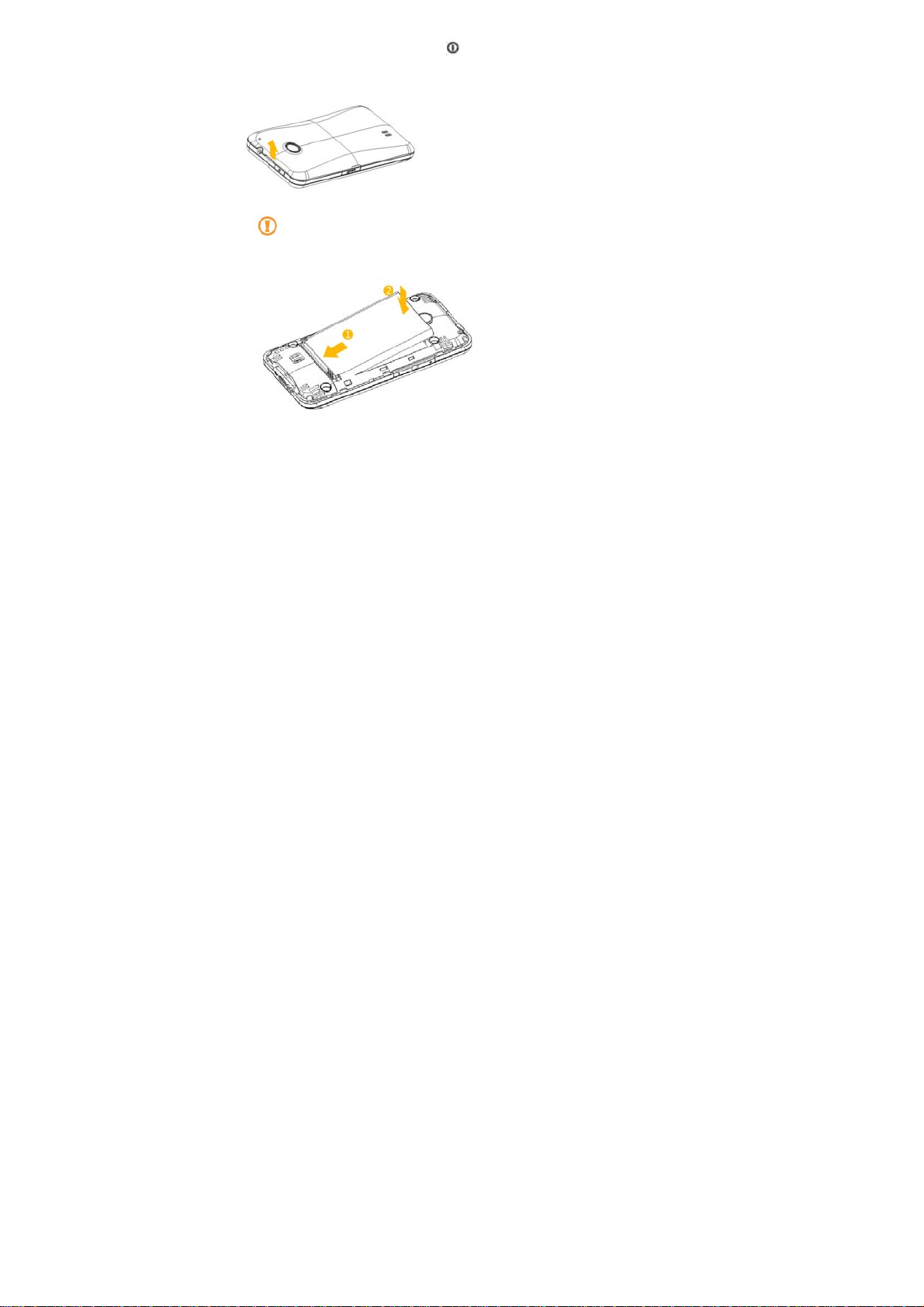
1. If the device is on, press and hold [ ] and select Power off to turn it off.
2. Remove the back cover.
Be careful not to damage your fingernails when you remove the back cover.
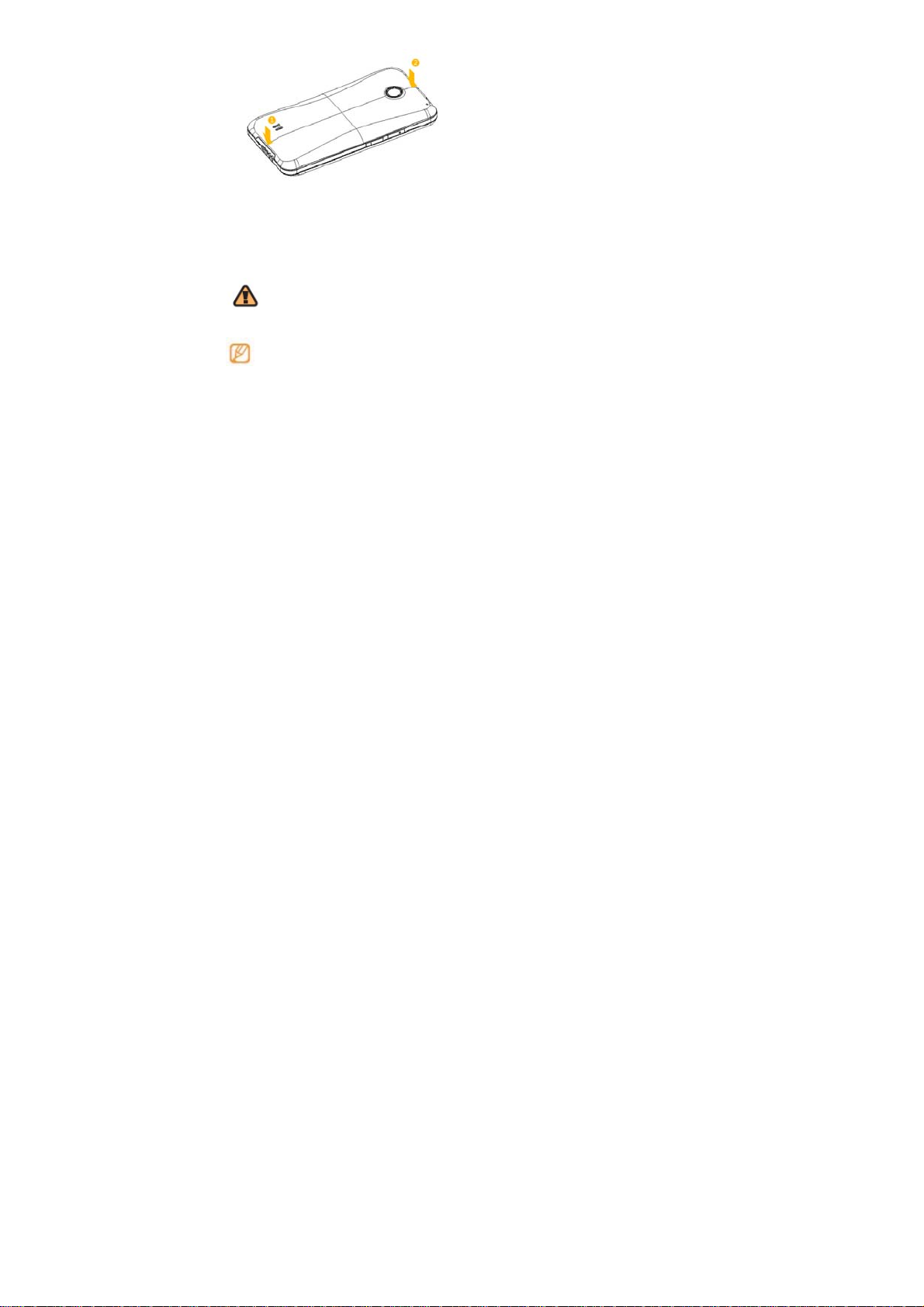
3. Insert the battery.
4. Replace the back cover.
7
Page 8
Charge the battery
Before using the device for the first time, you must charge the battery.
You can charge the device with the provided travel adapter or by connecting the
device to a PC with a PC data cable.
Use only PCD-approved chargers and cables. Unauthorised chargers or
cables can cause batteries to explode or damage your device.
When your battery is low, the device will emit a warning tone and display a
low battery message. If the battery level becomes too low, the device will
power off automatically. Recharge your battery to continue using your device.
› Charge with the travel adapter
1. Open the cover to the micro-USB jack at the bottom of the device.
2. Plug the micro-USB end of the data cable connected to the travel adapter into the
jack.
8
Page 9
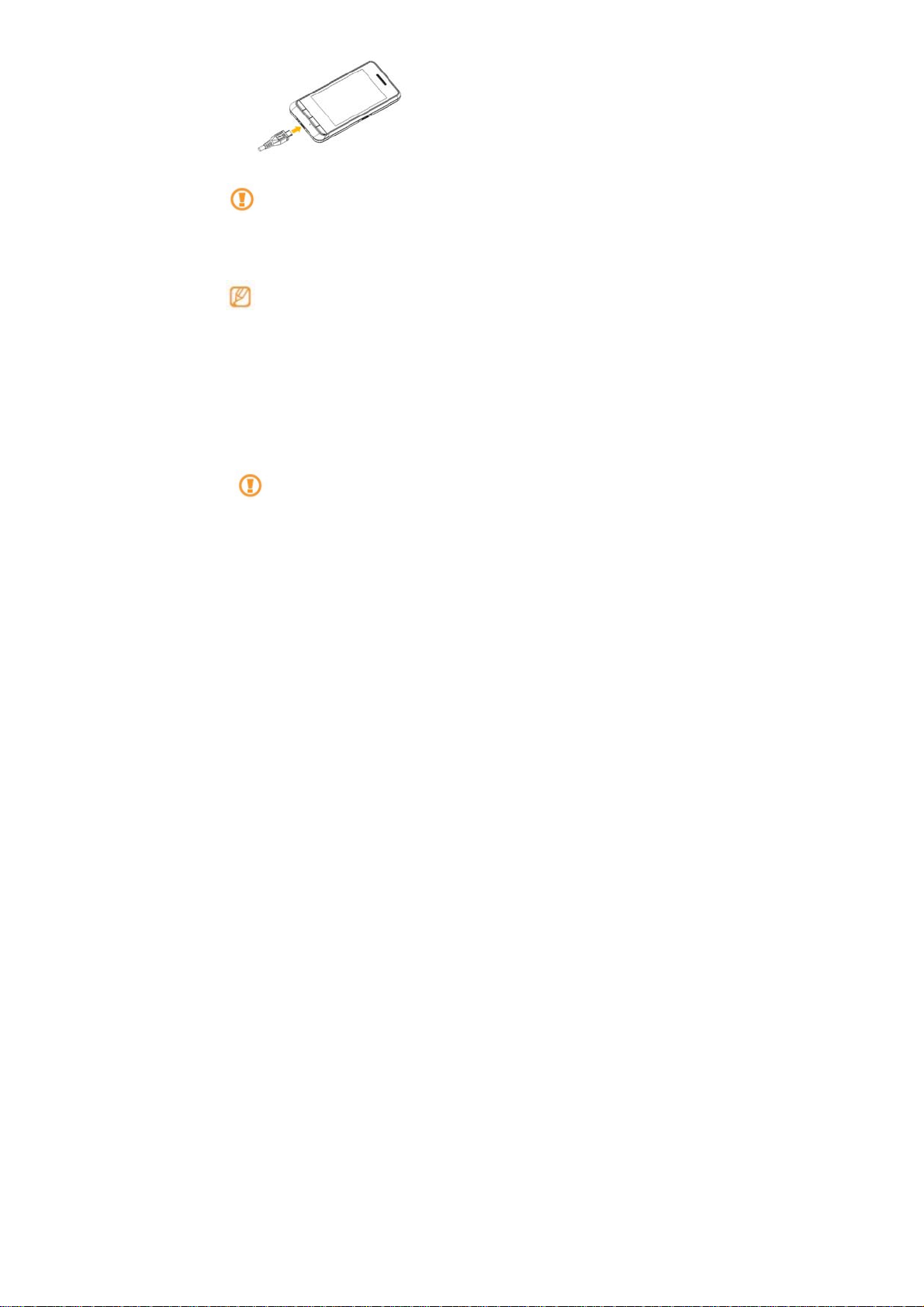
Improperly connecting the travel adapter can cause serious damage to the
device. Any damage caused by misuse is not covered by the warranty.
3. Plug the large end of the travel adapter into a power outlet.
• You can use the device while it is charging, but it may take longer to fully charge
the battery.
• While charging, the device may heat up. This is normal and should not affect
your device’s lifespan or performance.
• If your device is not charging properly, bring your device and the charger to a
PCD Service Center.
4. When the battery is fully charged (the Status Light turns to green), unplug the
travel adapter from the device and then from the power outlet.
Do not remove the battery before removing the travel adapter to avoid the
9
Page 10

damage to the device.
› Charge with the PC data cable
Before charging, ensure that your PC is turned on.
1. Open the cover to the micro-USB jack at the bottom of the device.
2. Plug micro-USB end of the data cable into the jack.
3. Plug the standard USB end of the data cable into a USB port on a PC.
Depending on the type of PC data cable you are using, it may take some time
before charging begins.
4. When the battery is fully charged (the Status Light turns to green), unplug the
PC data cable from the device and then from the PC.
Insert a memory card (optional)
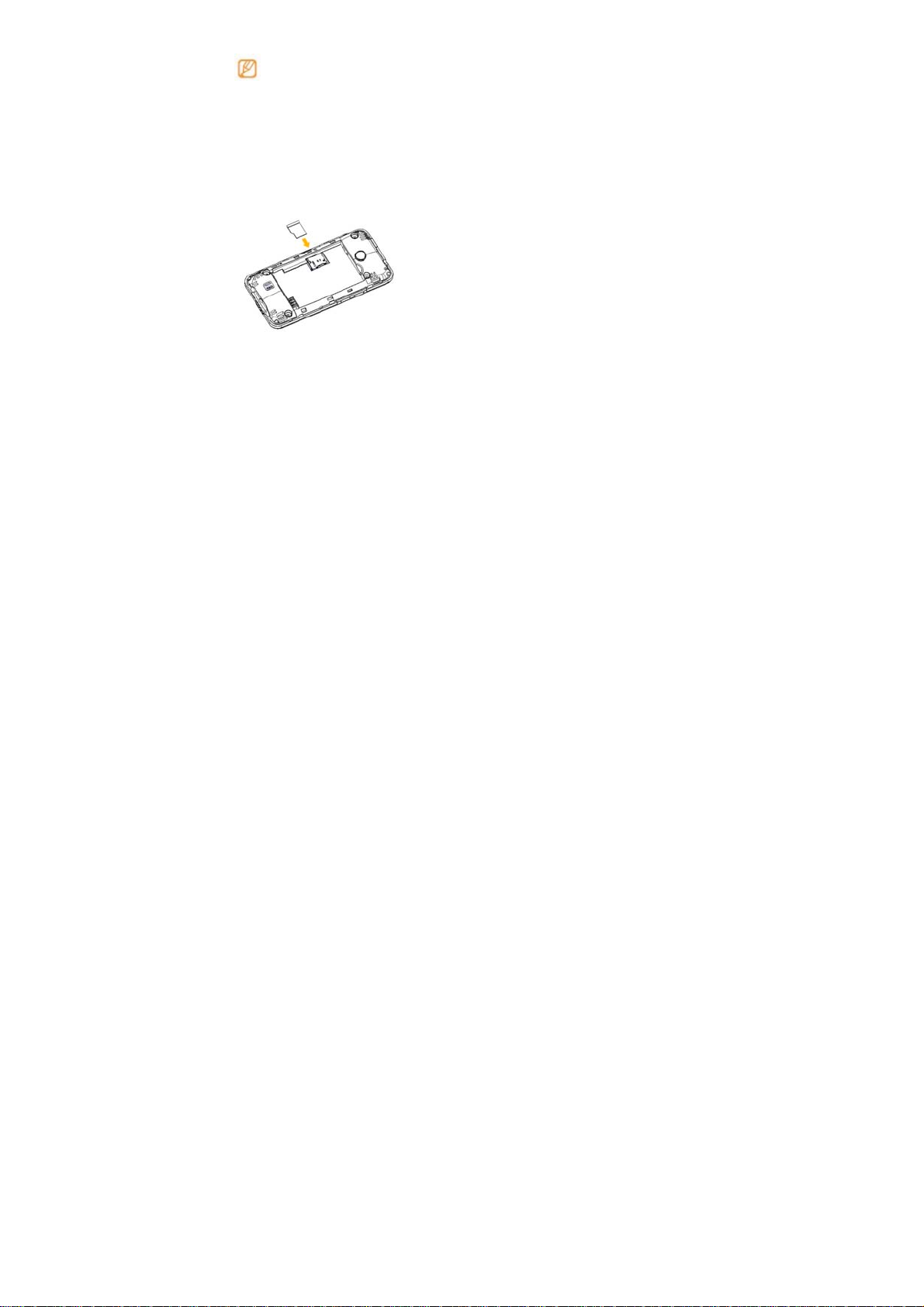
To store additional multimedia files, you must insert a memory card. Your device
accepts microSD™ or microSDHC™ memory cards with maximum capacities of
32GB (depending on memory card manufacturer and type).
Using an incompatible memory card may damage your device or the memory
card and can corrupt data stored on the card.
10
Page 11
• Your device supports only the FAT file format for memory cards. If you insert a
card formatted with a different file format, your device will ask you to reformat
the memory card.
• Frequent writing and erasing of data will shorten the lifespan of memory cards.
1. Open the cover to the memory card slot on the right side of the device.
2. Insert a memory card with the gold- colored contacts facing up
.
3. Push the memory card in the slot until it locks in place.
4. Replace the cover to the memory card.
Remove the memory card
›Before removing a memory card, first unmount it for safe removal.
1. Home screen, select Applications → Settings → Storage → Unmount SD card.
2. Remove the cover to memory card slot on the right side of the device.
3. Push the memory card gently until it disengages from the device.
11
Page 12
4. Pull the memory card out of the memory card slot.
5. Remove the memory card.
6. Replace the cover to memory card slot.
Do not remove a memory card while the device is transferring or accessing
information, as this could result in loss of data or damage to the memory card or
device.
Erase the memory card
> Erasing your memory card on a PC may cause incompatibilities with your device.
Erase the memory card only on the device.
Home screen, select Applications → Settings → Storage → Erase SD card.
Before erasing the memory card, remember to make backup copies of all
important data stored on your device. The manufacturer’s warranty does not
cover loss of data resulting user actions.
Getting started
Turn your device on and off
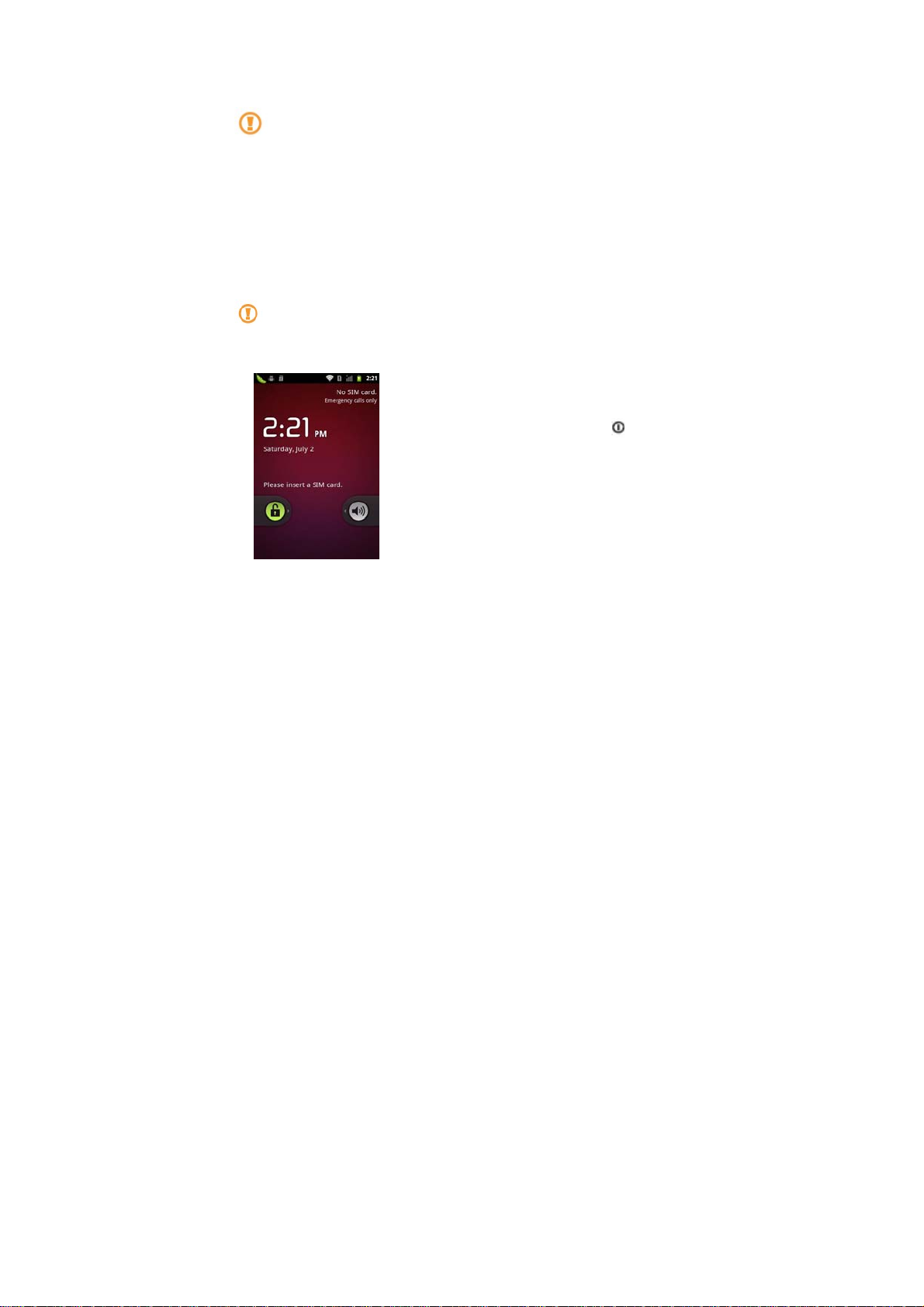
To turn on your device, press and hold [
will automatically connect to the cellular network.
].Your device
12
Page 13

If you turn on your device for the first time, tap the Android image on the screen and
follow the on-screen instructions to set up your device for its first use
To turn off your device, press and hold [
• Follow all posted warnings and directions from official personnel when in
areas where the use of wireless devices is restricted, such as aeroplanes and
hospitals.
•To use your device's non-network services only, switch to Flight mode.
Press and hold [
Get to know your device
.> Device layout
] and select Flight mode.
] and then select Power off.
13
Page 14
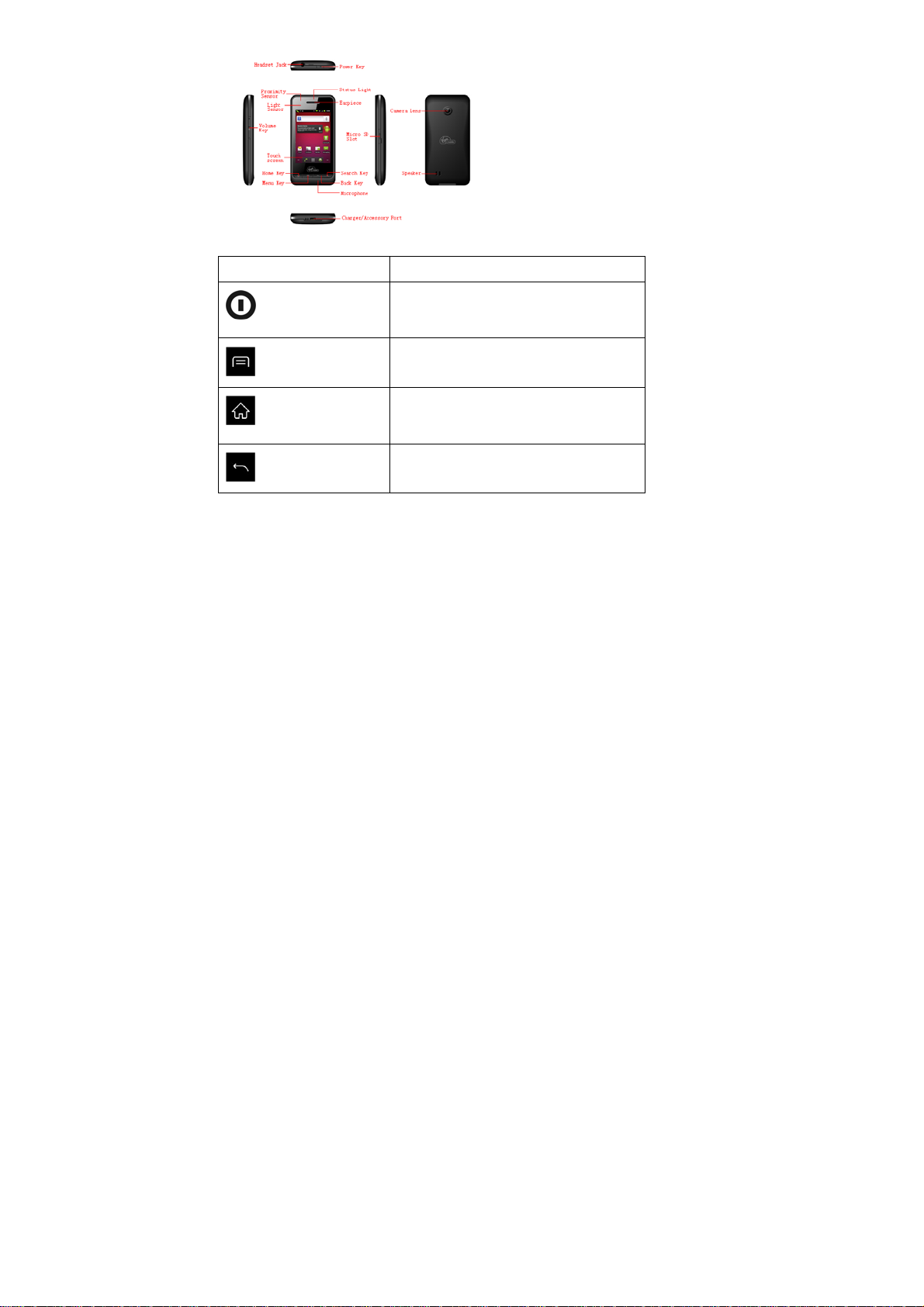
Keys
Key Function
Turn on the device (press and hold); End a
Power ( Top right )
Menu
Home
Back
call: Access the quick menus (press and
hold); Lock the touch screen.
Open a list of option available on the
current screen
Return to the home screen
(Open the list of recent application (press
and hold )
Return to the previous screen
14
Page 15
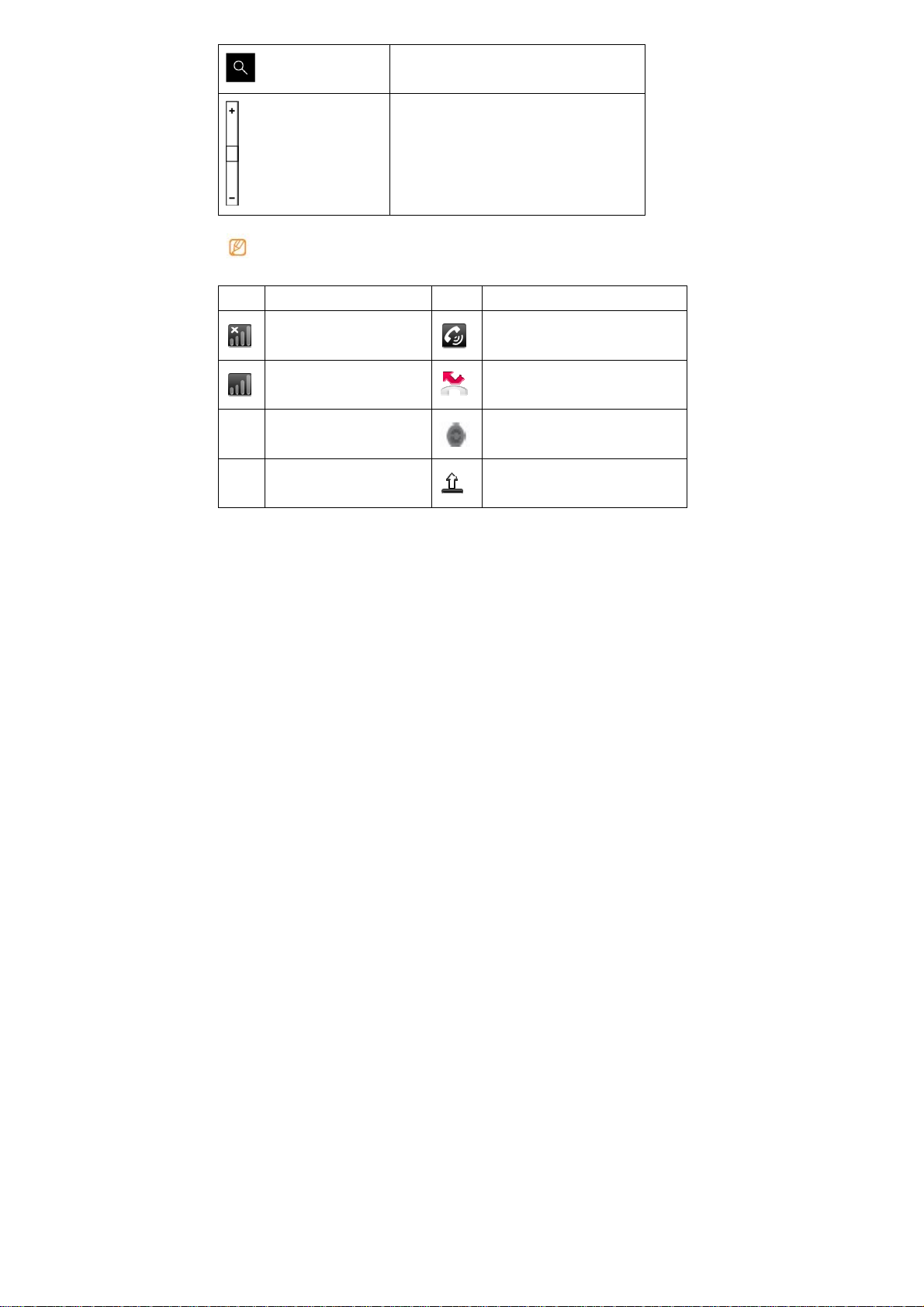
Quick button to search.
Search
Adjust the device’s volume.
Volume( Left side)
› Indicator icons
Icons shown on the display may vary depending on your region or service
provider.
Icon Definition Icon Definition
No signal
Speakerphone activated
Signal strength
Synchronized with the web
Missed call
Uploading data
15
Page 16
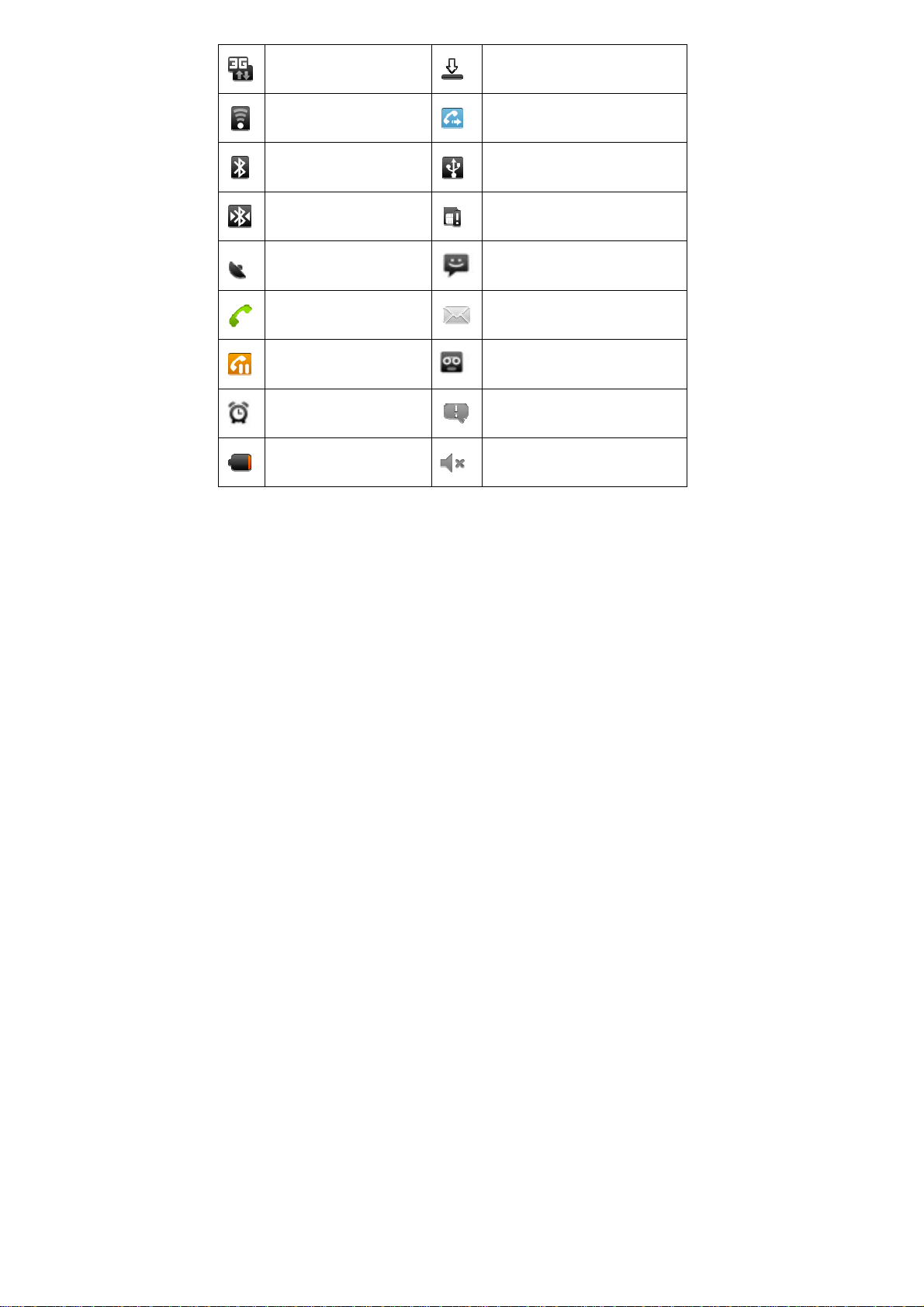
3G network connected
Downloading data
WLAN activated
Bluetooth activated
Bluetooth headset
connected
GPS activated
Voice call in progress
Call on hold
Alarm activated
Battery power level
Call diverting activated
Connected to PC
No SIM or USIM card
New text or multimedia message
New email message
New voice mail message
Event notification
Silent mode activated
16
Page 17
Flight mode activated
Vibration activated
Music playback in progress
Error occurred or caution required
Use the touch screen
Your device’s touch screen lets you easily select items or perform functions. Learn
basic actions to use the touch screen.
• To avoid scratching the touch screen, do not use sharp tools.
• Do not allow the touch screen to come into contact with other electrical devices.
Electrostatic discharges can cause the touch screen to malfunction.
• Do not allow the touch screen to come into contact with water. The touch
screen may malfunction in humid conditions or when exposed to water.
• For optimal use of the touch screen, remove the screen protection film before
using your device.
• Your touch screen has a layer that detects small electrical charges emitted by
the human body. For best performance, tap the touch screen with your
fingertip. The touch screen will not react to touches of sharp tools, such as a
stylus or pen.
17
Page 18

Control your touch screen with the following actions:
• Tap: Tap once with your finger to select or launch a menu, option, or application.
• Tap and hold: Tap an item and hold it for more than seconds to open a pop-up option
list.
• Scroll: Tap and drag your finger up, down, left, or right to move to items on lists.
• Drag and drop: Tap and hold your finger on an item, and then drag your finger to
move the item.
• Double-tap: Tap twice quickly with your finger to zoom in or out while viewing photos
or web pages.
• Your device turns off the touch screen when you do not use the device for a
specified period. To turn on the screen, press [
time. Home screen, open the application list and select Settings → Display → Screen
timeout.
Lock or unlock the touch screen and keys
You can lock the touch screen and keys to prevent any unwanted device operations.
To lock, press [
grey window with your finger.
].To unlock, turn on the screen by pressing [ ], and then flick the
18
].You can also adjust the backlight
Page 19
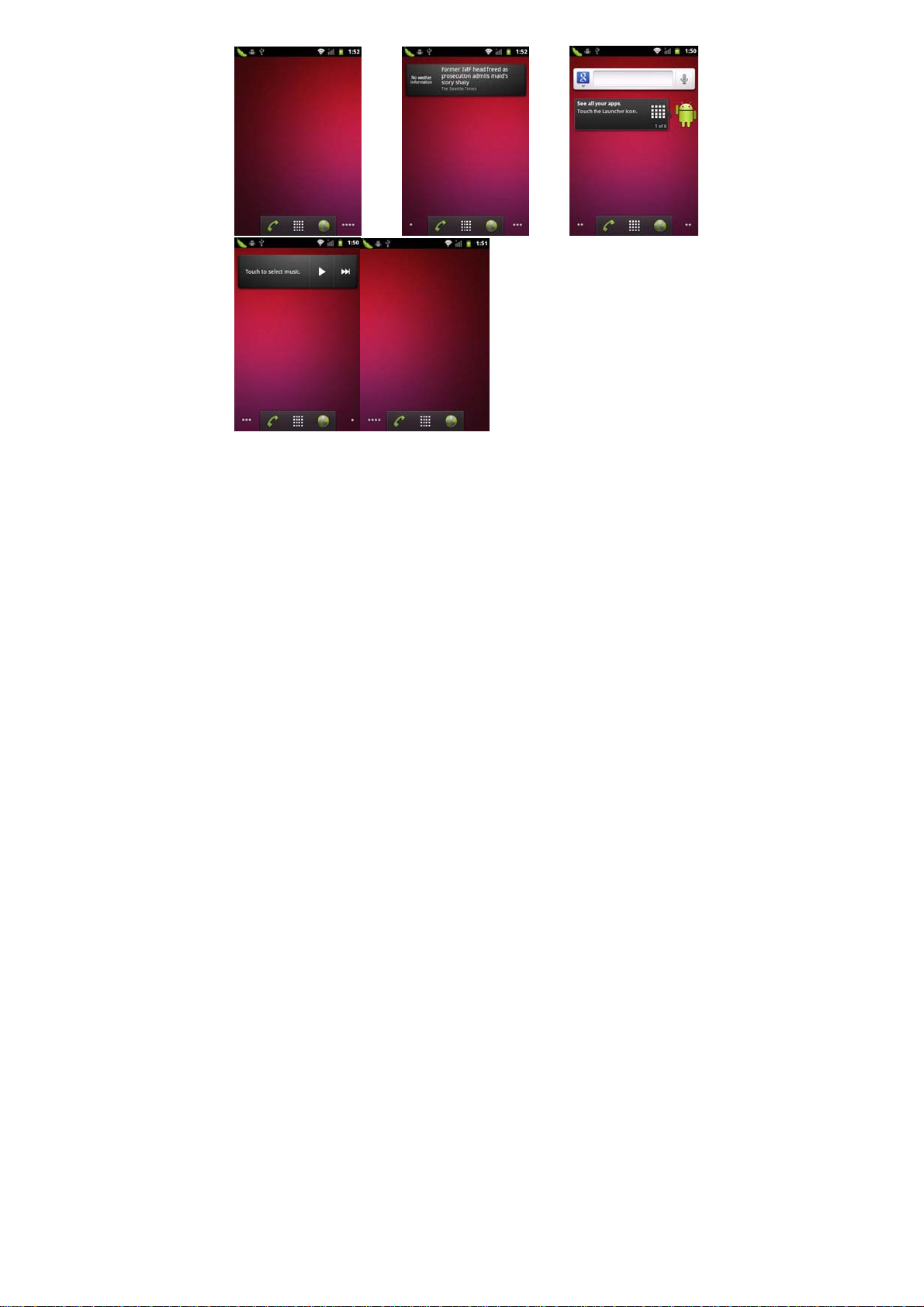
Get to know the home screen
When the device is home screen, you will see the home screen. From the home
screen, you can view your device’s status and access applications.
19
Page 20
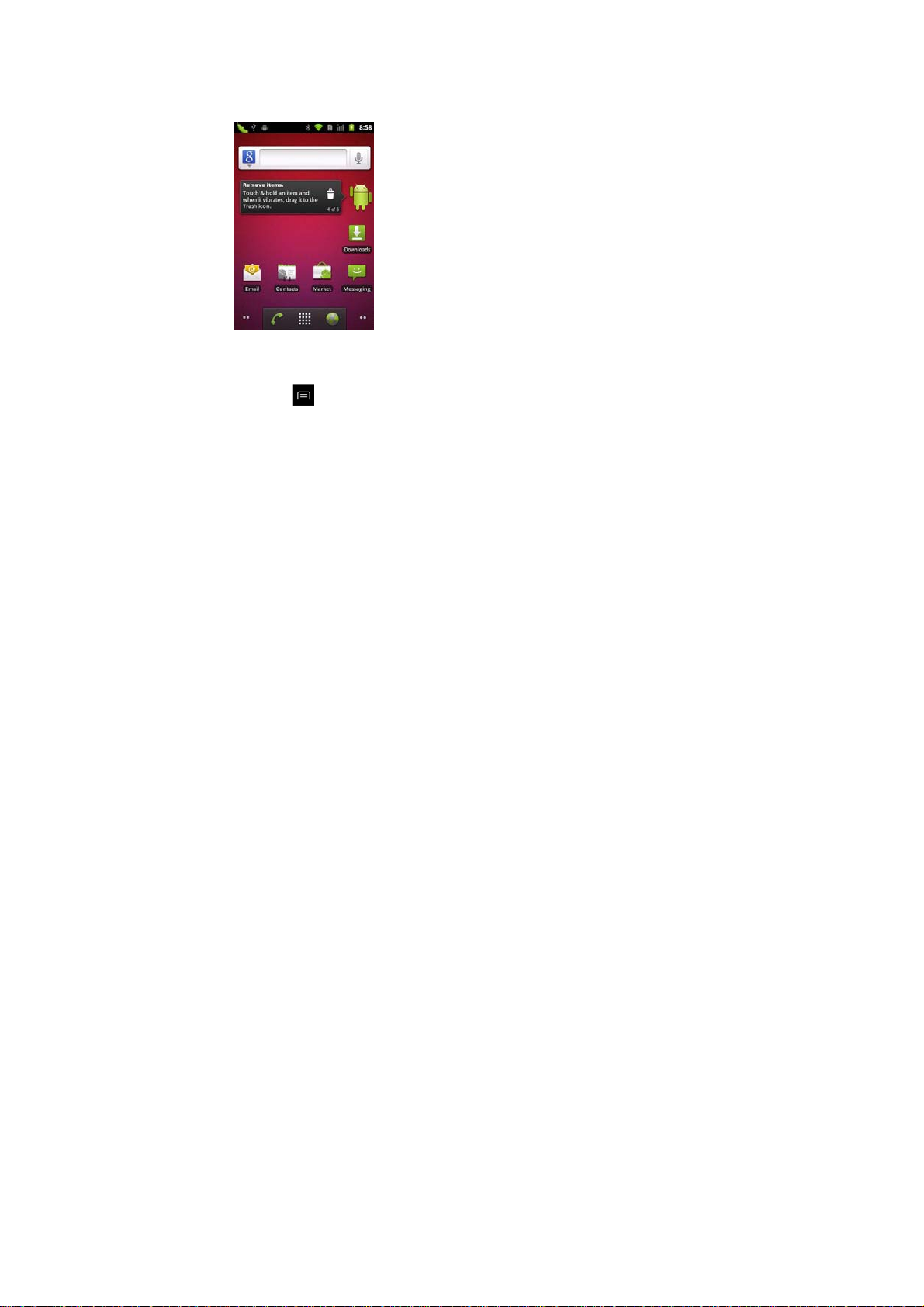
The home screen has 5 panels. Scroll left or right to a panel of the home screen. You
can also select a dot on the top of the screen to move to the corresponding panel of
the home screen directly.
> Add items to the home screen
You can customise the home screen by adding shortcuts to applications or items in
applications, widgets, or folders. To add items to the home screen
1. Press [
2. Select the item category → an item:
• Shortcuts: Add shortcuts to items, such as applications, bookmarks, and contacts.
• Widgets: Add widgets to the home screen.
• Folders: Create a new folder or add folders for your contacts
• Wallpapers: Set a background image.
] → Add or tap and hold the empty area on the home screen.
20
Page 21

Available items may vary depending on the current home screen mode.
Move items on the home screen
1. Tap and hold an item to move.
2. Drag the item to the location you want when the item is magnified.
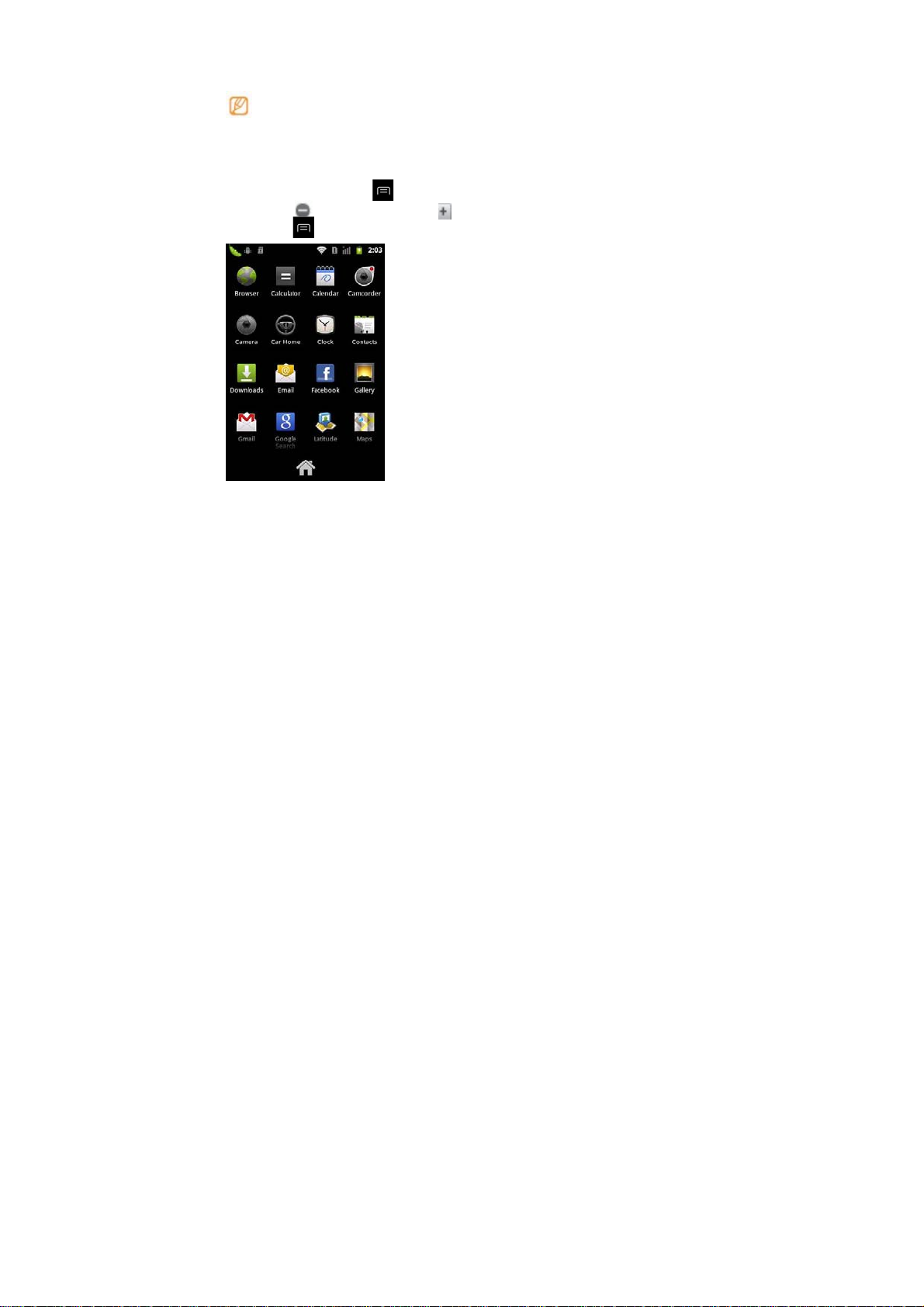
Remove items from the home screen
1. Tap and hold an item to remove.
The item is magnified and the trash icon appears on the application area,
meaning that the application area at the bottom of the home screen changes to
the trash.
2. Drag the item to the trash.
3. When the item and the trash turn red, release the item.
Use the shortcuts panel
Home screen or while using an application, tap the indicator icons area and drag your
finger down to open the shortcuts panel. You can activate or deactivate wireless
connection features and access a list of notifications, such as messages, calls, events
or processing status. To hide the list, drag the bottom of the list up.
From the shortcuts panel, you can use the following options:
• Wi-Fi: Activate or deactivate the WLAN connection feature.
• Bluetooth: Activate or deactivate the Bluetooth wireless connection feature.
• GPS: Activate or deactivate the GPS feature.
21
Page 22
• Account sync: Activate or deactivate the Account synchronization.
• Brightness: Adjust the brightness.
Available options may vary depending on your region or service provider.
Add or remove panels to the home screen
You can add or remove panels of the home screen to organize widgets according to
your preferences and needs.
1. Home screen, press [
2. Select
3. Press [
to remove a panel or to add new panels.
] → Save.
] → Edit.
22
Page 23

Access applications
To access your device’s applications,
1. Home screen, select Applications to access the application list.
2. Scroll up or down to another application screen. You can also select a dot on the
top of the screen to move to the corresponding main menu screen directly.
3. Select an application.
• When you use applications provided by Google, you must have a Google
account. If you do not have a Google account, sign up for a Google account.
• You can add a shortcut to an application by tapping and holding the application
icon from the application list. You can move the icon to the location you want on
the home screen.
4. Press [
the home screen.
Your device has a built-in motion sensor that detects its orientation. If you rotate
the device while using some features, the interface will switch to landscape view
automatically. To set the interface to keep the orientation when you rotate the
device, select Settings → Display → Auto-rotate screen.
] to return to the previous screen; Press the Home key to return to
23
Page 24

> Access recent applications
1. Press and hold the Home key to open the list of applications you have accessed
recently.
2. Select an application to access.
Customize your device
Get more from your device by customizing it to match your preferences.
> Set the current time and date
1. Home screen, open the application list and select Settings → Date and time.
2. Set the time and date and change other options.
> Turn on or off the touch tone
Home screen, open the application list and select Settings → Sound → Audible touch
tones.
> Adjust the volume of the ringtones
Press the Volume key up or down to adjust the ringtone volume.
Switch to the silent mode
To mute or unmute your device, do one of the followings:
• Home screen, press and hold [
• Home screen, open the application list and select Settings → Sound → Silent mode
Change your ringtone
1. Home screen, open the application list and select Settings → Sound → Phone
] and select Silent mode.
24
Page 25

ringtone
2. Select a ringtone from the list and select OK.
Activate animation for switching windows
Home screen, open the application list and select Settings → Display → Animation →
Some animations or All animations.
Select a wallpaper for the home screen
1. Home screen, press [
2. Select an image.
3. Select Save or Set wallpaper.
PCD is not responsible for any use of default images or wallpapers provided on
your device.
Adjust the brightness of the display
You can quickly adjust the display brightness by scrolling left or right on the indicator
line of the screen.
To adjust the brightness in the setting menu,
1. Home screen, open the application list and select Settings → Display →
Brightness.
2. Clear the check box next to Automatic brightness adjustment.
3. Drag the slider to adjust the level of brightness.
4. Select OK.
] → Wallpaper → an option.
25
Page 26
The brightness level of the display will affect how quickly the device consumes
battery power.
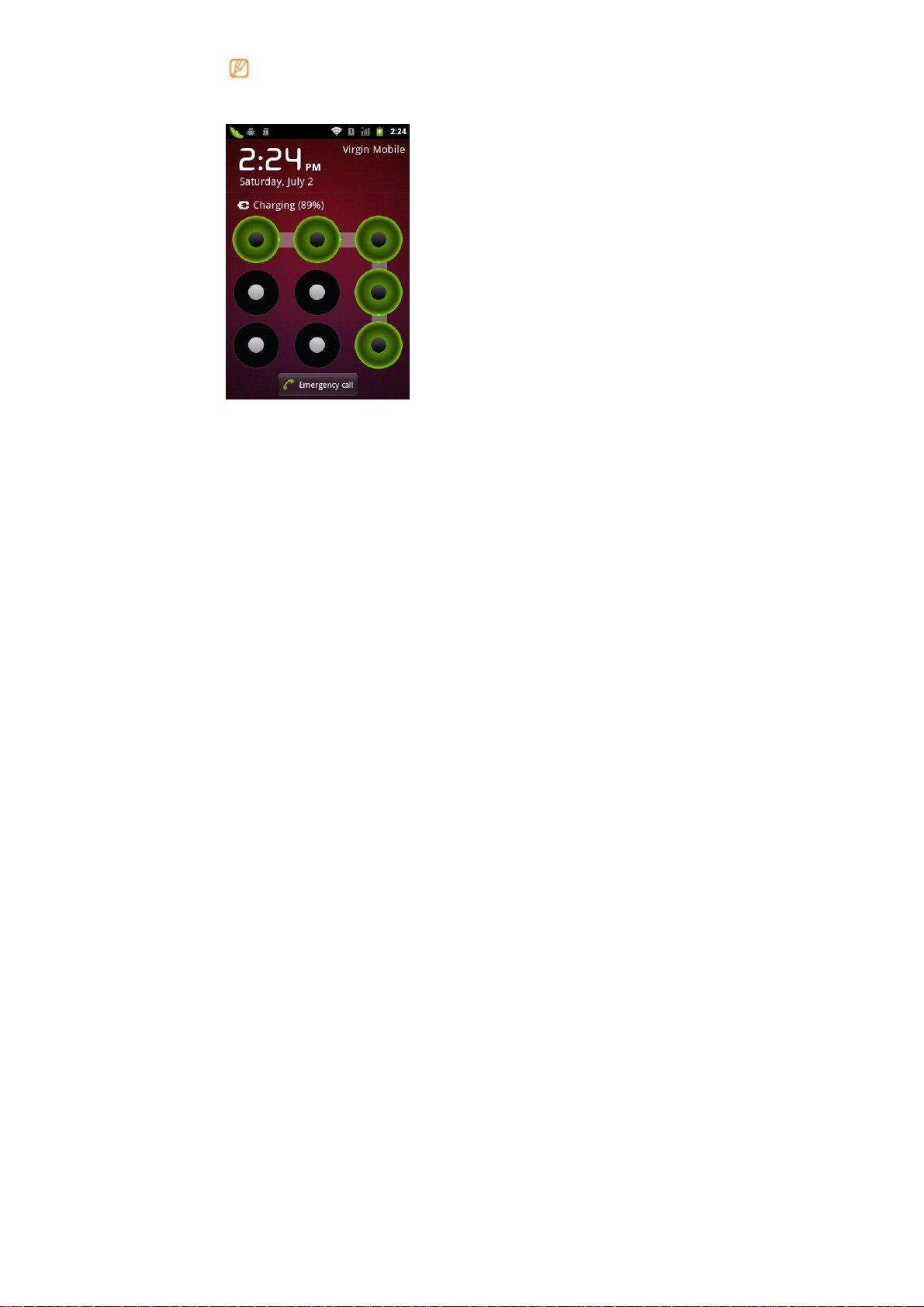
Set an unlock pattern
You can set an unlock pattern to prevent unauthorised people from using the device
without your permission.
1. Home screen, open the application list and select Settings → Location and
26
Page 27

security → Set up screen lock → Pattern
2. See the on-screen instructions and example patterns and select Next (if
necessary).
3. Draw a pattern by dragging your finger to connect at least dots.
4. Select Continue.
5. Draw a pattern again to confirm.
6. Select Confirm
• Once you set an unlock pattern, your device will require the pattern each time
you turn it on. If you do not want the device to require the pattern, clear the
check box next to require pattern in Location and security.
• If the unlock pattern, bring your device to a PCD Service Centre to unlock it.
• PCD is not responsible for any loss of passwords or private information or
other damages caused by illegal software.
Enter text
You can enter text by selecting characters on the virtual keypad on the screen.
> Change the keyboard type
You can change the keyboard type. Tap and hold the text input field and select Input
method → a keyboard type.
Enter text using the Android keyboard
27
Page 28
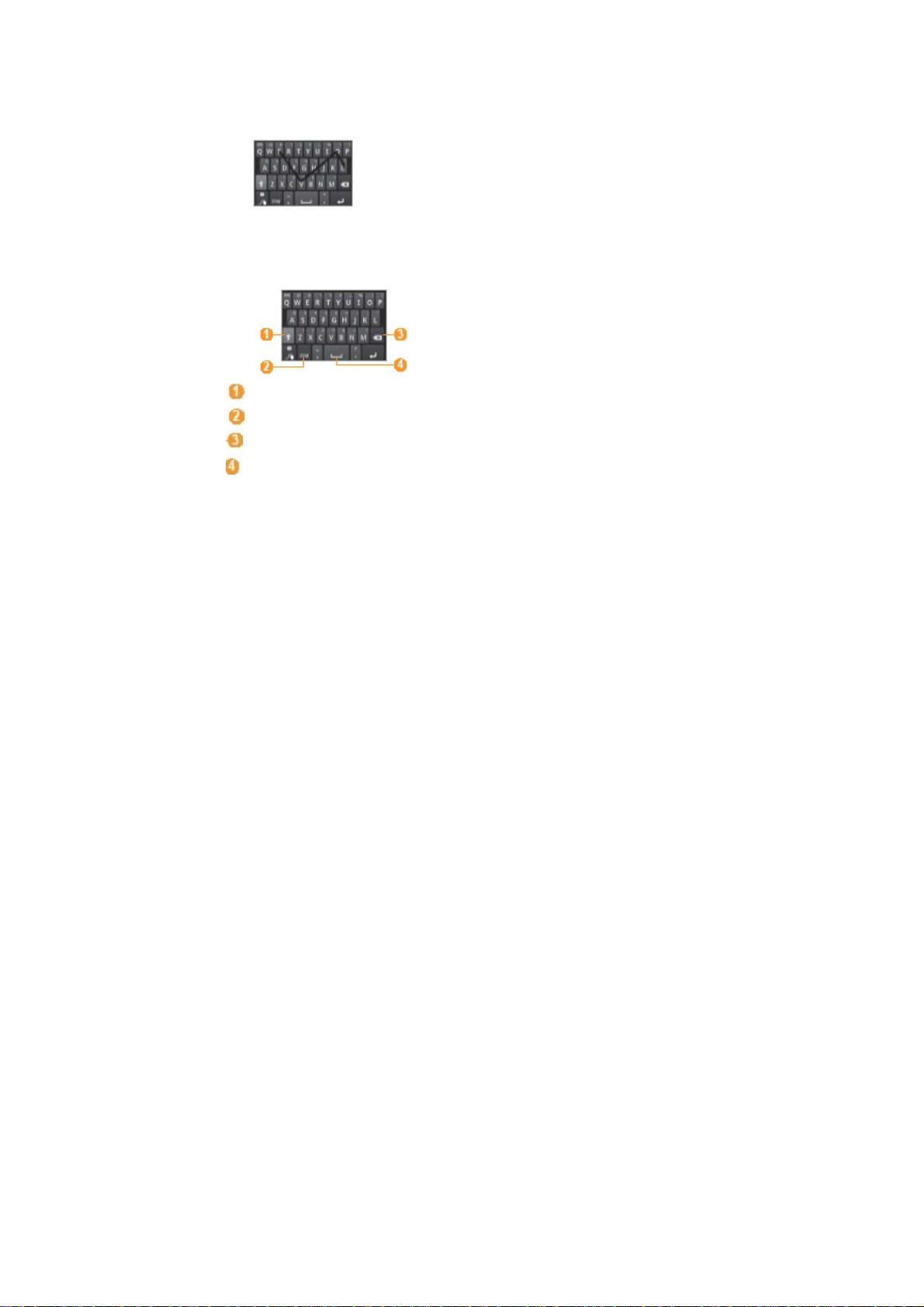
1. Select the first character of a word and drag your finger to the second character
without releasing the finger from the screen.
2. Pause on the second character for a moment and drag the finger to the next
character.
3. Continue until you have finished the word.
4. Release the finger on the last character. The word is inserted into the text input
field.
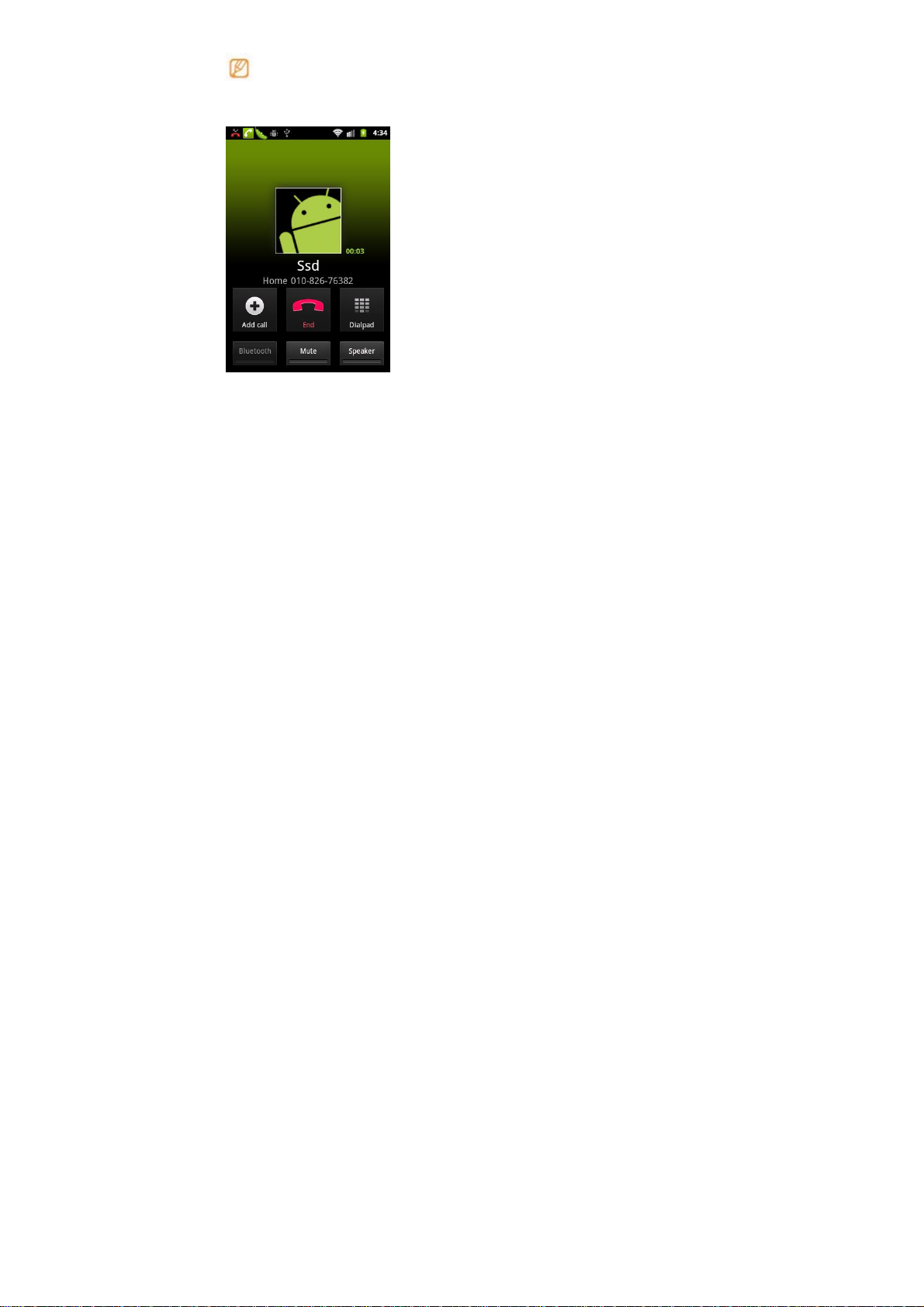
5. Repeat steps 1-4 to complete your text. Tap and hold each key to enter additional
characters. You can also use the following icons:
Change caps..
Switch between Symbol mode and ABC/Number mode.
Delete characters.
Insert a space.
28
Page 29
To hide the Android keyboard, press [Menu].
To view help information for using the Android keyboard, tap and hol
d.
Calling
Learn to make or answer a call or access logs. For more information, see the "Calling"
section of the user manual.
Make a call
1. Home screen, open the application list and select Phone → Keypad, and enter
an area code and a phone number.
29
Page 30
2. Select to make a voice call.
3. To end the call, select End call
> Answer a call
1. When a call comes in, drag right until Answer appears.
When the device is ringing,press the Volume key to mute the ring tone.
2. End the call, select End call
.
View call logs
You can view logs of your calls filtered by their types.
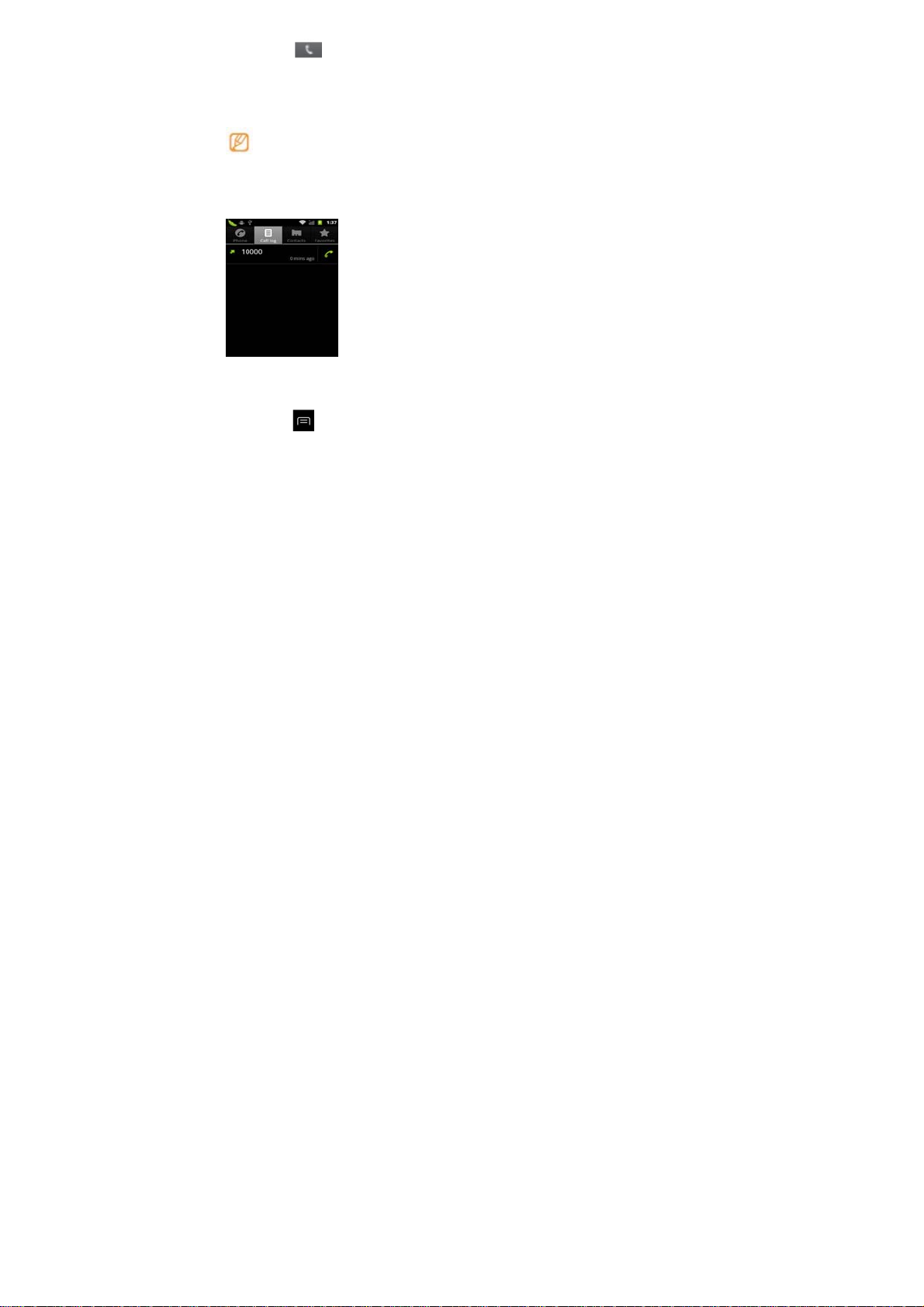
1. Home screen, open the application list and select Phone → Call log.
2. Press [
can make a call or send a message directly to a contact by quickly flicking the
contact to the left or right.
3. Select a log to view its details.
] → View by → an option to sort the call logs. From the call logs, you
30
Page 31

From the detail view, you can dial the number, send a message to the number or
add the number to the phonebook or reject list.
Creating and finding contacts
Learn to create and find a contact in memory. For more information, see the
"Phonebook" section of the user manual.
› Create a contact
1. Home screen, open the application list and select Contacts.
2. Select Create contact.
3. Select a memory location.
4. Enter contact information.
31
Page 32

5. Select Save to add the contact to memory.
You can also create a contact from the dialing screen.
1. Home screen, open the application list and select Phone → Keypad.
2. Enter a phone number.
3. Select-Add to Contacts → Create contact.
4. Select a memory location.
5. Enter contact information.
6. Select Save to add the contact to memory.
Find a contact
1. Home screen, open the application list and select Contacts.
2. Scroll up or down on the contact list. Select a contact’s name.
3. Select a contact’s name.
Once you find a contact, you can:
• call the contact by selecting Call or Video call
• send a message by Send Message.
• edit the contact information by pressing [
Messaging
Learn to send and view text, multimedia, or email messages. For more information,
see the "Messages" section of the user manual.
>Send a text message
1. Home screen, open the application list and select Messaging → New message
] → Edit.
32
Page 33

2. Select Contacts. You can enter a number manually or select one from the recent
recipients or contact groups by selecting another button.
3. Select the check boxes next to contacts and select Add
4. Select Type to compose and enter your message text. To insert emoticons, press
] → Insert smiley.
[
5. Select Send to send the message.
> Send a multimedia message
1. Home screen, open the application list and select Messaging → New message.
2. Select Contacts.
You can enter a number manually or select one from the recent recipients or
contact groups by selecting another button.
3. Select the check boxes next to contacts and select Add.
When you enter an email address, the device will convert the message as a
multimedia message.
4. Select Type to compose and enter your message text. To insert emoticons, press
] → Insert smiley.
[
5. Press [
file list or create a new photo, video, or sound.
6. Press [
7. Select Send to send the message.
> Send an email message
1. Home screen, open the application list and select Email → an email account.
2. Press [
] → Attach → an option and add an item. You can select a file from the
] → Add subject and add a subject for the message.
] → Compose.
33
Page 34

3. Select Contacts.
You can enter an email address manually and it will show the recent recipients or
groups for selection.
4. Select the Cc/Bcc field to add more recipients.
5. Select the subject field to enter a subject.
6. Select the text input field to enter your email text.
7. Select Attach and attach a file. You can select an image, video or sound clip.
8. Select Send to send the message
If you are offline or outside your service area, the message will be held in the
message thread list until you are online and in your service area
View a text or multimedia message
1. Home screen, open the application list and select Messaging. Your messages
are grouped into message threads by contact, like a messenger.
2. Select a contact.
3. Select a text or multimedia message from the message thread.
4. For a multimedia message, select
View an email message
When you open an email account, you can view previously retrieved emails offline or
connect to the email server to view new messages. After retrieving email messages,
you can view them offline.
to view the attachment.
34
Page 35

1. Home screen, open the application list and select Email → an email account.
2. Press [
3. Select an email message from the message thread list.
Listen to voice mail messages
If you have set missed calls to be diverted to the voice mail server, callers may leave
voice when you do not answer incoming calls. To access your voice mail inbox and
listen to voice mail messages.
1. Home screen, open the application list and select Phone → Keypad and then tap
and hold
2. Follow the instructions from the voice mail server.
You must save the voice mail server number before accessing the server. Your
service provider can give you the number.
Camera
Camera is a combination camera and camcorder that you use to shoot and share
pictures and videos.
Pictures and videos are stored on the phone’s memory card, so you must install one to
use Camera, as described in your phone’s owners’ guide.
You can copy your pictures and videos from the memory card to a PC, as described in
“Connecting to a computer via USB”.
You can view your pictures and videos on the phone, edit them, share them, and so on
with Gallery. See “Gallery”.
In this section
“Opening Camera and taking pictures”
] → Refresh to update the message list.
35
Page 36
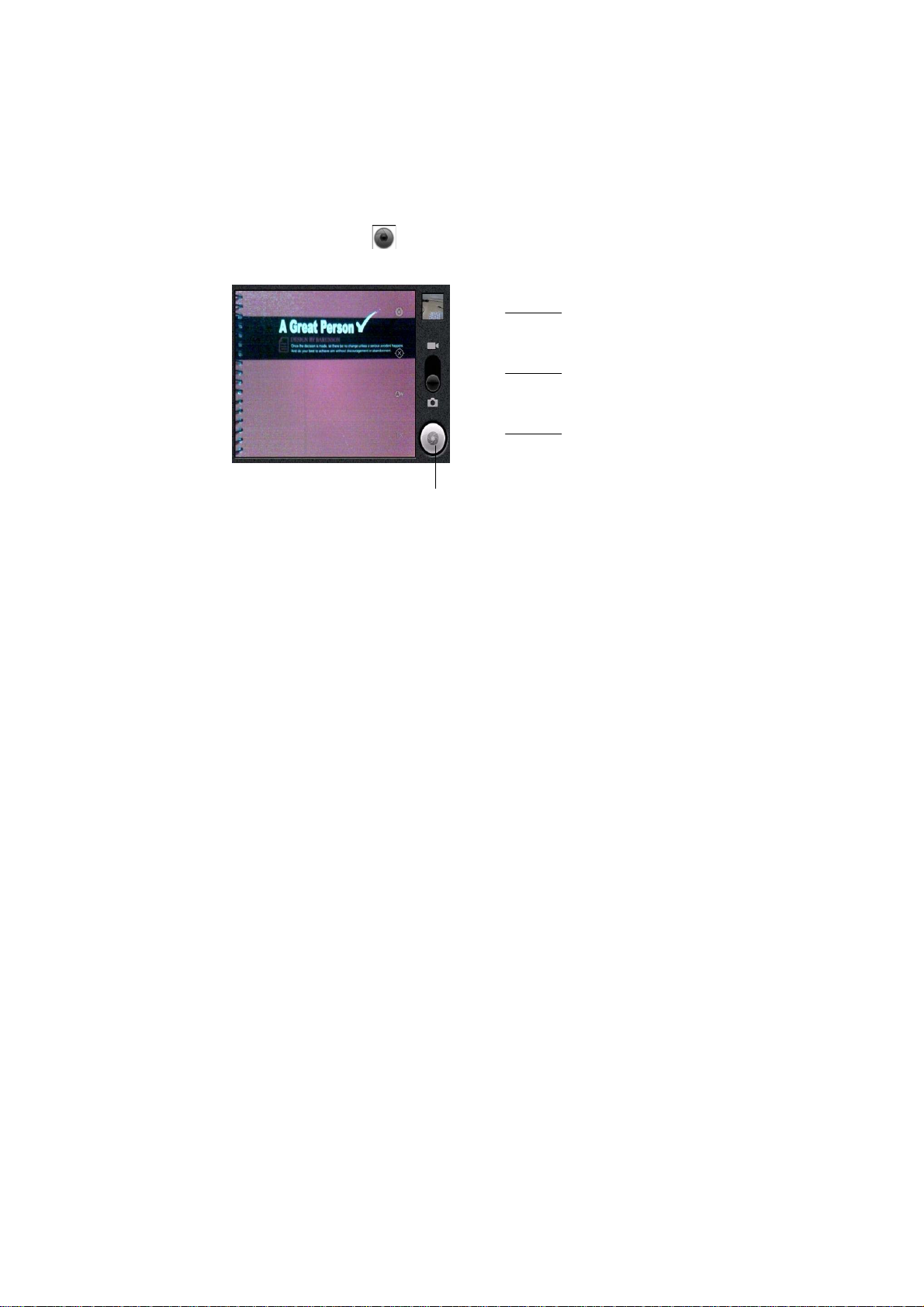
Opening Camera and taking pictures
You can take pictures and shoot videos with Camera.
Camera’s many settings are described in“Changing Camera settings”.
You can also view your pictures with the Gallery application. Please see
the description in“Gallery”
Important Be sure to clean the protective lens cover with a microfiber cloth before
taking pictures. A lens cover with smudges from fingers can cause
blurry pictures with a“halo”effect.
To open Camera
> Touch the Camera icon
in the Launcher.
Camera opens in Landscape mode, ready to take a picture or shoot a video.
Touch to preview your pictures or videos in
Gallery.
Drag up to shoot videos; drag down to tak e
photos.
Touch to take a picture or shoot a video.
Touch settings to change them.
36
Page 37
To take a picture
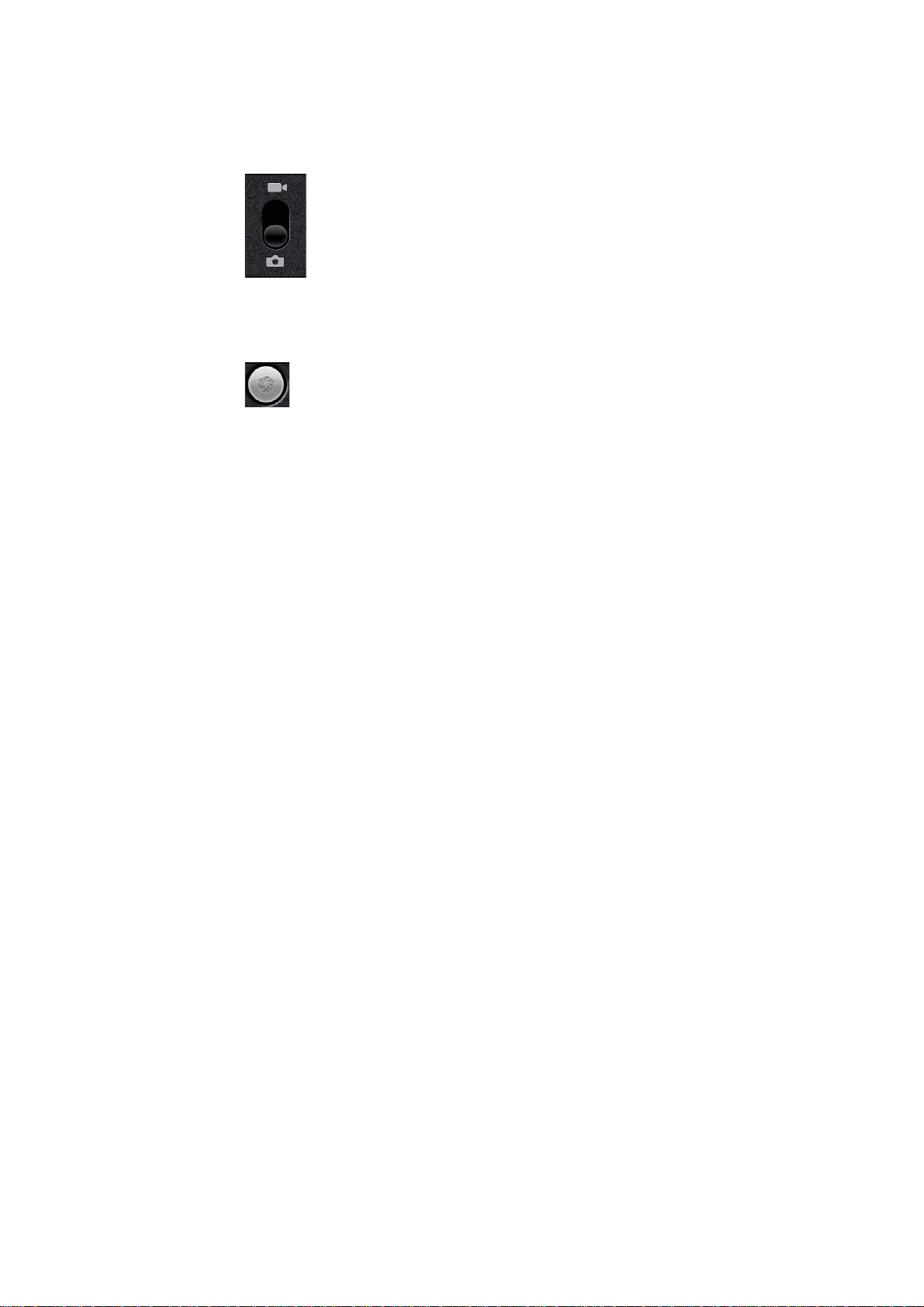
1. If necessary, drag the control to the Camera position.
2. Frame your subject on screen.
You can zoom in or out by touching the Zoom icon 1x and then touching a zoom
level.
3. Touch the Shutter icon on screen
The camera brings the image into focus. When the image is in focus, the focus
indicators in each corner turn green and the camera takes a picture.
OR
Touch & hold the Shutter icon to focus first, before taking a picture; then lift your
finger to take a focused picture more quickly. Slide your finger off the Shutter icon
37
Page 38
or roll the Trackball and release your finger to cancel taking the picture.
The picture you just took is displayed for a moment, and then is displayed as a
thumbnail at the top right.
4. Touch the thumbnail to view, share, and work with your pictures in Gallery See
“Gallery”
To shoot a video
1. If necessary, drag the control to the Video position
.
2. Point the lens to frame the scene where you want to start.
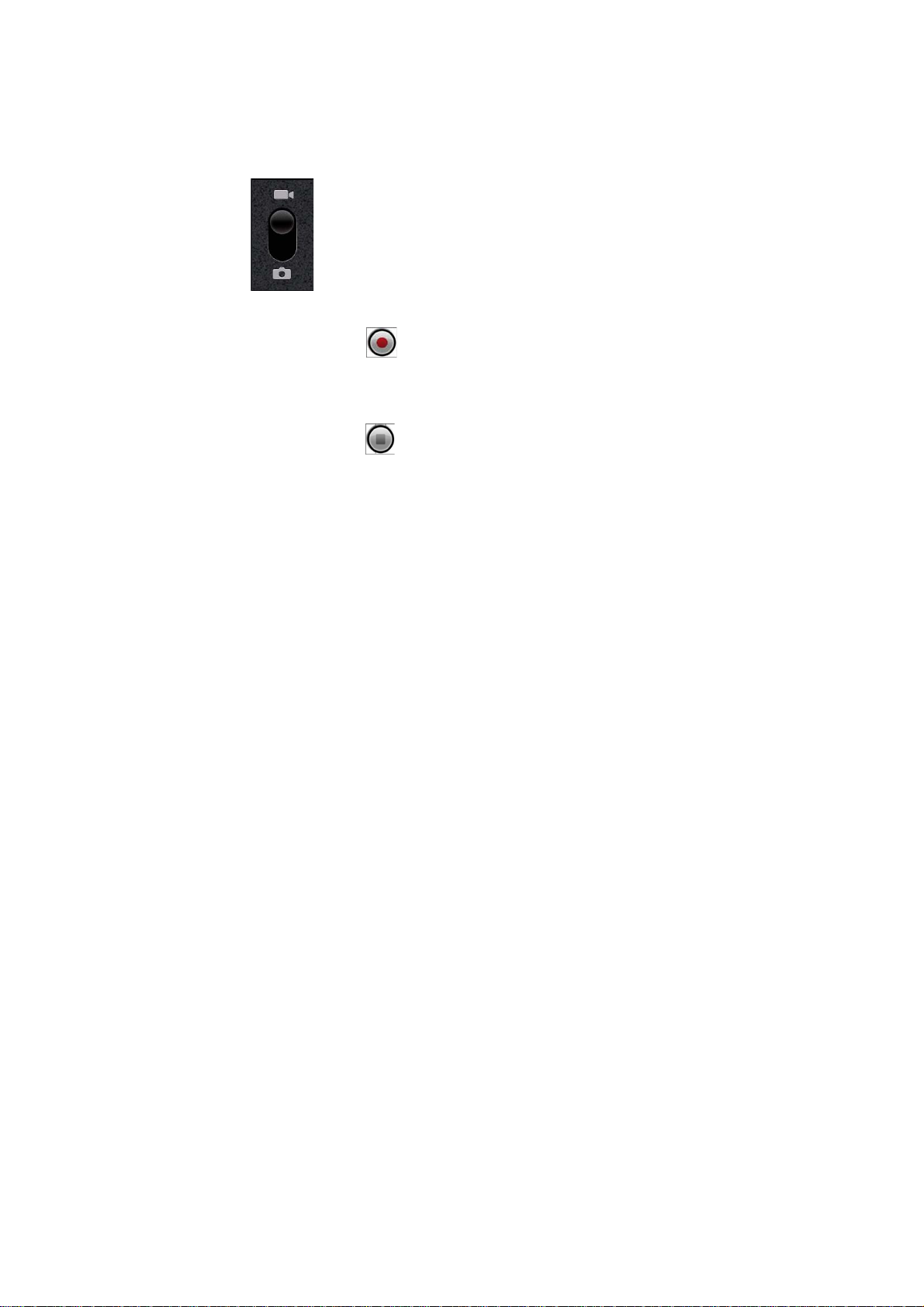
3. Touch the Start Video
time remaining to shoot counts down at the left; when less than a minute is left, the
countdown turns red.
4. Touch the Stop Video
An image from your most recent video is displayed as a thumbnail at the top right.
5. Touch the thumbnail to view, share, and work with your videos in Gallery
icon The camcorder starts shooting the video. The
icon to stop shooting.
38
Page 39

See “Gallery”
Viewing photos and videos
Learn to view photos and play videos you have captured. For more information, see
the "Gallery" section of the user manual.
View a photo
1. Home screen, open the application list and select Gallery.
2. Select a folder.
3. To change the view mode, select
4. Select a photo (with no icon) to view.
View a video
1. Home screen, open the application list and select Gallery.
2. Select a video (with the
3. Rotate the device anti-clockwise to landscape view.
4. Control playback with the virtual keys.
Music
You use Music to organize and listen to music and other audio files that you transfer to
your memory card from your computer.
In this section
“Transferring music files to your phone”
“Playing music”
icon) to play.
or at the top right of the screen.
39
Page 40

Transferring music files to your phone
Music plays audio files that are stored on your phone’s memory card, so before
you open
Music, you must copy audio files from your computer onto the memory card.
Music supports a wide variety of audio file formats, so it can play music that you
purchase from online stores, music that you copy from your CD collection, and
so on.
Music supports audio files in numerous formats, including MP3, M4A (iTunes
application AAC, DRM-free), AMR, MIDI, and OGG Vorbis.
To copy music files onto the phone’s memory card
1. Connect the phone to your computer with a USB cable and mount the memory card.
2. To organize your audio files, you can use the computer to create a music folder at
the top level of the memory card.
3. Use the computer to copy music and other audio files into the folder that you
created on the memory card.
You can use subfolders on the memory card to organize your music files. Or you
can simply copy the audio files to the top level of the memory card
If the music files have accompanying artwork in JPEG format, rename the art file
albumart.jpg and include it in the same folder as the music files.
4. If you have created any playlists, create a subfolder for them in your music folder on
the memory card and copy the playlists into it.
40
Page 41

5. Unmount the memory card from the computer and disconnect the phone.
Warning! To prevent damage to the files on your memory card, follow your computer’s
instructions and the instructions in “Connecting to a computer via USB”.
Playing music
You can listen to music by using the phone’s built-in speaker, through a wired
headset, or through a wireless Bluetooth stereo headset that supports the A2DP
profile. See “Connecting to Bluetooth devices” and refer to your phone’s owner’s
guide for more information about the headset that comes with your phone.
To play music
> Touch a song in your library to listen to it.
OR
> While viewing a list of tracks in an album, press [
The Playback screen opens and the song you touched or the first song in the album or
other playlist starts to play. The tracks in the current playlist play in order until you
reach the end of the playlist (unless you choose a repeat option). Otherwise, playback
stops only if you stop it, even when you switch applications or receive a phone call.
] and touch Play all.
41
Page 42
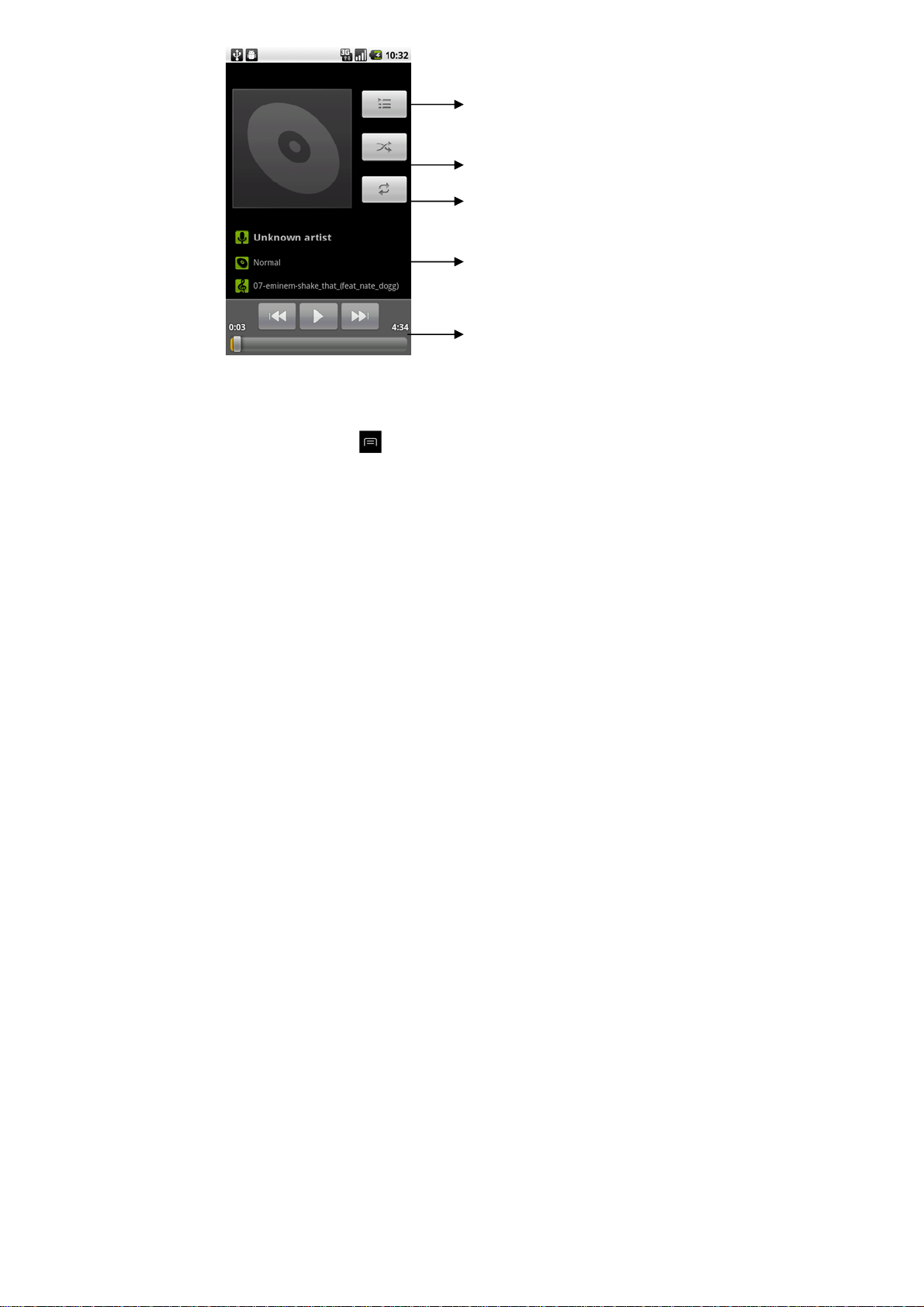
Touch to open the current playlist
Touch to shuffle the current playlist.
Touch to repeat the current playlist; touch again to repeat the current track.
Touch & hold to search for information.
kip tracks, or pause and resume playback. Drag the slider to go directly to a section of a
track
Y
ou can return to the Playback screen from most other screens in the Music
application by pressing [
] and touching Playback.
You can return to the Playback screen from any other application by opening the
Notifications panel and touching the ongoing music notification. See “Managing
42
Page 43
notifications”.
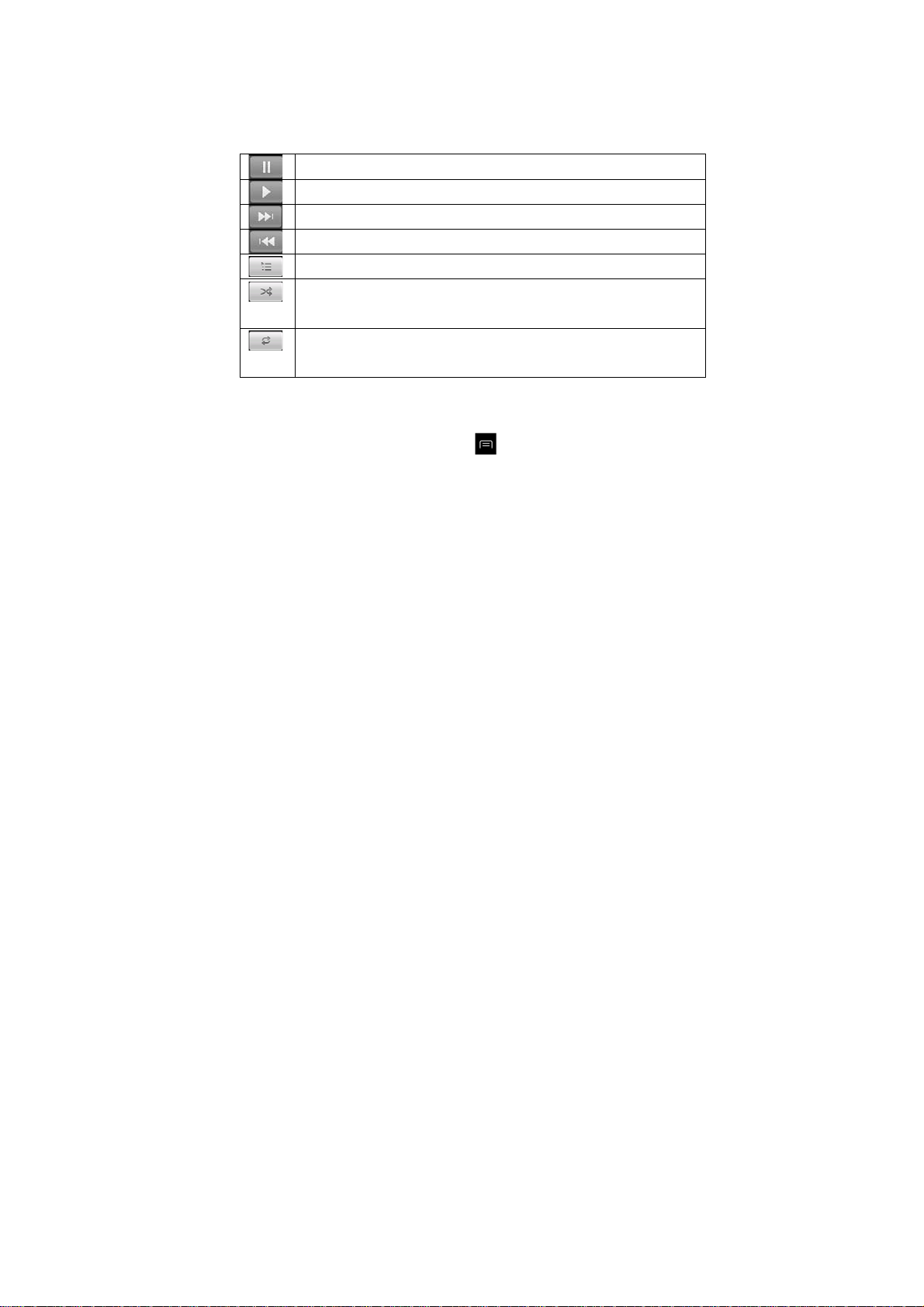
To control playback
The Playback screen contains several icons that you can touch to control the
playback of songs, albums, and playlists:
Touch to pause playback.
Touch to resume playback.
Touch to skip to the next track in the album, playlist, or shuffle.
Touch to skip to the previous track in the album, playlist, or shuffle.
Touch to open the current playlist.
Touch to play the current playlist in shuffle mode (tracks are played in
random order).
Touch to toggle repeat mode: Don’t repeat, Repeat the playlist, or
Repeat the current track.
To use a song as a ringtone
You can use a song as your phone ringtone, in place of one of the ringtones that come
with the phone.
> Touch & hold a song in a library list. In the [
ringtone.
OR
] that opens, touch Use as phone
43
Page 44
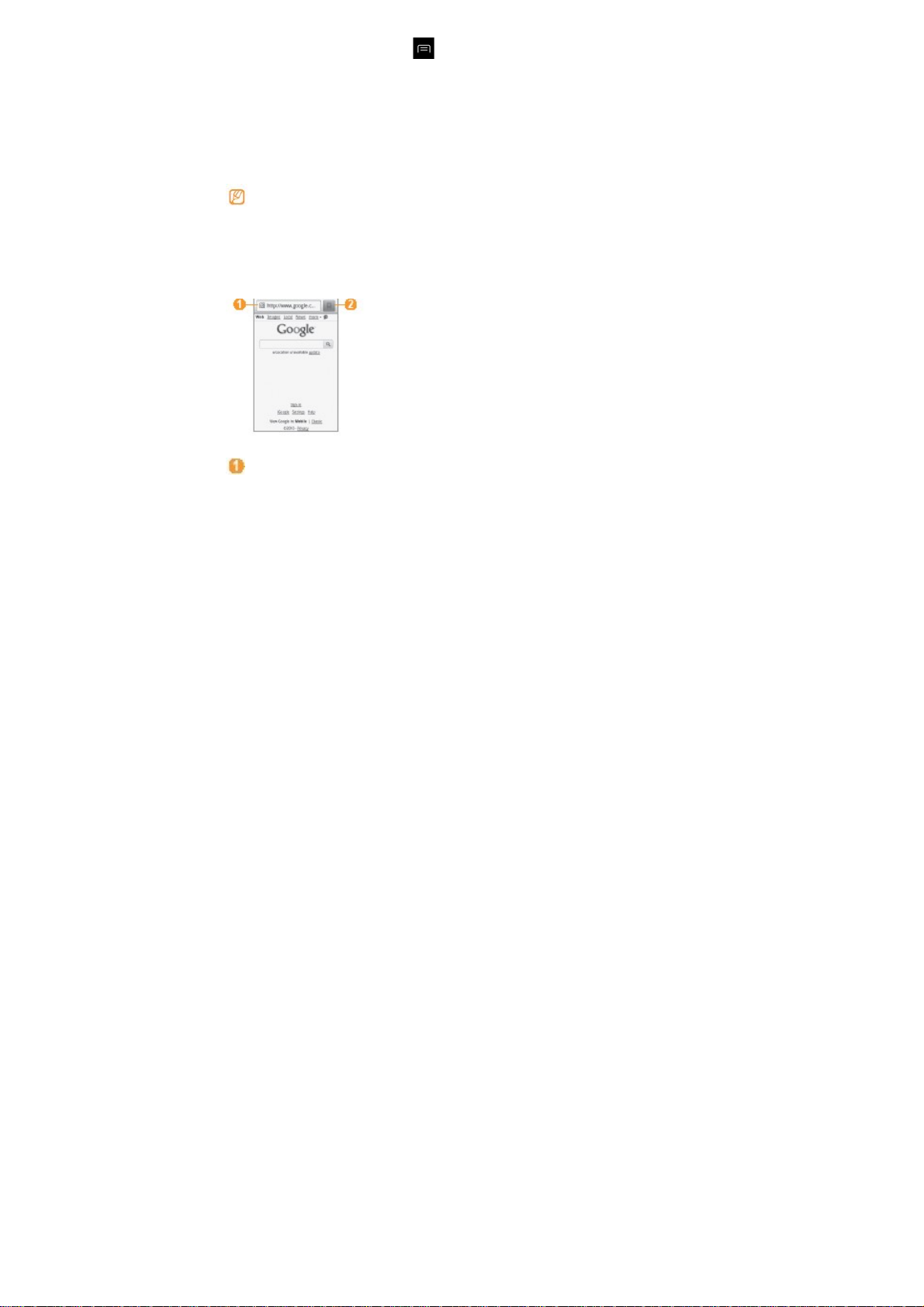
> On the Playback screen, press [ ] and touch Use as ringtone.
For details about using the Settings application to view and set the phone’s ringtone,
see “Sound settings”
Connecting to the Internet
Learn to access the Internet and browse web pages. For more information, see the
"Internet" section of the user manual.
To create your own connection profile for accessing the web, see the user manual.
Browse web pages
1. Home screen, open the application list and select Internet to launch a specified
homepage.
2. Navigate web pages with the following keys:
Number Function
Enter an web address of the web page to access.
44
Page 45

Open a list of saved bookmarks, frequently visited pages and recent
internet history.
Bookmark your favourite web pages
If you know the web address of the web page, you can manually add a bookmark. To
add a bookmark,
1. Home screen, open the application list and select Internet.
2. Select
3. Select Add. To bookmark the web page you were viewing, press [
Bookmark last-viewed page.
4. Enter a page title and a web address (URL).
5. Select OK.
Download files from the web
When you download files or web applications from the web, your device saves them in
a memory card.
Files you download from the web can include viruses that will damage your
device. To lessen your risk, only download files from sources you trust.
Some media files include Digital Rights Management to protect copyrights. This
protection may prevent you from downloading, copying, modifying, or transferring
some files.
To download files from the web,
1. Home screen, open the application list and select Browser.
2. Search for a file or application and download it.
→ Bookmarks.
] →
45
Page 46

To install applications downloaded from websites other than Android Market,
you must select Settings → Applications → Unknown sources.
Connecting to a PC
Learn to connect your device to a PC to use the device as a mass storage device or as
a modem for a PC. For more information, see the "PC connections" section of the user
manual.
> Connect as a mass storage device
1. If you want to transfer files from or to a memory card, insert a memory card into the
device.
2. Press the Home key to return to Home screen.
3. Using an optional PC data cable, connect the multifunction jack on your device to a
PC. When connected, a pop-up window will appear on the PC.
4. Open the folder to view files.
5. Copy files from the PC to the memory card.
To disconnect the device to the PC, click the USB device icon on the Windows
task bar and click the option to safely remove the mass storage device. Then
remove the PC data cable from the PC. Otherwise, you may lose data stored on
the memory card or damage the memory card.
46
Page 47

Using Bluetooth
Learn to connect your device with other devices via the Bluetooth wireless feature to
share files or control the device hands-free. For more information, see the "Bluetooth"
section of the user manual.
›› Turn on the Bluetooth wireless feature
1. Home screen, open the application list and select Settings → Wireless and
network → Bluetooth settings.
2. Select Bluetooth to turn on the Bluetooth wireless feature.
> Find and pair with other Bluetooth enabled device s
1. Home screen, open the application list and select Settings → Wireless and
network → Bluetooth settings → Scan devices.
2. Select a device.
3. Enter a PIN for the Bluetooth wireless feature or the other device’s Bluetooth PIN. If
it has one, and select OK. Alternatively, select Accept to match the PIN between
your device and the device.
When the owner of the other device enters the same PIN or accepts the connection,
pairing is complete. If the pairing is successful, the device will automatically search
for available services.
Some devices, especially headsets or hands-free car kits, may have a fixed
Bluetooth PIN, such as 0000. If the other device has a PIN, you must enter it.
47
Page 48

Using Wi-Fi
Learn to connect the device to a wireless local area network (WLAN) to access the
internet or other network devices. For more information, see the "Wi-Fi" section of
the user manual.
Your device uses non-harmonised frequency and is intended for use in all
European countries. The WLAN can be operated in the EU without restriction
indoors, but cannot be operated outdoors in France.
> Activate the WLAN feature
Home screen, open the application list and select Settings→ Wireless and network
→ Wi-Fi settings → Wi-Fi.
An active WLAN running in the background will consume battery power. To
preserve battery power, activate the WLAN only when needed.
> Find and connect to a WLAN
1. Home screen, open the application list and select Settings → Wireless and
network → Wi-Fi settings. The device will automatically search for available
WLANs.
48
Page 49

2. Select a network under Wi-Fi networks.
3. Enter a password for the network (if necessary)
4. Select Connect.
PCD Service Center
PCD
Address:
Tel:
Fax:
Product Safety & Warranty Brochure
Please read before proceeding
THE BATTERY IS NOT FULLY CHARGED WHEN YOU TAKE IT OUT OF THE BOX.
DO NOT REMOVE THE BATTERY PACK WHEN THE PHONE IS CHARGING.
YOUR WARRANTY IS INVALIDATED IF YOU DISASSEMBLE OR ATTEMPT TO
DISASSEMBLE THE DEVICE.
Privacy restrictions
Some countries require full disclosure of recorded telephone conversations, and
stipulate that you must inform the person with whom you are speaking that the
conversation is being recorded. Always obey the relevant laws and regulations of your
country when using the recording feature of your phone.
49
Page 50

Disclaimers
ANY WEATHER, STOCK, OR OTHER INFORMATION, DATA, OR
DOCUMENTATION (“ACCESSED INFORMATION”) ARE PROVIDED “AS IS” AND
WITHOUT ANY WARRANTY OR ANY TECHNICAL SUPPORT. TO THE MAXIMUM
EXTENT PERMITTED BY APPLICABLE LAW, HTC AND ITS AFFILIATES expressly
disclaim any and all representations and warranties, arising by law or otherwise,
related to the Accessed Information, including without limitation any express or implied
representation or warranty of merchantability, fitness for a particular purpose,
non-infringement, quality, accuracy, completeness, effectiveness, reliability, or
usefulness. Without limiting the foregoing, it is further understood that HTC and its
Affiliates are not responsible for any use of the Accessed Information or the results
arising from such use, and that you use such information at your own risk.
Limitation of damages
TO THE MAXIMUM EXTENT PERMITTED BY APPLICABLE LAW, IN NO EVENT
SHALL HTC OR ITS AFFILIATES BE LIABLE TO YOU, ANY USER, OR THIRD
PARTY FOR ANY INDIRECT, SPECIAL, CONSEQUENTIAL, INCIDENTAL OR
PUNITIVE DAMAGES OF ANY KIND, ARISING IN CONTRACT, TORT, OR
OTHERWISE, INCLUDING, BUT NOT LIMITED TO, INJURY, LOSS OF REVENUE,
LOSS OF GOODWILL, LOSS OF BUSINESS OPPORTUNITY, LOSS OF DATA,
AND/OR LOSS OF PROFITS, REGARDLESS OF THE FORESEEABILITY
50
Page 51

THEREOF OR WHETHER HTC OR ITS AFFILIATES HAVE BEEN ADVISED OF
THE POSSIBILITY OF SUCH DAMAGES. AND IN NO EVENT SHALL THE TOTAL
LIABILITY OF HTC OR ITS AFFILIATES EXCEED THE AMOUNT RECEIVED FROM
YOU, REGARDLESS OF THE LEGAL THEORY UNDER WHICH THE CAUSE OF
ACTION IS BROUGHT. THE FOREGOING DOES NOT AFFECT ANY STATUTORY
RIGHTS WHICH MAY NOT BE DISCLAIMED.
Important health information and safety precautions
When using this product, the safety precautions below must be taken to avoid possible
legal liabilities and damages.
Retain and follow all product safety and operating instructions. Observe all warnings in
the operating instructions on the product.
To reduce the risk of bodily injury, electric shock, fire, and damage to the equipment,
observe the following precautions.
Electrical safety
This product is intended for use when supplied with power from the designated battery
or power supply unit. Other usage may be dangerous and will invalidate any approval
given to this product.
Safety precautions for proper grounding installation
CAUTION: Connecting to improperly grounded equipment can result in an electric
shock to your device.
This product is equipped with a USB Cable for connecting with desktop or notebook
computer. Be sure your computer is properly grounded (earthed) before connecting
this product to the computer. The power supply cord of a desktop or notebook
51
Page 52
computer has an equipment-grounding conductor and a grounding plug. The plug
must be plugged into an appropriate outlet which is properly installed and grounded in
accordance with all local codes and ordinances.
Safety precautions for power supply unit
Use the correct external power source
A product should be operated only from the type of power source indicated on the
electrical ratings label. If you are not sure of the type of power source required,
consult your authorized service provider or local power company. For a product that
operates from battery power or other sources, refer to the operating instructions that
are included with the product.
This product should be operated only with the following designated power supply
unit(s).
AC Adapt er
Model: A26-501000; P/N: CNR209
Handle battery packs carefully
This product contains a Lithium-ion polymer or Lithium-ion battery. There is a risk of
fire and burns if the battery pack is handled improperly. Do not attempt to open or
service the battery pack. Do not disassemble, crush, puncture, short external
contacts or circuits, dispose of in fire or water, or expose a battery pack to
temperatures higher than 140˚F (60˚C) .
WARNING: Danger of explosion if battery is incorrectly replaced.
To reduce risk of fire or burns, do not disassemble, crush, puncture,
short external contacts, expose to temperature above 140˚F (60˚C),
52
Page 53
or dispose of in fire or water. Replace only with specified batteries.
Recycle or dispose of used batteries according to the local
regulations or reference guide supplied with your product.
NOTE: This product should be operated only with the following designated Battery
Pack(s).
Battery
Model: BTR209
Take extra precautions
Keep the battery or device dry and away from water or any liquid as it may
cause a short circuit.
Keep metal objects away so they don’t come in contact with the battery or its
connectors as it may lead to short circuit during operation.
The phone should only be connected to products that bear the USB-IF logo or
have
completed the USB-IF compliance program.
Do not use a battery that appears damaged, deformed, or discolored, or the one
53
Page 54

that
has any rust on its casing, overheats, or emits a foul odor.
Always keep the battery out of the reach of babies and small children, to avoid
swallowing of the battery. Consult the doctor immediately if the battery is
swallowed.
Only use the battery with a charging system that has been qualified with the
system
per this standard, IEEE-Std-1725-2006. Use of an unqualified battery or charger
may present a risk of fire, explosion, leakage or other hazard.
Replace the battery only with another battery that has been qualified with the
system
per this standard, IEEE-Std-1725-2006. Use of an unqualified battery may
present a risk of fire, explosion, leakage or other hazard.
Avoid dropping the phone or battery. If the phone or battery is dropped,
especially on
a hard surface, and the user suspects damage, take it to a service center for
inspection.
If the battery leaks:
Do not allow the leaking fluid to come in contact with skin or clothing.
If already in contact, flush the affected area immediately with clean
water and seek medical advice.
Do not allow the leaking fluid to come in contact with eyes. If already
in contact, DO NOT rub; rinse with clean water immediately and
seek medical advice.
54
Page 55

Take extra precautions to keep a leaking battery away from fire as
there is a
danger of ignition or explosion.
Safety precautions for direct sunlight
Keep this product away from excessive moisture and extreme temperatures. Do not
leave the product or its battery inside a vehicle or in places where the temperature
may exceed 140˚F (60˚C), such as on a car dashboard, window sill, or behind a glass
that is exposed to direct sunlight or strong ultraviolet light for extended periods of time.
This may damage the product, overheat the battery, or pose a risk to the vehicle.
Prevention of hearing loss
CAUTION: Permanent hearing loss may occur if earphones or headphones are
used at high volume for prolonged periods of time.
Safety in aircraft
Due to the possible interference caused by this product to an aircraft’s navigation
system and its communications network, using this device’s phone function on board
an airplane is against the law in most countries. If you want to use this device when on
board an aircraft, remember to turn off your phone by switching to Airplane Mode.
Environment restrictions
Do not use this product in gas stations, fuel depots, chemical plants or where blasting
operations are in progress, or in potentially explosive atmospheres such as fuelling
areas, fuel storehouses, below deck on boats, chemical plants, fuel or chemical
transfer or storage facilities, and areas where the air contains chemicals or particles,
such as grain, dust, or metal powders. Please be aware that sparks in such areas
55
Page 56

could cause an explosion or fire resulting in bodily injury or even death.
Explosive atmospheres
When in any area with a potentially explosive atmosphere or where flammable
materials exist, the product should be turned off and the user should obey all signs
and instructions. Sparks in such areas could cause an explosion or fire resulting in
bodily injury or even death. Users are advised not to use the equipment at refueling
points such as service or gas stations, and are reminded of the need to observe
restrictions on the use of radio equipment in fuel depots, chemical plants, or where
blasting operations are in progress. Areas with a potentially explosive atmosphere are
often, but not always, clearly marked. These include fueling areas, below deck on
boats, fuel or chemical transfer or storage facilities, and areas where the air contains
chemicals or particles, such as grain, dust, or metal powders.
Road safety
Full attention must be given to driving at all times in order to reduce the risk of an
accident. Using a phone while driving (even with a hands free kit) causes distraction
and can lead to an accident. You must comply with local laws and regulations
restricting the use of wireless devices while driving.
Safety precautions for RF exposure
Avoid using your phone near metal structures (for example, the steel frame of a
building).
Avoid using your phone near strong electromagnetic sources, such as
microwave ovens, sound speakers, TV and radio.
Use only original manufacturer-approved accessories, or accessories that do
not contain any metal.
56
Page 57

Use of non-original manufacturer-approved accessories may violate your local
RF exposure guidelines and should be avoided.
Interference with medical equipment functions
This product may cause medical equipment to malfunction. The use of this device is
forbidden in most hospitals and medical clinics.
If you use any other personal medical device, consult the manufacturer of your device
to determine if they are adequately shielded from external RF energy. Your physician
may be able to assist you in obtaining this information.
Turn your phone OFF in health care facilities when any regulations posted in these
areas instruct you to do so. Hospitals or health care facilities may be using equipment
that could be sensitive to external RF energy.
Hearing aids
Some digital wireless phones may interfere with some hearing aids. In the event of
such interference, you may want to consult your service provider, or call the customer
service line to discuss alternatives.
Nonionizing radiation
Your device has an internal antenna. This product should be operated in its
normal-use position to ensure the radiative performance and safety of the interference.
As with other mobile radio transmitting equipment, users are advised that for
satisfactory operation of the equipment and for the safety of personnel, it is
recommended that no part of the human body be allowed to come too close to the
antenna during operation of the equipment.
Use only the supplied integral antenna. Use of unauthorized or modified antennas
57
Page 58

may impair call quality and damage the phone, causing loss of performance and SAR
levels exceeding the recommended limits as well as result in non-compliance with
local regulatory requirements in your country.
Antenna Location
To assure optimal phone performance and ensure human exposure to RF
energy is within the guidelines set forth in the relevant standards, always use
your device only in its normal-use position. Contact with the antenna area
may impair call quality and cause your device to operate at a higher power
level than needed. Avoiding contact with the antenna area when the phone is
IN USE optimizes the antenna performance and the battery life.
Electrical safety
Accessories
Use only approved accessories.
Do not connect with incompatible products or accessories.
Take care not to touch or allow metal objects, such as coins or key rings,
to contact or short-circuit the battery terminals.
Connection to a car
58
Page 59

Seek professional advice when connecting a phone interface to the vehicle
electrical system.
Faulty and damaged products
Do not attempt to disassemble the phone or its accessory.
Only qualified personnel must service or repair the phone or its accessory.
General precautions
You alone are responsible for how you use your phone and any consequences
of its use. You must always switch off your phone wherever the use of a phone
is prohibited. Use of your phone is subject to safety measures designed to
protect users and their environment.
Avoid applying excessive pressure to the device
Do not apply excessive pressure on the screen and the device to prevent
damaging them and remove the device from your pants’ pocket before sitting
down. It is also recommended that you store the device in a protective case and
only use the device stylus or your finger when interacting with the touch screen.
Cracked display screens due to improper handling are not covered by the
warranty.
Device getting warm after prolonged use
When using your device for prolonged periods of time, such as when you’re
talking on the phone, charging the battery or browsing the Web, the device may
become warm. In most cases, this condition is normal and therefore should not
be interpreted as a problem with the device.
Heed service markings
Except as explained elsewhere in the Operating or Service documentation, do
59
Page 60

not service any product yourself. Service needed on components inside the
device should be done by an authorized service technician or provider.
Protect your phone
Always treat your phone and its accessories with care and keep them in a
clean and dust-free place.
Do not expose your phone or its accessories to open flames or lit tobacco
products.
Do not expose your phone or its accessories to liquid, moisture or high
humidity.
Do not drop, throw or try to bend your phone or its accessories.
Do not use harsh chemicals, cleaning solvents, or aerosols to clean the
device or its accessories.
Do not paint your phone or its accessories.
Do not attempt to disassemble your phone or its accessories, only authorised
personnel must do so.
Do not expose your phone or its accessories to extreme temperatures,
minimum -4°F (-20°C) and maximum 122°F (50°C).
Please check local regulations for disposal of electronic products.
Do not carry your phone in your back pocket as it could break when you sit
down.
Damage requiring service
Unplug the product from the electrical outlet and refer servicing to an authorized
service technician or provider under the following conditions:
Liquid has been spilled or an object has fallen into the product.
60
Page 61

The product has been exposed to rain or water.
The product has been dropped or damaged.
There are noticeable signs of overheating.
The product does not operate normally when you follow the operating
instructions.
Avoid hot areas
The product should be placed away from heat sources such as radiators, heat
registers, stoves, or other products (including amplifiers) that produce heat.
Avoid wet areas
Never use the product in a wet location.
Avoid using your device after a dramatic change in temperature
When you move your device between environments with very different
temperature and/or humidity ranges, condensation may form on or within the
device. To avoid damaging the device, allow sufficient time for the moisture to
evaporate before using the device.
NOTICE: When taking the device from low-temperature conditions into a warmer
environment or from high-temperature conditions into a cooler environment,
allow the device to acclimate to room temperature before turning on power.
Avoid pushing objects into product
Never push objects of any kind into cabinet slots or other openings in the
product. Slots and openings are provided for ventilation. These openings must
not be blocked or covered.
Air bags
Do not place a phone in the area over an air bag or in the air bag deployment
61
Page 62

area. Store the phone safely before driving your vehicle.
Mounting accessories
Do not use the product on an unstable table, cart, stand, tripod, or bracket. Any
mounting of the product should follow the manufacturer’s instructions, and
should use a mounting accessory recommended by the manufacturer.
Avoid unstable mounting
Do not place the product with an unstable base.
Use product with approved equipment
This product should be used only with personal computers and options identified
as suitable for use with your equipment.
Adjust the volume
Turn down the volume before using headphones or other audio devices.
Cleaning
Unplug the product from the wall outlet before cleaning. Do not use liquid
cleaners or aerosol cleaners. Use a damp cloth for cleaning, but NEVER use
water to clean the LCD screen.
Small children
Do not leave your phone and its accessories within the reach of small children or
allow them to play with it. They could hurt themselves or others, or could
accidentally damage the phone. Your phone contains small parts with sharp
edges that may cause an injury or which could become detached and create a
choking hazard.
Repetitive motion injuries
To minimize the risk of RSI, when Texting or playing games with your phone:
62
Page 63

Do not grip the phone too tightly
Press the buttons lightly
Make use of the special features in the handset which minimise the
number of buttons which have to be pressed, such as message templates
and predictive text.
Take lots of breaks to stretch and relax.
Operating machinery
Full attention must be given to operating the machinery in order to reduce the
risk of an accident.
Electrostatic discharge (ESD)
Do not touch the SIM card’s metal connectors.
Loud noise
This phone is capable of producing loud noises which may damage your hearing.
Emergency calls
This phone, like any wireless phone, operates using radio signals, which cannot
guarantee connection in all conditions. Therefore, you must never rely solely on
any wireless phone for emergency communications.
Regulatory agency identifications
For regulatory identification purposes, your product is assigned a model number of .
To ensure continued reliable and safe operation of your device, use only the
accessories listed below with your.
The Battery Pack has been assigned a model number of.
Operating temperature range: 32°F to 104°F (0°C to 40°C)
NOTE: This product is intended for use with a certified Class 2Limited Power Source,
63
Page 64

rated 5 Volts DC, maximum 1 Amp power supply unit.
Federal Communication Commission Interference Statement
This equipment has been tested and found to comply with the limits for a Class B
digital device, pursuant to Part 15 of the FCC Rules. These limits are designed to
provide reasonable protection against harmful interference in a residential installation.
This equipment generates, uses and can radiate radio frequency energy and, if not
installed and used in accordance with the instructions, may cause harmful interference
to radio communications. However, there is no guarantee that interference will not
occur in a particular installation. If this equipment does cause harmful interference to
radio or television reception, which can be determined by turning the equipment off
and on, the user is encouraged to try to correct the interference by one of the following
measures:
Reorient or relocate the receiving antenna.
Increase the separation between the equipment and receiver.
Connect the equipment into an outlet on a circuit different from that to which the
receiver is connected.
Consult the dealer or an experienced radio or television technician for help.
FCC Caution: Any changes or modifications not expressly approved by the party
responsible for compliance could void the user’s authority to operate this equipment.
This device complies with Part 15 of the FCC Rules. Operation is subject to the
following two conditions: (1) This device may not cause harmful interference, and (2)
this device must accept any interference received, including interference that may
cause undesired operation.
64
Page 65

NOTE: The manufacturer is not responsible for any radio or TV interference caused
by unauthorized modifications to this equipment. Such modifications could void the
user’s authority to operate the equipment.
NOTE: This equipment has been tested and found to comply with the limits for a Class
B digital device, pursuant to part 15 of the FCC Rules. These limits are designed to
provide reasonable protection against harmful interference in a residential installation.
This equipment generates uses and can radiate radio frequency energy and, if not
installed and used in accordance with the instructions, may cause harmful interference
to radio communications. However, there is no guarantee that interference will not
occur in a particular installation. If this equipment does cause harmful interference to
radio or television reception, which can be determined by turning the equipment off
and on, the user is encouraged to try to correct the interference by one or more of the
following measures:
- Reorient or relocate the receiving antenna.
- Increase the separation between the equipment and receiver.
-Connect the equipment into an outlet on a circuit different from that to which the
receiver is connected.
-Consult the dealer or an experienced radio/TV technician for help
65
Page 66

Important Note
Radiation Exposure Statement:
This equipment complies with FCC radiation exposure limits set forth for an
uncontrolled environment. End users must follow the specific operating instructions for
satisfying RF exposure compliance. To maintain compliance with FCC RF exposure
compliance requirements, please follow operation instruction as documented in this
manual.
This transmitter must not be co-located or operating in conjunction with any other
antenna or transmitter, except the transmitters built-in with the device.
FCC Hearing-Aid Compatibility (HAC) Regulations for Wireless Devices
On July 10, 2003, the U.S. Federal Communications Commission (FCC) Report and
Order in WT Docket 01- 309modified the exception of wireless phones under the
Hearing Aid Compatibility Act of 1988(HAC Act) to require digital wireless phones be
compatible with hearing-aids. The intent of the HAC Act is to ensure reasonable
access to telecommunications services for persons with hearing disabilities. While
some wireless phones are used near some hearing devices (hearing aids and
cochlear implants), users may detect a buzzing, humming, or whining noise. Some
hearing devices are more immune than others to this interference noise, and phones
also vary in the amount of interference they generate. The wireless telephone industry
has developed a rating system for wireless phones, to assist hearing device users find
phones that may be compatible with their hearing devices. Not all phones have been
rated. Phones that are rated have the rating on their box or a label located on the box.
The ratings are not guarantees. Results will vary depending on the user’s hearing
device and hearing loss. If your hearing device happens to be vulnerable to
66
Page 67
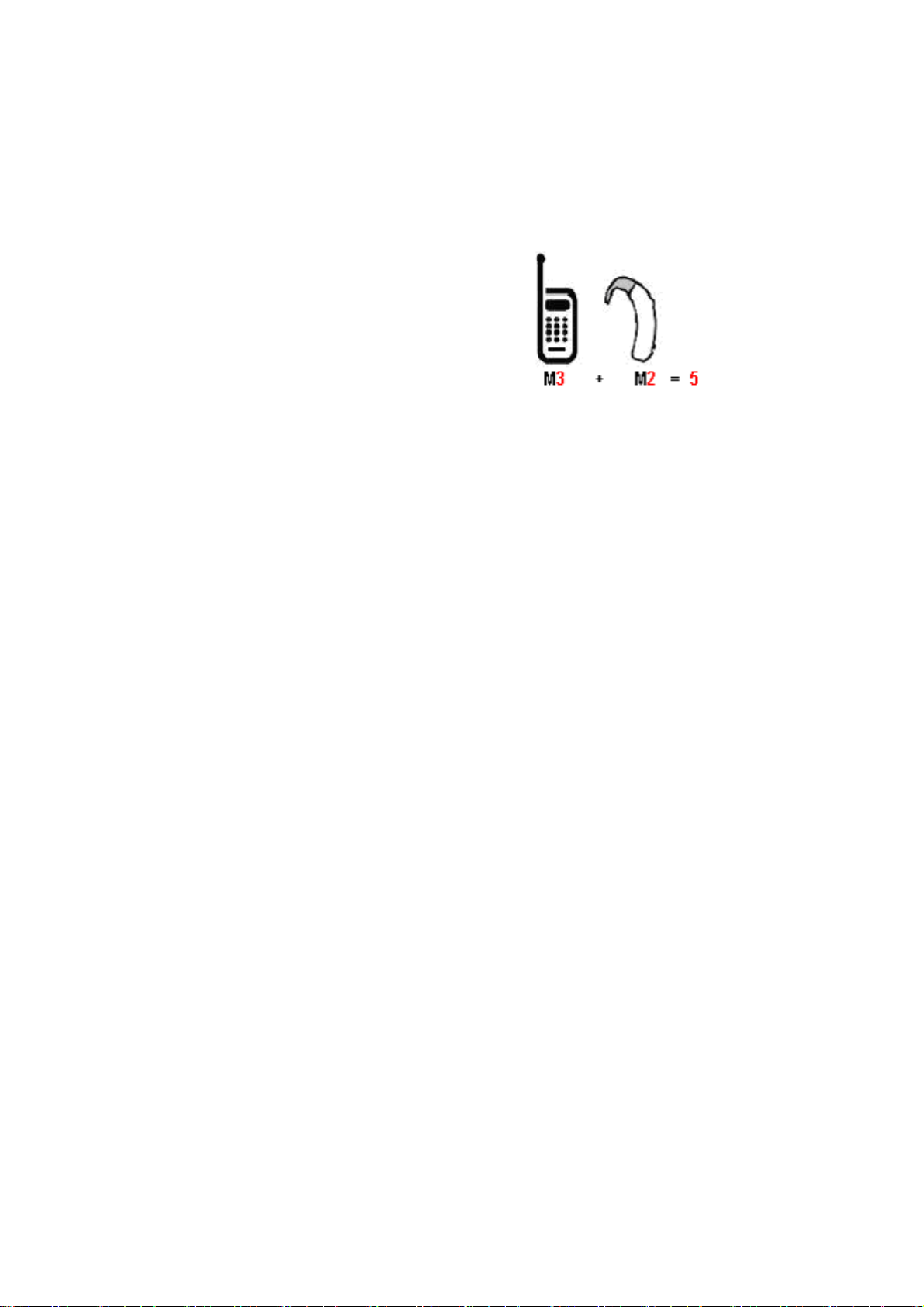
interference, you may not be able to use a rated phone successfully. Trying out the
phone with your hearing device is the best way to evaluate it for your personal needs.
M-Ratings: Phones rated M3 or M4 meet FCC requirements and are likely to generate
less interference to hearing devices than phones that are not rated. M4 is the
better/higher of the two ratings. Your device is rated M3
T-Ratings: Phones rated T3 or T4 meet FCC requirements and are likely to be more
usable with a hearing aid’s telecoil than phones that are not rated. T4 is the
better/higher of the two ratings. Your device is rated T3.
Please power off the Bluetooth function while using hearing aid devices with your
phone.
Hearing devices may also be rated. Your
hearing device manufacturer or hearing health
professional may help you find this rating.
Higher ratings mean that the hearing device is
relatively immune to interference noise.
The hearing aid and wireless phone rating values are then added together. A sum of 5
is considered acceptable for normal use. A sum of 6 is considered for better use. A
sum of 8is considered for best use. In the above example, if a hearing aid meets the
M2 level rating and the wireless phone meets the M3 level rating, the sum of the two
values equal M5. This should provide the hearing aid user with “normal usage” while
67
Page 68

using their hearing aid with the particular wireless phone. “Normal usage” in this
context is defined as a signal quality that is acceptable for normal operation.
This methodology applies equally for T ratings. The M mark is intended to be
synonymous with the U mark. The T mark is intended to be synonymous with the UT
mark. The M and T marks are recommended by the Alliance for Telecommunications
Industries Solutions (ATIS). The U and UT marks are referenced in Section 20.19 of
the FCC Rules. The HAC rating and measurement procedure are described in the
American National Standards Institute (ANSI) C63.19 standard.
For information about hearing aids and digital wireless phones
FCC Hearing Aid Compatibility and Volume Control:
http://www.fcc.gov/cgb/dro/hearing.html
Gallaudet University, RERC:
https://fjallfoss.fcc.gov/oetcf/eas/reports/GenericSearch.cfm
SAR Information
W/kg @ 1g (HEAD)
W/kg @ 1g (BODY)
THIS MODEL DEVICE MEETS THE GOVERNMENT’S REQUIREMENTS FOR
EXPOSURE TO RADIO WAVES. For body worn operation, this phone has been
tested and meets the FCC RF exposure guidelines when used with the HTC
68
Page 69

Corporation. Accessories supplied or designated for this product. Use of other
accessories may not ensure compliance with the FCC RF exposure guidelines.
Your wireless mobile phone is a radio transmitter and receiver. It is designed and
manufactured not to exceed the emission limits for exposure to radio frequency (RF)
energy set by the Federal Communications Commission of the U.S. Government.
These limits are part of comprehensive guidelines and establish permitted levels of RF
energy for the general population. The guidelines are based on the safety standards
previously set by both U.S. and international standards bodies:
American National Standards Institute (ANSI) IEEE. C95.1-1992.
National Council on Radiation Protection and Measurement (NCRP). Report 86.
1986.
International Commission on Non-Ionizing Radiation Protection (ICNIRP) 1996.
Ministry of Health (Canada), Safety Code 6. The standards include a substantial
safety margin designed to assure the safety of all persons, regardless of age
and health.
The exposure standard for wireless mobile phone employs a unit of measurement
known as the Specific Absorption Rate, or SAR. The SAR limit set by the FCC is 1.6
W/kg*. Our device has also been tested against this SAR limit. The highest SAR value
reported under this standard during product certification for use at the ear is 0.935
W/Kg and when properly worn on the body is 0.998 W/Kg
The FCC has granted an Equipment Authorization for this model device with all
reported SAR levels evaluated as in compliance with the FCC RF exposure guidelines.
SAR information on this model device is on file with the FCC and can be found under
theDisplayGrantsectionof https://fjallfoss.fcc.gov/oetcf/eas/reports/GenericSearch.cfm
69
Page 70

after searching on FCC ID: U46-WI921
Additional information on Specific Absorption Rates (SAR) can be found on the
Cellular Telecommunications & Internet Association (CTIA) Web-site as
http://www.phonefacts.net
* In the U.S. and Canada, the SAR limit for mobile phone used by the public is 1.6
Watts/kg (W/kg) averaged over one gram of tissue. The standard incorporates a
substantial margin of safety to give additional protection for the public and to account
for any variations in usage.
Normal condition only to ensure the radiative performance and safety of the
interference. As with other mobile radio transmitting equipment, users are advised that
for satisfactory operation of the equipment and for the safety of personnel, it is
recommended that no part of the human body be allowed to come too close to the
antenna during operation of the equipment.
Body-worn Operation
This device was tested for typical body-worn operations. To comply with RF exposure
requirements, a minimum separation distance of 1.5 cm must be maintained between
the user’s body and the handset, including the antenna. Third-party belt-clips, holsters,
and similar accessories used by this device should not contain any metallic
components. Body-worn accessories that do not meet these requirements may not
comply with RF exposure requirements and should be avoided.
Use only the supplied or an approved antenna. Unauthorized antennas, modifications,
or attachments could impair call quality, damage the phone, or result in violation of
regulations. Do not use the phone with a damaged antenna. If a damaged antenna
comes into contact with the skin, a minor burn may result. Please contact your local
.
70
Page 71

dealer for replacement antenna.
FCC RF Radiation Exposure Statement
This Transmitter has been demonstrated co-location compliance requirements
with Bluetooth and WLAN. This transmitter must not be co-located or operating
in conjunction with any other antenna or transmitter.
This equipment complies with FCC RF radiation exposure limits set forth for an
uncontrolled environment.
Telecommunications & Internet Association (TIA)
safety information
Pacemakers
The Health Industry Manufacturers Association recommends that a minimum
separation of 15 cm (6 inches) be maintained between a handheld wireless phone and
a pacemaker to avoid potential interference with the pacemaker. These
recommendations are consistent with the independent research by and
recommendations of Wireless Technology Research.
Persons with pacemakers:
Should ALWAYS keep the phone more than 15 cm (6 inches) from their
pacemaker when the phone is turned ON.
Should not carry the phone in a breast pocket.
Should use the ear opposite the pacemaker to minimize the potential for
interference. If you have any reason to suspect that interference is taking place,
turn the phone OFF immediately.
Hearing aids
Some digital wireless phones may interfere with some hearing aids. In the event of
71
Page 72

such interference, you may want to consult your service provider, or call the customer
service line to discuss alternatives.
WEEE notice
The Directive on Waste Electrical and Electronic Equipment (WEEE), which entered
into force as European law on 13th February 2003, resulted in a major change in the
treatment of electrical equipment at end-of-life.
The purpose of this Directive is, as a first priority, the prevention of WEEE, and in
addition, to promote the reuse, recycling and other forms of recovery of such wastes
so as to reduce disposal.
The WEEE logo (shown at the left) on the product or on its box
indicates that this product must not be disposed of or dumped with
your other household waste. You are liable to dispose of all your
electronic or electrical waste equipment by relocating over to the
specified collection point for recycling of such hazardous waste.
Isolated collection and proper recovery of your electronic and
electrical waste equipment at the time of disposal will allow us to
help conserving natural resources. Moreover, proper recycling of
the electronic and electrical waste equipment will ensure safety of
human health and environment. For more information about
electronic and electrical waste equipment disposal, recovery, and
collection points, please contact your local city center, household
waste disposal service, shop from where you purchased the
equipment, or manufacturer of the equipment.
72
Page 73

RoHS compliance
This product is in compliance with Directive 2002/95/EC of the European Parliament
and of the Council of 27 January 2003, on the restriction of the use of certain
hazardous substances in electrical and electronic equipment (RoHS) and its
amendments.
73
 Loading...