

Page 1
ANGLOPACK
Quick Setup Guide
Required configuration
- A standard line: non-shared analogue (excluding “Numeris” and switchboard)
- A subscription to the ADSL service AngloPack from Teleconnect
- A standard telephone (optional)
- A computer with the following characteristics:
• PC running Windows 98SE, 2000, Me, XP, Vista, Seven
• Memory: 2 GB recommended
• An Ethernet port (preferred)
• Wi-Fi (optional)
Apple computers running Mac/OS or computers running Linux are not supported.
Replace the dashes with your France Telecom telephone number
ADSL Username _ _ _ _ _ _ _ _ _ _ @budget.btadsl
ADSL Password _ _ _ _ _ _ _ _ _ _
It works though but our technical support is not guarantee in this case
1
Comtrend CT-6382T modem
Page 2
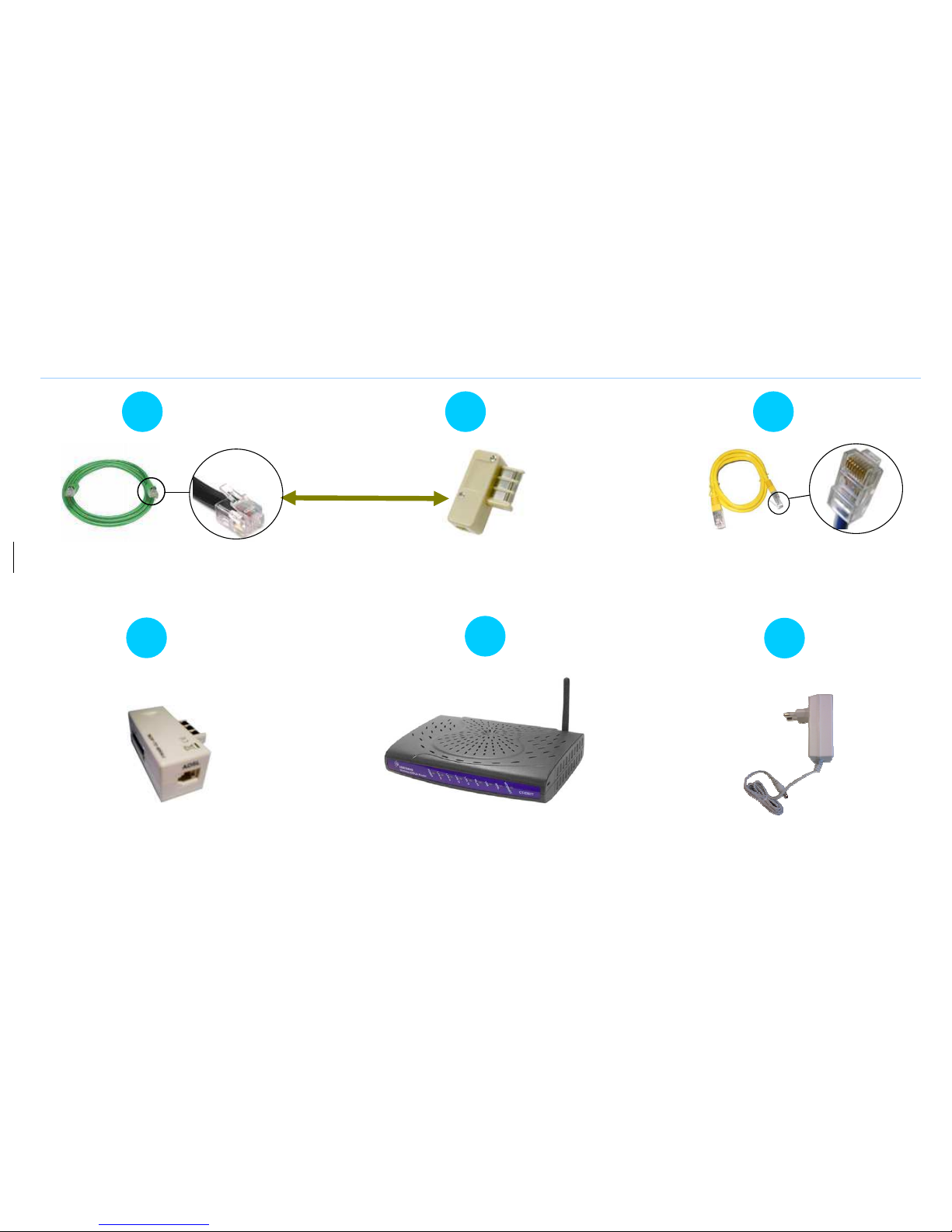
Content of the package
1 x RJ11 telephone cable
RJ11 male/male connectors, green
1 x Male
French
telephone adapter
Male plug / RJ11 female, beige
1 x Ethernet RJ45 cable
RJ45 male/male connector, yellow
1 x External
French
ADSL filter
Male/female plug adapter / RJ11 female
1 x Wi-Fi
Modem Router
Comtrend CT-6382T
Electrical power supply and cable
220V power supply
2
1
4
5
6
3 2
To be connected
Page 3
Installation
1/ Configure your computer network
.
•
The Internet Protocol properties should be set to:
- obtain an IP address automatically
- obtain DNS server address automatically
Please consult your computer system instructions in order to
configure the Internet Protocol properties as needed because
the configuration process & information varies depending on
you computer OS and version. Also: this is for Ethernet
configuration only; USB configuration slightly differs, please
contact technical support for more information.
2/ Connect your equipment & phone
•
As described on the 'Connexion Map' page
•
Due to auto configuration mode, the modem may self-reboot, so please wait until
the DSL and VOIP lights are both green and steady (about 5 mn)
•
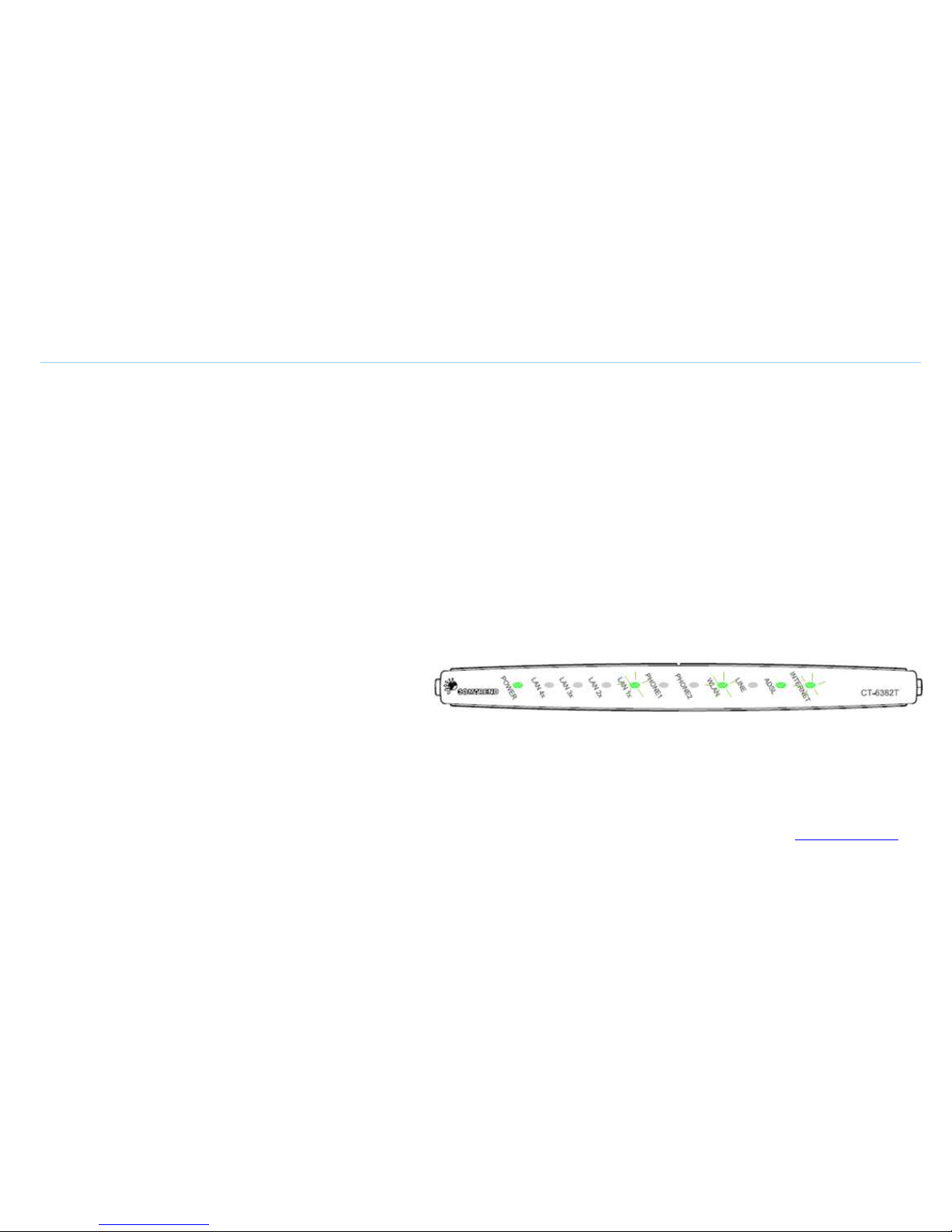
The front panel LEDs as shown below mean "connection OK":
- POWER : on & green
- ADSL : on, green & steady (if blinking = synchronizing, please wait)
- INTERNET : on & green, eventually blinking (if red or off = trouble, contact support)
- LAN : on, green & blinking (if you use Ethernet cable connection)
and/or
- WLAN : on, green & blinking (if you use Wi-Fi connection)
LAN, WLAN and INTERNET LEDs : when these LEDs are blinking that means that data
is transmitted or received over LAN or WLAN between your modem, your computer and
the internet
3/ Login procedure
•
The login information is auto-configured in your modem. You do not have to enter
any id/password, even at first use. Just visit a Web site (e.g., www.google.com) to
check that everything works fine.
•
If not, please contact technical support (see contact n° on page 6) with the ADSL
user name and password (as mentioned on the first page of this doc).
3
Page 4
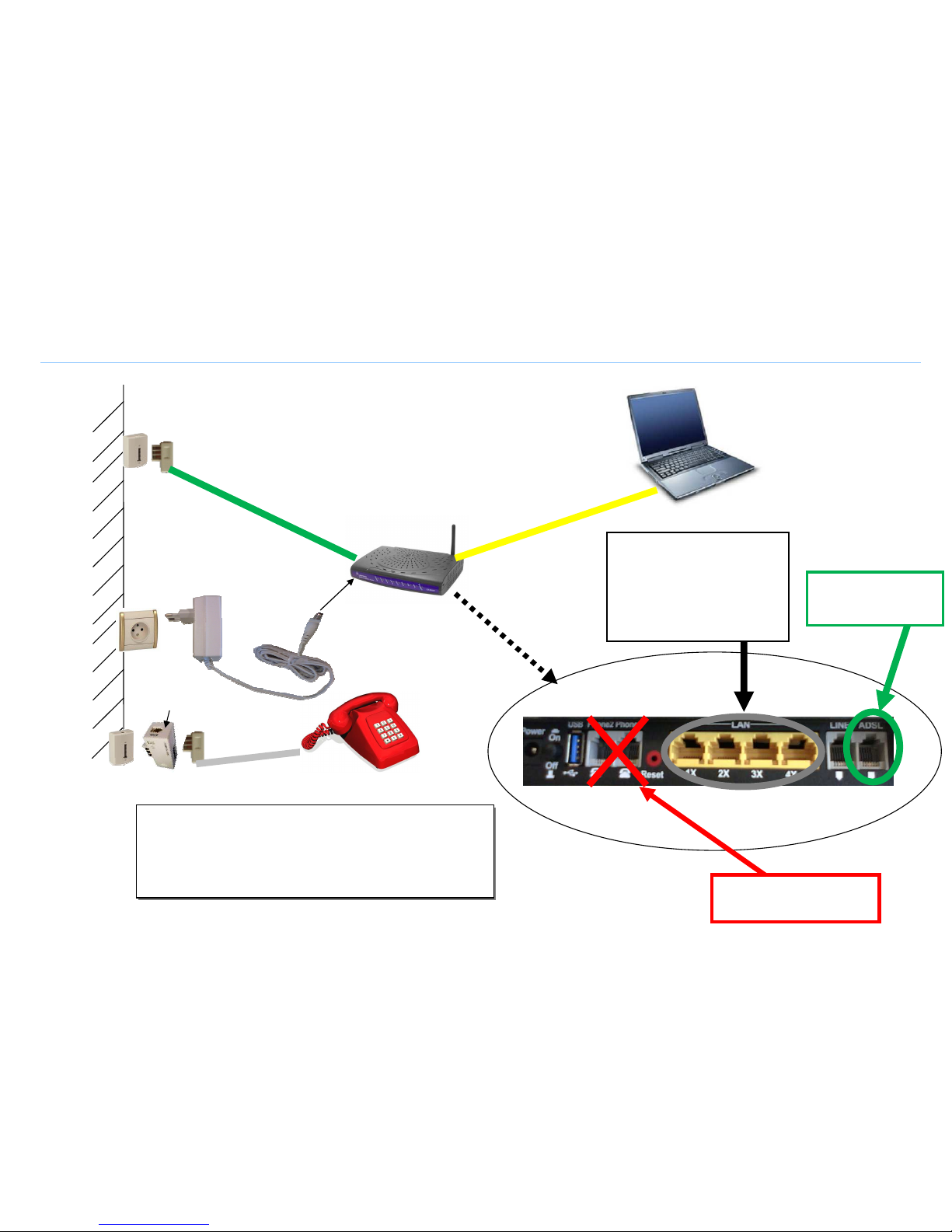
Connection map
4
Yellow RJ45
Male/male cable
(Ethernet)
Cable and
power supply
block
MODEM
Main
telephone
socket
Green RJ11
male/male cable
ADSL
PPOOWWEERR
LAN
Connect your computer on
any of the LAN plugs with the
yellow cable.
Please note that if you use a
Wi-Fi connection you will not
need any cable.
YOUR COMPUTER
Please connect your phone on a second wall socket.
If you do not have any 2nd wall socket, please contact
our technical support and/or customer service for help &
connection validation.
Second
telephone
socket
TELEPHONE
ADSL filter
Do not use those plugs
to connect your phone
Connect
the
green
cable to the ADSL
plug
Page 5
Wi-Fi configuration (optional)
For more convenience the Wi-Fi interface of
your modem is enabled. But you can choose to
enable/disable it as wanted. See below.
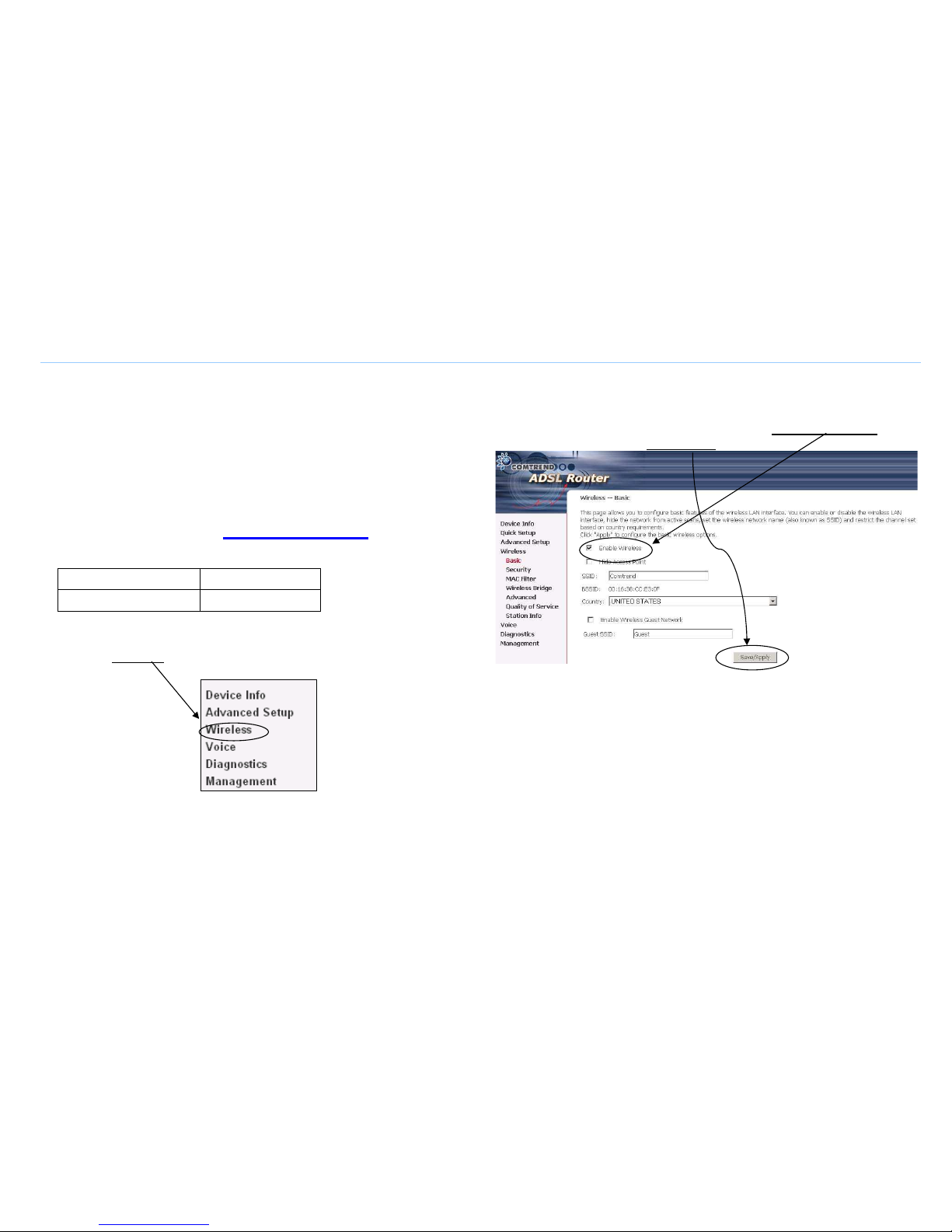
1/ Access the modem configuration interface
•
In order to do so, open Internet Explorer
(or any similar Web browser)
- in the address field type:
http://192.168.1.1
- a login dialog box appears
- please enter the following information
Login Profil User:
root
Password Profil User:
12345
•
Once connected to the modem configuration interface, please
click on "Wireless" in the left-side menu (as described below)
2/ Enable/Disable Wireless
•
The following screen displays. Tick the 'Enable Wireless' check
box as wanted, then Save/Apply.
3/ Follow your computer Wi-Fi instructions
•
You now need to configure your PC Wi-Fi utility. Each Wi-Fi
enabled PC has its own, so please consult your PC instructions
guide or your PC hotline if you are not sure how to do that.
•
Connect to the BUDGETBOX-COMTREND network
•
During this process, you will be asked for a WEP encryption key.
Type in the following keys in capital letters without spaces:
BB123456789
5
Page 6
What to do in the event of a problem?
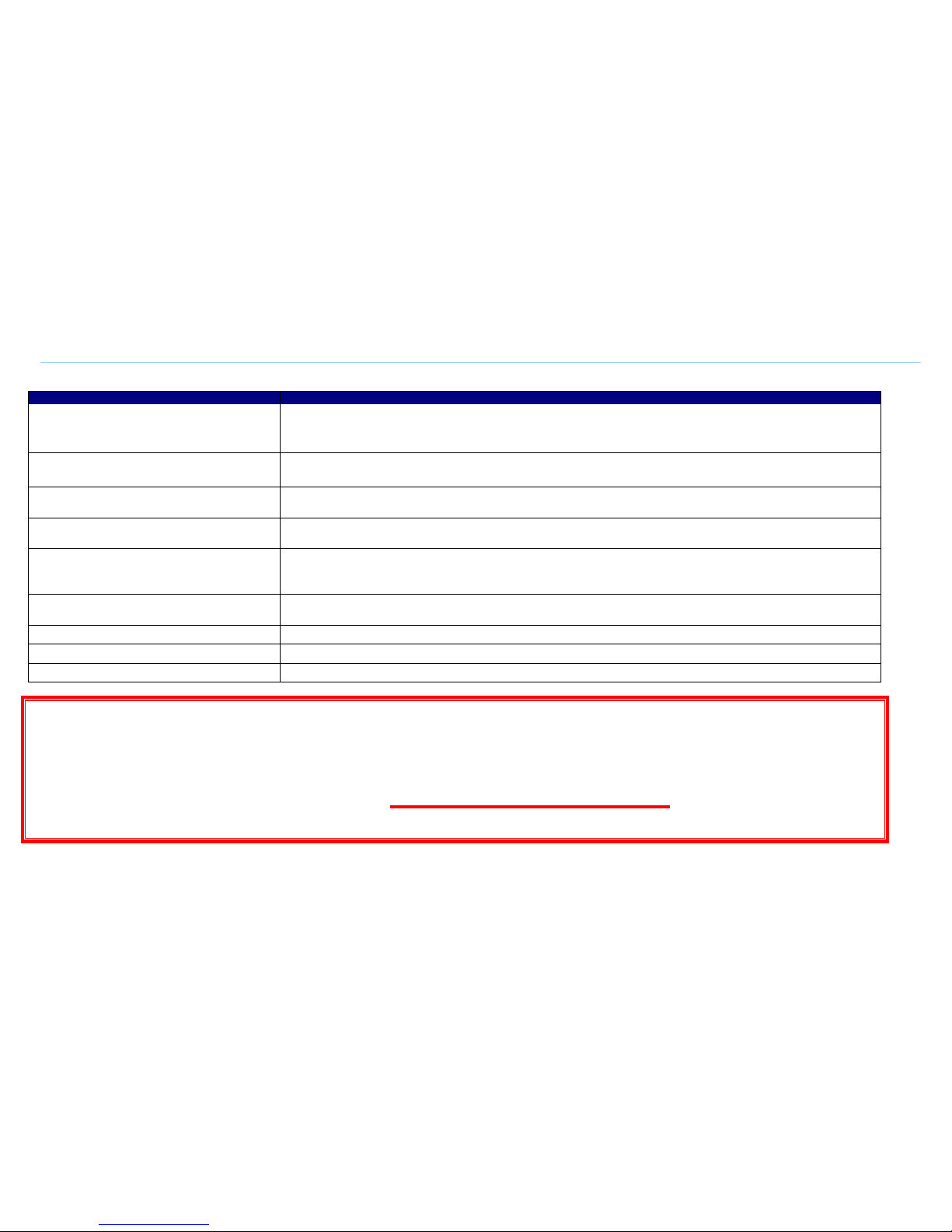
Event Test procedure or possible cause
The POWER LED is not lit
Check that the power supply block is properly plugged in.
Check that the power supply cable is properly connected to your terminal.
Check that the electrical socket is working correctly and that your electrical supply is on (power cut").
I can’t connect to the Internet in Ethernet mode
Check that the black (or yellow) Ethernet cable is properly connected to your computer and Modem.
Also check that your computer is properly configured (network configuration menu).
I can’t configure my Modem in Wi-Fi mode
By default, the Wi-Fi port is enabled. But if it is not, fell free to activate it through the Web interface by clicking on the “Wireless”
menu and then ticking the “Enable Wireless” box (refer to the Wi-Fi configuration page).
I can’t use my Modem in Wi-Fi mode
First check that Wi-Fi is enabled both on your computer and modem. Then check that the WEP encryption key has been properly
entered in your Wi-Fi receiver.
Wi-Fi is properly configured but I still can’t connect in
Wi-Fi mode
Check that the Modem is working properly, that your computer’s Wi-Fi adapter uses WEP 128 encryption and that you have
properly entered the WEP key printed on this document (page 5 section 3).
Then eventually, move your Wi-Fi terminal closer to the Modem.
I can’t connect multiple computers to the Modem
Check that each new computer is correctly connected to the Modem (either in Ethernet, USB or Wi-Fi mode) and that the used
mode is correctly configured on each computer.
I can’t surf the Internet Reboot the modem using the ON/OFF switch on the rear face of the modem
My Internet page “freezes” Reboot the computer.
When I pick up the telephone, I hear a loud buzz You probably have not placed an ADSL filter on your main or secondary telephone wall socket.
FREE Technical Support Hotline
open Monday-Thursday 9:30am-6pm, Friday 9:30am-5pm
by phone: 0805 111 555 (free call)
or by e-mail: [email protected]
For non-technical issues: 0805 02 4000 (free call)
6
 Loading...