

Page 1
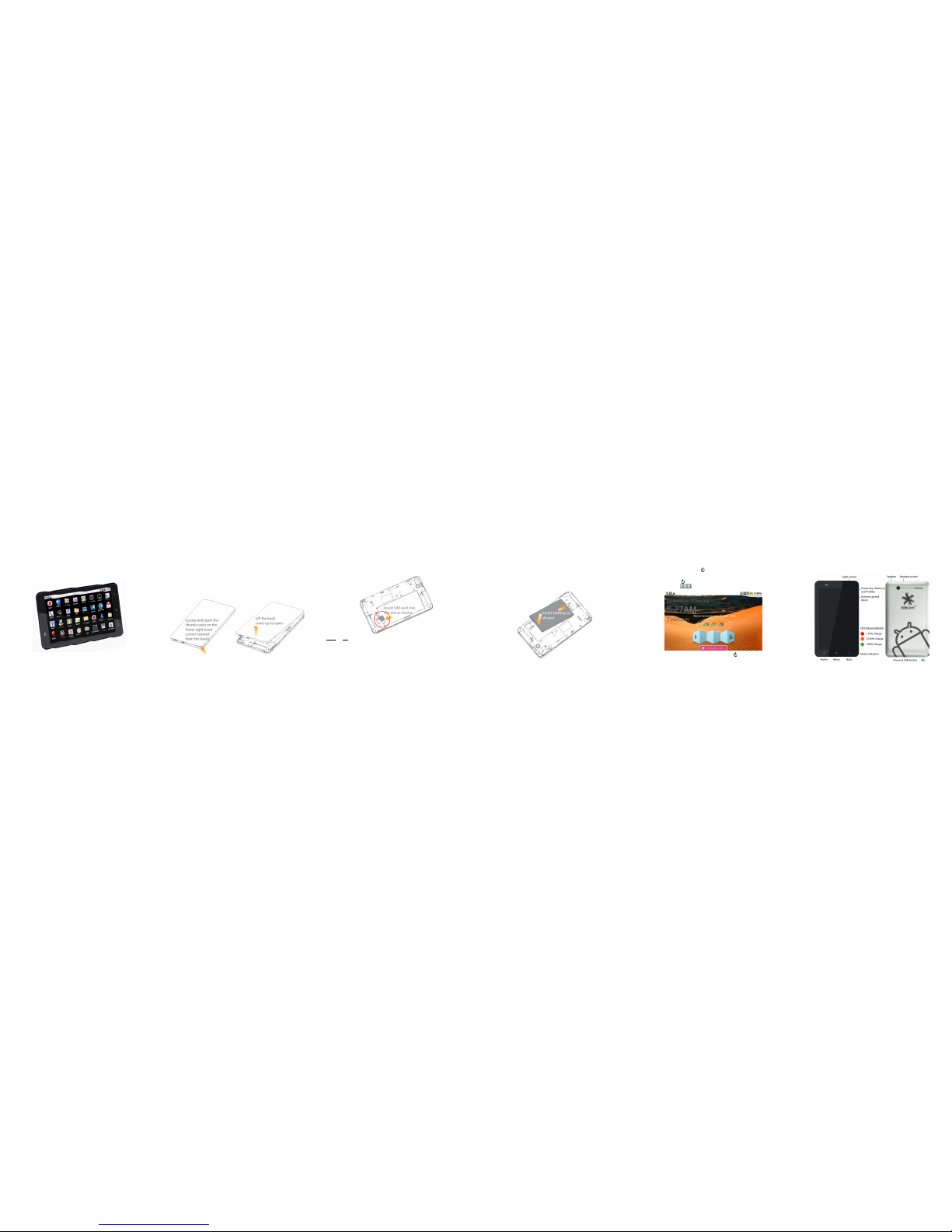
Telecom V9 Tablet
Quick Start Guide
Welcome to the Telecom V9 Quick Start Guide
To get started please follow these simple steps…
1. Insert your SIM card
Remove the battery cover:
y
Insert yo ur SIM card in to the SIM slo t. T here is a diagr am showi ng the cor rect
y
orientation of the card printed above the SIM slot.
NOTE:
Do not insert a micro SIM card into the SIM slot.
2. Insert your battery
Insert the battery with the contacts located against the gold springs.
y
Push the battery down into place.
y
Replace the back cover tting the top edge rst.
y
3. Power On your device
Make sure your SIM card and battery are inserted.
y
Press the yPower Key
to power on your tablet.
Drag the unlock bar
y
right to unlock the screen:
To power o your tablet, press and hold the Power Key
y
, select Power o > OK.
Device Overview
1 2 3 4 5
Page 2
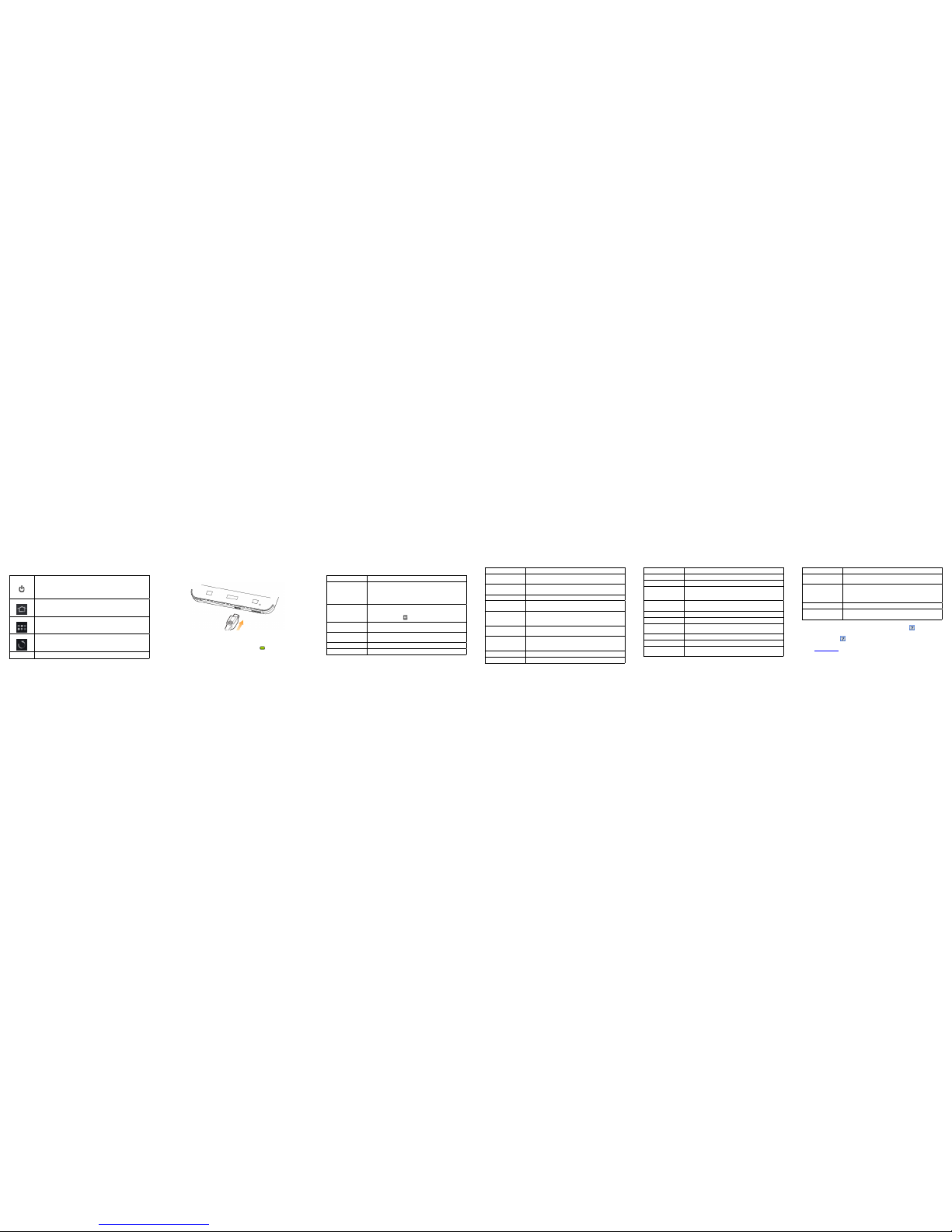
Keys
Power
Press & hold to power on your tablet.
Press to switch to sleep mode.
Press to wake up your tablet.
Hold down for Prole options:
Power o, Silent, Vibrate, or Airplane mode.
Home
Tap to return to the Home Screen from any screen.
Hold to see the recently used applications.
Menu
Tap to get menu options for the current screen.
Hold to open the quick search keypad.
Back
Tap to go to the previous screen.
Volume Use to control the volume Up or Down.
Charge your tablet
The plug and socket are keyed so they only t together one way. Normal charge time from
at is 3-4 hours.
Do NOT use excessive force which may damage the USB port.
y
The tabl et c an al so be char ged b y con nectin g to a c omputer usin g the USB lead
y
supplied.
When charging is completed, the battery full indicator
y
is shown on the status bar
and the status LED is Green.
Disconnect the charger when fully charged.
y
Quick Function Reference
Function Directions
Add icons to the Home
Screen
Remove icons
Tap & hold on the Home Screen for the Add to Home Screen
menu
From Apps, tap & hold the desired App then position on the
Home Screen
Tap & hold icon, drag to the Trash bin to delete
Airplane Mode
Hold the power key for 2 seconds
Select Airplane mode
Check icon on task bar
Alarm
Apps > Alarm > Menu Key > Add alarm.
Congure using the on screen options
APN Settings
Settings > Wireless & networks > Mobile networks > Access
Point Names > Press Menu to Add
Bluetooth Settings > Wireless & networks > Bluetooth
Brightness Settings > Sound & display > Brightness
Function Directions
Call Divert
Settings > Call Settings > GSM/WCDMA call settings >
Additional settings > Call forwarding
Caller ID
Settings > Call Settings > GSM/WCDMA call settings >
Additional settings > Caller ID
Call Logs Apps > Call logs
Camera & Camcorder
Apps > Camera
Apps > Camcorder
Clear Browser Data &
History
Apps > Browser > Menu Key > More > Settings
Select from the available choices or choose Reset to default to
erase all user data.
Clear Privacy Data
Settings > Privacy > Use My Location
Settings > Privacy > Factory data reset
Copy Contacts
(SIM backup)
Contacts > Menu Key > Import/Export
Select from Import from SIM, Export to SIM, Import from SD
card, Export to SD card
Email Setup Email > Follow the wizard
Factory Reset Settings > Privacy > Factory data reset
Function Directions
File Manager Apps > Filer
FM Radio Apps > FM Radio
Keylock, Screen Timeout
1) Power Key
2) Swipe the Lock Bar from Left to Right
3) Settings > Sound & display > Screen timeout
Messages
(SMS & MMS)
Messages
Messages > Menu Key > Settings
Network Selection Settings > Wireless & Network > Mobile network settings
Predictive Text Messages > Dic, Yellow is enabled, white is O
Ringtones
Settings > Sound & display > Phone ringtone
Contacts > Menu Key > Options > Ringtone
Ring Volume Settings > Sound & display > Ringer volume
Screen Calibration Settings > Sound & display > Calibration
Security
Settings > Location & security > Set unlock pattern
Settings > Location & security > Set up SIM card lock
Function Directions
Speed Dial
Settings > Call settings > Speed dial
(Key 1 cannot be set as it is pre-set for Voicemail)
Vibrate Mode
1) Settings > Sound & display > Phone vibrate
2) Messages > Menu Key > Settings > Vibrate
3) Press & hold the Power Key > Vibration Mode
4) Settings > Sound & display > Haptic feedback
Wi-Fi Settings > Wireless & networks > Wi-Fi
Zoom
Browser > Menu > More > Settings > Default zoom
Double Tap the image or use the zoom control in the top RHS.
Access the User Guide directly on your device
There is a copy of the User Guide stored on your device.
Click on y Apps > Help
Follow the on screen instructions to access the User Guide.
y
Visit ywww.zte.co.nz for more information & FAQ’s.
6 7 8 9 10 11
 Loading...