

Page 1
Some handy tips
for your new T-Stick
Telecom MF669
T-Stick Quick Start Guide
Page 2
Page 3
1
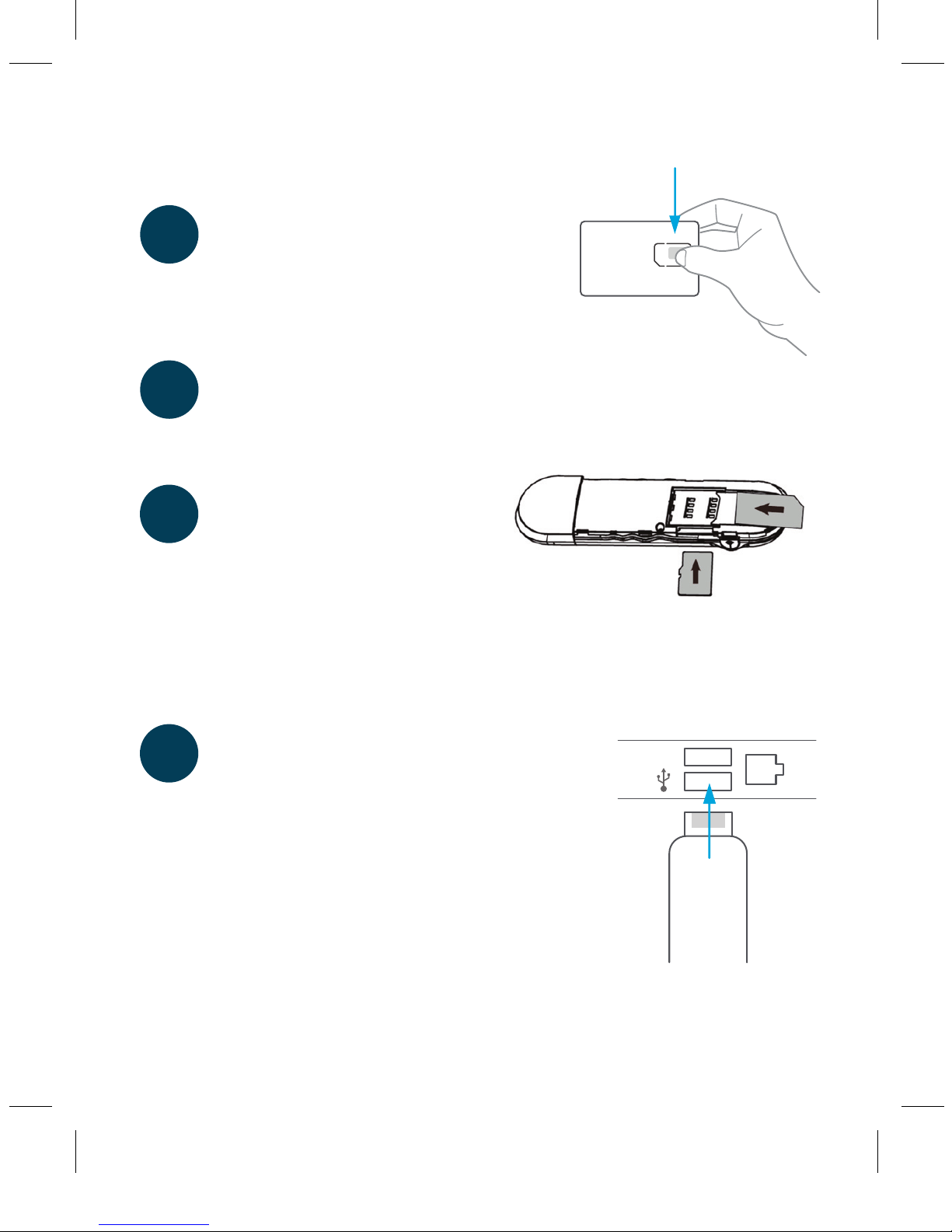
Install your T-Stick
Remove SIM
Remove SIM card from the outer
card and keep the outer in a safe
place for future reference.
Insert SIM
Insert the SIM card into the
T-Stick as shown.
Additional storage
If you wish to use your T-Stick
as a memory storage device
insert an optional microSD™
card as shown. MicroSD™
memory cards up to 32GB
are supported by this device.
Plug in
Remove the cap and plug the T-Stick
into your laptop using the USB port
and follow the instructions on screen.
A light appears on your T-Stick, when
the install process is about to begin.
1
2
3
USB
4
microSD™
SIM
Page 4
2
5
6
Loading
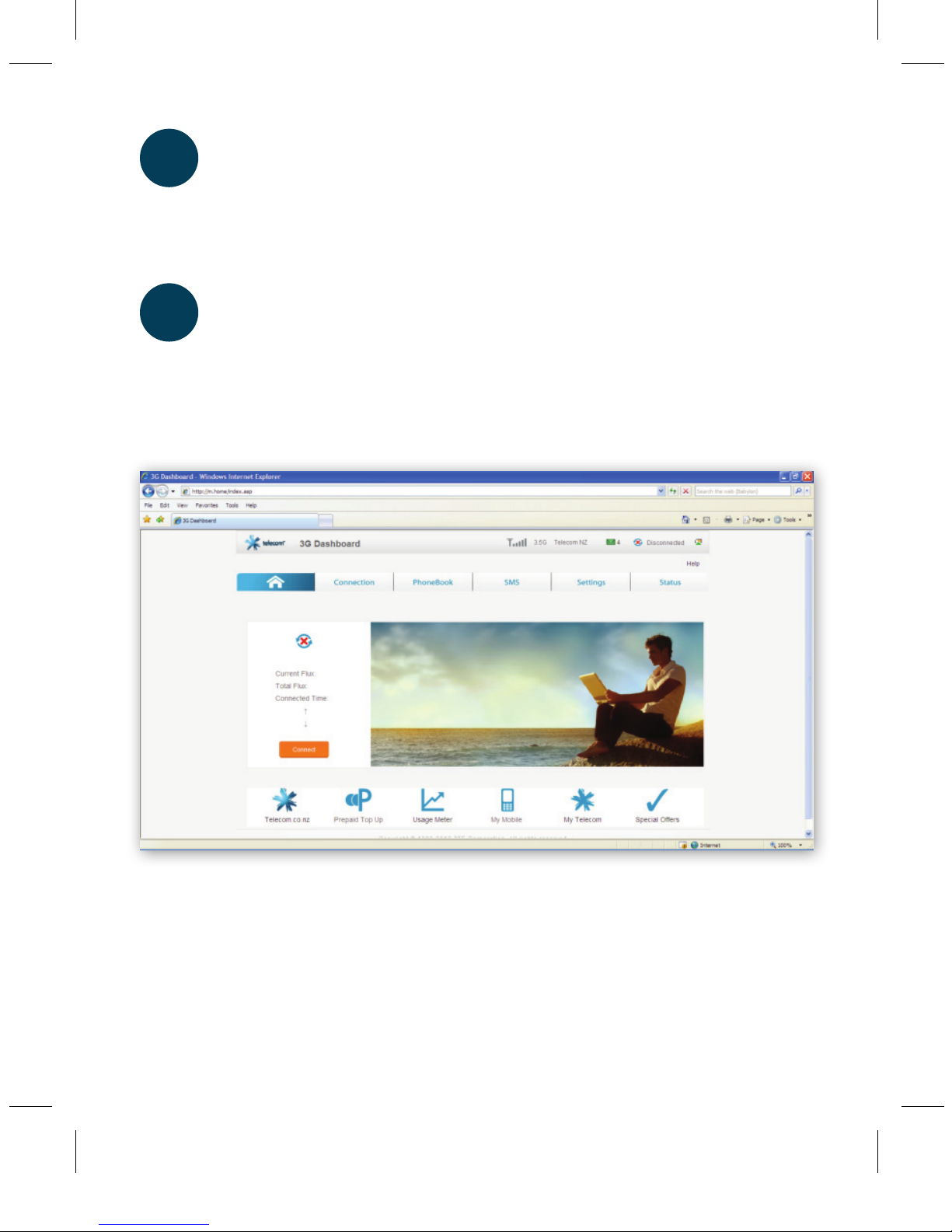
A new icon is created on the desktop. The Telecom 3G Dashboard
will load once your new T-stick is plugged into your computer.
The rst time you do this it should take between 30 and 45 secs.
Starting Up
The screen below will appear in your web browser and your
device will automatically attempt to connect to the Telecom 3G
Network.
Page 5
3
LED Status Indicator
LED indicators Modem Status
Red Oine. Not registered on the network
Green solid Registered on the 2G network
Green blinking Active data transfer on the 2G network
Blue solid Registered on the 3G network
Blue blinking Active data transfer on the 3G network
7
Troubleshooting
Problem Possible Causes Suggested Solution
The user interface
doesn’t start.
PC conguration
is not correct.
(No autorun)
Go to Start > Programs
> Telecom or use the shortcut on
the desktop.
I can connect OK
but can’t browse
any websites
Check your prepaid balance by
texting BAL to 333 via the 3G
Dashboard (TXT to 333 is free)
Top up if required on
0800 32 32 32
Check your rewall, antivirus or
web browser settings and adjust
if required
My connection
keeps dropping
or I can’t get
a network signal
Check you are in a coverage area at
telecom.co.nz/mobile/ournetwork/
coverage
Try using the included USB
extender cable to obtain optimum
reception
For device specic
troubleshooting
tips
Go to www.telecom.co.nz and
search using your T-Stick make
and model as the key words (e.g.
“MF669”)
8
Page 6

4
Add credit
If you’re on postpaid, you don’t need to worry about topping
up. You will pay for your monthly plan, and any overage, on your
Telecom bill.
If you’re on prepaid, you can purchase top up credit online by
clicking the Prepaid TopUp button on the 3G DashBoard.
For additional text and data select My Mobile
and then the Buy Extras tab and select the plan
you require.
You can also phone us on 0800 32 32 32 or buy a voucher from
over 100 retail stores. You can nd the number of your T-Stick
under My Mobile or on the back of your SIM pack.
How much does it cost?
More information about costs are available through the 3G
DashBoard. Prepaid plan costs are available via My Mobile and
Postpaid plans are available via My Telecom.
9
10
Page 7

5
Monitor your usage
To monitor your usage click on Usage Meter on the 3G
Dashboard.
Prepaid Usage Alerts
If you’re on prepaid you will automatically receive usage alerts at
80% and 100% of your data allowance.
Customised usage alerts aren’t currently available for Prepaid
customers, however you can check your prepaid usage online
at www.telecom.co.nz/mbbmeter.
Postpaid Usage Alerts
You will receive an alert by text to let you know you have reached
80%, 100% and 120% of your data allowance. You can register
for customised usage alerts to your mobile phone and/or email
address at telecom.co.nz/mbbalerts
Help
For troubleshooting or assistance, see online at
www.telecom.co.nz/mobilebroadband, check the tips under
Troubleshooting, or phone 0800 400 909, option 3.
11
12
Page 8

 Loading...