

Page 1

Universal
Rechargeable
Battery
MP3300/MP3400 User Guide
Page 2

Page 3

USER GUIDE
Contents
Overview ................................................................................................2
Getting Started........................................................................................2
Unpacking myPower ALL ....................................................................2
Getting to Know myPower ALL ..........................................................3
Charging myPower ALL ......................................................................3
Using myPower ALL ..............................................................................4
Select/Connect the Adapter Plug ........................................................4
Connect the Power Output Cord..........................................................5
Adjust the Voltage Level......................................................................5
Connect the Portable Device ..............................................................8
View myPower ALL Battery Capacity ..................................................8
Recording Device Information ............................................................9
Obtaining Adapters..............................................................................9
Troubleshooting ....................................................................................10
Limited Warranty ..................................................................................11
Customer Support ................................................................................12
Page 4

Overview
You can use myPower™ ALL—the universal rechargeable battery—to power just about any portable
device. Simply connect myPower ALL to your portable DVD player, notebook computer, digital
camera, digital camcorder, portable CD player, PDA, mobile phone, or other portable device to
extend the battery life. As an added bonus, myPower ALL will charge the internal battery on some
devices, while also powering the device.
myPower ALL goes where you go! Slip the handy leather case onto your belt, or just toss myPower
ALL into your briefcase or backpack—it’s that lightweight.
Getting Started
Unpacking myPower ALL
Your myPower ALL package includes the following:
User guide (not shown)
myPower ALL lithium polymer
rechargeable battery
Leather travel case
with belt loop
2
Power adapter
Power output cord
Adapter plug kit with drawstring bag
(8 adapter tips)
Device At-A-Glance
Card
Page 5

Getting to Know myPower ALL
Voltage Indicators/
Capacity Indicators
Voltage Selector
Voltage Lock
DC OUT
For connection to device
DC IN
For connection to power adapter
Charging Indicator
Charging myPower ALL
myPower ALL will charge in four hours when completely empty. The green CHARGE indicator will turn
on after the battery is 80% charged. Therefore, you should view the actual battery capacity before
disconnecting the power adapter to stop charging. (Before using myPower ALL for the first time, you
must charge the device for four hours.)
1. Plug the power adapter into the DC IN jack on the end of myPower ALL.
2. Remove the output cord from the DC OUT jack, if connected.
3. Plug the power adapter into a wall outlet.
battery is charging and is less than 80% charged.
4. When the green CHARGE indicator turns on, set the voltage lock to LOCK, and press the voltage
selector to view the battery capacity. If the capacity does not indicate FULL, continue to charge the
battery until the battery capacity indicates FULL.
5. When the battery capacity indicates FULL, unplug the power adapter.
NOTE: myPower ALL will automatically shut down the power input when fully charged, so you can
charge it overnight.
The red CHARGE indicator will turn on to indicate the
USER GUIDE
3
Page 6
Using myPower ALL
myPower ALL can be used to power and/or charge your portable device. With devices that require
higher voltage levels, like notebook computers and portable DVD players, we recommend that you use
myPower ALL only to power the device. You will find that powering without charging your higher voltage
device will maximize the battery life of myPower ALL, thus letting you use your portable device even
longer.
To use myPower ALL to power and/or charge your device, take these steps which are described in detail
in the following sections.
• Select an adapter plug and connect the plug to the output cord.
• Connect the power output cord to myPower ALL.
• Adjust the voltage level to match that of your device and lock the voltage setting.
• Connect the adapter plug/output cord to your device.
Select/Connect the Adapter Plug
1. Select the adapter plug that fits securely into the power jack on
your portable device.
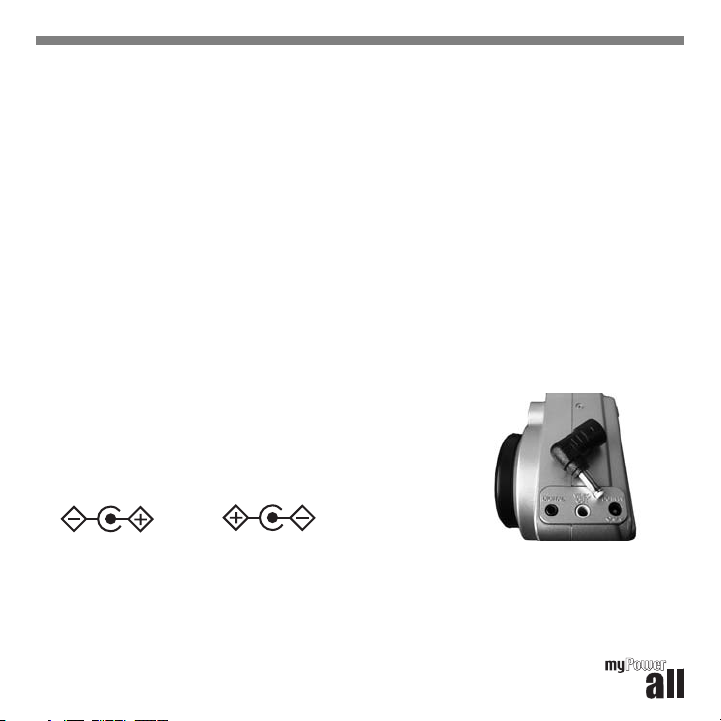
2. Locate the polarity symbol on your device in the area around the
power connector jack:
Center Positive
myPower ALL supports Center Positive polarity only. If your device has a Center Negative polarity, do
not power the device with myPower ALL; contact [email protected] for assistance.
Center Negative
4
Page 7
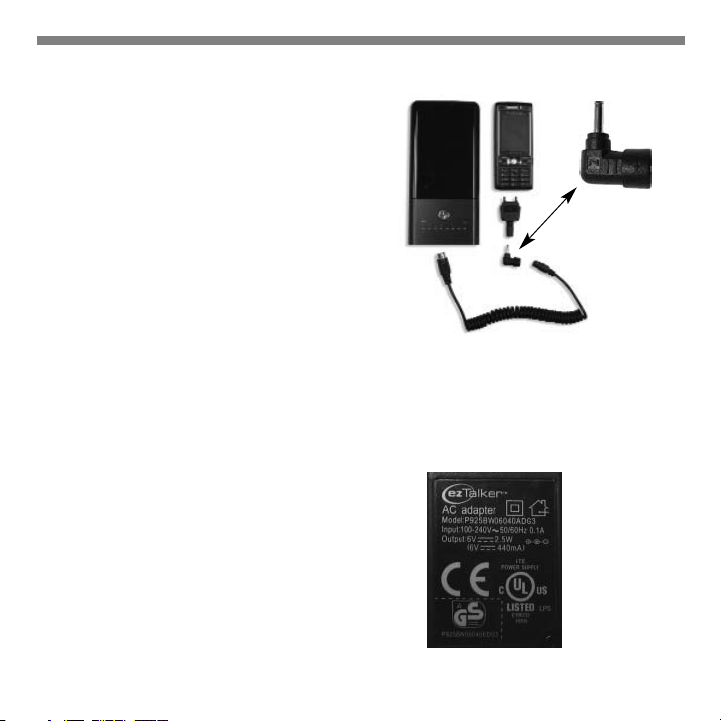
3. Connect the adapter plug to the power output cord (but not the device).
If you are using a UA-xxx adapter (rather than PA-xxx),
you must insert the L34 adapter that came with your
myPower ALL between the adapter cord and UA-xxx
adapter as shown.
If you change the adapter plug while the power adapter
cord is connected to myPower ALL, the voltage setting
will reset to the lowest voltage (3V for MP3300, 5V for
MP3400), which is the default voltage setting.
L34 Adapter for
myPower ALL
Connect the Power Output Cord
1. Plug the large end of the power output cord into the DC OUT jack on the end of myPower ALL.
3V (MP3300) or 5V (MP3400) voltage indicator will turn on to indicate that the voltage is set to the
lowest setting.
(If you have previously selected a voltage, the voltage selection will be returned to the lowest setting.)
Adjust the Voltage Level
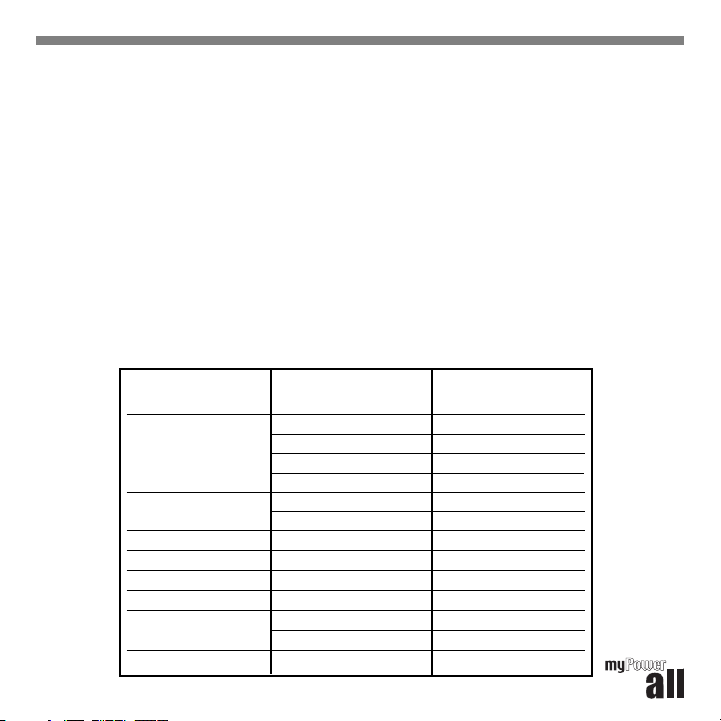
1. Locate the voltage specification for your portable device.
This can be found on the device power adapter label or
device specification label which typically is found on the
bottom of the unit.
(If available, use the voltage specification shown on the power adapter.)
Sample Power Adapter Label
USER GUIDE
The
5
Page 8
2. With the voltage lock in the unlocked position (switched right to VOLTAGE), set the voltage output
to the voltage selection that is equal to or one increment higher than the voltage identified for
your device. To do this, press the voltage selector until the voltage indicator turns on under the
appropriate voltage selection (3, 4.5, 5, 6, 7.5, 9, 12, 14 for MP3300 and 5, 6, 7.5, 9, 12, 14, 16, 19
for MP3400). For example, if your device requires 6V, set the voltage to 6. If your device requires
7.2V, set the voltage to 7.5.
It is important to set the voltage selector NO MORE than one step higher than the voltage requirement
for the portable device as an incorrect setting may prevent myPower ALL from working with your
device, or may harm your device in the rare instance that the device accepts the higher voltage.
However, for all devices, adjusting the voltage ONLY one step higher than required will not harm the
device.
The following table provides recommended voltage settings by device type.
myPower ALL VOLTAGE SELECTION
Device Type Voltage on Device Suggested Voltage on
Notebook Computers
Portable DVD Players
Digital Cameras 5 - 6V 5 - 6V
CD Players 4.5 - 5V 5V
PDAs 5V 5V
Mobile Phones 3.7 - 5V 5V
Camcorders
MP3/MP4 5V 5V
Power Adapter myPower ALL
14V 12V
16V 14V
19V 14 - 16V
24V 19V
9V 7.5 - 9V
12V 9 - 12V
9V 7.5 - 9V
12V 9 - 12V
6
Page 9

3. Slide the voltage lock to the locked position (switched left to LOCK). This will prevent you from
accidentally selecting a different voltage while your device is connected.
4. To change the voltage, slide the voltage lock to the unlocked position (VOLTAGE), and select a new
voltage. Be sure to relock the voltage.
TIP: You can optimize the use of myPower ALL with your notebook computer or portable DVD player by
setting the voltage on myPower ALL to less than the required voltage shown on the notebook computer
power supply. This prevents myPower ALL from charging the device, thus extending the amount of time
you can use myPower ALL to power your notebook computer.
Most notebook computers have a battery voltage of 11.1V or 14.8V, allowing them to be powered with
12V or 14V. Therefore, it is recommended that you set the voltage to 12V first, and then test to see if it
will power your notebook. If not, increase the voltage to 14V, and retest. For MP3400 repeat this process
until you reach the voltage that will power your notebook.
Even though myPower ALL MP3300 provides only up to 14V, it may be used to power notebooks.
To determine if MP3300 can power your notebook, verify that the total output power provided by the
device power adapter is not more than 64W. To do this, multiply the voltage by the amps shown on the
power adapter (Watt=Voltage x Amps). If the output power is greater than 64W, myPower ALL will not
power or charge the device. If it is less than 64W, set the voltage on MP3300 to 12V and test to see if it
will power your notebook at this setting. If not, increase the voltage to 14V and retest.
Most portable DVD players require 9 or 12 volts. Set the voltage to 7.5V and test to see if myPower ALL
will power your device at this setting. If not, increase the voltage by one level and retest.
USER GUIDE
7
Page 10

Connect the Portable Device
1. Connect the adapter plug into the power jack on the portable device.
2. Turn on the portable device and use it as you would normally.
power and charge your device. (As mentioned earlier, myPower ALL will not charge a device if the
voltage setting is lower than that required.)
or
Leave the portable device turned off and myPower ALL will charge the device battery.
3. When finished, unplug the power output cord from myPower ALL and your device.
NOTE: If your portable device displays a low voltage/low capacity or double-beep warning while
myPower ALL is connected, adjust the voltage setting to one level higher
TIP: For most portable devices, myPower ALL can be used to power the device even when the device
battery is not installed.
While connected, myPower ALL will
.
View myPower ALL Battery Capacity
The capacity in myPower ALL will decrease as the battery powers and/or charges your devices.
The remaining voltage is shown on the voltage indicator, which is accessed as described on page 9.
As the voltage decreases, the lights will turn off in sequence from right to left. When the myPower ALL
battery capacity is low, only the red EMPTY light will be on. You should recharge myPower ALL at this
time. When myPower ALL is completely out of battery, all lights will be off. At this point, you must
charge myPower ALL.
1. With the voltage lock in the locked position (LOCK) and the adapter plug/power output cord, or the
power adapter connected, press and hold the voltage selector.
the battery capacity indicators will turn off, and one indicator will turn on to indicate the voltage
selection
.
When you release the voltage selector,
8
Page 11
CAPACITY INDICATOR
Red Indicator 1-5%
1st Green Indicator 5-15%
2nd Green Indicator 15-25%
3rd Green Indicator 25-40%
4th Green Indicator 40-55%
5th Green Indicator 55-70%
6th Green Indicator 70-85%
7th Green Indicator 85-100%
(Recharge before using)
Recording Device Information
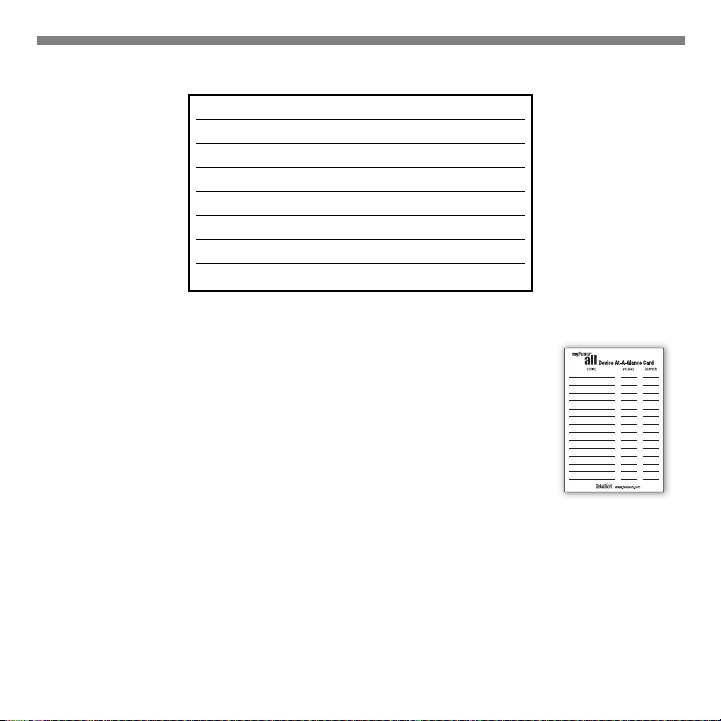
The Device At-A-Glance Card included with myPower ALL enables you to record
the information you need to use myPower ALL with each of your portable devices.
Simply record the device name, required voltage, and reference letter for the
compatible adapter. Store the card in the pocket provided inside the leather case.
Obtaining Adapters
Eight adapter plugs that fit most DC adapter jacks on a variety of portable devices are included with
myPower ALL. If none of these plugs fits snugly into your portable device power jack, please go to our
web site at www.tekkeon.com/mpadapters to determine which adapter plug you need for your device.
You can obtain most adapters through the web site, or by contacting Tekkeon by phone at 888-787-5888
or 1-714-832-1266. If available through Tekkeon, the adapter will be sent to you for a nominal fee.
USER GUIDE
9
Page 12

Troubleshooting
If myPower ALL does not power the portable device or charge the device battery, take these steps:
1. Verify that the current consumption of the portable device is not more than 3.5 Amp. (3.5 Amp
for both MP3300 and MP3400). If the device consumes more than the maximum provided by
myPower ALL, the device will shut down when turned on and cannot be powered and/or charged
by myPower ALL.
2. Verify that the device does not require more than 14V (MP3300) or 19V (MP3400). If the device
requires more, MP3300/MP3400 will not be able to charge the device. However, in most but not all
cases, MP3300/MP3400 will be able to power the device.
3. View the remaining battery capacity. If it is below 25%, recharge myPower ALL.
4. Check that the output cord is connected to both myPower ALL and the portable device, and that the
adapter plug fits snugly into the power jack on your portable device. If not, try another adapter.
5. Verify that the polarity of the device power jack is Center Positive.
If the polarity is Center Negative, please contact [email protected]
for assistance.
6. Check that the output voltage for your portable device matches or
is just below the output voltage set on myPower ALL. If the output voltage
is not correct, unlock the voltage lock (if in the locked position), and change
the voltage as required. (Please ensure the cable is unplugged from the portable device while
changing the voltage.)
7. Verify that a battery is installed in the portable device as some devices will
not function without a battery installed.
8. Verify if your device is designed with charging circuitry that limits the input voltage. If so, myPower
ALL may not be able to power or charge the device. (For example, if a device is designed to accept
only a 10.2V input, then myPower ALL may not be able to power or charge the device.)
Center Positive
Symbol
Center Negative
Symbol
10
Page 13

Limited Warranty
The product enclosed herein is warranted to be free of operational defects for a period of one year from
the date of purchase. In the event of a defect in operation during the warranty period Tekkeon, Inc. will
replace the defective product when the owner returns all product contents. The limited warranty will be
considered void if the unit is tampered with, subject to misuse, negligence or accidental damage, has
been improperly serviced, or if the security seal is removed. This warranty is limited to replacement only
and shall not cover any other damages. Any product returned to Tekkeon, Inc. with no fault found will be
returned to the owner at the owner’s expense.
To obtain warranty coverage, please complete and submit the enclosed registration card.
Disclaimer of Warranties
Any user of this product does so at the user’s own risk. To the maximum extent permitted by applicable
law, Tekkeon, Inc. and its suppliers provide the hardware and any support services related thereto "as is"
and with all faults; and hereby disclaim all warranties and conditions, whether express, implied or
statutory, including, but not limited to implied warranties of merchantability, fitness for a particular
purpose, non-infringement, lack of negligence or correspondence to description, except for those
warranties specifically and expressly provided in the Limited Warranty.
With respect to the use of this product, in no event shall the company be liable for any loss of profit or
any other commercial damage, including but not limited to special, incidental, consequential and other
damages.
USER GUIDE
11
Page 14

Customer Support
Customer support for myPower ALL is available at:
Tekkeon, Inc.
c/o myPower ALL
3002 Dow Avenue, #134
Tustin, CA 92780
888-787-5888 / 714-832-1266
www.tekkeon.com
Tekkeon, Inc. must issue a Return Merchandise Authorization (RMA) number for all exchanges or
refunds.
www.tekkeon.com
12
Page 15

Page 16

www.tekkeon.com
© 2007 Tekkeon, Inc.
Rev B
All Rights Reserved
™ is a trademark
myPower
of Tekkeon, Inc.
Cut loose. Stay loose.
 Loading...