

Page 1
TECTUS Transponder Technology GmbH, Eurotec-Ring 39, 47445 Moers 7 Germany
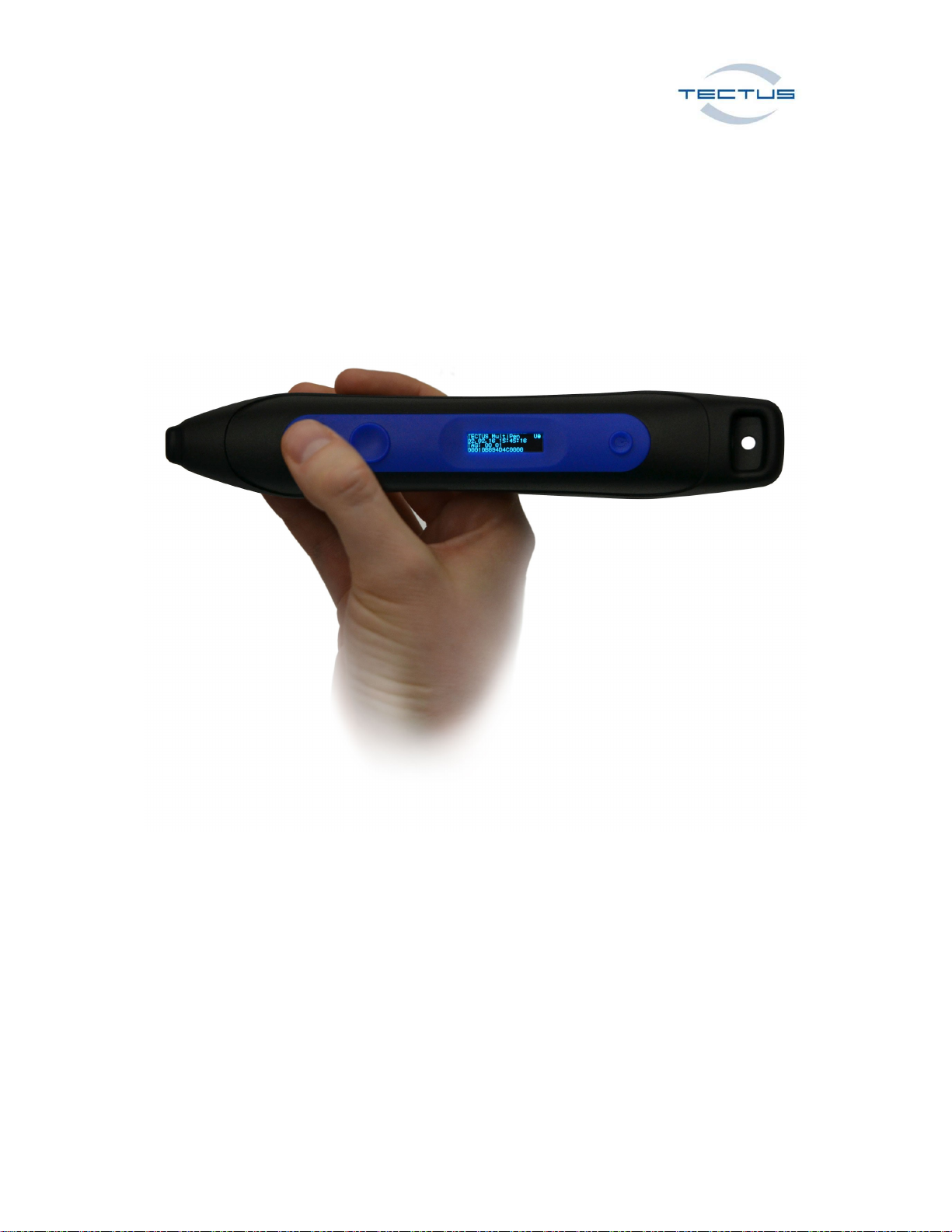
RFID MultiPen for LF, HF and UHF passive
Transponder in one device
User Manual
™™
MultiPen User Manual V.1.2 ©TECTUS Page 1 / 10
Page 2

TECTUS Transponder Technology GmbH, Eurotec-Ring 39, 47445 Moers 7 Germany
RFID MultiPen for all passive frequencies (LF, HF and UHF) in one device
The new RFID handheld device MultiPen enables you the reading of UIDs of passive RFID
transponders of Frequency ranges UHF (868…915MHz) , HF / NFC (13,56 MHz) and LF
(125/134 kHz FDX-B/HDX).
So you can identify RFID TAGs very easy with only one device for all passive frequencies.
The writing of data’s into the memory of the transponder is also possible in SPP or CDC
mode.
The UIDs can be displayed in addition to the device-display also be shown on a screen of a
connected BLUETOOTH™ device like a smartphone, tablet or laptop.
The MultiPen is a battery powered device, which can be recharged using the micro USB
interface. Battery cycles may vary from some hours to several days depending on the device
configuration. When the device is connected via it’s USB interface, the device is powered by
USB power.
MultiPen User Manual V.1.2 ©TECTUS Page 2 / 10
Page 3

TECTUS Transponder Technology GmbH, Eurotec-Ring 39, 47445 Moers 7 Germany
FCC compliance statement
These devices comply with part 15 of the FCC Rules. Operation is subject to the following two
conditions:
1. These devices may not cause harmful interferences;
2. These devices must accept any interference received, including interference that may cause
undesired operation.
The following figures list the Grant by FCC ID Number for each of the following devices:
FCC ID: 2APYK-MULTIPEN3
Please refer to the FCC’s website (http://www.fcc.gov) to view the grant and related
documentation.
CAUTION !
Exposure to Radio Frequency Radiation. The radiated output of this device is far below the FCC
radio frequency exposure limits. Nevertheless, the device shall be used in such a manner that the
potential for human contact during normal operation is minimized. These devices may not be colocated with any other transmitter or transmitter antenna.
NOTE:
This equipment has been tested and found to comply with the limits for a Class A digital device,
pursuant to part 15 of the FCC Rules. These limits are designed to provide reasonable protection
against harmful interferences when the equipment is operated in a commercial environment. This
equipment generates, uses, and can radiate radio frequency energy and, if not installed and used
in accordance with the operation manual, may cause harmful interference to radio
communications. Operation of this equipment in a residential area is likely to cause harmful
interference in which case the user will be required to correct the interference at his own
expense.
Changes or modification not expressly approved by TECTUS could void the user’s authority to
operate the equipment described in the manual.
This device contains Bluetooth™ module FCC ID: T9JRN41-3
MultiPen User Manual V.1.2 ©TECTUS Page 3 / 10
Page 4
TECTUS Transponder Technology GmbH, Eurotec-Ring 39, 47445 Moers 7 Germany
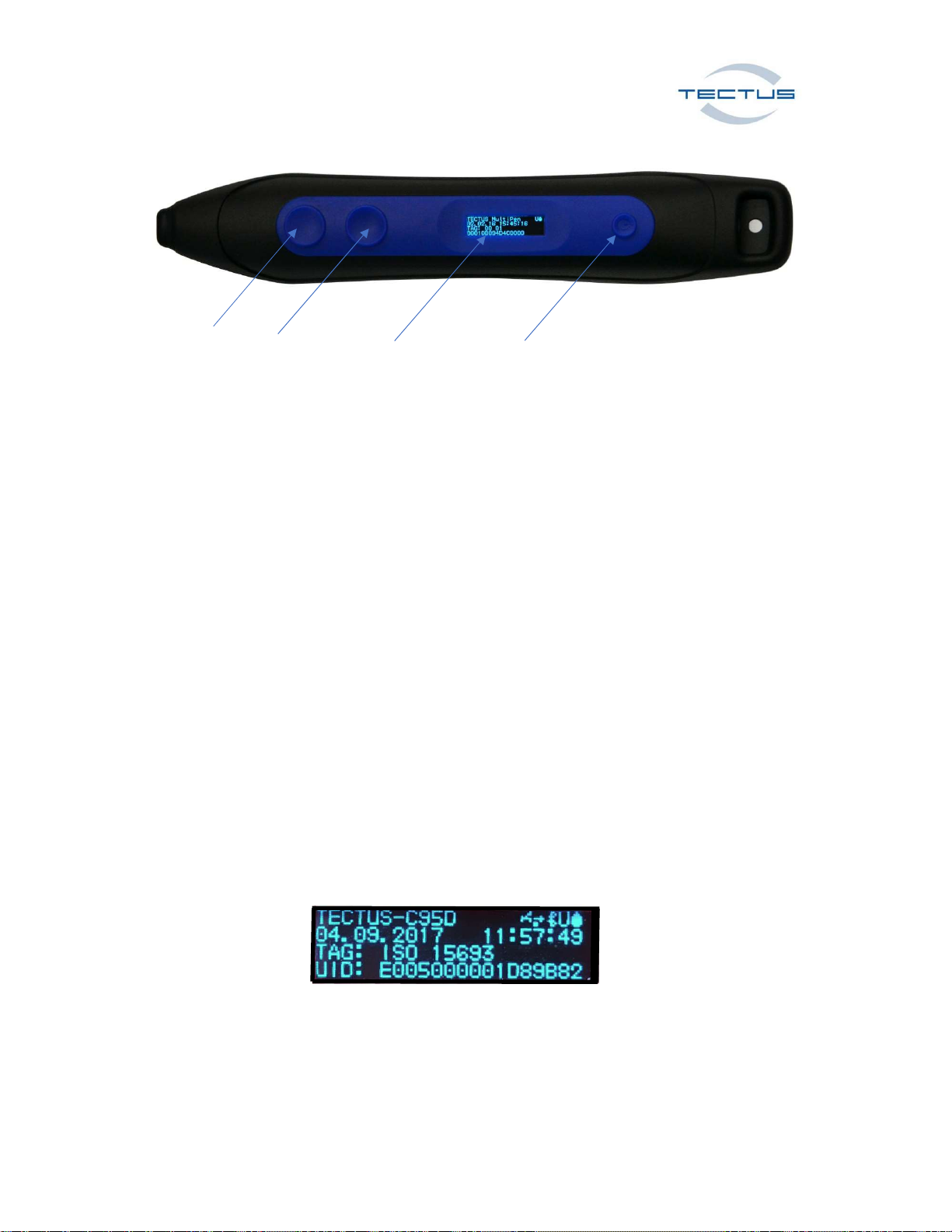
Button 1 Button 2 OLED Display Button 3
Button 1 Transponder Read
Button 2 Bluetooth™ ON / Virtual keyboard ON/OFF by using IOS devices in HID mode
Button 3 ON / OFF
Universal Operating modes (BLUETOOTH™ or USB)
USB CDC connection for PC/Laptop, Smartphone (ANDROID™, WINDOWS™)
USB HID connection for PC/Laptop, Smartphone (ANDROID™, WINDOWS™,)
BLUETOOTH™ HID for PC/Laptop, Smartphone (ANDROID™, WINDOWS™, IOS)
BLUETOOTH™ SPP connection for PC/Laptop, Smartphone (ANDROID™, PC/Laptop, WINDOWS™ )
Default mode for Bluetooth™ is HID.
OLED Display
Status for USB ,Blueto oth
memory and battery
Bluetooth device name
Da te & Time
Tag type
UID
MultiPen User Manual V.1.2 ©TECTUS Page 4 / 10
Page 5
TECTUS Transponder Technology GmbH, Eurotec-Ring 39, 47445 Moers 7 Germany
Transponder Reading (LF, HF or UHF)
Turn on the MultiPen by using button 3.
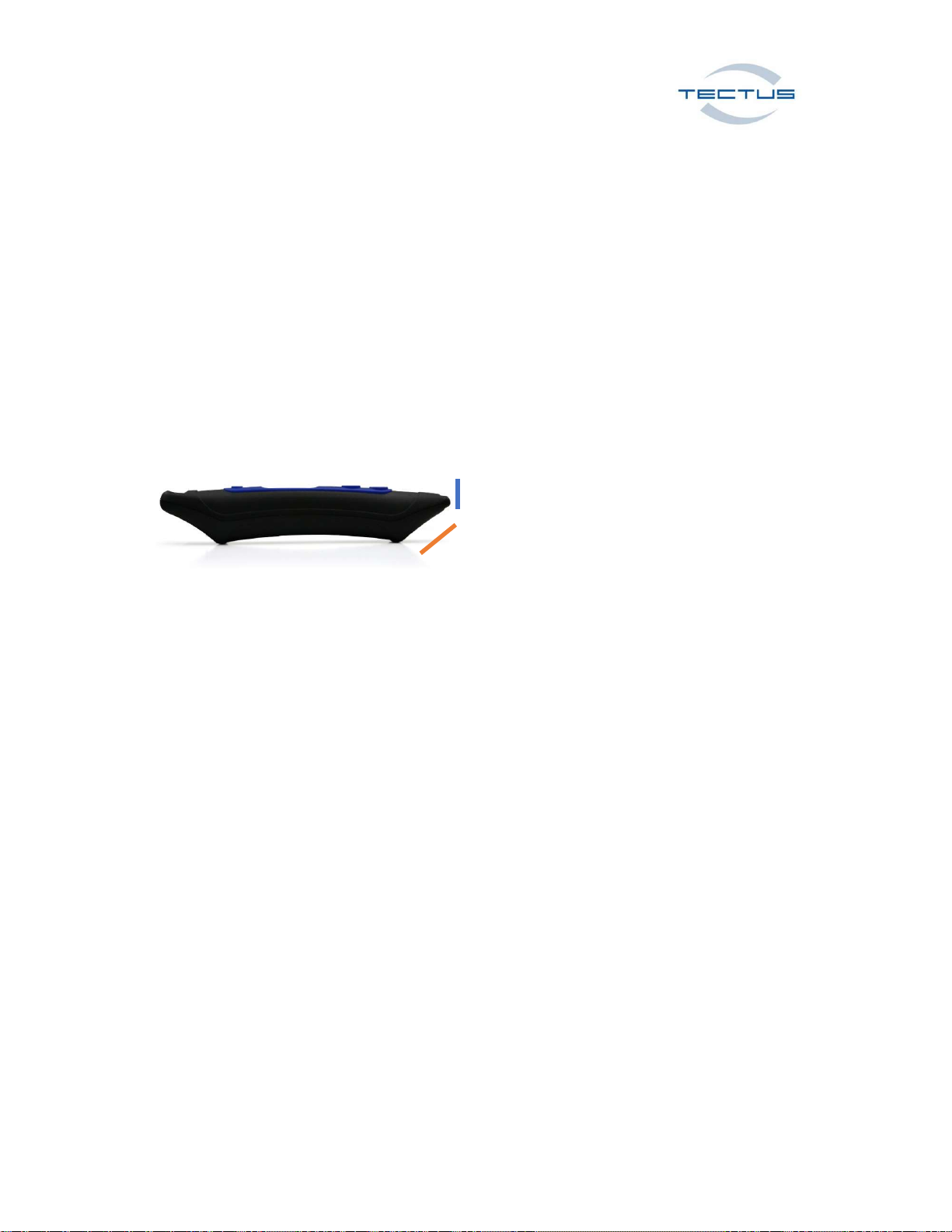
Move the tip of your MultiPen to the transponder (LF or HF) and push button 1 once or keep it
pushed.
To read an UHF Transponder, please follow the same procedure, but guide the flat surface below the
tip to the Transponder (see picture attached).
A successful read of the Transponder UID will be notified by vibration. Additionally, the UID will be
shown in the display. The picture shows the read positions from LF / HF Transponder (Blue) and UHF
Transponder (Red)
Switching from HID (Human Interface Device) to SPP (Serial Port Profile)
Mode and back to HID
Your MultiPen device is set to Bluetooth™ HID (Human Interface Device) Mode ex works.
To set SPP Mode, keep button 2 pushed and turn on the device with button 3.
The display will show the set mode.
To switch back to HID Mode, please keep button 1 one pushed and turn on the device with button 3.
Use HID (Human Interface Device) Mode with BLUETOOTH™ connection
Your MultiPen device is set to BLUETOOTH™ HID (Human Interface Device) Mode ex works.
Turn on your MultiPen and push button 2 to enable the BLUETOOTH™ function.
To connect your MultiPen via Bluetooth, search on your PC/Laptop/mobile Phone/Tablet for new
BLUETOOTH™ devices. In some cases, the MultiPen will notify the user about a new available
keyboard device.
Pair the MultiPen to your device as soon as it has been identified as BLUETOOTH™ device.
If you now read a Transponder, the MultiPen will send the UID to your focus point (cursor point).
MultiPen User Manual V.1.2 ©TECTUS Page 5 / 10
Page 6

TECTUS Transponder Technology GmbH, Eurotec-Ring 39, 47445 Moers 7 Germany
Use HID (Human Interface Device) Mode with USB cable connection
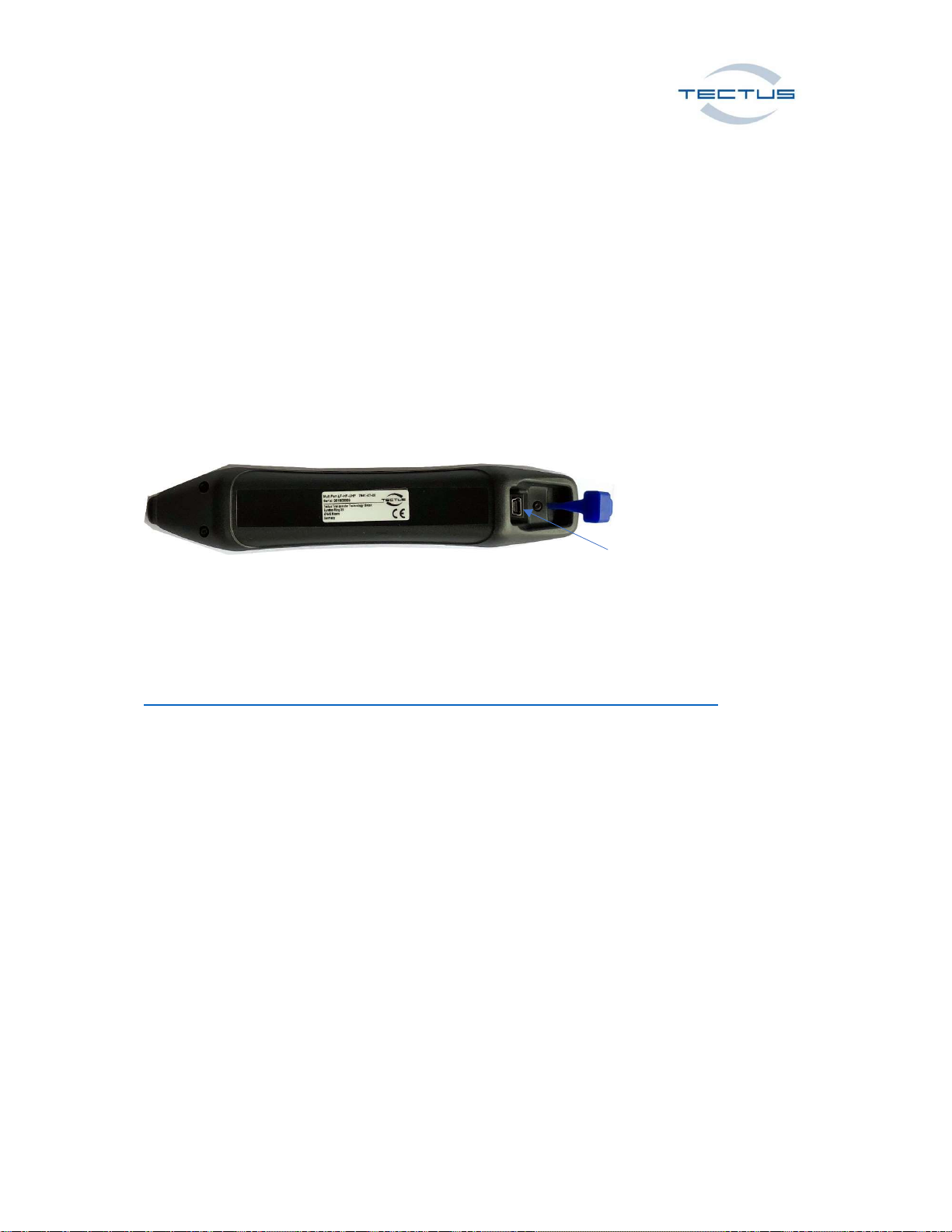
Please turn on your MultiPen and connect the corresponding USB cable to the USB slot on the back.
As soon as your PC/Laptop is connected to the USB cable, your MultiPen will send the UID to your
focus point (cursor point) during the reading process.
Use USB (CDC - Communication Device Class) function with USB cable
Please connect the corresponding USB cable to your PC/Laptop after your MultiPen has been turned
on.
In case of using WINDOWS™ 10, the MultiPen is recognised automatically.
The used USB Serial port is available in your WINDOWS™ Device Manager (Connection COM & LPT ->
USB Serial port COM xx).
If you prefer using WINDOWS™ 7 or 8, we will gladly provide our free driver software.
Our TIDMultiPen V1.x PC program enables users to check the USB connection, to send commands
and configure the device.
The list of commands is available as download.
Use SPP (Serial Port Profile) Mode with BLUETOOTH™ connection
Our TIDMultiPen V1.x PC program enables users to check the USB connection, to send commands
and configure the device.
The list of commands is available as download.
To connect the MultiPen in SPP Mode, you will have to activate the SPP Mode as written above.
It is possible to send, commands to configure or control the MultiPen after a successful pairing of
your devices.
The list of commands is available as download from our Dropbox:
https://www.dropbox.com/home/Tectus%20Products/products%20industrial/MultiPen/Documentat
ion
MultiPen User Manual V.1.2 ©TECTUS Page 6 / 10
Page 7
TECTUS Transponder Technology GmbH, Eurotec-Ring 39, 47445 Moers 7 Germany
Battery charging (NiMH Nickel-Metalhydrid)
Please connect the USB cable to your MultiPen and an USB port on a PC/Laptop or power supply
adaptor (not included in the delivery).
The display will show the charging information as well as the current battery status for a few
seconds.
Even if the display is black, the MultiPen will continue charging the battery.
The battery will be automatically charged if the MultiPen is used with USB connection.
In case of complete discharge, the loading time lasts up to 20 hours until the device is completely
charged again.
USB connector for charging and communication via USB mode
Further information as our PC program / ANDROID™ App to configure the MultiPen and WINDOWS™
7/8 CDC drivers can be downloaded under the following link:
https://www.dropbox.com/home/Tectus%20Products/Products%20Industrial/MultiPen
MultiPen User Manual V.1.2 ©TECTUS Page 7 / 10
Page 8

TECTUS Transponder Technology GmbH, Eurotec-Ring 39, 47445 Moers 7 Germany
Housing:
Plastic IP 64
Dimensions:
190 x 35 x 30 mm
+RFID
Max. 300 mA (400 msec)
Push Read Button (1x)
+RFID + Bluetooth
Max. 380 mA (400 msec)
Push Read Button (1x)
RFID output power:
*Read distance
:
LF / 125 / 134 kHz
200 mW
Up to 20 mm
*Depending on Tag type
, Tag
USB CDC (Communication device cla
ss)
USB HID (Human interface device)
Operation modes:
Bluetooth
SPP or HID
USB CDC or HID
Certifications:
CE
ATEX, IECEx
LF ISO 11784/785, UNIQUE, HITAG 1/S, FDX
-
B,
HITAG S read and write
Technical information
Weight: 125 g
Power supply: USB 5 V DC
Battery: NIHM 2200 mAh
Power consumption:
ON: 1 mA (Automatic Power OFF)
HF 13,56 MHz 220 mW Up to 25 mm
UHF 868 MHz 20 dBm Up to 80 mm
UHF 916 MHz 20 dBm Up to 80 mm
Interfaces BLUETOOTH™ 2.1
size
and mounting situation
Display: OLED 4 Rows
Number of Keys: 3 (ON/OFF, BLUETOOTH™ ON, READ TAG)
Operating
-20°C…+65°C
temperature:
Memory: 1000 UID’s with time stamp
Supported
Transponder:
HDX
HF ISO 15693 ISO 15693 Read and write
HF ISO 14443/NFC ISO 14443/NFC Read and write
UHF ISO 18000-6 EPC Class I Gen 2 Read EPC
Supported operating
systems:
WINDOWS™ 7/8/10, WINDOWS™ Mobile,
ANDROID ™, IOS (HID BT)
MultiPen User Manual V.1.2 ©TECTUS Page 8 / 10
Page 9
TECTUS Transponder Technology GmbH, Eurotec-Ring 39, 47445 Moers 7 Germany
Packaging and delivery
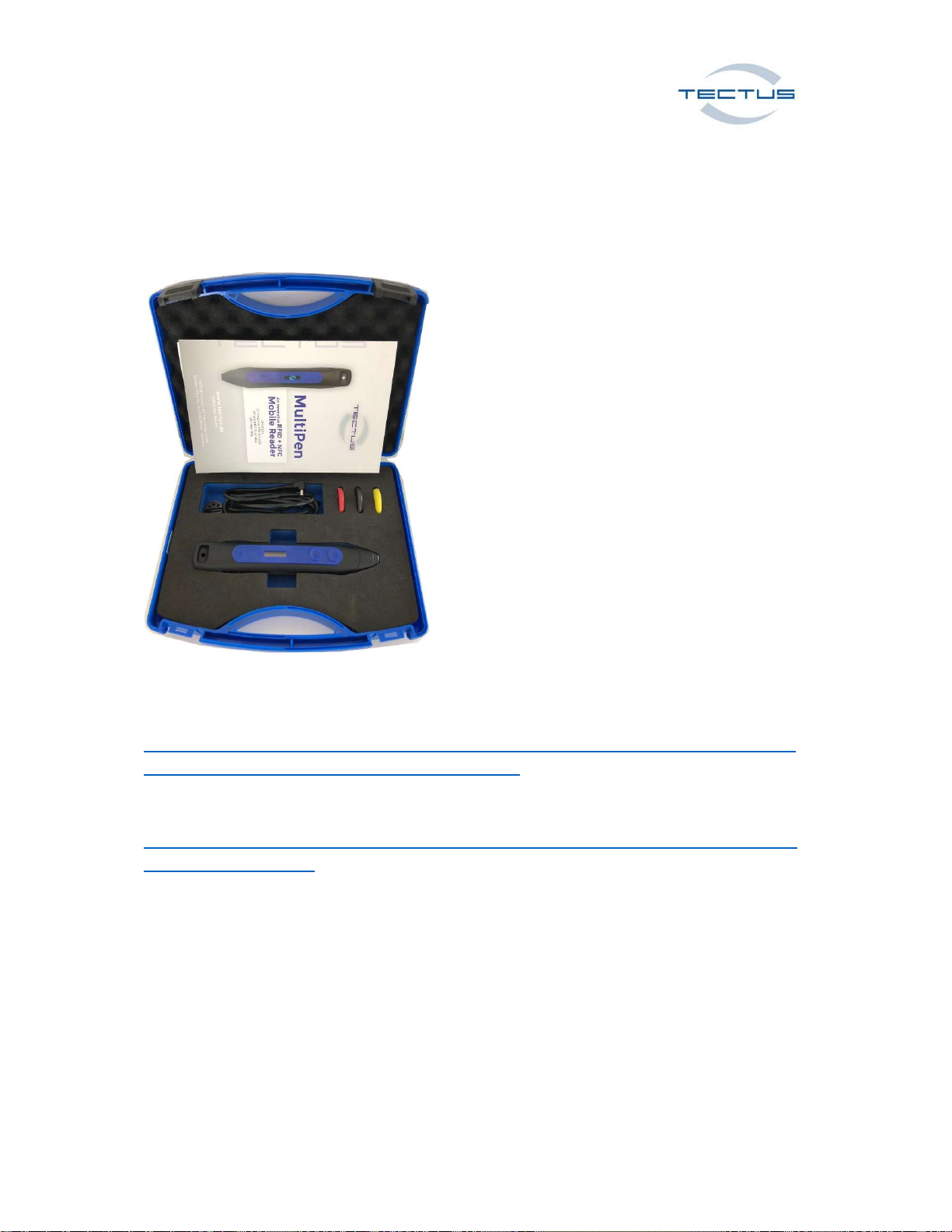
Contents Plastic transport box with:
1 x MultiPen, 1 x USB cable (2 m), 3 x Test Transponder ,1 x Quick start manual
Software for WINDOWS™ operating systems TECTUS TID MultiPen V.xx
https://www.dropbox.com/home/Tectus%20Products/products%20industrial/multipen/WI
NDOWS ™%20PC%20Programm/TIDMultiPen%201.5
APP for ANDROID™ operating systems TECTUS TID MultiPen V.xx
https://www.dropbox.com/home/Tectus%20Products/products%20industrial/multipen/AN
DROID ™/MultiPen/App
or visit the Google Play Store™ and search for TECTUS MultiPen APP
MultiPen User Manual V.1.2 ©TECTUS Page 9 / 10
Page 10

TECTUS Transponder Technology GmbH, Eurotec-Ring 39, 47445 Moers 7 Germany
Contact
TECTUS Transponder Technology GmbH
Eurotec-Ring 39
47445 Moers / Germany
Phone: +49 2841 979 66 0
Fax: +49 2841 979 66 10
E-Mail: [email protected]
Homepage: www.tec-tus.com
Copyright©
Any reproduction of this manual in whole or in parts, the storage in electronic media and the
translation into foreign languages without the written permission of TECTUS GmbH is
forbidden.
© 2018 TECTUS all ©rights reserved
ANDROID™ and Google Play Store™ is a reg. Trademark of Google™ Corp.
WINDOWS™ is a reg. Trademark of Microsoft Corp.
MultiPen User Manual V.1.2 ©TECTUS Page 10 / 10
 Loading...