

Page 1
Open
Open
Open
Open Solution
Solution
Solution
Solution s
s
Application
s
Application
s Application
Application
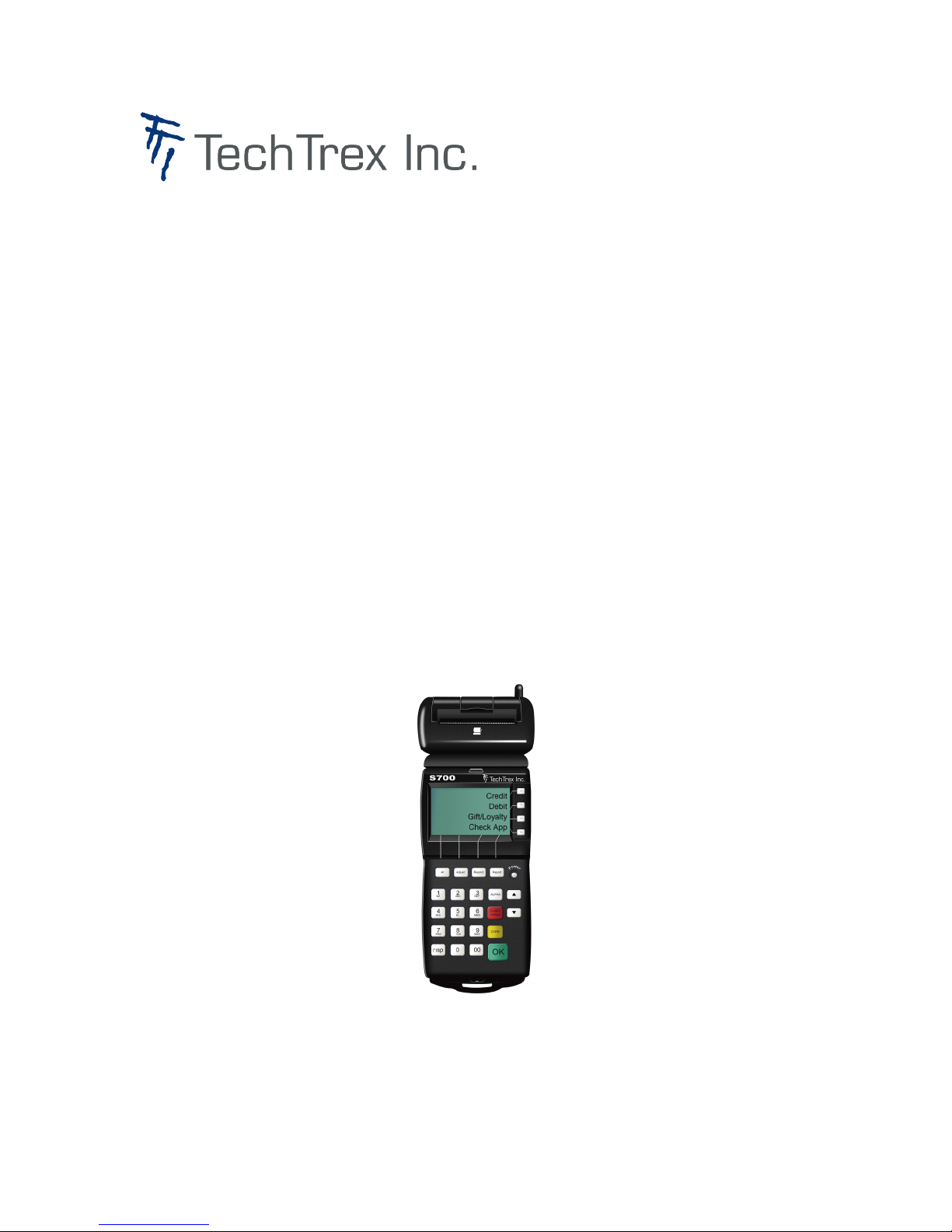
S700
S700
S700
S700 Quick
Quick
Quick
Quick Reference
Reference
Reference
Reference Guide
(Merchant)
(Merchant)
(Merchant)
(Merchant)
Guide
Guide
Guide
Page 2

Credit Retail Transactions
1. Press F1
F1
F1
F1 for Sale
Sale
Sale
Sale
2 . If prompted, enter the clerk ID of the
clerk processing the sale, and press OK.
OK.
OK.
OK.
3 . If prompted, enter the Invoice
Number processing the sale, and press
OK.
OK.
OK.
OK.
4 . Key in the dollar amount of the
transaction without the decimal point,
and press OK
OK
OK
OK .
5 . S wipe the credit card.
6 . Dial Primary … Sending … Receiving …
will be displayed on terminal screen
when communicating with host.
7 . Host response message will be
displayed on terminal screen. At this
same time, merchant copy will be
printed out.
8 . If prompted, press F1
F1
F1
F1 to return to the
main menu or press F2
F2
F2
F2 to print customer
copy.
Sale Transaction Manual
1. Press F1
F1
F1
F1 for Sale
Sale
Sale
Sale
2 . If prompted, enter the clerk ID of the
clerk processing the sale, and press OK.
OK.
OK.
OK.
3 If prompted, enter the Invoice
Number processing the sale, and press
OK.
OK.
OK.
OK.
4 . Key in the dollar amount of the
transaction without the decimal point,
and press OK
OK
OK
OK .
5. Key in account number on keypad
and press OK.
OK.
OK.
OK.
6 . Key in card expiration date in MMYY
format, and press OK.
OK.
OK.
OK.
7 . If prompted, key password and press
OK.
OK.
OK.
OK.
Note:
Note:
Note:
Note: This prompt, if enabled, cannot
be by passed.
8 . Dial Primary … Sending … Receiving …
will be displa yed on terminal screen
when communicating with host
9 . Host response message will be
displayed on terminal screen. At this
same time, merchant copy will be
printed out.
10 . If prompted, press F1
F1
F1
F1 to return to the
main menu or press F2
F2
F2
F2 to print customer
copy.
Void
1. Pre ss F2
F2
F2
F2 to select Void.
Void.
Void.
Void.
2. If prompted, key password and press
OK.
OK.
OK.
OK.
Note:
Note:
Note:
Note: This prompt, if enabled, cannot
be by passed.
3. Pre ss F2
F2
F2
F2 to select Yes
Yes
Yes
Yes if you want to
void the last transaction entered. Press
F1
F1
F1
F1 to select No if you want to select
another transaction to vo id.
4. If you selected No
No
No
No , the terminal
prompts you to determine how to
retrieve the transaction you wish to void .
Press F1
F1
F1
F1 to re trieve the transaction by
invoice number. Press F2
F2
F2
F2 to retrieve the
transaction by the credit card account
number.
5. If you selected to retrieve by Inv#
Inv#
Inv#
Inv# , key
the invoice number of the transaction
to be voided and press OK
OK
OK
OK .
6. If you selected to retrieve Acct#
Acct#
Acct#
Acct# , key
the last fo ur digits of the credit card
number of the transaction to be voided
and press OK
OK
OK
OK .
7. T he selected transaction information
displays. If you want to void this
transaction, select Yes. If you do not
want to void the transaction at this time,
select No
No
No
No to return to the main menu. To
display the next transaction, which
meets the same criteria, select Next
Next
Next
Next .
8. Swipe or manually enter the card
number that needs to be voided.
9. Dial Primary … Sending … Receiving …
will be displa yed on terminal screen
when communicating with host.
10. Host response message will be
displayedon terminal screen. At this
same time, merchant copy will be
printed out.
11. If prompted, press F2
F2
F2
F2 to print the
customer copy of the receipt, or press
F1
F1
F1
F1 to return to Main menu.
Refund
1. Pre ss F3
F3
F3
F3 to se lect Refund.
Refund.
Refund.
Refund.
2. If prompted, key password and press
OK.
OK.
OK.
OK.
Note:
Note:
Note:
Note: This prompt, if enabled, cannot
be by passed.
3 . If prompted, enter the clerk ID of the
clerk processing the sale, and press OK.
OK.
OK.
OK.
4. If prompted, enter the Invoice
Number processing the sale, and press
OK.
OK.
OK.
OK.
5. Ke y the amount of the transaction
and press
OK.
OK.
OK.
OK.
6. Slide card through the card reader, or
key account number and press OK.
OK.
OK.
OK.
7. If prompted, key card expiration date
in MMYY format, and press OK.
OK.
OK.
OK.
Note:
Note:
Note:
Note: This screen displays only if the
card number has been entered
manually.
8. If prompted, key the password and
press OK.
OK.
OK.
OK.
Note: T his prompt, if enabled, cannot
be byp assed.
9. Dial Primary … Sending … Receiving …
will be displa yed on terminal screen
when communicating with host
10. Host response message will be
displayed on terminal screen. At this
Page 3

same time, merchant copy will be
printed out.
11. If prompted, press F2
F2
F2
F2 to print
customer copy, or press F1
F1
F1
F1 to return to
the main menu.
Force Post
1. Press ▼ one time to scroll menu.
2. Press F1
F1
F1
F1 for Force
Force
Force
Force Post
Post
Post
Post .
3. If prompted, enter the clerk ID of the
clerk processing the sale, and press OK.
OK.
OK.
OK.
4. If prompted, enter the Invoice
Number processing the sale, and press
OK.
OK.
OK.
OK.
5. Key the amount of the transaction
and press OK.
OK.
OK.
OK.
6. Key the approval code provided by
the voice
authorization call center and press OK.
OK.
OK.
OK.
Note:
Note:
Note:
Note: This prompt cannot be bypassed.
7. Swipe the c ard through the card
reader, or key the card number and
press OK.
OK.
OK.
OK.
8. If prompted, key the credit card
expiration date in MMYY format and
press OK.
OK.
OK.
OK.
Note:
Note:
Note:
Note: This screen displays only if the
card number has been entered
manually.
9. If prompted, key password and press
OK.
OK.
OK.
OK.
Note:
Note:
Note:
Note: This prompt, if enabled, cannot
be
bypassed.
10. Dial Primary … Sending … Receiving …
will be displa yed on terminal screen
when communicating with host.
11. Host response message will be
displayed on terminal screen. At this
same time, merchant copy will be
printed out.
12. If prompted, press F2
F2
F2
F2 to print the
customer copy of the receipt, or press
F1
F1
F1
F1 to return t the main menu.
P r e Auth
1. Press ▼ one time to scroll menu.
2. Press F
F
F
F 2
2
2
2 for Pre
Pre
Pre
Pre Auth
Auth
Auth
Auth
3. If prompted, enter the clerk ID of the
clerk processing the sale, and press OK.
OK.
OK.
OK.
4. If prompted, enter the Invoice
Number processing the sale, and press
OK.
OK.
OK.
OK.
5. Key the amount of the transaction
and press OK.
OK.
OK.
OK.
6. Swipe the card through the card
reader, or key the card number and
press OK.
OK.
OK.
OK.
7. If prompted, key the credit card
expiration date in MMYY format and
press OK.
OK.
OK.
OK.
Note:
Note:
Note:
Note: This screen displays only if the
card number has been entered
manually.
8. If prompted, key password and press
OK.
OK.
OK.
OK.
Note:
Note:
Note:
Note: This prompt, if enabled, cannot
be
bypassed.
9. Dial Primary … Sending … Receiving …
will be displa yed on terminal screen
when communicating with host.
10. Host response message will be
displayed on terminal screen. At this
same time, merchant copy will be
printed out.
11. If prompted, press F2
F2
F2
F2 to print the
customer copy of the receipt, or press
F1
F1
F1
F1 to return t the main menu.
P r e Auth Completion
1. Pre ss ▼ one time to scroll menu.
2. Pre ss F
F
F
F 3
3
3
3 for P
P
P
P a
a
a
a uth
uth
uth
uth Comp
Comp
Comp
Comp
3. You can ret rieve transac tion by
choosing Clrk (F1), Amt (F2), Acct(F3),
Inv#(F4)
4. Ke y clerk ID to retrieve trans.
5. Ke y amount to retrieve trans.
6. Key last 4 digits of account to retrieve
trans.
7. Ke y invoice number to retrieve trans.
8. The selected transaction information
displays. If you want to complete this
transaction, select Yes. If you do not
want to complete the transaction at this
time, select No to return to the main
menu. To display the next transaction,
which meets the same criteria, select
Next.
9. If yo u selected YYYeses in the
previous menu, the left screen will be
displayed, and you can input a new
Amt then press OK
10. Dial Primary … Sending … Receiving …
will be displa yed on terminal sc reen
when communicating with host
11. Host response message will be
displayed on terminal screen. At this
same time, merchant copy will be
printed out.
12. If prompted, press F2 to print the
customer copy of the receipt, or press
F1 to return to Main menu.
Auth Only
1. Pre ss ▼ one time to scroll menu.
2. Pre ss F
F
F
F 4
4
4
4 for Auth
Auth
Auth
Auth Only
Only
Only
Only
3. If prompted, enter the clerk ID of the
clerk processing the sale, and press OK.
OK.
OK.
OK.
4. If prompted, enter the Invoice
Number processing the sale, and press
OK.
OK.
OK.
OK.
Page 4

5. Key the amount of the transaction
and press OK.
OK.
OK.
OK.
6. Swipe the c ard through the card
reader, or key the card number and
press OK.
OK.
OK.
OK.
7. If prompted, key the credit card
expiration date in MMYY format and
press OK.
OK.
OK.
OK.
Note:
Note:
Note:
Note: This screen displays only if the
card number has been entered
manually.
8. If prompted, key password and press
OK.
OK.
OK.
OK.
Note:
Note:
Note:
Note: This prompt, if enabled, cannot
be
bypassed.
9. Dial Primary … Sending … Receiving …
will be displayed on terminal screen
when communicating with host.
10. Host response message will be
displayed on terminal screen. At this
same time, merchant copy will be
printed out.
11. If prompted, press F2
F2
F2
F2 to print the
customer copy of the receipt, or press
F1
F1
F1
F1 to return t the main menu.
Sale Transaction, Swiped for
Restaurant
1. Press F1
F1
F1
F1 for Sale
Sale
Sale
Sale
Note: if the application supports credit
only, swipe from the main menu will
automatically lead to a “ sale ” .
2 . If prompted, enter the clerk ID of the
clerk processing the sale, and press OK.
OK.
OK.
OK.
3 . If prompted, enter the Invo ice
Number processing the sale, and press
OK.
OK.
OK.
OK.
4 . Key in the dollar amount of the
transaction without the decimal point,
and press OK
OK
OK
OK .
5 . If prompted, key the t ip amount and
press OK
OK
OK
OK .
6 . S wipe the credit card.
7. Dial Primary … Sending … Receiving …
will be displa yed on terminal screen
when communicating with host.
8. Host response message will be
displayed on terminal screen. At this
same time, merchant copy will be
printed out.
9. If prompted, press F1
F1
F1
F1 to return to the
main menu or press F2
F2
F2
F2 to print customer
copy.
10. If prompted ( if Counter Pay Tip is ON,
there is no tip entry screen during fi r st
communication, and the sale trans
change to Pre-auth trans, and prints out
preauth receipt) .A fter first
communication, the new tip enter
screen will appear, enter the new tip
amount and press OK, and terminal will
continue to do completion of previous
preauth, and prints out preauth
completion receipt.
11. Dial Primary … Sending … Receiving …
will be displa yed on terminal screen
when communicating with host.
12. Host response message will be
displayed on terminal screen. At this
same time, merchant copy will be
printed out.
13 . If prompted, press F1
F1
F1
F1 to return to the
main menu or press F2
F2
F2
F2 to print customer
copy.
Sale Transaction, Manual
1. Pre ss F1
F1
F1
F1 for Sale
Sale
Sale
Sale
2 . If prompted, enter the clerk ID of the
clerk processing the sale, and press OK.
OK.
OK.
OK.
3 . If prompted, enter the Invo ice
Number processing the sale, and press
OK.
OK.
OK.
OK.
4 . Key in the dollar amount of the
transaction without the de cimal point,
and press OK
OK
OK
OK .
5 . If prompted, key the t ip amount and
press OK
OK
OK
OK .
6 . K ey the card numbe r and press OK.
OK.
OK.
OK.
7. If prompted, key the credit card
expiration date in MMYY format and
press OK.
OK.
OK.
OK.
Note:
Note:
Note:
Note: This screen displays only if the
card number has been entered
manually.
8. If prompted, key password and press
OK.
OK.
OK.
OK.
Note:
Note:
Note:
Note: This prompt, if enabled, cannot
be
bypassed.
9 . Dial Primary … Sending … Receiving …
will be displa yed on terminal screen
when communicating with host.
10 . Host response message will be
displayed on terminal screen. At this
same time, merchant copy will be
printed out.
11 . If prompted, press F1
F1
F1
F1 to return to the
main menu or press F2
F2
F2
F2 to print customer
copy.
12. If prompted ( if Counter Pay Tip is ON,
there is no tip entry screen during fi r st
communication, and the sale trans
change to Pre-auth trans, and prints out
preauth receipt) .A fter first
communication, the new tip enter
screen will appear, enter the new tip
amount and press OK, and terminal will
continue to do completion of previous
preauth, and prints out preauth
completion receipt.
11. Dial Primary … Sending … Receiving …
will be displa yed on terminal screen
when communicating with host.
12 . Host response message will be
displayed on terminal screen. At this
same time, merchant copy will be
printed out.
13. If prompted, press F1
F1
F1
F1 to return to the
main menu or press F2
F2
F2
F2 to prin t customer
copy.
Page 5

Void
1. Press F2
F2
F2
F2 to select Void.
Void.
Void.
Void.
2. If prompted, key password and press
OK.
OK.
OK.
OK.
Note:
Note:
Note:
Note: This prompt, if enabled, cannot
be by passed.
3. Press F2
F2
F2
F2 to select Yes
Yes
Yes
Yes if you want to
void the last transaction ent ered. Press
F1
F1
F1
F1 to select No if you want to select
another transaction to vo id.
4. If you selected No
No
No
No , the terminal
prompts you to determine how to
retrieve the transaction you wish to void .
Press F1
F1
F1
F1 to retrieve the transaction by
invoice number. Press F2
F2
F2
F2 to retrieve the
transaction by the credit card account
number.
5. If you selected to retrieve by Inv#
Inv#
Inv#
Inv# , key
the invoice number of the transaction
to be voided and press OK
OK
OK
OK .
6. If you selected to retrieve Acct#
Acct#
Acct#
Acct# , key
the last fo ur digits of the credit card
number of the transaction to be voided
and press OK
OK
OK
OK .
7. The selected transaction information
displays. If you want to void this
transaction, select Yes. If you do not
want to void the transaction at this time,
select No
No
No
No to return to the main menu. To
display the next transaction, which
meets the same criteria, select Next
Next
Next
Next .
8. Swipe or manually enter the card
number that needs to be voided.
9. Dial Primary … Sending … Receiving …
will be displa yed on terminal screen
when communicating with host.
10. Host response message will be
displayed on terminal screen. At this
same time, merchant copy will be
printed out.
11. If prompted, press F2
F2
F2
F2 to print the
customer copy of the receipt, or press
F1
F1
F1
F1 to return to Main menu.
Refund
1. Press F3
F3
F3
F3 to select Ref und.
Refund.
Refund.
Refund.
2. If prompted, key password and press
OK.
OK.
OK.
OK.
Note:
Note:
Note:
Note: This prompt, if enabled, cannot
be by passed.
3 . If prompted, enter the clerk ID of the
clerk processing the sale, and press OK.
OK.
OK.
OK.
4. If prompted, enter the Invoice
Number processing the sale, and press
OK.
OK.
OK.
OK.
5. Key the amount of the transaction
and press
OK.
OK.
OK.
OK.
6. Slide card through the card reader, or
key account number and press OK.
OK.
OK.
OK.
7. If prompted, key card expiration date
in MMYY format, and press OK.
OK.
OK.
OK.
Note:
Note:
Note:
Note: This screen displays only if the
card number has been entered
manually.
8. If prompted, key the password and
press OK.
OK.
OK.
OK.
Note: T his prompt, if enabled, cannot
be byp assed.
9. Dial Primary … Sending … Receiving …
will be displa yed on terminal screen
when communicating with host
10. Host response message will be
displayed on terminal screen. At this
same time, merchant copy will be
printed out.
11. If prompted, press F2
F2
F2
F2 to print
customer copy, or press F1
F1
F1
F1 to return to
the main menu.
Force Post
1. Pre ss ▼ one time to scroll menu.
2. Pre ss F1
F1
F1
F1 for Force
Force
Force
Force Post
Post
Post
Post .
3. If prompted, enter the clerk ID of the
clerk processing the sale, and press OK.
OK.
OK.
OK.
4. If prompted, enter the Invoice
Number processing the sale, and press
OK.
OK.
OK.
OK.
5. Ke y the amount of the transaction
and press OK.
OK.
OK.
OK.
6. If prompted, key the tax amount for
the transaction, and press OK.
OK.
OK.
OK.
7. If prompted, key the t ip amount and
press OK
OK
OK
OK .
8. Ke y the approval code provided by
the voice
authorization call center and press OK.
OK.
OK.
OK.
Note:
Note:
Note:
Note: This prompt cannot be bypassed.
9. Swipe the card through the c ard
reader, or key the card number and
press OK.
OK.
OK.
OK.
10 If prompted, key the credit card
expiration date in MMYY format and
press OK.
OK.
OK.
OK.
Note:
Note:
Note:
Note: This screen displays only if the
card number has been entered
manually.
11. If prompted, key password and press
OK.
OK.
OK.
OK.
Note:
Note:
Note:
Note: This prompt, if enabled, cannot
be
bypassed.
12. Dial Primary … Sending … Receiving …
will be displa yed on terminal screen
when communicating with host.
13. Host response message will be
displayed on terminal screen. At this
same time, merchant copy will be
printed out.
14. If prompted, press F2
F2
F2
F2 to print the
customer copy of the receipt, or press
F1
F1
F1
F1 to return t the main menu.
P r e Auth
1. Pre ss ▼ one time to scroll menu.
2. Pre ss F
F
F
F 2
2
2
2 for Pre
Pre
Pre
Pre Auth
Auth
Auth
Auth
3. If prompted, enter the clerk ID of the
clerk processing the sale, and press OK.
OK.
OK.
OK.
4. If prompted, enter the Invoice
Number processing the sale, and press
OK.
OK.
OK.
OK.
5. Ke y the amount of the transaction
and press OK.
OK.
OK.
OK.
6. Swipe the card through the c ard
reader, or key the card number and
Page 6

press OK.
OK.
OK.
OK.
7. If prompted, key the credit card
expiration date in MMYY format and
press OK.
OK.
OK.
OK.
Note:
Note:
Note:
Note: This screen displays only if the
card number has been entered
manually.
8. If prompted, key password and press
OK.
OK.
OK.
OK.
Note:
Note:
Note:
Note: This prompt, if enabled, cannot
be
bypassed.
9. Dial Primary … Sending … Receiving …
will be displayed on terminal screen
when communicating with host.
10. Host response message will be
displayed on terminal screen. At this
same time, merchant copy will be
printed out.
11. If prompted, press F2
F2
F2
F2 to print the
customer copy of the receipt, or press
F1
F1
F1
F1 to return t the main menu.
P r e Auth Completion
1. Press ▼ one time to scroll menu.
2. Press F
F
F
F 3
3
3
3 for P
P
P
P a
a
a
a uth
uth
uth
uth Comp
Comp
Comp
Comp
3. You can ret rieve transac tion by
choosing Clrk (F1), A mt (F2), Acct(F3),
Inv#(F4)
4. Key clerk ID to retrieve trans.
5. Key amount to retrieve trans.
6. Key last 4 digits of account to retrieve
trans.
7. Key invoice number to retrieve trans.
8. The selected transaction information
displays. If you want to complete this
transaction, select Yes. If you do not
want to complete the transaction at this
time, select No to return to the main
menu. To display the next transaction,
which meets the same criteria, select
Next.
9. If yo u selected YYYeses in the
previous menu, the left scre en will be
displayed, and you can input a new
Amt then press OK
10. If prompted, key the t ip amo unt and
press OK
OK
OK
OK .
11. Dial Primary … Sending … Receiving …
will be displa yed on terminal sc reen
when communicating with host
12. Host response message will be
displayed on terminal screen. At this
same time, merchant copy will be
printed out.
13. If prompted, press F2 to print the
customer copy of the receipt, or press
F1 to return to Main menu.
Auth Only
1. Press ▼ one time to scroll menu.
2. Press F
F
F
F 4
4
4
4 for Auth
Auth
Auth
Auth Only
Only
Only
Only
3. If prompted, enter the clerk ID of the
clerk processing the sale, and press OK.
OK.
OK.
OK.
4. If prompted, enter the Invoice
Number processing the sale, and press
OK.
OK.
OK.
OK.
5. Ke y the amount of the transaction
and press OK.
OK.
OK.
OK.
6. Swipe the card through the c ard
reader, or key the card number and
press OK.
OK.
OK.
OK.
7. If prompted, key the credit card
expiration date in MMYY format and
press OK.
OK.
OK.
OK.
Note:
Note:
Note:
Note: This screen displays only if the
card number has been entered
manually.
8. If prompted, key password and press
OK.
OK.
OK.
OK.
Note:
Note:
Note:
Note: This prompt, if enabled, cannot
be
bypassed.
9. Dial Primary … Sending … Receiving …
will be displa yed on terminal screen
when communicating with host.
10. Host response message will be
displayed on terminal screen. At this
same time, merchant copy will be
printed out.
11. If prompted, press F2
F2
F2
F2 to print the
customer copy of the receipt, or press
F1
F1
F1
F1 to return t the main menu.
Debit Retail Transactions
1. Pre ss F1
F1
F1
F1 for Sale
Sale
Sale
Sale
2 . If prompted, enter the clerk ID of the
clerk processing the sale, and press OK.
OK.
OK.
OK.
3 . If prompted, enter the Invo ice
Number processing the sale, and press
OK.
OK.
OK.
OK.
4 . Key in the dollar amount of the
transaction without the decimal point,
and press OK
OK
OK
OK .
5 . If prompted, key the cash back
amount on the transaction and press
OK.
6 . S wipe the credit card.
Note: Debit card no. Cannot be
entered manually.
7. W ait for customer to confi rm the
transaction by pressing OK on the
PinPad.
8. W ait for customer to select account
on PinPad
9. W ait for customer to ent er the
password on PinPad.
10 . Dia l Primary … Sending … Receiving …
will be displa yed on terminal screen
when communicating with host.
11 . Host response message will be
displayed on terminal screen. At this
same time, merchant copy will be
printed out.
12 . If prompted, press F1
F1
F1
F1 to return to the
main menu or press F2
F2
F2
F2 to prin t customer
copy.
Page 7

Debit Void
1. Press F2
F2
F2
F2 to select Void.
Void.
Void.
Void.
2. If prompted, key password and press
OK.
OK.
OK.
OK.
Note:
Note:
Note:
Note: This prompt, if enabled, cannot
be by passed.
3. Press F2
F2
F2
F2 to select Yes
Yes
Yes
Yes if you want to
void the last transaction ent ered. Press
F1
F1
F1
F1 to select No if you want to select
another transaction to vo id.
4. If you selected No
No
No
No , the terminal
prompts you to determine how to
retrieve the transaction you wish to void .
Press F1
F1
F1
F1 to retrieve the transaction by
invoice number. Press F2
F2
F2
F2 to retrieve the
transaction by the credit card account
number.
5. If you selected to retrieve by Inv#
Inv#
Inv#
Inv# , key
the invoice number of the transaction
to be voided and press OK
OK
OK
OK .
6. If you selected to retrieve Acct#
Acct#
Acct#
Acct# , key
the last fo ur digits of the credit card
number of the transaction to be voided
and press OK
OK
OK
OK .
7. The selected transaction information
displays. If you want to void this
transaction, select Yes. If you do not
want to void the transaction at this time,
select No
No
No
No to return to the main menu. To
display the next transaction, which
meets the same criteria, select Next
Next
Next
Next .
8. If you choose F2 “ yes ” , in the previous
screen, the left screen will be displayed,
then you should swipe the debit card
9. Wait for customer to confirm the
transaction by pressin g OK on the
PinPad.
10. W ait for customer to select acc ount
on PinPad
11. W ait for customer to enter the
password on PinPad.
12. Dial Primary … Sending … Receiving …
will be displa yed on terminal screen
when communicating with host.
13. Host response message will be
displayedon terminal screen. At this
same time, merchant copy will be
printed out.
14. If prompted, press F2
F2
F2
F2 to print the
customer copy of the receipt, or pre ss
F1
F1
F1
F1 to return to Main menu.
Debit Restaurant Transactions
1. Pre ss F1
F1
F1
F1 for Sale
Sale
Sale
Sale
2 . If prompted, enter the clerk ID of the
clerk processing the sale, and press OK.
OK.
OK.
OK.
3 . If prompted, enter the Invo ice
Number processing the sale, and press
OK.
OK.
OK.
OK.
4 . Key in the dollar amount of the
transaction without the de cimal point,
and press OK
OK
OK
OK .
5 . If prompted, key the tax amount and
press OK
OK
OK
OK .
6. Cus tomer can choose th e options via
F1, F2, F3, F4, then press OK
OK
OK
OK
6. If prompted, key the cash back
amount on the transaction and press
OK.
7 . S wipe the credit card.
Note: Debit card no. Cannot be
entered manually.
8. W ait for customer to confirm the
transaction total by pressing OK on the
PinPad.
9. W ait for customer to select account
on PinPad
10. W ait for customer to enter the
password on PinPad.
11 . Dia l Primary … Sending … Receiving …
will be displa yed on terminal screen
when communicating with host.
12 . Host response message will be
displayed on terminal screen. At this
same time, merchant copy will be
printed out.
13 . If prompted, press F1
F1
F1
F1 to return to the
main menu or press F2
F2
F2
F2 to prin t customer
copy.
Debit Void
1. Pre ss F2
F2
F2
F2 to se lect Void.
Void.
Void.
Void.
2. If prompted, key password and press
OK.
OK.
OK.
OK.
Note:
Note:
Note:
Note: This prompt, if enabled, cannot
be by passed.
3. Pre ss F2
F2
F2
F2 to se lect Yes
Yes
Yes
Yes if you want to
void the last transaction entered. Press
F1
F1
F1
F1 to select No if you want to select
another transaction to vo id.
4. If you selected No
No
No
No , the terminal
prompts you to determine how to
retrieve the transaction you wish to void .
Press F1
F1
F1
F1 to retrieve the transaction by
invoice number. Press F2
F2
F2
F2 to retrieve the
transaction by the credit card account
number.
5. If you selected to retrieve by Inv#
Inv#
Inv#
Inv# , key
the invoice number of the transaction
to be voided and press OK
OK
OK
OK .
6. If you selected to retrieve Acct#
Acct#
Acct#
Acct# , key
the last fo ur digits of the credit card
number of the transaction to be voided
and press OK
OK
OK
OK .
7. T he selected transaction information
displays. If you want to void this
transaction, select Yes. If you do not
Page 8

want to void the transaction at this time,
select No
No
No
No to return to the main menu. To
display the next transaction, which
meets the same criteria, select Next
Next
Next
Next .
8. If you choose F2 “ yes ” , in the previous
screen, the left screen will be displayed,
then you should swipe the debit card
9. Wait for customer to confirm the
transaction by pressin g OK on the
PinPad.
10. W ait for customer to select acc ount
on PinPad
11. W ait for customer to enter the
password on PinPad.
12. Dial Primary … Sending … Receiving …
will be displayed on terminal screen
when communicating with host.
13. Host response message will be
displayed on terminal screen. At this
same time, merchant copy will be
printed out.
14. If prompted, press F2
F2
F2
F2 to print the
customer copy of the receipt, or pre ss
F1
F1
F1
F1 to return to Main menu.
Batch Review
1. Press ▼ three times to scroll menu.
2. Press F 4 to choose Batch Review.
3. Enter manager password “ 888888 ”
and press OK key, or enter original clerk
ID ’ s pass word key, or ent er original clerk
ID ’ s password that did the transaction
and press OK
(Manager ’ s password is a default
password and it can be modified during
the termin al confi gu ration)
4. Select the method that should be
used to retrieve the transactions. Press
F1 to retrieve transactions by Clerk.
Press F2 to use A mount. Press F3 to
retrieve by last four digits of the Credit
Card A ccount Number. Press F4 to
retrieve by Invoice Number.
5. If clerk was selected, key the clerk ID
of the clerk whose transaction you want
to review and press OK.
6. If amount was selected, key the
amount of the transaction you want to
review and pre ss OK.
7. If Acct was selected, key the last four
digits of the credit card account
number used in the transaction you
want to review and press OK.
8. If Inv# was selected, key the invoice
number from the receipt for the
transaction you want to review and
press OK.
9. T he transaction information you
selected displays. Press F1 to complete
pre-auth transaction. Press F2 to reprint
the transaction receipt. Press F3 to
void this transaction and F4 to see the
next transaction in the batch.
Batch T otal
1. Pre ss ▼ three times t o scroll menu.
2. Pre ss F 3 to choose Batch Totals .
3. If you want to know the tot als for
Credit Cards, press F1, if you want to
know the totals for Debit Cards, press F2
and if you want to know the totals for all
the transactions, you can choose F3.
4. Pre ss OK to return to main menu.
Batch Sett lement
1. Pre ss F 4 to choose Batch Settlement
2. Print the settlement detail report and
totals report.
3. You can choose either Debit, Credit
or All de pending on which transactions
you wish to settle.
4. Dial Primary … Sending … Receiving …
will be displa yed on terminal screen.
5. After yo u choose F1/F2/F3, the
terminal will print out the Batch totals
report and Settlement Report Then the
terminal goes bac k to the main screen.
Clearing and Incrementing
the Batch.
1. Pre ss ▼ twice to scroll menu.
2. Pre ss F 3 key to select other setup
3. Key the manager password and press
OK.
4. Pre ss ▼ twice t o scroll menu.
5. Pre ss F3 to select Clear Batch.
6. Press F1 to cancel. Press F2 to clear
the batch
7. T erminal clears batch.
Delete Record in the Batch
1. Pre ss ▼ 3 times to scroll menu.
2. Pre ss F 3 key to select other setup
3. Key the manager password and press
OK.
4. Pre ss ▼ t wo times t o scroll menu.
5. Pre ss F1 to select Delete Record
(if the batch is empty, the screen will
show “ batch empty ”
6. Select the method to be used to
retrieve the transactions. Press F1 to
retrieve transactions by Clerk. Pre ss F2
to use Amount. Press F3 to retrieve by
last four digits of the Credit Card
Account Number. Press F4 to retrieve
by Invoice Numb er
Page 9

7. If clerk was selected, key the clerk ID
of the clerk who performe d the
transaction you want to delete and
press OK.
8. If amount was selected, key the
amount of the transaction you want to
delete and press OK.
9. If Acct was selected, key the last four
digits of the credit card account
number used in the transaction you
want to delete and press OK.
10. If Inv# was selected, key the inv oice
number from the receipt for the
transaction you want to delete and
press OK.
11. The transaction informa tion you
selected displays. Press F1 to delete
this transaction and F4 to select the next
transaction in the batch
Terminal and other hardware trouble
Terminal not working
The first thing to do in any case of a
terminal not working properly is to turn it
off and back on again. Just like
restarting your personal computer when
it acts up, this resets the memory an d
frequently solves the problem. A lso
check to make sure the te rminal is
plugged in and all of the cables are
attached properly. As simple as these
suggestions may sound, they are most
often the culprits of terminals not
working.
Printer not working
Just as for terminals, the first thing to do
if your printer is not working pro perly is to
turn it off and back on. Check to ma ke
sure the cords are plugged in properly.
If that doesn't work, try a self test by
turning the printer off, press on the line
p rinter button. If the self test does not
work, the problem is with the printer
itself, so please call Conquest Financial
for help.
My printer is printing blank re ceipts
The paper roll for these prin ters is heat
sensitive and yo u likely have it in
backwards. Simply take out the roll, turn
it around and try printing on the other
side.
Not ab le to dial out
Start with the basics. Verify the
connection and make sure the terminal
is plugged in properly. If the terminal
shares the line with a phone or fax
machine, ensure there are no incoming
messages or faxes. When you hear a
dial tone, try again.
Experiencing slow dialing
In remote areas and some other cases,
static builds up on the telephone lines.
Unplug the cord and blow on it. We
don't know why, but it does seem to
work!
PINPad not working
Try turning off the power, unplu gging
and replugging the PINPad and then
turning the power back on.
If the keys are sticky, take a damp cloth
with diluted cleaner and gently wipe
around the keys. You could also try an
air duster to remove small debris.
If your card reader is not functioning
well, you can obtain a cleaning card to
swipe or use an air duster to clean out
the track.
A pre ventative measure
Protect yo ur terminal from being
affected from power surges. A simple
power bar can protect your terminal
from power surges, delayed response
and communication errors that
sometimes occur with splitters. If your
terminal does go blank, and turning it
off and on doesn't work, check to make
sure the power outlet is working as well.
 Loading...