

Page 1

Wireless Network Adapter User manual
Wireless Net wor k Ad apt er
User Manual
Page 1 of 28
Page 2

Wireless Network Adapter User manual
Table of Contents
Chapter 1 Introduction....................................................................... 3
1.1 Welcome ............................................................................................................ 3
1.2 About This Guide .............................................................................................. 3
1.3 Copyright statement .......................................................................................... 3
1.4 Contents of Package .......................................................................................... 3
1.5 Before you begin ............................................................................................... 4
Chapter 2 Install Driver and Utility ..................................................... 5
Chapter 3 Install TECHSOLO TC-N38 .................................................. 8
Chapter 4 Configuring TECHSOLO TC-N38 ........................................ 11
4.1 General .............................................................................................................11
4.2 Profile .............................................................................................................. 13
4.2.1 Add ........................................................................................................................ 13
4.2.2 Remove ................................................................................................................. 15
4.2.3 Edit ........................................................................................................................ 16
4.2.4 Duplicate ............................................................................................................... 18
4.2.5 Set default ............................................................................................................. 19
4.3 Available Network ........................................................................................... 20
4.4 Advanced ......................................................................................................... 23
4.5 Status ............................................................................................................... 24
4.6 Statistics ........................................................................................................... 24
Troubleshooting .................................................................................. 26
APPENDIX A Specificat i ons ....................................................................... 28
Page 2 of 28
Page 3

Wireless Network Adapter User manual
Chapter 1 Introduction
1.1 Welcome
The TEC HSOLO TC-N38 is a powerful 32-bit PCI Wireless Adapter that installs quickly and
easily into PCs. The Adapt er can be used in Ad-Hoc mode to co nnect direct ly with other cards
for peer-to-peer file sharing or in Infrastructure mode to connect with a wireless access point
or router for access to the I nt er net in y our office or home network.
The TECHSOLO TC-N38 connects you with 802.1 1 g networks at up to an incredible 54Mbps!
And for added versatility, it can also interoperate with all the up to 11Mbps 802.11b products
found in homes, businesses, and public wireless hotspots around the country. And in either
mode, your wireless communications are protected by industrial-strength WPA, so your data
stays secure.
1.2 About This Guide
This User Manual contains information on how to install and configure your Wireless PCI
Adapter to access your wireless network. It will guide you through the correct configuration
steps to get your device up and running.
Note and Caution in this manual are highlighted with graphics as below to indicate important
information.
Contains related information corr esponds to a topic.
Necessary steps, actions or messages should not be ignored.
1.3 Copyright statement
No part of this publication may be reproduced, stored in a retrieval system, or transmitted in
any form or by any means, whether electronic, mechanical, photocopying, recording, or
otherwise without the prior writing of the publisher.
1.4 Contents of Package
TECHSOLO TC-N38 wireless PCI adapt er
Power adapter for TECHSOLO TC-N38 wireless PCI adapter
Manual, Drivers and Utilit y on CD
Page 3 of 28
Page 4

Wireless Network Adapter User manual
This user manual
If any of the above items are miss in g or damaged, please contac t your reseller.
1.5 Before you begin
You must have at least the fo llowing:
A laptop desktop PC with an available 32-bit PCI s lot
At least a 300MHz processor and 32MB of memory
Windows 98SE, ME, 2000, XP, Vista
A CD-ROM Drive
A 802.11g or 802.11b Access Point (for infrastructur e M ode) or another 802.11g or
802.11b wireless adapter (for Ad-Hoc; Peer-to-Peer networ king mode. )
Page 4 of 28
Page 5
Wireless Network Adapter User manual
Chapter 2 Install Driver and Utility
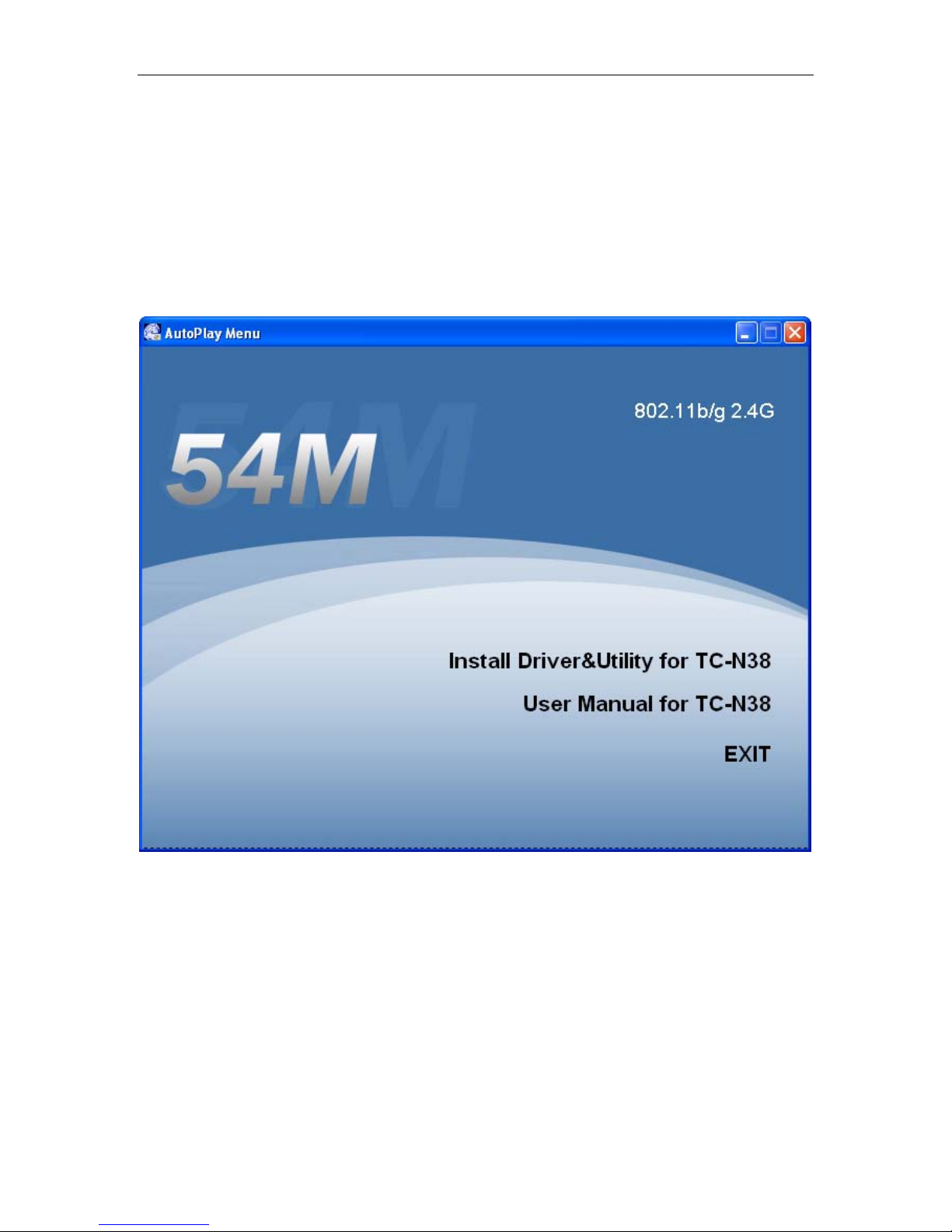
Insert the Driver and Uti lity CD-ROM into the CD-ROM driver.
The Wizard should run aut omatically, and Figure- 1 should appear. If it dose not, c lick the
Start button and choose Run. In the field that appears, enter D:\autorun.exe (if ‘’D’’ is
the letter of your CD-ROM drive).
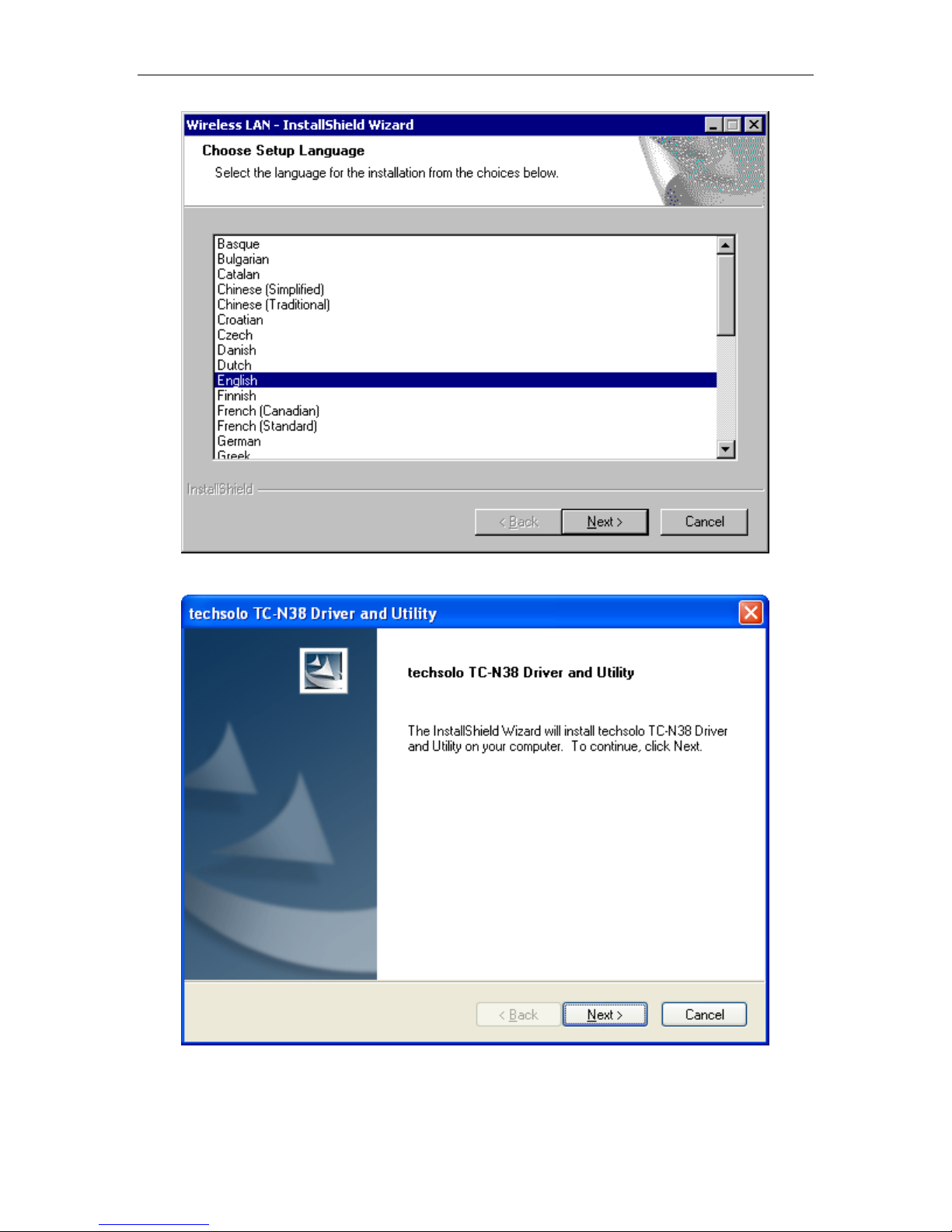
Click Install Driver & Utility for TC-N38, then select the installing language from the
next screen and click next.
Figure- 1
Page 5 of 28
Page 6
Wireless Network Adapter User manual
Click Next
Figure- 2
Click Install star t t o install Driver and Ut i lity.
Figure- 3
Page 6 of 28
Page 7
Wireless Network Adapter User manual
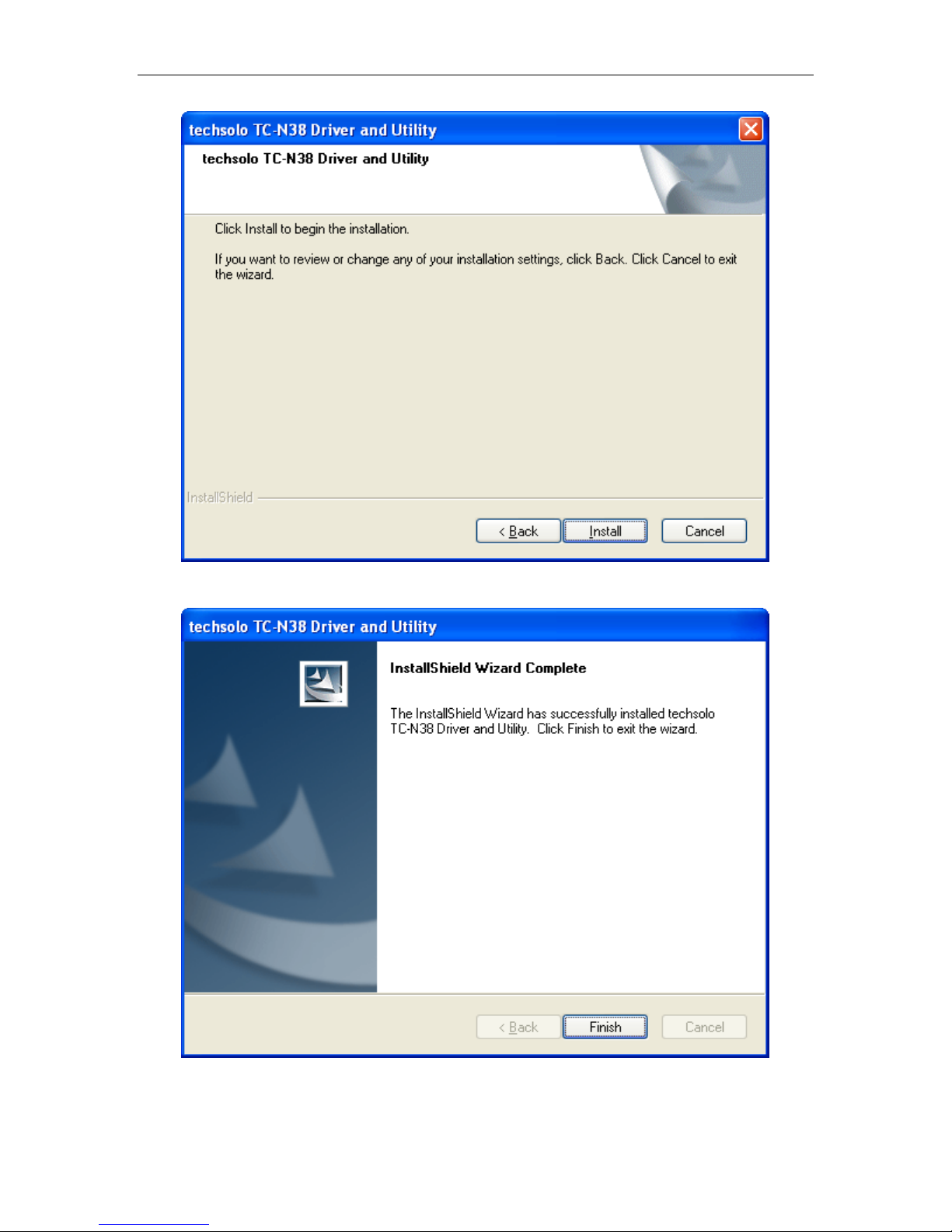
Figure- 4
Follow the Install Shield Wizard steps, and cl ic k Fi nish when done.
Now turn off your PC.
Figure- 5
Page 7 of 28
Page 8
Wireless Network Adapter User manual
Chapter 3 Install TECHSOLO TC-N38
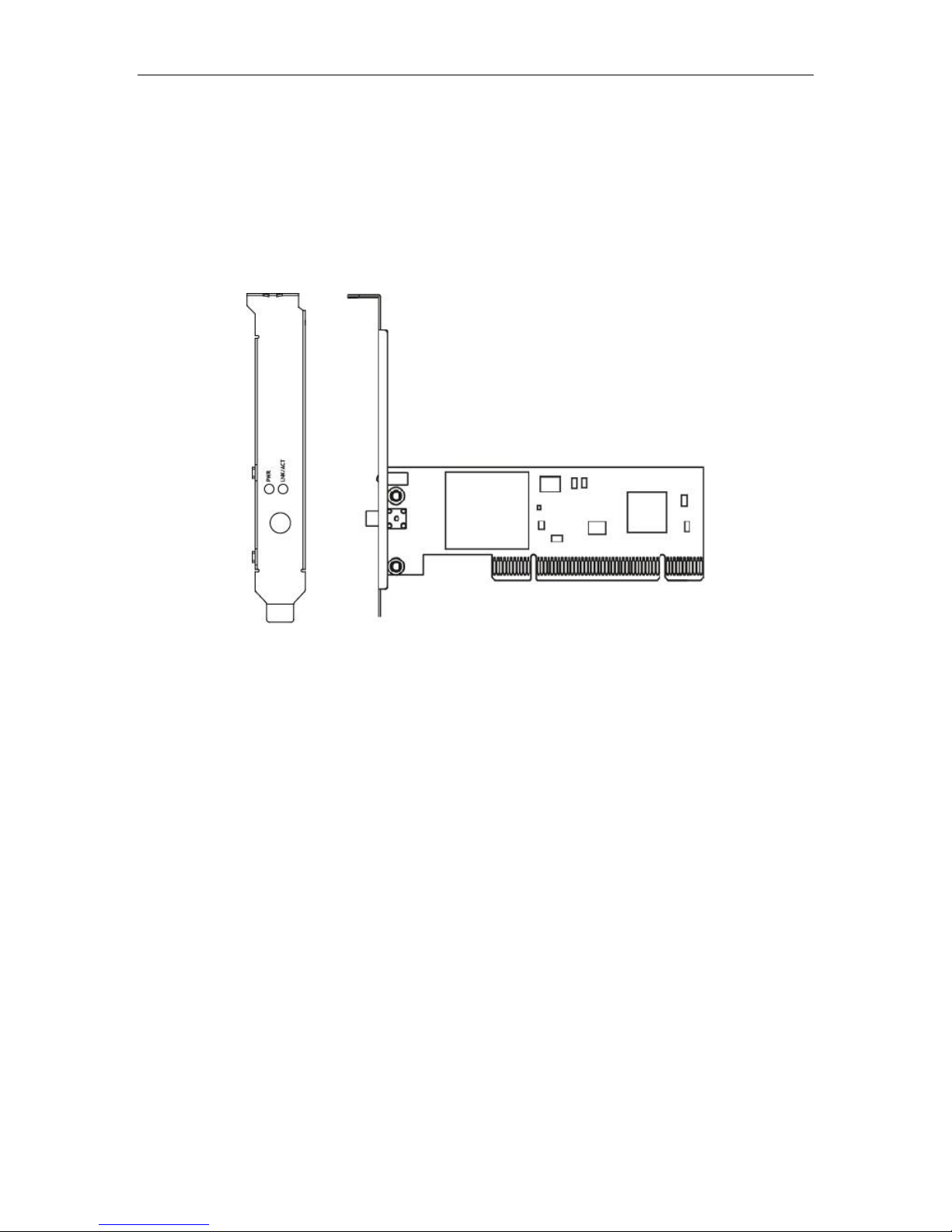
The TECHSOL O TC-N38 wireless PCI Adapter supports up to 54 Mbps connections. This
card is fully compliant with the specifications defined in IEEE802.11g standard. It is designed
to complement PCI Local Bus computers and supports Windows 98SE/Me/2000/X P/Vista
Figure- 6
The status LED indicators of t he P CI w ireless adapter are described in the following.
PWR ON (Green): Indicat es power on
Lnk/Act ON (Green): Indic at es a valid connection
Lnk/Act Flashing: Indicat es the Adapt er is transmitting or receiving data.
Install wireless PCI adapter
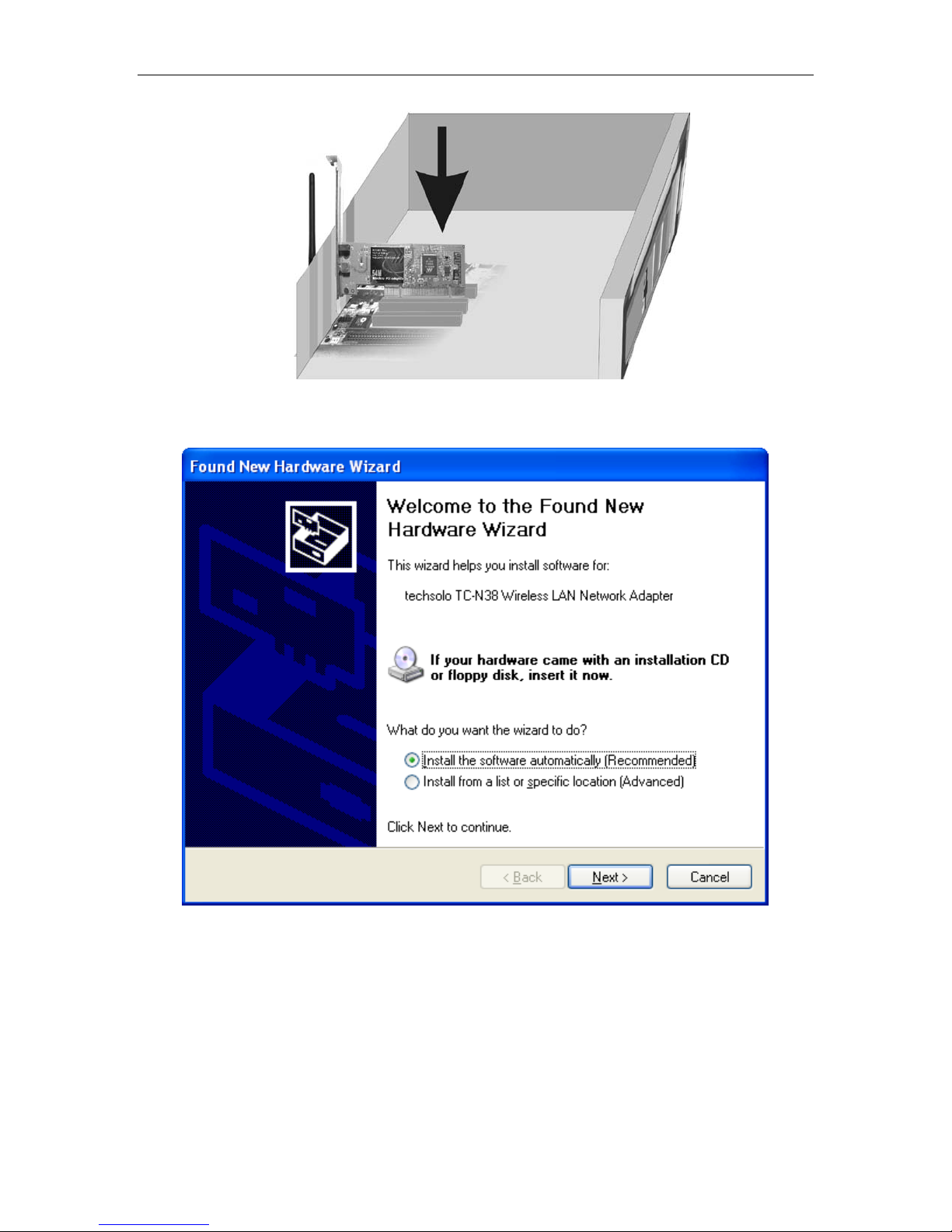
Open your PC case and locate an av ailable PCI on the motherboard.
Slide the PCI Adapter into the PCI slot. Make sure that all of its pi ns ar e t ouching the
slot’s cont act s. You may have to apply a bit of pressure to slide the adapter all t he way in.
after the adapter is firm ly in place, secure its fasten ing tab to your PC’s chassis with a
mounting screw. Then close your PC.
Attach the externa l antenna to the adapter’s antenna port.
Power on the PC.
Page 8 of 28
Page 9
Wireless Network Adapter User manual
Figure- 7
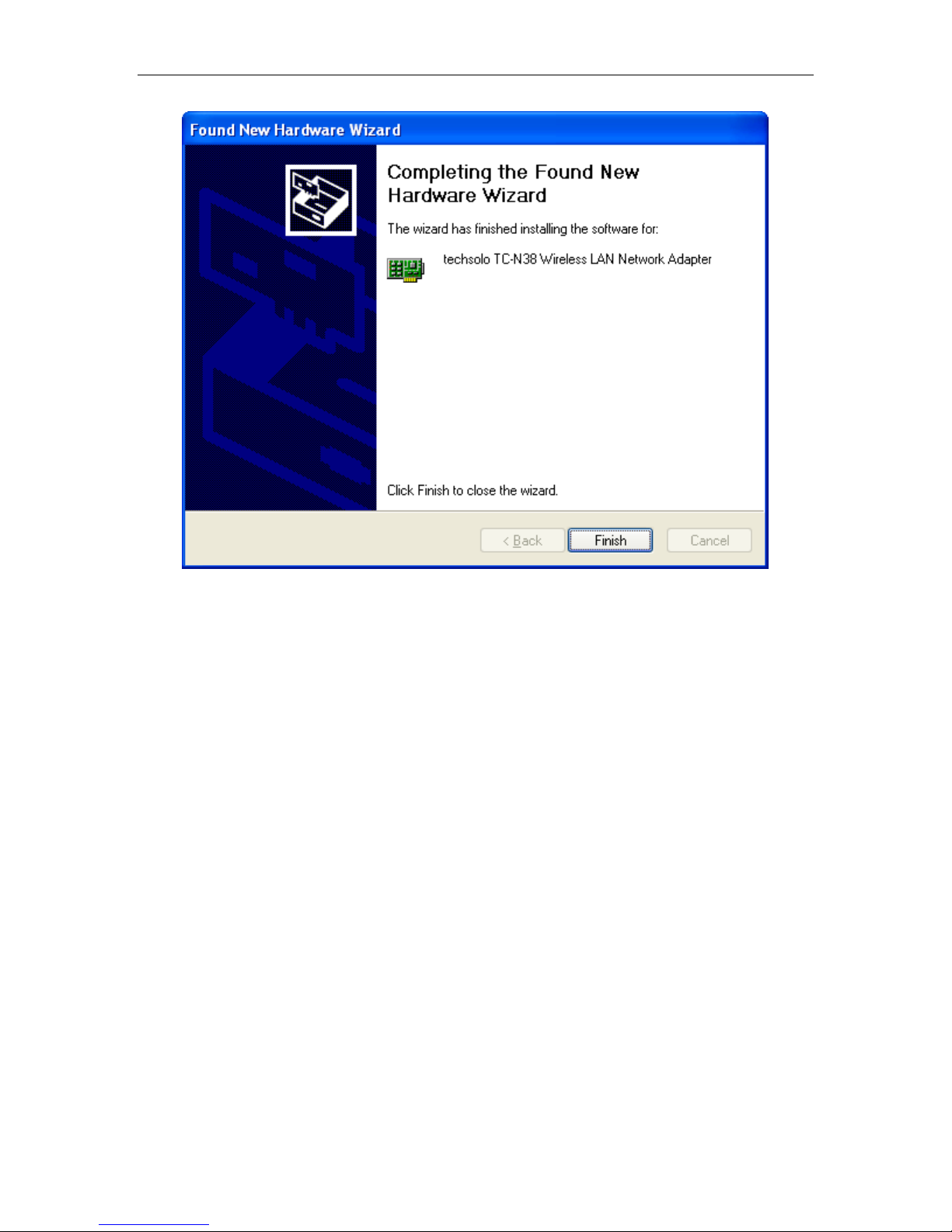
If the Found New Hardwar e Wizard displays, choose install the software automatically
(Recommended), and cl ic k Next button. The driver will be installed automatic ally.
Click Finish.
Figure- 8
Page 9 of 28
Page 10
Wireless Network Adapter User manual
Figure- 9
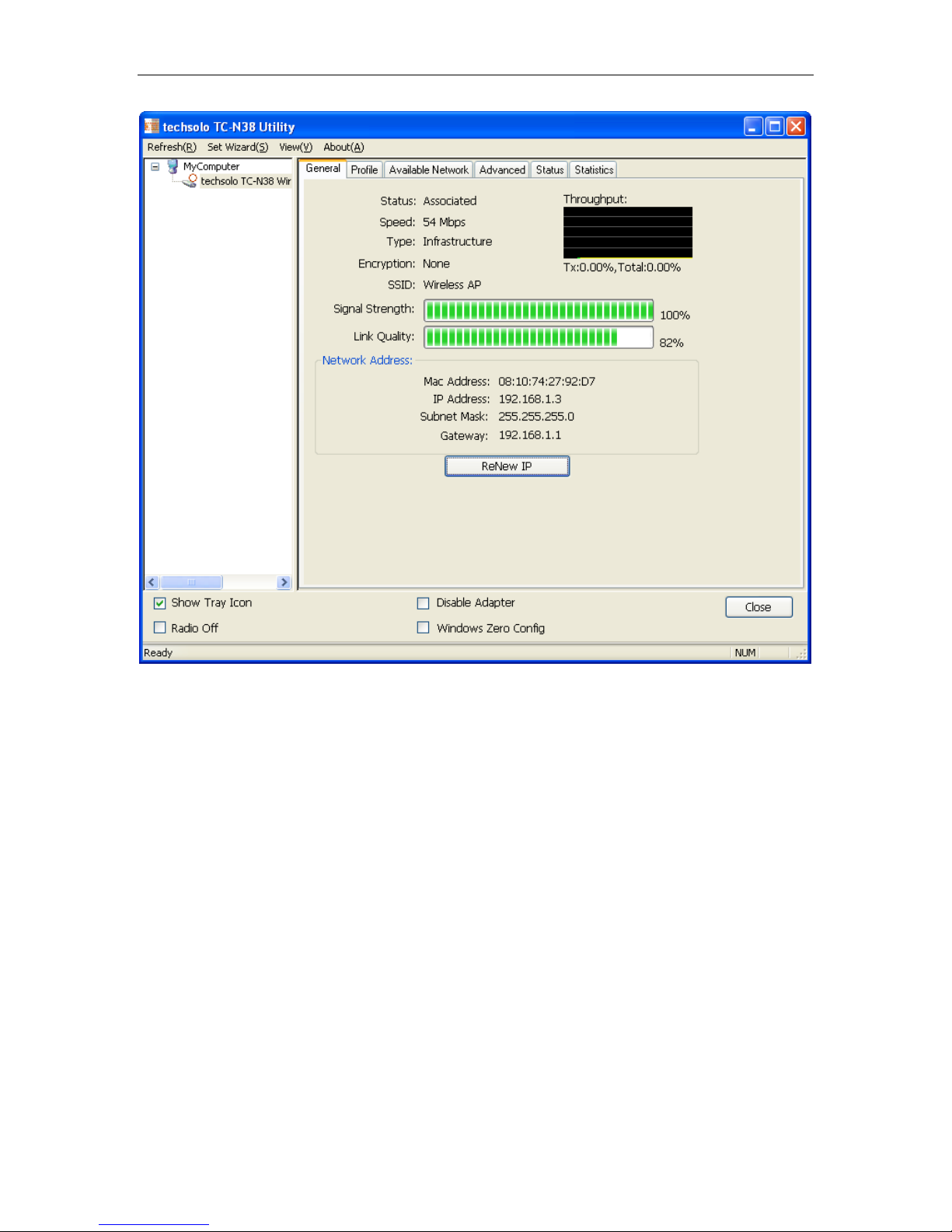
You have now completed t he dr iver and hardware installation for t he Techsolo Wireless PCI
Adapter.
Page 10 of 28
Page 11

Wireless Network Adapter User manual
Chapter 4 Configuring TE CHS O LO TC -N38
Use the techsolo TC-N38 Utility to check the link information, search for available wireless
networks, or create profiles that hold different configuration settings. You can double-click the
icon on your system desktop st ar t it.
Figure- 10
Another way to start the Configuration Utility is to click on Start>Programs> techsol o TC-N38
Utility> techs ol o TC-N38 Utility.
4.1 General
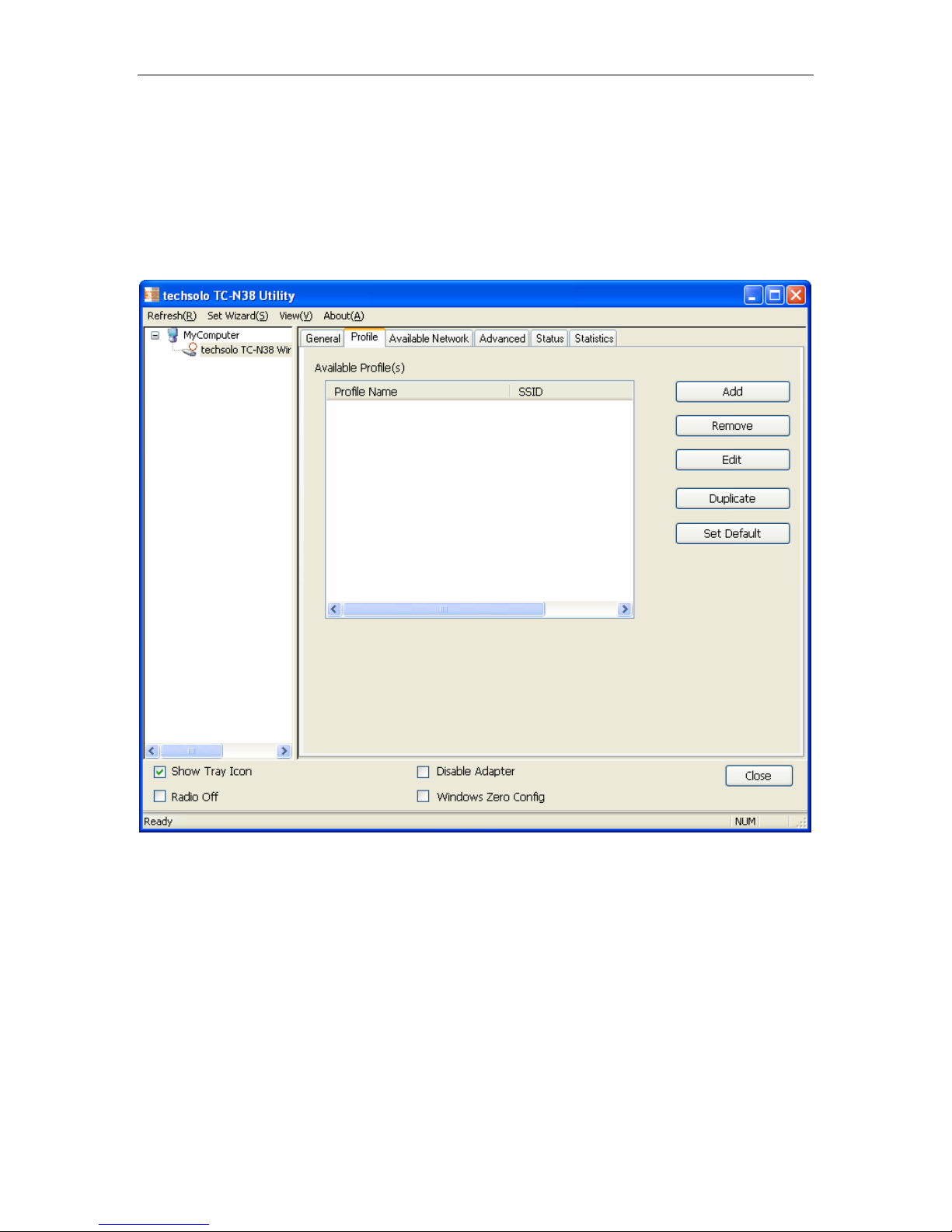
The General tab displays current basic wireless connection information.
Page 11 of 28
Page 12
Wireless Network Adapter User manual
Figure- 11
General Information
Status: Wireless network Associated, Ad-hoc Mode or Not Associated.
Speed: The data transfer rate of the current connecti on.
Ty pe: The type of the current wireless connection , Infrastru c t r ue or ad hoc
Encryption: Current encr yption.
SSID:
The unique name of the wireless network.
Signal Str ength: The data t r ansfer r at e of the current connection.
Link Quality: The qual ity of the current wireless connection.
Internet Protocol (TCP/IP)
MAC: The MAC Ad dress of the Adapter.
IP Address: The IP Address of the Adapter.
Subnet Mask: The Subnet Mask of the Adapter.
Gateway: The Default Gateway addr ess of the Ad apter.
Others
Show Tray Icon: Show PC I Wireless LAN Utility icon in the window s t oolbar.
Disable Adapter: Disab le the wireless adapter
Page 12 of 28
Page 13
Wireless Network Adapter User manual
Radio off: Turn off the radio of the wireless ada pt er
Windows Zero config: En able t his but ton if y ou want to conf igur e wireles s PCI adapter by
windows wireless adapter con figurat ion tools.
4.2 Profile
Using the Profile tab,y ou can add, r emove, edit, duplicate, and set default a profile
4.2.1 Add
Create a new Infrastructure mode profile
If you want your wireless computers to communicate with other computers on your wired
network via a wireless access point. Click the Add button to create a new infrastructure
profile.
Figure- 12
Page 13 of 28
Page 14
Wireless Network Adapter User manual
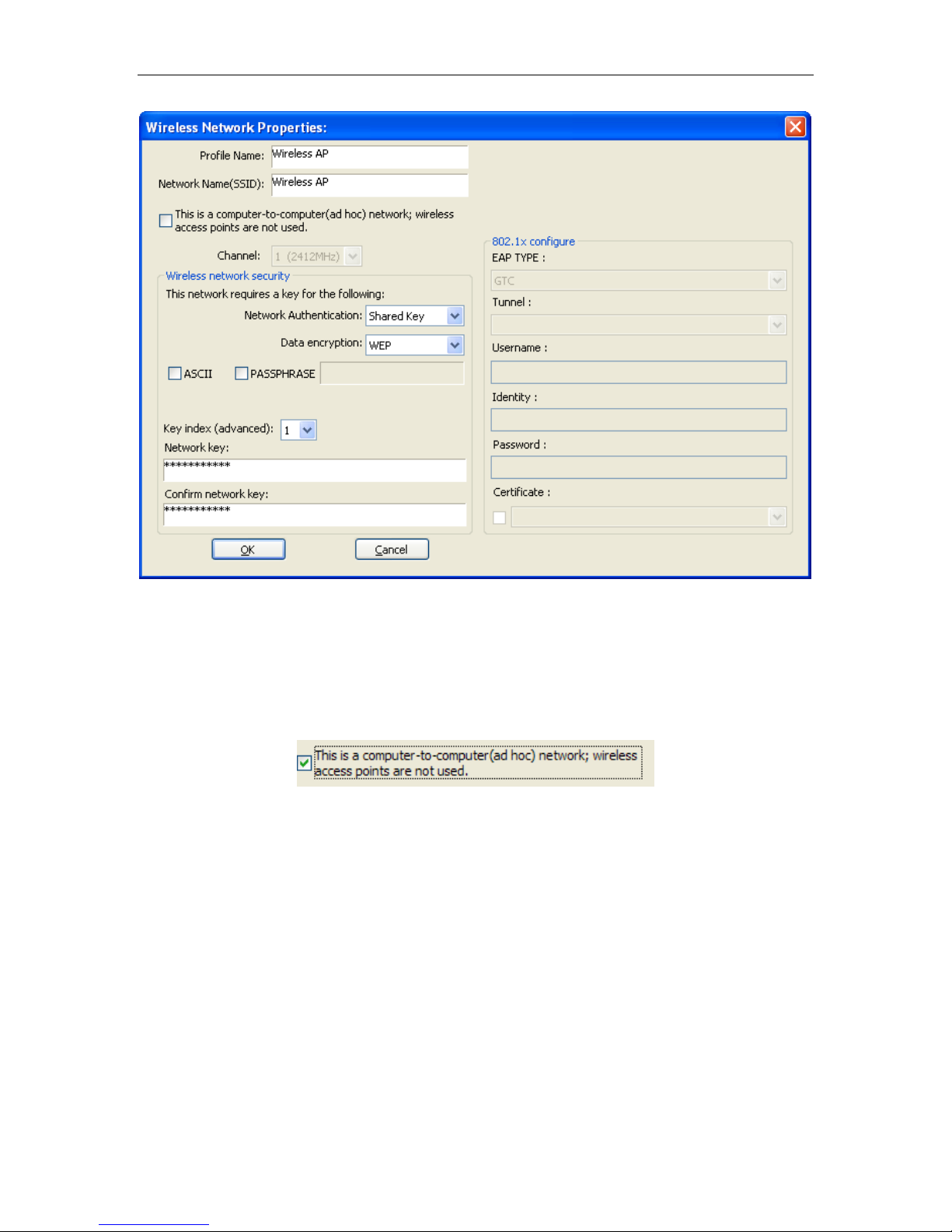
Figure- 13
Enter a name for the new profile i n pop-up. Enter the Network SSID. Choose the Network
Authentication Mode and Data encryption from the drop-down menu and import the network
key. Then click OK button.
Create a new ad-hoc mode profile
If you want your wireless computers communicate with each other directly, click the Add
button to create a new ad-hoc profile. Then, mark
Figure- 14
and select the correct operat ing channe l for y our netw ork fro m the Cha nnel drop-dow n menu.
Page 14 of 28
Page 15
Wireless Network Adapter User manual
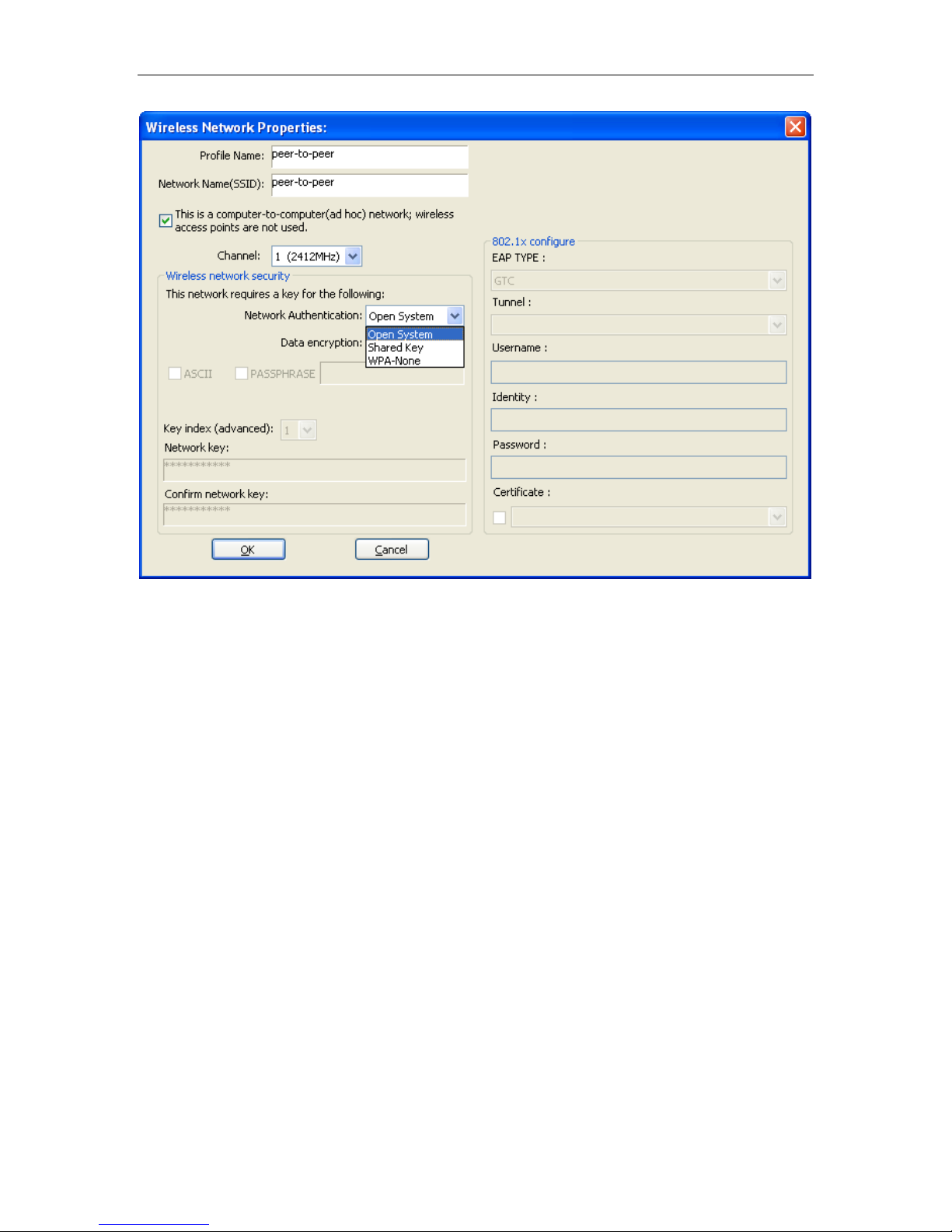
Figure- 15
Choose the Network Authentication Mode and Data encryption from the drop-down menu.
And import the network key. Then click OK button.
You have successfully created a profile.
4.2.2 Remove
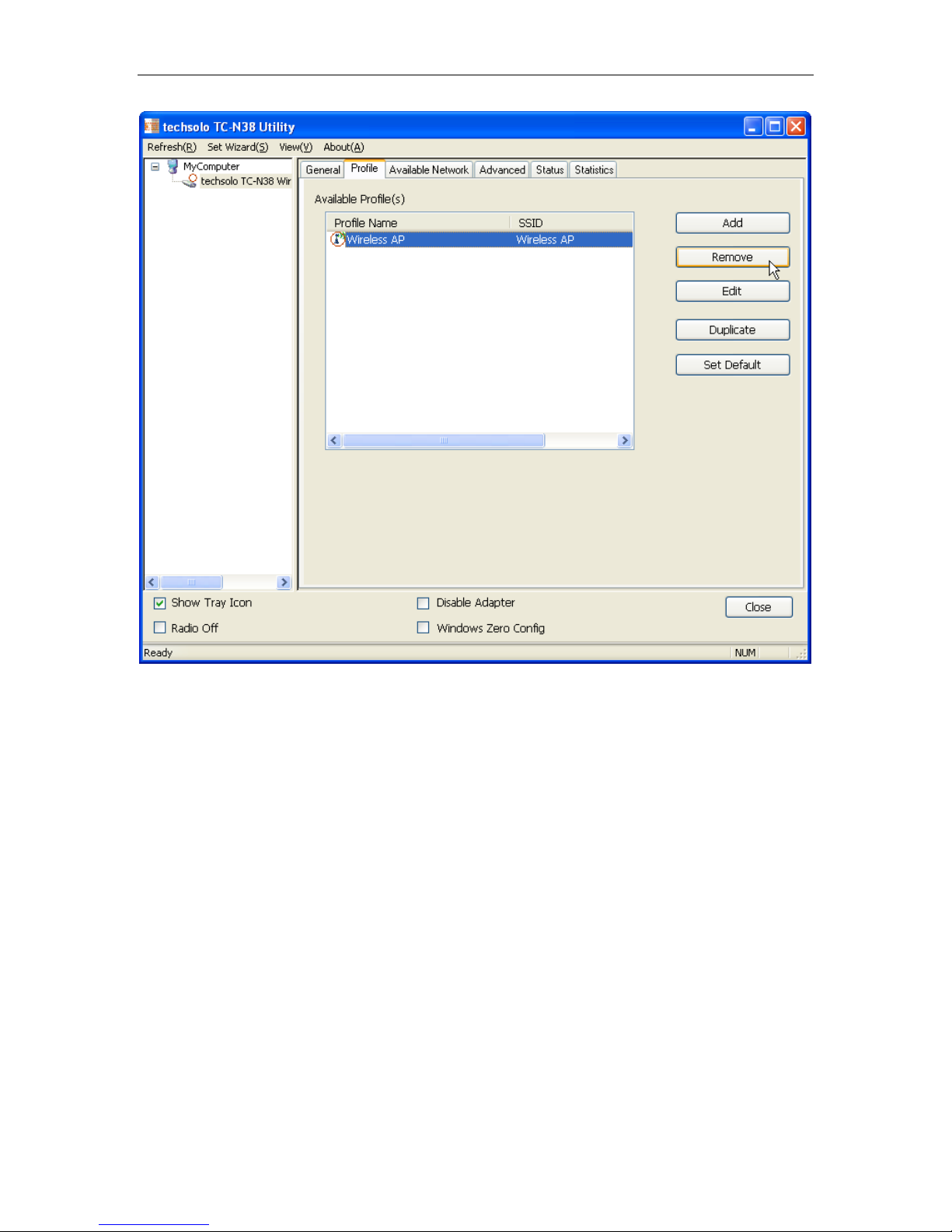
Select a profile and click Re m ove button to delete this profile (Figure- 16).
Page 15 of 28
Page 16
Wireless Network Adapter User manual
Figure- 16
4.2.3 Edit
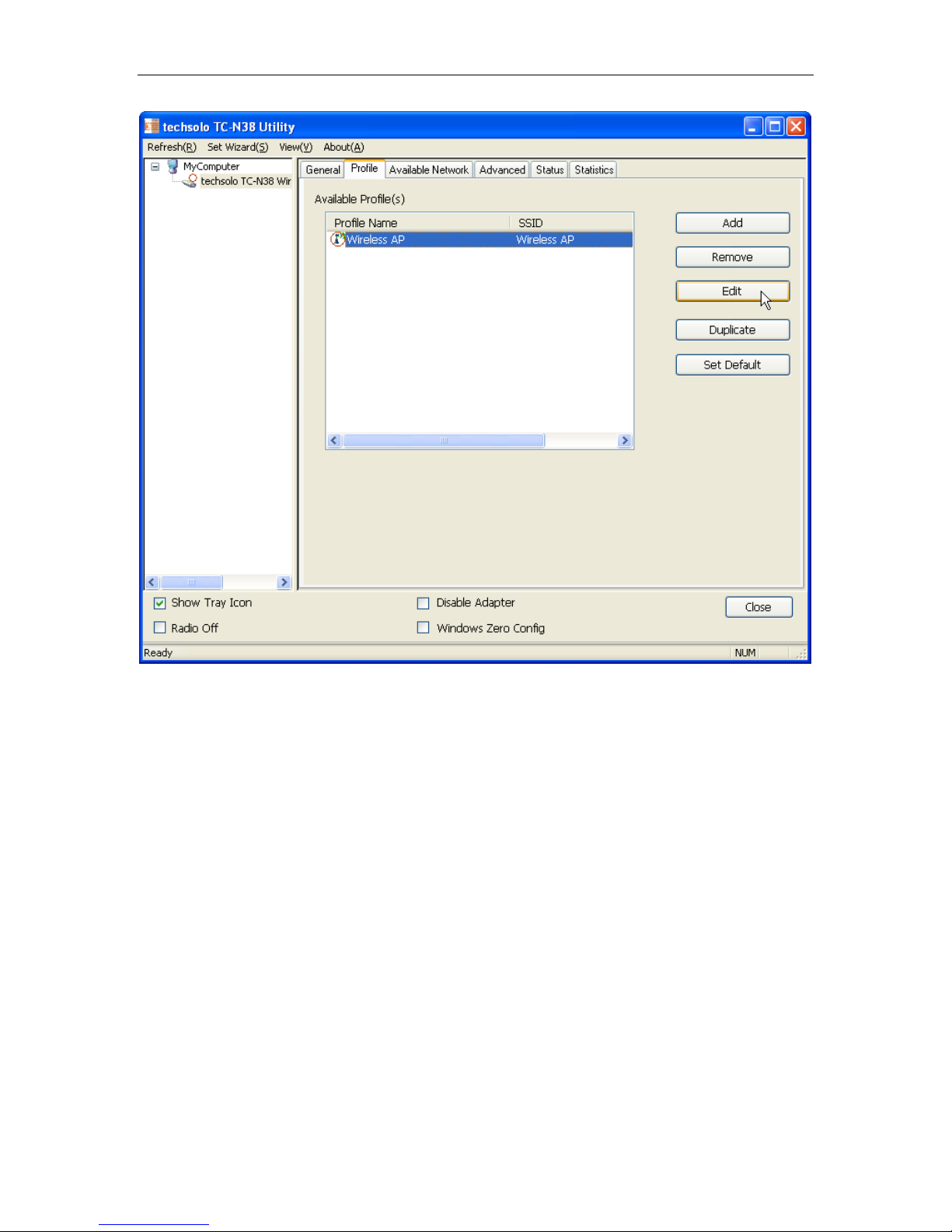
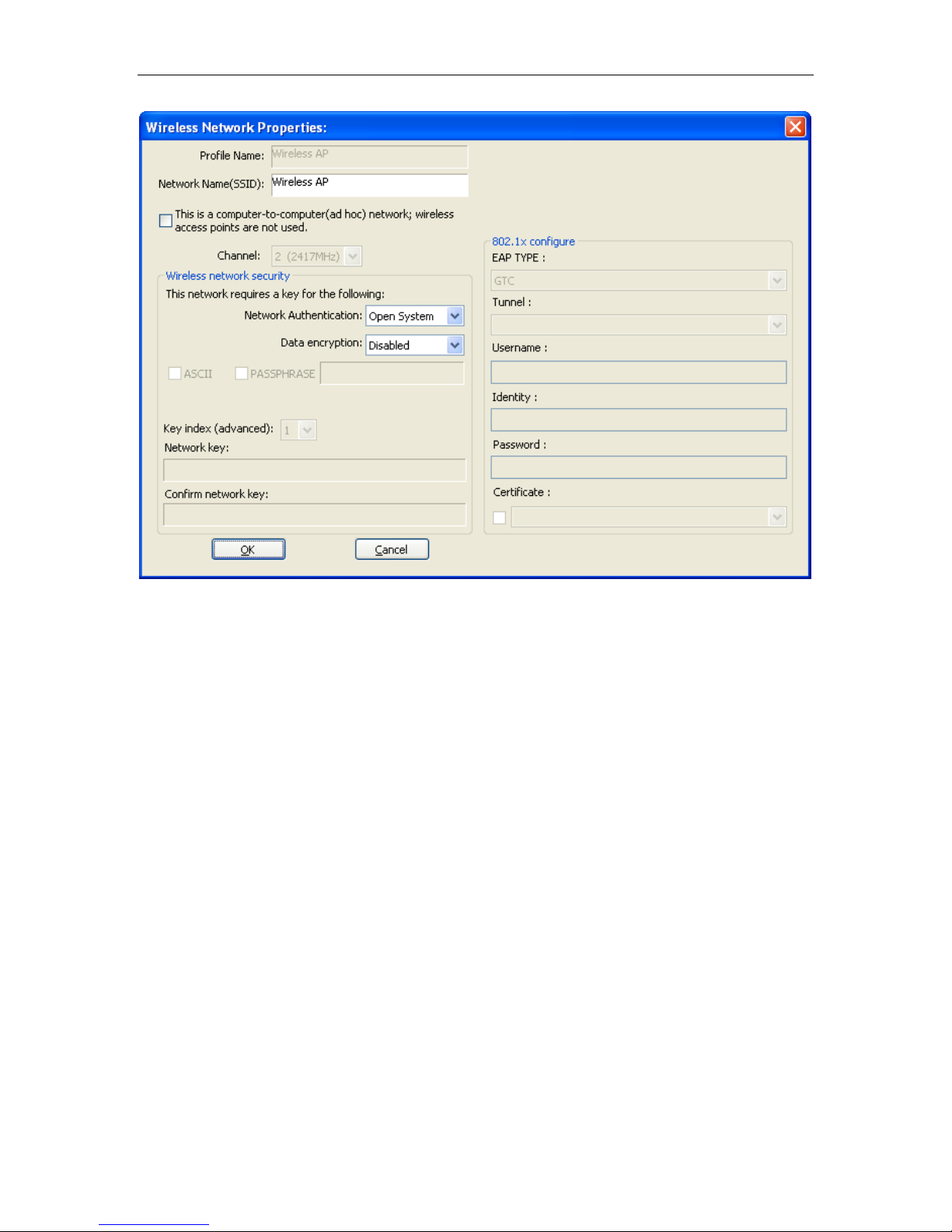
Select a profile and click Ed it but t on to edit this profile (Figure- 17).
Page 16 of 28
Page 17
Wireless Network Adapter User manual
Figure- 17
Page 17 of 28
Page 18
Wireless Network Adapter User manual
Figure- 18
Modify the profile information according to your demand.
4.2.4 Duplicate
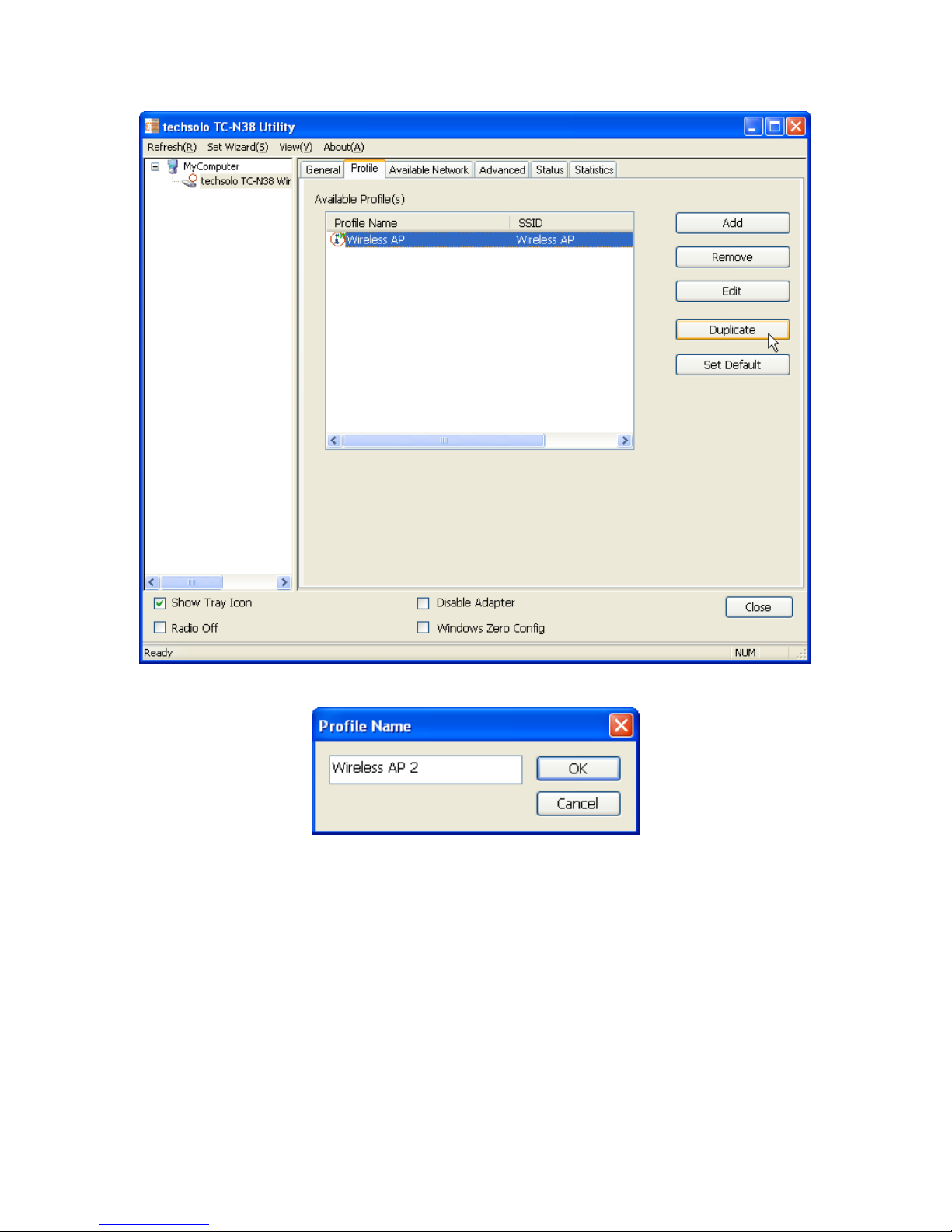
Select a profile which you want to copy and then click Duplicate(Figure- 19)
Page 18 of 28
Page 19
Wireless Network Adapter User manual
Figure- 19
Import the new profile name in the popup window blank (Figure- 20)
Figure- 20
4.2.5 Set default
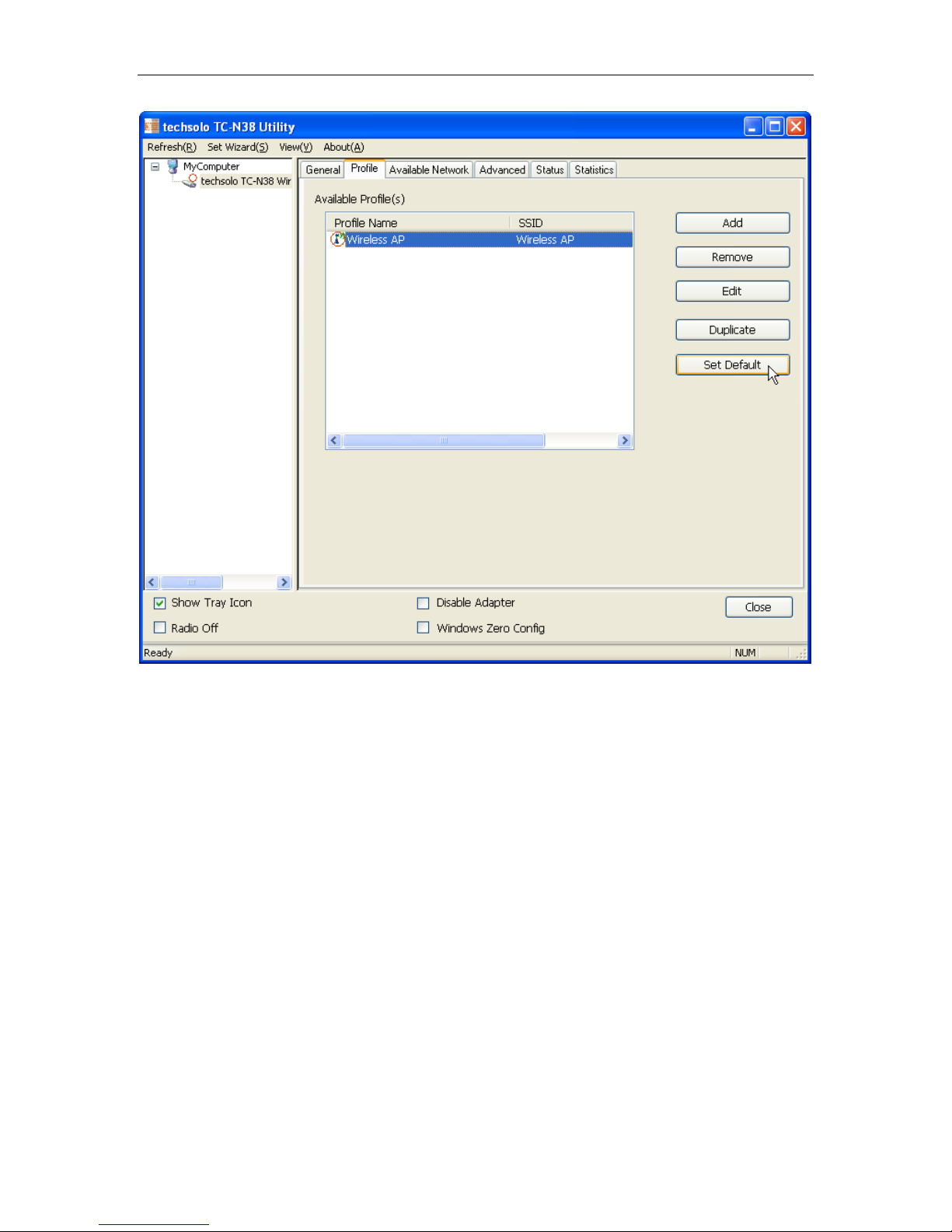
When you want to make one profile as a default wireless connection, you should select the
profile and click Set default button. The wireless adapter will use this profile to connect to
wireless network auto mati c al ly when the utility running next time.
Page 19 of 28
Page 20
Wireless Network Adapter User manual
Figure- 21
4.3 Available Network
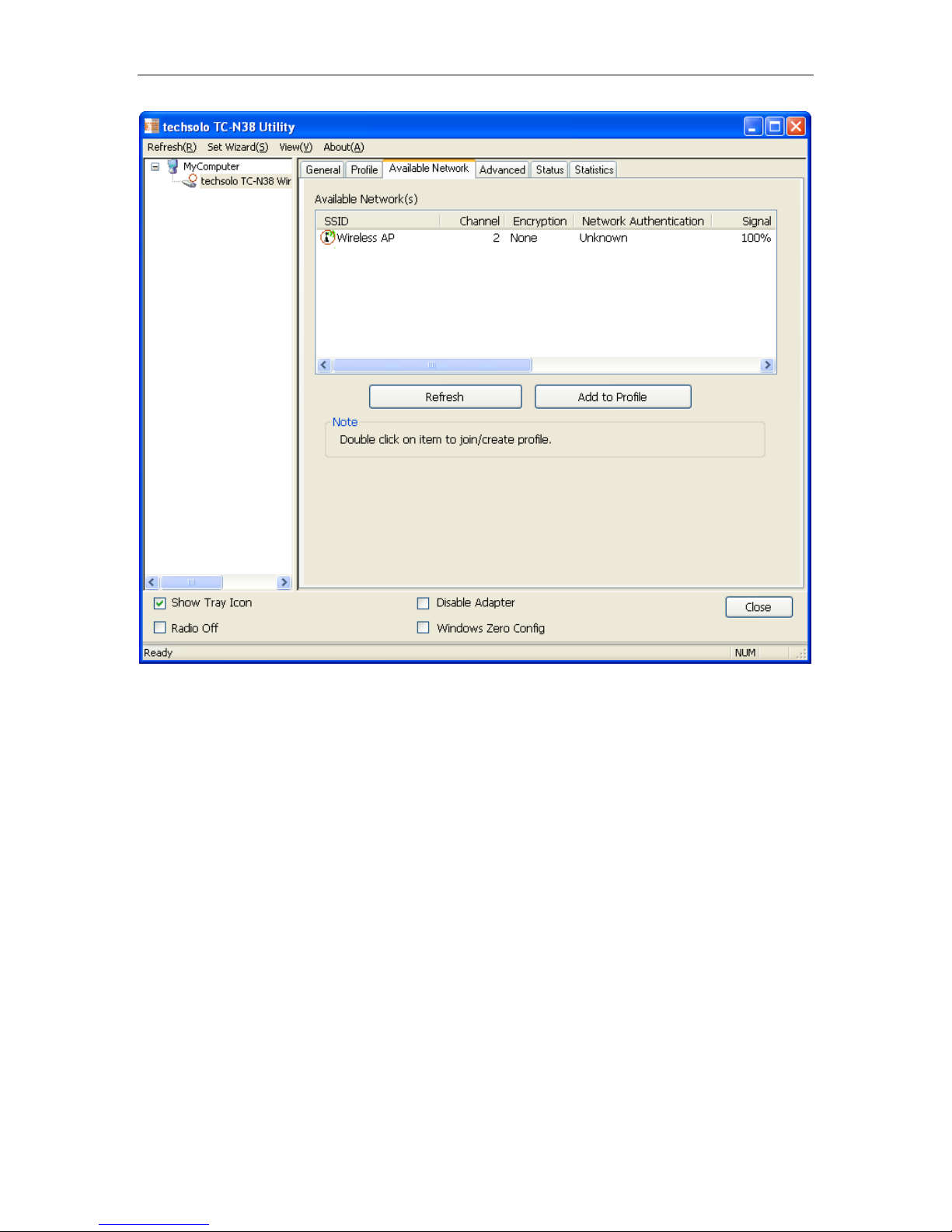
The Available Network t ab displays a list of infrastru ct ur e and ad-hoc networks for available
wireless connection (Figure- 22)
Page 20 of 28
Page 21
Wireless Network Adapter User manual
Figure- 22
Double-click the network to which you wish to connect.
Page 21 of 28
Page 22
Wireless Network Adapter User manual
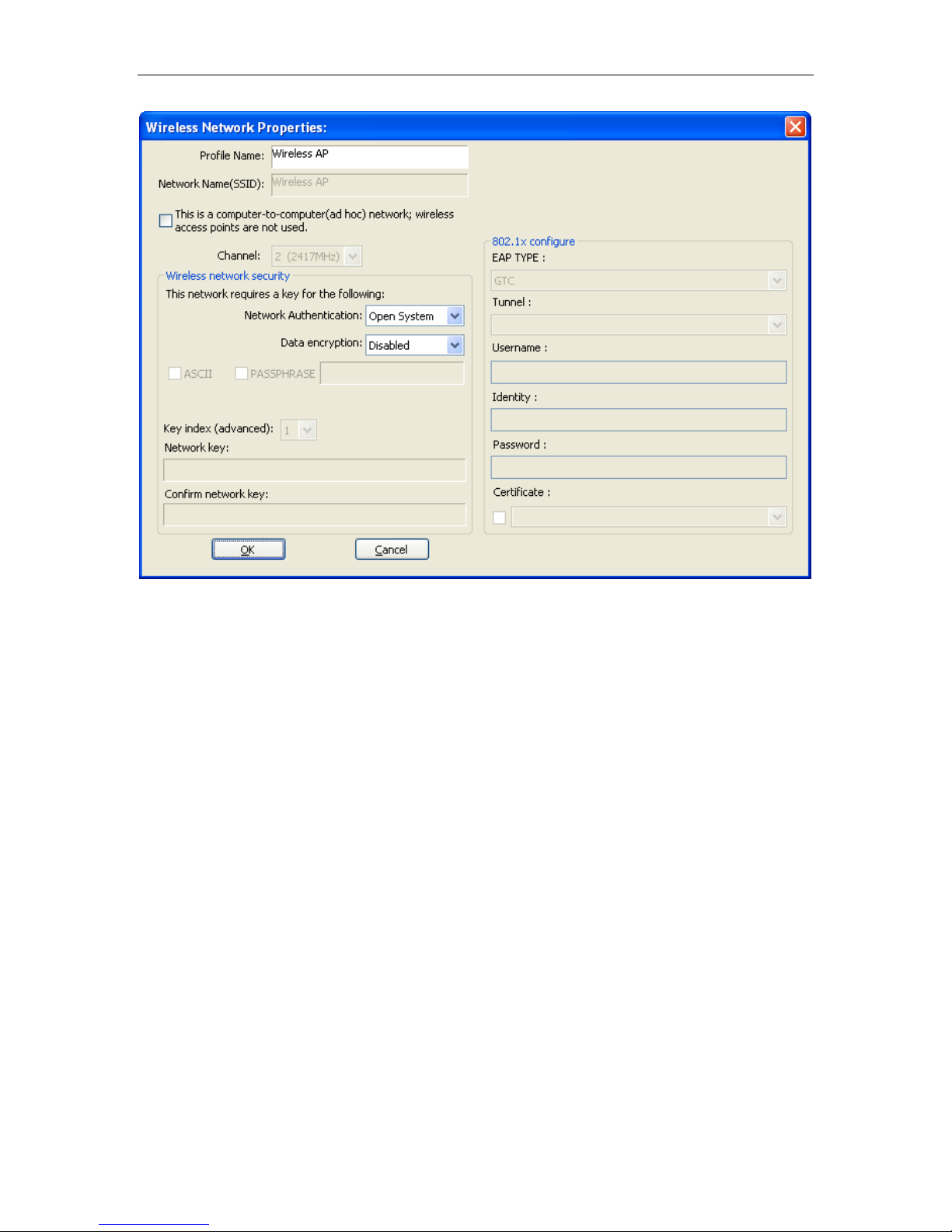
Figure- 23
Refer to Figure- 23 choose the Authorizat ion modes and Encry ption modes in the drop-down
box. If the wireless net wor k uses a Pas sphr ase, enter the Pass phras e in the Passphr as e field.
If the wireless network us es a WEP key, enter the WEP key in the Key field. Click the OK
button to complete the network connection.
Page 22 of 28
Page 23
Wireless Network Adapter User manual
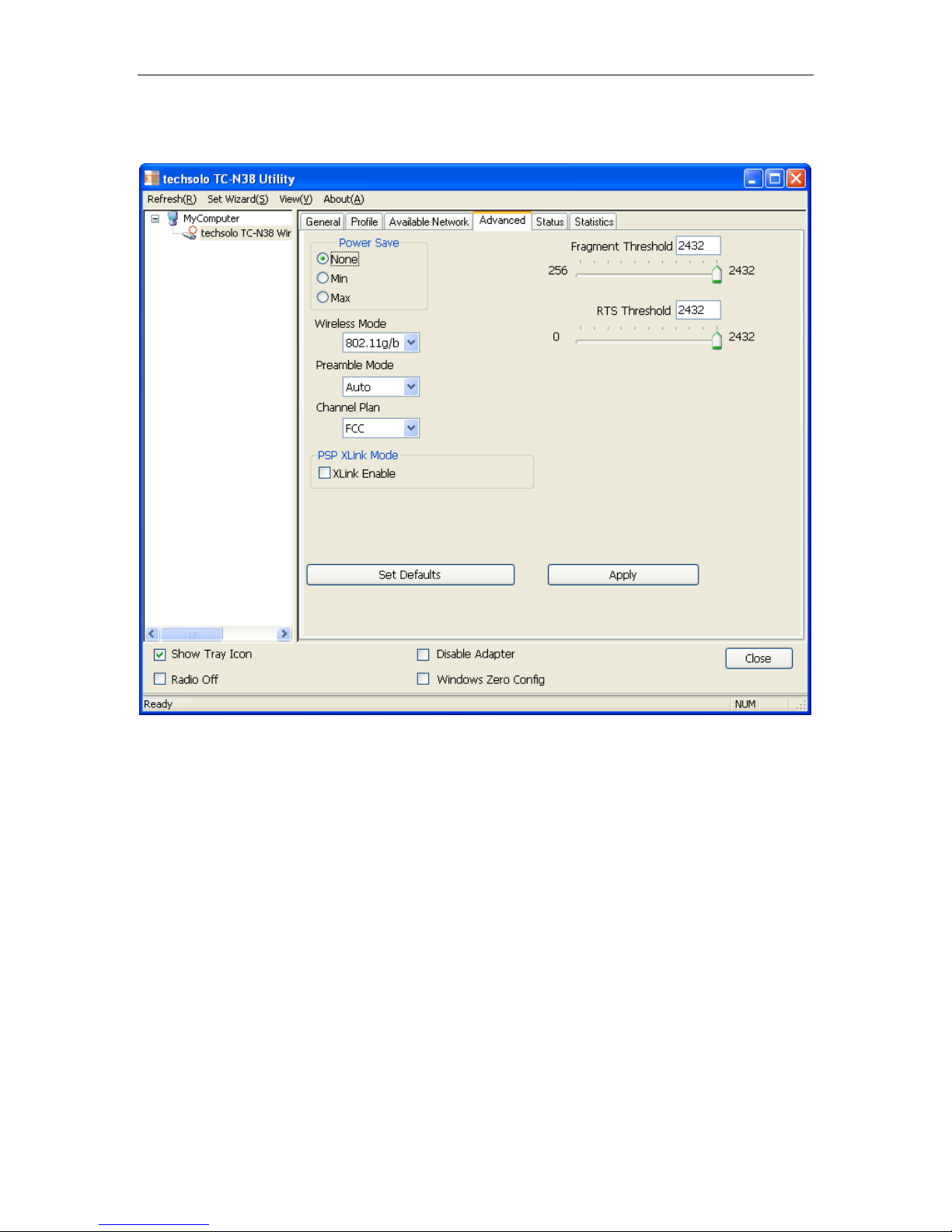
4.4 Advanced
Figure- 24
Power save
None: Turns power saving off, thus powering up the wireless adapter c ontinuously for a short
message response time.
Min: In this mode, the adapt er wil l be sw itche d to minimum mode automatically when no larg e
packets are retrieved
Max: Selects maximum mode to let the access point buffer incoming messages for the
wireless adapter. The adapter will detect the access point if any messages are waiting
periodically.
Wireless Mode
Specify that the adapter work in an access point network with 802.11g/b or 802.11g operation.
The wireless adapter must match the wireless mode of the access point with which it
associates.
Preamble Mode
Long: Set to Long only t o override allowing short frames.
Short: The adapter can only use shor t r adio headers if the access point supports and uses
them.
Page 23 of 28
Page 24
Wireless Network Adapter User manual
Auto: Short & Long (access point mo de) , which allows both short and lon g headers in the
802.11b frames.
Channel Plan
Channel selection, please refer to your country’s w ir eles s s t andard.
PSP Xlink Mode
Enable Xlink mode, the wi r eless adapter can but work in 802.1 1b ad-hoc mode.
Set defaults
Apply
Click Apply when configur ation is complete.
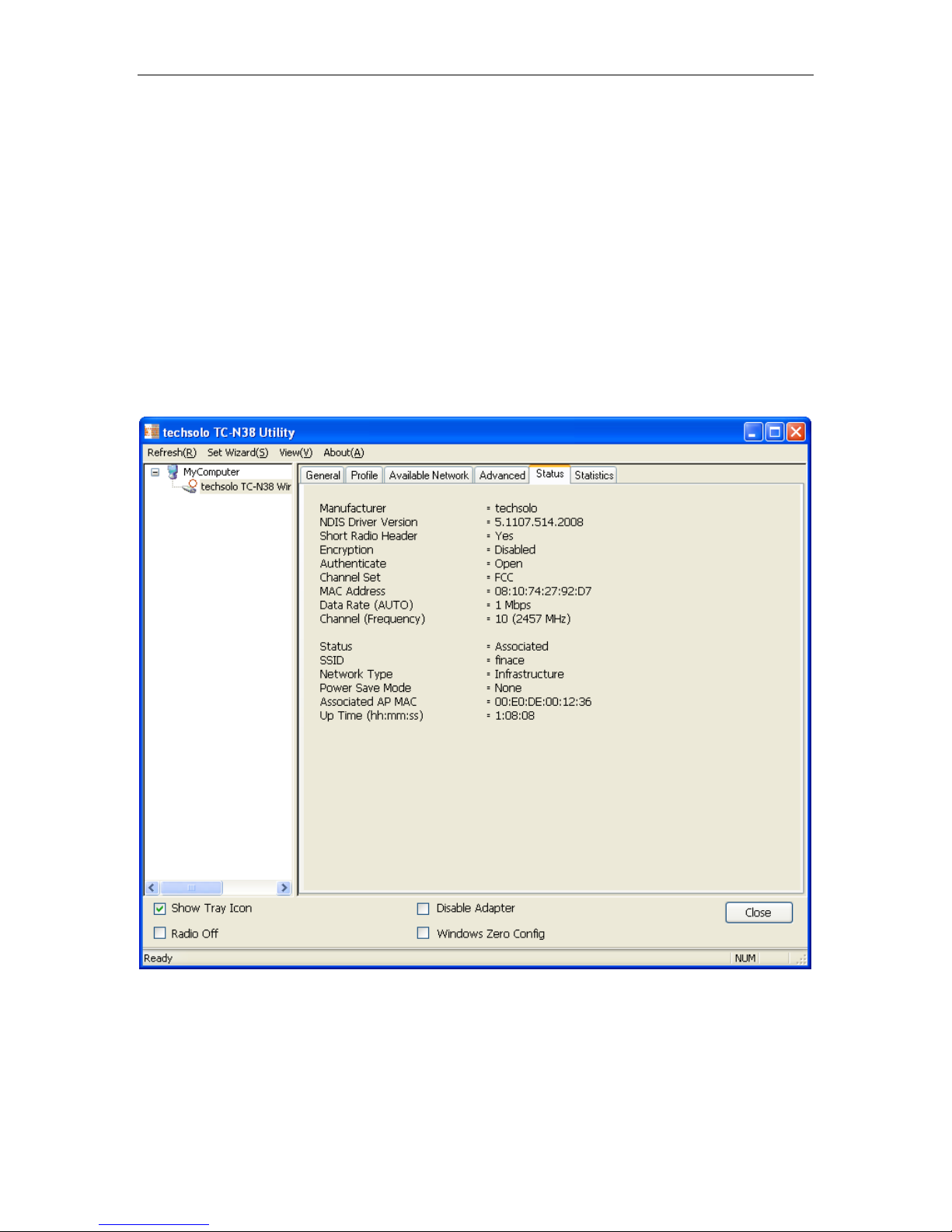
4.5 Status
The Status tab displays t he detailed information of current device and wireless c onnection.
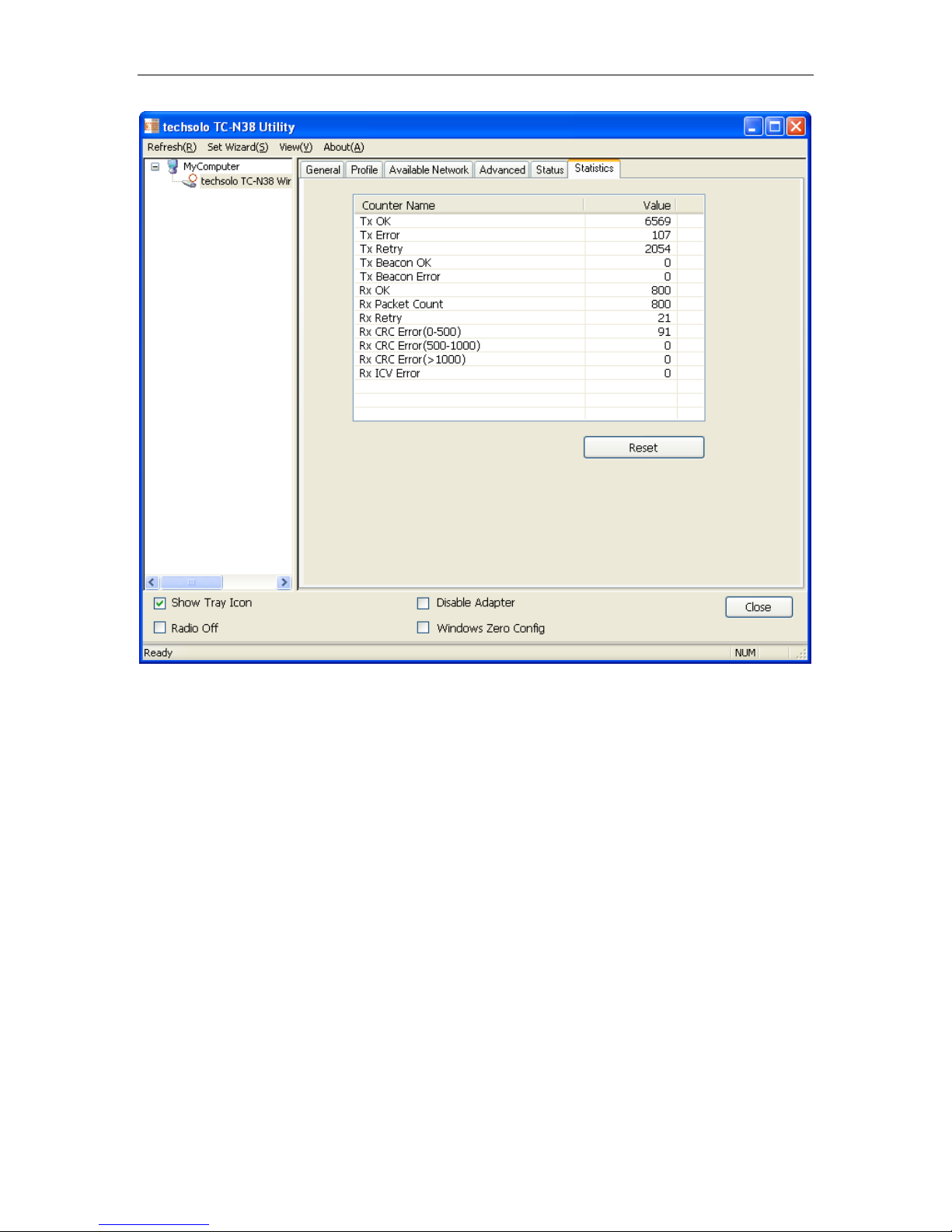
4.6 Statistics
The Statistics tab display the stat. value of current wi r eless connection Tx and Rx, you can
click Reset button to reset value and renew to count .
Figure- 25
Page 24 of 28
Page 25
Wireless Network Adapter User manual
Figure- 26
Page 25 of 28
Page 26

Wireless Network Adapter User manual
Troubleshooting
This chapter provides solutions to problems that ma y occur during the installation and
operation of the Wireless PCI Adapter. Read the descriptions below to solve your problems.
1. The Wireless PCI Adapter does not work properly.
Reinsert the Wireless P CI Adapter into your PC’s PCI slot.
Right click on My Comput er and sele ct Proper ties. S elect the dev ice mana ger and c lick on th e
Network Adapter. You will find the Ad apt er if it is installed successfully. If you see the yellow
exclamation mark, the resources ar e conflict ing. You will see the status of the Ada pter. If there
is a yellow question mark, please check the following:
Make sure that your PC has a free IRQ (Interrupt Request, a hardware interrupt on a PC. )
Make sure that you have inserted the right adapter and inst alled the proper driver. If the
Adapter does not function af t er attempting the above st eps, remove the adapter and do t he
following:
Uninstall the driver software from your PC.
Restart your PC and re peat the hardware and software installation as spec ified in this User
Guide.
2. I cannot communicate w i t h t he other computers linked via Ethernet in the
Infrastructure confi guration.
Make sure that the PC to which t he Adapter is associated is powered on.
Make sure that your Adapter is configured on the same channe l and wit h t he same security
options as with the other comput er s i n the Infrastructure configur ation.
3. What should I do when the computer with the Adapter inst alled is unable to
connect to the wireless network and/or the Internet?
Check that the LED indicat or s for t he br oadband modem are indicati ng normal activity. If not,
there may be a problem with the broadband connection.
Check that the LED indicat or s on t he wireless router are functionin g pr operly. If not, check
that the AC power and Ethernet cables are firmly connected.
Check that the IP address, subnet mask, gateway, and DNS settings are correc tly entered for
the network.
In Infrastructure mode, make sure the same Service Set Ident ifier (SSID) is specified on the
settings for the wireless cl i ents and access points.
In Ad-Hoc mode, both wireless clients will need to have the same SSID. Please note that it
might be necessary to set up one c lient to est ablish a BS S (Basic Serv ice Set) and w ait briefly
before setting up other clients. This prevents several clients from trying to establish a BS S at
the same time, which can result i n m ultiple singular BSSs bein g established, rather than a
single BSS with multiple c l ients associated to it.
Check that the Network Connection for the wireless client is configured properly.
If Security is enabled, make sure that the correct encry pt ion keys are entered on both the
Page 26 of 28
Page 27

Wireless Network Adapter User manual
Adapter and the access p oint.
Page 27 of 28
Page 28

Wireless Network Adapter User manual
APPENDIX A Specifications
Standards: IEEE 802.11g, IEEE 802.11b
Modulation: 802.1 1b: CCK ( 11 Mbps), DQPSK (2 Mbps ), DBP SK (1 Mbp s); 802.11g:
OFDM
Channels: 11 Cha nnels (USA)
13 Channels (Europe)
14 Channels (Japan)
Network Protocol: TCP/IP, IPX, NDIS 4, NDIS 5, NDIS 5.1, NetBEUI
Interface: PCI
Transmit Power: 15 dBm
Sensitivity: -80 dBm
LED: PWR, LNK/ACT
WEP Key Bit s : 64-Bit and 128-Bit
Dimensions: 120×45mm (Non-Bracket)
Unit Weight: 50g
Power: 3.3V
Certifications: FCC CE
Operating Temp.: 0ºC to 40ºC
Storage Temp.: -20ºC to 70º C
Operating Humidity: 10% to 85%, Non-Condensing
Storage Humidity: 5% to 90%, Non-Condensing
Page 28 of 28
 Loading...