

Page 1
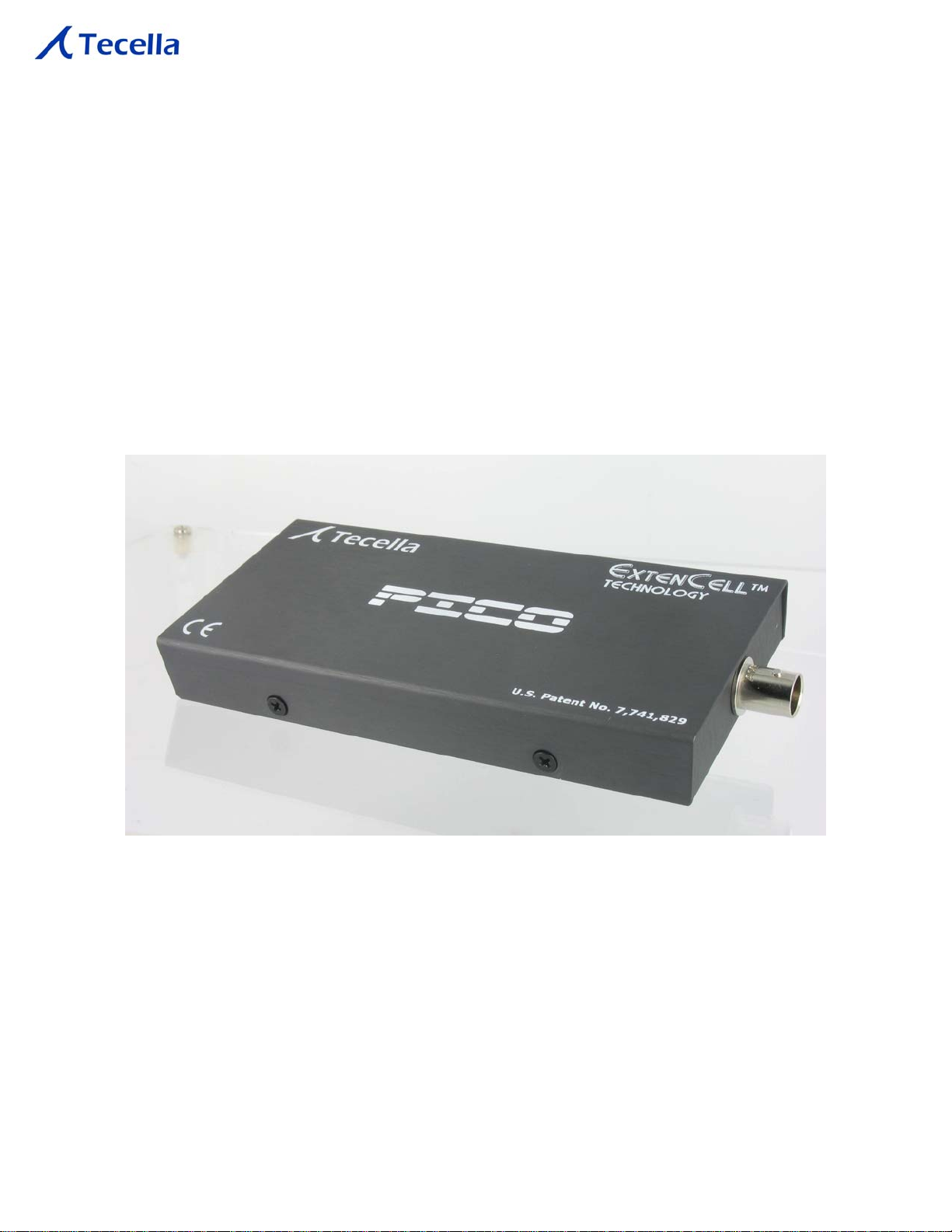
Pico
Installation Guide
Tecella
3001 Red Hill Ave, Ste 1-204
Costa Mesa, CA 92626
+1-714-641-1709
Page 2

Pico Installation Guide
1 Before you begin
1.1 Introduction
The Tecella Pico is a USB-powered whole cell patch clamp amplifier. The Pico was
designed with ease-of-setup and ease-of-use as top priorities. By integrating the
digitizer, the headstages, the internal model cell, and the USB, the installation process
consists primarily of connecting the USB cable. No additional computer hardware is
required, and no tools are needed to install the Pico.
1.2 Package contents
Please confirm that the following items were included in the package.
Pico amplifier
USB Cable
BNC Extender
BNC Cable
Any optional items you may have purchased.
1.3 Software components
The following software components are necessary.
Tecella Driver Installer
Either TecellaLab software or WinWCP software
1.4 Minimum computer requirements
The following are the minimum system requirements for the computer.
Processor (any of the following)
o Any dual core Intel or AMD processor (including any Intel Core Duo)
o Minimum 1GHz for any single core Intel or AMD processor
1GB RAM (2GB recommended)
2GB free space on Hard Drive
One free USB port
Windows XP, Vista, or 7
Tecella Pico 2
Page 3
Pico Installation Guide
2 Driver installation
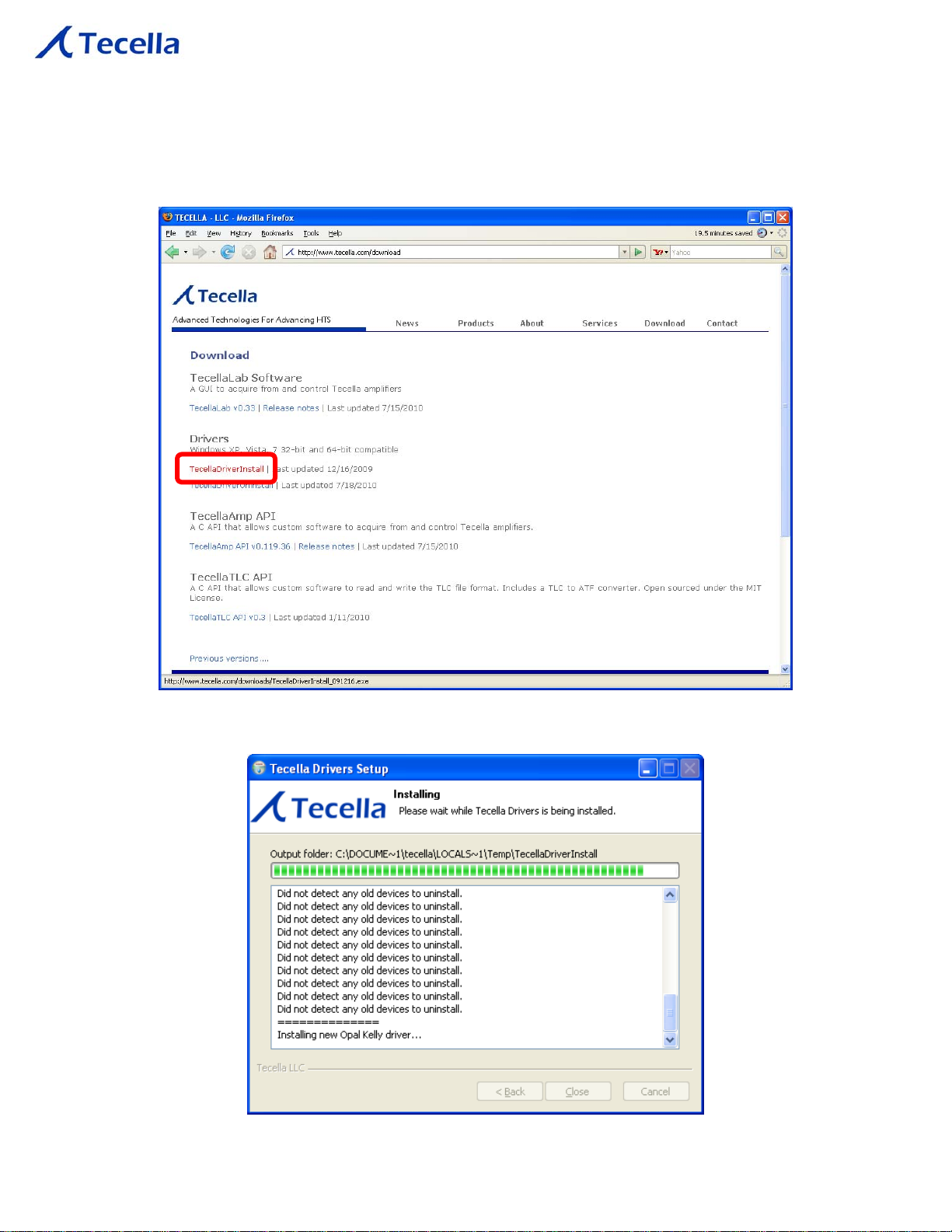
Go to www.tecella.com/download. Click on the TecellaDriverInstall link as shown below.
Run the installer. You will see the following screen.
Tecella Pico 3
Page 4
Pico Installation Guide
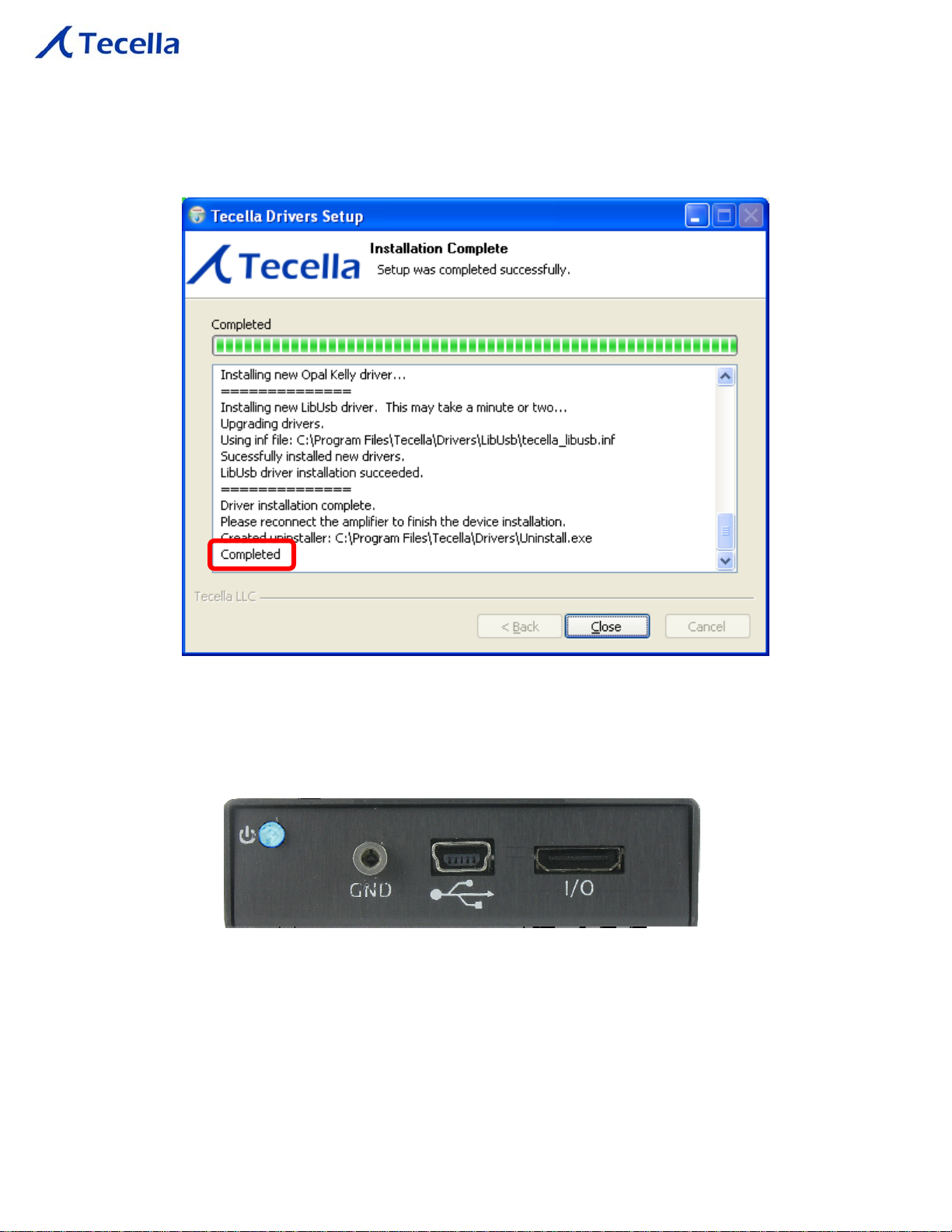
Once the installation is complete, you will see the following screen.
3 Plug In The Pico
Connect the Pico to the computer using a USB cable.
When plugging in the Pico for the first time, the driver will automatically install.
Tecella Pico 4
Page 5

Pico Installation Guide
4 Software
Axograph can be purchased/downloaded from:
http://axographx.com/
WinWCP can be purchased/downloaded from:
http://spider.science.strath.ac.uk/sipbs/software_ses.htm
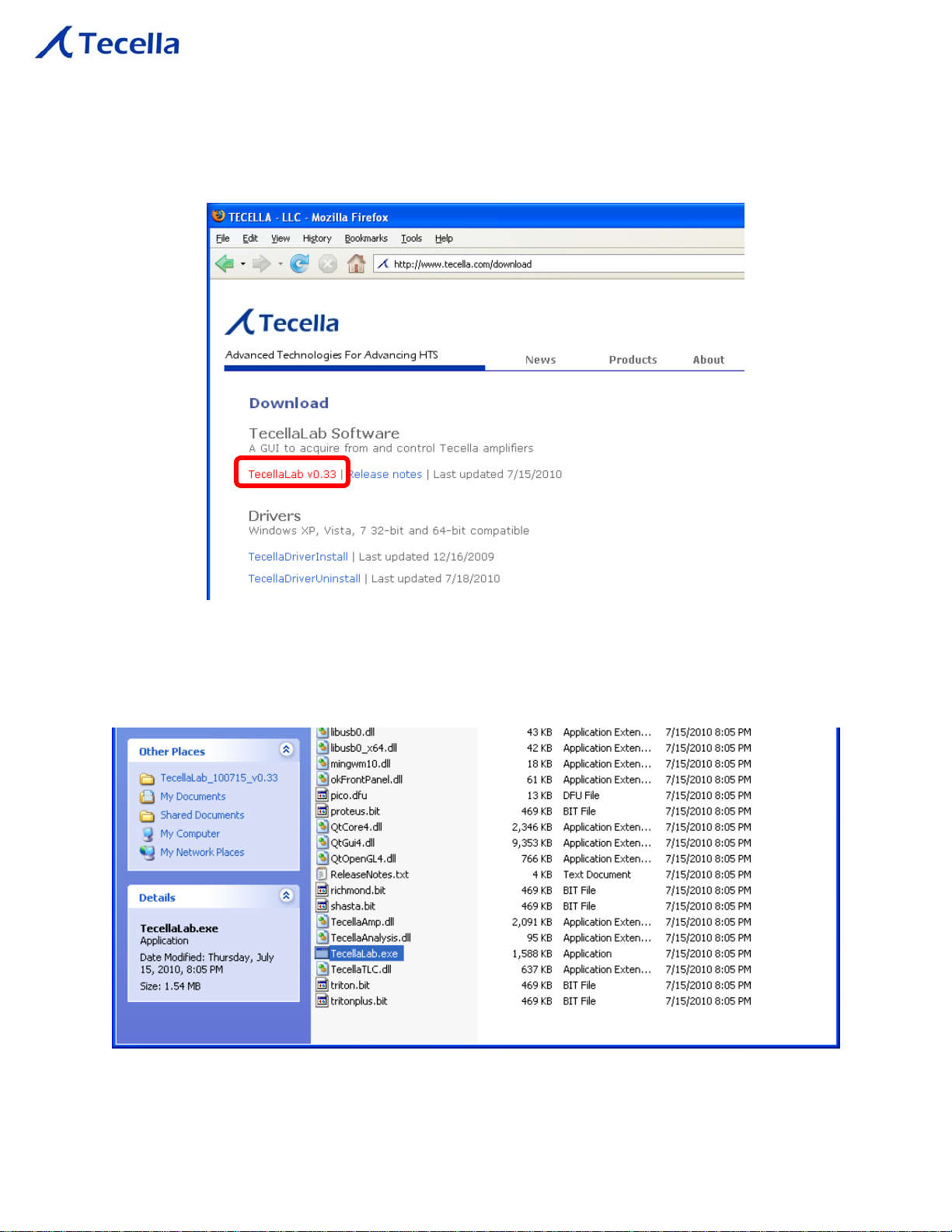
TecellaLab can be downloaded from:
http://www.tecella.com/download
4.1 Installing Axograph or WinWCP software
For instructions on installing Axograph or WinWCP, please follow the instructions
available from the corresponding site listed above.
Tecella Pico 5
Page 6
Pico Installation Guide
4.2 Installing TecellaLab software
To install the TecellaLab software, simply unzip the downloaded file to your desired
location.
Double-click on TecellaLab.exe to start the program.
Tecella Pico 6
Page 7

Pico Installation Guide
5 Software Use
Please refer to the User Guide for the appropriate software (Axograph, WinWCP, or
TecellaLab) for detailed information.
6 Technical Support
Please contact Tecella for technical support at:
Email: [email protected]
Phone: +1-714-641-1709
Fax: +1-714-641-1569
Mail: Tecella
3001 Red Hill Ave, Ste 1-204
Costa Mesa, CA 92626
USA
Tecella Pico 7
 Loading...