

Page 1
Date: 22062014
Rev: 01
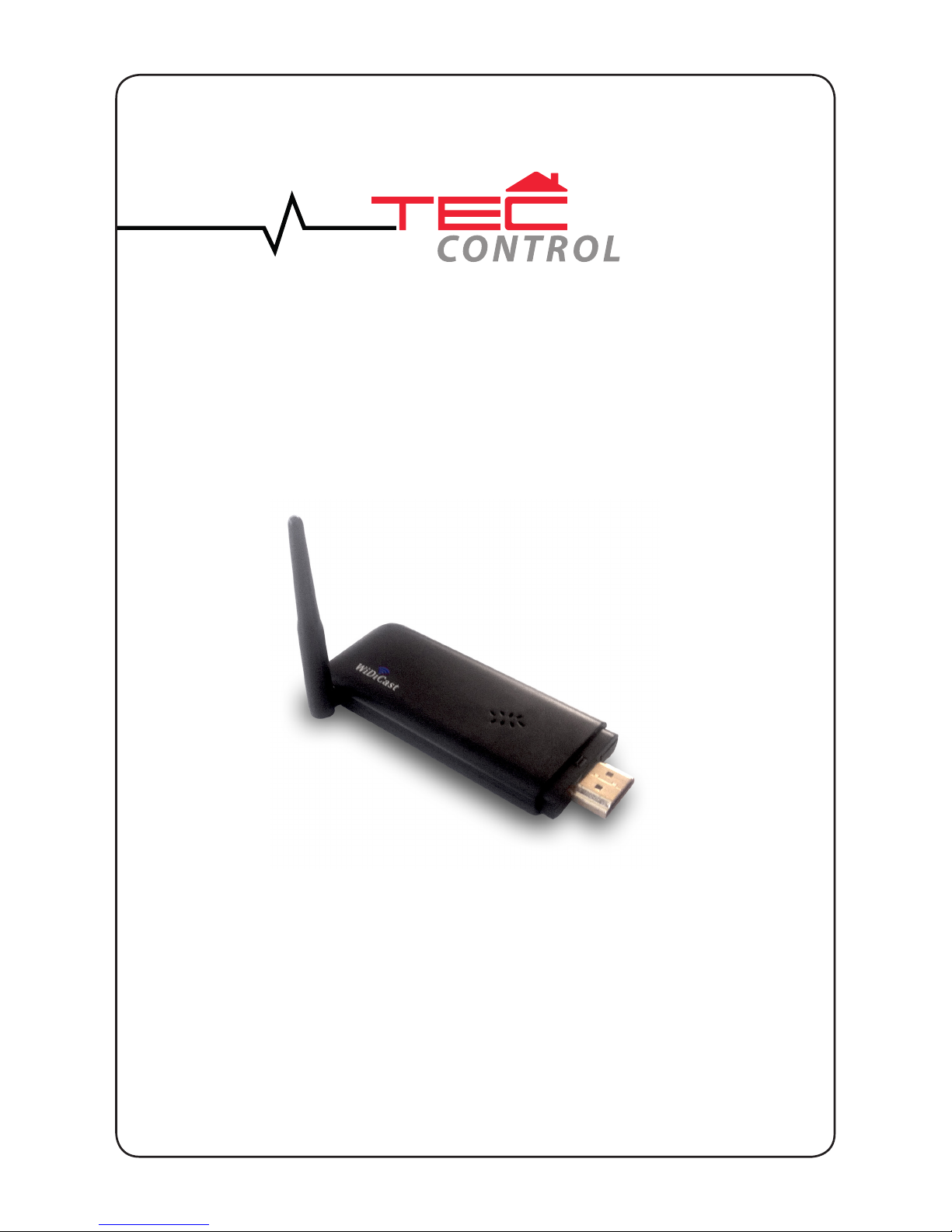
WiDiCast HDMI dongle
USER MANUAL
R699849
Page 2
page 2
Instructions:
This product is designed to be used with displays and projectors equipped with selfpowered HDMI inputs. In the case that the HDMI input is not powered, please use a miniUSB cable to power the WiDiCast dongle.
Connection:
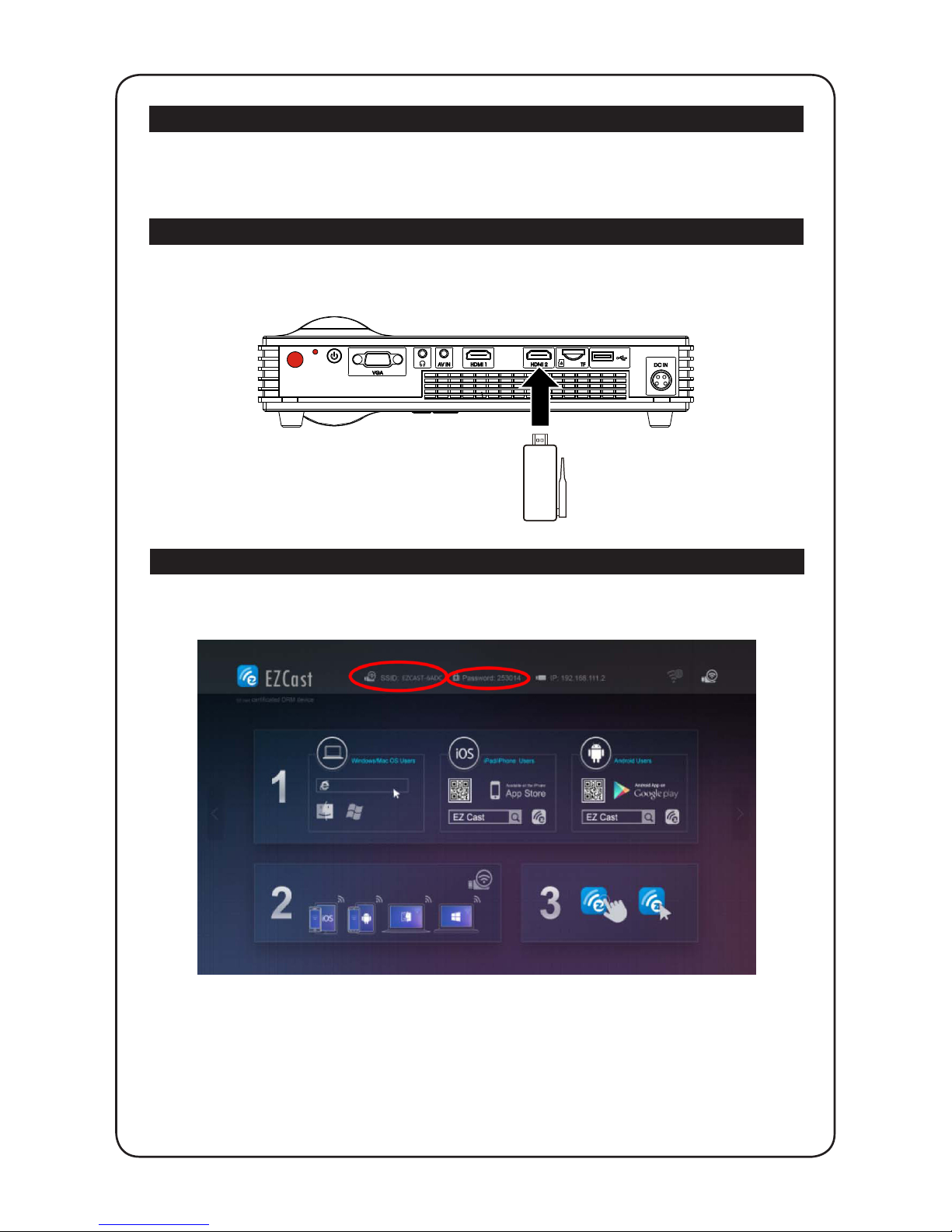
Connect the WiDiCast HDMI dongle into an available HDMI input. Use a micro-USB power
cable if necessary.
NB: Dreamy Cinema model has the HDMI2 input with power supply function.
HDMI 2
First startup:
Make sure that the WiDiCast HDMI dongle is powered and select the correct input on
your display (Select WiFi input on the Dreamy Cinema projector). You should obtain the
following screen.
This screen shows the network SSID and its password.
1) Download the setting software “EZ Cast”. EZ Cast is compatible with the following
systems: Windows OS, Mac OS, iOS and Android.
2) Install EZ Cast software on your computer, tablet or multimedia phone and activate the
wireless network to connect the WiFi network SSID: EZCAST-6ADC
3) Launch the EZ Cast software and connect to the dongle network.
Page 3
page 3
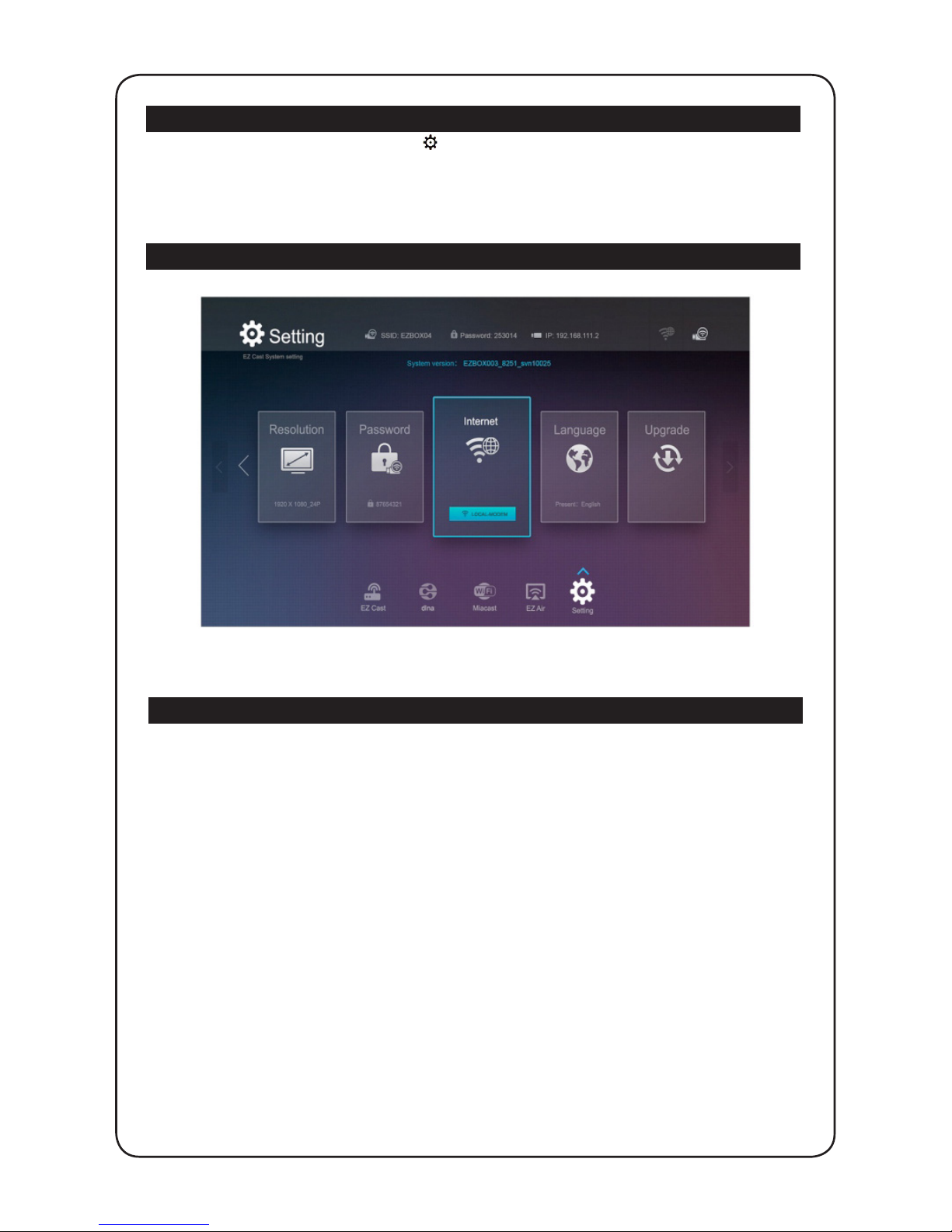
First startup - Setting Menu:
To Enter the Setting Menu, select the icon.
From the setting menu, you can set the display Resolution, the EZCAST-6ADC Network
password, joining a WiFi Network with internet access, setting the langage or make an
update.
First startup - Setting up Internet connection:
From the Setting Menu, select the Internet sub-Menu:
From the drop-down list, choose and connect to the correct local wireless network with
Internet access.
Features
Android features:
Launch the “EZ Cast” app on your phone or tablet or turn on the WLNA. Display your
photos, play videos stored in your mobile device into a big TV screen or on the wall. Also
browse the internet for youtube, vimeo videos. Use the DLNA through DMR (Digital Media
Reader) to play on EZ Cast music, videos stored on your Android device. The EZ-Mirror
uses the built-in Miracast function of your Android device to project a miror of you tablet
screen.
IOS features:
Launch the “EZ Cast” app to access to the music, photos and videos you uploaded into your
iPhone or iPad from the iTune interface > Apps > EZCast folder. You can also broadcast
your photos, videos stored in your iDevice to your projector using the built-in AirPlay (with
or without Mirroring).
Page 4
 Loading...