

Page 1
Quick Start Guide - TeamBoard T4
Hardware
The Quick Start Guide addresses some TeamBoard basics - from installation steps to screen calibration. This document assumes a basic
understanding of your computer hardware and software. If you require more detailed information refer to TeamBoard.com or contact Technical
Support.
1. Plug the square end of the USB cable into the USB port on
your TeamBoard. Plug the other end of the USB cable into an
available USB por t on your computer.
2. Plug the power adapter into the power plug on the
TeamBoard. Plug the supplied power adapter into a wall socket.
Your computer should immediately detec t the TeamBoard T4.
1.
2.
Connecting
Hardware pg 1
Setup Notes for Windows 7
pg 2
Installing MultiTouch Driver for Mac OS X pg 3
Calibration for Windows pg 4
Calibration for Mac OS X pg 5
Table of Contents
Installation
See TeamBoard T4 Installation Instructions shipped with your
TeamBoard or download the instructions from TeamBoard.com.
Register your TeamBoard T4
online at TeamBoard.com
Page 1
Page 2
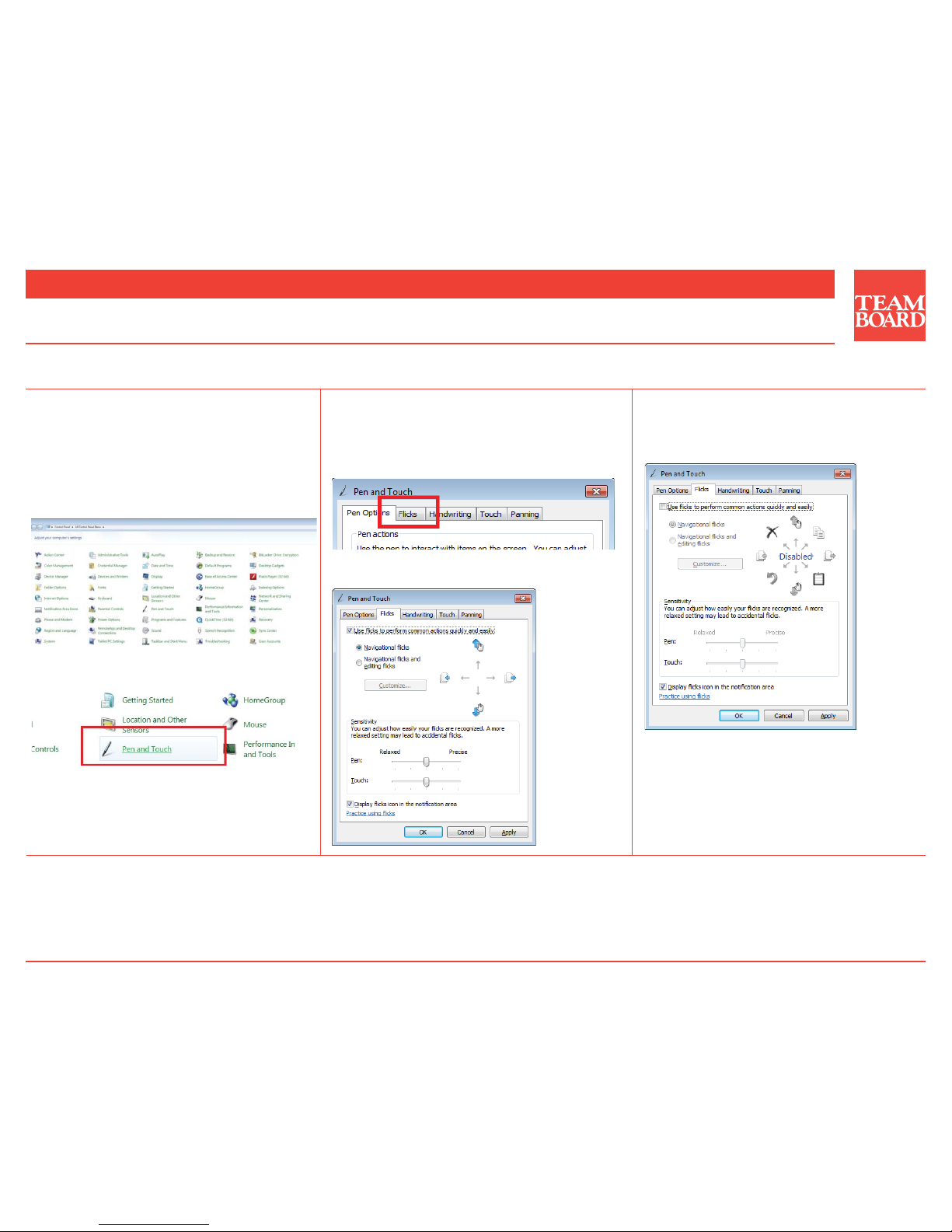
To enjoy full insteractive touchscreen experience, please make
sure that “Flicks” are disabled in Windows 7 operating system.
1. Open the Star t menu and select Control Panel.
2. Ensure Icons are showing.
To show Icons, A) Sele ct Category, next to "View By." B) Click large
or small icons.
3. Open “Pen and Touch”.
4. Select “Flicks” tab.
Setup Notes for Windows 7
Quick Start Guide - TeamBoard T4
1-800-263-2387 +1-905-851-2826 [email protected]
Register your TeamBoard T4 online at TeamBoard.com
6. Click “OK” and close Control Panel.
Page 2
5. Uncheck “Use flicks to perform common actions quickly and
easily”.
Page 3
Quick Start Guide - TeamBoard T4
When connected to a Mac OS X computer without a driver, TeamBoard T4 is a single-touch interactive whiteboard. To enable MultiTouch
functionality, please follow the instructions below.
1-800-263-2387 +1-905-851-2826 support@teamboard.com
Register your TeamBoard T4 online at TeamBoard.com
1. Download TeamBoard MultiTouch Driver from TeamBoard.com.
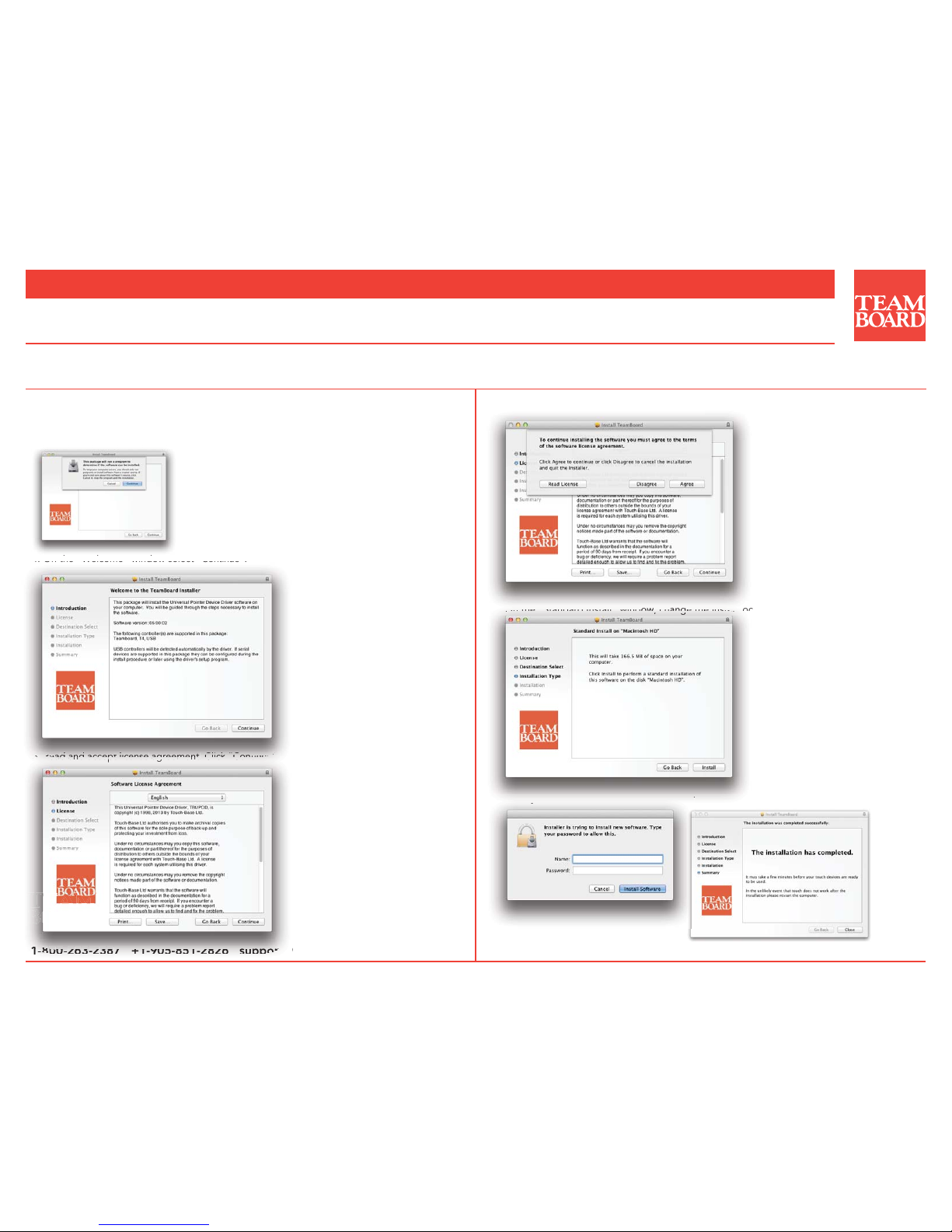
3. Open and run TeamBoard MultiTouch Driver.pkg. Click “Continue”.
4. On the “Welcome” window select "Continue".
5. Read and accept license agreement. Click “Continue”.
2. Open TeamBoard MultiTouch Driver.dmg.
6. On the “Agreement” window, select “Agree”.
7. On the “Standard Install” window, change the install location (if needed), then click “Install”.
3. Opepn and run TeamBoard Mul
4.
On
the Welc
ome wind
ow
s
el
ect
Co
nti
nue
.
8006338
7 +1905851282
6 suppor
t@
5.
R
R
eea
ad daa
n
d
daa
cccce
e
p
p
t lticecense
se
a
a
g
g
r
e
eee
m
e
e
n
t
t
. CClicck
ConCotintueue.
6. On the “A
gre
g
ement” windo
w,
select
“A
gre
g
e”.
7. . On
the Stan
dar
d I
nst
all wind
ow,
,
,
ch
ang
g
g
e t
he
ins
tal
l lloc
8. Enter your credentials and click “Install Software”. Once installation completes, click “Close”.
. Enter
you
y
r credentials and click “Install So
ft
Page 3
Installing MultiTouch Driver For Mac OS X
Page 4
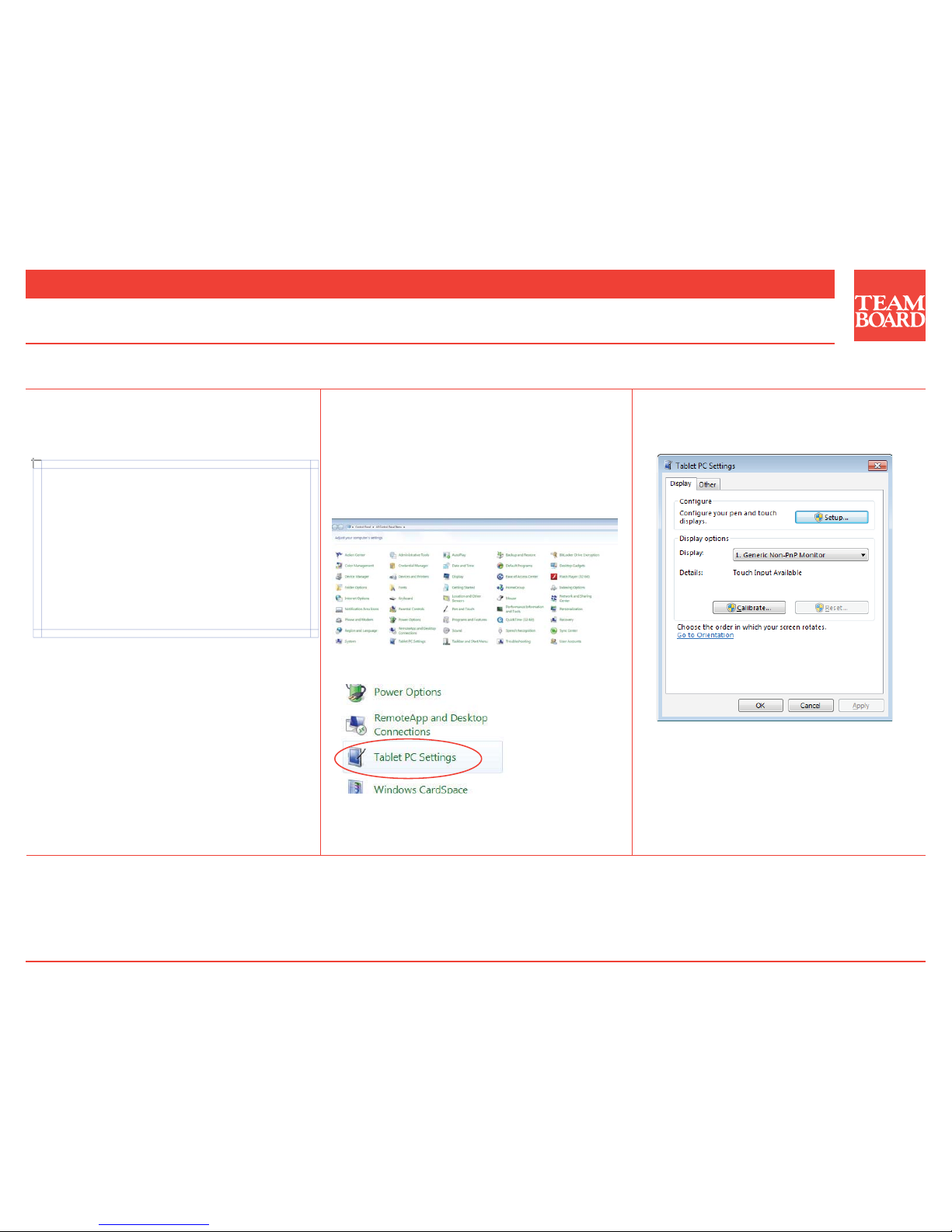
If your projec ted image does not completely fill the TeamBoard
or it overfills the TeamBoard and overlaps the frame, please adjust
your projector first. If this is not practical, please follow the
instructions below.
1. Open the Star t menu and select Control Panel.
2. Ensure Icons are showing.
To show Icons, A) Sele ct Category, next to "View By." B) Click large
or small icons.
3. Open “Tablet PC Settings”.
If your projec ted image completely fills the TeamBoard without
overlapping the frame you will not need to calibrate the
TeamBoard.
Calibration for Windows
Quick Start Guide - TeamBoard T4
Filled TeamBoard
Partially or Overfilled TeamBoard
1-800-263-2387 +1-905-851-2826 [email protected]
Register your TeamBoard T4 online at TeamBoard.com
4. If this is your fir st TeamBoard, skip to step 5. Otherwise, click
“Reset”.
5. Click “Calibrate.”
6. Touch all the calibration points as prompted.
7. Click “OK” and close Control Panel.
Your TeamBoard is now calibrated.
To provide calibration samples, tap the crosshair each
time that it appears on the screen.
Right-click anywhere on the screen to return to the last
calibration point. Press the “Esc” button to close the tool.
Do not change your screen orientation until you have
completed the calibration process.
Page 4
Page 5
If your projec ted image does not completely fill the TeamBoard
or it overfills the TeamBoard and overlaps the frame, please adjust
your projector first. If this is not practical, please follow the
instructions below.
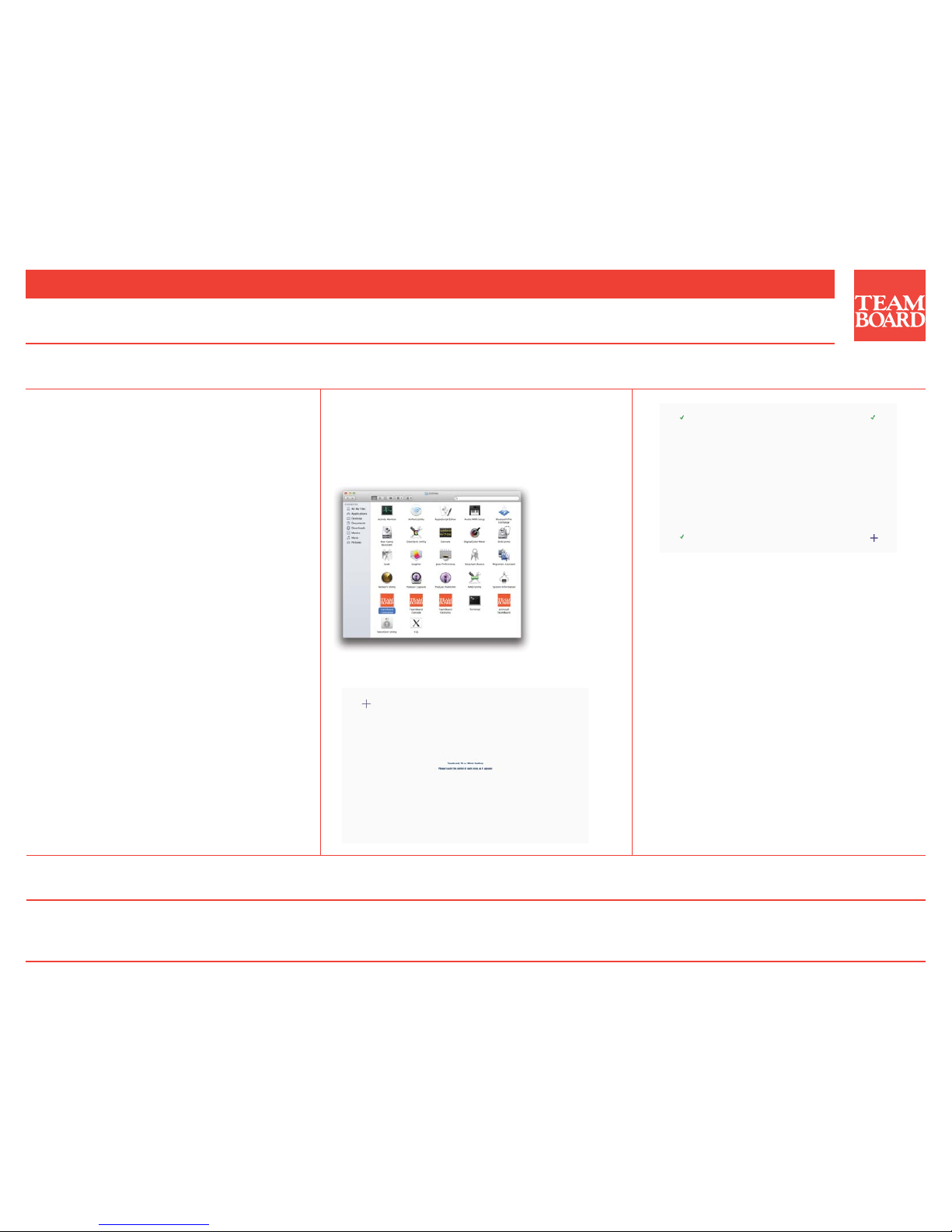
1. Open “TeamBoard Calibration” in the Utilities folder.
If your projec ted image completely fills the TeamBoard without
overlapping the frame you will not need to calibrate the
TeamBoard.
Calibration for Mac OS X
Quick Start Guide - TeamBoard T4
Filled TeamBoard
Partially or Overfilled TeamBoard
1-800-263-2387 +1-905-851-2826 [email protected]
Register your TeamBoard T4 online at TeamBoard.com
Your TeamBoard is now calibrated.
FAQ
See TeamBoard.com
2. Touch the center of each cross (4 total) as they appear. A
green checkmark will appear as you calibrate.
Page 5
024G270_R1 TeamBoard T4 Quick Start Guide 2014:PDF © Egan TeamBoard Inc. All Rights Reserved. Specifications are subject to change without notice.
 Loading...