

Page 1

User Guide
iOS Flash Drive with Smart Stand
Page 2

Contents
MoStash App Overview
Home Page Interface
Settings Interface
User Interface
Edit Mode Interface
MoStash Introduction
MoStash Overview
MoStash Functions
MoStash Specification
Compatible Device
File Format Supported
Getting Started
How To Connect MoStash To iOS Device And App Download
Arc-Stand Assembly Step
How To Use
Contacts Backup
Contacts Restore
Backup Photos / Videos From Your iOS Device To MoStash
Transfer Photos / Videos From MoStash To Your iOS Device
Set A Password For The Data
Unlock The Encrypted Data
Compress Data
Extract The Compressed Data
Play Music And Video
FAQ
1 - 2
3
4 - 5
6 - 14
15 - 16
Page 3

MoStash Introduction
1
MoStash Introduction
USB 3.0 Connector Durable Rubber Storage Device
Metallic Alloy Smart Cover
Lightning Connector
Overview
Specifications
•
Connectors:Apple MFi certified Lightning port, USB 3.0
•
Capacity:16GB / 32GB / 64GB / 128GB
•
Dimensions: 22 x 67.2 x 26.1 mm
•
Net Weight:72.6g
•
Warranty:2 Years
Functions
1. Easy to backup your photo and movie in iOS device.
2. View all popular format document, video, and photo.
3. Support data encryption and compression.
4. “Arc-Stand” design for easier iphone video viewing.
5. Easy to transfer data between iOS device and PC / Mac.
Page 4
MoStash Introduction
2
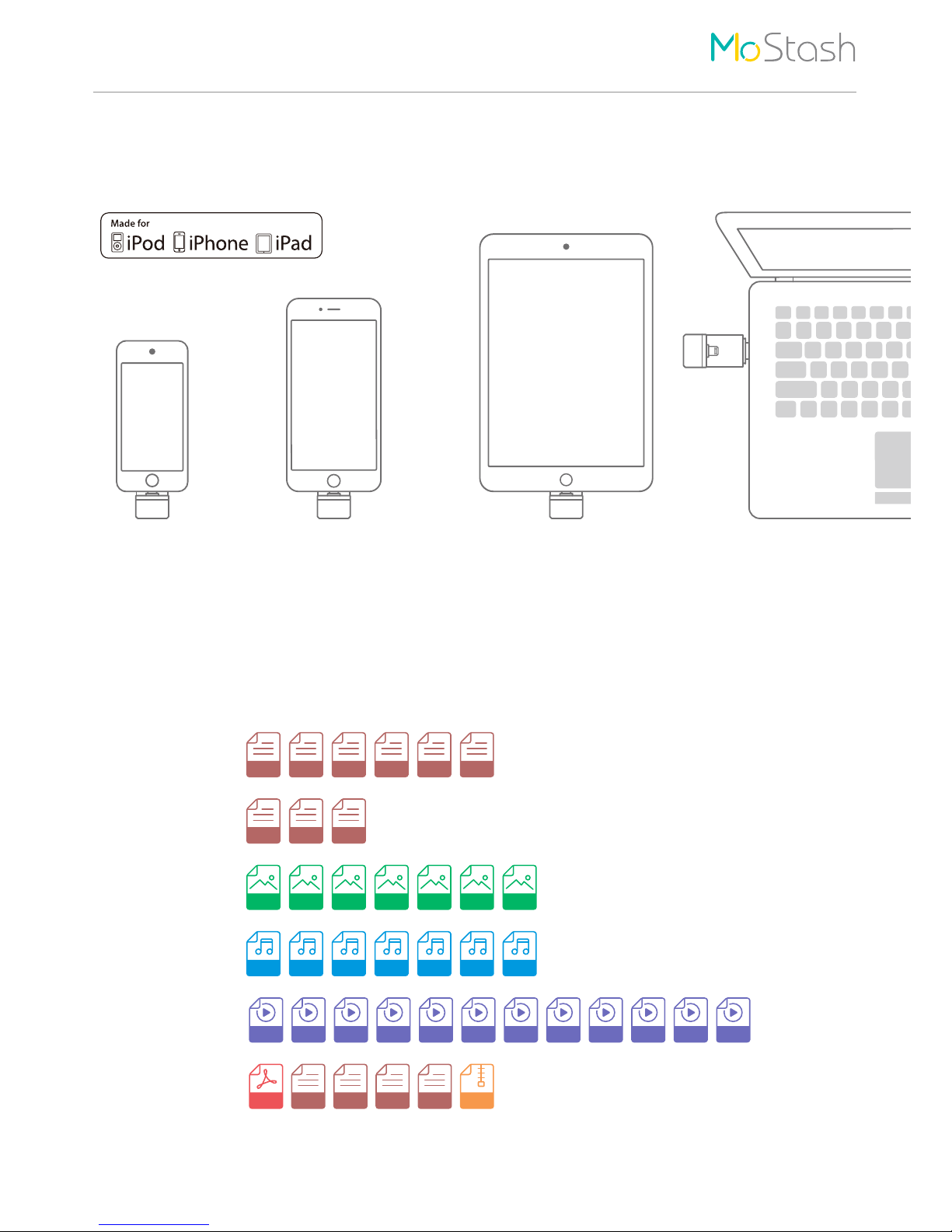
Compatible Devices
File Formats Supported
iPhone
iPhone 6s Plus, iPhone 6s,
iPhone 6, iPhone 6 Plus,
iPhone 5s, iPhone 5c, iPhone 5
iPad
iPad Pro, iPad Air 2, iPad Air,
iPad mini 4, iPad mini 3,
iPad mini 2, iPad mini
Mac / PCiPod
iPod Touch (6th Generation)
iPod Touch (5
th
Generation)
BMP CUR GIF JPG PNGTIF XBM
ACC AIF AIFF CAF M4A MP3 WAV
AVI FLVM4V MKVMOVMP4 MPG MPV WMVRM TSRMVB
Pages
Keynotes Numbers
DOC DOCX PPT PPTX XLS XLSX
PDF
HTML RTFTXT VCF ZIP
Microsoft Office
iWorks
Picture
Music
Movie
Others
Page 5
Getting Started
3
How To Connect MoStash To iOS Device And App Download
Getting Started
Arc-Stand Assembly Step
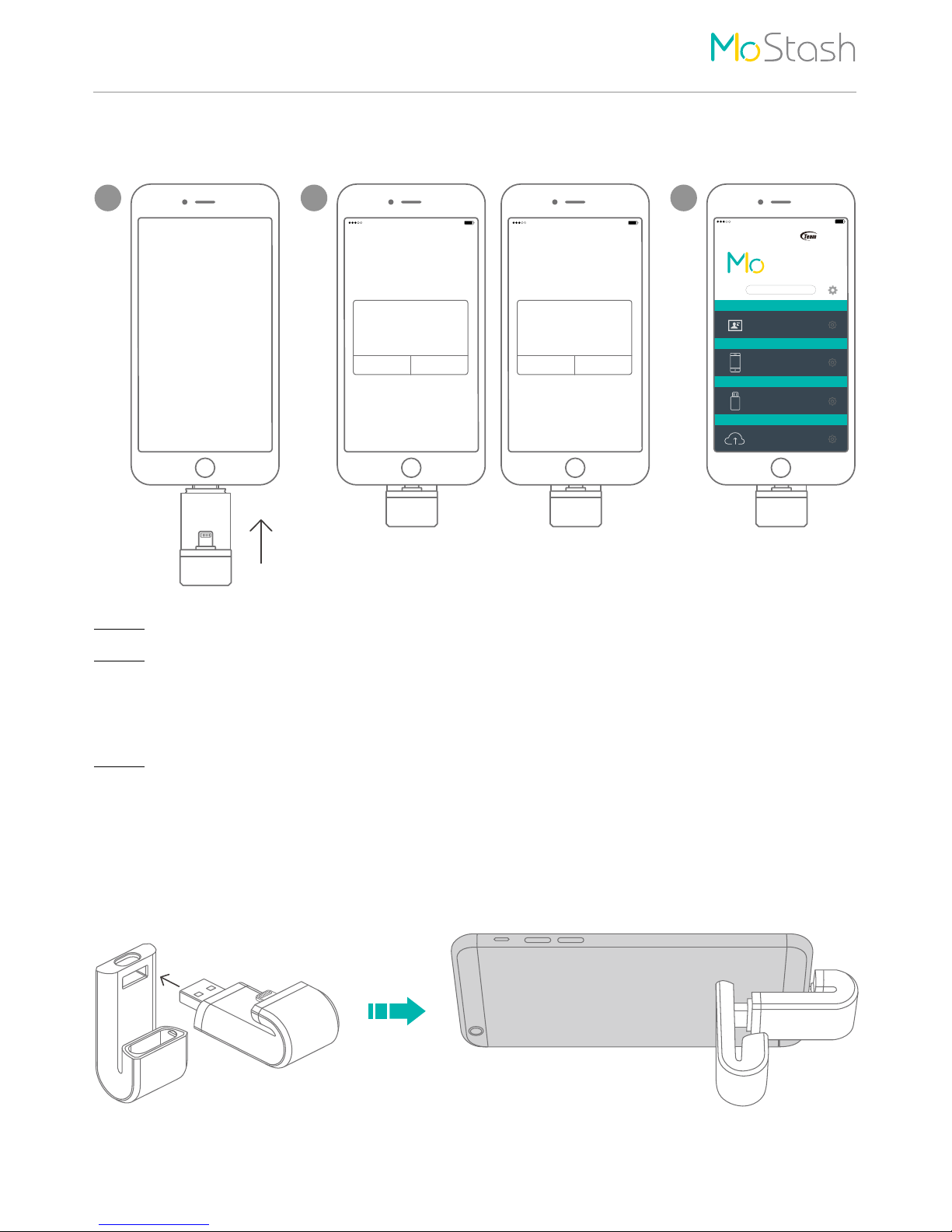
Plug the USB connector into the hole in the metallic alloy smart cover. After connecting the
iPhone, you can use it as a stand.
1
Step 1 Connect the MoStash to your iPhone / iPad / iPod by lightning connector.
Step 3 After that, you will enter to the home page of MoStash application. Now, you can
enjoy all the function.
Step 2 a.
You device will pop-up a reminder message if you haven't installs MoStash application.
Please follow the instructions to download MoStash application at App Store.
b. You device will pop-up a confirm message if you have installs MoStash application.
Please click “Allow” to open the MoStash application.
3
Backup
Storage
External Storage
iPhone
External
Contacts Backup
Dropbox
Cloud
TEAMGROUP
for iPod, iPhone & iPad
Stash
91%12:20 PM
2
91%12:20 PM 91%12:20 PM
a. b.
*You also can search “TEAMGROUP MoStash” and download directly in Apple App Store.
*If you still cannot searched the App by the step above, please follow the step below to get the App.
Enter to your iOS device Setting → General → About → Team MoStash → Find App for Accessory.
The accessory “Team MoStash” uses
an app you do not have installed.
Would you like to get it from the App
Store?
App Not Installed
App Store Ignore
MoStash would like to communicate
with the TeamGroup Inc. Team
MoStash.
MoStash
Ignore Allow
Page 6
MoStash App Overview
4
Home Page Interface
MoStash App Overview
Backup
Storage
External Storage
Dropbox
iPad
External
Cloud
Contacts Backup
TEAMGROUP
for iPod, iPhone & iPad
91%2:02 PMiPad
iPad Edit
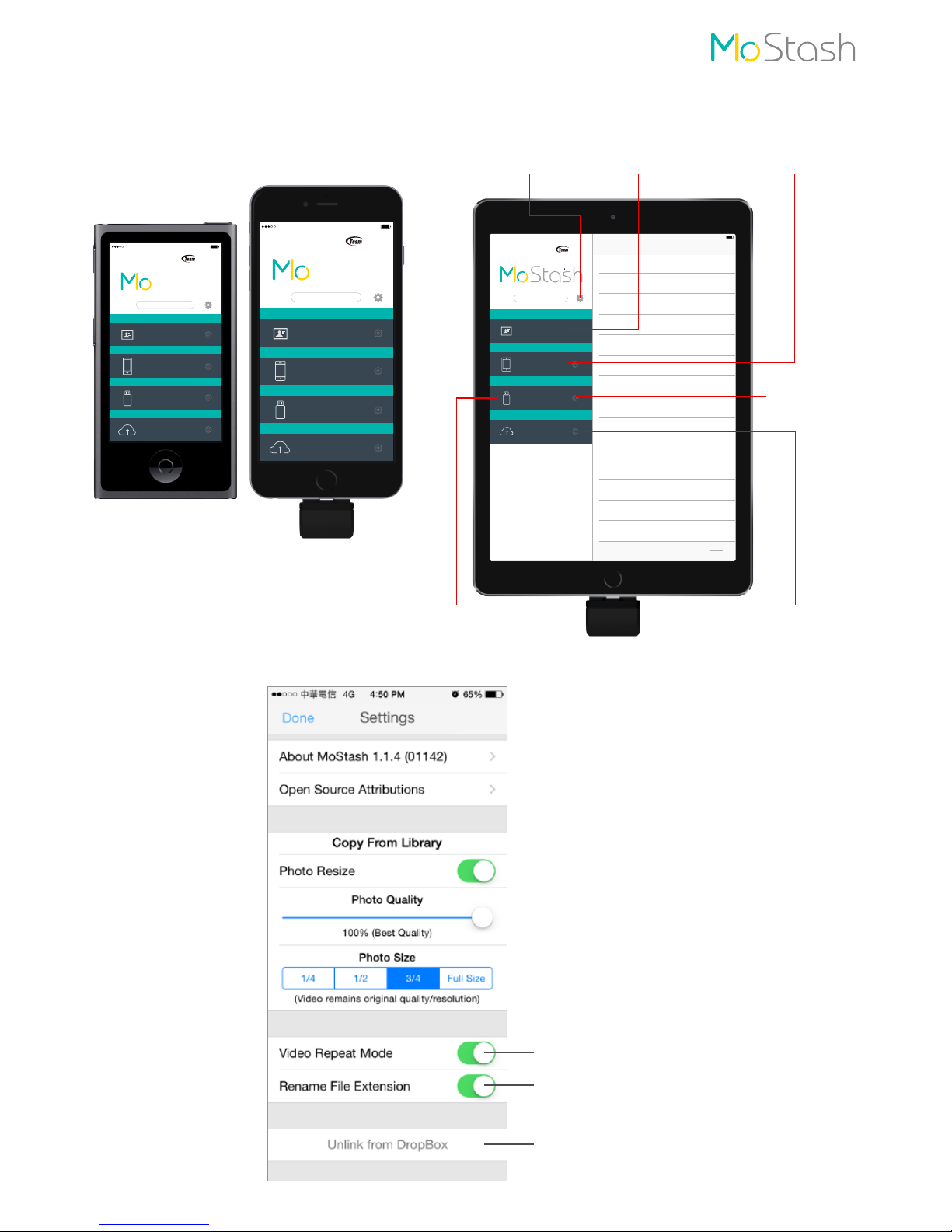
Settings
Contacts Backup
& Restore Enter to iOS Device
Enter to MoStash
Enter to Dropbox
( account required )
Settings Interface
Backup
Storage
External Storage
iPhone
External
Contacts Backup
Dropbox
Cloud
TEAMGROUP
for iPod, iPhone & iPad
Stash
91%12:20 PM
Backup
Storage
External Storage
iPod
External
Contacts Backup
Dropbox
Cloud
TEAMGROUP
for iPod, iPhone & iPad
Stash
91%12:20 PM
App Version
Allow or ignore the photo resize function
( original size recommended)
Allow or ignore the video repeat function
Allow or ignore the function of rename
file extension
Log in / Log out from Dropbox
View the device
capacity
Page 7
MoStash App Overview
5
User Interface
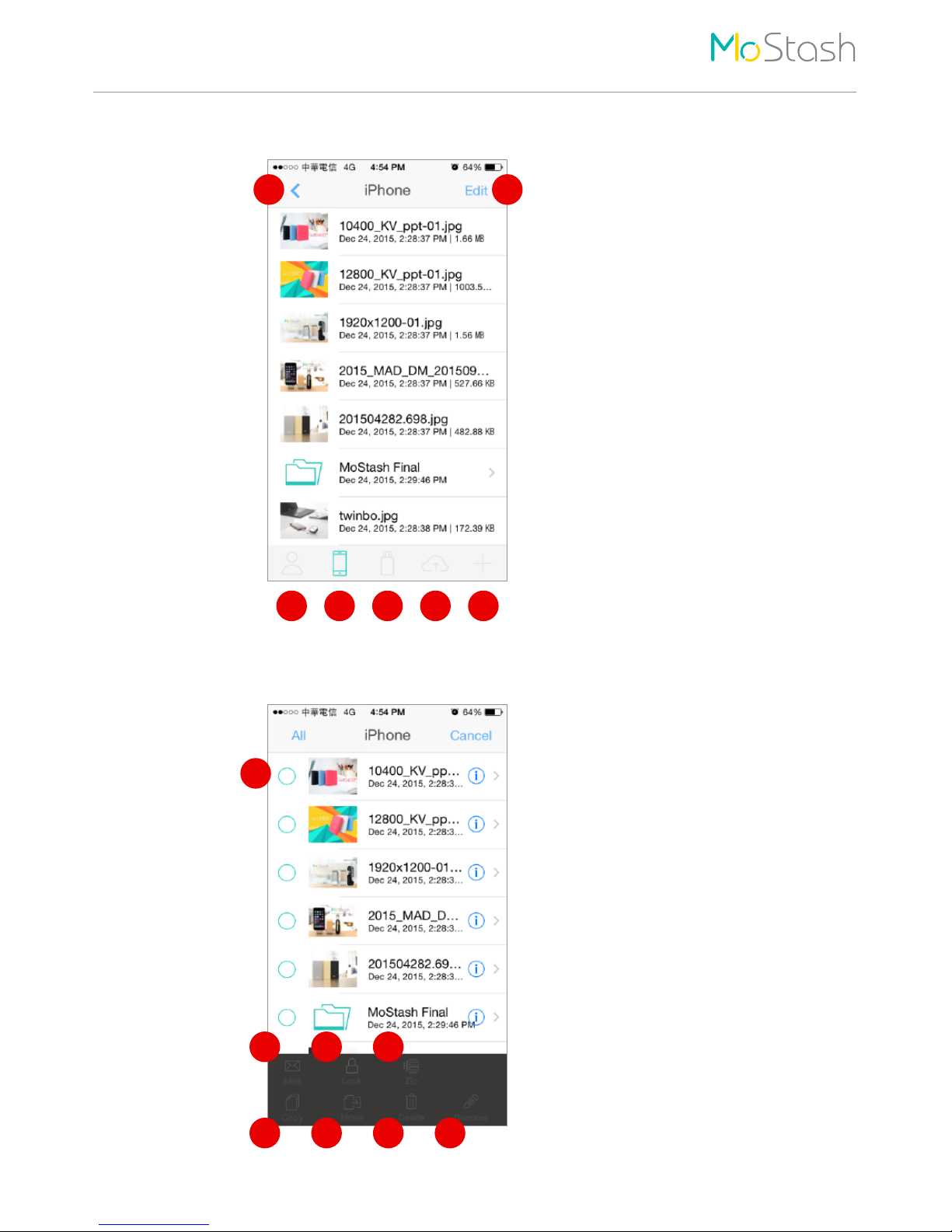
1. Back to previous page
2. Edit Mode
3. Back to Home Page
4. iOS Device ( internal )
5. MoStash ( external )
6. DropBox
7. Options
1 2
3 4 5 6 7
Edit Mode Interface
1. Select one or more data to perform
2. Send file by email
3. Encrypt data
4. Compress data
5. Copy data to specified location
6. Move data to specified location
7. Delete data
8. Rename data
1
2
3 4
5 6 7 8
Page 8
Step 3
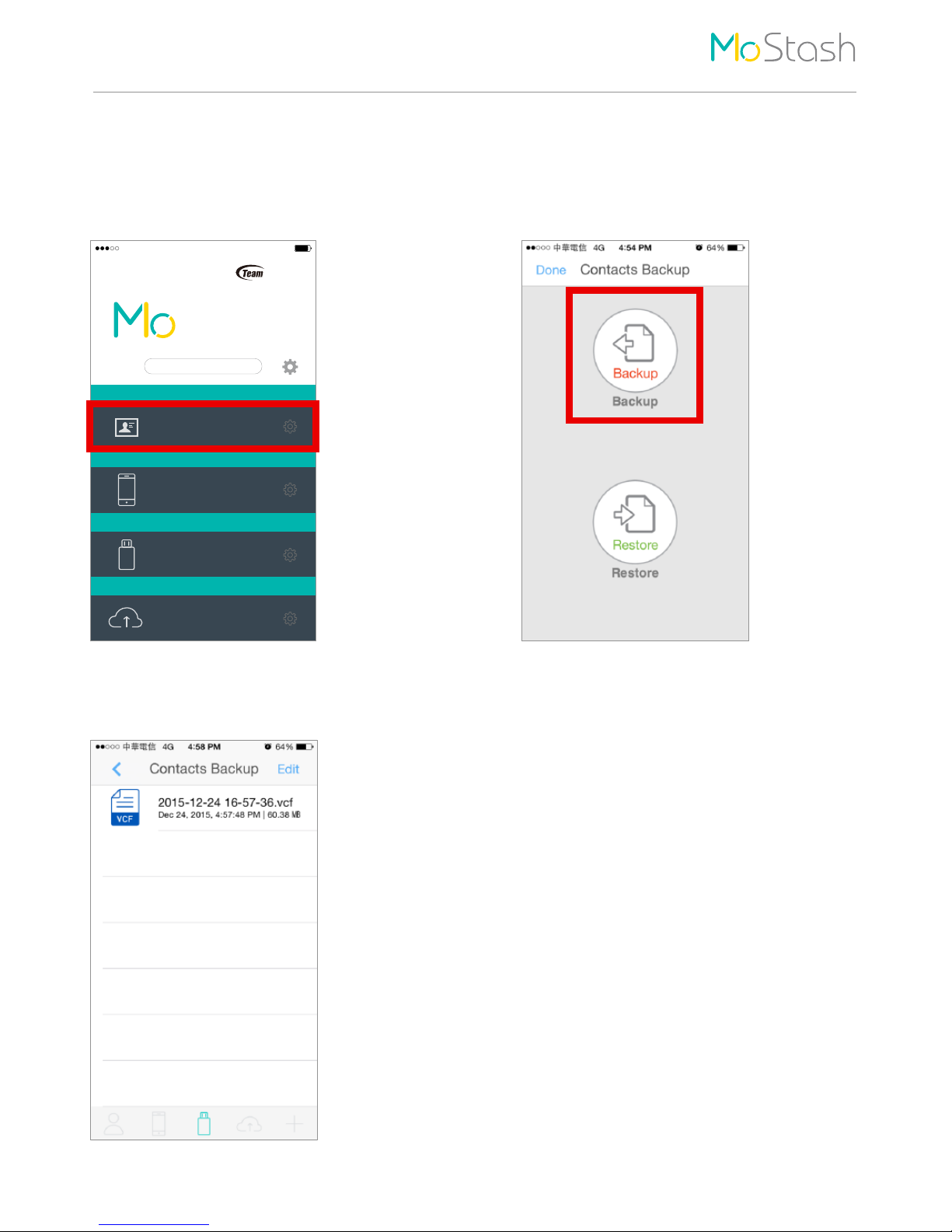
The backup file will be saved in both the
MoStash and iOS device.
Step 1
Select “Contacts Backup” in home page.
Step 2
Click “Backup” icon, then your contacts will
be exported to a file.
How To Use
6
Contacts Backup
How To Use
Backup
Storage
External Storage
iPhone
External
Contacts Backup
Dropbox
Cloud
TEAMGROUP
for iPod, iPhone & iPad
Stash
91%12:20 PM
Page 9
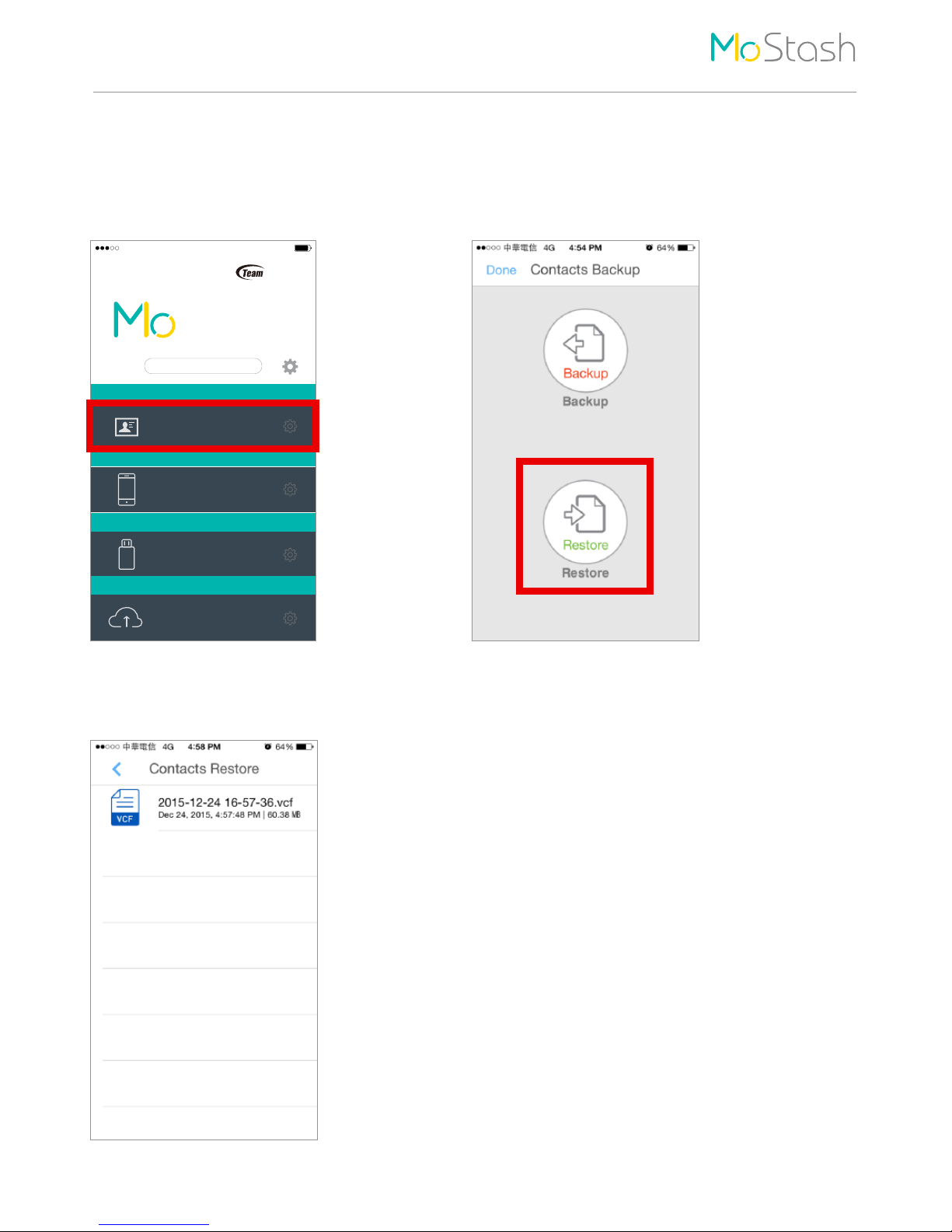
Step 3
Choose the backup file you want to restore, then
your contacts will be restore to iOS device.
Step 1
Select “Contacts Backup” in home page.
Step 2
Click “Restore” icon.
How To Use
7
Contacts Restore
Backup
Storage
External Storage
iPhone
External
Contacts Backup
Dropbox
Cloud
TEAMGROUP
for iPod, iPhone & iPad
Stash
91%12:20 PM
Page 10
How To Use
8
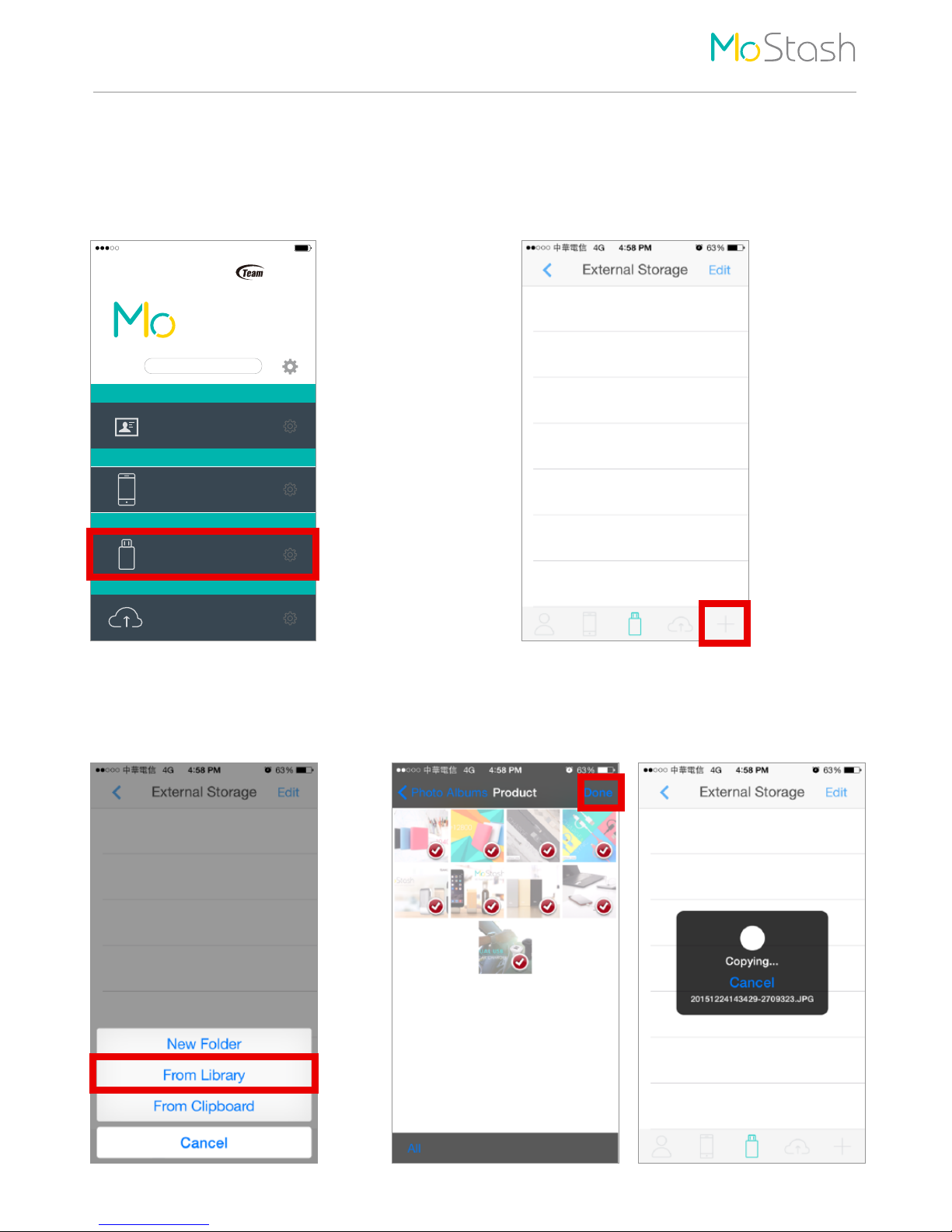
Backup Photos / Videos From Your iOS Device To MoStash
Step 3
Select “From Library” .
Step 1
Select “External Storage” to access
MoStash storage.
Step 4
Select the photos or videos you want to backup, then click “Done”
in the upper right corner. After that, the selected photos or
videos will be backed up to MoStash.
Step 2
Click the “+” icon at the lower right corner.
Backup
Storage
External Storage
iPhone
External
Contacts Backup
Dropbox
Cloud
TEAMGROUP
for iPod, iPhone & iPad
Stash
91%12:20 PM
Page 11
How To Use
9
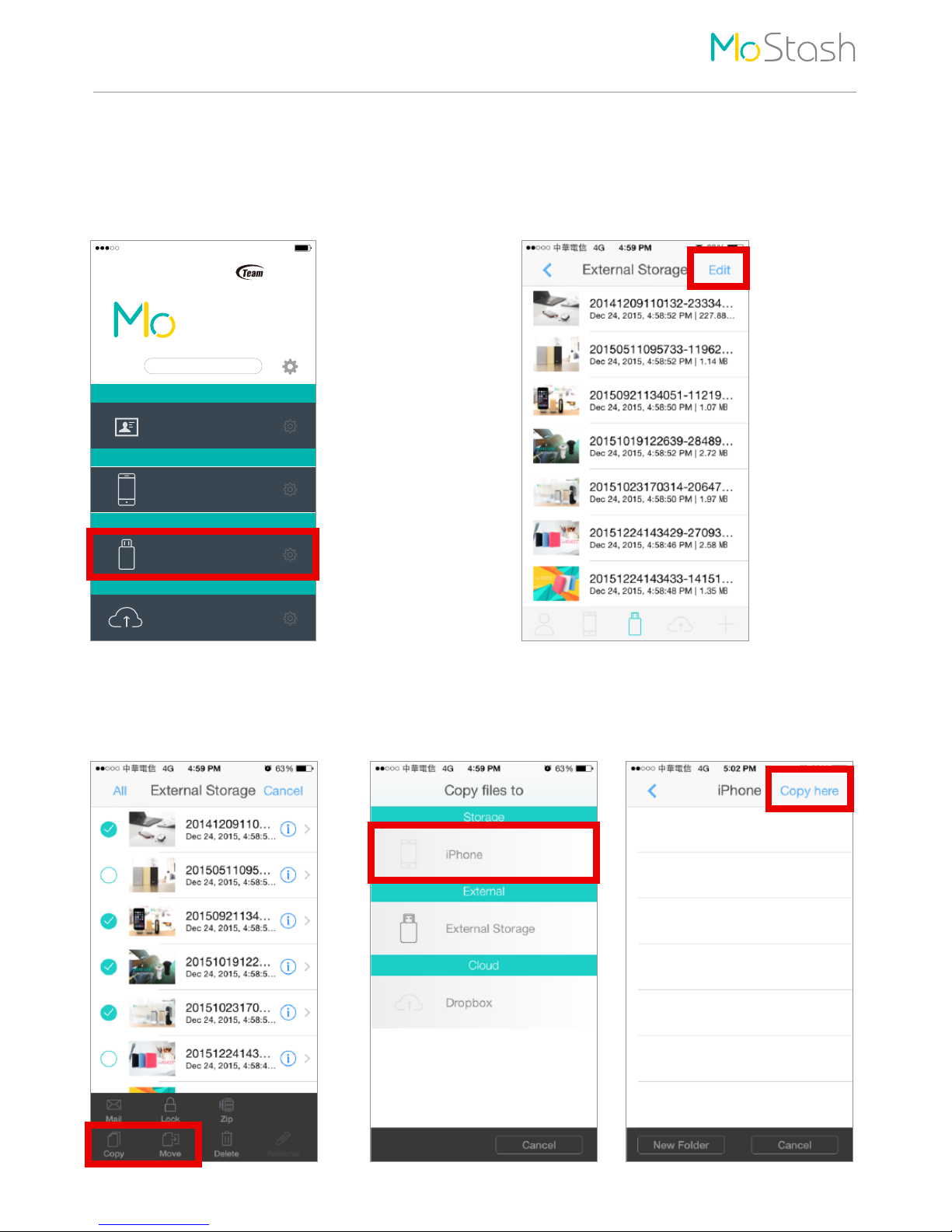
Transfer Photos / Videos From MoStash To Your iOS Device
Step 3
Select the photos or videos you
want to transfer, then click “Copy”
or “ Move” icon in the below.
Step 4
Select “iOS device”
( iPhone, iPad, or iPod ).
Step 5
Click “Copy here” in the upper right
corner, the selected photos or
videos will be transfer to iOS device.
Step 1
Select “External Storage” to access
MoStash storage.
Step 2
Click the “Edit” at the upper right corner.
Backup
Storage
External Storage
iPhone
External
Contacts Backup
Dropbox
Cloud
TEAMGROUP
for iPod, iPhone & iPad
Stash
91%12:20 PM
Page 12
How To Use
10
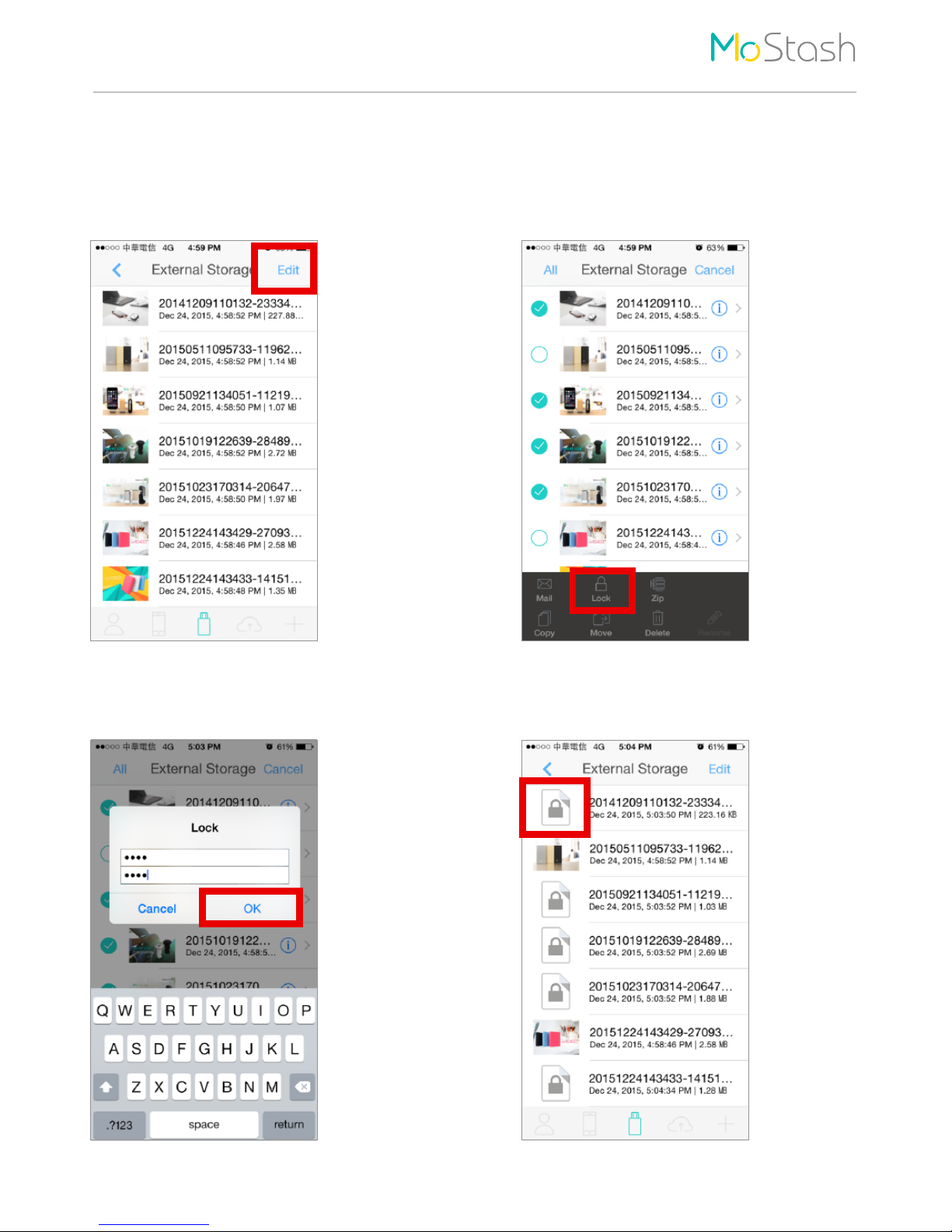
Set A Password For The Data
Step 3
Type a desired password, then click “OK” .
Step 4
Now, your selected data was locked, and
mark it in a lock icon.
Step 1
Click “Edit” in the upper right corner.
Step 2
Select the data you want to encrypt, then
click “Lock” icon in the below.
*The locked file will also be compressed for
save the storage space.
Page 13
How To Use
11
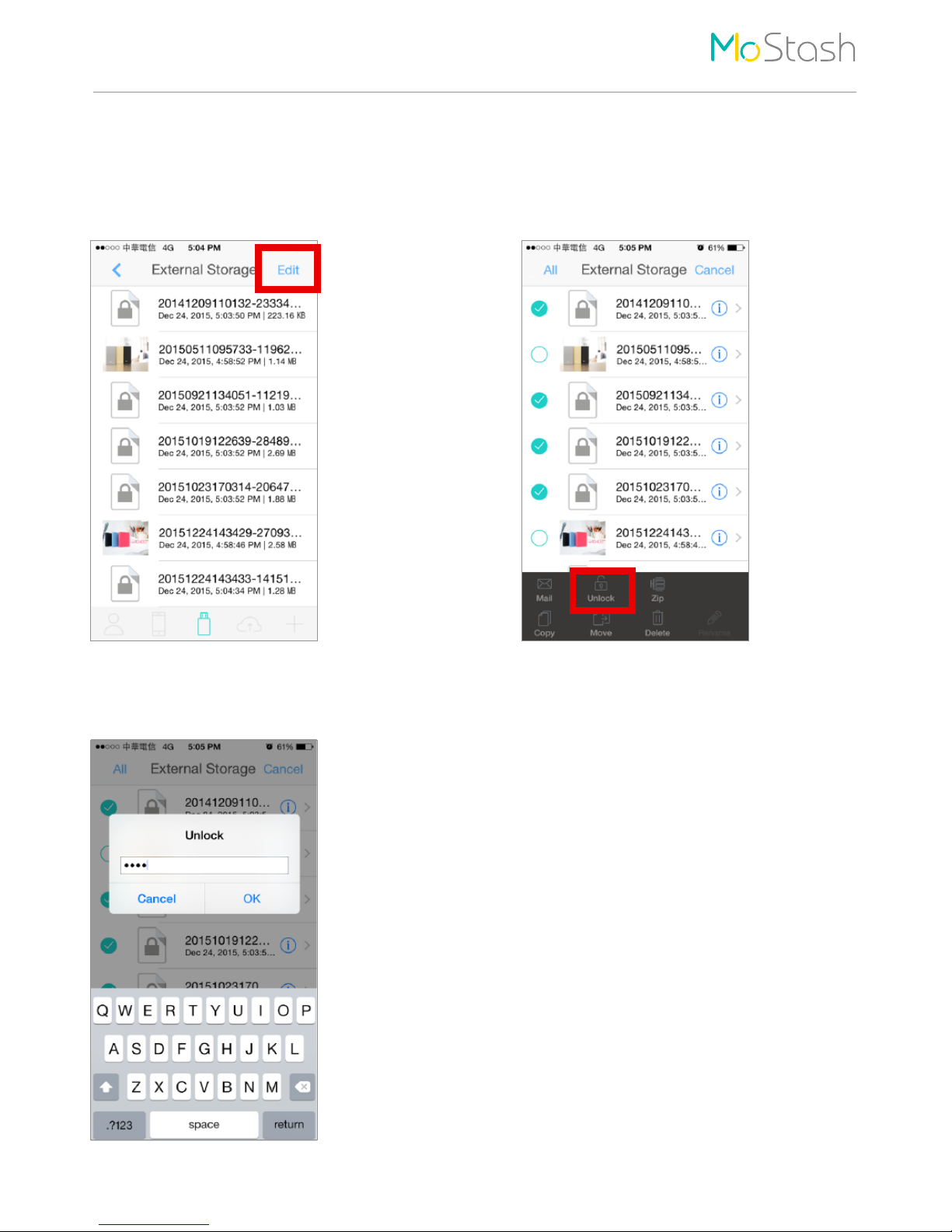
Unlock The Encrypted Data
Step 3
Enter the correct password, then the
file will be unlock.
Step 1
Click “Edit” in the upper right corner.
Step 2
Select the encrypted data you want to unlock,
then click “Unlock” icon in the below.
Page 14
How To Use
12
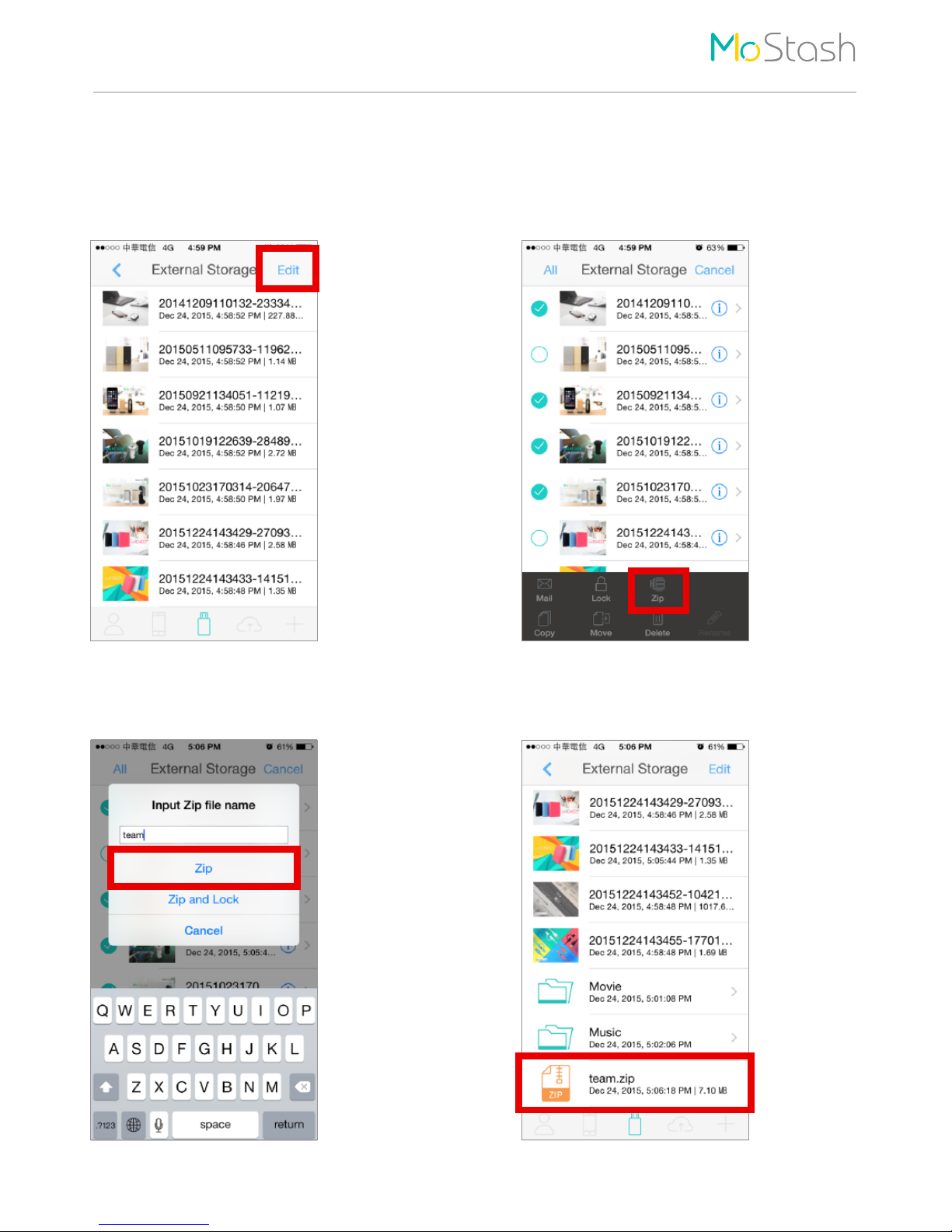
Step 3
Enter a name for the compress file,
then select “Zip” .
Step 4
The file compression done, and mark it in
a zipper icon.
Step 1
Click “Edit” in the upper right corner.
Step 2
Select the data you want to compress, then
click “Zip” icon in the below.
Compress data
*The function of “ Zip and Lock” is allow single or multiple
files to be compressed and locked simultaneously.
Page 15
How To Use
13
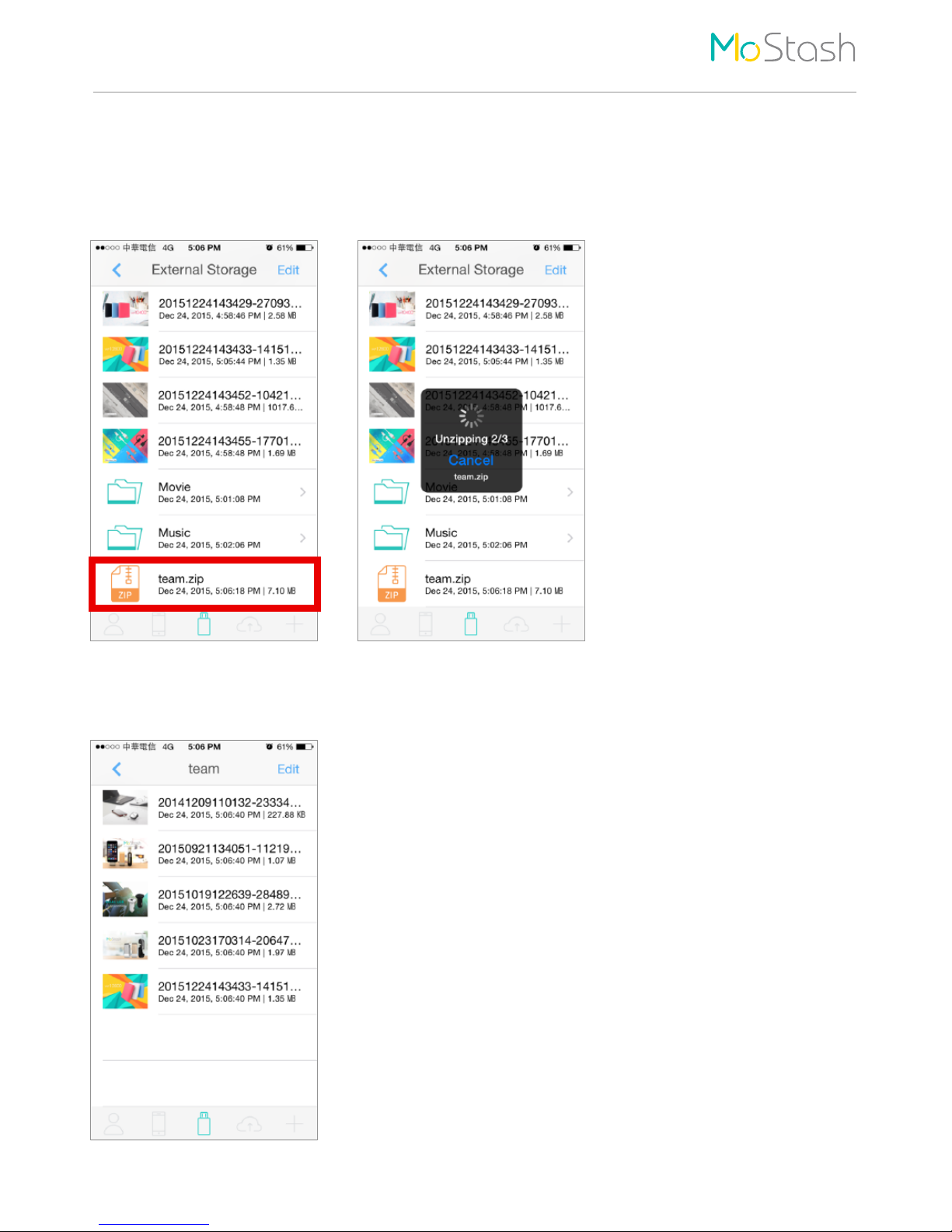
Step 2
Now, you can view the data in the folder.
Step 1
Click the compressed data you want to extract, then the extraction process will begin automatically.
Extract the compressed data
Page 16
How To Use
14
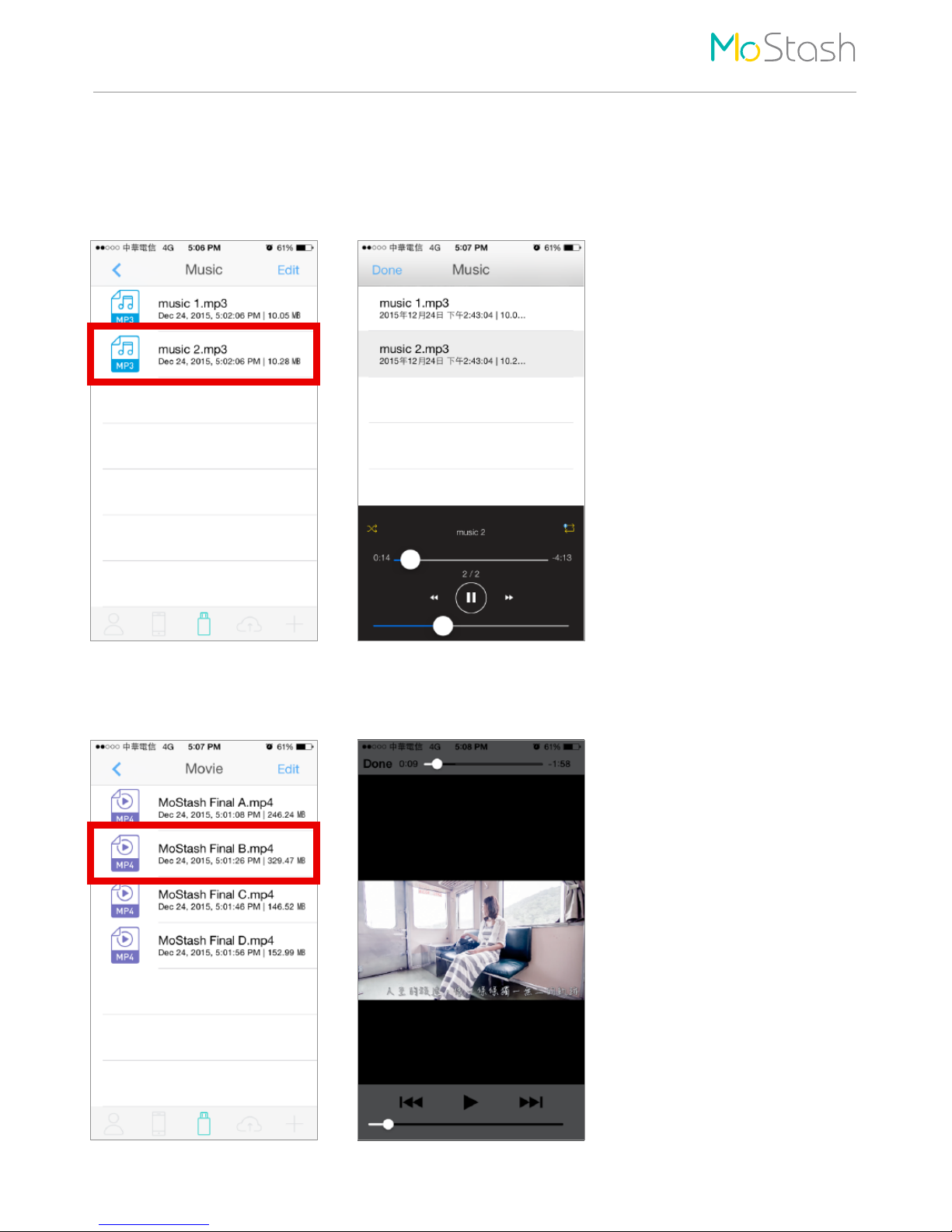
Music
Video
How To Play Music And Video
Launch the MoStash App, directly click the music you want to play. Now, you can enjoy the music.
Launch the MoStash App, directly click the video you want to play. Now, you can enjoy the video.
Page 17

FAQ
15
FAQ
Q1: I was connected MoStash to my iOS device, how to start for use all function of MoStash?
A1: First, you must install MoStash App, then you can use all function of MoStash by that App.
MoStash App download link: https://itunes.apple.com/tw/app/mostash/id1069897546?l=zh&mt=8
Q2: Can I reformat MoStash myself?
A2: Yes, you can reformat MoStash yourself. Please notice that you must select FAT32 file
system during the format process.
MoStash 16GB / 32GB: format with FAT32, and select 64kb allocation unit size.
MoStash 64GB / 128GB: Please format by the following software.
1) For Windows 32bit (http://www.ridgecrop.demon.co.uk/guiformat.exe)
2) For Windows 64bit (http://www.ridgecrop.demon.co.uk/guiformat-x64.Exe)
Q3: Why can't I play the movie I have purchased from iTunes by MoStash App?
A3: It is because Apple doesn't allow copy and transfer iTunes content directly, since this
is a limitation of Apple copyright issues and development principles.
Q4: Can I share my data to the other iOS device by same MoStash device?
A4: Yes, you can share your data by same MoStash device. Please notice that you must
install MoStash App in the other iOS device before you share it.
Q5: I cannot find the MoStash App in the Apple App Store after seeing the “App Not
Installed” dialog box. What can I do now?
A5: Please connect MoStash to your iOS device, then go to Settings → General → About →
Team MoStash → Find App for Accessory.
Q6: When I connect MoStash to iPhone, an error message appears “Initialization error” .
A6: If this error message occurs, please reformat MoStash with FAT32 to solve this issue.
MoStash 16GB / 32GB: format with FAT32, and select 64kb allocation unit size.
MoStash 64GB / 128GB: Please format by the following software.
1) For Windows 32bit (http://www.ridgecrop.demon.co.uk/guiformat.exe)
2) For Windows 64bit (http://www.ridgecrop.demon.co.uk/guiformat-x64.Exe)
Page 18
FAQ
16
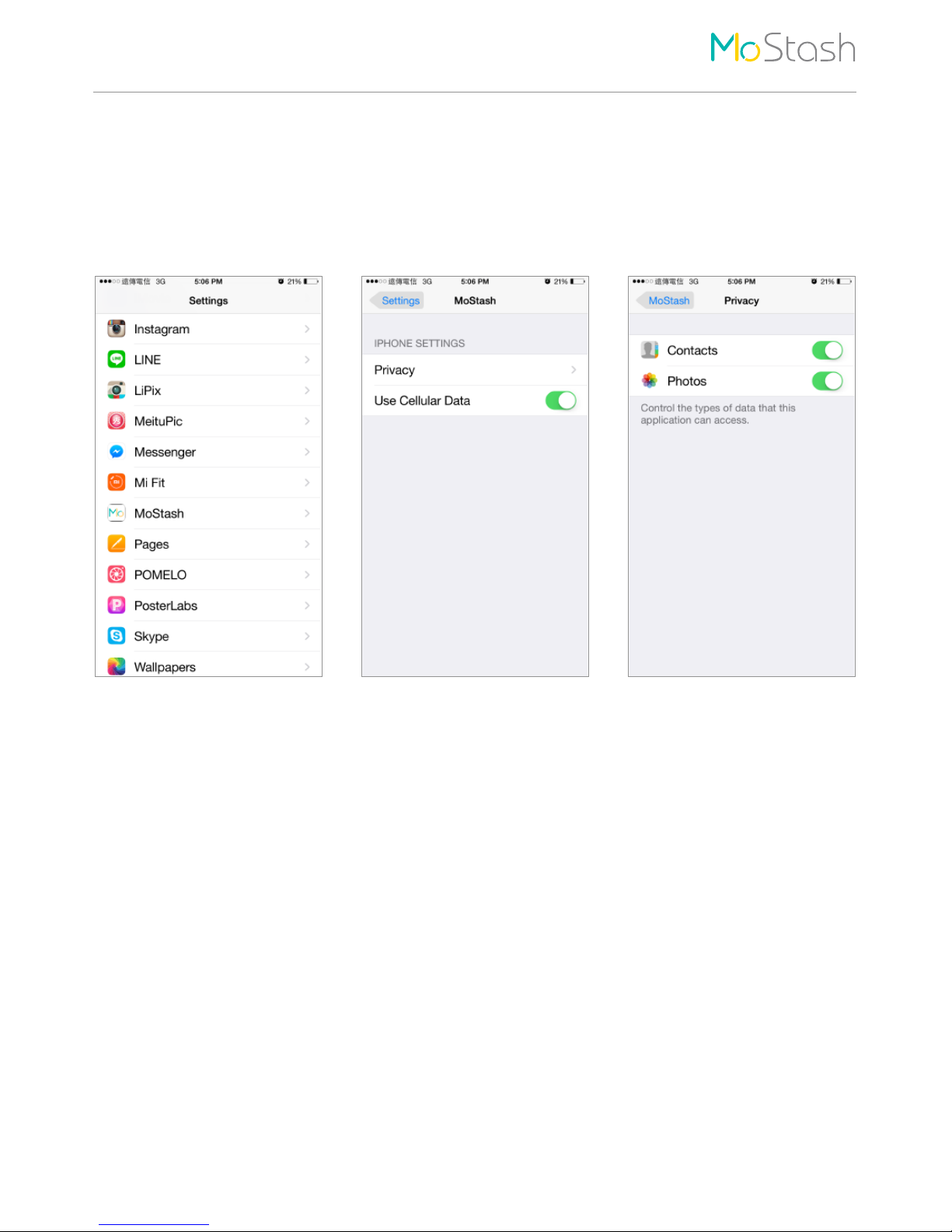
Q7: An error message appears “Access denied” when I use the contacts backup function,
how do solve this issue?
A7: Please go to Setting → MoStash → Privacy, and allow MoStash access your contact
information in order to backup the data.
Q8: What the difference between “Copy” and “Move” ?
A8: The “Copy” function allows selected data to be copied to another storage device, the
source data will remain in the original device. The “Move” function also allows selected
data to be move to another storage device, but the source data will no longer retain in
the original device.
 Loading...