

Page 1

VIZIO
3D BLU-RAY™ PLAYER
WITH INTERNET APPS
MODEL VBR338
QUICK START GUIDE
FOR FULL USER MANUAL
GO TO VIZIO.COM/SUPPORT
Page 2
BEFORE YOU BEGIN
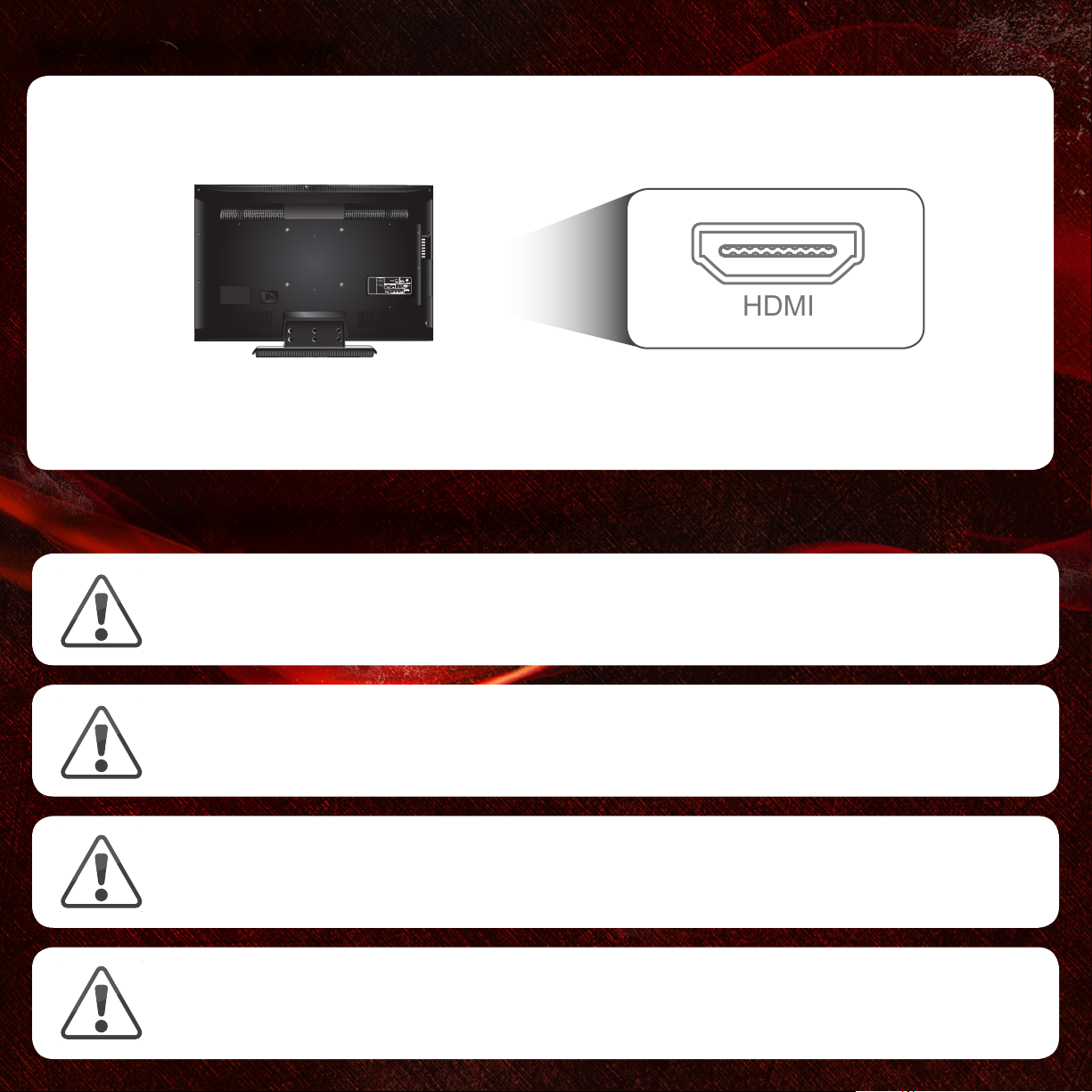
HDMI
This Blu-ray Player is designed to play high-definition audio and video using an HDMI cable.
HDMI cables come in various lengths and are available for purchase from most retailers.
Before you set up your Blu-ray Player, make sure your TV has an available HDMI port.
This port is usually found on the back or side of the TV.
IMPORTANT SAFETY INFORMATION
You may experience discomfort while watching 3D content. You may feel symptoms of eye strain, vision fatigue,
color or depth distortion, motion sickness, nausea, dizziness, disorientation, or other discomforts. If you experience
any of these symptoms, stop watching and take a break for at least thirty minutes before resuming. If the symptoms
are severe or continue even after you have stopped watching 3D content, consult a doctor.
Some viewers may be susceptible to epileptic seizures or strokes when viewing 3D images, even if those conditions
have not been previously diagnosed. If you or anyone in your family has a history of seizures or strokes, or if you
have any other reason to think you or someone under your supervision may be susceptible to epileptic seizures or
strokes, consult a doctor before watching 3D content.
Take care to monitor children’s watching of 3D content. Children (including teenagers) may be more at risk of
experiencing discomfort while watching 3D content and less likely to report symptoms. Monitor children’s 3D
content viewing and watch for signs of discomfort.
Even if you do not experience any of the above symptoms, take regular breaks from watching 3D content.
Page 3
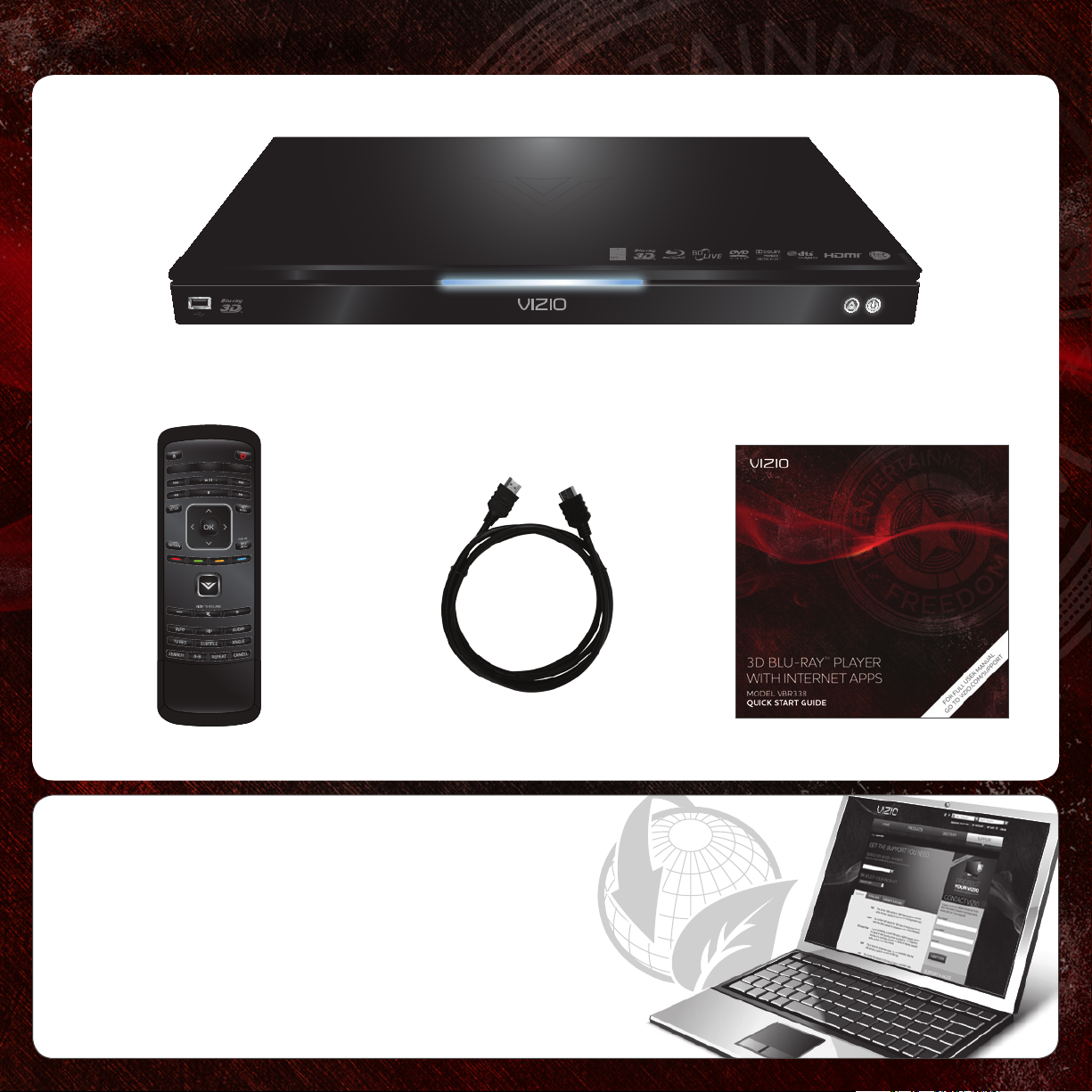
PACKAGE CONTENTS
3D Blu-ray Player
Remote with Batteries
HELP VIZIO REDUCE PAPER WASTE.
DOWNLOAD THE FULL USER MANUAL AT
HDMI Cable
VIZIO.COM/SUPPORT
This Quick Start Guide
Page 4

AAA BATTERY
AAA BATTERY
FIRST-TIME SETUP
1 2
Remove the battery cover from the remote.
Insert the batteries, matching the + and - symbols in the
compartment with the + and - symbols on the batteries.
Replace the cover.
Connect the power cord from the back of the Blu-ray Player
to an electrical outlet.
3 4
To your TV
Connect the included HDMI cable to the HDMI port on the
back of the Blu-ray Player. Connect the other end of the
HDMI cable to the HDMI port on your TV.
Your Blu-ray Player is ready to use.
When inserting a disc, hold the disc by the edges.
Gently push the disc into the slot until the Player takes it.
The Player will pull the disc in.
Never force a disc into the Player.
Page 5

GETTING TO KNOW YOUR PLAYER
FRONT
USB Port
Insert USB thumb drive to play photos and
music. Supported files include .jpg and .mp3.
Disc Slot
Insert disc here.
BACK
Eject Button
Touch to eject disc.
Power Button
Touch to turn Player on or off.
Ethernet
HDMI
Digital
Optical
Audio Out
RCA Stereo
Audio Out
Digital
Coaxial
Audio Out
Power Cord
Page 6

USING THE REMOTE
EJECT
Eject the disc.
PLAY/PAUSE
Press to play or pause disc.
STOP
Halt playback.
SETUP
Open the Setup menu.
OK
Select the highlighted menu option.
RETURN
Go to the previous menu screen.
V BUTTON
Open the Player main menu.
POWER
Turn Player on or off.
APP LAUNCHER
Quickly launch app on button.
PREVIOUS/NEXT
Go to the next track or chapter on disc.
REWIND/FAST FORWARD
Press repeatedly to increase speed.
DISC MENU
Open the disc menu.
ARROW
Navigate on-screen menus.
TITLE MENU
Open disc title menu.
APP SHORTCUTS
Control Internet Apps and other disc
functions. Press Red to exit apps.
VIZIO TV VOLUME
Adjust volume or mute a VIZIO TV.
PIP
Enable picture-in-picture.*
INFO
Open disc info window.
TV RES
Change output resolution of the Player.
SEARCH
Find specific title, chapter, or time.*
A-B
Create a playback loop.*
AUDIO
Change disc audio track.*
ANGLE
Select viewing angle.*
SUBTITLE
Change disc subtitle track.*
CANCEL
Clear entered numbers/letters.
REPEAT
Continuously play selected track.*
BATTERY COMPARTMENT
Insert batteries here.
*Supported discs only.
Page 7

IMPORTANT
Do not cover this area. This is the transmitter.
ARROW
Use to navigate on-screen menus.
SHIFT
Press and hold this key to enter a capital letter.
When using the remote, point it at the
right side of the player. The sensor is
located there.
A LT
Press and hold this key to enter a blue character.
For example, press ALT and W to enter a # character.
APP SHORTCUTS
Control Internet Apps and other disc
functions. Press Red to exit apps.
Page 8

SETTING UP YOUR NETWORK CONNECTION
To enjoy online content and streaming video, you must connect the Blu-ray Player to your home network.
For the best online experience, you should have a high-speed internet connection (Minimum 1Mbps-higher is better).
Connect an Ethernet cable* to
1
the Ethernet port on the back of
the Blu-ray Player.
Router / Modem
Ethernet cables are available from many
retailers in lengths up to 50 feet.
Connect the other end of the
2
ethernet cable to the Ethernet
port on your router or modem*.
The next time you turn the Player
on, the network connection will
be automatically detected.
*Router/Modem/Ethernet Cable Not Included
 Loading...