

Page 1

Tapplock lite
User Manual
World’s first smart fingerprint padlock
Tapplock.com
Page 2

Cutting-edge fingerprint technology
• Unlocks in 0.8 seconds
• Stores up to 100 fingerprints
• Adaptive algorithm: faster and more
accurate access each time you use it
Shareable wireless access
• Supports wireless Bluetooth access via
the Tapplock app
• Share & control access remotely to
unlimited users
• View access history with time and
location
2
Page 3

Rechargeable battery
• Up to 8-month battery life per 2-hour
charge time
• Check remaining power using the
Tapplock app
Morse code backup access
• Set up Morse code access using the
Tapplock app
• Access the Tapplock using the power
button in case a user's fingerprint isn't
enrolled and / or access to a smartphone
is unavailable
3
Page 4
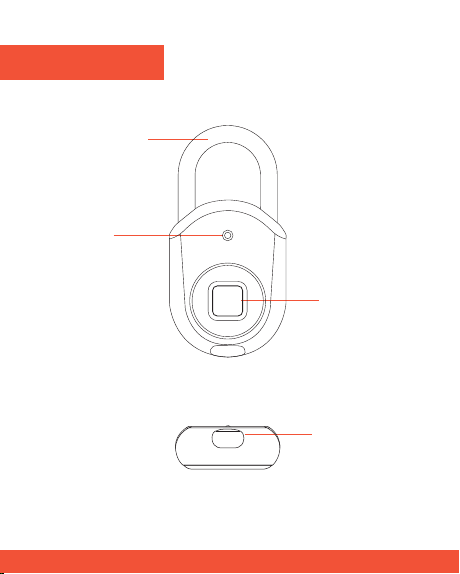
Overview
Power
button
Status
indicator
4
FRONT VIEW
Fingerprint
sensor
BOTTOM VIEW
Charge port
Page 5
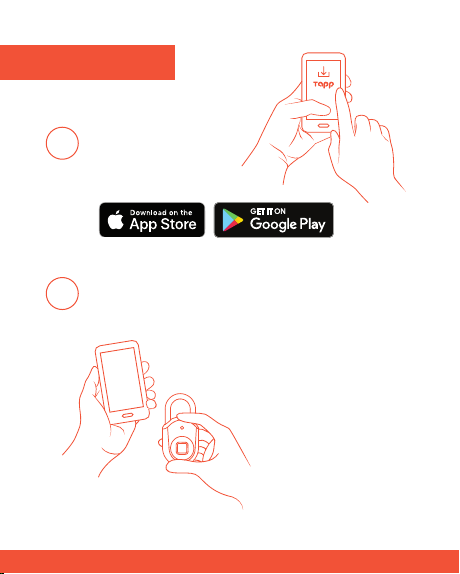
Quick Start
Download the
Tapplock app on
1
the App Store or
Google Play.
Register / log in on the Tapplock app and
2
follow instructions to set up your new
Tapplock.
Make sure Bluetooth is
enabled in your phone
settings before setting up
the Tapplock.
5
Page 6
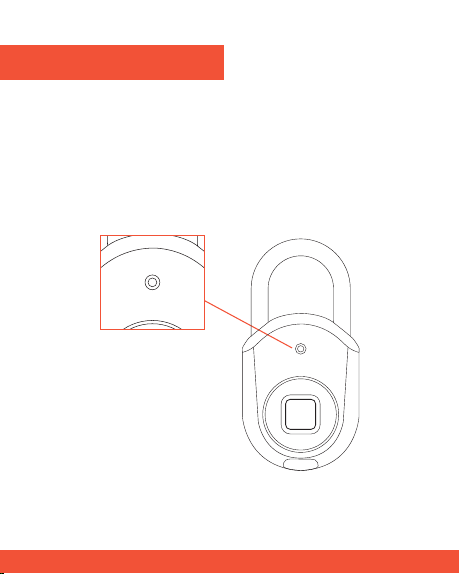
Status Indicator
The status indicator is the visual cue to
understanding your Tapplock lite.
Refer to the table to understand what each
colour means.
Press down on the Tapplock shackle to enter an unlocking mode
6
Page 7
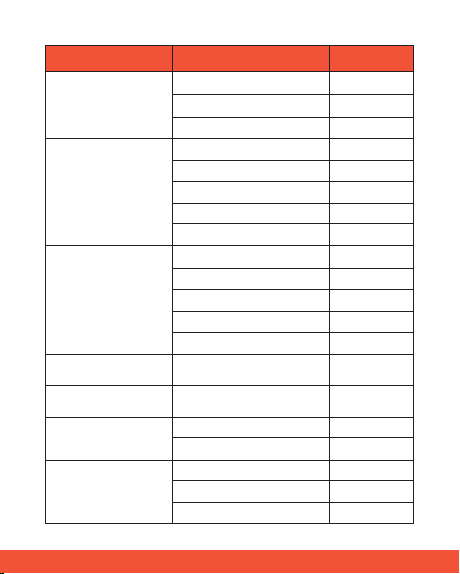
Status Mode
Fingerprint
Bluetooth
Morse Code
Lock Successful
Lock Notification
Charging
Low Battery
Notification
Function/Action
Press power button 1x
Fingerprint accepted
Fingerprint rejected
Press power button 2x
Searching
Connected
Unlock via Bluetooth
Upgrading firmware
Press power button 3x
Long press
Short press
Correct Morse code
Incorrect Morse code
Locking successful
Lock is unlocked
Charging
Fully charged
Battery at 30%
Battery at 20%
Battery at 10%
* indicates LED will be blinking
LED Color
White
Green
Red
Blue*
Blue*
Blue
Green
Yellow
Purple
White
Blue
Green
Red
Green
Green
Red
Green
Red*
Red*
Red*
7
Page 8
3 ways to unlock
Tapplock lite is equipped with multiple access
capabilities to allow for maximum convenience
and flexibility.
Fingerprint access: Unlock in 0.8 seconds
Bluetooth access: Bluetooth access via the
Tapplock app using your smartphone
Morse code access: Backup access using
long-short combinations by pressing on the
power button shackle
8
Page 9

Fingerprint Mode
To turn on Tapplock lite, press down on the shackle
once (1) of the lock (power button).The status
indicator light will be white, and your Tapplock
should be ready to unlock with your registered
fingerprint.
If you are having trouble getting to fingerprint
mode, hold down the power button until the status
indicator light turns off, putting your lock in sleep
mode. Then press down on the power button once
(1) to enter fingerprint mode.
** Tapplock lite will automatically enter sleep
mode after 10 seconds of inactivity. This
increases the lifespan of your battery.
9
Page 10

Bluetooth Mode
Connect your phone using Bluetooth mode to:
• Add a new Tapplock to your account
• Unlock with your phone
• Set up / remove fingerprints
• Set up Morse code
Press down on the shackle of the lock (power
button) twice (2) to enter Bluetooth mode for phone
pairing. The status indicator light will be blue.
If you are having trouble getting to Bluetooth mode,
hold down the power button until the status
indicator light turns off, putting your lock in sleep
mode. Then press down on the power button twice
(2) to enter Bluetooth mode.
10
Page 11

Morse code Mode
Morse code is a backup access mode. It allows you
to unlock your device using long / short
combinations by pressing down on the shackle of
the lock (power button). Morse code gives you
access to your Tapplock without your fingerprint or
your phone.
Follow the on-screen instruction in the Tapplock app
to set up your custom Morse code. The status
indicator will be white for a long hold. The status
indicator will be blue for a short hold.
Press down on the power button three (3) times to
enter Morse code mode. The status indicator light
will be purple.
If you are having trouble getting to Morse code
mode, hold down the power button until the status
indicator light turns off, putting your lock in sleep
mode. Then press the power button three (3) times
until the status indicator light turns purple.
11
Page 12

FCC notice
This device complies with part 15 of the FCC Rules. Operation is
subject to the following two conditions: (1) This device may not
cause harmful interference, and (2) this device must accept any
interference received, including interference that may cause
undesired operation.
Any Changes or modifications not expressly approved by the
party responsible for compliance could void the user’s authority to
operate the equipment.
Note: This equipment has been tested and found to comply with
the limits for a Class B digital device, pursuant to part 15 of the
FCC Rules. These limits are designed to provide reasonable
protection against harmful interference in a residential installation.
This equipment generates uses and can radiate radio frequency
energy and, if not installed and used in accordance with the
instructions, may cause harmful interference to radio
communications. However, there is no guarantee that interference
will not occur in a particular installation. If this equipment does
cause harmful interference to radio or television reception, which
can be determined by turning the equipment off and on, the user
is encouraged to try to correct the interference by one or more of
the following measures:
- Reorient or relocate the receiving antenna.
- Increase the separation between the equipment and receiver.
- Connect the equipment into an outlet on a circuit different from
that to which the receiver is connected.
- Consult the dealer or an experienced radio/TV technician for help.
The device has been evaluated to meet general RF exposure
requirement. The device can be used in portable exposure
condition without restriction.
12
Page 13

This device complies with Industry Canada licence-exempt RSS
standard(s).
Operation is subject to the following two conditions: (1) This device
may not cause interference, and (2) This device must accept any
interference, including interference that may cause undesired
operation of the device.
The device has been evaluated to meet general RF exposure
requirement.
The device can be used in portable exposure condition without
restriction.
Visit Tapplock.com for
newest updates, instructions and FAQ.
Contact us by emailing
14
Page 14

Copyright © Tapplock Corp.
 Loading...