

Page 1
Wi-Fi/RF Control Set Up Instructions – Companion Manual for the HV1600 Model WR38/WR50
IMPORTANT: Perform these tasks before the fan has been
provide power to the control box ONLY.
Devices that must be present to control the Wi-Fi fan
Compatible smart devices
Before setting up the Wi-Fi control, check the following:
Your control box is disconnected from the fan
Your router is MAC - open
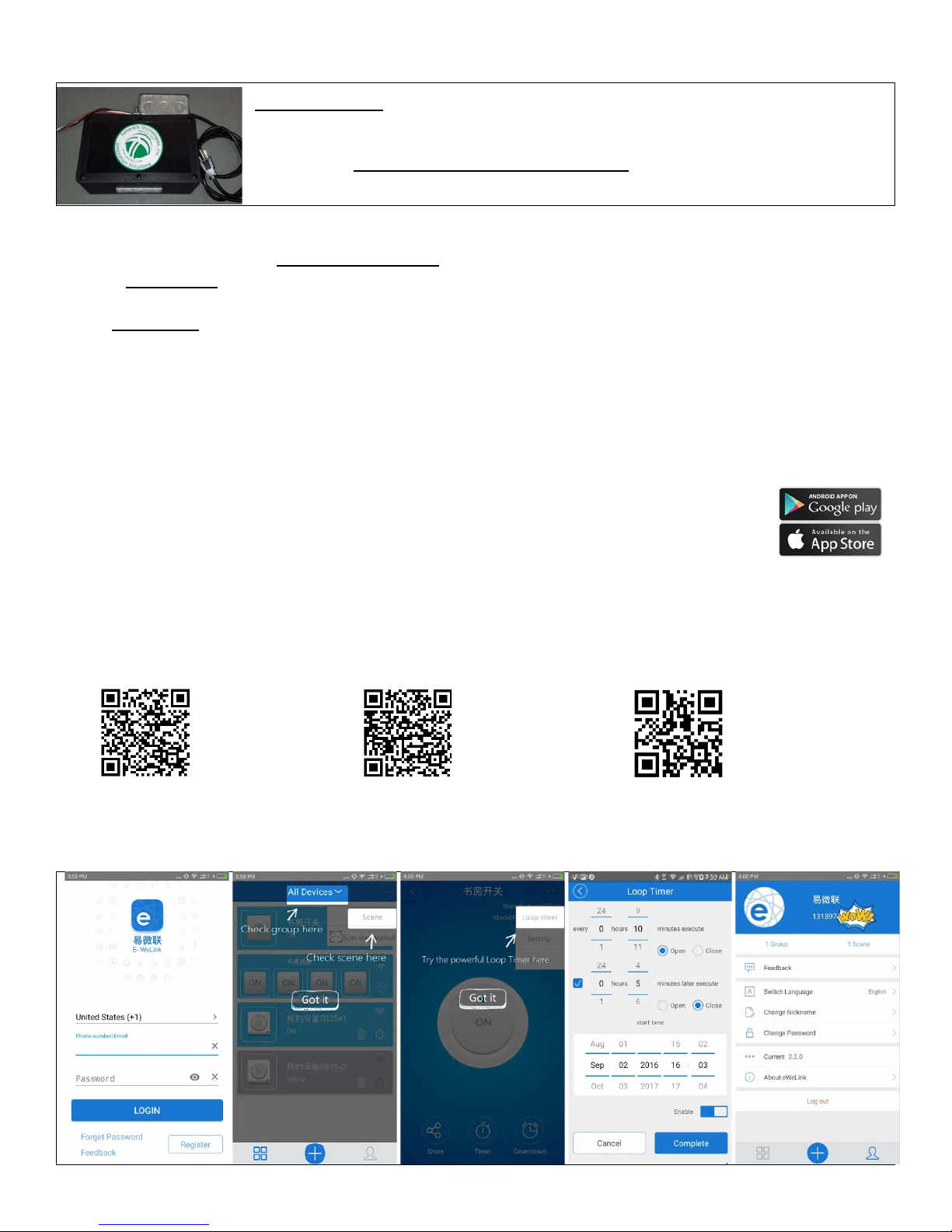
1. Set up EWelink app
free
EWelink app on iTunes
EWelink app on Google Play
EWelink detailed user guide
2.
Sign into or register your EWelink account
installed. To connect the Wi-Fi receivers to the home
network, disconnect the control box from the fan and
• An active 2.4GHz b/g/n wireless home network (Not compatible with 5.0GHz)
• A Smart Device. You may also use Alexa or Google Home and a smart device to control the fan without the need
to log in to regain control each time
• EWelink app is used to operate the fan by providing the wireless network information to the Wi-Fi Control.
• A smart phone or tablet that has access to iTunes or Google Play to download the EWelink app. Once the setup
process is complete you may use other smart phones and tablets. Generally, only one device can be signed in at
one time to control the fan (Exception: If you have more than one EWelink account and you share control)
Your smart phone or tablet is connected to a 2.4 GHz Wi-Fi network with internet access
You have the correct Wi-Fi password
Your phone or tablet has access to iTunes or Google Play
Scan the QR code to download the
EWelink APP and user guide or search for “EWelink”
Page 2
3. Pair the HV1600 Wi-Fi control box to the home network with the EWelink app
a. Provide power to the control box without it being connected to the HV1600
b. Remove the lid to the HV1600 control box to gain access to the EWelink Wi-Fi devices
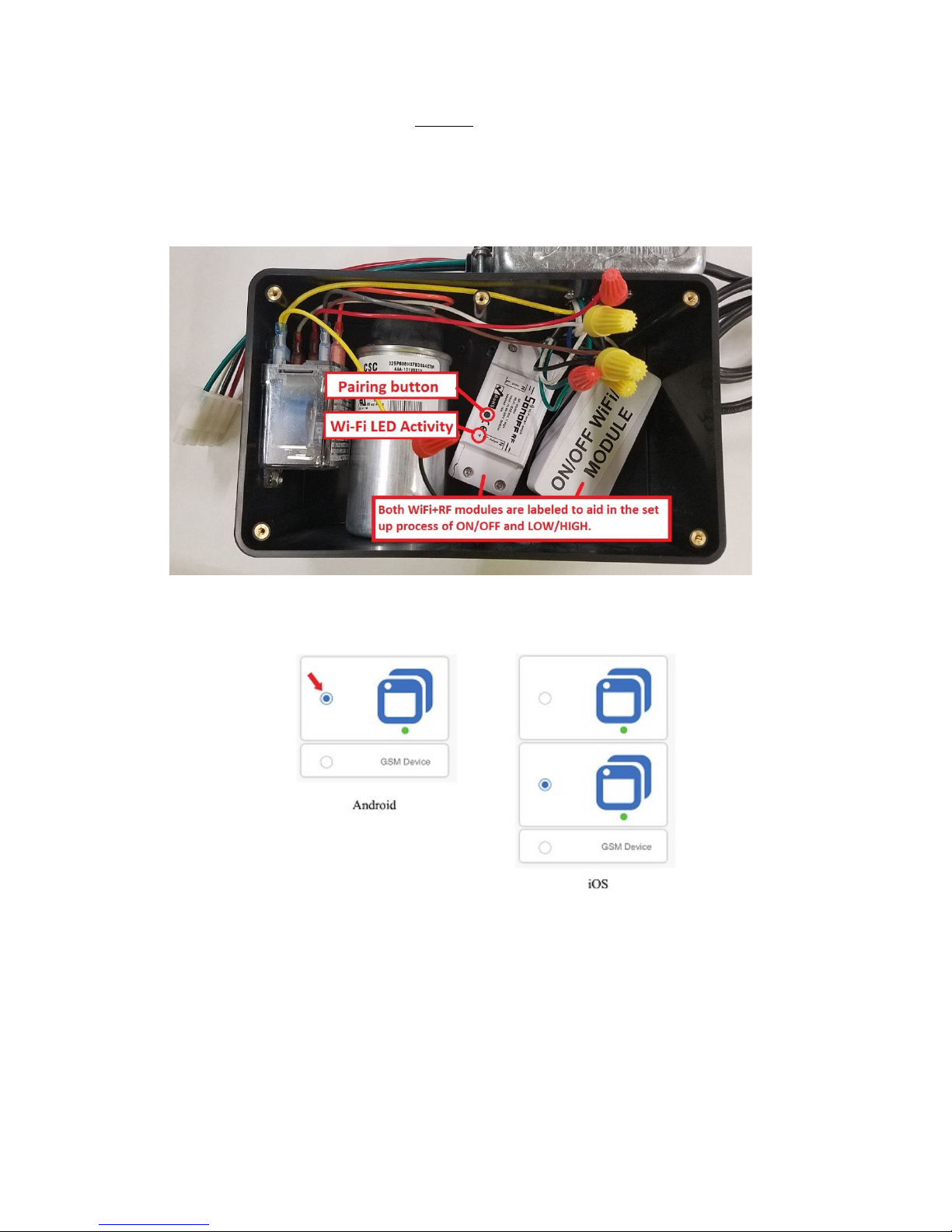
c. Locate the ON/OFF receiver module inside of the box
d. Press the Pairing button on the ON/OFF module for 7 seconds until the Wi-Fi LED blinks 3 times
every few seconds
e. On your smart device, open the EWelink app and tap the (+) symbol
f. Input your Wi-Fi SSID Network name and password
g. Name the module in the field provided: “ON/OFF”
i. When the EWelink device has connected to the home network successfully the Wi-Fi LED
will remain lit, confirming connection
h. Repeat steps 3c-3g, for the LOW/HIGH module, naming the field “LOW/HIGH”
i. Test functionality with EWelink to confirm the control box is switching (audible clicks)
4. Connect the control box to the fan
a. Replace the lid on the control box
b. Connect the control box to the connector on the fan at the junction box
Use a #1 sized Phillips head screw driver to remove the 6 black screws on the black box lid
Use the appropriate pairing method for your device as illustrated below
Page 3

Troubleshooting /FAQ
My device on the app stays “Offline”
Wi-Fi LED quickly blinks one time every second
Wi-Fi LED quickly blinks twice every second
Failure to connect
I lost/broke the hand held remote. Can I buy a new one?
Factory reset
Re-Program the Hand Held Remote
LEARNING:
ERASING STORED REMOTE CODES:
Using a virtual assistant device
The added device needs 1 min to connect to Wi-Fi and the internet. If it says offline for a longer time, please
judge the problem by the Wi-Fi LED status.
Device failed to connect to your Wi-Fi. Possible causes:
1. Device is too far away from your Wi-Fi signal
2. Incorrect Wi-Fi password
3. Device cannot be added to the 5.Ghz Wi-Fi router (only works on 2.4 GHz Wi-Fi)
4. Router is not MAC - open
Perform a factory reset (see below) and enter the network information again starting at #3c on page 2.
Device has connected to Wi-Fi but failed to connect to server. Check your network connectivity.
Perform a factory reset (see below).
Yes. You will need to access the control box to pair it to your fan.
If any information was entered incorrectly during the set up process, a factory reset is recommended. To
perform a factory reset to the EWelink module press and hold the “Pairing Button” for upwards of seven
seconds until the LED blinks a different pattern. The factory reset is now complete. You may start the pairing
process again (Step 3d).
The Wi-Fi / RF models are provided with a 4 button pre-programed hand
held (key fob) remote. The “A” button controls ON/OFF power to the fan.
The “B” button controls LOW/HIGH speed. C & D are not in use. You may
use a 433MHz frequency remote as an alternate remote. To program follow
the instructions below.
pairing button twice in a row. Press the corresponding button on the remote for 1 to 2 seconds. Test with
the remote to confirm the remote function.
seconds to confirm the codes have been erased.
Locate the receiver module you wish to pair to the remote (see diagram 3d). Quickly press the
Quickly press the pairing button three times. A red LED will be lit for 3
Tamarack’s line of WiFi/RF fans are compatible with virtual assistant devices such as Amazon’s “Alexa” and
Google’s “Google Home”. For assistance with adding your fan to a virtual assistant device, please contact the
manufacturer of the device. Tamarack cannot provide assistance with this task.
Page 4

Optional: Wiring manual switches to operate the fan, bypassing the Wi-Fi control.
ON/FAN ON
CONTROL BOX
There are three wires located in the junction box hard mounted to the HV1600 Wi-Fi Box
that will allow for the use of two SP/ST (single pole / single throw) wall switches to bypass
the Wi-Fi method of control. When the manual switches are in use the fan cannot be
turned off using the app or changed to low speed if the speed switch is set to high speed.
See wiring diagram below for wiring. Only a mechanical timer may be used as an alternative
control SP/ST switch.
HI/ON
LOW/OFF
Warranty Information: See the Installation Manual/Operations Guide for the HV1600 Fan for warranty information.
OFF/FAN
OFF
20 Patterson Brook Road, West Wareham, MA 02576
774-678-4433 800-222-5932 774-678-4436
HV1600-Wc.2
 Loading...