

Page 1

User manual Kompis 2
Kompis 2 user manual
V1.0.0
TAIL IT TECHNOLOGIES | Håkon Magnussons gate 8
Page 2

1
List of content
List of content .................................................................................................................................................. 1
1.Introduction – 3 step installation .................................................................................................................. 2
2.Set up device ................................................................................................................................................ 3
3. Activation and installing the SIM-card ......................................................................................................... 3
4. Set up and registration in app– Tail it........................................................................................................... 5
5. Add new device in app – Tail it..................................................................................................................... 6
6. Share device with other users – Tail it .......................................................................................................... 8
7. Update position ........................................................................................................................................... 9
Page 3
2
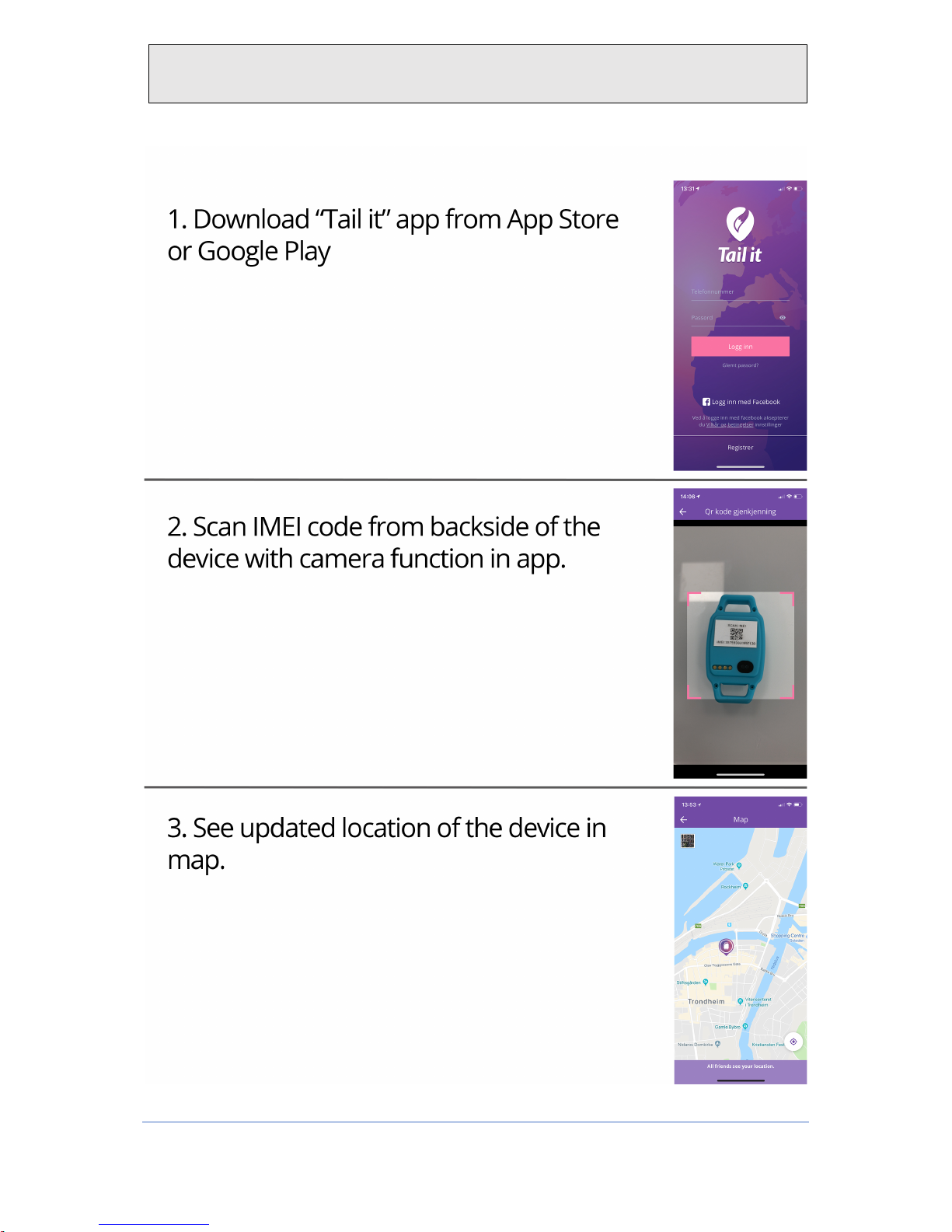
1.Introduction – 3 step installation
Page 4
3
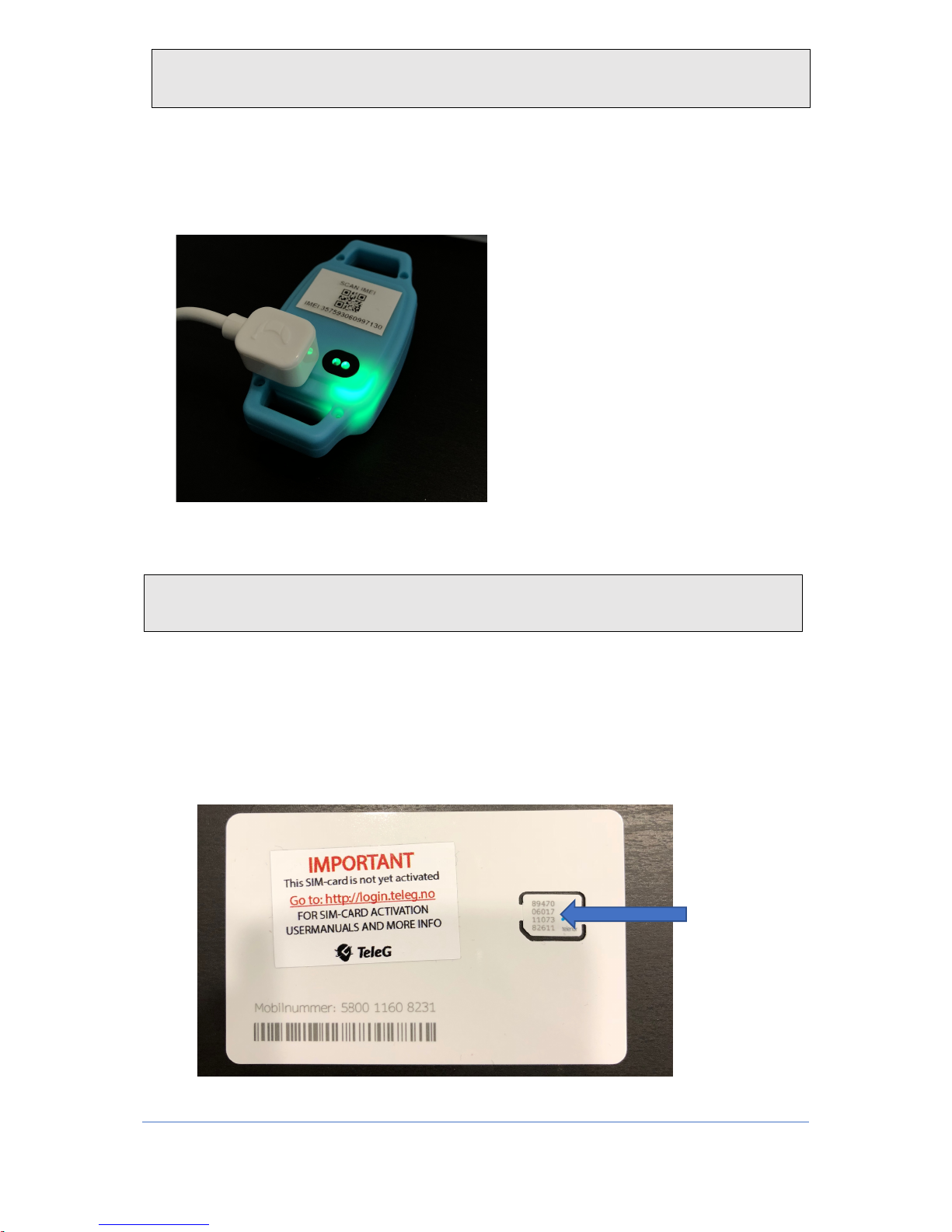
1. Open the box you have received and take the tracker and charger out of the box.
2. There will be some battery on your tracker when you receive it, but to be sure, we
reccomend that you charge the tracker for a while. The tracker will light up green
when its charging and stop lighting when it is fully charged. (It may take a few
seconds for the light to come)
3. Once you have fully charged the tracker (This is done to treat the battery in the best
possible way) you are ready to start the tracker setup.
1. A SIM card is inserted inside the box with the tracker and charger. This must be
activated before it can be used. This is done by visiting login.teleg.no
2. When you go to login.teleg.no, you choose which product you have bought and fill
out the information form.
3. On the disc to which the SIM card is attached, the mobile phone number is displayed.
On the SIM card itself there is a 20 digit number. This should be entered where it
says"Sim Card Number" in the registration of the SIM card.
3. Activation and installing the SIM-card
2.Set up device
Page 5
4
4. After you have completed the entire registration, you will receive a message saying
that you have completed activation of the SIM card. Then your SIM card is activated
and ready for use.
5. Once you have activated your SIM card, you will also receive an e-mail with PIN and
PUK codes and mobile number (Check spam if you do not receive the e-mail)
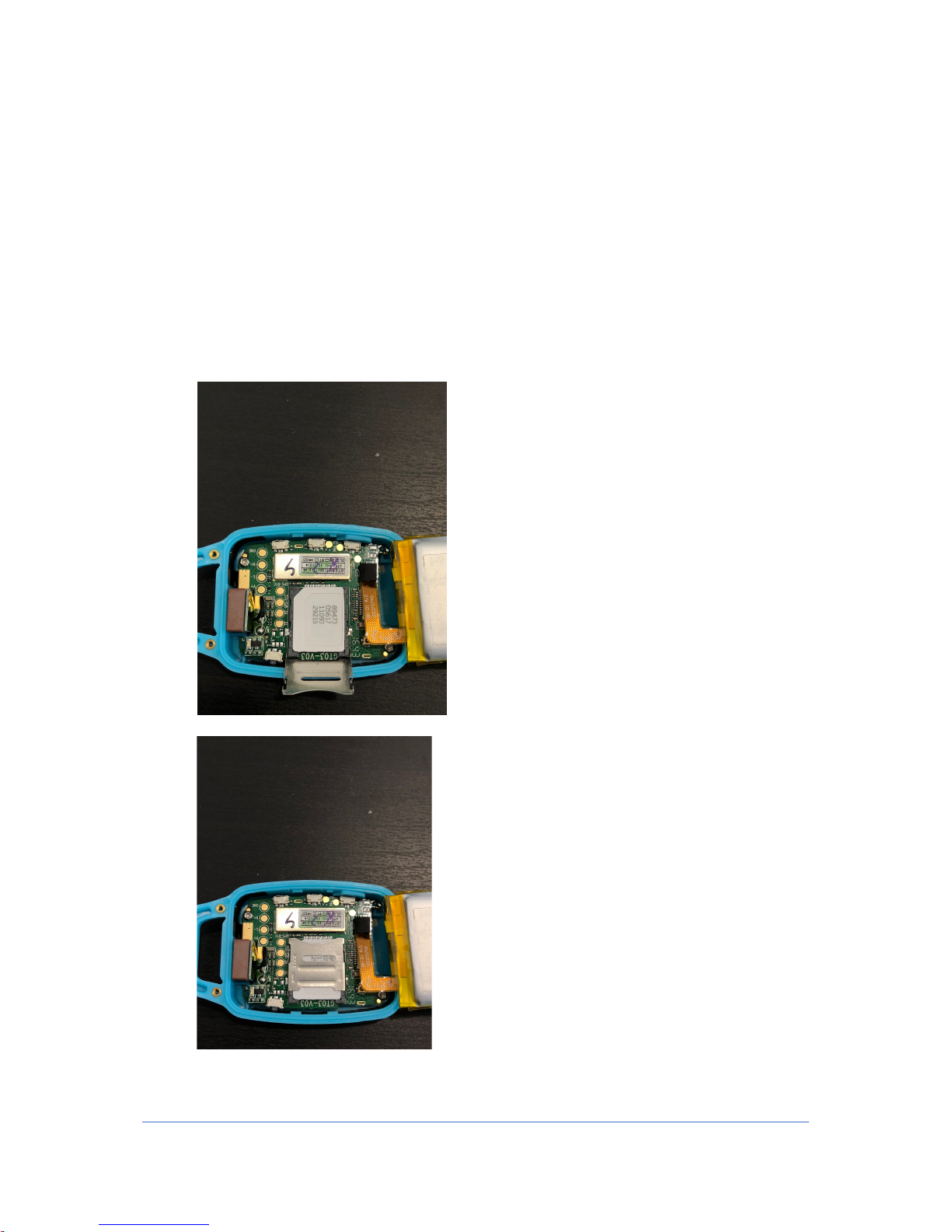
6. To insert the SIM card into the tracker, screw the 4 screws on the back of the tracker
with the supplied screwdriver. Then open the lid on the back. (This can be hard to get
up, but use some power and it will loosen up.
7. After opening the cover, open the SIM card terminal by sliding the lid in the direction
that shows "Open" (as you can see in the picture below)
8. Then open the terminal and put the SIM card down, with the yellow side of the SIM
card down. Make sure the notch on the SIM card fits the notch on the SIM card
terminal.
9. Close the lid and pull the lid up again to lock it.
10. Attach the lid to the back of the watch again and tighten the screws.
Page 6
5
1. Visit the app store (Iphone) or Google Play (Android) on your phone and search for
"Tail it" Download this app.
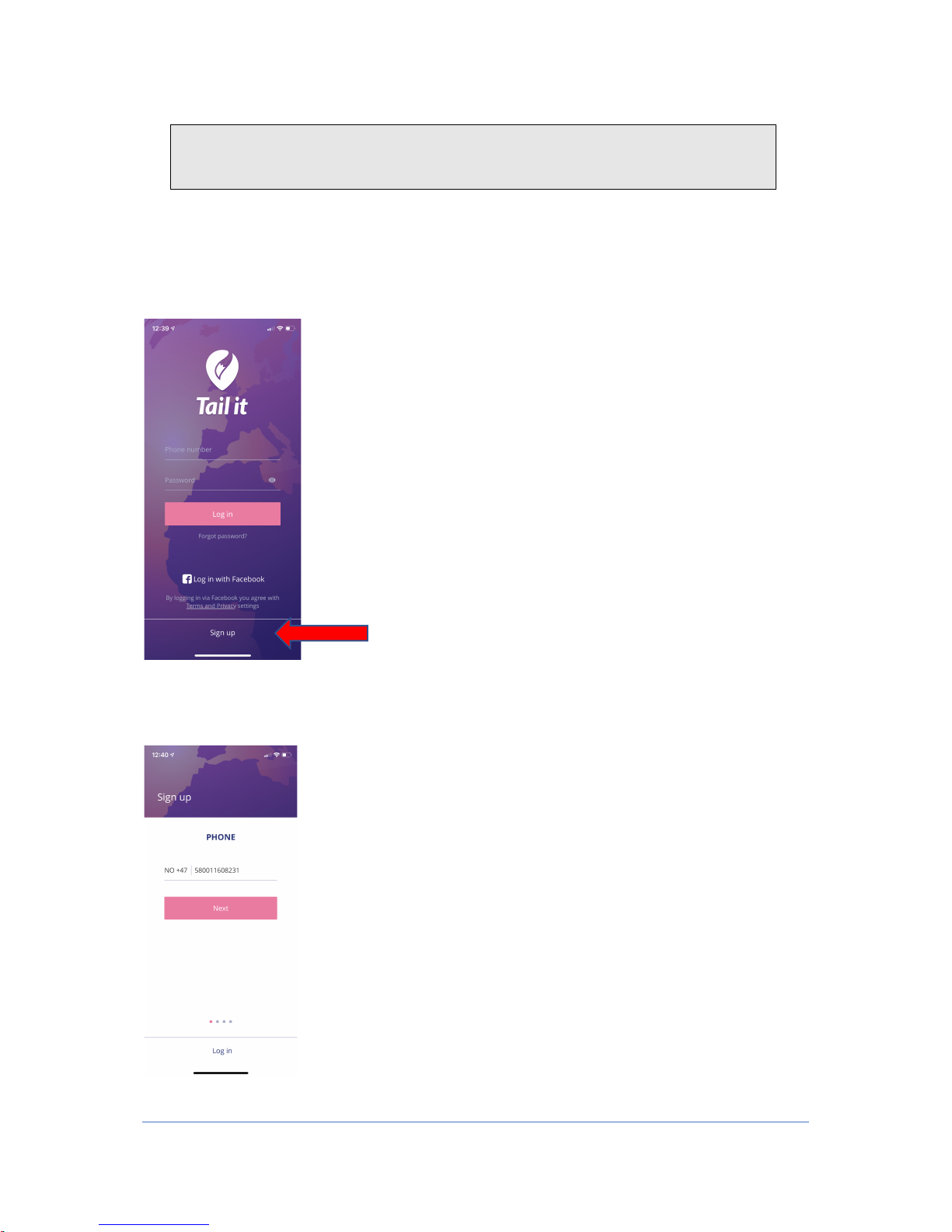
2. The first thing you have to do is register yourself to create a user. Then click Register
at the bottom of the first page.
3. Then enter your own private phone number to create a user. Next, type the
activation code you receive on text on your mobile.
4. Set up and registration in app– Tail it
Page 7
6
4. Enter a password. Keep in mind that you must have uppercase letters, lowercase
letters, numbers and a character (!?., - # etc)
5. Enter your own name.
6. Add picture of yourself, or skip this step if you dont want to add picture.
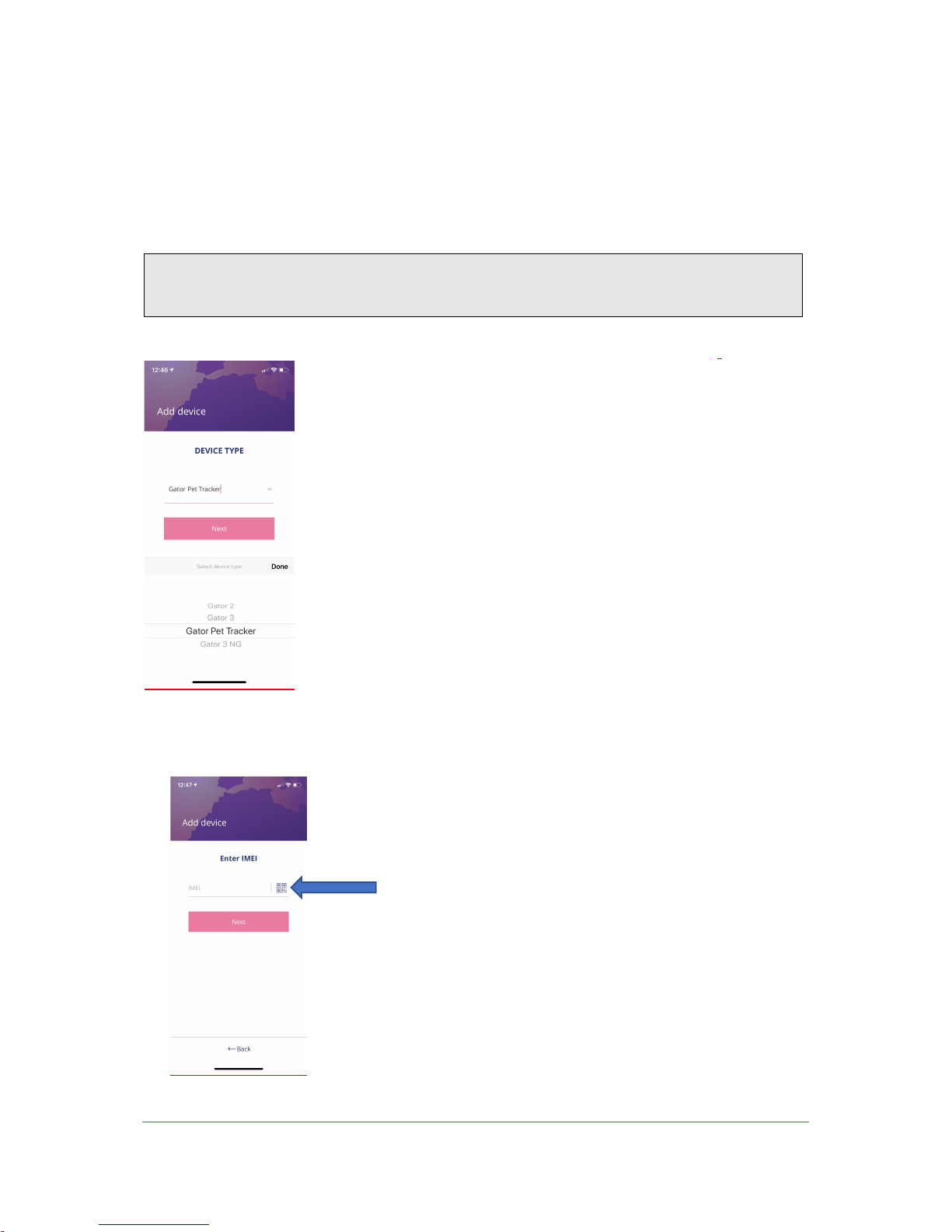
1. When you come to the screen where you can add a device, press "Let's get started"
2. Here you choose which device to add. Here you choose Gator Pet tracker.
3. Then enter the IMEI number of the tracker that is located at the back of the tracker
or on the partition plate inside the box of the tracker. Here you can choose to type
the number yourself or press the 4 squares on the right side and scan the QR code
that matches the IMEI number.
5. Add new device in app – Tail it
Page 8
7
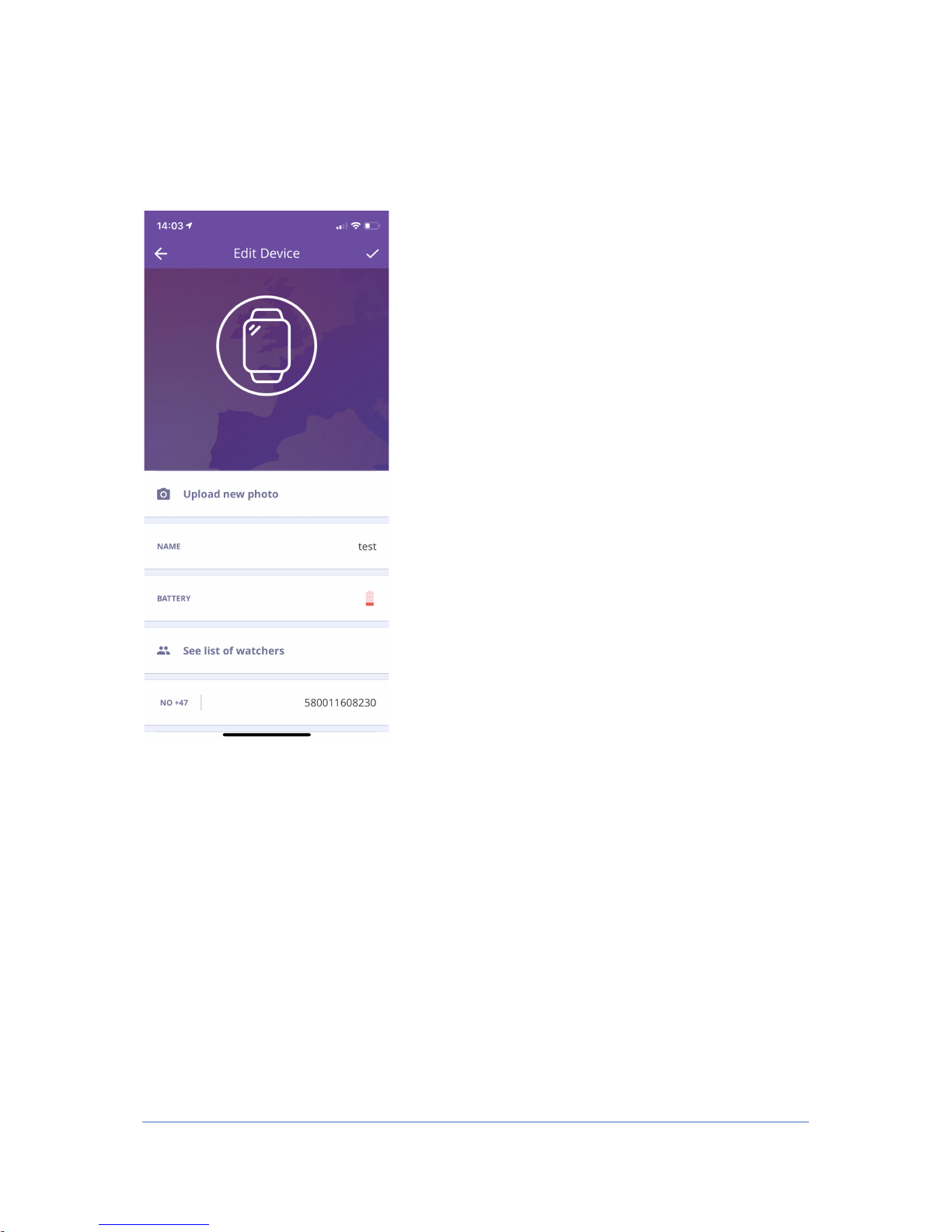
4. Once you have added the IMEI number, enter the name of the animal and enter the
number of the tracker you received earlier by email after you activated the card at
login.teleg.no
Page 9
8
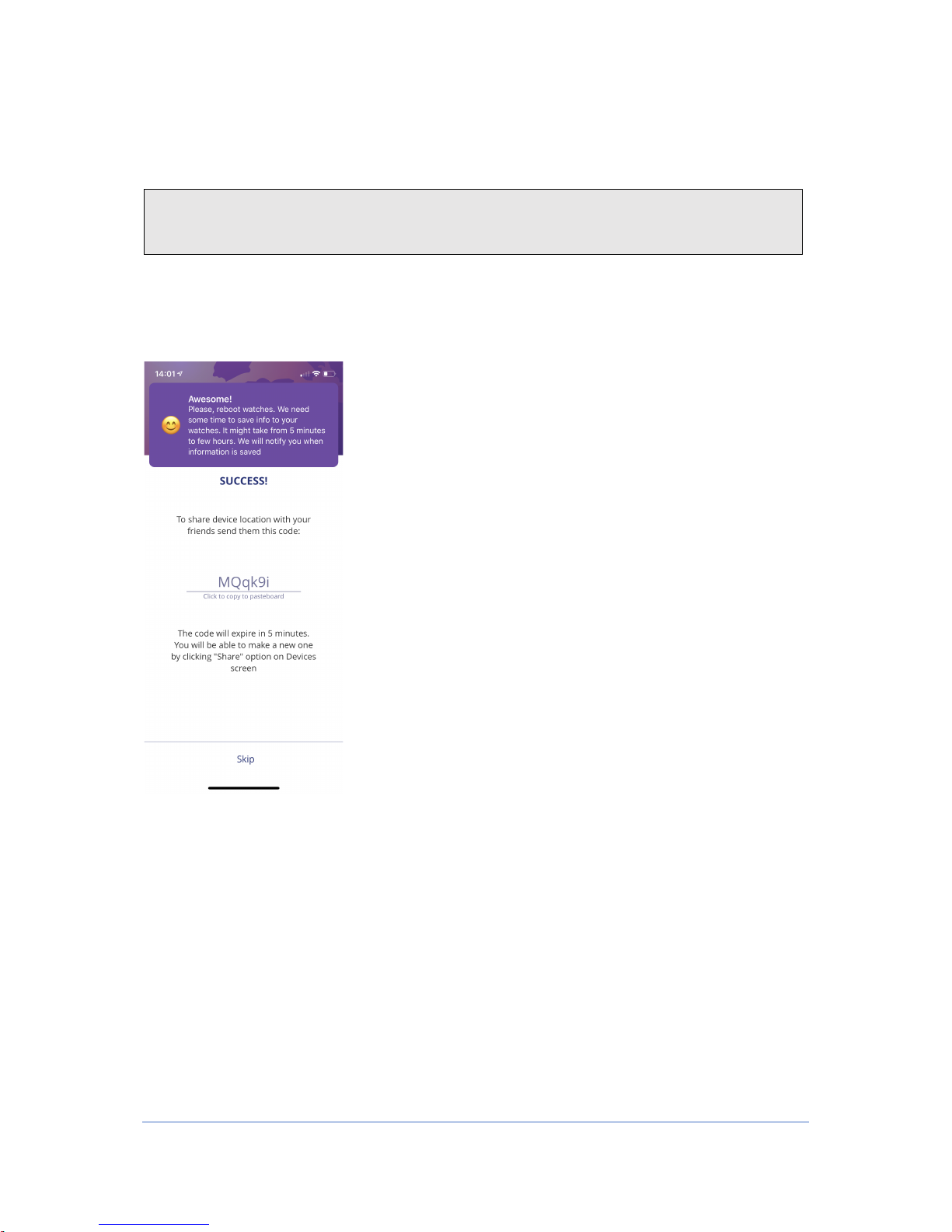
1. Now you've added your device, and then you can share this code with someone else,
if you want more people to add the device to their app.
2. In order for someone else to add the device to the app, follow the same recipe as this
and enter this code as they receive from you when they are notified.
3. Once you have added the device and turned it on, by holding the top button on the
right (on the device), you get to the home screen of your devices.
4. You can also find this code by pressing the three dots on the right side of the home
screen of the app, next to the battery icon, and press "Share" Then a new code will
be added that others can add to to the device in their app. This code only works for 5
minutes at a time.
6. Share device with other users – Tail it
Page 10
9
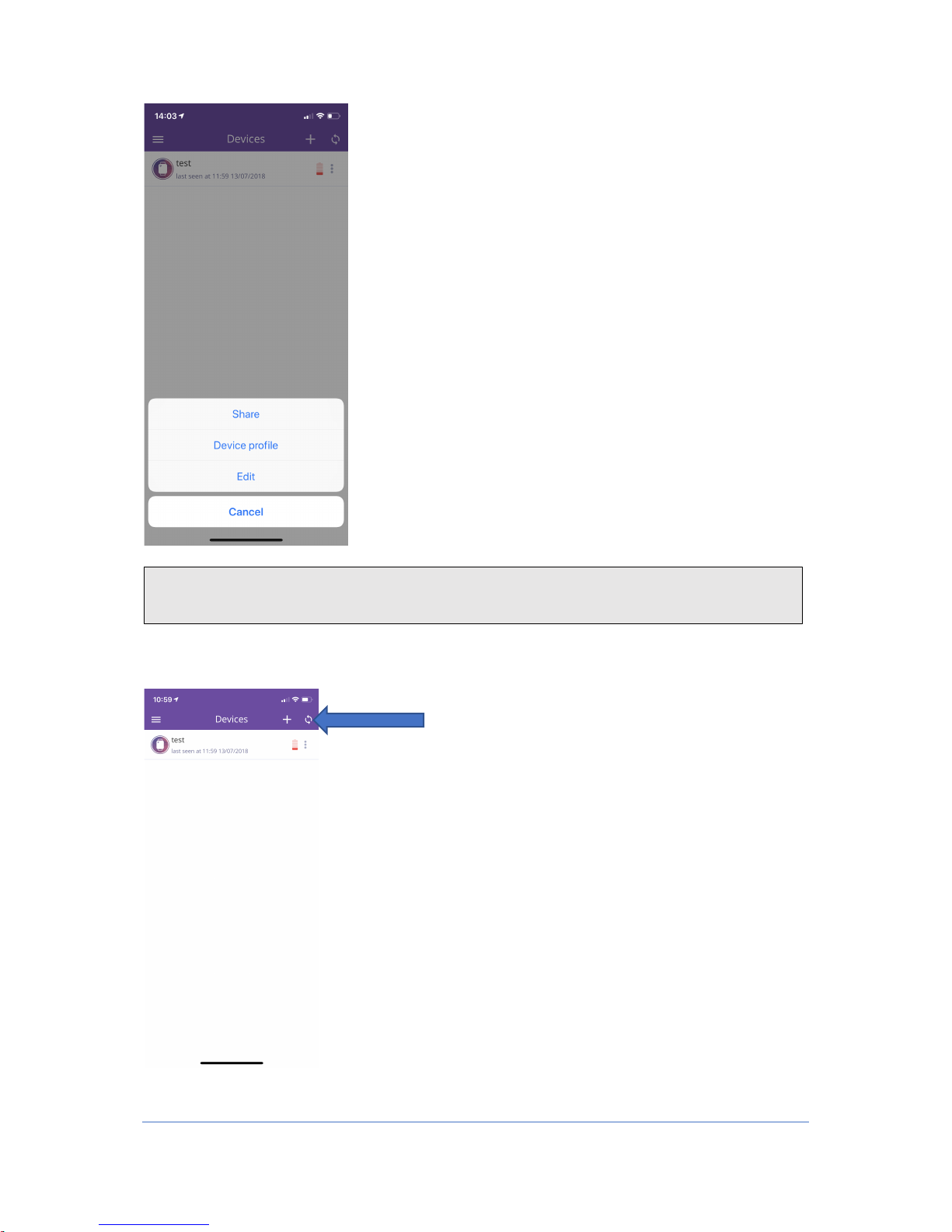
1. To update position on the tracker, tap this button in the right corner of the home
screen. Then the position will update and you will get a new location within 50
seconds.
7. Update position
Page 11
10
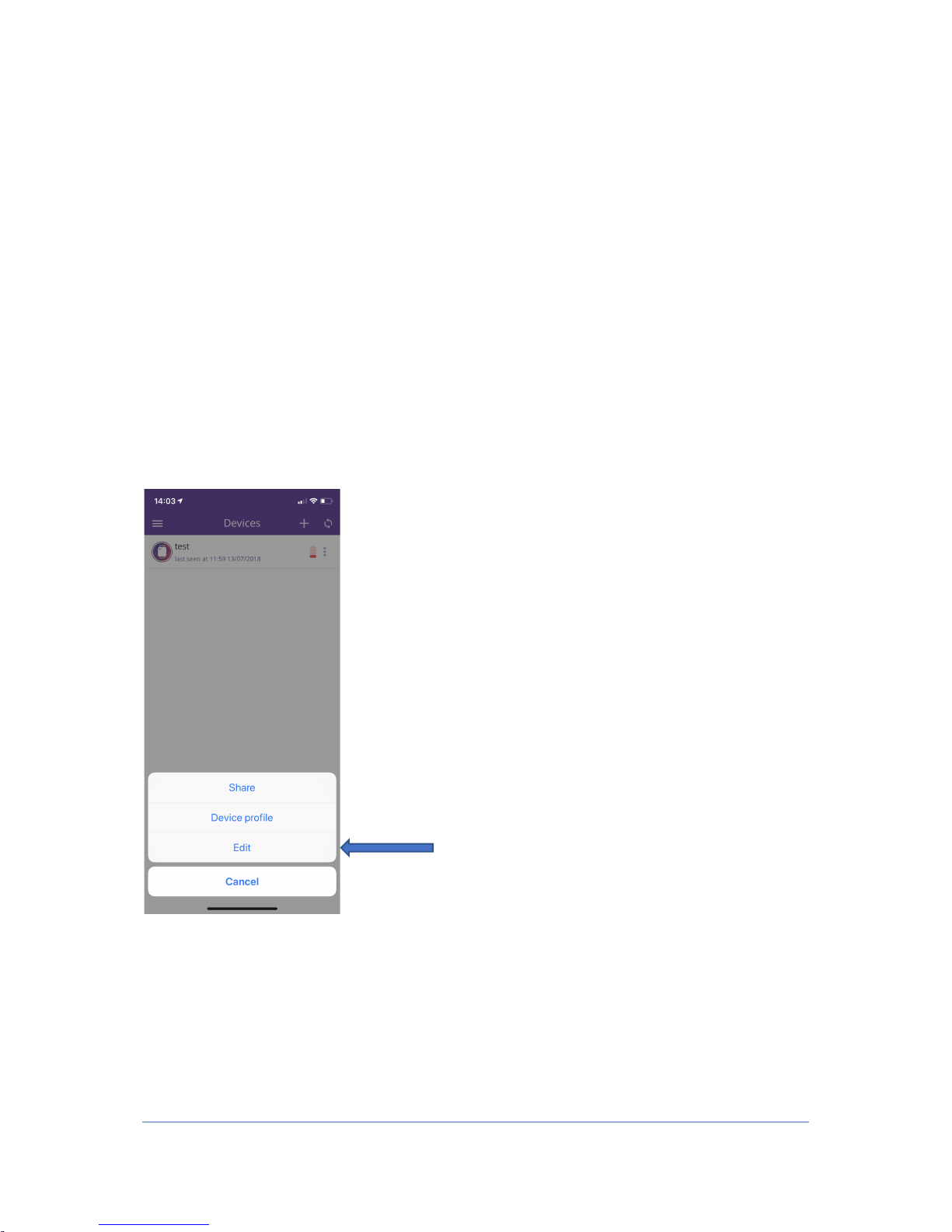
2. To make changes to your device or to add more people who can see the device, first
tap the three dots on the right side, then click on "edit"
3. Inside the screen where you can change your device, you can rename it,change
image, see how much remaining battery there is on the tracker and you can see
which other users also have access to the tracker.
Page 12
11
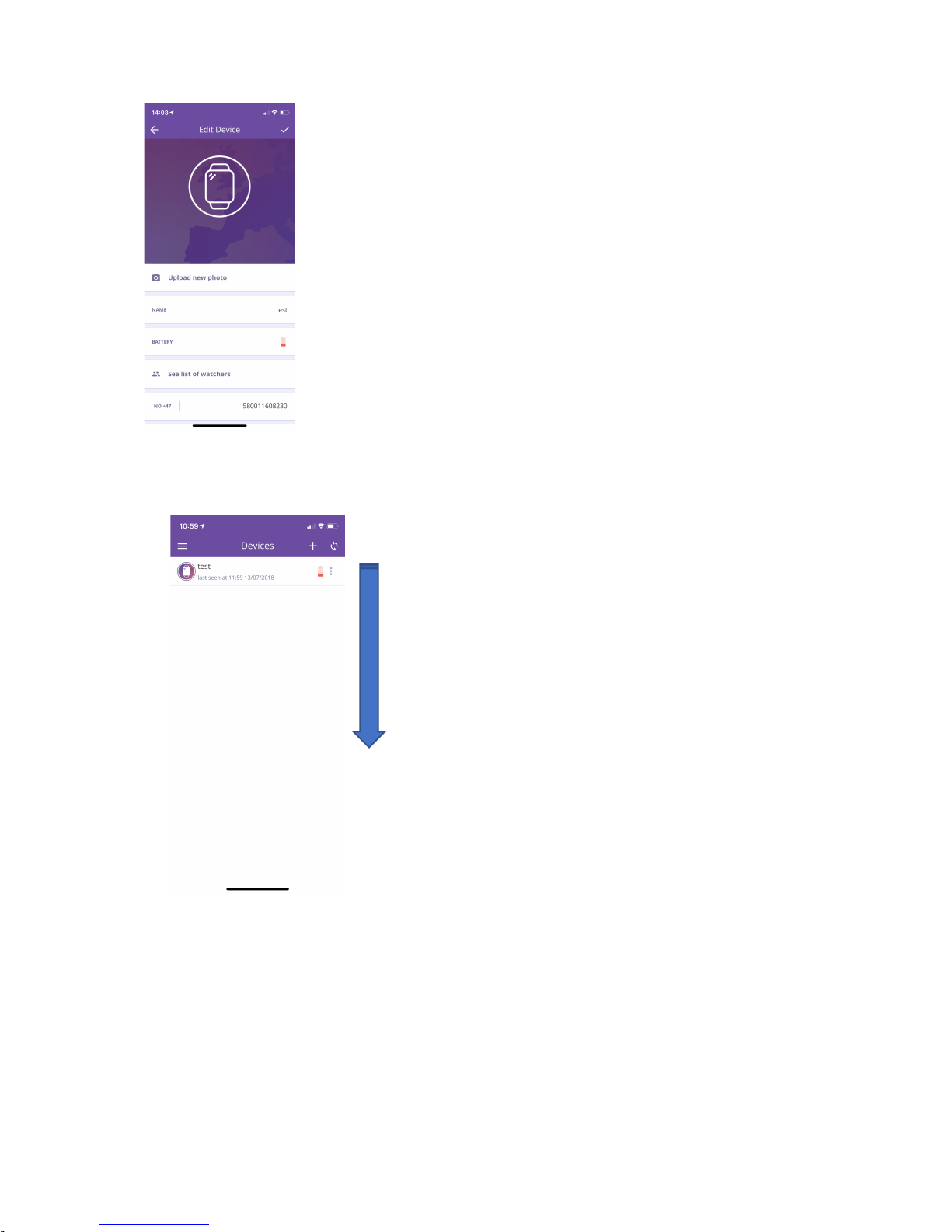
1. To update the main screen after updating your location, drag down the main screen.
Then you will get up to date updates on your device. (Battery, last seen, etc.)
2. To delete a device, drag the device to the left in the home screen. Then there is a
delete button, which you simply press and delete the device. If you are Admin using
the device, it will also be deleted from the others who have access to the device
when you delete it.
Page 13
12
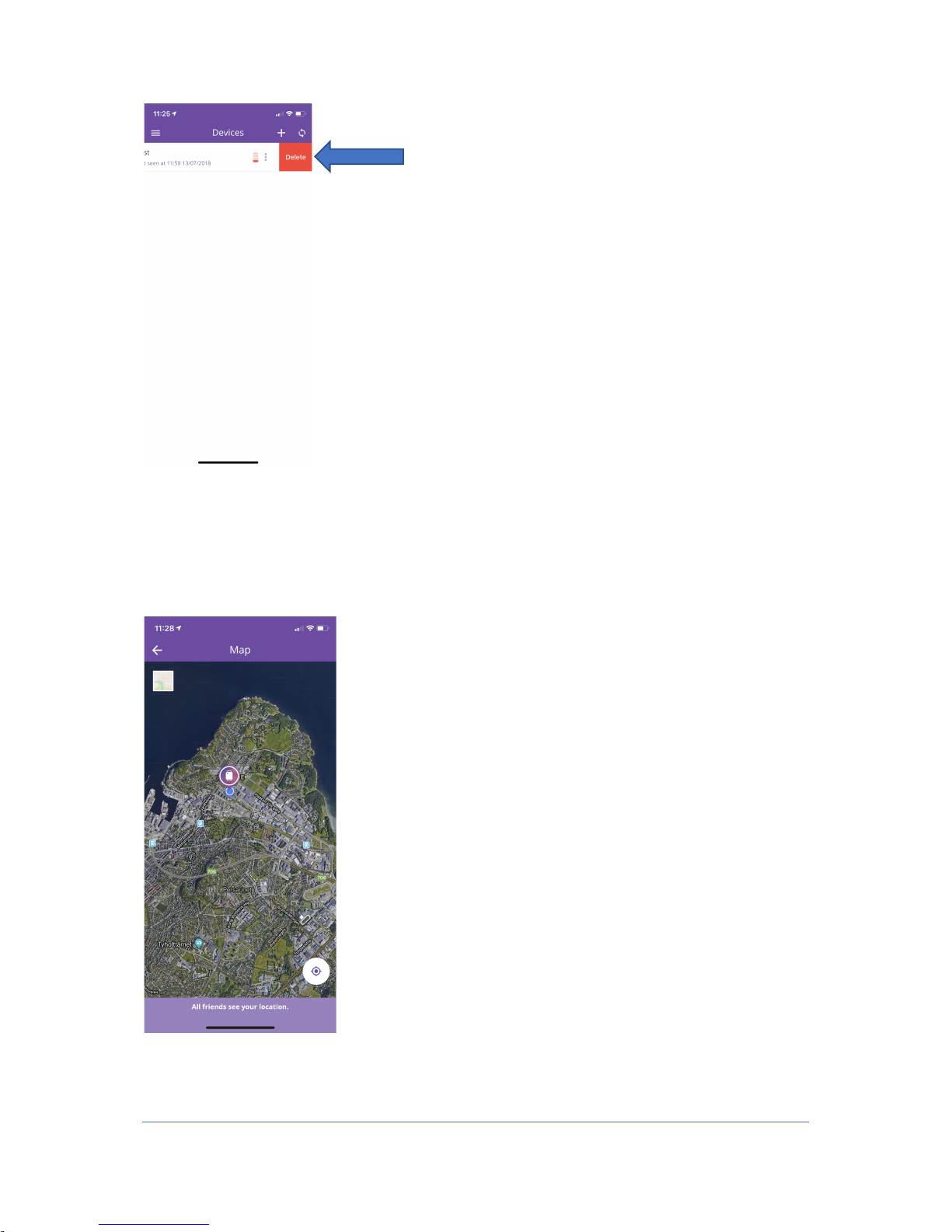
3. To enter the map to see where your device is located, tap the device on the home
screen and the map will appear. The blue little dot is your own position on your
mobile, and the device is the slightly larger location needle with a picture in the
middle.
 Loading...