

Page 1

Mobile
Porsche Design
ß9521
252976014_P'9521_en.book Page 1 Jeudi, 21. juin 2007 2:54 14
Page 2

252976014_P'9521_en.book Page 2 Jeudi, 21. juin 2007 2:54 14
Page 3

User Manual
Contents
1. Introduction ............................................................ 5
1.1 About this manual..........................................................5
1.2 Legal notice ...................................................................5
1.3 Customer service...........................................................6
5.3 Call log.........................................................................17
5.4 Calls parameters..........................................................17
6. Phonebook ........................................................... 19
6.1 Using the phonebook ..................................................19
252976014_P'9521_en.book Page 3 Jeudi, 21. juin 2007 2:54 14
Page 4

User Manual
9. Connection functions ........................................... 30
9.1 WAP .............................................................................30
9.2 Connectivity .................................................................31
10. Phone customization............................................ 33
10.1 Mutlimedia parameters setting ....................................33
12. Appendix .............................................................. 40
12.1 Technical features........................................................40
12.2 Declaration of conformity ............................................41
12.3 Care and safety information ........................................42
12.4 Environment.................................................................44
12.5 Troubleshooting...........................................................45
252976014_P'9521_en.book Page 4 Jeudi, 21. juin 2007 2:54 14
Page 5

User Manual
1. Introduction
This phone can be used internationally in the various
networks [EDGE, GSM 850 MHz/900 MHz and DCS
1800 MHz or PCS 1900 MHz] depending on the roaming
arrangements with your operator.
This phone is approved to meet European standards.
1.2 Legal notice
1.2.1 Liability
1.2.2 Trademarks
252976014_P'9521_en.book Page 5 Jeudi, 21. juin 2007 2:54 14
Page 6

User Manual
1.3 Customer service
Telephone customer service
2. Prior to commissioning
2.1 Package contents
2.2 Initialising the device
252976014_P'9521_en.book Page 6 Jeudi, 21. juin 2007 2:54 14
Page 7
User Manual
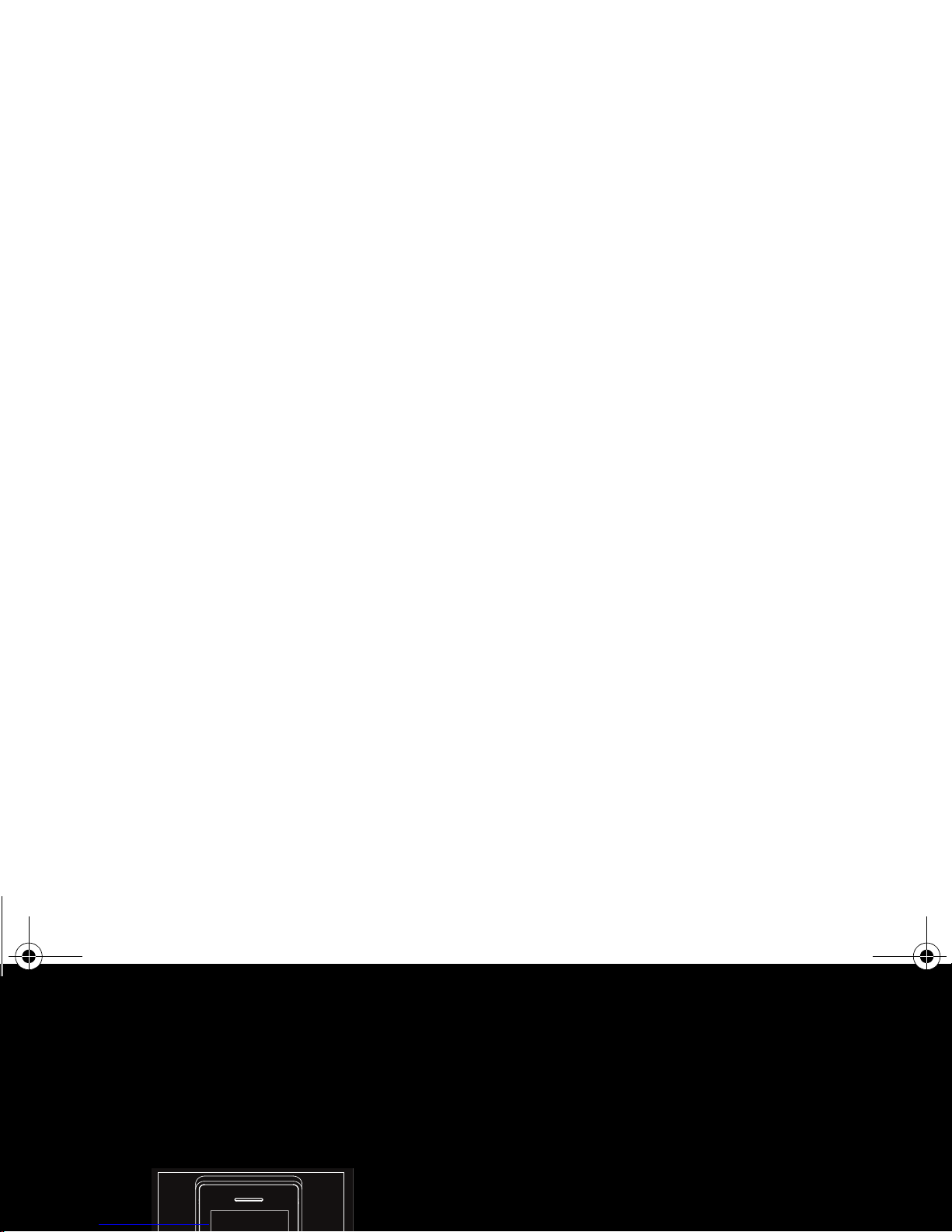
2.3 Description
Front view
1] Finger print detector
2] Left programmable key
In idle screen: Access to certain functions
[shortcuts]
In menus: Access to the selection shown on
screen in the tab
252976014_P'9521_en.book Page 7 Jeudi, 21. juin 2007 2:54 14
Page 8
User Manual
7] Red key
Long press: Switch on/off
In a call context: Reject a call - hangup
In menus: Return to idle screen
8] When composing a message
Long press: modifies the T9 mode language
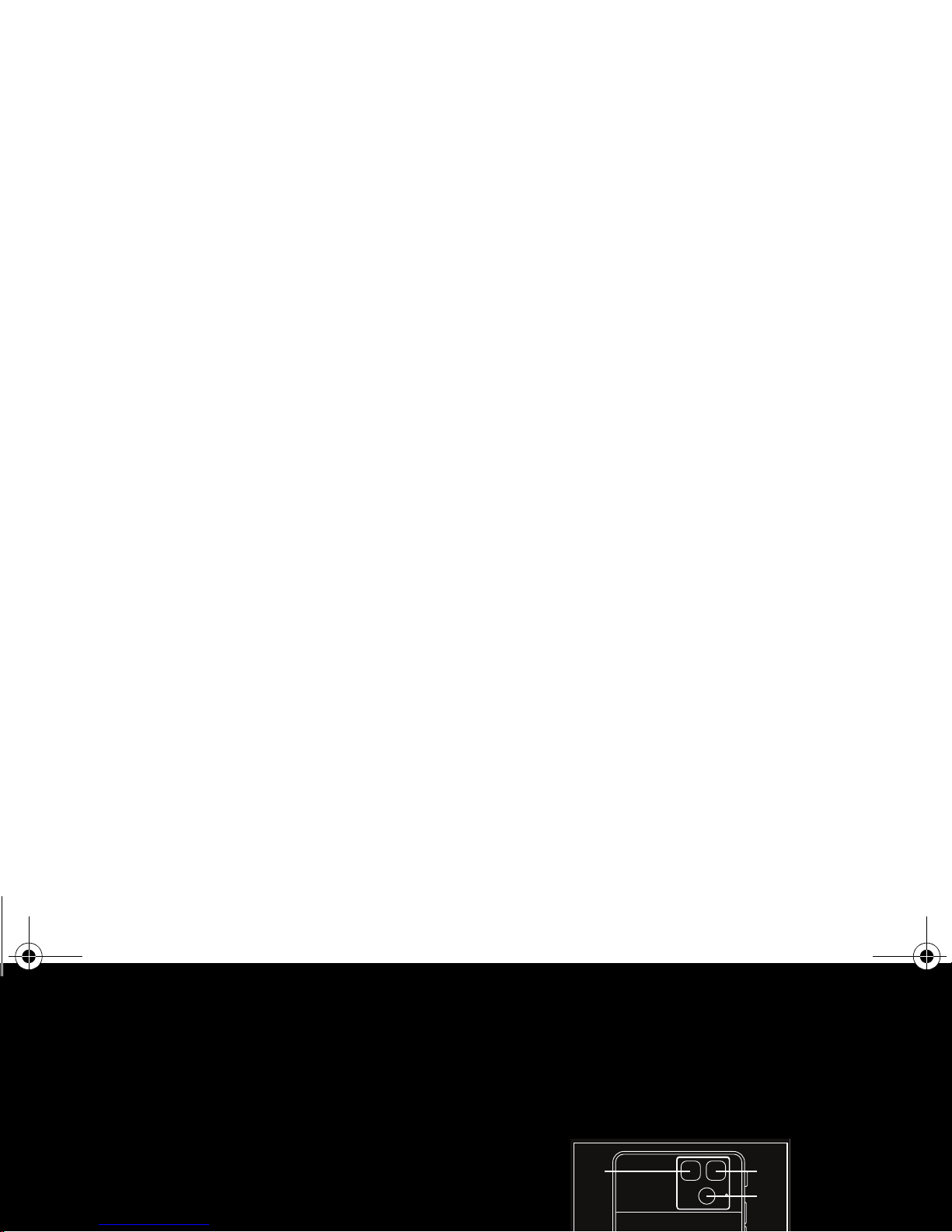
Rear view
1
2
2
3
252976014_P'9521_en.book Page 8 Jeudi, 21. juin 2007 2:54 14
Page 9
User Manual
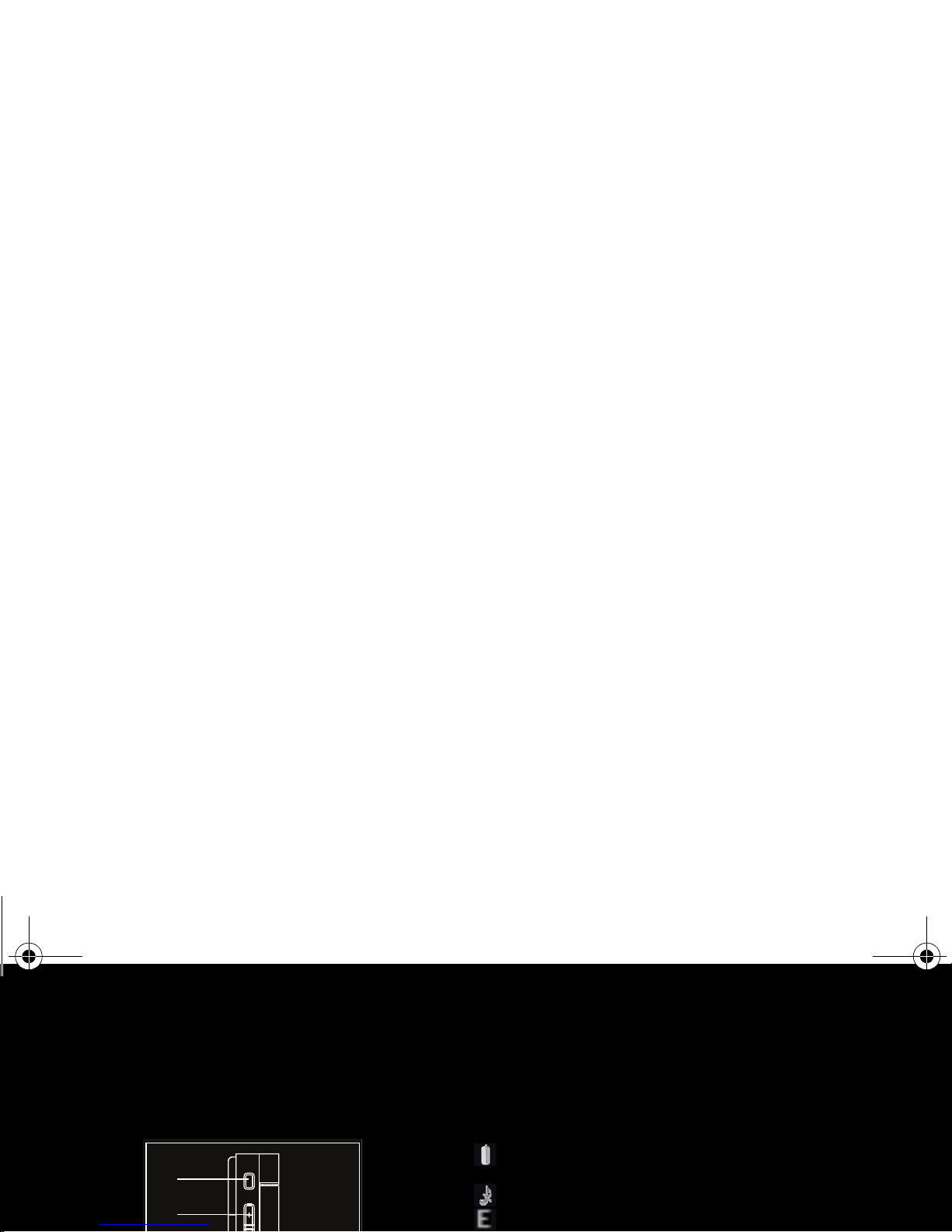
Side view left
The title bar icons
Battery [if it flashes red, the battery must be
charged immediately]
Silent mode [the ringtone is off]
Only emergency call is possible
1
2
252976014_P'9521_en.book Page 9 Jeudi, 21. juin 2007 2:54 14
Page 10
User Manual
3. Quick start
3.1 Information on the SIM card
To use your phone, you need a card called SIM card.
WARNING: This card must be handled and stored
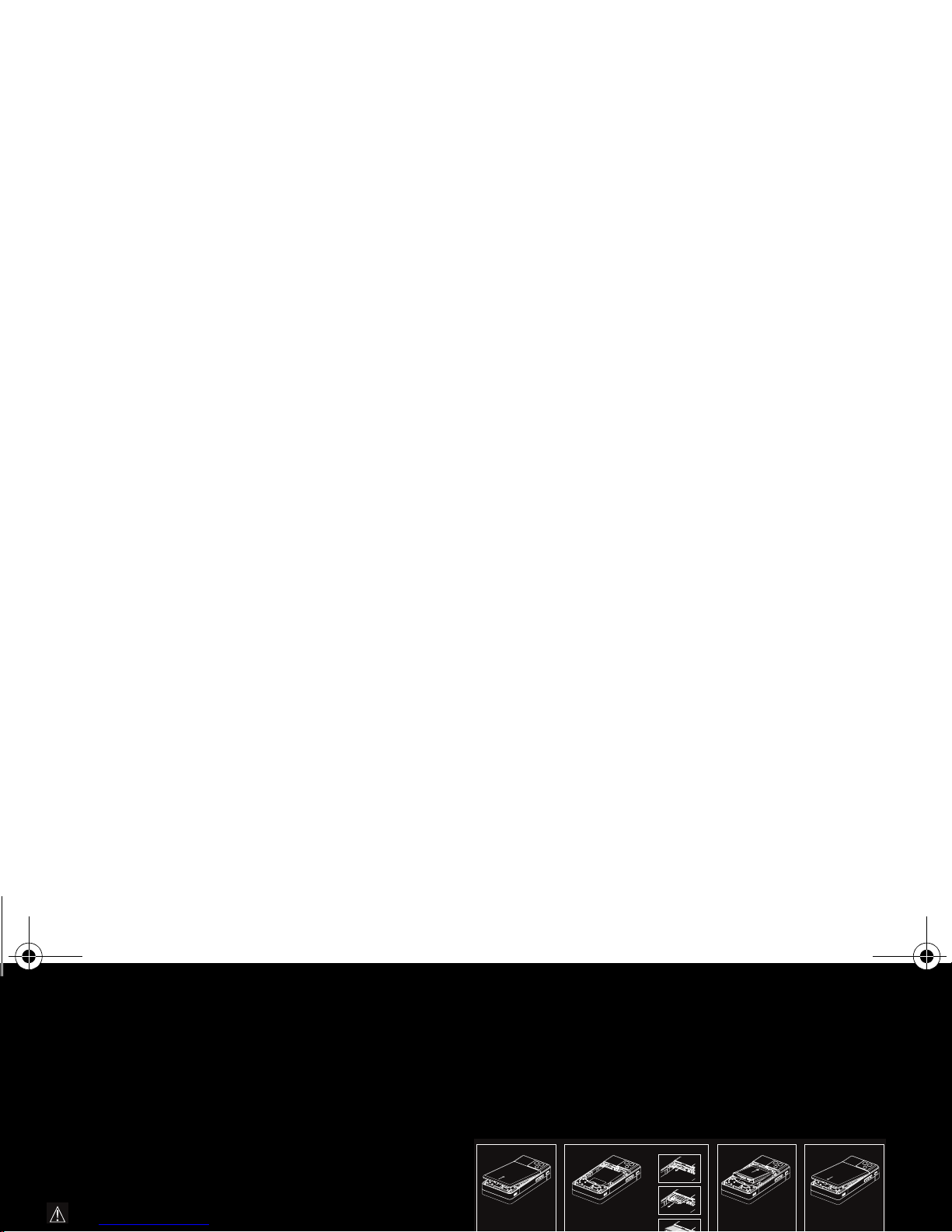
3.2 Installing the SIM card and the battery
252976014_P'9521_en.book Page 10 Jeudi, 21. juin 2007 2:54 14
Page 11
User Manual
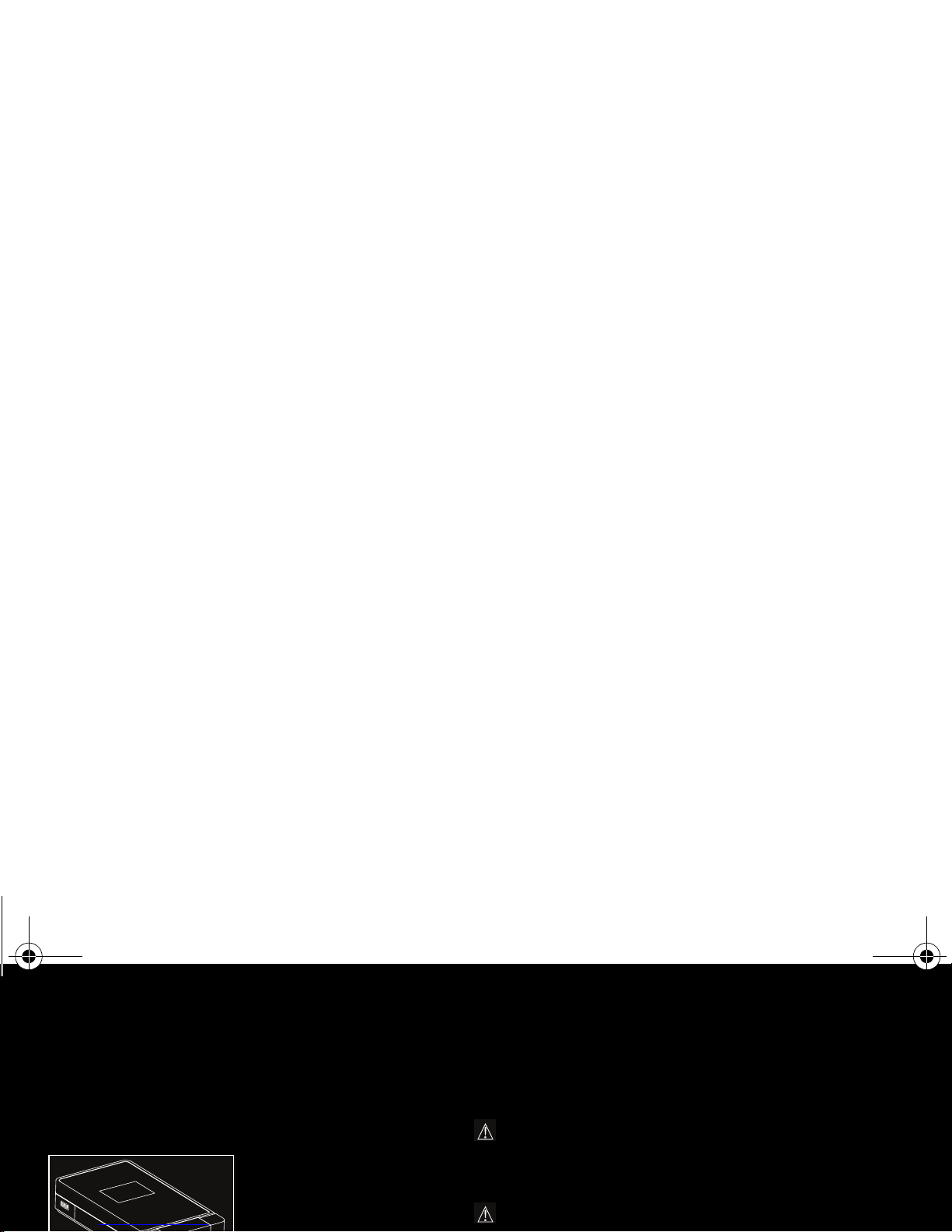
3.3 Charging the battery
Your phone is powered by a
rechargeable battery. A new
battery must be charged for 4
hours at least before being
used for the first time.
WARNING: If the battery has entirely discharged,
the phone cannot start. Plug the phone to the
charger. The phone will switch on after a few
minutes of charge. You can use the phone again
when the Start option is displayed on the screen.
WARNING: There is danger of explosion if the
252976014_P'9521_en.book Page 11 Jeudi, 21. juin 2007 2:54 14
Page 12
User Manual
3.4 Using advice
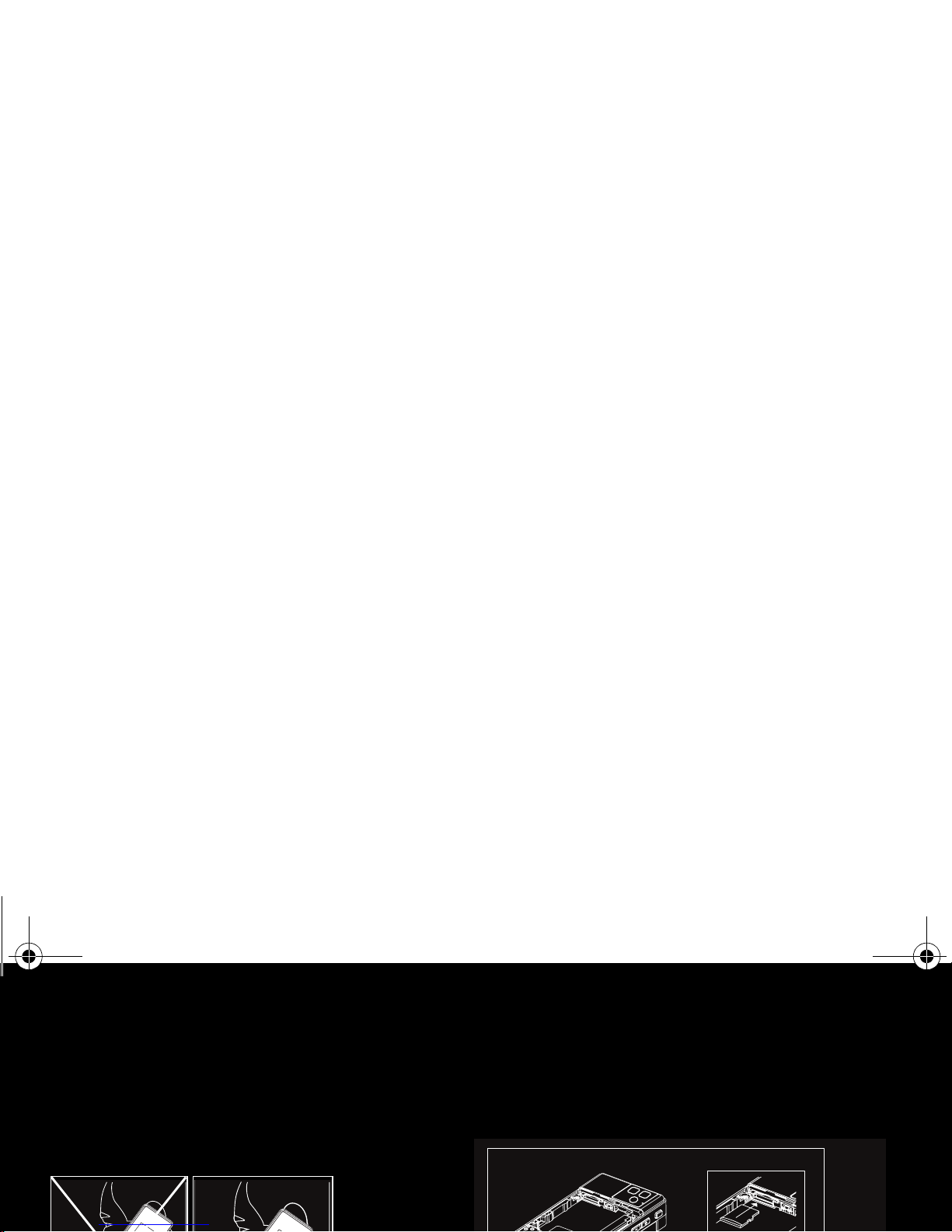
3.4.1 Improving antenna performance
3.5 Inserting the memory card
252976014_P'9521_en.book Page 12 Jeudi, 21. juin 2007 2:54 14
Page 13

User Manual
WARNING: The memory card is very fragile. Take
care when you insert or remove the memory card.
The memory card may suffer damage if withdrawn
during a read or write operation. Ensure that no
application accesses the card during its
withdrawal.
Some memory cards must be formatted with a PC
The Settings/Fingerprint menu is used to modify the
selections you made at the first fingerprint enrollment or to
enroll if it has not be done a the first switch on.
3.6.2 PIN number
If access to the SIM card is protected, the device prompts
252976014_P'9521_en.book Page 13 Jeudi, 21. juin 2007 2:54 14
Page 14

User Manual
3.6.3 Network
If the network’s name appears, calls are possible on your
operator's network.
If the letter R and a network name are displayed, calls are
possible on a roaming network provider.
If the letter E is displayed without any network name, only
4. Phone menus
Tools
Games
Applets
Calendar
Alarm
252976014_P'9521_en.book Page 14 Jeudi, 21. juin 2007 2:54 14
Page 15

User Manual
Messages
Create Message
Inbox
Outbox
Sentbox
Drafts
Templates
Phonebook
Contacts
Mailing Lists
Settings
Connectivity
252976014_P'9521_en.book Page 15 Jeudi, 21. juin 2007 2:54 14
Page 16

User Manual
5. Calls
5.1 Calling
Dial the number you want to ring. Press the green key.
During the call, the call in progress icon flashes on screen
and tones may indicate the establishment of the call.
5.2 Receiving a call
When you receive a call, the number of your caller is
displayed when it is presented by the network.
Press the green key to answer, and speak.
To refuse the call, press the red key.
252976014_P'9521_en.book Page 16 Jeudi, 21. juin 2007 2:54 14
Page 17

User Manual
5.3 Call log
From the idle screen, press the green key to access the call
log.
It is divided into four lists that you can display by the
navigator.
Various options are proposed: store a number in your
5.4.3 Counters
This menu allows you to consult the duration of the up calls.
It can also be used to check the volume of data exchanged
in GPRS.
5.4.4 Display numbers
252976014_P'9521_en.book Page 17 Jeudi, 21. juin 2007 2:54 14
Page 18

User Manual
On sub-LCD
—
—
5.4.5 Call waiting
5.4.7 Blacklist
The blacklist is used to limit failures on automatic calls [calls
generated by the automatic redial function or by
applications: data, fax for example].
When several automatic calls failed with a number [number
busy or unknown], this number is put in the blacklist and no
252976014_P'9521_en.book Page 18 Jeudi, 21. juin 2007 2:54 14
Page 19

User Manual
6. Phonebook
6.1 Using the phonebook
When a contact is selected, the icon appears at the top
of the screen if it is a contact stored in the SIM card and the
icon if it is a contact stored in the phone.
6.3 Calling a contact from the phonebook
Several ways:
— Select a contact. Press the green key to start the call.
— Select a contact, press OK, his number is displayed,
press [Call] to start the call.
— Direct call from the idle screen [only for the contacts
252976014_P'9521_en.book Page 19 Jeudi, 21. juin 2007 2:54 14
Page 20

User Manual
6.4.4 Copy to SIM/Copy to mobile
This allows you to copy your phonebook contacts from one
memory to the other. Only the name and the first phone
number will be copied.
6.4.5 Export
6.4.8 Delete/Delete all
This allows you to delete the contact selected or all the
contacts.
6.4.9 Set as my card/Business card
The details of a contact stored in the phone memory can be
252976014_P'9521_en.book Page 20 Jeudi, 21. juin 2007 2:54 14
Page 21

User Manual
6.4.13 Mailing lists
A mailing list allows you to group contacts: this list can be
used to send messages easily to all the list contacts.
— In the phonebook, select the
Mailing Lists
tab pressing the
navigator rightwards.
—Press [Options].
7. Messages
From this menu, you are able to send SMS, MMS and email.
MMS is a Multimedia Message Service, which allows you to
enclose photos, audio files, and others rich contents to your
messages; these messages can even be composed of
several slides. MMS are differently charged to SMS are.
252976014_P'9521_en.book Page 21 Jeudi, 21. juin 2007 2:54 14
Page 22

User Manual
The same sequence of keys pressed can correspond to
several words, existing on the dictionary. If the word that
appears is not the word you expected, press the navigator
upwards to scroll through the words corresponding to this
key sequence.
Once you agree on the word proposed on the screen, press
the navigator rightwards to validate it or on the 0 key [which
Using another mode
To deactivate T9 mode press and hold the * key. The ABC
mode then applies: each time you press a key this
corresponds to the letters indicated on the key [for example,
press 2 twice to display B].
As in T9 mode, you may change to capital letter, small letter
252976014_P'9521_en.book Page 22 Jeudi, 21. juin 2007 2:54 14
Page 23

User Manual
7.3 Sending the message
— Once the text entered, press the navigator or press
[Options].
— Enter the receiver’s number or take it in your phonebook
pressing [Options], Add recipient. You can also select a
contacts list in your phonebook.
7.5 Messages menu
Note: The menus containing the messages
received, sent or stored are divided into two
folders: one for SMS and MMS and one for emails.
7.5.1 Inbox
252976014_P'9521_en.book Page 23 Jeudi, 21. juin 2007 2:54 14
Page 24

User Manual
7.5.4 Drafts
This menu contains all the messages saved.
If you select a message and press the navigator, you can
modify it.
If you want to send it, select Modify then press [Options]
and select Send.
7.5.8 Local information
This menu is used to activate reception of information
broadcast by the network.
You can choose whether you want to receive this
information or not [please contact your network provider].
252976014_P'9521_en.book Page 24 Jeudi, 21. juin 2007 2:54 14
Page 25
User Manual
8. Multimedia functions
8.1 Music Player
The 3D sound is under licence Arkamys.
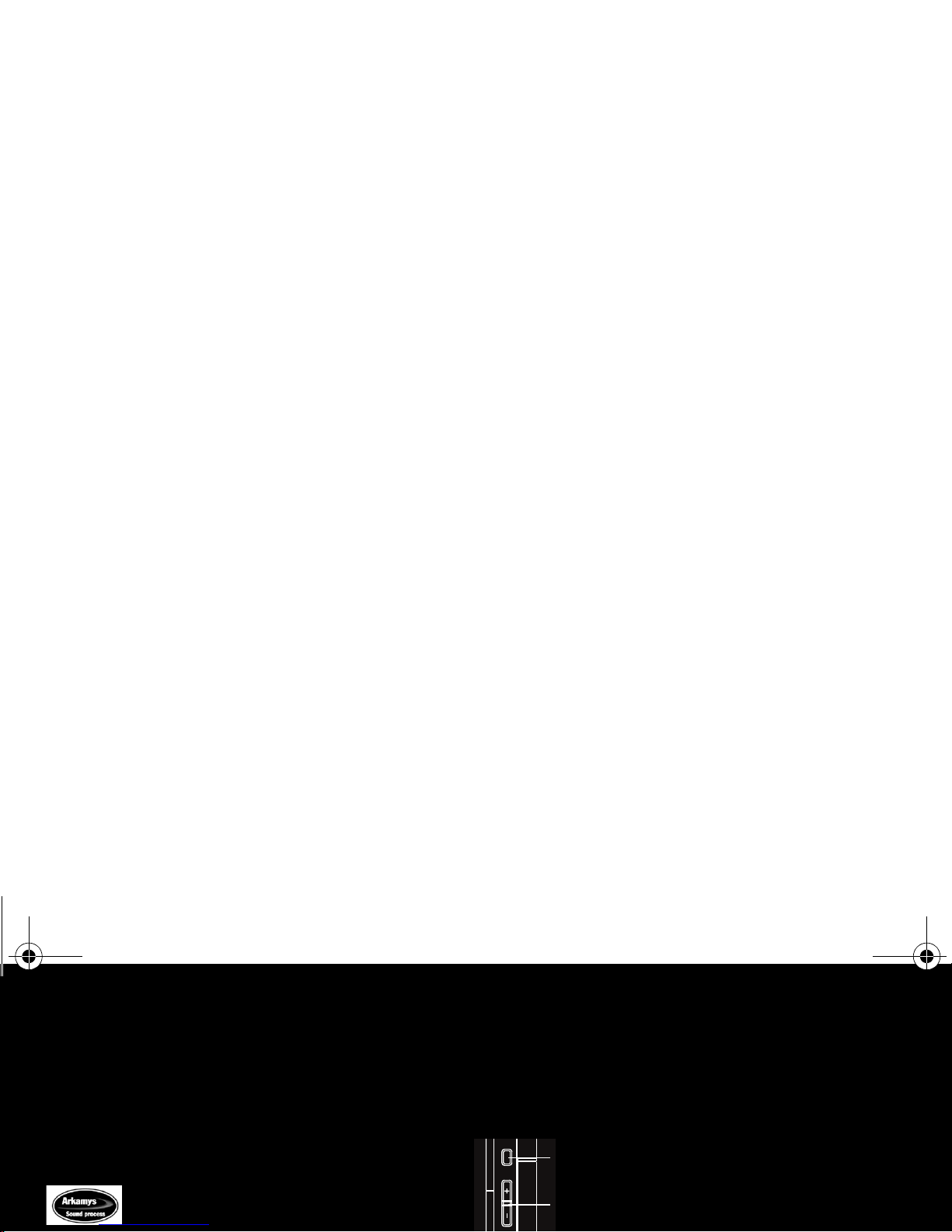
You may use the side keys for the following functions:
— Access the music player [long press]
— Play or pause music [short press]
— Set the volume [short press]
— Change to the next or last piece of music
252976014_P'9521_en.book Page 25 Jeudi, 21. juin 2007 2:54 14
Page 26

User Manual
Various options to listen to music
— Play: to play musics of the playlist.
— Play options: used to select a play order for listening to
music.
— Repeat options: used to choose whether or not to replay
a list.
8.2 Camera
8.2.1 Photo
This menu allows you to take photos and use them for
different purposes. For instance, you can send them to
another phone or an Internet address, store them, use them
252976014_P'9521_en.book Page 26 Jeudi, 21. juin 2007 2:54 14
Page 27

User Manual
— Click sound: to select the sound you will hear when
taking a photo.
— Photo quality: to select the photo quality.
— Photo format: to select the format in which your photo
will be saved
— Go to video: to take a video.
Options once the photo taken
— Send By: allows you to send the photo by MMS, e-mail
or
Bluetooth
®
.
— Rename: allows you to modify the name of a photo.
— Add to contact: allows you to assign a photo to a
contact saved in the phonebook.
252976014_P'9521_en.book Page 27 Jeudi, 21. juin 2007 2:54 14
Page 28

User Manual
— Saturation: allows you to increase or decrease the
color saturation.
If there is not enough memory to save the photo, a warning
message appears, prompting you to confirm whether you
want to go on.
Note: Using the camera during a call may disturb
— Press [Options] to display the options:
— Record a video: allows you to take a new video.
— Playback: allows you to play the video.
— Send By: allows you to send a video by MMS, e-mail
or
Bluetooth
®
.
— Rename: allows you to modify a video name.
— Delete: allows you to delete a video.
252976014_P'9521_en.book Page 28 Jeudi, 21. juin 2007 2:54 14
Page 29

User Manual
— Delete: deletes the directory [only the directories
created by the user].
— New folder: create a new directory.
— New...: allows you to take a new photo or video or to
record a sound.
— Format: this option deletes all the internal memory of the
phone. Warning: all the multimedia objects saved in this
By default, the connection URL of your operator is
configured in your phone.
If no connection URL is configured, by selecting the More
games menu, you display the WAP function to configure
new profiles which allow you to download games or
applications.
When you select a game or an application, the General
252976014_P'9521_en.book Page 29 Jeudi, 21. juin 2007 2:54 14
Page 30

User Manual
9. Connection functions
9.1 WAP
WAP [Wireless Application Protocol]: a protocol that translates the
Internet language into WML and HTML languages that can be read
by a phone. The WAP function allows you to log onto certain
— History: backward and forward navigation of the pages
displayed are kept in memory.
Browser settings:
— Profiles: allows you to select or modify your provider’s
configuration settings or to configure others
providers’settings.
252976014_P'9521_en.book Page 30 Jeudi, 21. juin 2007 2:54 14
Page 31

User Manual
9.1.4 WAP Logging off
To log off, press the red key. The logoff happens
automatically after a few seconds of inactivity if you forget
to log off. This period is defined by the linger time setting.
9.1.5 GPRS/EDGE
9.2 Connectivity
You can exchange with other devices [PC, mobile phones,
personal assistants, printers, etc.] various data: pictures,
sounds, photos, videos, ToDo tasks, organiser events,
contacts, etc.
Data exchange can be done through:
252976014_P'9521_en.book Page 31 Jeudi, 21. juin 2007 2:54 14
Page 32

User Manual
9.2.1
Bluetooth
®
This menu allows you to set your phone
Bluetooth
®
connection in order to communicate with other devices
equipped with
Bluetooth
®
: for example, an audio
connection with a headset, a stereo headset, a car kit or a
data connection with a PC.
®
— Trusted devices: You can select some devices as being
trusted, it means that when you want to connect them
to the phone, it will be done automatically without
request of a code and a confirmation.
9.2.2 USB mode
252976014_P'9521_en.book Page 32 Jeudi, 21. juin 2007 2:54 14
Page 33

User Manual
9.2.4 SyncML
You can synchronize your phonebook, your organizer or
your ToDos with your archives stored in your operator’s
network depending on the options offered by your operator.
The local synchronisation with your computer is only
computer originated, from Wellphone software [available
10. Phone customization
10.1 Mutlimedia parameters setting
10.1.1 Player settings
This menu allows you to select the play, view and repeat
252976014_P'9521_en.book Page 33 Jeudi, 21. juin 2007 2:54 14
Page 34

User Manual
10.2 Ring tones selection
10.2.1 Ring tones
This menu allows you to allocate a ring tone to different
functions [call receiving, message receiving, alarm].
10.3 Languages
This menu allows you to choose your phone's display
language.
10.4 Date / Time
252976014_P'9521_en.book Page 34 Jeudi, 21. juin 2007 2:54 14
Page 35

User Manual
10.7 Auto orientation
This menu allows you to activate the automatic positioning
of a video picture.
10.8 Display
Screensaver
This menu allows you to display an animation when the phone is in
standby mode.
You can select screensavers through the phone default
screensavers [Preloaded] and the pictures downloaded
[Multimedia], several screensavers in a random way [Slide
252976014_P'9521_en.book Page 35 Jeudi, 21. juin 2007 2:54 14
Page 36

User Manual
Energy saving
Backlight
— Screen only: only the screen is lit up.
— Full backlight: both the screen and the keypad are lit up.
Note: In any case, after a certain time of inactivity,
the backlight will be automatically turned off to
the GPRS network: always, or only when needed [when
launching a data connection].
10.11 Security
This menu allows you to configure your phone's security
settings.
252976014_P'9521_en.book Page 36 Jeudi, 21. juin 2007 2:54 14
Page 37

User Manual
10.11.3 Phone code
The Phone code menu allows you to activate the phone
code so that it is requested and checked whenever the
phone is switched on if a different SIM card is used. This
code is automatically linked to the SIM card installed when
the phone is activated, for example to protect the phone if
10.11.6 Call barring
This menu allows you to block the sending or receiving of
certain calls.
Before you can use this service, a password will be
provided by your operator when you take out your
subscription.
252976014_P'9521_en.book Page 37 Jeudi, 21. juin 2007 2:54 14
Page 38

User Manual
10.11.8 Cost
This menu allows you to control the cost of your calls.
These functions may or may not be available depending on
your SIM card.
10.11.9 Keys checking
11. Other functions
11.1 Applications
11.2 Calendar
252976014_P'9521_en.book Page 38 Jeudi, 21. juin 2007 2:54 14
Page 39

User Manual
— Synchronize: you can synchronize your organizer with
your archives stored in your operator’s network
depending on the options offered by your operator.
The local synchronisation with your computer is only
computer originated, from Wellphone software; you
have only to activate
Bluetooth
®
, or configure your USB
connection in your phone.
11.4 Calculator
This menu allows you to use your phone as a calculator.
Use the navigator to make calculations:
— Upwards: Add
— Downwards: Subtract
— Rightwards: Multiply
252976014_P'9521_en.book Page 39 Jeudi, 21. juin 2007 2:54 14
Page 40

User Manual
— Delete all: allows you to delete all the ToDo’s from your
ToDo.
— Memory: allows you to view the memory used by the
different functions of your ToDo.
— Synchronize: see chapter Connectivity to synchronize
from your computer the phone ToDo with the Lotus
Notes™ or Outlook™ bases.
12. Appendix
12.1 Technical features
Weight: 135 g
Size: 91 x 48 x 18,4 mm
Original battery: 770 mAh
252976014_P'9521_en.book Page 40 Jeudi, 21. juin 2007 2:54 14
Page 41

User Manual
Compatible profiles for accessories:
— File transfer: FTP
— Stereo headset: AADP
— Car kit - Headset - Hands-free kit: HSP and HFP
— Object transfer: OPP
— Modem: SPP/DUNP
Using temperature: from -10°C to +55°C
12.2 Declaration of conformity
252976014_P'9521_en.book Page 41 Jeudi, 21. juin 2007 2:54 14
Page 42

User Manual
12.3 Care and safety information
12.3.1 SAR
THIS MODEL MEETS INTERNATIONAL GUIDELINES FOR
EXPOSURE TO RADIO WAVES
Your mobile device is a radio transmitter and receiver. It is
ensure it only uses the minimum level required to reach the
network.
The World Health Organization has stated that present
scientific information does not indicate the need for any
special precautions for the use of mobile devices.
They note that if you want to red uce your exposu re then you
can do so by limiting the length of calls or using a 'hands-
252976014_P'9521_en.book Page 42 Jeudi, 21. juin 2007 2:54 14
Page 43

User Manual
To promote the recycling and recovery of waste electrical
and electronic equipment (WEEE) and at the same time
safeguard the environment, European regulations require
you to obey the sorting rules instituted locally for this type
of waste.
12.3.3 Safety
Electrical safety
Only use the chargers listed in the manufacturer’s
catalogue. Using any other charger may be dangerous; it
would also invalidate your warranty. Line voltage must be
exactly the one indicated on the charger’s serial plate.
Aircraft safety
252976014_P'9521_en.book Page 43 Jeudi, 21. juin 2007 2:54 14
Page 44

User Manual
Electronic medical equipment
Your phone is a radio transmitter which may interfere with
electronic medical equipment or implants, such as hearing
aids, pacemakers, insulin pumps, etc. It is recommended
that a minimum separation of 15 cm be maintained between
the phone and an implant. Your doctor or the manufacturers
guidelines. If you do not use a body worn accessory and are
not holding the phone at the ear, position the phone a
minimum of 1.5 cm from your body, data operation: when
using a data feature, position the phone a minimum of 1.5
cm from your body for the whole duration of the data
transmission.
252976014_P'9521_en.book Page 44 Jeudi, 21. juin 2007 2:54 14
Page 45

User Manual
12.5 Troubleshooting
The phone won’t start and/or won’t take a charge
The battery has completely lost its charge.
Connect the phone to the charger for between 5 and
30 minutes. The phone will only switch on after it has been
charging for a few minutes.
SIM BLOCKED
If a wrong PIN number is entered three times in succession,
your SIM card is blocked. You must then:
— Enter the PUK [Personal Unblocking Key] code provided
by your operator, and validate.
— Enter your PIN number and validate.
252976014_P'9521_en.book Page 45 Jeudi, 21. juin 2007 2:54 14
Page 46

User Manual
Check and deactivate the outgoing calls restriction when
necessary.
The network could be saturated. Try later.
If the problem persists, please contact your Technical
Helpdesk.
No receiving calls
No voicemail
Check that your subscription does offer this service.
Program the call to be forwarded to voicemail using the
information provided by the operator.
Operator name does not appear on screen
Go into the Settings menu, select Networks, then Selection.
252976014_P'9521_en.book Page 46 Jeudi, 21. juin 2007 2:54 14
Page 47

User Manual
13. Index
A
Alarm
.......................................................................................................39
Automatic redial
.................................................................................18
Cost
........................................................................................................ 38
Counters
............................................................................................... 17
D
Date / Time
.......................................................................................... 34
252976014_P'9521_en.book Page 47 Jeudi, 21. juin 2007 2:54 14
Page 48

User Manual
L
Languages
............................................................................................34
M
PIN
.......................................................................................................... 36
PIN2
........................................................................................................ 36
R
Ring tones
............................................................................................ 34
252976014_P'9521_en.book Page 48 Jeudi, 21. juin 2007 2:54 14
Page 49

User Manual
U
USB cable
.............................................................................................31
V
252976014_P'9521_en.book Page 49 Jeudi, 21. juin 2007 2:54 14
Page 50

PC software, available as an option:
To exchange data between your mobile phone and your PC:
252976014_P'9521_en.book Page 50 Jeudi, 21. juin 2007 2:54 14
Page 51

252976014_P'9521_en.book Page 51 Jeudi, 21. juin 2007 2:54 14
Page 52

252976014_P'9521_en.book Page 52 Jeudi, 21. juin 2007 2:54 14
 Loading...