

Page 1
1.0 Getting started .......................................................................................................................2
1.1 Package includes ........................................................................................................................................2
1.2 Setting up the hardware ...............................................................................................................................2
2.0 Installing the software ..............................................................................................................2
2.1 Check the installation ..................................................................................................................................2
3.0 Bluetooth preference screen ......................................................................................................2
3.1 Pairing basics .............................................................................................................................................2
3.2.1 Connecting to your phone ................................................................................................................3
3.2.2 Connecting to a computer ................................................................................................................3
3.2.3 Connecting to another Palm...............................................................................................................3
3.2.4 Settings........................................................................................................................................4
4.0 Palm Preferences ....................................................................................................................4
4.1 Network ...................................................................................................................................................4
5.0 Palm features .........................................................................................................................4
5.1 HotSync over Bluetooth ................................................................................................................................4
6.0 Troubleshooting ......................................................................................................................5
6.1 The Button ................................................................................................................................................5
6.2 Pairing problems .........................................................................................................................................5
6.3 HotSync problems .......................................................................................................................................5
6.4 Discoverable mode ......................................................................................................................................5
7.0 Limitations.............................................................................................................................6
8.0 BlueM regulatory information......................................................................................................6
8.1 FCC approval .............................................................................................................................................6
8.2 Canadian RFI Statment..................................................................................................................................7
8.3 European Union (EU) and EFTA........................................................................................................................7
8.4 Bluetooth..................................................................................................................................................7
9.0 Technical data.........................................................................................................................7
Getting started - page 1
Page 2
1.0 Getting started
1.1 Package includes
You should have in your possession a BlueM and a CD containing all the software you will need to take full advantage of this Bluetooth
device.This manual should be sufcient help to get you up and running with your new BlueM.
1.2 Setting up the hardware
The BlueM is to be connected to the base of the Palm.You will hear a clicking sound when it snaps on successfully.It uses power from
the Palm, so you do not need an external cable of any kind.
2.0 Installing the software
Make sure you have the Palm desktop installed and working on your computer. Then place your Palm in the cradle.The software needed for
the BlueM is located on the CD labelled Installation Disk.Put it in your CD-player and the Installation program will start automatically (if
not, press the Start-menu and choose Run.Type the letter of your drive e.g d:and click on Autostart). Follow the installation instructions,and
the installation should proceed without any problems.
2.1 Check the installation
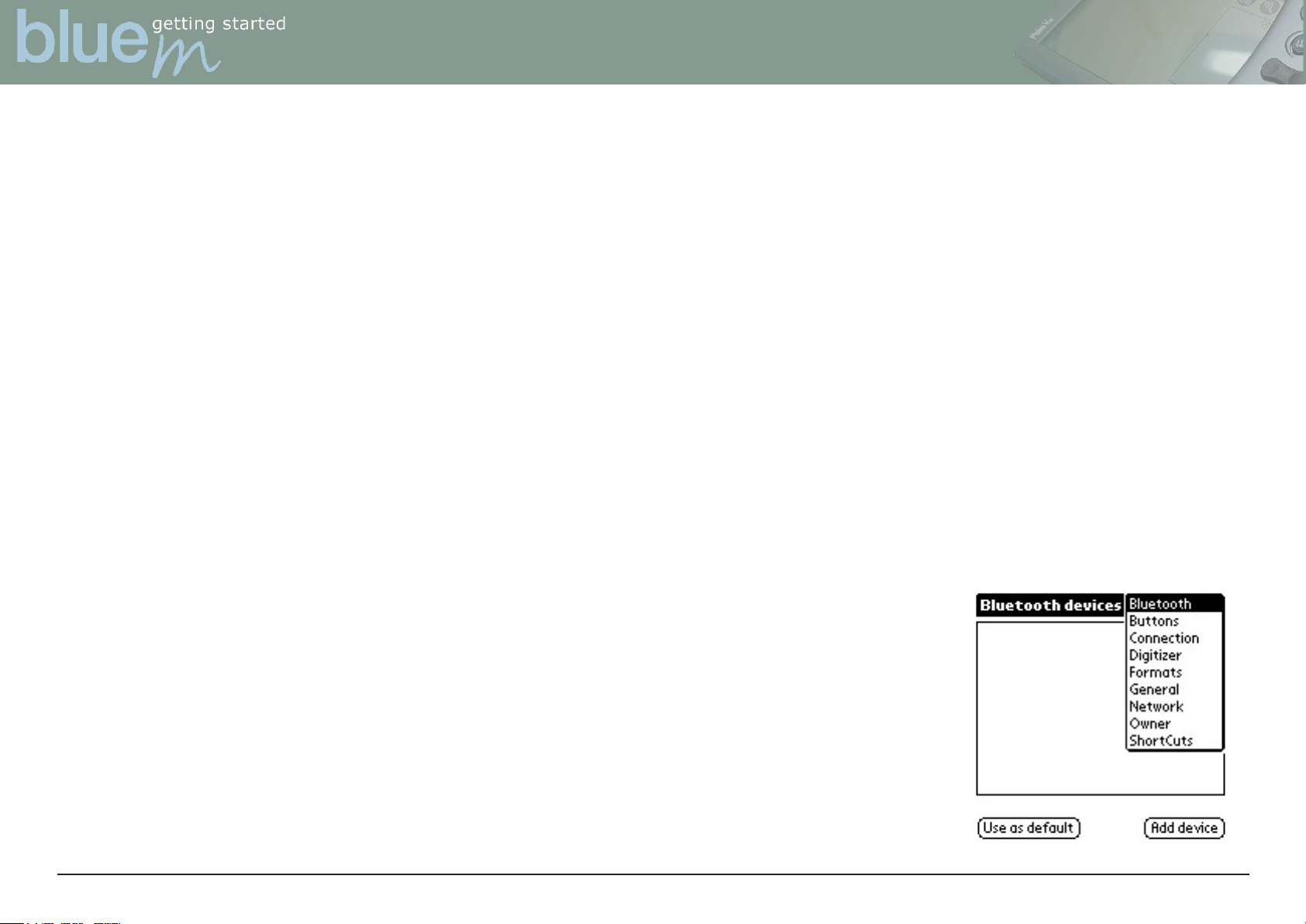
After the installation you will nd a new menu choice, on your Palm,in Prefs called Bluetooth preference screen. To nd it, click the
Application button followed by the Prefs icon.This application (as described in 3.0) is the main one you need for using the Bluetooth link.
Tap on it and proceed to the next step in this manual.
3.0 Bluetooth preference screen
The Bluetooth preference screen is the link to hook up your Palm with other Bluetooth devices.It is a user-friendly
way to nd, add and keep track of your Bluetooth devices. The process of linking up other Bluetooth devices is called
Pairing, and will be referred to as that from now on. Continue to 3.1 Pairing basics for the pairing basics.
3.1 Pairing basics
From here your can connect your Palm to a Bluetooth device of your choice:To do this you must have your Bluetooth
plug connected on your Palm.For the moment, the BlueT supports pairing with mobile phones,computers (requires
Bluetooth enabled computer)and other Palms (require BlueM on both Palm ’s).
Getting started - page 2
Page 3
3.2.1 Connecting to your phone
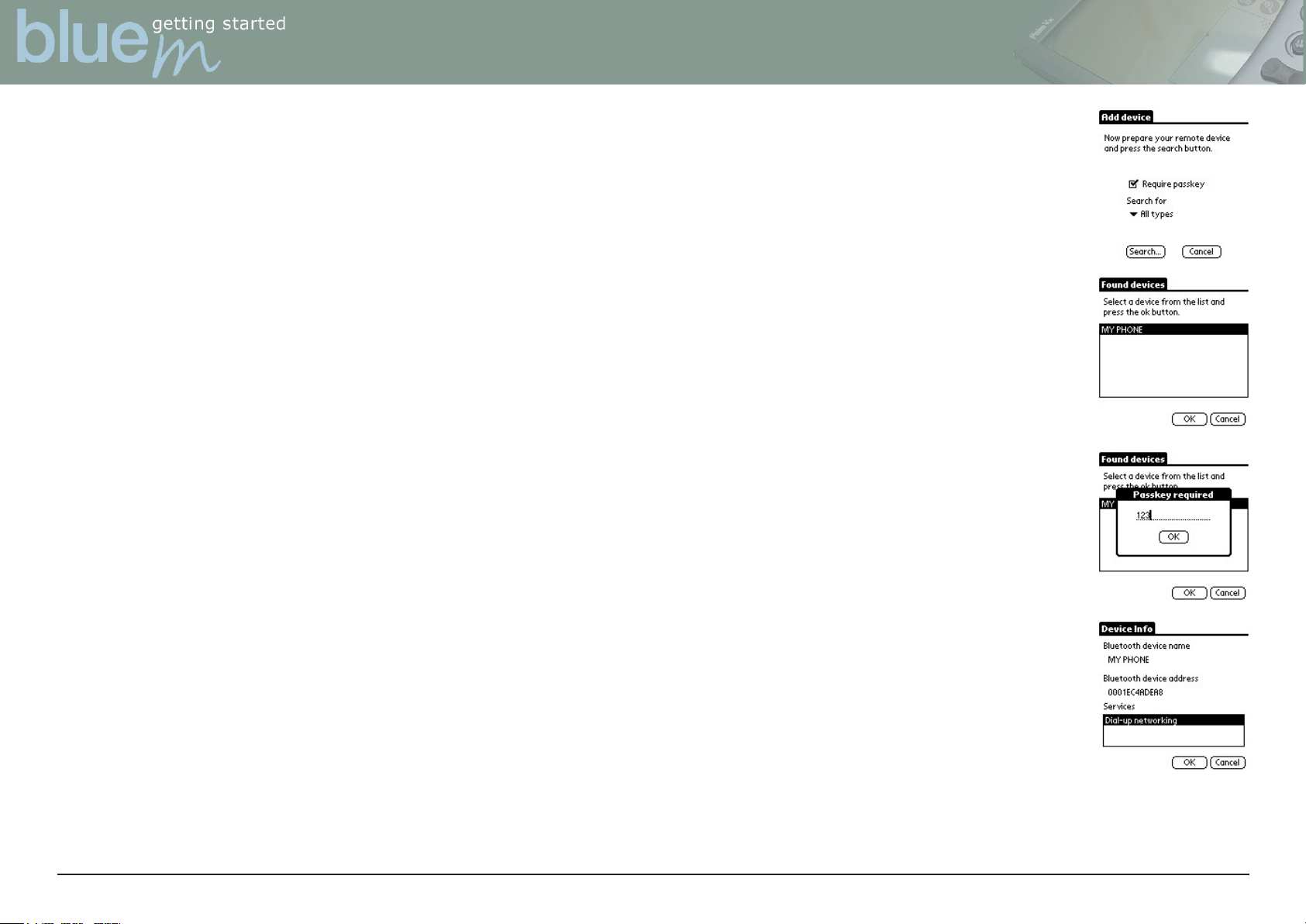
Start by clicking on Add device in the Bluetooth Preference Screen.Now make sure that your phone is in *Discoverable mode before you
select Phone from the type list and click Search on the Palm. Now the Palm will search for a Bluetooth- enabled phone,and when it nds
one,it will be presented to you in a list.If it nds more than one you will see them all in this list.Choose the right one and click OK.Now
it ’s ime to set a passkey. Simply type in a number or a combination of numbers on your Palm and click OK.After this you must enter
the same code on the phone.If the codes match, the devices are successfully paired. A new list will appear,with all the services available
on this phone.To connect to the Internet,you need Dial-up, so select that option and click OK. Now you’re back at the main page of the
Bluetooth preference screen and you should see a device on the list.
3.2.2 Connecting to a computer
This is the only way to enable HotSync over Bluetooth (see 5.1 HotSync over Bluetooth).First you need to make sure that the Bluetooth
device on your computer is working correctly.Please refer to the device ’s user manual for assistance. Turn on your Palm and enter the
Bluetooth preference screen in the top-right menu in Prefs.Click Add device and choose Computer from the type-menu.Now you need to put
your computer in a *Discoverable Mode:If you don ’t know how to do this please refer to the device ’s user manual.
The Palm should now prompt for the passkey.Simply type in a number or a combination of numbers on your Palm and click OK.After this
you need to enter the same code on the computer.If the codes match you have successfully paired the devices. A new list will appear, with
all the services available on this computer. Choose COM-port (one should be listed in the Service list) and click OK.
3.2.3 Connecting to another Palm
This procedure is identical to 3.1.2. However, on one of the Palms you need to start Discoverable mode before you follow the steps in 3.2.2.
Just press the menu button,choose Incomming and press Discoverable mode. The passkey procedure is similar to both 3.2.1 and 3.2.2.
*See 6.4 on how to set your phone in Discoverable mode.
Getting started - page 3
Page 4
3.2.4 Settings
Make sure you have checked Use French frequency hopping when you are using the BlueM in France, since is against the law to use the
BlueM default frequency range there. When you check this button it becoms legal there,without any loss of speed or function. However
you will have to make sure that your other Bluetooth devices uses the same frequency range,else you will not be able to communicate
with them.
Powersave mode disables the LED (the blinkning button), and will save some batterytime.How much depends on how you use the
Bluetooth link.(By disabling the feature you will not be able to see when your connected.)
4.0 Palm Preferences
Now that you have installed a device link you will have to set up the Palm to use that selected link.Make sure you have your Internet
information to hand (phone number, username and password)before you move on to the next step.Move back to the Application Launcher
and tap on Prefs.
4.1 Network
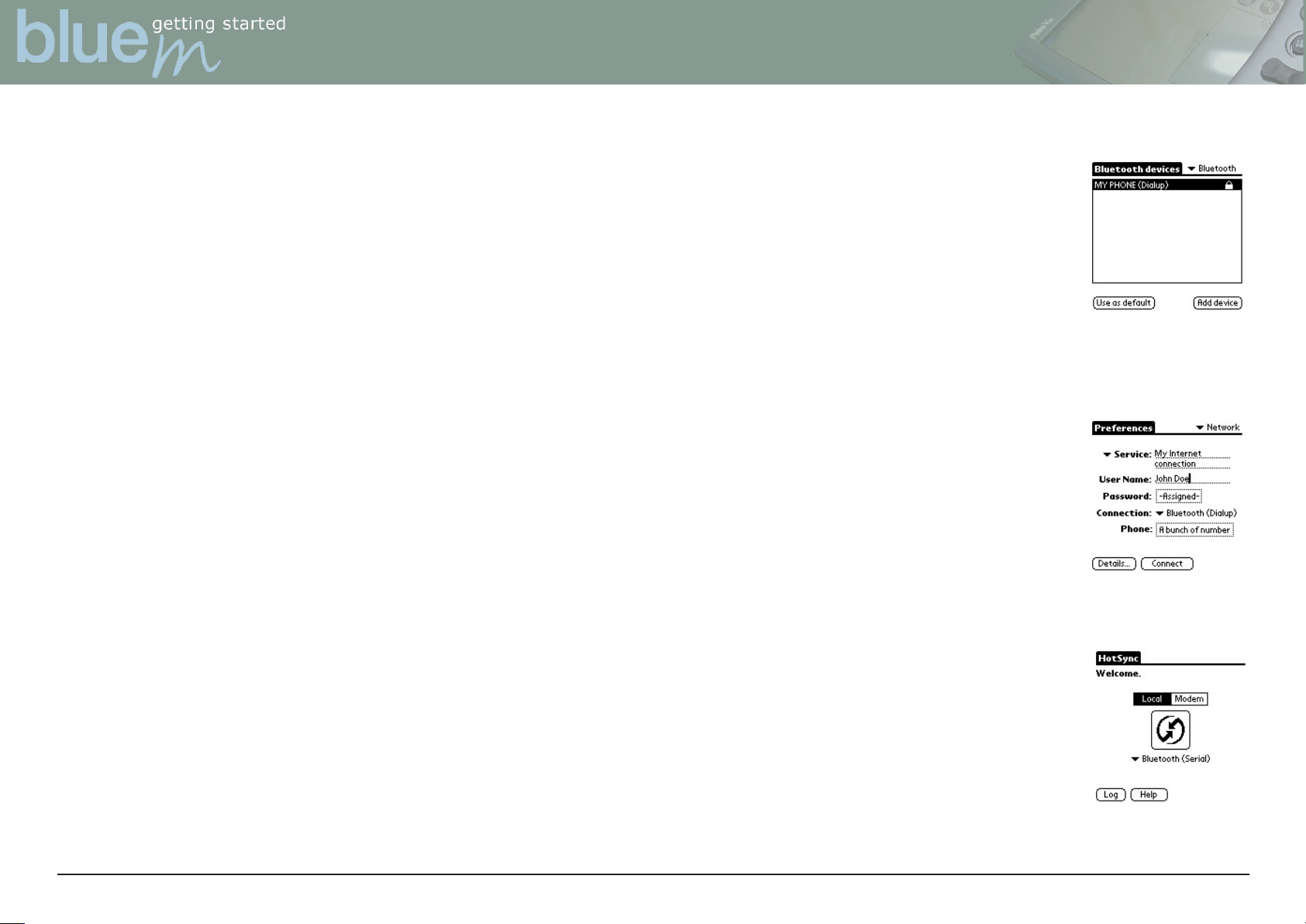
Select Network from the dropdown menu at your top-right.Type in the name of your service,user name,password and phone number.From
the Connection list you select Bluetooth (Dialup)choice.Now you should be able to click on Connect and the Palm will initiate the
phone call to the specied number and log on.If not, review the steps of this manual and ensure you have carried out all the instructions
properly. If that doesn ’t help look further down in the 6.0 Troubleshooting.
5.0 Palm features
5.1 HotSync over Bluetooth
In order to access HotSync over Bluetooth you must have a Bluetooth device on the computer,and you must have carried out the
procedures described above in chapter 3.1.2.Simply move to the Application Launcher and tap on HotSync.From the menu below the
HotSync button you should now be able to select Bluetooth (Serial). On the computer,in the HotSync Manager,you must set up the correct
COM-port that is Bluetooth-enabled. To do that you click your right mouse button on your HotSync Manager icon and choose Setup. Select
local and change the Serial port to the right one followed by OK.Once this proc
Getting started - page 4
Page 5

6.0 Troubleshooting
If your device does not connect or you are experiencing other problems, please read on.You might be able to get help from the ashing
on the button read more about that in section 6.1 The Button.
6.1 The Button
The button on the BlueT will light up and blink rapidly for several seconds while you ’re connecting your BlueT to other Bluetooth devices.
When you have a Bluetooth link up and running the button will blink once every 4 seconds, to show that you are connected. When you
send and receive data the button will blink more rapidly.
6.2 Pairing problems
The pairing process is a crucial operation.If this doesn ’t work, you won ’t be able to connect or use any Bluetooth features.So make sure
that your other Bluetooth enabled phone is in Discoverable mode when you ’re trying to connect. See 6.4 Discoverable mode for help
on that.
6.3 HotSync problems
When using HotSync over a Bluetooth connection the largest problem usually isn ’t the Palm or the BlueT,but the computer ’s conguration.
To make sure that the Bluetooth device on the computer is working correctly, please refer to the device ’s user manual.
6.4 Discoverable mode
The procedure to set your Bluetooth-enabled device into Discoverable mode is different with almost every Bluetooth device.This is why you
need to refer to the manual for your specic Bluetooth device.The purpose of Discoverable mode is that you put the device in a nder ’s
mode.It is sending out a signal that can be discovered by any Bluetooth device searching for one,e.g.the BlueM that you have just
bought.The passkey is used as a security measure so that no one else can pair with your Palm or phone.
Getting started - page 5
Page 6
7.0 Limitations
The Palm Traveller ’s kit will not work while you ’ve got the BlueM connected on your Palm. As mentioned in chapter 5.2, your Bluetooth
connection will be lost when you cradle your Palm (unless you remove the serial cable from your computer).
8.0 BlueM regulatory information
This product complies with any mandatory product specication in any country where the product is sold.In addition,the product complies
with the following.
8.1 FCC approval
The users manual or instruction manual for an intentional or unintentional radiator shall caution the user that changes or
modications not expressly approved by the party responsible for compliance could void the user’s authority to operate
the equipment. This device complies with Part 15 of the FDD Rules. Operation is subject to the following two conditions. (1)
this device may not cause harmful interference, and (2) this device must accept any interference received, including interference that
may cause undesired operation.
This equipment has been tested and found to comply with the limits for a Class B digital device, pursuant to Part 15 of the FCC Rules.
These limits are designed to provide reasonable protection against harmful interference in a residential installation. This equipment
generates, uses and can radiate radio frequency energy and, if not installed and used in accordance with the instructions, may cause
harmful interference to radio communications. However, there is no guarantee that interference will not occur in a particular
installation. If this equipment does cause harmful interference to radio or television reception, which can be determined by
turning the equipment off and on, the user is encouraged to try to correct the interference by one or more of the following measures:
* Reorient or relocate the receiving antenna.
* Increase the separation between the equipment and receiver.
* Connect the equipment into an outlet on a circuit different from that to which the receiver is connected.
* Consult the dealer or an experienced radio/TV technician for help.
NOTE! The radiated output power of BlueM is far below the FCC radio frequency exposure limits. Nevertheless, the BlueM shall be used
in such a manner that the potential for human contact during normal operation is minimized.
Getting started - page 6
Page 7
8.2 Canadian RFI statement
This Class B digital apparatus meets all requirements of the Canadian Interference- Causing Equipment Regulations.The certication no
Canada 4001104318A.
8.3 European Union (EU) and EFTA
This equipment complies with the R&TTE directive 1999/5/EC and the following standars:ETS 300 328, ETS 300 826, EN 60 950
and has been provided with the CE mark accordingly.
8.4 Bluetooth
This eguipment is qualied according to Bluetooth specication Ver.1.0B (Specication of the Bluetooth System,
Core Specication Volume 1 and Proles Specication Volume 2 V 1.0B, December 1st 1999 (Document number
1.C.47/1.0B) + Critical Errata)and supports DUN and Serial port prole.
9.0 Technical Data
Power consumption standby: 0.5mA
Power consumption established connection with data transfer: 35mA
Supply voltage: 3.2v -4.2v
Operating temperature: 0 -60 °C
Max RF output power: 2.5 mW (4 dBm)
Nominal RF output power: 1 mW (0 dBm)
Range: Up to 10 meters,free sight.
Weight: 26 g
Size: 49.3 X 88.4 X 11.8mm (w X L X h)
Bluetooth power class: 2
Compliant with Bluetooth 1.0b (Document number 1.C.47/1.0 B)+C.e.
Copyright and trademark notice
The words HotSync, Palm and Palm OS are all registered trademarks of Palm Inc,or its subsidiaries in one or more countries. Other
products and brand names may be the trademarks or registered trademarks of their respective owners. The BLUETOOTH trademark is owned
by Telefonaktiebolaget L M Ericsson, Sweden.
Getting started - page 7
 Loading...