

Page 1
Certification Exhibit
FCC ID: 2AAUJ-R001
FCC Rule Part: 15.225 and 15.247
TÜV SÜD Project Number: 16-3026
Manufacturer: TableSafe, Inc.
Model: RAIL2
2320 Presidential Drive, Suite 101, Durham, NC 27703 USA Voice: 919-381-4235
Manual
Page 2
RAIL User Manual
Date: August 16, 2017
Version: 1.2
Page 3
RAIL User Manual
2 of 22
Table of Contents
RAIL Introduction_________________________________________________________________________________________________________________________ 3
Product Features __________________________________________________________________________________________________________________________ 3
Staff Login __________________________________________________________________________________________________________________________________ 4
Server Tools _______________________________________________________________________________________________________________________________ 5
Manager Utilities __________________________________________________________________________________________________________________________ 8
Prepare the Check ________________________________________________________________________________________________________________________ 9
Presenting the RAIL ______________________________________________________________________________________________________________________ 9
Order Summary _________________________________________________________________________________________________________________________ 10
Receipt Delivery ________________________________________________________________________________________________________________________ 14
Survey ____________________________________________________________________________________________________________________________________ 15
RAIL LED Indicators ____________________________________________________________________________________________________________________ 16
Help Menu and Abort Transaction ___________________________________________________________________________________________________ 17
Split by Item Disabled __________________________________________________________________________________________________________________ 18
Changes After Check Presentation ___________________________________________________________________________________________________ 19
Split Check on POS ______________________________________________________________________________________________________________________ 19
Credit Card Errors ______________________________________________________________________________________________________________________ 20
RAIL Maintenance ______________________________________________________________________________________________________________________ 21
How to Charge a RAIL __________________________________________________________________________________________________________________ 21
Federal Communications Commissions (FCC) Statement ________________________________________________________________________ 22
Page 4
RAIL User Manual
3 of 22
RAIL Introduction
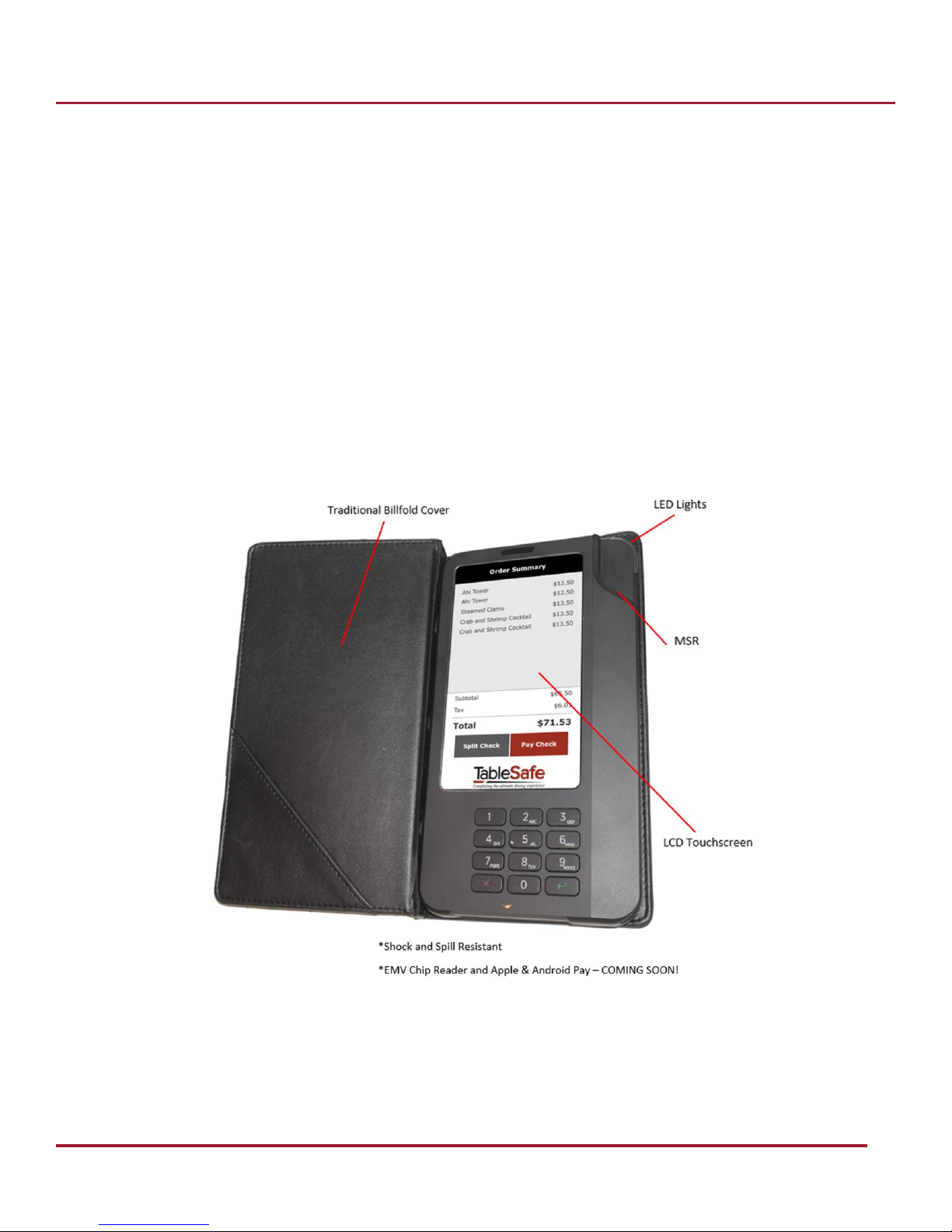
The RAIL is a patented, handheld, digital device designed to replicate the look and feel of a traditional bill presentation
folder. The RAIL allows guests to securely self-swipe credit cards, auto-calculate tip, split the bill multiple ways, and
choose how to have their receipt delivered. It provides additional services to restaurants including surveys, advertising,
manager alerts and guest data-related reporting.
Key Features
Security
Payment Platform
Purpose Built
Transaction Status LEDs
Product Features
Page 5
4 of 22
Staff Login
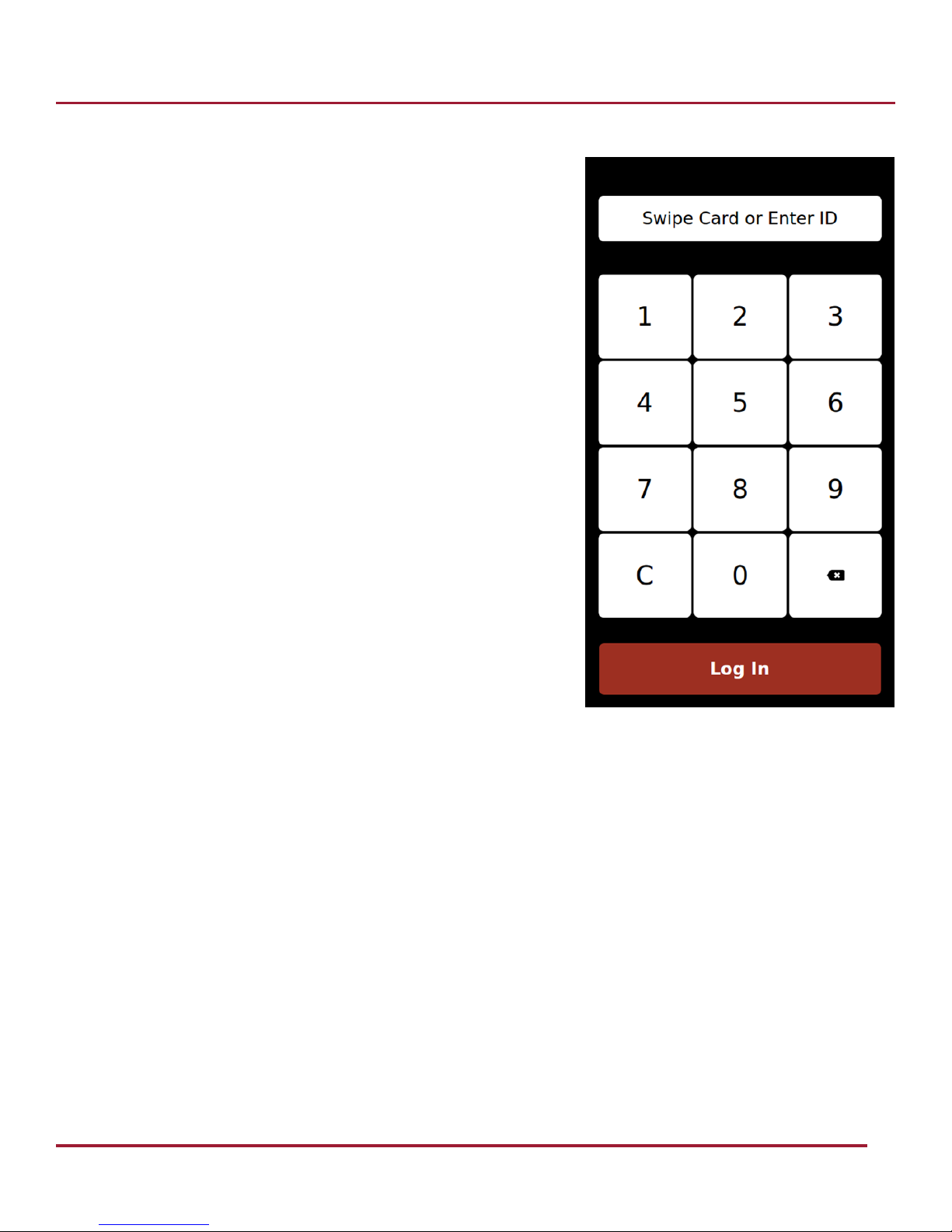
Clock in on POS before logging into the RAIL.
When on the Server Login screen, simply input your PIN, or swipe your
POS Login Card through the RAIL’s MSR.
Below are some issues and resolutions related to logging in:
1. Employee logged in on other terminal
If you are logged in on the POS terminal, you will not be able to log into
the RAIL. Log out of the POS and retry on the RAIL.
2. Manager or Employee does not have sufficient access rights to
perform the action
This is tied to staff settings in the POS BOH system. Granting or hindering
“right to perform the action” will need to be changed on the POS BOH.
RAIL User Manual
Page 6
RAIL User Manual
5 of 22
Server Tools
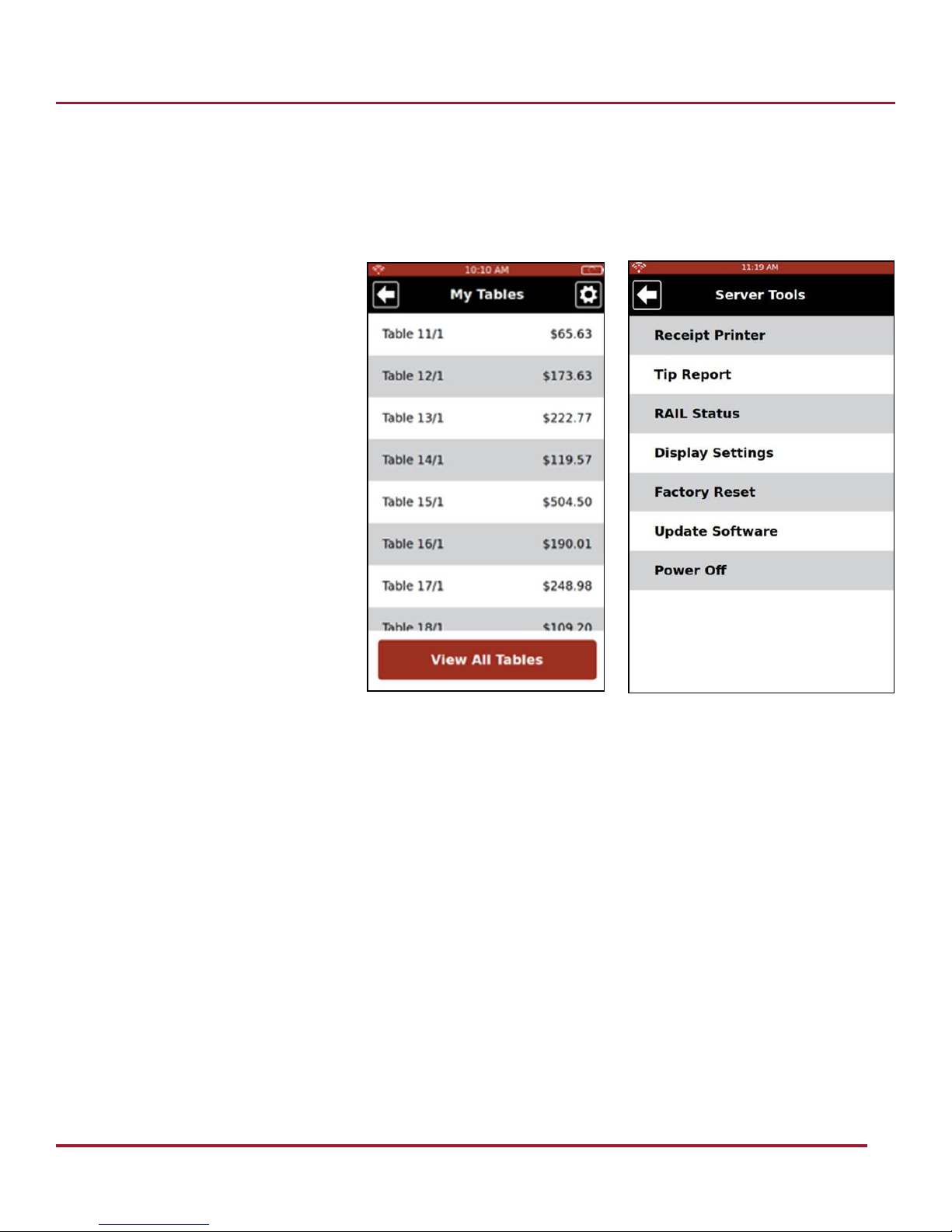
Once logged in to the RAIL, the server will be presented with the “My Tables” screen, which shows all of the server’s
currently open tables from the POS. Servers will be able to select tables from this screen to begin the payment process
when the guest is ready to check out.
In the upper right corner of the screen, a gear icon will bring up the Utilities menu. The utilities include:
Servers
• Receipt Printer
• Tip Report
• RAIL Status
• Display Settings
Managers
• Factory Reset
• Update Software
• Power Off
• View All Tables
Page 7
6 of 22
Receipt Printer
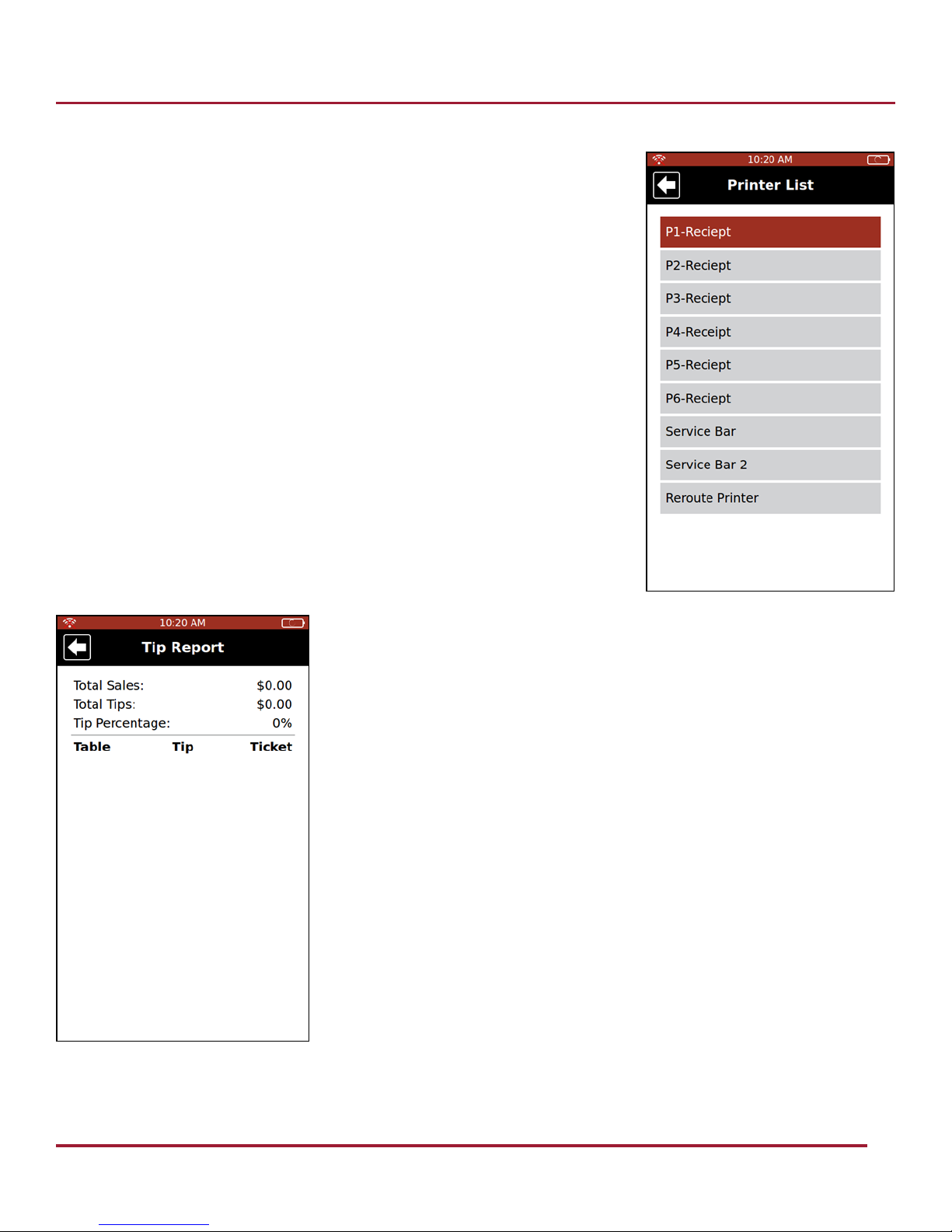
A receipt printer should be selected at the beginning of each server’s shift for
whenever a guest selects a printed receipt. Each server may have their own receipt
printer location and any RAIL device can be used to designate the location.
RAIL User Manual
Tip Report
The Tip Report displays all the checks closed on the RAIL with credit and their
subtotals, tip amounts, and percentages for that server logged in. Additionally, a
summary report will show the server’s average tip percentage and total amount of
tips received for the shift.
Page 8
7 of 22
RAIL Status
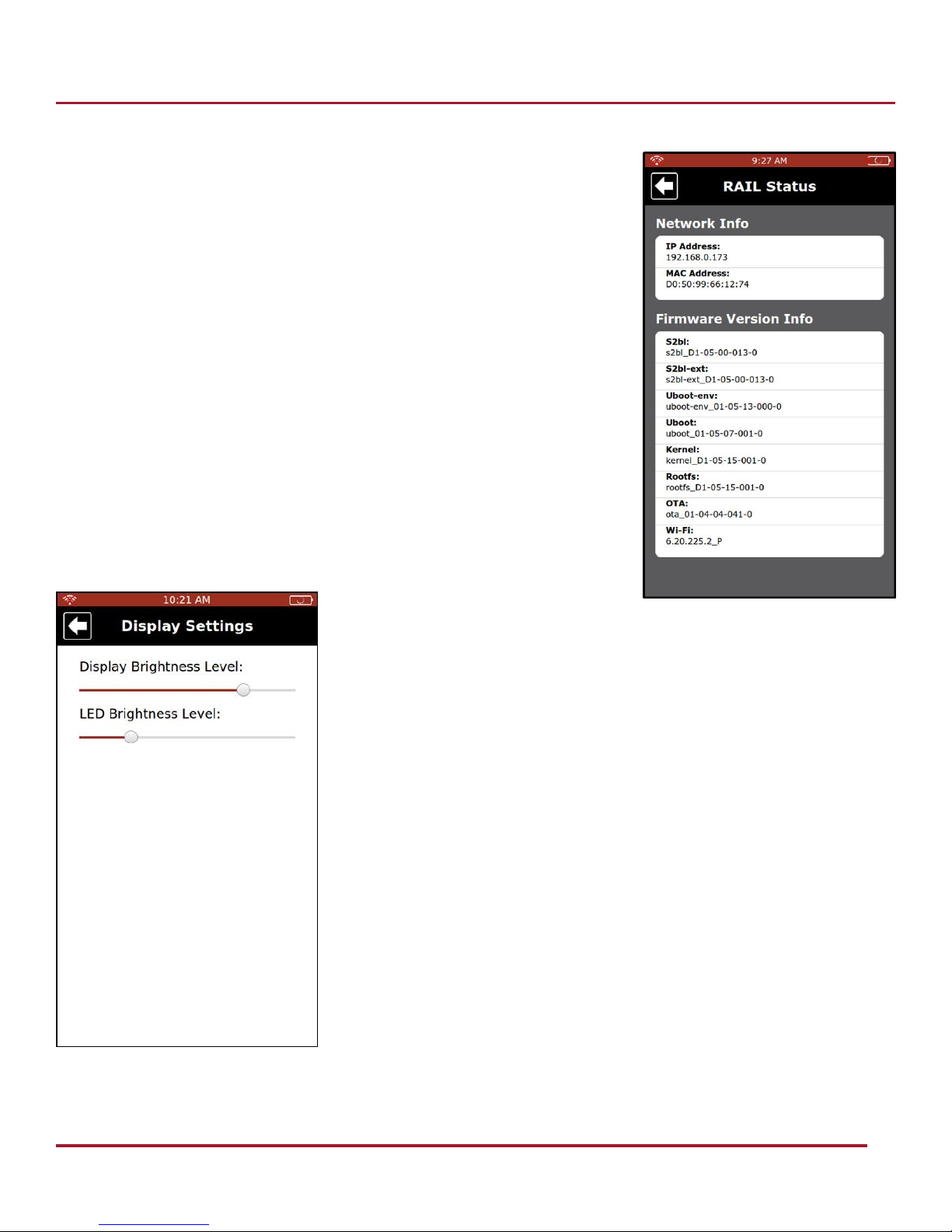
The RAIL Status displays a RAIL’s current software versions and hardware
information.
RAIL User Manual
Display Settings
The Display Settings allows a user to modify the RAIL’s screen brightness and LED
brightness.
Page 9
RAIL User Manual
8 of 22
Manager Utilities
Managers have the same utilities as servers, plus the following:
Factory Reset
• Restarts the RAIL to factory settings. Factory reset will need to be selected if a new wireless network will be used
with the RAIL or new credentials are required to maintain RAIL connectivity
Update Software
• Checks for any available software updates and begins the download of that software when selected
Power Off
• Powers the RAIL down. The RAIL will turn back on once placed into a charging station and will reconnect to last
connected network
View All Tables
• If a user is configured with the appropriate permissions, once logged in they will have the ability to view all open
tables by selecting the “View All Tables” button
Page 10
9 of 22
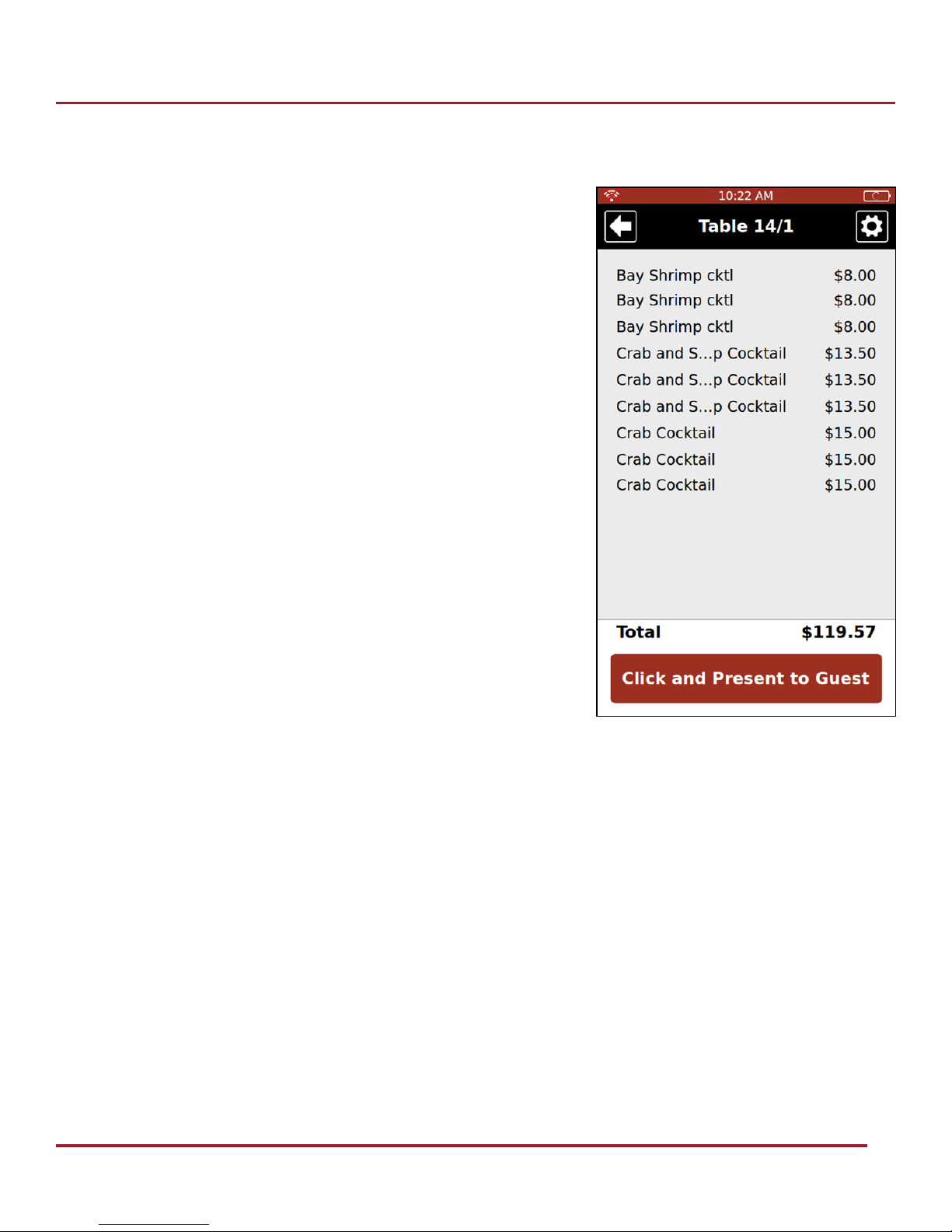
Prepare the Check
Follow the steps below to present the RAIL when the guest is ready to check out.
• Select the table from “My Tables” screen
• Press “Please Click Here and Present to Guest”
• Close cover of folio
RAIL User Manual
Presenting the RAIL
“This is the RAIL, our secure payment device to protect your credit card information. The screen will guide you through the
check out process with options like bill splitting and receipt types. If using a credit card, you will swipe your card here and
exit the device at this point. If you have any questions, select the question mark here and I will come by to help.”
Gift Cards
• The RAIL currently does not accept gift cards. Prior to presenting, confirm if the guest will pay with a gift card.
These will be processed on the POS system. If the gift card only applies a partial payment, use the RAIL device for
the remaining balance
Page 11
10 of 22
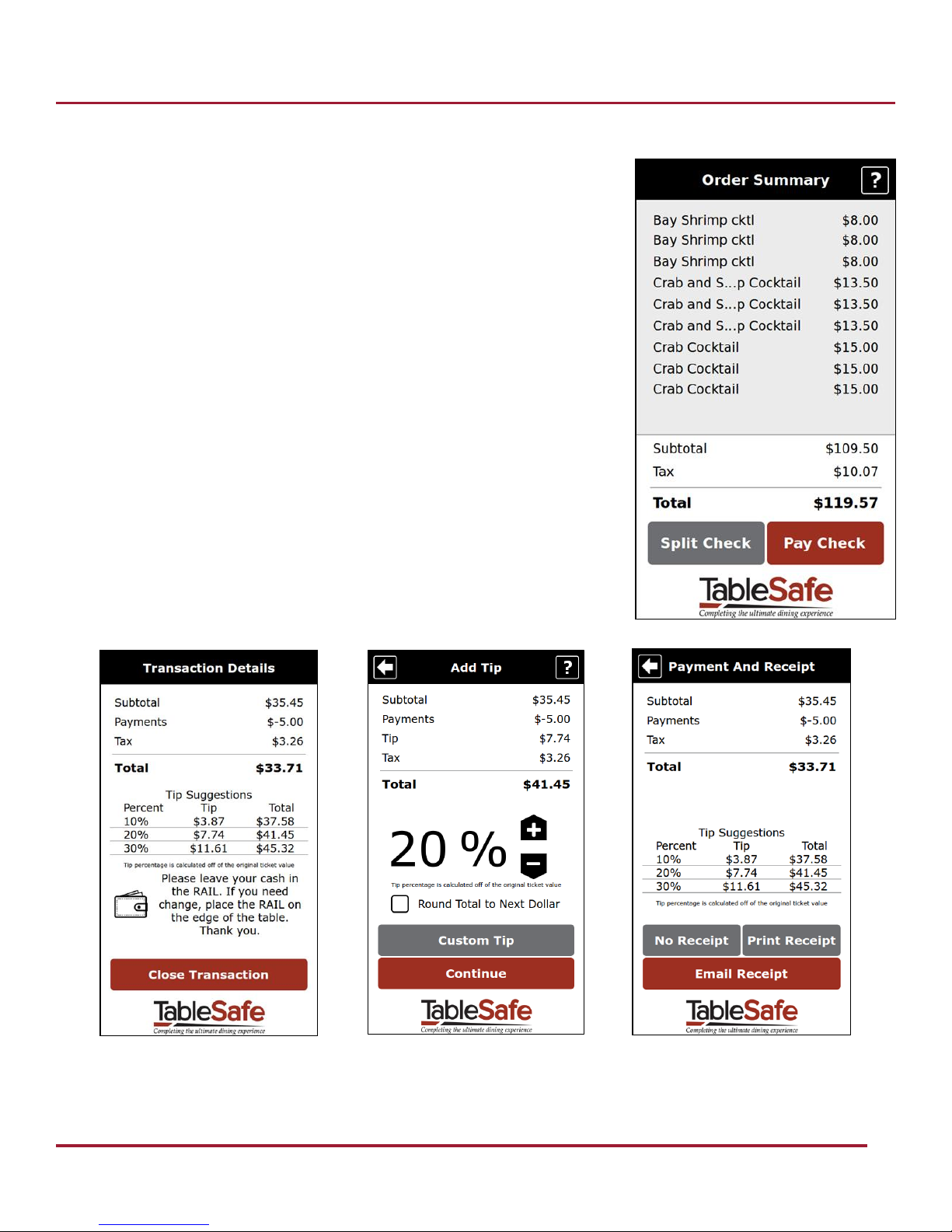
Order Summary
When the guest opens the RAIL and presses the “View Check” button, they will be
presented with an Order Summary page of their order. From here they will have
options to choose from.
• Pay Check
• Split Check
Previous Payments and Discounts
RAIL User Manual
Any previous payments or discounts will be presented as a line item with the
subtotal and tax. These will be listed on the Order Summary, Pay by Credit, Pay by
Cash, and Transaction Details screens.
Page 12
RAIL User Manual
11 of 22
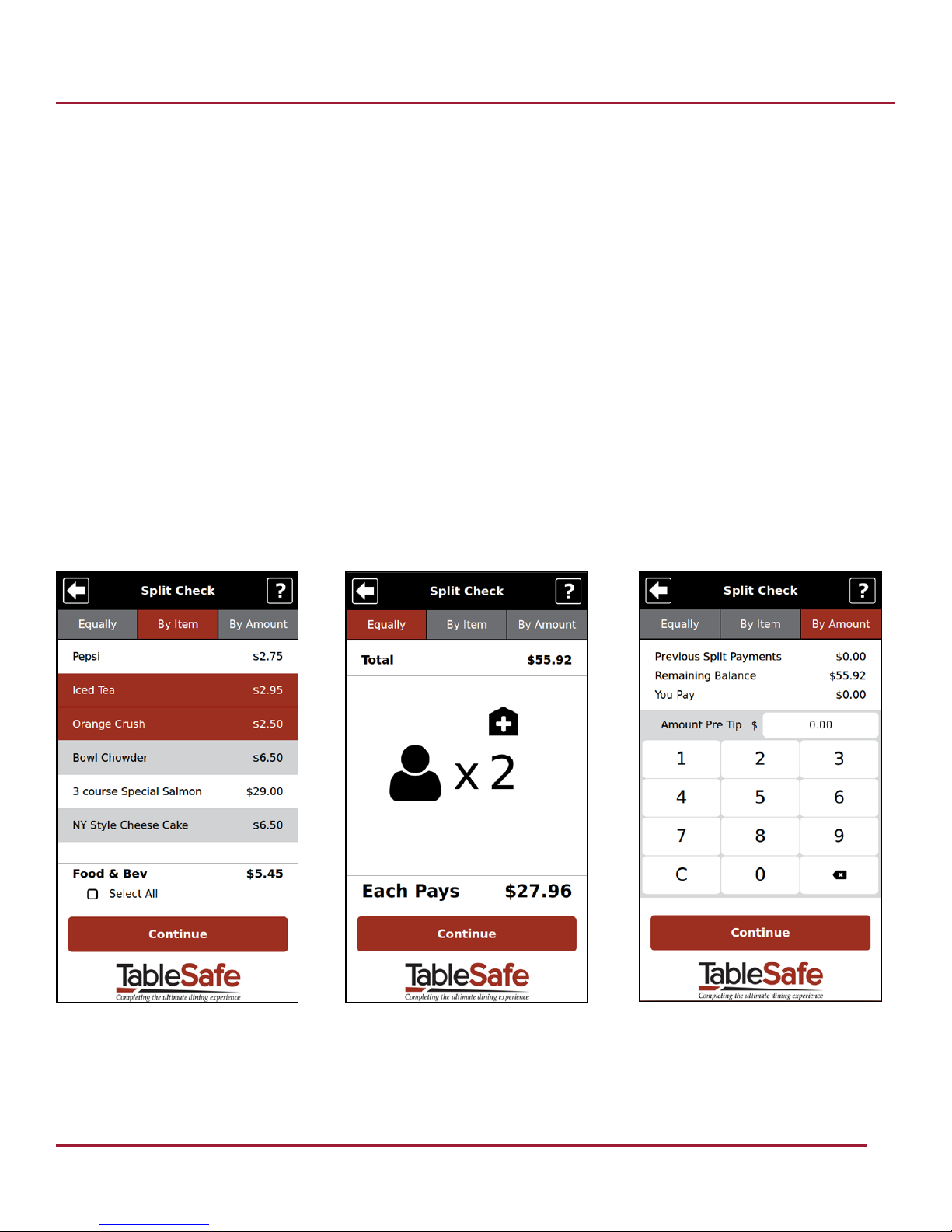
Split Check
There are three options for the guest to choose from under Split Check.
• Split Equally
• Split by Item
• Split by Amount
Split Equally
The guest can select to divide the check equally up to 9 ways. Once the payment and survey participation are complete for
a guest, a screen will alert them to pass the RAIL to the next guest.
Split by Item
The guest can select what items to include on their ticket for payment. Once the payment and survey participation are
complete for a guest, a screen will alert them to pass the RAIL to the next guest. The next guest will see the remaining
items left to be paid.
Split by Amount
The guest can input a specific amount to pay. Once the payment and survey participation is done for a guest, a screen will
alert them to pass the RAIL to the next guest. The next guest will then see the remaining balance to be paid.
Page 13
12 of 22
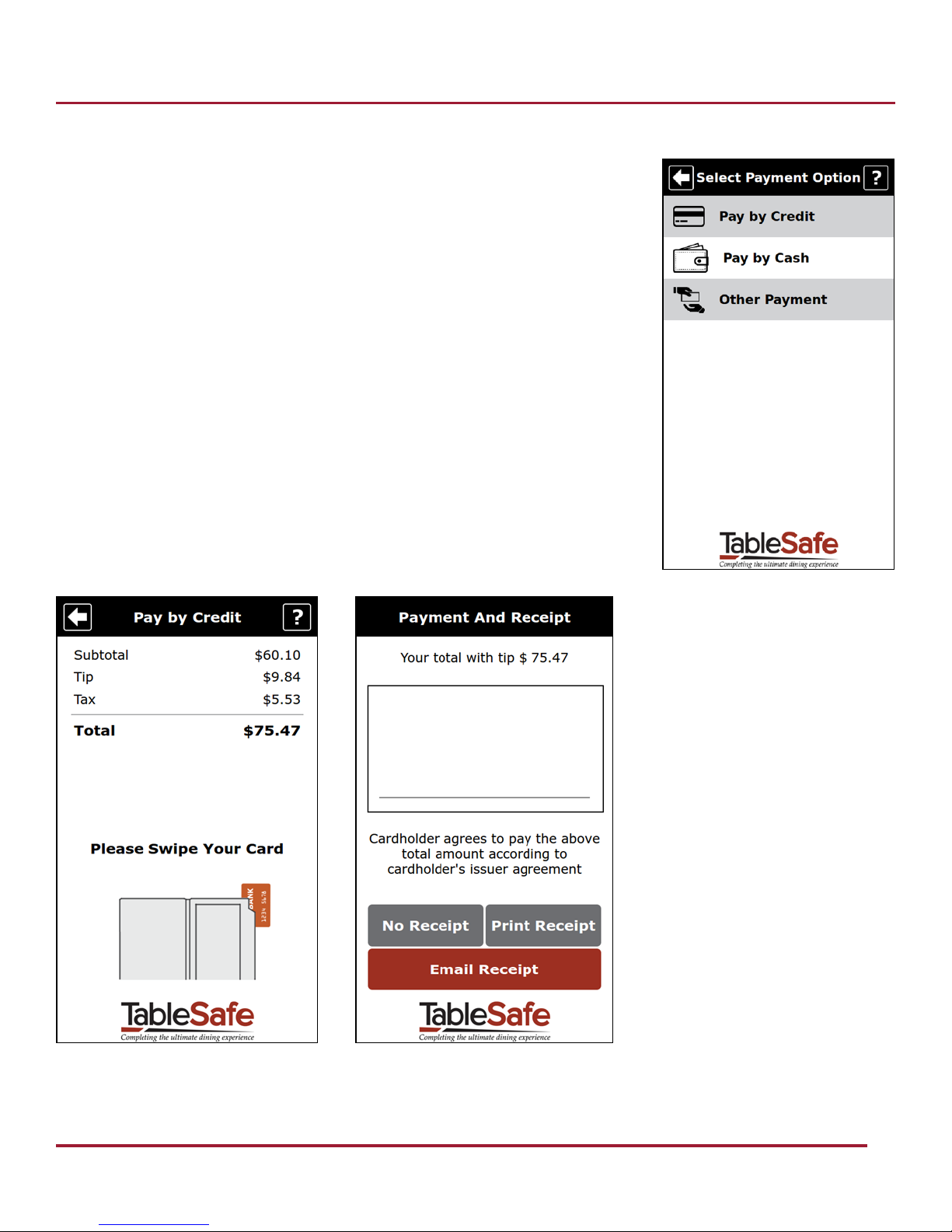
Payment Options
The guest will be prompted with the same “Pay Check” button regardless of whether
they are a single payer or splitting the check. They will then be prompted with the
following three choices:
• Pay by Credit
• Pay by Cash
• Other Payment
Pay by Credit
The guest will be prompted with a tip amount. They can increase or decrease it to the
desired amount or enter in a custom tip, as well as round the total to the nearest
dollar. Once they have decided a tip amount, they will be prompted to swipe their
card.
RAIL User Manual
When the card has been approved, the guest will sign their name to authorize the
payment with their finger.
Page 14
13 of 22
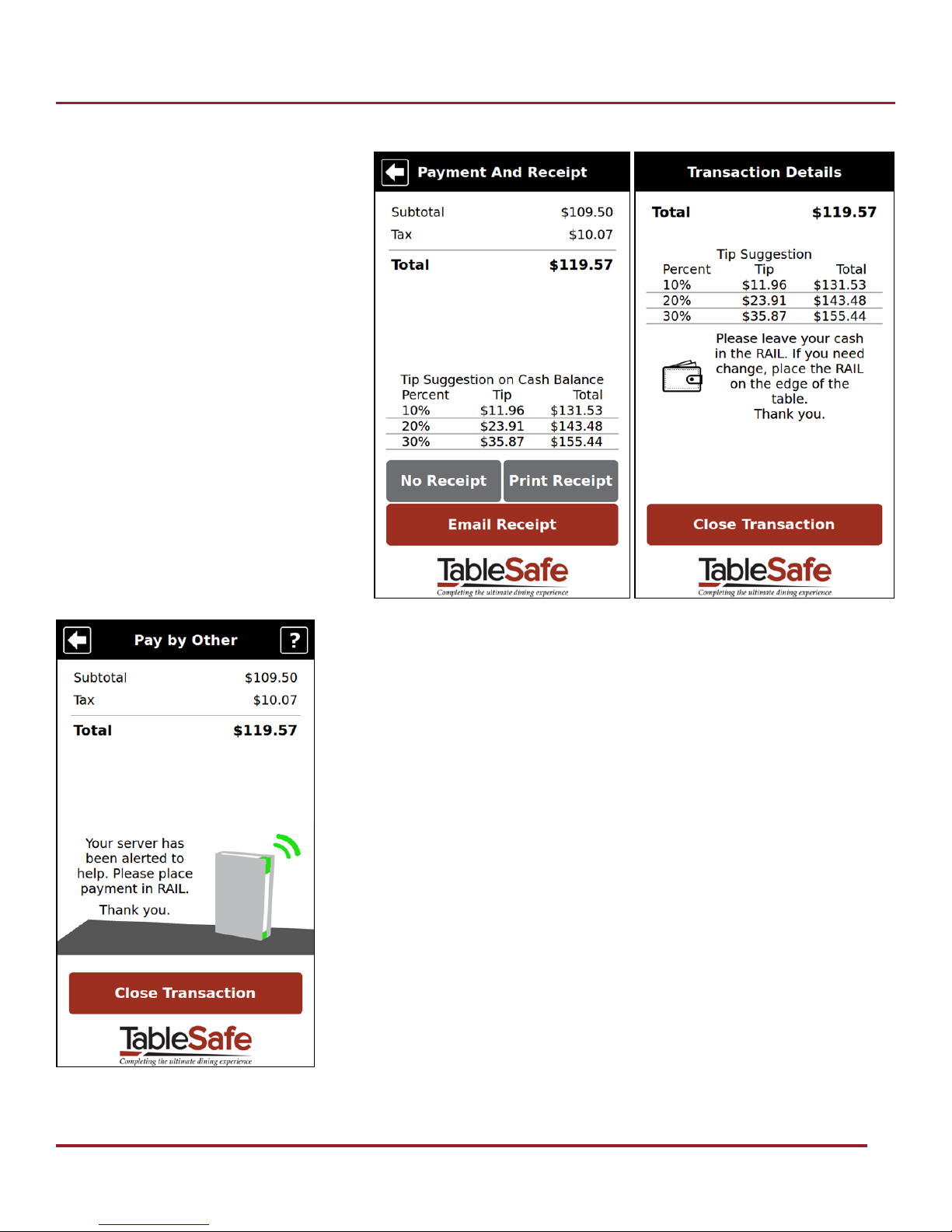
Pay by Cash
The guest will confirm the total of the check
and select a receipt option. Suggested tip
amounts will be provided on the Receipt
Option and Transaction Details screens.
RAIL User Manual
Other Payment
The “Other Payment” option will be used when a guest is using a gift card or
rewards card. The RAIL will alert the server to come to the table so they can
process the payment on the POS terminal.
Page 15
RAIL User Manual
14 of 22
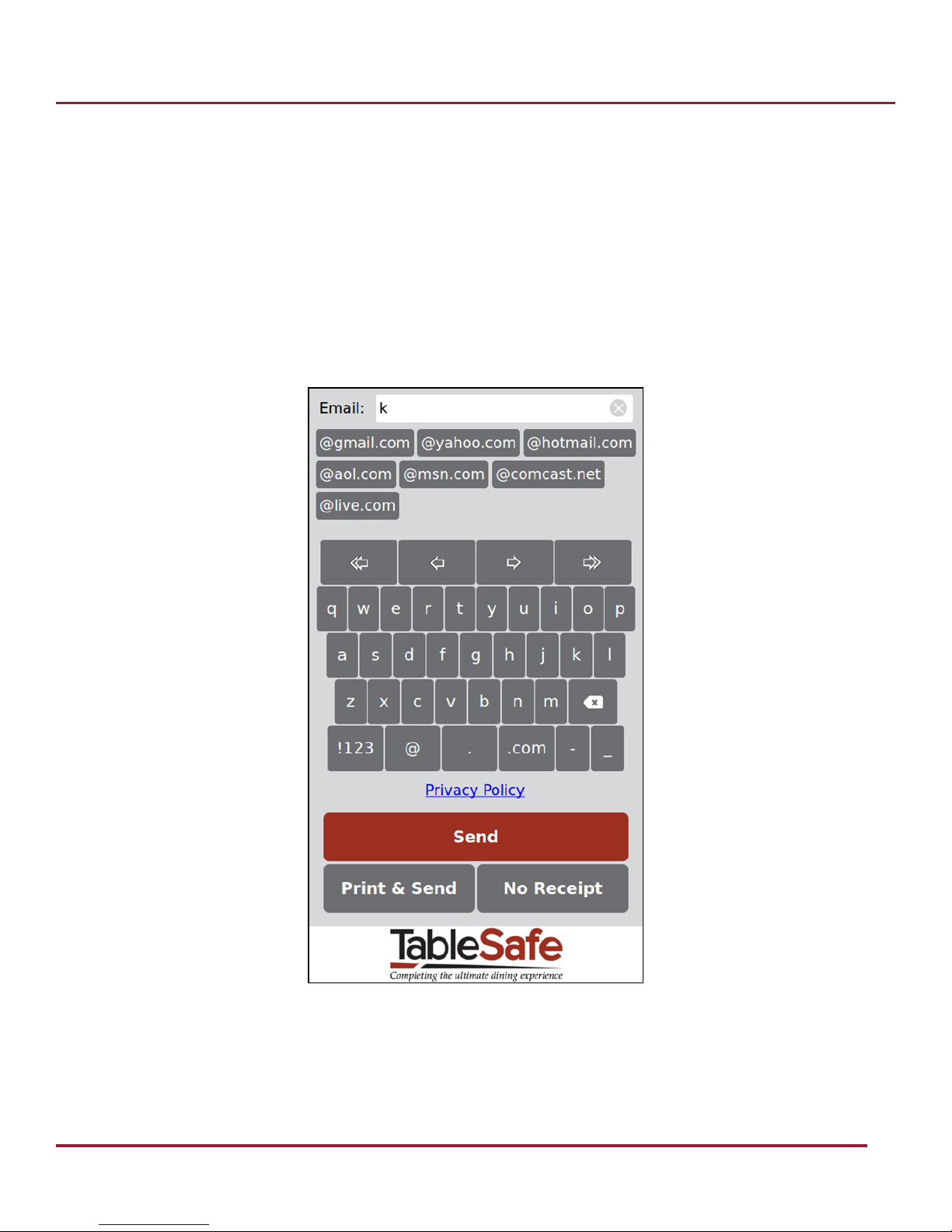
Receipt Delivery
Whether the guest pays by credit or cash, they will be prompted with a choice for how they want their receipt delivered.
Email Receipt
• The guest will be prompted to enter their email address for the receipt to be sent to. From here, they will also
have the option to have their receipt emailed and printed
Print Receipt
• The server will deliver a printed receipt
No Receipt
• A receipt will not be delivered to the guest
Page 16
RAIL User Manual
15 of 22
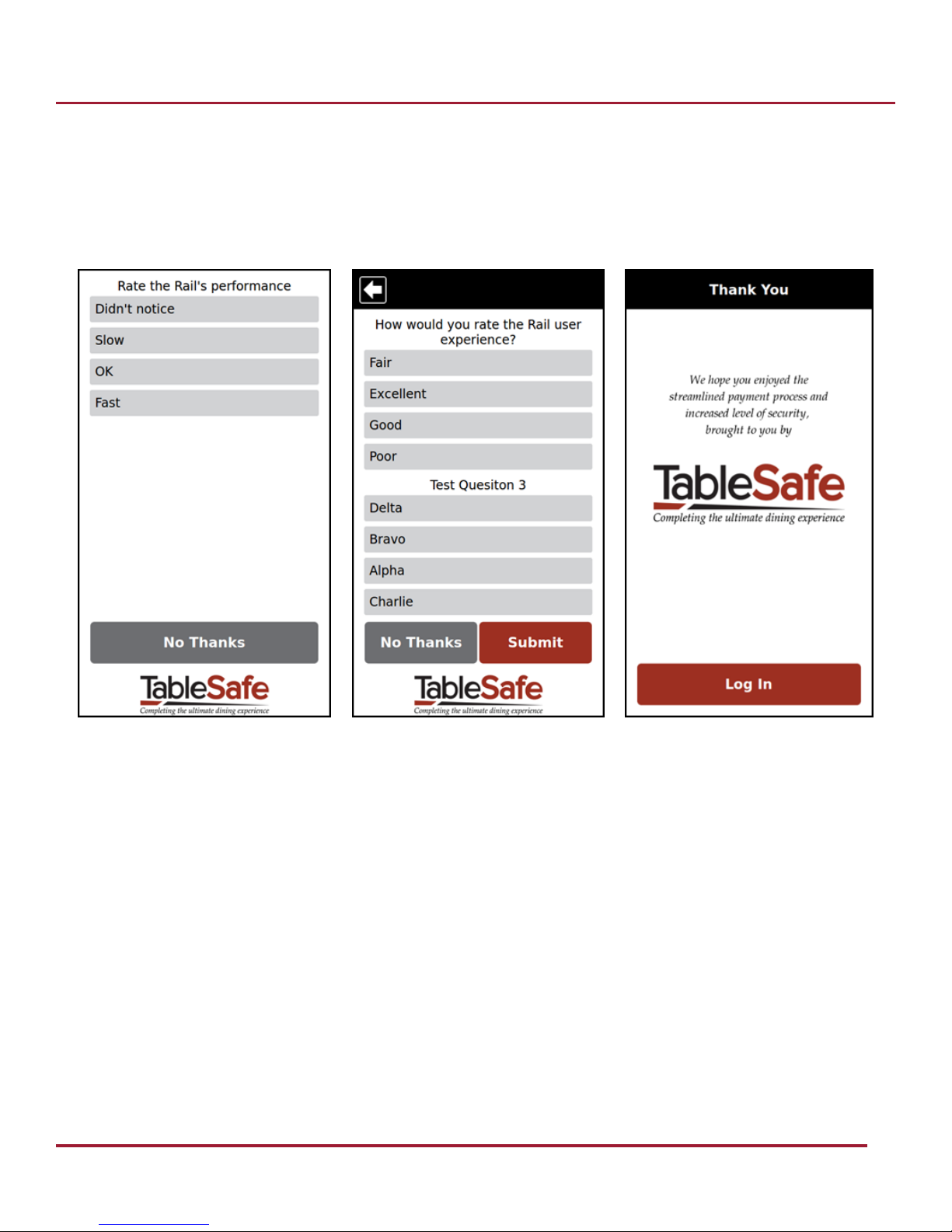
Survey
After selecting the receipt delivery option, the guest will be presented with a short survey of three questions. The first
screen will have one question, and the second screen will have the final two.
The guest can choose to not answer the questions by pressing the “No Thanks” button.
After the survey, the guest will finalize their payment.
Page 17
RAIL User Manual
16 of 22
RAIL LED Indicators
Solid Green
• Successful credit card transaction with no printed receipt
Flashing Green
• Successful cash transaction with no printed receipt; restaurant staff will need to collect the cash from the RAIL and
process at the POS according to current restaurant operating procedures
Solid Blue
• Successful credit card or cash transaction and a printed receipt was requested; restaurant staff will need to retrieve
the printed receipt from the designated receipt printer location and verify whether or not cash was used for
payment
Solid Red
• Indicates an error has occurred on the RAIL or assistance was requested by the guest; restaurant staff should
check with the guest and provide assistance if needed
Flashing Blue
• When customers are prompted to swipe their credit card, and when the RAIL is setting up
Multi-Color
• RAIL’s safety feature has been triggered making it inoperable. The top LED is red and the screen is dark and
unresponsive
Page 18
RAIL User Manual
17 of 22
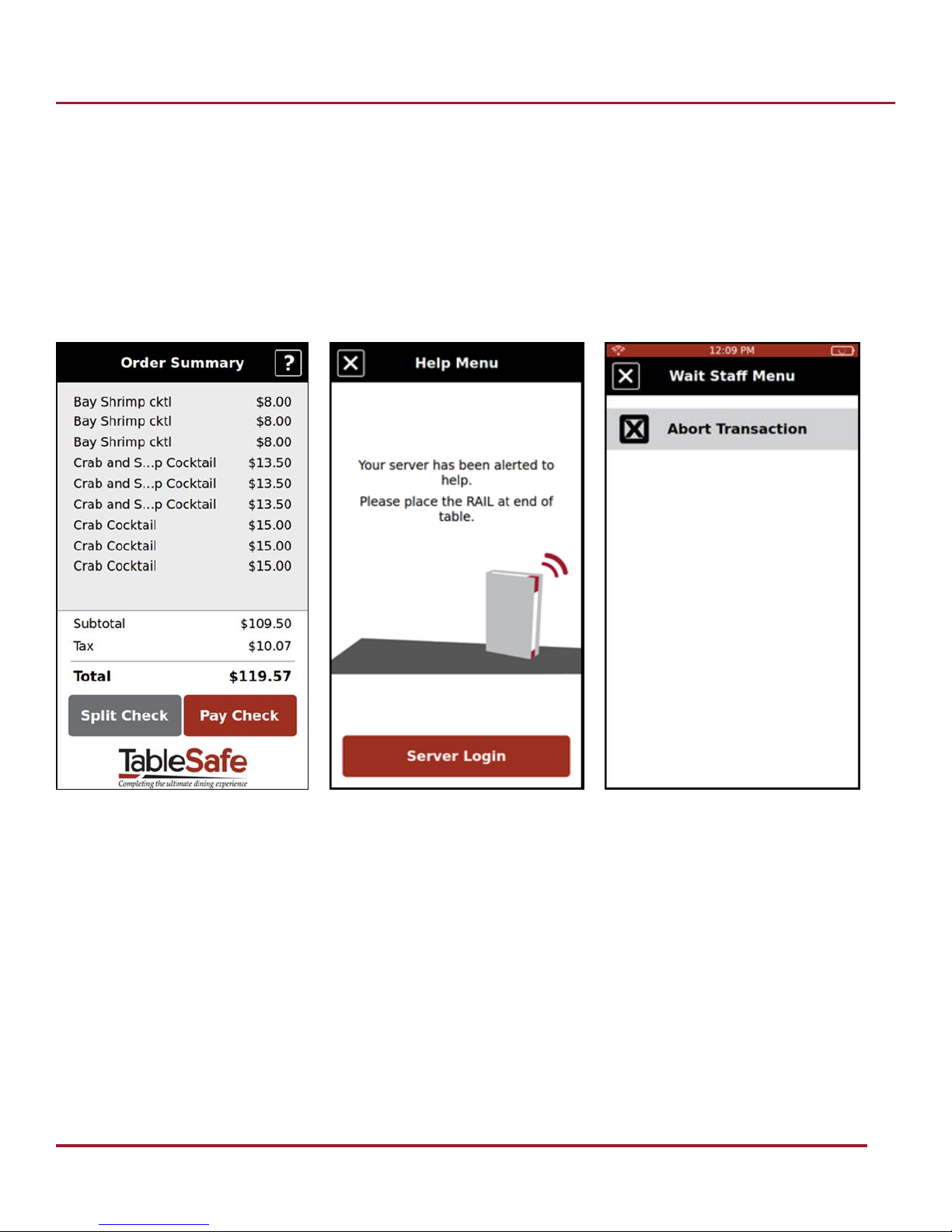
Help Menu and Abort Transaction
If in need of assistance, the guest can select the “?” button. The red LED light will display.
If the guest's question is answered, the server will select the “X” button and allow the guest to continue processing their
payment on the RAIL.
If an error to the bill needs to be rectified, the server will select “Wait Staff Functions,” enter their PIN, then select “Abort
Transaction”.
• The server will either correct the error and re-present the RAIL to the guest or process the guest's payment at the
POS system
Page 19
RAIL User Manual
18 of 22
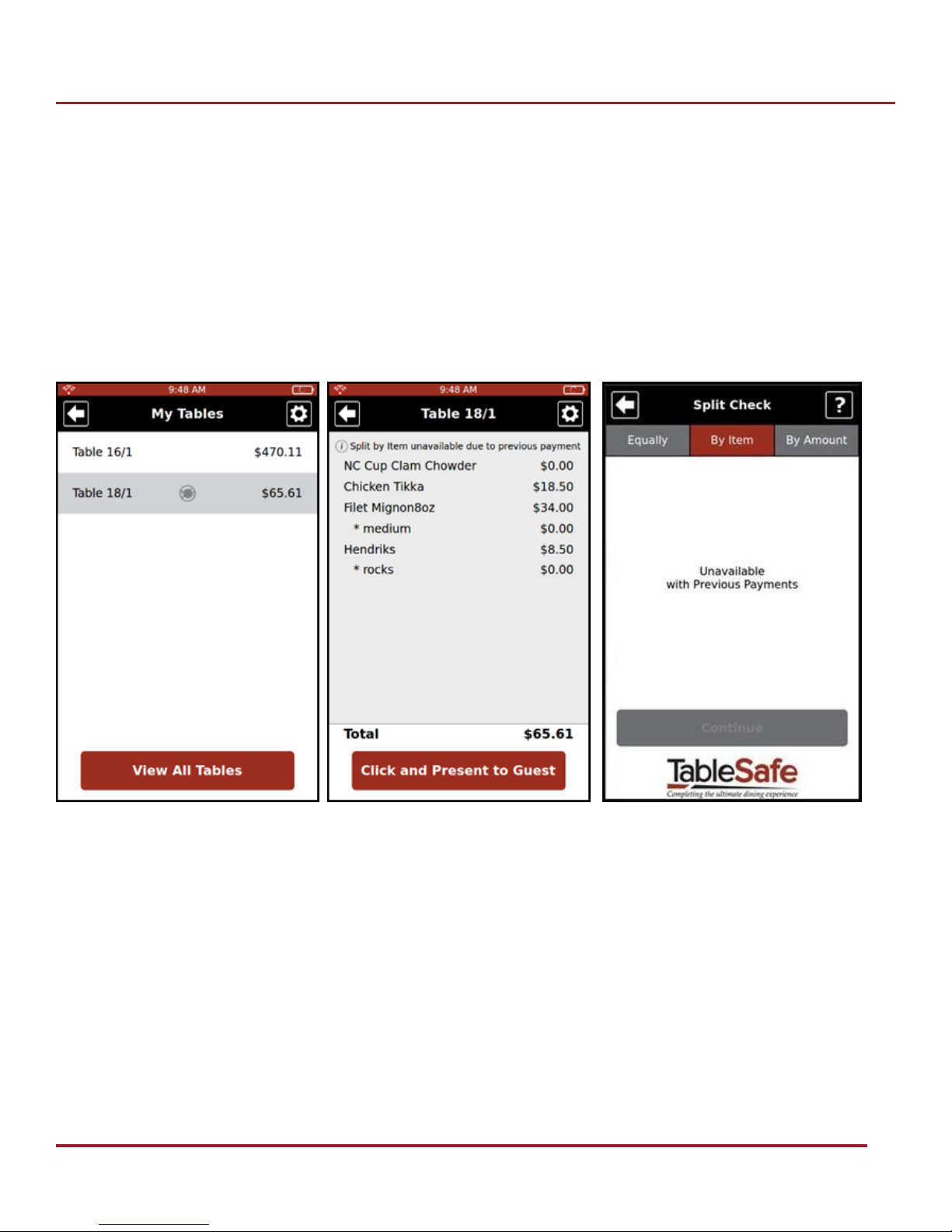
Split by Item Disabled
The “Split by Item” option may be disabled in several scenarios:
• A payment has already been applied to the check via the POS or RAIL
• A discount has been applied to the check
• An item has been split or “shared” among guests on a ticket on the POS
• Menu items have been transferred to or from another check on the POS
In these cases, a ticket will have a “Split by Item” disabled icon next to the name of the table. If the guest tries to split the
check on the RAIL, they will see an “Unavailable” message. The “Split Equally” and “Split by Amount” options will still be
available for guests electing to split the check in these scenarios.
Page 20
RAIL User Manual
19 of 22
Changes After Check Presentation
Menu items can easily be added to the check if the guest wants to order more, or taken away if there is an error with the
check. The server would need to:
1. Reacquire the RAIL from the guest
2. Select the “Help” menu in the upper right-hand corner of the RAIL if not already pressed
3. Select the “Wait Staff Functions” option
4. Enter server PIN and select the “Abort Transaction” button
The server will be routed to their “My Tables” page, where they can verify all menu items are added to the check in the
POS, and then re-present the RAIL to the guest.
Split Check on POS
Multiple RAILs cannot be used for one ticket; the ticket must be split ahead of time on the POS and individual checks
presented on individual RAILs. The server will need to:
• Confirm if any guests are paying with cash and close those amounts in the POS ahead of time
• This will leave only guests paying with a card on the RAIL
• This option should only be used in large group settings (more than 9 paying guests at a table)
• The RAIL can split equally up to nine guests; there are an unlimited amount of payers when "Split by Item"
and "Split by Amount" are selected on the RAIL
Page 21
RAIL User Manual
20 of 22
Credit Card Errors
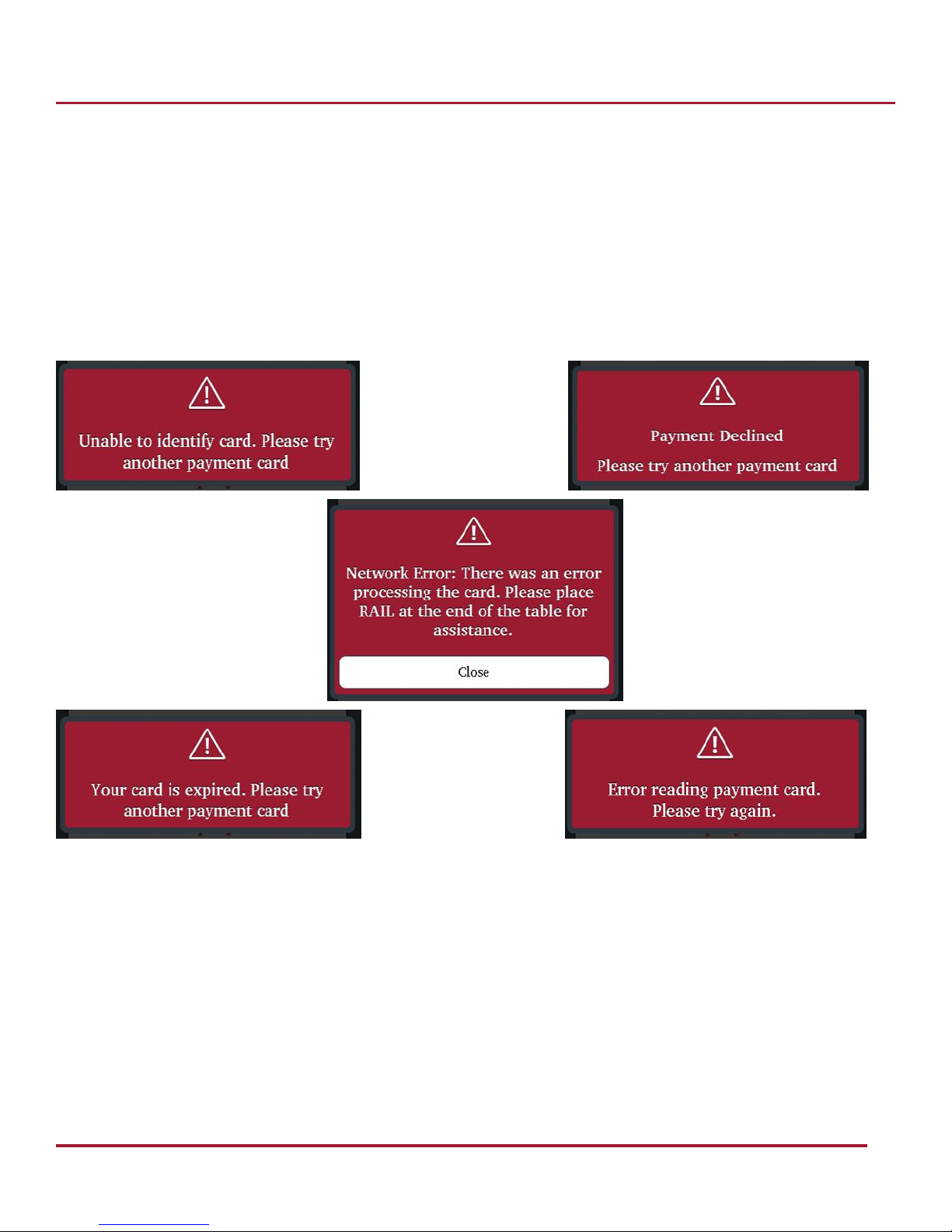
There area a few reasons why the RAIL will decline a guest’s card include:
• Credit card may not be valid
• Funds are insufficient
• Credit card cannot be read
• Credit card was poorly swiped
Ensure the card is a valid credit card and not damaged. The guest may need to provide another card, or you can try to run
the card through the POS terminal.
Page 22
RAIL User Manual
21 of 22
RAIL Maintenance
A daily wipe-down with a warm, damp towel will minimize wear and keep the RAIL clean. Additionally, when not being
used, it should be stored in a charging station.
If the RAIL seems to be running slow, place it in the reset tool along the back cover’s left edge for three seconds or until
the screen goes dark. It will take about 4 minutes to reboot.
Staff should inspect the RAIL for signs of tampering. If physical damage is done to the device, the device will erase its
software. The action of erasing its software is described as tampering. A tampered device will be unusable and have to be
replaced. All three of the RAIL’s LED lights will be lit, with the top color being red. Signs of physical tampering could
include, but are not limited to:
• Cracked or broken case
• Hole(s) in case
• Loose or damaged screen or keypad
• Exposed wires or missing screws
• Additional stickers/labels that may be masking other damage
If a device has tampered, alert a manager and pull the RAIL from circulation. The manager will need to contact TableSafe
Support to have the RAIL replaced.
How to Charge a RAIL
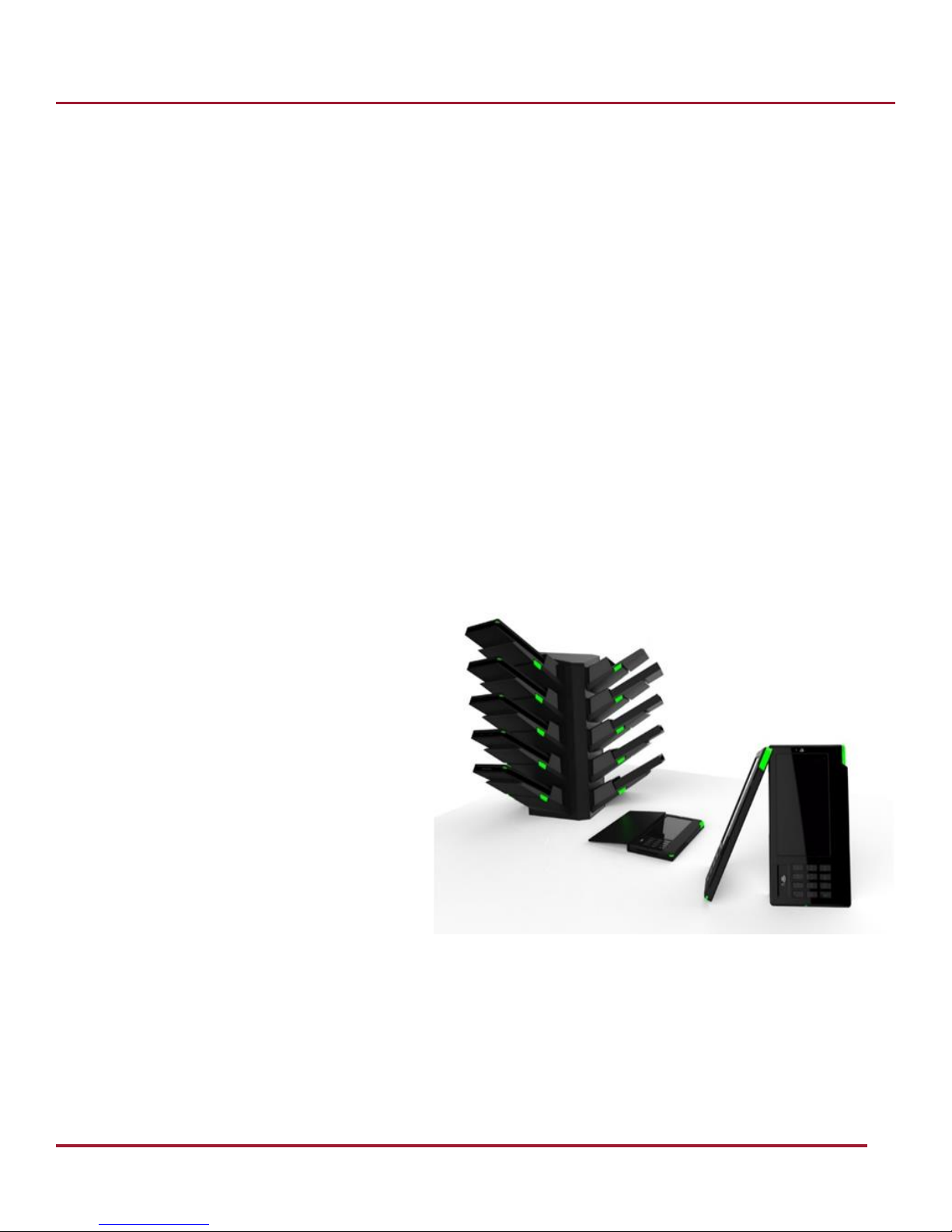
1. Slide the RAIL with the cover on, screen up,
EMV chip reader out into a pod. Ideally this
will be done when the RAIL is not in use.
2. The RAIL should begin to charge within 10
seconds. You will know that the RAIL is
charging when the light on the pod blinks
green.
3. If the light does not blink green, proceed to
make slight adjustments to the RAIL’s
position.
A RAIL takes about 3 to 4 hours to fully charge and
will last between 6 to 8 hours on a full charge.
The RAIL may continue to blink after 3 to 4 hours.
This is because once the RAIL is fully charged, it will
power down to 90% and then begin to recharge.
Page 23
RAIL User Manual
22 of 22
Federal Communications Commissions (FCC) Statement
FCC Warning: Changes or modifications to any of these devices not expressly approved by TableSafe could void the user’s
authority to operate the equipment.
1. RAIL Payment Platform
NOTE: This equipment has been tested and found to comply with the limits for a Class A digital device, pursuant to
part 15 of the FCC rules. These limits are designed to provide reasonable protection against harmful interference when
the equipment is operated in a commercial environment. This equipment generates, uses, and can radiate radio
frequency energy and, if not installed and used in accordance with the instruction manual, may cause harmful
interference to radio communications. Operation of this equipment in a residential area is likely to cause harmful
interference in which case the user will be required to correct the interference at his own expense.
This equipment complies with radiation exposure limits set forth for an uncontrolled environment. This equipment is
in direct contact with the body of the user under normal operating conditions. This transmitter must not be co-located
or operating in conjunction with any other antenna or transmitter.
THIS DEVICE COMPLIES WITH PART 15 OF THE FCC RULES. OPERATION IS SUBJECT TO THE FOLLOWING TWO
CONDITIONS.
(1) THIS DEVICE MAY NOT CAUSE HARMFUL INTERFERENCE, AND (2) THIS DEVICE MUST ACCEPT ANY INTERFERENCE
RECEIVED, INCLUDING INTERFERENCE THAT MAY CAUSE UNDESIRED OPERATION.
2. Charging Station: TS-CS5, TS-CS10
NOTE: This equipment has been tested and found to comply with the limits for a Class A digital device, pursuant to
part 15 of the FCC rules. These limits are designed to provide reasonable protection against harmful interference when
the equipment is operated in a commercial environment. This equipment generates, uses, and can radiate radio
frequency energy and, if not installed and used in accordance with the instruction manual, may cause harmful
interference to radio communications. Operation of this equipment in a residential area is likely to cause harmful
interference in which case the user will be required to correct the interference at his own expense.
This equipment complies with radiation exposure limits set forth for an uncontrolled environment. This equipment
should be installed and operated with minimum distance 20 cm between the radiator and your body. This transmitter
must not be co-located or operating in conjunction with any other antenna or transmitter.
 Loading...