

Page 1

t1v.com
T1V’s proprietary software is covered by multiple patents and patents pending including US Patents 8,522,153, 8,583,491, and 8,600,816.
t1v.com
T1V’s proprietary software is covered by multiple patents and patents pending including US Patents 8,522,153, 8,583,491, and 8,600,816.
t1v.com
T1V’s proprietary software is covered by multiple patents and patents pending including US Patents 8,522,153, 8,583,491, and 8,600,816.
t1v.com
T1V’s proprietary software is covered by multiple patents and patents pending including US Patents 8,522,153, 8,583,491, and 8,600,816.
t1v.com
T1V’s proprietary software is covered by multiple patents and patents pending including US Patents 8,522,153, 8,583,491, and 8,600,816.
Quick Start Guide
Pro
Page 2
Contents
Setup and Registration
Your new ThinkHub software package should
contain the following:
Visit t1v.com/ThinkHub-Setup for instructions
on how to register and get started with ThinkHub.
Please note: failure to register your ThinkHub software
will prevent you from receiving T1V Support should any
issues arise.
ThinkHub Quick Start Guide
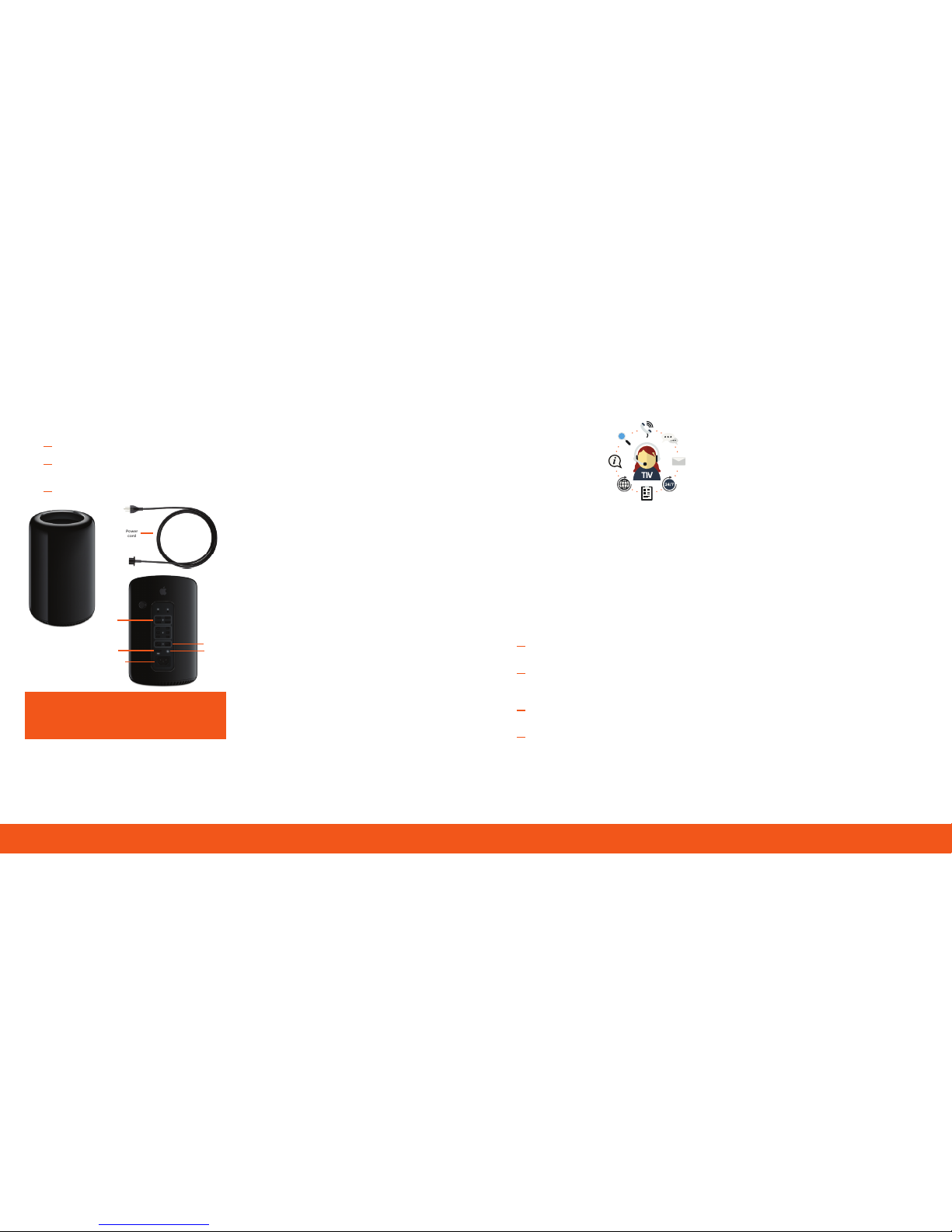
ThinkHub Device
(Mac Pro imaged with ThinkHub Software)
Power Cord
Installation TroubleshootingSupport
Repairs
Warranty
Mounting
The ThinkHub device may be mounted behind
the touchscreen display or in a rack station
closet. Contact your dealer to ensure you have
the proper mounting hardware for your install
location.
Ventilation Requirements
When mounting or storing your ThinkHub device,
leave adequate room between the device and
the enclosure to allow heat to disperse. Allow
adequate ventilation or provide air conditioning
around the device, so that heat can properly
dissipate away from the unit and mounting
apparatus.
The touchscreen shows only a blank black
screen.
The touchscreen shows a black screen with
‘no signal.’
The TV only shows static.
T1V Support is available
for phone and email
support 8am - 10pm EST
Monday - Sunday. T1V
Support provides 24/7
remote monitoring of all
products, oering a
proactive response
program should any
issues arise.
Please allow ample time for T1V Support to
respond to your request. If a request is made
outside of regular business hours, you will be
contacted by 9am the following business day. All
Support requests are handled on a priority basis
(emergency vs. non-emergency). An emergency
is defined as a problem that immediately aects
the operation of the T1V product. All other
requests, such as general questions, should be
made during regular business hours.
Things to know before submitting a request to
T1V Support:
Please note: T1V support is available to help with any
issues specifically related to T1V products. T1V Support
is not intended to be a training session - if additional
training is required, please contact your dealer. T1V
Support does not oer support for any third party
applications, programs, or operating systems.
ThinkHub ID (located on the ThinkHub
Device)
The problem, defined to the best of your
ability (symptoms, frequency, and
circumstances)
The potential source of the problem
(software, hardware, or network?)
On-site contact information (please
include a name and the best phone
number or email address to contact)
Do not make repairs yourself. Your ThinkHub
device does not have any user-serviceable parts.
Do not attempt to replace or repair any
components inside your ThinkHub device. If your
ThinkHub device needs service, please contact T1V.
WARNING: Do not attempt to take apart, open,
service, or modify any T1V hardware devices or
power supply. Doing so could cause the risk of
electric shock or other hazard. Evidence of any
attempt made to open and/or modify the device,
including peeling, puncturing, or the removal of
any of the labels, will void ALL warranties.
The ThinkHub device includes a 1-year hardware
warranty, starting at date of purchase. If you are
experiencing issues with your ThinkHub device,
please contact T1V Support for further instruction.
Verify that the touchscreen is connected to a power
source and is turned on.
Verify that you are not in Full Screen Mode by tapping in
the middle of the screen. If a border appears, tap the
‘Exit Full Screen Mode’ button in the bottom Tool Tray, or
tap the Exit ‘X’ button at the top right corner of the
content window.
1.
2.
Use the TV remote or Settings buttons on the back of
the display to set the input to HDMI.
1.
Unplug the TV from the power source. Wait 15 seconds,
then reconnect to the power source.
1.
The TV shows ‘The software is in hibernation’
message.
Call T1V Support.
1.
The touch is not accurate.
Call T1V Support to perform a touch calibration.
1.
The touchscreen is not responding to touch.
Reboot the computer.
Reseat the touch kit USB cable.
If issue persists, call T1V Support.
1.
2.
3.
Devices do not appear in the ThinkHub Device
Tra y.
Download the latest version of AirConnect at
t1v.com/AirConnect.
If your device is on the same network as ThinkHub, verify
that you are using the correct password. If your device is
on a dierent network from ThinkHub, verify that you are
using the correct AirConnect Key.
Restart your laptop, tablet or phone and try to connect
again.
1.
2.
3.
ThinkHub User Guide
Download the ThinkHub User Guide at
t1v.com/ThinkHub-User-Guide
Power
Button
Gigabit
Ethernet
HDMI
(video)
USB
(touch)
Built-in
power supply
Power
cord
 Loading...