

Page 1

SNAP® Link Serial Wireless Adapters
QUICK START: PLEASE READ THIS FIRST
SNAP® Link Serial Wireless Adapters
QUICK START: PLEASE READ THIS FIRST
Power
Pairing
1. Press and hold the MODE button on the first unit
for over 5 seconds; release when LED “A” turns
red. It will now flash red.
2. Standing near the first unit, press and hold the
MODE button on unit 2; release when LED “A”
turns red. The units are now paired.
3. Once paired, LED “A” flashes green to indicate
good signal quality.
A flashing amber color indicates successful pairing, but
with a weak signal.
How to reset to factory defaults:
1. Unplug the device.
2. While holding down the MODE button, plug the
device back into a power source and wait until
all LEDs turn amber, about 6 seconds.
3. Release the MODE button. LED “A” turns o to
indicate success.
How to drop out of pairing mode:
1. Hold down the MODE button next to LED “A” for 5 seconds on one of the paired units.
2. It will drop out of paired state and go back into “pairing mode”, indicated by the flashing
red LED “A.” If you click once quickly on that same unit, it should “re-pair” to the unit it was
previously paired with.
Connect units to existing devices
1. Apply power to Unit 1 using either the wall plug or a PC.
2. Apply power to Unit 2.
Power
Pairing
1. Press and hold the MODE button on the first unit
for over 5 seconds; release when LED “A” turns
red. It will now flash red.
2. Standing near the first unit, press and hold the
MODE button on unit 2; release when LED “A”
turns red. The units are now paired.
3. Once paired, LED “A” flashes green to indicate
good signal quality.
A flashing amber color indicates successful pairing, but
with a weak signal.
How to reset to factory defaults:
1. Unplug the device.
2. While holding down the MODE button, plug the
device back into a power source and wait until
all LEDs turn amber, about 6 seconds.
3. Release the MODE button. LED “A” turns o to
indicate success.
How to drop out of pairing mode:
1. Hold down the MODE button next to LED “A” for 5 seconds on one of the paired units.
2. It will drop out of paired state and go back into “pairing mode”, indicated by the flashing
red LED “A.” If you click once quickly on that same unit, it should “re-pair” to the unit it was
previously paired with.
Connect units to existing devices
1. Apply power to Unit 1 using either the wall plug or a PC.
2. Apply power to Unit 2.
Page 2
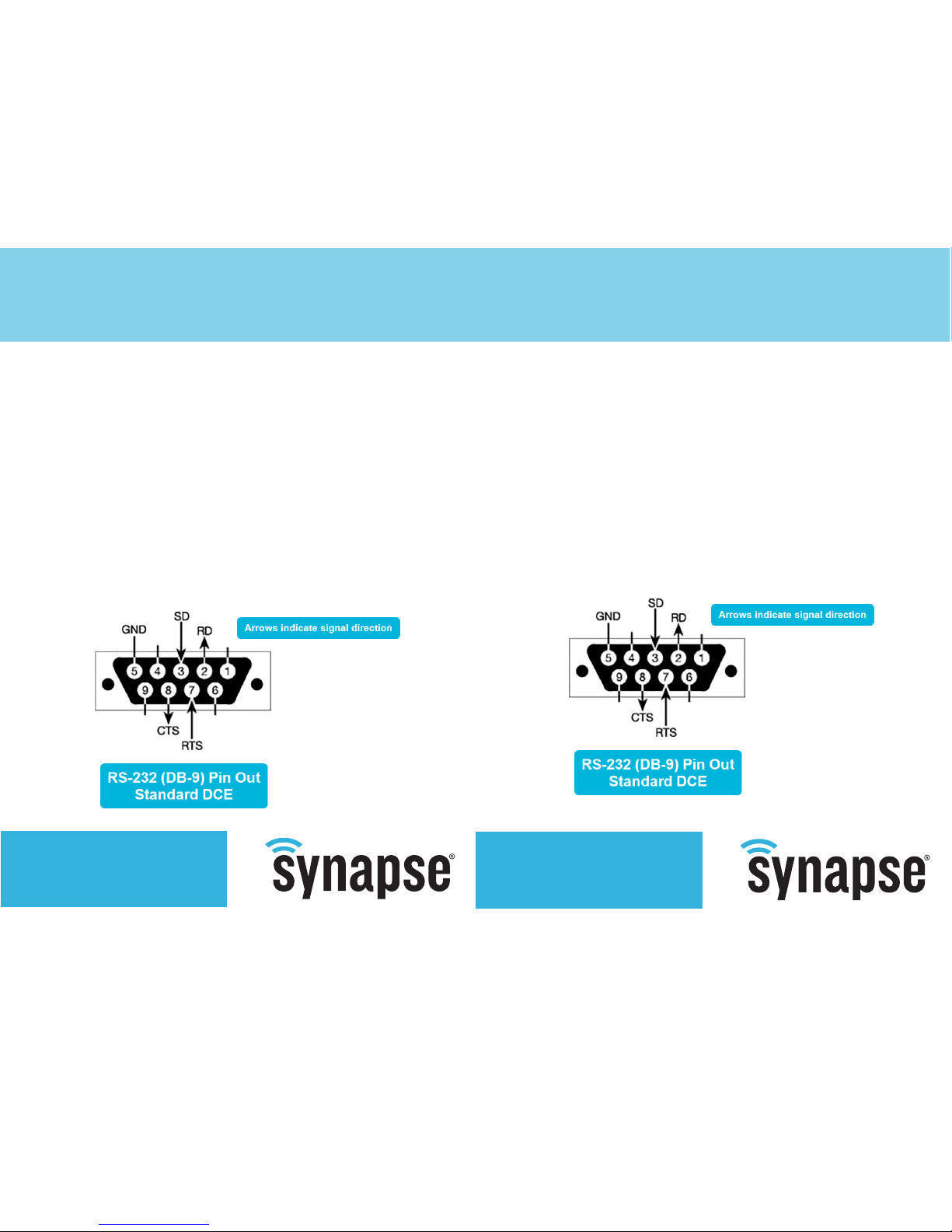
SNAP® Link Serial Wireless Adapters
QUICK START: PLEASE READ THIS FIRST
SNAP® Link Serial Wireless Adapters
QUICK START: PLEASE READ THIS FIRST
© 2014 Synapse Wireless® All rights reserved. Synapse products are patented or
patents pending. Specifications subject to change without notice.
600031-01D
To learn more, visit
synapse-wireless.com
or call 877-982-7888
© 2014 Synapse Wireless® All rights reserved. Synapse products are patented or
patents pending. Specifications subject to change without notice.
600031-01D
To learn more, visit
synapse-wireless.com
or call 877-982-7888
Everyone at Synapse Wireless appreciates your purchase. We’re saving
trees, reducing waste, and ensuring you have the most up-to-date
versions by providing our documentation and software online.
• User documentation can be downloaded from:
http://forums.synapse-wireless.com/index.php
(includes instructions for changing 2-wire settings to 4-wire RS-485 as well
as configuring a point-to-multipoint installation.)
• Download SNAP EasySet configuration software to access additional
configuration options using a Windows, Macintosh, or Linux computer from:
http://www.synapse-wireless.com/SNAPLink/EasySet
• Some parameters may be changed without using EasySet software by using
the 8-bit DIP switch inside the unit, which is discussed further in the user
documentation.
Everyone at Synapse Wireless appreciates your purchase. We’re saving
trees, reducing waste, and ensuring you have the most up-to-date
versions by providing our documentation and software online.
• User documentation can be downloaded from:
http://forums.synapse-wireless.com/index.php
(includes instructions for changing 2-wire settings to 4-wire RS-485 as well
as configuring a point-to-multipoint installation.)
• Download SNAP EasySet configuration software to access additional
configuration options using a Windows, Macintosh, or Linux computer from:
http://www.synapse-wireless.com/SNAPLink/EasySet
• Some parameters may be changed without using EasySet software by using
the 8-bit DIP switch inside the unit, which is discussed further in the user
documentation.
 Loading...