

Page 1

2.4G/Bluetooth Wireless Barcode Scanner
User 's manual
Page 2

Page 3

2.4G/Bluetooth Wireless Barcode Scanner
Precautions
1.Please read the user manual carefully before using this barcode
scanner.
2.The working voltage of this barcode scanner is 3.3V, charging
voltage 5V. Please use our original USB cable and AC power adapter
to ensure the scanner is working properly.
3.Copyright and Patent Notice Our company reserves the copyright,software
copyright and sufficient patents of the ring barcode scanner and its
accessories(including firmware,MR Configurator,illustration documents,
appearance and so on. )
4.Our company reserves all rights, reserves the right to make any
changes to the product to improve its reliability, function or design.
Our company shall not be liable for applications or use of any
product or circuit with our scanner, or any liability arising therefrom
or in connection with any other applications described herein.
5.Our wireless barcode scanner accessories:
A:standard package: :barcode scanner (1 piece), Mini Receiver
(1 piece), Pedestal ,USB cable (1 piece), user manual (1 piece).
6.The contents of this manual are subject to change without prior
notice.
1
Page 4

2.4G/Bluetooth Wireless Barcode Scanner
Contents
1.Notice.................................................................................................................1
2.Introduction & Features..................................................................................3
3.Application & Execution Standands..............................................................4
4.Working Conditions& Related regulations...................................................5
5.Appearance.......................................................................................................6
6.How to use the barcode scanner...................................................................7-8
7.How to use the pedestal.................................................................................9-10
8.Reset Configuration to Defaults+Pair with PC terminals
HID bluetooth mode .....................................................................................11
9.Pull up and Hide iOS Keyboard&Caps Lock Switch..................................12
10.
2.4G Pairing Method..................................................................................13
11.Sound and Vibration Setting.......................................................................14
12.Sleep Time Setting........................................................................................15
13.Language Settings.........................................................................................16
14.End Character Setting...................................................................................17
15.Transmission Speed Setting and Bluetooth protocol..............................18
16.Operating Mode.............................................................................................19-20
17.Bluetooth Name Change Setting................................................................21
18.Hide front and back characters..................................................................22-23
19.Set Prefix and Suffix Setting........................................................................24
20.Appendix A.....................................................................................................25-35
21. FAQ(Frequently Asked Questions)............................................................36
22.Buzzer and Indicator Light State.................................................................37
2
Page 5

2.4G/Bluetooth Wireless Barcode Scanner
Introduction
The series of barcode scanner produced by our company feature as
strong light source,enhanced long-distance scanning technology. It can
read the damaged,stained and poor printed barcode fast under different
ambient light conditions.
It is durable in use, since it is protected by the industrial safty technique.
High volume buzzer is another hint of success scanning besides
LED light in the noisy industrial environment.
Features
Wired ,wireless and bluetooth triple-mode freely
switching.
Large capacity storage, safe and reliable.
Stores barcodes more than 50000pcs off-line scanning.
Unique power management system, ultra-long
standby time.
Rich symbologies supported
Adopting imported trigger button, long lifespan,
fitting perfectly in your hand for comfortable use.
Support Android/IOS devices/Windwos
Support HID、SPP、BLE protocol
Mini size, fashion design,and portable
Ultra low power consumption and standby time
setup available
Bluetooth transmission distance:15m (indoor)
Support upload data and charge the battery via
USB cable at the same time.
3
Page 6

2.4G/Bluetooth Wireless Barcode Scanner
Application
* Applicable to Business (electrical, book, clothing, medicine,
cosmetics, etc.), retail industry, postal service, telecommunications
industry,warehousing, logistics industry, public security system,
customs systems,banking system, medical system.
* Compatible with Microsoft, Android, Linux and other operating
systems and bluetooth protocol
* Support multi-national keyboard language
Scanner Execution Standards
Wireless protocol:bluetooth 2.4G
Memory: 16Mb
Processor: ARM Cortex 32bits
Bluetooth version: Bluetooth 4.1Module
Supported symbologies: 1D: Codabar,Code 11,
Code93,MSI,Code 128,UCC/EAN-128,Code 39,EAN-8,
EAN-13,UPC-A,ISBN,Industrial 25,Interleaved 25,
Standard 25,2/5 Matrix,
2D:QR,DataMatrix,PDF417,Aztec,Hanxin ,
Micro PDF417(option)
Indicator: Led、Buzzer、Vibrator(option)
Battery capacity:1100mA
Charging voltage/current: 5V/1A
Endurance:1D≤20H 2D≤12H(5seconds/scan)
Charge time:≤3hours
Standby: >30days
4
Page 7

2.4G/Bluetooth Wireless Barcode Scanner
Working Conditions
Working Temperature: 32°F to 104°F/0°C to 40°C
Storage Temperature: -40°F to 140°F/-40°C to 60°C
Humidity: 5% to 95% relative humidity (no condensation)
Ruggedness: Resist about 6 times drops from 1.5m to concrete ground
Ambient Light Immunity:Under normal office and factory ambient
lighting conditions, or exposed to the sun
won’t take any effect to it.
Electrostatic discharge: In line with 15KV air discharge and
8KV contact discharge requirements
Related regulations
Electrical safety:In accordance with UL1950、CSA C22.2 No.950、
EN60950/IEC950 EMI/RFI:FCC Part 15 Class B、
European Union EMC Directive、Taiwan EMC、
Environment Terms: In accordance with RoHS directive 2002/95/EEC
5
Page 8
2.4G/Bluetooth Wireless Barcode Scanner
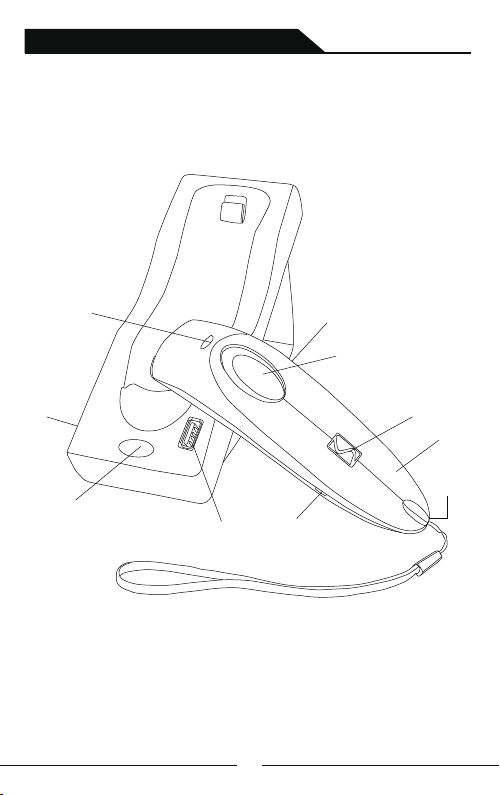
Appearance Introduction
Indicator light
Charging Ports&
Data Transmission
Micro USB
Indicator light
2.4G receiver
USB port
Charging Ports&
Data Transmission
Micro USB
6
Switch
Scan button
logo
Vibration
Hand strap hole
Page 9
2.4G/Bluetooth Wireless Barcode Scanner
How to use the barcode scanner
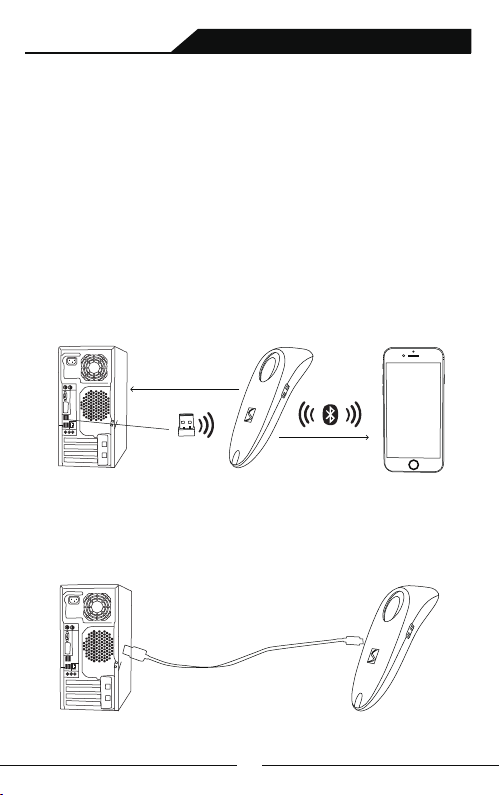
When use the scanner alone:
When using 2.4G feature,you can match desktop PCs or PC terminals that
do not support Bluetooth.Scanner supports systems such as XP, Win7,
Win8, Win10,etc.
(Please refer to page 13th for specific pairing steps)
B:When using Bluetooth, you can match Android, IOS mobile phones,
or PC terminals with bluetooth capabilities.(Please refer to page 14th for
specific pairing steps)
Pair with PC
2.4G receiver
C:Plug in the data cable with the USB end connected to the computer, you can
charge the scanner and use it as wired scanner synchronously
pair with mobile phone
②
7
Page 10
2.4G/Bluetooth Wireless Barcode Scanner
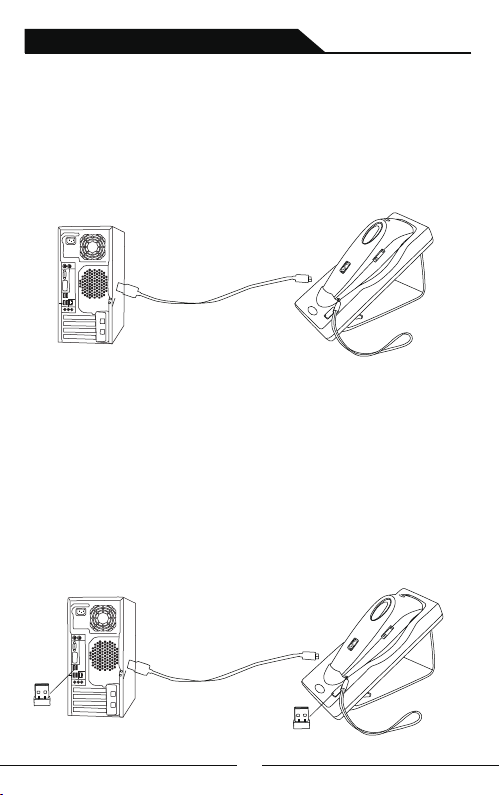
When used along with the pedestal:
When used with the base:
A:Charge the base: Connect base with PC via USB cable, the base will
work as a charger.When turn off the scanner and put it on the base, the
base can charge the scanner.(Bluetooth and 2.4G mode available)
B:Base charges and transfers data synchronously:When base connected
to USB cable, the other end is plugged into computer,①.Plug the mini
receiver into computer USB port,so that it can pair with computer and
upload the data to computer.The base is used as charger ②Plug the mini
receiver into base USB port,so that it can pair with computer and upload
the data to computer.The base is used as charger and data transmission tool.
This method can solve the problem of lack computer USB interfaces.
(Apply for 2.4G mode only)
①
②
8
Page 11
2.4G/Bluetooth Wireless Barcode Scanner
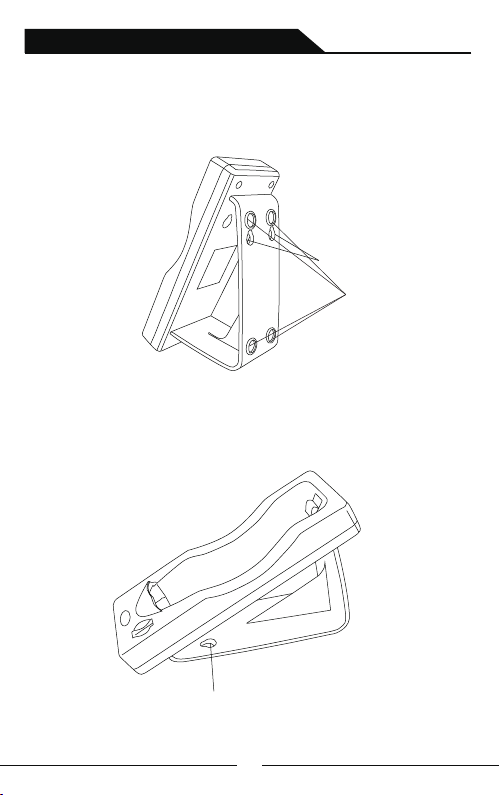
How to use the pedestal
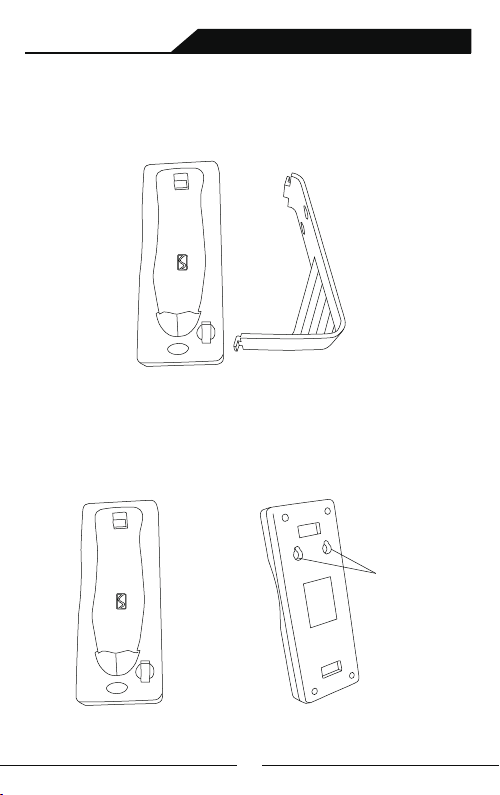
Pedestal consists of ①② parts
① ②
Two ways to use ① alone
A: Place it directly on the table
B:It can fix on the wall cause the botton of base has hanging holes
hanging holes
9
Page 12
2.4G/Bluetooth Wireless Barcode Scanner
When ①②combined to use:
A: Assemble like graph blow, the hanging holes on the back can help the
pedestal hang on the wall.
hanging holes
Non-slip mat
B:Assemble like graph blow,place its botton on the table.When scanner
finishes its work, just put it on the base.
hanging holes
10
Page 13
2.4G/Bluetooth Wireless Barcode Scanner
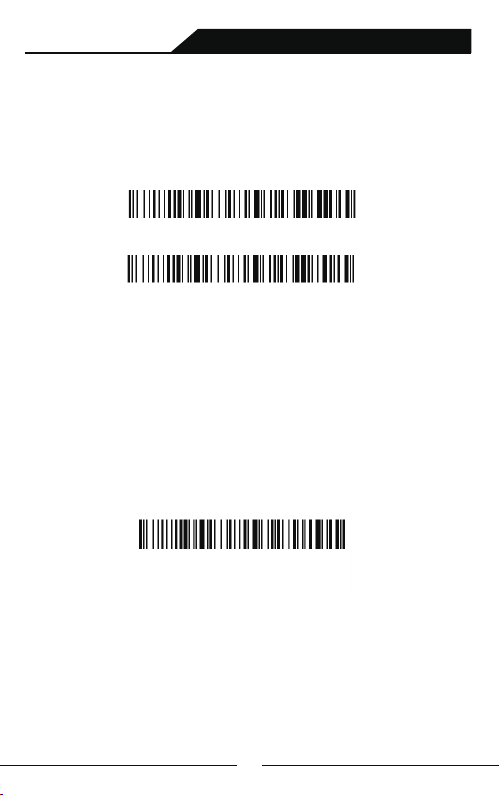
Initialization Setting&Version Information
During usage,if you scan other set-up barcode by mistake and the
scanning cannot perform as normal way, you can scan the initialization
set-up barcode to revert.
Initialization Setting
Display Version Information
Bluetooth Pairing Steps:
Pair with operating system(Including Android、ios、win system)
that with Bluetooth function :
A: Start the scanner and long press for 8 seconds or scan the bluetooth
pairing setup barcode to enter the bluetooth search mode.
HID Pair Set-up Barcode
B: Turn on Bluetooth in the device to detect bluetooth device
named with "Barcode Scanner HID".Click "Barcode Scanner
HID" to enter pairing status.: If pair successfully, you will hear a beep.
Note: When the scanner enters the state of matching and it does not
pair withbluetooth successfully within 1 minute, there is 2 times long
low sound indicated failing match and return to scanning mode.
11
Page 14
2.4G/Bluetooth Wireless Barcode Scanner
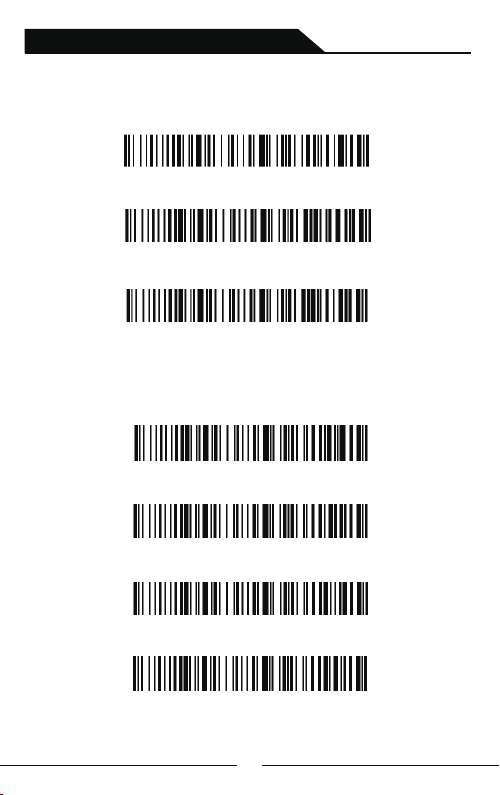
Pull up and Hide iOS Keyboard
Pull up and Hide iOS Keyboard
Trigger twice to pull up iOS keyboard
Trigger twice to disable iOS keyboard
Caps Lock Switch
Compulsory to Lower Case
Compulsory to Capital
No Caps Lock Switch
Caps Lock Switch
12
Page 15
2.4G/Bluetooth Wireless Barcode Scanner
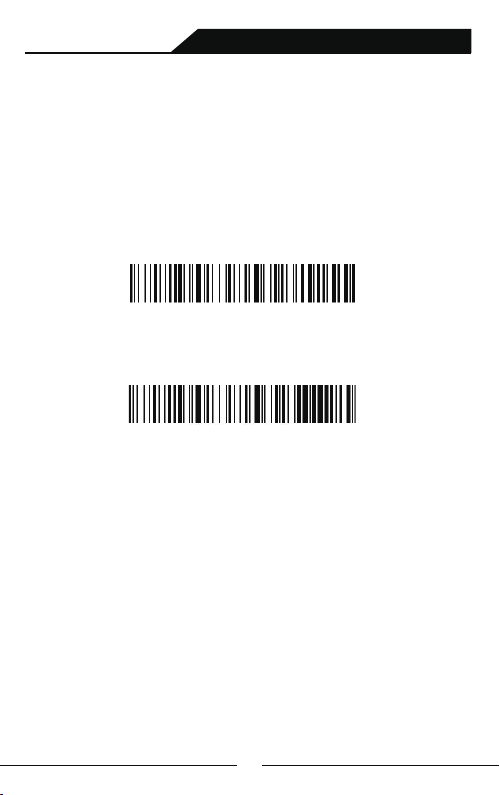
Pairing with 2.4G Dongle:
PC terminals ,like desktop computer, which is not equipped
with bluetooth,need to pair with Dongle,Dongle Pairing Steps
as follow:
A:Scan Dongle setup Barcode
B:Scan “Compulsory Pair with Dongle Setup Barcode” so that enter
into pairing state.The blue light on the left flickers quickly.
Compulsory Pair with Dongle Setup Barcode
C:Plug the receiver, If pair successfully, you will hear a beep.The blue
lighton the right is always on.
Note: When the scanner enters the state of matching and it does not
detect the receiver successfully within 1 minute, there is 2 times long
low sound indicated failing match and return to scanning mode.
13
Page 16
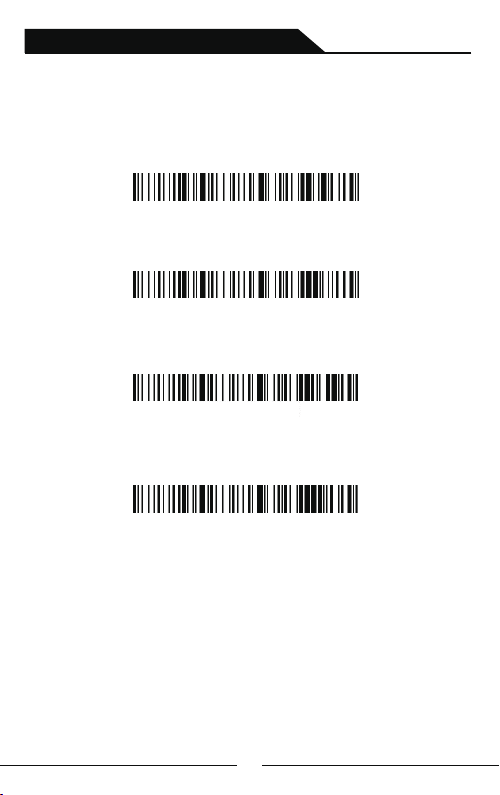
2.4G/Bluetooth Wireless Barcode Scanner
Sound and Vibration Setting
Select the desired to turn on/off the sound or vibration setup barcode
turn off the sound
turn on the sound
vibration off(optional)
vibration on(optional)
14
Page 17
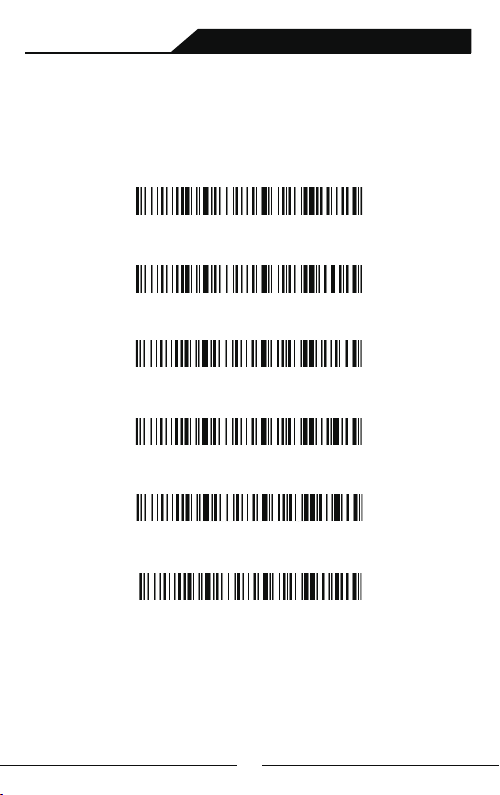
2.4G/Bluetooth Wireless Barcode Scanner
Standby time Setting
Standby after 1 min
Standby after 5 mins
Standby after 10 mins
Standby after 30 mins
Never Standby
Standby fastly
15
Page 18
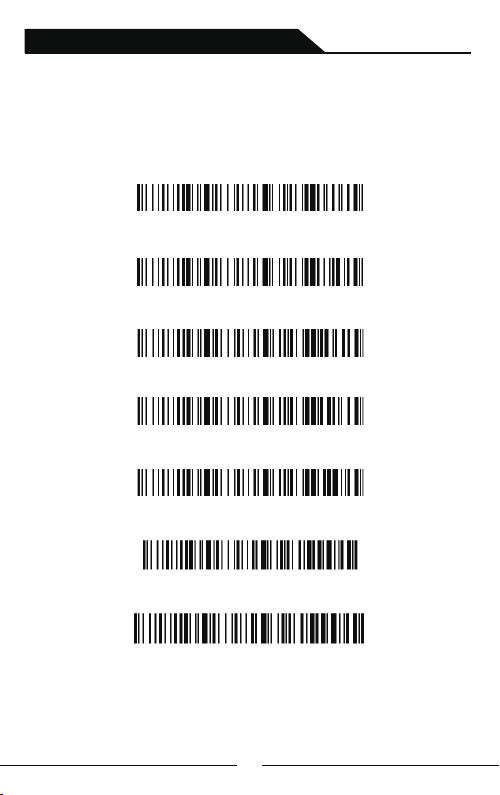
2.4G/Bluetooth Wireless Barcode Scanner
Language Settings
English
German
French
Spanish
Italian
Japanese
Only apply for PC and output by American Keyboard
16
Page 19
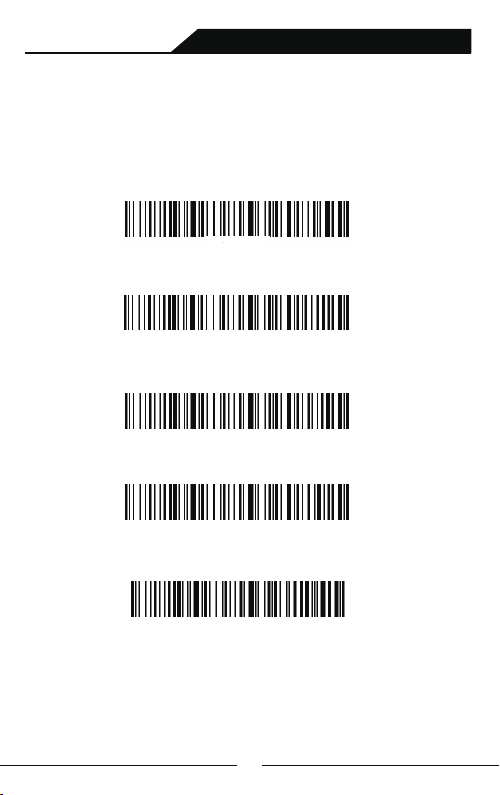
2.4G/Bluetooth Wireless Barcode Scanner
End Character Setting
Select the end barcode you want to add
Add CR
Add LF
Add CR+LF
Cancel CR+LF
Add TAB
17
Page 20
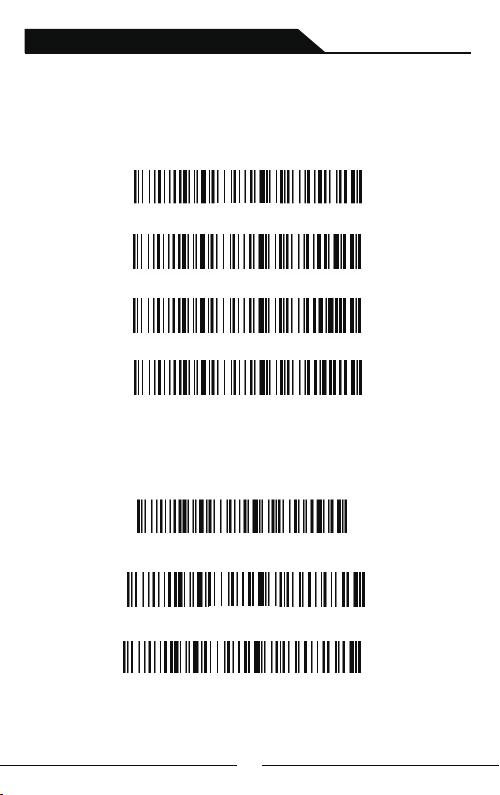
2.4G/Bluetooth Wireless Barcode Scanner
Transmission Speed Setting
Select the corresponding transmission speed according to PC
receiving speed.
Fast
Medium
slow
very low
Bluetooth protocol
Select the desired communication bluetooth protocol barcode
bluetooth HID mode
bluetooth SPP mode
bluetooth BLE mode
Note: Scan above barcode to enter the bluetooth searching state
18
Page 21
2.4G/Bluetooth Wireless Barcode Scanner
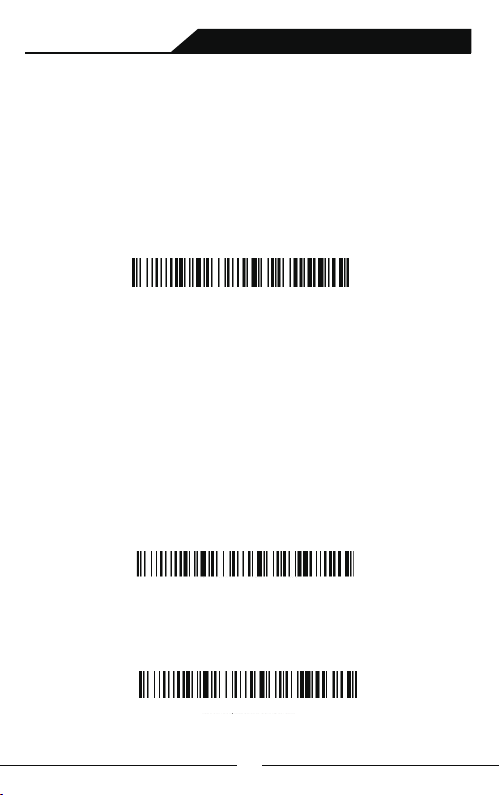
Operating Mode
In normal mode, the scans are uploaded directly to computer via
USB cable or WIFI dongle. If succeeds, barcode scannner will
make a low-frequency short tone. If it fails, there willl be three low
frequency short tones to alarm. In normal mode, if fails,
the data will be lost. You can scan below:
Normal Mode
If the transfer range is beyond Bluetooth wireless transfer range
storage mode is suggested, in which scans are stored in internal
storage after being scanned.
In storage mode, if a barcode is scanned and the scanner will
make a short tone and scans are automatically stored in
scanner's internal storage.
If the internal storage is full, the scanner will emit three lowfrequency short tones to alarm.
Storage Mode
By scan “Total amount of stored barcode” barcode, to check the
total amount of scanned barcodes in storage:
Total amount of stored barcode
19
Page 22
2.4G/Bluetooth Wireless Barcode Scanner
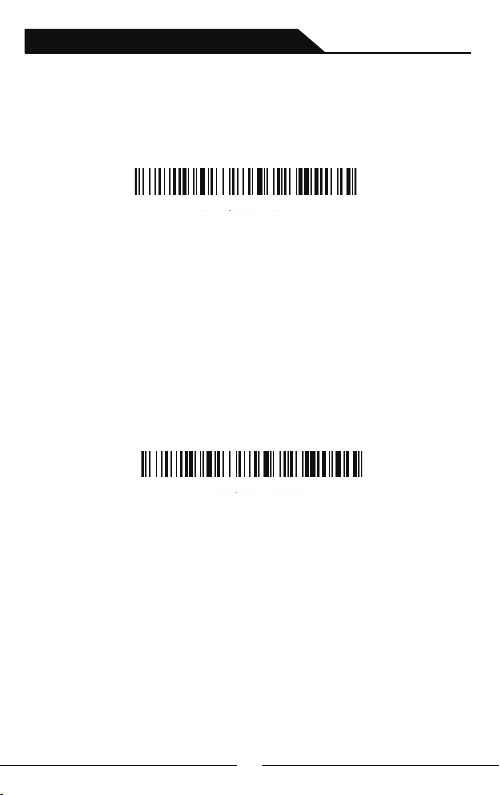
Upload the stored data by scanning the "Data Upload" barcode.
Data Upload
Note: When uploading data, please ensure the wireless
signal is perfect, or upload after connecting with USB cable
By scanning “Clear Data” to clear the scans in storage, the
cleared scans won't be uploaded once cleared.
Please confirm whether the scans have been uploaded before
clear them.
Clear Data
20
Page 23
2.4G/Bluetooth Wireless Barcode Scanner
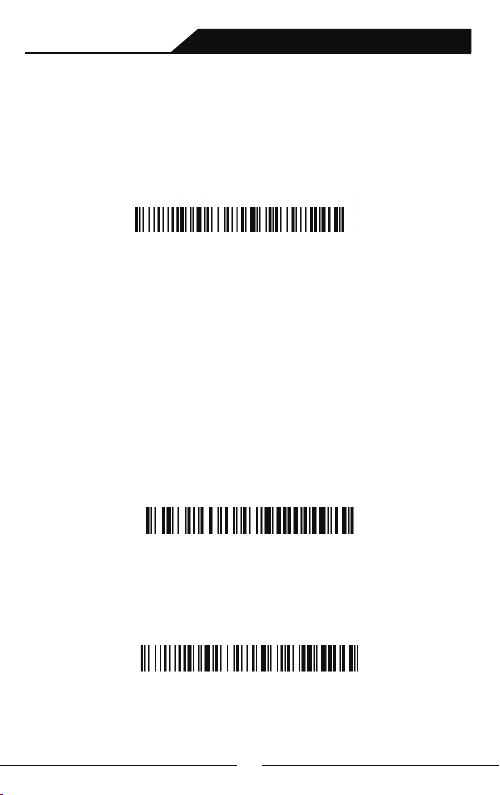
Bluetooth Name Change Setting
A.Scan Bluetooth Name Change Set-up Barcode:
Bluetooth Name Change Set-up Barcode
B.Scan the user-defined barcode of bluetooth name within 16
characters (Symbology unlimited,letter,number or symbol works). If
customer wants to change the bluetooth name as you like it, you
should equipped with bar code generator yourself.
For example, Once you make a bar code of Scanner123,the bluetooth
name of scanner would be changed as Scanner123 after scanning the
bar code you made.
Scanner123
Note: Once initialized,the bluetooth name would revert to the default。
Initialization Set-up
21
Page 24
2.4G/Bluetooth Wireless Barcode Scanner
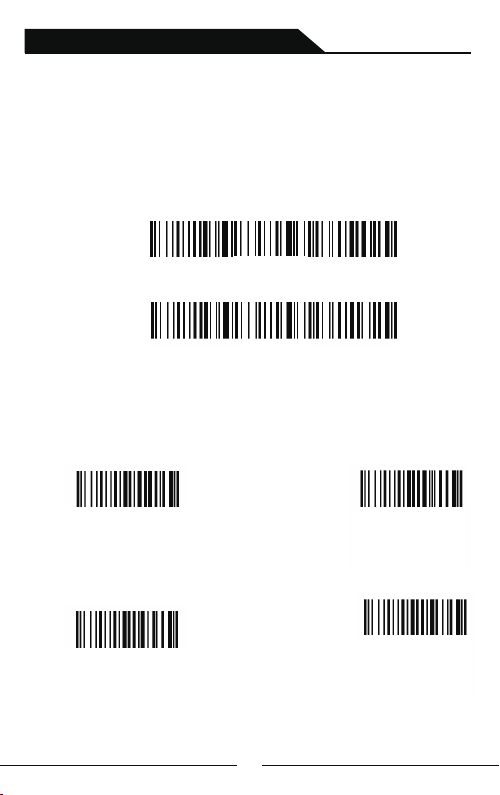
Hide front and back characters
A : Scan”Hide front character”or”Hide back character”Setting
Barcode
Hide front character
Hide back character
B: Scan hide quantity of characters
Hide 1character
Hide 3 characters
Hide 2 characters
Hide 4 characters
22
Page 25
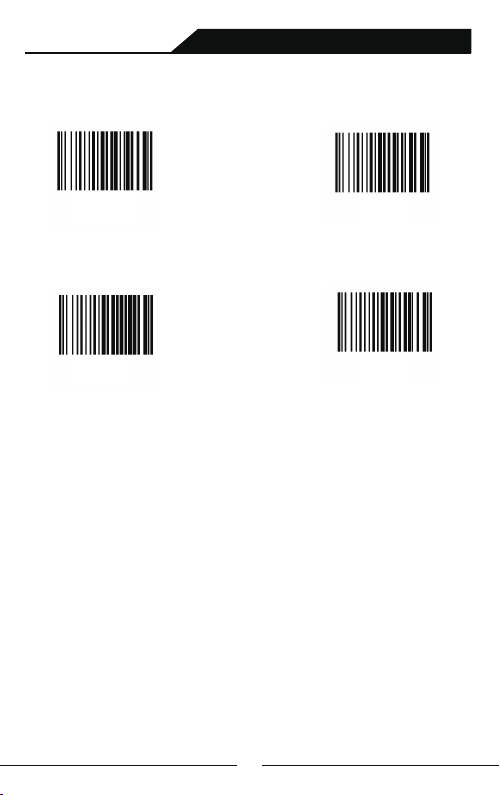
2.4G/Bluetooth Wireless Barcode Scanner
Hide 5 characters Hide 6 characters
Hide 7 characters
Note: If you want to cancel “Hide front and back characters”
operation,please scan barcodes of “Hide front character”or”Hide
back character”Setting Barcode
Hide 8 characters
23
Page 26
2.4G/Bluetooth Wireless Barcode Scanner
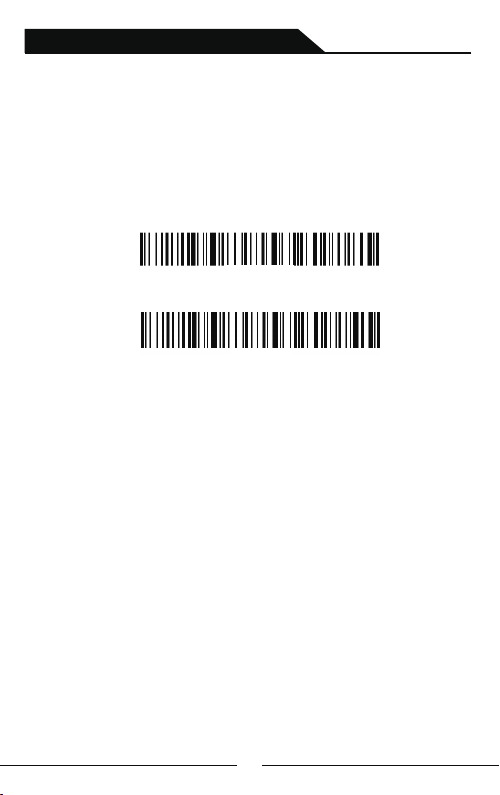
Set Prefix and Suffix Setting
A : Scan the "Allow for Prefix Adding" or "Allow for Suffix Adding"
setting barcode
Allow for Prefix Adding
Allow for Suffix Adding
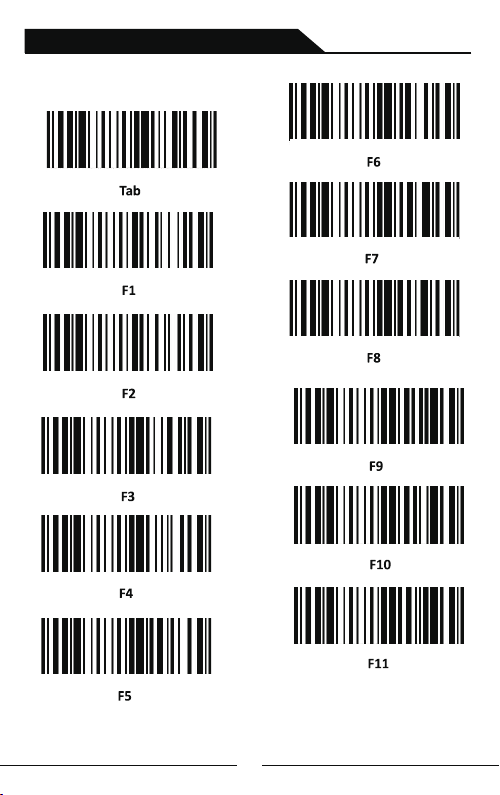
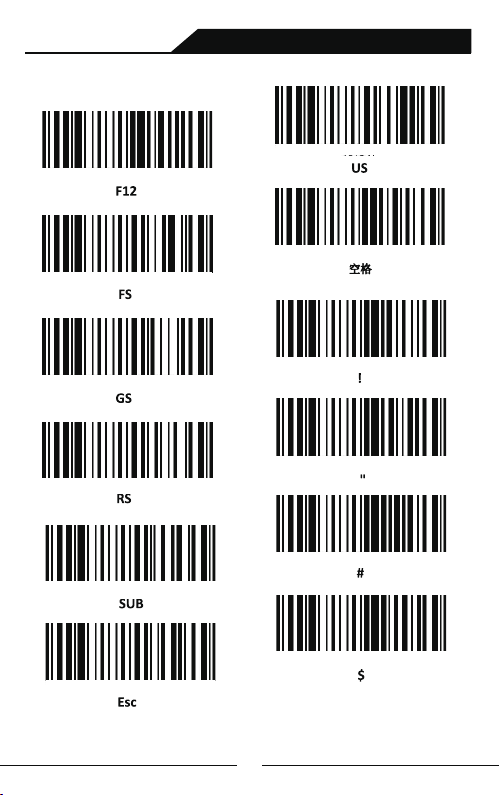
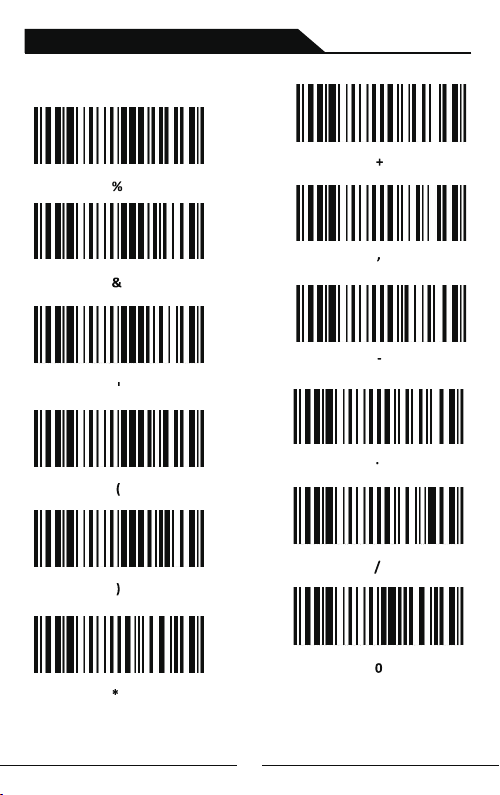
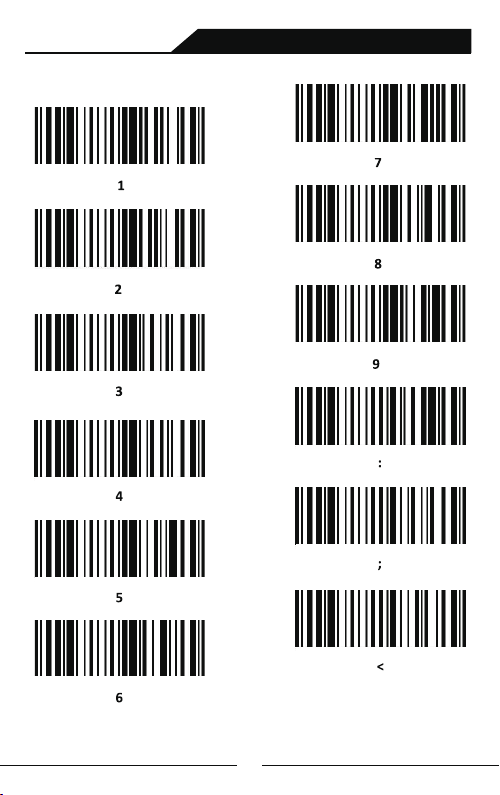
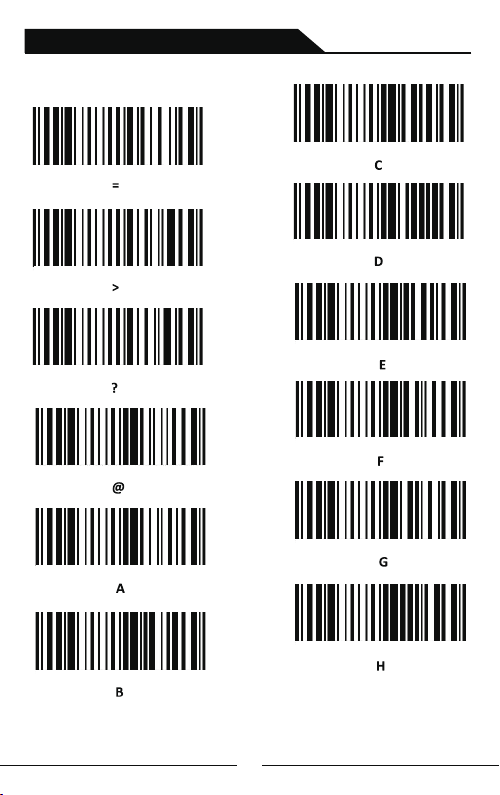
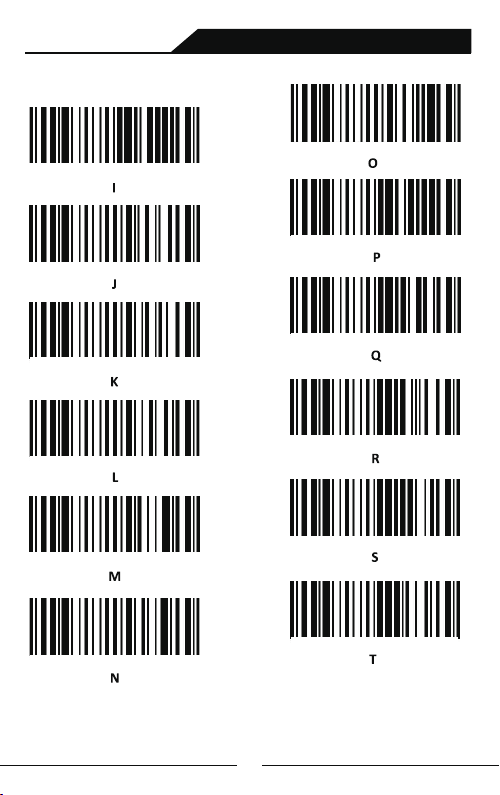
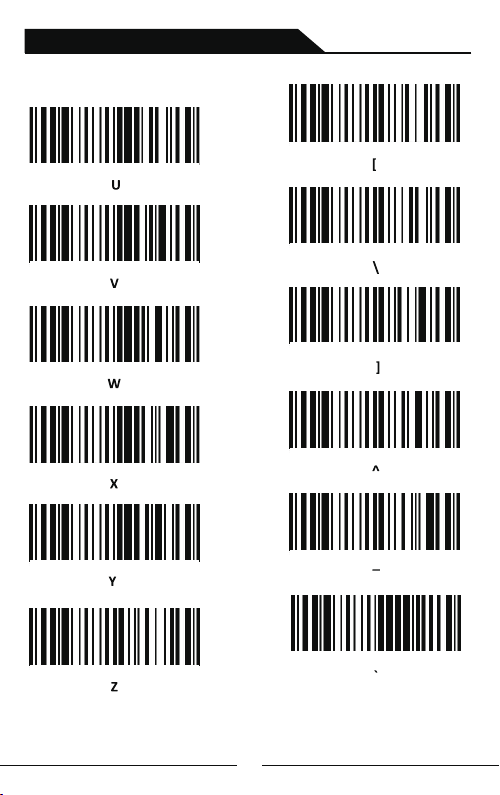
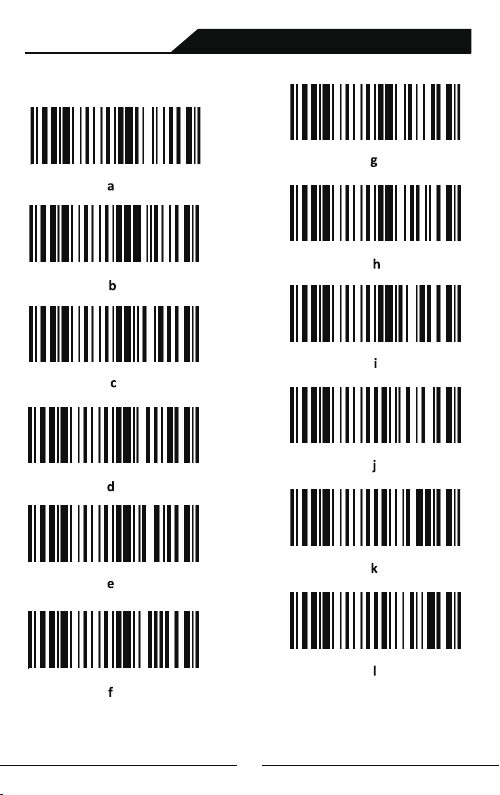
B : Select the desired contents of prefix or suffix(Appendix A)
Note: If you want to cancel Prefix or Suffix Adding operation,
please scan barcodes of “Allow for Prefix Adding”or”Allow for
Suffix Adding “Setting Barcode once more
24
Page 27
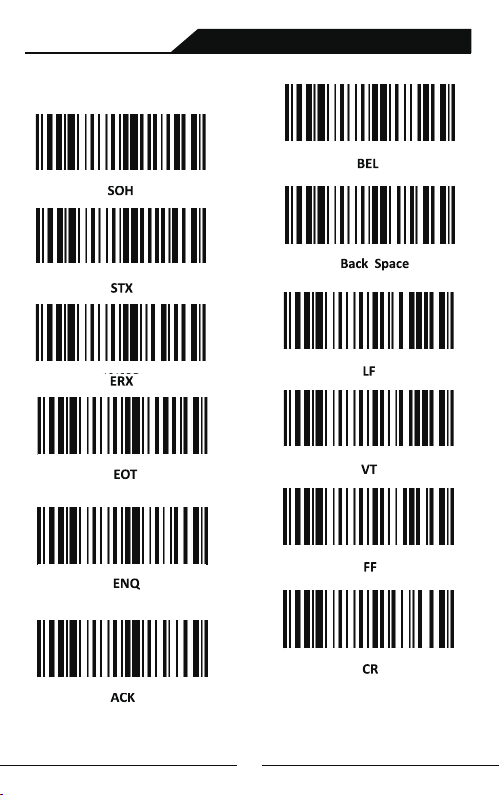
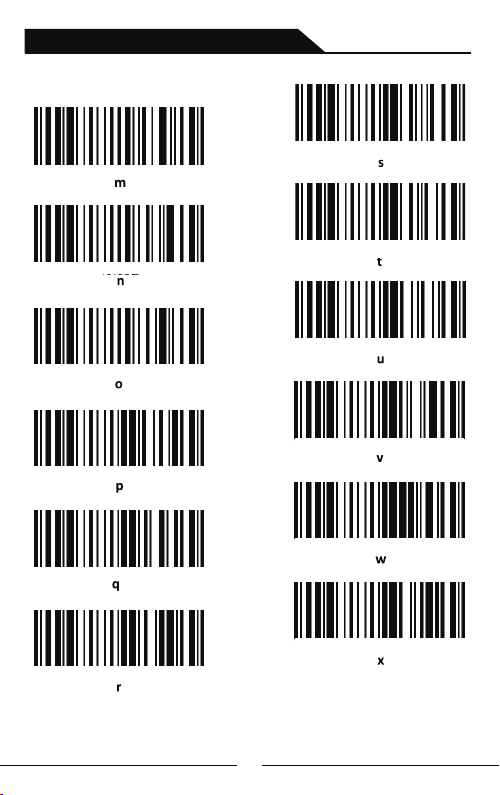
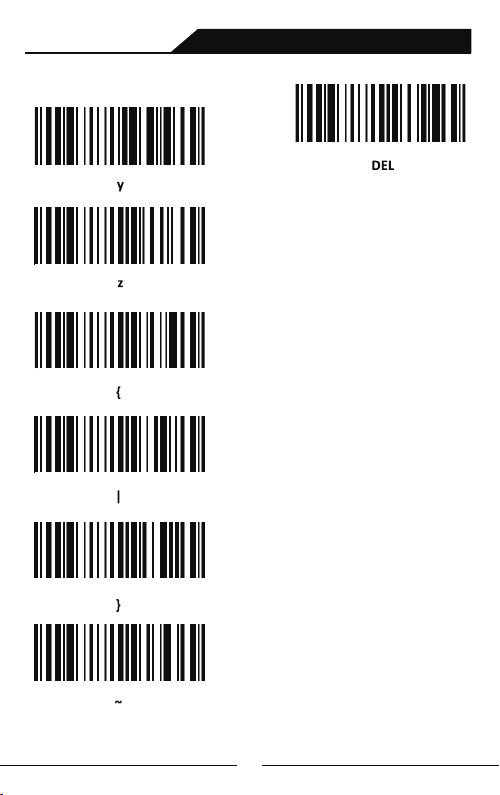
Appendix A:
2.4G/Bluetooth Wireless Barcode Scanner
25
Page 28
2.4G/Bluetooth Wireless Barcode Scanner
26
Page 29
2.4G/Bluetooth Wireless Barcode Scanner
27
Page 30
2.4G/Bluetooth Wireless Barcode Scanner
28
Page 31
2.4G/Bluetooth Wireless Barcode Scanner
29
Page 32
2.4G/Bluetooth Wireless Barcode Scanner
30
Page 33
2.4G/Bluetooth Wireless Barcode Scanner
31
Page 34
2.4G/Bluetooth Wireless Barcode Scanner
32
Page 35
2.4G/Bluetooth Wireless Barcode Scanner
33
Page 36
2.4G/Bluetooth Wireless Barcode Scanner
34
Page 37
2.4G/Bluetooth Wireless Barcode Scanner
35
Page 38

2.4G/Bluetooth Wireless Barcode Scanner
FAQ
What should I do if I can not pair scanner with Bluetooth
devices?
A.Please make sure that scanner is in the matching state under
corresponding bluetooth protocol
B.If the devices has connected successfully with other barcode scanner via
bluetooth,or other devices.Please delete the bluetooth connection record
before connecting.
C.The wireless module has been damaged
Why some symbologies fail to be read?
The scanning module does not support the symbology or the symbology
has been turned off ,please contact with the vendor to turn on the code
system.
Why scans fails to be uploaded to computer or smartphone ?
A. Please make sure if they have been sucessfully paired, if yes, the LED
indicator of the bluetooth barcode scanner is blue.
B. Please check if it is in "Storage Mode". (In "Storage Mode" scans won’t be
uploaded automatically, please scan "Data Upload" setting code manually to
upload the scan is required)
C. Please switch to "Normal Mode" to scan and upload simultaneously.
D.The wireless module has been damaged
Why the barcode content is not correct?
Please make sure that the PC or smartphone keyboard language is the same as
Barcode Scanner language.
Why does the scanner cannot charge?
A.Please select correct charger.
B.The charging circuit or battery has been damaged.
How to change more scanning settings?
Please contact your barcode scanner vendor.
36
Page 39

2.4G/Bluetooth Wireless Barcode Scanner
Buzzer
Sound Type
(First low then high frequency ) Means power on
(First high then low frequency ) Means power off
a short sound( low frequency ) Means read barcode
(First low then high frequency ) Means data has been stored
(First high then low frequency )
a short sound(low frequency )
During normal usage or start-up process,if the buzzer continuously
makes five times long sound(low frequency) ,then automatically power
off. It means the power capacity is too low and need to be
charged before use.
a long sound
a long sound
a short sound
a short sound
Means scan the set-up barcode
Means wireless transmission
failed or cache is full
Description
LED Indicator light
light color
two blue lights flicker at the same time
two blue lights flicker alternately
right blue light flicker
red light always on Charging state,after full,it will
red light flickers
green light on and offf immediately Read barcode successfully and
Enter into HID pairing state
Description
Enter into SPPpairing state
Enter into BCE pairing state
be off
Poor battery contact
make a short sound
37
Page 40

Electric Quantity Display
 Loading...