

Page 1

Order Entry System Manual
Table of Contents
1. Introduction to the Symbol MC9190 HandHeld 2
2. Orders Menu: New Order 3
3. Orders Menu: View\Edit Orders 6
4. Orders Menu: Transmit Orders 8
5. Orders Menu: View Sent Orders 10
6. Orders Menu: Label Requests 11
7. Sync Files: Sync All Files 12
8. Sync Files: Get New Version 14
9. Item Lookup: Get Item Information 16
10. Maintain Options: Maintain Custom Options 18
11. Print Orders: Print Current Order to File 19
GTC Order Entry System (OES) Manual - http://www.general-trading.com/ - (201) 935 – 7717 - Page 1
Page 2

Order Entry System Manual
ON / OFF
ENTER
LCD TOUCH SCREEN
ESCAPE
NUMERIC
BACKSPACE
SCANNING
TRIGGER
BATTERY RELEASE,
PRESS BOTH SIDES
STYLUS PEN HOLDER
Figure
1
.1 Figure 1.2
1. Introduction to the Symbol HandHeld
The Symbol MC9190 Handheld:
KEYPAD
GTC Order Entry System (OES) Manual - http://www.general-trading.com/ - (201) 935 – 7717 - Page 2
Page 3

Click Orders
Click on
Select the
Click Yes
2. Orders Menu: New Order
Creating a new order:
Menu
Order Entry System Manual
New Order
Facility by
clicking on it
Figure 2.1
Accept
Figure 2.3
Note: Grocery orders can only contain Grocery items
Dairy orders can only contain Dairy items
Figure 2.2
Figure 2.4
Frozen orders can only contain Frozen items
GTC Order Entry System (OES) Manual - http://www.general-trading.com/ - (201) 935 – 7717 - Page 3
Page 4

Scan or
increment
Notice the
totals
If you scan
If you scan
key in your
first Item.
You can
scan GT
item or
product UPC
running
Order Entry System Manual
Change # of
cases and
press ENTER
or keep
scanning
same item to
item that
already
exists in
order, it will
prompt to
confirm
Figure 2.5
Figure 2.6
UPC and
multiple
items with
same UPC, it
will prompt
you to
display list
Figure 2.7 Figure 2.8
GTC Order Entry System (OES) Manual - http://www.general-trading.com/ - (201) 935 – 7717 - Page 4
Page 5

Click to
Go to last
Display
Order
Go to next
Go to
Go to First
order
Close Order
Delete
order
With Item#
to order
Hit Enter
Scroll
order
Scroll all
Display
Print
highlight
Item# you
want
highlighted,
Click Select
to add item
Order Entry System Manual
if you
want this
item
item in
current
order
history for
current
current
item from
through all
items on
label
requests
on order
Hi Qty
items on
order
Figure 2.9
previous item
Figure 2.11 Figure 2.12
item
.
item in
current
order
.
order to
file
Figure 2.10
History in
gun
GTC Order Entry System (OES) Manual - http://www.general-trading.com/ - (201) 935 – 7717 - Page 5
Page 6

Order Entry System Manual
Click on
Click button
To delete an
To add
To edit
changes
To delete
To scroll to
3. Orders Menu: View\Edit Orders
Update or View an existing order:
View\Edit
Orders
with order #
to Edit
Figure 3.1 Figure 3.2
items, just
scan or key.
order, scroll
to right and
click on Del
button for
that order #
existing, scan
or key to find
that item
then make
right or left
Figure 3.3 Figure 3.4
GTC Order Entry System (OES) Manual - http://www.general-trading.com/ - (201) 935 – 7717 - Page 6
Page 7
Order Entry System Manual
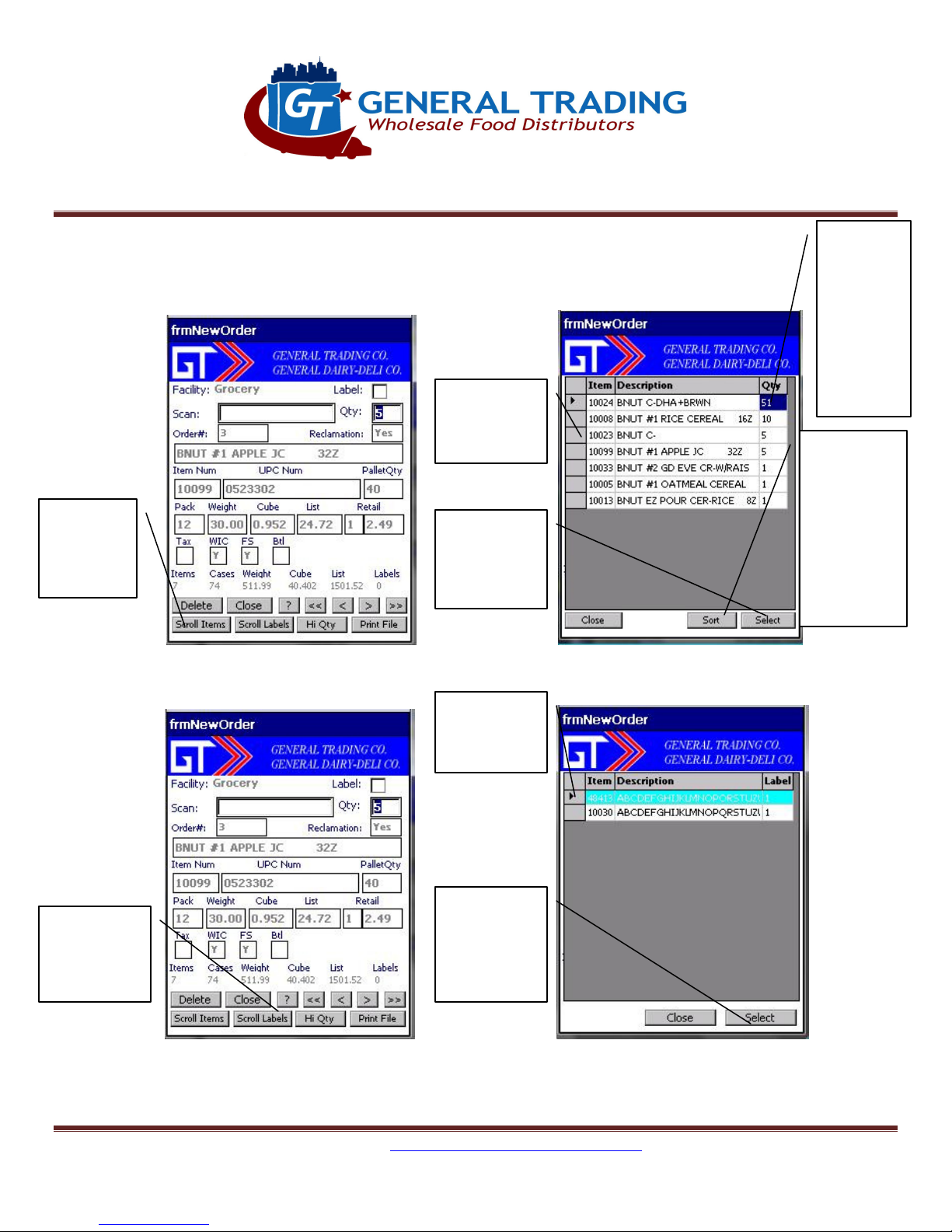
Scroll all
Click on
With item
Scroll all
Click on
With item
Click to
button
Click sort
order
Scroll Order Details: A quick way to review all items or labels on an order.
item if you
want to edit
items on
current
order
highlighted,
click select
to edit
highlight
field that
you want
to sort
then click
on Sort
again to
change
from
ascending
to
descending
Figure 3.5 Figure 3.6
item if you
want to edit
highlighted,
labels on
current
order
click select
to edit
Figure 3.7 Figure 3.8
GTC Order Entry System (OES) Manual - http://www.general-trading.com/ - (201) 935 – 7717 - Page 7
Page 8
Order Entry System Manual
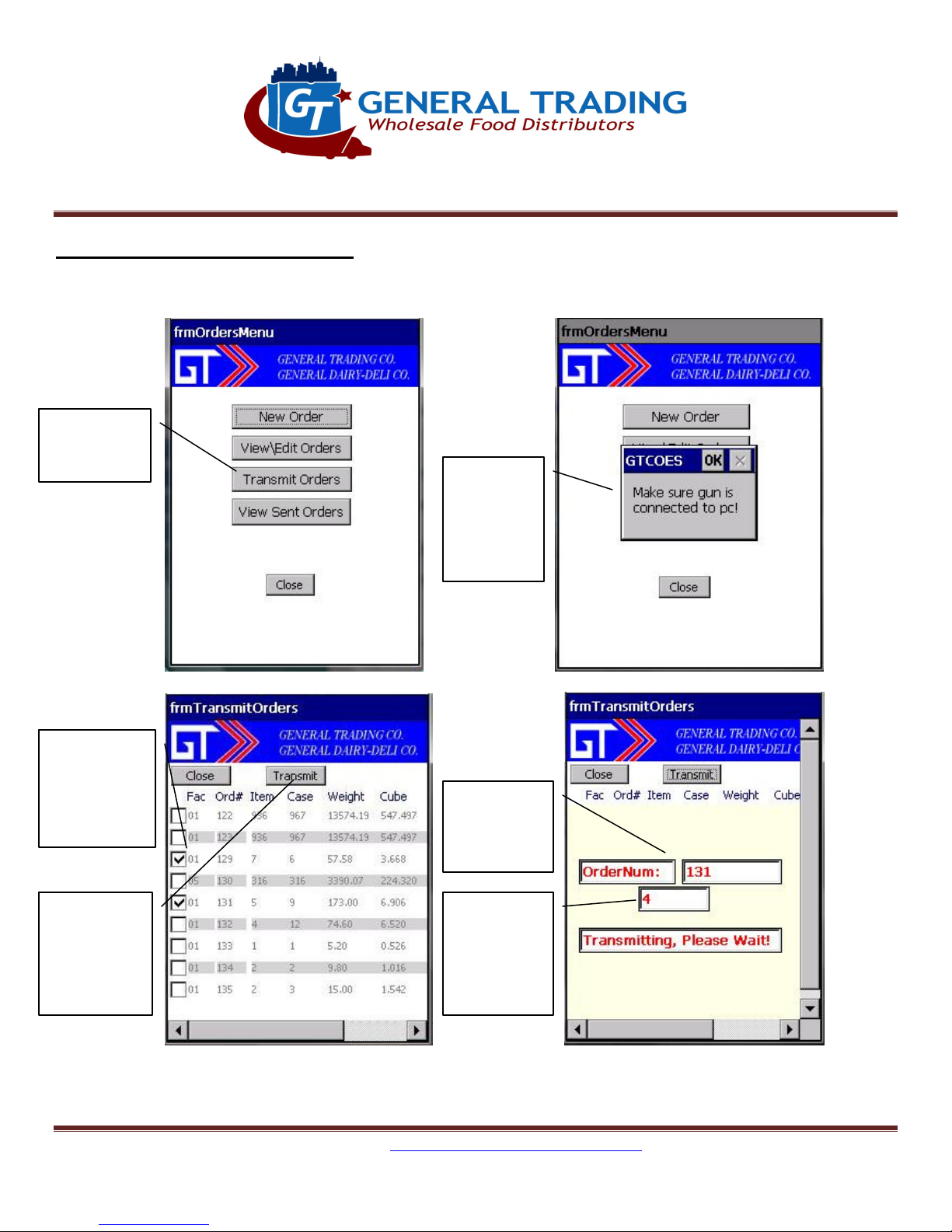
Click on
Orders
Check Boxes
Information
status
Make sure
Click
4. Orders Menu: Transmit Orders
Transmitting Orders to General Trading:
Transmit
gun is in
cradle and
connected
to PC
next to
orders that
you want to
transmit
Transmit
button
when ready
to send
Figure 4.1
on
transmission
Records
transmitted.
Wait until
done
message
Figure 4.3
Figure 4.2
Figure 4.4
GTC Order Entry System (OES) Manual - http://www.general-trading.com/ - (201) 935 – 7717 - Page 8
Page 9
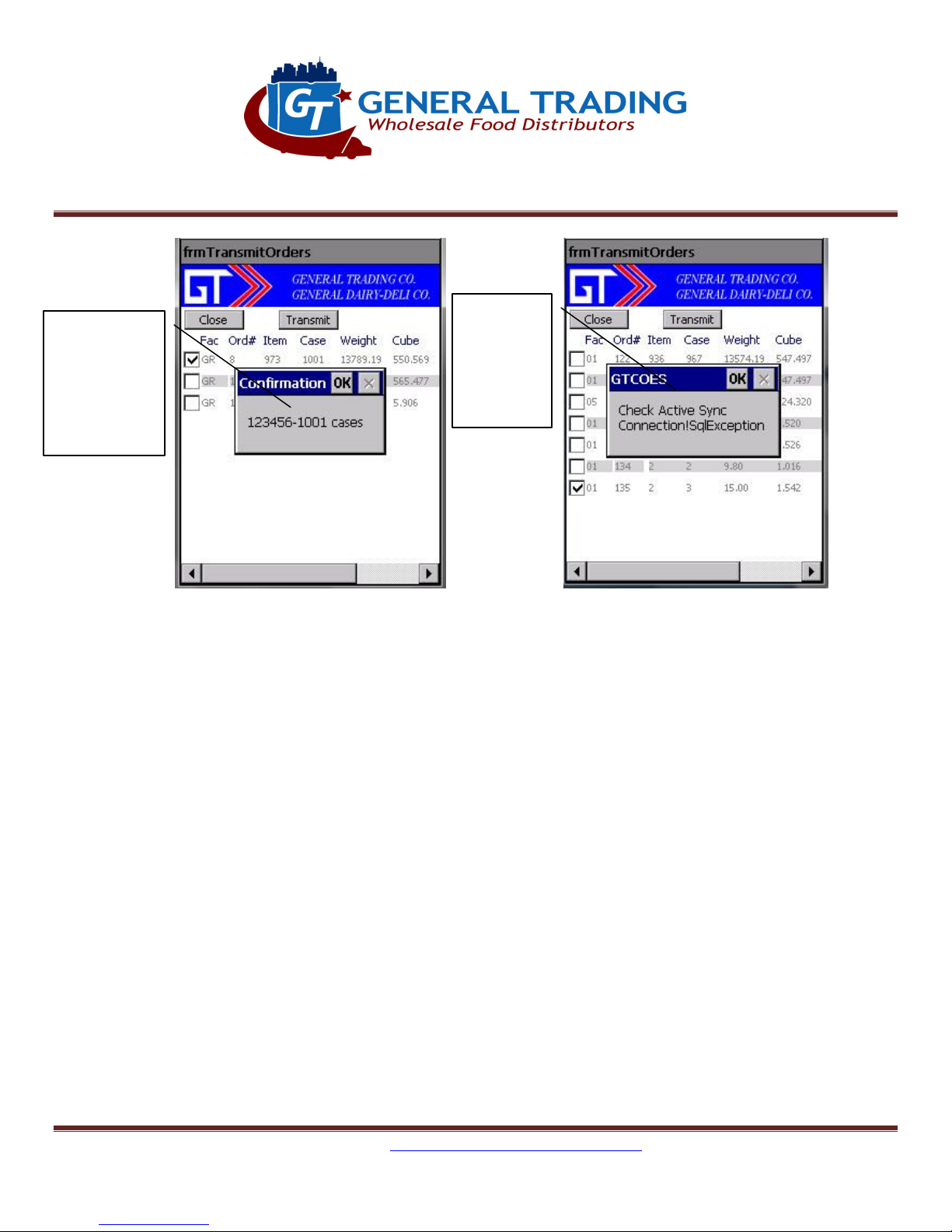
Notice order
Error if not
Order Entry System Manual
confirmation
number(s).
Click ok to
exit.
in cradle
and not
connected
to PC
Figure 4.5
Figure 4.6
GTC Order Entry System (OES) Manual - http://www.general-trading.com/ - (201) 935 – 7717 - Page 9
Page 10
Order Entry System Manual
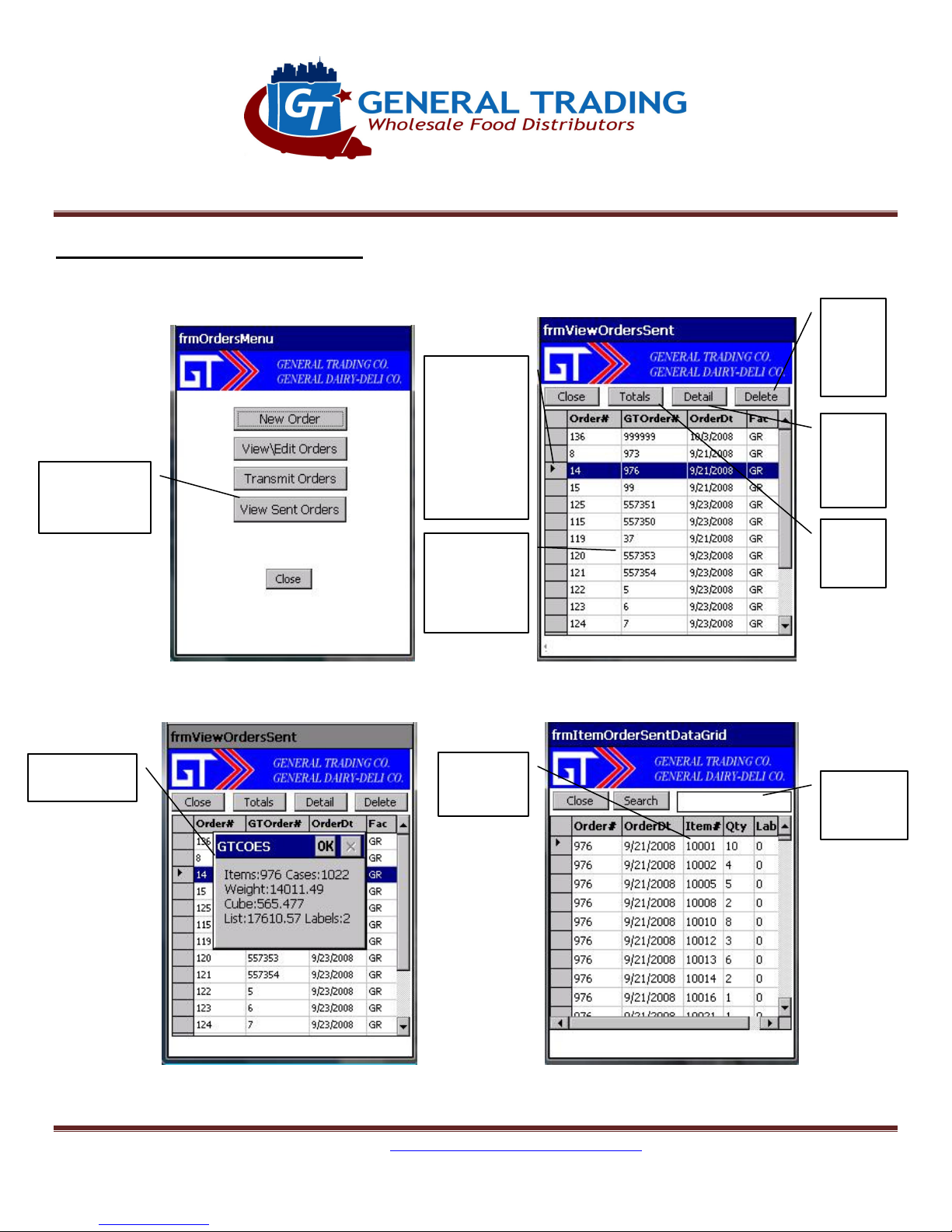
Click on
Orders
Click on
Delete
Notice GT
View
Item
Enter Item
View
Notice totals
5. Orders Menu: View Sent Orders
Display Information on Orders Sent:
View Sent
cell to
highlight
Order #
that you
want to
display
Order Conf
# and
Order Date
sent
order
from
gun
order
item
details
order
Totals
for order
Figure 5.1
Details of
Order Sent
Figure 5.3
Figure 5.4
Figure 5.2
to search
for
GTC Order Entry System (OES) Manual - http://www.general-trading.com/ - (201) 935 – 7717 - Page 10
Page 11
Order Entry System Manual
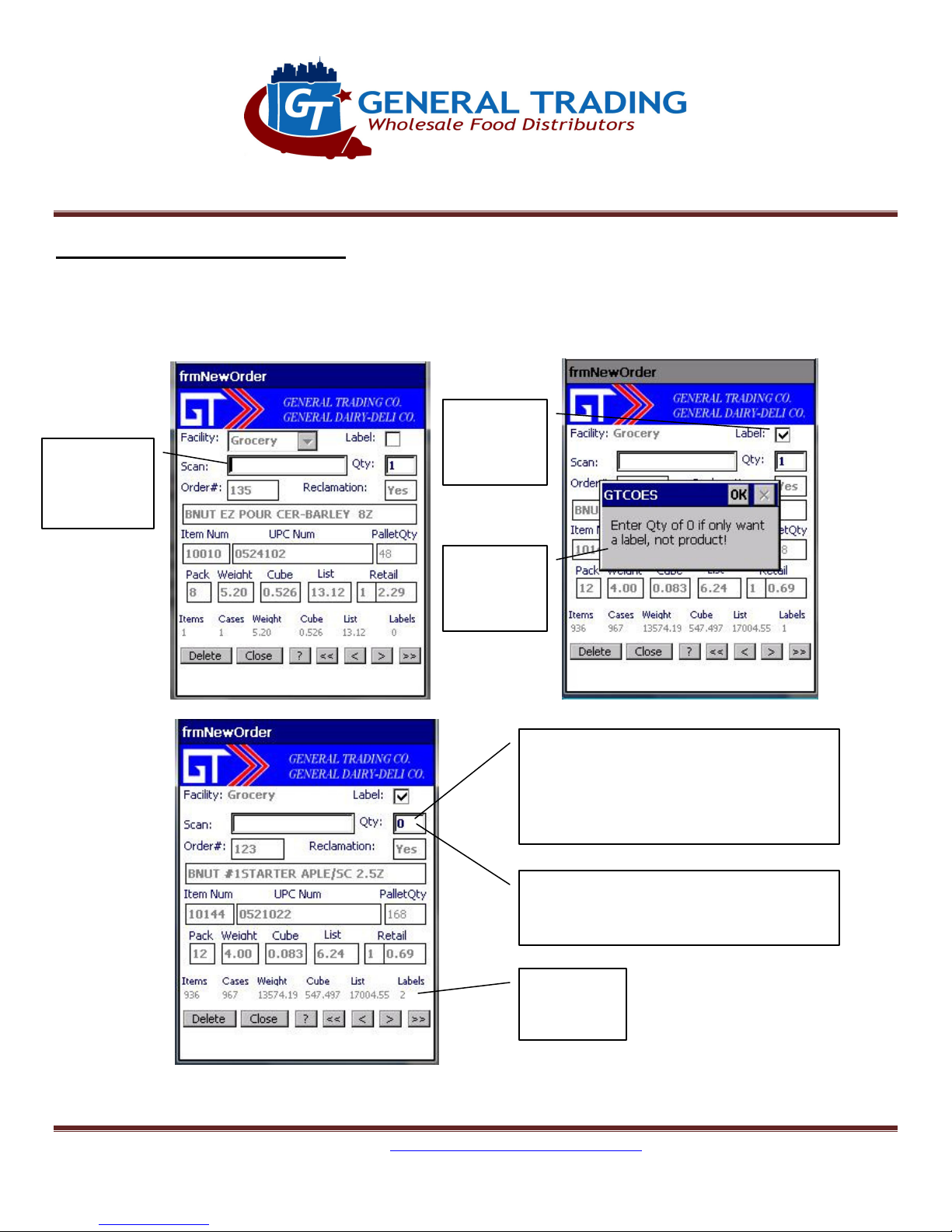
Scan or key
Click on
Enter Qty of 0 and press Enter if you only
Notice
If you want to order product and label
Notice
Labels.
6. Orders Menu: Label Requests
Requesting Labels:
Labels are requested when creating an order.
item as
normal
Label
checkbox
message
about Qty
Figure 6.1
Figure 6.2
want a label and not product.
You can only order 1 label per item so Qty
of 0 = 1 label if checkbox checked.
then enter Qty as normal and check label
box
Total
Figure 6.3
GTC Order Entry System (OES) Manual - http://www.general-trading.com/ - (201) 935 – 7717 - Page 11
Page 12
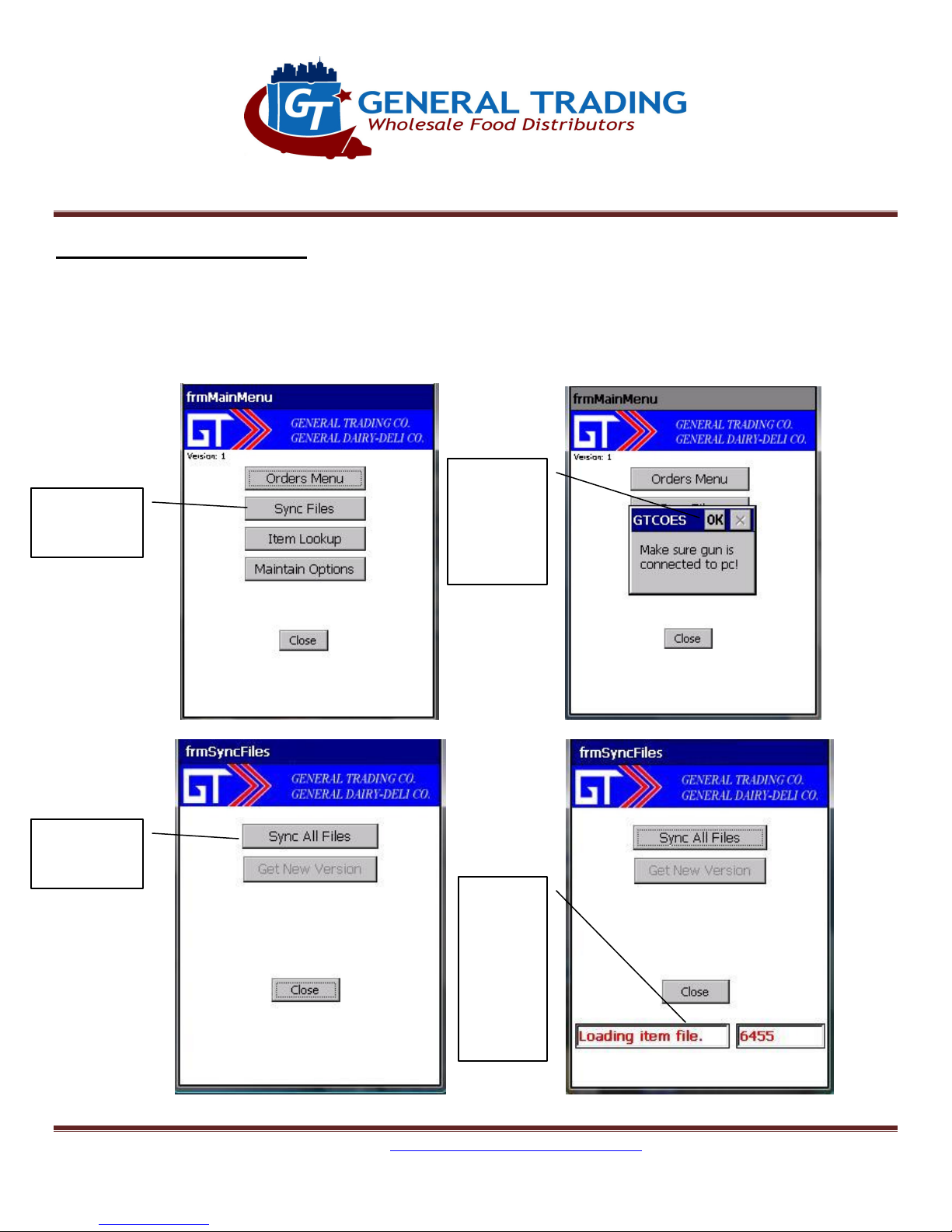
Click on
Make sure
Notice
Click on
Order Entry System Manual
7. Sync Files: Sync All Files
Update GT files:
This should be done weekly and if not done after 7 days, it will not allow creation of new orders until
Sync is done. This updates item information to latest.
gun is in
Sync Files
cradle and
connected
to PC
Sync All Files
GTC Order Entry System (OES) Manual - http://www.general-trading.com/ - (201) 935 – 7717 - Page 12
Figure 7.1 Figure 7.2
status.
Wait
until
message
about
being
done
Figure 7.3
Figure 7.4
Page 13
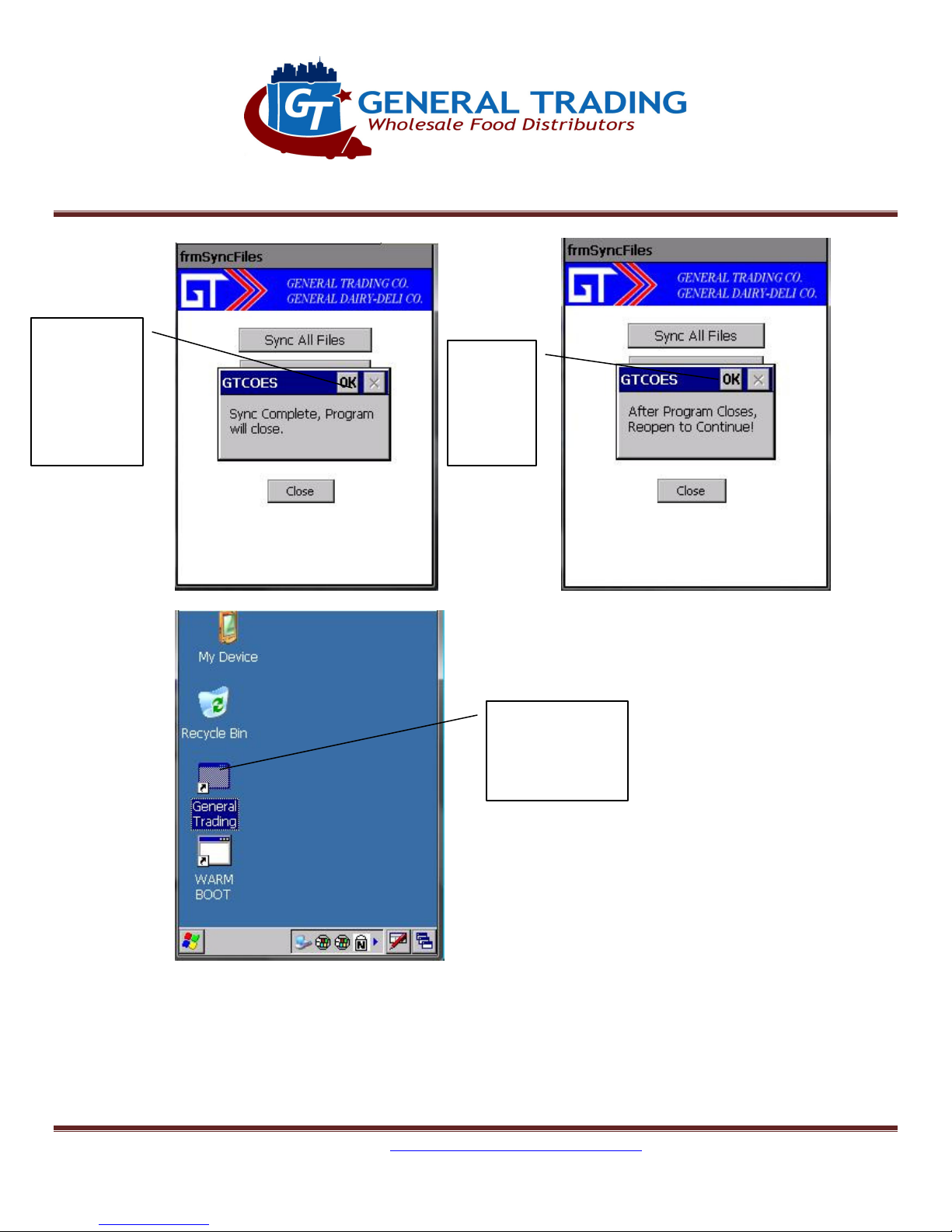
After
Click OK
Double Click on
when
receive
message
about
complete.
Order Entry System Manual
clicking
OK, the
program
will close
Figure 7.5
General Trading
shortcut to open
program
Figure 7.7
Figure 7.6
GTC Order Entry System (OES) Manual - http://www.general-trading.com/ - (201) 935 – 7717 - Page 13
Page 14
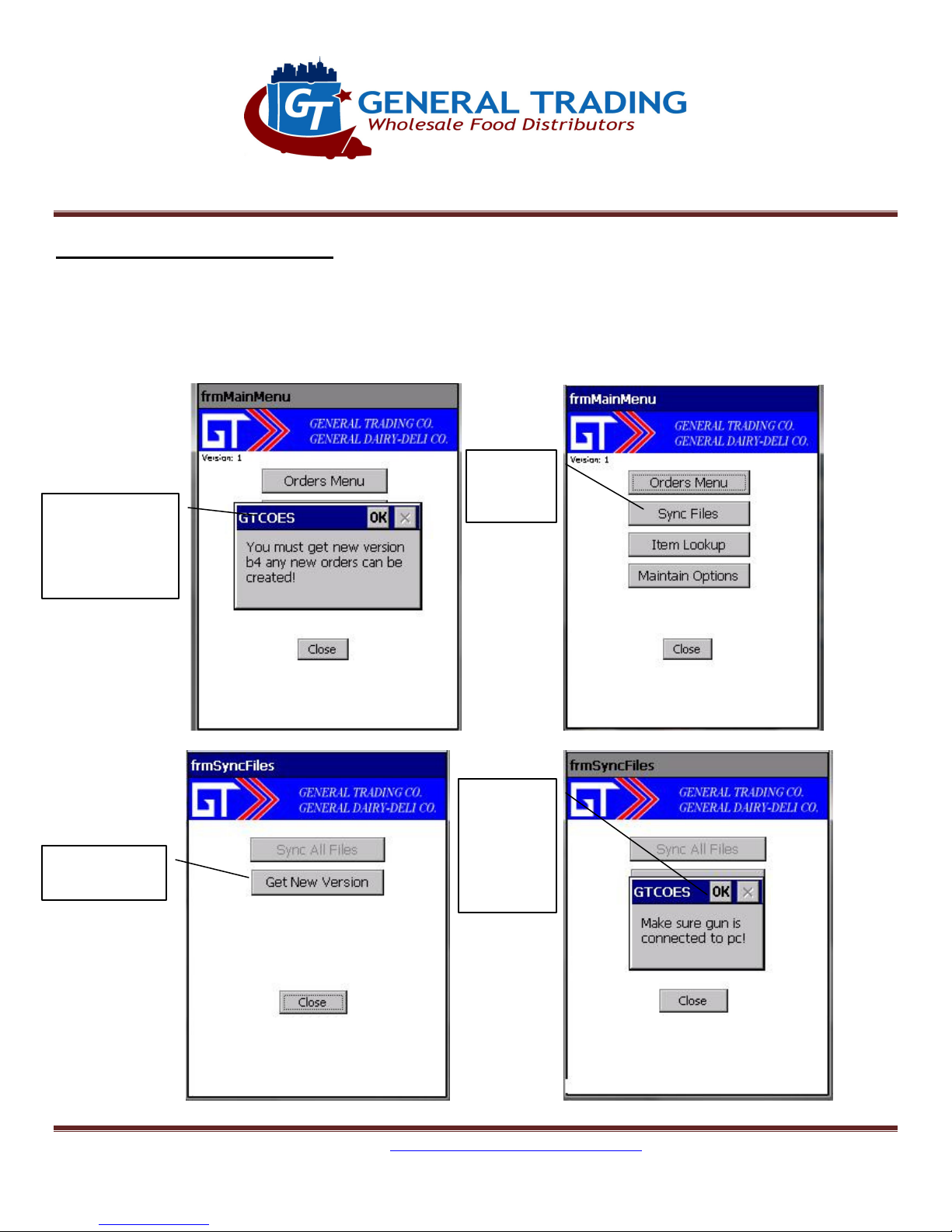
You will be
Click on
Click on Get
Make sure
Order Entry System Manual
8. Sync Files: Get New Version
Get New Version of Program:
You will be prompted when this is needed to be done. Make sure all open orders are transmitted first
because this will delete all open and sent orders. When done, Sync Files immediately.
Sync Files
prompted to
get a new
version
New Version
GTC Order Entry System (OES) Manual - http://www.general-trading.com/ - (201) 935 – 7717 - Page 14
Figure 8.1
cradle and
connected
Figure 8.3 Figure 8.4
gun is in
to PC
Figure 8.2
Page 15
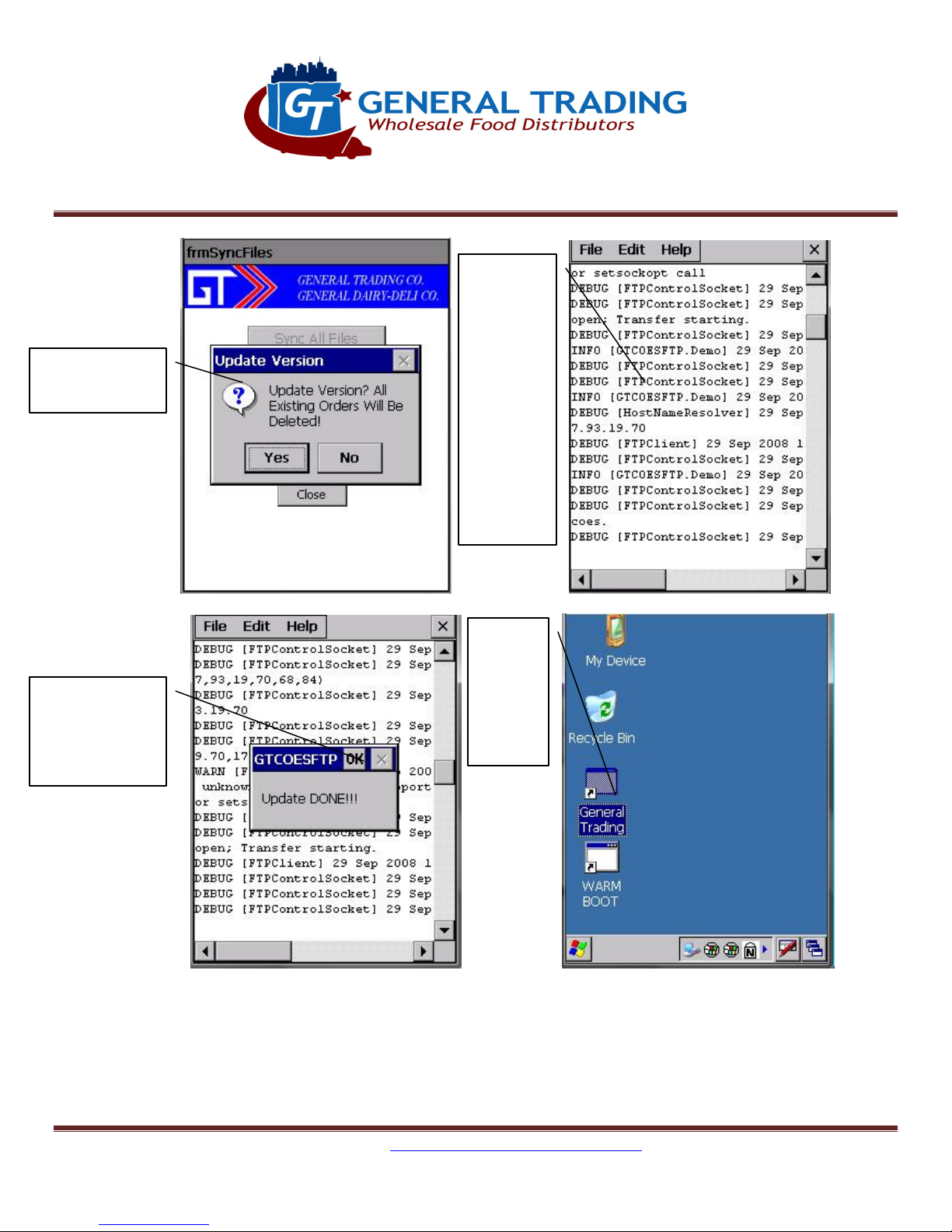
Click Yes to
Status
Click Ok to
Double
update version
Order Entry System Manual
messages
will be
displayed.
This
might
take a
couple of
minutes
so wait
until done
message
complete.
Program will
close
Figure 8.5
Figure 8.7 Figure 8.8
Click on
General
Trading
to
reopen.
Figure 8.6
** Remember to Sync Files Now **
GTC Order Entry System (OES) Manual - http://www.general-trading.com/ - (201) 935 – 7717 - Page 15
Page 16
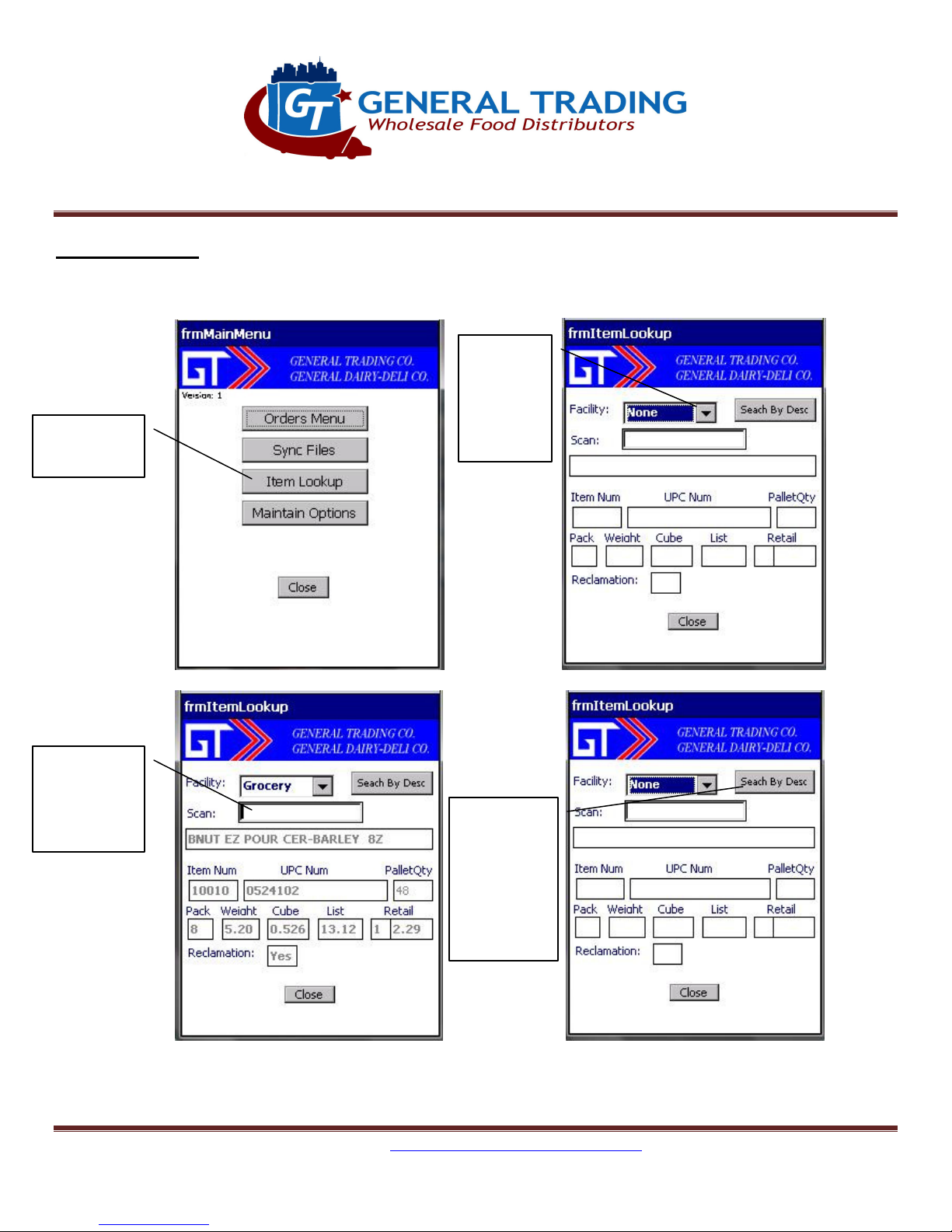
Click on
Select
Scan or
Click Search
9. Item Lookup:
Get Item Information:
Item Lookup
Order Entry System Manual
Facility,
Grocery,
Dairy or
Frozen
enter Item
or UPC to
lookup
Figure 9.1
By Desc to
lookup
items
matching
description
Figure 9.3
Figure 9.2
Figure 9.4
GTC Order Entry System (OES) Manual - http://www.general-trading.com/ - (201) 935 – 7717 - Page 16
Page 17
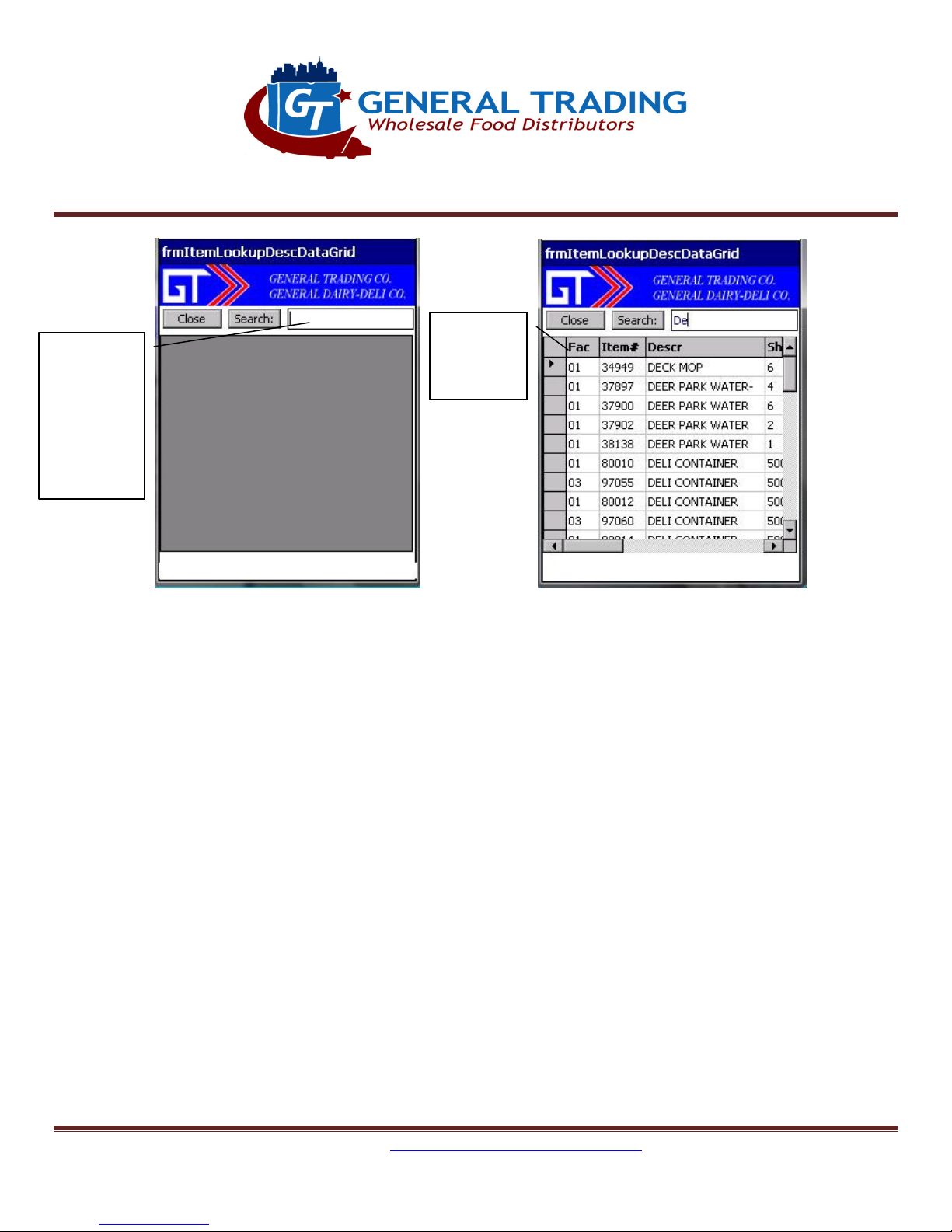
Enter as
Search
much of
description
as you
want then
click Search
or hit Enter
Order Entry System Manual
results are
displayed
Figure 9.5
Figure 9.6
GTC Order Entry System (OES) Manual - http://www.general-trading.com/ - (201) 935 – 7717 - Page 17
Page 18
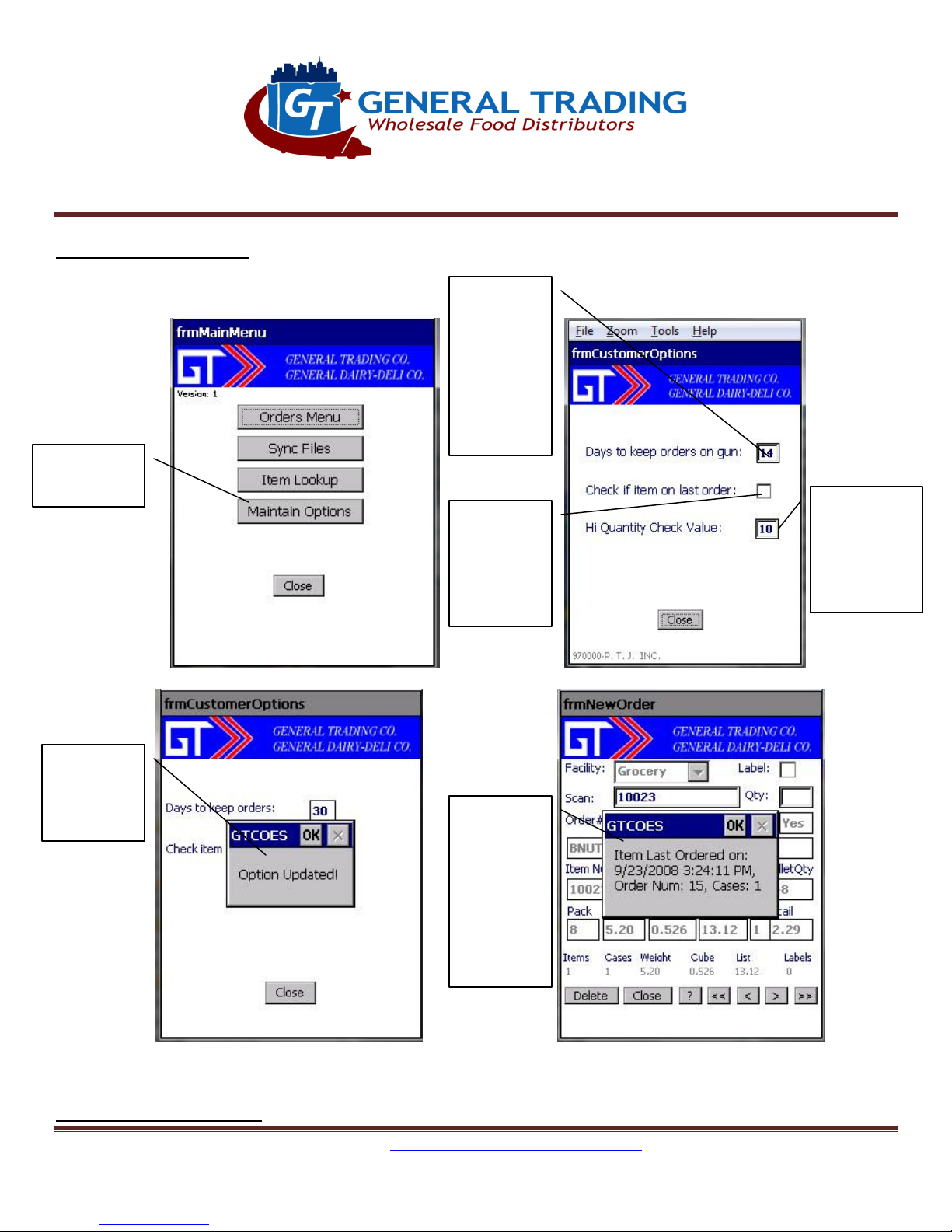
Click on
Number of
Message
Message
Check if
Enter Hi Qty
screen
10. Maintain Options:
Maintain custom options.
Item Lookup
Order Entry System Manual
days to
save
orders on
gun
Min=7,
Max=45
to confirm
option
updated
item is on
last order
while
scanning
Figure 10.1
that will be
displayed if
Check item
on last
order is
checked
to be used
to check on
new order
Figure 10.3
11. Print Order To File:
GTC Order Entry System (OES) Manual - http://www.general-trading.com/ - (201) 935 – 7717 - Page 18
Figure 10.3
Figure 10.4
Page 19
Open order
Note:
Click on
Double
-
Click
Double
-
Order Entry System Manual
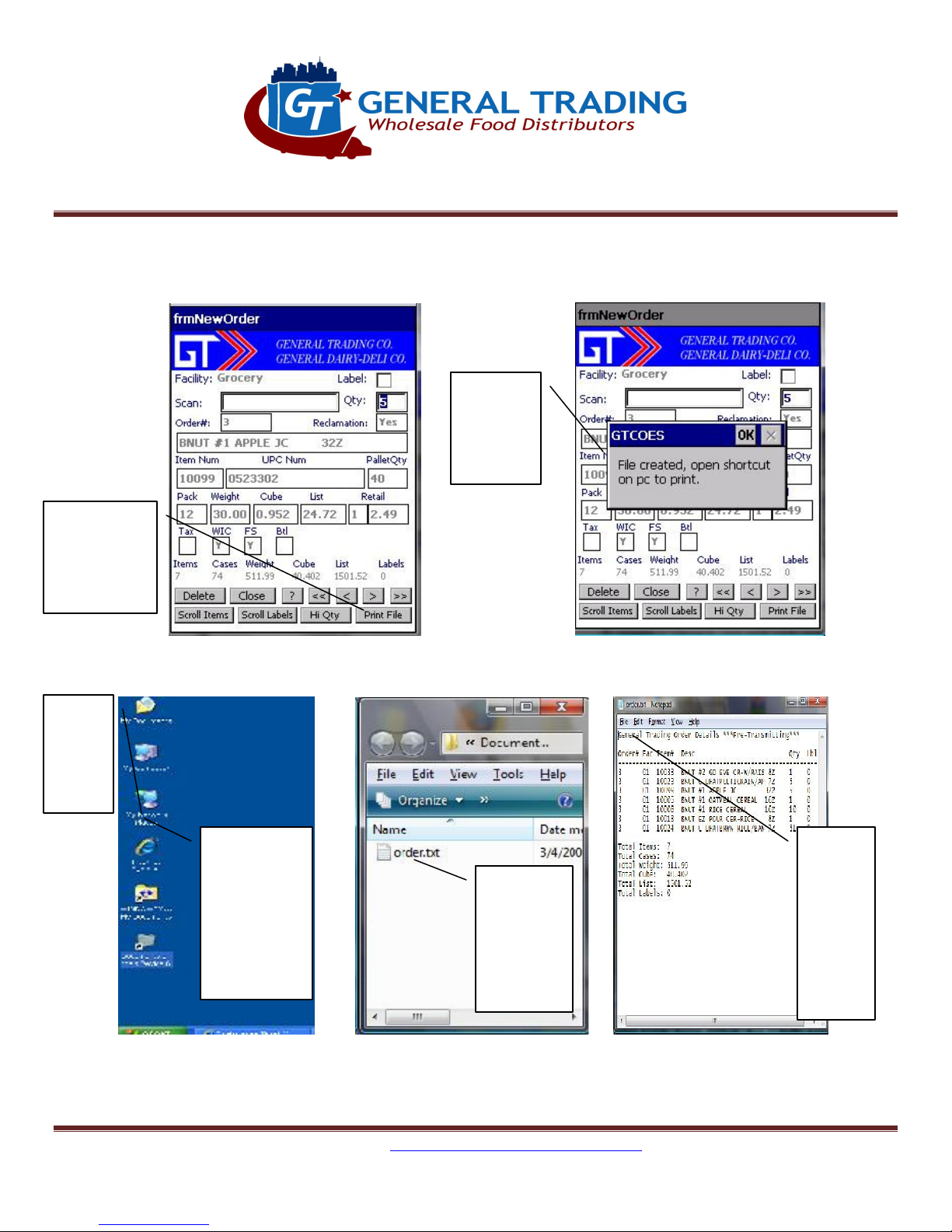
This prints to a file and then Active Sync will copy file to folder on your desktop where you can open
and print.
Ok
message
that file
has been
created
and click on
Print File
button
Figure 11.1
Note: Please contact General Trading to help setup Active Sync for file transfer.
This is
on PC,
not
gun!
on
Device\My
Documents
folder on
your
desktop
Figure 11.3 Figure 11.4 Figure 11.5
click on
order.txt
file to
open.
Figure 11.2
File
then
select
Print to
send to
printer
GTC Order Entry System (OES) Manual - http://www.general-trading.com/ - (201) 935 – 7717 - Page 19
 Loading...