

Page 1
English version
4
MP430 Sweex Black Pearl MP3 Player 1 GB
Introduction
• Do not expose the Sweex Black Pearl MP3 Player 1 GB to extreme temperatures. Do not place the device in direct sunlight or in the direct
vicinity of heating elements.
• Do not use the Sweex Black Pearl MP3 Player 1 GB in extremely dusty or moist surroundings.
• Protect the device against powerful shocks or jolts – they may damage the internal electronics.
• Never attempt to open the device yourself – it will cause the warranty to lapse.
Software Installation
Software is included with the Sweex Black Pearl MP3 Player 1 GB. This software is freeware which means that Sweex will not offer any support.
With this software you can convert different types of video files to AMV so that they can be played on the Sweex Black Pearl MP3 Player 1 GB; AVI,
MPG, MPEG, VOB, RM, MOV, QT.
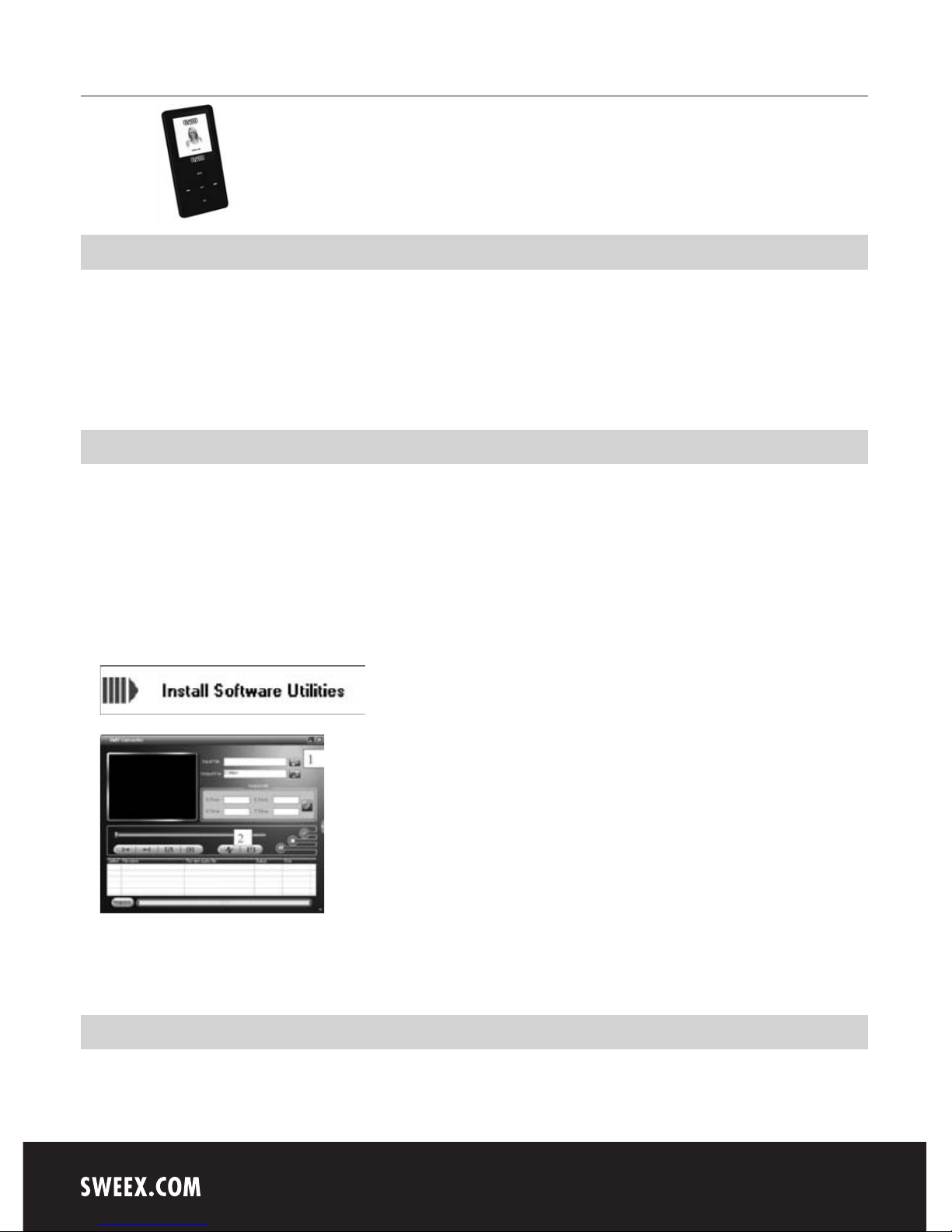
Insert the Sweex CD-ROM in the CD-ROM player in order to install the software. The CD-ROM will start automatically. Select “Install Software
Utilities”.
1. Click on 1 (“add file”) in order to select your video file.
2. Click on 2 (“begin”) in order to start the conversion process.
Transferring files to the Sweex Black Pearl MP3 Player 1 GB
Connect the Sweex MP3 Player to your computer using the USB cable supplied. Windows will detect the device, allocate it a drive letter and refer to
it as a removable disk entitled “Sweex MP3”. Now you can manage your music and video files via Windows Explorer. You can also store other types
of files and documents on the Sweex MP3 Player, and use it as a USB memory stick at the same time.
Page 2
English version
5
Operation
Buttons:
M : Open the menu, select menu option
uuI : Jump to next menu option, fast forward
Itt : Jump to previous menu option, rewind
uII : On/off switch, play/pause
VOL : Volume
How to switch on the Sweex Black Pearl MP3 Player 1 GB
The main switch is located at the top. Set it to “ON”. To switch on the Sweex MP3 Player, you must press the uII button briefly.
After you have switched on the Sweex MP3 Player, the menu will appear. If you want to go the main menu from wherever you are in the menu,
press and hold the M button for three seconds.
The menu
The Sweex MP3 Player menu is available in several languages. Go to “Setup” and select the third line by pressing uuI twice (“Language”).
The following languages are available: English, Dutch, French, German, Italian, Spanish, Swedish, Polish, Korean, Chinese, Czech, Japanese,
Portuguese, Danish, Russian, and Thai.
Scroll through the menu using the uuI and Itt buttons. Press M for the menu option and go back one step by selecting “Exit”.
The main menu options are:
Setup : Device settings and information
Game : Games
Movie : Playing video files
Music : Playing music files
Record : Recording sound
Voice : Playing audio files
Photo : Viewing images
E-Book : Reading text files
Page 3

English version
6
Playing audio and video files
For music, select menu option “Music”. For films, select menu option “Movie”. Press M to find your files. Press uII to play back your file. You can
also use uII to stop or pause a file. Use uuI and Itt to jump to the next or previous file.
When set to pause, you can use the M button to enter the menu in order to select various options, such as removing files and playing from a
different file on the player.
When playing back music, you can use the M button to enter the menu in order to select other options, such as repeat (repeat functions) and
equalizer settings.
In order to change the volume when playing back music or a video, press the volume button. Adjust the volume by means of the uuI and Itt
buttons. When playing a video, no volume levels are displayed when pressing the volume button. The volume can still be changed though.
Recording sound
If you want to record sound, select the menu option “Record”. Press M in order to select “Rec type” in the menu and to determine the recording
format.
Fine REC = WAV 32 Kbps
Long REC = WAV 8 Kbps
Fine VOR = ACT 32 Kbps
Long VOR = ACT 8 Kbps
Press uII in order to start recording. Press uII in order to pause and resume recording. Press and hold uII for 3 seconds in order to stop
recording. The recorded files are numerically stored in the “Record” file of the player. In the main menu, select the option “Voice” in order to play
back the recorded files.
You can switch off the Sweex Black Pearl MP3 Player 1 GB by holding the uII button for 3 seconds. You can use the main switch at the back of
the device to prevent the player from being switched on by mistake.
You can charge the Sweex Black Pearl MP3 Player 1 GB via a free USB port on the computer, using the USB cable supplied.
Warranty
All Sweex products are warranted for three years. We do not grant support or warranties for any software and/or (rechargeable) batteries included.
Settlement of guarantee only takes place via the dealer where you have purchased the product in question.
The rightful owner has and retains title to all brand names and related rights mentioned in this manual.
 Loading...