

Page 1
English version
4
MP051/MP052/MP054 Sweex MP3 Player
Introduction
• Do not expose the Sweex MP3 Player to extreme temperatures. Do not place the device in direct sunlight or in the direct vicinity of heating
elements.
• Do not use the Sweex MP3 Player in extremely dusty or moist surroundings.
• Protect the device against powerful shocks or jolts - they may damage the internal electronics.
• Never attempt to open the device yourself - it will cause the warranty to lapse.
Explanation of the device
Fitting the battery
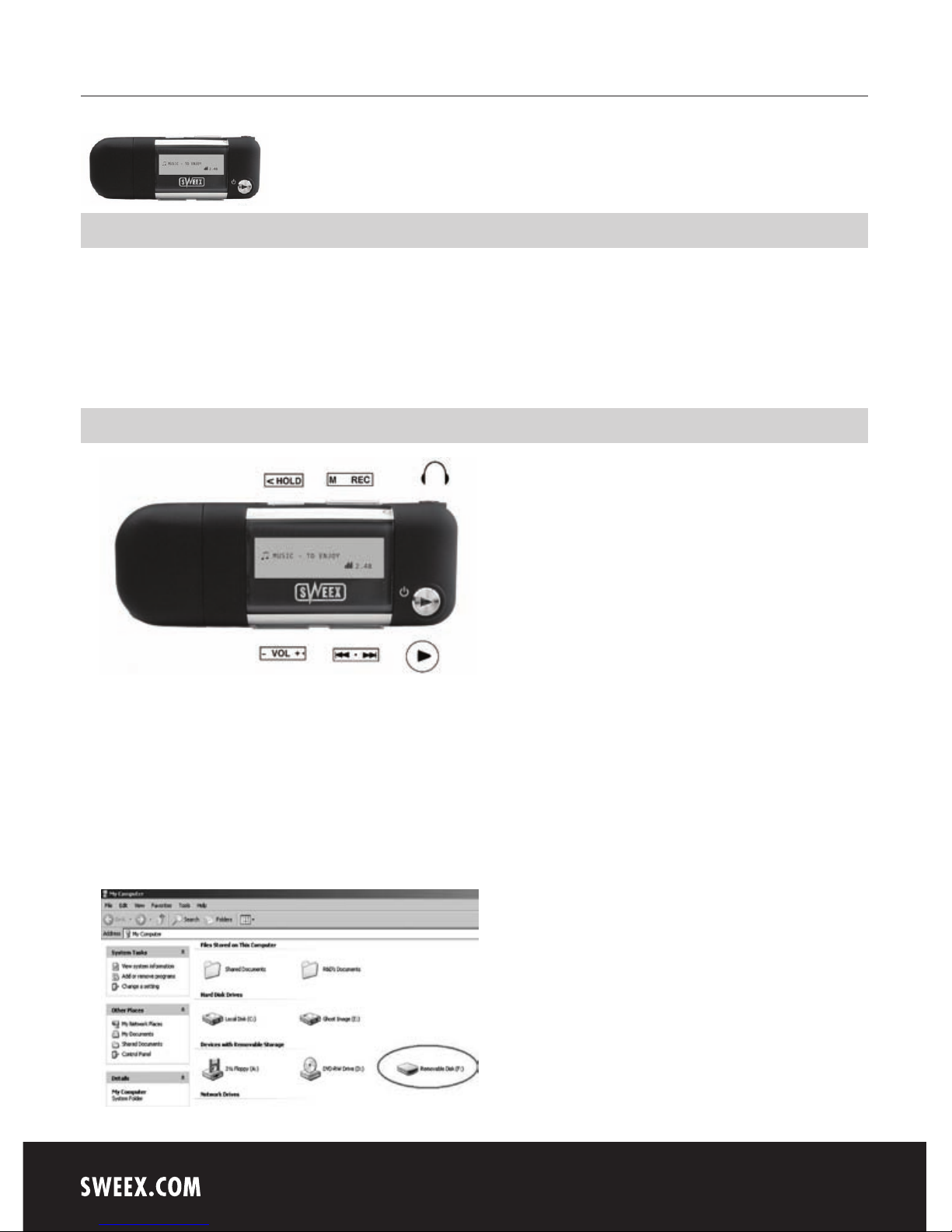
The Sweex MP3 player runs on a 1.5 volt AAA battery. Follow these instructions to fit the battery: remove the USB cover and slide the battery cover
on the back of the MP3 player down. Fit the battery and slide the battery cover back in its slot. Replace the USB cover.
Connecting the MP3 player to the computer
The Sweex MP3 player includes a USB 2.0 connection. This means that the MP3 player can be connected under Windows 2000 and Windows
XP directly. The Sweex MP3 player will be recognised as an additional disk drive. In Windows, MP3, WMA or ASF files can be easily copied to or
removed from the player.
Page 2

English version
5
The drive letter allocated to the Sweex MP3 player may deviate from the picture above.
Switching the MP3 player on and off
Press and hold the Play/Pause button uII for 2 seconds in order to switch on the Sweex MP3 player. After 2 seconds the main menu appears
detailing information on, among other things, the options of the MP3 player (Music, record, Voice, FM Mode, Tele Book and Sys Set), battery status
and the number of tracks, equalizer settings as well as the playtime of the selected track.
To switch off the MP3 player, press and hold the Play/Pause button uII for 2 seconds. The text “Continue holding to power off” will appear in the
display. Wait for the progress bar to be completed before releasing the button.
Playing music
Once the MP3 player is switched on, briefly press the Play/Pause button uII in order to start playing. Other music files can be played back by
pushing the mode button to the left or right.
Briefly press the Play/Pause button uII to pause whilst playing. Briefly press the Play/Pause button uII once more to resume playing.
Playing music from a folder
Once the MP3 player is switched on, briefly press the Menu button M in order to access the main menu. You can now scroll through the folders on
the MP3 player by pushing the mode button to the left or right. In order to open the folder, you can either wait 3 seconds or press the
Menu button M. In order to play a track, follow the same procedure as described in the previous chapter.
In order to return to the folder menu, press and hold menu button M. In order to return to the main menu, press and hold menu button M for 2
seconds.
The menu
Press the menu button M in order to access the menu. By pushing the menu button to the left or right you can scroll through the menu options.
Briefly press the menu button to activate the selected option. To leave the menu, again press and hold the button for 2 seconds. This can be done
from wherever you are in the menu.
The menu options are as follows.
Music Mode - Record Mode - Voice Mode - Radio Mode - Tele Book - Setting Mode
Music Mode =
Playing back music files
Record Mode =
Voice recording. Multiple recordings are possible
Voice Mode =
Playing back voice recordings recorded by means of the Record option.
Radio Mode =
Listening to the radio
• By pushing the mode button to the left and right you can tune in to the relevant radio station.
Setting Mode = Settings of the MP3 player
Record Time - Record Type - Backlight - Language - Power Off - Replay Mode
Contrast - Online Mode - Memory Info - Firmware version - Firmware Upgrade - Exit
• Record Type = record type:
Voice Record (voice record)
WAV music Record (WAV music record)
Page 3

English version
6
• Backlight = Display lighting
The lighting can be adjusted by pushing the menu button to the left and right.
• Language = Language setting:
English
German
French
Dutch
etc.
• Power Off - Off time - Sleep time
Automatically switches off the MP3 player when no music is played, in order to save battery power.
• Replay Mode
• Contrast = Display contrast level
The contrast can be adjusted by pushing the menu button to the left and right.
• Memory info = Memory information
Indicates how much memory has been used and how much is left.
• Exit = Exit the menu
Battery status indicator
The Sweex MP3 player runs on a single 1.5 volt AAA battery. As soon as battery capacity becomes too low, the battery icon in the display
will start to blink.
Hold option
To prevent accidental deletion of a file or activation of a button whilst playing, all buttons can be locked by means of the HOLD switch . Slide the
switch to the left to lock the buttons. The HOLD symbol appears in the top right corner of the display. Slide the switch to the left to unlock again.
Recording and playback of voice
The Sweex MP3 player further offers the option to record speech. The Sweex MP3 player disposes of a built-in microphone to record sound. Follow
this procedure to start a sound recording.
Press the menu button M in order to access the menu. Scroll to the Record Mode option by means of the mode button .
Press the Record button REC in order to start the recording.
Press the REC button again to stop the recording.
Press the menu button M to save the recording.
In the menu, select the Voice option in order to play the voice files.
Page 4

English version
7
Warranty
All products under the Sweex brand are warranted for a period of three years. We do not grant support or warranties for any software and/or
(rechargeable) batteries included. Settlement of guarantee only takes place via the dealer where you have purchased the product in question.
The rightful owner has and retains title to all brand names and related rights mentioned in this manual.
 Loading...