

Page 1
English version
4
MO201 / MO201UK Sweex ADSL 2/2+ Modem/Router Annex A
Introduction
• Do not expose the Sweex ADSL 2/2+ Modem/Router Annex A to extreme temperatures. Do not place the device in direct
sunlight or in the direct vicinity of heating elements.
• Do not use the Sweex ADSL 2/2+ Modem/Router Annex A in extremely dusty or moist surroundings.
• Protect the device against powerful shocks or jolts – they may damage the internal electronics.
• Never attempt to open the device yourself – it will cause the warranty to lapse.
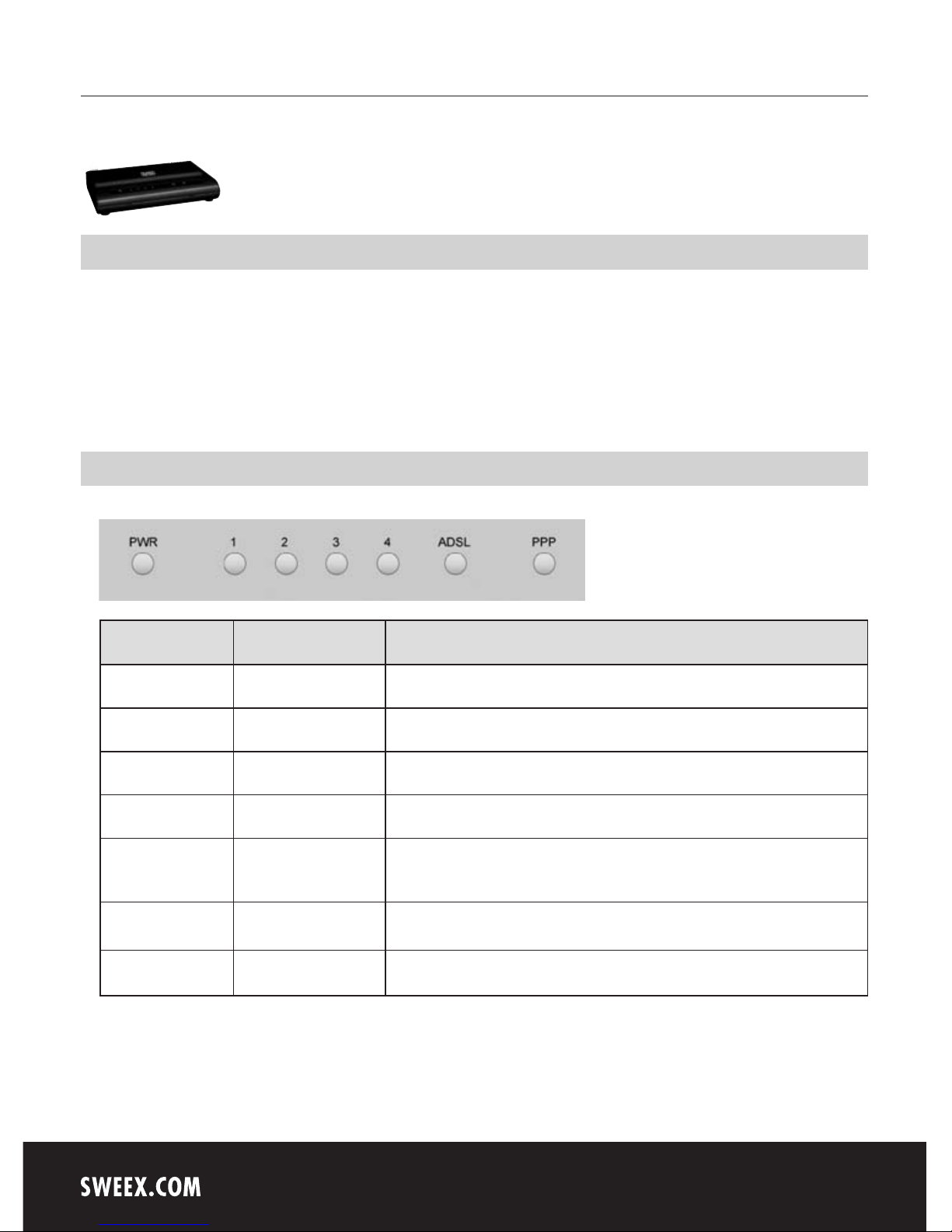
Front or top view of the modem
LED indicators Status Meaning
PWR Lit Indicates that the modem is switched on.
1-4 Lit Indicates that a computer is connected to the relevant port.
1-4 Blinking Indicates activity between the relevant computer and the modem.
ADSL Lit The connection with the ADSL line is ok.
ADSL Regular blinking The modem is busy setting up a proper connection or no ADSL is connected to the RJ11
port.
ADSL Lit and blinking fast Indicates activity between the computer(s) and the Internet.
PPP Lit Indicates the use of a PPP connection.
Page 2
English version
5
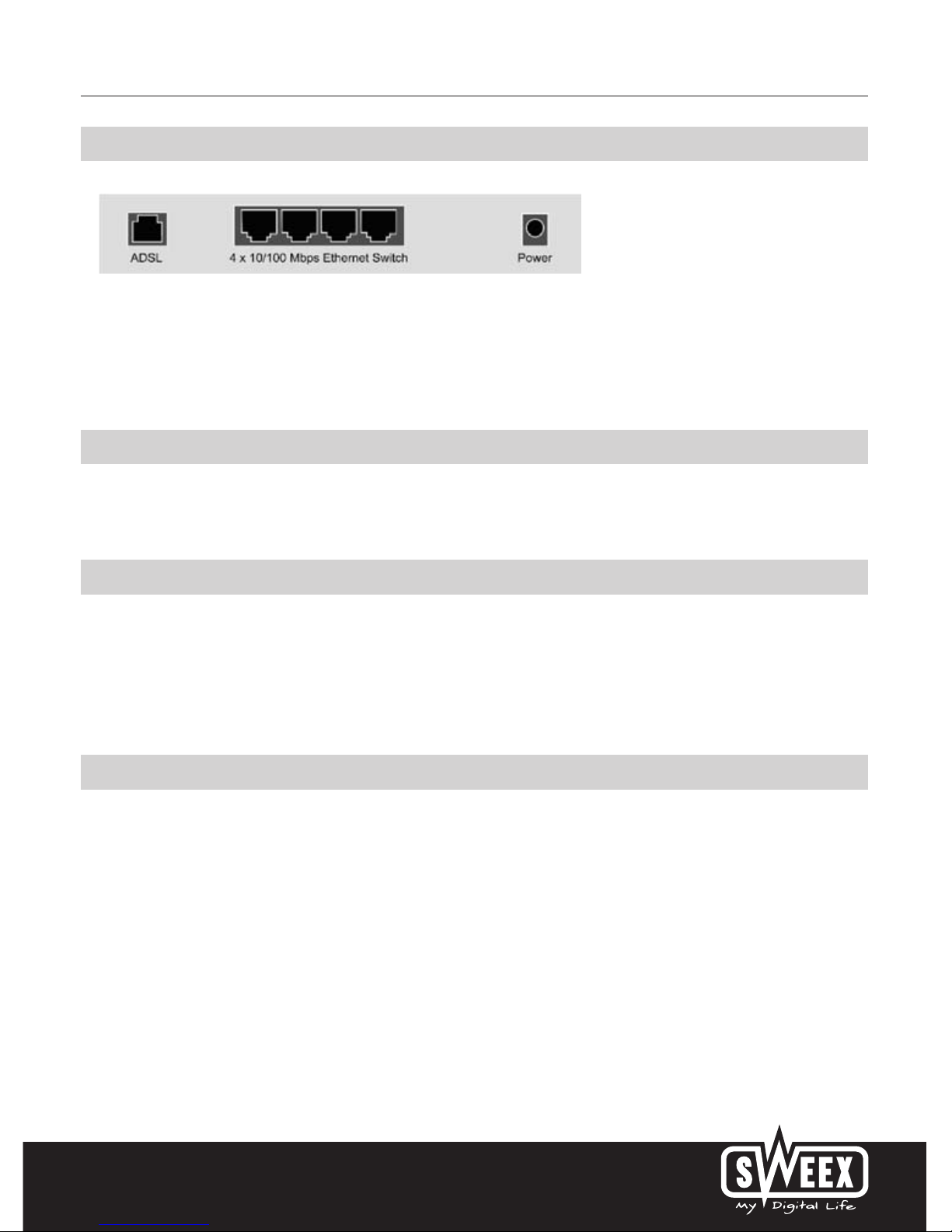
Rear view of the modem
Starting on the left, the following connections can be found at the rear of the modem:
• ADSL port for connecting the ADSL line with telephone cable RJ11.
• UTP Ethernet ports 1, 2, 3 and 4 for connecting computers with an Ethernet network cable RJ45.
• Power port for connecting the power adaptor.
Side view
The Reset button is located on the side of the modem. Use a thin item to press the button. Press and hold the button for 15 seconds. Note! After
this, all settings which apply to your connection and network need to be reconfigured.
The splitter
In order to separate the ADSL signal from the normal telephone signal, you need to use a splitter. This enables you to simultaneously make calls and
surf the Internet using the same telephone line. The signal comes from the wall socket or the meter cupboard and enters the splitter. Two telephone
cables are connected to the output of the splitter. One leads to the modem and the other to the telephone.
Note! The ADSL modem does not include a splitter. It can be obtained from various DIY stores.
Connecting the Sweex ADSL 2 Modem
1. Connect the power adaptor (included) to the rear of the modem and the mains socket. The LED under PWR is lit. In the event the LED is not lit,
check the connections of the power adaptor to the ADSL modem and the mains socket.
2. Connect the telephone cable (RJ11) carrying the ADSL signal to the ADSL port at the rear of the modem. The LED under ADSL will now start to
blink. After approximately 30 seconds the LED will be lit continuously. In the event the LED is not lit, check whether the splitter is properly
connected and/or whether the ADSL line is ok.
3. Switch on the computer and connect it to the rear of the modem using a network cable (UTP RJ45). You can select any of the ports 1, 2, 3 and
4. The corresponding LED at the front of the modem will be lit. In the event the LED fails to light up, check whether the network cable is properly
connected to the computer and the modem.
Page 3
English version
6
Configuring the computer to connect to the modem
Windows Vista
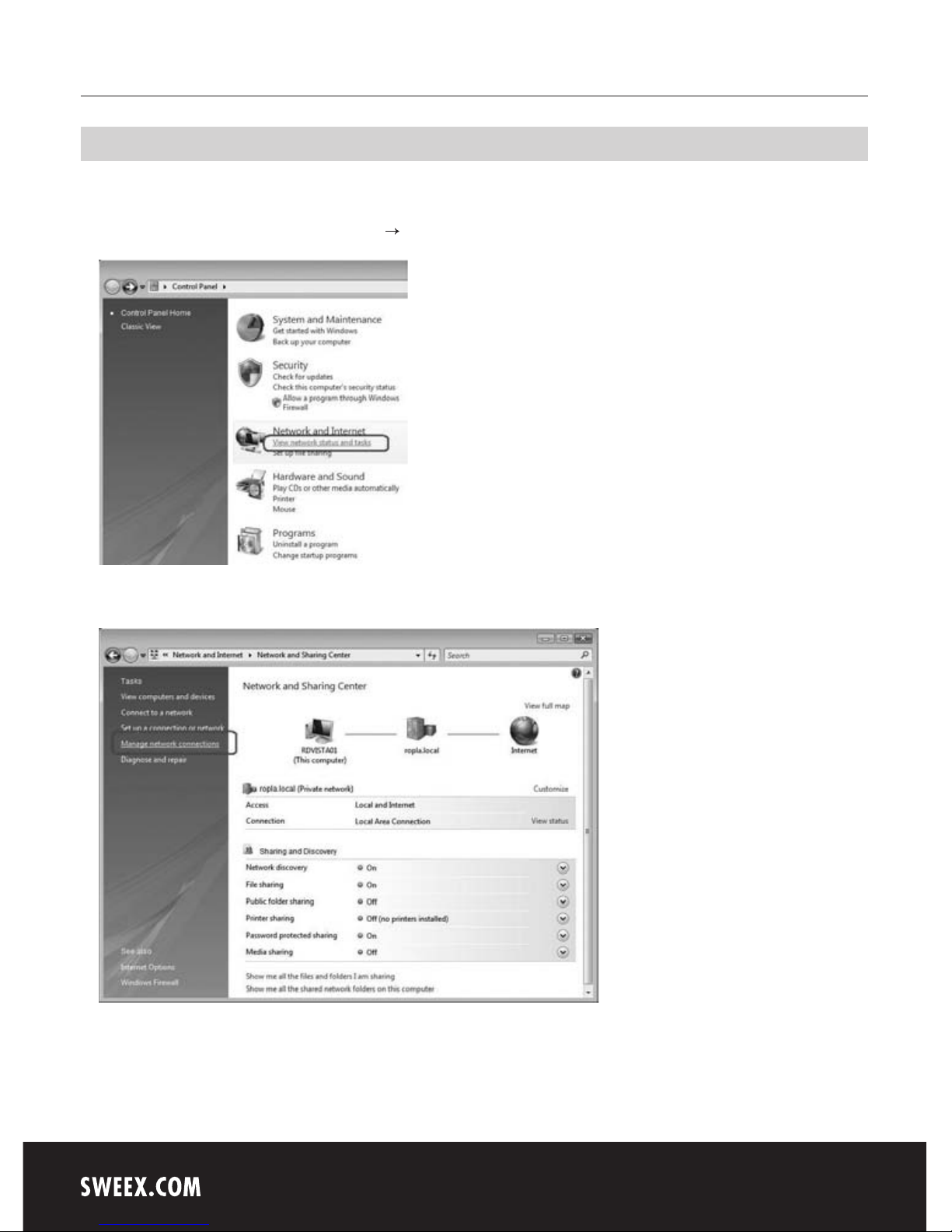
In the bottom left of your screen, go to “Start” (Start) “Control Panel” (Control Panel).
Click on “View network status and tasks” (View network status and tasks).
Left in the column, click on “Manage network connections” (Manage network connections).
Page 4
English version
7
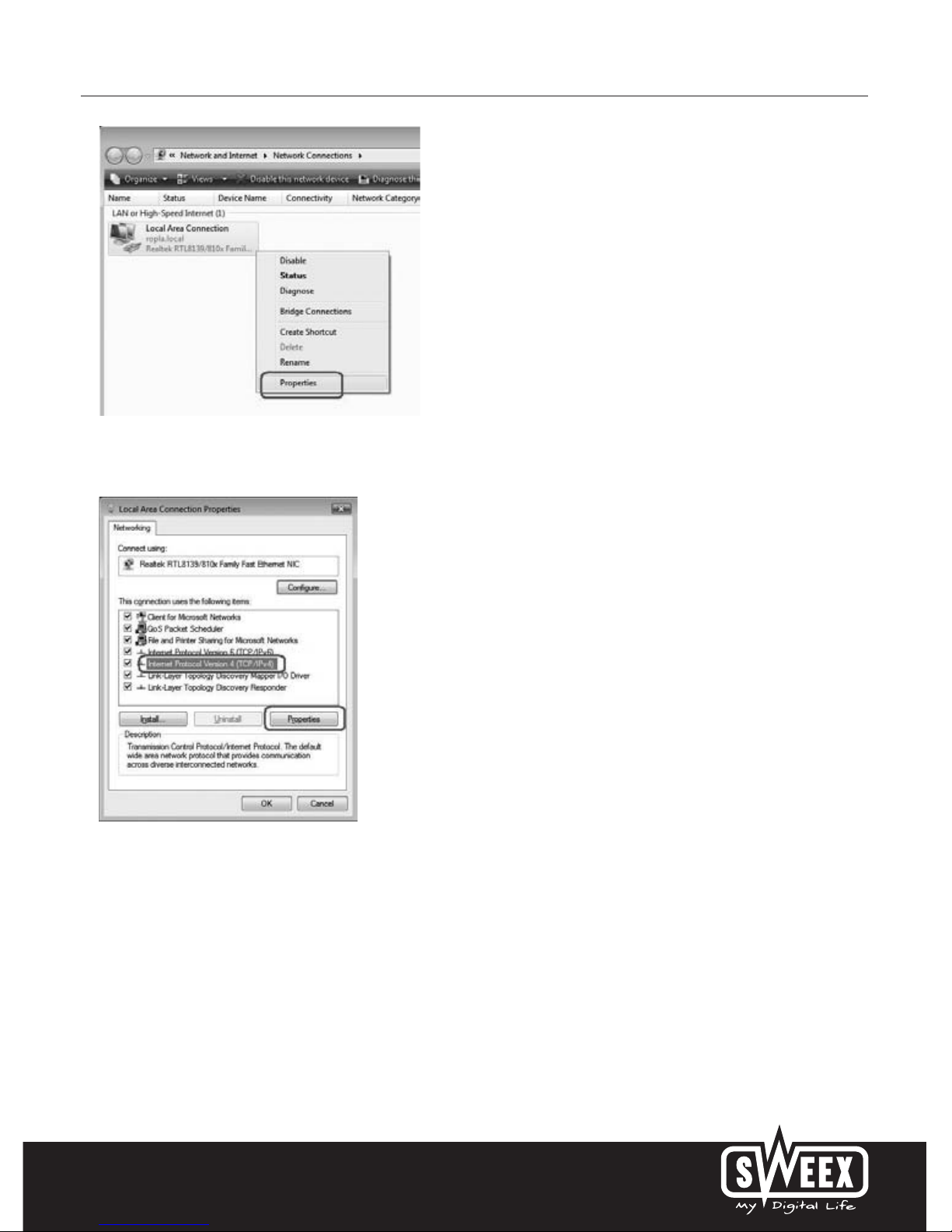
Right-click “LAN Connection” (LAN Connection) and select “Properties” (Properties). The following screen appears:
Now select “Internet Protocol Version 4 (TCP/IPv4)” and click “Properties” (Properties).
Page 5
English version
8
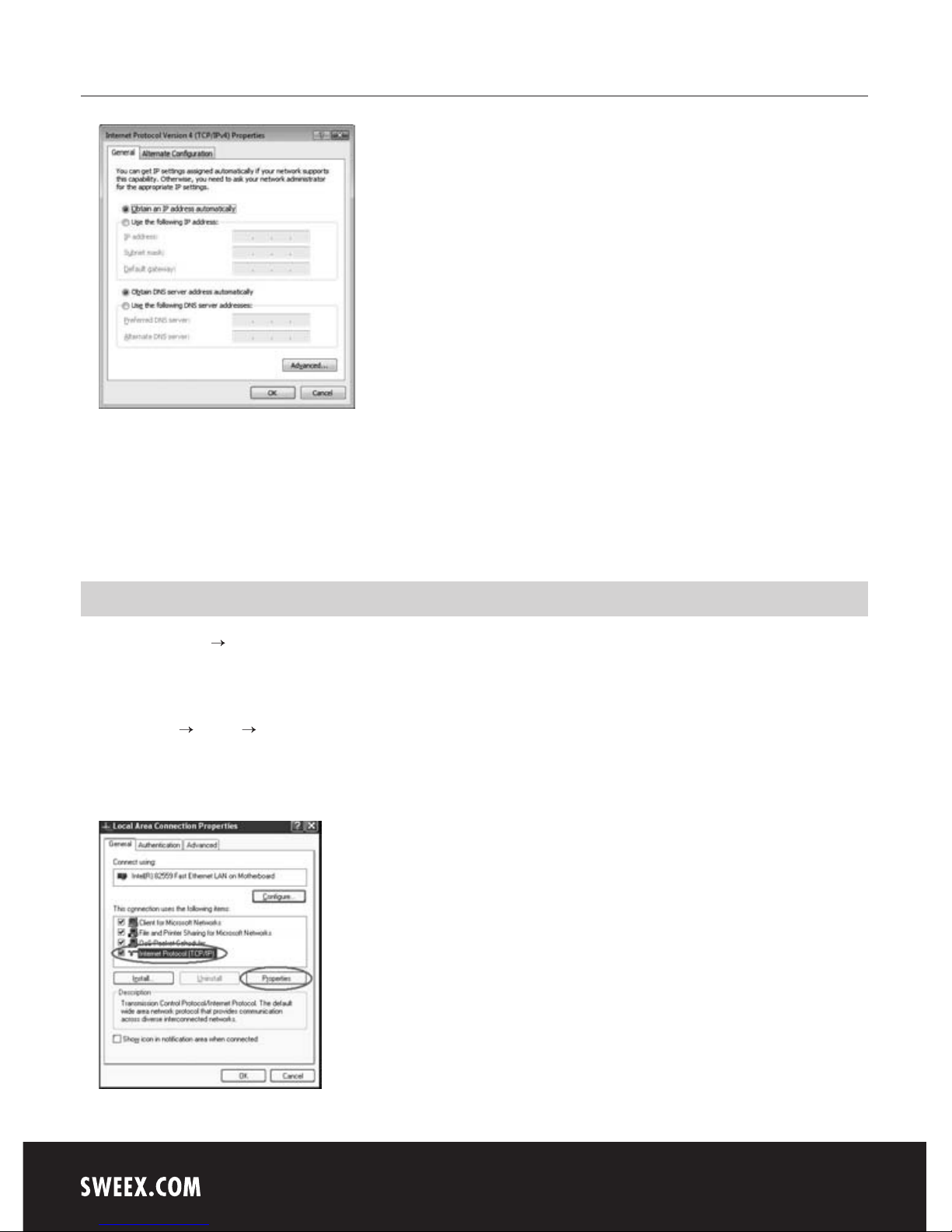
Select the options “Obtain an IP address automatically” (Obtain an IP address automatically) and “Obtain DNS server address automatically”
(Obtain DNS server address automatically).
Confirm the settings by clicking “OK”. The network settings have now been configured correctly for Vista. The correct settings for the Internet
browser will be discussed later in this manual.
Windows XP
Go to “Start” (Start) “Control Panel” (Control Panel). Then go to “Network and Internet Connections” (Network and Internet Connections).
Open “Network Connections” (Network Connections).
Or, if the Windows classic style is used:
“Start” (Start) Settings “Network Connections” (Network Connections).
Right-click “LAN Connection” (LAN Connection) and select “Properties” (Properties). The following screen appears:
Under the tab “General (General) select TCP/IP and click “Properties” (Properties).
Page 6
English version
9
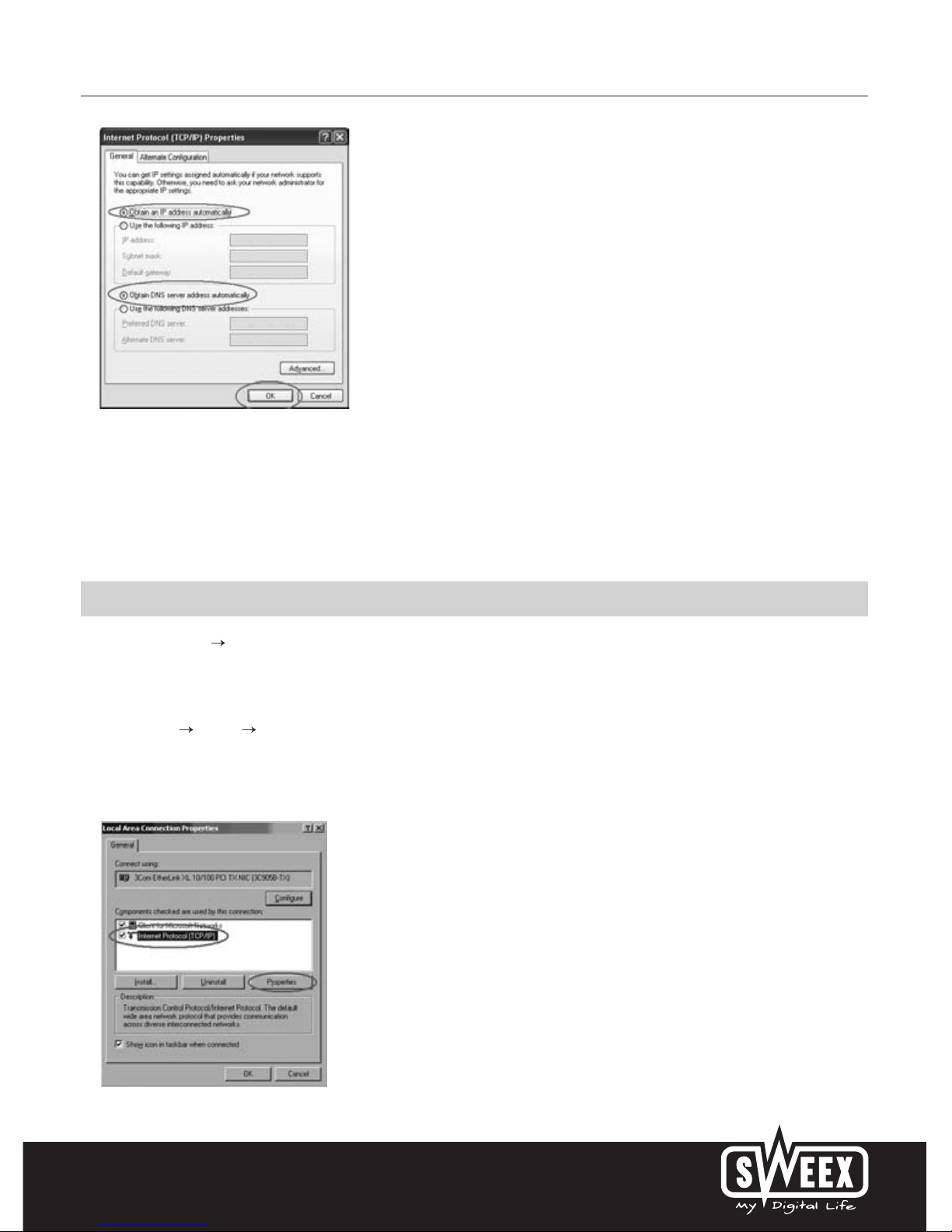
Select the options “Obtain an IP address automatically“ (Obtain an IP address automatically) and “Obtain DNS server address automatically”
(Obtain DNS server address automatically).
Confirm the settings by clicking “OK” (OK). The network settings for Windows XP have now been configured correctly. The correct settings for the
Internet browser will be discussed later in this manual.
Windows 2000
Go to “Start” (Start) “Control Panel” (Control Panel). Then go to “Network and Internet Connections” (Network and Internet Connections).
Open “Network Connections” (Network Connections).
Or, if the Windows classic style is used:
“Start” (Start) Settings Open “Network Connections” (Network Connections).
Right-click “LAN Connection” (LAN Connection) and select “Properties” (Properties). The following screen appears:
Now select “Internet Protocol (TCP/IP)” and click “Properties” (Properties).
Page 7
English version
10
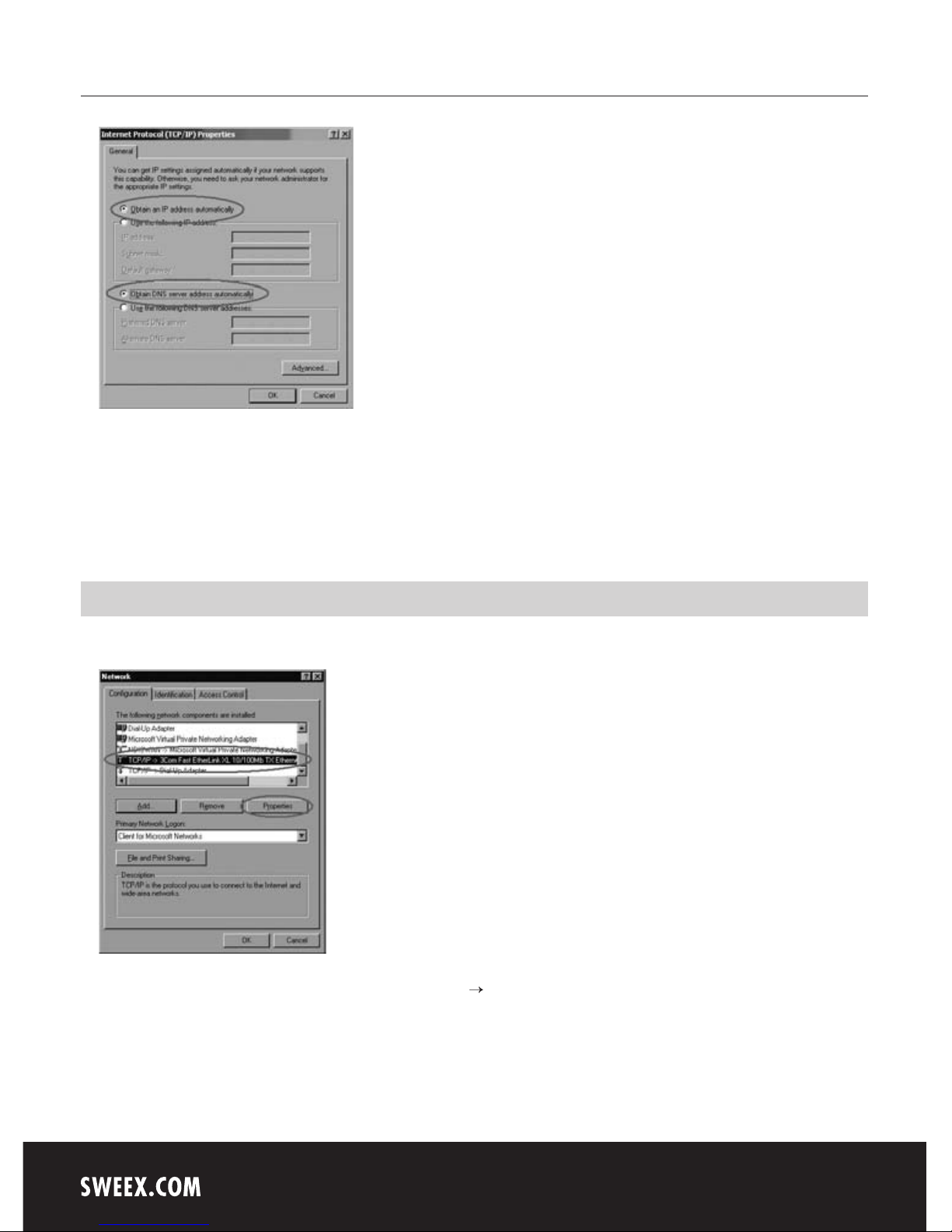
Select the options “Obtain an IP address automatically” (Obtain an IP address automatically) and “Obtain DNS server address automatically”
(Obtain DNS server address automatically). Click “OK” (OK) twice.
The network settings for Windows 2000 have now been configured correctly. The correct settings for the Internet browser will be discussed later in
this manual.
Windows 98SE
Go to “Start” (Start), “Setting” (Settings), “Control Panel” (Control Panel) and click “Network” (Network).
Under the tab “Configurartion” (Configuration), select the line “TCP/IP ” which corresponds with your network card and click “Properties”
(Properties).
Page 8
English version
11
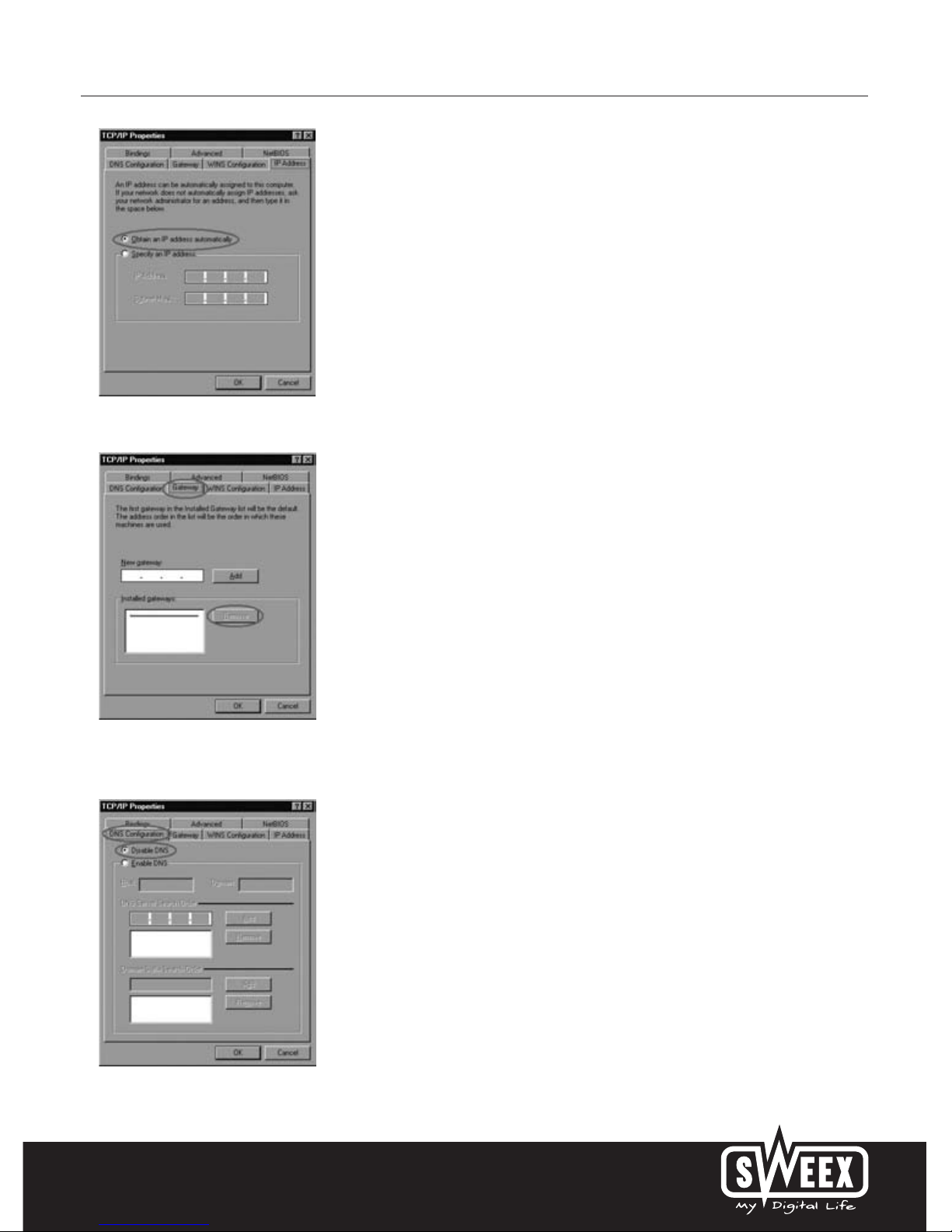
Under the tab “IP Address” (IP Address), select the option “Obtain an IP address automatically” (Obtain an IP address automatically).
Under the tab “Gateway”, the list of “Installed gateways” (Installed gateways) must be empty. If so required, select each gateway and click
“Remove” (Remove).
Under the tab “DNS Configuration”, select the option “Disable DNS” (Disable DNS). Click “OK” (OK) twice.
Page 9
English version
12
The network settings for Windows 98SE have now been configured correctly. The correct settings for the Internet browser will be discussed below.
Internet browser settings for Windows 98SE, 2000 and XP
1. In order to properly access the modem, the browser settings must be correct. This is easy to check by starting up Internet Explorer and selecting
“Tools” (Tools) from the menu bar and then selecting the option “Internet Options” (Internet Options).
2. In this window, go to “Connections” (Connections) and select “Never dial a connection” (Never dial a connection) or remove all connections
listed in the field above.
3. At the bottom, click “LAN Settings” (LAN Settings), remove all ticks and click “OK” (OK).
4. Restart the computer.
Modem access (Login)
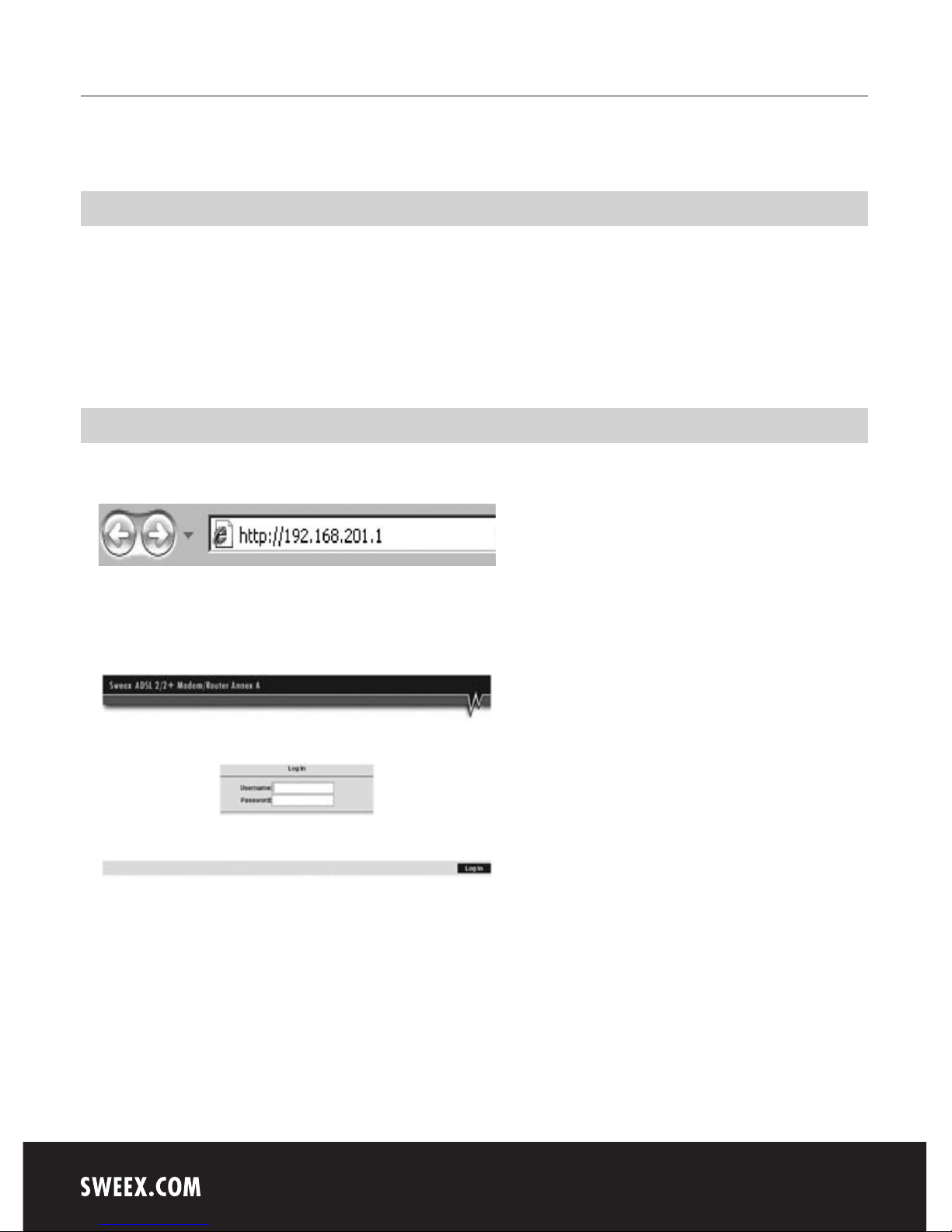
Open your web browser. In this example we use ‘Internet Explorer’.
The standard modem IP address is: 192.168.201.1. An IP address is a unique number required by each network device, including a computer or
modem, in order to be active within that network. Without an IP address you are unable to make connections within a network.
Type the modem IP address 192.168.201.1 in the browser address bar. You can now access the modem.
The modem login screen appears. Fill out the login name and the corresponding password. The standard login is “sweex” and the corresponding
password is “mysweex”.
If this login screen fails to appear, recheck the settings of your Internet browser as described above. Also check the IP address of your computer. In
this IP address, only the digits after the last dot may deviate from the IP address of the modem (e.g.: 192.168.201.xxx). Do this as follows:
Win2000/WinXP: Click “Start” (Start) - “Run” (Run)- Type cmd- press ENTER- In the black window type ipconfig - press ENTER and your IP address
is displayed.
Win98/Me: Click “Start” (Start) – “Run” (Run) – Type winipcfg – press ENTER. In the window, select your network adaptor. (Usually NOT the ppp
Page 10
English version
13
adaptor) and your IP address is displayed.
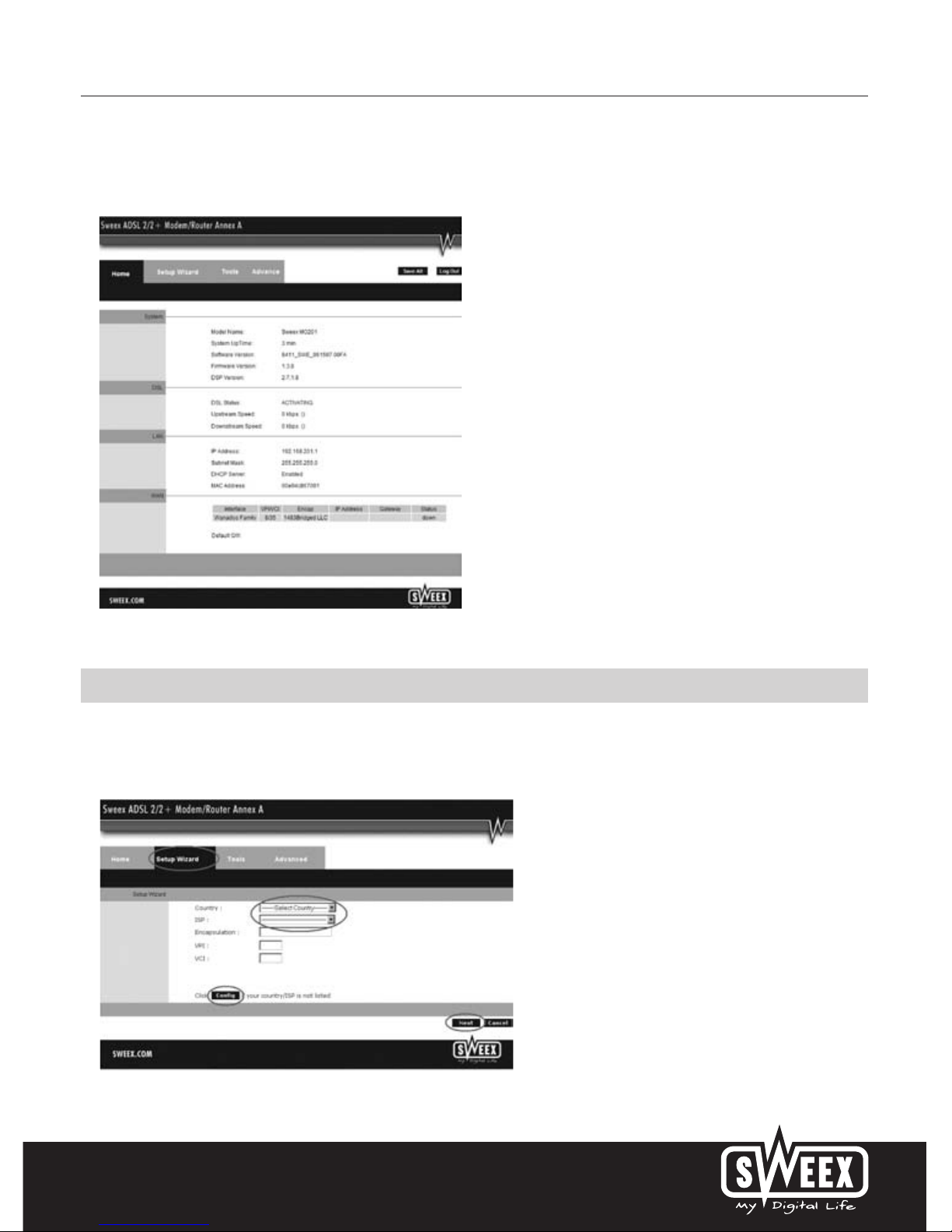
Once logged in, the main screen of the modem appears.
This screen displays the current Internet connection and a variety of system information.
Setting the Internet Provider (ISP)
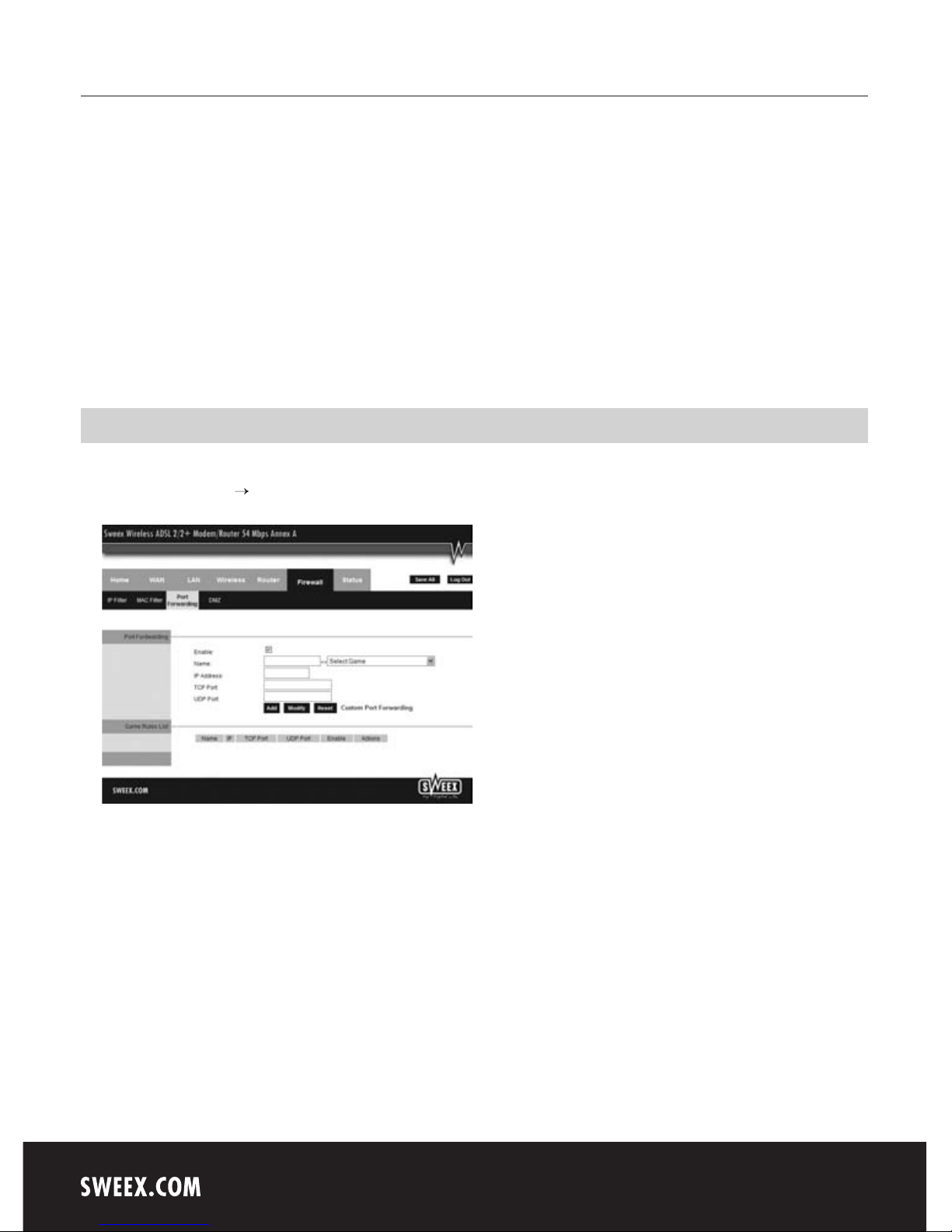
In order to facilitate the installation process, the Sweex ADSL 2/2+ Modem/Router Annex A disposes of a pre-programmed list of provider settings.
To this end, go to the “Setup Wizard”. The following screen appears:
Under “Country” select the appropriate country and under “ISP”, select the corresponding Internet Provider. The modem will now automatically
Page 11
English version
14
complete the settings. Then click “Next”. After this, some Internet providers require a user name and password to be filled out. Check this with the
list of providers further down in this manual or with the details you received from your Internet provider. Alternatively, contact your Internet provider.
Click “Apply” to store and activate the settings.
In order to check whether the settings for your provider have been entered correctly, click “Home”. In the line underneath “Connection Status”, you
can check the “State” of your Internet connection. “Connected” indicates that the connection with your provider has been set up successfully. You
can now surf the Internet.
In the event that your provider has not been listed, you can enter alternative settings via the “Config” option. In order to obtain these alternative
settings, contact your Internet provider. In order to store the settings click “Apply” and then “Save All”. Subsequently, in the next window, click
“Apply” once more.
Opening ports in the modem (Port Forwarding and DMZ)
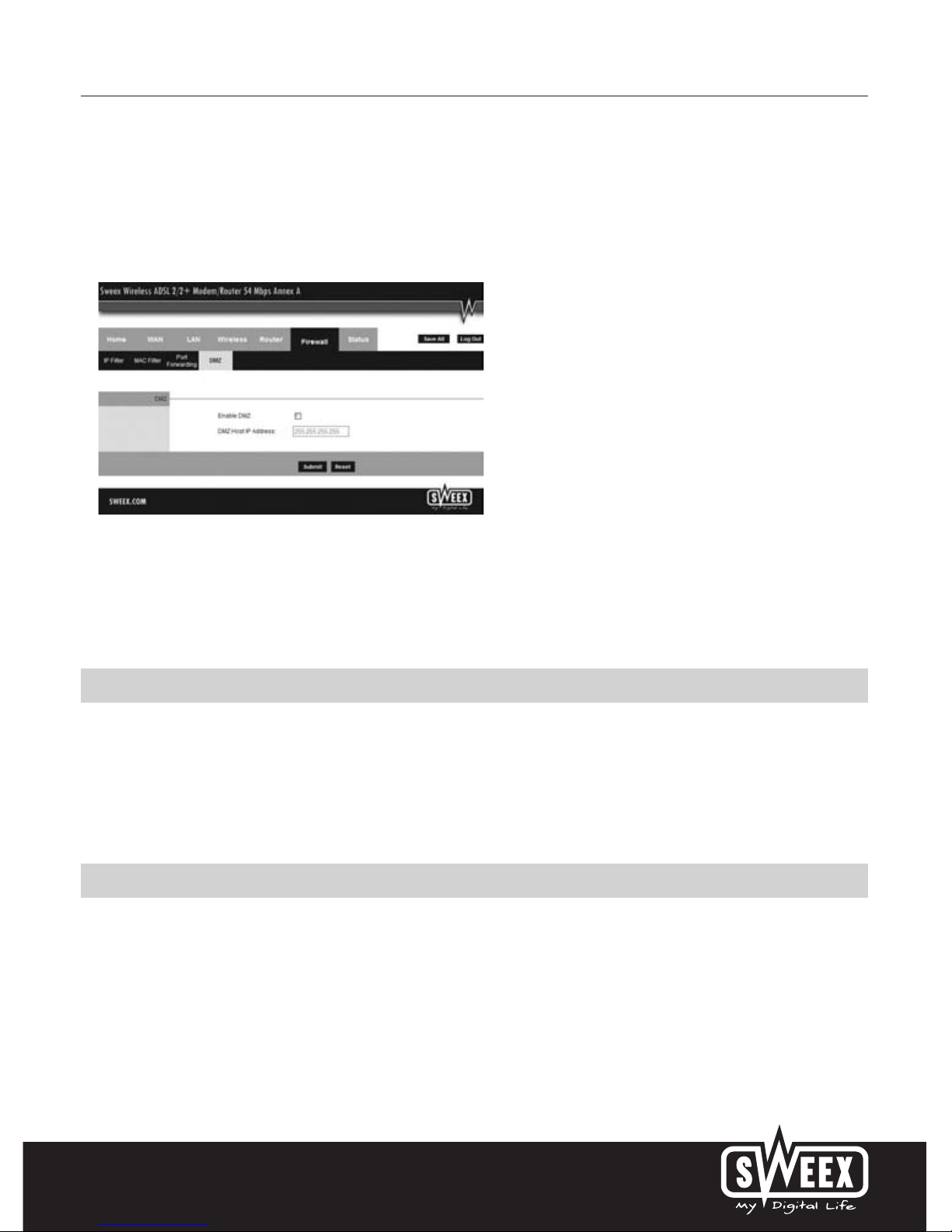
The built-in firewall in this modem cannot be disabled. However, ports can be opened for programmes and games which require this. Go to
“Advanced” -> “Firewall” “Port Forwarding” to change the port settings.
The Sweex ADSL 2 Modem offers a pre-programmed list with common programmes and games.
1. Tick “Enable”.
2. Now select the programme or the game from the list under “Select Game”.
3. Under “IP Address”, enter the IP address of the computer for which you want to open the ports.
4. Click on “Add”, then on “Save All” to activate the settings.
If the programme or game is not listed, ports can also be opened manually.
1. Tick “Enable”.
2. Under “Name”, enter a unique random name.
3. Under “IP Address”, enter the IP address of the computer for which you want to open the ports.
4. Under “TCP Port” and/or “UDP Port”, enter the relevant port. You can also open a range of ports (e.g.: 2300-2310). When in doubt, enter
both TCP and UDP.
Page 12
English version
15
5. Click on “Add”, then on “Save All” to activate the settings.
In some instances, or when a game console is used, you may opt to place a computer or game console entirely outside the firewall. This can be
done in the so-called “demilitarized zone” (“DMZ”). This option can be found in the main screen of the port settings (“Port Forwarding” under
“Advanced”.) Note however, you no longer take advantage of the protection offered by the firewall of the router. All ports to the computer placed in
the DMZ are open. Only a single computer can be placed in the DMZ.
1. Click on DMZ.
2. Here tick the option “Enable DMZ”.
3. Under “DMZ Host IP Address”, enter the IP address of the computer for which you want to open the ports.
4. Click on “Submit” and “Save All”.
Where to find the IP address of the computer
Win2000/WinXP: Click Start – Run– Type in “cmd” – press ENTER– In the black window, type “ipconfig” – press ENTER and your IP address is
displayed.
Win98/Me: Click Start – Run– Type “winipcfg” – press ENTER. In the window, select your network adaptor. (Usually NOT the ppp adaptor) and
your IP address is displayed.
LAN settings
The network settings (LAN) can be changed as follows. In the main window, go to “Advanced”. The option “LAN” is displayed next to it. Select this
option.
Page 13
English version
16
Changing the password (User Management)
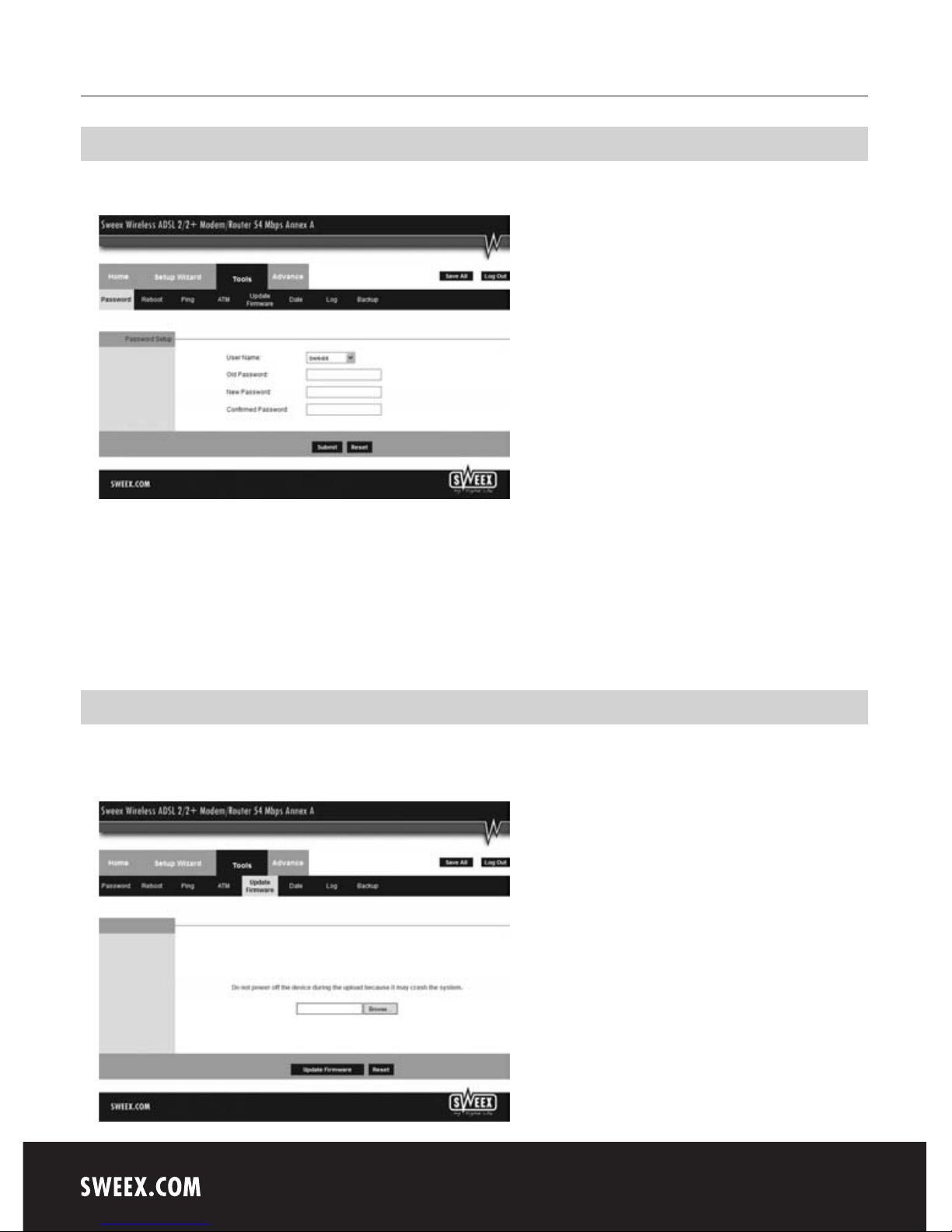
The standard login of the Sweex ADSL 2 can be changed as follows: in the main window select “Tools” and go to “User Management”.
Here, under “User name”, you can choose a different login name and under “Password” the corresponding password. Repeat this password under
“Confirmed Password”.
Note! If you want to reactive the standard login, the modem must be reset to the standard factory settings.
In order to store the settings click “Apply” and then “Save All”. Subsequently, in the next window, click “Apply” once more.
Upgrading the firmware of the modem (Update firmware)
In order to provide the modem with updates, the so-called ‘firmware’ needs updating. You can do so by going to the menu, then “Tools” and
selecting “Update firmware”.
Page 14

English version
17
Here the firmware of the modem can be updated. New firmware can be downloaded from the Sweex website under ”Service and support”. If the
firmware file is zipped, make sure you select and extract the file first on a location on your computer where you can retrieve it easily.
Now click “Browse” and select the extracted firmware file. In many cases the name of this file will end in “…firmware.update.img”.
In order to start the firmware update, click “Update Firmware”. Do not interrupt this procedure. This may damage the modem. Wait for the upgrade
to be completed. The bar will have filled up and the connection between the computer and the modem will be momentarily interrupted. Reset the
modem. Subsequently, log into the modem to check the new “Firmware Version” in the “Home” window.
Resetting the Modem to its factory settings
The Sweex ADSL 2 Modem can be reset to its factory settings in two different ways.
Note! After this, all settings which apply to your connection and network need to be reconfigured. After the reset, the modem will restart. During
start-up, the factory settings are reloaded and the computer will lose connection with the modem for around 30 seconds. After this, the modem can
be accessed via the standard IP address (192.168.201.1).
• The reset button is located on the side of the modem. Use a thin item to press the button. Press and hold the button for 15 seconds.
• In the menu of the modem go to “Tools”. Click on “Reboot”. Click “Reset to Defaults” and “OK” to confirm.
Warranty
All products under the Sweex brand are warranted for a period of three years. We do not grant support or warranties for any software and/or
(rechargeable) batteries included. Settlement of guarantee only takes place via the dealer where you have purchased the product in question.
The rightful owner has and retains title to all brand names and related rights mentioned in this manual.
GPL source code
This Sweex product includes a software code developed by third parties, including a software code that is subject to the GNU General Public License
("GPL") or GNU Lesser General Public License ("LGPL").
Most users do not need the GPL source codes at all. It is only required during programming in order to alter the code. The GPL source codes are listed
on our website.
 Loading...