

Page 1
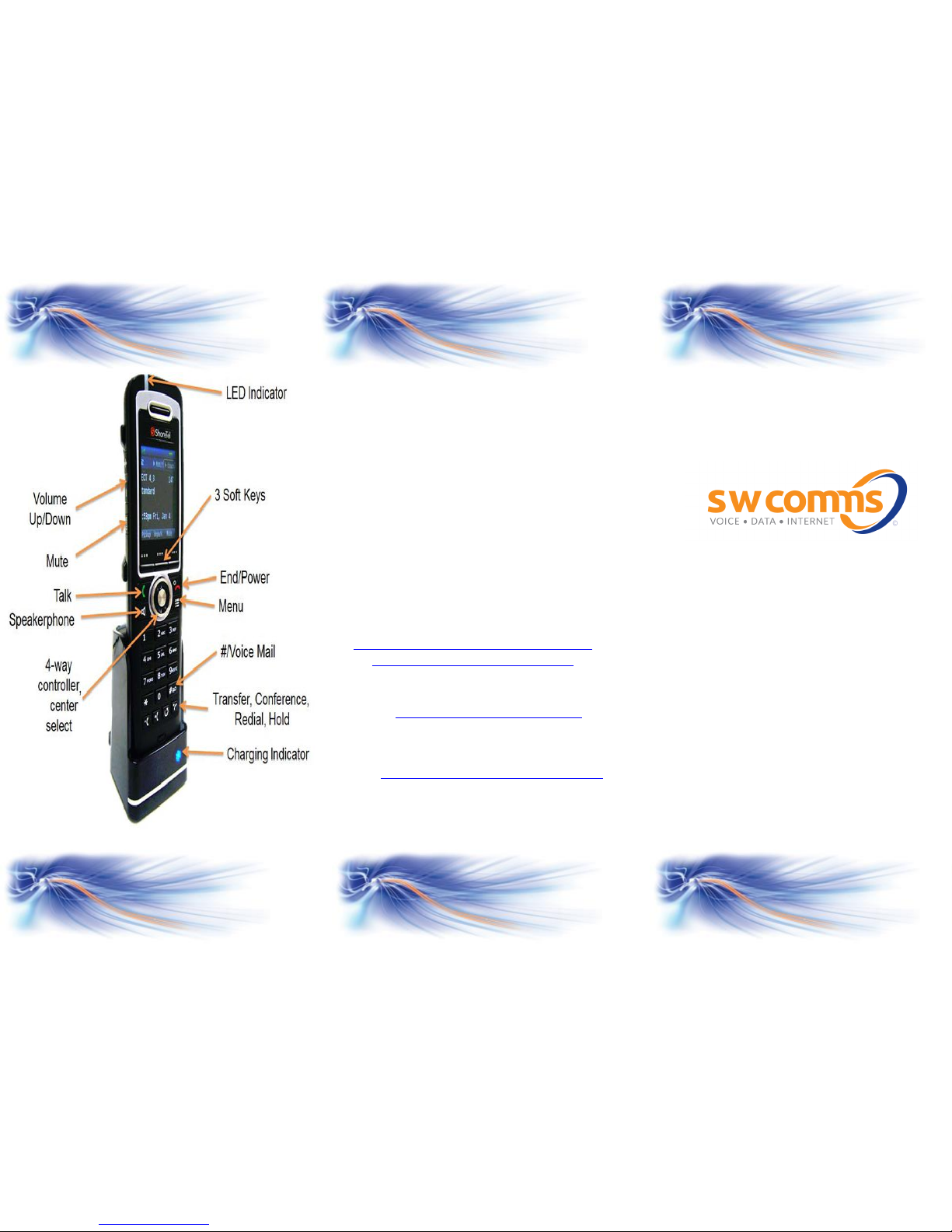
ShoreTel
930D Dect Handset
Quick Guide
Changing Extension Assignment – HOT DESKING
If you have the relevant permission, you can assign
your extension to any phone on the system.
- Press the VOICE MAIL key on the phone you want
to log on to.
- Press #
- Enter your ext number………..
- Enter your 6 digit password
- At the Main Menu prompt, press 7.
Now select the option you require from the follow
prompts
- Press 3 to re-assign the extension.
- Press 1 to assign the extension.
- Press 2 to un-assign the extension. (The phone
will revert to its original extension)
Additional Guides available at
http://www.swcomms.co.uk/resource-
centre/user-guides-and-manuals
Service Desk 01392 330033
email: [email protected]
Customer Service 01392 315315
email: [email protected]
Issue 9 30.3.16
Page 2
Call Handling
Make an internal call
Dial extn number and press green talk key
Make an external call
Dial ‘9’ and telephone number and press green talk
key
Receive a call
Press green talk key to answer or speaker key
to answer hands free.
Directory Dialling
Access to extension numbers and system speed dials.
Press the MENU key then number 1 for Directory.
Type 1st 3 letters of the person you want to call
[Search is predictive]. If more than 1 entry in the
screen scroll down until the arrow > is next to the
person you want to call, then press the green talk key
to ring.
Hold a call
Press the HOLD key to place a caller on or off hold.
Transfer a call – announced
Press the TRANSFER key (puts caller on hold), dial extn
number and press CONSULT in screen. Wait for
answer, announce call, press YES in screen to transfer
Retrieve a call
If there is no reply press CANCEL to return to the
caller.
Transfer a call – unannounced (blind)
Press TRANSFER key (puts caller on hold), dial extn
and press TRANSF in screen.
.
Transfer a call to voice mail
Press transfer key, then press in screen. Next
press MORE, then finally press TO MB to send caller
immediately to voice mail.
Deflecting a call
Send an incoming call to another extension or external
number without answering. Whilst your phone is ringing
press TRANSFER key, dial the number you want the call
to go to and press TRANSF in screen.
Redial
This will show all calls to, from and missed. Press the
REDIAL key, then scroll down to the number you want to
call. Press the green talk key .
Park a call
Answer a call, press PARK in screen, dial extn where you
want to park
(not your own ext),
press PARK again.
Retrieve a parked call
Your phone will ring intermittently and you will see the
number of the parked call in your screen. Simply press
the green talk key to answer .
Page
Make an announcement to individuals, or groups via
speaker phones. Dial page ext number ----- wait for
confirmation tone, make announcement then hang up.
Pick Up
Press PICK UP in screen, dial ringing extension or group
number, then press PICK UP again to intercept call.
Conference calling
Whilst on a call, press CONFERENCE key
(this will put the 1st caller on hold). Dial 3rd party,
when they answer you can either press CONSLT to
invite, then press YES in screen to join together, or
press CONFRN to join together immediately.
Exit conference call
To leave the conference call press the red hang up
key, or press SHOW in screen, and you can select
who you want to leave by pressing DROP
Call Forwarding
You must 1st configure the call handling modes in
Communicator – see the Communicator guide
Select the forward mode required -Standard, In
meeting, Out of Office, Extended Absence, and
Custom.
To select press MODE in the screen, then scroll
down until the arrow > is next to the mode you
want to use. Press OK. Your screen will now show
you which mode you have selected.
Remember if forwarding to an external number the
cost of the onward call will be charged to you!
 Loading...