

Page 1
QUICK USER GUI DE
Polycom VVX411 Call Centre
Additional guides are available at
www.swcomms.co.uk/resource-centre/user-
guides-and-manuals
Issue 2
If you know the extension number of the phone that is ringing,
press MORE twice, press PICKUP, enter the extension number
and press #.
Alternatively, if you have people programmed onto your screen,
press the green flashing light next to the person’s name when
someone is calling them, and you will pick up this call.
If you are in a pickup group with the phone that is ringing, press
MORE twice, then GRPICKUP to get the longest ringing caller in
your group.
Dial 1st party, press MORE then CONFRNC in screen. This will
put the caller on hold and allow you to invite the 3rd party. Dial
3rd party and invite them into your conversation.
If they are happy to join, press MORE and then press CONFRNC
again to connect the call.
Press FORWARD in screen. Highlight when you want to forward
your calls e.g. Always, No Answer or Busy, and press SELECT in
screen.
Enter the number you want to forward your calls to (e.g. 500 if
forwarding to voicemail) and press ENABLE.
To cancel a forward, repeat process above, and select DISABLE.
To manually record a conversation press *1 during the call, and
the recording will begin from the start of the call. To pause the
recording, press *3 and to resume the recording press *7.
Please ensure you inform your administrator if you record a call,
as you will only have a finite amount of storage.
Basic Call Handling
Make an internal call: Dial extension number or press the button
next to the name of the person you want to call, or search the
directory by clicking MORE then DIRECTORY (see Directory section for further help).
Make an external call: Dial the number you require. YOU DO NOT
NEED ‘9’ FOR AN EXTERNAL LINE.
Receive a call: Lift receiver or press ANSWER in the screen.
Hold a call: Press to hold a caller. Press the same key again
to retrieve the caller.
Announced – press TRANSFER key , dial number, announce
caller and press TRANSFER key again.
Alternatively, if you have names on your screen, press TRANSFER
key then press LINES, then press the button next to the name of
the person you want to transfer to, announce caller and press
TRANSFER key again.
Blind – press TRANSFER key, dial number and press TRANSFER
key again when you hear a ringing tone.
Alternatively, if you have names on your screen, press TRANSFER
key then press LINES, then press the button next to the name of
the person you want to transfer to, and press TRANSFER key
again when you hear a ringing tone.
If the extension is busy or no one picks up the call, press CANCEL
in the screen to return to caller.
If the extension answers but can’t take the transfer, press CANCEL in the screen to return to caller.
If the extension rejects the call, press RESUME in the screen to
return to the caller.
You will see the number of missed calls that have been presented to your handset in the top right-hand side of the screen.
Clicking either the down navigation key or the REDIAL key, then
the left button, will remove this.
To view a list of your missed calls press the down navigation key.
To view a list of your outbound calls, press the right navigation
key. To view a list of your inbound calls, press the left navigation
key.
You can view a combined list by pressing the REDIAL key.
Transfer A Call
Retrieve A Call (if transfer is not successful)
Call History
Pickup Calls
3-Way Conference Call
Call Forward
Call Recording (this is a licenced feature)
Support Desk: 01392330033
Customer Service: 01392315315
Page 2

Call Parking
Whilst on a call, press PARK and dial the extension number that
you want to park the call on, followed by #.
To retrieve a parked call, with the receiver down, press MORE
twice in the display, then GETPARK, and enter the extension number the call was parked on, followed by #. If the call was parked on
your extension, press MORE twice, then GETPARK, then #.
To set up your voicemail for the first time, press the personal
voicemail button and enter your 6-digit default password
(this will be on the New Account email you have received).
You will be asked to enter a new 6-digit password and then to enter it again to confirm.
You will then be asked to record your name greeting.
If you have new messages, an envelope will appear next to your
line key in the screen, the status bar will show that you have a new
message, and there will be a flashing red light at the top of your
handset.
Press the personal voicemail button to access your mailbox and
follow these instructions:
Enter your password followed by #
Press 1 to listen to your messages
Press # to save
Press 2 to repeat
Press 3 to delete
If your number is automatically withheld (determined by your administrator), dialing #31 before the number you are calling will
show your number for outgoing calls.
To reverse this step or to withhold your number if the administrator has not set this automatically, dial *31 before your next call
and your number will be withheld.
Pressing DND will stop your phone from receiving calls. To turn this
off, press the button again. You’ll no if you are in DND as you will
see in front of your extension number.
Click MORE, then DIRECTORY. Select Corporate Directory for the
shared numbers, and Contact Directory for your personal numbers.
Search the last name using your number buttons, or select
ADVFIND to search first name. You can also use the Directory when
transferring. Click the TRANSFER key when on a call, then DIREC-
TORY and search for the entry.
Voicemail
Retrieving Messages
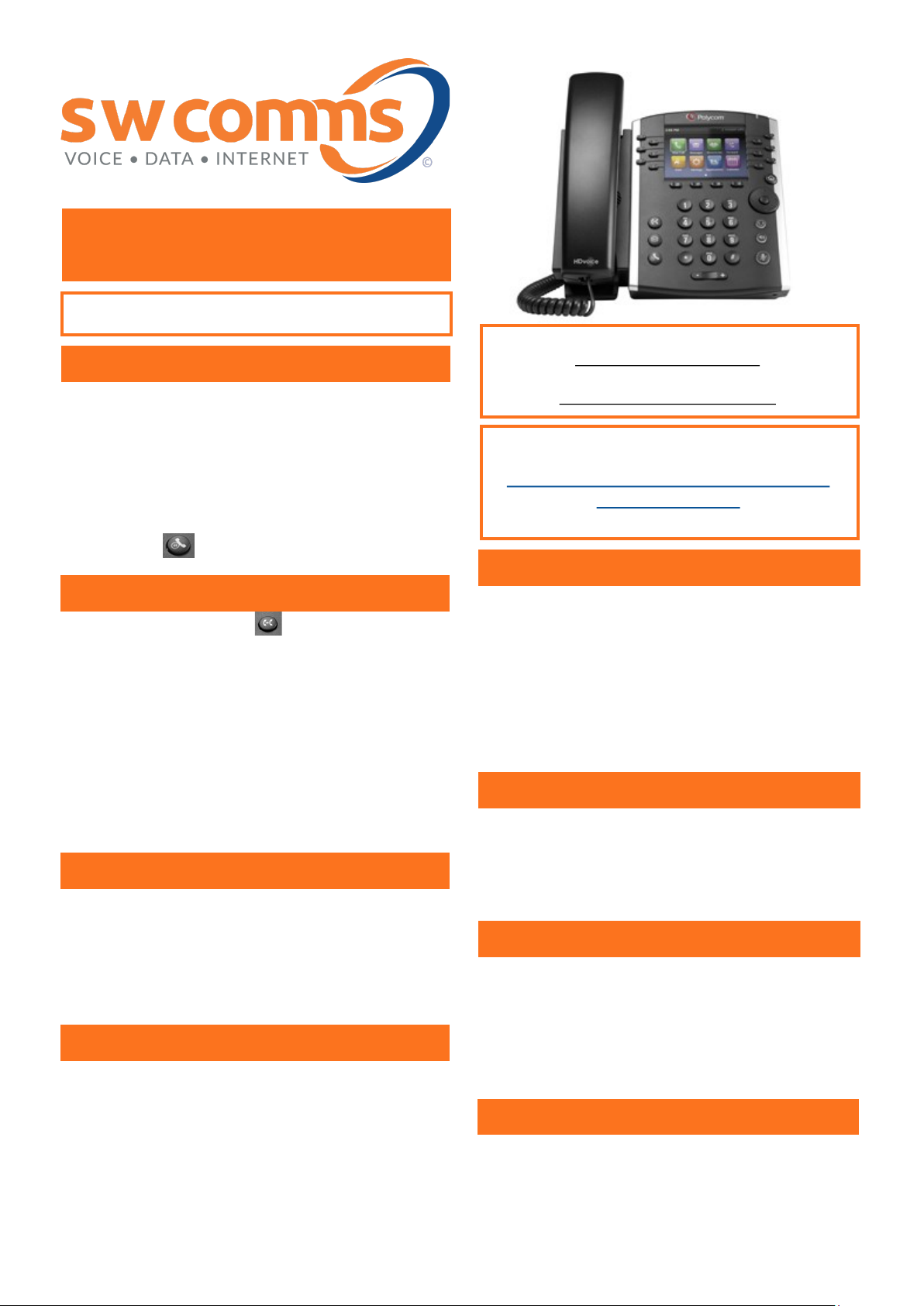
Phone Illustration
To log into your handset, follow these steps:
Press MORE three times
Press GUESTIN
Enter User ID – your extension number
Enter Password – your voice mail passcode
Press OK
You are now logged into the handset. When you have finished for
the day, follow these steps:
Press MORE three time
Press GUESTOUT
As a Call Centre agent you must first log into the groups you have
been assigned to. Press MORE key 3 times then press ASIGNIN.
As a Call Centre agent you must first log into the groups you have
been assigned to. Press MORE key 3 times then press ASIGNIN or
AVAILABLE, depending on the options.
If you need to stop taking calls you can make yourself unavailable
or you can sign out. Please note that this will only stop call centre
calls from coming to your handset. Calls internally or via a DDI will
still come to your handset unless you forward your calls or press
DND.
To make yourself unavailable, press the MORE key 3 times then
press UNAVAILABLE in the screen. You will be asked for an unavailable reason code (please speak to your system administrator
for code details). If there are no codes simply press SELECT in the
screen. To sign out, select ASIGNOUT instead of UNAVAILABLE.
To make yourself available, press the MORE key 3 times and press
AVAILABLE to start taking call centre calls. To sign in again, press
ASIGNIN instead of AVAILABLE.
Wrap Up - You will automatically be put into a wrap up period
after you have finished a call centre call. This is allocated by your
system administrator and will give you a short period of time before another call comes to your handset. You will have an orange
circle next to your extension number when you are in wrap up
time.
Use this time to ASIGNOUT if you need to step away from the
phone. You cannot make yourself unavailable during wrap up time
because you are unavailable already. You can override the wrap up
time by clicking AVAILABLE.
Hot Desking
Call Centre
Withholding Number
Do Not Disturb (DND)
Directory
 Loading...