

Page 1

EP -9321-g/g1
802.11g 54M W ireless LAN
PCI Adapter
User Manual
Specifications are subject to change without notice. © 2004 by SURECOM Technology Corporation. All rights reserved
3A-1
Page 2

EP-9321-g/g1
802.11g 54M Wireless LAN PCI Adapter
2
Content
1. Introduction--------------------------------------------------------------------------------------------------------3
1.1 Feature-------------------------------------------------------------------------------------------------------------3
1.2 Specification------------------------------------------------------------------------------------------------------4
1.3 Package Contents---------------------------------------------------------------------------------------------- 4
1.4 Systems Requirements----------------------------------------------------------------------------------------5
2. Hardware Installation------------------------------------------------------------------------------------------5
2.1 Connecting the PCI Card--------------------------------------------------------------------------------------5
2.2 Removing the PCI Card ---------------------------------------------------------------------------------------6
3. Software Installation-------------------------------------------------------------------------------------------7
3.1 Installing WLAN PCI Adapter Utility and Driver----------------------------------------------------------7
3.2 Uninstalling the Driver and Utility---------------------------------------------------------------------------11
4. Configuration Utility--------------------------------------------------------------------------------------------14
4.1 Using the configuration utility---------------------------------------------------------------------------------14
4.1.1 Profile----------------------------------------------------------------------------------------------------------15
4.1.1.1 System Configuration Edit profile Network Type----------------------------------------------15
4.1.1.2 Edit Profile-----------------------------------------------------------------------------------------------17
4.1.1.3 Authentication and Security-------------------------------------------------------------------------19
4.1.2 Link Status ----------------------------------------------------------------------------------------------------28
4.1.3 Site Survey ----------------------------------------------------------------------------------------------------29
4.1.4 Statistics-------------------------------------------------------------------------------------------------------30
4.1.5 Advance-------------------------------------------------------------------------------------------------------31
4.1.6 About-----------------------------------------------------------------------------------------------------------32
5. Glossary-------------------------------------------------------------------------------------------------------------33
6. Tech Support-------------------------------------------------------------------------------------------------------35
Page 3

EP-9321-g/g1
802.11g 54M Wireless LAN PCI Adapter
3
1 Introduction
The 54Mbps WLAN PCI Adapter provides greater performance than ever before. Incorporated with latest
IEEE 802.11g technology, the PCI Card is not only compliant with other 802.11g products but allows you to
connect with other 802.11b devices. With WPA (Wi-Fi Protected Access) and 64/128-bit WEP encryption, the
PCI Card ensure the security of your network communication. All you need is laptop computer with one
32-bit PCI interface and Windows 98SE/2000/ME/XP operating system; the Plug-and-Play feature will
enable you to complete the set up process within minutes. This wireless network PCI Card has been
designed for both home and business users and it also enables you to communicate seamlessly with other
wireless networking products wherever you are.
1.1 Features
1. IEEE 802.11b-DSSS (BPSK, QPSK, CCK)
2. IEEE 802.11g-OFDM (64-QAM, 16-QAM, QPSK,BPSK)
3. 54Mbps high Data Rate
4. Support 32bit PCI interface
5. Auto Rate fallback for optimizing communication possibility in worse channel conditions and over larger
distances
6. 64/128bit WEP data encryption security
7. Compliant with Windows 98SE/2000/ME/XP
8. Power saving in infrastructure mode
9. One detachable reverse SMA Antenna
10. Plug-and-Play and easy to setup
11. Easy-to-Use Graphical Configuration utility saves detailed connectivity profiles for frequently accessed
networks
Page 4
EP-9321-g/g1
802.11g 54M Wireless LAN PCI Adapter
4
1.2 Specificati on
Model: 54Mbps WLAN PCI Adapter
Radio: Complies with IEEE 802.11b/g
Frequency Band: 2.412-2.462GHz (U.S.)
2.412-2.484GHz (Japan)
2.412-2.472GHz (ETSI)
Modulation TYPE : BPSK,QPSK,CCK,16-QAM,64-QAM
Operating Channels: 11 channels (US) 13 channels (ETSI) 14 channels (Japan)
Data Rate: 1 / 2 / 5.5 / 6/9/11/12/24/36/48/54Mbps
Output Power: 18dBm@11Mbps;14dBm@54Mbps
Receive sensitivity: Min.80dBm for 11Mbps (@BER 8%) Min. -70dBm for 54 Mbps(@BER 10%)
Antenna Type: External detachable dipole antenna
Current Consumption: 3.3V, Tx mode 400 mA (Max.)
Rx mode 250 mA (Max.)
Certification: Radio – EU: ETS 300 328; USA: FCC Part 15C
EMC – EU ETS 300 826; USA: FCC Part 15B Safety: EN60950
Driver: Windows 98SE/2000/ME/XP
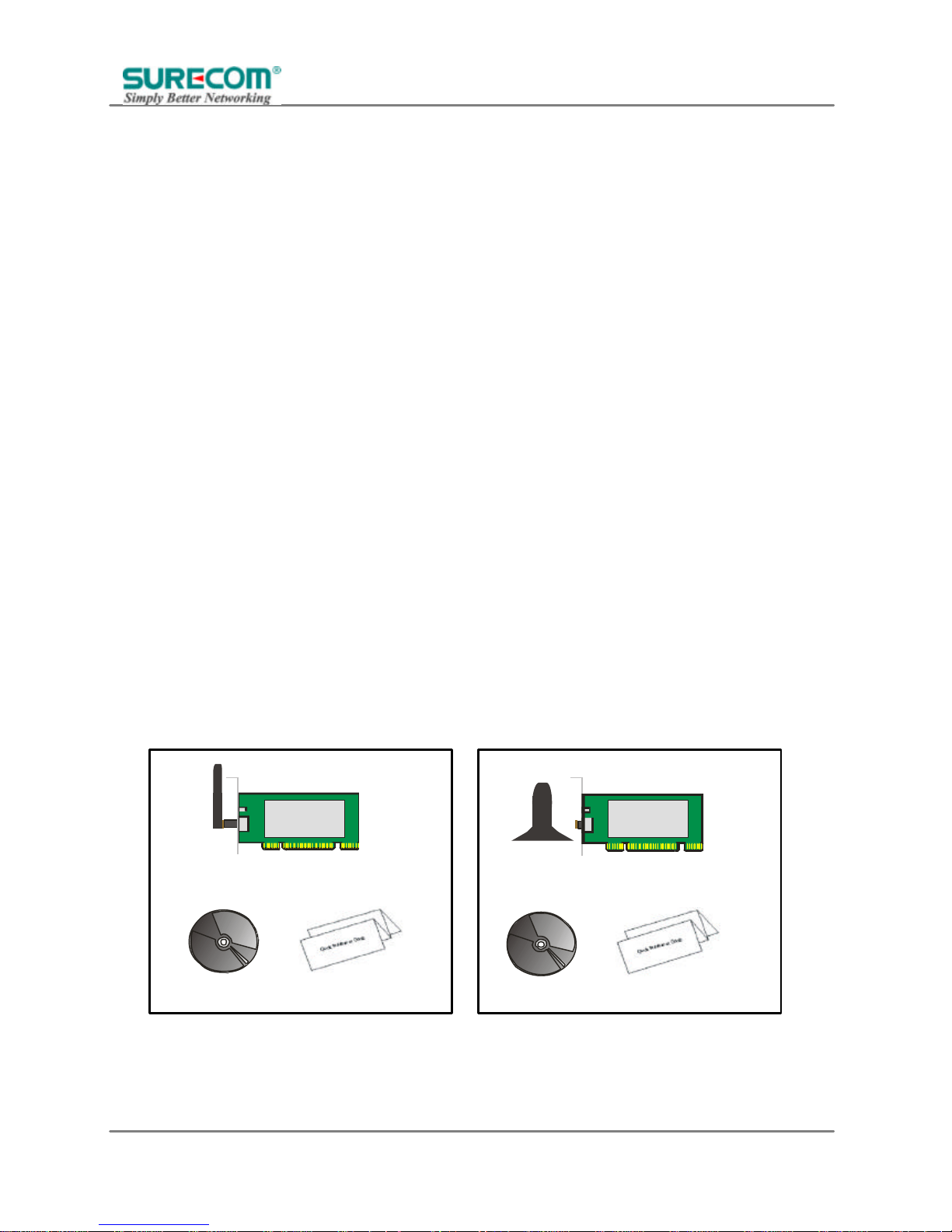
1.3 Package Contents
1. One 54Mbps WLAN PCI Adapter
2. One setup Ut ility CD-ROM (User Guide on CD)
3. Quick Installation Guide
802.11g 54M WLAN PCI Adapter
(W/Detachable Antenna)
CD Quick Install Guide
802.11g 54M WLAN PCI Adapter
(W/Desktop Antenna)
CD
Quick Install Guide
Page 5
EP-9321-g/g1
802.11g 54M Wireless LAN PCI Adapter
5
1.4 Systems Requirements
1. A Desktop computer with an available 32bit PCI slot.
2. Operating System: Windows 98SE/2000/ME/XP
3. 2M bytes free disk space for utility and driver installation.
Note: If you insert the WLAN PCI Adapter before installing the driver and utility, the operating system will
detect a new device and start to configure the new device. Click Cancel to finish the wizard. Follow the
instruction step by step to install the WLAN PCI Adapter.
2. Hardware Installation
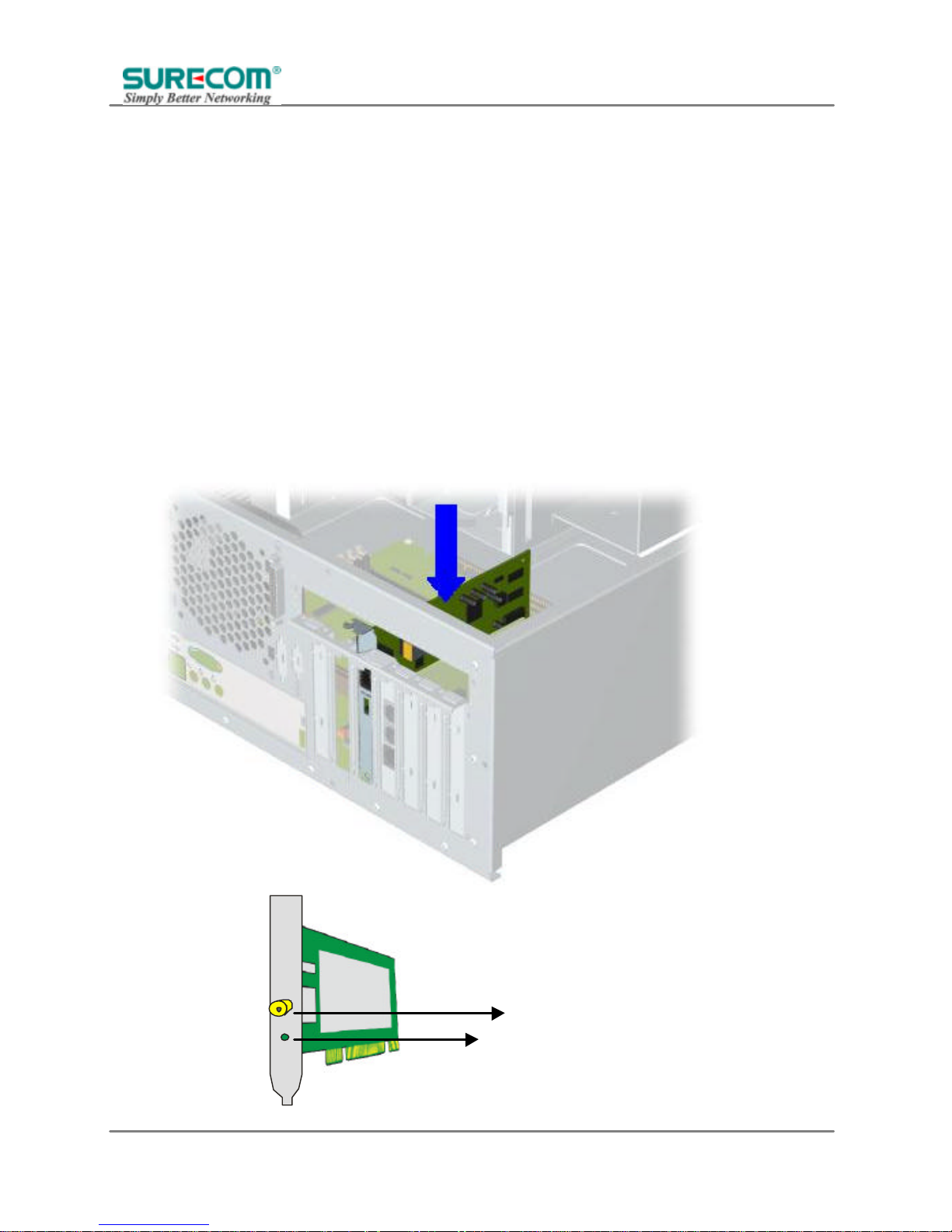
2.1 Connecting the PCI Card
Insert the PCI Card into the PCI slot on your desktop, and push it until it is firmly seated.
LED: Act – Blinking when transmitting/
Receiving data
Antenna Reverse SMA connector
Page 6
EP-9321-g/g1
802.11g 54M Wireless LAN PCI Adapter
6
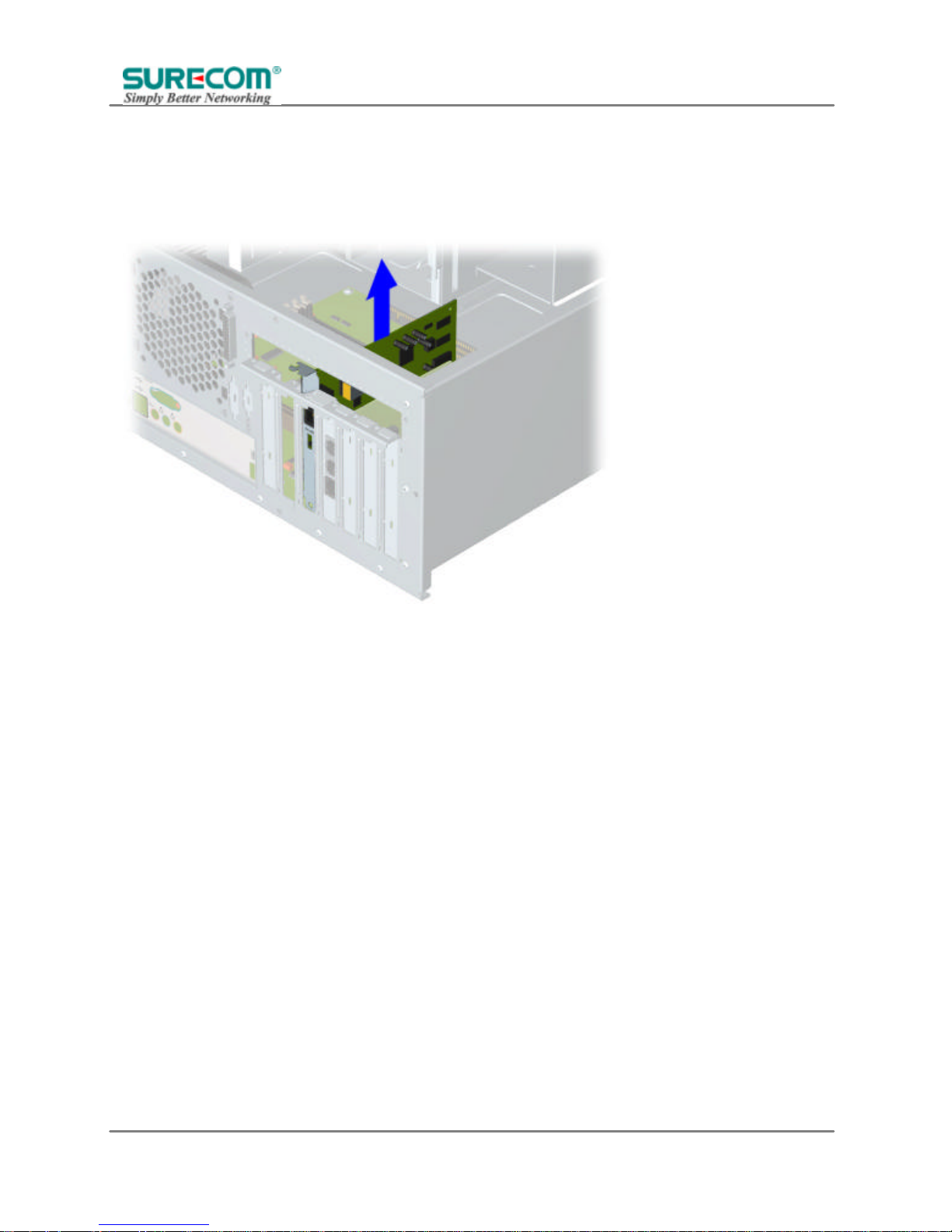
2.2 Removing the PCI Card
If you want to remove the PCI Card, Pull the PCI Card out and to the right to remove from the chassis.
Page 7
EP-9321-g/g1
802.11g 54M Wireless LAN PCI Adapter
7
3. Software Installati on
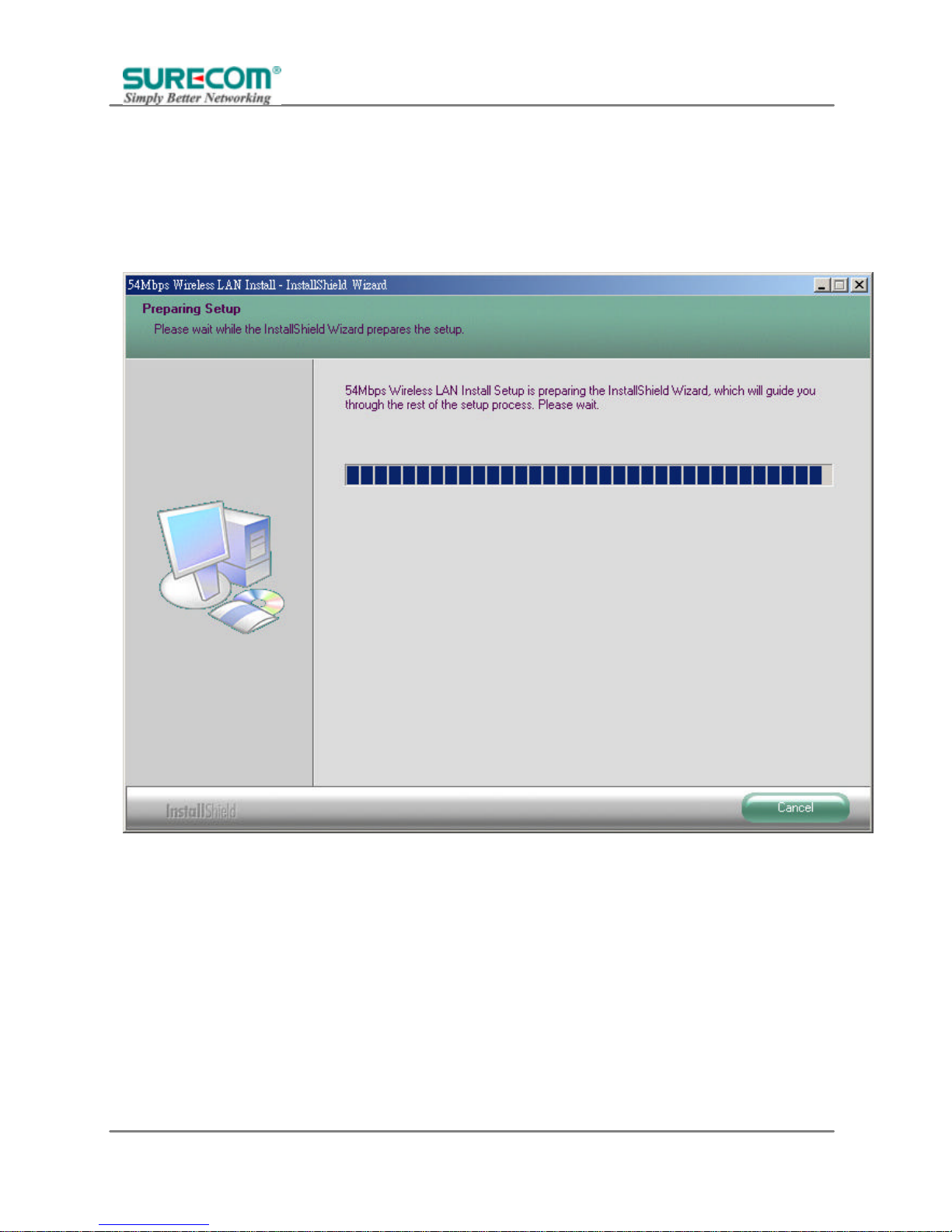
3.1 Installing WLAN PCI Adapter Utility and Driver
Insert the setup CD into your CD-ROM Drive. Then, the web page will pop up automatically and select the
“Installing Driver and Utility”. if it does not launch automatically, Double-click setup.exe in your CD-ROM
Drive.
Page 8
EP-9321-g/g1
802.11g 54M Wireless LAN PCI Adapter
8
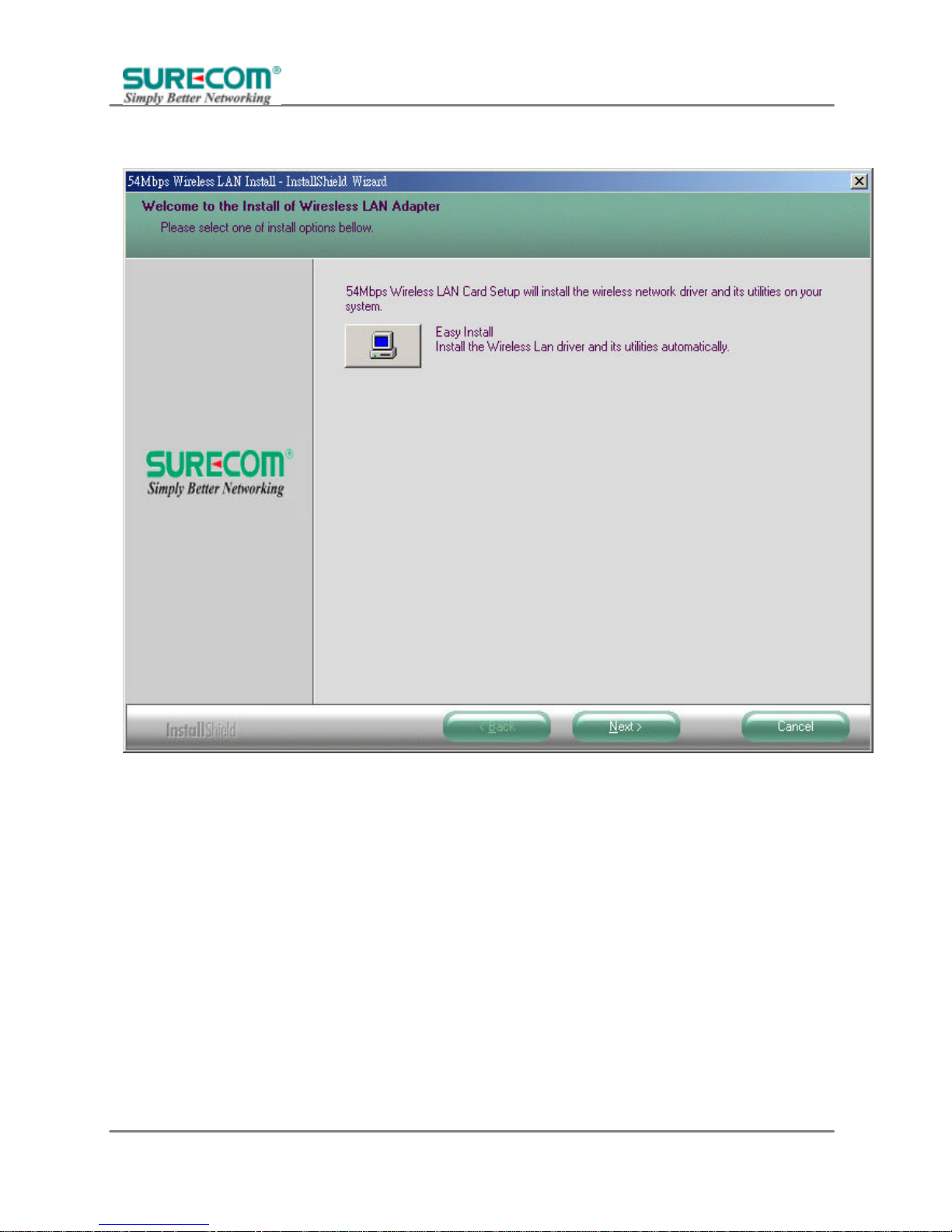
Click Next button in the following window.
Page 9
EP-9321-g/g1
802.11g 54M Wireless LAN PCI Adapter
9
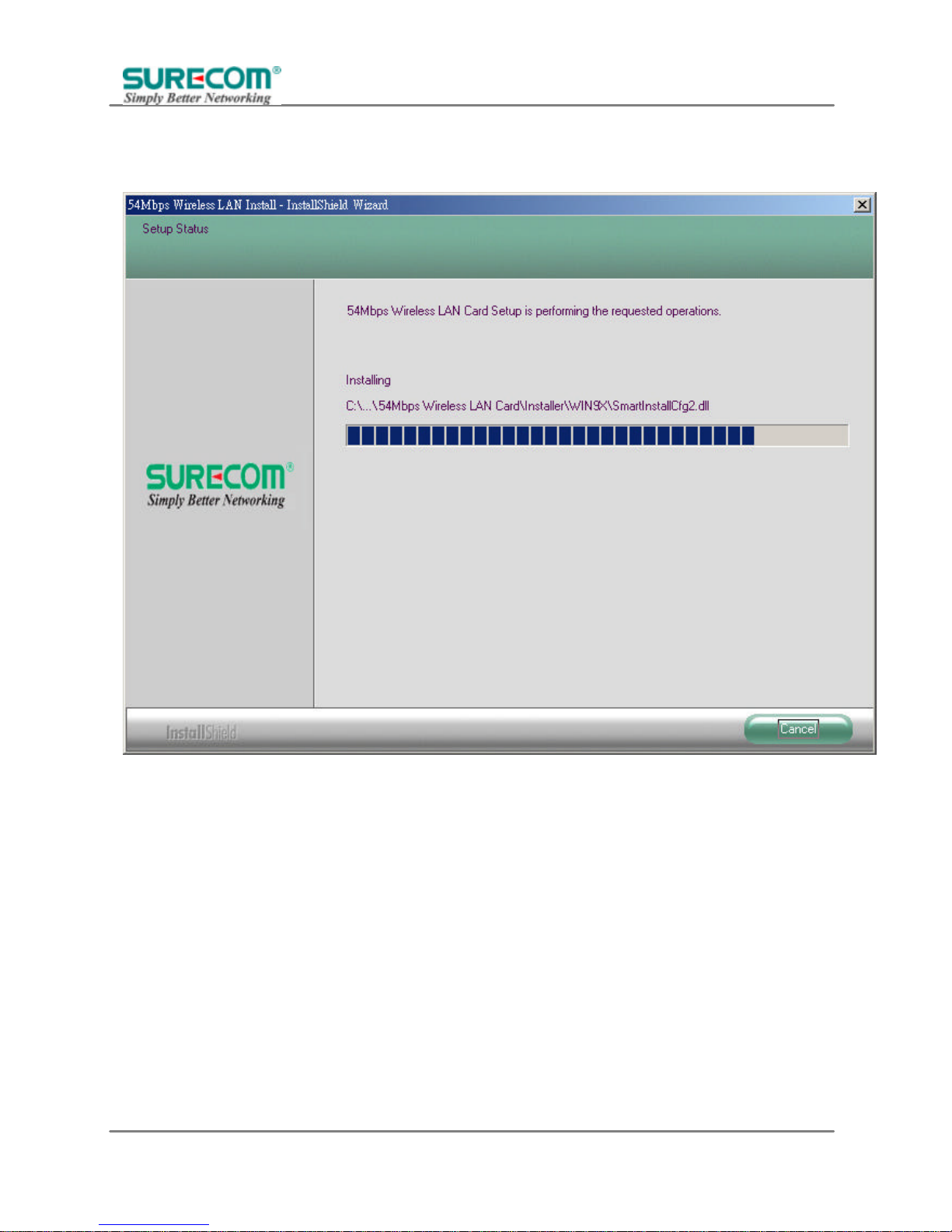
The Install Shield Wizard is copying the necessary files to the system. The progress indicator shows the
installing status.
Page 10
EP-9321-g/g1
802.11g 54M Wireless LAN PCI Adapter
10
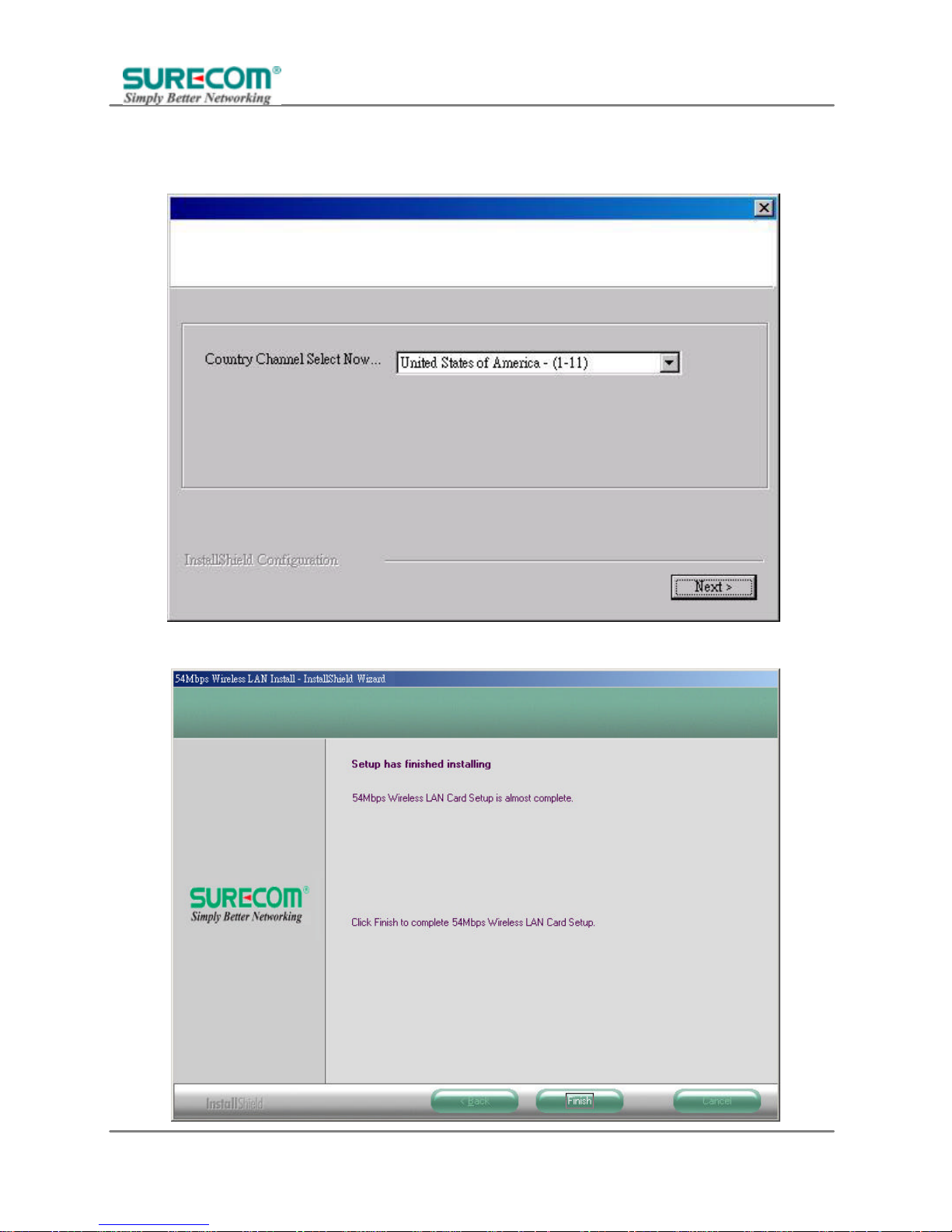
If this is the first time you install the software, the window below will appear. Select your current country
region then click Next.
Click Finish, when the installation is completed.
Page 11
EP-9321-g/g1
802.11g 54M Wireless LAN PCI Adapter
11
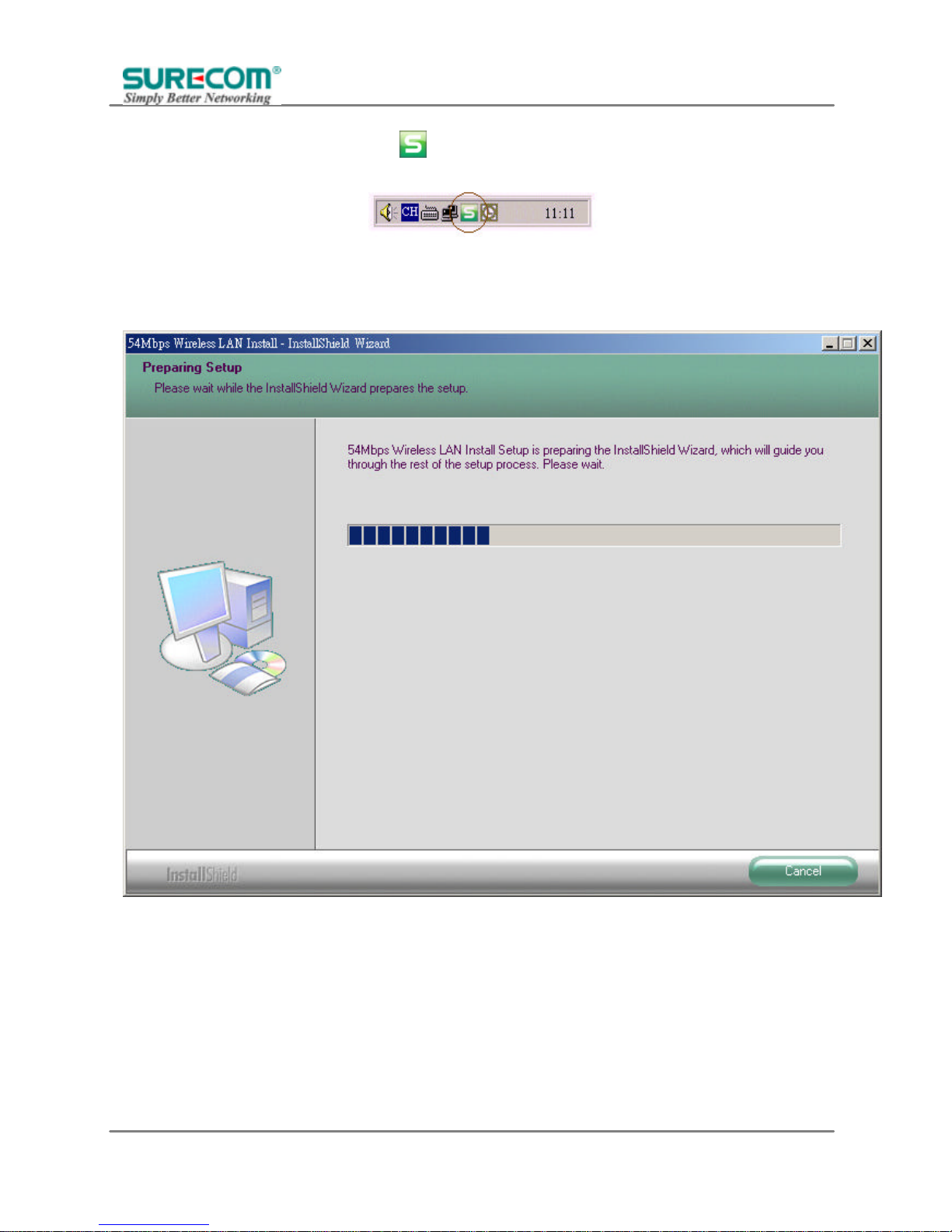
After completing the installation, the icon will appear in the system tray. Double-click the icon to
configure the WLAN PCI Adapter.
3.2 Uninstalling the Driver and Utility
You may follow the instruction step by step to uninstall the WLAN PCI Adapter completely. Insert the setup
CD or execute the setup.exe again.
Page 12

EP-9321-g/g1
802.11g 54M Wireless LAN PCI Adapter
12
The following window should launch automatically. Select Remove, and click Next.
Select Yes to continue uninstallation.
Page 13
EP-9321-g/g1
802.11g 54M Wireless LAN PCI Adapter
13
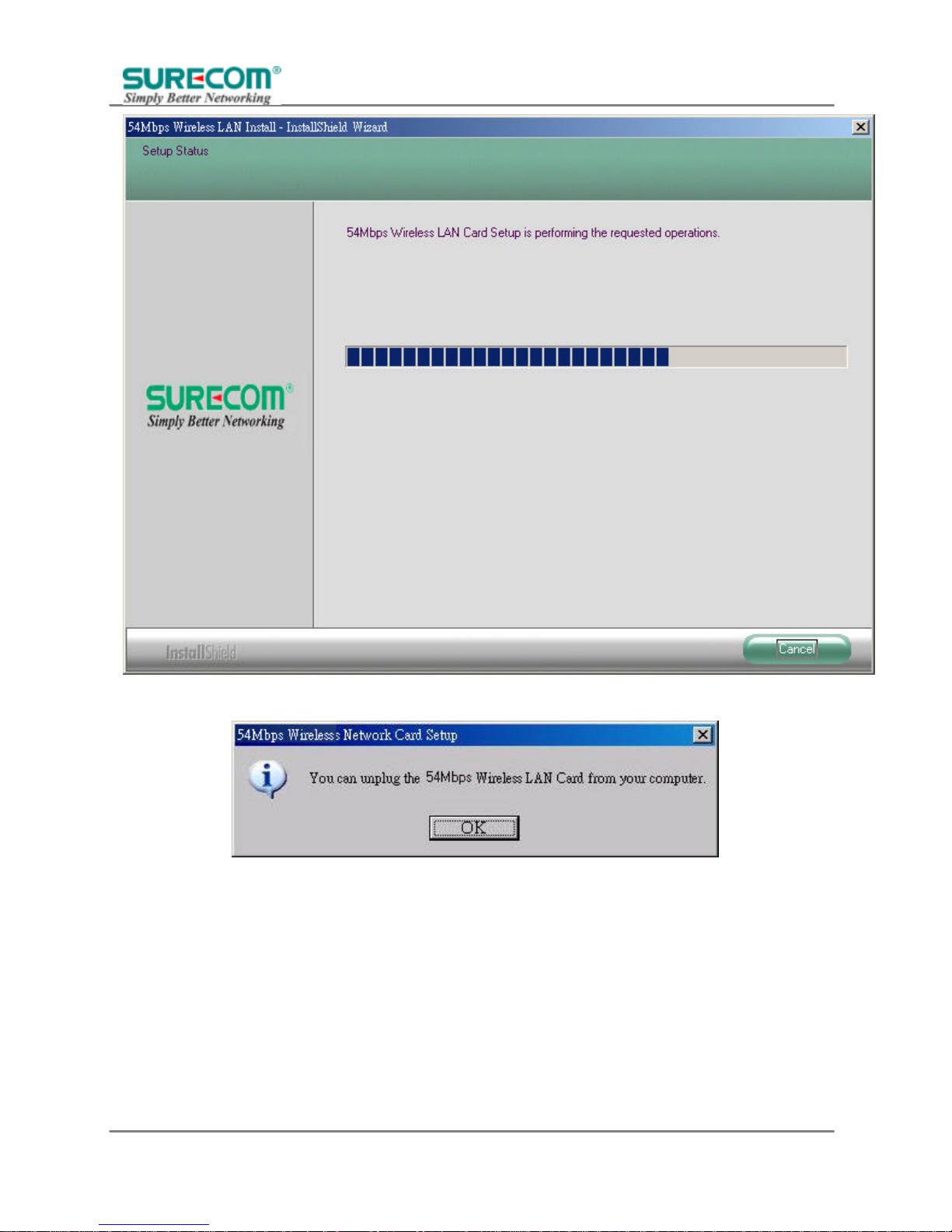
Click OK to finish, when the uninstallation is completed.
Page 14
EP-9321-g/g1
802.11g 54M Wireless LAN PCI Adapter
14
4. Configuration Utility
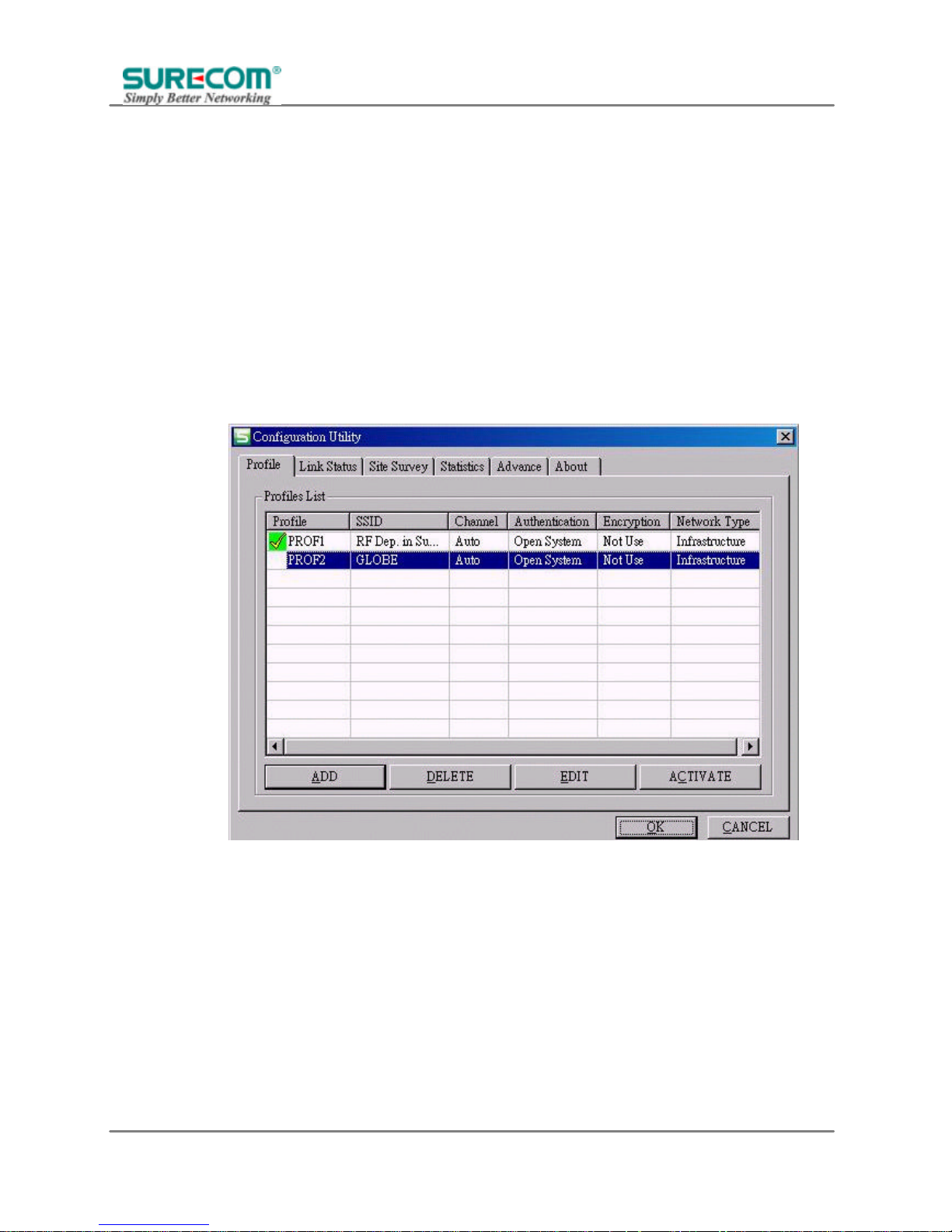
After the Configuration Utility has been installed, an icon will be placed in the system tray when the WLA N
PCI Ad apter is inserted. Click the icon and the configuration utility will pop up.
The utility was six tabs: Profile, Link Status, Site Survey, Statistics Advance, and About. You should change
all your configuration settings for your WLAN PCI adapter using this utility.
4.1 Using the configuration Utility
After the Configuration Utility has been installed, an icon will be placed in the system tray when the WLA N
PCI Adapter is inserted. Click the icon and the configuration utility will pop up.
The utility was six tabs: Profile, Link Status, Site Survey, Statistics Advance, and About. You should change
all your configuration settings for your WLA N PCI adapter using this utility.
Page 15
EP-9321-g/g1
802.11g 54M Wireless LAN PCI Adapter
15
4.1.1 Profile
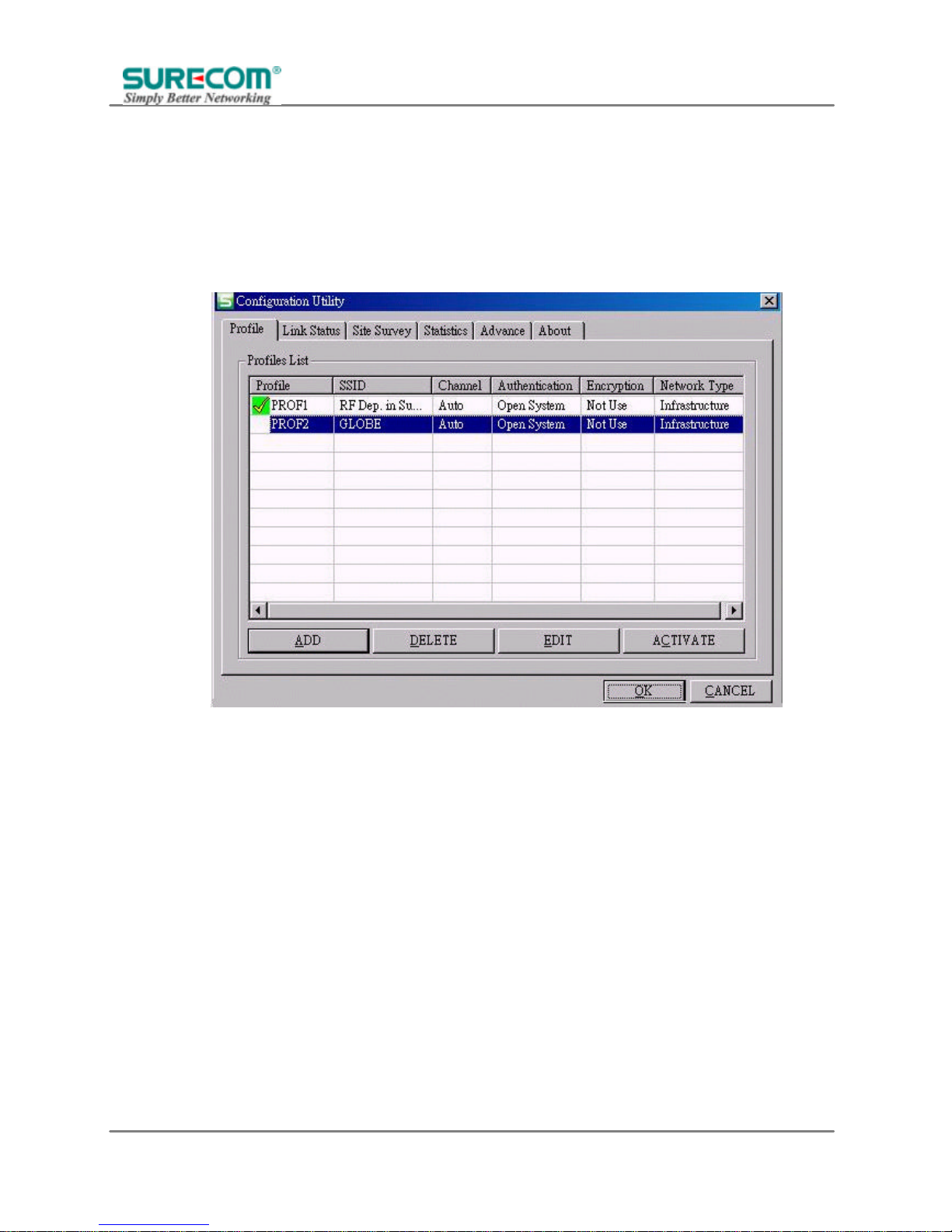
Specific different network profile settings used in various locations, such as your office, your home, the
factory, or the airport. In each profile, you can specify a network type, network name, WEP and security
setting parameters required for that operating location.
4.1.1.1 System Configuration Edit profile Network Type:
The column in Profile list from left to right is
“Profile”、”SSID”、”Channel”、”Authentication”、”Encryption” and “Network Type”. Click “ACTIVATE”
to excuse the profile.
Page 16

EP-9321-g/g1
802.11g 54M Wireless LAN PCI Adapter
16
SSID: All wireless devices within the ESS or extended wireless LAN use the SSID. This can be any
alphanumeric value of up to 32 characters long. Use this to prevent cross communication between two or
more WLAN in one area. The SSID should be changed in order to provide some minimum security.
Channel: Shows the selected channel that is currently used. (Available channels depend on the country or
region you are located.)
Authentication: Defines authentication type of the wireless networks, including "Open System" and “Share
Key” authentication. The wireless adapter will need to be set to the same authentication type to
communicate.
Encryption: Indicates your WEP (Wired Equivalent Privacy) settings. WEP encryption can be used to
ensure the security of your wireless network. If there is no Encryption exists, the column will show Not USE.
Network type: The network type of the wireless network. An Ad-Hoc wireless LAN is a group of computers
each with wireless adapters, connected as an independent wireless LAN. An integrated wireless and wired
LAN is called an infrastructure configuration.
Page 17
EP-9321-g/g1
802.11g 54M Wireless LAN PCI Adapter
17
4.1.1.2 Edit Profile
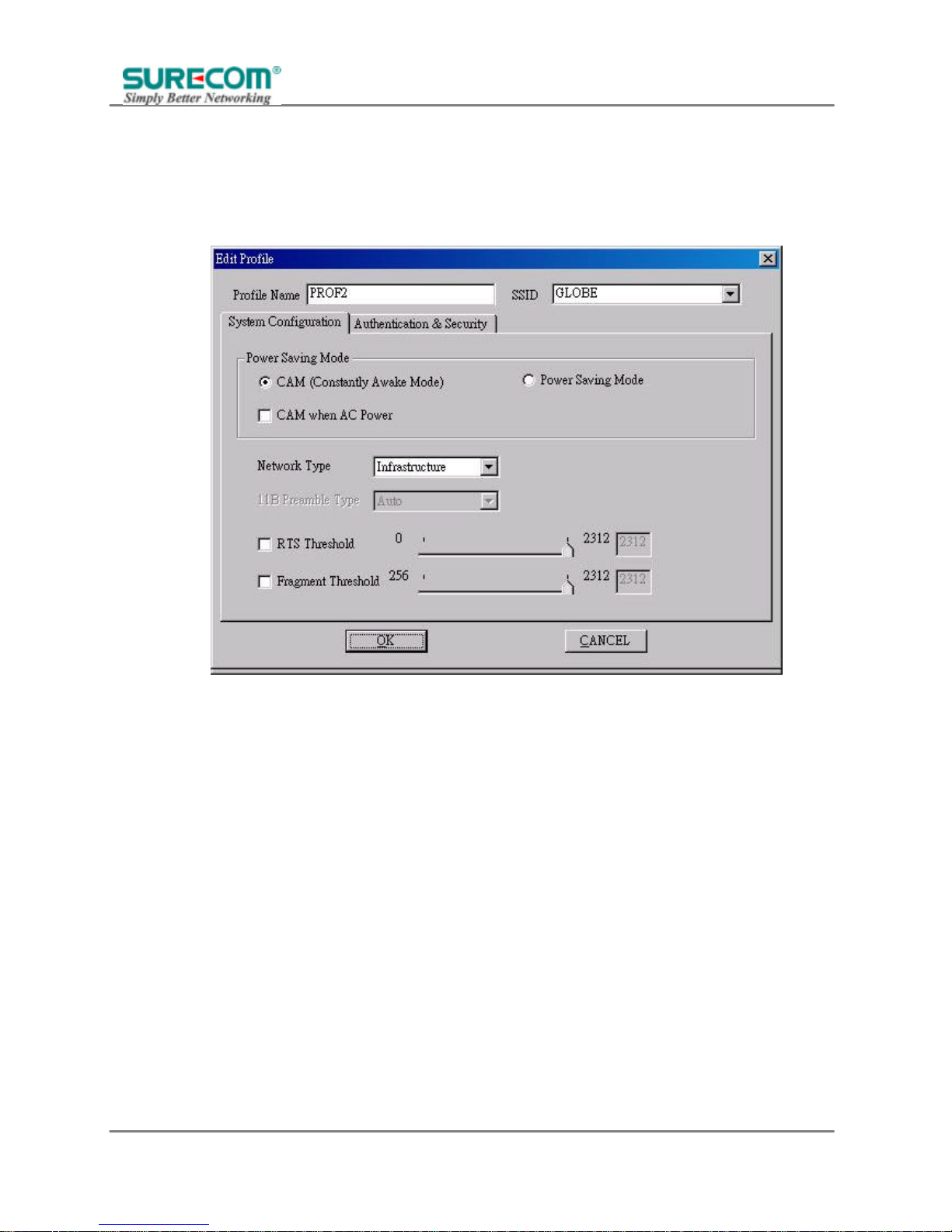
To add a new location profile name or to rename, delete, or select an existing profile, click Edit. The Edit
Configurations screen appears as follows
Power Saving Mode:
CAM: (Constant Awake Mode) CAM is the normal mode for desktop machines or other machines where
power consumption is not an issue. It keeps the radio powered up continuously, so there is little latency for
responding to messages.
Max_PSP: Maximum Power Save.
Fast_PSP: Fast Awake.
Network Type
The network type of the wireless network. An Ad-Hoc wireless LAN is a group of computers each with
wireless adapters, connected as an independent wireless LAN. An integrated wireless and wired LAN is
called an infrastructure configuration.
Preamble Type
Preamble is the first sub-field of PPDU, which is the appropriate frame format for transmission to PHY
(Physical layer). There are two options, Short Preamble and Long Preamble. The Short Preamble option
improves throughput performance.
Page 18

EP-9321-g/g1
802.11g 54M Wireless LAN PCI Adapter
18
RTS Threshold: The RTS Threshold sets an upper threshold at which point the device will issue an RTS
packet. The RTS (Request To Send) packet is used for the purpose of avoiding data collisions on the wireless
LAN. There are several trade offs to consider when setting this parameter. Setting this parameter to a small
value causes RTS packets to be sent more often, consuming more of the available bandwidth, therefore
reducing the apparent throughput of other network packets. However, the more often RTS packets are sent,
the quicker the system can recover from interference or collisions. Refer to the IEEE 802.11 Standard for
more information on the RTS/CTS mechanism.
Fragment Threshold: Fragment Threshold defines a threshold above, which the wireless packet will be split
up, or fragmented. For a fragmented packet, if transmission of part of it were to be interfered with, only the
portion that was successfully transmitted would need to be resent. Throughput will generally be lower for
fragmented packets, since the fixed packet overhead consumes a higher portion of the RF bandwidth.
Page 19
EP-9321-g/g1
802.11g 54M Wireless LAN PCI Adapter
19
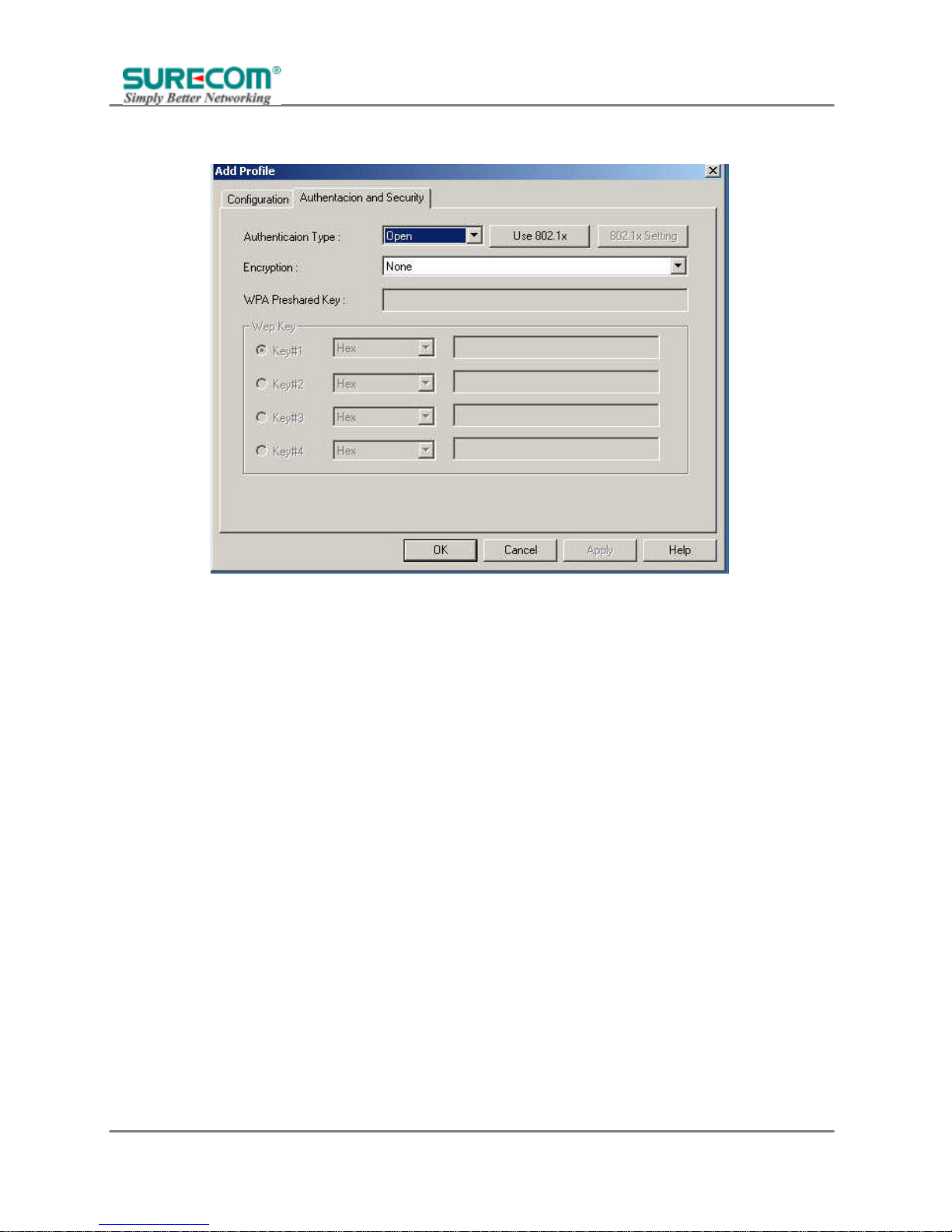
4.1.1.3 Authentication & Security
Authentication Type: Defines authentication type of the wireless networks. The wireless adapter will need to
be set to the same authentication type to communicate. There are five options to choose as following:
Open System: With this setting any station in the Wireless LAN can associate with an Access Point to
receive and to transmit data. You can choose non-encryption or WEP encryption under Open System setting.
“WEP (Wired Equivalent Privacy)” is an optional feature of the IEEE 802.11 standard that is used to ensure
the security of your wireless network. There are four groups of WEP key you can set.
Page 20
EP-9321-g/g1
802.11g 54M Wireless LAN PCI Adapter
20
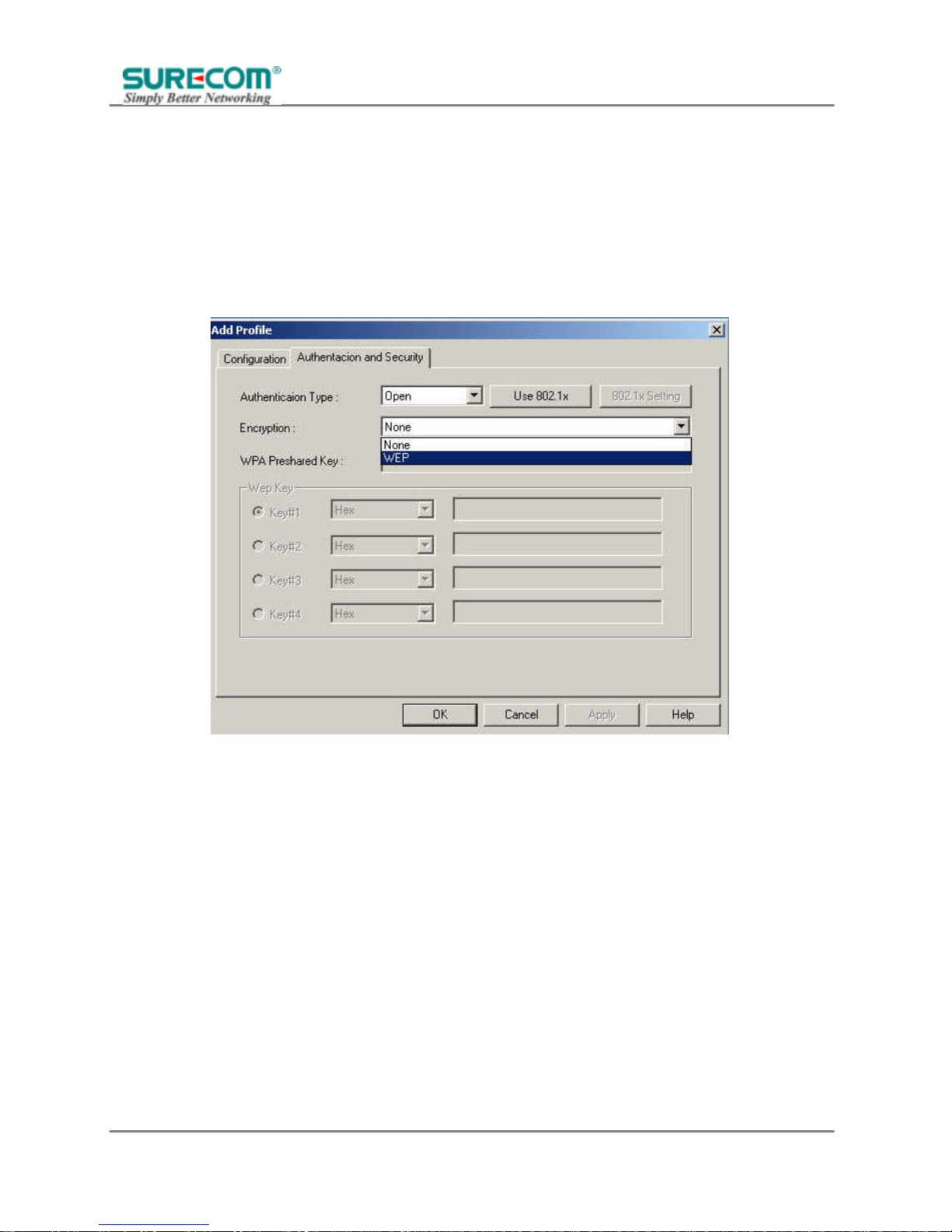
Key 1 - Key 4: These four fields can be used to manually enter the encryption keys. This may be necessary if
you wish this node to match keys in a different vendor's product.
WEP Key length: The 64 or 128-bits Wired Equivalent Privacy Algorithm. You can decide the network key to
be encoded by ASCII characters or hexadecimal digitals. A key of 10 hexadecimal characters (0-9, A-F) is
required if a 64-bit Key Length was selected. A key of 26 hexadecimal characters (0-9, A-F) is required if a
128-bit Key Length was selected.
Page 21
EP-9321-g/g1
802.11g 54M Wireless LAN PCI Adapter
21
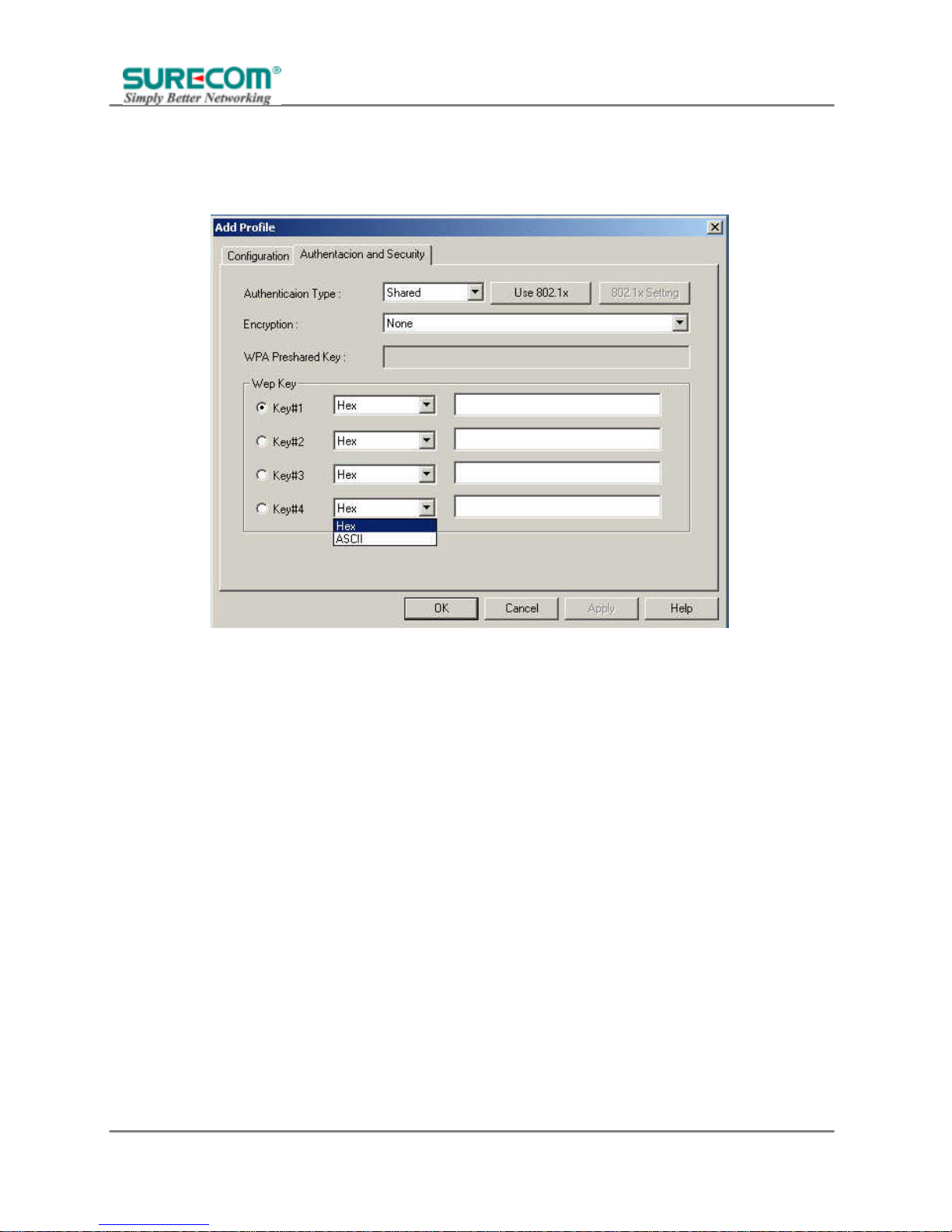
Share Key: Is when both the sender and recipient share a secret key. Both units use this key for an extended
length of time, sometimes indefinitely. You also can choose non-encryption or WEP encryption under Shared
setting.
Page 22
EP-9321-g/g1
802.11g 54M Wireless LAN PCI Adapter
22
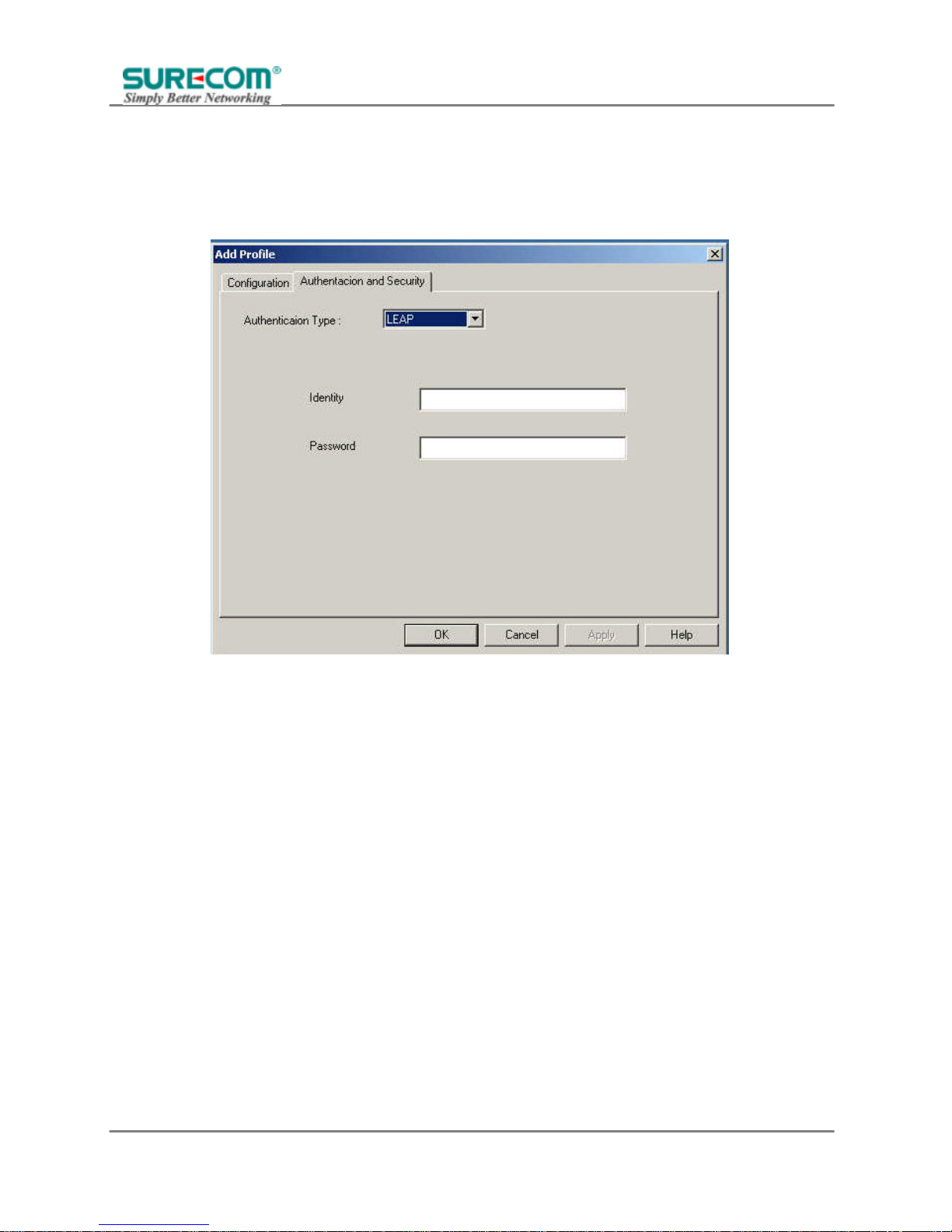
LEAP (Lightweight Extensible Authentication Protocol): Normally it’s using on Cisco’s networking devices.
You may need a Cisco ACS Server to do authentication.
After selecting LEAP, another setting window will pop up as following. Types in your “Identity Key” and
“Password” then click Ok to complete setting.
Page 23
EP-9321-g/g1
802.11g 54M Wireless LAN PCI Adapter
23
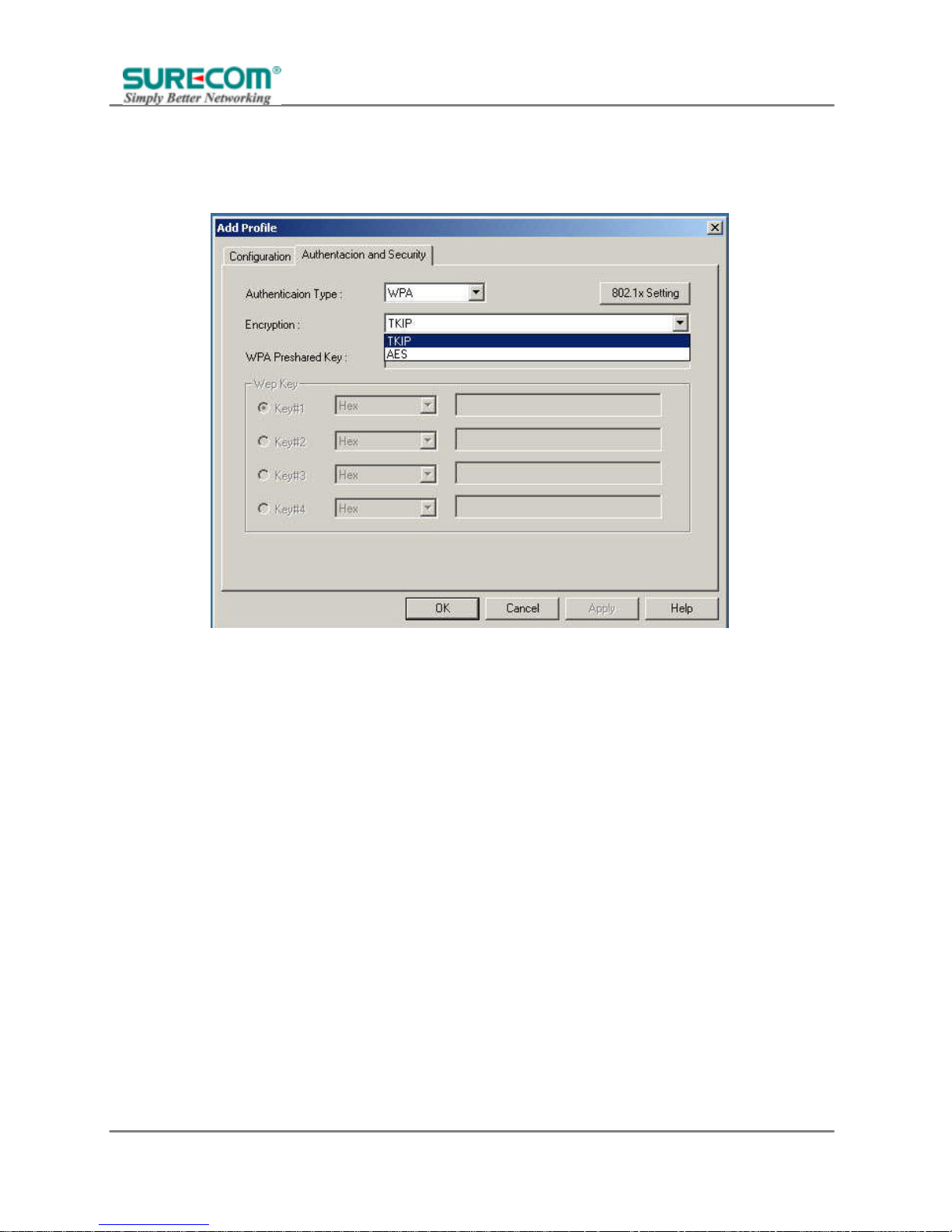
WPA (Wi-Fi Protected Access): WPA is an enhanced security algorithm in comparison with WEP. There are
two types of encryption, “TKIP” and “AES”. TKIP stands for Temporal Key Integrity Protocol. AES stands for
Advanced Encryption Standard.
Page 24
EP-9321-g/g1
802.11g 54M Wireless LAN PCI Adapter
24
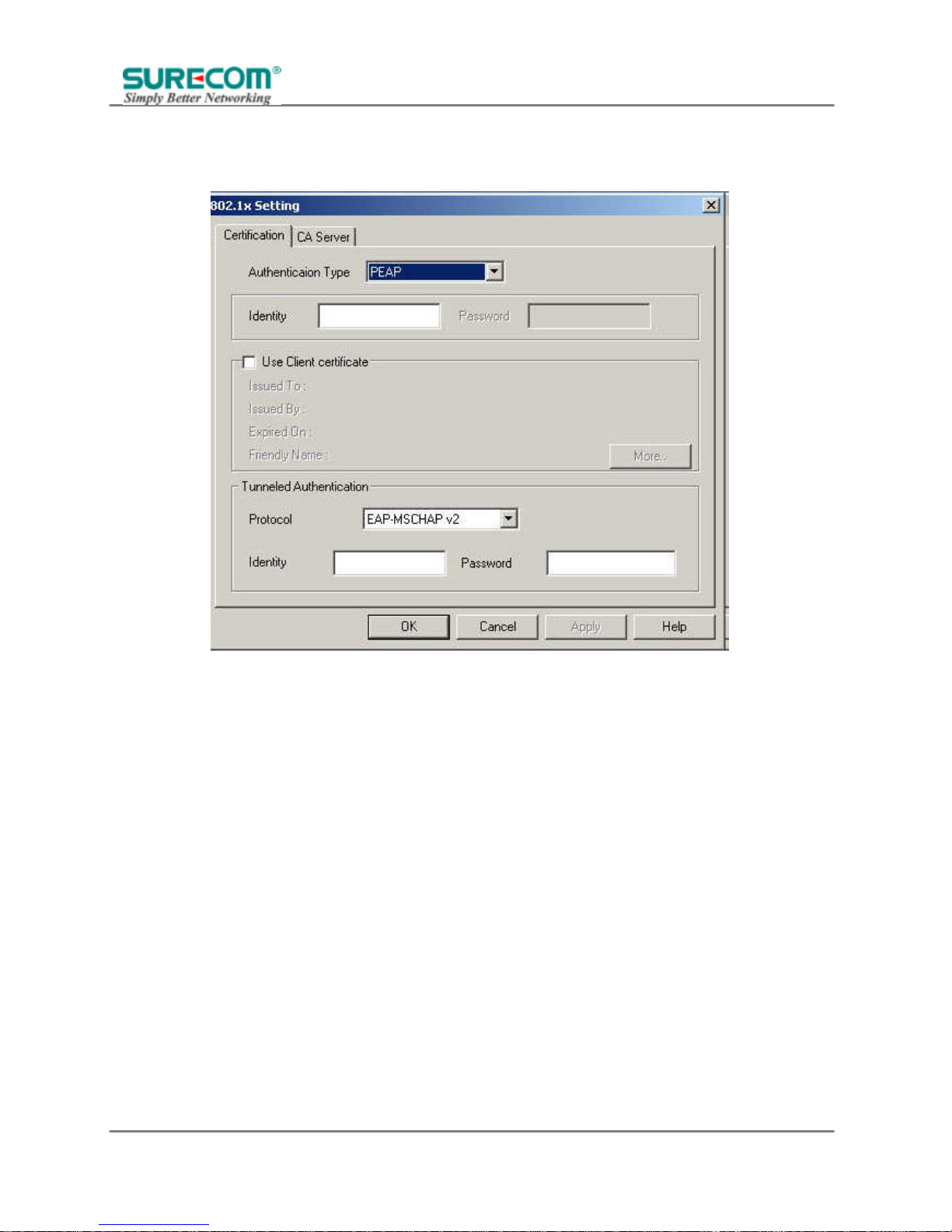
802.1x Settings: It’s a standard made by IEEE in 1999. It is used on Ethernet Switch in the beginning. You
will need an authentication server to apply. After clicking “802.1x Setting”, another window will pop up.
In the “Authentication Type”, there are PEAP, TLS -Smart Card and TTLS. Select the type you want. PEAP
stands for Protected EAP. TLS -Smart Card stands for Transport Layer Security-Smart Card. TTLS stands for
Tunneled Transport Layer Security. The followings are the explanation of settings:
Page 25
EP-9321-g/g1
802.11g 54M Wireless LAN PCI Adapter
25
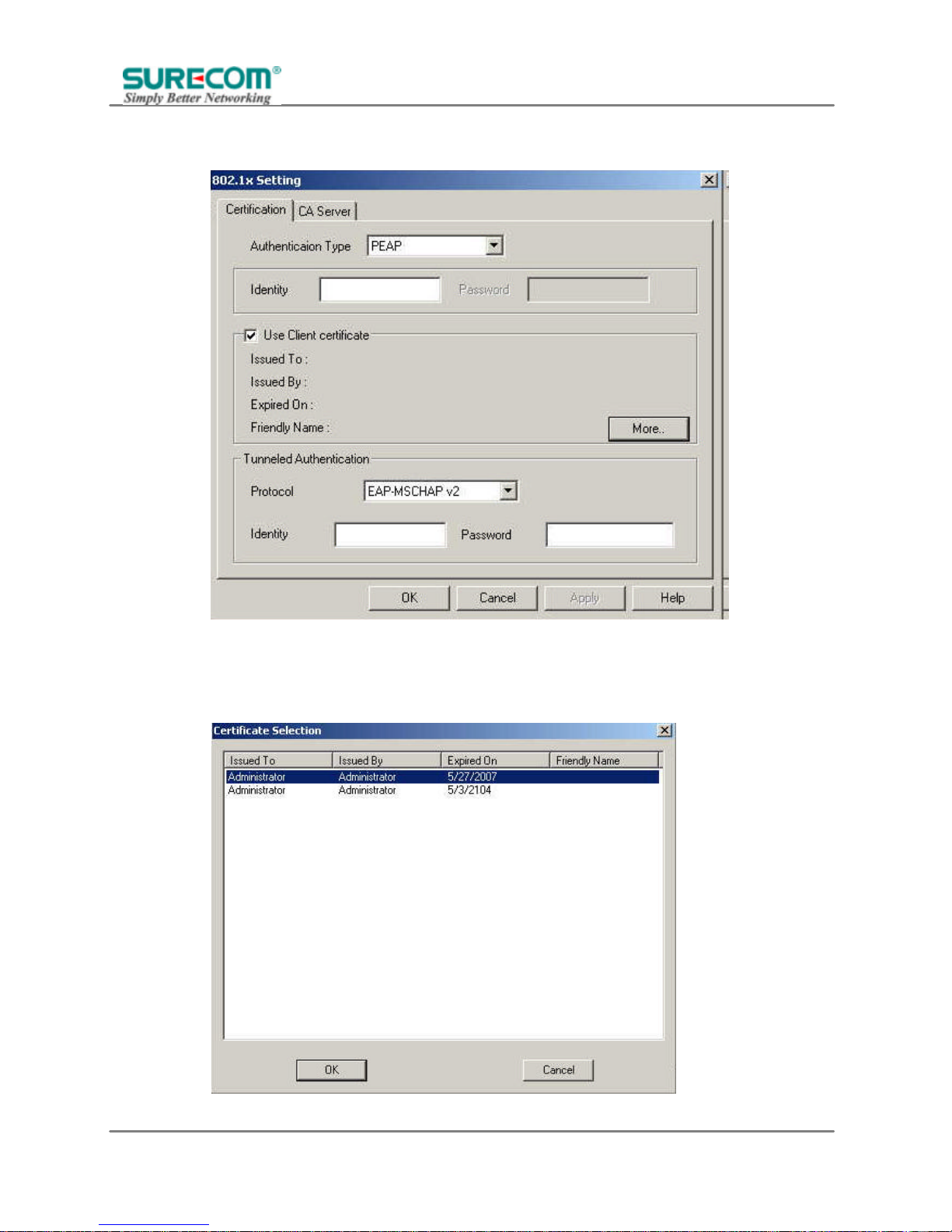
PEAP: When selecting PEAP, the following fills will be shown.
“Identity”: Type in your ID to access in authentication server.
“Client Certificate”: If you use other client certification, check this box. Then click “more”, another
window will pop up. Select your certification.
Page 26
EP-9321-g/g1
802.11g 54M Wireless LAN PCI Adapter
26
“Tunneled Authentication”: In this dialogue, select your authentication protocol type first. There are
“EAP-MSCHAP v2”, “EAP-TLS/Smart Card” and “Generic Token Card”
can be chosen. Then type in your “Identity” and “Password” to access in
authentication server.
TLS-Smart Card: When selecting this authentication type, you have to type in your ID in the “Identity” fill.
TTLS: After selecting this authentication type, the fills “Identity”, “Client Certificate” and “Tunneled
Authentication” also will be shown. The difference between PEAP and TTLS settings is the
authentication protocol. The authentication protocol of TTLS has three types for choosing, “CHAP”,
“MS-CHAP” and “MS-CHAP v2”.
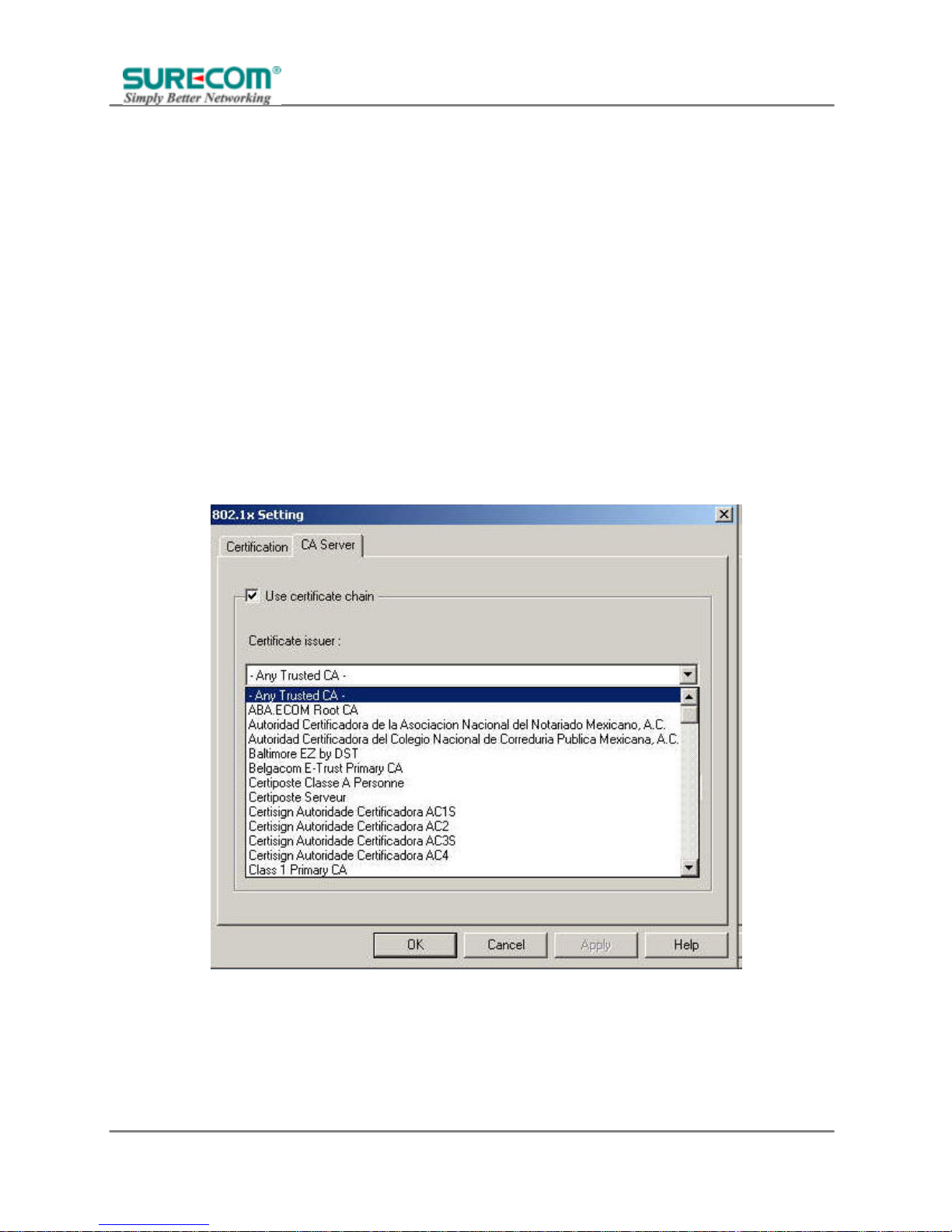
CA Server: When using PEAP and TTLS authentication type, you need to select your authentication server’s
certification type. Switch to the CA Server folder then select your certification issuer.
Page 27
EP-9321-g/g1
802.11g 54M Wireless LAN PCI Adapter
27
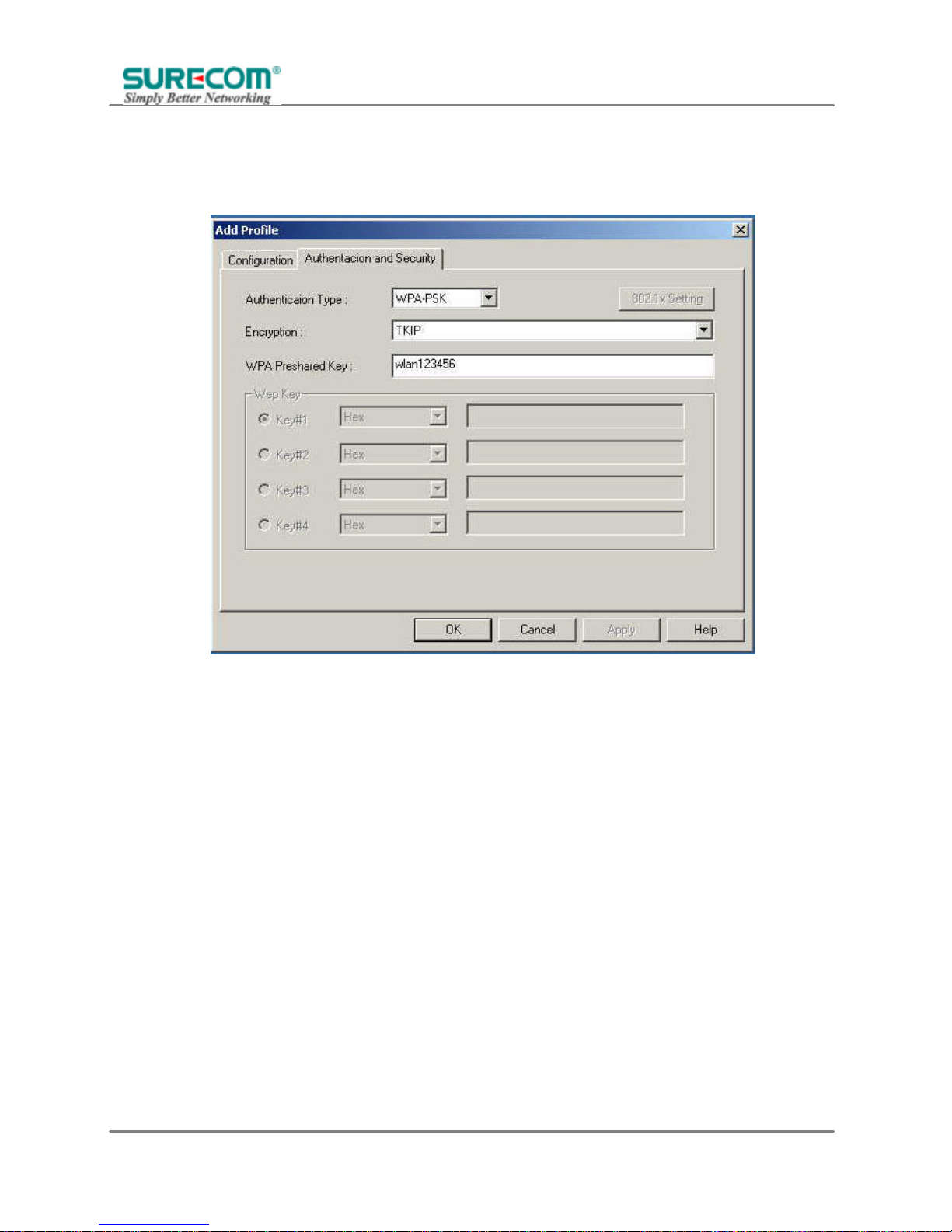
WPA-PSK (Wi-Fi Protected Access-Pre-shared Key): The difference between WPA and WPA-PSK setting
is that WPA -PSK allows you to set “password” (We call Pre-shared Key here). And the “password” will use
either “TKIP” or “AES” encryption. This is normally used on SOHO or Home Network.
Page 28
EP-9321-g/g1
802.11g 54M Wireless LAN PCI Adapter
28
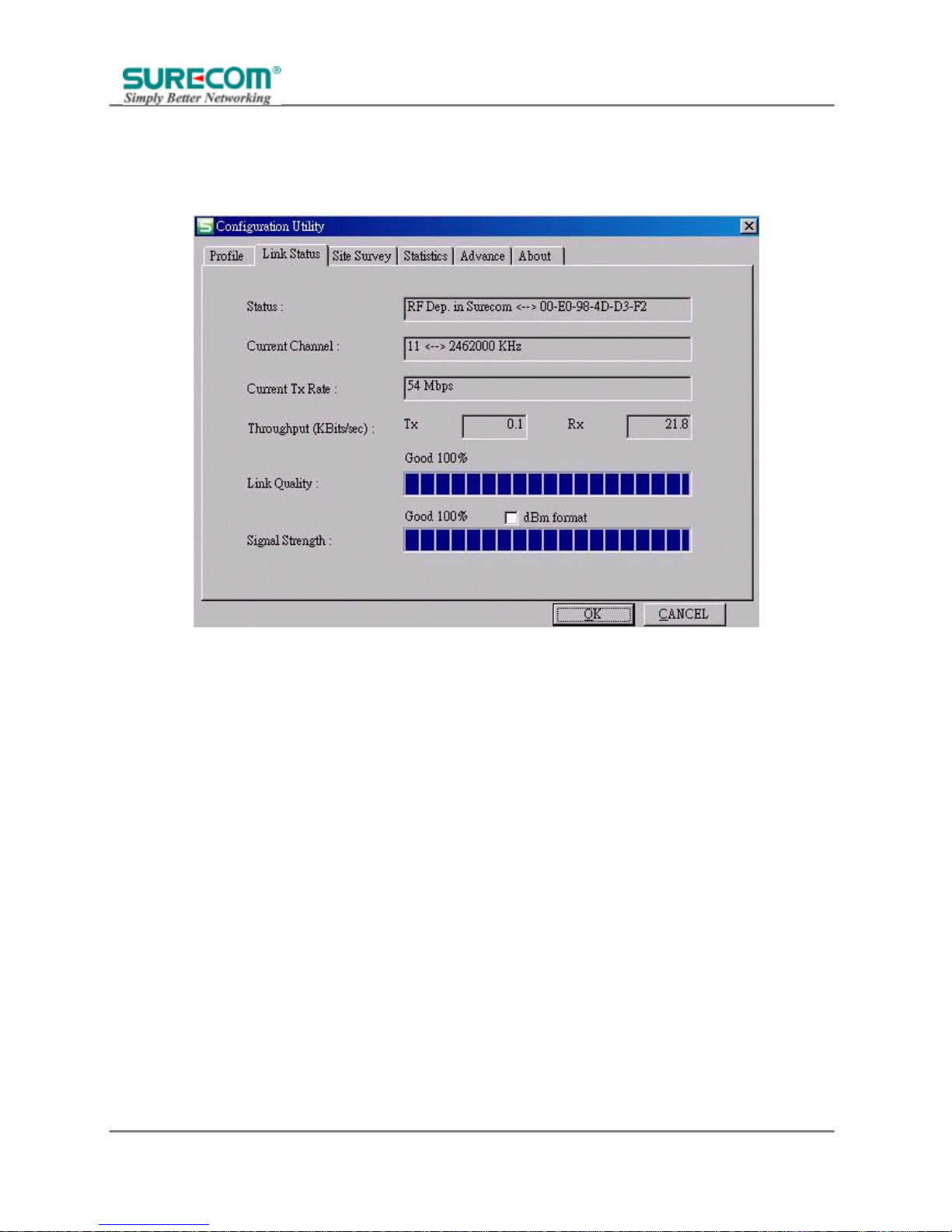
4.1.2 Link Status
You can see the below status: Status, Current Channel, Current TX Rate, throughput(Kbit/sec), Link Quality,
Signal Strength.
Page 29
EP-9321-g/g1
802.11g 54M Wireless LAN PCI Adapter
29
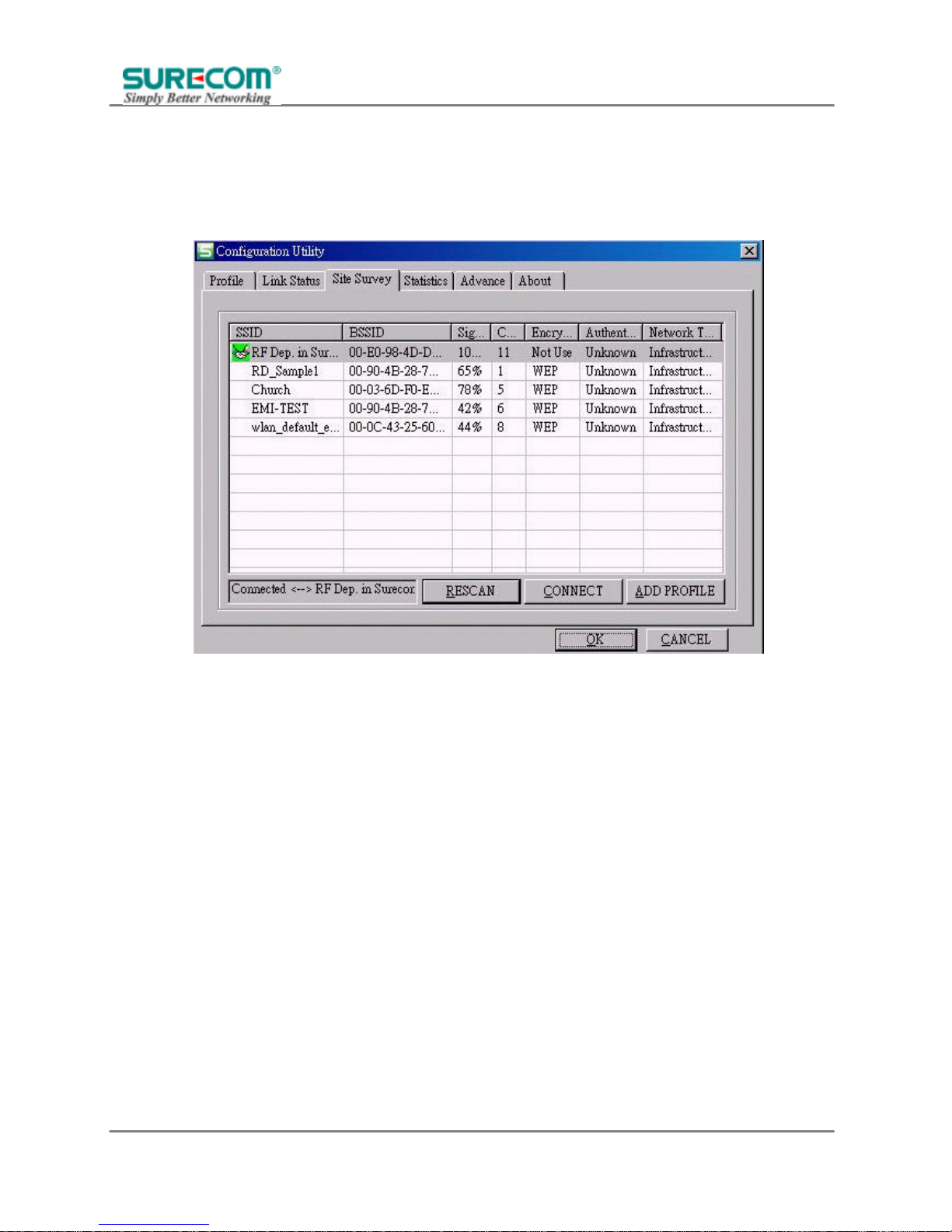
4.1.3 Site Survey:
Click the Site Survey; you can to see the signal strengt h, channel, Encryption, authentication and network
type of available wireless network. The AP MAC address will also be displayed at the Preferred BSSID field.
Select the AP you want to connect to and click connect to establish network.
Page 30
EP-9321-g/g1
802.11g 54M Wireless LAN PCI Adapter
30
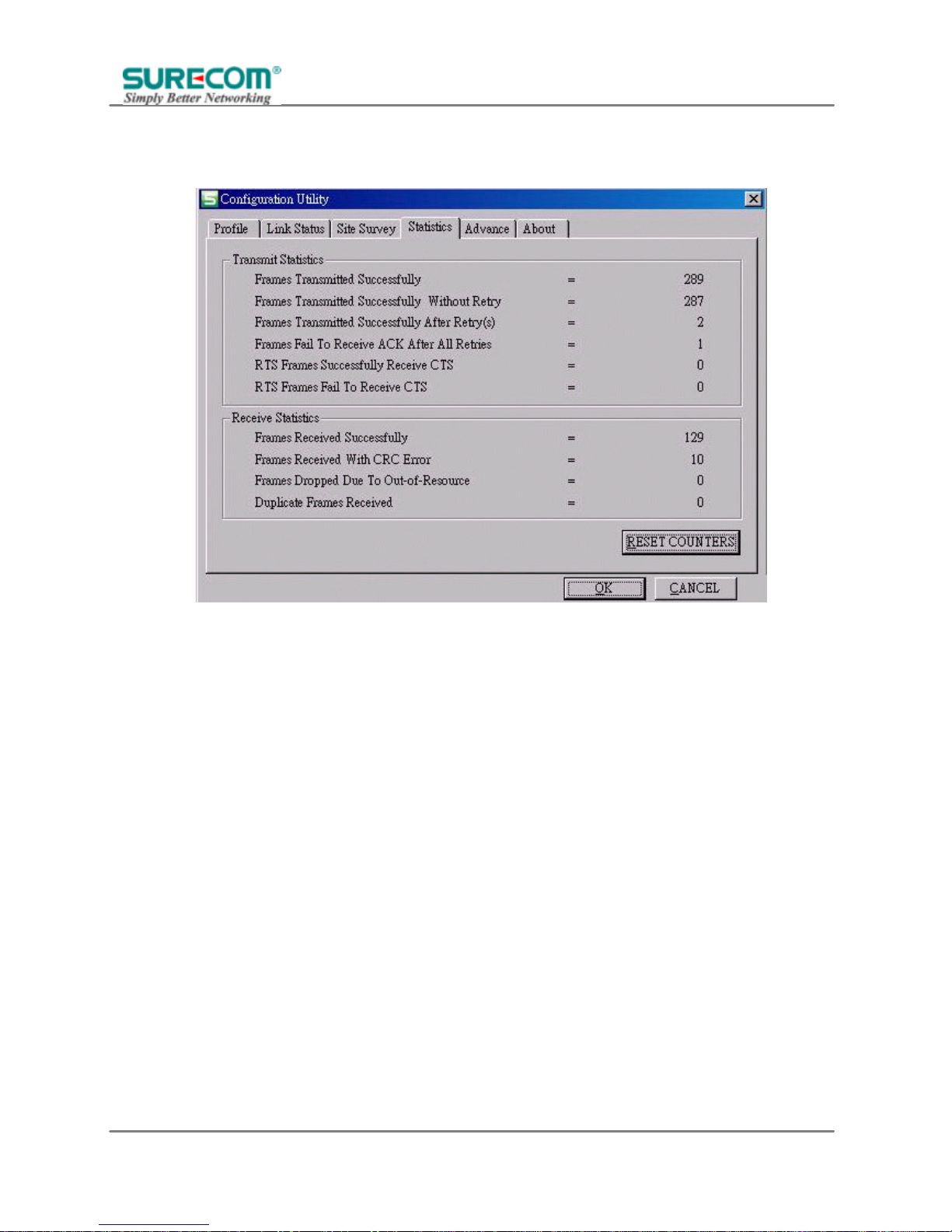
4.1.4 Statistics
You can see the information of transmit statistics and receive statistics in this screen :
Page 31
EP-9321-g/g1
802.11g 54M Wireless LAN PCI Adapter
31
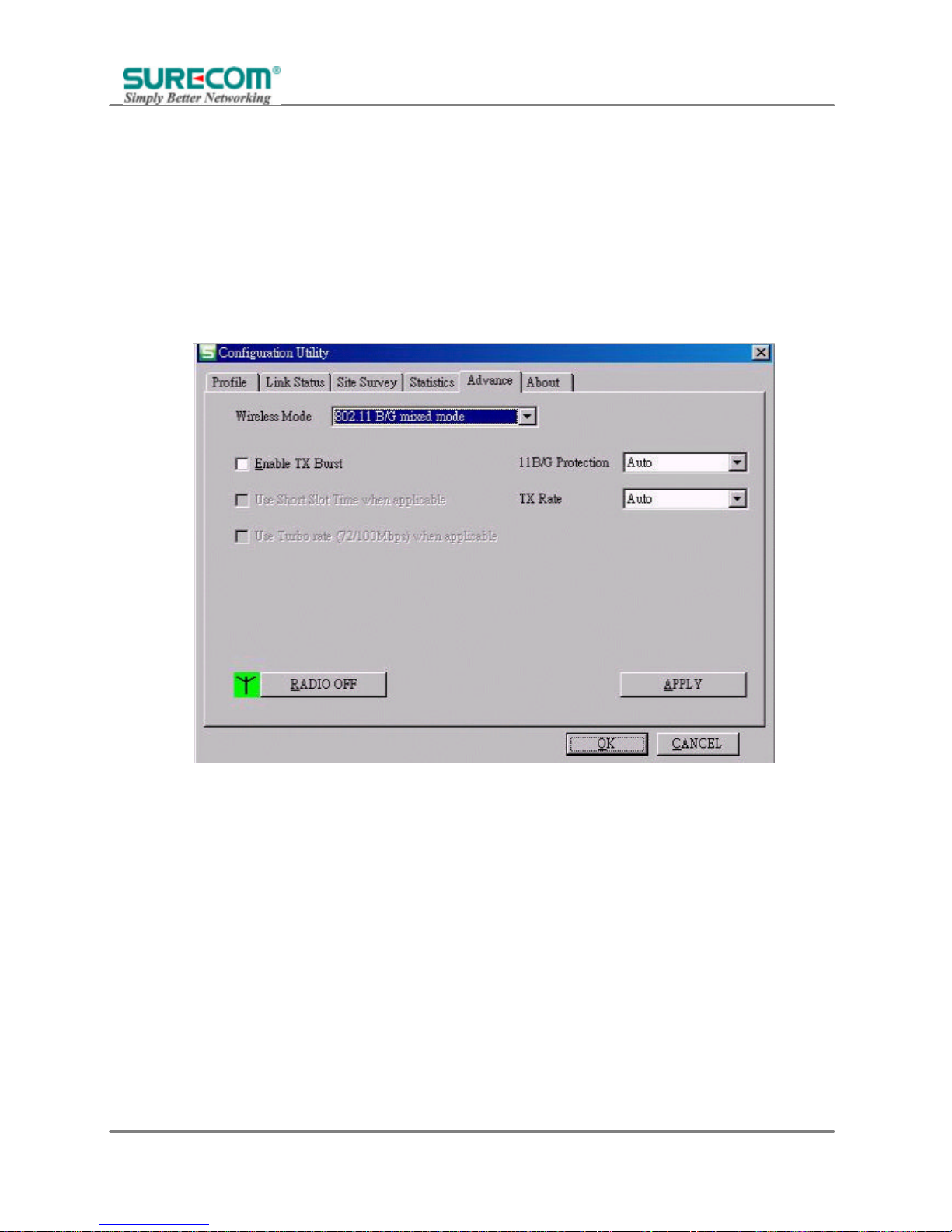
4.1.5 Advance:
Wireless Mode
If there are 802.11b devices in your wireless network, choose b+g mixed mode. If all the devices in your
wireless network are 802.11g ones, choose 802.11g mode to get better transfer rate.
Tx Burst
Enable this function to burst the transmit speed, but it may affect signal quality.
Radio off
You can stop wireless transmission by clicking this icon. Click again to resume wireless connection.
Page 32
EP-9321-g/g1
802.11g 54M Wireless LAN PCI Adapter
32
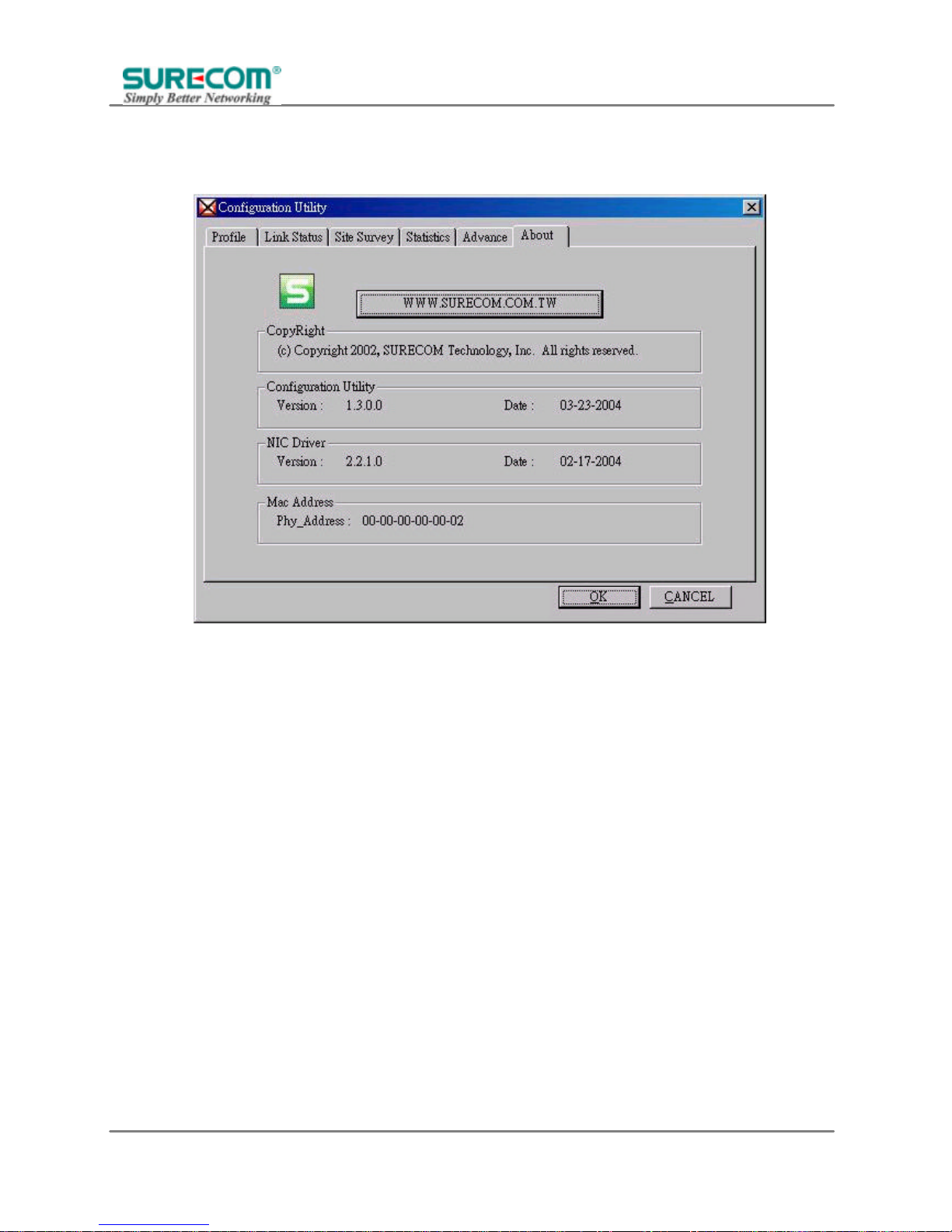
4.1.6 About
This screen shows copyright, Utility / Driver version and MAC Address of this wireless LAN Card.
Page 33

EP-9321-g/g1
802.11g 54M Wireless LAN PCI Adapter
33
5. Glossary
Ad-Hoc Mode
An Ad -hoc integrated wireless LAN is a group of computers, each has a Wireless LAN adapter, Connected as
an independent wireless LAN. Ad hoc wireless LAN is applicable at a departmental scale for a branch or
SOHO operation.
BSS ID
A specific Ad hoc LAN is called a Basic Service Set (BSS). Computers in a BSS must be configured with the
same BSS ID.
DSSS (Direct-Sequencing Spread-Spectrum)
DSSS operate over the radio airwaves in the unlicensed ISM band (industrial, scientifi c, medical). DSSS uses
a radio transmitter to spread data packets over a fixed range of frequency band.
Encryption
It’s a security method that applies a specific algorithm to data in order to alter the data appearance and
prevent other devices from reading the information.
Firmware
Program that is inserted into programmable read-only memory (programmable read-only memory), thus
becoming a permanent part of a computing device.
Fragmentation Threshold Value
Indicates how much of the network resources is devoted to recovering packet errors. The value should remain
at its default setting of 2,432. If you experience high packet error rates, you can decrease this value but it will
likely decrease overall network performance. Only minor modifications of this value are recommended.
Fragmentation
Breaking a packet into smaller units when transmitting over a network medium that cannot support the original
size of the packet.
IEEE
The Institute of Electrical and Electronics Engineers
IEEE 802.11b/g standard
The IEEE 802.11b/g Wireless LAN standards subcommittee formulates standards for the industry. The
objective is to enable wireless LAN hardware from different manufacturers to communicate.
Infrastructure Mode
A client setting provides connectivity to an Access Point. As compared to Ad-Hoc mode where PCs
communicate directly with each other, clients set in Infrastructure mode all pass data through a central Access
Point. The Access Point not only mediates Wireless network traffic in the immediate neighborhood but also
pro-vides communication with the wired network. An integrated wireless and wireless and wired LAN is called
an Infrastructure configuration. Infrastructure is applicable to enterprise scale for wireless access to central
database, or wireless application for mobile workers.
Page 34

EP-9321-g/g1
802.11g 54M Wireless LAN PCI Adapter
34
Roaming
The ability to use a wireless device is able to move from one access point range to another without losing the
connection.
RTS/CTS Threshold Value
It should remain at its default setting of 2,347. A preamble is a signal used to synchronize the transmission
timing between two or more systems. A series of transmission pulses is sent before the data to indicate that
someone is about transmit data. This ensures that systems receiving the information correctly when the data
transmission starts.
Shared Key
It’s when both the sender and recipient share a secret key. Both units use this key for an extended length of
time, sometimes indefinitely. Any eavesdropper that discovers the key may decipher all packets until the key
is changed.
Signal Strength
The signal level indicates the strength of the signal as received at the wireless network interface.
SSID (Service Set Identifier)
It’s the unique name shared among all points in a wireless network. The SSID must be identical for all points
in the network. It is case sensitive and must not exceed 32 characters.
WEP (Wired Equivalent Privacy)
A data privacy mechanism based on a 40 bit shared key algorithm, as described in the IEEE 802 .11 standard.
The optional cryptographic confidentiality algorithm specified by IEEE 802.11 used to provide data
confidentiality that is subjectively equivalent to the confidentiality of a wired LAN medium that does not
employ cryptographic techniques to enhance privacy.
WPA
Wi-Fi Protected Access, a specification to improve the security level of wireless networks. It uses 802.1x and
EAP to control network access. Temporal Key Integrity Protocol (TKIP) is used to secure data during
transmission.
Page 35

EP-9321-g/g1
802.11g 54M Wireless LAN PCI Adapter
35
6. Technical Support
You can find the most recent software and user documentation on the SURECOM website.
http://www.surecom-net.com
You also can contact SURECOM technical support through Web site, E-Mail, or by phone.
SURECOM Tech Support over the phone
886-2-8692-6200 (GMT+0800)
AM 09:00~PM 18:00, Monday~Friday
SURECOM Tech Support over Web site
http://www.surecom-net.com/3-support.htm
When contacting technical support, you will need the information below.
Serial number of the unit•
Model number or product name•
Software type and version number•
Page 36

EP-9321-g/g1
802.11g 54M Wireless LAN PCI Adapter
36
FCC Statement
This device complies with FCC Rules Part 15. Operation is subject to the following two conditions:
1. This device may not cause harmful interference, and
2. This device must accept any interference received, including interference that may cause undesired
operation.
This equipment has been tested and found to comply with the limits for a Class B digital device, pursuant to
Part 15 of the FCC Rules. These limits are designed to provide reasonable protection against harmful
interference in a residential installation. This equipment generates, uses and can radiate radio frequency
energy and, if not installed and used in accordanc e with manufacturer's instructions, may cause harmful
interference to radio communications. However, there is no guarantee that interference will not occur in a
particular installation. If this equipment does cause harmful interference to radio or television reception, which
can be determined by turning the equipment off and on, the user is encouraged to try to correct the
interference by one or more of the following measures:
1. Re-orient or relocate the receiving antenna.
2. Increase the separation between the equipment and receiver.
3. Connect the equipment to an outlet on a circuit different from that to which the receiver is connected.
4. Consult the dealer or an experienced radio/TV technician for help.
FCC Radiation Exposure Statement
This equipment complies with FCC RF radiation exposure limits set forth for an uncontrolled environment.
This equipment should be installed and operated with a minimum distance of 20 centimeters between the
radiator and your body.
WARNING! Any changes or modifications to this product not expressly approved by the manufacturer could
void any assurances of safety or performance and could result in violation of Part 15 of the FCC Rules.
CE Declaration of conformity
This equipment complies with the requirements relating to electromagnetic compatibility, EN 55022 class B for
ITE and EN 50082-1. This meets the essential protection requirements of the European Council Directive
89/336/EEC on the approximation of the laws of the Member States relating to electromagnetic compatibility.
Trademarks
All company, brand, and product names are trademarks or registered trademarks of their respective
companies.
Page 37

EP-9321-g/g1
802.11g 54M Wireless LAN PCI Adapter
37
1-Year Limited Warranty
Subject to the terms and conditions set forth herein, SURECOM provides this
Limited warranty for its product only to the person or entity that originally
purchased the product from SURECOM or its authorized reseller or distributor.
SURECOM warrants that the hardware portion of the SURECOM products
described below will be free from material defects in workmanship and
materials from the date of original retail purchase of the product, for the period
set forth below applicable to the product type (warranty Period, except as
otherwise stated herein.
1-Year Limited Warranty for the Product(s) is defined as follows:
*Hardware (excluding power supplies and fans) One (1) Year
*Power supplies, fans, and cables are covered by a standard one-year warranty
from date of purchase.
*Spare parts and spare kits Ninety (90) days
*Software portion of the product (Software Ninety (90) days)
 Loading...