

Page 1
Quick Setup guide
Connect your Tablet to Keyboard & Case w/ Micro USB
Connect the Micro USB to
SC-1007KB/SC-309KB
Micro
USB w/Mini USB Adapter
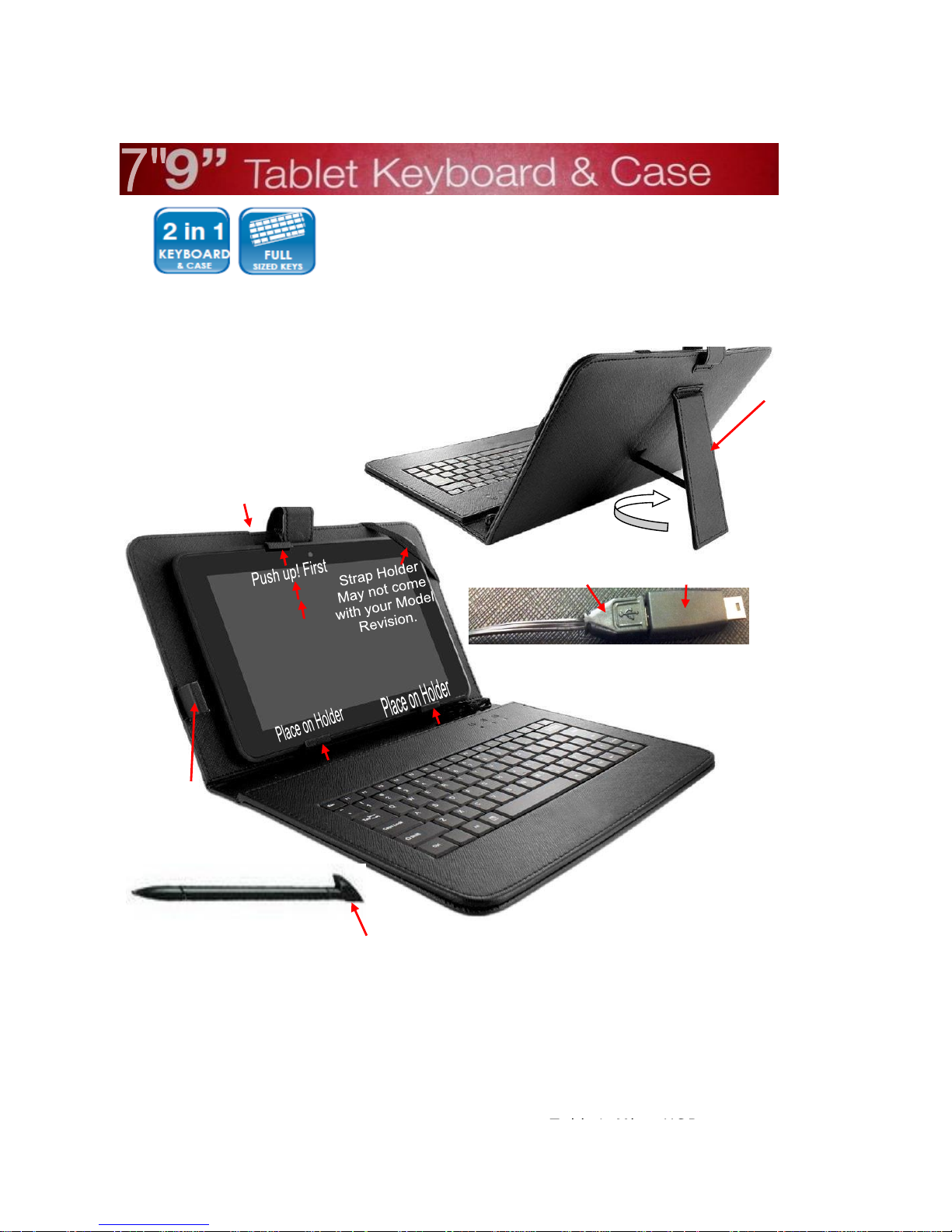
Position the Tablet
with Keyboard & Case
Lift the back stand for laptop position
First, Push up latch holder on
top center, then place on
Bottom Holders, then slide in to
lock in Case to Tablet.
Connect Micro USB w/ Mini USB adapter
If your tablet requires Micro USB
Input remove Mini Adapter.
Comes With a Stylus Pen
May or may not function with your tablet
model, If you tablet requires a specific Stylus
Pen, that is Sold Seperately.
1.
2.
3.
Some model
Revision
don't come with this
Holder
Page 2
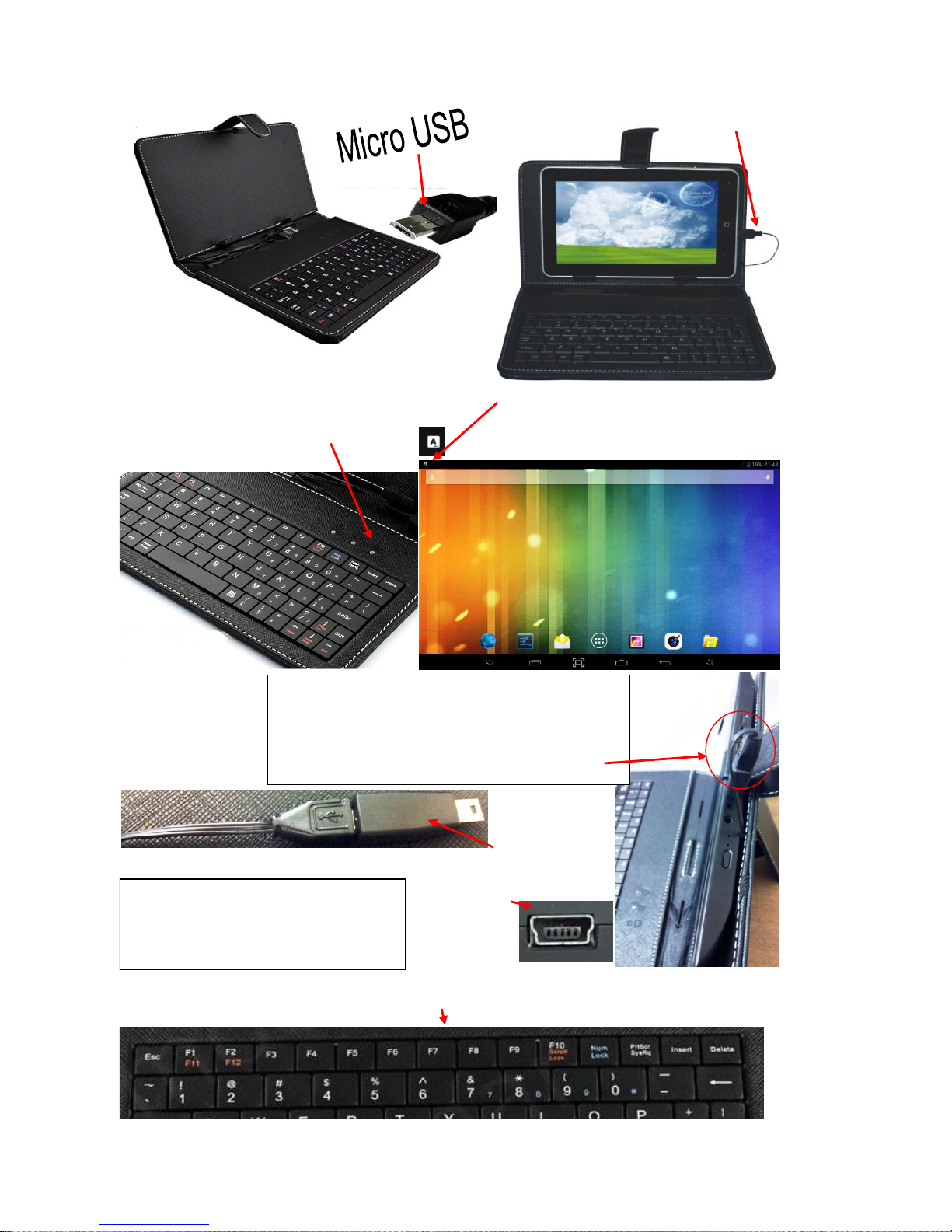
A notification symbol "A",will come on
your notification area, you have a
"successful connection"
Connect the Micro USB to
Tablet's Micro USB port
The light indicators will flash once
when connect with Tablet, in some
tablet it will not flash at all.
If your tablet has a USB Mini port,connection Use the "Micro to Mini" adapter.
Test Keyboard Key Pad
Make sure your adapter is not loose
in any way.
Must be connected firmly to
establish a good connection.
NOTE: If Using the USB adapter, it will be best to
turn your tablet all the way around to have your
plugins on the top side on Keyboard & case, then
connect the adapter. You can still work that way,
your Tablet should rotate screen.
Connect to
tablet's
USB Port
Page 3
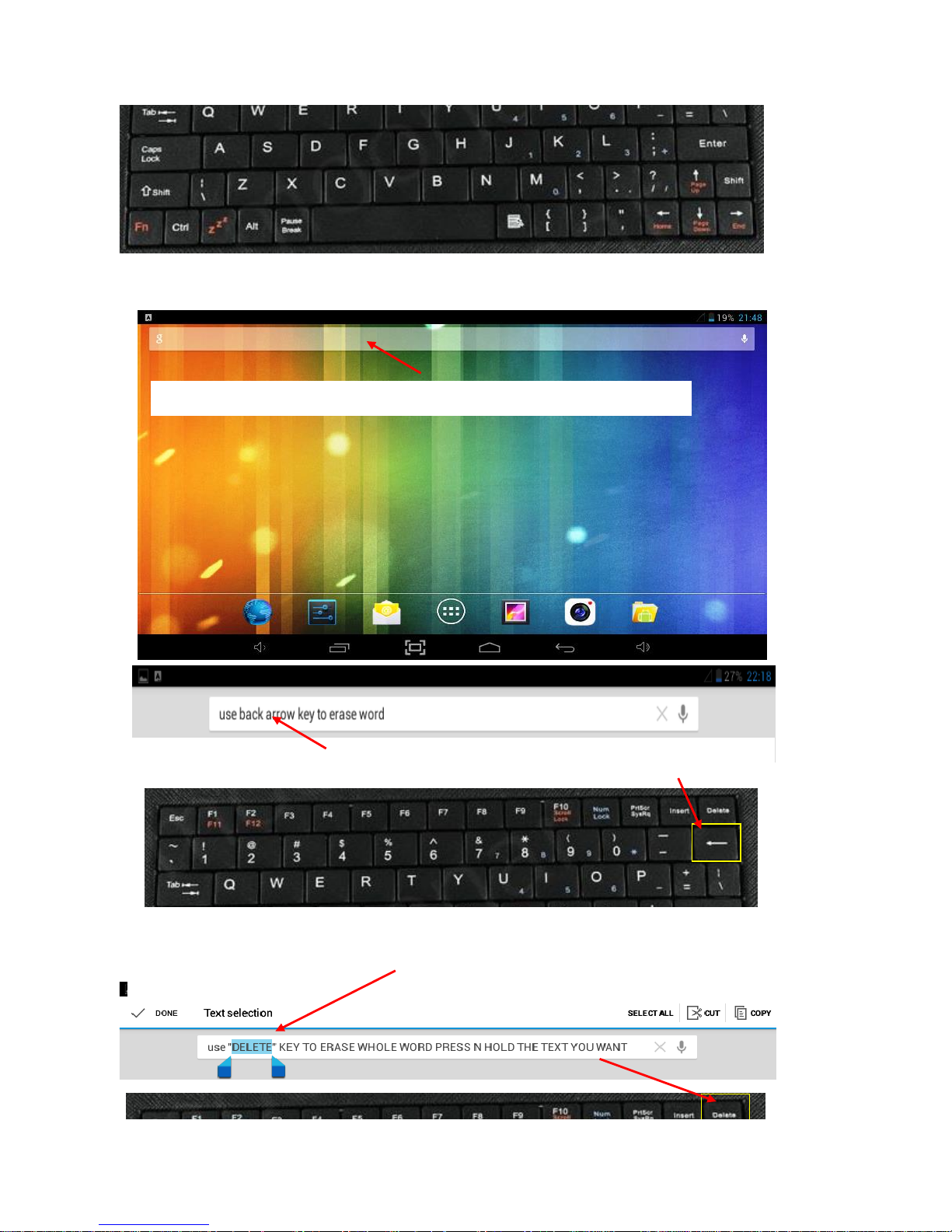
Go to Google Search to type with Keyboard Pad;
Select "Search bar" and Type your Search;
Type any word to search,
use The back arrow on Keybpad to backspace
To Delete an entire word, Click n hold the
Text
to Highlight selected word
then press the "Delete" Key on Keypad to Delete entire Word.
Page 4
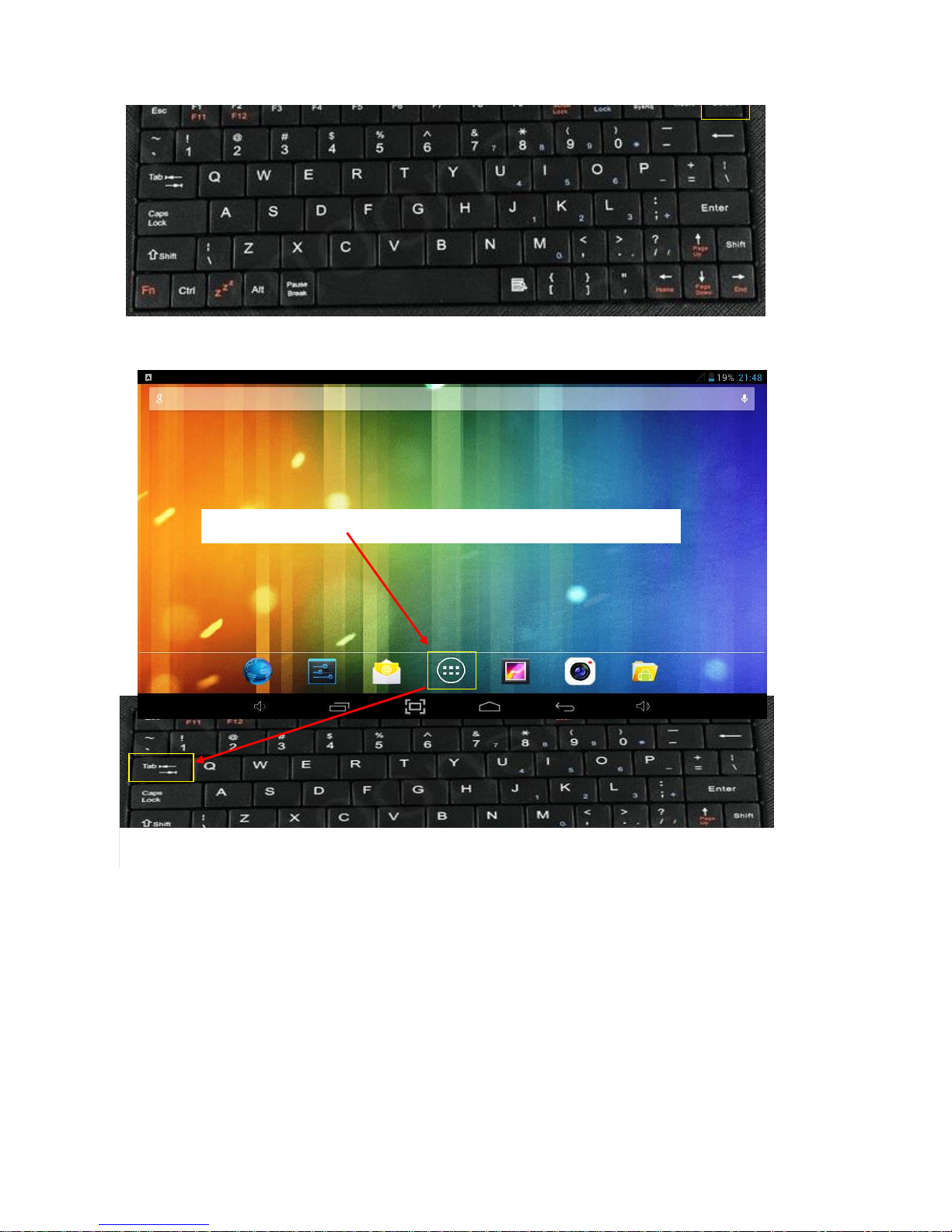
Press the "TAB" key on Keypad to select location.
Press the "TAB" key on Keypad to tab selection
When done with "Test Key pad procedure", your
keyboard is working properly.
End of Setup
Copyright ©2012 Supersonic Inc. All rights reserved.
Features and specifications are subject to change without prior notification
 Loading...