

Page 1

USER’S MANUAL
Revision 1.0
X9DBS-F
X9DBS-F-2U
Page 2

Manual Revision 1.0
Release Date: June 27, 2013
Unless you request and receive written permission from Super Micro Computer, Inc., you may not
copy any part of this document.
Information in this document is subject to change without notice. Other products and companies
referred to herein are trademarks or registered trademarks of their respective companies or mark
holders.
Copyright © 2013 by Super Micro Computer, Inc.
All rights reserved.
Printed in the United States of America
The information in this User’s Manual has been carefully reviewed and is believed to be accurate.
The vendor assumes no responsibility for any inaccuracies that may be contained in this document,
and makes no commitment to update or to keep current the information in this manual, or to notify
any person or organization of the updates. Please Note: For the most up-to-date version of this
manual, please see our Website at www.supermicro.com.
Super Micro Computer, Inc. ("Supermicro") reserves the right to make changes to the product
described in this manual at any time and without notice. This product, including software and documentation, is the property of Supermicro and/or its licensors, and is supplied only under a license.
Any use or reproduction of this product is not allowed, except as expressly permitted by the terms
of said license.
IN NO EVENT WILL SUPER MICRO COMPUTER, INC. BE LIABLE FOR DIRECT, INDIRECT,
SPECIAL, INCIDENTAL, SPECULATIVE OR CONSEQUENTIAL DAMAGES ARISING FROM THE
USE OR INABILITY TO USE THIS PRODUCT OR DOCUMENTATION, EVEN IF ADVISED OF
THE POSSIBILITY OF SUCH DAMAGES. IN PARTICULAR, SUPER MICRO COMPUTER, INC.
SHALL NOT HAVE LIABILITY FOR ANY HARDWARE, SOFTWARE, OR DATA STORED OR USED
WITH THE PRODUCT, INCLUDING THE COSTS OF REPAIRING, REPLACING, INTEGRATING,
INSTALLING OR RECOVERING SUCH HARDWARE, SOFTWARE, OR DATA.
Any disputes arising between the manufacturer and the customer shall be governed by the laws of
Santa Clara County in the State of California, USA. The State of California, County of Santa Clara
shall be the exclusive venue for the resolution of any such disputes. Supermicro's total liability for
all claims will not exceed the price paid for the hardware product.
FCC Statement: This equipment has been tested and found to comply with the limits for a Class
A digital device pursuant to Part 15 of the FCC Rules. These limits are designed to provide
reasonable protection against harmful interference when the equipment is operated in a commercial
environment. This equipment generates, uses, and can radiate radio frequency energy and, if not
installed and used in accordance with the manufacturer’s instruction manual, may cause harmful
interference with radio communications. Operation of this equipment in a residential area is likely
to cause harmful interference, in which case you will be required to correct the interference at your
own expense.
California Best Management Practices Regulations for Perchlorate Materials: This Perchlorate
warning applies only to products containing CR (Manganese Dioxide) Lithium coin cells. “Perchlorate
Material-special handling may apply. See www.dtsc.ca.gov/hazardouswaste/perchlorate”.
WARNING: Handling of lead solder materials used in this
product may expose you to lead, a chemical known to
the State of California to cause birth defects and other
reproductive harm.
Page 3

Preface
This manual is written for system integrators, PC technicians and
knowledgeable PC users. It provides information for the installation and use of the
X9DBS-F/X9DBS-F-2U motherboard.
About This Motherboard
The Super X9DBS-F/X9DBS-F-2U motherboard supports dual Intel E5-2400
(Socket B2) processors and Intel QPI (QuickPath Interface) Technology (V.1.1),
providing point-to-point connections with transfer speeds of up to 8.0 GT/s. With
the C602J chipset built in, the X9DBS-F/X9DBS-F-2U motherboard supports Intel®
Management Engine (ME), Rapid Storage Technology, Digital Media Interface
(DMI), PCI-E Gen. 3.0, and DDR3 memory of up to 1600 MHz, greatly enhancing
system performance. This motherboard is intended to be used in Supermicro SBB
platforms. Please refer to our website at http://www.supermicro.com for processor
and memory update and support.
Manual Organization
Chapter 1 describes the features, specications and performance of the mother-
board. It also provides detailed information on the Intel C602J chipset.
Chapter 2 provides hardware installation instructions. Read this chapter when in-
stalling the processor, memory modules, and other hardware components into the
system. If you encounter any problems, see Chapter 3, which describes trouble-
shooting procedures for video, memory, and system setup stored in the CMOS.
Chapter 4 includes an introduction to the BIOS, and provides detailed information
on running the CMOS Setup utility.
Appendix A provides BIOS Error Beep Codes.
Appendix B lists software installation instructions.
Preface
iii
Page 4

iv
Conventions Used in the Manual
Pay special attention to the following symbols for proper system installation and to
prevent damage to the system or injury to yourself:
Warning: Important information is given to ensure proper system installation or to avoid
causing damage to the system or causing injury to yourself.
Note: Additional information is given to differentiate among various models
or to provide information for correct system setup.
X9DBS-F/X9DBS-F-2U Motherboard User’s Manual
Page 5

Preface
v
Contacting Supermicro
Headquarters
Address: Super Micro Computer, Inc.
980 Rock Ave.
San Jose, CA 95131 U.S.A.
Tel: +1 (408) 503-8000
Fax: +1 (408) 503-8008
Email: marketing@supermicro.com (General Information)
support@supermicro.com (Technical Support)
Web Site: www.supermicro.com
Europe
Address: Super Micro Computer B.V.
Het Sterrenbeeld 28, 5215 ML
's-Hertogenbosch, The Netherlands
Tel: +31 (0) 73-6400390
Fax: +31 (0) 73-6416525
Email: sales@supermicro.nl (General Information)
support@supermicro.nl (Technical Support)
rma@supermicro.nl (Customer Support)
Asia-Pacic
Address: Super Micro Computer, Inc.
3F, No. 150, Jian 1st Rd.
Zhonghe Dist., New Taipei City 23511
Taiwan (R.O.C)
Tel: +886-(2) 8226-3990
Fax: +886-(2) 8226-3992
Web Site: www.supermicro.com.tw
Technical Support:
Email: support@supermicro.com.tw
Tel: +886-(2)-8226-3990
Page 6

vi
Table of Contents
Preface
Chapter 1 Overview
1-1 Overview ......................................................................................................... 1-1
1-2 Processor and Chipset Overview...................................................................1-11
1-3 Special Features ........................................................................................... 1-12
1-4 PC Health Monitoring .................................................................................... 1-12
1-5 ACPI Features ............................................................................................... 1-13
1-6 Power Supply ................................................................................................ 1-13
1-7 Super I/O ....................................................................................................... 1-13
1-8 Advanced Power Management ..................................................................... 1-14
Intel® Intelligent Power Node Manager (IPNM) ............................................ 1-14
Management Engine (ME) ............................................................................ 1-14
1-9 Introduction to the IPMI Controller ................................................................ 1-14
WPCM450R DDR2 Memory Interface .......................................................... 1-15
WPCM450R PCI System Interface ............................................................... 1-15
Other Features Supported by the WPCM BMC Controller ........................... 1-15
Chapter 2 Installation
2-1 Standardized Warning Statements ................................................................. 2-1
2-2 Static-Sensitive Devices .................................................................................. 2-4
2-3 Processor and Heatsink Installation................................................................ 2-5
2-4 Installing and Removing the Memory Modules ............................................... 2-9
2-5 Motherboard Installation ................................................................................ 2-13
2-6 Control Panel Connectors and I/O Ports ...................................................... 2-15
Back Panel Connectors and I/O Ports .......................................................... 2-15
Back Panel I/O Port Locations and Denitions ........................................... 2-15
Keyboard/Video/Mouse ............................................................................ 2-16
Ethernet Ports .......................................................................................... 2-16
External SAS Connectors ........................................................................ 2-17
2-7 Connecting Cables ........................................................................................ 2-18
Fan Headers ............................................................................................. 2-18
Overheat/Fan Fail LED ............................................................................ 2-19
TPM Header/Port 80 ................................................................................ 2-19
SATA DOM Power Connectors ................................................................ 2-20
Universal Serial Bus (USB) ...................................................................... 2-20
ME Firmware ............................................................................................ 2-21
ME Mode (Select) .................................................................................... 2-21
X9DBS-F/X9DBS-F-2U Motherboard User’s Manual
Page 7

vii
Table of Contents
2-8 Jumper Settings ............................................................................................ 2-22
Explanation of Jumpers ................................................................................ 2-22
Watch Dog Enable/Disable ...................................................................... 2-22
CMOS Clear ............................................................................................. 2-23
GLAN Enable/Disable .............................................................................. 2-23
2-9 Onboard LED Indicators ............................................................................... 2-25
LAN1/LAN2 LEDs ..................................................................................... 2-25
BMC Heartbeat/System Heartbeat LED ................................................... 2-26
Onboard Power LED ............................................................................... 2-26
SATA Heartbeat LED ................................................................................ 2-27
SAS Activity LED ...................................................................................... 2-27
2-10 Serial ATA Connections ................................................................................. 2-28
Serial ATA Ports........................................................................................ 2-28
Chapter 3 Troubleshooting
3-1 Troubleshooting Procedures ........................................................................... 3-1
3-2 Technical Support Procedures ........................................................................ 3-5
3-3 Battery Removal and Installation .................................................................... 3-6
3-4 Frequently Asked Questions ........................................................................... 3-7
3-5 Returning Merchandise for Service................................................................. 3-7
Chapter 4 BIOS
4-1 Introduction ...................................................................................................... 4-1
4-2 Main Setup ...................................................................................................... 4-2
4-3 Advanced Setup Congurations...................................................................... 4-4
4-4 Event Logs .................................................................................................... 4-25
4-5 IPMI ............................................................................................................... 4-27
4-6 Boot ............................................................................................................... 4-29
4-7 Security ......................................................................................................... 4-30
4-8 Save & Exit ................................................................................................... 4-31
Appendix A BIOS Error Beep Codes
A-1 BIOS Error Beep Codes .................................................................................A-1
Appendix B Software Installation Instructions
B-1 Installing Software Programs ..........................................................................B-1
B-2 Conguring SuperDoctor III ............................................................................B-2
Page 8

viii
X9DBS-F/X9DBS-F-2U Motherboard User’s Manual
Notes
Page 9

Chapter 1: Overview
1-1
Chapter 1
Overview
1-1 Overview
Checklist
Congratulations on purchasing your computer motherboard from an acknowledged
leader in the industry. Supermicro boards are designed with the utmost attention to
detail to provide you with the highest standards in quality and performance.
This motherboard is intended to be used in Supermicro's 2U/3U SBB chassis as
an integrated platform solution. No retail package will be included in the shipment.
Note: For your system to work properly, please follow the links below to
download all necessary drivers/utilities and the user's manual for your
motherboard.
SMCI product manuals: http://www.supermicro.com/support/manuals/
Product Drivers and utilities: ftp://ftp.supermicro.com/
If you have any questions, please contact our support team at support@supermicro.
com.
Page 10
1-2
X9DBS-F/X9DBS-F-2U Motherboard User’s Manual
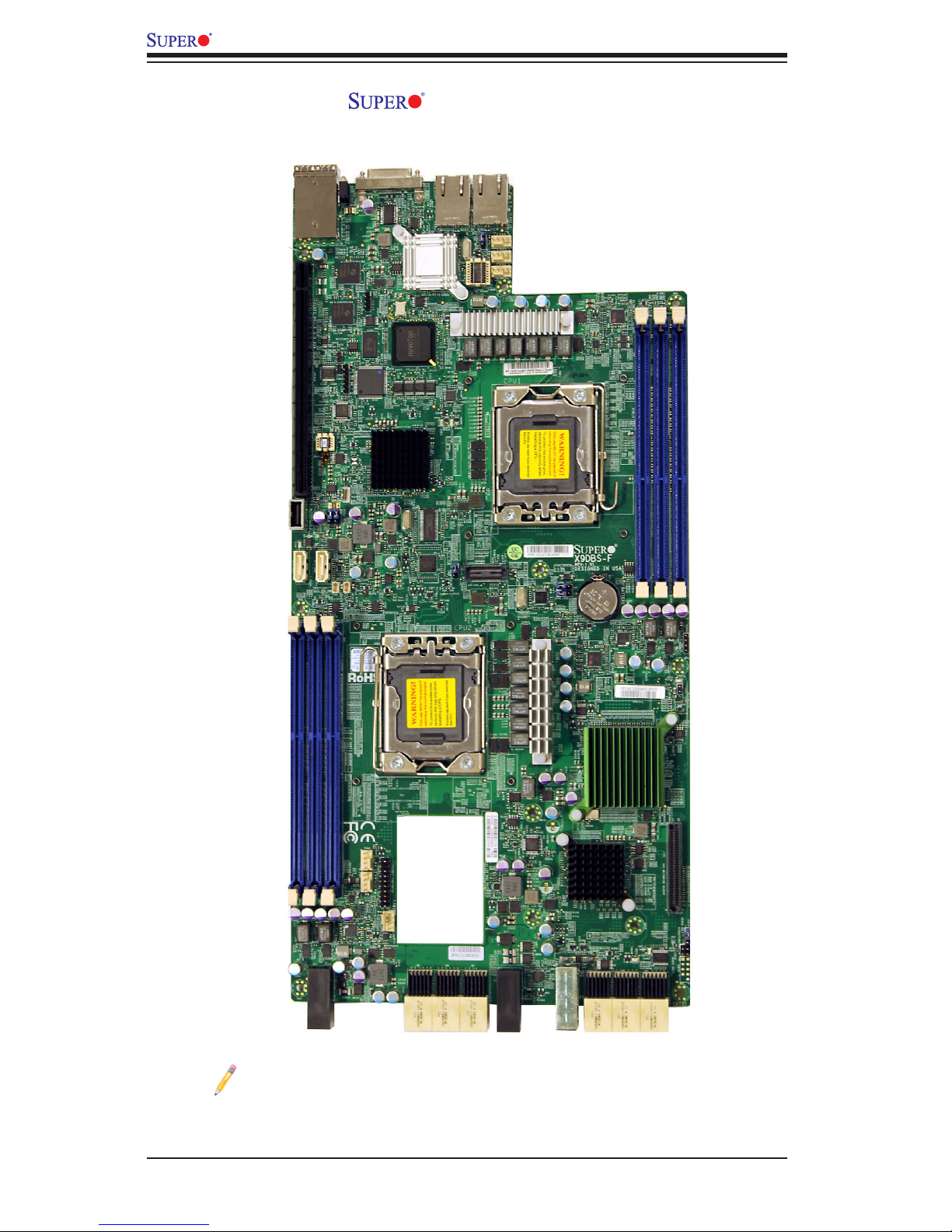
Motherboard Image
Note: All graphics shown in this manual were based upon the latest PCB
revision available at the time of publishing of the manual. The motherboard
you've received may or may not look exactly the same as the graphics
shown in this manual.
Page 11
Chapter 1: Overview
1-3
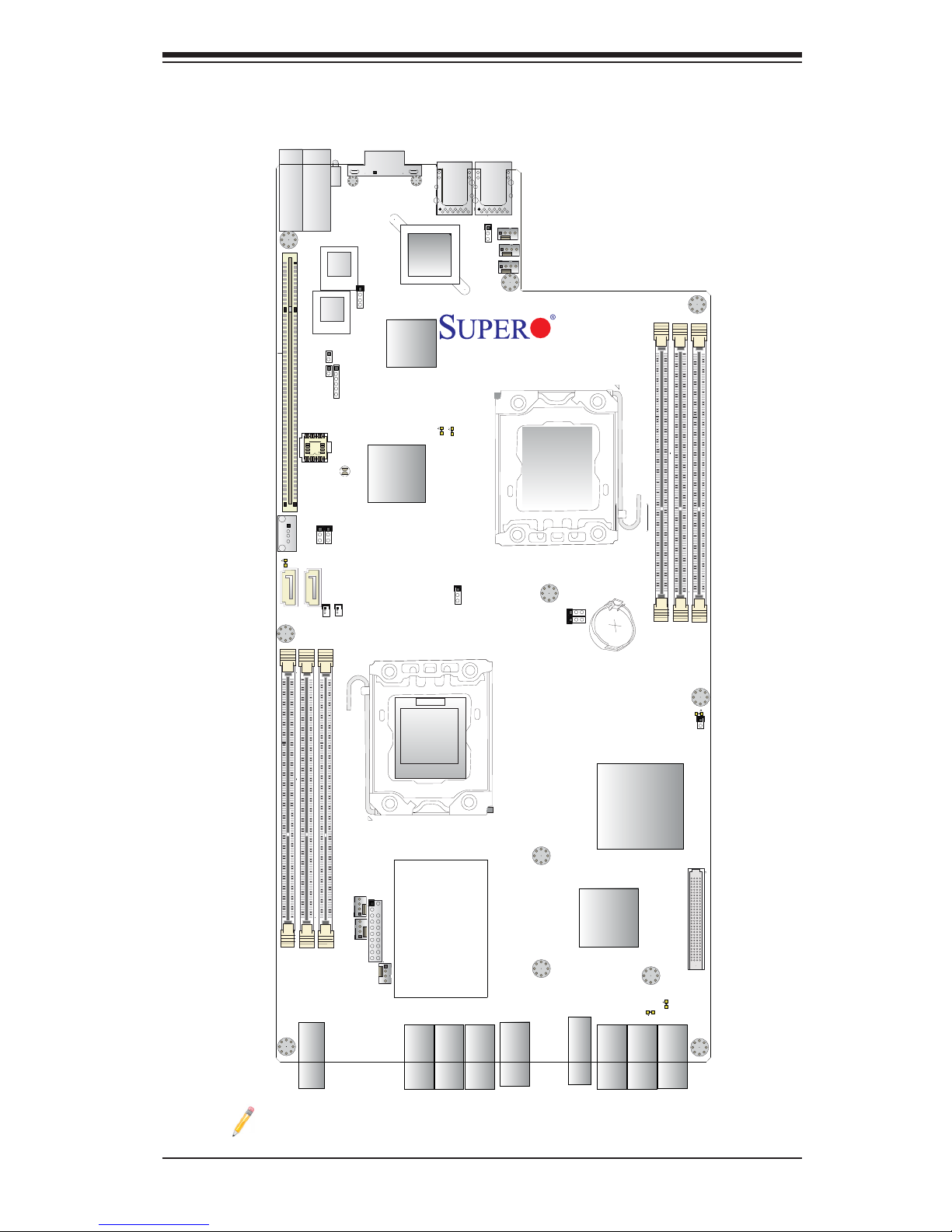
Motherboard Layout
Note : For the latest CPU/Memory updates, please refer to our website at
http://www.supermicro.com/products/motherboard/ for details.
Fan 6
Fan 5
Fan 4
JPL1
LAN1
LAN2
JKVM1
VGA/USB/COM1
External SAA
D95
Slot1 PCI-E 3.0x24
CPU2 Port1
CPU2 Port3
JPI2C2
JPI2C1
JPLD1
JDBS5
BIOS
JBT1
PCH
USB3
I-SATA0
I-SATA1
JSD1
JSD2
JWD1
P2-DIMMD1
P2-DIMME1
P2-DIMMF1
JPME1
JPME2
Fan1
Fan2
Fan3
JTPM1
LED2
Battery
LED10
JOH1
M13
M9
M8
M7
M6
M4
M3
M2
M1
LE2
LED11
J21
LED13
LED12
P1-DIMMA1
P1-DIMMB1
P1-DIMMC1
BMC
SAS
Re-Driver
SAS MEZZANINE HEADER
CPU1
CPU2
X9DBS-F
Rev. 1.01
LAN
Intel i350
SAS
Re-Driver
Page 12
1-4
X9DBS-F/X9DBS-F-2U Motherboard User’s Manual
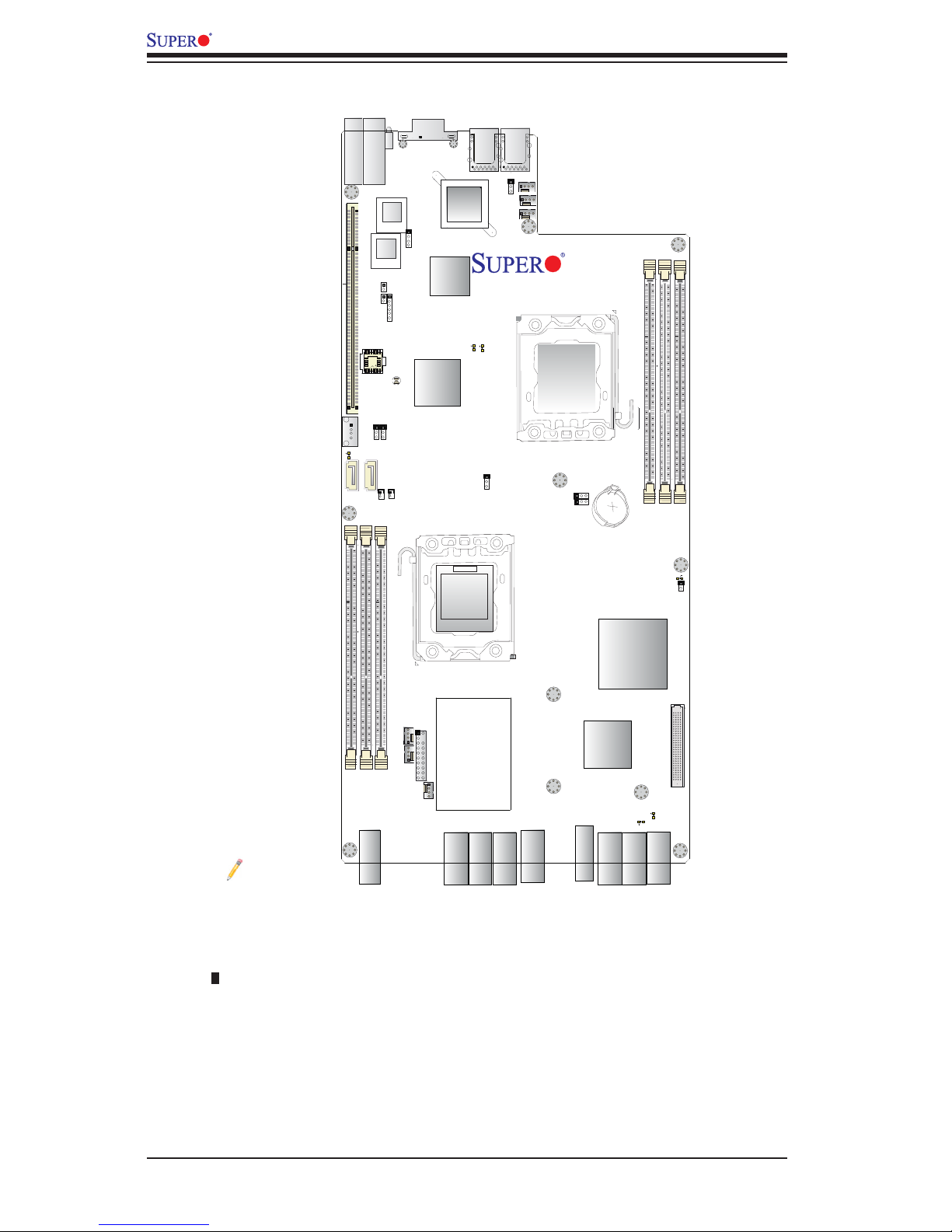
Notes:
•See Chapter 2 for detailed information on jumpers, I/O ports and JF1 front
panel connections.
•" " indicates the location of "Pin 1".
•Jumpers/LED Indicators/connectors/headers not indicated or documented are
for testing only.
•Use only the correct type of onboard CMOS battery as specied by the manu-
facturer. Do not install the onboard battery upside down to avoid possible short
circuit.
X9DBS-F/X9DBS-F-2U Jumpers
Fan 6
Fan 5
Fan 4
JPL1
LAN1
LAN2
JKVM1
VGA/USB/COM1
External SAA
D95
Slot1 PCI-E 3.0x24
CPU2 Port1
CPU2 Port3
JPI2C2
JPI2C1
JPLD1
JDBS5
BIOS
JBT1
PCH
USB3
I-SATA0
I-SATA1
JSD1
JSD2
JWD1
P2-DIMMD1
P2-DIMME1
P2-DIMMF1
JPME1
JPME2
Fan1
Fan2
Fan3
JTPM1
LED2
Battery
LED10
JOH1
M13
M9
M8
M7
M6
M4
M3
M2
M1
LE2
LED11
J21
LED13
LED12
P1-DIMMA1
P1-DIMMB1
P1-DIMMC1
BMC
SAS
Re-Driver
SAS MEZZANINE HEADER
CPU1
CPU2
X9DBS-F
Rev. 1.01
LAN
Intel i350
SAS
Re-Driver
Page 13

Chapter 1: Overview
1-5
X9DBS-F/X9DBS-F-2U Jumpers
Jumper
Description Default Setting
JBT1
Clear CMOS See Chapter 3
JI2C1/JI2C2 SMB to PCI-E Slots Open (Normal)
JPL1 GLAN 1/2 Enable Pins 1-2 (Enabled)
JPME1 ME Firmware Pins 1-2 (Normal)
JPME2 ME Mode (Select) Pins 1-2 (Normal)
JWD1 Watch Dog Pins 1-2 (Reset)
X9DBS-F/X9DBS-F-2U Connectors
Connectors Description
Battery Onboard CMOS Battery (See Chpt. 3 for Used Battery Disposal
Info.)
FAN1-6 CPU/System Fan Headers
J21 SAS Mezzanine Header
JKVM1 Keyboard/VGA/Mouse Connector
JOH1 Overheat/Fan Fail LED
JSD1/JSD2 SATA DOM (Device On Module) Power Connectors
JTPM1 TPM (Trusted Platform Module)/Port 80
LAN1/LAN2 Gigabit Ethernet LAN Ports 1/2 (LAN1/LAN2)
(External) SAS External Serial-Link SAS Connector (with SAS Mezzanine card)
(I-)SATA 0/1 Intel SATA Connectors 0/1
Slot1 PCI-Exp. 3.0 x24 Slot for 2U/3U Riser Card
USB3 Type A USB Port 3
X9DBS-F/X9DBS-F-2U LED Indicators
LED Description State Status
D95
BMC Heartbeat
System Heartbeat
D95: Up (BMC Heartbeat) Green: BMC Active
D95: Down (System Heartbeat) Green: Sys. Active
LE2 Onboard Power Green: On Onboard PWR Connected
LED2 SATA LED Green: Blinking SATA: Active
LED10/
LED11
SAS Activity LED Green: Blinking SAS: Active
Page 14
1-6
X9DBS-F/X9DBS-F-2U Motherboard User’s Manual
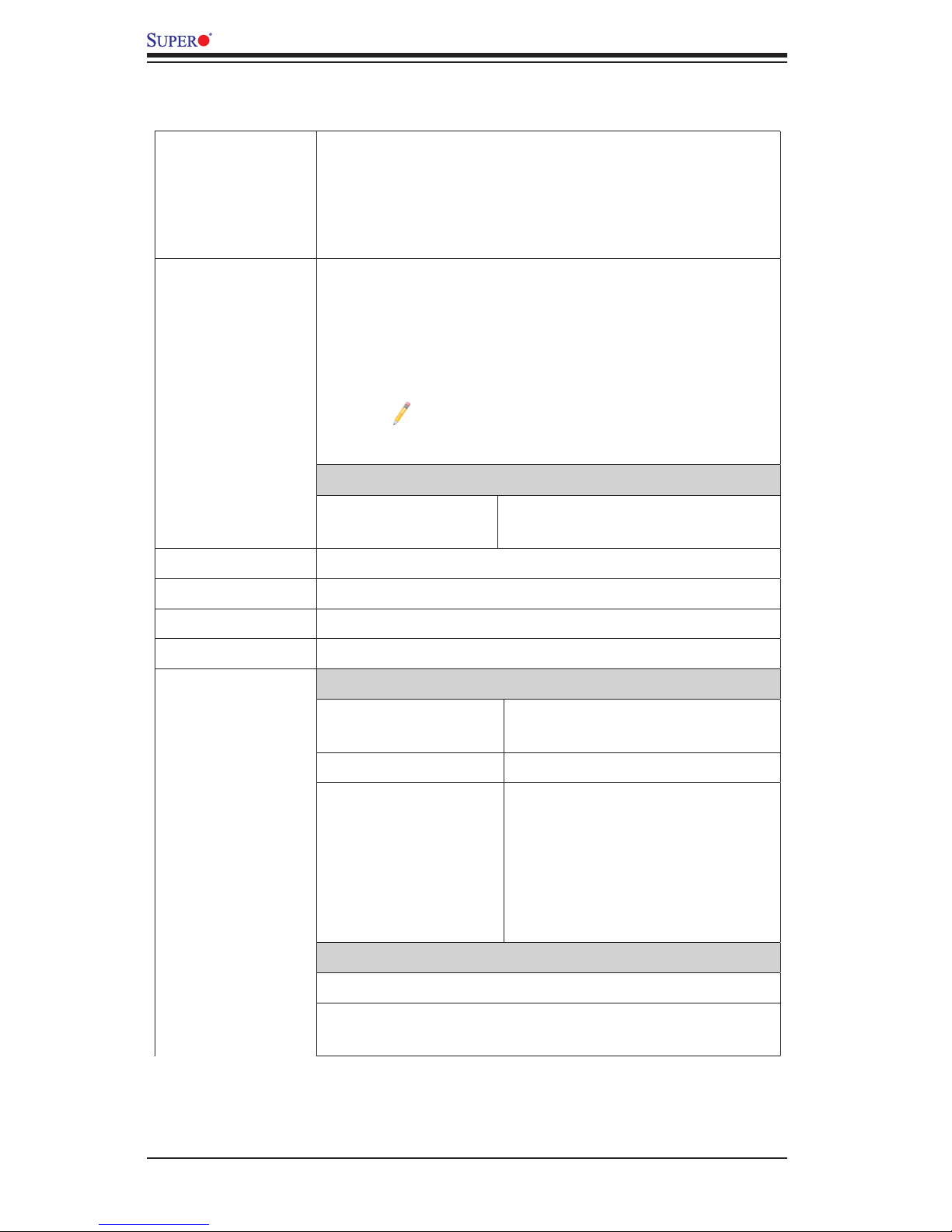
Motherboard Features
CPU
• Dual Intel
®
E5-2400 (Socket B2 up to 95W) proces-
sors; each processor supports two full-width Quick-
Path Interconnect (QPI) links of up to 8.0 GT/s per link
and with data transfer rate of up to 16 GB/s direction
peak bandwidth per port
Memory
• Integrated memory controller supports up to 192
GB of 240-pin Registered (RDIMM)/Load Re-
duced (LRDIMM) ECC or up to 48 GB Unbuffered
(UDIMM) ECC/Non-ECC DDR3 with speeds of
800/1066/1333/1600 MHz in 6 memory modules
Note: For the latest CPU/memory updates,
please refer to our Website at http://www.super-
micro.com/products/motherboard.
DIMM sizes
• R_DIMM/LR_
DIMM
1GB, 2GB, 4GB, 8GB,16GB and
32GB @ 1.35V/1.5V
• Virtualization: VT-x, VT-d, and VT-c
Chipset
• Intel® PCH C602J
Graphics
• Matrox G200eW Video Controller
Network
• Intel i350 Gigabit Ethernet Controller for LAN ports 1/2
I/O Devices
SATA/SAS Connections
• SATA Ports Two (2) SATA 3.0 ports (SATA
0/1),
• RAID RAID 0, 1
• External SAS Two (2) External SAS (Mini-
SAS-HD w/SAS Mezzanine
cards) (X9DBS-F),
One (1) External SAS (Mini-
SAS-HD w/ SAS Mezzanine
card) (X9DBS-F-2U)
Super I/O
• Nuvoton W83527 SI/O
• Nuvoton WPCM450R-F Base-board Controller (BMC)
supports IPMI LAN 2.0
Page 15

Chapter 1: Overview
1-7
IPMI 2.0
• Nuvoton WPCM450R Base-board Controller (BMC)
supports IPMI_LAN 2.0
Serial (COM) Port
• One (1) External UART
• One (1) Internal UART to the Backplane
Keyboard/Mouse/VGA
• Back Panel Keyboard/VGA/Mouse
UIO Platform
• PCI-E 3.0 x24 for 2U/3U Riser Card
Peripheral
Devices
USB Devices
• A Type A USB connector for onboard-access (USB 3)
BIOS
• 16MB AMI BIOS
®
Flash EEPROM
• APM 1.2, DMI 2.3, PCI 2.3, ACPI 1.0/2.0, USB Key-
board, Plug & Play (PnP) and SMBIOS 2.3
Power
• ACPI/ACPM Power Management
Cong.
• Main switch override mechanism
• Keyboard Wake-up from Soft-Off
• Power-on mode for AC power recovery
• Intel® Intelligent Node Management (IPNM)* (*See
the note on Page 1-14.)
• Intel® Management Engine (ME)
PC Health
CPU Monitoring
Monitoring
• Onboard voltage monitors for 1.5V, 1.8V, +3.3V, 3.3V
Standby, +5V, +5V Standby and Battery Voltage.
• CPU Thermal Design Power (TDP): support up to
95W (See Note 1 next page)
• CPU 5+1-Phase switching voltage regulator
• CPU/System overheat LED and control
• CPU Thermal Trip support
• Thermal Monitor 2 (TM2) support
Fan Control
• Fan status monitoring with rmware thermal man-
agement control via IPMI
• Low noise fan speed control
Page 16

1-8
X9DBS-F/X9DBS-F-2U Motherboard User’s Manual
LED Indicators
• System/CPU Overheat LED
• Suspend-state LED
• UID/Remote UID LED
System
Management
• PECI (Platform Environment Conguration Interface)
2.0 support
• System resource alert via SuperDoctor III
• Thermal Monitor 2 (TM2) support
• PECI (Platform-Environment Conguration Interface)
support
• SuperoDoctor III, Watch Dog, NMI
• Chassis Intrusion Header and Detection
Dimensions
• 16.64" (L) x 8.10" (W) (422.66 mm x 205.74 mm)
Note 1: CPU Maximum Thermal Design Power (TDP) is subject to chassis
and heatsink cooling restrictions. For proper thermal management, please
check the chassis and heatsink specications for proper CPU TDP sizing.
Note 2: For IPMI Conguration Instructions, please refer to the Embedded
IPMI Conguration User's Guide available @ http://www.supermicro.com/
support/manuals/.
Page 17

Chapter 1: Overview
1-9
Notes
Page 18
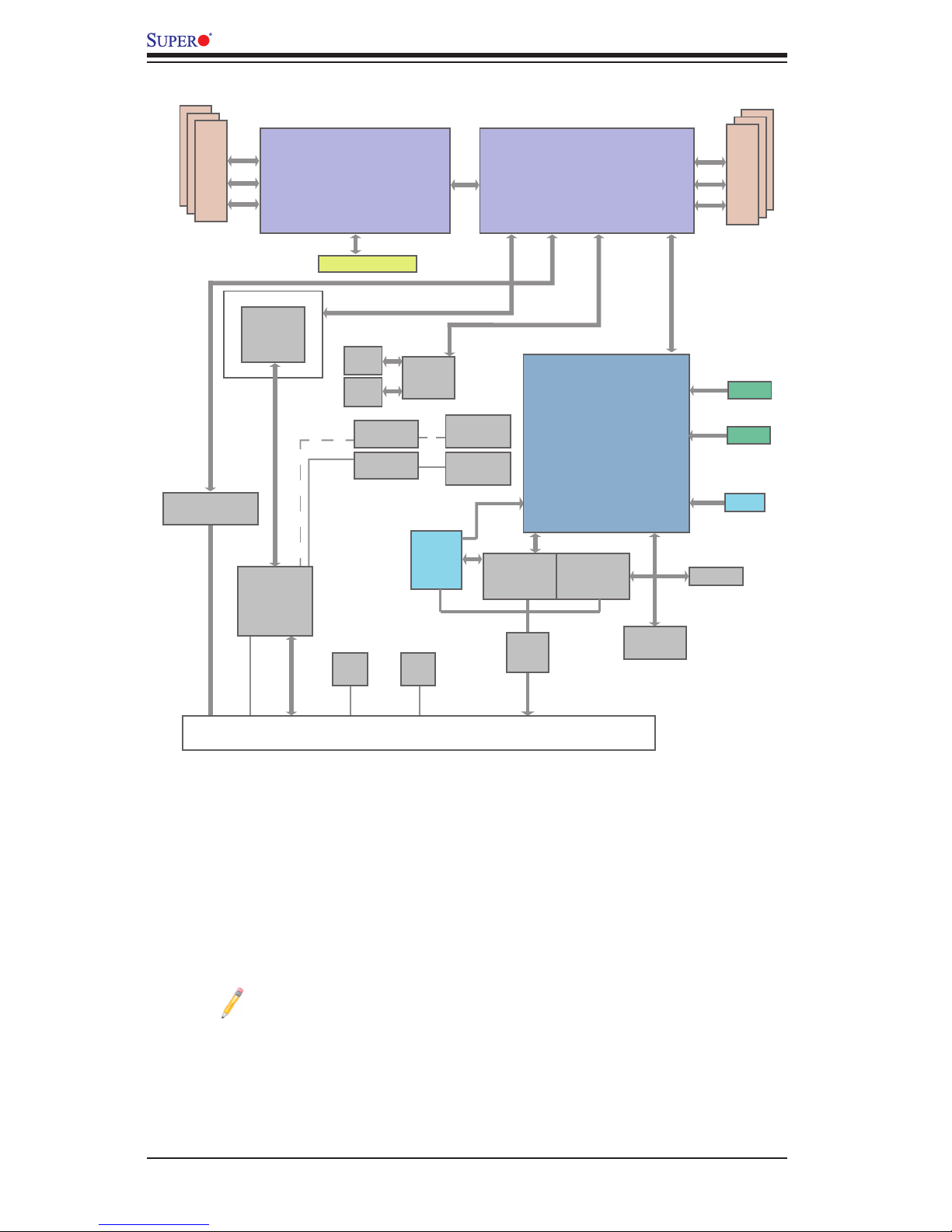
1-10
X9DBS-F/X9DBS-F-2U Motherboard User’s Manual
System Block Diagram
Notes: 1. This is a general block diagram and may not exactly represent
the features on your motherboard. See the Motherboard Features pages
for the actual specications of each motherboard. 2. This block diagram
is intended for your reference only.
PE1A [3..0] PE3B [7:4] PE3C [3:0]
PE3D [7:4]
PE3C [3:0]
DMI2
PE3D [7:4]
PE3A [3:0]
PE3B [7:4]
PE3A [3:0]
PE1B [7..4]
PE1A [3..0]
PCI-E x8
PCI-E G2 x4
NTB x8
Mezzanine
PE1B [7..4]
DDR3 DIMM
800/1066/1333/1600
DDR3 DIMM
800/1066/1333/1600
CPU2
E5-2400 Series Processor
CPU1
E5-2400 Series Processor
F
Rear (IO Side)
E
D
P0
P1
P1
P0
C
B
A
QPI
PCI-E x24 230 pins
LSI2208
LSI SASx36
SAS2 EXPD
24 PortsLED
GPIO
LSI2308
LAN1
LAN2
SAS2
REDRIVER
EXT1
SFF8644
EXT0
USB 0, 1
PCI-32-bit
SFF8644
Winbond
BMC
integrated VGA
Winbond
BMC
WPCM450
SIO
W83527HG
Front
Panel
PEX 8717
PCIe GEN3 16-lane
PWR
Swap
Back Plane
Airmax SSB MidplanePower
PCI-E x8
M1
RMII
PHY/
RTL8201F
SATA0
USB 2
TPM HDR
SAS2
REDRIVER
1G LAN
I350
8 Ports
DMI2
SATA0
Supports
SATA DOM
USB
LPC
PCH
LAN
PHY12-35
4 Ports
PHY32-35
4 Ports
PHY0-3
DDRIII
DDRIII
USB 0~1
VGACONN
COM1
SATA1
SATA1
Supports
SATA DOM
IPMI
External
Page 19

Chapter 1: Overview
1-11
1-2 Processor and Chipset Overview
Built upon the functionality and the capabilities of the Intel E5-2400 (Socket B2)
processor and the C602J chipset, the X9DBS-F/X9DBS-F-2U motherboard provides
the performance and feature sets required for dual_processor-based SBB platforms.
With support of Intel QuickPath interconnect (QPI) Technology, the X9DBS-F/
X9DBS-F-2U motherboard offers point-to-point serial interconnect interface with a
transfer speed of up to 8.0 GT/s, providing superb system performance.
The C602J chipset provides extensive IO support, including the following functions
and capabilities:
•PCI-Express Rev. 2.0 support
•PCI-Express Gen. 3 uplink supported by some SKUs
•ACPI Power Management Logic Support Rev. 3.0b or Rev. 4.0
•USB host interface back panel and front access support
•Intel Rapid Storage Technology supported
•Intel Virtualization Technology for Directed I/O (Intel VT-d) supported
•Intel Trusted Execution Technology supported
•Serial Peripheral Interface (SPI) Supported
•Digital Media Interface (DMI) supported
•Advanced Host Controller Interface (AHCI) supported
Page 20

1-12
X9DBS-F/X9DBS-F-2U Motherboard User’s Manual
1-3 Special Features
Recovery from AC Power Loss
The Basic I/O System (BIOS) provides a setting that determines how the system will
respond when AC power is lost and then restored to the system. You can choose for
the system to remain powered off (in which case you must press the power switch
to turn it back on), or for it to automatically return to the power-on state. See the
Advanced BIOS Setup section for this setting. The default setting is Last State.
1-4 PC Health Monitoring
This section describes the features of PC health monitoring of the motherboard. This
motherboard has onboard system management rmware that supports PC health
monitoring. An onboard voltage monitor will scan the following onboard voltages
continuously: 1.5V, 1.8V, +3.3V, 3.3V Standby, +5V, +5V Standby and Battery Volt-
age. Once a voltage becomes unstable, a warning is given, or an error message
is sent to the screen.
Fan Status Monitor with Firmware Control
The PC health monitor chip can check the RPM status of a cooling fan. The onboard
CPU and chassis fans are controlled by the rmware thermal management via IPMI.
Environmental Temperature Control
A thermal control sensor monitors the CPU temperature in real time and will turn
on the thermal control fan whenever the CPU temperature exceeds a user-dened
threshold. The overheat circuitry runs independently from the CPU. Once it detects
that the CPU temperature is too high, it will automatically turn on the thermal fan
control to prevent the CPU from overheating. The onboard chassis thermal circuitry
can monitor the overall system temperature and alert the user when the chassis
temperature is too high.
Note: To avoid possible system overheating, please be sure to provide
adequate airow to your system.
System Resource Alert
This feature is available when used with SuperDoctor® III in the Windows OS
environment or used with SuperDoctor II in Linux. SuperDoctor is used to notify
the user of certain system events. For example, you can congure SuperDoctor to
provide you with warnings when system temperature, CPU temperature, voltages
Page 21

Chapter 1: Overview
1-13
and fan speeds go beyond a predened range.
1-5 ACPI Features
ACPI stands for Advanced Conguration and Power Interface. The ACPI specica-
tion denes a exible and abstract hardware interface that provides a standard
way to integrate power management features throughout a PC system, including
hardware, operating system and application software. This enables the system to
automatically turn on and off peripherals such as CD-ROMs, network cards, hard
disk drives and printers.
In addition to enabling operating system-directed power management, ACPI also
provides a generic system event mechanism for Plug and Play, and an operating
system-independent interface for conguration control. ACPI leverages the Plug and
Play BIOS data structures, while providing a processor architecture-independent
implementation that is compatible with Windows 7, Windows Vista and Windows
2008 Operating Systems.
Slow Blinking LED for Suspend-State Indicator
When the CPU goes into a suspend state, the chassis power LED will start blinking
to indicate that the CPU is in suspend mode. When the user presses any key, the
CPU will "wake up" and the LED will automatically stop blinking and remain on.
1-6 Power Supply
As with all computer products, a stable power source is necessary for proper and
reliable operation. It is even more important for processors that have high CPU
clock rates.
The X9DBS-F/X9DBS-F-2U motherboard supports SMCI-Proprietary power plat-
form. To avoid damaging the power supply or the motherboard, please use an
appropriate power supply recommended by the manufacturer. Failure to do so will
void the manufacturer warranty on your power supply and motherboard.
1-7 Super I/O
The Super I/O supports two high-speed, 16550 compatible serial communication
ports (UARTs). Each UART includes a 16-byte send/receive FIFO, a programmable
baud rate generator, complete modem control capability and a processor interrupt
system. Both UARTs provide legacy speed with baud rates of up to 115.2 Kbps
as well as an advanced speed with baud rates of 250 K, 500 K, or 1 Mb/s, which
support higher speed modems.
Page 22

1-14
X9DBS-F/X9DBS-F-2U Motherboard User’s Manual
The Super I/O provides functions that comply with ACPI (Advanced Conguration
and Power Interface), which includes support of legacy and ACPI power manage-
ment through an SMI or SCI function pin. It also features auto power management
to reduce power consumption.
1-8 Advanced Power Management
The new advanced power management features supported by this motherboard
include IPNM and ME. Please note that you will need to do following to use these
two new features:
•Use a power supply that supports PMBus 1.1 or 1.2.
•Install the NMView software in your system. NMView is optional and can be
purchased from Supermicro.
Intel® Intelligent Power Node Manager (IPNM)
The Intel® Intelligent Power Node Manager (IPNM) provides your system with
real-time thermal control and power management for maximum energy efciency.
Although IPNM is supported by the BMC (Baseboard Management Controller),
your system must also have IPNM-compatible Management Engine (ME) rmware
installed in your system for IPNM support.
Note: Support for IPNM Specication Version 1.5 or Vision 2.0 depends
on the power supply used in the system.
Management Engine (ME)
The Management Engine, which is an ARC controller embedded in the PCH, pro-
vides Server Platform Services (SPS) to your system. The services provided by
SPS are different from those provided by the ME on client platforms.
1-9 Introduction to the IPMI Controller
The Nuvoton WPCM450R Controller, a Baseboard Management Controller (BMC),
supports 2D/VGA-compatible Graphic Cores with PCI interface, creating multi-media
virtualization via Keyboard/Video/Mouse Redirection (KVMR). The WPCM450R
Controller is ideal for remote system management.
The WPCM450R Controller interfaces with the host system via PCI connections
to communicate with the graphics cores. It supports USB 2.0 and 1.1 for remote
keyboard/mouse/virtual media emulation. It also provides LPC interface support to
Page 23

Chapter 1: Overview
1-15
control Super IO functions. The WPCM450R Controller is connected to the network
via an external Ethernet PHY module or shared NCSI connections.
The WPCM450R communicates with onboard components via six SMBus inter-
faces, PECI (Platform Environment Control Interface) buses, and General Purpose
I/O ports.
WPCM450R DDR2 Memory Interface
The WPCM450R supports a 16-bit DDR2 memory module with a speed of up to 220
MHz. For best signal integrity, the WPCM450R provides point-to-point connection.
WPCM450R PCI System Interface
The WPCM450R provides 32-bit, 33 MHz 3.3V PCI interface, which is compliant
with the PCI Local Bus Specication Rev. 2.3. The PCI system interface connects
to the onboard PCI Bridge used by the graphics controller.
Other Features Supported by the WPCM BMC Controller
The WPCM450R supports the following features:
•IPMI 2.0
•Serial over LAN
•KVM over LAN
•LAN Alerting-SNMP Trap
•Event Log
•X-Bus parallel interface for I/O expansion
•Multiple ADC inputs, Analog and Digital Video outputs
•SPI Flash Host BIOS and rmware bootstrap program supported
•Reduced Media Independent Interface (RMII)
•OS (Operating System) Independent
•Provides remote Hardware Health Monitoring via IPMI. Key features
Page 24

1-16
X9DBS-F/X9DBS-F-2U Motherboard User’s Manual
•Provides Network Management Security via remote access/console redirec-
tion.
•Supports the following Management tools: IPMIView, CLI (Command Line
Interface)
•RMCP+ protocol supported
Note: For more information on IPMI conguration, please refer to the
IPMI User's Guide posted on our website at http://www.supermicro.com/
support/manuals/.
Page 25

Chapter 2: Installation
2-1
Chapter 2
Installation
2-1 Standardized Warning Statements
The following statements are industry-standard warnings, provided to warn the user
of situations which have the potential for bodily injury. Should you have questions or
experience difculty, contact Supermicro's Technical Support department for assis-
tance. Only certied technicians should attempt to install or congure components.
Read this section in its entirety before installing or conguring components in the
Supermicro chassis.
Battery Handling
Warnung
Bei Einsetzen einer falschen Batterie besteht Explosionsgefahr. Ersetzen Sie die
Batterie nur durch den gleichen oder vom Hersteller empfohlenen Batterietyp.
Entsorgen Sie die benutzten Batterien nach den Anweisungen des Herstellers.
Warning!
There is a danger of explosion if the battery is replaced incorrectly. Replace the
battery only with the same or equivalent type recommended by the manufacturer.
Dispose of used batteries according to the manufacturer's instructions
電池の取り扱い
電池交換が正しく行われなかった場合、破裂の危険性があります。 交換する電池はメー
カーが推奨する型、または同等のものを使用下さい。 使用済電池は製造元の指示に従
って処分して下さい。
警告
电池更换不当会有爆炸危险。请只使用同类电池或制造商推荐的功能相当的电池更
换原有电池。请按制造商的说明处理废旧电池。
警告
電池更換不當會有爆炸危險。請使用製造商建議之相同或功能相當的電池更換原有
電池。請按照製造商的說明指示處理廢棄舊電池。
Page 26

2-2
X9DBS-F/X9DBS-F-2U Motherboard User’s Manual
Attention
Danger d'explosion si la pile n'est pas remplacée correctement. Ne la remplacer
que par une pile de type semblable ou équivalent, recommandée par le fabricant.
Jeter les piles usagées conformément aux instructions du fabricant.
¡Advertencia!
Existe peligro de explosión si la batería se reemplaza de manera incorrecta. Re-
emplazar la batería exclusivamente con el mismo tipo o el equivalente recomen-
dado por el fabricante. Desechar las baterías gastadas según las instrucciones
del fabricante.
!הרהזא
תנכס תמייקץוציפ .הניקת אל ךרדב הפלחוהו הדימב הללוסה לש ףילחהל שי
גוסב הללוסה תא מ םאותה תרבחלמומ ןרציתצ.
תוללוסה קוליס תושמושמה עצבל שי .ןרציה תוארוה יפל
경고!
배터리가 올바르게 교체되지 않으면 폭발의 위험이 있습니다. 기존 배터리와 동일
하거나 제조사에서 권장하는 동등한 종류의 배터리로만 교체해야 합니다. 제조사
의 안내에 따라 사용된 배터리를 처리하여 주십시오.
Waarschuwing
Er is ontplofngsgevaar indien de batterij verkeerd vervangen wordt. Vervang de
batterij slechts met hetzelfde of een equivalent type die door de fabrikant aan-
bevolen wordt. Gebruikte batterijen dienen overeenkomstig fabrieksvoorschriften
afgevoerd te worden.
Page 27

Chapter 2: Installation
2-3
Product Disposal
Warning!
Ultimate disposal of this product should be handled according to all national laws
and regulations.
製品の廃棄
この製品を廃棄処分する場合、国の関係する全ての法律・条例に従い処理する必要が
ありま す。
警告
本产品的废弃处理应根据所有国家的法律和规章进行。
警告
本產品的廢棄處理應根據所有國家的法律和規章進行。
Warnung
Die Entsorgung dieses Produkts sollte gemäß allen Bestimmungen und Gesetzen
des Landes erfolgen.
¡Advertencia!
Al deshacerse por completo de este producto debe seguir todas las leyes y regla-
mentos nacionales.
Attention
La mise au rebut ou le recyclage de ce produit sont généralement soumis à des
lois et/ou directives de respect de l'environnement. Renseignez-vous auprès de
l'organisme compétent.
רצומה קוליס
!הרהזא
ו תויחנהל םאתהב תויהל בייח הז רצומ לש יפוס קוליס.הנידמה יקוח
Page 28

2-4
X9DBS-F/X9DBS-F-2U Motherboard User’s Manual
2-2 Static-Sensitive Devices
Electrostatic Discharge (ESD) can damage electronic com ponents. To avoid dam-
aging your system board, it is important to handle it very carefully. The following
measures are generally sufcient to protect your equipment from ESD.
Precautions
•Use a grounded wrist strap designed to prevent static discharge.
•Touch a grounded metal object before removing the board from the antistatic
bag.
•Handle the board by its edges only; do not touch its components, peripheral
chips, memory modules or gold contacts.
•When handling chips or modules, avoid touching their pins.
•Put the motherboard and peripherals back into their antistatic bags when not
in use.
•For grounding purposes, make sure that your system chassis provides excellent
conductivity between the power supply, the case, the mounting fasteners and
the motherboard.
Unpacking
The motherboard is shipped in antistatic packaging to avoid static damage. When
unpacking the board, make sure that the person handling it is static-protected.
Waarschuwing
De uiteindelijke verwijdering van dit product dient te geschieden in overeenstemming
met alle nationale wetten en reglementen.
경고!
이 제품은 해당 국가의 관련 법규 및 규정에 따라 폐기되어야 합니다.
Page 29
Chapter 2: Installation
2-5
2-3 Processor and Heatsink Installation
When handling the processor package, avoid placing direct pressure on the label
area of the fan.
Notes:
1. Always connect the power cord last, and always remove it before adding,
removing, or changing any hardware components. Make sure that you install
the processor into CPU socket 1 rst.
2. Make sure to install the motherboard into the chassis before you install the
CPU heatsink and heatsink fans.
3. Make sure that the processor wattage (TDP) does not exceed the maximum
rating for the motherboard. Also, check that it is within the rating limits of the
heatsink and chassis to ensure proper cooling and operation. Refer to the
chassis manual for more information.
4. When purchasing a motherboard without a processor pre-installed, make sure
that the CPU socket plastic cap is in place, and none of the CPU socket pins
are bent; otherwise, contact the retailer immediately.
5. Refer to the Motherboard Features section of the manual and our website
for more information on CPU support and updates.
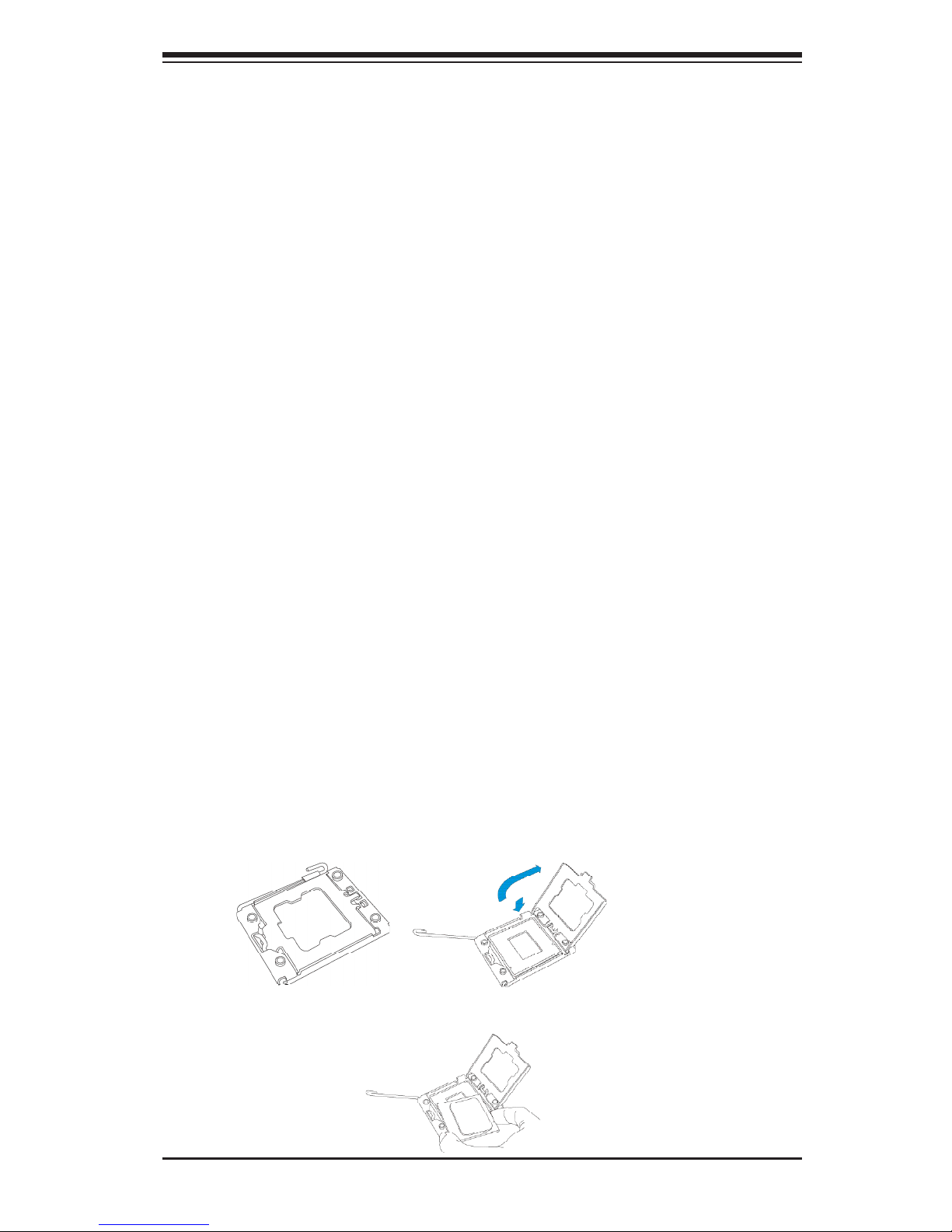
Installing an LGA 1356 Processor
1. Press the socket clip to release the load plate, which covers the CPU socket,
from its locked position.
2. Gently lift the socket clip to open the load plate.
3. Hold the plastic cap at its north and south center edges to remove it from the
CPU socket.
Page 30
2-6
X9DBS-F/X9DBS-F-2U Motherboard User’s Manual
Warning: Please save the plastic cap. The motherboard must be shipped with the
plastic cap properly installed to protect CPU socket pins. Shipping without the plastic
cap properly installed will cause damage to the socket pins.
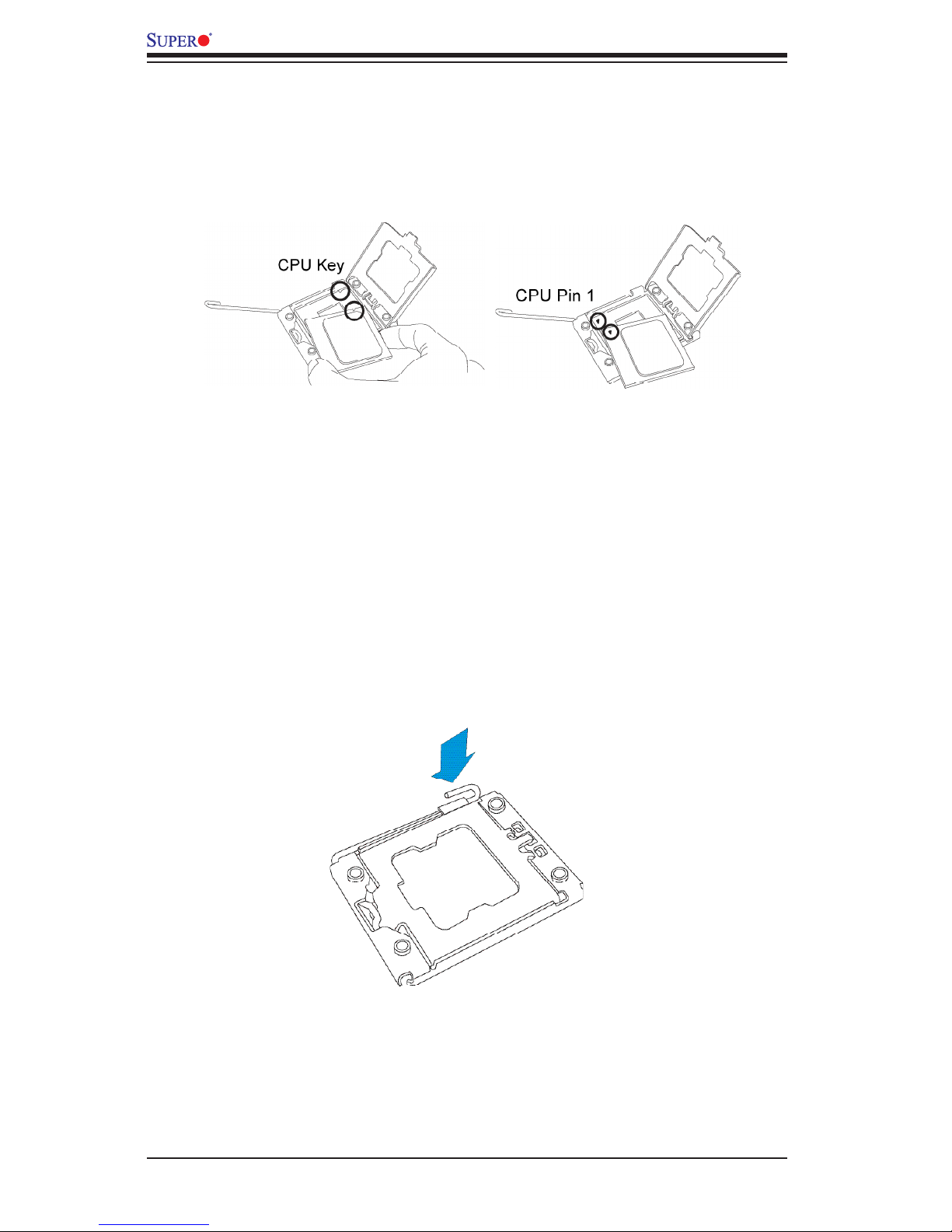
4. After removing the plastic cap, hold the CPU at the north and south center
edges with your thumb and index nger,.
5. Align the CPU key, which is a semi-circle cutout, with the socket key, which is
the notch below the gold color dot on the side of the socket.
6. Align Pin 1 on the CPU with Pin 1 on the CPU socket.
7. Once both CPU and the socket are aligned, carefully lower the CPU straight
down into the socket. (To avoid damaging the CPU or the socket, do not rub
the CPU against the surface of the socket or its pins.)
8. With the CPU inside the socket, inspect the four corners of the CPU to make
sure that the CPU is properly installed.
9. Once the CPU is securely seated on the socket, lower the CPU load plate to
the socket.
10. Use your thumb to gently push the socket clip down to the clip lock.
Page 31

Chapter 2: Installation
2-7
Installing a Passive CPU Heatsink
1. Apply the proper amount of thermal grease to the heatsink.
2. Place the heatsink on top of the CPU so that the two mounting holes on the
heatsink are aligned with those on the retention mechanism.
3. Insert two push-pins on the sides of the heatsink through the mounting holes
on the motherboard, and turn the push-pins clockwise to lock them.
Screw#1
Screw#2
Screw#3
Screw#4
Page 32

2-8
X9DBS-F/X9DBS-F-2U Motherboard User’s Manual
Removing the Passive Heatsink
Warning: We do not recommend that the CPU or the heatsink be removed. However,
if you do need to remove the heatsink, please follow the instructions below to uninstall
the heatsink to avoid damaging the CPU or other components.
1. Unplug the power cord from the power supply.
2. Press down the push-pin or unscrew the screw on the heatsink, and turn it
counter-clock-wise to loosen it. Repeat the same step to loosen the second
push-pin.
3. Hold the heatsink as shown in the picture below, and gently wriggle the heat-
sink to loosen it. (Do not use excessive force when wriggling the heatsink.)
4. Once the heatsink is loosened, remove it from the motherboard.
5. To reinstall the CPU and the heatsink, clean the surface of the CPU and the
heatsink to get rid of the old thermal grease. Reapply the proper amount of
thermal grease on the surface before reinstalling them on the motherboard.
Page 33

Chapter 2: Installation
2-9
X9DBS-F
Rev. 1.01
Release Tabs
Notches
2-4 Installing and Removing the Memory Modules
Note: Check Supermicro's website for recommended memory modules.
CAUTION
Exercise extreme care when installing or removing DIMM
modules to prevent any possible damage.
Installing & Removing DIMMs
1. Insert the desired number of DIMMs into the memory slots, starting with P1-
DIMM #A1. (For best memory performance, please use the modules of the
same type and speed in the same bank.)
2. Push the release tabs outwards on both ends of the DIMM slot to unlock it.
3. Align the DIMM module key with the receptive point on the memory slot.
4. Align the notches on both ends of the module with the receptive points on
ends of the slot.
5. Use two thumbs together to press the notches of the module straight down
into the slot until the module snaps into place.
6. Press the release tabs to the locked positions to secure the DIMM module
into the slot.
Press both notches straight
down into the memory slot at
the same time.
Removing Memory Modules
Press both notches on the ends of the DIMM module to unlock it. Once the DIMM
module is loosened, remove it from the memory slot.
Page 34

2-10
X9DBS-F/X9DBS-F-2U Motherboard User’s Manual
Memory Support for the X9DBS-F/X9DBS-F-2U Motherboard
The X9DBS-F/X9DBS-F-2U Motherboard supports up to 192 GB Registered
(RDIMM)/Load Reduced (LRDIMM) ECC or up to 48 GB Unbuffered (UDIMM)
ECC/Non-ECC DDR3 memory with speeds of 1600/1333/1066/800 MHz in 6 DIMM
slots. For the latest memory updates, please refer to our website a at http://www.
supermicro.com/products/motherboard.
Processor & Memory Module Population Conguration
For memory to work properly, follow the tables below for memory installation.
Processors and their Corresponding
Memory Modules
CPU# Corresponding DIMM Modules
CPU 1 P1-DIMMA1 P1-DIMMB1 P1-DIMMC1
CPU2 P2-DIMMD1 P2-DIMME1 P2-DIMMF1
Processor and Memory Module Population for Optimal Performance
Number of
CPUs+DIMMs
CPUandMemoryPopulationCongurationTable
(For memory to work properly, please follow the instructions below.)
1 CPU &
2 DIMMs
CPU1
P1-DIMMA1/P1-DIMMB1
2 CPUs &
4 DIMMs
CPU1 + CPU2
P1-DIMMA1/P1-DIMMB1, P2-DIMMD1/P2-DIMME1
2 CPUs &
6 DIMMs
CPU1 + CPU2
P1-DIMMA1/P1-DIMMB1/P1-DIMMC1, P2-DIMMD1/P2-DIMME1/ P2-DIMMF1
Page 35

Chapter 2: Installation
2-11
Populating UDIMM (ECC/Non-ECC) Memory Modules
Intel E5-2400 Series Processor UDIMM Memory
Support
Ranks Per
DIMM &
Data Width
Memory Capacity
Per DIMM
(See the Note below)
Speed (MT/s) and Voltage
Validated by Slot per Channel
(SPC) and DIMM Per Channel
(DPC)
1 Slot Per Channel
1DPC
1.35V 1.5V
SRx8
Non-ECC
1GB 2GB 4GB NA 1066,1333
DRx8
Non-ECC
2GB 4GB 8GB NA 1066,1333
SRx16
Non-ECC
512MB 1GB 2GB NA 1066,1333
SRx8
ECC
1GB 2GB 4GB 1066, 1333 1066,1333
DRx8
ECC
2GB 4GB 8GB 1066, 1333 1066,1333
Note: For detailed information on memory support and updates, please refer
to the SMC Recommended Memory List posted on our website at http://www.
supermicro.com/support/resources/mem.cfm.
Populating RDIMM (ECC) Memory Modules
Intel E5-2400 Series Processor RDIMM Memory Support
Ranks
Per
DIMM
& Data
Width
Memory Capacity
Per DIMM
(See the Note Below)
Speed (MT/s) and Voltage Validated by
Slot per Channel (SPC) and DIMM Per
Channel (DPC)
1 Slot Per Channel
1DPC
1.35V 1.5V
SRx8 1GB 2GB 4GB 1066, 1333 1066, 1333, 1600
DRx8 2GB 4GB 8GB 1066, 1333 1066, 1333, 1600
SRx4 2GB 4GB 8GB 1066, 1333 1066, 1333, 1600
DRx4 4GB 8GB 16GB 1066, 1333 1066, 1333, 1600
QRx4 8GB 16GB 32GB 800 800
QRx8 4GB 8GB 16GB 800 800
Note: For detailed information on memory support and updates, please refer to the
SMC Recommended Memory List posted on our website at http://www.supermicro.
com/support/resources/mem.cfm.
Page 36

2-12
X9DBS-F/X9DBS-F-2U Motherboard User’s Manual
Populating LRDIMM (ECC) Memory Modules
Intel E5-2400 Series Processor LRDIMM Memory
Support
Ranks Per
DIMM & Data
Width
(See the Note
Below)
Memory Capacity
Per DIMM
Speed (MT/s) and Voltage
Validated by Slot per Chan-
nel (SPC) and DIMM Per
Channel (DPC)
1 Slot Per Channel
1DPC
1.35V 1.5V
QRx4 (DDP) 16GB 32GB 1066 1066, 1333
QRx8 (P) 8GB 16GB 1066 1066, 1333
Note: For detailed information on memory support and updates, please refer
to the SMC Recommended Memory List posted on our website at http://www.
supermicro.com/support/resources/mem.cfm.
Other Important Notes and Restrictions
•For the memory modules to work properly, please install DIMM modules of the
same type, same speed and same operating frequency on the motherboard.
Mixing of RDIMMs, UDIMMs or LRDIMMs is not allowed. Do not install both
ECC and Non-ECC memory modules on the same motherboard.
•Use only memory modules of the same type and same speed as reccommended
by the manufacturer. Mixing of memory modules of different types or speed is
not allowed.
Page 37

Chapter 2: Installation
2-13
X9DBS-F
Rev. 1.01
2-5 Motherboard Installation
All motherboards have standard mounting holes to t different types of chassis.
Make sure that the locations of all the mounting holes for both motherboard and
chassis match. Although a chassis may have both plastic and metal mounting fas-
teners, metal ones are highly recommended because they ground the motherboard
to the chassis. Make sure that the metal standoffs click in or are screwed in tightly.
Then use a screwdriver to secure the motherboard onto the motherboard tray.
Tools Needed
•Phillips Screwdriver
•Pan head screws (13 pieces)
•Standoffs (11 pieces, if needed)
Location of Mounting Holes
There are thirteen (11) mounting holes on this motherboard indicated by the arrows.
Caution: 1) To avoid damaging the motherboard and its components, please do
not use a force greater than 8 lb/inch on each mounting screw during motherboard
installation. 2) Some components are very close to the mounting holes. Please take
precautionary measures to avoid damaging these components when installing the
motherboard to the chassis.
Page 38

2-14
X9DBS-F/X9DBS-F-2U Motherboard User’s Manual
Installing the Motherboard
1. Install the I/O shield into the chassis.
2. Locate the mounting holes on the motherboard.
3. Locate the matching mounting holes on the chassis. Align the mounting holes
on the motherboard with the mounting holes on the chassis.
4. Install standoffs in the chassis as needed.
5. Install the motherboard into the chassis carefully to avoid damaging mother-
board components.
6. Using the Phillips screwdriver, insert a Pan head #6 screw into a mounting
hole on the motherboard and its matching mounting hole on the chassis.
7. Repeat Step 5 to insert #6 screws into all mounting holes.
8. Make sure that the motherboard is securely placed in the chassis.
Note: Images displayed are for illustration only. Your chassis or compo-
nents might look different from those shown in this manual.
Page 39

Chapter 2: Installation
2-15
X9DBS-F
Rev. 1.01
2-6 Control Panel Connectors and I/O Ports
The I/O ports are color-coded in conformance with the PC 99 specication. See
the picture below for the colors and locations of the various I/O ports.
Back Panel Connectors and I/O Ports
BackPanelI/OPortLocationsandDenitions
1. GLAN 1 (LAN1)
2. GLAN2 (LAN2)
3. JKVM1 (Keyboard/Video/Mouse)
4. External SAS
1
2
3
4
Page 40

2-16
X9DBS-F/X9DBS-F-2U Motherboard User’s Manual
1. JKVM1
2. LAN1
3. LAN2
1
2
3
X9DBS-F
Rev. 1.01
Keyboard/Video/Mouse
A keyboard/video/mouse connector
(JKVM1) is located next to LAN Ports
1/2 on the motherboard. See the lay-
out below for the location of JKVM1.
Ethernet Ports
Two Gigabit_LAN ports (LAN1/LAN2)
are located on the I/O backplane on
the motherboard to provide Ethernet
connections. In addition, an IPMI
Dedicated LAN also provides KVM
support for IPMI 2.0.
Note: Please refer to the
LED Indicator Section for
LAN LED information.
LAN Ports
PinDenition
Pin# Denition
1 P2V5SB 10 SGND
2 TD0+ 11 Act LED
3 TD0- 12 P3V3SB
4 TD1+ 13 Link 100 LED (Yel-
low, +3V3SB)
5 TD1- 14 Link 1000 LED (Yel-
low, +3V3SB)
6 TD2+ 15 Ground
7 TD2- 16 Ground
8 TD3+ 17 Ground
9 TD3- 18 Ground
(NC: No Connection)
Page 41

Chapter 2: Installation
2-17
Note: For more information on SATA connections, refer to Section 2-10 in
the end of this chapter.
X9DBS-F
Rev. 1.01
1. External SAS Connectors
1
External SAS Connectors
Two External Serial Attached SCSI Ports are located on the backplane of the X9D-
BS-F, while only one located on the backplane on the X9DBS-F-2U. These SATA
connectors provide serial link connections. See the layout below for the location.
Page 42

2-18
X9DBS-F/X9DBS-F-2U Motherboard User’s Manual
Fan 6
Fan 5
Fan 4
JPL1
LAN1
LAN2
JKVM1
VGA/USB/COM1
External SAA
D95
Slot1 PCI-E 3.0x24
CPU2 Port1
CPU2 Port3
JPI2C2
JPI2C1
JPLD1
JDBS5
BIOS
JBT1
PCH
USB3
I-SATA0
I-SATA1
JSD1
JSD2
JWD1
P2-DIMMD1
P2-DIMME1
P2-DIMMF1
JPME1
JPME2
Fan1
Fan2
Fan3
JTPM1
LED2
Battery
LED10
JOH1
M13
M9
M8
M7
M6
M4
M3
M2
M1
LE2
LED11
J21
LED13
LED12
P1-DIMMA1
P1-DIMMB1
P1-DIMMC1
BMC
SAS
Re-Driver
SAS MEZZANINE HEADER
CPU1
CPU2
X9DBS-F
Rev. 1.01
LAN
Intel i350
SAS
Re-Driver
A. Fan 1
B. Fan 2
C. Fan 3
D. Fan 4
E. Fan 5
F. Fan 6
Fan Headers
This motherboard has three system/CPU
fan headers (Fan1-Fan 6) on the moth-
erboard. All these 4-pin fans headers are
backward compatible with the traditional
3-pin fans. However, fan speed control
is available for 4-pin fans only. The fan
speeds are controlled through IPMI con-
nection.
Fan Header
PinDenitions
Pin# Denition
1 Ground
2 +12V
3 Tachometer
4 PWR Modulation
A
B
2-7 Connecting Cables
C
D
E
F
Page 43

Chapter 2: Installation
2-19
Fan 6
Fan 5
Fan 4
JPL1
LAN1
LAN2
JKVM1
VGA/USB/COM1
External SAA
D95
Slot1 PCI-E 3.0x24
CPU2 Port1
CPU2 Port3
JPI2C2
JPI2C1
JPLD1
JDBS5
BIOS
JBT1
PCH
USB3
I-SATA0
I-SATA1
JSD1
JSD2
JWD1
P2-DIMMD1
P2-DIMME1
P2-DIMMF1
JPME1
JPME2
Fan1
Fan2
Fan3
JTPM1
LED2
Battery
LED10
JOH1
M13
M9
M8
M7
M6
M4
M3
M2
M1
LE2
LED11
J21
LED13
LED12
P1-DIMMA1
P1-DIMMB1
P1-DIMMC1
BMC
SAS
Re-Driver
SAS MEZZANINE HEADER
CPU1
CPU2
X9DBS-F
Rev. 1.01
LAN
Intel i350
SAS
Re-Driver
A. OH LED
B. TPM/Port 80 Header
Overheat/Fan Fail LED
The JOH1 header is used to connect
an LED indicator to provide warnings
of chassis overheating and fan failure.
This LED will blink when a fan failure
occurs. Refer to the tables on right for
pin denitions.
OH/Fan Fail LED
Status
State Message
Solid Overheat
Blinking Fan Fail
A
TPM Header/Port 80
A Trusted Platform Module/Port 80
header is located at JTPM1 to provide
TPM support and Port 80 connection.
Use this header to enhance system
performance and data security. See
the table on the right for pin deni-
tions.
TPM/Port 80 Header
PinDenitions
Pin # Denition Pin # Denition
1 LCLK 2 GND
3 LFRAME# 4 <(KEY)>
5 LRESET# 6 +5V (X)
7 LAD 3 8 LAD 2
9 +3.3V 10 LAD1
11 LAD0 12 GND
13 SMB_CLK4 14 SMB_DAT4
15 +3V_DUAL 16 SERIRQ
17 GND 18 CLKRUN# (X)
19 LPCPD# 20 LDRQ# (X)
B
Page 44

2-20
X9DBS-F/X9DBS-F-2U Motherboard User’s Manual
Fan 6
Fan 5
Fan 4
JPL1
LAN1
LAN2
JKVM1
VGA/USB/COM1
External SAA
D95
Slot1 PCI-E 3.0x24
CPU2 Port1
CPU2 Port3
JPI2C2
JPI2C1
JPLD1
JDBS5
BIOS
JBT1
PCH
USB3
I-SATA0
I-SATA1
JSD1
JSD2
JWD1
P2-DIMMD1
P2-DIMME1
P2-DIMMF1
JPME1
JPME2
Fan1
Fan2
Fan3
JTPM1
LED2
Battery
LED10
JOH1
M13
M9
M8
M7
M6
M4
M3
M2
M1
LE2
LED11
J21
LED13
LED12
P1-DIMMA1
P1-DIMMB1
P1-DIMMC1
BMC
SAS
Re-Driver
SAS MEZZANINE HEADER
CPU1
CPU2
X9DBS-F
Rev. 1.01
LAN
Intel i350
SAS
Re-Driver
C
A. JSD1
B. JSD2
C. USB 3
B
A
SATA DOM Power Connectors
Two power connectors for SATA DOM
(Disk On Module) devices are located
at JSD1/JSD2. Connect appropriate
cables here to provide power support
for your DOM devices.
DOM PWR
PinDenitions
Pin# Denition
1 +5V
2 Ground
3 Ground
Universal Serial Bus (USB)
A Type A connector (USB 3) is located
on the motherboard to provide front
USB support. (Cable is not included).
See the table on the right for pin
denitions.
Type A USB
PinDenitions
Pin# Denition
1 +5V
2 PO-
3 PO+
4 Ground
5 NA
Page 45

Chapter 2: Installation
2-21
Fan 6
Fan 5
Fan 4
JPL1
LAN1
LAN2
JKVM1
VGA/USB/COM1
External SAA
D95
Slot1 PCI-E 3.0x24
CPU2 Port1
CPU2 Port3
JPI2C2
JPI2C1
JPLD1
JDBS5
BIOS
JBT1
PCH
USB3
I-SATA0
I-SATA1
JSD1
JSD2
JWD1
P2-DIMMD1
P2-DIMME1
P2-DIMMF1
JPME1
JPME2
Fan1
Fan2
Fan3
JTPM1
LED2
Battery
LED10
JOH1
M13
M9
M8
M7
M6
M4
M3
M2
M1
LE2
LED11
J21
LED13
LED12
P1-DIMMA1
P1-DIMMB1
P1-DIMMC1
BMC
SAS
Re-Driver
SAS MEZZANINE HEADER
CPU1
CPU2
X9DBS-F
Rev. 1.01
LAN
Intel i350
SAS
Re-Driver
A. ME Firmware
B. ME Mode
B
A
ME Firmware
Use Jumper JPME1 to select ME Firmware
Recovery mode, which will limit resource al-
location for essential system operation only in
order to maintain normal power operation and
management. In the single operation mode,
online upgrade will be available via Recovery
mode. See the table on the right for jumper
settings.
ME Firmware
Jumper Settings
Jumper Setting Denition
1-2 Normal (Default)
2-3 ME Recovery
ME Mode (Select)
Close Pin 2 and Pin 3 of Jumper JPME2 to
bypass SPI ash security and force the system
to operate in the Manufacturer mode, allowing
the user to ash the system rmware from a
host server for system setting modications.
See the table on the right for jumper settings.
ME Mode
Jumper Settings
Jumper Setting Denition
1-2 Normal (Default)
2-3 Manufacture Mode
Page 46

2-22
X9DBS-F/X9DBS-F-2U Motherboard User’s Manual
Fan 6
Fan 5
Fan 4
JPL1
LAN1
LAN2
JKVM1
VGA/USB/COM1
External SAA
D95
Slot1 PCI-E 3.0x24
CPU2 Port1
CPU2 Port3
JPI2C2
JPI2C1
JPLD1
JDBS5
BIOS
JBT1
PCH
USB3
I-SATA0
I-SATA1
JSD1
JSD2
JWD1
P2-DIMMD1
P2-DIMME1
P2-DIMMF1
JPME1
JPME2
Fan1
Fan2
Fan3
JTPM1
LED2
Battery
LED10
JOH1
M13
M9
M8
M7
M6
M4
M3
M2
M1
LE2
LED11
J21
LED13
LED12
P1-DIMMA1
P1-DIMMB1
P1-DIMMC1
BMC
SAS
Re-Driver
SAS MEZZANINE HEADER
CPU1
CPU2
X9DBS-F
Rev. 1.01
LAN
Intel i350
SAS
Re-Driver
2-8 Jumper Settings
Explanation of Jumpers
To modify the operation of the motherboard,
jumpers can be used to choose between
optional settings. Jumpers create shorts be-
tween two pins to change the function of the
connector. Pin 1 is identied with a square
solder pad on the printed circuit board. See
the motherboard layout pages for jumper
locations.
Note: On two pin jumpers, "Closed"
means the jumper is on and "Open"
means the jumper is off the pins.
Connector
Pins
Jumper
Cap
Setting
Pin 1-2 short
3 2 1
3 2 1
A. Watch Dog Enable
A
Watch Dog Enable/Disable
Watch Dog (JWD1) is a system monitor that can reboot
the system when a software application hangs. Close
Pins 1-2 to reset the system if an application hangs. Close
Pins 2-3 to generate a non-maskable interrupt signal for
the application that hangs. See the table on the right for
jumper settings. Watch Dog must also be enabled in the
Page 47

Chapter 2: Installation
2-23
Fan 6
Fan 5
Fan 4
JPL1
LAN1
LAN2
JKVM1
VGA/USB/COM1
External SAA
D95
Slot1 PCI-E 3.0x24
CPU2 Port1
CPU2 Port3
JPI2C2
JPI2C1
JPLD1
JDBS5
BIOS
JBT1
PCH
USB3
I-SATA0
I-SATA1
JSD1
JSD2
JWD1
P2-DIMMD1
P2-DIMME1
P2-DIMMF1
JPME1
JPME2
Fan1
Fan2
Fan3
JTPM1
LED2
Battery
LED10
JOH1
M13
M9
M8
M7
M6
M4
M3
M2
M1
LE2
LED11
J21
LED13
LED12
P1-DIMMA1
P1-DIMMB1
P1-DIMMC1
BMC
SAS
Re-Driver
SAS MEZZANINE HEADER
CPU1
CPU2
X9DBS-F
Rev. 1.01
LAN
Intel i350
SAS
Re-Driver
CMOS Clear
JBT1 is used to clear CMOS. Instead of pins, this "jumper" consists of contact pads
to prevent accidental clearing of CMOS. To clear CMOS, use a metal object such
as a small screwdriver to touch both pads at the same time to short the connec-
tion. Always remove the AC power cord from the system before clearing CMOS.
Note 1. For an ATX power supply, you must completely shut down the
system, remove the AC power cord, and then short JBT1 to clear CMOS.
Note 2. Be sure to remove the onboard CMOS Battery before you short
JBT1 to clear CMOS. Clearing CMOS will also clear all passwords.
A. Clear CMOS
B. GLAN 1/2 Enable
A
GLAN Enable/Disable
JPL1 enables or disables the GLAN
Ports 1/2 on the motherboard. See the
table on the right for jumper settings.
The default setting is Enabled.
GLAN Enable
Jumper Settings
Jumper Setting Denition
1-2 Enabled (default)
2-3 Disabled
B
Page 48

2-24
X9DBS-F/X9DBS-F-2U Motherboard User’s Manual
Fan 6
Fan 5
Fan 4
JPL1
LAN1
LAN2
JKVM1
VGA/USB/COM1
External SAA
D95
Slot1 PCI-E 3.0x24
CPU2 Port1
CPU2 Port3
JPI2C2
JPI2C1
JPLD1
JDBS5
BIOS
JBT1
PCH
USB3
I-SATA0
I-SATA1
JSD1
JSD2
JWD1
P2-DIMMD1
P2-DIMME1
P2-DIMMF1
JPME1
JPME2
Fan1
Fan2
Fan3
JTPM1
LED2
Battery
LED10
JOH1
M13
M9
M8
M7
M6
M4
M3
M2
M1
LE2
LED11
J21
LED13
LED12
P1-DIMMA1
P1-DIMMB1
P1-DIMMC1
BMC
SAS
Re-Driver
SAS MEZZANINE HEADER
CPU1
CPU2
X9DBS-F
Rev. 1.01
LAN
Intel i350
SAS
Re-Driver
I2C Bus to PCI-Exp. Slots
Jumpers JI2C1 and JI2C2 allow you to
connect the System Management Bus
(I2C) to the PCI-Express slot (Slot1)
on the motherboard. The default set-
ting is Open to disable the connection.
See the table on the right for jumper
settings.
I2C to PCI-Exp
Jumper Settings
Jumper Setting Denition
Closed Enabled
Open Disabled (Default)
A. JI
2
C1
B. JI
2
C2
A
B
Page 49

Chapter 2: Installation
2-25
Fan 6
Fan 5
Fan 4
JPL1
LAN1
LAN2
JKVM1
VGA/USB/COM1
External SAA
D95
Slot1 PCI-E 3.0x24
CPU2 Port1
CPU2 Port3
JPI2C2
JPI2C1
JPLD1
JDBS5
BIOS
JBT1
PCH
USB3
I-SATA0
I-SATA1
JSD1
JSD2
JWD1
P2-DIMMD1
P2-DIMME1
P2-DIMMF1
JPME1
JPME2
Fan1
Fan2
Fan3
JTPM1
LED2
Battery
LED10
JOH1
M13
M9
M8
M7
M6
M4
M3
M2
M1
LE2
LED11
J21
LED13
LED12
P1-DIMMA1
P1-DIMMB1
P1-DIMMC1
BMC
SAS
Re-Driver
SAS MEZZANINE HEADER
CPU1
CPU2
X9DBS-F
Rev. 1.01
LAN
Intel i350
SAS
Re-Driver
2-9 Onboard LED Indicators
A. LAN1 LEDs
B. LAN2 LEDs
LAN1/LAN2 LEDs
G_LAN Ports 1/2 (JLAN1/JLAN2) are lo-
cated on the IO Backplane. Each Ethernet
LAN port has two LEDs. The green LED on
the right indicates activity. The Link LED
on the left may be green, amber or off to
indicate the speed. See the tables at right
for more information.
Activity LED
Link LED
Rear View (when facing the
rear side of the chassis)
B
A
LAN 1/LAN 2 Link LED (Left)
LED State
LED Color Denition
Off 10 Mbps or No Connection
Amber 100 Mbps
Green 1 Gbps
LAN 1/LAN 2 Activity LED (Right)
LED State
Color Status Denition
Green Flashing Active
Page 50

2-26
X9DBS-F/X9DBS-F-2U Motherboard User’s Manual
Fan 6
Fan 5
Fan 4
JPL1
LAN1
LAN2
JKVM1
VGA/USB/COM1
External SAA
D95
Slot1 PCI-E 3.0x24
CPU2 Port1
CPU2 Port3
JPI2C2
JPI2C1
JPLD1
JDBS5
BIOS
JBT1
PCH
USB3
I-SATA0
I-SATA1
JSD1
JSD2
JWD1
P2-DIMMD1
P2-DIMME1
P2-DIMMF1
JPME1
JPME2
Fan1
Fan2
Fan3
JTPM1
LED2
Battery
LED10
JOH1
M13
M9
M8
M7
M6
M4
M3
M2
M1
LE2
LED11
J21
LED13
LED12
P1-DIMMA1
P1-DIMMB1
P1-DIMMC1
BMC
SAS
Re-Driver
SAS MEZZANINE HEADER
CPU1
CPU2
X9DBS-F
Rev. 1.01
LAN
Intel i350
SAS
Re-Driver
B
A. BMC/System Heartbeat LED
B. Onboard PWR LED
A
BMC Heartbeat/System
Heartbeat LED
Status
Color/State Denition
D95: Up BMC Heartbeat
LED
D95: Down System Heart-
beat LED
Green:
Blinking
BMC/System:
Normal
BMC Heartbeat/System Heartbeat LED
A BMC/System Heartbeat LED is located
at D95 on the motherboard. When D95 is
up, it functions as a BMC Heartbeat LED.
When D95 is down, it is used as a System
Heartbeat LED. When D95 is blinking,
BMC and the system function normally.
See the table at right for more information.
Onboard Power LED
An Onboard Power LED is located at LE2
on the motherboard. When this LED is on,
the system is on. Be sure to turn off the
system and unplug the power cord before
removing or installing components. See
the tables at right for more information.
Onboard PWR LED Indicator
LED States
LED Color Denition
Off System Off (PWR cable
not connected)
Green System On
Green:
Flashing
Quickly
ACPI S1 State
Page 51

Chapter 2: Installation
2-27
Fan 6
Fan 5
Fan 4
JPL1
LAN1
LAN2
JKVM1
VGA/USB/COM1
External SAA
D95
Slot1 PCI-E 3.0x24
CPU2 Port1
CPU2 Port3
JPI2C2
JPI2C1
JPLD1
JDBS5
BIOS
JBT1
PCH
USB3
I-SATA0
I-SATA1
JSD1
JSD2
JWD1
P2-DIMMD1
P2-DIMME1
P2-DIMMF1
JPME1
JPME2
Fan1
Fan2
Fan3
JTPM1
LED2
Battery
LED10
JOH1
M13
M9
M8
M7
M6
M4
M3
M2
M1
LE2
LED11
J21
LED13
LED12
P1-DIMMA1
P1-DIMMB1
P1-DIMMC1
BMC
SAS
Re-Driver
SAS MEZZANINE HEADER
CPU1
CPU2
X9DBS-F
Rev. 1.01
LAN
Intel i350
SAS
Re-Driver
A. SATA Heartbeat LED (LED2)
B. SAS Activity LED (LED10)
C. SAS Activity LED (LED11)
A
SATA Heartbeat LED
Status
Color/State Denition
Green:
Blinking
SATA:
Normal
SATA Heartbeat LED
A SATA Heartbeat LED is located at LED2
on the motherboard. When LED2 is blink-
ing, SATA functions normally. See the
table at right for more information.
SAS Actvity LED
Status
Color/State Denition
Green:
Blinking
SAS: Active
SAS Activity LED
A SAS Activity LEDs are located at
LED10/LED11 on the motherboard. When
LED10/LED11 are blinking, SAS are
active. See the table at right for more
information.
B
C
Page 52

2-28
X9DBS-F/X9DBS-F-2U Motherboard User’s Manual
Fan 6
Fan 5
Fan 4
JPL1
LAN1
LAN2
JKVM1
VGA/USB/COM1
External SAA
D95
Slot1 PCI-E 3.0x24
CPU2 Port1
CPU2 Port3
JPI2C2
JPI2C1
JPLD1
JDBS5
BIOS
JBT1
PCH
USB3
I-SATA0
I-SATA1
JSD1
JSD2
JWD1
P2-DIMMD1
P2-DIMME1
P2-DIMMF1
JPME1
JPME2
Fan1
Fan2
Fan3
JTPM1
LED2
Battery
LED10
JOH1
M13
M9
M8
M7
M6
M4
M3
M2
M1
LE2
LED11
J21
LED13
LED12
P1-DIMMA1
P1-DIMMB1
P1-DIMMC1
BMC
SAS
Re-Driver
SAS MEZZANINE HEADER
CPU1
CPU2
X9DBS-F
Rev. 1.01
LAN
Intel i350
SAS
Re-Driver
Notes:
1. For more information on SATA HostRAID conguration, please refer to
the Intel SATA HostRAID User's Guide posted on our Website @ http://
www.supermicro.com.
2. Please refer to Page 2-18 for information on the External SAS connector.
Serial ATA
PinDenitions
Pin# Denition
1 Ground
2 TX_P
3 TX_N
4 Ground
5 RX_N
6 RX_P
7 Ground
A. I-SATA0
B. I-SATA1
Serial ATA Ports
There are two Serial ATA Ports (I-SATA0/I)
located on the motherboard. These ports
provide serial-link signal connections,
which are faster than the connections of
Parallel ATA. See the table on the right for
pin denitions.
2-10 Serial ATA Connections
A
B
Page 53

3-1
Chapter 3: Troubleshooting
Chapter 3
Troubleshooting
3-1 Troubleshooting Procedures
Use the following procedures to troubleshoot your system. If you have followed all
of the procedures below and still need assistance, refer to the ‘Technical Support
Procedures’ and/or ‘Returning Merchandise for Service’ section(s) in this chapter.
Warning! Always disconnect the power cord before adding, changing or installing any
hardware components.
Before Power On
1. Make sure that there are no short circuits between the motherboard and
chassis.
2. Disconnect all ribbon/wire cables from the motherboard, including keyboard
and mouse cables.
3. Remove all add-on cards.
4. Install CPU 1 rst (making sure it is fully seated), and connect the front panel
connectors to the motherboard.
No Power
1. Make sure that there are no short circuits between the motherboard and the
chassis.
2. Make sure that the ATX power connectors are properly connected.
3. Check that the 115V/230V switch on the power supply is properly set, if avail-
able.
4. Turn the power switch on and off to test the system, if applicable.
5. The battery on your motherboard may be old. Check to verify that it still sup-
plies ~3VDC. If it does not, replace it with a new one.
Page 54

3-2
X9DBS-F/X9DBS-F-2U Motherboard User’s Manual
No Video
1. If the power is on, but you have no video, remove all add-on cards and
cables.
2. Use the speaker to determine if any beep codes exist. Refer to Appendix A
for details on beep codes.
System Boot Failure
If the system does not display POST or does not respond after the power is turned
on, check the following:
1. Check for any error beeps from the motherboard speaker.
•If there is no error beep, try to turn on the system without any DIMM module
installed. If there is still no error beep, try to turn on the system again with only
one processor installed in CPU Socket#1. If there is still no error beep, replace
the motherboard.
•If there are error beeps, clear the CMOS setting by unplugging the power cord
and contacting both pads on the CMOS Clear Jumper (JBT1). (Refer to Sec-
tion 2-8 in Chapter 2.)
2. Remove all components from the motherboard, especially the DIMM mod-
ules. Make sure that the system's power is on, and memory error beeps are
activated.
3. Turn on the system with only one DIMM module installed. If the system boots,
check for bad DIMM modules or slots by following the procedure of memory-
error troubleshooting in this chapter.
LosingtheSystem’sSetupConguration
1. Make sure that you are using a high quality power supply. A poor quality
power supply may cause the system to lose the CMOS setup information.
Refer to Section 1-6 for details on recommended power supplies.
2. The battery on your motherboard may be old. Check to verify that it still sup-
plies ~3VDC. If it does not, replace it with a new one.
3. If the steps indicated above do not x setup conguration problems, contact
your vendor for repairs.
Page 55

3-3
Chapter 3: Troubleshooting
Memory Errors
When a No Memory Beep Code is issued by the system, check the following:
1. Make sure that the memory modules are compatible with the system and that
the DIMM modules are properly and fully installed. (For memory compatibility,
refer to the Memory Compatibility Chart posted on our website at http://www.
supermicro.com.)
2. Check if different speeds of DIMMs have been installed. It is strongly recom-
mended that you use the memory modules of the same speed and same type
for all DIMMs in the system.
3. Make sure that you are using the correct type of Registered (RDIMM)/Load
Reduced (LRDIMM) ECC or Unbuffered (UDIMM) ECC/Non-ECC DDR3
DIMM modules recommended by the manufacturer.
4. Check for bad DIMM modules or slots by swapping a single module among
all memory slots and check the results.
5. Make sure that all memory modules are fully seated in their slots. Follow the
instructions given in Section 2-4 in Chapter 2.
6. Please follow the instructions given in the DIMM Population Tables listed in
Section 2-4 to install your memory modules.
When the System Becomes Unstable
A. The system becomes unstable during or after OS system installation
When the system becomes unstable during or after OS system installation, check
the following:
1. CPU/BIOS support: Make sure that your CPU is supported, and you have the
latest BIOS installed in your system.
2. Memory support: Make sure that the memory modules are supported by test-
ing the modules using memtest86 or a similar utility.
Note: Refer to the product page on our website at http://www.supermicro.
com for memory and CPU support and updates.
3. HDD support: Make sure that all hard disk drives (HDDs) work properly. Re-
place the bad HDDs with good ones.
Page 56

3-4
X9DBS-F/X9DBS-F-2U Motherboard User’s Manual
4. System cooling: Check system cooling to make sure that all cooling fans and
system fans work properly. Check Hardware Monitoring settings in the BIOS
to make sure that the CPU and System temperatures are within the normal
range. Also check the front panel Overheat LED, and make sure that the
Overheat LED is not on.
5. Adequate power supply: Make sure that the power supply provides adequate
power to the system. Make sure that all power connectors are connected.
Please refer to our website for more information on minimum power require-
ment.
6. Proper software support: Make sure that the correct drivers are used.
B. The system becomes unstable before or during OS installation
When the system becomes unstable before or during OS installation, check the
following:
1. Source of installation: Make sure that the devices used for installation are
working properly, including boot devices such as CD/DVD disc, CD/DVD-
ROM.
2. Cable connection: Check to make sure that all cables are connected and
working properly.
3. Using minimum conguration for troubleshooting: Remove all unnecessary
components (starting with add-on cards rst), and use minimum congura-
tion (with a CPU and a memory module installed) to identify the problematic
areas. Refer to the steps listed in Section A above for proper troubleshooting
procedures.
4. Identifying bad components by isolating them: If necessary, remove a compo-
nent in question from the chassis, and test it in isolation to make sure that it
works properly. Replace a bad component with a good one.
5. Check and change one component at a time instead of changing several
items at the same time. This will help isolate and identify the problem.
6. To nd out if a component is good, swap the component with a new one to
see if the system will work properly. If so, then the old component is bad.
Page 57

3-5
Chapter 3: Troubleshooting
You can also install the component in question in another system. If the new
system works, the component is good and the old system has problems.
3-2 Technical Support Procedures
Before contacting Technical Support, please take the following steps. Also, please
note that as a motherboard manufacturer, Supermicro also sells motherboards
through its channels, so it is best to rst check with your distributor or reseller for
troubleshooting services. They should know of any possible problem(s) with the
specic system conguration that was sold to you.
1. Please go through the ‘Troubleshooting Procedures’ and 'Frequently Asked
Question' (FAQ) sections in this chapter or see the FAQs on our website
(http://www.supermicro.com/) before contacting Technical Support.
2. BIOS upgrades can be downloaded from our website (http://www.supermicro.
com).
3. If you still cannot resolve the problem, include the following information when
contacting Supermicro for technical support:
•Motherboard model and PCB revision number
•BIOS release date/version (This can be seen on the initial display when your
system rst boots up.)
•System conguration
4. An example of a Technical Support form is on our website at (http://www.
supermicro.com).
Page 58

3-6
X9DBS-F/X9DBS-F-2U Motherboard User’s Manual
Proper Battery Disposal
Warning! Please handle used batteries carefully. Do not damage the battery in any
way; a damaged battery may release hazardous materials into the environment. Do
not discard a used battery in the garbage or a public landll. Please comply with the
regulations set up by your local hazardous waste management agency to dispose of
your used battery properly.
Battery Installation
1. To install an onboard battery, follow the steps 1& 2 above and continue
below:
2. Identify the battery's polarity. The positive (+) side should be facing up.
3. Insert the battery into the battery holder and push it down until you hear a
click to ensure that the battery is securely locked.
Warning: When replacing a battery, be sure to only replace it with the same type.
•Distributors: For immediate assistance, please have your account number ready
when placing a call to our technical support department. We can be reached by
e-mail at support@supermicro.com.
3-3 Battery Removal and Installation
Battery Removal
To remove the onboard battery, follow the steps below:
1. Power off your system and unplug your power cable.
2. Locate the onboard battery.
3. Using a tool such as a pen or a small screwdriver, push the battery lock out-
wards to unlock it. Once unlocked, the battery will pop out from the holder.
4. Remove the battery.
OR
Page 59

3-7
Chapter 3: Troubleshooting
3-4 Frequently Asked Questions
Question: What are the various types of memory that my motherboard can
support?
Answer: The motherboard supports Registered (RDIMM)/Load Reduced (LRDIMM)
ECC or Unbuffered (UDIMM) ECC/Non-ECC DDR3 DIMM modules. To enhance
memory performance, do not mix memory modules of different speeds and sizes.
Please follow all memory installation instructions given on Section 2-4 in Chapter 2.
Question: How do I update my BIOS?
It is recommended that you do not upgrade your BIOS if you are not experiencing
any problems with your system. Updated BIOS les are located on our website
at http://www.supermicro.com. Please check our BIOS warning message and the
information on how to update your BIOS on our website. Select your motherboard
model and download the BIOS le to your computer. Also, check the current BIOS
revision to make sure that it is newer than your BIOS before downloading. You can
choose from the zip le and the .exe le. If you choose the zip BIOS le, please
unzip the BIOS le onto a bootable USB device. Run the batch le using the format
AMI.bat lename.rom from your bootable USB device to ash the BIOS. Then, your
system will automatically reboot.
Warning: Do not shut down or reset the system while updating the BIOS to prevent
possible system boot failure!)
Note: The SPI BIOS chip used on this motherboard cannot be removed.
Send your motherboard back to our RMA Department at Supermicro for
repair. For BIOS Recovery instructions, please refer to the AMI BIOS
Recovery Instructions posted at http://www.supermicro.com.
Question: How do I handle the used battery?
Answer: Please handle used batteries carefully. Do not damage the battery in any
way; a damaged battery may release hazardous materials into the environment. Do
not discard a used battery in the garbage or a public landll. Please comply with the
regulations set up by your local hazardous waste management agency to dispose
of your used battery properly. (Refer to Section 3-3 on Page 3-6.)
3-5 Returning Merchandise for Service
A receipt or copy of your invoice marked with the date of purchase is required before
any warranty service will be rendered. You can obtain service by calling your ven-
dor for a Returned Merchandise Authorization (RMA) number. When returning the
motherboard to the manufacturer, the RMA number should be prominently displayed
Page 60

3-8
X9DBS-F/X9DBS-F-2U Motherboard User’s Manual
on the outside of the shipping carton, and the shipping package is mailed prepaid
or hand-carried. Shipping and handling charges will be applied for all orders that
must be mailed when service is complete. For faster service, You can also request
a RMA authorization online (http://www.supermicro.com).
This warranty only covers normal consumer use and does not cover damages in-
curred in shipping or from failure due to the alternation, misuse, abuse or improper
maintenance of products.
During the warranty period, contact your distributor rst for any product problems.
Page 61

Chapter 4: AMI BIOS
4-1
Chapter 4
BIOS
4-1 Introduction
This chapter describes the AMI BIOS Setup utility for the X9DBS-F/X9DBS-F-2U. It
also provides the instructions on how to navigate the AMI BIOS Setup utility screens.
The AMI ROM BIOS is stored in a Flash EEPROM and can be easily updated.
Starting BIOS Setup Utility
To enter the AMI BIOS Setup utility screens, press the <Del> key while the system
is booting up.
Note: In most cases, the <Del> key is used to invoke the AMI BIOS setup
screen. There are a few cases when other keys are used, such as <F3>,
<F4>, etc.
Each main BIOS menu option is described in this manual. The Main BIOS setup
menu screen has two main frames. The left frame displays all the options that can
be congured. Grayed-out options cannot be congured. Options in blue can be
congured by the user. The right frame displays the key legend. Above the key
legend is an area reserved for informational text. When an option is selected in the
left frame, it is highlighted in white. Often, informational text about the option will
display on the right.
Note: The AMI BIOS has default informational messages built in. The
manufacturer retains the option to include, omit, or change any of these
informational messages.
The AMI BIOS Setup utility uses a key-based navigation system called "hot keys."
Most of the AMI BIOS setup utility "hot keys" can be used at any time during setup
navigation. These keys include <F3>, <F4>, <Enter>, <ESC>, arrow keys, etc.
Note 1: In this section, options printed in Bold are default settings.
Note 2: <F3> is used to load optimal default settings. <F4> is used to save
the settings and exit the setup utility.
Page 62

4-2
X9DBS-F/X9DBS-F-2U Motherboard User’s Manual
HowToChangetheCongurationData
The conguration data that determines the system parameters may be changed by
entering the AMI BIOS Setup utility. This Setup utility can be accessed by pressing
<Delete> at the appropriate time during system boot.
Note: For AMI UEFI BIOS Recovery, please refer to the UEFI BIOS Re-
covery User Guide posted @http://www.supermicro.com/support/manuals/.
Starting the Setup Utility
Normally, the only visible Power-On Self-Test (POST) routine is the memory test.
As the memory is being tested, press the <Delete> key to enter the main menu of
the AMI BIOS Setup utility. From the main menu, you can access the other setup
screens. An AMI BIOS identication string is displayed at the left bottom corner of
the screen below the copyright message.
Warning! Do not upgrade the BIOS unless your system has a BIOS-related issue.
Flashing the wrong BIOS can cause irreparable damage to the system. In no event
shall the manufacturer be liable for direct, indirect, special, incidental, or consequential
damage arising from a BIOS update. If you have to update the BIOS, do not shut down
or reset the system while the BIOS is being updated to avoid possible boot failure.
4-2 Main Setup
When you rst enter the AMI BIOS Setup utility, you will enter the Main setup screen.
You can always return to the Main setup screen by selecting the Main tab on the
top of the screen. The Main BIOS Setup screen is shown below.
Page 63

Chapter 4: AMI BIOS
4-3
The AMI BIOS main menu displays the following information:
System Date
This item displays the system date in Day MM/DD/YY format (e.g. Wed 10/12/2012).
System Time
This item displays the system time in HH:MM:SS format (e.g. 15:32:52).
Supermicro X9DBS-F
Version
This item displays the SMC version of the BIOS ROM used in this system.
Build Date
This item displays the date that the BIOS ROM was built.
Memory Information
Total Memory
This displays the amount of memory that is available in the system.
Page 64

4-4
X9DBS-F/X9DBS-F-2U Motherboard User’s Manual
4-3 AdvancedSetupCongurations
Use the arrow keys to select Advanced Setup and press <Enter> to access the
following submenu items.
Boot Features
Quiet Boot
This feature allows the user to select bootup screen display between POST mes-
sages and the OEM logo. Select Disabled to display the POST messages. Select
Enabled to display the OEM logo instead of the normal POST messages. The op-
tions are Enabled and Disabled.
AddOn ROM Display Mode
Use this item to set the display mode for the Option ROM. Select Keep Current to
use the current AddOn ROM Display setting. Select Force BIOS to use the Option
ROM display mode set by the system BIOS. The options are Force BIOS and
Keep Current.
Bootup Num-Lock
Use this feature to set the Power-on state for the Numlock key. The options are
Off and On.
Wait For 'F1' If Error
Select Enabled to force the system to wait until the 'F1' key is pressed if an error
occurs. The options are Disabled and Enabled.
Page 65

Chapter 4: AMI BIOS
4-5
Interrupt 19 Capture
Interrupt 19 is the software interrupt that handles the boot disk function. When this
item is set to Enabled, the ROM BIOS of the host adaptors will "capture" Interrupt 19
at bootup and allow the drives that are attached to these host adaptors to function
as bootable disks. If this item is set to Disabled, the ROM BIOS of the host adap-
tors will not capture Interrupt 19, and the drives attached to these adaptors will not
function as bootable devices. The options are Enabled and Disabled.
Re-try Boot
If this item is enabled, the BIOS will automatically attempt to boot from a specied
boot device again after its initial failure to boot. The options are Disabled, Legacy
Boot, and EFI Boot.
PowerConguration
Watch Dog Function
If enabled, the Watch Dog timer will allow the system to automatically reboot when
a non-recoverable error occurs that lasts for more than ve minutes. The options
are Enabled and Disabled.
Power Button Function
If this feature is set to Instant Off, the system will power off immediately as soon
as the user presses the power button. If this feature is set to 4 Seconds Override,
the system will power off when the user presses the power button for 4 seconds or
longer. The options are Instant Off and 4 Seconds Override.
Restore on AC Power Loss
Use this feature to set the power state after a power outage. Select Stay Off for the
system power to remain off after a power loss. Select Power On for the system
power to be turned on after a power loss. Select Last State to allow the system
to resume its last state before a power loss. The options are Power On, Stay Off,
and Last State.
Page 66

4-6
X9DBS-F/X9DBS-F-2U Motherboard User’s Manual
CPUConguration
This submenu displays the information of the CPU as detected by the BIOS. It also
allows the user to congure CPU settings.
Socket 1 CPU Information/Socket 2 CPU Information
This submenu displays the following information regarding the CPU installed in
Socket 1 or Socket 2.
•Type of CPU
•CPU Signature
•Microcode Patch
•CPU Stepping
•Maximum CPU Speed
•Minimum CPU Speed
•Processor Cores
•Intel HT (Hyper-Threading) Technology
•Intel VT-x Technology
•Intel SMX Technology
•L1 Data Cache
•L1 Code Cache
•L2 Cache
•L3 Cache
CPU Speed
This item displays the speed of the CPU installed in Socket 1 or Socket 2.
64-bit
This item indicates if the CPU installed in Socket 1 or Socket 2 supports 64-bit
technology.
Page 67

Chapter 4: AMI BIOS
4-7
Clock Spread Spectrum
Select Enable to enable Clock Spectrum support, which will allow the BIOS to moni-
tor and attempt to reduce the level of Electromagnetic Interference caused by the
components whenever needed. The options are Disabled and Enabled.
RTID (Record Types IDs)
This feature displays the total number of Record Type IDs for local and remote
pools. Select Optimal for normal operations and benchmarking. Select Alternate
for I/O centric applications that require direct access to the system memory. The
options are Optimal and Alternate.
Hyper-threading
Select Enabled to support Intel Hyper-threading Technology to enhance CPU per-
formance. The options are Enabled and Disabled.
Active Processor Cores
Set to Enabled to use a processor's second core and above. (Please refer to Intel's
website for more information.) The options are All, 1, 2, 4, and 6.
Limit CPUID Maximum
This feature allows the user to set the maximum CPU ID value. Enable this function
to boot the legacy operating systems that cannot support processors with extended
CPUID functions. The options are Enabled and Disabled (for the Windows OS).
Execute-Disable Bit (Available if supported by the OS & the CPU)
Select Enabled to enable the Execute Disable Bit which will allow the processor
to designate areas in the system memory where an application code can execute
and where it cannot, thus preventing a worm or a virus from ooding illegal codes
to overwhelm the processor or damage the system during an attack. The default is
Enabled. (Refer to Intel and Microsoft Web sites for more information.)
Intel® AES-NI
Select Enable to use the Intel Advanced Encryption Standard (AES) New Instruc-
tions (NI) to ensure data security. The options are Enabled and Disabled.
MLC Streamer Prefetcher (Available when supported by the CPU)
If set to Enabled, the MLC (mid-level cache) streamer prefetcher will prefetch
streams of data and instructions from the main memory to the L2 cache to improve
CPU performance. The options are Disabled and Enabled.
Page 68

4-8
X9DBS-F/X9DBS-F-2U Motherboard User’s Manual
MLC Spatial Prefetcher (Available when supported by the CPU)
If this feature is set to Disabled, The CPU prefetches the cache line for 64 bytes.
If this feature is set to Enabled the CPU fetches both cache lines for 128 bytes as
comprised. The options are Disabled and Enabled.
DCU Streamer Prefetcher (Available when supported by the CPU)
If this feature is set to Enabled, the Data Cache Unit (DCU) will prefetch L1 data
and speed up data accessing and processing to enhance CPU performance. The
options are Disabled and Enabled.
DCU IP Prefetcher
Select Enabled for DCU (Data Cache Unit) IP Prefetcher support, which will prefetch
IP addresses to improve network connectivity and system performance. The options
are Enabled and Disabled.
Intel® Virtualization Technology (Available when supported by the CPU)
Select Enabled to support Intel Virtualization Technology, which will allow one
platform to run multiple operating systems and applications in independent parti-
tions, creating multiple "virtual" systems in one physical computer. The options
are Enabled and Disabled.
Note: If there is any change to this setting, you will need to power off and
restart the system for the change to take effect. Please refer to Intel’s
website for detailed information.)
PPIN (Protected Processor Inventory Number) (Available when supported
by the CPU)
If this feature is set to Enabled, the CPU will return a 64-bit ID number via a
PPIN MSR, which is a magnetic reader and writer machine that reads data from
and writes data to a magnetic strip card. The options are Enabled and Disabled.
CPUPowerManagementConguration
This submenu allows the user to congure the following CPU Power Management
settings.
Power Technology
Select Energy Efciency to support power-saving mode. Select Custom to customize
system power settings. Select Disabled to disable power-saving settings. The op-
tions are Disabled, EnergyEfcient, Custom, and Max Performance. If the option
is set to Custom, the following items will display:
Page 69

Chapter 4: AMI BIOS
4-9
EIST (Available when Power Technology is set to Custom)
EIST (Enhanced Intel SpeedStep Technology) allows the system to automatically
adjust processor voltage and core frequency to reduce power consumption and
heat dissipation. The options are Disabled (GV3 Disabled), and Enabled (GV3
Enabled). (Note: GV3 is Intel Speedstep support used on older platforms. Please
refer to Intel’s website for detailed information.)
Turbo Mode (Available when Power Technology is set to Custom)
Select Enabled to use the Turbo Mode to boost system performance. The options
are Enabled and Disabled.
C1E Support (Available when Power Technology is set to Custom)
Select Enabled to enable Enhanced C1 Power State to boost system perfor-
mance. The options are Enabled and Disabled.
CPU C3 Report (Available when Power Technology is set to Custom)
Select Enabled to allow the BIOS to report the CPU C3 State (ACPI C2) to the
operating system. During the CPU C3 State, the CPU clock generator is turned
off. The options are Enabled and Disabled.
CPU C6 Report (Available when Power Technology is set to Custom)
Select Enabled to allow the BIOS to report the CPU C6 State (ACPI C3) to the
operating system. During the CPU C6 State, the power to all caches is turned
off. The options are Enabled and Disabled.
Package C-State limit (Available when Power Technology is set to Custom)
This feature allows the user to set the limit on the C-State package register. The
options are C0, C2, C6, and No Limit.
Energy Performance Bias
Use this feature to select an appropriate fan setting to achieve maximum system
performance (with maximum cooling) or maximum energy efciency (with maximum
power saving). The fan speeds are controlled by the rmware management via IPMI
2.0. The options are Performance, Balanced Performance, Balanced Energy, and
Energy Efcient.
Factory Long Duration Power Limit
This item displays the power limit (in watts) set by the manufacturer during which
long duration power is maintained.
Long Duration Power Limit
This item displays the power limit (in watts) set by the user during which long dura-
tion power is maintained. The default setting is 0.
Page 70

4-10
X9DBS-F/X9DBS-F-2U Motherboard User’s Manual
Factory Long Duration Maintained
This item displays the period of time (in seconds) set by the manufacturer during
which long duration power is maintained.
Long Duration Maintained
This item displays the period of time (in seconds) during which long duration power
is maintained. The default setting is 0.
Recommended Short Duration Power Limit
This item displays the short duration power settings (in watts) recommended by
the manufacturer.
Short Duration Power Limit
During Turbo Mode, the system may consume more power than the default power
setting set for a processor, and thus, exceeds the Short Duration Power limit. By
increasing this value, the processor can provide better performance during a short
period. This item displays the time period during which short duration power is
maintained. The default setting is 0.
ChipsetConguration
North Bridge
This feature allows the user to congure the settings for the Intel North Bridge.
IntegratedIOConguration
ADRConguration
Use the items listed in this submenu to congure Asynchronous DRAM Refresh
(ADR) settings.
Intel® VT-d
Select Enabled to enable Intel Virtualization Technology support for Direct I/O
VT-d by reporting the I/O device assignments to the VMM (Virtual Machine
Monitor) through the DMAR ACPI Tables. This feature offers fully-protected I/O
resource sharing across Intel platforms, providing greater reliability, security
and availability in networking and data-sharing. The options are Enabled and
Disabled.
Page 71

Chapter 4: AMI BIOS
4-11
Ageing Timer Rollover
Select Disabled to allow the BIOS to determine how long the system should
wait before reallocating resources to PCI-E devices for data transferring when
a deadlock occurs. Select 32 us for the BIOS to wait for 32 us second before
reallocating system resources for use of PCI-E data transferring when a deadlock
occurs. The options are Disabled, 32 us,128 us, and 512 us.
Intel® I/OAT
Select Enabled to enable Intel I/OAT (I/O Acceleration Technology), which will
signicantly reduce CPU overhead by leveraging CPU architectural improve-
ments and freeing the system resource up for other tasks. The options are
Disabled and Enabled.
DCA Support
Select Enabled to use Intel's DCA (Direct Cache Access) Technology to improve
data transfer efciency. The default is Enabled and can not be changed.
MMCFG Base
Use this feature to select the default value for the PCI MMIO (Memory-Mapped
IO) Base Address. The lower the value, the less available the system memory
will be in 32-bit OS. The options are 0x80000000, 0xA0000000 and 0xC0000000.
IIO 1 PCIe Port Bifurcation Control
This submenu congures the following IO PCIe Port Bifurcation Control settings
for IIO 1 PCIe ports to determine how the available PCI-Express lanes to be
distributed between the PCI-Exp. Root Ports.
LSI SAS Link Speed
This feature allows the user to set the PCI-Exp bus speed for the slot specied
above. The options are Gen1 (Generation 1), Gen2 and Gen3.
PLX NTB Link Speed
This feature allows the user to set the PCI-Exp bus speed for the slot specied
above. The options are Gen1 (Generation 1), Gen2 and Gen3.
I350 NIC Link Speed
This feature allows the user to set the PCI-Exp bus speed for the slot specied
above. The options are Gen1 (Generation 1), Gen2 and Gen3.
Page 72

4-12
X9DBS-F/X9DBS-F-2U Motherboard User’s Manual
IIO 2 PCIe Port Bifurcation Control
CPU2 Port 3A Link Speed
Select GEN1 to enable PCI-Exp Generation 1 support for Port 3A. Select GEN2
to enable PCI-Exp Generation 2 support for Port 3A. Select GEN3 to enable
PCI-Exp Generation 3 support for Port 3A. The options are GEN1, GEN2, and
GEN3.
CPU2 Port 3C Link Speed
Select GEN1 to enable PCI-Exp Generation 1 support for Port 3C. Select GEN2
to enable PCI-Exp Generation 2 support for Port 3C. Select GEN3 to enable
PCI-Exp Generation 3 support for Port 3C. The options are GEN1, GEN2, and
GEN3
QPIConguration
Current QPI Link Speed
This item displays the current status of the QPI Link.
Current QPI Link Frequency
This item displays the frequency of the QPI Link.
Isoc
Select Enabled to enable Isochronous support to meet QoS (Quality of Service)
requirements. This feature is especially important for virtualization technology.
The options are Enabled and Disabled.
QPI (Quick Path Interconnect) Link Speed Mode
Use this feature to select data transfer speed for QPI Link connections. The
options are Fast and Slow.
QPI Link Frequency Select
Use this feature to select the desired QPI frequency. The options are Auto, 6.4
GT/s, 7.2 GT/s, and 8.0 GT/s.
Page 73

Chapter 4: AMI BIOS
4-13
DIMMConguration
This section displays the following DIMM information:
CPU Socket 1 DIMM Information
•P1-DIMM1A/P1-DIMM1B/P1-DIMM1C
CPU Socket 2 DIMM Information
•P2-DIMM1D/P2-DIMM1E/P2-DIMM1F
Memory Mode
Use this feature to congure memory mode when memory is initialized. When
Independent is selected, all DIMMs are available to the operating system. The
default setting is Independent.
ArxCis
Select Enabled to use DDR3 ArxCis memory modules which combine super-
capacitor DRAM and ash memory to provide a solution to save critical data
during power failure events. The options are Enabled and Disabled.
DRAM RAPL Mode
RAPL (Running Average Power Limit) provides mechanisms to enforce power
consumption limits on supported processors. The options are DRAM RAPL
MODE0 , DRAM RAPL MODE1, and Disabled.
DDR Speed
Use this feature to force a DDR3 memory module to run at a frequency other
than what is specied by the manufacturer. The options are Auto, Force DDR3-
800, Force DDR3-1066, Force DDR3-1333, Force DDR3-1600 and Force SPD.
Channel Interleaving
This feature selects from the different channel interleaving methods. The options
are Auto, 1 Way, 2 Way, 3, Way, 4 Way and 8 Way.
Rank Interleaving
This feature allows the user to select a rank memory interleaving method. The
options are Auto, 1 Way, 2 Way, 4, Way, and 8 Way.
Patrol Scrub
Patrol Scrubbing is a process that allows the CPU to correct correctable memory
errors detected on a memory module and send the correction to the requestor
(the original source). When this item is set to Enabled, the IO hub will read and
write back one cache line every 16K cycles, if there is no delay caused by internal
Page 74

4-14
X9DBS-F/X9DBS-F-2U Motherboard User’s Manual
processing. By using this method, roughly 64 GB of memory behind the IO hub
will be scrubbed every day. The options are Enabled and Disabled.
Demand Scrub
Demand Scrubbing is a process that allows the CPU to correct correctable
memory errors found on a memory module. When the CPU or I/O issues a
demand-read command, and the read data from memory turns out to be a
correctable error, the error is corrected and sent to the requestor (the original
source). Memory is updated as well. Select Enabled to use Demand Scrubbing
for ECC memory correction. The options are Enabled and Disabled.
Data Scrambling
Select Enabled to enable data scrambling to ensure data security and integrity.
The options are Disabled and Enabled.
Device Tagging
Select Enabled to support device tagging. The options are Disabled and En-
abled.
Thermal Throttling
Throttling improves reliability and reduces power consumption in the proces-
sor via automatic voltage control during processor idle states. The options are
Disabled and CLTT (Closed Loop Thermal Throttling).
Double Refresh
Select Enabled to support double refresh for memory stability under high tem-
perature. The options are Disabled, Auto, and Enabled.
SouthBridgeConguration
This feature allows the user to congure the settings for the Intel PCH chip.
PCH Information
This feature displays the following PCH information.
Name: This item displays the name of the PCH chip.
Stepping: This item displays the PCH stepping.
USB Devices: This item displays the USB devices detected by the BIOS.
All USB Devices
This feature enables all USB ports/devices. The options are Disabled and Enabled.
(If set to Enabled, EHCI Controller 1 and Controller 2 will appear.)
Page 75

Chapter 4: AMI BIOS
4-15
EHCI Controller 1/EHCI Controller 2 (Available when All USB Devices is set
to Enabled)
Select Enabled to enable EHCI (Enhanced Host Controller Interface) Controller
1 or Controller 2 to enhance system performance. The options are Disabled and
Enabled.
Legacy USB Support (Available when USB Functions is not Disabled)
Select Enabled to support legacy USB devices. Select Auto to disable legacy sup-
port if USB devices are not present. Select Disabled to have USB devices available
for EFI (Extensive Firmware Interface) applications only. The settings are Disabled,
Enabled and Auto.
Port 60/64 Emulation
Select Enabled to enable I/O port 60h/64h emulation support for the legacy USB
keyboard so that it can be fully supported by the operating systems that does not
recognize a USB device. The options are Disabled and Enabled.
EHCI Hand-Off
This item is for operating systems that do not support Enhanced Host Controller
Interface (EHCI) hand-off. When enabled, EHCI ownership change will be claimed
by the EHCI driver. The options are Disabled and Enabled.
SATAConguration
When this submenu is selected, the AMI BIOS automatically detects the presence
of IDE or SATA devices and displays the following items.
SATA Port0~SATA Port5: The AMI BIOS displays the status of each SATA port
as detected by the BIOS.
SATA Mode
Use this feature to congure SATA mode for a selected SATA port. The options are
Disabled, IDE Mode, AHCI Mode and RAID Mode. The following are displayed
depending on your selection:
IDE Mode
The following items are displayed when IDE Mode is selected:
Serial-ATA (SATA) Controller 0 and Serial-ATA (SATA) Controller 1
Use this feature to activate or deactivate the SATA controller, and set the
compatibility mode. The options are Disabled, Enhanced, and Compatible.
The default for SATA Controller 0 is Compatible. The default of SATA Con-
troller 1 is Enhanced.
Page 76

4-16
X9DBS-F/X9DBS-F-2U Motherboard User’s Manual
AHCI Mode
The following items are displayed when the AHCI Mode is selected.
Aggressive Link Power Management
When Enabled, the SATA AHCI controller manages the power usage of
the SATA link. The controller will put the link in a low power mode during
extended periods of I/O inactivity, and will return the link to an active state
when I/O activity resumes. The options are Enabled and Disabled.
Port 0~5 Hot Plug
Select Enabled to enable hot-plug support for a particular port, which will
allow the user to change a hardware component or device without shutting
down the system. The options are Enabled and Disabled.
Port 0~5 Staggered Spin Up
Select Enabled to enable Staggered Spin-up support to prevent excessive
power consumption caused by multiple HDDs spinning-up simultaneously.
The options are Enabled and Disabled.
RAID Mode
The following items are displayed when RAID Mode is selected:
Port 0~5 Hot Plug
Select Enabled to enable hot-plug support for the particular port. The options
are Enabled and Disabled.
Page 77

Chapter 4: AMI BIOS
4-17
PCIe/PCI/PnPConguration
Launch Storage OpROM Policy
This feature selects the Storage Option ROM to be used to bootup the system
when there are multiple Storage Option ROMs available. The options are UEFI
Only and Legacy Only.
PCI Latency Timer
Use this feature to set the latency timer for each PCI device installed on a PCI bus.
Select 64 to set the PCI latency to 64 PCI clock cycles. The options are 32 PCI
Bus Clocks, 64 PCI Bus Clocks, 96 PCI Bus Clocks, 128 PCI Bus Clocks, 160 PCI
Bus Clocks, 192 PCI Bus Clocks, 224 PCI Bus Clocks, and 248 PCI Bus Clocks.
PERR# Generation
Select Enabled to allow a PCI device to generate a PERR number for a PCI Bus
Signal Error Event. The options are Enabled and Disabled.
SERR# Generation
Select Enabled to allow a PCI device to generate an SERR number for a PCI Bus
Signal Error Event. The options are Enabled and Disabled.
Maximum Payload
Select Auto to allow the system BIOS to automatically set the maximum payload
value for a PCI-E device to enhance system performance. The options are Auto,
128 Bytes and 256 Bytes.
Maximum Read Request
Select Auto to allow the system BIOS to automatically set the maximum read request
size for a PCI-E device to enhance system performance. The options are Auto, 128
Bytes, 256 Bytes, 512 Bytes, 1024 Bytes, 2048 Bytes, and 4096 Bytes.
ASPM Support
This feature allows the user to set the Active State Power Management (ASPM)
level for a PCI-E device. Select Auto to allow the system BIOS to automatically
set the ASPM level for the system. Select Disabled to disable ASPM support. The
options are Disabled and Auto.
Warning: Enabling ASPM support may cause some PCI-E devices to fail!
Above 4G Decoding (Available if the system supports 64-bit PCI decoding)
Select Enabled to decode a PCI device that supports 64-bit in the space above 4G
Address. The options are Enabled and Disabled.
Page 78

4-18
X9DBS-F/X9DBS-F-2U Motherboard User’s Manual
CPU2 Port1 PCI-E 3.0 x8 OPROM/CPU2 Port3A PCI-E 3.0 x8 OPROM//CPU2
Port3C PCI-E 3.0 x8 OPROM
Select Enabled to enable Option ROM support to boot the computer using a de-
vice installed on the slots specied above. The options are Enabled and Disabled.
Onboard LAN Option ROM Select
Select iSCSI to use the iSCSI Option ROM to boot the computer using a network
device. Select PXE (Preboot Execution Environment) to use an PXE Option ROM to
boot the computer using a network device. The options are iSCSI, FCoE, and PXE.
Load Onboard LAN1 Option ROM/Load Onboard LAN2 Option ROM
Select Enabled to enable the onboard LAN1 Option ROM/LAN2 Option ROM. This
is to boot the computer using a network device. The default setting for LAN1 Op-
tion ROM is Enabled, and the default setting for LAN2 Option ROM is Disabled.
Load Onboard SAS Option ROM
Select Enabled to enable the onboard SAS Option ROM. This is to boot the com-
puter using a SAS device. The options are Enabled and Disabled.
VGA Priority
This feature allows the user to select the graphics adapter to be used as the primary
boot device. The options are Onboard, and Offboard.
Network Stack
When this featurer is set to Enabled, both PXE (Preboot Execution Environment)
and UEFI (Unied Extensible Firmware Interface) will be enabled for network stack
support. The options are Enabled and Disabled.
SuperIOConguration
Super IO Chip: This item displays the Super IO chip used in the motherboard.
COMConguration
Serial Port
Select Enabled to enable a serial port specied by the user. The options are En-
abled and Disabled.
Device Settings
This item displays the settings of the COM port specied by the user.
Page 79

Chapter 4: AMI BIOS
4-19
Change Settings
This option species the base I/O port address and the Interrupt Request address
of Serial Port 1. Select Disabled to prevent the serial port from accessing any
system resources. When this option is set to Disabled, the serial port becomes
unavailable. The options are Auto, IO=3F8h; IRQ=4; IO=3F8h; IRQ=3; IO=2F8h;
IRQ=3; IO=3E8h; IRQ=5; IO=2E8h; IRQ=7; IO=3F8h; IRQ=3, 4, 5, 6, 7, 10, 11, 12;
IO=2F8h; IRQ=3, 4, 5, 6, 7, 10, 11, 12; IO=3E8h; IRQ=3, 4, 5, 6, 7, 10, 11, 12; and
IO=2E8h; IRQ=3, 4, 5, 6, 7, 10, 11, 12.
Device Mode
Use this feature to select the desired mode for a serial port specied. The options
are Normal and High Speed.
SerialSOLConguration
SOL (Serial_Over_LAN) Serial Port
Select Enabled to enable the serial port specied for SOL use. The options are
Enabled and Disabled.
Device Settings
This item displays the settings of SOL Port .
SOL (Serial_Over_LAN) Change Settings
This option species the base I/O port address and the Interrupt Request address
of Serial Port 2. Select Disabled to prevent the serial port from accessing any
system resources. When this option is set to Disabled, the serial port becomes
unavailable. The options are Auto, IO=3F8h; IRQ=4; IO=3F8h; IRQ=3; IO=2F8h;
IRQ=3; IO=3E8h; IRQ=5; IO=2E8h; IRQ=7; IO=3F8h; IRQ=3, 4, 5, 6, 7, 10, 11, 12;
IO=2F8h; IRQ=3, 4, 5, 6, 7, 10, 11, 12; IO=3E8h; IRQ=3, 4, 5, 6, 7, 10, 11, 12; and
IO=2E8h; IRQ=3, 4, 5, 6, 7, 10, 11, 12.
SOL (Serial_Over_LAN) Device Mode
Use this feature to select the desired mode for a serial port specied. The options
are Normal and High Speed.
Serial Port 2 Attribute
Use this feature to select the attribute for serial port 2. The options are SOL (Se-
rial_On_LAN), and COM.
Page 80

4-20
X9DBS-F/X9DBS-F-2U Motherboard User’s Manual
Serial Port Console Redirection
COM/SOL
These two submenus allow the user to congure the following Console Redirection
settings for the COM Port or the SOL port specied by the user.
Console Redirection
Select Enabled to use the COM Port or the SOL port selected by the user for Con-
sole Redirection. The options are Enabled and Disabled. The default setting for the
COM port is Disabled, and for the SOL port is Enabled.
Console Redirection Settings
This feature allows the user to specify how the host computer will exchange data
with the client computer, which is the remote computer used by the user.
Terminal Type
This feature allows the user to select the target terminal emulation type for Con-
sole Redirection. Select VT100 to use the ASCII Character set. Select VT100+ to
add color and function key support. Select ANSI to use the Extended ASCII Char-
acter Set. Select VT-UTF8 to use UTF8 encoding to map Unicode characters
into one or more bytes. The options are ANSI, VT100, VT100+, and VT-UTF8.
Bits Per second
Use this feature to set the transmission speed for a serial port used in Console
Redirection. Make sure that the same speed is used in the host computer and the
client computer. A lower transmission speed may be required for long and busy
lines. The options are 9600, 19200, 38400, 57600 and 115200 (bits per second).
Data Bits
Use this feature to set the data transmission size for Console Redirection. The
options are 7 Bits and 8 Bits.
Parity
A parity bit can be sent along with regular data bits to detect data transmission
errors. Select Even if the parity bit is set to 0, and the number of 1's in data bits
is even. Select Odd if the parity bit is set to 0, and the number of 1's in data bits
is odd. Select None if you do not want to send a parity bit with your data bits
in transmission. Select Mark to add a mark as a parity bit to be sent along with
the data bits. Select Space to add a Space as a parity bit to be sent with your
data bits. The options are None, Even, Odd, Mark and Space.
Page 81

Chapter 4: AMI BIOS
4-21
Stop Bits
A stop bit indicates the end of a serial data packet. Select 1 Stop Bit for standard
serial data communication. Select 2 Stop Bits if slower devices are used. The
options are 1 and 2.
Flow Control
This feature allows the user to set the ow control for Console Redirection to
prevent data loss caused by buffer overow. Send a "Stop" signal to stop send-
ing data when the receiving buffer is full. Send a "Start" signal to start sending
data when the receiving buffer is empty. The options are None and Hardware
RTS/CTS.
VT-UTF8 Combo Key Support
Select Enabled to enable VT-UTF8 Combination Key support for ANSI/VT100
terminals. The options are Enabled and Disabled.
Recorder Mode
Select Enabled to capture the data displayed on a terminal and send it as text
messages to a remote server. The options are Disabled and Enabled.
Resolution 100x31
Select Enabled for extended-terminal resolution support. The options are Dis-
abled and Enabled.
Legacy OS Redirection Resolution
Use this feature to select the number of rows and columns used in Console
Redirection for legacy OS support. The options are 80x24 and 80x25.
Putty KeyPad
This feature selects Function Keys and KeyPad settings for Putty, which is a
terminal emulator designed for the Windows OS. The options are VT100, LINUX,
XTERMR6, SC0, ESCN, and VT400.
Redirection After BIOS POST
If Always Enabled is selected, Legacy Console Redirection will be enabled for
Legacy OS after BIOS POST (Power-On Self Test) is completed. The options
are Always Enabled, and BootLoader.
Serial Port for Out-of-Band Management/Windows Emergency Management
Services (EMS)
The submenu allows the user to congure Console Redirection settings to support
Out-of-Band Serial Port management.
Page 82

4-22
X9DBS-F/X9DBS-F-2U Motherboard User’s Manual
Console Redirection (for EMS)
Select Enabled to use a serial port selected by the user for Console Redirection.
The options are Enabled and Disabled.
Console Redirection Settings (for EMS)
This feature allows the user to specify how the host computer will exchange
data with the client computer, which is the remote computer used by the user.
Out-of-Band Management Port
The feature selects a serial port used by the Microsoft Windows Emergency
Management Services (EMS) to communicate with a remote server. The options
are COM1 and COM2.
Terminal Type
This feature allows the user to select the target terminal emulation type for Con-
sole Redirection. Select VT100 to use the ASCII character set. Select VT100+
to add color and function key support. Select ANSI to use the extended ASCII
character set. Select VT-UTF8 to use UTF8 encoding to map Unicode characters
into one or more bytes. The options are ANSI, VT100, VT100+, and VT-UTF8.
Bits Per Second
This item sets the transmission speed for a serial port used in Console Redirec-
tion. Make sure that the same speed is used in the host computer and the client
computer. A lower transmission speed may be required for long and busy lines.
The options are 9600, 19200, 57600, and 115200 (bits per second).
Flow Control
This feature allows the user to set the ow control for Console Redirection to
prevent data loss caused by buffer overow. Send a "Stop" signal to stop send-
ing data when the receiving buffer is full. Send a "Start" signal to start sending
data when the receiving buffer is empty. The options are None, Hardware RTS/
CTS, and Software Xon/Xoff.
Data Bits, Parity, Stop Bits
The status of these features is displayed.
ACPI Settings
Use this feature to congure Advanced Conguration and Power Interface (ACPI)
power management settings for your system.
Page 83

Chapter 4: AMI BIOS
4-23
ACPI Sleep State
Use this feature to select the ACPI State when the system is in sleep mode. Select
S1 (CPU Stop Clock) to erase all CPU caches and stop executing instructions.
Power to the CPU(s) and RAM is maintained, but RAM is refreshed. Select Sus-
pend Disabled to use power-reduced mode. Power will only be supplied to limited
components (such as RAMs) to maintain the most critical functions of the system.
The options are S1 (CPU Stop Clock), and Suspend Disabled.
NUMA (NON-Uniform Memory Access)
This feature enables the Non-Uniform Memory Access ACPI support. The options
are Enabled and Disabled.
High Precision Event Timer
Select Enabled to activate the High Precision Event Timer (HPET) that produces
periodic interrupts at a much higher frequency than a Real-time Clock (RTC) does
in synchronizing multimedia streams, providing smooth playback, reducing the de-
pendency on other timestamp calculation devices, such as an x86 RDTSC Instruc-
tion embedded in the CPU. The High Performance Event Timer is used to replace
the 8254 Programmable Interval Timer. The options are Enabled and Disabled.
ME (Manageability Engine) Subsystem
This feature displays the following Intel ME Subsystem Conguration settings.
•ME BIOS Interface Version
•ME Version
Trusted Computing (Available when a TPM device is detected
by the BIOS)
Conguration
TPM Support
Select Enabled on this item and enable the TPM jumper on the motherboard to
enable TPM support to improve data integrity and network security. The options
are Enabled and Disabled.
TPM State
Select Enabled to enable TPM security settings to improve data integrity and
network security. The options are Disabled and Enabled.
Page 84

4-24
X9DBS-F/X9DBS-F-2U Motherboard User’s Manual
Pending Operation
Use this item to schedule an operation for the security device. The options are
None, Enable Take Ownership, Disable Take Ownership, and TPM Clear.
Note: During restart, the computer will reboot in order to execute the pend-
ing operation and change the state of the security device.
Current Status Information: This item displays the information regarding the
current TPM status.
TPM Enable Status
This item displays the status of TPM Support to indicate if TPM is currently
enabled or disabled.
TPM Active Status
This item displays the status of TPM Support to indicate if TPM is currently ac-
tive or deactivated.
TPM Owner Status
This item displays the status of TPM Ownership.
IntelTXT(LT-SX)Conguration
Intel TXT (LT-SX) Hardware Support
This feature indicates if the following hardware components support the Intel
Trusted Execution Technology.
CPU: TXT (Trusted Execution Technology) Feature
Chipset: TXT (Trusted Execution Technology) Feature
IntelTXT(LT-SX)Conguration
This feature displays the following TXT conguration setting.
TXT (LT-SX) Support: This item indicates if the Intel TXT support is enabled
or disabled. The default setting is Disabled.
Intel TXT (LT-SX) Dependencies
This feature displays the features that need to be enabled for the Intel Trusted
Execution Technology to work properly in the system.
VT-d Support: Intel Virtualization Technology with Direct I/O support
VT Support: Intel Virtualization Technology support
Page 85

Chapter 4: AMI BIOS
4-25
TPM Support: Trusted Platform support
TPM State: Trusted Platform state
Intel TXT (LT-SX) Dependencies
This feature displays the features that need to be enabled for the Intel Trusted
Execution Technology to work properly in the system.
VT-d Support: Intel Virtualization Technology with Direct I/O support
VT Support: Intel Virtualization Technology support
TPM Support: Trusted Platform support
TPM State: Trusted Platform state
4-4 Event Logs
Use this feature to congure Event Log settings.
Change SMBIOS Event Log Settings
This feature allows the user to congure SMBIOS Event settings.
Enabling/Disabling Options
SMBIOS Event Log
Select Enabled to enable SMBIOS (System Management BIOS) Event Logging
during system boot. The options are Enabled and Disabled.
Page 86

4-26
X9DBS-F/X9DBS-F-2U Motherboard User’s Manual
Runtime Error Logging Support
Select Enabled to support Runtime Error Logging. The options are Enabled and
Disabled.
Memory Correctable Error Threshold
This feature allows the user to enter the threshold value for correctable memory
errors. The default setting is 10.
PCI Error Logging Support
Select Enabled to support error event logging for PCI slots. The options are Enabled
and Disabled.
Erasing Settings
Erase Event Log
Select Enabled to erase the SMBIOS (System Management BIOS) Event Log, which
is completed before an event logging is initialized upon system reboot. The options
are No, Yes, next reset, and Yes, every reset.
When Log is Full
Select Erase Immediately to immediately erase SMBIOS error event logs that ex-
ceed the limit when the SMBIOS event log is full. Select Do Nothing for the system
to do nothing when the SMBIOS event log is full. The options are Do Nothing and
Erase Immediately.
SMBIOS Event Log Standard Settings
Log System Boot Event
Select Enabled to log system boot events. The options are Disabled and Enabled.
MECI (Multiple Event Count Increment)
Enter the increment value for the multiple event counter. Enter a number between
1 to 255. The default setting is 1.
METW (Multiple Event Count Time Window)
This item allows the user to decide how long (in minutes) should the multiple event
counter wait before generating a new event log. Enter a number between 0 to 99.
The default setting is 60.
View SMBIOS Event Log
This item allows the user to view the event in the SMBIOS event log. Select this
item and press <Enter> to view the status of an event in the log.
Date/Time/Error Code/Severity
Page 87

Chapter 4: AMI BIOS
4-27
4-5 IPMI
Use this feature to congure Intelligent Platform Management Interface (IPMI)
settings.
IPMI Firmware Revision
This item indicates the IPMI rmware revision used in your system.
IPMI Status
This item indicates the status of the IPMI rmware installed in your system.
System Event Log
Enabling/Disabling Options
SEL Components
Select Enabled for all system event logging at bootup. The options are Enabled
and Disabled.
Erasing Settings
Erase SEL
Select Yes, On next reset to erase all system event logs upon next system reboot.
Select Yes, On every reset to erase all system event logs upon each system reboot.
Select No to keep all system event logs after each system reboot. The options are
No, Yes, On next reset, and Yes, On every reset.
Page 88

4-28
X9DBS-F/X9DBS-F-2U Motherboard User’s Manual
When SEL is Full
This feature allows the user to decide what the BIOS should do when the system
event log is full. Select Erase Immediately to erase all events in the log when the
system event log is full. The options are Do Nothing and Erase Immediately.
Custom EFI Logging Options
Log EFI Status Codes
Select Enabled to log EFI (Extensible Firmware Interface) Status Codes, Error
Codes or Progress Codes. The options are Enabled and Disabled.
Note: After making changes on a setting, be sure to reboot the system for
the changes to take effect.
BMCNetworkConguration
LAN Channel 1: This feature allows the user to congure the settings for LAN1 Port.
IPMI LAN Selection: This feature displays the available IPMI LAN modes.
IPMI Network Link Status: This feature displays the IPMI Network Link status.
UpdateIPMILANConguration
This feature allows the BIOS to implement any IP/MAC address changes at the next
system boot. If the option is set to Yes, any changes made to the settings below will
take effect when the system is rebooted. The options are No and Yes.
CongurationAddressSource
This feature allows the user to select the source of the IP address for this computer.
If Static is selected, you will need to know the IP address of this computer and enter
it to the system manually in the eld. If DHCP is selected, the BIOS will search for
a DHCP (Dynamic Host Conguration Protocol) server in the network that is at-
tached to and request the next available IP address for this computer. The options
are DHCP and Static. The following items are assigned IP addresses automatically
if DHCP is selected, or can be congured manually if Static is selected.
Station IP Address
This item displays the Station IP address for this computer. This should be in decimal
and in dotted quad form (i.e., 192.168.10.253).
Subnet Mask
This item displays the sub-network that this computer belongs to. The value of each
three-digit number separated by dots should not exceed 255.
Page 89

Chapter 4: AMI BIOS
4-29
Station MAC Address
This item displays the Station MAC address for this computer. Mac addresses are
6 two-digit hexadecimal numbers.
Gateway IP Address
This item displays the Gateway IP address for this computer. This should be in
decimal and in dotted quad form (i.e., 192.168.10.253).
4-6 Boot
This submenu allows the user to congure the following boot settings for the
system.
Set Boot Priorities
1st Boot Device/2nd Boot Device/3rd Boot Device/4th Boot Device/5th
Boot Device/6th Boot Device
Use this feature to specify the sequence of boot priority for a device specied
by the user.
Delete Boot Option
This feature allows the user to select a boot device to delete from the boot priority
list.
Network Device BBS Priorities
This submenu allows the user to specify the boot priority sequence of a network
device.
1st Device
Page 90

4-30
X9DBS-F/X9DBS-F-2U Motherboard User’s Manual
UEFI Boot Device BBS Priorities
This submenu allows the user to specify the boot priority sequence of a UEFI
bootable device.
1st Device
4-7 Security
This menu allows the user to congure the security settings for the system.
Administrator Password
Use this feature to set the Administrator Password which is required to enter the
BIOS setup utility. The length of the password should be from 3 characters to 20
characters long.
User Password
Use this feature to set a User Password which is required to log into the system
and to enter the BIOS setup utility. The length of the password should be from 3
characters to 20 characters long.
Password Check
This feature allows the user to decide if a password is required to enter the BIOS
Setup utility or upon system boot. The options are Setup and Always.
Page 91

Chapter 4: AMI BIOS
4-31
4-8 Save & Exit
This submenu allows the user to congure the Save and Exit settings for the
system.
Discard Changes and Exit
Select this option to quit the BIOS Setup without making any permanent changes
to the system conguration, and reboot the computer. Select Discard Changes
and Exit, and press <Enter>. When the dialog box appears, asking you if you want
to exit the BIOS setup without saving, select Yes to quit BIOS without saving the
changes, or select No to quit the BIOS and save changes.
Save Changes and Reset
When you have completed the system conguration changes, select this option to
save the changes and reboot the computer so that the new system conguration
settings can take effect. Select Save Changes and Exit, and press <Enter>. When
the dialog box appears, asking you if you want to exit the BIOS setup without sav-
ing, select Yes to quit BIOS without saving the changes, or select No to quit the
BIOS and save changes.
Save Options
Save Changes
Select this option and press <Enter> to save all changes you've done so far and
return to the AMI BIOS utility Program. When the dialog box appears, asking you
if you want to save conguration, select Yes to save the changes, or select No to
return to the BIOS without making changes.
Page 92

4-32
X9DBS-F/X9DBS-F-2U Motherboard User’s Manual
Discard Changes
Select this feature and press <Enter> to discard all the changes and return to the
BIOS setup. When the dialog box appears, asking you if you want to load previ-
ous values, select Yes to load the values previous saved, or select No to keep the
changes you've made so far.
Restore Optimized Defaults
Select this feature and press <Enter> to load the optimized default settings that
help optimize system performance. When the dialog box appears, asking you if you
want to load optimized defaults, select Yes to load the optimized default settings,
or select No to abandon optimized defaults.
Save as User Defaults
Select this feature and press <Enter> to save the current settings as the user's
defaults. When the dialog box appears, asking you if you want to save values as
user's defaults, select Yes to save the current values as user's default settings, or
select No to keep the defaults previously saved as the user's defaults.
Restore User Defaults
Select this feature and press <Enter> to load the user's defaults previously saved in
the system. When the dialog box appears, asking you if you want to restore user's
defaults, select Yes to restore the user's defaults previously saved in the system,
or select No to abandon the user's defaults that were previously saved.
Boot Override
This feature allows the user to override the Boot Option Priorities setting in the Boot
menu, and instead immediately boot the system with one of the listed devices. This
is a one-time override.
Page 93

A-1
Appendix A: BIOS POST Error Codes
Appendix A
BIOS Error Beep Codes
During the POST (Power-On Self-Test) routines, which are performed at each
system boot, errors may occur.
Non-fatal errors are those which, in most cases, allow the system to continue to
boot. The error messages normally appear on the screen.
Fatal errors will not allow the system to continue with bootup procedure. If a
fatal error occurs, you should consult with your system manufacturer for possible
repairs.
These fatal errors are usually communicated through a series of audible beeps.
The numbers on the fatal error list correspond to the number of beeps for the
corresponding error.
A-1 BIOS Error Beep Codes
BIOS Error Beep Codes
Beep Code/LED Error Message Description
1 beep Refresh Ready to boot
5 short beeps + 1 long beep Memory error No memory detected in the system
5 beeps No Con-In or No Con-
Out devices
Con-In: USB or PS/2 keyboard, PCI or
Serial Console Redirection, IPMI KVM
or SOL
Con-Out: Video Controller, PCI or Serial
Console Redirection, IPMI SOL
1 beep Refresh 1 beep for each USB device installed
X9 IPMI Error Codes
1 Continuous Beep System OH System Overheat
Page 94

A-2
X9DBS-F/X9DBS-F-2U Motherboard User’s Manual
Notes
Page 95

Appendix B: Software Installation Instructions
B-1
Appendix B
Software Installation Instructions
B-1 Installing Software Programs
The Supermicro ftp site contains drivers and utilities for your system at ftp://ftp.
supermicro.com. Some of these must be installed, such as the chipset driver.
After accessing the ftp site, go into the CDR_Images directory and locate the ISO
le for your motherboard. Download this le to create a CD/DVD of the drivers and
utilities it contains. (You may also use a utility to extract the ISO le if preferred.)
Another option is to go to the Supermicro Website at http://www.supermicro.com/
products/. Find the product page for your motherboard here, where you may down-
load individual drivers and utilities.
After creating a CD/DVD with the ISO les, insert the disk into the CD/DVD drive
on your system and the display shown below should appear.
Note 1: Click the icons showing a hand writing on paper to view the
readme les for each item. Click the computer icons to the right of these
items to install each item (from top to the bottom) one at a time. After
installing each item, you must re-boot the system before moving on
to the next item on the list. The bottom icon with a CD on it allows you
to view the entire contents.
Note 2: When making a storage driver diskette by booting into a Driver
CD, please set the SATA Conguration to "Compatible Mode" and congure
SATA as IDE in the BIOS Setup. After making the driver diskette, be sure
to change the SATA settings back to your original settings.
Driver/Tool Installation Display Screen
Page 96

B-2
X9DBS-F/X9DBS-F-2U Motherboard User’s Manual
B-2 ConguringSuperDoctorIII
The SuperDoctor® III program is a web-based management tool that supports
remote management capability. It includes Remote and Local Management tools.
The local management is called SD III Client. The SuperDoctor III program allows
you to monitor the environment and operations of your system. SuperDoctor III
displays crucial system information such as CPU temperature, system voltages
and fan status. See the gures below for examples of the SuperDoctor III interface.
Note: The default User Name and Password for SuperDoctor III is ADMIN/
ADMIN.
Note: When SuperDoctor III is rst installed, it adopts the temperature
threshold settings that have been set in BIOS. Any subsequent changes to
these thresholds must be made within SuperDoctor III, as the SuperDoc-
tor III settings override the BIOS settings. To set the BIOS temperature
threshold settings again, you would rst need to uninstall SuperDoctor III.
SuperDoctor III Interface Display Screen (Health Information)
Page 97

Appendix B: Software Installation Instructions
B-3
SuperDoctor III Interface Display Screen (Remote Control)
Note: The SuperDoctor III program and User’s Manual can be downloaded
from the Supermicro web site at http://www.supermicro.com/products/ac-
cessories/software/SuperDoctorIII.cfm. For Linux, we recommend that you
use the SuperDoctor II application instead.
Page 98

B-4
X9DBS-F/X9DBS-F-2U Motherboard User’s Manual
Notes
Page 99

The products sold by Supermicro are not intended for and will not be used in life support systems, medical equipment, nuclear facilities or systems, aircraft, aircraft devices,
aircraft/emergency communication devices or other critical systems whose failure to perform be reasonably expected to result in signicant injury or loss of life or catastrophic
property damage. Accordingly, Supermicro disclaims any and all liability, and should buyer use or sell such products for use in such ultra-hazardous applications, it does so
entirely at its own risk. Furthermore, buyer agrees to fully indemnify, defend and hold Supermicro harmless for and against any and all claims, demands, actions, litigation, and
proceedings of any kind arising out of or related to such ultra-hazardous use or sale.
(Disclaimer Continued)
 Loading...