

Page 1
®
SUPER
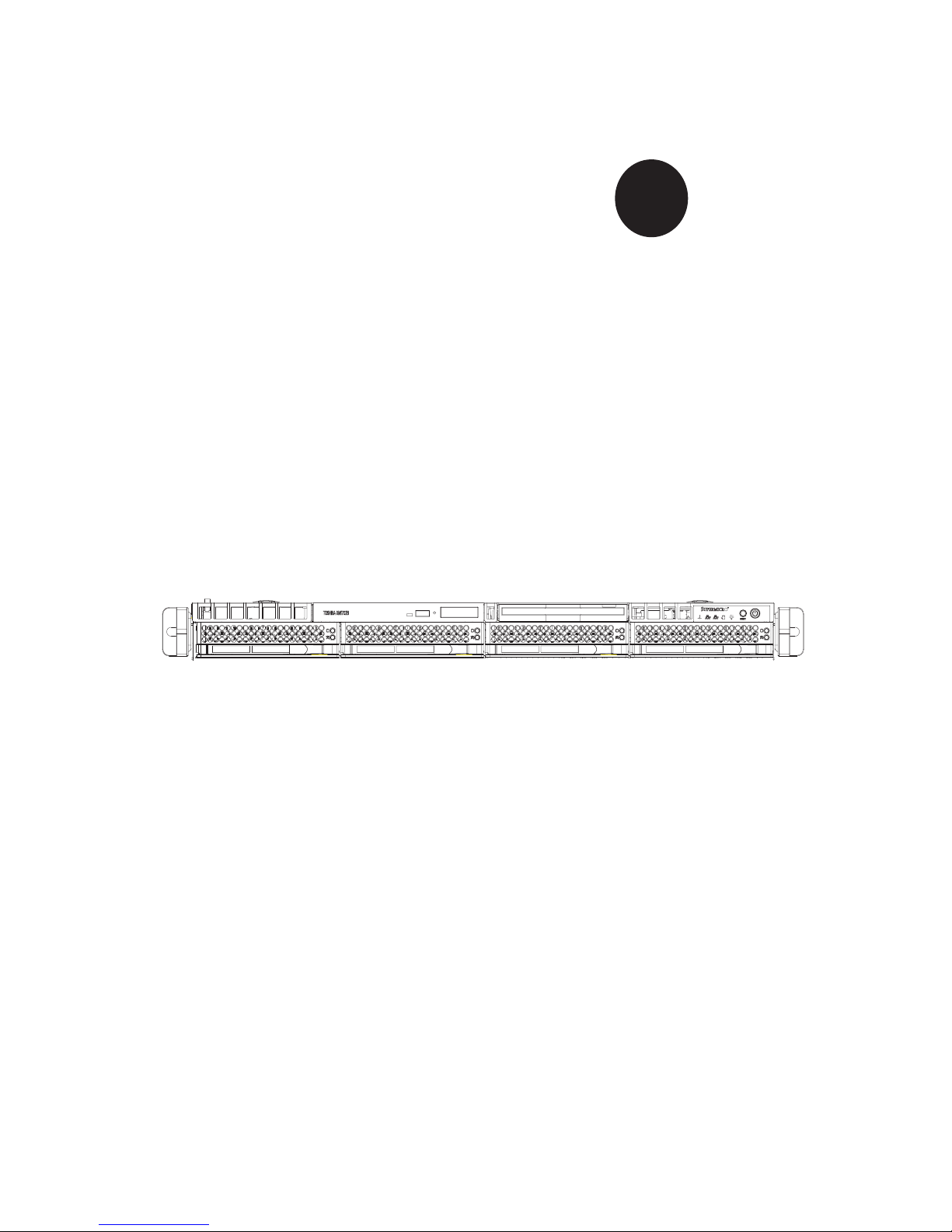
AS1021M-T2+
USER’S MANUAL
1.0a
Page 2

The information in this User’s Manual has been carefully reviewed and is believed to be accurate.
The vendor assumes no responsibility for any inaccuracies that may be contained in this document,
makes no commitment to update or to keep current the information in this manual, or to notify any
person or organization of the updates. Please Note: For the most up-to-date version of this
manual, please see our web site at www.supermicro.com.
SUPER MICRO COMPUTER reserves the right to make changes to the product described in this
manual at any time and without notice. This product, including software, if any, and documentation may not, in whole or in part, be copied, photocopied, reproduced, translated or reduced to any
medium or machine without prior written consent.
IN NO EVENT WILL SUPER MICRO COMPUTER BE LIABLE FOR DIRECT, INDIRECT, SPECIAL,
INCIDENTAL, SPECULATIVE OR CONSEQUENTIAL DAMAGES ARISING FROM THE USE
OR INABILITY TO USE THIS PRODUCT OR DOCUMENTATION, EVEN IF ADVISED OF THE
POSSIBILITY OF SUCH DAMAGES. IN PARTICULAR, SUPER MICRO SHALL NOT HAVE
LIABILITY FOR ANY HARDWARE, SOFTWARE, OR DATA STORED OR USED WITH THE
PRODUCT, INCLUDING THE COSTS OF REPAIRING, REPLACING, INTEGRATING, INSTALLING
OR RECOVERING SUCH HARDWARE, SOFTWARE, OR DATA.
Any disputes arising between manufacturer and customer shall be governed by the laws of Santa
Clara County in the State of California, USA. The State of California, County of Santa Clara shall
be the exclusive venue for the resolution of any such disputes. Super Micro's total liability for
all claims will not exceed the price paid for the hardware product.
FCC Statement: This equipment has been tested and found to comply with the limits for a Class
A digital device pursuant to Part 15 of the FCC Rules. These limits are designed to provide
reasonable protection against harmful interference when the equipment is operated in a commercial
environment. This equipment generates, uses, and can radiate radio frequency energy and, if not
installed and used in accordance with the manufacturer’s instruction manual, may cause harmful
interference with radio communications. Operation of this equipment in a residential area is likely
to cause harmful interference, in which case you will be required to correct the interference at your
own expense.
Manual Revision 1.0a
Release Date: June 6, 2007
Unless you request and receive written permission from SUPER MICRO COMPUTER, you may not
copy any part of this document.
Information in this document is subject to change without notice. Other products and companies
referred to herein are trademarks or registered trademarks of their respective companies or mark
holders.
Copyright © 2007 by SUPER MICRO COMPUTER INC.
All rights reserved.
Printed in the United States of America
Page 3

Preface
About This Manual
This manual is written for professional system integrators and PC technicians. It
provides information for the installation and use of the AS1021M-T2+. Installation
and maintenance should be performed by experienced technicians only.
The AS1021M-T2+ is a 1U server based on the SC815TQ-560C rackmount chassis
and the Super H8DME-2, a dual processor serverboard that supports AMD Socket
F type processors and up to 32 GB of registered ECC DDR2-667/533 or up to 64
GB of registered ECC DDR2-400 SDRAM.
Preface
Manual Organization
Chapter 1: Introduction
The fi rst chapter provides a checklist of the main components included with the
server system and describes the main features of the H8DME-2 serverboard and
the SC815TQ-560C chassis, which comprise the AS1021M-T2+.
Chapter 2: Server Installation
This chapter describes the steps necessary to install the AS1021M-T2+ into a rack
and check out the server confi guration prior to powering up the system. If your
server was ordered without processor and memory components, this chapter will
refer you to the appropriate sections of the manual for their installation.
Chapter 3: System Interface
Refer here for details on the system interface, which includes the functions and
information provided by the control panel on the chassis as well as other LEDs
located throughout the system.
iii
Page 4

AS1021M-T2+ User's Manual
Chapter 4: System Safety
You should thoroughly familiarize yourself with this chapter for a general overview
of safety precautions that should be followed when installing and servicing the
AS1021M-T2+.
Chapter 5: Advanced Serverboard Setup
Chapter 5 provides detailed information on the H8DME-2 serverboard, including the
locations and functions of connections, headers and jumpers. Refer to this chapter
when adding or removing processors or main memory and when reconfi guring the
serverboard.
Chapter 6: Advanced Chassis Setup
Refer to Chapter 6 for detailed information on the SC815TQ-560C server chassis.
You should follow the procedures given in this chapter when installing, removing or
reconfi guring SATA or peripheral drives and when replacing system power supply
modules and cooling fans.
Chapter 7: BIOS
The BIOS chapter includes an introduction to BIOS and provides detailed informa-
tion on running the CMOS Setup Utility.
Appendix A: BIOS Error Beep Codes
Appendix B: BIOS POST Checkpoint Codes
Appendix C: System Specifi cations
iv
Page 5

Notes
Preface
v
Page 6

AS1021M-T2+ User's Manual
Table of Contents
Preface
About This Manual ...................................................................................................... iii
Manual Organization ................................................................................................... iii
Chapter 1: Introduction
1-1 Overview ......................................................................................................... 1-1
1-2 Serverboard Features ..................................................................................... 1-2
1-3 Server Chassis Features ................................................................................ 1-3
1-4 Contacting Super Micro .................................................................................. 1-5
Chapter 2: Server Installation
2-1 Overview ......................................................................................................... 2-1
2-2 Unpacking the System ................................................................................... 2-1
2-3 Preparing for Setup ........................................................................................ 2-1
Choosing a Setup Location ...................................................................... 2-2
Rack Precautions ..................................................................................... 2-2
Server Precautions ................................................................................... 2-2
Rack Mounting Considerations ................................................................ 2-3
2-4 Installing the System into a Rack ................................................................... 2-4
2-5 Checking the Serverboard Setup ................................................................... 2-8
2-6 Checking the Drive Bay Setup ..................................................................... 2-10
Chapter 3: System Interface
3-1 Overview ......................................................................................................... 3-1
3-2 Control Panel Buttons .................................................................................... 3-1
Reset ........................................................................................................ 3-1
Power ....................................................................................................... 3-1
3-3 Control Panel LEDs ........................................................................................ 3-2
Overheat/Fan Fail .................................................................................... 3-2
NIC2 ......................................................................................................... 3-2
NIC1 ......................................................................................................... 3-2
HDD .......................................................................................................... 3-2
Power ....................................................................................................... 3-3
3-4 Drive Carrier LEDs ......................................................................................... 3-3
vi
Page 7

Table of Contents
Chapter 4: System Safety
4-1 Electrical Safety Precautions .......................................................................... 4-1
4-2 General Safety Precautions ........................................................................... 4-2
4-3 ESD Precautions ............................................................................................ 4-3
4-4 Operating Precautions .................................................................................... 4-4
Chapter 5: Advanced Serverboard Setup
5-1 Handling the Serverboard .............................................................................. 5-1
5-2 Processor and Heatsink Installation ............................................................... 5-2
5-3 Connecting Cables ......................................................................................... 5-5
Connecting Data Cables .......................................................................... 5-5
Connecting Power Cables ....................................................................... 5-5
Connecting the Control Panel .................................................................. 5-6
5-4 I/O Ports ......................................................................................................... 5-7
5-5 Installing Memory ........................................................................................... 5-7
5-6 Adding PCI Cards ......................................................................................... 5-10
5-7 Serverboard Details ...................................................................................... 5-11
H8DME-2 Layout .................................................................................... 5-11
H8DME-2 Quick Reference ................................................................... 5-12
5-8 Connector Defi nitions ................................................................................... 5-13
ATX Power Connector ........................................................................... 5-13
Processor Power Connector .................................................................. 5-13
Auxiliary Power Connector ..................................................................... 5-13
Power LED ............................................................................................. 5-13
NMI Button ............................................................................................. 5-13
Power LED ............................................................................................. 5-13
HDD LED ............................................................................................... 5-14
NIC1/NIC2 LEDs .................................................................................... 5-14
Overheat/Fan Fail LED .......................................................................... 5-14
Power Fail LED ...................................................................................... 5-14
Reset Button .......................................................................................... 5-15
Power Button .......................................................................................... 5-15
Universal Serial Bus Ports ..................................................................... 5-15
Universal Serial Bus Headers ................................................................ 5-15
ATX PS/2 Keyboard and PS/2 Mouse Ports ......................................... 5-16
Serial Ports ............................................................................................. 5-16
Fan Headers .......................................................................................... 5-16
JLAN 1/2 (Ethernet Ports) ...................................................................... 5-16
Power LED/Speaker ............................................................................... 5-17
vii
Page 8

AS1021M-T2+ User's Manual
Overheat LED ........................................................................................ 5-17
Chassis Intrusion .................................................................................... 5-17
Wake-On-LAN ........................................................................................ 5-17
Wake-On-Ring ........................................................................................ 5-18
Power Supply I
2
C Header ...................................................................... 5-18
SMBus Header ....................................................................................... 5-18
3rd Power Supply Alarm Header ........................................................... 5-18
Power Fail Alarm Reset Header ............................................................ 5-19
Compact Flash Power Header ............................................................... 5-19
SGPIO .................................................................................................... 5-19
5-9 Jumper Settings ............................................................................................ 5-20
Explanation of Jumpers ......................................................................... 5-20
CMOS Clear ........................................................................................... 5-20
3rd Power Supply Fail Detect Enable/Disable ....................................... 5-20
2
I
C to PCI Enable/Disable ...................................................................... 5-21
Watch Dog ............................................................................................. 5-21
Onboard Speaker Enable/Disable ......................................................... 5-22
PCI-X Slot Speed ................................................................................... 5-22
VGA Enable/Disable ............................................................................... 5-22
Compact Flash Master/Slave ................................................................. 5-22
5-10 Onboard Indicators ....................................................................................... 5-23
JLAN LEDs ............................................................................................. 5-23
+3.3V Standby LED ............................................................................... 5-23
5-11 Floppy, IDE and SATA Drive Connections ................................................... 5-24
Floppy Connector ................................................................................... 5-24
IDE Connectors ...................................................................................... 5-25
SATA Ports ............................................................................................. 5-25
5-12 Enabling SATA RAID .................................................................................... 5-26
5-13 Installing Additional Drivers .......................................................................... 5-28
Chapter 6: Advanced Chassis Setup
6-1 Static-Sensitive Devices ................................................................................. 6-1
6-2 Control Panel .................................................................................................. 6-2
6-3 System Fans and Air Shroud ......................................................................... 6-3
System Fan Failure .................................................................................. 6-3
Replacing System Cooling Fans .............................................................. 6-3
Installing the Air Shroud ........................................................................... 6-4
6-4 Drive Bay Installation/Removal ...................................................................... 6-6
Removing the Front Bezel ....................................................................... 6-6
viii
Page 9

Table of Contents
Accessing the Drive Bays ........................................................................ 6-6
SATA Drive Installation ............................................................................. 6-7
DVD-ROM and Floppy Drive Installation ................................................. 6-9
6-5 Power Supply ............................................................................................... 6-10
Power Supply Failure ............................................................................. 6-10
Removing/Replacing the Power Supply ................................................. 6-10
Chapter 7: BIOS
7-1 Introduction ..................................................................................................... 7-1
7-2 Main Menu ...................................................................................................... 7-2
7-3 Advanced Settings Menu ............................................................................... 7-2
7-4 Boot Menu .................................................................................................... 7-16
7-5 Security Menu ............................................................................................... 7-17
7-6 Exit Menu ...................................................................................................... 7-18
Appendices:
Appendix A: BIOS Error Beep Codes
Appendix B: BIOS POST Checkpoint Codes
Appendix C: System Specifi cations
ix
Page 10

AS1021M-T2+ User's Manual
Notes
x
Page 11

Chapter 1: Introduction
Chapter 1
Introduction
1-1 Overview
The AS1021M-T2+ is a 1U server comprised of two main subsystems: the SC815TQ-
560C server chassis and the H8DME-2 dual processor serverboard. Please refer to
our web site for information on operating systems and processors that have been
certifi ed for use with the AS1021M-T2+ (www.supermicro.com/aplus).
In addition to the serverboard and chassis, various hardware components have
been included with the AS1021M-T2+, as listed below:
Four (4) sets of 4-cm fans (FAN-0086L)
One (1) air shroud (MCP-310-00026-1)
One (1) front control panel cable (CBL-0087)
One (1) rackmount kit (CSE-PT51L)
Riser Cards: (see Section 5-6 for details)
One (1) riser card (CSE-RR1U-E8) for PCI-Express x8 add-on card
SATA Accessories
One (1) SATA backplane (BPN-SAS-815TQ)
One (1) SATA data cable, 35-cm (CBL-0061L)
One (1) SATA data cable, 2-ft (CBL-0044L)
One (1) SATA LED cable (CBL-0157L)
Four (4) SATA drive carriers [CSE-PT39(B)]
Two (2) SATA data cables, 48-cm (CBL-0178L)
One (1) CD containing drivers and utilities
Optional
One (1) slim fl oppy drive [FPD-TEAC-S(B)]
One (1) slim DVD-ROM drive [DVM-PNSC-824(B)]
1-1
Page 12

AS1021M-T2+ User's Manual
1-2 Serverboard Features
At the heart of the AS1021M-T2+ lies the H8DME-2, a dual processor serverboard
based on nVidia's MCP55 Pro chipset. Below are the main features of the H8DME-2
(see Figure 1-1 for a block diagram of the chipset).
Processors
The H8DME-2 supports single or dual AMD Socket F type processors. Please
refer to the serverboard description pages on our website for a complete listing of
supported processors.
Memory
The H8DME-2 has sixteen 240-pin DIMM sockets that can support up to 32 GB of
registered ECC DDR2-667 or DDR2-533 or up to 64 GB of registered ECC DDR2-
400 SDRAM. The memory must be installed to provide an interleaved confi guration,
which requires modules of the same size and speed to be installed in pairs. Please
refer to the Installing Memory section for details.
Serial ATA
An on-chip SATA controller is integrated into the H8DME-2 to provide a six-port, 3
Gb/sec Serial ATA subsystem, which is RAID 0, 1, 0+ 1, 5 and JBOD supported.
The SATA drives are hot-swappable units.
Note: The operating system you use must have RAID support to enable the hot-
swap capability and RAID function of the Serial ATA drives.
PCI Expansion Slots
The H8DME-2 has two (2) PCI-Express x8 slots, two (2) PCI-X 133 MHz slots,
two (2) PCI-X 100 MHz slots and one (1) low-profi le SIM slot (for IPMI card). One
standard size PCI-Express x8 add-on card (with included riser card) may be used
with the server.
Onboard Controllers/Ports
One fl oppy drive controller and an ATA/133 controller are provided to support fl oppy
and IDE hard drives or ATAPI devices. The color-coded I/O ports include one COM
port, a VGA (monitor) port, two USB 2.0 ports, PS/2 mouse and keyboard ports and
two gigabit Ethernet ports.
1-2
Page 13

Chapter 1: Introduction
ATI Graphics Controller
The H8DME-2 features an integrated ATI video controller based on the 16 MB
ES1000 graphics chip. The ES1000 was designed specifi cally for servers, featuring
low power consumption, high reliability and superior longevity.
Other Features
Other onboard features that promote system health include onboard voltage moni-
tors, a chassis intrusion header, auto-switching voltage regulators, chassis and CPU
overheat sensors, virus protection and BIOS rescue.
1-3 Server Chassis Features
The AS1021M-T2+ is a high-end, scaleable server platform built upon the SC815TQ-
560C 1U server chassis. The following is a general outline of the main features of
the SC815TQ-560C chassis.
System Power
The SC815TQ-560C features a single 560W power supply. Power must be removed
from the system before servicing or replacing the power supply.
SATA Subsystem
The SC815TQ-560C chassis was designed to support four SATA hard drives, which
are hot-swappable units. Note: The operating system you use must have RAID
support to enable the hot-swap capability of the SATA drives.
PCI Expansion Slots
One standard size PCI-Express add-on card may be used with the SC815TQ-560C
chassis.
Control Panel
The control panel on the SC815TQ-560C provides you with system monitoring and
control. LEDs indicate system power, HDD activity, network activity (2) and over-
heat/fan failure. A main power button and system reset button is also included.
1-3
Page 14
AS1021M-T2+ User's Manual
I/O Backplane
The SC815TQ-560C is an ATX form factor chassis that is designed to be used in
a 1U rackmount confi guration. Ports on the I/O backplane include one COM port,
a VGA port, two USB 2.0 ports, PS/2 mouse and keyboard ports and two gigabit
Ethernet ports.
Cooling System
The SC815TQ-560C chassis has an innovative cooling design that features fi ve sets
of 4-cm fans located in the middle section of the chassis. There is a "Fan Speed
Control Mode" setting in BIOS that allows chassis fan speed to be determined by
system temperature. The power supply module also includes a cooling fan.
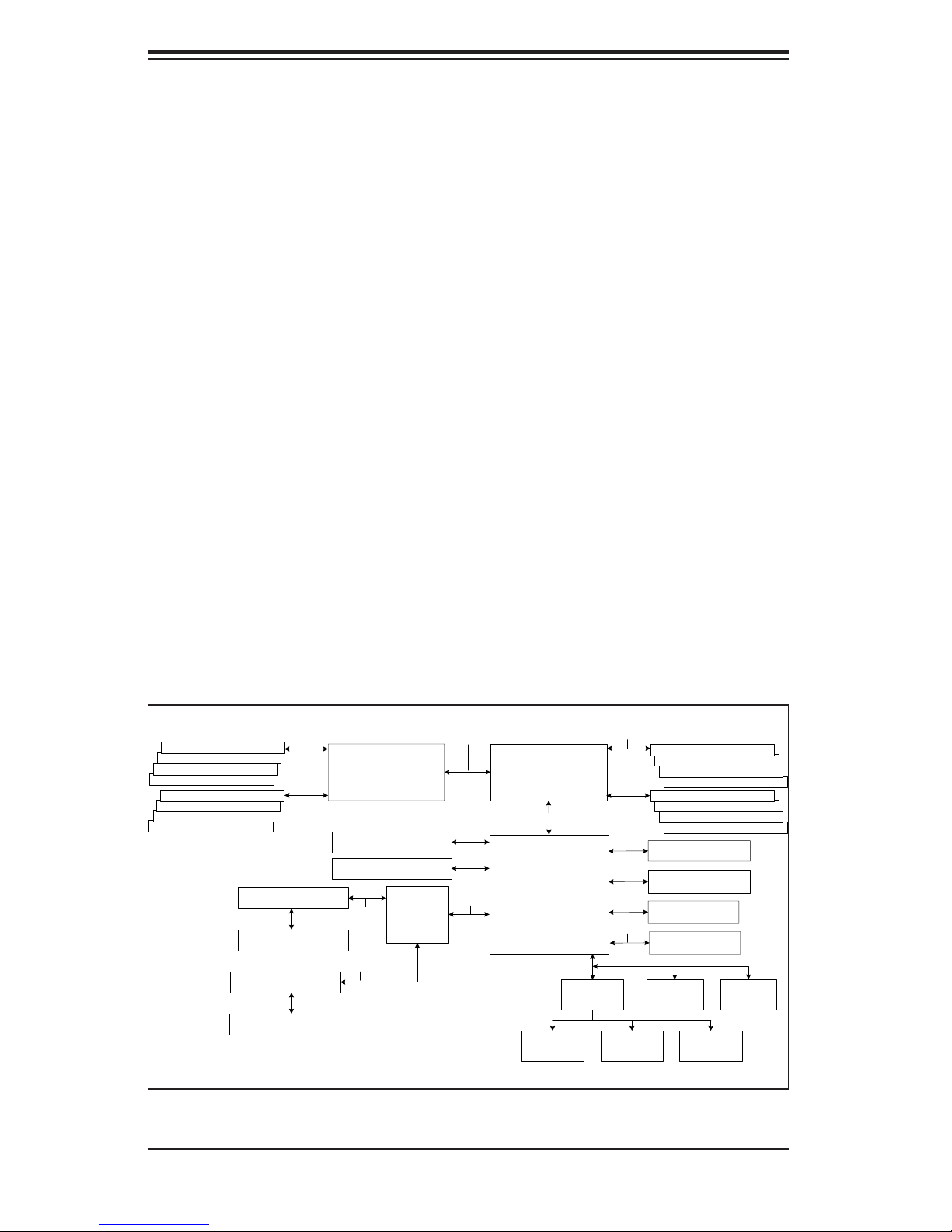
Figure 1-1. nVidia MCP55 Pro Chipset:
System Block Diagram
Note: This is a general block diagram. Please see Chapter 5 for details.
DIMM 1B
DIMM 1A
DIMM 2B
DIMM 2A
DIMM 3B DIMM 3B
DIMM 3A
DIMM 4B
DIMM 4A
128-bit data + 16-bi t ECC
Slot 3: PCI-X 133 MHz
Slot 4: PCI-X 133 MHz
Slot 1: PCI-X 100 MHz
Slot 2: PCI-X 100 MHz
AMD Socket F
CPU2
Slot 6: PCI-E x8
Slot 5: PCI-E x8
PCI-X Ch B
PCI- X Ch A
NEC
uPD720400
16 x 16 HT link (1 GHz)
PCI-Exp Bus
AMD Socket F
CPU1
nVidia
MCP55Pro
Floppy
128-bit data + 16-bit ECCDDR2-667/533/400
16 x 16 HT link (1 GHz)
PCI Bus
S I/O BIOS
Mouse
LPC
Kybd/
DDR2-667/533/400
DIMM 1B
DIMM 1A
DIMM 2B
DIMM 3A
DIMM 4B
SATA Por ts (6)
IDE (ATA133)
USB Ports (6)
ATI ES1000
Serial Por ts
(2)
DIMM 2A
DIMM 4A
IPMI
1-4
Page 15

Chapter 1: Introduction
1-4 Contacting Super Micro
Headquarters
Address: Super Micro Computer, Inc.
980 Rock Ave.
San Jose, CA 95131 U.S.A.
Tel: +1 (408) 503-8000
Fax: +1 (408) 503-8008
Email: marketing@supermicro.com (General Information)
support@supermicro.com (Technical Support)
Web Site: www.supermicro.com
Europe
Address: Super Micro Computer B.V.
Het Sterrenbeeld 28, 5215 ML
's-Hertogenbosch, The Netherlands
Tel: +31 (0) 73-6400390
Fax: +31 (0) 73-6416525
Email: sales@supermicro.nl (General Information)
support@supermicro.nl (Technical Support)
rma@supermicro.nl (Customer Support)
Asia-Pacifi c
Address: Super Micro, Taiwan
4F, No. 232-1, Liancheng Rd.
Chung-Ho 235, Taipei County
Taiwan, R.O.C.
Tel: +886-(2) 8226-3990
Fax: +886-(2) 8226-3991
Web Site: www.supermicro.com.tw
Technical Support:
Email: support@supermicro.com.tw
Tel: 886-2-8228-1366, ext.132 or 139
1-5
Page 16

AS1021M-T2+ User's Manual
Notes
1-6
Page 17

Chapter 2: Server Installation
Chapter 2
Server Installation
2-1 Overview
This chapter provides a quick setup checklist to get your AS1021M-T2+ up and
running. Following these steps in the order given should enable you to have the
system operational within a minimum amount of time. This quick setup assumes
that your system has come to you with the processors and memory preinstalled. If
your system is not already fully integrated with a serverboard, processors, system
memory etc., please turn to the chapter or section noted in each step for details
on installing specifi c components.
2-2 Unpacking the System
You should inspect the box the AS1021M-T2+ was shipped in and note if it was
damaged in any way. If the server itself shows damage you should fi le a damage
claim with the carrier who delivered it.
Decide on a suitable location for the rack unit that will hold the AS1021M-T2+. It
should be situated in a clean, dust-free area that is well ventilated. Avoid areas
where heat, electrical noise and electromagnetic fi elds are generated. You will also
need it placed near a grounded power outlet. Be sure to read the Rack and Server
Precautions in the next section.
2-3 Preparing for Setup
The box the AS1021M-T2+ was shipped in should include two sets of rail assem-
blies, two rail mounting brackets and the mounting screws you will need to install the
system into the rack. Follow the steps in the order given to complete the installation
process in a minimum amount of time. Please read this section in its entirety before
you begin the installation procedure outlined in the sections that follow.
2-1
Page 18
AS1021M-T2+ User's Manual
Choosing a Setup Location
- Leave enough clearance in front of the rack to enable you to open the front
door completely (~25 inches).
- Leave approximately 30 inches of clearance in the back of the rack to allow
for suffi cient airfl ow and ease in servicing.
- This product is for installation only in a Restricted Access Location (dedicated
equipment rooms, service closets and the like).
- This product is not suitable for use with visual display work place devices ac-
cording to §2 of the the German Ordinance for Work with Visual Display Units.
!
Warnings and Precautions!
!
Rack Precautions
- Ensure that the leveling jacks on the bottom of the rack are fully extended to
the fl oor with the full weight of the rack resting on them.
- In single rack installation, stabilizers should be attached to the rack.
- In multiple rack installations, the racks should be coupled together.
- Always make sure the rack is stable before extending a component from the
rack.
- You should extend only one component at a time - extending two or more
simultaneously may cause the rack to become unstable.
Server Precautions
- Review the electrical and general safety precautions in Chapter 4.
- Determine the placement of each component in the rack before you install the
rails.
- Install the heaviest server components on the bottom of the rack fi rst, and then
work up.
- Use a regulating uninterruptible power supply (UPS) to protect the server from
power surges, voltage spikes and to keep your system operating in case of a
power failure.
-
Allow the hot plug SATA drives and power supply modules to cool before touch-
ing them.
-
Always keep the rack's front door and all panels and components on the serv-
ers closed when not servicing to maintain proper cooling.
2-2
Page 19

Chapter 2: Server Installation
Rack Mounting Considerations
Ambient Operating Temperature
If installed in a closed or multi-unit rack assembly, the ambient operating tempera-
ture of the rack environment may be greater than the ambient temperature of the
room. Therefore, consideration should be given to installing the equipment in an
environment compatible with the manufacturer’s maximum rated ambient tempera-
ture (Tmra).
Reduced Airfl ow
Equipment should be mounted into a rack so that the amount of airfl ow required
for safe operation is not compromised.
Mechanical Loading
Equipment should be mounted into a rack so that a hazardous condition does not
arise due to uneven mechanical loading.
Circuit Overloading
Consideration should be given to the connection of the equipment to the power
supply circuitry and the effect that any possible overloading of circuits might have
on overcurrent protection and power supply wiring. Appropriate consideration of
equipment nameplate ratings should be used when addressing this concern.
Reliable Ground
A reliable ground must be maintained at all times. To ensure this, the rack itself
should be grounded. Particular attention should be given to power supply connec-
tions other than the direct connections to the branch circuit (i.e. the use of power
strips, etc.).
2-3
Page 20
AS1021M-T2+ User's Manual
2-4 Installing the System into a Rack
This section provides information on installing the AS1021M-T2+ into a rack unit with
the rack rails provided. If the system has already been mounted into a rack, you can
skip ahead to Sections 2-5 and 2-6. There are a variety of rack units on the market,
which may mean the assembly procedure will differ slightly. You should also refer
to the installation instructions that came with the rack unit you are using.
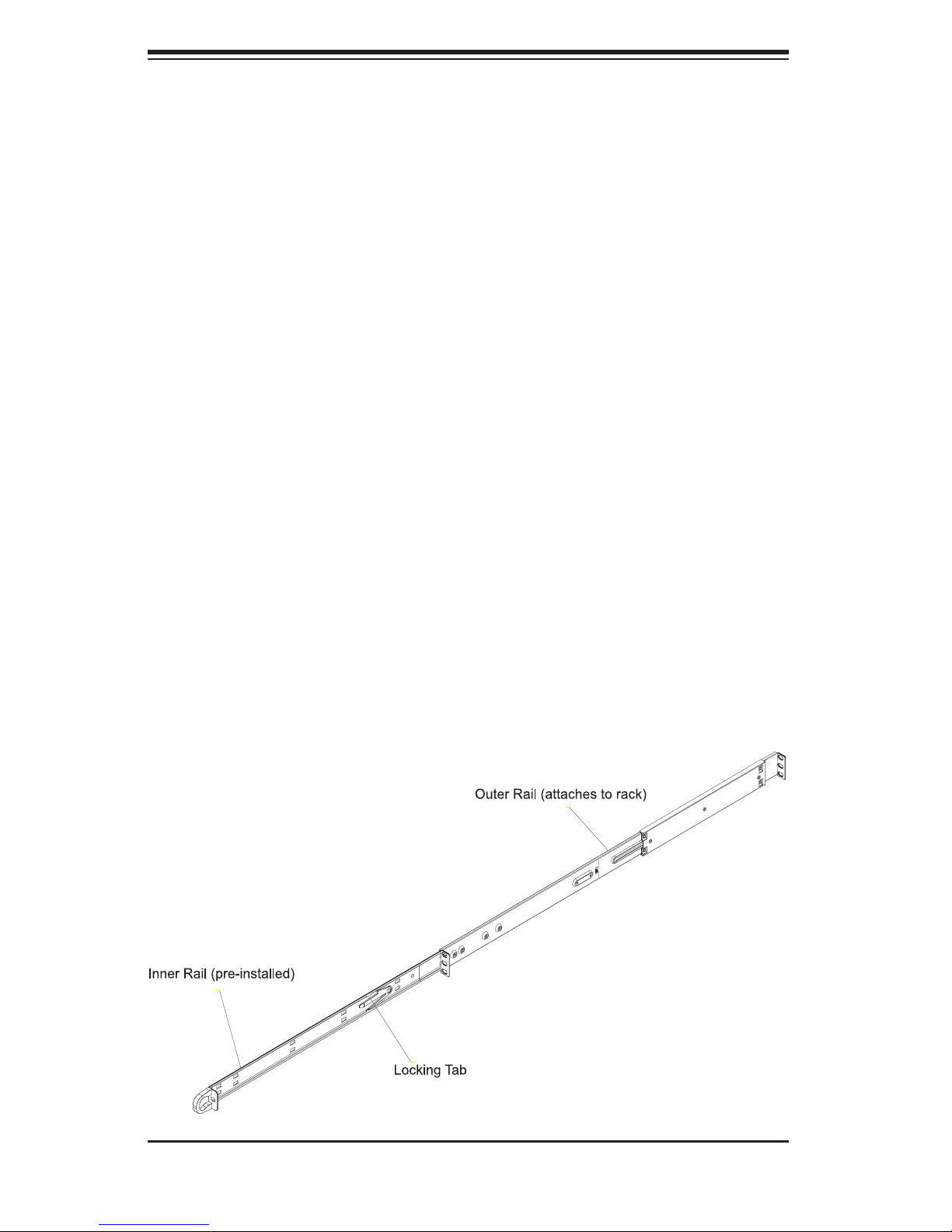
Identifying the Sections of the Rack Rails
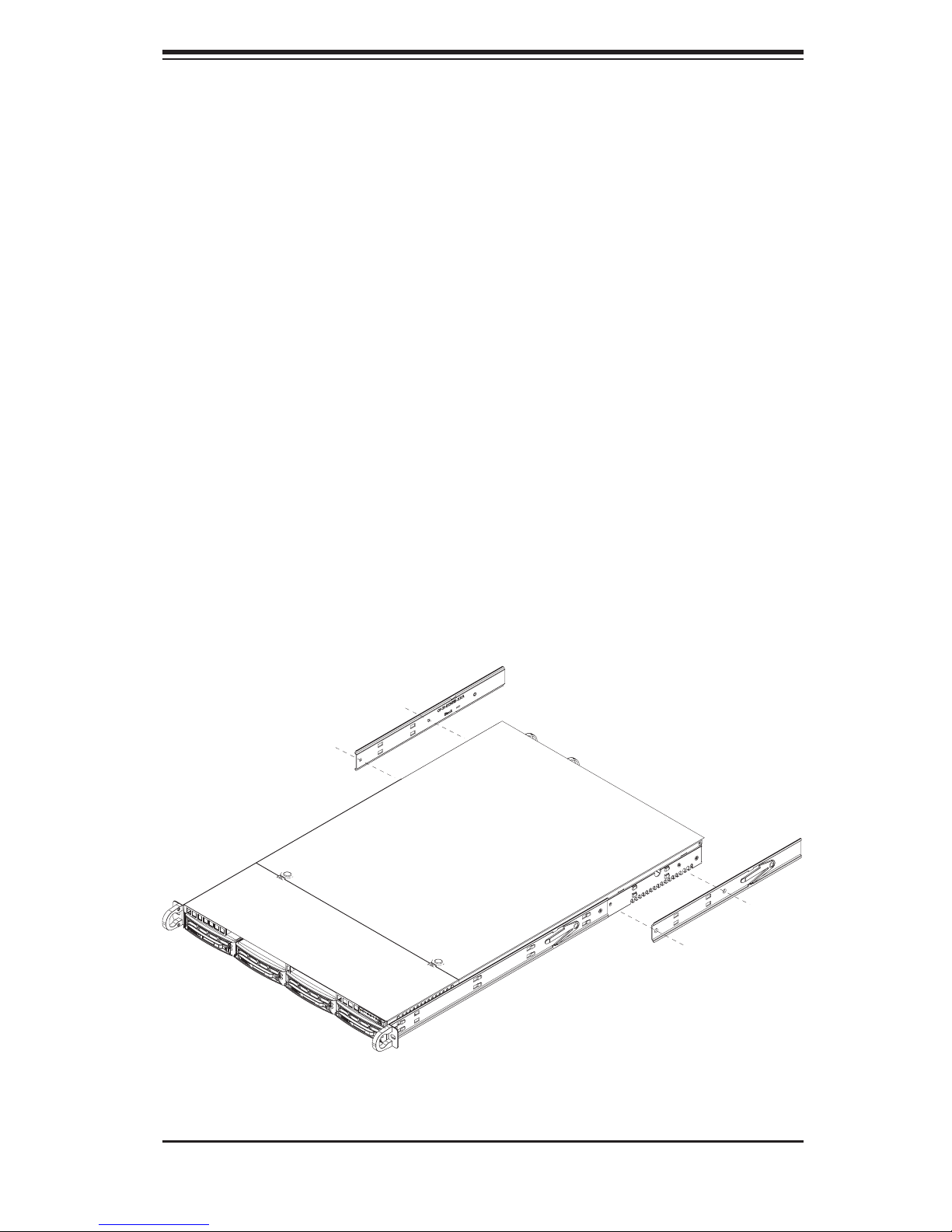
You should have received two rack rail assemblies in the rack mounting kit. Each
assembly consists of two sections: an inner fi xed chassis rail that secures directly
to the server chassis and an outer fi xed rack rail that secures directly to the rack
itself (see Figure 2-1). Two pairs of short brackets to be used on the front side of
the outer rails are also included.
Installing the Inner Rails
Both the left and right side inner rails have been pre-attached to the chassis.
Proceed to the next step. A
Figure 2-1. Identifying the Sections of the Rack Rails
(right side rail shown)
2-4
Page 21
Chapter 2: Server Installation
Installing the Outer Rails
Begin by measuring the distance from the front rail to the rear rail of the rack. Attach
a short bracket to the front side of the right outer rail and a long bracket to the rear
side of the right outer rail. Adjust both the short and long brackets to the proper
distance so that the rail can fi t snugly into the rack. Secure the short bracket to the
front side of the outer rail with two M4 screws and the long bracket to the rear side
of the outer rail with three M4 screws. Repeat these steps for the left outer rail.
Locking Tabs
Both chassis rails have a locking tab, which serves two functions. The fi rst is to
lock the server into place when installed and pushed fully into the rack, which is
its normal position. Secondly, these tabs also lock the server in place when fully
extended from the rack. This prevents the server from coming completely out of
the rack when you pull it out for servicing.
Figure 2-2. Installing the Rack Rails
2-5
Page 22
AS1021M-T2+ User's Manual
Installing the Server into the Rack
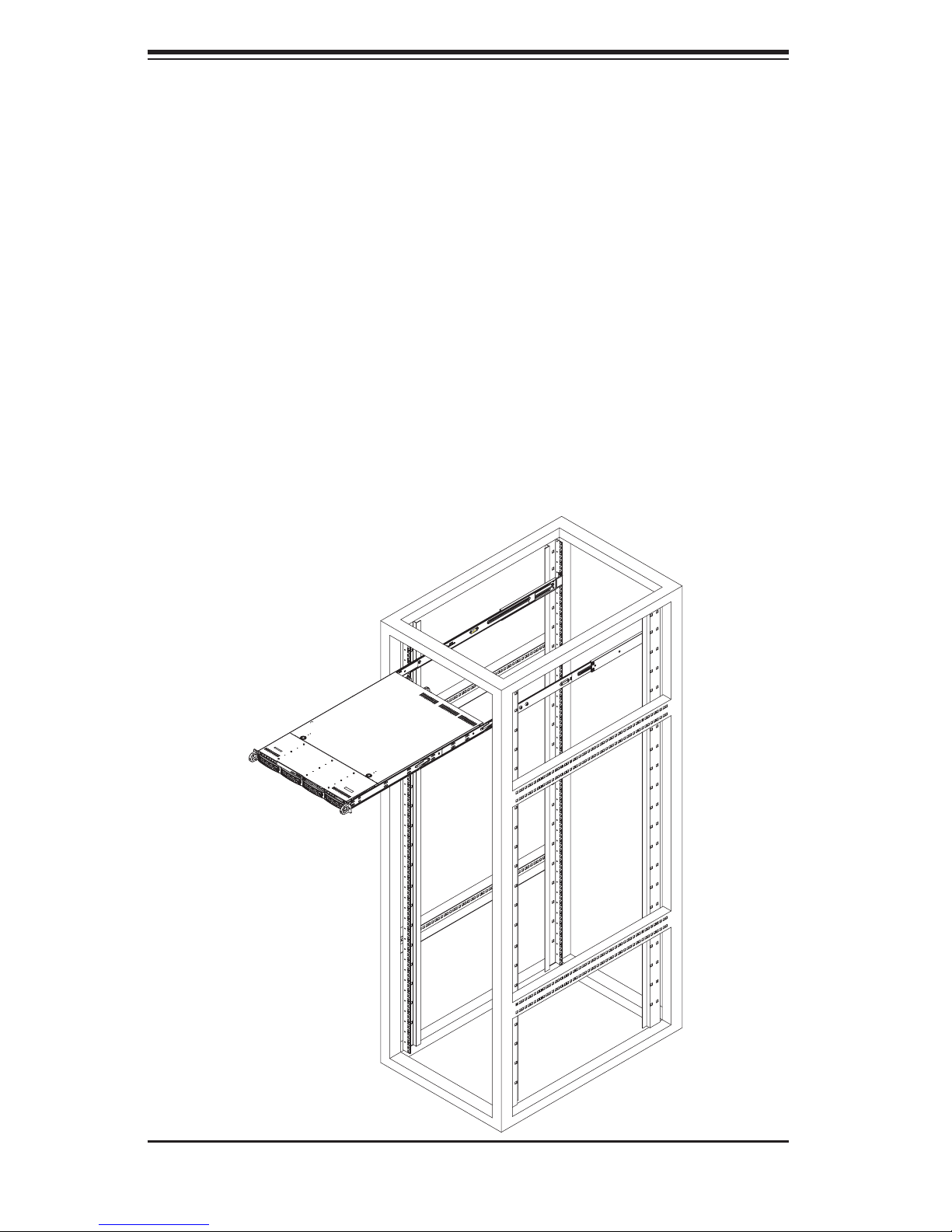
You should now have rails attached to both the chassis and the rack unit. The next
step is to install the server into the rack. Do this by lining up the rear of the chas-
sis rails with the front of the rack rails. Slide the chassis rails into the rack rails,
keeping the pressure even on both sides (you may have to depress the locking
tabs when inserting). See Figure 2-3.
When the server has been pushed completely into the rack, you should hear the
locking tabs "click". Finish by inserting and tightening the thumbscrews that hold
the front of the server to the rack.
Figure 2-3. Installing the Server into a Rack
2-6
Page 23

Chapter 2: Server Installation
Installing the Server into a Telco Rack
To install the AS1021M-T2+ into a Telco type rack, use two L-shaped brackets on
either side of the chassis (four total). First, determine how far the server will extend
out the front of the rack. Larger chassis should be positioned to balance the weight
between front and back. If a bezel is included on your server, remove it. Then at-
tach the two front brackets to each side of the chassis, then the two rear brackets
positioned with just enough space to accommodate the width of the rack. Finish by
sliding the chassis into the rack and tightening the brackets to the rack.
Figure 2-4. Installing the Server into a Telco Rack
2-7
Page 24

AS1021M-T2+ User's Manual
2-5 Checking the Serverboard Setup
After you install the AS1021M-T2+ in the rack, you will need to open the top cover
to make sure the serverboard is properly installed and all the connections have
been made.
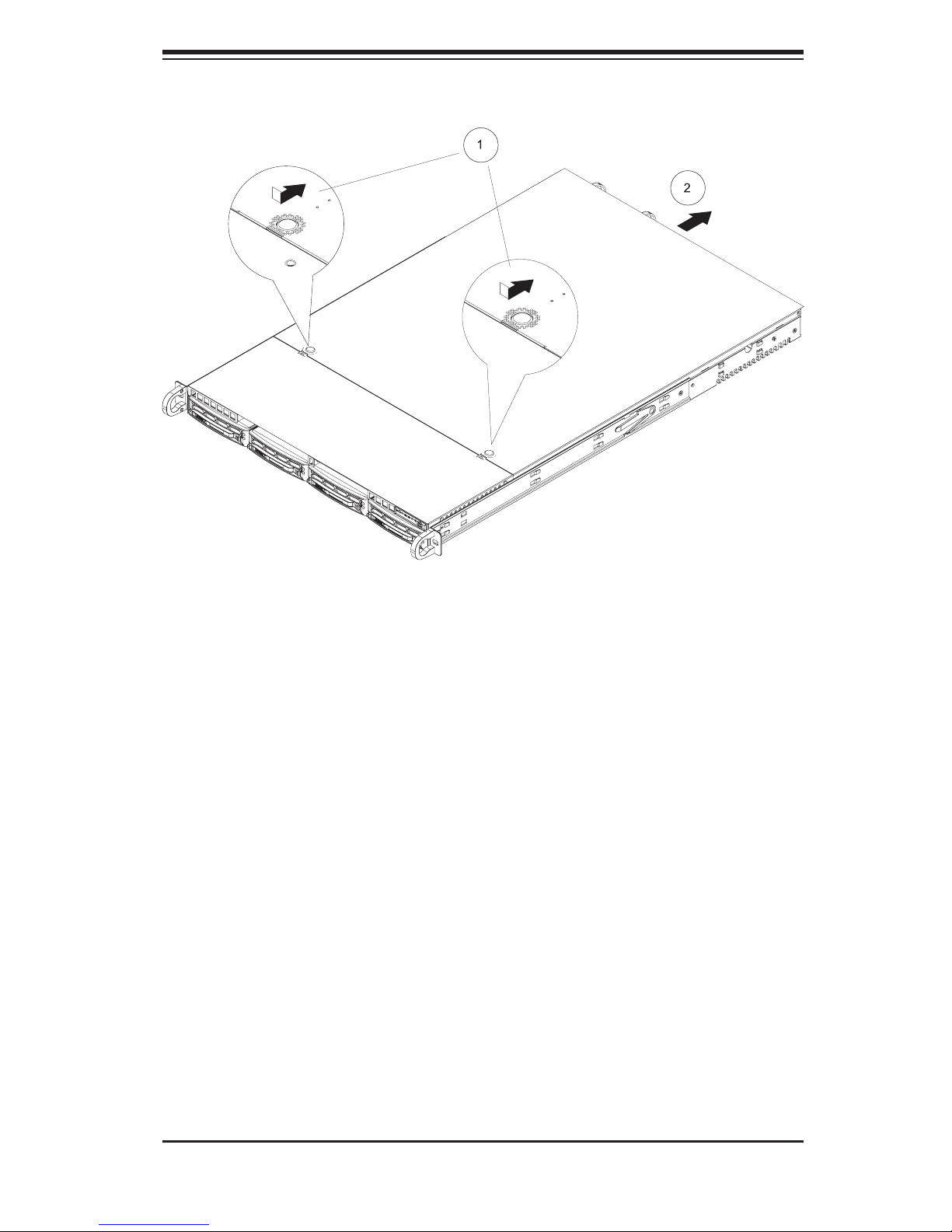
1. Accessing the inside of the System (see Figure 2-5)
First, release the retention screws that secure the system to the rack. Grasp the
two handles on either side and pull the system straight out until it locks (you will
hear a "click"). Next, depress the two buttons on the top of the chassis to release
the top cover (1). Push the cover away from you (toward the rear of the chassis)
until it stops (2). You can then lift the top cover from the chassis to gain full access
to the inside of the server.
To remove the system from the rack completely, depress the locking tabs in the
chassis rails (push the right-side tab down and the left-side tab up) to continue to
pull the system out past the locked position.
2. Check the CPUs (processors)
You may have one or two processors already installed in the serverboard. Each
processor needs its own heatsink. See Chapter 5 for instructions on processor and
heatsink installation.
3. Check the system memory
Your server system may have come with system memory already installed. Make
sure all DIMMs are fully seated in their slots. For details on adding system memory,
refer to Chapter 5.
4. Installing add-on cards
If desired, you can install add-on cards to the system. See Chapter 5 for details
on installing PCI add-on cards.
5. Check all cable connections and airfl ow
Make sure all power and data cables are properly connected and not blocking the
chassis airfl ow. See Chapter 5 for details on cable connections.
2-8
Page 25
Chapter 2: Server Installation
Figure 2-5. Accessing the Inside of the System
2-9
Page 26

AS1021M-T2+ User's Manual
2-6 Checking the Drive Bay Setup
Next, you should check to make sure the peripheral drives and the SATA drives
and SATA backplane have been properly installed and all connections have been
made.
1. Accessing the drive bays
All drives are accessable from the front of the server. For servicing the DVD-
ROM and fl oppy drives, you will need to remove the top chassis cover. The SATA
disk drives can be installed and removed from the front of the chassis without
removing the top chassis cover.
2. DVD-ROM and fl oppy disk drives
A slim DVD-ROM and fl oppy drive should be preinstalled in your server. Refer
to Chapter 6 if you need to reinstall a DVD-ROM and/or fl oppy disk drive to the
system.
3. Check the SATA disk drives
Depending upon your system's confi guration, your system may have one or
more drives already installed. If you need to install SATA drives, please refer to
Chapter 6.
4. Check the airfl ow
Airfl ow is provided by four sets of 4-cm fans. The system component layout
was carefully designed to direct suffi cient cooling airfl ow to the components that
generate the most heat. Note that all power and data cables have been routed
in such a way that they do not block the airfl ow generated by the fans.
5. Supplying power to the system
The last thing you must do is to provide input power to the system. Plug the
power cord from the power supply module into a high-quality power strip that
offers protection from electrical noise and power surges. It is recommended that
you use an uninterruptible power supply (UPS) source.
2-10
Page 27

Chapter 3: System Interface
Chapter 3
System Interface
3-1 Overview
There are several LEDs on the control panel as well as others on the SATA drive
carriers to keep you constantly informed of the overall status of the system as well
as the activity and health of specifi c components. There are also two buttons on
the chassis control panel and an on/off switch on the power supply. This chapter
explains the meanings of all LED indicators and the appropriate response you
may need to take.
3-2 Control Panel Buttons
There are two push-buttons located on the front of the chassis. These are (in
order from left to right) a reset button and a power on/off button.
Reset:
Power: The main power button is used to apply or remove power from the
power supply to the server system. Turning off system power with this button
removes the main power but keeps standby power supplied to the system.
Use the reset button to reboot the system.
3-1
Page 28

AS1021M-T2+ User's Manual
3-3 Control Panel LEDs
The control panel located on the front of th SC815TQ-560C chassis has fi ve LEDs.
These LEDs provide you with critical information related to different parts of the
system. This section explains what each LED indicates when illuminated and any
corrective action you may need to take.
Overheat/Fan Fail: When this LED fl ashes it indicates a fan failure. When
on continuously (on and not fl ashing) it indicates an overheat condition, which
may be caused by cables obstructing the airfl ow in the system or the ambient
room temperature being too warm. Check the routing of the cables and make
sure all fans are present and operating normally. You should also check to make
sure that the chassis covers are installed. Finally, verify that the heatsinks are
installed properly (see Chapter 5). This LED will remain fl ashing or on as long as
the overheat condition exists.
2
NIC2: Indicates network activity on JLAN2 when fl ashing .
1
NIC1: Indicates network activity on JLAN1 when fl ashing.
HDD: Indicates IDE channel activity. On the 1021M-T2+ this light indicates
SATA and/or DVD-ROM drive activity when fl ashing.
3-2
Page 29

Chapter 3: System Interface
Power: Indicates power is being supplied to the system's power supply
units. This LED should normally be illuminated when the system is operating.
3-4 Drive Carrier LEDs
Each Serial ATA drive carrier has two LEDs.
Green: When illuminated, the green LED on the front of the SATA drive car-
rier indicates drive activity. A connection to the SATA backplane enables this LED
to blink on and off when that particular drive is being accessed.
Red: The red LED indicates two states. When blinking, it indicates the drive
is rebuilding. When solid, it indicates a drive failure. If a SATA drive fails, you
should be notifi ed by your system management software. Please refer to Chapter
6 for instructions on replacing failed SATA drives.
3-3
Page 30

AS1021M-T2+ User's Manual
Notes
3-4
Page 31

Chapter 4: System Safety
Chapter 4
System Safety
4-1 Electrical Safety Precautions
!
Basic electrical safety precautions should be followed to protect yourself from harm
and the 1021M-T2+ from damage:
Be aware of the locations of the power on/off switch on the chassis as well as
the room's emergency power-off switch, disconnection switch or electrical
outlet. If an electrical accident occurs, you can then quickly remove power
from the system.
Do not work alone when working with high voltage components.
Power should always be disconnected from the system when removing or
installing main system components, such as the serverboard, memory
modules and the DVD-ROM and fl oppy drives (not necessary for SATA
drives). When disconnecting power, you should fi rst power down the system
with the operating system and then unplug the power cords from all the power
supply modules in the system.
When working around exposed electrical circuits, another person who is
familiar with the power-off controls should be nearby to switch off the power
if necessary.
Use only one hand when working with powered-on electrical equipment. This
is to avoid making a complete circuit, which will cause electrical shock.
Use extreme caution when using metal tools, which can easily damage any
electrical components or circuit boards they come into contact with.
Do not use mats designed to decrease electrostatic discharge as protection
from electrical shock. Instead, use rubber mats that have been specifi cally
designed as electrical insulators.
The power supply power cord must include a grounding plug and must be
plugged into grounded electrical outlets.
4-1
Page 32

AS1021M-T2+ User's Manual
Serverboard Battery: CAUTION - There is a danger of explosion if the onboard
battery is installed upside down, which will reverse its polarities (see Figure
4-1). This battery must be replaced only with the same or an equivalent type
recommended by the manufacturer. Dispose of used batteries according to
the manufacturer's instructions.
DVD-ROM Laser: CAUTION - this server may have come equipped with
a DVD-ROM drive. To prevent direct exposure to the laser beam and
hazardous radiation exposure, do not open the enclosure or use the unit in
any unconventional way.
Mainboard replaceable soldered-in fuses: Self-resetting PTC (Positive Tempera-
ture Coeffi cient) fuses on the mainboard must be replaced by trained service
technicians only. The new fuse must be the same or equivalent as the one
replaced. Contact technical support for details and support.
4-2 General Safety Precautions
!
Follow these rules to ensure general safety:
Keep the area around the 1021M-T2+ clean and free of clutter.
The 1021M-T2+ weighs approximately 38 lbs (17.2 kg) when fully loaded.
When lifting the system, two people at either end should lift slowly with their
feet spread out to distribute the weight. Always keep your back straight and
lift with your legs.
Place the chassis top cover and any system components that have been
removed away from the system or on a table so that they won't accidentally
be stepped on.
While working on the system, do not wear loose clothing such as neckties and
unbuttoned shirt sleeves, which can come into contact with electrical circuits
or be pulled into a cooling fan.
Remove any jewelry or metal objects from your body, which are excellent metal
conductors that can create short circuits and harm you if they come into
contact with printed circuit boards or areas where power is present.
4-2
Page 33

Chapter 4: System Safety
After accessing the inside of the system, close the system back up and secure
it to the rack unit with the retention screws after ensuring that all connections
have been made.
4-3 ESD Precautions
!
Electrostatic discharge (ESD) is generated by two objects with different electrical
charges coming into contact with each other. An electrical discharge is created to
neutralize this difference, which can damage electronic com ponents and printed
circuit boards. The following measures are generally suffi cient to neutralize this
difference before contact is made to protect your equipment from ESD:
Use a grounded wrist strap designed to prevent static discharge.
Keep all components and printed circuit boards (PCBs) in their antistatic
bags until ready for use.
Touch a grounded metal object before removing any board from its antistatic
bag.
Do not let components or PCBs come into contact with your clothing, which
may retain a charge even if you are wearing a wrist strap.
Handle a board by its edges only; do not touch its components, peripheral
chips, memory modules or contacts.
When handling chips or modules, avoid touching their pins.
Put the serverboard and peripherals back into their antistatic bags when
not in use.
For grounding purposes, make sure your computer chassis provides excellent
conductivity between the power supply, the case, the mounting fasteners and
the serverboard.
4-3
Page 34

AS1021M-T2+ User's Manual
4-4 Operating Precautions
!
Care must be taken to assure that the chassis cover is in place when the
1021M-T2+ is operating to ensure proper cooling. Out of warranty damage to
the 1021M-T2+ system can occur if this practice is not strictly followed.
Figure 4-1. Installing the Onboard Battery
LITHIUM BATTERY
LITHIUM BATTERY
OR
BATTERY HOLDER BATTERY HOLDER
4-4
Page 35

Chapter 5: Advanced Serverboard Setup
Chapter 5
Advanced Serverboard Setup
This chapter covers the steps required to install processors and heatsinks to the
H8DME-2 serverboard, connect the data and power cables and install add-on
cards. All serverboard jumpers and connections are described and a layout and
quick reference chart are included in this chapter. Remember to close the chas-
sis completely when you have fi nished working on the serverboard to protect and
cool the system suffi ciently.
5-1 Handling the Serverboard
Electrostatic discharge (ESD) can damage electronic com ponents. To prevent
damage to printed circuit boards, it is important to handle them very carefully
(see Chapter 4). Also note that the size and weight of the serverboard can cause
it to bend if handled improperly, which may result in damage. To prevent the
serverboard from bending, keep one hand under the center of the board to sup-
port it when handling. The following measures are generally suffi cient to protect
your equipment from static discharge.
Precautions
• Use a grounded wrist strap designed to prevent static discharge.
• Touch a grounded metal object before removing any board from its antistatic
bag.
• Handle a board by its edges only; do not touch its components, peripheral chips,
memory modules or gold contacts.
• When handling chips or modules, avoid touching their pins.
• Put the serverboard, add-on cards and peripherals back into their antistatic
bags when not in use.
Unpacking
The serverboard is shipped in antistatic packaging to avoid static damage. When
unpacking the board, make sure the person handling it is static protected.
5-1
Page 36

AS1021M-T2+ User's Manual
5-2 Processor and Heatsink Installation
Exercise extreme caution when handling and installing the proces-
!
Installing the CPU Backplates
Two CPU backplates (BKT-0011L) have been preinstalled to the serverboard to
prevent the CPU area of the serverboard from bending and to provide a base for
attaching the heatsink retention modules.
sor. Always connect the power cord last and always remove it be-
fore adding, removing or changing any hardware components.
Installing the Processor (install to the CPU#1 socket fi rst)
1. Begin by removing the cover plate
that protects the CPU. Lift the lever
on CPU socket #1 until it points straight
up. With the lever raised, lift open the
silver CPU retention plate.
Triangles
2. Use your thumb and your index
fi nger to hold the CPU. Locate and
align pin 1 of the CPU socket with pin
1 of the CPU. Both are marked with
a triangle.
5-2
Page 37

3. Align pin 1 of the CPU with pin 1
of the socket. Once aligned, carefully
place the CPU into the socket. Do not
drop the CPU on the socket, move the
CPU horizontally or vertically or rub the
CPU against the socket or against any
pins of the socket, which may damage
the CPU and/or the socket.
Chapter 5: Advanced Serverboard Setup
4. With the CPU inserted into the
socket, inspect the four corners of the
CPU to make sure that it is properly in-
stalled and fl ush with the socket. Then,
gently lower the silver CPU retention
plate into place.
5. Carefully press the CPU socket
lever down until it locks into its reten-
tion tab. For a dual-processor system,
repeat these steps to install another
CPU into the CPU#2 socket.
Note: if using a single processor, only
the CPU1 DIMM slots are addressable
and the maximum memory support is
halved.
5-3
Page 38

AS1021M-T2+ User's Manual
Installing the Heatsink Retention Modules
Two heatsink retention modules (BKT-0012L) and four screws are included in the
retail box. Once installed, these are used to help attach the heatsinks to the CPUs.
To install, align the module with the standoffs of the preinstalled CPU backplate and
with the four feet on the module contacting the serverboard. Secure the retention
module to the backplate with two of the screws provided. See Figure 2-1. Repeat
for the second CPU socket.
Note: BKT-0012L is included for use with non-proprietary heatsinks only. When
installing Super Micro heatsinks, only BKT-0011L (the CPU backplate) is needed.
The BKT-0012L retention module was designed to provide compatibility with clip-
and-cam type heatsinks from third parties.
Figure 2-1. CPU Heatsink Retention Module Installation
Installing the Heatsink
The use of active type heatsinks (except for 1U systems) are recommended. Con-
nect the heatsink fans to the appropriate fan headers on the serverboard. To install
the heatsinks, please follow the installation instructions included with your heatsink
package (not included).
5-4
Page 39

Chapter 5: Advanced Serverboard Setup
5-3 Connecting Cables
Now that the processors are installed, the next step is to connect the cables to
the serverboard. These include the data (ribbon) cables for the peripherals and
control panel and the power cables.
Connecting Data Cables
The ribbon cables used to transfer data from the peripheral devices have been
carefully routed in preconfi gured systems to prevent them from blocking the fl ow
of cooling air that moves through the system from front to back. If you need to
disconnect any of these cables, you should take care to reroute them as they
were originally after reconnecting them (make sure the red wires connect to the
pin 1 locations). If you are confi guring the system, keep the airfl ow in mind when
routing the cables. The following data cables (with their serverboard connector
locations noted) should be connected. See the serverboard layout diagram in this
chapter for connector locations.
Floppy Drive cable (JFDD1)
DVD-ROM Drive cable (IDE#1)
Control Panel cable (JF1, see next page)
SATA cables (SATA0 ~ SATA3)
Connecting Power Cables
The H8DME-2 has a 24-pin primary power supply connector designated "JPW1"
for connection to the ATX power supply. Connect the appropriate connector from
the power supply to JPW1 to supply power to the serverboard. See the Connector
Defi nitions section in this chapter for power connector pin defi nitions.
In addition, your power supply must be connected to the 4-pin Auxiliary ATX Power
connection at J32 and the 8-pin Processor Power connector at JPW2.
5-5
Page 40

AS1021M-T2+ User's Manual
Connecting the Control Panel
JF1 contains header pins for various front control panel connectors. See Figure
5-1 for the pin locations of the various front control panel buttons and LED indi-
cators. Please note that even and odd numbered pins are on opposite sides of
each header.
All JF1 wires have been bundled into single keyed ribbon cable to simplify their
connection. The red wire in the ribbon cable plugs into pin 1 of JF1. Connect
the other end of the cable to the Control Panel printed circuit board, located just
behind the system status LEDs in the chassis.
See the Connector Defi nitions section in this chapter for details and pin descrip-
tions of JF1.
Figure 5-1. Front Control Panel Header Pins (JF1)
20 19
Ground
x (key)
Power LED
HDD LED
NIC1
NIC2
OH/Fan Fail LED
Power Fail LED
Ground
Ground
2 1
NMI
x (key)
Vcc
Vcc
Vcc
Vcc
Vcc
Vcc
Reset
Power
5-6
Page 41

Chapter 5: Advanced Serverboard Setup
5-4 I/O Ports
The I/O ports are color coded in conformance with the PC 99 specifi cation. See
Figure 5-2 below for the colors and locations of the various I/O ports.
Figure 5-2. Rear Panel I/O Ports
5-5 Installing Memory
Note: Check the Super Micro web site for recommended memory modules.
CAUTION
Exercise extreme care when installing or removing DIMM modules
to prevent any possible damage.
1. Insert each memory module vertically into its slot, paying attention to the notch
along the bottom of the module to prevent inserting the module incorrectly (see
Figure 5-3). See support information below.
2. Gently press down on the memory module until it snaps into place.
Note: each processor has its own built-in memory controller, so the CPU2 DIMMs
cannot be addressed if only a single CPU is installed. 128 MB, 256 MB, 512 MB, 1
GB and 2 GB memory modules are supported. It is highly recommended that you
remove the power cord from the system before installing or changing any memory
modules.
5-7
Page 42

AS1021M-T2+ User's Manual
Memory Support
The H8DME-2 supports single or dual-channel, registered ECC DDR2-667/533/400
SDRAM.
Both interleaved and non-interleaved memory are supported, so you may populate
any number of DIMM slots (see note on previous page and charts on following page).
The CPU2 DIMM slots can only be accessed when two CPUs are installed.
Populating two adjacent slots at a time with memory modules of the same size and
type will result in interleaved (128-bit) memory, which is faster than non-interleaved
(64-bit) memory. See charts on following page.
Optimizing memory performance
If two processors are installed, it is better to stagger pairs of DIMMs across both
sets of CPU DIMM slots, e.g. fi rst populate CPU1 slots 1A and 1B, then CPU2 slots
1A, and 1B, then the next two CPU1 slots, etc. This balances the load over both
CPUs to optimize performance.
Maximum memory: 32 GB of registered ECC DDR2-667/533 or 64 GB of regis-
tered ECC DDR2-400. If only one CPU is installed, maximum supported memory
is halved.
Figure 5-3a. Installing DIMM into Slot
Notch
Release
Tab
Note: Notch
should align
with its
receptive point
on the slot
Notch
Release
Tab
To Install: Insert module vertically and press down until it snaps into place. Pay attention to
the bottom notch.
To Remove: Use your thumbs to gently push each release tab outward to free the DIMM from
the slot.
5-8
Page 43

Chapter 5: Advanced Serverboard Setup
Figure 5-3b. Top View of DDR Slot
Populating Memory Banks for 128-bit Operation
CPU1
DIMM1A
XX
XX XX
XX XX
XX XXXX
XXXX
XXXXXX
XXXX XX
XXXXXXXX
CPU1
DIMM1B
CPU1
DIMM2A
XX
XXXX
XX XX
XXXXXX
CPU1
DIMM2B
CPU2
DIMM1A
CPU2
DIMM1B
CPU2
DIMM2A
CPU2
DIMM2B
Notes: X indicates a populated DIMM slot. If adding at least four DIMMs (with two CPUs
installed), the confi gurations with DIMMs spread over both CPUs (and not like the confi guration in row 5) will result in optimized performance. Note that the fi rst two DIMMs
must be installed in the CPU1 memory slots.
Populating Memory Banks for 64-bit Operation
CPU1
DIMM1A
X
XX
XX
X X
CPU1
DIMM1B
CPU1
DIMM2A
X
XX
XX
CPU1
DIMM2B
CPU2
DIMM1A
CPU2
DIMM1B
CPU2
DIMM2A
CPU2
DIMM2B
5-9
Page 44

AS1021M-T2+ User's Manual
5-6 Adding PCI Cards
1. PCI Expansion Slots
The SC815TQ-560C chassis can accommodate one standard size (full height full
length) PCI-Express expansion card. The expansion card installs into a riser card
that has been included with the system (the CSE-RR1U-E8 riser).
2. PCI card installation
Before installing a PCI add-on card, release the locking tab that corresponds to the
slot you will be populating. Insert the expansion card into the riser card, pushing
down with your thumbs evenly on both sides of the card.
5-10
Page 45

5-7 Serverboard Details
Figure 5-4. H8DME-2 Layout
(not drawn to scale)
Chapter 5: Advanced Serverboard Setup
Kb/
Mouse
USB0/1
COM1
VGA
JLAN1
JLAN2
FAN5
FAN8/CPU2 FAN
FAN6
Slot #6: PCI-Express x8
Slot #5: PCI-Express x8
JWD
SUPER H8DME-2
JPG1
ATI
ES1000
CPU2
DIMMB 4A
DIMMB 4B
DIMMB 3A
DIMMB 3B
DIMMB 2A
DIMMB 2B
DIMMB 1A
DIMMB 1B
Slot #4: PCI-X 133/100 MHz
Slot #3: PCI-X 133/100 MHz
JPX1B
JPX1A
Slot #2: PCI-X 100/66 MHz
JWOL
Slot #1: PCI-X 100/66 MHz
SIMLC
2
JI
C1
2
C2
JI
BIOS
COM2
USB4/5 USB2/3
SMBus
JPW1
SGPIO2
SGPIO1
uPD720400
FAN7/CPU1 FAN
MCP55 Pro
NEC
SATA0
SATA1
SATA2
SATA3
SATA4
DIMMA 1B
DIMMA 1A
DIMMA 2B
DIMMA 2A
DIMMA 3B
DIMMA 3A
DIMMA 4B
DIMMA 4A
CPU1
SATA5
PWRI2C
JBT1
Battery
J32
Speaker
JWOR
JPW2
DP4
JL1
JOH1
FAN3
FAN2
JWF1
JFDD1
FAN4
JD1
JF1
FAN1
JPWF
J3P
JCF1
JAR
IDE#1
Notes:
1. Jumpers not indicated are for test purposes only.
5-11
Page 46

AS1021M-T2+ User's Manual
H8DME-2 Quick Reference
Jumpers Description Default Setting
J3P 3rd Power Fail Detect En/Dis Closed (Enabled)
JBT1 CMOS Clear See Section 2-7
JCF1 Compact Flash Master/Slave Closed (Master)
2
C1/2 I2C to PCI Enable/Disable Closed (Enabled)
JI
JPG1 VGA Enable/Disable Pins 1-2 (Enabled)
JPX1A/JPX1B PCI-X Slot #1&2/3&4 Freq. Open (Auto)
JWD Watch Dog Pins 1-2 (Reset)
Connectors Description
COM1, COM2 COM1/COM2 Serial Port/Header
FAN 1-8 System Fan Headers
IDE#1 IDE Drive Connector
J32 4-pin Auxiliary Power Connector
JAR Power Fail Alarm Reset Header
JD1 Onboard Speaker/Keylock/Power LED
JF1 Front Panel Connector
JFDD1 Floppy Disk Drive Connector
JL1 Chassis Intrusion Header
JLAN1/2 Gigabit Ethernet (RJ45) Ports
JOH1 Overheat Warning Header
JPW1 24-Pin ATX Power Connector
JPW2 8-Pin Processor Power Connector
JPWF 3rd Power Supply Alarm Header
JWF1 Compact Flash Card Power Connector
JWOL Wake-On-LAN Header
JWOR Wake-On-Ring Header
2
PWRI
SATA0 ~ SATA5 Serial ATA Ports
SGPIO1/SGPIO2 SGPIO Headers
SIMLC IPMI 2.0 Card Slot
SMBus System Management Bus Header
USB0/1 Universal Serial Bus (USB) Ports 0/1
USB2/3, USB4/5 USB Headers
C Power Supply I2C Header
Indicators Description
DP1 Onboard Power LED
5-12
Page 47

Chapter 5: Advanced Serverboard Setup
5-8 Connector Defi nitions
ATX Power Connector
The primary ATX power supply con-
nector (JPW1) meets the SSI (Super-
set ATX) 24-pin specifi cation. Refer to
the table on the right for the pin defi ni-
tions of the ATX 24-pin power connec-
tor. This connection supplies power to
the chipset, fans and memory.
Note: You must also connect the
JPW2 and J32 power connectors to
your power supply (see below).
Processor Power Connector
The 12v, 8-pin processor power con-
nector at JPW2 must also be con-
nected to your power supply to supply
power to the CPUs. See the table on
the right for pin defi nitions.
ATX Power 24-pin Connector
Pin Defi nitions (JPW1)
Pin# Defi nition Pin # Defi nition
13 +3.3V 1 +3.3V
14 -12V 2 +3.3V
15 COM 3 COM
16 PS_ON 4 +5V
17 COM 5 COM
18 COM 6 +5V
19 COM 7 COM
20 Res (NC) 8 PWR_OK
21 +5V 9 5VSB
22 +5V 10 +12V
23 +5V 11 +12V
24 COM 12 +3.3V
Processor Power
Connector
Pin Defi nitions (JPW2)
Pins Defi nition
1 through 4 Ground
5 through 8 +12V
Required Connection
Auxiliary Power Connector
The auxiliary power connector at J32
must also be connected to your power
supply to supply extra power that may
be needed for high loads. See the
table on the right for pin defi nitions.
NMI Button
The non-maskable interrupt button
header is located on pins 19 and 20
of JF1.
Power LED
The Power LED connection is located
on pins 15 and 16 of JF1. Refer to the
table on the right for pin defi nitions.
Auxiliary Power
Connector
Pin Defi nitions (J32)
Pins Defi nition
1 & 2 Ground
3 & 4 +12V
Required Connection
NMI Button
Pin Defi nitions (JF1)
Pin# Defi nition
19 Control
20 Ground
Power LED
Pin Defi nitions (JF1)
Pin# Defi nition
15 Vcc
16 Control
5-13
Page 48

AS1021M-T2+ User's Manual
HDD LED
The HDD (IDE Hard Disk Drive) LED
connection is located on pins 13 and
14 of JF1. Attach the IDE hard drive
LED cable to display disk activity.
Refer to the table on the right for pin
defi nitions.
NIC1 LED
The NIC1 (Network Interface Control-
ler) LED connection is located on pins
11 and 12 of JF1. Attach the NIC1
LED cable to display network activity.
Refer to the table on the right for pin
defi nitions.
NIC2 LED
The NIC2 (Network Interface Control-
ler) LED connection is located on pins
9 and 10 of JF1. Attach the NIC2
LED cable to display network activity.
Refer to the table on the right for pin
defi nitions.
HDD LED
Pin Defi nitions (JF1)
Pin# Defi nition
13 Vcc
14 HD Active
NIC1 LED
Pin Defi nitions (JF1)
Pin# Defi nition
11 Vcc
12 NIC1 Active
NIC2 LED
Pin Defi nitions (JF1)
Pin# Defi nition
9 Vcc
10 NIC2 Active
Overheat/Fan Fail LED
Connect an LED to the OH connection
on pins 7 and 8 of JF1 to provide ad-
vanced warning of chassis overheat-
ing. Refer to the table on the right for
pin defi nitions and status indicators.
Power Fail LED
The Power Fail LED connection is
located on pins 5 and 6 of JF1. Refer
to the table on the right for pin defi ni-
tions. This feature is only available
for systems with redundant power
supplies.
OH/Fan Fail LED
Pin Defi nitions (JF1)
Pin# Defi nition
7 Vcc
8 Control
5-14
OH/Fan Fail
LED Status
State Indication
Solid Overheat
Blinking Fan fail
Power Fail LED
Pin Defi nitions (JF1)
Pin# Defi nition
5 Vcc
6 Control
Page 49

Reset Button
The Reset Button connection is lo-
cated on pins 3 and 4 of JF1. Attach
it to the hardware reset switch on the
computer case. Refer to the table on
the right for pin defi nitions.
Power Button
The Power Button connection is
located on pins 1 and 2 of JF1. Mo-
mentarily contacting both pins will
power on/off the system. This button
can also be confi gured to function
as a suspend button (see the Power
Button Mode setting in BIOS). To turn
off the power when set to suspend
mode, depress the button for at least
4 seconds. Refer to the table on the
right for pin defi nitions.
Chapter 5: Advanced Serverboard Setup
Reset Button
Pin Defi nitions (JF1)
Pin# Defi nition
3 Reset
4 Ground
Power Button
Pin Defi nitions (JF1)
Pin# Defi nition
1 PW_ON
2 Ground
Universal Serial Bus Ports
(USB0/1)
Two Universal Serial Bus ports
(USB2.0) are located beside the
JLAN1/2 ports. See the table on the
right for pin defi nitions.
USB Headers
Four USB2.0 headers (USB2/3
and USB4/5) are included on the
serverboard. These may be con-
nected to provide front side access.
A USB cable (not included) is needed
for the connection. See the table on
the right for pin defi nitions.
Universal Serial Bus Ports
Pin Defi nitions (USB0/1)
USB0
Pin # Defi nition
1 +5V 1 +5V
2PO- 2PO-
3PO+ 3PO+
4 Ground 4 Ground
Universal Serial Bus Headers
Pin Defi nitions (USB2/3/4/5)
USB2
Pin # Defi nition
1 +5V 1 +5V
2 PO- 2 PO-
3 PO+ 3 PO+
4 Ground 4 Ground
5 Key 5 No connection
USB1
Pin # Defi nition
USB3/4
Pin # Defi nition
5-15
Page 50

AS1021M-T2+ User's Manual
ATX PS/2 Keyboard and
PS/2 Mouse Ports
The ATX PS/2 keyboard and the
PS/2 mouse ports are located on the
IO backplane. The mouse is the top
(green) port. See the table on the
right for pin defi nitions.
Serial Ports
The COM1 and COM2 serial ports
are located under the parallel port.
Refer to the serverboard layout for
locations and the table on the right for
pin defi nitions.
PS/2 Keyboard and
Mouse Port Pin
Defi nitions
Pin# Defi nition
1 Data
2NC
3 Ground
4 VCC
5 Clock
6NC
Serial Port Pin Defi nitions
(COM1/COM2)
Pin # Defi nition Pin # Defi nition
1 DCD 6 DSR
2 RXD 7 RTS
3 TXD 8 CTS
4 DTR 9 RI
5 Ground 10 NC
Fan Headers
The H8DME-2 has eight fan headers,
which are designated FAN1 through
FAN8. Fans are Pulse Width Modu-
lated (PWM) and their speed is con-
trolled via Thermal Management with
a BIOS setting. See the table on the
right for pin defi nitions.
Note: when using active heatsinks
(those with fans), connect the heatsink
fan for CPU1 to the FAN7 header and
the heatsink fan for CPU2 to the FAN8
header.
JLAN1/2 (Ethernet Ports)
Note: NC indicates no connection.
Fan Header
Pin Defi nitions
(FAN1-8)
Pin# Defi nition
1 Ground (Black)
2 +12V (Red)
3 Tachometer
4 PWM Control
Two Gigabit Ethernet ports (desig-
nated JLAN1 and JLAN2) are located
beside the COM2 port. These Ether-
net ports accept RJ45 type cables.
Notes: JLAN1 is the top port and JLAN2 is the
bottom port.
5-16
Page 51

Chapter 5: Advanced Serverboard Setup
Power LED/Speaker
On JD1, pins 1, 2, and 3 are for the
power LED and pins 4 through 7 are
for the speaker. See the tables on the
right for pin defi nitions.
Note: The speaker connector pins are
for use with an external speaker. If
you wish to use the onboard speaker,
you should close pins 6 and 7 with a
jumper.
Overheat LED
Connect an LED to the JOH1 header
to provide warning of chassis over-
heating. See the table on the right for
pin defi nitions.
PWR LED Connector
Pin Defi nitions (JD1)
Pin# Defi nition
1 +Vcc
2 Control
3 Control
Speaker Connector
Pin Defi nitions (JD1)
Pin# Defi nition
4 Red wire, +5V
5 No connection
6 Buzzer signal
7 Speaker data
Overheat LED
Pin Defi nitions (JOH1)
Pin# Defi nition
13.3V
2 OH Active
Chassis Intrusion
A Chassis Intrusion header is located
at JL1. Attach the appropriate cable
to inform you of a chassis intrusion.
Wake-On-LAN
The Wake-On-LAN header is desig-
nated JWOL. See the table on the
right for pin defi nitions. You must
have a LAN card with a Wake-On-LAN
connector and cable to use the Wake-
On-LAN feature.
(Note: Wake-On-LAN from S3, S4, S5
are supported by LAN1. LAN2 sup-
ports Wake-On-LAN from S1 only.)
Chassis Intrusion
Pin Defi nitions (JL1)
Pin# Defi nition
1 Battery voltage
2 Intrusion signal
Wake-On-LAN
Pin Defi nitions
(JWOL)
Pin# Defi nition
1 +5V Standby
2 Ground
3 Wake-up
5-17
Page 52

AS1021M-T2+ User's Manual
Wake-On-Ring
The Wake-On-Ring header is desig-
nated JWOR. This function allows
your computer to receive and "wake-
up" by an incoming call to the modem
when in suspend state. See the table
on the right for pin defi nitions. You
must have a Wake-On-Ring card and
cable to use this feature.
Power Supply I2C Header
The PWRI2C header is for I2C, which
may be used to monitor the status of
the power supply, fans and system
temperature. See the table on the right
for pin defi nitions.
Wake-On-Ring
Pin Defi nitions
(JWOR)
Pin# Defi nition
1 Ground (Black)
2 Wake-up
I2C Header
Pin Defi nitions
(PWRI2C)
Pin# Defi nition
1 Clock
2 Data
3 PWR Fail
4Gnd
5 +3.3V
SMBus Header
The header at SMBus is for the System
Management Bus. Connect the ap-
propriate cable here to utilize SMB on
the system. See the table on the right
for pin defi nitions.
3rd Power Supply Alarm
Header
Connect a cable from your power
supply to JPWF to provide you with
warning of a power supply failure.
The warning signal is passed through
the PWR_LED pin to indicate a power
failure. See the table on the right for
pin defi nitions.
SMBus Header
Pin Defi nitions (SMBus)
Pin# Defi nition
1 Data
2 Ground
3 Clock
4 No Connection
3rd Power Supply
Alarm Header
Pin Defi nitions (JPWF)
Pin# Defi nition
1 P/S 1 Fail Signal
2 P/S 2 Fail Signal
3 P/S 3 Fail Signal
4 Reset (from MB)
Note: This feature is only available when using
redundant power supplies.
5-18
Page 53

Power Fail Alarm Reset
Header
Connect JAR to the alarm reset but-
ton on your chassis (if available) or to
a microswitch to allow you to turn off
the alarm that sounds when a power
supply module fails. See the table on
the right for pin defi nitions.
Compact Flash Power
Header
A Compact Flash Card Power header
is located at JWF1. For the Compact
Flash Card to work properly, you will
fi rst need to connect the device's power
cable to JWF1 and correctly set the
Compact Flash Jumper (JCF1).
Chapter 5: Advanced Serverboard Setup
Alarm Reset Header
Pin Defi nitions (JAR)
Pin# Defi nition
1 Ground
2 Reset Signal
Compact Flash
Power Header
Pin Defi nitions (JWF1)
Pin# Defi nition
1 +5V
2 Ground
3 Signal
SGPIO
SGPIO1 and SGPIO2 (Serial General
Purpose Input/Output) provide a bus
between the SATA controller and
the SATA drive backplane to provide
SATA enclosure management func-
tions. Connect the appropriate cables
from the backplane to the SGPIO1
and SGPIO2 header(s) to utilize
SATA management functions on your
system.
Pin Defi nitions (SGPIO1, SGPIO2)
SGPIO Header
Pin# Defi nition Pin # Defi nition
1NC 2NC
3 Ground 4 Data
5 Load 6 Ground
7NC 8NC
Note: NC indicates no connection.
5-19
Page 54

AS1021M-T2+ User's Manual
5-9 Jumper Settings
Explanation of
Jumpers
To modify the operation of the
serverboard, jumpers can be used to
choose between optional settings.
Jumpers create shorts between two
pins to change the function of the
connector. Pin 1 is identifi ed with
a square solder pad on the printed
circuit board. See the diagram at
right for an example of jumping pins
1 and 2. Refer to the serverboard
layout page for jumper locations.
Note: On two-pin jumpers, "Closed"
means the jumper is on and "Open"
means the jumper is off the pins.
CMOS Clear
Connector
321
Pins
Jumper
321
Setting
JBT1 is used to clear CMOS and will also clear any passwords. Instead of pins,
this jumper consists of contact pads to prevent accidentally clearing the contents
of CMOS.
To clear CMOS,
1) First power down the system and unplug the power cord(s).
2) With the power disconnected, short the CMOS pads with a metal object such as
a small screwdriver for at least four seconds.
3) Remove the screwdriver (or shorting device).
4) Reconnect the power cord(s) and power on the system.
Notes:
Do not use the PW_ON connector to clear CMOS.
The onboard battery does not need to be removed when clearing CMOS, however
you must short JBT1 for at least four seconds.
JBT1 contact pads
5-20
Page 55

3rd Power Supply Fail Detect
Enable/Disable
The system can notify you in the event
of a power supply failure. This feature
assumes that three redundant power
supply units are installed in the chas-
sis. If you only have one or two power
supplies installed, you should disable
the function with the J3P header to pre-
vent false alarms. See the table on the
right for jumper settings.
I2C to PCI Enable/Disable
Chapter 5: Advanced Serverboard Setup
3rd Power Supply Fail Detect
Jumper Settings (J3P)
Jumper Setting Defi nition
Open Disabled
Closed Enabled
The JI2C1/2 pair of jumpers allows
you to connect the System Manage-
ment Bus to the PCI expansion slots.
The default setting is closed (on) for
both jumpers to enable the connec-
tion. Both connectors must be set the
same (JI
2
C1 is for data and JI2C2 is for
the clock). See the table on right for
jumper settings.
Watch Dog
JWD controls Watch Dog, a system
monitor that takes action when a soft-
ware application freezes the system.
Jumping pins 1-2 will cause WD to
reset the system if an application is
hung up. Jumping pins 2-3 will gen-
erate a non-maskable interrupt signal
for the application that is hung up.
See the table on the right for jumper
settings. Watch Dog can also be
enabled via BIOS.
I2C to PCI Enable/Disable
Jumper Settings
2
C1/2)
(JI
Jumper Setting Defi nition
Closed Enabled
Open Disabled
Watch Dog
Jumper Settings (JWD)
Jumper Setting Defi nition
Pins 1-2 Reset
Pins 2-3 NMI
Open Disabled
Note: When enabled, the user needs to
write their own application software in or-
der to disable the Watch Dog timer.
5-21
Page 56

AS1021M-T2+ User's Manual
Onboard Speaker Enable/
Disable
The JD1 header allows you to use
either an external speaker or the in-
ternal (onboard) speaker. To use the
internal onboard speaker, close pins
6 and 7 with a jumper. To use an
external speaker, remove the jumper
and connect the speaker wires to pins
4 (+5V) and 7 (control signal). See the
table on the right for settings and the
table associated with the Power LED/
Keylock/Speaker connection (previ-
ous section) for jumper settings.
PCI-X Slot Speed
Jumpers JPX1A and JPX1B on the
H8DME-2 can be used to change the
speed of PCI-X slots #1&2 and PCI-X
slots #3 & 4, respectively. See the
tables on the right for jumper settings.
Onboard Speaker Enable/Disable
Pin Defi nitions (JD1)
Pins Defi nition
6 and 7 Jump for onboard speaker
4 and 7 Attach external speaker wires
Note: Pins 4-7 are used only for the onboard
speaker.
PCI-X Slot Speed Jumper Settings
(JPX1A/JPX1B)
Jumper Setting Defi nition
Open Auto
Pins 1-2 PCI-X 66 MHz
Pins 2-3 PCI 66 MHz
Note: JPX1A controls the speed for PCI-X slots #1
and #2. JPX1B controls the speed for PCI-X slots
#3 and #4. The default setting for both is Auto.
VGA Enable/Disable
JPG1 allows you to enable or disable
the VGA port. The default position
is on pins 1 and 2 to enable VGA.
See the table on the right for jumper
settings.
Compact Flash Master/Slave
The JCF1 jumper allows you to assign
either master or slave status a compact
fl ash card installed in IDE1. See the
table on the right for jumper settings.
VGA Enable/Disable
Jumper Settings (JPG1)
Jumper Setting Defi nition
Pins 1-2 Enabled
Pins 2-3 Disabled
Compact Flash
Master/Slave
Jumper Settings (JCF1)
Jumper Setting Defi nition
Closed Master
Open Slave
5-22
Page 57

5-10 Onboard Indicators
JLAN1/JLAN2 LEDs
The Ethernet ports (located beside
the VGA port) have two LEDs. On
each Gb LAN port, one LED indicates
activity when blinking while the other
LED may be amber or off to indicate
the speed of the connection. See
the table on the right for the func-
tions associated with the connection
speed LED.
Chapter 5: Advanced Serverboard Setup
JLAN LED
(Connection Speed Indicator)
LED Color Defi nition
Off 10/100 MHz
Amber 1 GHz
+3.3V Standby LED
When illuminated, the DP4 LED indi-
cates that +3.3V standby power from
the power supply is being supplied to
the serverboard. DP4 should normally
be illuminated when the system is con-
nected to AC power, whether turned
on or not. DP4 will fl ash on and off
when the system is in an S1, S3
(Suspend to RAM) or S4 (Suspend to
Disk) state.See the table on the right
for DP4 LED states.
+3.3V Standby LED
(DP4)
State System Status
On Standby power present on
serverboard
Off No power connected
Flashing System in standby state
5-23
Page 58

AS1021M-T2+ User's Manual
5-11 Floppy, IDE and SATA Drive Connections
Use the following information to connect the fl oppy and hard disk drive cables.
The fl oppy disk drive cable has seven twisted wires.
A red mark on a wire typically designates the location of pin 1.
A single fl oppy disk drive ribbon cable has 34 wires and two connectors to provide
for two fl oppy disk drives. The connector with twisted wires always connects to
drive A, and the connector that does not have twisted wires always connects to
drive B.
The 80-wire ATA133 IDE hard disk drive cable that came with your system has
two connectors to support two drives. This special cable should be used to take
advantage of the speed this new technology offers. The blue connector connects
to the onboard IDE connector interface and the other connector(s) to your hard
drive(s). Consult the documentation that came with your disk drive for details
on actual jumper locations and settings for the hard disk drive.
Floppy Connector
The fl oppy connector is located
beside the JIDE1 connector.
See the table on the right for
pin defi nitions.
Floppy Drive Connector
Pin Defi nitions (JFDD1)
Pin# Defi nition Pin # Defi nition
1 GND 2 FDHDIN
3 GND 4 Reserved
5 Key 6 FDEDIN
7 GND 8 Index-
9 GND 10 Motor Enable
11 GND 12 Drive Select B-
13 GND 14 Drive Select A-
15 GND 16 Motor Enable
17 GND 18 DIR-
19 GND 20 STEP-
21 GND 22 Write Data-
23 GND 24 Write Gate-
25 GND 26 Track 00-
27 GND 28 Write Protect-
29 GND 30 Read Data-
31 GND 32 Side 1 Select-
33 GND 34 Diskette
5-24
Page 59

Chapter 5: Advanced Serverboard Setup
IDE Connector
There are no jumpers to con-
fi gure the onboard IDE#1 con-
nector unless using it for a
compact flash device. See
the table on the right for pin
defi nitions.
IDE Drive Connectors
Pin Defi nitions (IDE#1)
Pin# Defi nition Pin # Defi nition
1 Reset IDE 2 Ground
3 Host Data 7 4 Host Data 8
5 Host Data 6 6 Host Data 9
7 Host Data 5 8 Host Data 10
9 Host Data 4 10 Host Data 11
11 Host Data 3 12 Host Data 12
13 Host Data 2 14 Host Data 13
15 Host Data 1 16 Host Data 14
17 Host Data 0 18 Host Data 15
19 Ground 20 Key
21 DRQ3 22 Ground
23 I/O Write 24 Ground
25 I/O Read 26 Ground
27 IOCHRDY 28 BALE
29 DACK3 30 Ground
31 IRQ14 32 IOCS16
33 Addr1 34 Ground
35 Addr0 36 Addr2
37 Chip Select 0 38 Chip Select 1
39 Activity 40 Ground
SATA Ports
There are no jumpers to con-
fi gure the SATA ports, which
are designated SATA0 through
SATA5. See the table on the
right for pin defi nitions.
SATA Drive Ports
Pin Defi nitions (SATA0-SATA5)
Pin # Defi nition
1 Ground
2TXP
3TXN
4 Ground
5RXN
6RXP
7 Ground
5-25
Page 60

AS1021M-T2+ User's Manual
5-12 Enabling SATA RAID
Now that the hardware is set up, you must now install the operating system and the
SATA RAID drivers, if you wish to use RAID with your SATA drives. The installation
procedure differs depending on whether you wish to have the operating system
installed on a RAID array or on a separate non-RAID drive. See the instructions
below for details.
Serial ATA (SATA)
Serial ATA (SATA) is a physical storage interface that employs a single cable with a
minimum of four wires to create a point-to-point connection between devices. This
connection is a serial link that supports a SATA transfer rate from 150 MBps. The
serial cables used in SATA are thinner than the traditional cables used in Parallel
ATA (PATA) and can extend up to one meter in length, compared to only 40 cm for
PATA cables. Overall, SATA provides better functionality than PATA.
Installing the OS/SATA Driver
Before installing the OS (operating system) and SATA RAID driver, you must decide
if you wish to have the operating system installed as part of a bootable RAID array
or installed to a separate non-RAID hard drive. If on a separate drive, you may
install the driver either during or after the OS installation. If you wish to have the
OS on a SATA RAID array, you must follow the procedure below and install the
driver during the OS installation.
Building a Driver Diskette
You must fi rst build a driver diskette from the Super Micro CD-ROM that was
included with the system. (You will have to create this disk on a computer that is
already running and with the OS installed.) Insert the CD into your CD-ROM drive
and start the system. A display as shown in Figure 5-5 will appear. Click on the icon
labeled "Build Driver Diskettes and Manuals" and follow the instructions to create
a fl oppy disk with the driver on it. Once it's been created, remove the fl oppy and
insert the installation CD for the Windows Operating System you wish to install into
the CD-ROM drive of the new system you are about to confi gure.
Enabling SATA RAID in the BIOS
Before installing the Windows Operating System, you must change some settings
in BIOS. Boot up the system and hit the <Del> key to enter the BIOS Setup Utlility.
After the Setup Utility loads,
1. Use the arrow keys to move to the Exit menu. Scroll down with the arrow keys
to the "Load Optimal Defaults setting and press <Enter>. Select "OK" to confi rm,
then <Enter> to load the default settings.
5-26
Page 61

Chapter 5: Advanced Serverboard Setup
2. Use the arrow keys to move to Advanced > Floppy/IDE/SATA Confi guration >
nVidia RAID Setup and press the <Enter> key. Once in the submenu, enable the
"nVidia RAID Function" setting, which will cause the SATA0/1/2 Primary/Secondary
settings to appear. Enable the SATA devices and channels you will be using.
3. Hit the <Esc> key twice and scroll to the Exit menu. Select "Save Changes and
Exit" and hit <enter>, then hit <Enter> again to verify.
4. After exiting the BIOS Setup Utility, the system will reboot. When prompted
during the startup, press the <F10> key when prompted to run the nVidia RAID
Utility program.
Using the nVidia RAID Utility
The nVidia RAID Utility program is where you can defi ne the drives you want to
include in the RAID array and the mode and type of RAID. Two main windows
are shown in the utility. The "Free Disks" window on the left will list all available
drives. Use the arrow keys to select and move drives to the window on the right,
which lists all drives that are to become part of the RAID array.
Once you have fi nished selecting the drives and type of RAID you wish to use for
your RAID array, press the <F7> key. You will be prompted to verify your choice; if
you want to continue with your choices, select "Yes". Note that selecting "Yes" will
clear all previous data from the drives you selected to be a part of the array. You
are then given the choice of making the RAID array bootable by pressing the the
<B> key. After you have fi nshed, press the <Ctrl> and <X> keys simultaneously.
Installing the OS and Drivers
With the Windows OS installation CD in the CD-ROM drive, restart the system.
When you see the prompt, hit the <F6> key to enter Windows setup. Eventually a
blue screen will appear with a message that begins "Windows could not determine
the type of one or more storage devices . . ." When you see the screen, hit the <S>
key to "Specify Additional Device", then insert the driver diskette you just created
into the fl oppy drive. Highlight "Manufuacturer Supplied Hardware Support Disk"
and hit the <Enter> key. Highlight the fi rst "nVidia RAID" driver shown and press
the <Enter> key to install it. Soon a similar blue screen will appear again. Again hit
the <S> key, then highlight the second item, "nForce Storage Controller" and press
the <Enter> key, then <Enter> again to continue with the Windows setup.
5-27
Page 62

AS1021M-T2+ User's Manual
5-13 Installing Additional Drivers
The CD that came bundled with the system contains software drivers, some of which
must be installed, such as the chipset driver. After inserting this CD into your CD-
ROM drive, the display shown in Figure 5-5 should appear. (If this display does
not appear, click on the My Computer icon and then on the icon representing your
CD-ROM drive. Finally, double click on the S "Setup" icon.)
Figure 5-5. Driver/Tool Installation Display Screen
Click the icons showing a hand writing on paper to view the readme fi les for each
item. Click the computer icons to the right of these items to install each item (from
top to the bottom) one at a time. After installing each item, you should reboot
the system before moving on to the next item on the list. The bottom icon with
a CD on it allows you to view the entire contents of the CD.
5-28
Page 63

Chapter 6: Advanced Chassis Setup
Chapter 6
Advanced Chassis Setup
This chapter covers the steps required to install components and perform mainte-
nance on the SC815TQ-560C chassis. For component installation, follow the steps
in the order given to eliminate the most common problems encountered. If some
steps are unnecessary, skip ahead to the next step.
Tools Required
The only tool you will need to install components and perform maintenance is a
Philips screwdriver.
6-1 Static-Sensitive Devices
Electrostatic discharge (ESD) can damage electronic com ponents. To prevent
damage to any printed circuit boards (PCBs), it is important to handle them very
carefully. The following measures are generally suffi cient to protect your equipment
from ESD damage.
Precautions
Use a grounded wrist strap designed to prevent static discharge.
Touch a grounded metal object before removing any board from its antistatic
bag.
Handle a board by its edges only; do not touch its components, peripheral chips,
memory modules or gold contacts.
When handling chips or modules, avoid touching their pins.
Put the serverboard, add-on cards and peripherals back into their antistatic bags
when not in use.
For grounding purposes, make sure your computer chassis provides excellent
conductivity between the power supply, the case, the mounting fasteners and
the serverboard.
6-1
Page 64

AS1021M-T2+ User's Manual
Figure 6-1. Chassis: Front and Rear Views
Slim DVD-ROM Drive
Power Supply Module PCI Expansion Slot (w/ riser card)
Mouse/Keyboard
Slim Floppy Drive
SATA Drive Bays
USB Ports
COM1 Port Ethernet PortsVGA Port
System Reset
Control PanelSystem LEDs
Main Power
6-2 Control Panel
The control panel (located on the front of the chassis) must be connected to the
JF1 connector on the serverboard to provide you with system status indications.
These wires have been bundled together as a ribbon cable to simplify the connec-
tion. Connect the cable from JF1 on the serverboard to the appropriate header on
the Control Panel PCB (printed circuit board). Make sure the red wire plugs into
pin 1 on both connectors. Pull all excess cabling out of the airfl ow path.
The control panel LEDs inform you of system status. See "Chapter 3: System
Interface" for details on the LEDs and the control panel buttons. Details on JF1
can be found in "Chapter 5: Advanced Serverboard Setup."
6-2
Page 65

Chapter 6: Advanced Chassis Setup
6-3 System Fans and Air Shroud
Four 4-cm heavy duty counter-rotating fans provide the cooling for the AS1021M-
T2+. Each fan unit is actually made up of two fans joined back-to-back, which rotate
in opposite directions. This counter-rotating action generates exceptional airfl ow
and works to dampen vibration levels. It is very important that the chassis top cover
is properly installed and making a good seal in order for the cooling air to circulate
properly through the chassis and cool the components. See Figure 6-2.
System Fan Failure
Fan speed is controlled by system temperature via a BIOS setting. If a fan fails,
the remaining fan will ramp up to full speed and the overheat/fan fail LED on the
control panel will turn on. Replace any failed fan at your earliest convenience
with the same type and model (the system can continue to run with a failed fan).
Remove the top chassis cover while the system is still running to determine which
of the two fans has failed. Then power down the system before replacing a fan.
Removing the power cord(s) is also recommended as a safety precaution.
Replacing System Cooling Fans
1. Removing a fan
After turning off the power to the system, fi rst remove the chassis cover and unplug
the fan cable from the serverboard. Unscrew the failed fan from the chassis and
pull it completely out.
2. Installing a new fan
Replace the failed fan with an identical 4-cm, 12 volt fan (available from Super
Micro: p/n FAN-0086L). Push the new fan into the vacant space in the housing
while making sure the arrows on the top of the fan (indicating air direction) point in
the same direction as the arrows on the other fans. Reposition the fan back over
the two mounting posts in the chassis, then reconnect the fan wires to the same
chassis fan headers you removed them from. Power up the system and check that
the fan is working properly and that the LED on the control panel has turned off.
Finish by replacing the chassis cover.
6-3
Page 66

AS1021M-T2+ User's Manual
Installing the Air Shroud
Air shrouds concentrate airfl ow to maximize fan effi ciency. The chassis air shroud
does not require screws to set up. To install the air shroud:
1. Remove the chassis cover.
2. Make sure the serverboard has been installed properly, including the heatsinks
and memory.
3. Place the air shroud so that the front of the shroud covers the four fans closest
to the power supply and extends about 1/4" over the front of the fans.
4. Slide the sides of the shroud between the fan and the fan holder.
5. Confi rm that the air shroud lays fl at in the server. To do this, make sure that all
cables run through the cutouts in the air shroud. If necessary, remove some perfora-
tions in the rear of the air shroud. (Remove perforations only if necessary.)
6. The air shroud includes hooks that attach to the heat sinks. Slide the air shroud
1/4" toward the rear of the chassis to secure the air shroud to the heatsinks.
6-4
Page 67

Chapter 6: Advanced Chassis Setup
Figure 6-2. System Cooling Fans
Figure 6-3. Installing the Air Shroud
6-5
Page 68

AS1021M-T2+ User's Manual
6-4 Drive Bay Installation/Removal
Removing the Front Bezel
If your system has a front bezel (optional) attached to the chassis, you must fi rst
remove it to gain access to the drive bays. To remove the bezel, fi rst unlock the
front of the chassis then press the release knob (see Figure 6-4). Carefully re-
move the bezel with both hands. A fi lter located within the bezel can be removed
for replacement/cleaning. It is recommended that you keep a maintenance log of
fi lter cleaning/replacement, since its condition will affect the airfl ow throughout the
whole system.
Figure 6-4. Removing the Front Bezel
1. Unlock
2. Press release knob
3. Remove bezel assembly
Accessing the Drive Bays
SATA Drives: Because of their hotswap capability, you do not need to access the
inside of the chassis or power down the system to install or replace SATA drives.
Proceed to the next section for instructions.
DVD-ROM/Floppy Disk Drives: For installing/removing a DVD-ROM or fl oppy disk
drive, you will need to gain access to the inside of the AS1021M-T2+ by removing
the top cover of the chassis. Proceed to the "DVD-ROM and Floppy Drive Instal-
lation" section later in this chapter for instructions.
Note: Only "slim" DVD-ROM and fl oppy drives will fi t into the AS1021M-T2+.
6-6
Page 69

Chapter 6: Advanced Chassis Setup
SATA Drive Installation
1. Mounting a SATA drive in a drive carrier
The SATA drives are mounted in drive carriers to simplify their installation and
removal from the chassis. These carriers also help promote proper airfl ow for
the drive bays. For this reason, even empty carriers without drives installed must
remain in the chassis. To add a new drive, install a drive into the carrier with the
printed circuit board side facing down so that the mounting holes align with those
in the carrier. Secure the drive to the carrier with six screws, as shown in Figure
6-5.
Figure 6-5. Mounting a SATA Drive in a Carrier
Use caution when working around the SATA backplane. Do not
touch the backplane with any metal objects and make sure no
!
!
ribbon cables touch the backplane or obstruct the holes, which
aid in proper airfl ow.
Important: Regardless of how many SATA hard drives are in-
stalled, all drive carriers must remain in the drive bays to maintain
proper airfl ow.
6-7
Page 70

AS1021M-T2+ User's Manual
2. Installing/removing hot-swap SATA drives
The SATA drive carriers are all easily accessible at the front of the chassis. These
hard drives are hot-pluggable, meaning they can be removed and installed without
powering down the system. To remove a carrier, push the release button located
beside the drive LEDs. Then swing the colored handle fully out and use it to pull
the unit straight out (see Figure 6-6).
Note: Your operating system must have RAID support to enable the hot-plug ca-
pability of the SATA drives.
Figure 6-6. Removing a SATA Drive from the Server
SATA Backplane
The SATA drives plug into a backplane that provides power, drive ID and bus termi-
nation. A RAID controller can be used with the backplane to provide data security.
The operating system you use must have RAID support to enable the hot-swap
capability of the drives. The backplane is already preconfi gured, so there are no
jumpers or switches present on it.
6-8
Page 71

Chapter 6: Advanced Chassis Setup
DVD-ROM and Floppy Drive Installation
The top cover of the chassis must be opened to gain full access to the DVD-ROM
and fl oppy drive bays. The AS1021M-T2+ accomodates only slim-line DVD-ROM
drives. Side mounting brackets are needed to mount a slim-line DVD-ROM drive
in the AS1021M-T2+ server.
You must power down the system before installing or removing a fl oppy or DVD-
ROM drive. First, release the retention screws that secure the server unit to the
rack. Grasp the two handles on either side and pull the unit straight out until it locks
(you will hear a "click"). Next, depress the two buttons on the top of the chassis
to release the top cover and at the same time, push the cover away from you until
it stops. You can then lift the top cover from the chassis to gain full access to the
inside of the server.
With the chassis cover removed, unplug the power and data cables from the drive
you want to remove. Then locate the locking tab at the rear of the drive. It will be
on the left side of the drive when viewed from the front of the chassis. Pull the tab
away from the drive and push the drive unit out the front of the chassis. Add a new
drive by following this procedure in reverse order. You may hear a faint *click* of the
locking tab when the drive is fully inserted. Remember to reconnect the data and
power cables to the drive before replacing the chassis cover and restoring power
to the system. Please be aware of the following:
• The fl oppy disk drive cable has seven twisted wires.
• A color mark on a cable typically designates the location of pin 1.
• A single fl oppy disk drive ribbon cable has 34 wires and two connectors to provide
for two fl oppy disk drives. The connector with twisted wires always connects to
drive A, and the connector that does not have twisted wires always connects to
drive B.
6-9
Page 72

AS1021M-T2+ User's Manual
6-5 Power Supply
The AS1021M-T2+ has a single 560 watt power supply, which is auto-switching
capable. This enables it to automatically sense and operate at a 100v to 240v input
voltage. An amber light will be illuminated on the power supply when the power is
off. An illuminated green light indicates that the power supply is operating.
Power Supply Failure
If the power supply unit fails, the system will shut down and you will need to re-
place the unit. Replacement units can be ordered directly from Super Micro (see
contact information in the Preface). As there is only one power supply unit in the
AS1021M-T2+, power must be completely removed from the server before removing
and replacing the power supply unit for whatever reason.
Removing/Replacing the Power Supply
1. Removing the power supply
First unplug the power cord from the failed power supply module. To remove the
failed power module, fi rst locate and remove the two screws on the inner side of
the power supply module that secures it to the chassis. Next, push the release tab
(on the back of the power supply) to the right and then pull the module straight out
(see Figure 6-7). The power supply wiring was designed to detach automatically
when the module is pulled from the chassis.
2. Installing a new power supply
Replace the failed power module with another PWS-561-1H power supply module.
Simply push the new power supply module into the power bay until you hear a click.
Secure it to the chassis with the two screws that were previously removed. Finish
by plugging the AC power cord back into the module.
6-10
Page 73

Chapter 6: Advanced Chassis Setup
Figure 6-7. Removing/Replacing the Power Supply
6-11
Page 74

AS1021M-T2+ User's Manual
Notes
6-12
Page 75

Chapter 7: BIOS
Chapter 7
BIOS
7-1 Introduction
This chapter describes the AMIBIOS™ Setup utility for the H8DME-2. The AMI
ROM BIOS is stored in a fl ash chip and can be easily upgraded using a fl oppy
disk-based program.
Note: Due to periodic changes to the BIOS, some settings may have been added or
deleted and might not yet be recorded in this manual. Please refer to the Manual
Download area of our web site for any changes to BIOS that may not be refl ected
in this manual.
Starting the Setup Utility
To enter the BIOS Setup Utility, hit the <Delete> key while the system is booting-up.
(In most cases, the <Delete> key is used to invoke the BIOS setup screen. There are
a few cases when other keys are used, such as <F1>, <F2>, etc.) Each main BIOS
menu option is described in this manual.
The Main BIOS screen has two main frames. The left frame displays all the options
that can be confi gured. “Grayed-out” options cannot be confi gured. The right frame
displays the key legend. Above the key legend is an area reserved for a text mes-
sage. When an option is selected in the left frame, it is highlighted in white. Often a
text message will accompany it. (Note that BIOS has default text messages built in.
We retain the option to include, omit, or change any of these text messages.) Set-
tings printed in Bold are the default values.
A "
" indicates a submenu. Highlighting such an item and pressing the <Enter>
key will open the list of settings within that submenu.
The BIOS setup utility uses a key-based navigation system called hot keys. Most of
these hot keys (<F1>, <F10>, <Enter>, <ESC>, <Arrow> keys, etc.) can be used at
any time during the setup navigation process.
7-1
Page 76

AS1021M-T2+ User’s Manual
7-2 Main Menu
When you fi rst enter AMI BIOS Setup Utility, you will see the Main Menu screen.
You can always return to the Main Menu by selecting the Main tab on the top of
the screen with the arrow keys.
The Main Menu screen provides you with a system overview, which includes the
version, built date and ID of the AMIBIOS, the type, speed and number of the
processors in the system and the amount of memory installed in the system.
System Time/System Date
You can edit this fi eld to change the system time and date. Highlight System Time
or System Date using the <Arrow> keys. Enter new values through the keyboard.
Press the <Tab> key or the <Arrow> keys to move between fi elds. The date must
be entered in DAY/MM/DD/YYYY format. The time is entered in HH:MM:SS format.
Please note that time is in a 24-hour format. For example, 5:30 A.M. appears as
05:30:00 and 5:30 P.M. as 17:30:00.
7-3 Advanced Settings Menu
BIOS Features
Quick Boot
If Enabled, this option will skip certain tests during POST to reduce the time
needed for the system to boot up. The options are Enabled and Disabled.
Quiet Boot
If Disabled, normal POST messages will be displayed on boot-up. If Enabled,
this display the OEM logo instead of POST messages.
OS Installation
Change this setting if using a 64-bit Linux operating system. The available op-
tions are Other and Linux.
Interrupt 19 Capture
Select Enabled to allow ROMs to trap Interrupt 19. The options are Enabled
and Disabled.
ACPI Mode
Use this setting to determine whether ACPI mode will be used. The options
are Yes and No.
7-2
Page 77

Chapter 7: BIOS
Advanced ACPI Confi guration
ACPI Version Features
Use this setting the determine which ACPI version to use. Options are ACPI
v1.0, ACPI v2.0 and ACPI v3.0.
ACPI APIC Support
Determines whether to include the ACPI APIC table pointer in the RSDT
pointer list. The available options are Enabled and Disabled.
ACPI OEMB Table
Determines whether to include the ACPI APIC table pointer in the RSDT
pointer list. The available options are Enabled and Disabled.
Headless Mode
Use this setting to Enable or Disable headless operation mode through
ACPI.
Power Button Mode
Allows the user to change the function of the power button. Options are On/Off
and Suspend.
Watch Dog Timer Select
This setting is used to Enable or Disable the Watch Dog Timer function. It must
be used in conjunction with the Watch Dog jumper (see Chapter 2 for details).
To enable, choose from 1, 2, 3, 4, 8, 15 or 30 min.
Restore on AC Power Loss
This setting allows you to choose how the system will react when power returns
after an unexpected loss of power. The options are Power Off, Power On and
Last State.
MPS Revision
This setting allows the user to select the MPS revision level. The options are
1.1 and 1.4.
7-3
Page 78

AS1021M-T2+ User’s Manual
Floppy/IDE/SATA Confi guration
Onboard Floppy Controller
Use this setting to Enable or Disable the onboard fl oppy controller.
Floppy A
Move the cursor to these fi elds via up and down <arrow> keys to select the fl oppy
type. The options are Disabled, 360 KB 5 1/4", 1.2 MB 5 1/4", 720 KB 3½", 1.44
MB 3½”, and 2.88 MB 3½".
Onboard IDE Controller
There is a single fl oppy controller on the motherboard, which may be Enabled or
Disabled with this setting.
Serial ATA Devices
This setting is used to determine if SATA drives will be used and how many. Op-
tions are Disabled, Device 0, Device 0/1 and Device 0/1/2.
nVidia RAID Setup
nVidia RAID Function
This setting is used to Enable or Disable the nVidia ROM. If Enabled, the set-
ting below will appear.
SATA0/1/2 Primary/Secondary Channel
This setting is used to Enable or Disable the SATA0 Primary, SATA0 Second-
ary, SATA1 Primary, SATA1 Secondary, SATA2 Primary and SATA2 Secondary
channels (six settings total).
7-4
Page 79

Chapter 7: BIOS
Primary IDE Master/Slave
Highlight one of the items above and press <Enter> to access the submenu for
that item.
Type
Select the type of device connected to the system. The options are Not Installed,
Auto, CDROM and ARMD.
LBA/Large Mode
LBA (Logical Block Addressing) is a method of addressing data on a disk drive.
The options are Disabled and Auto.
Block (Multi-Sector Transfer)
Block mode boosts IDE drive performance by increasing the amount of data
transferred. Only 512 bytes of data can be transferred per interrupt if block mode
is not used. Block mode allows transfers of up to 64 KB per interrupt. Select
"Disabled" to allow the data to be transferred from and to the device one sec-
tor at a time. Select "Auto" to allows the data transfer from and to the device
occur multiple sectors at a time if the device supports it. The options are Auto
and Disabled.
PIO Mode
PIO (Programmable I/O) mode programs timing cycles between the IDE drive
and the programmable IDE controller. As the PIO mode increases, the cycle time
decreases. The options are Auto, 0, 1, 2, 3, and 4. Select Auto to allow AMI
BIOS to auto detect the PIO mode. Use this value if the IDE disk drive support
cannot be determined. Select 0 to allow AMI BIOS to use PIO mode 0. It has a
data transfer rate of 3.3 MBs. Select 1 to allow AMI BIOS to use PIO mode 1.
It has a data transfer rate of 5.2 MBs. Select 2 to allow AMI BIOS to use PIO
mode 2. It has a data transfer rate of 8.3 MBs. Select 3 to allow AMI BIOS to
use PIO mode 3. It has a data transfer rate of 11.1 MBs. Select 4 to allow AMI
BIOS to use PIO mode 4. It has a data transfer rate of 16.6 MBs. This setting
generally works with all hard disk drives manufactured after 1999. For other disk
drives, such as IDE CD-ROM drives, check the specifi cations of the drive.
7-5
Page 80

AS1021M-T2+ User’s Manual
DMA Mode
Selects the DMA Mode. Options are Auto, SWDMA0, SWDMA1, SWDMA2,
MWDMA0. MDWDMA1, MWDMA2, UDMA0. UDMA1, UDMA2, UDMA3,
UDMA4 and UDMA5. (SWDMA=Single Word DMA, MWDMA=Multi Word DMA,
UDMA=UltraDMA.)
S.M.A.R.T.
Self-Monitoring Analysis and Reporting Technology (SMART) can help predict
impending drive failures. Select "Auto" to allow BIOS to auto detect hard disk
drive support. Select "Disabled" to prevent AMI BIOS from using the S.M.A.R.T.
Select "Enabled" to allow AMI BIOS to use the S.M.A.R.T. to support hard drive
disk. The options are Disabled, Enabled, and Auto.
32-Bit Data Transfer
Select "Enabled" to activate the function of 32-Bit data transfer. Select "Disabled"
to deactivate the function. The options are Enabled and Disabled.
Serial ATA0/1/2 Primary/Secondary Channel
Highlight one of the items above and press <Enter> to access the submenu for that
item. If a drive is present, information on that drive will be displayed here.
LBA/Large Mode
LBA (Logical Block Addressing) is a method of addressing data on a disk drive.
The options are Disabled and Auto.
Block (Multi-Sector Transfer)
Block mode boosts IDE drive performance by increasing the amount of data
transferred. Only 512 bytes of data can be transferred per interrupt if block mode
is not used. Block mode allows transfers of up to 64 KB per interrupt. Select
"Disabled" to allow the data to be transferred from and to the device one sec-
tor at a time. Select "Auto" to allows the data transfer from and to the device
occur multiple sectors at a time if the device supports it. The options are Auto
and Disabled.
PIO Mode
PIO (Programmable I/O) mode programs timing cycles between the IDE drive
and the programmable IDE controller. As the PIO mode increases, the cycle time
7-6
Page 81

Chapter 7: BIOS
decreases. The options are Auto, 0, 1, 2, 3, and 4. Select Auto to allow AMI
BIOS to auto detect the PIO mode. Use this value if the IDE disk drive support
cannot be determined. Select 0 to allow AMI BIOS to use PIO mode 0. It has a
data transfer rate of 3.3 MBs. Select 1 to allow AMI BIOS to use PIO mode 1.
It has a data transfer rate of 5.2 MBs. Select 2 to allow AMI BIOS to use PIO
mode 2. It has a data transfer rate of 8.3 MBs. Select 3 to allow AMI BIOS to
use PIO mode 3. It has a data transfer rate of 11.1 MBs. Select 4 to allow AMI
BIOS to use PIO mode 4. It has a data transfer rate of 16.6 MBs. This setting
generally works with all hard disk drives manufactured after 1999. For other disk
drives, such as IDE CD-ROM drives, check the specifi cations of the drive.
DMA Mode
Selects the DMA Mode. Options are Auto, SWDMA0, SWDMA1, SWDMA2,
MWDMA0. MDWDMA1, MWDMA2, UDMA0. UDMA1, UDMA2, UDMA3,
UDMA4 and UDMA5. (SWDMA=Single Word DMA, MWDMA=Multi Word DMA,
UDMA=UltraDMA.)
S.M.A.R.T.
Self-Monitoring Analysis and Reporting Technology (SMART) can help predict
impending drive failures. Select "Auto" to allow BIOS to auto detect hard disk
drive support. Select "Disabled" to prevent AMI BIOS from using the S.M.A.R.T.
Select "Enabled" to allow AMI BIOS to use the S.M.A.R.T. to support hard drive
disk. The options are Disabled, Enabled, and Auto.
32-Bit Data Transfer
Select "Enabled" to activate the function of 32-Bit data transfer. Select "Disabled"
to deactivate the function. The options are Enabled and Disabled.
7-7
Page 82

AS1021M-T2+ User’s Manual
PCI/PnP Confi guration
Load Onboard LAN Option ROM
Use this setting to Enable or Disable the onboard option ROM.
Clear NVRAM
Select Yes to clear NVRAM during boot-up. The options are Yes and No.
Plug & Play OS
Select Yes to allow the OS to confi gure Plug & Play devices. (This is not required
for system boot if your system has an OS that supports Plug & Play.) Select No
to allow AMIBIOS to confi gure all devices in the system.
PCI Latency Timer
This option sets the latency of all PCI devices on the PCI bus. Select a value to
set the PCI latency in PCI clock cycles. Options are 32, 64, 96, 128, 160, 192,
224 and 248.
Allocate IRQ to PCI VGA
Set this value to allow or restrict the system from giving the VGA adapter card an
interrupt address. The options are Yes and No.
Palette Snooping
Select "Enabled" to inform the PCI devices that an ISA graphics device is installed
in the system in order for the graphics card to function properly. The options are
Enabled and Disabled.
PCI IDE BusMaster
Set this value to allow or prevent the use of PCI IDE busmastering. Select "Enabled"
to allow AMI BIOS to use PCI busmaster for reading and writing to IDE drives. The
options are Disabled and Enabled.
Offboard PCI/ISA IDE Card
This option allows the user to assign a PCI slot number to an Off-board PCI/ISA
IDE card in order for it to function properly. The options are Auto, PCI Slot1, PCI
Slot2, PCI Slot3, PCI Slot4, PCI Slot5, and PCI Slot6.
7-8
Page 83

Chapter 7: BIOS
Advanced Chipset Control
NorthBridge Confi guration
Memory Confi guration
Memclock Mode
This setting determines how the memory clock is set. Auto has the memory
clock by code and Limit allows the user to set a standard value.
MCT Timing Mode
Sets the timing mode for memory. Options are Auto and Manual.
Bank Interleaving
Select Auto to automatically enable interleaving-memory scheme when this
function is supported by the processor. The options are Auto and Disabled.
Enable Clock to All Dimms
Use this setting to enable unused clocks to all DIMMSs, even if some DIMM
slots are unpopulated. Options are Enabled and Disabled.
Mem Clk Tristate C3/ALTVID
Use this setting to Enable or Disable memory clock tristate during C3 and
ALT VID.
CS Sparing
This setting will reserve a spare memory rank in each node when enabled.
Options are Enable and Disable.
DQS Signal Training Control
Tunring off signal training will require custom memory timings programming.
This setting will automatically be disabled when CS Sparing is enabled. The
options are Enable and Disable.
Memory Hole Remapping
When "Enabled", this feature enables hardware memory remapping around
the memory hole. Options are Enabled and Disabled.
7-9
Page 84

AS1021M-T2+ User’s Manual
ECC Confi guration
DRAM ECC Enable
DRAM ECC allows hardware to report and correct memory errors automati-
cally. Options are Enabled and Disabled.
4-Bit ECC Mode
Allows the user to enabled 4-bit ECC mode (also known as ECC
Chipkill). Options are Enabled and Disabled.
DRAM Scrub Redirect
Allows system to correct DRAM ECC errors immediately, even with
background scrubbing on. Options are Enabled and Disabled.
DRAM BG Scrub
Corrects memory errors so later reads are correct. Options are Dis-
abled and various times in nanoseconds and microseconds.
L2 Cache BG Scrub
Allows L2 cache RAM to be corrected when idle. Options are Disabled and
various times in nanoseconds and microseconds.
Data Cache BG Scrub
Allows L1 cache RAM to be corrected when idle. Options are Disabled and
various times in nanoseconds and microseconds.
Power Down Control
Allows DIMMs to enter power down mode by deasserting the clock enable signal
when DIMMs are not in use. Options are Auto and Disabled.
Alternate VID
Specify the alternate VID while in low power states. Options are Auto and vari-
ous voltages from .800V to 1.050V in increments of .025V.
Memory Timing Parameters
Allows the user to select which CPU Node's timing parameters (memory clock,
etc.) to display. Options are CPU Node 0 and CPU Node1.
7-10
Page 85

SouthBridge Confi guration
USB 1.1 Controller
Enable or disable the USB 1.1 controller.
USB 2.0 Controller
Enable or disable the USB 2.0 controller.
MAC0 LAN0
Settings are Auto and Disabled for MAC0 LAN0.
MAC0 LAN0 Bridge
Settings are Enabled and Disabled for MAC0 LAN0 bridge.
MAC1 LAN1
Chapter 7: BIOS
Settings are Auto and Disabled for MAC1 LAN1.
MAC1 LAN1 Bridge
Settings are Enabled and Disabled for MAC1 LAN1 bridge.
Legacy USB Support
Select "Enabled" to enable the support for USB Legacy. Disable Legacy support
if there are no USB devices installed in the system. "Auto" disabled Legacy
support if no USB devices are connected. The options are Disabled, Enabled
and Auto.
USB Mass Storage Reset Delay
Use this setting to defi ne the number of seconds the POST routine waits for
the mass storage device after the start unit command. Options are 10, 20, 30
and 40 seconds.
Emulation Type
Selects emulation type for USB device. If Auto, a USB device less than
530MB will be emulated as a fl oppy and the reamining as hard drives. The
Forced FDD option can be used to force a formatted HDD drive to boot as
a FDD (Ex. Zip Drive). Options are Auto, Floppy, Forced FDD, Hard Disk
and CDROM.
7-11
Page 86

AS1021M-T2+ User’s Manual
Processor & Clock Options
This submenu lists CPU information and the following settings:
MTRR Mapping
This determines the method used for programming CPU MTRRs when 4 GB or more
memory is present. The options are Continuous, which makes the PCI hole non-
cacheable, and Discrete, which places the PCI hole below the 4 GB boundary.
Thermal Throttling
Used to Enable or Disable thermal to generate a power management event.
Power Now
This setting is used to Enable or Disable the AMD Power Now feature.
I/O Device Confi guration
Serial Port1 Address
This option specifi es the base I/O port address and Interrupt Request address of
serial port 1. Select "Disabled" to prevent the serial port from accessing any system
resources. When this option is set to Disabled, the serial port physically becomes
unavailable. Select "3F8/IRQ4" to allow the serial port to use 3F8 as its I/O port
address and IRQ 4 for the interrupt address. The options are Disabled, 3F8/IRQ4,
3E8/IRQ4 and 2E8/IRQ3.
Serial Port2 Address
This option specifi es the base I/O port address and Interrupt Request address of
serial port 2. Select "Disabled" to prevent the serial port from accessing any system
resources. When this option is set to "Disabled", the serial port physically becomes
unavailable. Select "2F8/IRQ3" to allow the serial port to use 2F8 as its I/O port
address and IRQ 3 for the interrupt address. The options are Disabled, 2F8/IRQ3,
3E8/IRQ4 and 2E8/IRQ3.
Serial Port 2 Mode
Tells BIOS which mode to select for serial port 2. The options are Normal, IrDA
and ASKIR.
DMI Event Logging
View Event Log
Highlight this item and press <Enter> to view the contents of the event log.
7-12
Page 87

Chapter 7: BIOS
Mark All Events as Read
Highlight this item and press <Enter> to mark all events as read.
Clear Event Log
Select Yes and press <Enter> to clear all event logs. The options are Yes and
No to verify.
Console Redirection
Remote Access
Allows you to Enable or Disable remote access. If enabled, the settings below
will appear.
Serial Port Number
Selects the serial port to use for console redirection. Options are COM1 and
COM2.
Serial Port Mode
Selects the serial port settings to use. Options are (115200 8, n, 1), (57600 8,
n, 1), (38400 8, n, 1), (19200 8, n, 1) and (09600 8, n, 1).
Flow Control
Selects the fl ow control to be used for console redirection. Options are None,
Hardware and Software.
Redirection After BIOS POST
Options are Disable (no redirection after BIOS POST), Boot Loader (redirection
during POST and during boot loader) and Always (redirection always active).
Note that some OS's may not work with this set to Always.
Terminal Type
Selects the type of the target terminal. Options are ANSI, VT100 and VT-
UTF8.
VT-UTF8 Combo Key Support
Allows you to Enable or Disable VT-UTF8 combination key support for ANSI/
VT100 terminals.
7-13
Page 88

AS1021M-T2+ User’s Manual
Sredir Memory Display Delay
Use this setting to set the delay in seconds to display memory information. Op-
tions are No Delay, 1 sec, 2 secs and 4 secs.
Hardware Health Monitor
CPU Overheat Alarm
Use the "+" and "-" keys to set the CPU temperature threshold to between 65o
and 90o C. When this threshold is exceeded, the overheat LED on the chas-
sis will light up and an alarm will sound. The LED and alarm will turn off once
the CPU temperature has dropped to 5 degrees below the threshold set. The
default setting is 72
o
C.
System Fan Monitor
Fan Speed Control
This feature allows the user to determine how the system will control the speed of
the onboard fans. Select "Workstation" if your system is used as a Workstation.
Select "Server" if your system is used as a Server. Select "Disable" to disable
the fan speed control function to allow the onboard fans to continuously run at
full speed (12V). The options are 1) Disable (Full Speed) 2) 3-pin (Server)
3) 3-pin (Workstation).
FAN1 Speed through FAN8 Reading
The speeds of the onboard fans (in rpm) are displayed here.
Other items in the submenu are systems monitor displays for the following
information:
CPU1 Temperature, CPU2 Temperature (for 2U systems), System Temperature,
VCoreA, VCoreB (for 2U systems), HT Voltage, CPU1 Mem VTT, CPU2 Mem
VTT, CPU1 Mem, CPU2 Mem, VDD, 1.5V, MCP55 VCcore, 3.3V, 12V, -12V, 5V
VSB and VBAT.
7-14
Page 89

Chapter 7: BIOS
IPMI Confi guration
View BMC System Event Log
Pressing the Enter key will open the following settings. Use the "+" and "-"
keys to navigate through the system event log.
Clear BMC System Event Log
Selecting this and pressing the Enter key will clear the BMC system event log.
Set LAN Confi guration
Use the "+" and "-" keys to choose the desired channel number.
IP Address
Use the "+" and "-" keys to select the parameter. The IP address and current
IP address in the BMC are shown.
MAC Address
Use the "+" and "-" keys to select the parameter. The MAC address and cur-
rent MAC address in the BMC are shown.
Subnet Address
Use the "+" and "-" keys to select the parameter. The subnet address and
current subnet address in the BMC are shown.
Set PEF Confi guration
PEF Support
Use this setting to Enable or Disable PEF support.
PEF Action Global Control
Options are Alert, Power Down, Reset Sysytem, Power Cycle, OEM Action
and Diagnostic Int..
Alert Startup Delay
Use this setting to Enable or Disable the alert startup delay.
7-15
Page 90

AS1021M-T2+ User’s Manual
Startup Delay
Use this setting to Enable or Disable the startup delay.
Event Message for PEF Action
Use this setting to Enable or Disable event messages for a PEF action.
BMC Watch Dog Timer Action
This setting is used to set the Watch Dog function. The options are Disabled,
Reset System, Power Down and Power Cycle.
7-4 Boot Menu
This feature allows the user to confi gure the following items:
Boot Device Priority
This feature allows the user to prioritize the boot sequence from the available
devices.
Hard Disk Drives
This feature allows the user to specify the boot sequence from available hard disk
drives.
Removable Drives
This feature allows the user to specify the Boot sequence from available remov-
able drives.
CD/DVD Drives
This feature allows the user to specify the Boot sequence from available CD/DVD
drives.
7-16
Page 91

Chapter 7: BIOS
7-5 Security Menu
AMI BIOS provides a Supervisor and a User password. If you use both passwords,
the Supervisor password must be set fi rst.
Change Supervisor Password
Select this option and press <Enter> to access the sub menu, and then type in
the password.
Change User Password
Select this option and press <Enter> to access the sub menu, and then type in
the password.
Boot Sector Virus Protection
This option is near the bottom of the Security Setup screen. Select "Disabled" to
deactivate the Boot Sector Virus Protection. Select "Enabled" to enable boot sector
protection. When "Enabled", AMI BIOS displays a warning when any program (or
virus) issues a Disk Format command or attempts to write to the boot sector of the
hard disk drive. The options are Enabled and Disabled.
7-17
Page 92

AS1021M-T2+ User’s Manual
7-6 Exit Menu
Select the Exit tab from AMI BIOS Setup Utility screen to enter the Exit BIOS Setup
screen.
Save Changes and Exit
When you have completed the system confi guration changes, select this option
to leave BIOS Setup and reboot the computer, so the new system confi guration
parameters can take effect. Select Save Changes and Exit from the Exit menu
and press <Enter>.
Discard Changes and Exit
Select this option to quit BIOS Setup without making any permanent changes to
the system confi guration and reboot the computer. Select Discard Changes and
Exit from the Exit menu and press <Enter>.
Discard Changes
Select this option and press <Enter> to discard all the changes and return to AMI
BIOS Utility Program.
Load Optimal Defaults
To set this feature, select Load Optimal Defaults from the Exit menu and press
<Enter>. Then Select "OK" to allow BIOS to automatically load the Optimal Defaults
as the BIOS Settings. The Optimal settings are designed for maximum system
performance, but may not work best for all computer applications.
Load Fail-Safe Defaults
To set this feature, select Load Fail-Safe Defaults from the Exit menu and press
<Enter>. The Fail-Safe settings are designed for maximum system stability, but
not maximum performance.
7-18
Page 93

Appendix A: BIOS Error Beep Codes
Appendix A
BIOS Error Beep Codes
During the POST (Power-On Self-Test) routines, which are performed each time
the system is powered on, errors may occur.
Non-fatal errors are those which, in most cases, allow the system to continue the
boot-up process. The error messages normally appear on the screen.
Fatal errors are those which will not allow the system to continue the boot-up pro-
cedure. If a fatal error occurs, you should consult with your system manufacturer
for possible repairs.
These fatal errors are usually communicated through a series of audible beeps.
The numbers on the fatal error list, on the following page, correspond to the number
of beeps for the corresponding error. All errors listed, with the exception of Beep
Code 8, are fatal errors.
POST codes may be read on the debug LEDs located beside the LAN port on the
serverboard backplane. See the description of the Debug LEDs (LED1 and LED2)
in Chapter 5.
A-1 AMIBIOS Error Beep Codes
Beep Code Error Message Description
1 beep Refresh Circuits have been reset.
(Ready to power up.)
5 short, 1 long Memory error No memory detected in
system
8 beeps Display memory read/write error Video adapter missing or
with faulty memory
A-1
Page 94

AS1021M-T2+ User's Manual
Notes
A-2
Page 95

Appendix B: BIOS POST Checkpoint Codes
Appendix B
BIOS POST Checkpoint Codes
When AMIBIOS performs the Power On Self Test, it writes checkpoint codes to I/O
port 0080h. If the computer cannot complete the boot process, diagnostic equipment
can be attached to the computer to read I/O port 0080h.
B-1 Uncompressed Initialization Codes
The uncompressed initialization checkpoint codes are listed in order of execution:
Checkpoint Code Description
D0h The NMI is disabled. Power on delay is starting. Next, the initialization code check-
D1h Initializing the DMA controller, performing the keyboard controller BAT test, starting
D3h Starting memory sizing next.
D4h Returning to real mode. Executing any OEM patches and setting the Stack next.
D5h Passing control to the uncompressed code in shadow RAM at E000:0000h. The
D6h Control is in segment 0. Next, checking if <Ctrl> <Home> was pressed and veri-
sum will be verifi ed.
memory refresh and entering 4 GB fl at mode next.
initialization code is copied to segment 0 and control will be transferred to segment
0.
fying the system BIOS checksum. If either <Ctrl> <Home> was pressed or the
system BIOS checksum is bad, next will go to checkpoint code E0h. Otherwise,
going to checkpoint code D7h.
B-1
Page 96

AS1021M-T2+ User's Manual
B-2 Bootblock Recovery Codes
The bootblock recovery checkpoint codes are listed in order of execution:
Checkpoint Code Description
E0h The onboard fl oppy controller if available is initialized. Next, beginning the base
E1h Initializing the interrupt vector table next.
E2h Initializing the DMA and Interrupt controllers next.
E6h Enabling the fl oppy drive controller and Timer IRQs. Enabling internal cache mem-
Edh Initializing the fl oppy drive.
Eeh Looking for a fl oppy diskette in drive A:. Reading the fi rst sector of the diskette.
Efh A read error occurred while reading the fl oppy drive in drive A:.
F0h Next, searching for the AMIBOOT.ROM fi le in the root directory.
F1h The AMIBOOT.ROM fi le is not in the root directory.
F2h Next, reading and analyzing the fl oppy diskette FAT to fi nd the clusters occupied
F3h Next, reading the AMIBOOT.ROM fi le, cluster by cluster.
F4h The AMIBOOT.ROM fi le is not the correct size.
F5h Next, disabling internal cache memory.
FBh Next, detecting the type of fl ash ROM.
FCh Next, erasing the fl ash ROM.
512 KB memory test.
ory.
by the AMIBOOT.ROM fi le.
FDh Next, programming the fl ash ROM.
FFh Flash ROM programming was successful. Next, restarting the system BIOS.
B-2
Page 97

Appendix B: BIOS POST Checkpoint Codes
B-3 Uncompressed Initialization Codes
The following runtime checkpoint codes are listed in order of execution.
These codes are uncompressed in F0000h shadow RAM.
Checkpoint Code Description
03h The NMI is disabled. Next, checking for a soft reset or a power on condition.
05h The BIOS stack has been built. Next, disabling cache memory.
06h Uncompressing the POST code next.
07h Next, initializing the CPU and the CPU data area.
08h The CMOS checksum calculation is done next.
0Ah The CMOS checksum calculation is done. Initializing the CMOS status register for
0Bh The CMOS status register is initialized. Next, performing any required initialization
0Ch The keyboard controller input buffer is free. Next, issuing the BAT command to the
0Eh The keyboard controller BAT command result has been verifi ed. Next, performing
0Fh The initialization after the keyboard controller BAT command test is done. The key-
10h The keyboard controller command byte is written. Next, issuing the Pin 23 and 24
11h Next, checking if <End or <Ins> keys were pressed during power on. Initializing
12h Next, disabling DMA controllers 1 and 2 and interrupt controllers 1 and 2.
13h The video display has been disabled. Port B has been initialized. Next, initializing
14h The 8254 timer test will begin next.
19h Next, programming the fl ash ROM.
1Ah The memory refresh line is toggling. Checking the 15 second on/off time next.
date and time next.
before the keyboard BAT command is issued.
keyboard controller.
any necessary initialization after the keyboard controller BAT command test.
board command byte is written next.
blocking and unblocking command.
CMOS RAM if the Initialize CMOS RAM in every boot AMIBIOS POST option was
set in AMIBCP or the <End> key was pressed.
the chipset.
2Bh Passing control to the video ROM to perform any required confi guration before the
video ROM test.
2Ch All necessary processing before passing control to the video ROM is done. Look-
ing for the video ROM next and passing control to it.
2Dh The video ROM has returned control to BIOS POST. Performing any required pro-
cessing after the video ROM had control
23h Reading the 8042 input port and disabling the MEGAKEY Green PC feature next.
Making the BIOS code segment writable and performing any necessary confi guration before initializing the interrupt vectors.
24h The confi guration required before interrupt vector initialization has completed. In-
terrupt vector initialization is about to begin.
B-3
Page 98

AS1021M-T2+ User's Manual
Checkpoint Code Description
25h Interrupt vector initialization is done. Clearing the password if the POST DIAG
27h Any initialization before setting video mode will be done next.
28h Initialization before setting the video mode is complete. Confi guring the mono-
2Ah Bus initialization system, static, output devices will be done next, if present. See the
2Eh Completed post-video ROM test processing. If the EGA/VGA controller is not
2Fh The EGA/VGA controller was not found. The display memory read/write test is
30h The display memory read/write test passed. Look for retrace checking next.
31h The display memory read/write test or retrace checking failed. Performing the alter-
32h The alternate display memory read/write test passed. Looking for alternate display
34h Video display checking is over. Setting the display mode next.
37h The display mode is set. Displaying the power on message next.
38h Initializing the bus input, IPL, general devices next, if present. See the last page of
39h Displaying bus initialization error messages. See the last page of this chapter for
switch is on.
chrome mode and color mode settings next.
last page for additional information.
found, performing the display memory read/write test next.
about to begin.
nate display memory read/write test next.
retrace checking next.
this chapter for additional information.
additional information.
3Ah The new cursor position has been read and saved. Displaying the Hit <DEL> mes-
3Bh The Hit <DEL> message is displayed. The protected mode memory test is about
40h Preparing the descriptor tables next.
42h The descriptor tables are prepared. Entering protected mode for the memory test
43h Entered protected mode. Enabling interrupts for diagnostics mode next.
44h Interrupts enabled if the diagnostics switch is on. Initializing data to check memory
45h Data initialized. Checking for memory wraparound at 0:0 and fi nding the total sys-
46h The memory wraparound test is done. Memory size calculation has been done.
47h The memory pattern has been written to extended memory. Writing patterns to the
48h Patterns written in base memory. Determining the amount of memory below 1 MB
49h The amount of memory below 1 MB has been found and verifi ed.
4Bh The amount of memory above 1 MB has been found and verifi ed. Checking for a
sage next.
to start.
next.
wraparound at 0:0 next.
tem memory size next.
Writing patterns to test memory next.
base 640 KB memory next.
next.
soft reset and clearing the memory below 1 MB for the soft reset next. If this is a
power on situation, going to checkpoint 4Eh next.
B-4
Page 99

Checkpoint Code Description
Appendix B: BIOS POST Checkpoint Codes
4Ch The memory below 1 MB has been cleared via a soft reset. Clearing the memory
4Dh The memory above 1 MB has been cleared via a soft reset. Saving the memory size
4Eh The memory test started, but not as the result of a soft reset. Displaying the fi rst
4Fh The memory size display has started. The display is updated during the memory
50h The memory below 1 MB has been tested and initialized. Adjusting the displayed
51h The memory size display was adjusted for relocation and shadowing.
52h The memory above 1 MB has been tested and initialized. Saving the memory size
53h The memory size information and the CPU registers are saved. Entering real mode
54h Shutdown was successful. The CPU is in real mode. Disabling the Gate A20 line,
57h The A20 address line, parity, and the NMI are disabled. Adjusting the memory size
58h The memory size was adjusted for relocation and shadowing. Clearing the Hit
59h The Hit <DEL> message is cleared. The <WAIT...> message is displayed. Starting
above 1 MB next.
next. Going to checkpoint 52h next.
64 KB memory size next.
test. Performing the sequential and random memory test next.
memory size for relocation and shadowing next.
information next.
next.
parity, and the NMI next.
depending on relocation and shadowing next.
<DEL> message next.
the DMA and interrupt controller test next.
60h The DMA page register test passed. Performing the DMA Controller 1 base register
62h The DMA controller 1 base register test passed. Performing the DMA controller 2
65h The DMA controller 2 base register test passed. Programming DMA controllers 1
66h Completed programming DMA controllers 1 and 2. Initializing the 8259 interrupt
67h Completed 8259 interrupt controller initialization.
7Fh Extended NMI source enabling is in progress.
80h The keyboard test has started. Clearing the output buffer and checking for stuck
81h A keyboard reset error or stuck key was found. Issuing the keyboard controller
82h The keyboard controller interface test completed. Writing the command byte and
83h The command byte was written and global data initialization has completed. Check-
84h Locked key checking is over. Checking for a memory size mismatch with CMOS
85h The memory size check is done. Displaying a soft error and checking for a password
test next.
base register test next.
and 2 next.
controller next.
keys. Issuing the keyboard reset command next.
interface test command next.
initializing the circular buffer next.
ing for a locked key next.
RAM data next.
or bypassing WINBIOS Setup next.
B-5
Page 100

AS1021M-T2+ User's Manual
Checkpoint Code Description
86h The password was checked. Performing any required programming before WIN-
87h The programming before WINBIOS Setup has completed. Uncompressing the
88h Returned from WINBIOS Setup and cleared the screen. Performing any necessary
89h The programming after WINBIOS Setup has completed. Displaying the power on
8Ch Programming the WINBIOS Setup options next.
8Dh The WINBIOS Setup options are programmed. Resetting the hard disk controller
8Fh The hard disk controller has been reset. Confi guring the fl oppy drive controller
91h The fl oppy drive controller has been confi gured. Confi guring the hard disk drive
95h Initializing the bus option ROMs from C800 next. See the last page of this chapter
96h Initializing before passing control to the adaptor ROM at C800.
97h Initialization before the C800 adaptor ROM gains control has completed. The adap-
98h The adaptor ROM had control and has now returned control to BIOS POST. Perform-
BIOS Setup next.
WINBIOS Setup code and executing the AMIBIOS Setup or WINBIOS Setup utility
next.
programming after WINBIOS Setup next.
screen message next.
next.
next.
controller next.
for additional information.
tor ROM check is next.
ing any required processing after the option ROM returned control.
99h Any initialization required after the option ROM test has completed. Confi guring the
9Ah Set the timer and printer base addresses. Setting the RS-232 base address next.
9Bh Returned after setting the RS-232 base address. Performing any required initializa-
9Ch Required initialization before the Coprocessor test is over. Initializing the Coproces-
9Dh Coprocessor initialized. Performing any required initialization after the Coproces-
9Eh Initialization after the Coprocessor test is complete. Checking the extended keyboard,
A2h Displaying any soft errors next.
A3h The soft error display has completed. Setting the keyboard typematic rate next.
A4h The keyboard typematic rate is set. Programming the memory wait states next.
A5h Memory wait state programming is over. Clearing the screen and enabling parity
A7h NMI and parity enabled. Performing any initialization required before passing control
A8h Initialization before passing control to the adaptor ROM at E000h completed. Passing
timer data area and printer base address next.
tion before the Coprocessor test next.
sor next.
sor test next.
keyboard ID, and Num Lock key next. Issuing the keyboard ID command next.
and the NMI next.
to the adaptor ROM at E000 next.
control to the adaptor ROM at E000h next.
B-6
 Loading...