

Page 1

About SRC-600
Have you ever imagined universal remote control looks like a cell phone? An innovative SRC-600 is no more
another of your controlling appliance, but has become an unique art deco in your home. Even more, the
incredible fast and powerful learning capability will definitely turn over your impression on setting up a
universal remote. No more hassle or confusion. What you need to do is just follow its user-friendly interface
and intuitive smart guide. Your dream of easy controlling everything in one hand has been brought in front of
you.
Introduction
Features:
z 6 in 1- SRC-600 can integrate max. 6 different devices.
z Powerful Learning- SRC-600 has built in the most adv anced Learning softw are which can learn v ariety
of tricky codes.
z Brilliant LED backlight- The backlight will light up not only for visible purpose but also as an indicator
during operation.
z Button beeps- The beep offers a sense of confirmation when operating the remote, it can be disabled if
necessary.
z Flash Memory- Data will be saved automatically when changing the batteries or even the batteries run
out of the power.
z Power saving- SRC-600 will enter Power saving mode the device logo light turns into semi-bright; enter
Sleep mode the logo light off.
z Battery low indicator- Low power state will be indicated.
Specification:
z Dimensions (Wx H x D): 55 x 125 x 18 mm
z Weight (without batteries): 2.26 oz (64 g)
z Rubber Keys: 17 keys workable per device
z IR Distance: 8 - 10 meters
z Carry Frequency: 20-455KHz, up to 380 bits long
z Flash Memory: 64KB
z Batteries: 2 X AAA Alkaline Batteries (SUM-4)
z Power Consumption
Operation current: 150 mA(max)
Standby current: 15 µA
Unpack the SRC-600
1. SRC-600 Remote Control
2. User manual
Page 2
3. Quick Guide
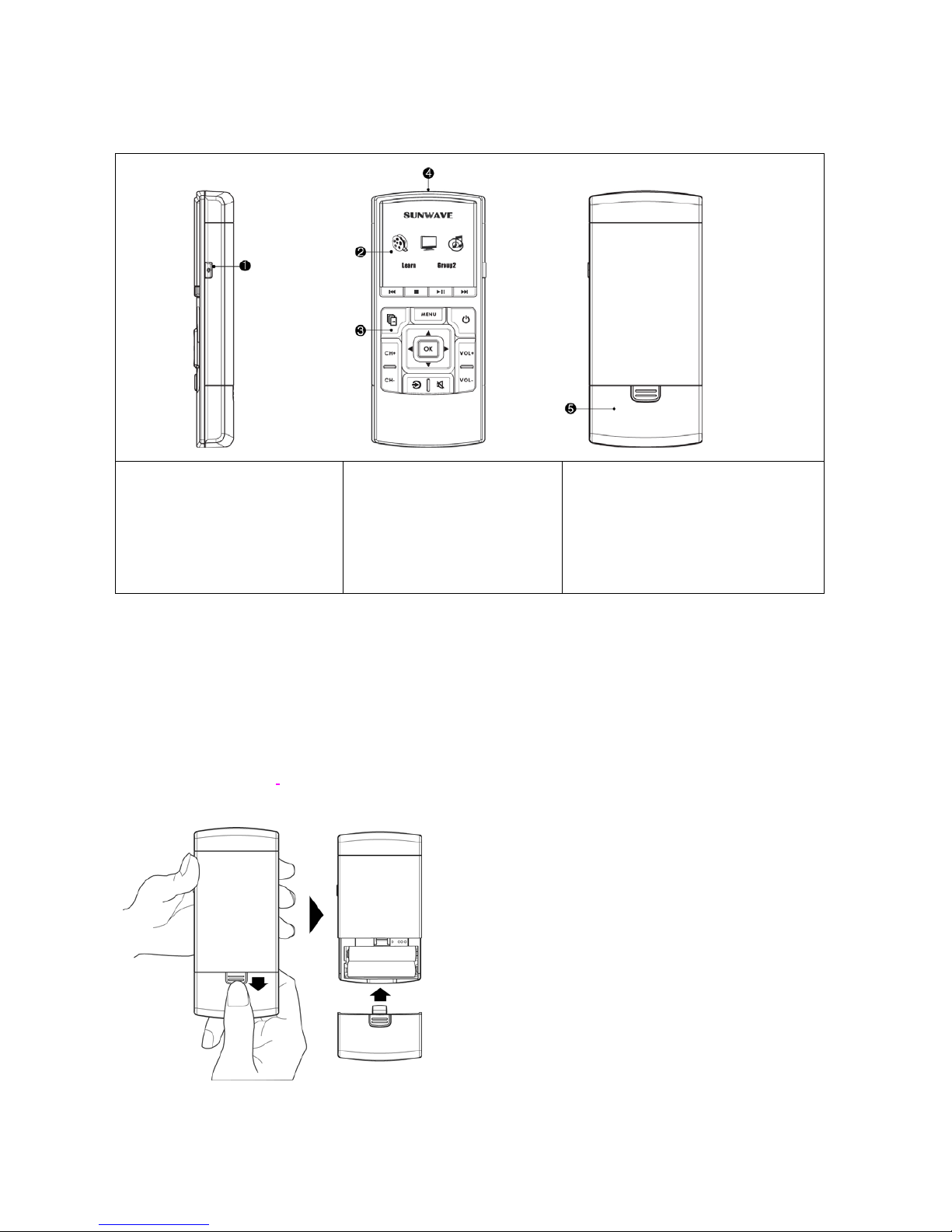
Layout
1. Functional Key
*Backlight
*Beep on / Off
2. Device Symbol Area
3. System Key
*Switching Device
*Setup Learning Function
4. Learning Eye & IR Port
5. Battery Cover
Insert the Batteries
1. Remove the battery cover.
2. Insert the batteries:
3. This remote control uses two AAA batteries, please make sure to properly orient the positive (+) and
negative (-) ends as the label specified on the battery compartment.
4. Replace the battery
cover.
NOTE: Always use fresh batteries. Alkaline batteries are recommended.
Page 3

Setup
1. Function Indicator
Logo lights up as an indicator or confirmation sign in following states.
(1) Logo Lights up when the code(s) loaded key(s) is pressed.
(2) Subject to different original code types; Logo will light up or keep
blinking when IR code is transmitting from an original remote to
SRC-600 during learning process (Refer to No. 2 in Setup section)
(3) Logo lights up as a battery low indicator (Refer to No. 4 in Setup section)
SRC-600 is a 6 in 1 universal remote. There are 3 device icons and a “Group2”
symbol available for distinguishing among devices.
(1) The device icon lights up to enable you identify which device you are
controlling by pressing the key(s).
(2) The “Group2” symbol lights up to indicating the operation status of the
device 4,5 & 6.
(1) The “Learn” symbol lights up when entering “Learn” mode.
(2) The “Learn” symbol keeps blinking when the learning process starts.
*
Note: The abovementioned 3 LED always light up as an indicator when necessary
[Functional key] can turn on the backlight or switch on/off beep sound.
(1) By pressing
, the keys will be lighted up for 8 sec. If keep pressing any
other key during the light-up period, the light will continue for anoth er 8 sec. ,
and so on.
(2) The beep sound can be turned on/off by pressing
for 3 sec. (Refer to No.
3 in Setup section).
[System key] will be used for switching the devices and activating setup
(learning) function.
(1) SRC-600 opens only 3 devices for setup by factory default; however if you
need more devices for setup, you can open another 3 spare devices by
pressing
[ and ] simultaneously for 1 sec. , and you will find “Group2”
shows up. You are then able to setup up to 6 devices at the moment.
You will be able to switch among the default 3 devices and another 3 spare
devices in “Group2” by keeping pressing system key
.
(2) By pressing
for 3 sec., the unit will enter “Learn” mode (R efer to No.2 in
Page 4

Setup section)
All the hard keys on SRC-600 except System and Functional keys, the
remaining 17 keys are learnable and designed for the most frequently used f or
each device.
During “Learn mode” (Refer to No. 2 in Setup section), pressing any key for 3
sec. is able to delete code loaded in the key. When delete code process
succeeds, THREE beep sounds will be heard.
2. Learning Function
Please have your original remot e c ontrol ready and follow the instructions below:
(1) Press for 3 sec. for entering the “Learn mode”
(2) The “Learn” symbol will light up, please choose any
device you want to program.
E.g. Choose the
device
(3) Please select any key that is going to learn.
E.g. Power key
(4) Press a key on the original remote which will be
learned into SRC-600. (Attention: K eep pressing the
key until ONE beep sound is heard!)
Subject to different original code types; Logo will
light up or keep blinking during the process when IR
code is transmitting from original remote to SRC -600.
Noted: The SRC-600 learning eye must be kept in a
straight line with the IR Transmitting Eye of the original
remote control within a distance of 2-4 inches (5-10cm).
Page 5

As soon as the code transmitting finishes, the logo will
light up. If the learning process su cceeds, ONE beep
sound will be heard.
OR
Once the learning fails, TWO beeps will be heard, and
the logo will not light up. Please follow the steps (3) &
(4) again to repeat the learning process until succeed
(ONE beep sound is heard).
(5) If you find the specified key has learned an
unexpected code, what you need to do is just to
learn the correct code into the key again. The new
code will replace the previous code automatically.
(6) Please follow the steps (2) ~ (5) until all device k eys
have learned the codes form the original remotes.
(7) Press for 3 sec. for exiting the “Learn Mode”
after learning process finishes.
3. Beep Function
(1) Beep on: Press for 3 sec. and hear ONE beep sound. (Beep-on is factory default)
(2) Beep off: Press
for 3 sec. and hear TWO beeps sound.
Noted: During learning process, beep on function will be automatically activated to indicate the learning
status, even under “Beep off” mode. Beep off function will automatically recover after exiting “Learn mode”.
(Refer to No. 2 in Setup section)
4. Others
(1) Battery low:
When battery low occurs, “Logo” will blink every 7 sec. and you won’t be able to enter the “Learn” mode
under the status. Please change the new batteries.
(2)
Power saving:
SRC-600 will enter Power saving mode when it idles for 12 sec. and enter Sleep mode when it idles f or 120
sec.
(3)
Key protection:
When the key(s) is pressed for more then 30 sec, SRC-600 will stop working and enter “Protected” mode
automatically, the Logo LED and Device LED will light off; while the backlight of the keys will light up.
Operation will be recovered by pressing any key.
 Loading...