

Page 1

[T5]
Alphanumeric Pager
Ver.11/14
Page 2
T5
CONTENTS
FEATURES
DESCRIPTION OF INDICATORS & SYMBOLS
CONTROL BUTTONS
OPERATION
Turning The Pager On / Off
Main Screen
Function Menu Screen
Inbox Message Screen
Info Message Screen
Saved Message Screen
FUNCTION MENU
Reading a Stored Message in each Message Screen
Setting the Time and Date
Setting the Alarm
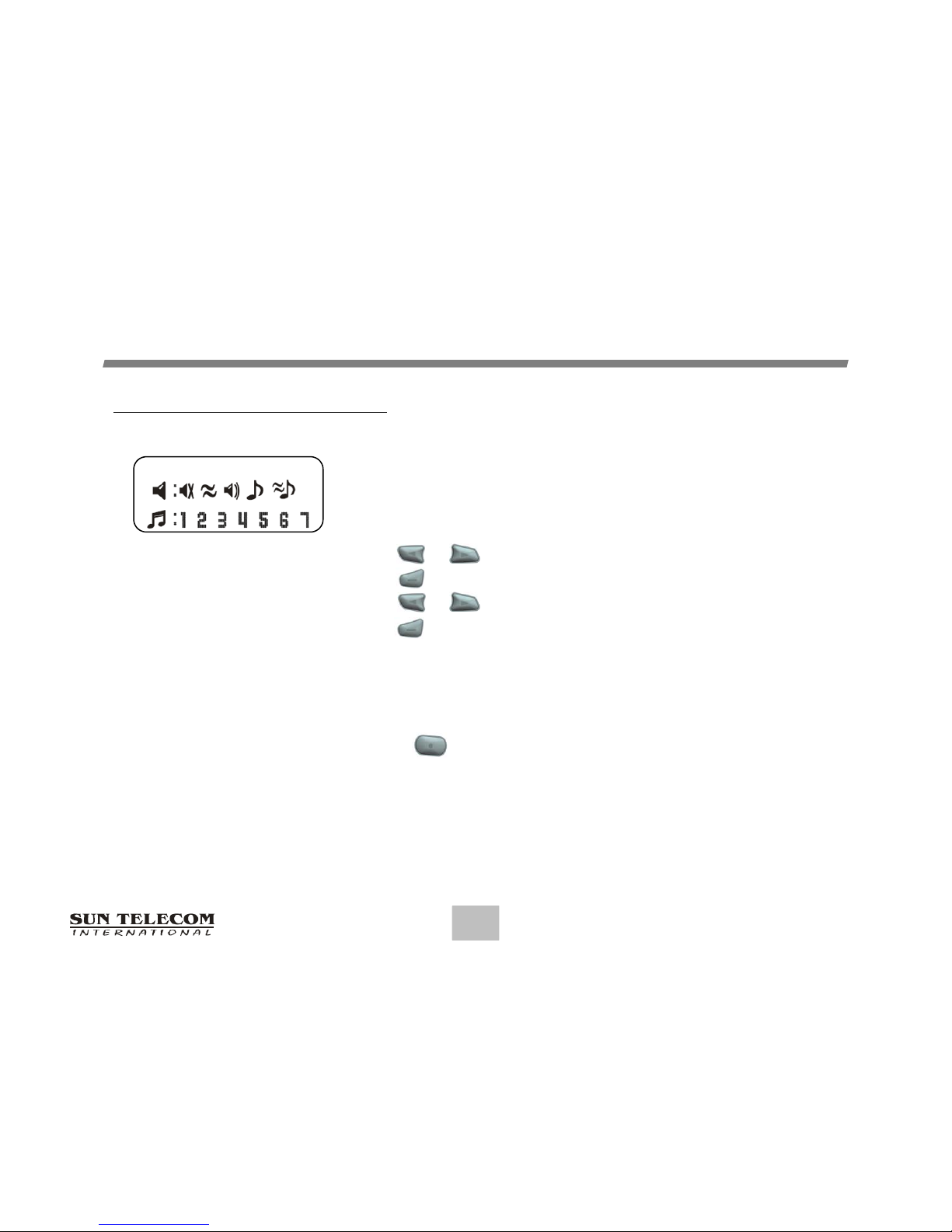
Setting the Paging Alert
Setting the Audible On / Off
Enabling the Display Zoom
Enabling the Reminder Alert
Locking and Unlocking Messages
Deleting Message
Moving a Message to the Saved Folder
Selecting an Info Alert Type
Display Lock
3
4
7
8
9
10
10
11
11
12
13
14
15
16
17
17
18
19
20
20
21
Page 3
T5
3
FEATURES
• Encrypted Message (AES-128) Support
• 16 Flex addresses
• 4 Line x 20 Alpha Character Display
• 20 Inbox Message Slots
• 15 Info Message Slots
• 16 Saved Message Slots
• Inbox Message Storage: 6400 Bytes
• Info Message Storage: 19200 Bytes
• Saved Message Storage: 3200 Bytes
• Inbox Max. Message Length: 1000 Bytes
• Info Max. Message Length: 1000 Bytes
• 10 Inbox Messages Lock with Lock Icon
• 7 Sub-slots of each Info Slot (optional)
• Zoom On / Off (User Selectable)
• Battery Status Display
• One Alarm with Message ("ALARM TIME")
• Message with Time & Date Stamping
• Automatic Alert Reset
• 1 Beep, 7 Different pleasing Alerts, a Chirp, Vibrate, Sleep
• User-Selectable Reminder Alert
• Audible ON / OFF
• Manual ON / OFF using Softkey
• No Message Indication (No Message)
• New Message indication (Flashing Icon)
• Unread Message Indication
• Continuous Message Indication (with Icon)
• Error Message Indication (with Icon)
• All & Selective Message Delete
• Message Full Indication (with Icon)
• Message Slot Number
• Duplicated Message Indication (with Icon)
• EL Backlight Display
• Smart Unread Reminder On / Off (Optional)
• Lock Display
Page 4
T5
4
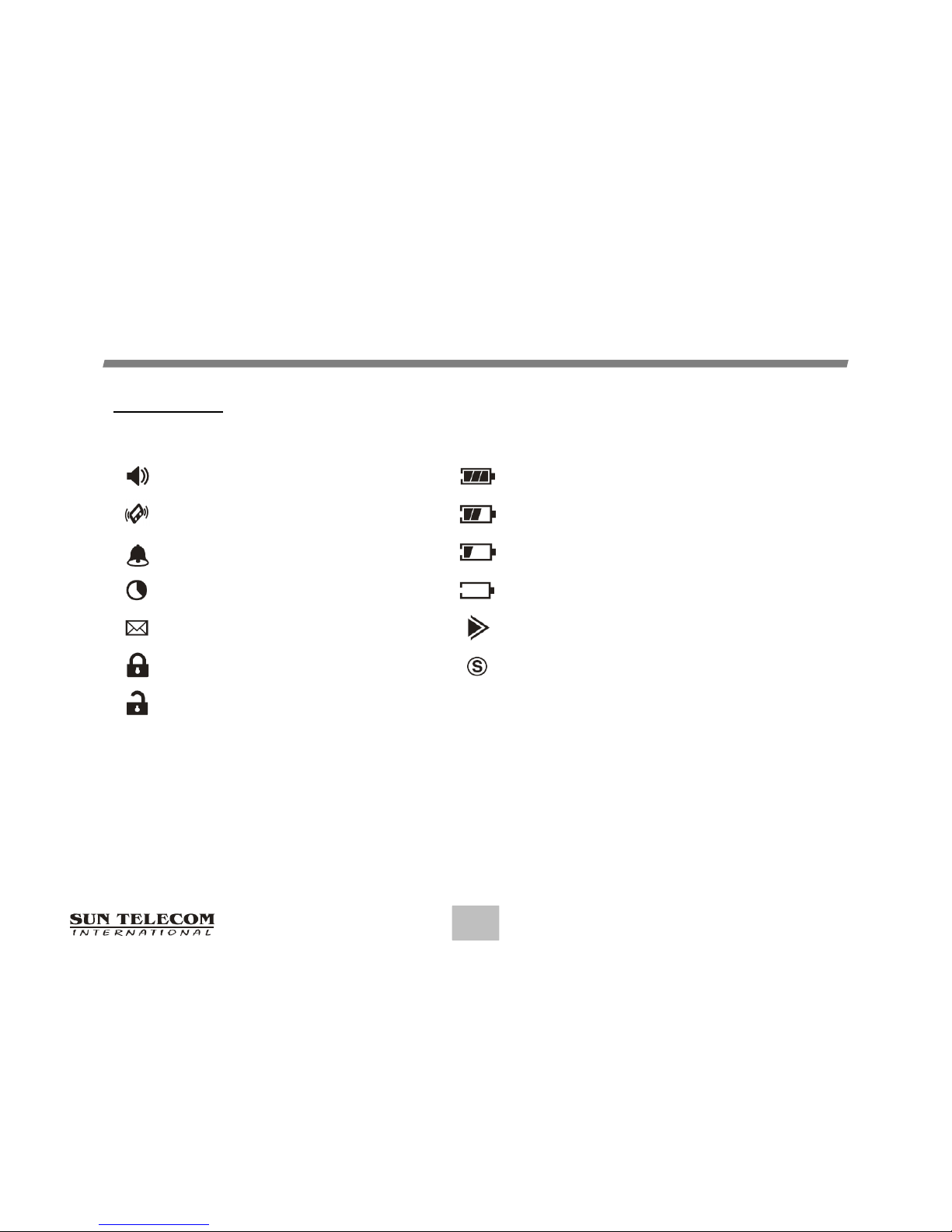
DESCRIPTIONOFINDICATORS&SYMBOLS
Audio Alert Full Battery Status
Silent Alert (Vibration) 2/3 Battery Status
Enabled Alarm 1/3 Battery Status
Private Time Enabled Low Battery Status
New Page or Unread Message Indication
Message Continuation
Lock Message Power On
Unlock Message
Indicators
Note: When the battery is low the pager will alert with a short chirp at the top of every hour.
Page 5
T5
5
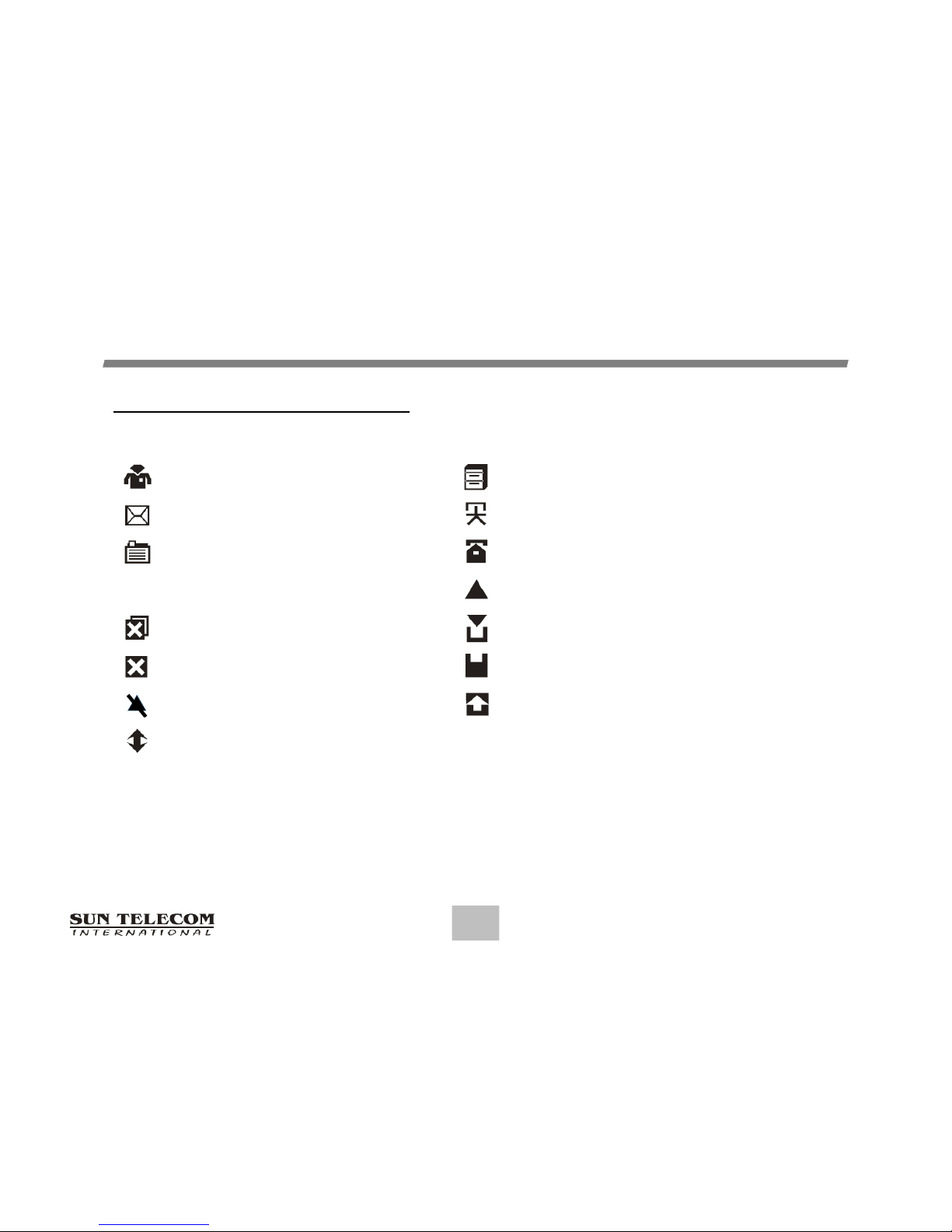
DESCRIPTIONOFINDICATORS&SYMBOLS
Inbox Folder Move to NoteBook
Info Folder Saved Slot
Saved Folder Unread Inbox Slot
Read Inbox Slot
Delete All Read Info Slot
Delete Unread Info Slot
MessageFull
Cursor (Current Slot)
Escape
Symbols (Message Status)
Page 6
T5
6
DESCRIPTIONOFINDICATORS&SYMBOLS
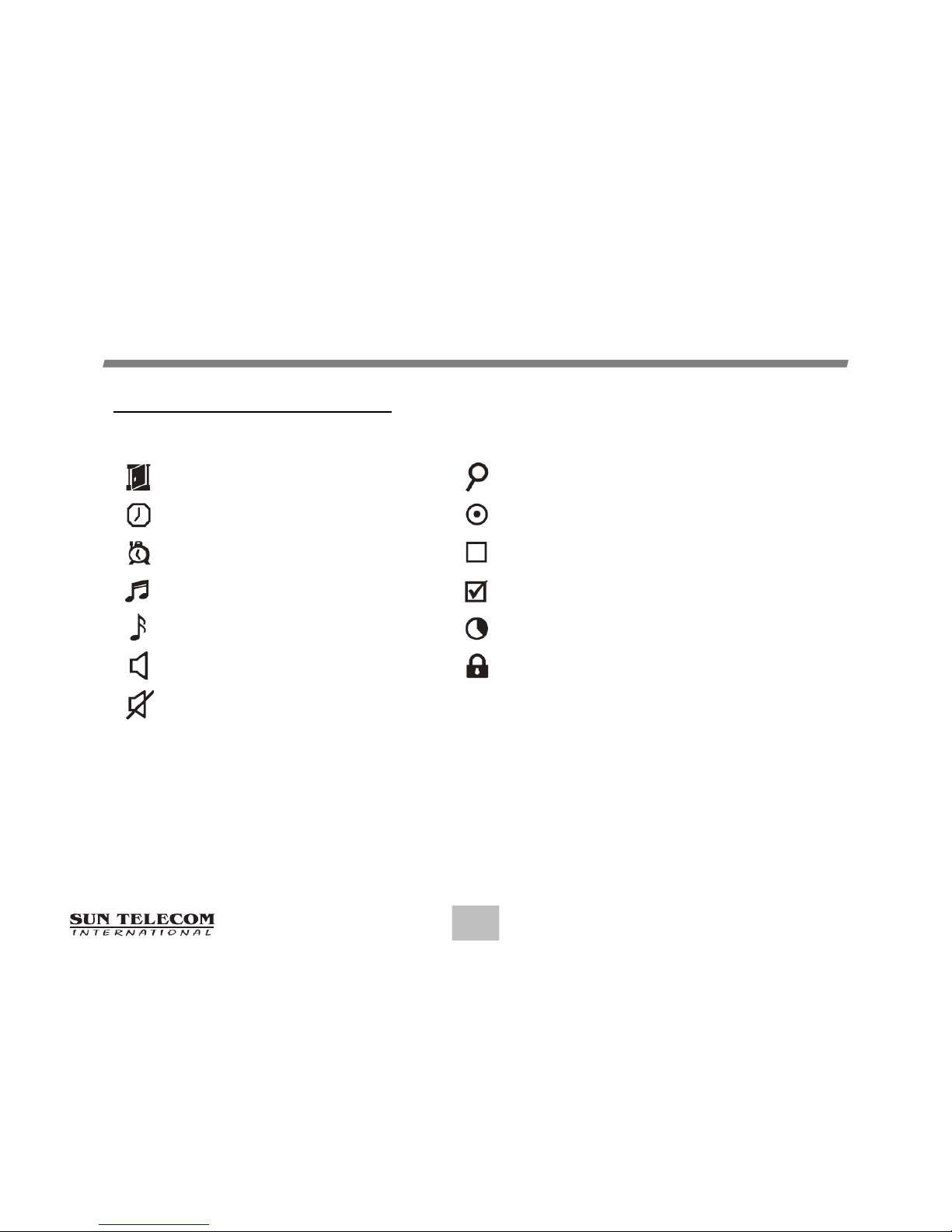
Escape Zoom
Set Time Pager Off
Set Alarm Disable Reminder
Set Alert Enable Reminder
Set Info Alert Set Private
Set Audible ON Set Lock
Set Audible OFF
Symbols (Function Menu)
Page 7
T5
7
CONTROLBUTTONS
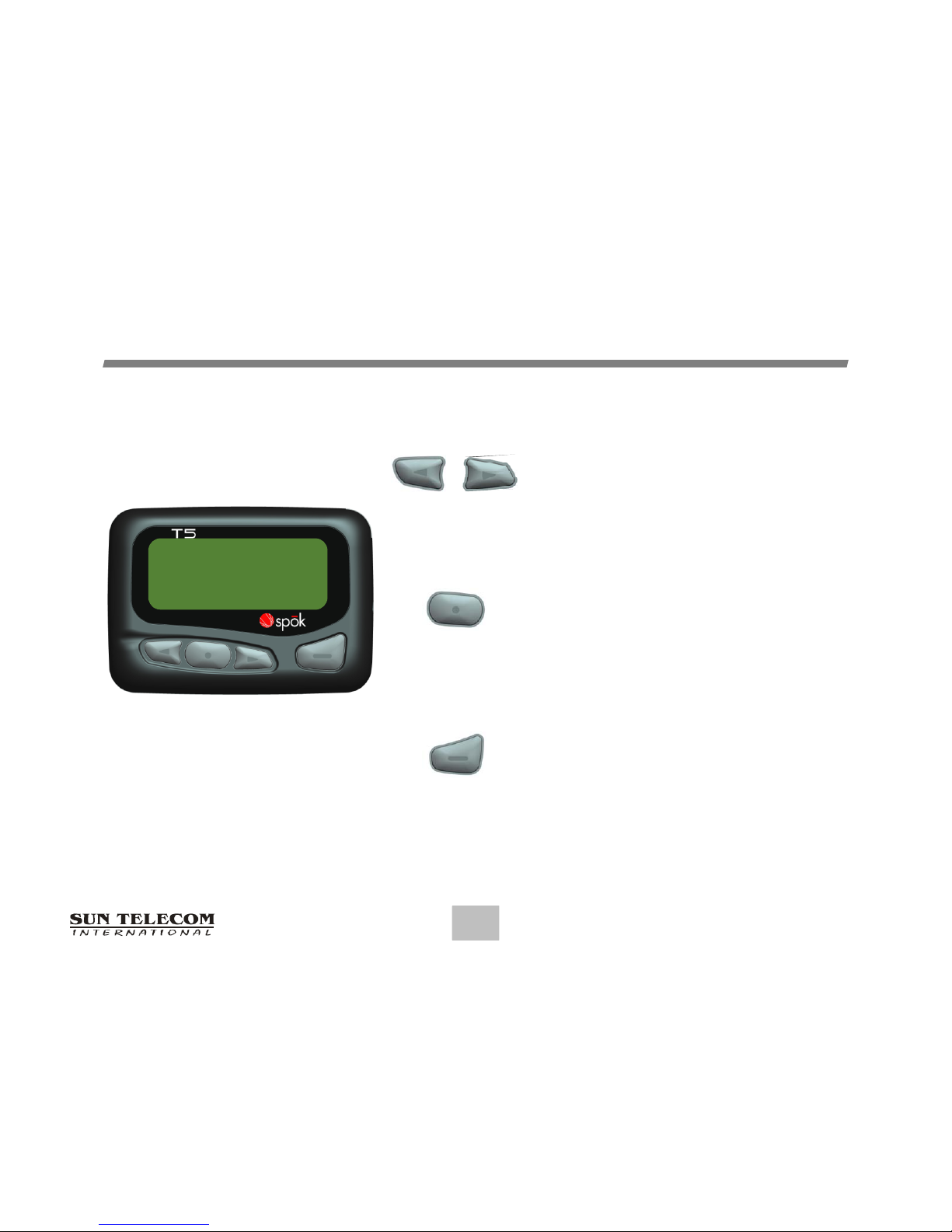
• Use to navigate through the Function
menu and through your messages.
• Use to navigate through time, alarm,
and date setting function
• Use to enter the Function menu mode.
• Use to turn the Backlight off.
• Use to exit to current Function mode.
• Use to turn the pager on and off.
• Use to read the received message.
• Use to activate your selection.
• Use to adjust the time, alarm, and
date setting functions.
Page 8
T5
Turning the Pager On
Press for two (2) seconds to turn the pager on.
A start-up screen is momentarily displayed and the pager
alerts the currently selected alert-mode.
(Vibrator, Audio, Sleep)
8
OPERATION
Note: If you choose the function key while the pager is off, the pager will display Pager Off
Mode and the time and date. The display disappears after eight (8) seconds or after you
press any of the pager keys.
Turning the Pager Off
Press button to display the Function menu.
Press or button to move the cursor on OFF icon.
Press button.
"TURN PAGER OFF?" is displayed.
Press button again to turn the pager off.
PowerUp Screen
SPOK
12:00A 1/01/15
Time/Date display on Pager Off
PAGER OFF MODE
12:00A 1/01/15
Page 9
T5
9
OPERATION
Main Screen
Pressing any of the buttons on the Standby Screen will
provide access to the Main Screen.
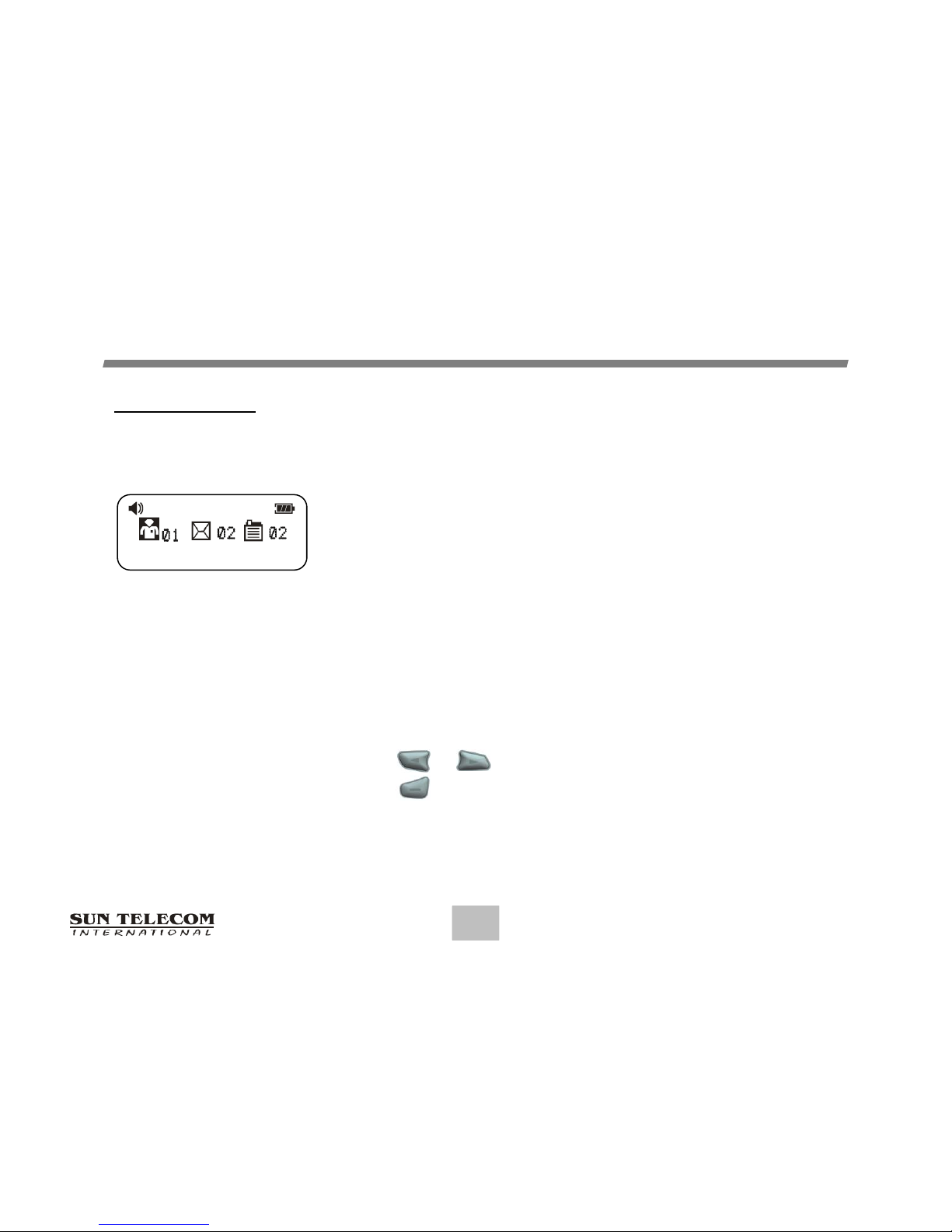
The Main Screen shows both the current status of message
folders (Inbox / Info / Saved) and the time and date.
The Main Screen also displays any activated pager settings
in the split screen.
When the Main Screen is initially displayed, the Inbox
Folder icon is the first icon followed by the Info and
Saved icons. The Inbox folder is also highlighted.
Choosing either arrow button will highlight the other icons.
Press or to move the cursor within the Message Folder.
Press to enter the selected Folder.
Main Screen
12:00A 1/01/15
Page 10
T5
10
OPERATION
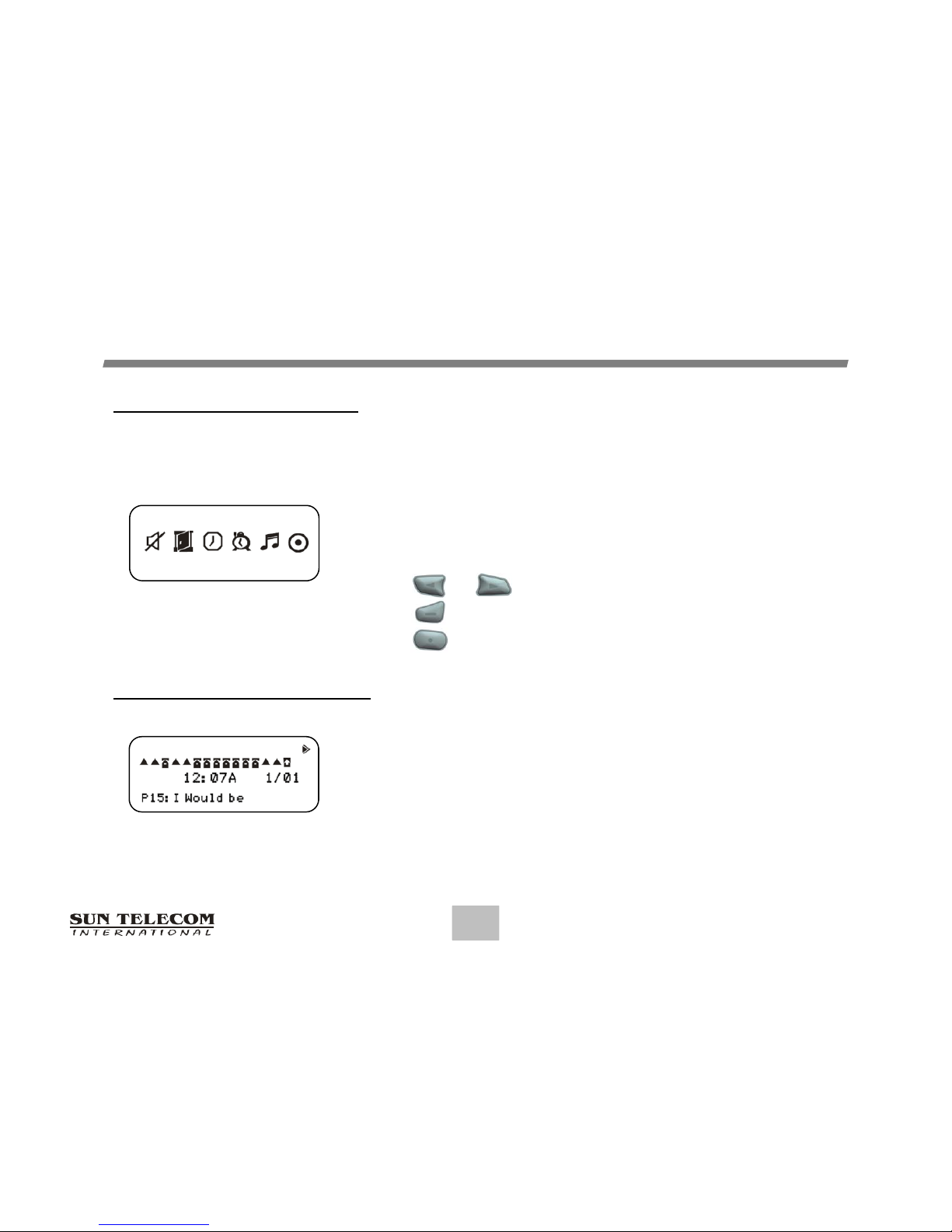
Function Menu Screen
The Function Menu provides access to the many features incorporated in the T5.
As you navigate through the Function menu, the Function
Icon will reverse to indicate the current location of the cursor.
Press or to navigate through the Function menu.
Press to enter the current menu.
Press to exit the Function menu.
Inbox Message Screen
The Inbox Message Screen shows the current status of
Inbox messages by displaying the first line of your
message. (Message Preview)
Function Menu Screen
SET AUDIBLE OFF
Inbox Message Screen
Page 11
T5
11
OPERATION
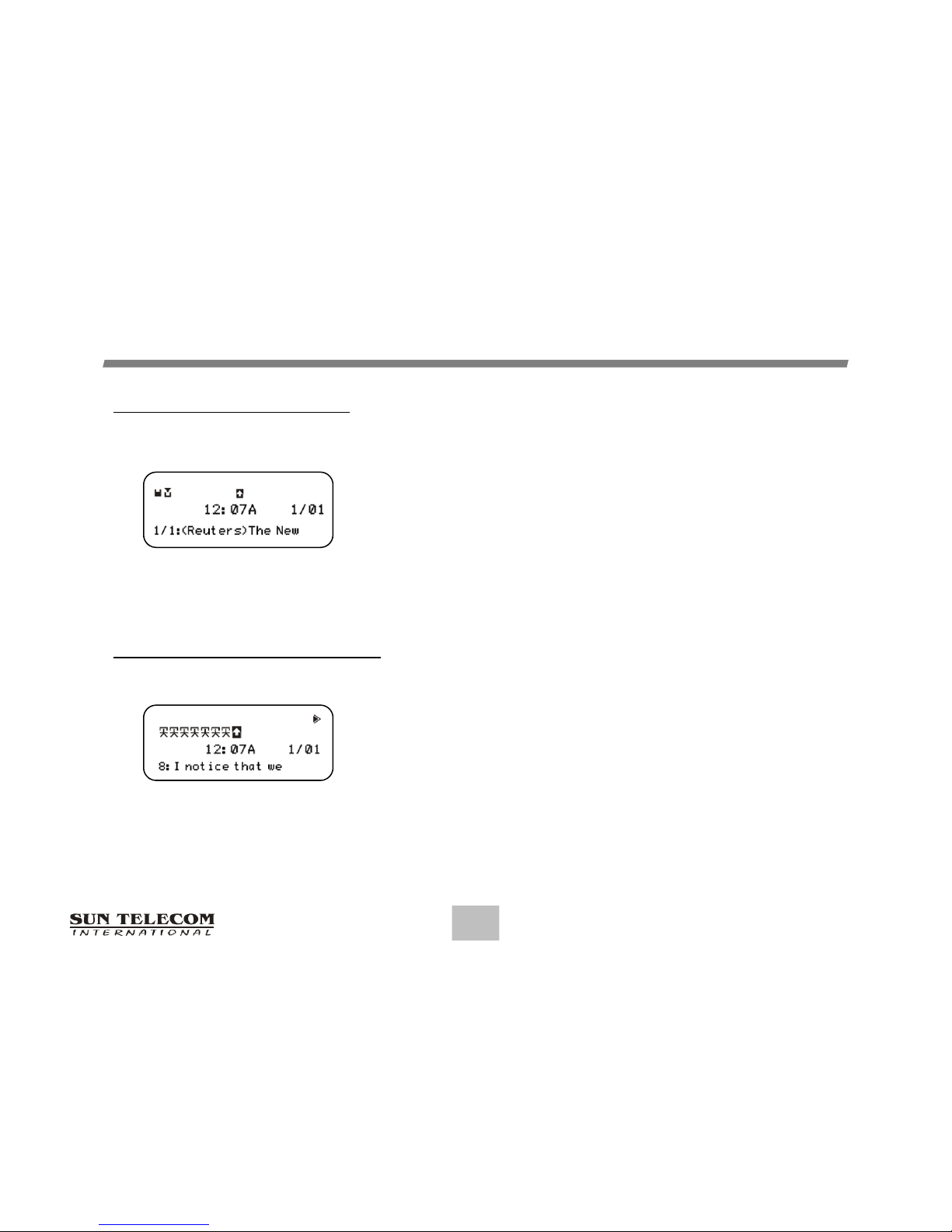
Info Message Screen
The Info Message Screen shows the current
status of Info messages by displaying the first
line of your message. (Message Preview)
Saved Message Screen
The Saved Message Screen shows the current
status of the messages by displaying the first
line of your message. (Message Preview)
Info Message Screen
Saved Message Screen
Page 12
T5
12
FUNCTIONMENU
Reading Stored Message in each Message Screen
From each Message screen press or to move the cursor to the message
you want to read. Press button to read the message.
Auto Scrolling Screen by Screen
Press and hold button.
Reading Previous or Next Message
Press or button.
Note: When an unread message exists, the pager gives a periodic reminder alert until all
unread messages are read. A flashing symbol on the StandBy screen indicates
that there are unread messages on your pager.
Page 13
T5
13
FUNCTIONMENU
Setting the Time and Date
From the Function menu, press or to move
the cursor to display "SET TIME".
Press to display the Set Time screen.
Press to move the cursor to the next digit.
Press to adjust the current digit.
Repeat the two previous steps to adjust all time digits.
Press to activate the time and date setting.
Setting the Alarm
From the Function menu, press or to move
the cursor to display "SET ALARM".
Press to display the Set Alarm screen.
Press again to select Daily or 1Time alarm
Press or to move the cursor to the time digits
Press to adjust the current digit.
Repeat the two previous steps to adjust all the time digits.
Press button to activate the current setting.
Set Time Screen
12:00A 1/01/15
Set Alarm Screen
DAILY 12:00A
Page 14
T5
Setting the Paging Alert
You can set the paging alert to an audible alert, a vibrating
alert, a chirp alert, a sleep alert(completely silent), or one
of seven other alerts. From the Function menu:
Press or to move the cursor to display "SET ALERT".
Press to display the Set-Alert screen.
Press or to move the cursor to the alert you want to set.
Press to activate the alert setting.
14
FUNCTIONMENU
Note: If no changes have been made, please wait for at least five (5) seconds before exiting
the screen. You may also choose to exit from any screen.
Alert #7 is continuous so you must press a button to silence it when a message is received.
Set Alert Screen
Page 15
T5
15
FUNCTIONMENU
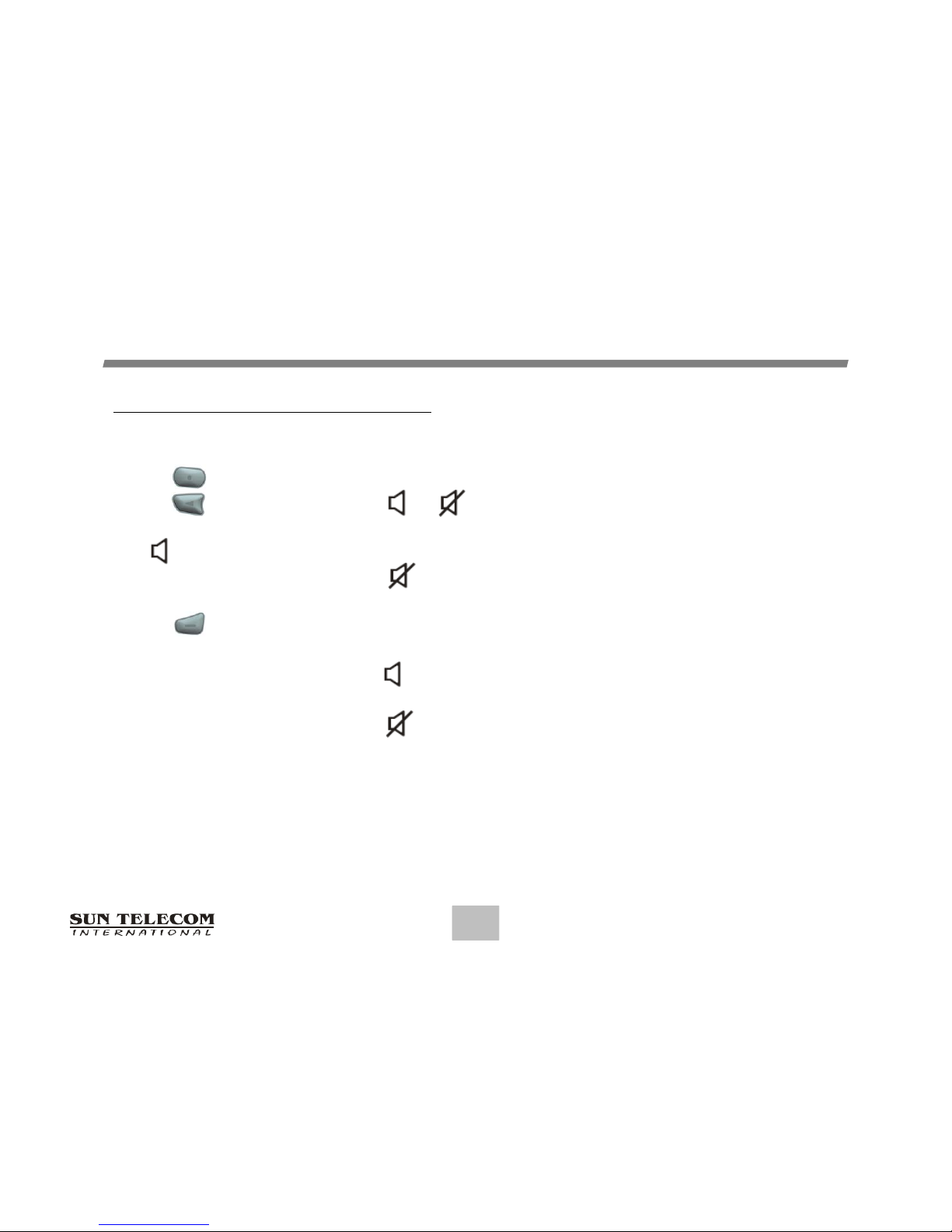
Setting the Audible On/Off
The alert can be set as either audible on or off.
Press to display the function menu.
Press to move the cursor to or .
The symbol is displayed if the pager is in the audible off mode(prompting you to enter the
audible on mode, if desired). The symbol is displayed if the pager is in the audible on mode
(prompting you to enter the audible off mode, if desired).
Press to select the desired audible mode. The alert can be set as either audible or vibrate.
If the Audible On function is set ( ), the pager will alert.
If the Audible Off function is set ( ), the pager will be on vibrate mode. Audible Mode
applies to all alerts, including reminder alert, alarm, etc.
Note: If the Alert has been set for sleep(no alert),
setting the Audible On/Off Function will not be activated.
Page 16
T5
16
FUNCTIONMENU
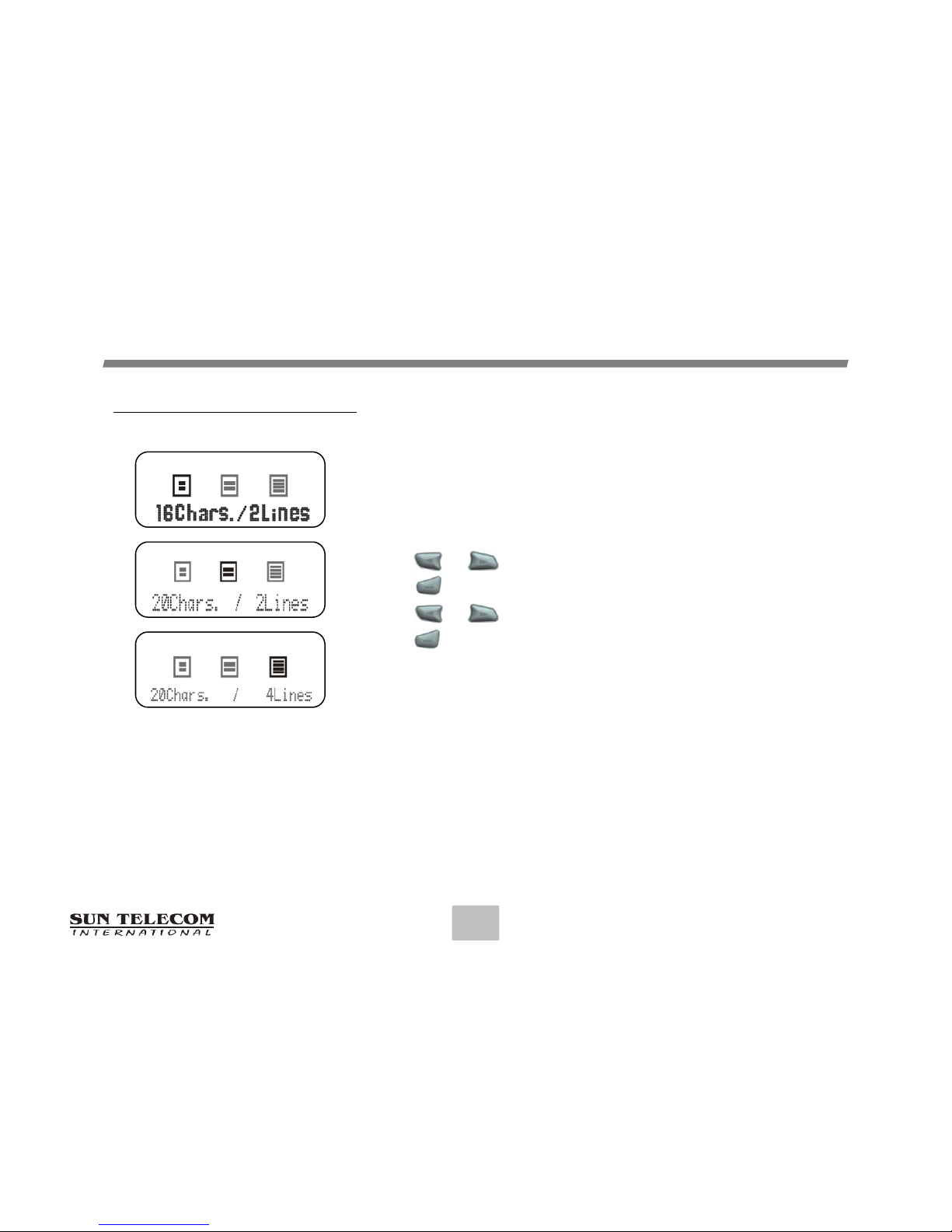
Setting Display Zoom
When this feature is enabled, the standard 4-line Display is
converted to a 2-line Display. The characters are enlarged
to increase message readability. From the Function Menu:
Press or to more the cursor to display "ZOOM".
Press to display the Zoom screen.
Press or to move the cursor.
Press to activate the Zoom.
EnableZoom‐InScreen
Page 17
T5
17
FUNCTIONMENU
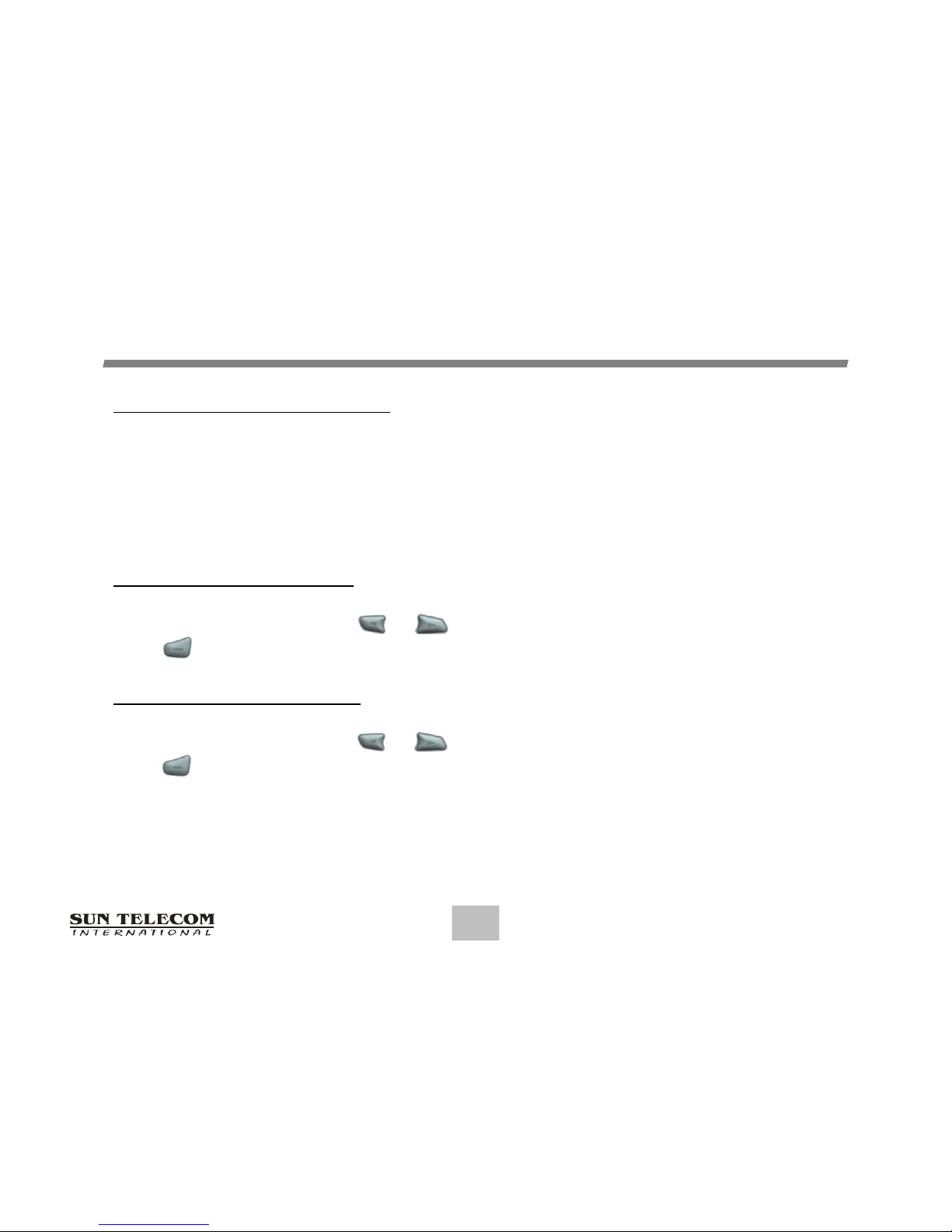
Enabling Reminder Alert
When this feature is enabled and there are unread Inbox messages, the pager will
alert the user with a short beep or vibration depending on the current Inbox alert
type or Audible mode. The pager does not emit reminder alerts for Info messages,
or messages with no alert setting.
To Enable Reminder Alert
From the Function menu, press or to move the cursor to display "ENABLE REMINDER".
Press to activate the current setting.
To Disable Reminder Alert
From the Function menu, press or to move the cursor to display "DISABLE REMINDER".
Press to activate the current setting.
Page 18
T5
18
FUNCTIONMENU
Locking and Unlocking Messages
Up to 10 messages can be locked to prevent them from being deleted or from
being replaced when the memory is full.
To Lock/Unlock a Message
From the Inbox Message Status Screen, press or to select the message you
want to lock or unlock.
Press and then press or to move the cursor to show "LOCK" or "UNLOCK".
Press to activate the setting.
To lock or unlock a message while reading it, follow the last two steps above while
the message is displayed.
Note: Info and Saved Messages can not be locked.
Page 19
T5
19
FUNCTIONMENU
To Delete One Message
From the Inbox Message Status Screen, press or to select the message
you want to delete.
Press and then press or to move the cursor to show "DELETE".
Press to activate the setting.
To Delete All Messages
From the Inbox / Info / Saved Message Status Screen, press or
to select the message you want to delete.
Press and then press or to move the cursor to show "DELETE ALL".
Press to activate the setting.
Note: Neither a NEW Inbox message nor a LOCKED message can be deleted by using
the Delete All function. Using Delete all with the Info, will only delete those
messages in the current subfolder.
Page 20
T5
20
FUNCTIONMENU
Moving A Message to the Saved Folder
From the Inbox / Info Message Status Screen, press or to select
the message you want to move.
Press and then press or to move the cursor to show "NOTEBOOK".
Press to activate the setting.
To Move a message while reading it, follow the last 2 steps above while the
message is displayed.
Selecting the Info Alert Type
From the Info Message Status Screen, press or to select the message
you want to set alert.
Press and then Press or to move the cursor to show "ALERT".
Press or to move the cursor to the desired alert type.
Press to activate the your setting.
While reading a message, follow the last four steps.
Note: When Inbox Pager alert is set to SLEEP , all alerts revert to SLEEP regardless
of the current mail alert type.
Page 21
T5
21
FUNCTIONMENU
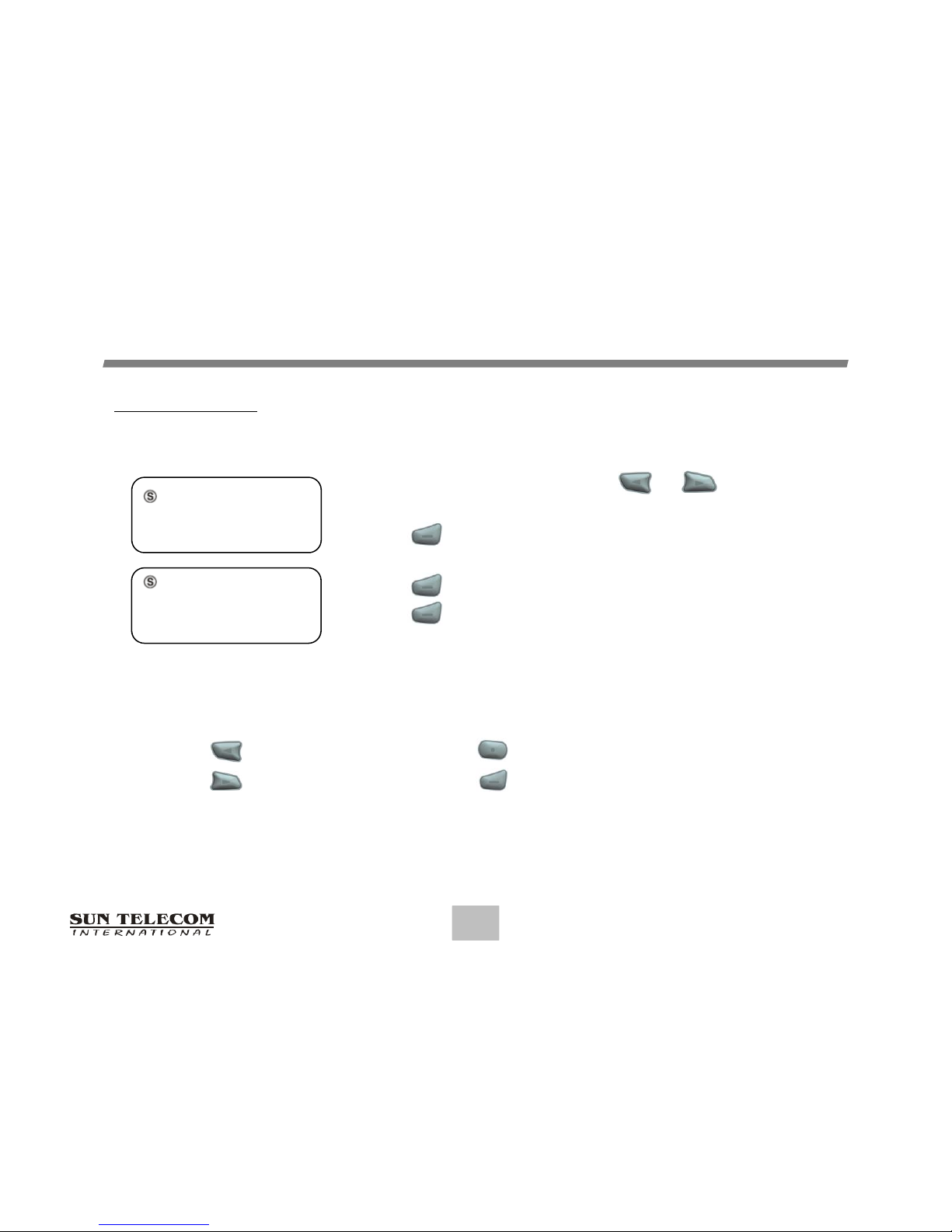
Display Lock
From the Function menu, press or to move
the cursor to display "SET LOCK".
Press to display the Set Lock screen.
Press any button to set lock. (Repeat four (4) times)
Press to activate the lock. (Unlock state)
Press to deactivate the lock. (Lock state)
Note: Button appears ‘L’ character Button appears ‘C’ character
Button appears ‘R’ character Button appears ‘E’ character
Set Lock Screen
_ _ _ _
SET LOCK
L C R E
SET LOCK. OK?
Page 22
T5
LIMITATIONOFLIABILITY:
Neither your Wireless Provider nor Sun Telecom International is responsible for data that may be
damaged or lost at any time, including, without limitation data lost or damaged during the servicing
of Sun Telecom International hardware. In as much as the wireless data service provided, we cannot
guarantee or warrant that the wireless data service will always be available or will always function
properly. For this and other reasons, the wireless data service should not be relied upon for the
transmission of data relating to emergency or life-threatening or mission critical situations, and Sun
Telecom International disclaims any liability on its behalf and on behalf of its Wireless Providers for
events or damages resulting from such reliance or the failure of the wireless data service to perform
or to be available for your use of the wireless data service, including, without limitation, the lack of
service coverage in the area in which YOU wish to use the wireless solution. To the extent the third
party providing the wireless data service provides any warranties or guarantees that may be passed
on to YOU, such warranties and / or guarantees are automatically passed on to YOU without any
further effort on your part or on the part of Sun Telecom International. Neither Sun Telecom
International nor your wireless provider shall inanywaybeliabletoyouforanydamagesyousuffer
or incur (including, but not limited to, general, special, consequential or incidental damages including
damages for loss of business profits, business interruption, loss of business information and the like
and personal injury or wrongful death damages) arising from or in connection with the use or
performance of our product, even if Sun Telecom International or your wireless solution provider are
aware of the possibility of such damages. This limitation is intended to apply and does apply without
regard to whether such damages are claimed, asserted or brought in an action or claim sounding in
tort or contract, or on the warranty, or under any other law or form of action.
Page 23
T5
INFORMATIONTOUSER:
This equipment has been tested and found to comply with the limits of a Class B digital device,
pursuant to Part 15 of the FCC Rules. These limits are designed to provide reasonable
protection against harmful interference in a residential installation. This equipment generates,
uses, and can radiate radio frequency energy and, if not installed and used in accordance with
the instructions, may cause harmful interference to radio communications. However, there is no
guarantee that interference will not occur in a particular installation. If this equipment does
cause harmful interference to radio or television reception (which can be determined by turning
the equipment off and on), the user is encouraged to try to correct the interference by one or
more of the following measures:
Reorient / Relocate the receiving antenna.
Increase the separation between the equipment and receiver.
Connect the equipment into an outlet on a circuit different from
that to which the receiver is connected.
Consult the dealer or an experienced radio / TV technician for help.
Page 24
T5
INSTALLATIONANDOPERATINGINSTRUCTIONS:
This Equipment Is Suitable For Use In Class I, Division 2,
Groups A, B, C and D Or Non-Hazardous Locations Only.
WARNING - EXPLOSION HAZARD
Substitution Of Components May Impair Suitability For Class I, Division 2.
AVERTISSEMENT - Risque d’explosion
la substitution de composants peut compromettre la convenance
pour la Classe I, Zone 2 ou pour la Classe I, Division 2.
WARNING - EXPLOSION HAZARD
Do Not Disconnect Or Change Battery Unless The Area Is Known To Be Non-Hazardous.
AVERTISSEMENT - RISQUE D'EXPLOSION
AFIN D'EVITER TOUT RISQUE D'EXPLOSION, S'ASSURER QUE L'EMPLACEMENT
EST DESIGNE NON DANGEREUX AVANT DE CHANGER LA BATTERIE.
 Loading...