

Page 1

PCIe 4-Port Gigabit Server Adapter
with LAN Bypass
User Manual
Ver. 1.00
All brand names and trademarks are properties of their
respective owners.
Page 2

MN5000000071 Page 2
Contents:
Chapter 1: Introduction ...................................................... 3
1.1 Product Introduction .................................................... 3
1.2 Features ........................................................................ 4
1.3 System Requirements .................................................. 4
1.4 Package Contents ......................................................... 4
Chapter 2: Getting Started ................................................. 5
2.1 Hardware Installation .................................................. 5
2.2 Driver Installation for Windows .................................. 5
2.3 Driver Installation for Linux ........................................ 7
2.4 Hardware Verify........................................................... 7
2.4.1 Verifying for Windows.......................................... 7
2.4.2 Verifying for Linux ............................................... 8
Chapter 3: Troubleshooting Tips ........................................ 9
Page 3

MN5000000071 Page 3
Chapter 1: Introduction
1.1 Product Introduction
PCI Express is the next revolution in I/O interconnect standards that
will deliver the bandwidth and features required by PCs, consumer
electronics and communications devices. The architecture is a
cost-effective, low-pin count, and point-to-point technologies offering
maximum bandwidth, reducing cost and design complexity and
enabling smaller form factors. This card is the best solution for Gigabit
Ethernet PCI Express and the interface has a potential transfer rates of
5 Gbps using a four-lane (or x4) PCI Express link.
This card is a 4-Port Gigabit Ethernet PCI Express Card, which is
specifically designed to plug into a desktop equipped with an available
x4, x8 or x16 PCI Express slot. It supports high performance dual
channel networking and full duplex communication to achieve up to
2000 Mbps and fast transfer rates, yet is compatible with existing
Ethernet. It comes with a comprehensive of software drives for all
desktop operating systems, including Microsoft Windows and Linux.
Page 4

MN5000000071 Page 4
1.2 Features
⚫ Four 10/100/1000Mbps compatible RJ-45 Ethernet ports
⚫ Four-lane (or x4) PCI Express compatible with x4, x8 and x16
PCI Express slots
⚫ Fully Compliant with IEEE 802.3, IEEE 802.3u, IEEE 802.3ab
⚫ Supports 10/100/1000M data auto-negotiation
⚫ Up to 9KB Jumbo frames
⚫ LAN Bypass
1.3 System Requirements
⚫ Windows® 7/8.x/10 (32/64 bit), Linux 2.4x or later
⚫ Windows Server 2008 R2/2012/ 2016
⚫ PCI Express x4, x8 or x16 slots
1.4 Package Contents
⚫ 1 x 4-Port Gigabit Server Adapter with LAN Bypass
Page 5

MN5000000071 Page 5
⚫ 1 x Driver CD
⚫ 1 x User Manual
Chapter 2: Getting Started
2.1 Hardware Installation
1. Turn off the power to your computer.
2. Unplug the power cord and remove your computer’s cover.
3. Remove the slot bracket from an available PCIe slot.
4. To install the card, carefully align the card’s bus connector with
the selected PCIe slot on the motherboard. Push the board down
firmly.
5. Replace the slot bracket’s holding screw to secure the card.
6. Secure the computer cover and reconnect the power cord.
2.2 Driver Installation for Windows
The following section shows you how to install 4-Port Gigabit Ethernet
PCIe Card driver on Windows operating systems.
Page 6
MN5000000071 Page 6
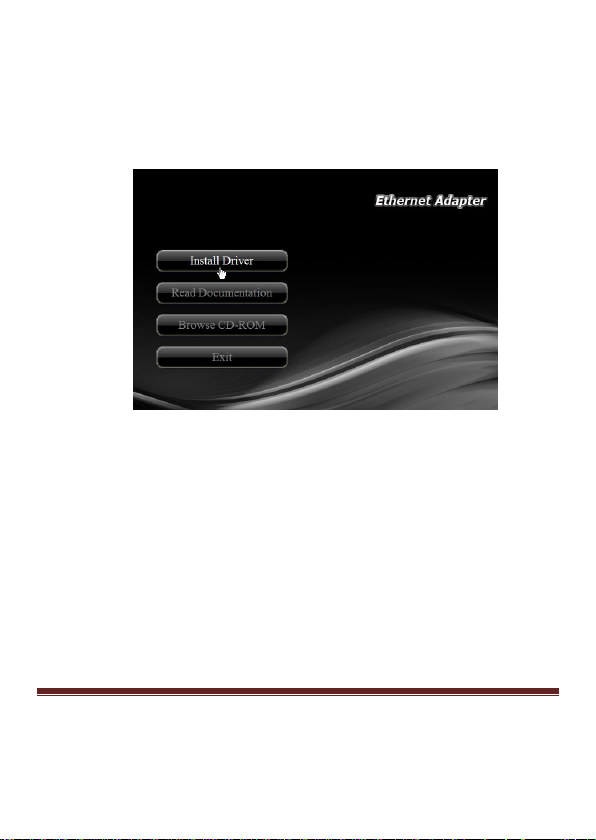
1. Insert the provided CD into your disk drive. The CD-ROM will
start automatically. The following screen will show up and please
click “Install Driver”.
*Note: Actual image may vary
Note: If the install program doesn’t run automatically, please
locate and double-click on the Autorun.exe file in the CD to
launch the install program.
2. Please click “PCIe Intel” to start the installation.
3. Follow the instructions on screen to install the driver.
Page 7

MN5000000071 Page 7
2.3 Driver Installation for Linux
1. Insert the provided CD into your CD-ROM drive.
2. Extract the compressed driver source file to a certain directory by
the following command: (Please copy the driver file
“igb-5.3.5.18.tar.gz” from the CD folder “.\
Driver\Intel\PRO1000\LINUX” to a certain folder on hard drive)
# tar zxf igb-<x.x.x>.tar.gz
3. Change to the driver src directory, where <x.x.x> is the version
number for the driver tar:
# cd igb-<x.x.x>/src/
4. Compile the driver module:
# make install
2.4 Hardware Verify
2.4.1 Verifying for Windows
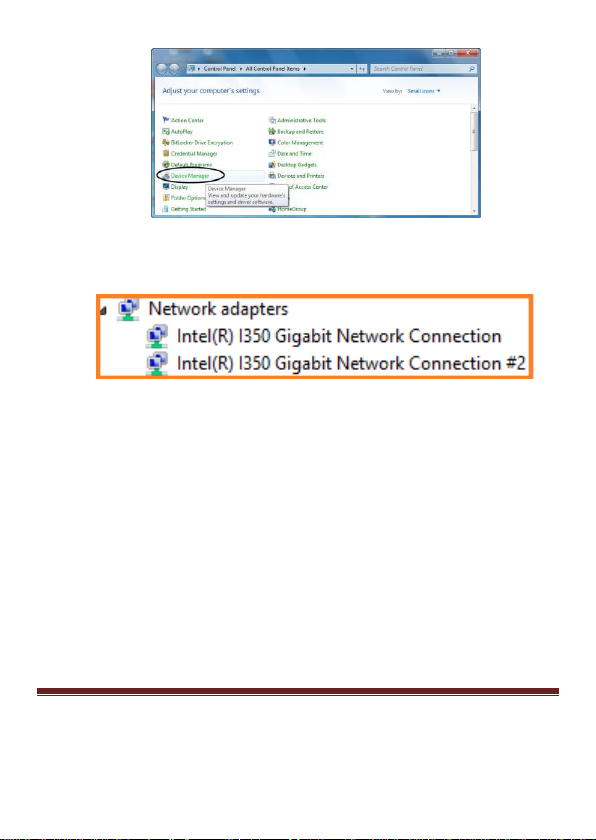
1. Click on the “Device Manager” tab in the Windows Control
Panel.
Start > Control Panel > Device Manager
Page 8
MN5000000071 Page 8
2. Entry “Network adapters” item, and you can read “Intel(R)
I350 Gigabit Network Connection” in the Device Manager.
2.4.2 Verifying for Linux
1. You can check whether the driver is loading by using following
commands:
# lsmod | grep igb
# ifconfig –a
Page 9

MN5000000071 Page 9
If there is a device name, ethX, shown on the monitor, the linux
driver is load. Then, you can use the following command to
activate the ethX.
# ifconfig ethX up, where X=0,1,2,…
Chapter 3: Troubleshooting Tips
⚫ The computer can NOT detect the PCIe Dual Port Gigabit Server
Adapter
1. Make sure that the PCI Express card is correctly plugged into
the PCI Express slot; if not, turn off the computer and plug it
again.
2. If the PCI Express card is plugged in correctly, see if the
golden connectors on the card are clean; if not, clean the
connector surface.
3. If still NOT, please change another PCI Express slot on your
motherboard.
4. Please upgrade your motherboard BIOS to the latest version.
If it still not work, contact your motherboard vendor asking
Page 10

MN5000000071 Page 10
the advanced supporting for BIOS updated.
5. The board itself might be defective. You can try another
motherboard testing PCIe Dual Port Gigabit Server Adapter
working or not.
⚫ Computer failed to start after inserting the PCIe Dual Port
Gigabit Server Adapter
Turn off the computer, remove the PCIe Dual Port Gigabit Server
Adapter, and try to restart the computer. If the computer starts
successfully, it means that the card has not been inserted into the PCI
Express slot correctly. Please clean golden figure by rubber firstly, then
change another PCI Express slot.
 Loading...