

Page 1

Sun™Elite3D Graphics Card
Installation Guide
Sun Microsystems, Inc.
901 San Antonio Road
Palo Alto, CA 94303-4900 USA
650 960-1300 Fax 650 969-9131
Part No. 806-1600-10
May 1999, Revision A
Send comments about this document to: docfeedback@sun.com
Page 2

Copyright 1999 Sun Microsystems,Inc.,901SanAntonioRoad•PaloAlto,CA94303USA.Allrightsreserved.
This productordocumentisprotectedbycopyrightanddistributedunderlicensesrestrictingitsuse,copying,distribution,and
decompilation. No part ofthisproductordocumentmaybereproduced in anyformbyanymeanswithoutpriorwrittenauthorization
of Sun and its licensors, if any.Third-partysoftware, including font technology,iscopyrightedandlicensedfromSunsuppliers.
Parts of the productmaybederivedfromBerkeleyBSDsystems,licensedfromtheUniversityofCalifornia.UNIXisaregistered
trademark in the U.S. and other countries, exclusively licensed throughX/OpenCompany,Ltd.Tech-SourceandTech-Source logo are
trademarks of Tech-Source, Inc. OpenGL is a registered trademark of Silicon Graphics, Inc.
Sun, Sun Microsystems,theSunlogo,SunService,OpenGL,OpenWindows, SunVTS, Ultra, and Solaris aretrademarksorregistered
trademarks of Sun Microsystems,Inc.intheUnitedStatesandinothercountries.AllSPARC trademarks are used under license and
aretrademarksorregisteredtrademarksofSPARC International, Inc. in the United States and in other countries. Productsbearing
SPARC trademarks are based upon an architecture developed by Sun Microsystems,Inc.
The OPEN LOOK and Sun™ Graphical User Interface was developed by Sun Microsystems,Inc.foritsusersandlicensees.Sun
acknowledges the pioneering effortsofXeroxinresearchinganddeveloping the concept of visual or graphical user interfaces for the
computerindustry.Sun holds a non-exclusive license from Xerox to the XeroxGraphical User Interface, which license also covers Sun’s
licensees who implement OPEN LOOK GUIs and otherwise comply with Sun’s written license agreements.
RESTRICTEDRIGHTS: Use, duplication, or disclosure by the U.S. Government is subject to restrictions of FAR52.227-14(g)(2)(6/87)
and FAR 52.227-19(6/87), or DFAR 252.227-7015(b)(6/95) and DFAR 227.7202-3(a).
DOCUMENTATIONIS PROVIDED “AS IS” AND ALL EXPRESS OR IMPLIED CONDITIONS, REPRESENTATIONS AND WARRANTIES,
INCLUDING ANY IMPLIED WARRANTY OF MERCHANTABILITY, FITNESS FOR A PARTICULAR PURPOSE OR NONINFRINGEMENT, ARE DISCLAIMED, EXCEPT TO THE EXTENT THAT SUCH DISCLAIMERS ARE HELD TO BE LEGALLY INVALID.
Copyright 1999 Sun Microsystems,Inc., 901 San Antonio Road • Palo Alto, CA 94303 Etats-Unis. Tousdroits réservés.
Ce produitou document est protégé par un copyright et distribué avec des licences qui en restreignent l’utilisation, la copie, la
distribution, et la décompilation. Aucune partie de ce produit ou document ne peut être reproduite sous aucune forme, par quelque
moyen que ce soit, sans l’autorisation préalable et écrite de Sun et de ses bailleurs de licence, s’il y en a. Le logiciel détenu par des tiers,
et qui comprendla technologie relative aux polices de caractères, est protégé par un copyright et licencié par des fournisseurs de Sun.
Des parties de ce produit pourront être dérivées des systèmes Berkeley BSD licenciés par l’Université de Californie. UNIX est une
marquedéposée aux Etats-Unis et dans d’autres pays et licenciée exclusivement par X/Open Company, Ltd. OpenGL est une marque
déposée de Silicon Graphics, Inc. Tech-Source et le Tech-Sourcelogo sont des marquesde fabrique de Tech-Source,Inc.
Sun, Sun Microsystems,le logo Sun, SunService, OpenGL, OpenWindows, SunVTS, Ultra, et Solaris sont des marquesde fabrique ou
des marquesdéposées, ou marques de service, de Sun Microsystems, Inc. aux Etats-Unis et dans d’autres pays. Toutesles marques
SPARC sont utilisées sous licence et sont des marques de fabrique ou des marques déposées de SPARCInternational, Inc. aux EtatsUnis et dans d’autrespays. Les produits portant les marques SPARCsont basés sur une architecturedéveloppée par Sun
Microsystems,Inc.
L’interfaced’utilisation graphique OPEN LOOK et Sun™ a été développée par Sun Microsystems, Inc. pour ses utilisateurs et licenciés.
Sun reconnaîtles efforts de pionniers de Xerox pour la rechercheet le développement du concept des interfaces d’utilisation visuelle
ou graphique pour l’industrie de l’informatique. Sun détient unelicence non exclusive de Xerox sur l’interface d’utilisation graphique
Xerox,cette licence couvrant également les licenciés de Sun qui mettent en place l’interface d’utilisation graphique OPEN LOOK et qui
en outrese conforment aux licences écrites de Sun.
CETTE PUBLICATION EST FOURNIE "EN L’ETAT" ET AUCUNE GARANTIE, EXPRESSE OU IMPLICITE, N’EST ACCORDEE, Y
COMPRIS DES GARANTIES CONCERNANT LA VALEURMARCHANDE, L’APTITUDEDE LA PUBLICATIONA REPONDRE A
UNE UTILISATION PARTICULIERE, OU LE FAITQU’ELLE NE SOIT PASCONTREFAISANTEDE PRODUIT DE TIERS. CE DENI
DE GARANTIE NE S’APPLIQUERAIT PAS, DANS LA MESURE OU IL SERAIT TENU JURIDIQUEMENT NUL ET NON AVENU.
Please
Recycle
Page 3

Regulatory Compliance Statements
Your Sun product is marked to indicate its compliance class:
• Federal Communications Commission (FCC) — USA
• Department of Communications (DOC) — Canada
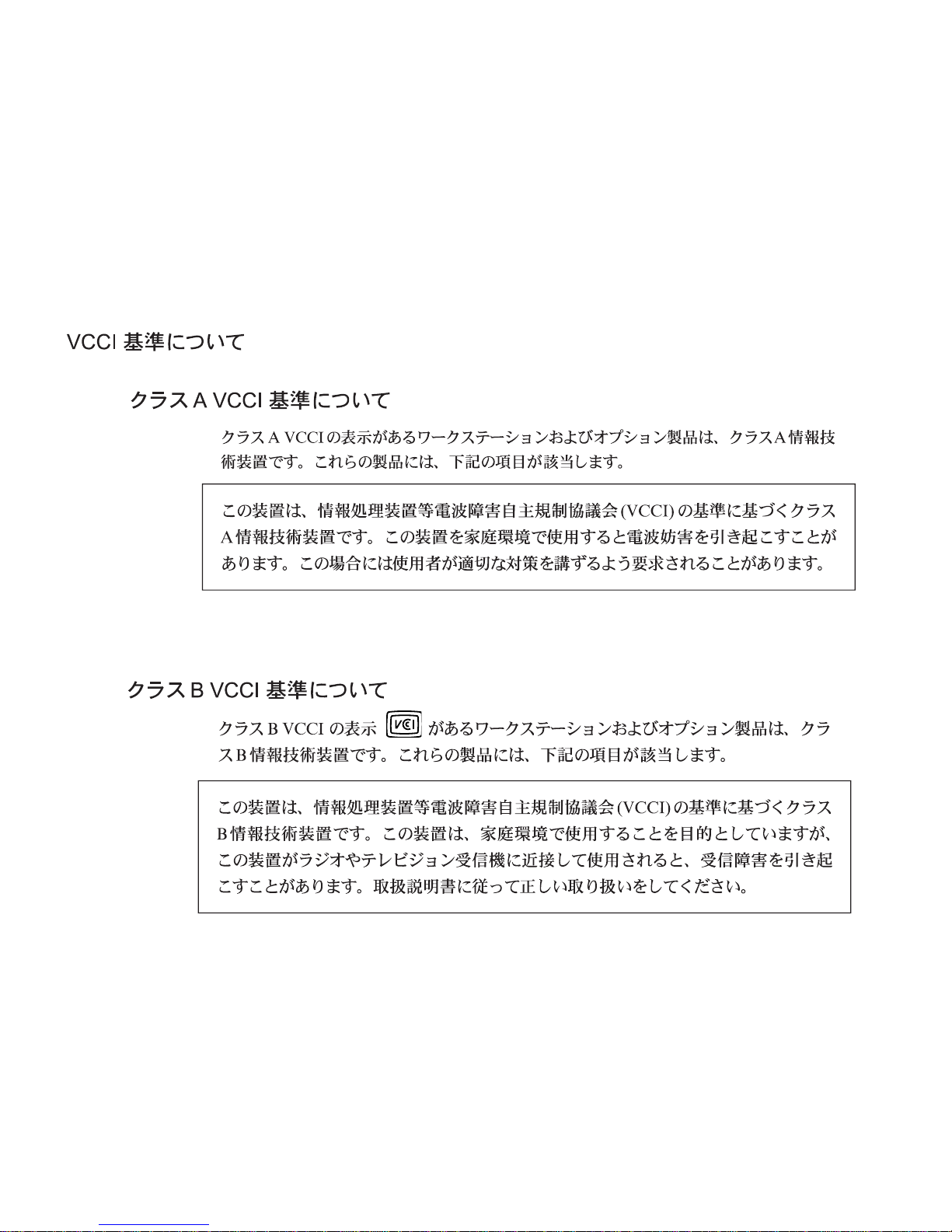
• Voluntary Control Council for Interference (VCCI) — Japan
Please read the appropriate section that corresponds to the marking on your Sun product before attempting to install the product.
FCC Class A Notice
This device complies with Part 15 of the FCC Rules. Operation is subject to the following two conditions:
1. This device may not cause harmful interference.
2. This device must accept any interference received, including interference that may cause undesired operation.
Note: This equipment has been tested and found to comply with the limits for a Class A digital device, pursuant to Part 15 of the FCC
Rules. These limits are designed to provide reasonable protection against harmful interference when the equipment is operated in a
commercial environment. This equipment generates, uses and can radiate radio frequency energy and, if not installed and used in
accordance with the instruction manual, may cause harmful interference to radio communications. Operation of this equipment in a
residential area is likely to cause harmful interference in which case the user will be required to correct the interference at his own
expense.
Shielded Cables: Connections between the workstation and peripherals must be made using shielded cables in order to maintain
compliance with FCC radio frequency emission limits. Networking connections can be made using unshielded twisted-pair (UTP)
cables.
Modifications: Any modifications made to this device that are not approved by Sun Microsystems, Inc. may void the authority
granted to the user by the FCC to operate this equipment.
FCC Class B Notice
This device complies with Part 15 of the FCC Rules. Operation is subject to the following two conditions:
1. This device may not cause harmful interference.
2. This device must accept any interference received, including interference that may cause undesired operation.
Note: This equipment has been tested and found to comply with the limits for a Class B digital device, pursuant to Part 15 of the FCC
Rules. These limits are designed to provide reasonable protection against harmful interference in a residential installation. This
equipment generates, uses and can radiate radio frequency energy and, if not installed and used in accordance with the instructions,
may cause harmful interference to radio communications. However, there is no guarantee that interference will not occur in a
particular installation. If this equipment does cause harmful interference to radio or television reception, which can be determined by
turning the equipment off and on, the user is encouraged to try to correct the interference by one or more of the following measures:
• Reorient or relocate the receiving antenna.
• Increase the separation between the equipment and receiver.
• Connect the equipment into an outlet on a circuit different from that to which the receiver is connected.
• Consult the dealer or an experienced radio/television technician for help.
Shielded Cables: Connections between the workstation and peripherals must be made using shielded cables in order to maintain
compliance with FCC radio frequency emission limits. Networking connections can be made using unshielded twisted pair (UTP)
cables.
Modifications: Any modifications made to this device that are not approved by Sun Microsystems, Inc. may void the authority
granted to the user by the FCC to operate this equipment.
iii
Page 4
DOC Class A Notice - AvisDOC, Classe A
This Class A digital apparatus meets all requirements of the Canadian Interference-Causing Equipment Regulations.
Cet appareil numérique de la classe A respecte toutes les exigences du Règlement sur le matériel brouilleur du Canada.
DOC Class B Notice - AvisDOC, Classe B
This Class B digital apparatus meets all requirements of the Canadian Interference-Causing Equipment Regulations.
Cet appareil numérique de la classe B respecte toutes les exigences du Règlement sur le matériel brouilleur du Canada.
iv Sun Elite3D Graphics Card Installation Guide • May 1999
Page 5

Contents
Before Installation 1
Installing the Elite3D Graphics 1
Attaching An Antistatic Wriststrap 1
Installing the Horizontal Elite3D Graphics into an Ultra 2 System 2
Installing the Vertical Elite3D Graphics 4
Changing the Monitor Screen Resolution 4
Sun Documentation on the Web 4
Sun Welcomes Your Comments 5
Contents iii
Page 6

iv Sun Elite3D Graphics Card Installation Guide • May 1999
Page 7

Installing Elite3D
Refer to the installation, service, and/or product note documentation provided with
your Sun™ Ultra™ workstation for detailed Elite3D graphics installation
instructions.
Before Installation
Refer to the Solaris Handbook for Sun Peripherals that corresponds to your operating
system. The handbook describes how to safely shut down the system before
installing any internal cards and rebooting your system after installation.
Installing the Elite3D Graphics
Refer to the documentation that came with your system or enclosure. Locate the
section that describes how to install or remove and replace a UPA graphics card.
Follow the UPA graphics card installation procedure or the removal and
replacement procedure to install the Elite3D graphics.
Attaching An Antistatic Wriststrap
You must attach a wriststrap before proceeding with the following instructions.
1
Page 8

Installing the Horizontal Elite3D
Graphics into an Ultra 2 System
To install the horizontal Elite3D graphics into an Ultra 2, proceed as follows:
Note – Refer to the Sun Ultra 2 Series Service Manual or the Sun Ultra 2 Series System
Product Notes, part number 802-5936-12 for additional Ultra 2 installation information.
1. Locate the UPA bus connector on the Ultra 2 motherboard (
2. Remove the retainer clip closest to the power supply.
3. Remove the Ultra 2 filler panel on slot 3 (
■ If applicable, remove any existing SBus boards from slots 2 and 3.
■ If applicable, remove any existing UPA graphics from the UPA bus.
4. Remove the Elite3D graphics board from the antistatic bag.
5. Install the Elite3D filler panel, supplied in the installation kit, on SBus slot 3.
Using a number 2 Phillips-head screwdriver, secure the washers and screws
provided in the installation kit.
FIGURE 1).
FIGURE 1).
Note – The cosmetic strip side must face the chassis exterior ( FIGURE 1).
UPA slot
(Elite3D 13W3 connector)
Filler panel screw/washer (2)
SBus slot 3
(Elite3D filler panel)
FIGURE 1 Ultra 2 Back Panel
2 Sun Elite3D Graphics Card Installation Guide • May 1999
Elite3D Backplate screw (3)
Page 9

6. Lower the Elite3D into the chassis (at an approximate 45-degree angle) with one
hand. With your other hand, guide the Elite3D backplate extension tab through
back panel slot 3 (
FIGURE 2).
7. Pull up on the Elite3D backplate extension tab through the back panel slot
(
FIGURE 2).
8. While holding up the Elite3D backplate extension tab, lower the Elite3D over the
UPA bus connector on the motherboard (
FIGURE 2).
Elite3D backplate extension tab
Back panel slot
Ultra 2
back panel
UPA bus
connector
FIGURE 2 Installing Elite3D
9. Pushing the Elite3D against the chassis back panel, carefully press both corners of
the board evenly to push the Elite3D interface connector into the motherboard
UPA bus connector.
10. Lock the UPA bus connector retainer clip onto the Elite3D.
Elite3D backplate extension tab
Installing Elite3D 3
Page 10

11. Using a number 2 Phillips-head screwdriver, secure the Elite3D backplate
connectors to the chassis with the provided screws (
12. Close and reboot your system.
FIGURE 1).
13. Connect the monitor cable to the Elite3D 13W3 monitor connector (
14. Install Elite3D software.
Refer to the software installation instructions provided with your Elite3D
CD-ROM packaging.
FIGURE 1).
Installing the Vertical Elite3D Graphics
To install the vertical Elite3D graphics into a platform (such as the Ultra 10, Ultra 30,
or Ultra 60), refer to the respective platform installation guide.
Changing the Monitor Screen Resolution
For most installations, the Elite3D automatically configures itself to the proper
screen resolution and refresh rate for your monitor. However, if a non-Sun monitor
is connected to the Elite3D, the monitor may have the wrong screen resolution.
To change the screen resolution, read the afbconfig man page and the Solaris
Handbook for Sun Frame Buffers document, which is available in your AnswerBook™.
The platform notes also describe how to configure your system for use with more
than one monitor.
Sun Documentation on the Web
The docs.sun.comSMweb site enables you to access Sun technical documentation
on the Web. You can browse the docs.sun.com archive or search for a specific book
title or subject at:
http://docs.sun.com
4 Sun Elite3D Graphics Card Installation Guide • May 1999
Page 11

Sun Welcomes Your Comments
We are interested in improving our documentation and welcome your comments
and suggestions. You can email your comments to us at:
docfeedback@sun.com
Please include the part number of your document in the subject line of your email.
Installing Elite3D 5
 Loading...