

Page 1
For ongoing product improvement, this manual is subject to modification without prior notice.
STB378
Page 2
Receive up to 45 popular TV channels, watch up to 700 programs in VOD format,
stream videos from the most popular video or movie websites, listen over 10K
radio stations, Browser, Map, Game, Education, News, Social Media..., all in one,
all free, this is Smart TV Box.
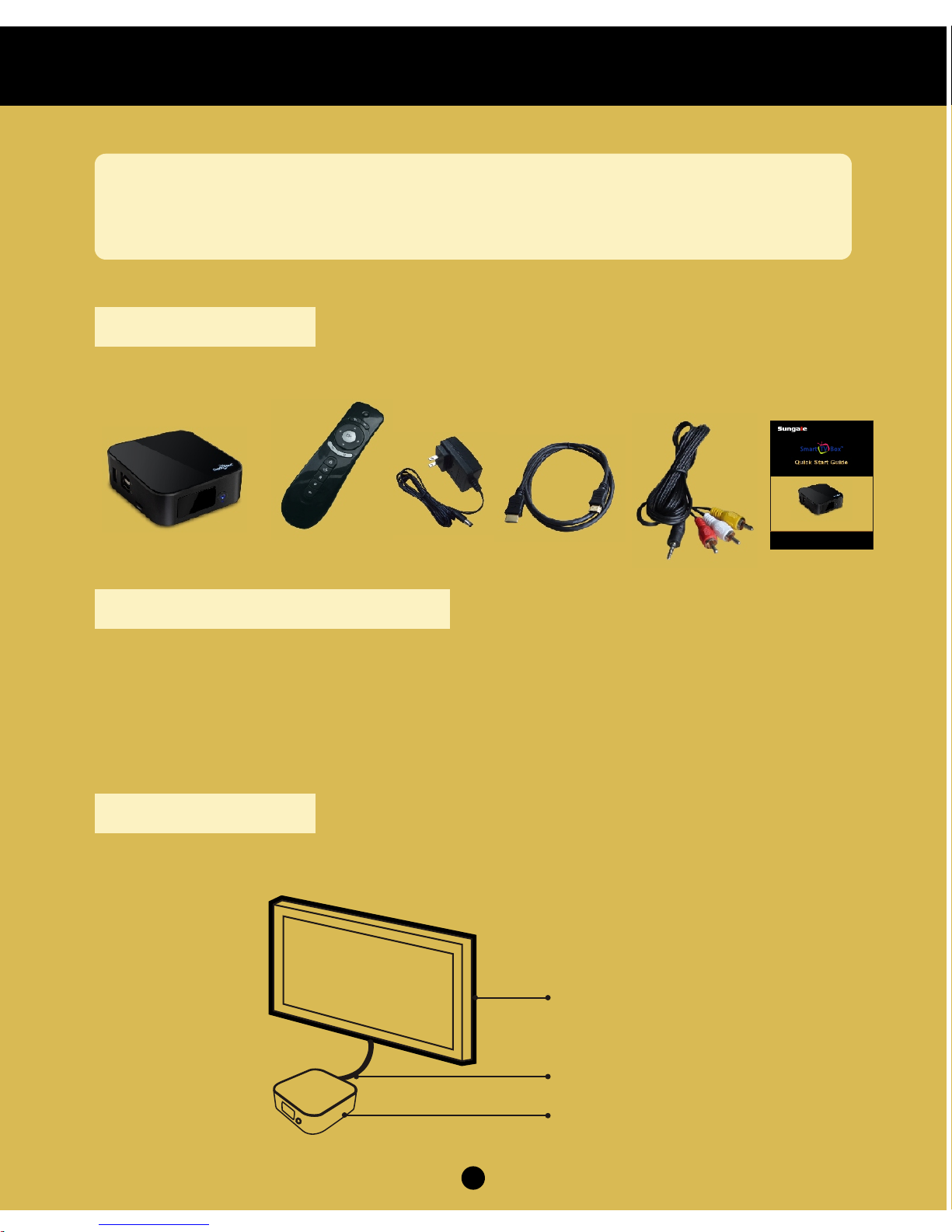
1. Accessories:
Here's what you should find inside the packing box:
2. Necessary Surrounding:
1) Internet access necessary. For best performance, a connection speed no less
than 6 Mbps is recommended. Wi-Fi module is built-in.
2) It is strongly recommended to connect the Smart TV Box to your TV set via a HDMI
cable. A/V Out Connection is also available, but will not produce a HD output.
3. Setup Steps:
1) Connect the Smart TV Box to your TV set with the included HDMI cable.
Quick Start Guide
1
TV
HDMI cable
Smart TV Box
STB378
For ongoing product improvement, this manual is subject to modification without prior notice.
Page 3
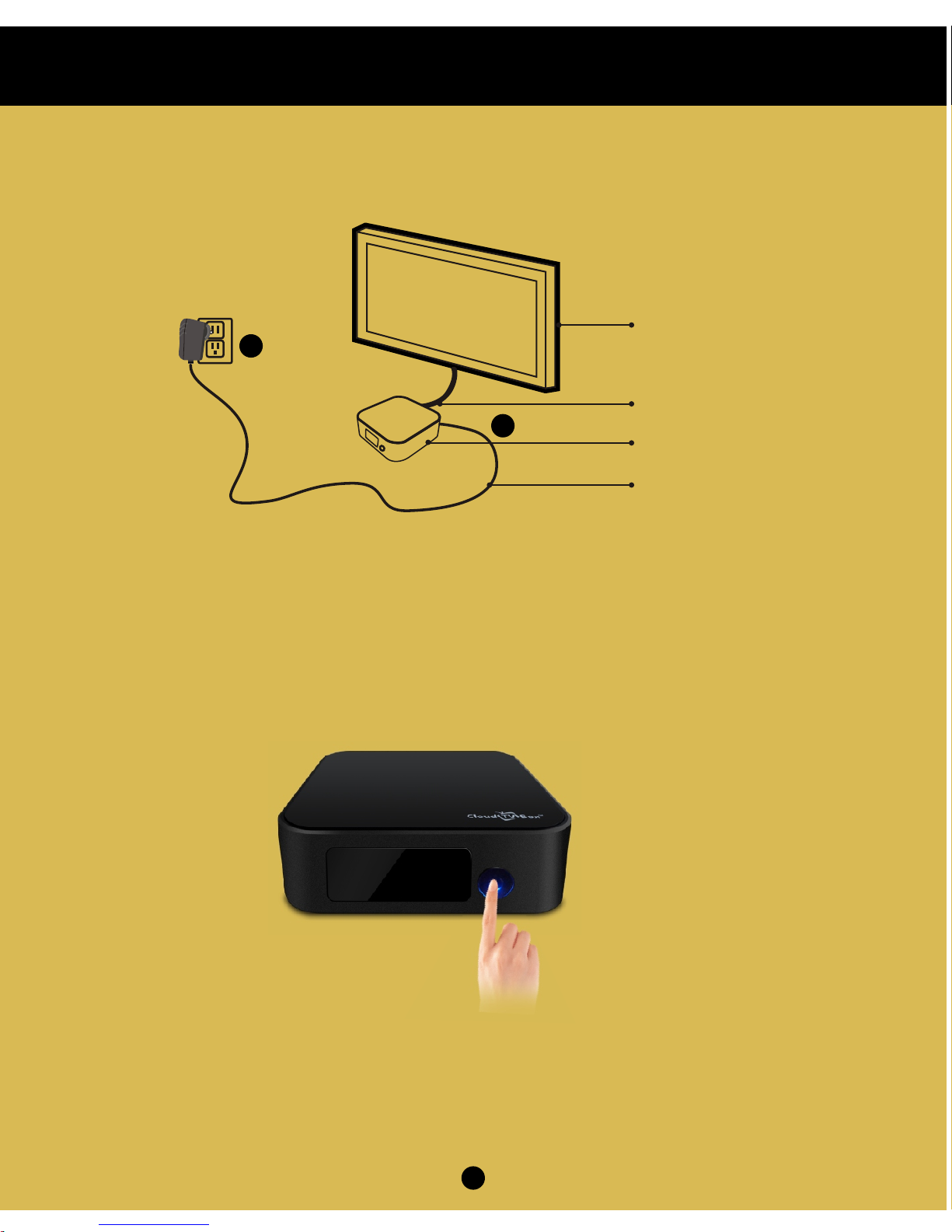
2) Plug the power adaptor into an outlet, and plug the output end into the Box.
TV
HDMI cable
Smart TV Box
Power adaptor
1
2
2
Quick Start Guide
3) Use your TV remote to set your TV's input as HDMI.
4) Press power button on front side for 3 seconds to turn on the box, you will see
Start-on Logo, and booting prompt on your TV screen. In approximately 50
seconds later, you will see the home page of the Box.
5) Put two AAA batteries (not included) into the remote controller.
Page 4
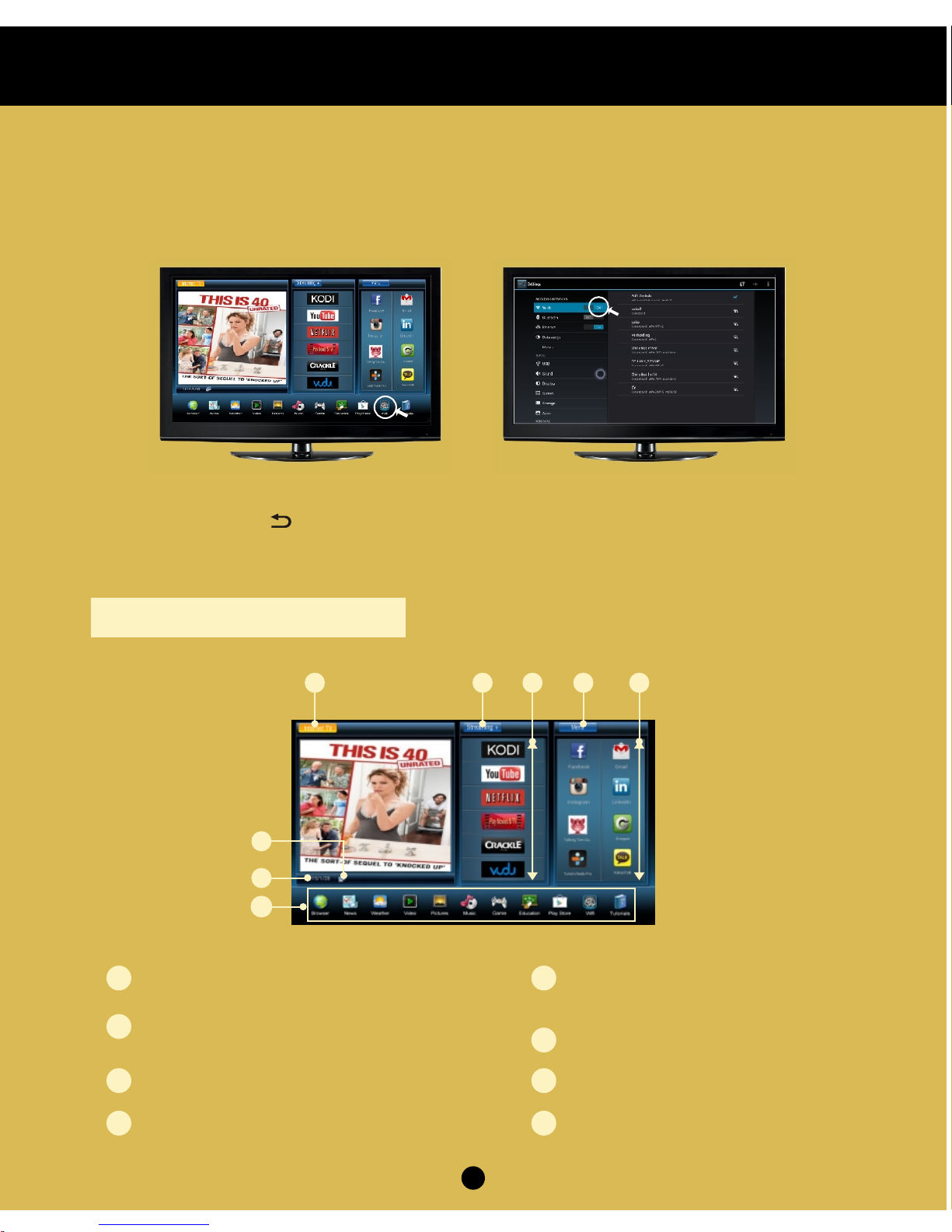
6) You will see a focus on the screen. Select the " Wi-Fi" icon on the bottom of the
screen, then, following the prompt on the screen, select your wireless network
and input your password on the input area. Finally, select “Connect” to link to
internet. (See below figures)
7) Press “Return” ( ) key on the remote controller to get back the home page,
then you can select the programs you want to watch.
Quick Start Guide
4. Main menu overview:
1
2
3
4
5
8
6
7
Select the button for Online TV programs
1
2
3
4
5
6
7
8
Select the button to add more
Internet video sources
Move the focus up and
down for more Internet video
Select the buttons for all APPs
Show if the network is connected
For more functions
Move the focus up and down
for more APPs
Date
3
Page 5
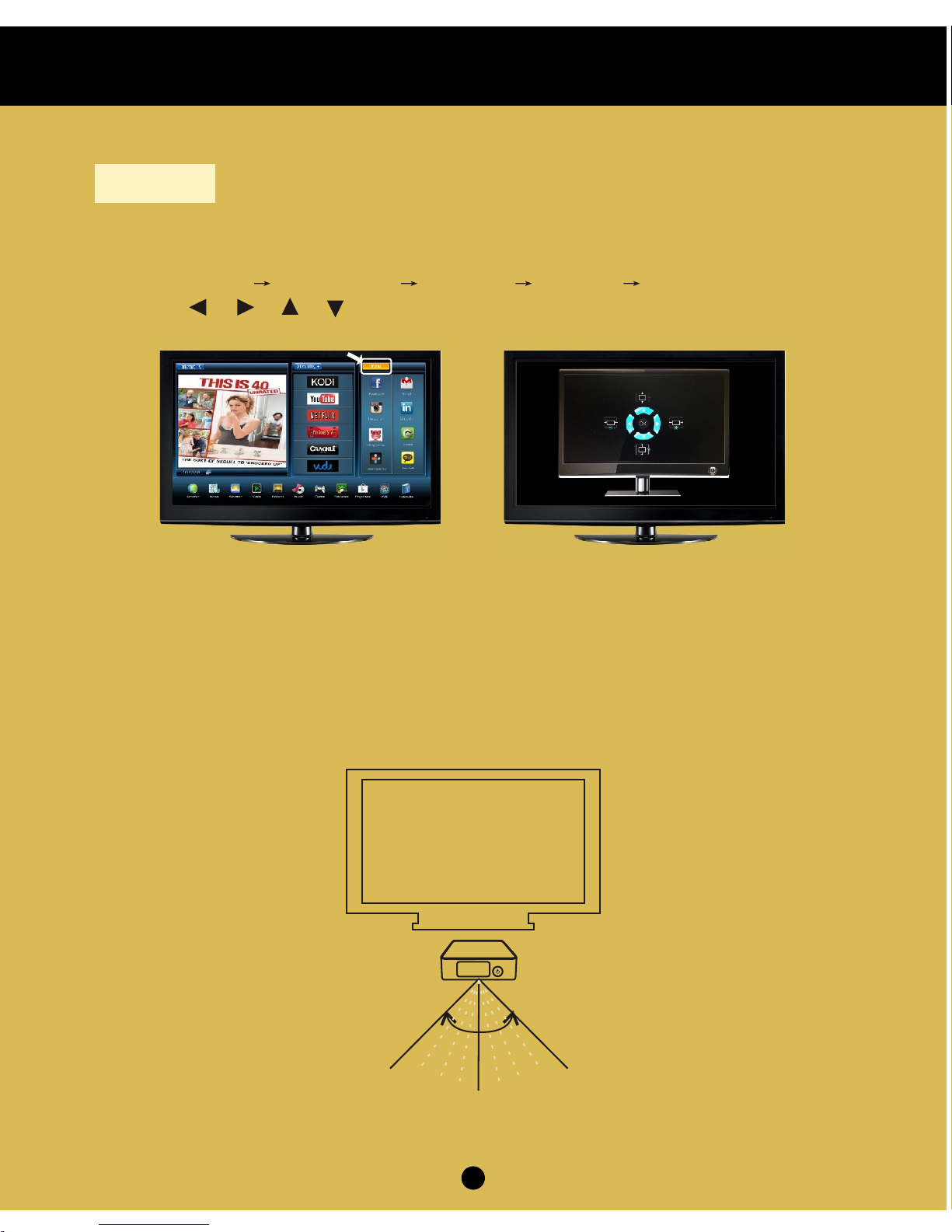
2) The default output of the Box is HDMI and AV OUT, so you only need to adjust
the input mode of your TV set, don’t worry about the output setting of the Box.
3) For better remote control result, please make sure the Box front panel face
forward, not blocked by any surface. And the best angels to use the remote
controller is 90 degrees, see below figure.
0
45
0
45
Best remote control angle
Quick Start Guide
4
1) The Smart TV Box will auto-detect the TV’s screen size, and auto-fit the display
area. In case you find the display area does not fit your television screen, please
select "Menu" "System app" "Settings "Display" "Screen scale", then
press ( ), ( ), to adjust the screen display area. (See below figures)
"
( ), ( )
5. Tips:
Page 6
2. Contact Sungale Support team
1. Visit the support site.
For manual download, FAQs and more supports: www.sungale.com
Toll free number in the USA: 800-473-5156
Service email: [email protected]
7. Support:
5
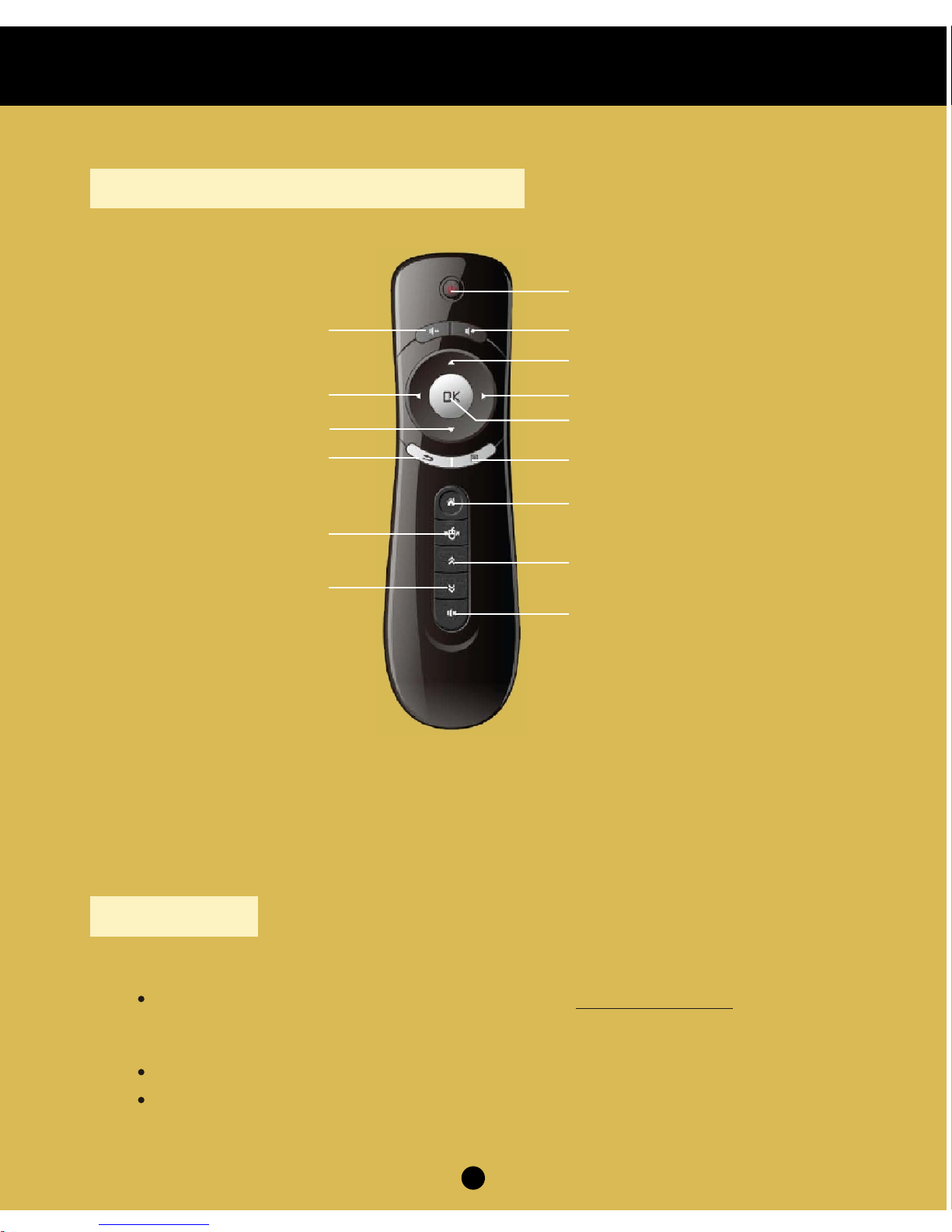
6. Remote controller instructions:
Power off
Volume Down Volume Up
Enter
Back
Home screen
Cursor Lock / Unlock
Page up
Mute
Menu
Up (Direction key)
Down (Direction key)
Left (Direction key)
Right (Direction key)
Page down
Note: Insert remote control receiver into the USB port on the Smart TV Box before
you use the remote control.
Quick Start Guide
 Loading...