

Page 1

MODEL: KWS433
For ongoing product improvement, this manual is subject to modification without prior notice.
User's Manual
Wireless Internet Radio
Page 2

Before Operation
Product Introduction
Safety Precautions
2
3
5
6
7
Basic Operation
11
Advanced Operation
12
14
16
13
10
18
15
17
Product Overview
Radio and TV Interference Statement
Network
Display
Streaming Music
Internet Radio
Audio Books
Alarm
Weather
File Manager
System Upgrage
Voice Command
6
8
Turn on the device
Turn off the device
19
How to Connect to PC
Page 3

Features
Specifications
PRODUCT INTRODUCTION
Before Operation
2
Package Contents
Wireless Internet Radio
Quick start Guide
AC adaptor
Warranty card
2.1 sound channel: 2 channel stereo + Super bass
Display: 4.3inch capacitive LCD
Resolution: 272x480 pixels
Flash memory: 8GB
Wireless: 802.11b/g/n
Earphone jack: 3.5mm
USB port: Micro USB port
Speaker power output : 2*3W +1*5W ( Total 11W)
Dimensions: 10.16" x 5.16" x 2.76”
Stream more than 18,000 radio stations
Preloaded with Pandora, TuneIn, iHeartRadio, Spotify, audiobook.com
Backup list to add more music, radio and audio book apps
Weather report
Clock / Alarm
2 x 3W stereo speakers + 5W subwoofer speaker
Elegant appearance
8GB internal memory
Touch screen operation with shortcut keys
Support all popular audio formats
USB port to connect to your PC and external storage
Built-in 802.11/g/b/n Wi-Fi module links to Internet wirelessly
Page 4

Before Operation
3
SAFETY PRECAUTIONS
Page 5

Before Operation
4
SAFETY PRECAUTIONS
Page 6

5
PRODUCT OVERVIEW
Reset
5W Subwoofer
Push Button Controls
Power, Play/Pause, Back,
Voice Command/Alarm, Volume+, Volume-
Power Adapter Port
3.5mm Headphone Jack
Micro USB Port
Connect a PC or MAC to transfer
digital files to the built-in 8GB
internal memory
Before Operation
Page 7

6
Basic Operation
RADIO AND TV INTERFERENCE STATEMENT
WARNING!!! This equipment has been tested and found to comply with the limits of a Class
B digital device, pursuant to part 15 of the FCC rules. These limits are designed to provide
reasonable protection against harmful interference in a residential installation.
This equipment generates, uses and can radiate radio frequency energy and, if not installed
and used in accordance with the instruction, may cause harmful interference to radio
communications. However, there is no guarantee does cause interference will not occur in a
particular installation. If this equipment does cause harmful interference to radio or television
reception, which can be determined by turning the equipment off and on, the user is
encouraged to try to correct the interference by whatever measures may be required to
correct the interference.
TURN ON THE DEVICE
Hold on the power button, the booting logo will display on the screen, after several seconds,
the main menu will display on the screen.
Opened app list
Home Back
Page 8
7
Basic Operation
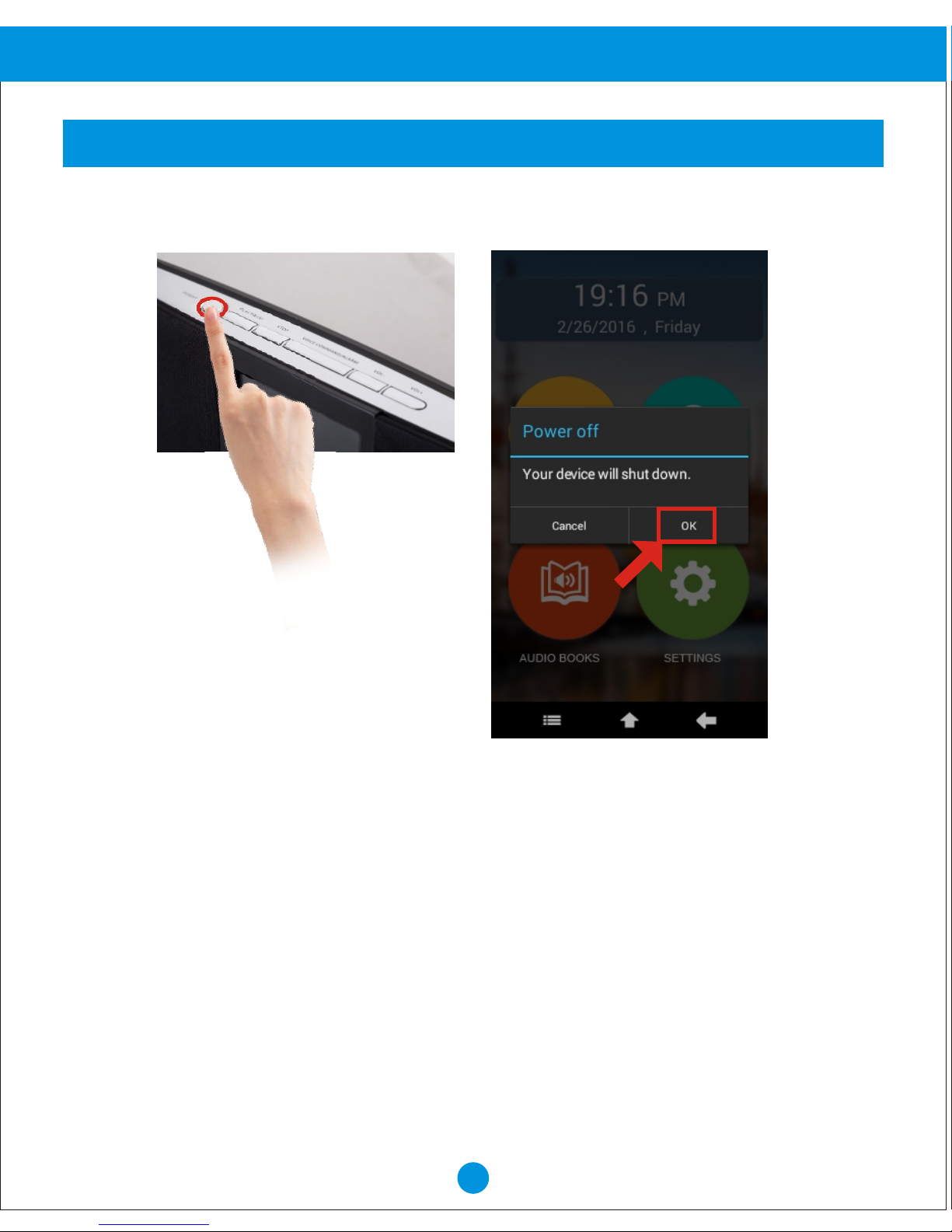
TURN OFF THE DEVICE
Hold on the power button, the below prompt box will display on the screen, then touch "OK"
to turn off the device.
Page 9
8
Basic Operation
NETWORK
Your device support Wi-Fi 802.11b/g/n. Use Wi-Fi settings to manage your device's
Wi-Fi connections.
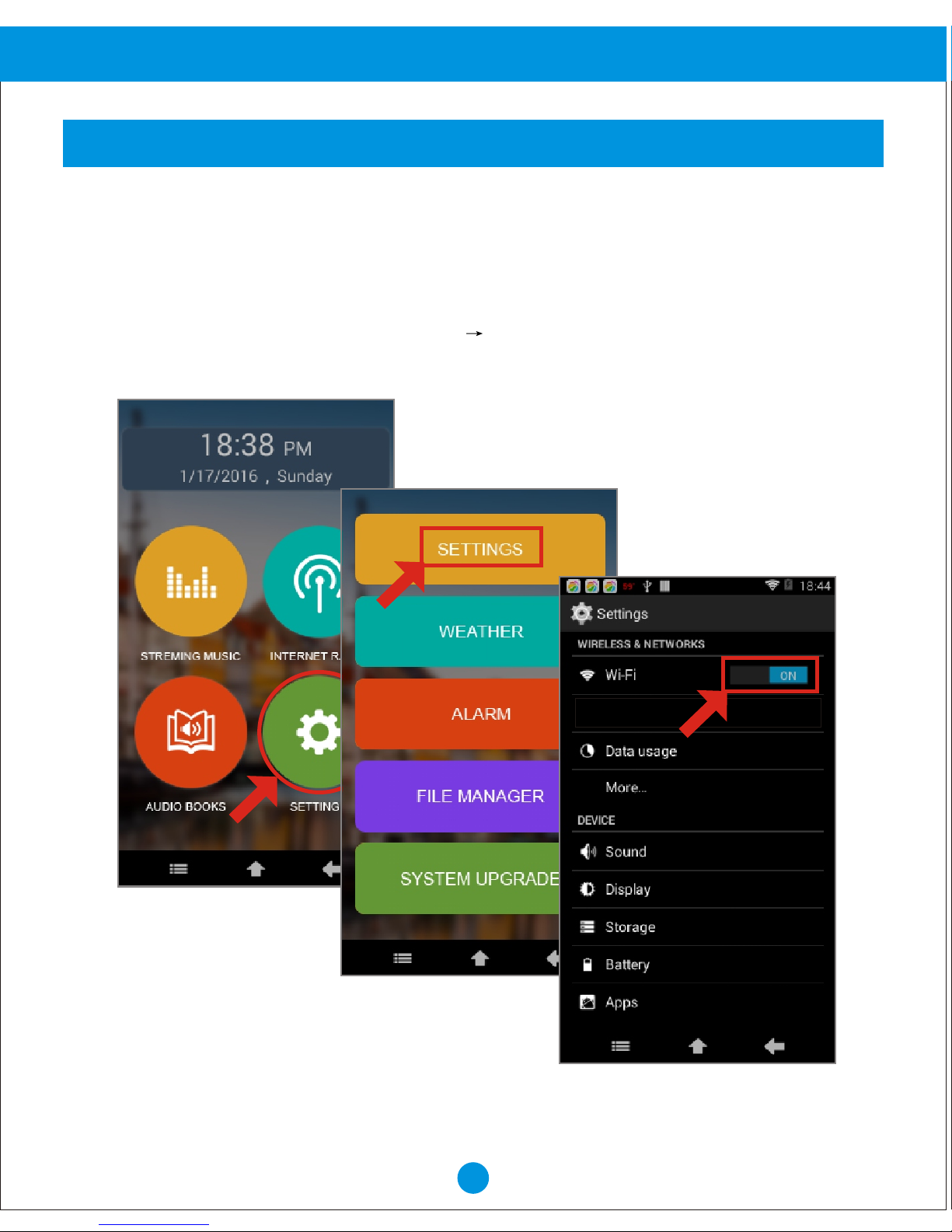
Turning Wi-Fi on or off
Turn your device's Wi-Fi service on or off. When you turn Wi-Fi service on, Your device
automatically searches for available, in range Wireless access Points( WAPs).
1. From Home screen, Touch "SETTINGS" "SETTINGS".
2. Touch Wi-Fi to turn Wi-Fi "ON" or "OFF".
Page 10
9
Basic Operation
NETWORK
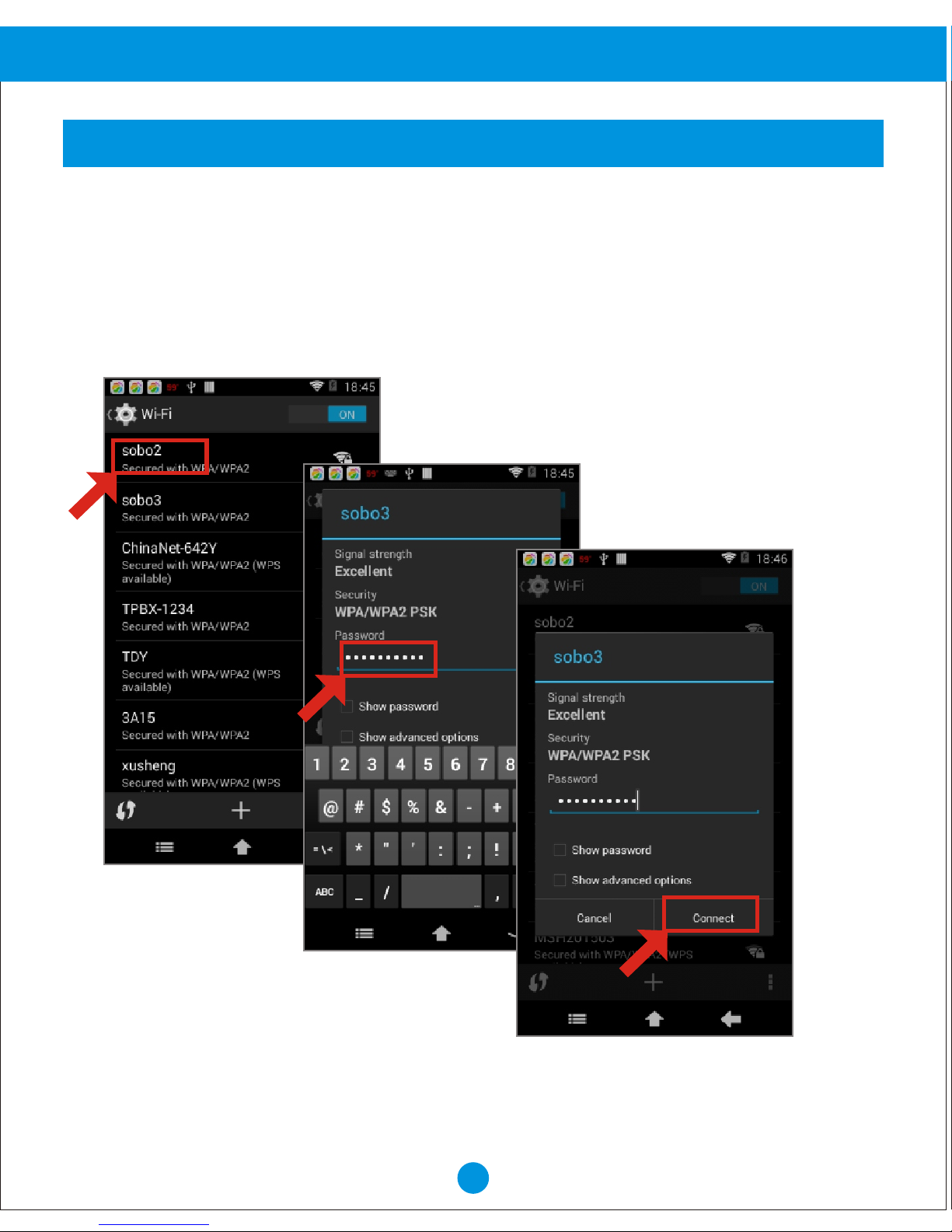
Your device scans for available Wi-Fi networks and displays the names of those it finds,
Secured networks are indicated with a Lock icon, if your device finds a network that you
connected to previously, it connects to it, if not:
Scan
1. Touch the Network you want to connect to.
2. Use the keyboard to enter the Password.
3. Touch "Connect".
Page 11
10
Basic Operation
DISPLAY
Brightness
Set the default screen brightness.
1. From Home screen, touch "SETTINGS" "SETTINGS” "Display" "Brightness".
2. Touch and drag the slider to set the brightness.
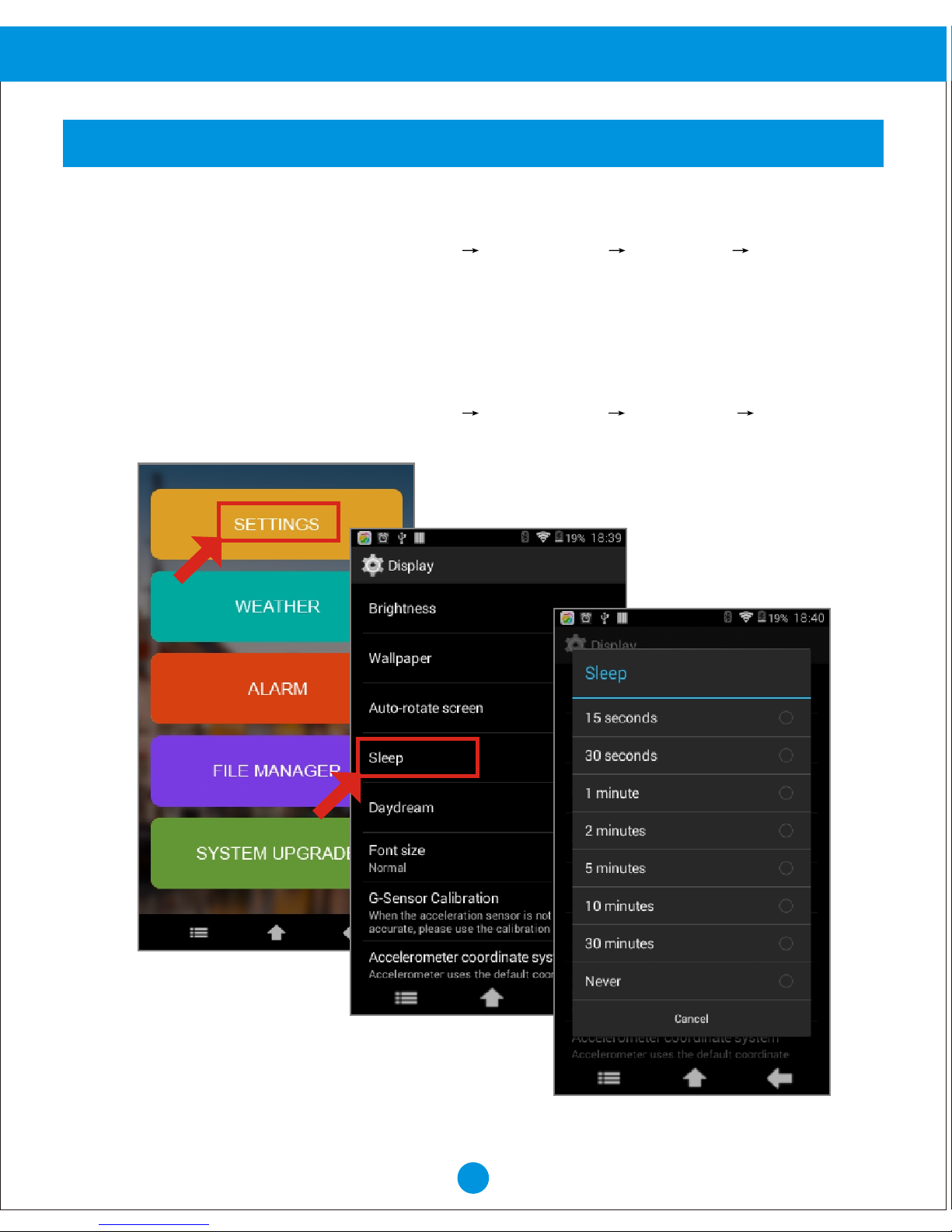
Sleep
Set the length of delay between the last key press or screen touch and the automatic screen
timeout (dim and lock).
1. From Home screen, touch "SETTINGS" "SETTINGS" "Display" "Sleep".
2. Select the desired setting.
Page 12
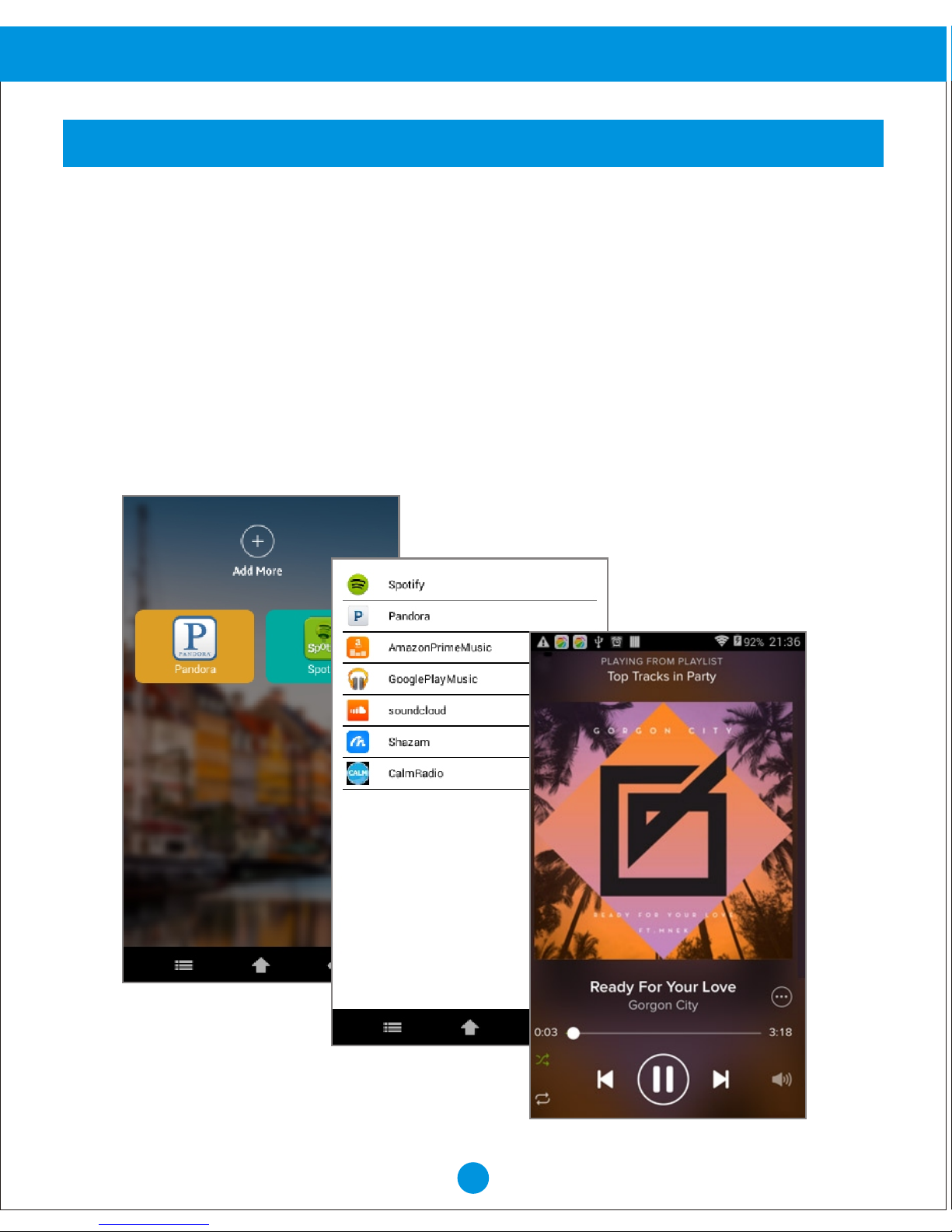
If you are using your device for the first time, please follow below instructions how to install
the music app onto the device. After the initial setup, you may just touch the music app
on the display to stream music.
1. From Home screen, Touch "STREAMING MUSIC".
2. Touch "+" to see the supported apps.
3. Touch the app that you like to add to your device.
4. Touch "Yes" in the pop up window.
5. Touch "Yes" to confirm the download (please do not change the screen during download).
6. Touch "Yes" to start the installation.
7. Touch "Next" and then "install" to install the app.
8. Touch "Open" to start using the application or "Done" to go back to the main menu.
11
STREAMING MUSIC
Advanced Operation
Page 13
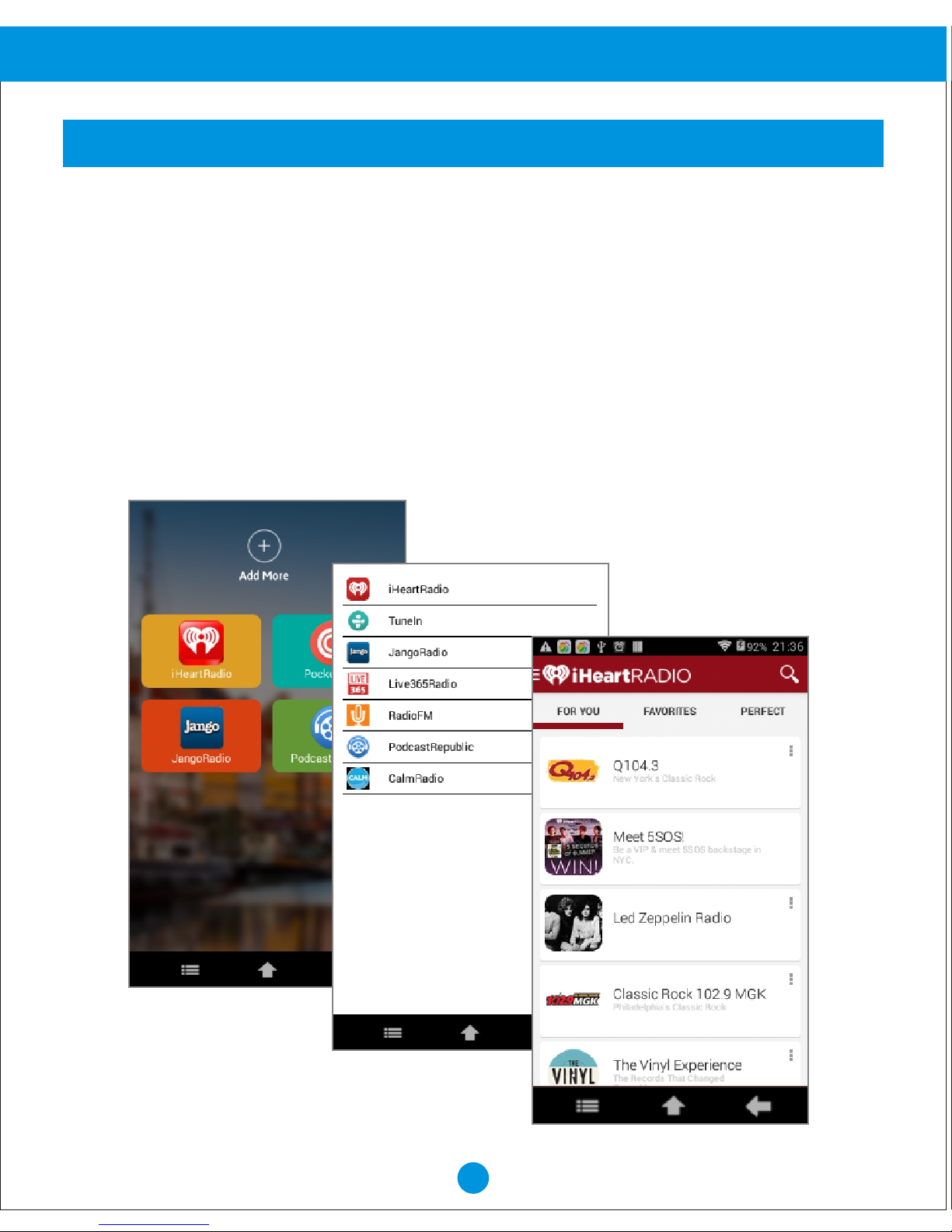
If you are using your device for the first time, please follow below instructions how to install
the radio app onto the device. After the initial setup, you may just touch the radio app on
the display to listen to the radio.
1. From Home screen, Touch "INTERNET RADIO".
2. Touch "+" to see the supported apps.
3. Touch the app that you like to add to your device.
4. Touch "Yes" in the pop up window.
5. Touch "Yes" to confirm the download (please do not change the screen during download).
6. Touch "Yes" to start the installation.
7. Touch "Next" and then "install" to install the app.
8. Touch "Open" to start using the application or "Done" to go back to the main menu.
12
Advanced Operation
INTERNET RADIO
Page 14
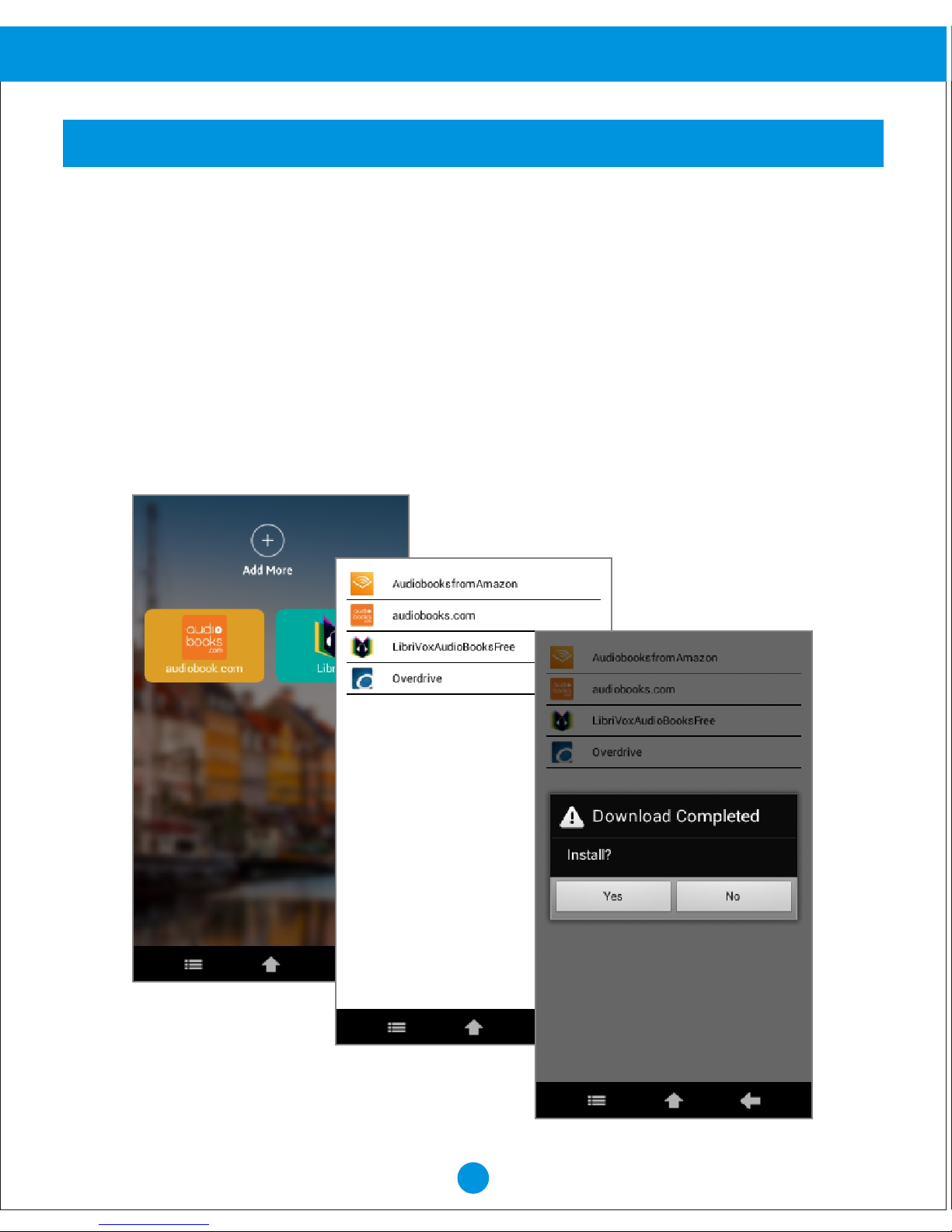
If you are using your device for the first time, please follow below instructions how to
install the audio book app onto the device. After the initial setup, you may just touch
the audio book app on the display to listen to the audio book.
1. From Home screen, Touch "AUDIO BOOKS".
2. Touch "+" to see the supported apps.
3. Touch the app that you like to add to your device
4. Touch "Yes" in the pop up window
5. Touch "Yes" to confirm the download (please do not change the screen during download)
6. Touch "Yes" to start the installation
7. Touch "Next" and then "install" to install the app
8. Touch "Open" to start using the application or "Done" to go back to the main menu.
13
Advanced Operation
AUDIO BOOKS
Page 15
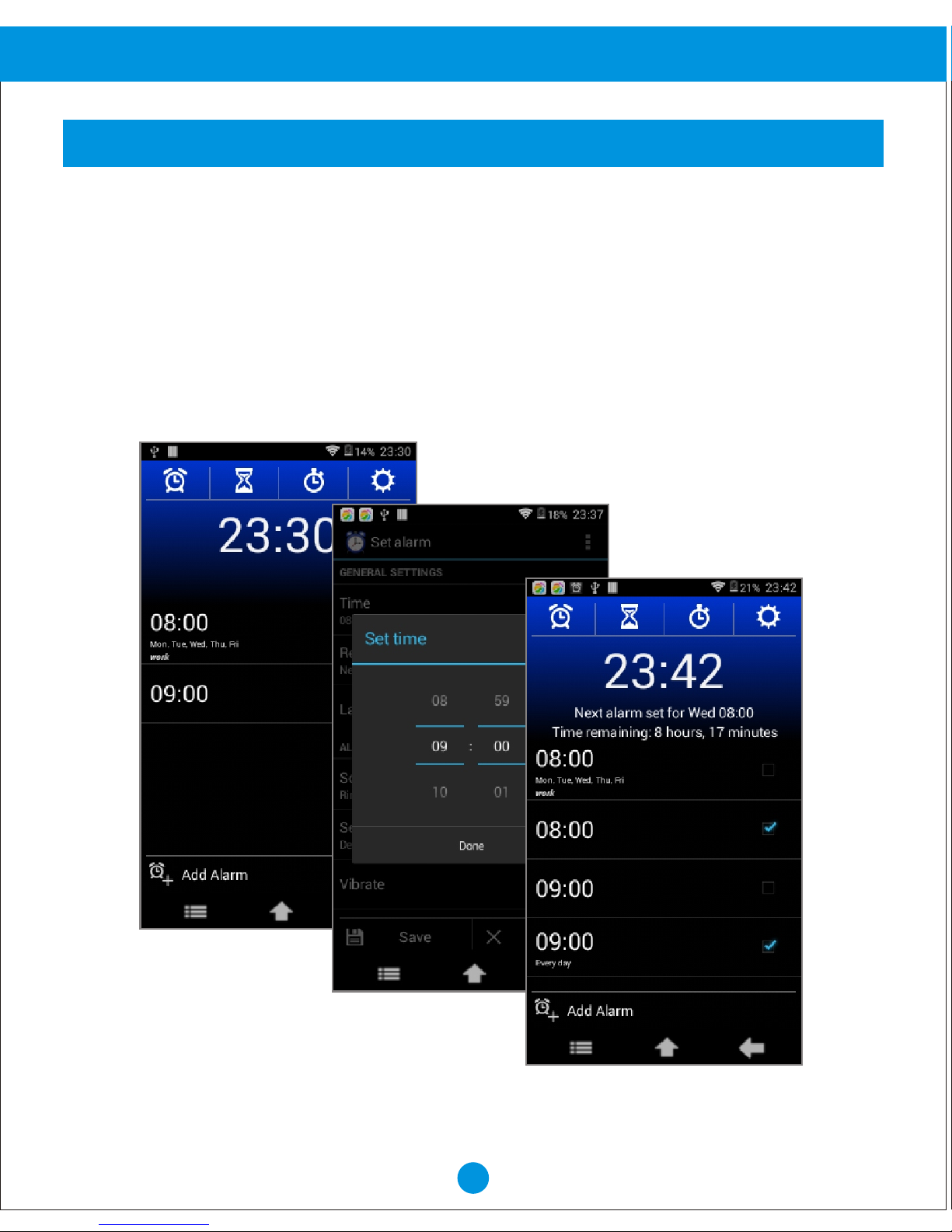
If you are using the your device for the first time, please follow below instructions on how to set
alarms on the device.
1. From home scree, press the "Voice command/Alarm" button on the top of the device, or
touch "SETTINGS" then touch "ALARM" on the screen, to go into ALARM setting.
2. Touch "Add alarm".
3. Touch "Time" to set the desired time and touch "Done".
4. Touch "Repeat" to set the days for alarm.
5. Touch "Label" to set the name of the alarm.
6. Touch "Save".
14
Advanced Operation
ALARM
Page 16
15
Advanced Operation
WEATHER
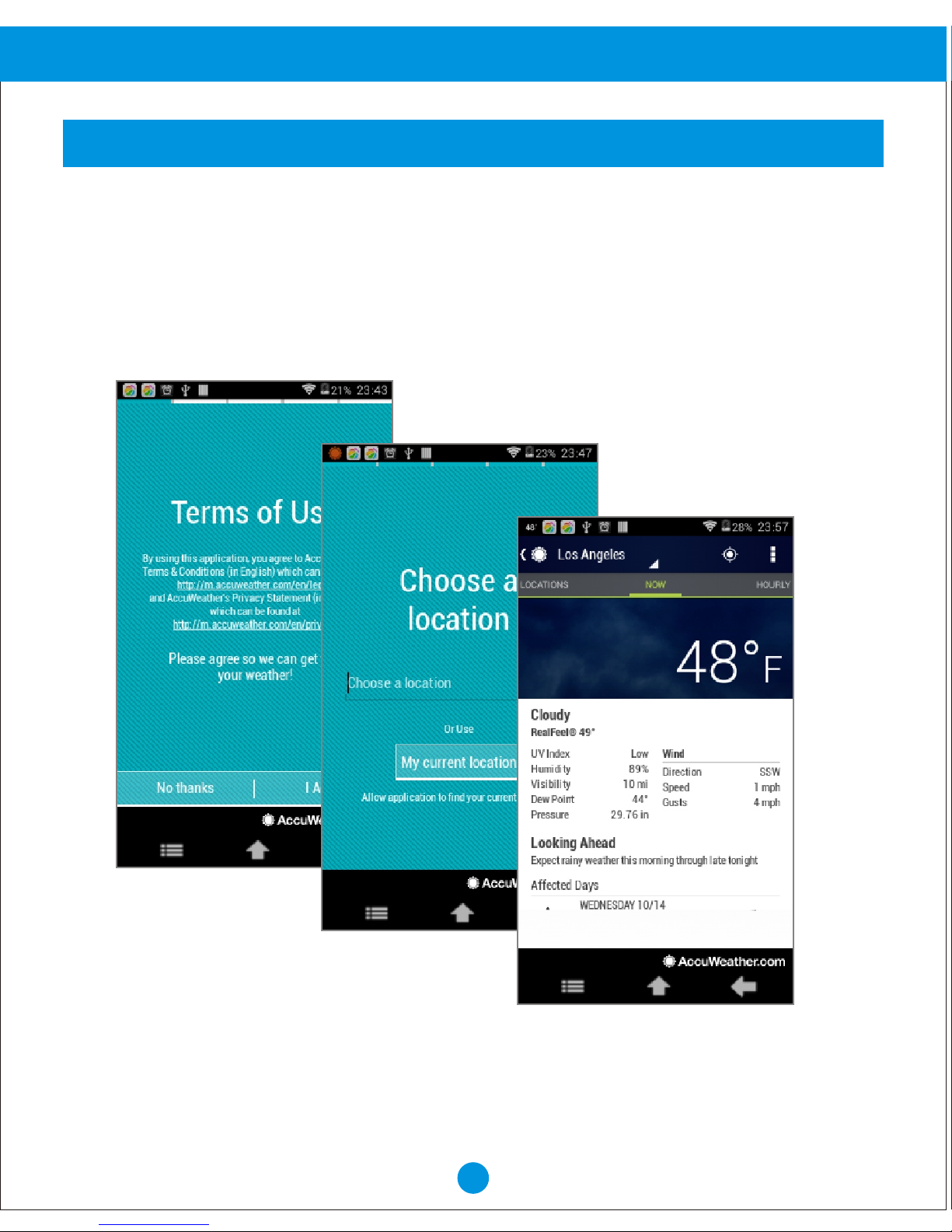
If you are using the your device for the first time, please follow below instruction on how
to set the weather of the city to be displayed.
1. From Home screen, touch "SETTINGS" then touch "WEATHER".
2. Touch "I Agree".
3. Touch "next", and touch "Do it", then type the city name and press Done.
Page 17
16
Advanced Operation
FILE MANAGER
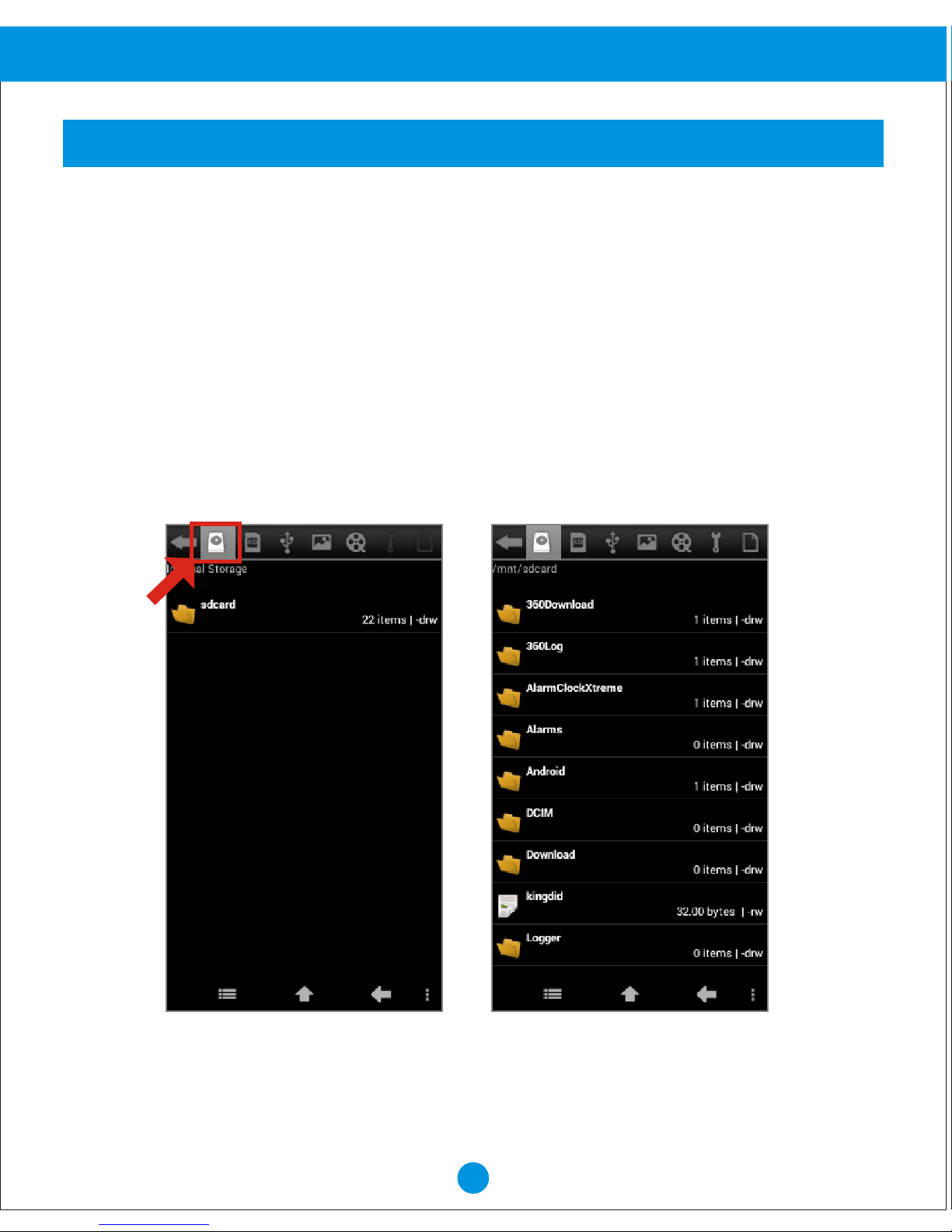
From Home screen, touch "SETTINGS", then touch "FILE MANAGER".
The fourth and fifth tab consolidate all your image and video files in both your internal
and external storage.
The third tab lists your external USB drive contents. If you have connected a external
USB drive to the device, please find its content under this tab.
The second tab lists your external SD card contents. If you have connected a external
SD card to the device, please find its content under this tab.
The first tab lists your internal storage contents, with a folder labeled "sdcard". You can
connect your device to a computer, copy files into the device internal storage, and find
them under this tab.
Touch the different tabs on the top of the screen to select different storage location.
Page 18
17
Advanced Operation
SYSTEM UPGRAGE
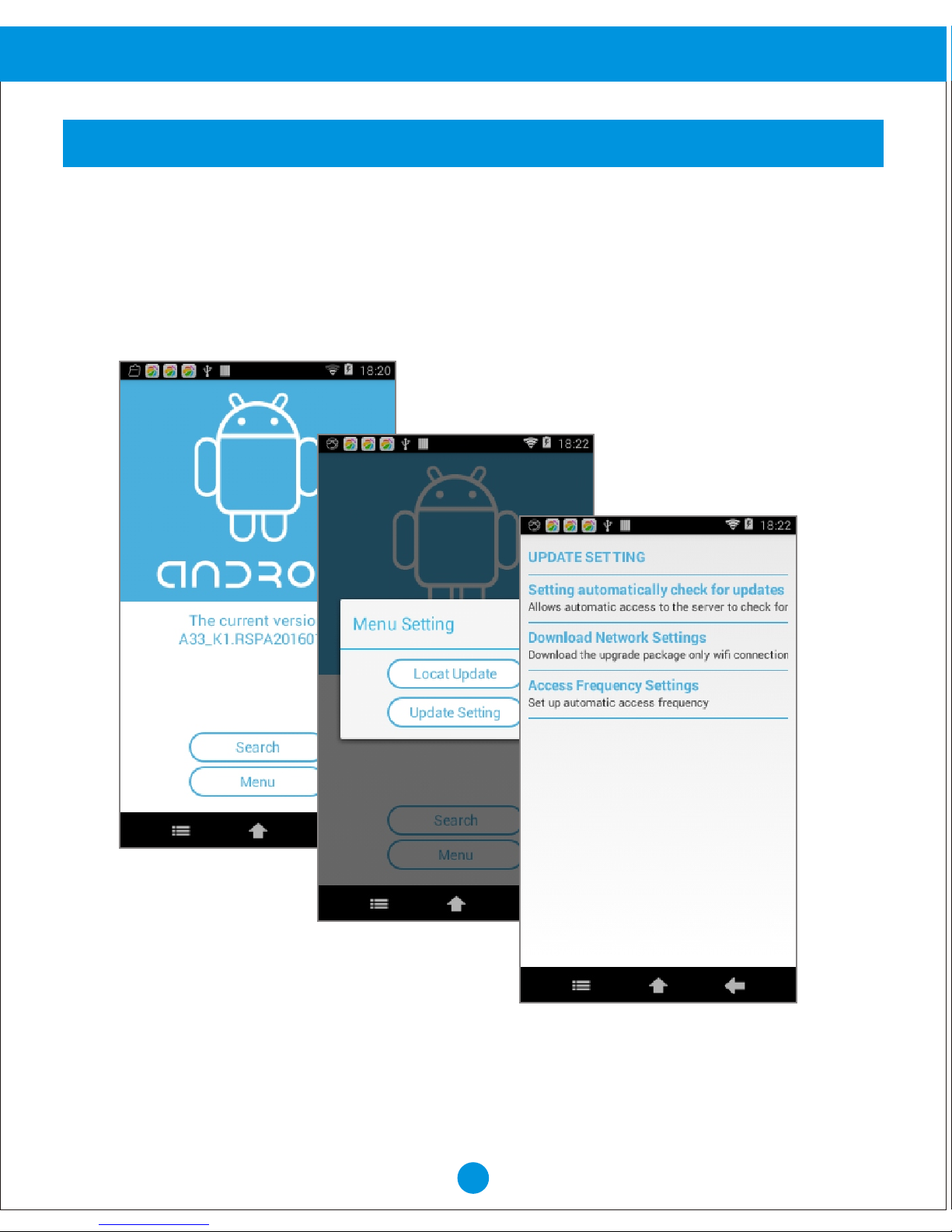
Touch "Search" to search the latest firmware. If there is available upgrade, you should
follow the screen prompt to download and install the upgrade, usually will be followed by
a system auto reboot. If there is no available upgrade, just follow the screen prompt and
click "Cancel" button.
From Home screen, touch "SETTINGS", then touch "SYSTEM UPGRADE".
Page 19
18
Advanced Operation
VOICE COMMAND
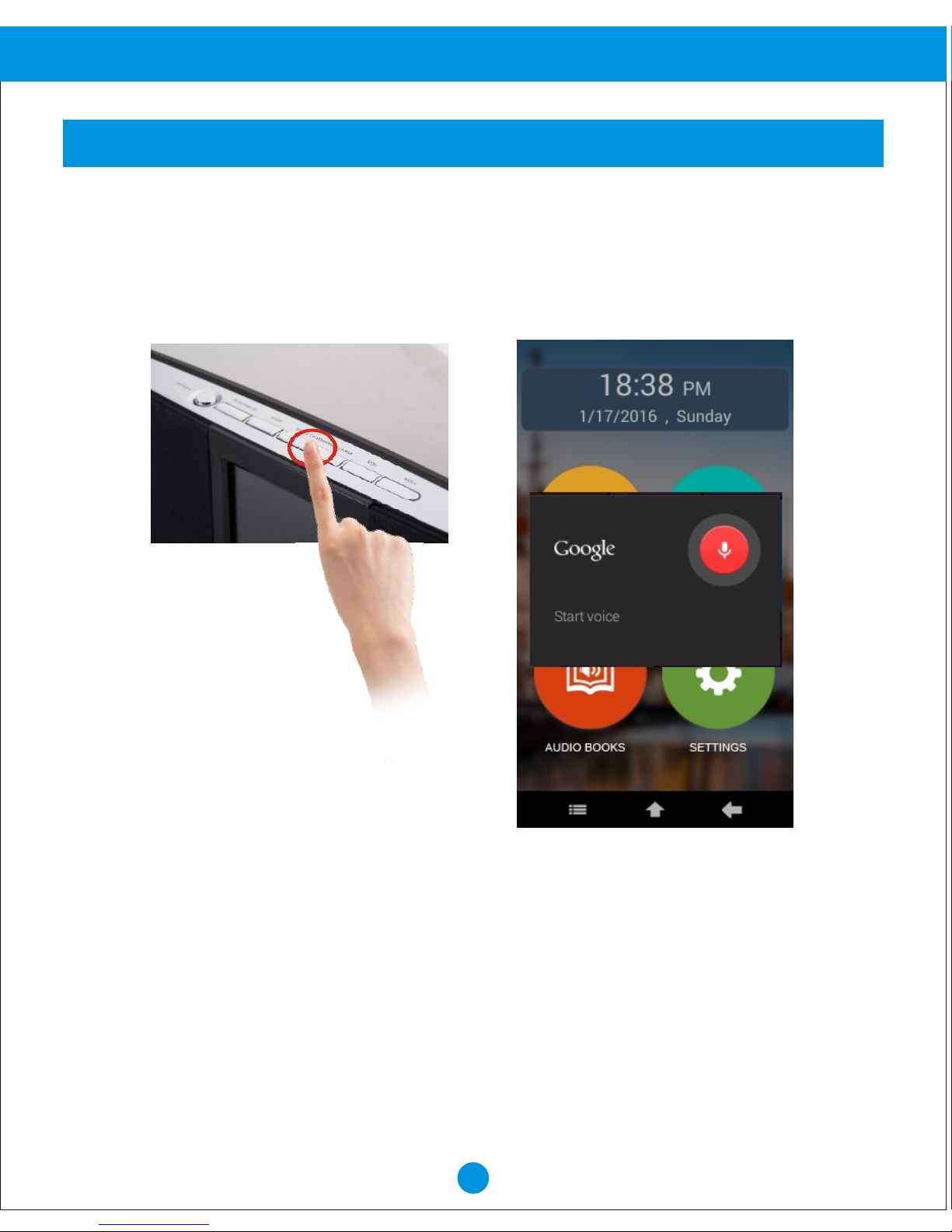
1. Press and hold the "Voice command/Alarm" button at the top of the device.
2. Once prompted on the screen, please say the desired app name you have already
installed in the device.
3. You will then see the desired app displaying on the screen.
Page 20
19
Advanced Operation
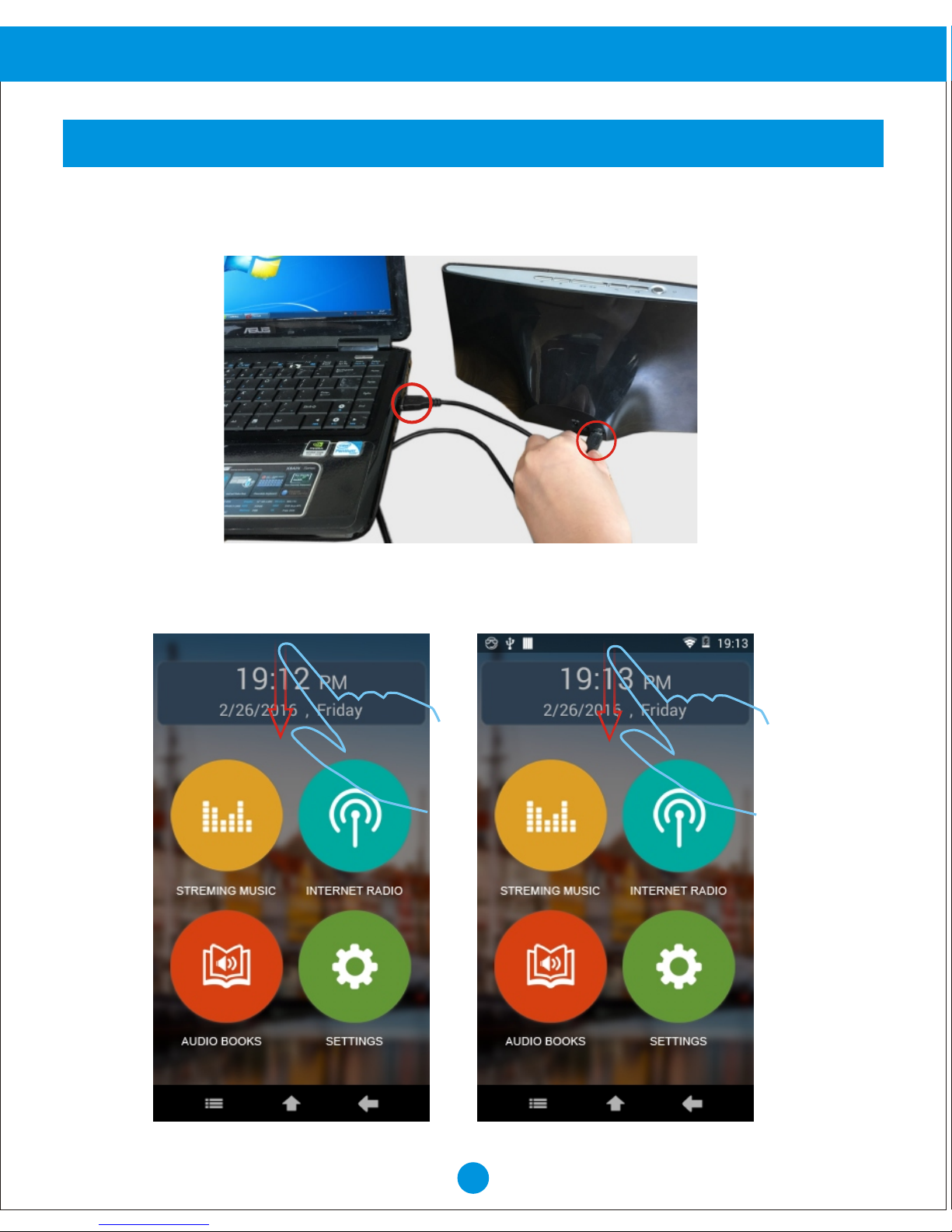
HOW TO CONNECT TO PC
1. Find a micro USB cable, connect one end to your PC, and the other end to your
device USB port.
2. From the home screen, touch the top of the screen, hold and slide down to draw up
the status bar.
Page 21
20
Advanced Operation
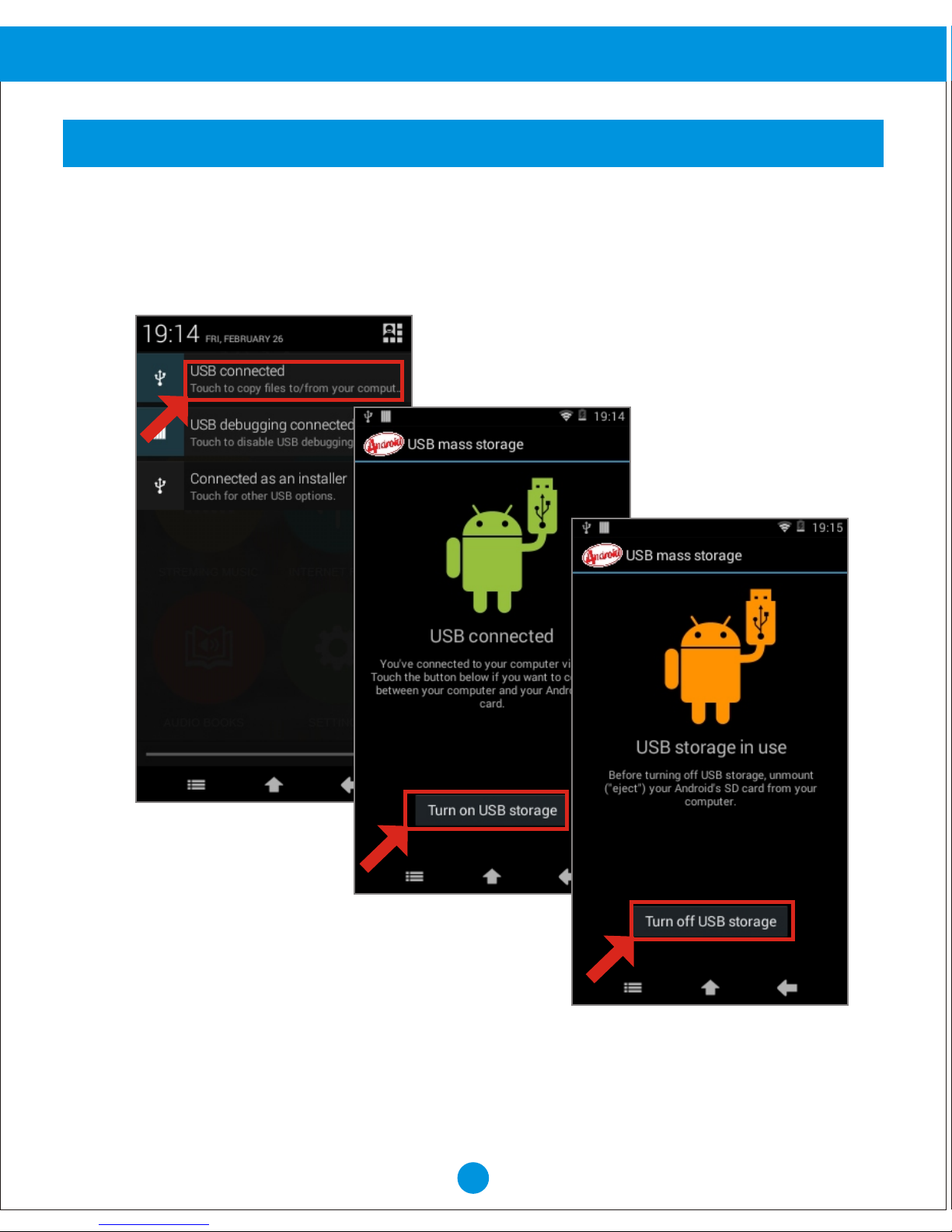
HOW TO CONNECT TO PC
3. Select "USB connected", then touch "Turn on USB storage", then you can copy the
files from your PC to the device.
4. Touch "Turn off USB storage" to disconnect to PC.
Page 22
21
FCC and Safety Information
 Loading...