

Page 1
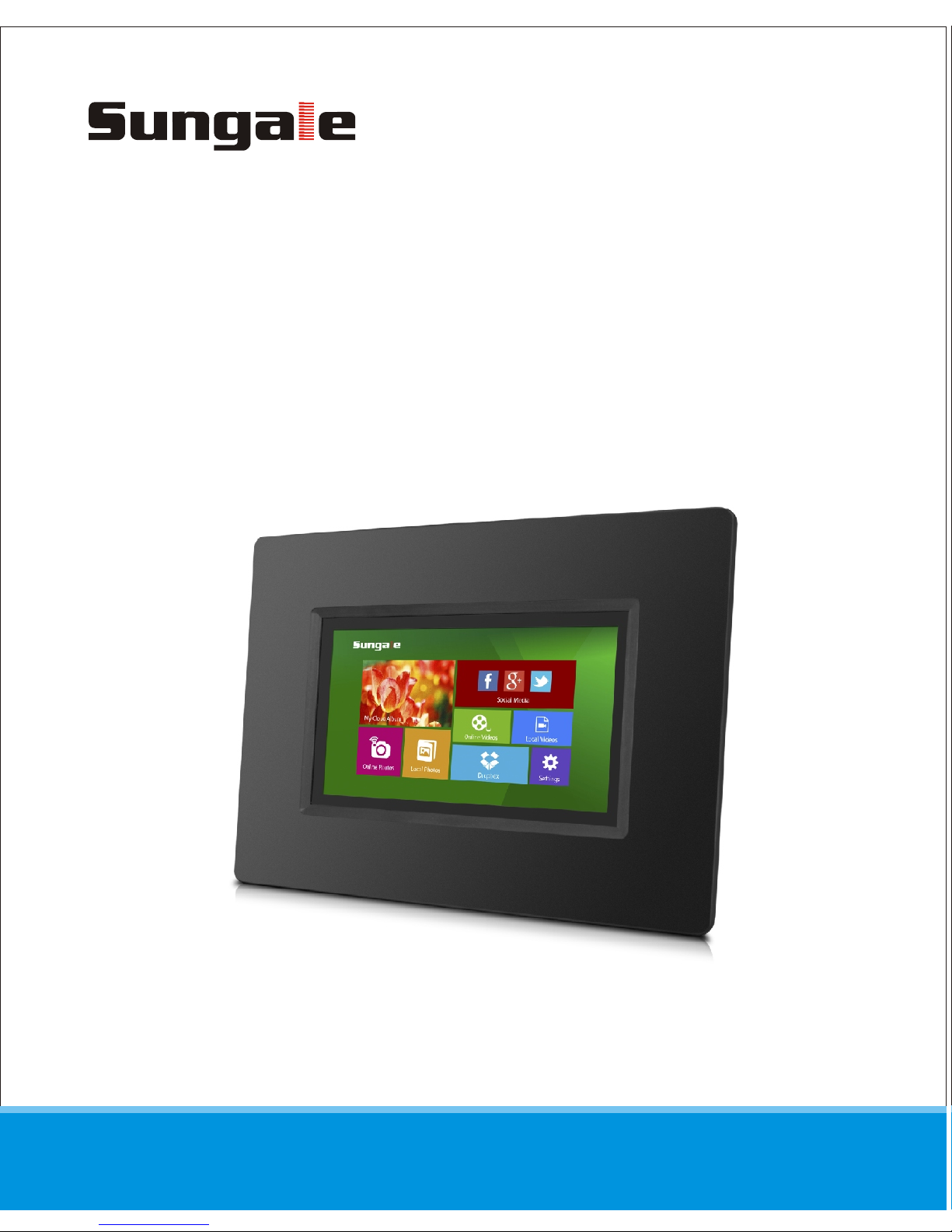
MODEL: CPF716
Cloud Frame
For ongoing product improvement, this manual is subject to modification without prior notice.
User's Manual
Page 2
Before Operation
Product Introduction
Safety Precautions
2
3
5
5
Basic Operation
Insert a memory card
6
Connect to the computer
7
8
10
Advanced Operation
11
12
15
11
19
19
Customer Management
Support
FAQs
6
Connect Power
Dual Interface
Status Icon Briefing
WiFi Setup
Google Account
Google Play Store
My Cloud Album
Online Videos
17
17
Social Media
18
Local Photos
Local Videos
19
Tips
9
Start-Up & Register
14
Online Photos
16
Dropbox
18
Settings Menu Overview
Instructions
Page 3

Features
Specifications
Product Introduction
Before Operation
2
Use the internet to load, manage, and share your favorite photos with family,
friends, and businesses, on this 7" Cloud Frame.
Build up your own cloud albums, manage slide shows remotely
Enjoy 5GB free cloud storage space
View photos you stored in your cloud storage
View photos stored in your microSD cards
Store your most precious photos in internal memory and display them
Share photos with your family and friends via internet
Support display multimedia
Intuitive touch screen give all operations on your fingers
Wireless link to internet automatically
Display size: 7 inch LED
Touch Screen: Yes
Multimedia support: Photo / Video / Audio
Built-in Wireless: 802.11b/g/n
Built-in Battery: Yes
Memory Card: microSD
USB type: 1x Micro USB OTG
Power Adaptor Input: 110~240V; Output: 5V
Page 4
Before Operation
3
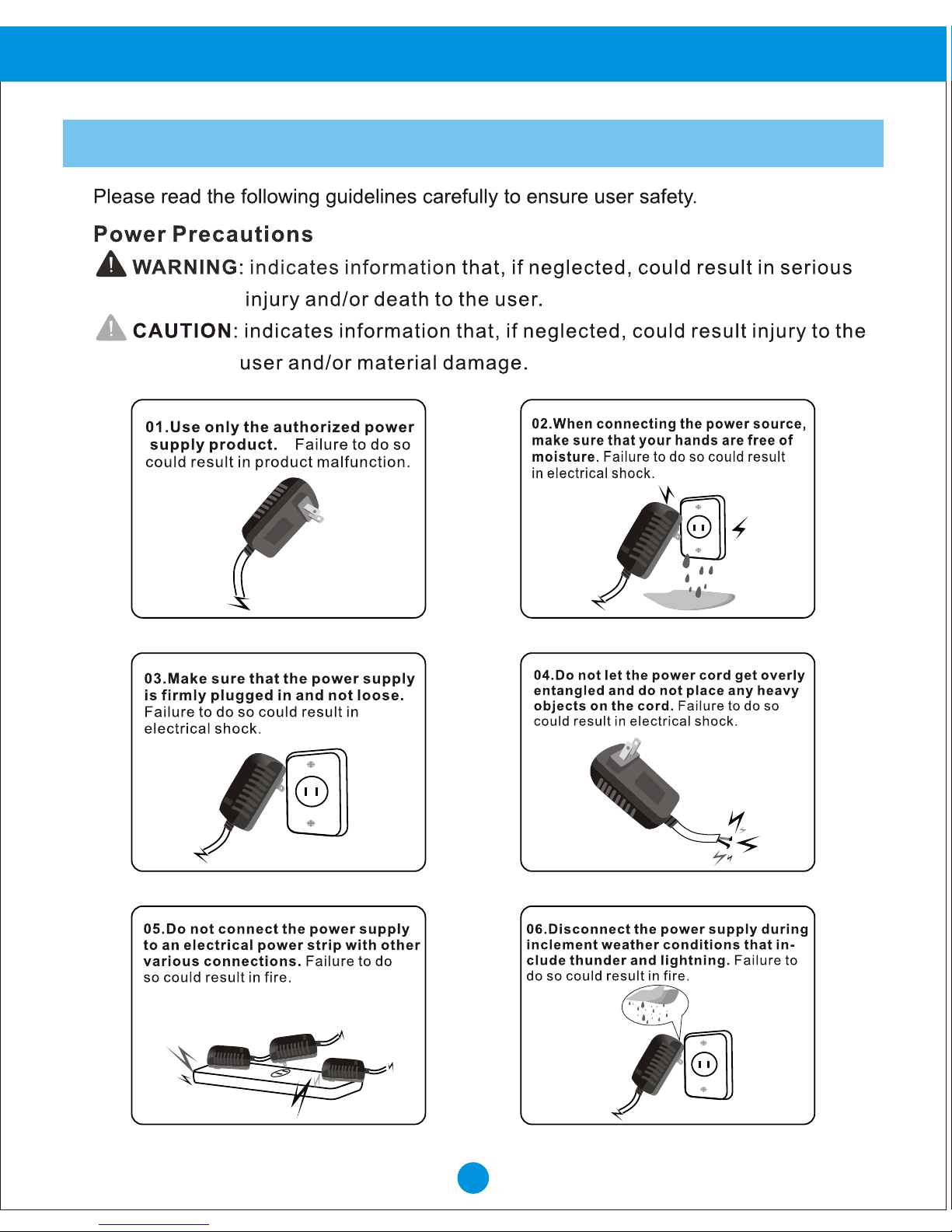
Safety Precautions
Page 5
Before Operation
4
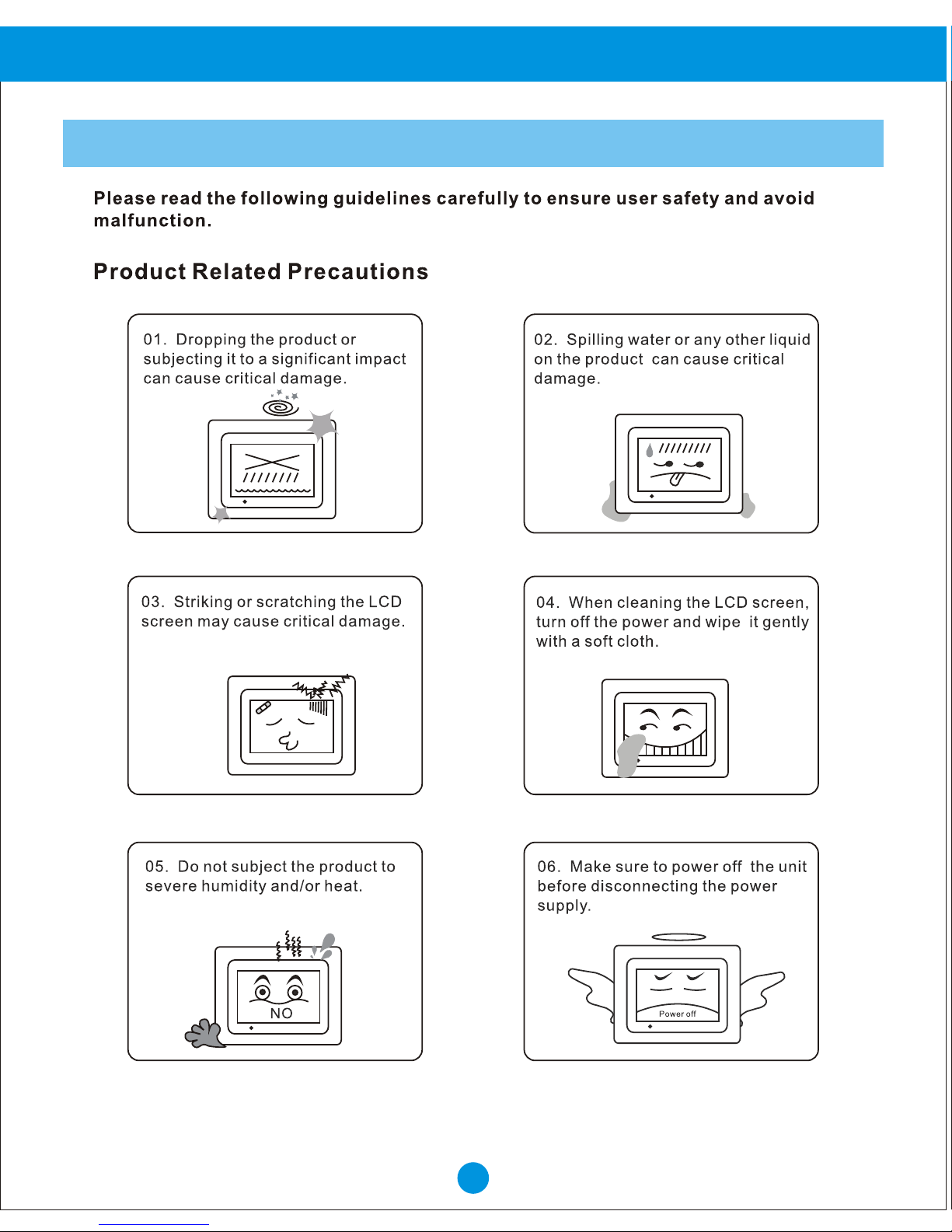
Safety Precautions
Page 6
5
Basic Operation
Instructions
Connect Power
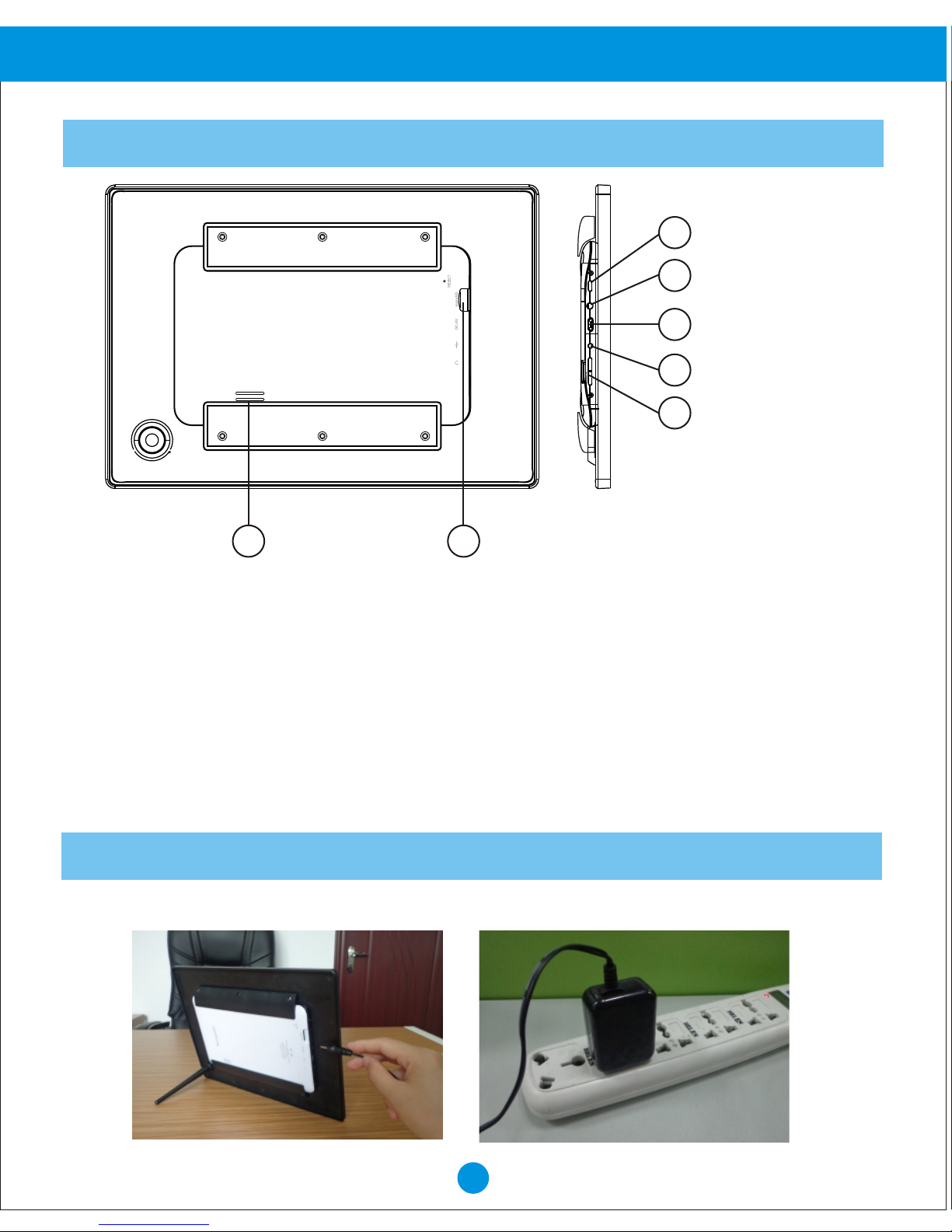
Plug the Power Adaptor into the frame and also into a Power Outlet.
MicroSD card slot
Micro USB port
Earphone jack
DC-IN jack
Power on/off
Speaker
Volume up / down
1
2
3
4
5
6
7
1. Volume: Press to increase or decrease the Volume level.
2. 5V DC IN: Insert the power adaptor cord to connect the unit with power outlet.
3. Micro USB port: Connect this unit to your computer by USB cable, and read
U-disk by USB cable (not included).
4. Earphone jack: Insert the earphone, then can enjoy your personal time.
5. Power: Press and hold on for more than 3 seconds to turn on or turn off the unit.
One quick press to turn the screen on and off.
6. Speaker
7. MicroSD card solt: Insert one of the microSD cards each time.
Page 7
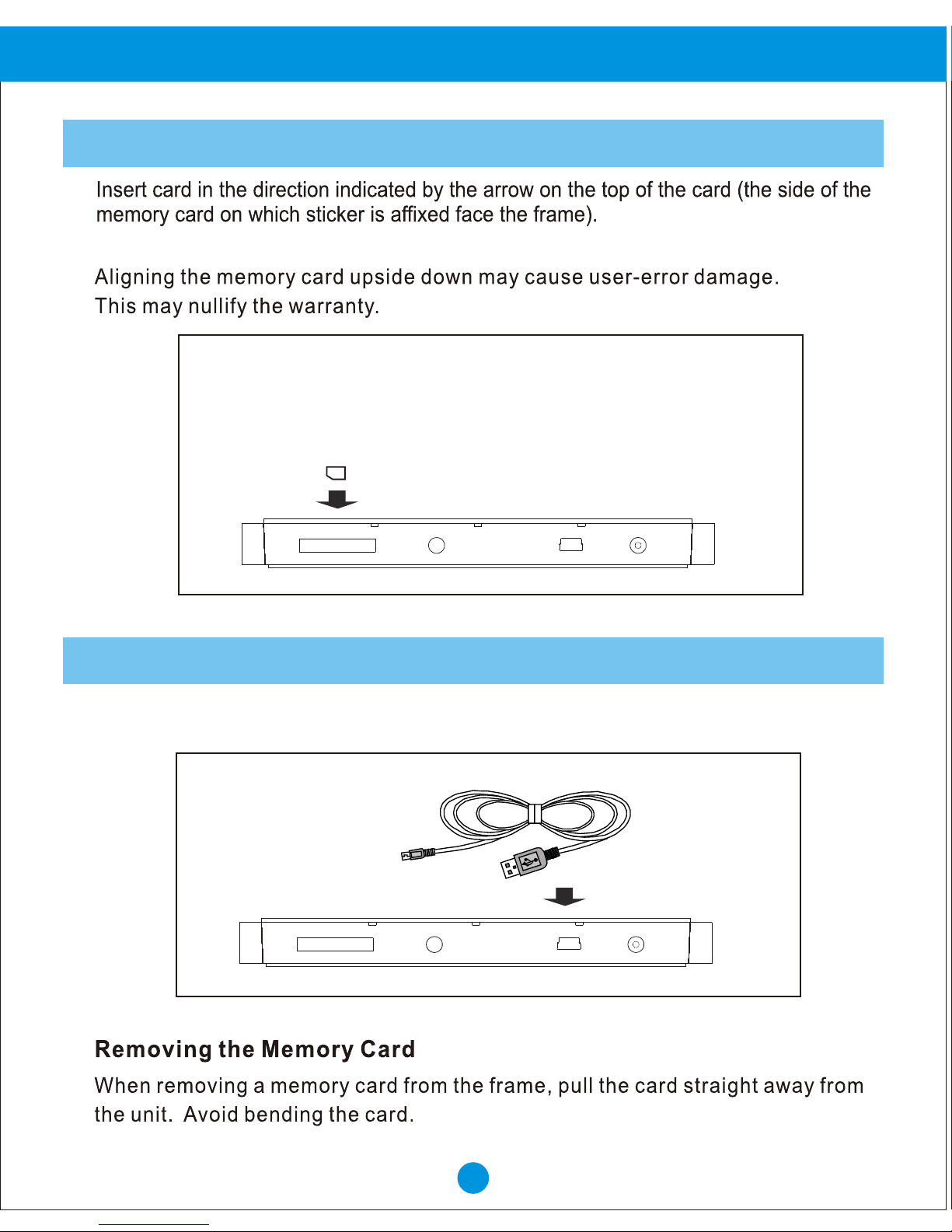
SD/SDHC card is compatible with this unit.
Insert a memory card
6
Connect the Cloud DPF to the computer
Use the USB cable to connect the Cloud Frame to a computer.
Basic Operation
SD/SDHC
Page 8
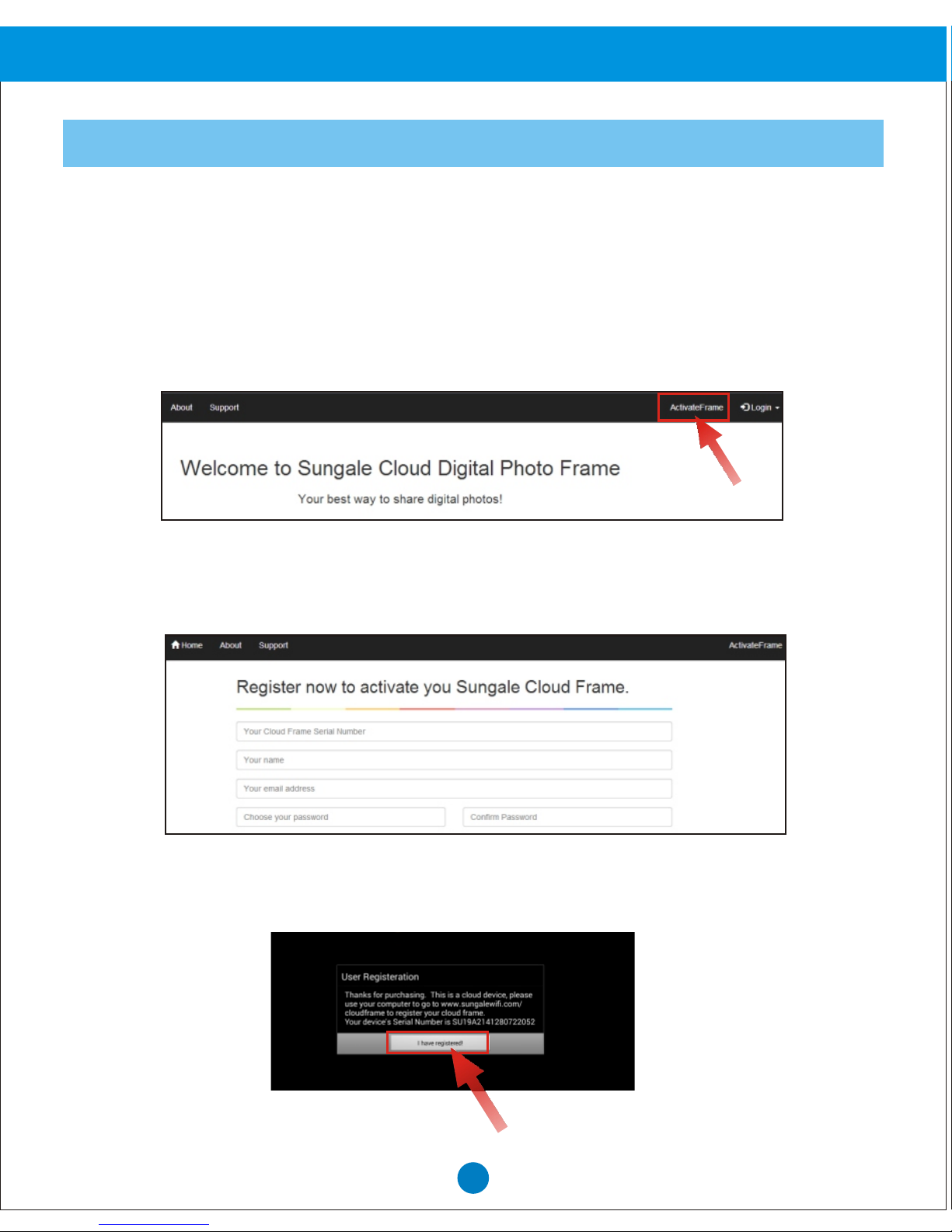
On first time start-up, you will need to register the Cloud Frame by going to the
website "http://cloudframe.sungale.com" on your computer, tablet or smart phone.
The Cloud Frame’s serial number will be displayed on the screen of the frame
when powered on.
From the website, click "ActivateFrame" to register accordingly.
You will be prompted to register the frame by providing the serial number from your
frame as well as some basic personal information.
After registering the frame on your computer, tablet or smart phone, click "I have
registered" on the frame.
7
Start-Up & Register
Basic Operation
Page 9
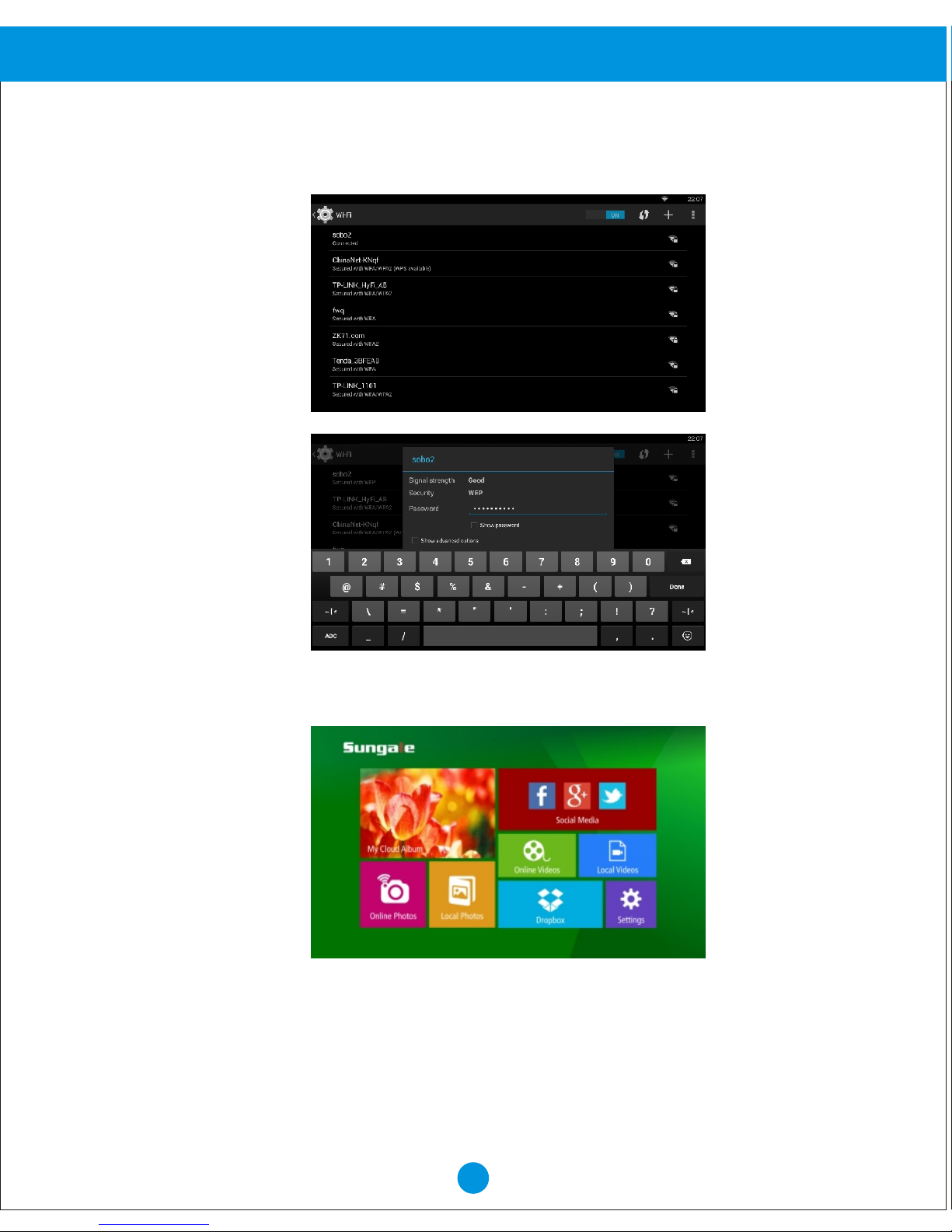
You will then be prompted to connect to your WiFi network. Follow the instructions by
selecting your network and inputting your password.
After connecting to your WiFi network, you will then be taken to the main screen.
After you have registered the frame, whenever you turn it on, it will go directly
to the main screen.
Before Operation
8
Page 10
3
1 5
6
7
8
4
2
9
Status Icon Briefing
2
3
4
5
6
7
8
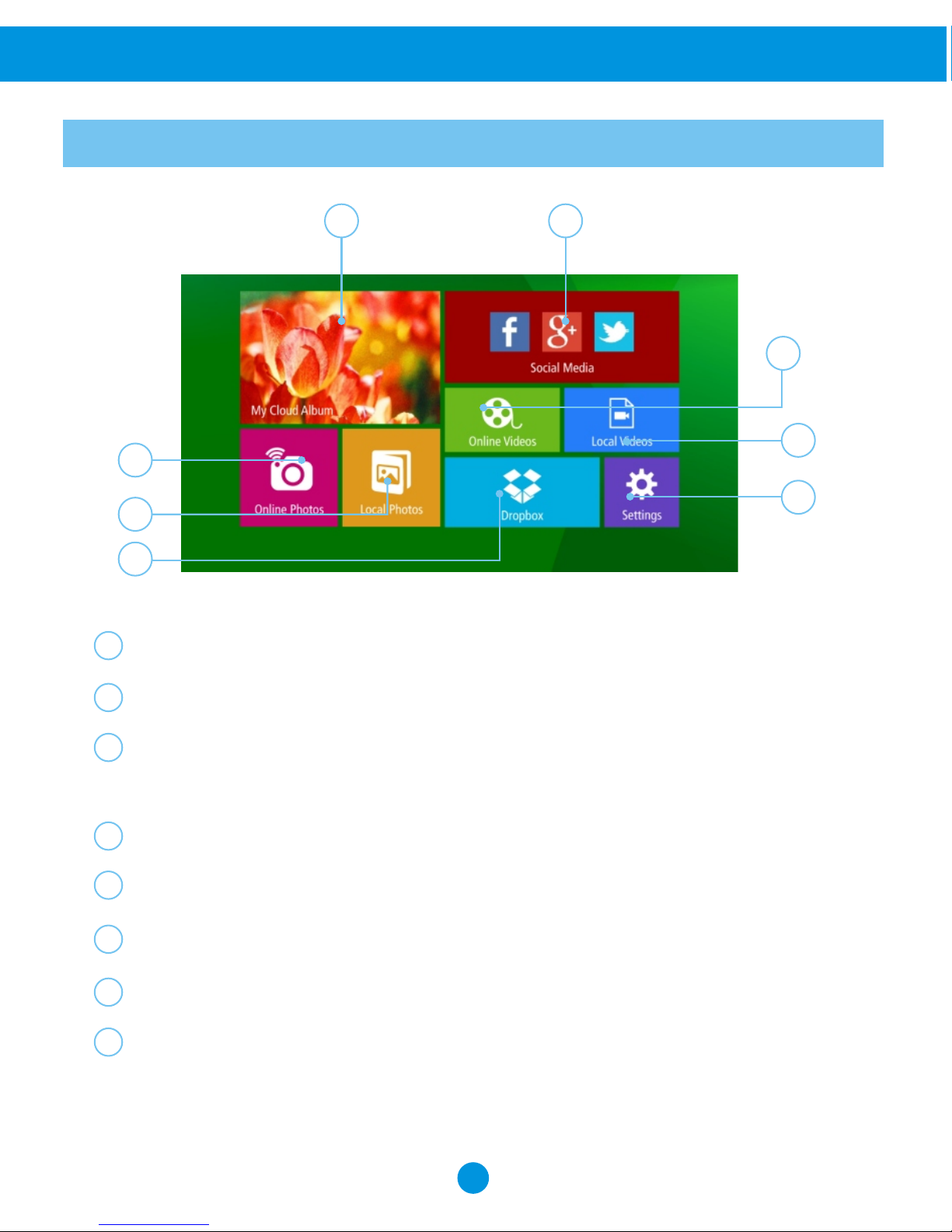
My Cloud Album: to load and manage photos in cloud storage space.
1
Online Photos: to review or download photos from online providers.
Local Photos: Display or review the photos stored in internal memory or
microSD card.
Online Videos: access videos from online video providers.
Local Videos: Play or view the videos stored in internal memory or microSD card.
Social Media: Access Facebook, Twitter, or Google+ to display photos.
Settings: Choose from four icons including Browser, all Apps, Files, and
Settings to adjust frame's features and functions.
Dropbox: Share your photos.
Basic Operation
Page 11
10
WiFi Setup
Advanced Operation
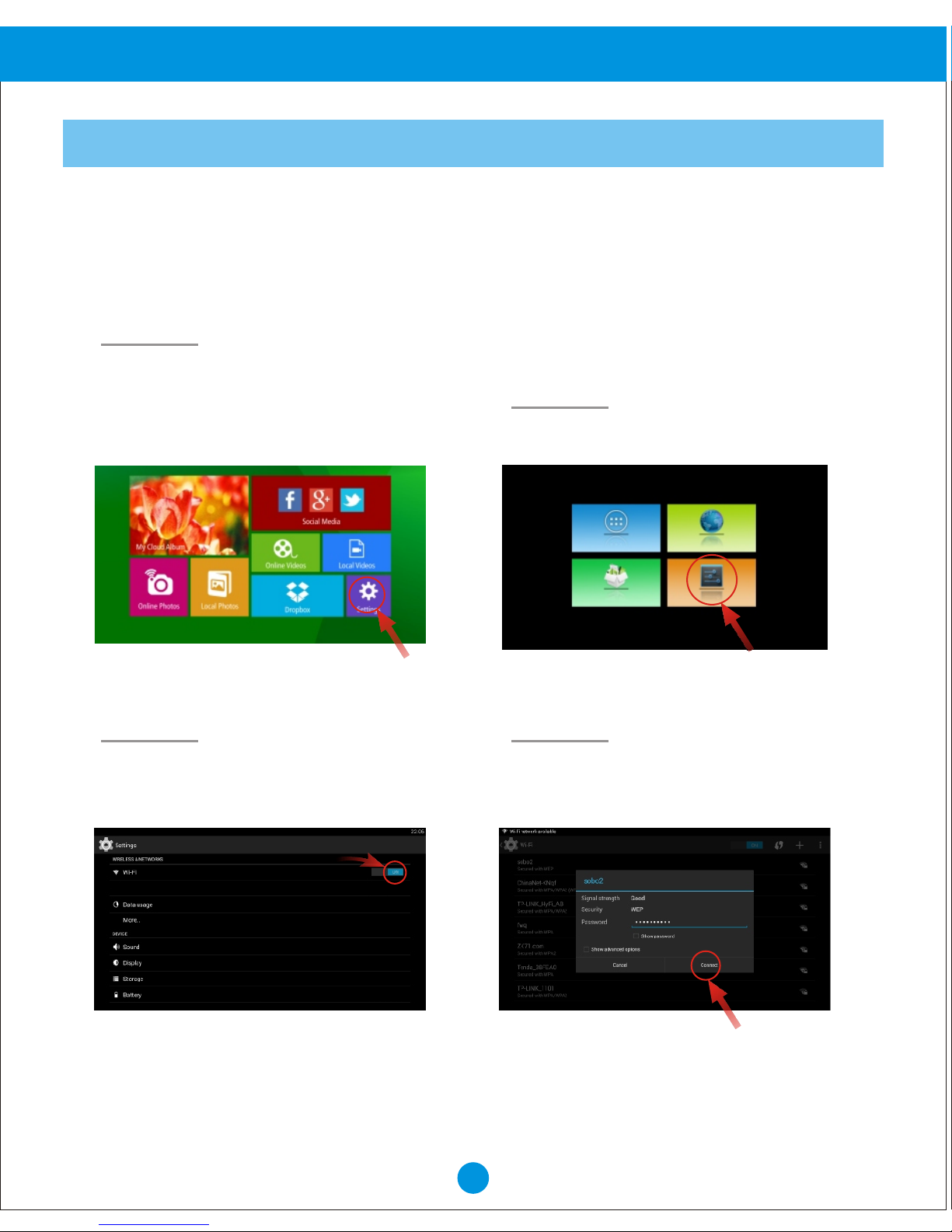
Select the WiFi button to the “ON”
position.
Select your network, put in your
password, and than select “connect”.
Step 3. Step 4.
Step 1.
Step 2.
Select the “Settings” menu icon.
You should automatically be prompted to setup your WiFi connection during the
frame registration process, but if you ever need to connect to a new WiFi network,
follow below instructions:
To setup the WiFi Connection on your
photo frame, select “Settings” from
the home screen.
Note: A WiFi internet connection is required in order to register and use your frame
as well as access the online features available.
Page 12
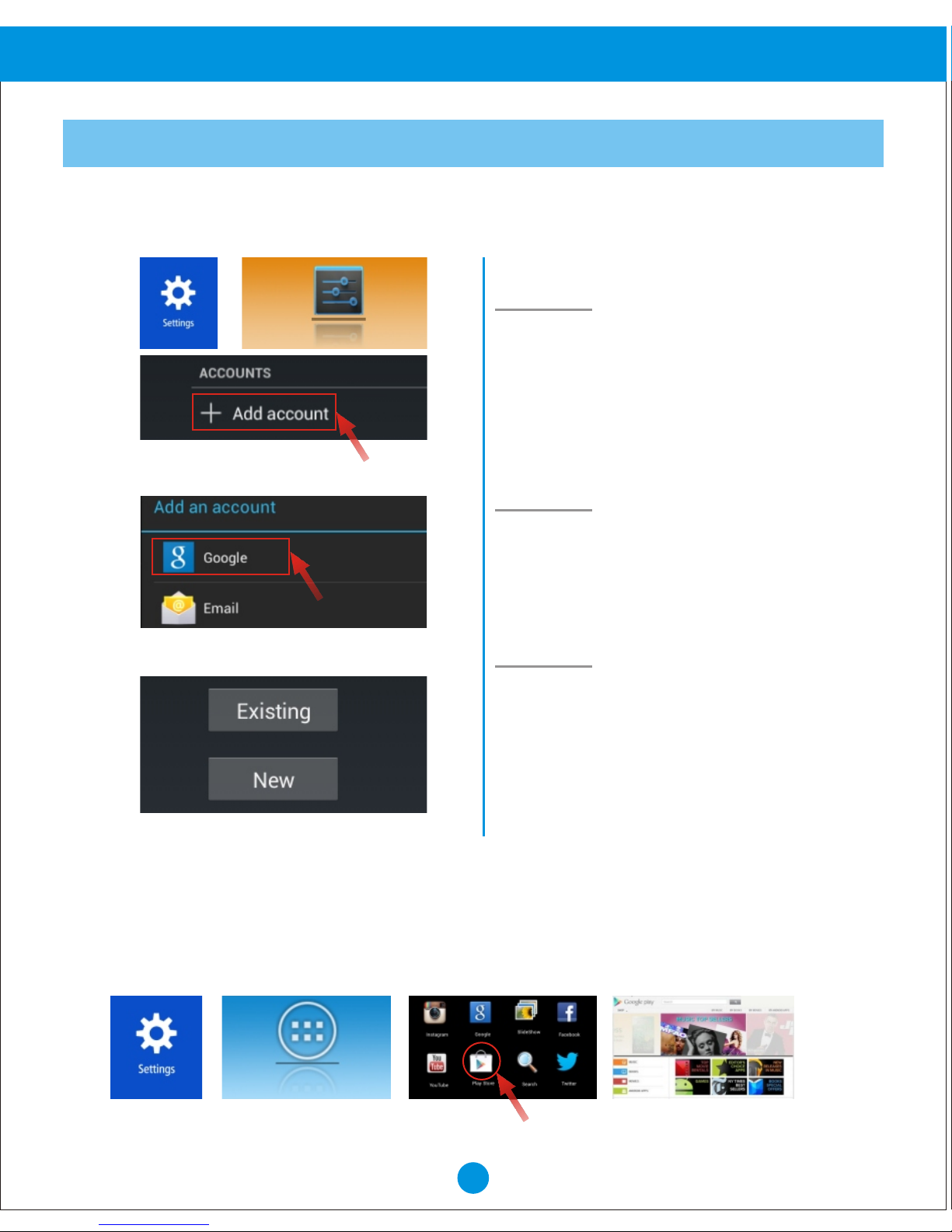
Once you have setup your Google Account, you can access Google Play to download
and manage apps.
Advanced Operation
11
Online Account Setup Part 1: Google Account
Google Play Store
A Google Account will allow you to access the Google Play Store for APP downloads,
and Google applications.
Step 1.
Step 2.
Step 3.
Go to the Settings menu, and scroll
down to “+Add account”, and select it.
Select “Google” under the add an
account menu.
Select “Existing” if you currently
have a gmail email account and
put in your email and password.
Select “New” to setup a gmail
email account.
Page 13
Advanced Operation
12
Online Features Part 2: My Cloud Album
Step 1:
Step 2:
Step 3:
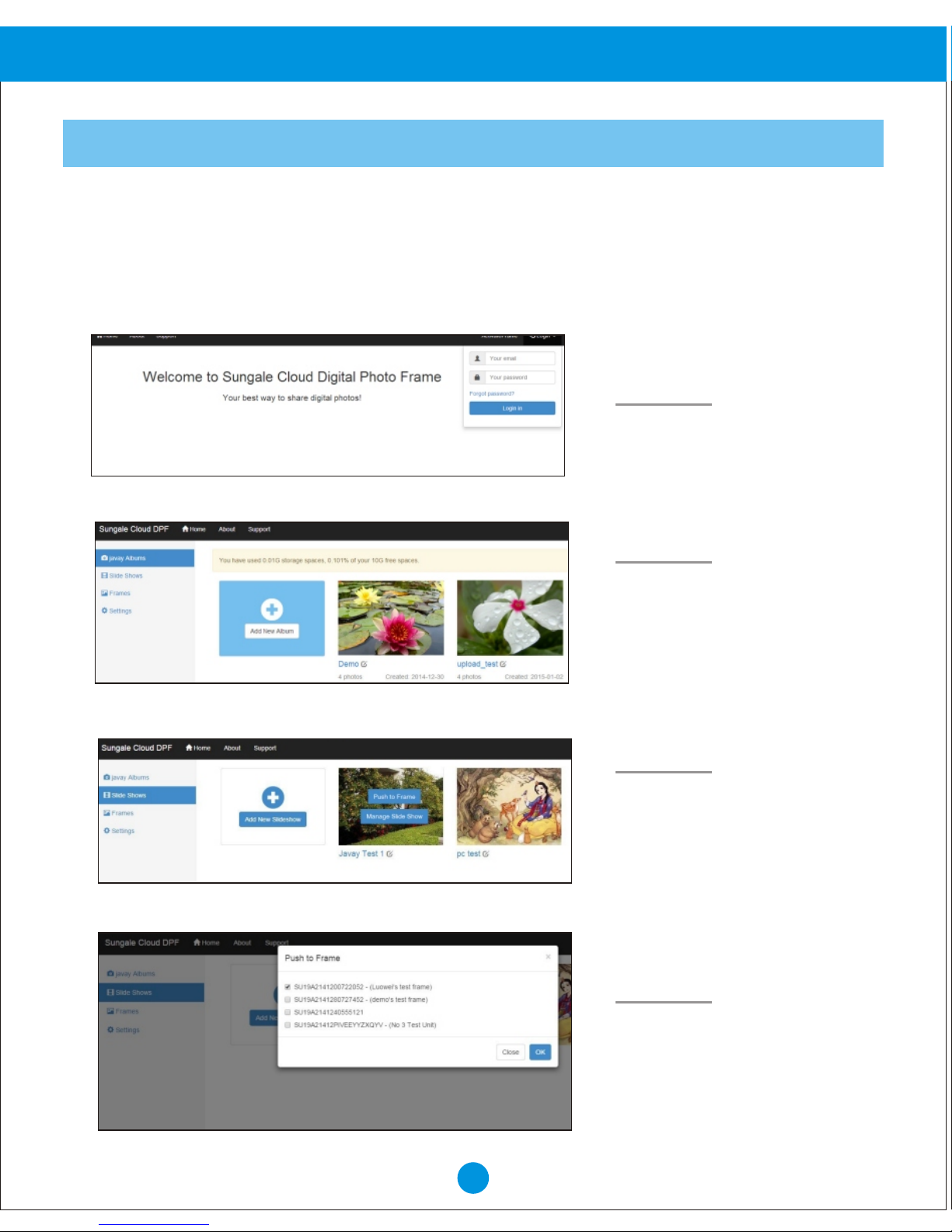
Login into your account
Step 4:
The My Cloud Album tab gives you access to all the photos you have stored in your free
Cloud Frame storage. You must go back to the website "http://cloudframe.sungale.com"
to add photo albums and slide shows into this section.
Website required Steps:
Go to "Albums" to create
albums and add photos by
selecting "Manage Album"
and clicking the cloud icon.
Go to "Slide Shows" to
add slideshows and go back
to "Albums" to select "Push
Album to Slide Show".
Go back to "Slide Shows"
to select "Push to Frame"
and select desired frame.
Page 14
Advanced Operation
13
Online Features Part 2: My Cloud Album
Step 5:
Cloud Frame Steps:
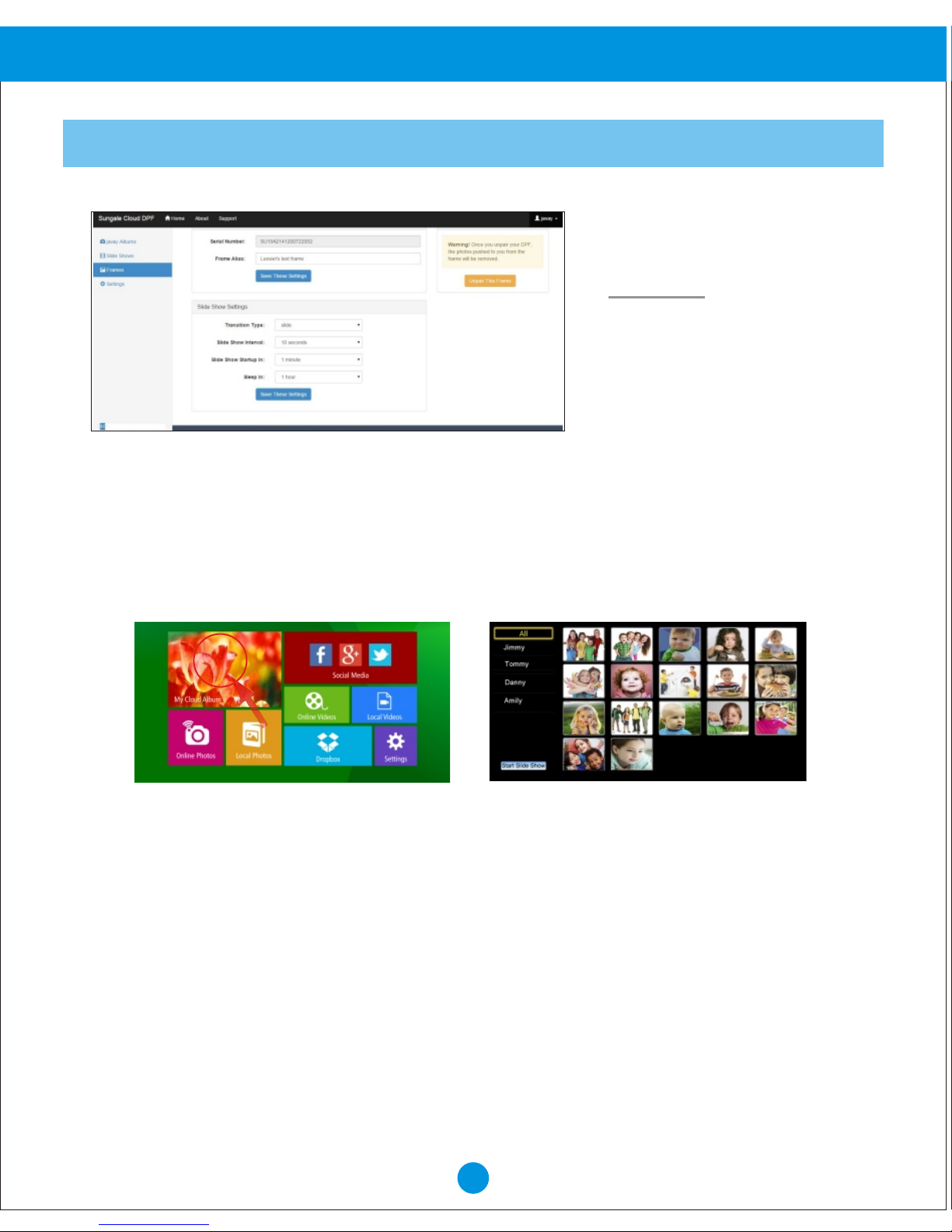
To access and view these photos, Select My Cloud Album . Select the album and
photos you wish to view.
""
Note: Photos in My Cloud Album will automatically play based on the settings you
have setup from the website.
Tip: For instructions on creating cloud albums and adjusting settings, log into your
account at "http://cloudframe.sungale.com" and select Support or Video Setup
Tutorial at the top of the page.
Go to "Frame" to select
your frame and adjust
settings of the slideshow.
Page 15
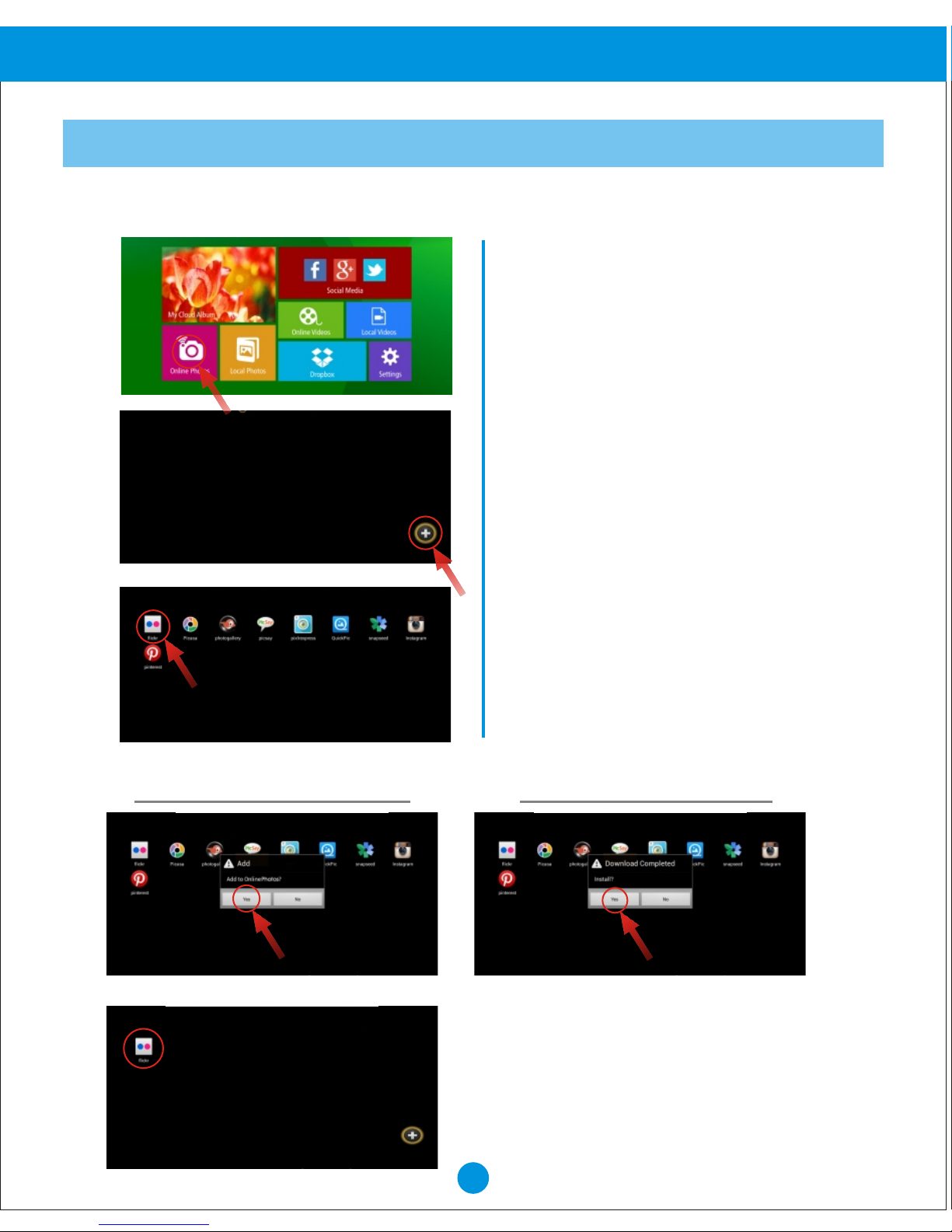
Select the “+” symbol in the lower
right corner to enter the online
storage back list.
Select “YES” to download
Select any Hub to install and
download to your frame.
Select “YES” to install
To access these Photo Hubs select
Online Photos.
After the installation is complete, your Hub
will be available on the front screen. You
can now select and use it.
Advanced Operation
14
Online Features Part 3: Online Photos
The Online Photos tab gives you access to numerous online Photo Hubs.
Page 16
Advanced Operation
15
Online Features Part 4: Online Videos
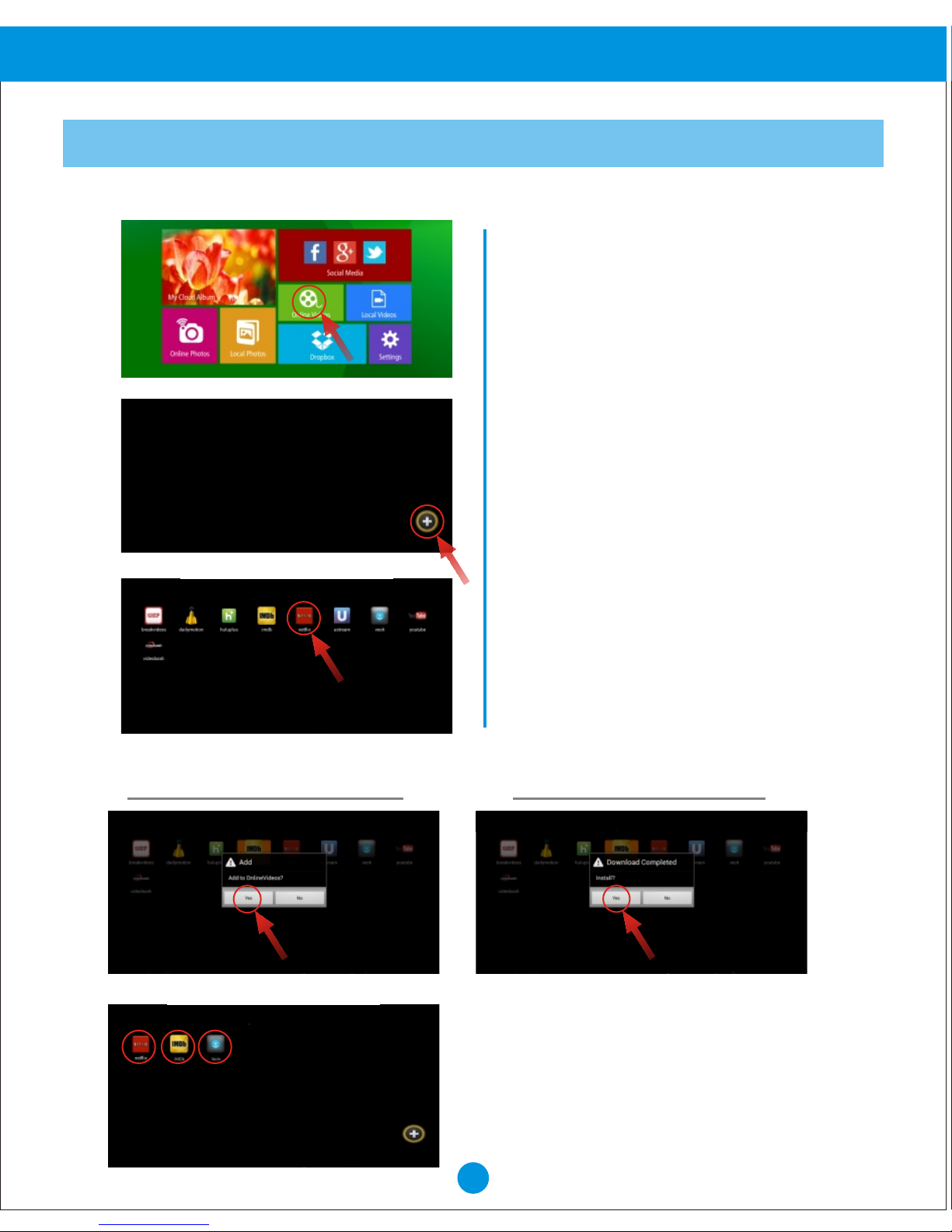
To access these Video Hubs
select Online Videos.
Select the “+” symbol in the lower
right corner to enter the online
storage back list.
Select any Hub to install and
download to your frame.
After the installation is complete, your
Hub will be available on the front
screen. You can now select and use it.
The Online Videos tab gives you access to a numerous amount of online Video Hubs.
Select “YES” to download Select “YES” to install
Page 17
Advanced Operation
16
Online Features Part 5: Dropbox
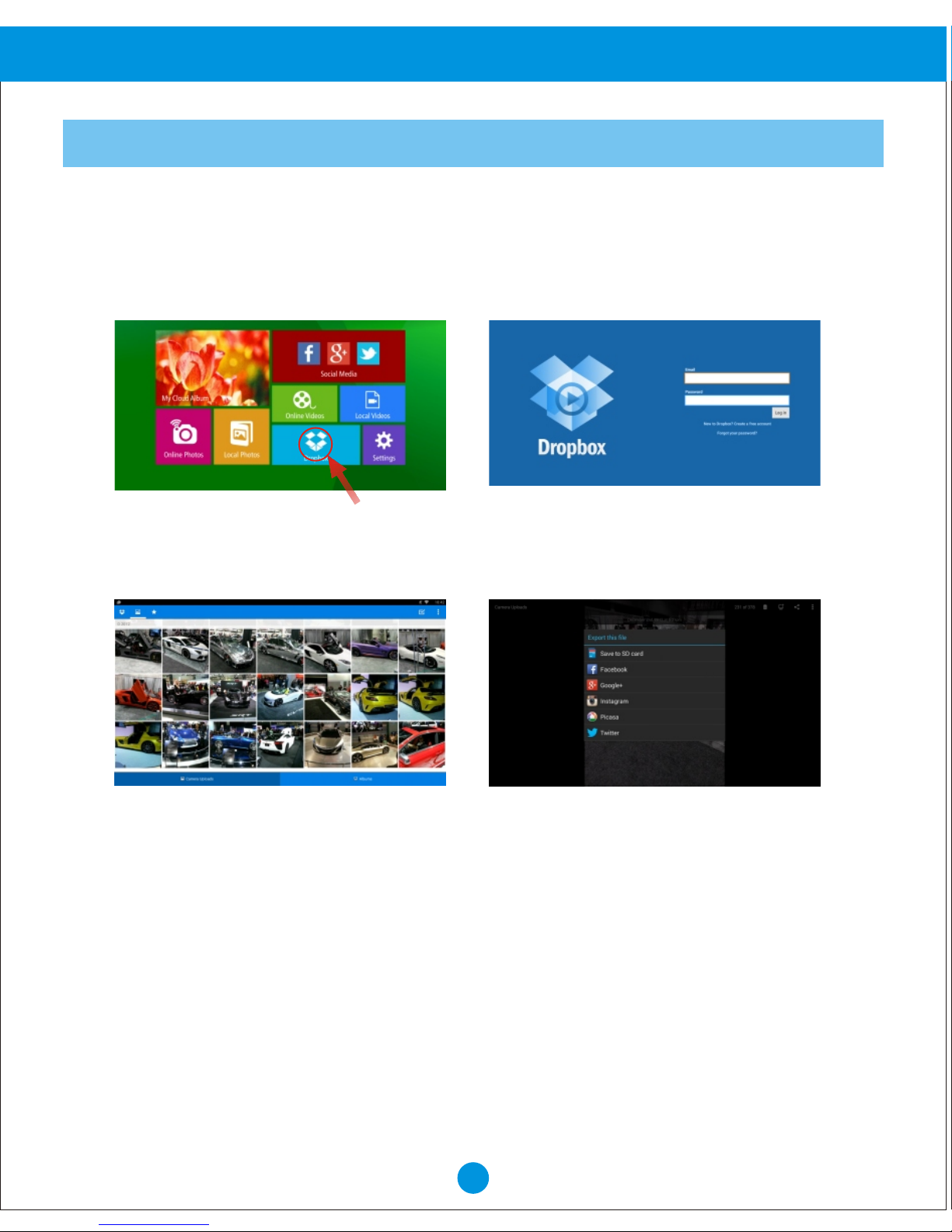
Your frame has been pre-installed with Dropbox, a popular file sharing service right
from the home screen.
Select Dropbox from the home screen, and log into your Dropbox account. ""
Now you can browse and select the photos and videos you want to download into
your frame.
Note: Downloaded Pictures and Videos from Dropbox will be placed in the Local
Photos or Local Videos area of Frame depending on the file. You can only view files
from Dropbox and cannot run slideshows within the APP. You must first download into
local memory. See "Local Photos" for slideshow instructions.
Tip: By adjusting your Dropbox settings on your smart phone, you will automatically
be able to send any photo you take to your Dropbox account. This will offer an easy
way of downloading photos to your frame.
Page 18
Advanced Operation
17
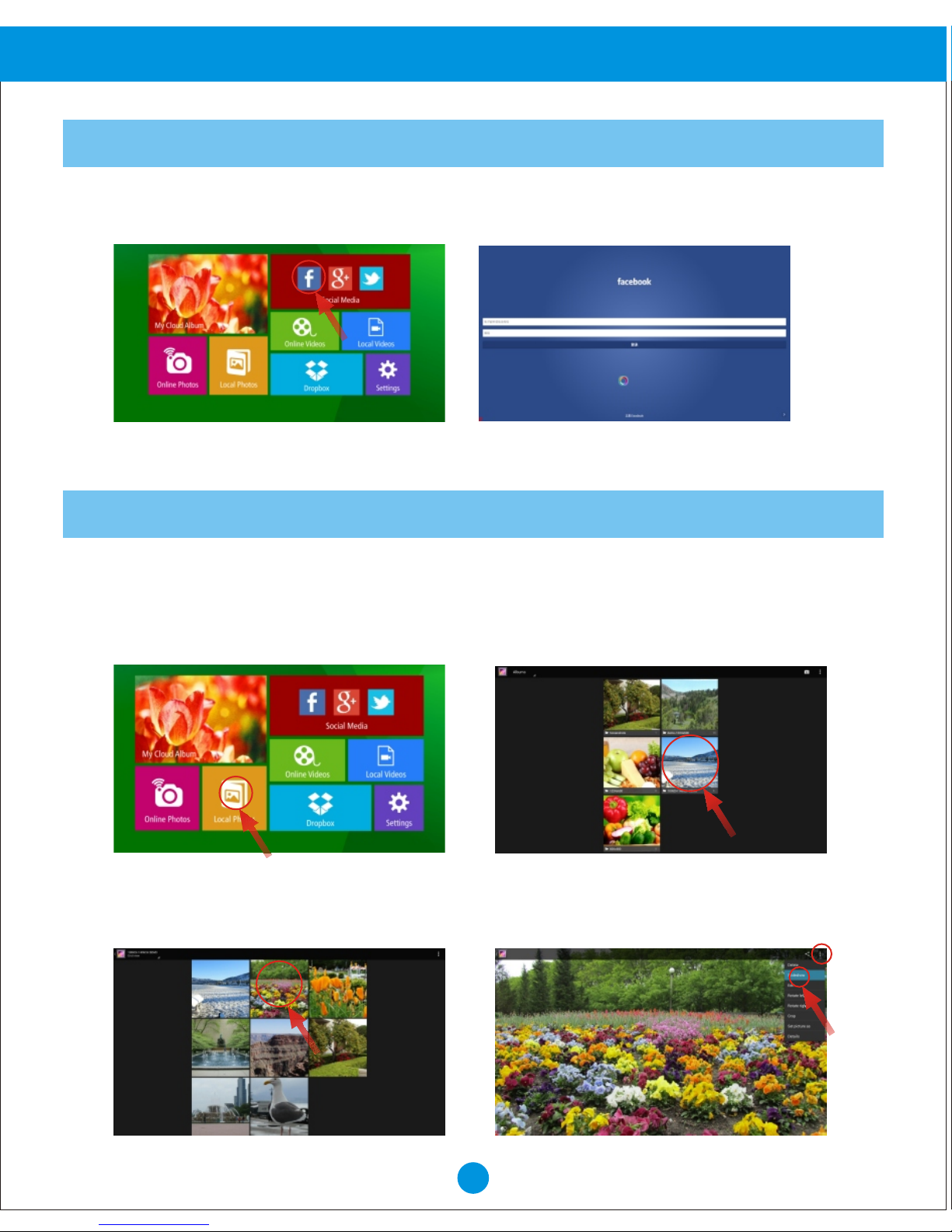
Local Features Part 1: Local Photos
All the pictures will load in that album and if selecting a picture, you can
start a slideshow by selecting the options, and then slideshow.
Select the “Local Photos” icon.
Select an album
Your frame has been pre-installed with 3 popular Social Media buttons right
from the home screen. These include Facebook, Twitter and Google +.
Your frame comes with internal memory and also an SD card slot for additional
memory access.
Online Features Part 6: Social Media
Page 19
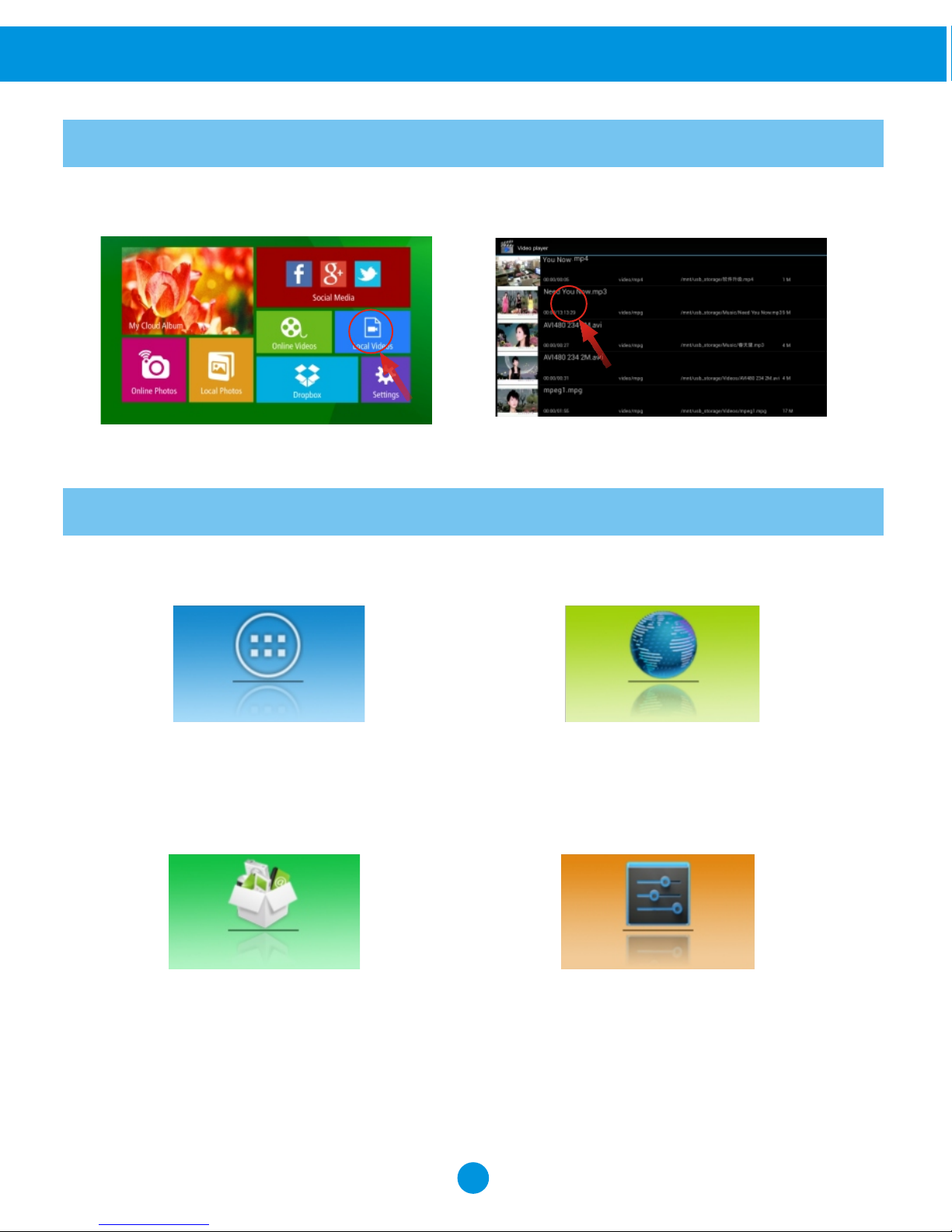
Select the “Local Videos” icon. Select the video you want to Play.
Advanced Operation
18
Local Features Part 2: Local Videos
Settings Menu Overview
APP Block Web Browser
Where your downloaded & installed
Apps and Google Play are located.
Where you can browse, surf
and search the internet.
File Directory
Settings Menu
Where you can search for
locally installed apps & files.
Where all your device settings
are located for your frame.
Page 20

Q 1: Why can't I link to Wi-Fi?
Q2: Why can't I download applications from the Play Store?
19
Customer Management
FAQs:
A: Please check if you have turned on the Frame's Wi-Fi.
Go to Setting Wireless & Networks Slide “Off” to “On”.
Please check if you have input the right password of Wi-Fi router. For more
Wi-Fi related questions, please go to www.sungale.com and find Support
Wi-Fi related FAQ.
A: Please check if you have registered a Google account; please check if the
frame's storage has enough space. If it doesn't, you will need to insert an SD card.
Tips
Support
2. Contact Sungale Support team
1. Visit the support site.
For manual download, FAQs and more supports: www.sungale.com
Toll free number in the USA: 800-473-5156
Service email: [email protected]
For additional product video support, go to YouTube.com, and search
“SungaleProducts”, where you will find additional demo videos to help with
explaining the operation of your product.
For ongoing product improvement, this UM is subject to modification without prior
notice.
In order to ease users’ selection, other logos and/or trademarks may appear on
this product. All other logos and/or trademarks are the property of their respective
owners.
Page 21

20
FCC and Safety Information
 Loading...