

Page 1

SUNEYES MINI NVR Quick Start Manual
第 1 页 共 21 页
SunEyes Mini NVR
Quick Start Manual
Product Description
The mini NVR was specially designed for network video surveillance system. It has embedded Linux
operating system which makes the system operation more stable; it has standard H.264 video
compression algorithms which achieve high definition, low bitrate and single-frame play video function.
The mini NVR is small, dimension 88mm*88mm*32mm, but with complete ports and function. It
supports Onvif, 4CH/ 8CH 720P or 1080P IP cameras input, preview and playback; P2P and mobile
phone controller; Mobile HDD, E-SATA hard disk cartridge and E-SATA HDD expansion. HDMI and
VGA output simultaneously. The power supply was made of standard 5V2A micro-mini USB port,
energy saving and environmental protection.
1.1 Declaration:
Thank you for purchasing our NVR. If you need any help, please feel free to contact us.
The manual apply to 8CH mini NVR and 4CH mini NVR
The manual will be updated according to the enhancement of product function. Description of
product or program will be improved or updated periodically. The updated stuff will be added in
new manual without prior notice. If any product description in manual not in conformity with the
real object, subject to the real object.
2 .1 Attentions:
The IP address of all devices in LAN can’t conflict with each other.
The gate way should match with IP address, and setting up correctly.
The product supports external HDD only, including mobile HDD, hard-disk cartridge with E-SATA port.
We have tested following HDD brands and model numbers work with the mini NVR:
Seagate Backup Plus 1TB 2.5’’ USB3.0 mobile HDD, Model No.: STBU1000300
Seagate Expansion 1TB 2.5’’ USB3.0 mobile HDD, Model No.: STBX1000301
Seagate Expansion 2TB 3.5’’ USB3.0 external HDD, Model No.: STBV2000300
Western Digital (WD) Elements 1TB 2.5’’ USB3.0 mobile HDD, Model No.: WDBUZG0010BBK
Page 2

SUNEYES MINI NVR Quick Start Manual
第 2 页 共 21 页
3.1 Technical Parameters
3.1.1 8CH mini NVR
Model Number 8CH Mini NVR
Operating System Embedded LINUX operating system
Image Code Control Adjustable; variable bitstream and constant bitstream optional
Dual Stream Each channel can set main stream and sub stream
Video Standard 1080P(1920×1080)30fps/ 960P/(1280×960)/ 720P(1280×720)30fps
Monitoring Image Quality 1080P(1920×1080)/ 960P/(1280×960)/ 720P(1280×720)
Image Motion Detection
Each screen can set multiple detection areas and set 6-
level sensitivity(if IPC
support it)
Recording Playback
4CH playback simultaneously in 8CH 720P/960P mode;
1CH 1080P playback in 8CH 1080P mode
Region Cover Every channel can set 4 cover regions(if IPC support it)
Recording Mode
Support manual, auto, dynamic detection, alarm trigger record mode(Partly
needs IPC support it)
Backup Way
Support HDD, U disk, USB mobile HDD, USB DVR-
RW, network storage and
backup
Operation Way Mouse
Local Login User name and password
Recording Storage Local HDD, network
External
Ports
Video Input
① 8×(1280*720)+sub[640*360]+1Ref.+4Play 8CH 720P IP Camera
② 8×(1280*960)+sub[640*480]+4Ref.+1Play 8CH 960P IP Camera
③ 8×(1920*1080)+sub[640*480]+2Ref.+1Play 8CH 1080P IP
Camera
④ 8×(720*576)+sub[352*288]+2Ref.+8Play 8CH D1 IP Cameras
Audio Input 8CH network audio input
Video
Output
1CH VGA + 1CH HDMI
Network
Port
1 RJ45,10M/100M self-adaptive LAN port
USB Port 2 x USB 2.0 ports
Wireless Port 3G,WIFI
HDD Port E-SATA/ Mobile HDD/ U-Disk
HDD
Capacity Maximum 4TB HDD/ port
Mobile View
Support(iPhone,Windows Mobile,BlackBerry,Symbian,Android) smart
phones
Power Supply 5V2A
Power Consumption ≤10(without HDD)
Working Temperature -10℃~+55℃
Page 3

SUNEYES MINI NVR Quick Start Manual
第 3 页 共 21 页
Working Humidity 10%-90%
Dimension Equipment: 88mm×88mm×32mm, With Packing: 185.5mm×115.5mm×36mm
Weight(without HDD) N.W.: 105g; With packing: 250g
Outside Carton 30pcs/ carton; Dimension: 365mm×350mm×188mm; Weight: 8 Kg。
Installation Way Desktop Installation
3.1.2 4CH mini NVR
Model Number 4CH Mini NVR
Operating System Embedded LINUX operating system
Image Code Control Adjustable; variable bit stream and constant bit stream optional
Dual Stream Each channel can set main stream and sub stream
Video Standard 1080P(1920×1080)30fps/ 960P/(1280×960)/ 720P(1280×720)30fps
Monitoring Image Quality 1080P(1920×1080)/ 960P/(1280×960)/ 720P(1280×720)
Image Motion Detection
Each screen can set multiple detection areas and set 6-level sensitivity(if IPC
support it)
Recording Playback
4CH playback simultaneously in 4CH 720P/ 960P mode
1CH 1080P playback in 1/4CH 1080P mode
Region Cover Every channel can set 4 cover regions(if IPC support it)
Recording Mode
Support manual, auto, dynamic detection, alarm trigger record mode(Partly
needs IPC support it)
Backup Way
Support HDD, U disk, USB mobile HDD, USB DVR-RW, network storage and
backup
Operation Way Mouse
Local Login User name and password
Recording Storage Local HDD, network
External
Ports
Video Input
① 4×(1280*720) +sub[960*576]+4Ref.+4Play 4CH 720P IP Cameras
② 4×(1280*960)+sub[960*576]+1Ref.+4Play 4CH 960P IP Cameras
③ 4×(1920*1080)+sub[960*576]+4Ref.+1Play 4CH 1080P IP Cameras
④ 1×(1920*1080)+sub[960*576]+4Ref.+1Play 1CH 1080P IP Cameras
⑤ 4×(720*576) +sub[352*288]+4Ref.+4Play 4CH D1 IP Cameras
Audio Input 4CH network audio input
Video
Output
1CH VGA + 1CH HDMI
Network
Port
1 RJ45,10M/100M self-adaptive LAN port
USB Port 2 x USB 2.0 ports
Wireless
Port
3G,WIFI
HDD Port E-SATA/ Mobile HDD/ U-Disk
Page 4

SUNEYES MINI NVR Quick Start Manual
第 4 页 共 21 页
HDD
Capacity Maximum 4TB HDD/ port
Mobile View
Support(iPhone,Windows Mobile,BlackBerry,Symbian,Android) smart
phones
Power Supply 5V2A
Power Consumption ≤10(without HDD)
Working Temperature -10℃~+55℃
Working Humidity 10%-90%
Dimension Equipment: 88mm×88mm×32mm, With Packing: 185.5mm×115.5mm×36mm
Weight(without HDD) N.W.: 105g; With packing: 250g
Outside Carton 30pcs/ carton; Dimension: 365mm×350mm×188mm; Weight: 8 Kg。
Installation Way Desktop Installation
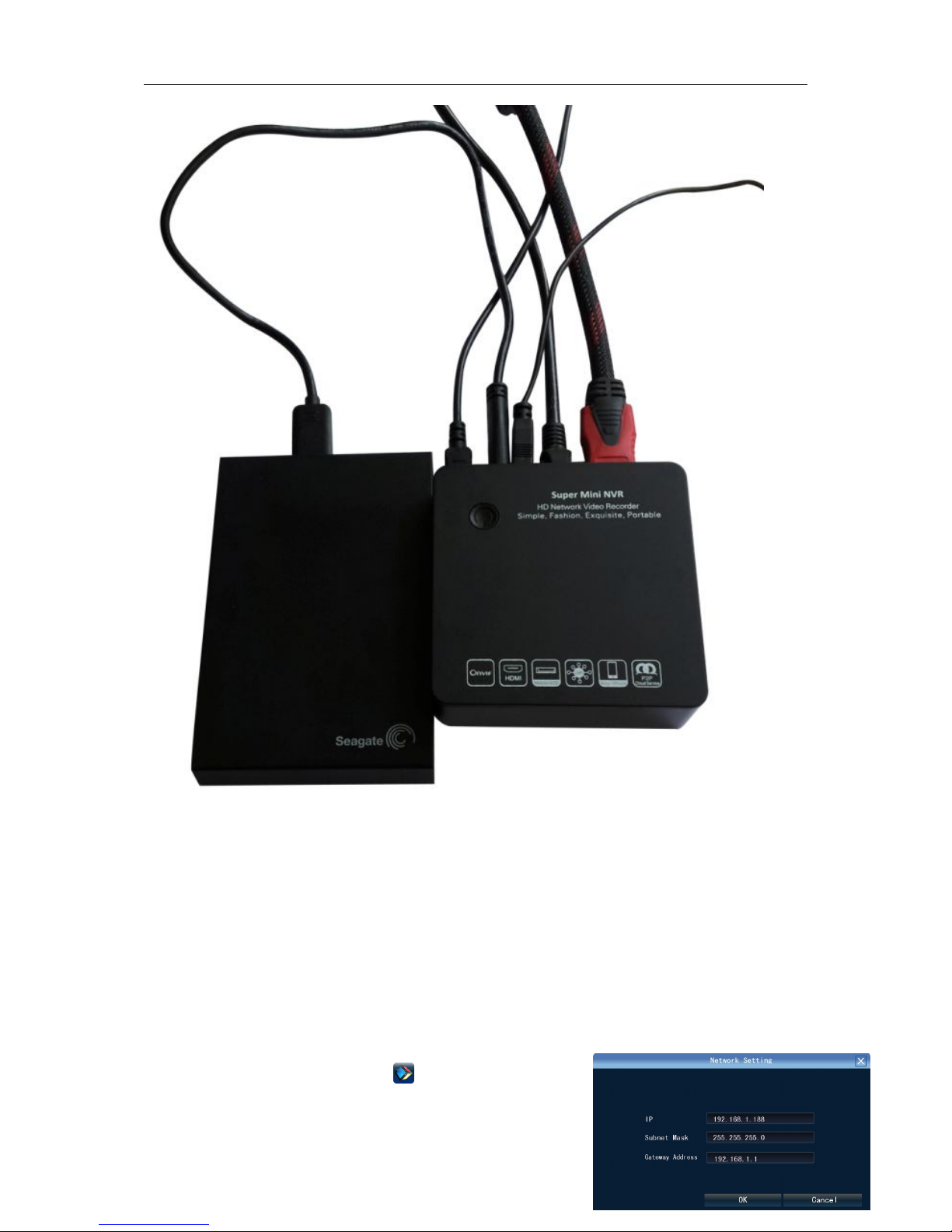
4.1 Ports Instruction
Connection Diagram
Page 5
SUNEYES MINI NVR Quick Start Manual
第 5 页 共 21 页
5.1 Device Operation
5.1.1 Power On
Connect power and mobile HDD, and then switch on the power button (on the right side of NVR). The
video output is default multi-screen mode after startup is completed. If the startup time is among the
time of setting record, system will auto start timing video recording.
Notice: Please use the NVR matching power supply instead of any other power supply of any other
type or brand.
5.1.2 System Login
After normal booting, single-click icon,
1) Power off: Click “Power off” button, the device will shutdown.
Page 6
SUNEYES MINI NVR Quick Start Manual
第 6 页 共 21 页
2) Reboot: Click “Reboot” button, the device will reboot.
3) Click “Login” button to login the system.
User name: admin, password: blank by default;
4) Lock: Click “[ ] Lock”, the menu will be locked.
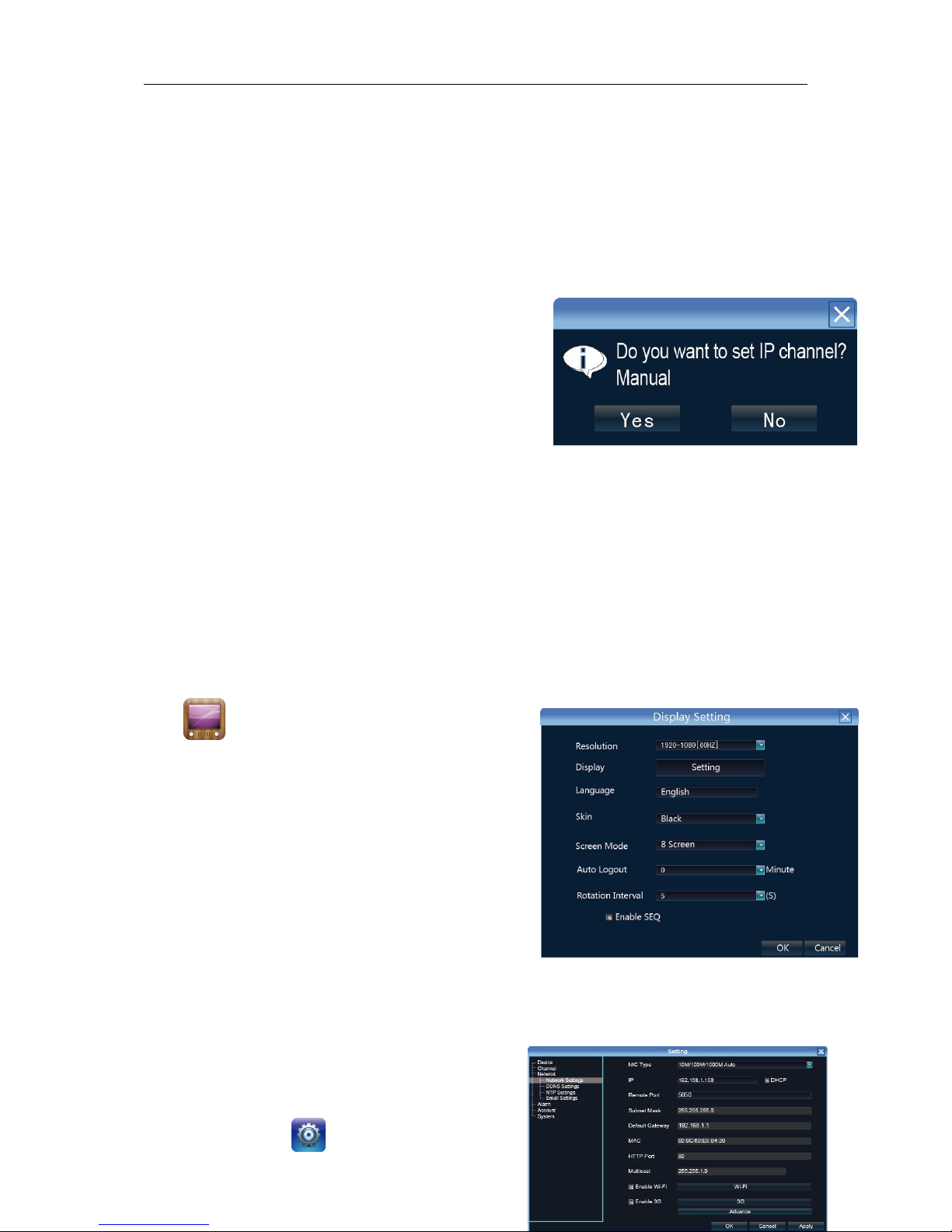
5.1.3 IP Channel Setting
After login successfully, system will pop out the host side
IP address setting menu automatically, after setting
successfully click “ OK”, then it will pop out the menu for IP
channel setting, click “ Yes”, the system will save the IP
automatically. If need to manual setting IP address, click
“NO”.
5.1.4 Power Off
Click the power switch at the top panel can shutdown the device
Or【Main Menu】【Power Off】,select 【Yes】
Note: Suggest to shutdown device in this way, it can avoid damaging the device from v electricity
cut-off by accident).
5.2 Display Setting
Click icon, show the menu as the right side:
1 Language:select different language according to the
necessary(eg. Chinese, English), after that need restart
the device
2 Auto Logout: system will logout automatically and
locked according to the setting time
3 TV Adjust:set image display dimension on TV
4 Display : adjust the monitor lightness、 contrast、
saturation and color
5 Resolution:the default setting is 1024×768, please select
the best resolution according to the monitor or the
image clarity will be affected or the image cannot display well as it exceed monitor display range
6 Rotation Interval: Setup the time interval of rotation. Tick “Enable SEQ” to start rotation.
6.1 Network Setting
Connect NVR with network cable to the LAN switch,
Page 7
SUNEYES MINI NVR Quick Start Manual
第 7 页 共 21 页
After power on, click to enter setting menu, set NVR IP address, subnet mask, and gateway
and so on. Then use PC to run ping command to check NVR IP has connected with LAN
Notice: IP address might conflict with each other, please set the gateway correctly, or NVR might fail to
work. Please ensure all the IP addresses in LAN are unique.
Device port setting: the default is 5050, if there are several NVRs in the LAN, need to change this
port is for login NVR by IE, CMS. Login NVR by mobile, the port should be +3 based on the device
port.
HTTP port: the default port is 80, suggest modifying it. This port is for login NVR by IE, input NVR IP
address or domain name; need to add colon and HTTP port number.
Example: show as the above right picture, access NVR by IE in LAN, first add 2 forwarding rules in the
router, the IP address is 192.168.1.188, the forwarding ports are 5050-5053, 80. Please input
http://192.168.1.188:80 at IE browser and download ActiveX, then close the IE before install the
ActiveX, after installing it successfully, then reopen IE with http://192.168.1.188:80, it will show login
menu, input device port:5050, user name: admin, no password, can access NVR.
If access NVR by IE in WAN, please use static IP or dynamic domain name, the operation is same as
LAN.
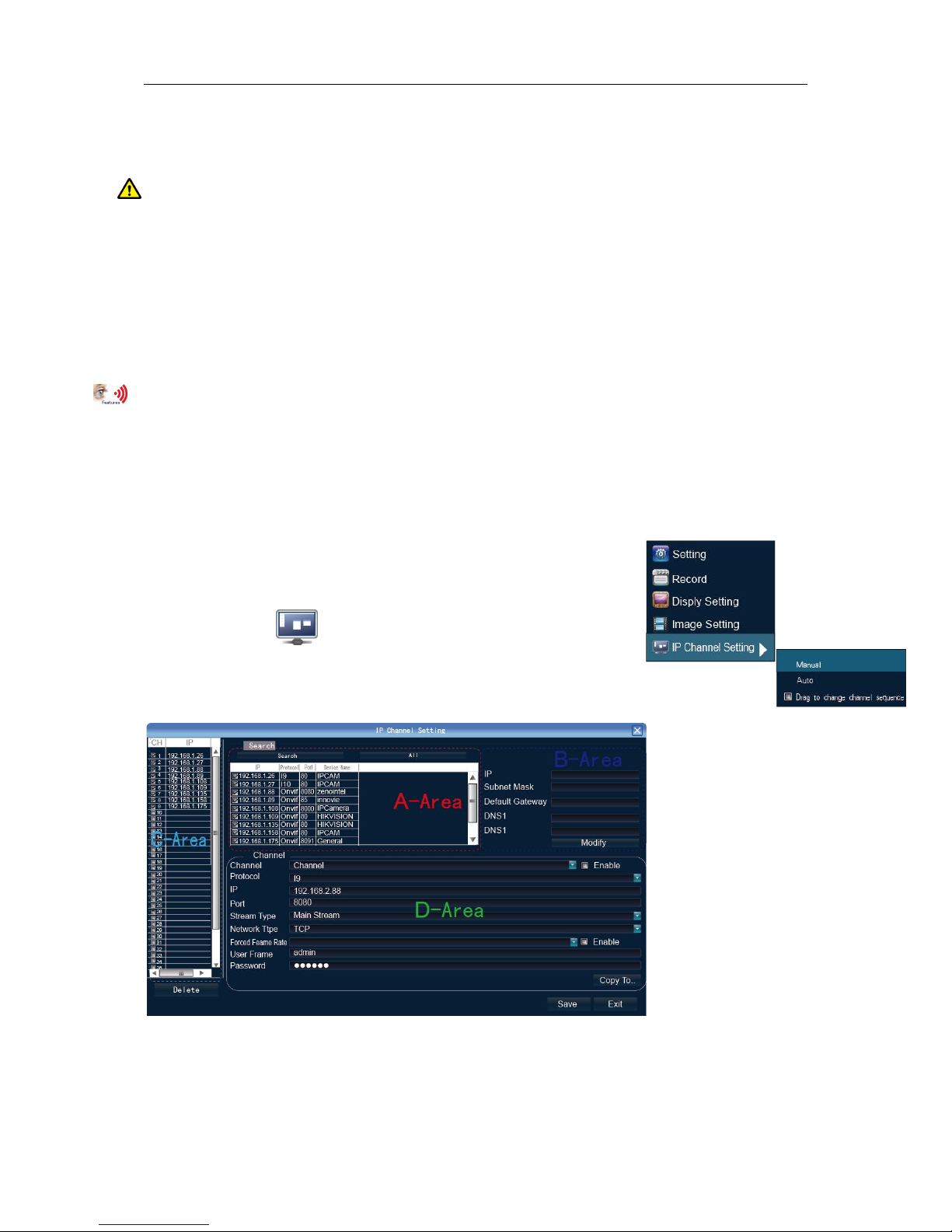
6. 2 Connect with IP Camera
6.2.1 Manual Search
Right click to select 【IP channelSetting】Manual, click
Search button, NVR will search out all IP cameras in the LAN,it will
take 18-30 seconds, after finishing the configuration, click Save to logout,
then the image will come out.
A –Area is cameras IP
address searching
area——click Search
to get the camera IP addresses in LAN
B- Area is camera IP address modification area——double click IP camera in A area, B area will
show camera network data, some cameras can change IP address directly in B area
Page 8
SUNEYES MINI NVR Quick Start Manual
第 8 页 共 21 页
C- Area is cameras channel setting area——according to the selection sequence in A zone, to
sort the 1-36 channels image order. Select All to add IP cameras to the all channel by one click.
D-Area is camera user name and password filling area——this area is camera network parameter
6.2.2 Automatic Search
Right click to select 【IP channel Setting】Auto
If the IP camera has private protocol with NVR, NVR will assign IP address to the camera automatically,
after finish the searching, will connect the image automatically. Camera IP addresses will be added
automatically in the preview channel area.
6.3 Preview
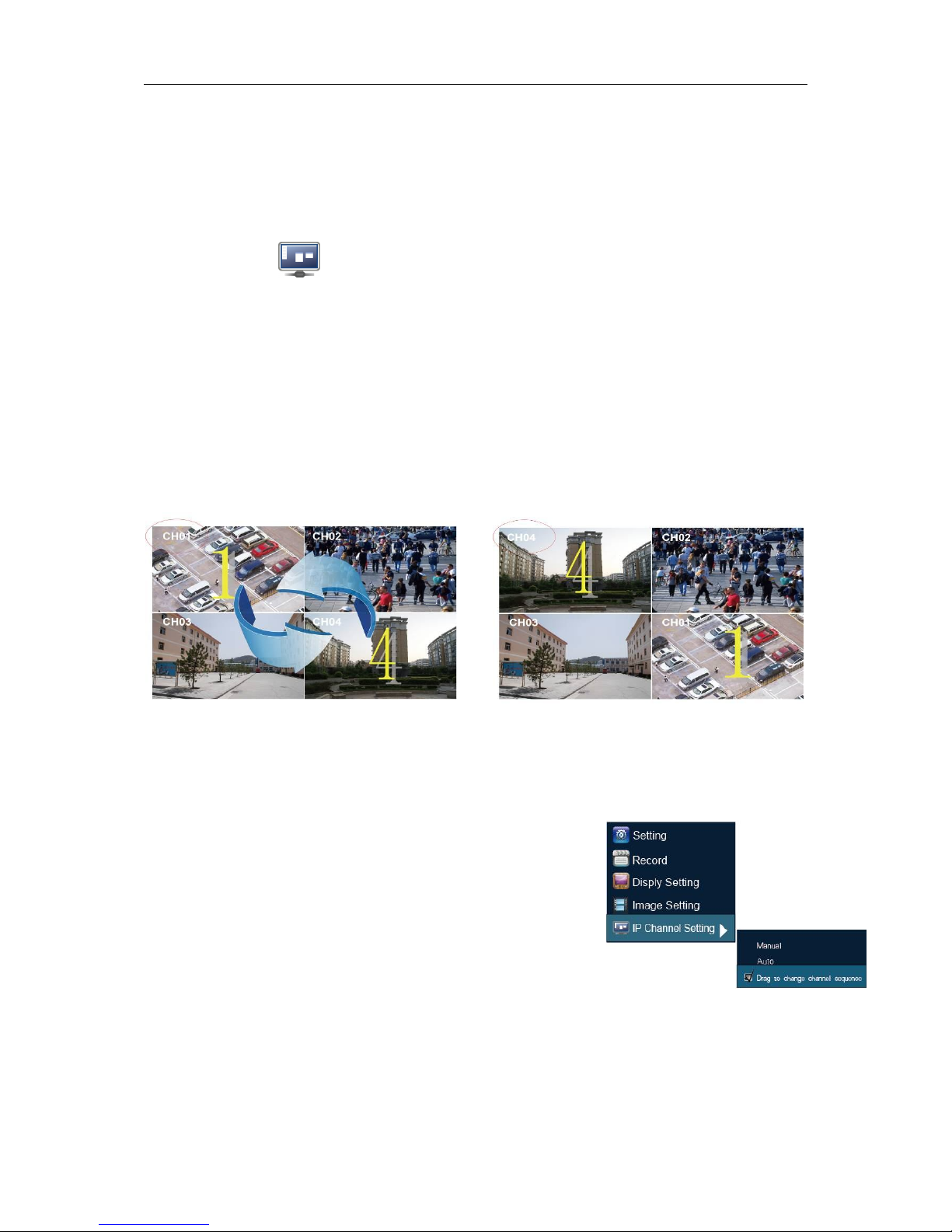
6.3.1 Drag and Drop the Image
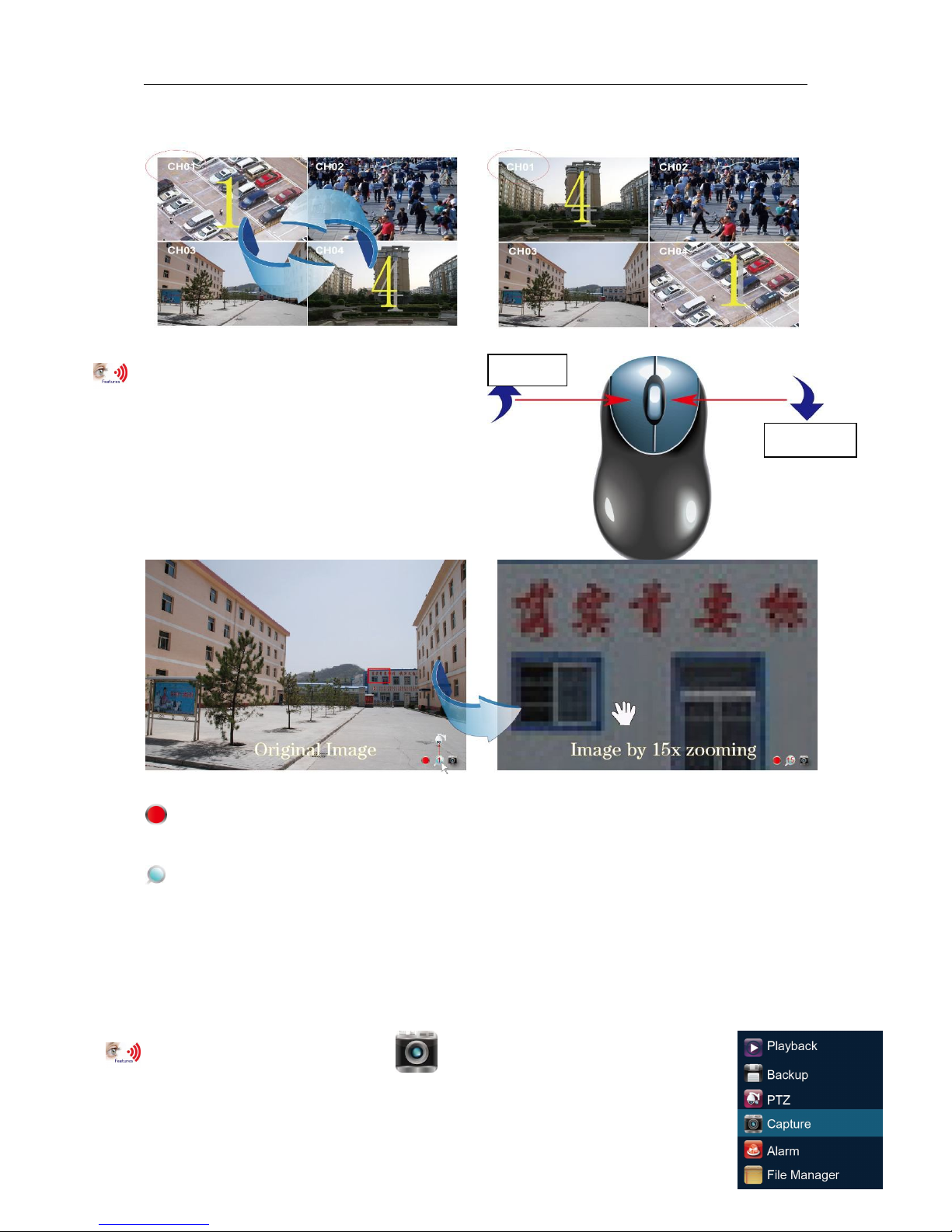
The preview image location can be drag and drop to different place as necessary, but the channel
physical address will keep the same(ATTN: channel number in red circle as below)
Preview image can randomly drag to adjust according to actual management requirement, which
makes surveillance management more systematic and friendly.
6.3.2 Drag to Change Channel Sequence
During real video surveillance, it’s very important to have
preview channel position of IPC image.Simple image dragging
could not meet the need of multi-channel simultaneous playback
and it’s frustrating to match channel position respectively
when searching. Dragging channel sequence can better solve this
problem.
Right Mouse to click 【IP channel setting】, choose【drag to
change channel sequence】 .
Operation is same as 6.3.1. After dragging channel sequence, users are unnecessary to fill in
username, password and IPC will reconnect in its new channel position. When dragging, 2 channels
exchanged would lose image for a short while till reconnection. Time for reconnection depends on
Page 9
SUNEYES MINI NVR Quick Start Manual
第 9 页 共 21 页
different IPC, which costs about 1 to 60 second.
6.3.3 Digital Zooming
During image preview and playback, roll mouse
roller to do digital zooming, it zoom the image as
mouse pointer as the center. The max can do 15X
zooming. Drag the zoomed image by mouse to see
image detail.
The channel is recording. Light flashing means frame lost or recording lost. Please adjust the
code stream, for details, please refer to 6.5.2;
Magnifying glass: digital zooming, the red number in the middle is magnification figures, click this
icon, it can change to PTZ control
6.4 Manual Capture
Right click to bring main menu, click 【Capture】, it supports all channels manual
capturing. After capture, there is information to hint capturing is successful or failure or this
channel does not support capture. The image of capture resolution is D1 by JPG
Zoom In
Zoom Out
Page 10
SUNEYES MINI NVR Quick Start Manual
第 10 页 共 21 页
format, and it is saved in special area, the recording file will not overlay it. The capture
image can be viewed or backup in file manage folder
Right click to bring main menu, click 【File Manager】and click Refresh button,
the captured file shows in the file list area, the file are named by channel number& capture time,
double click it to check.
Capture back up: plug flash disk by USB port, click Refresh to check whether flash disk connect well,
then select the capture files that need back up, and click Back Up to begin it.
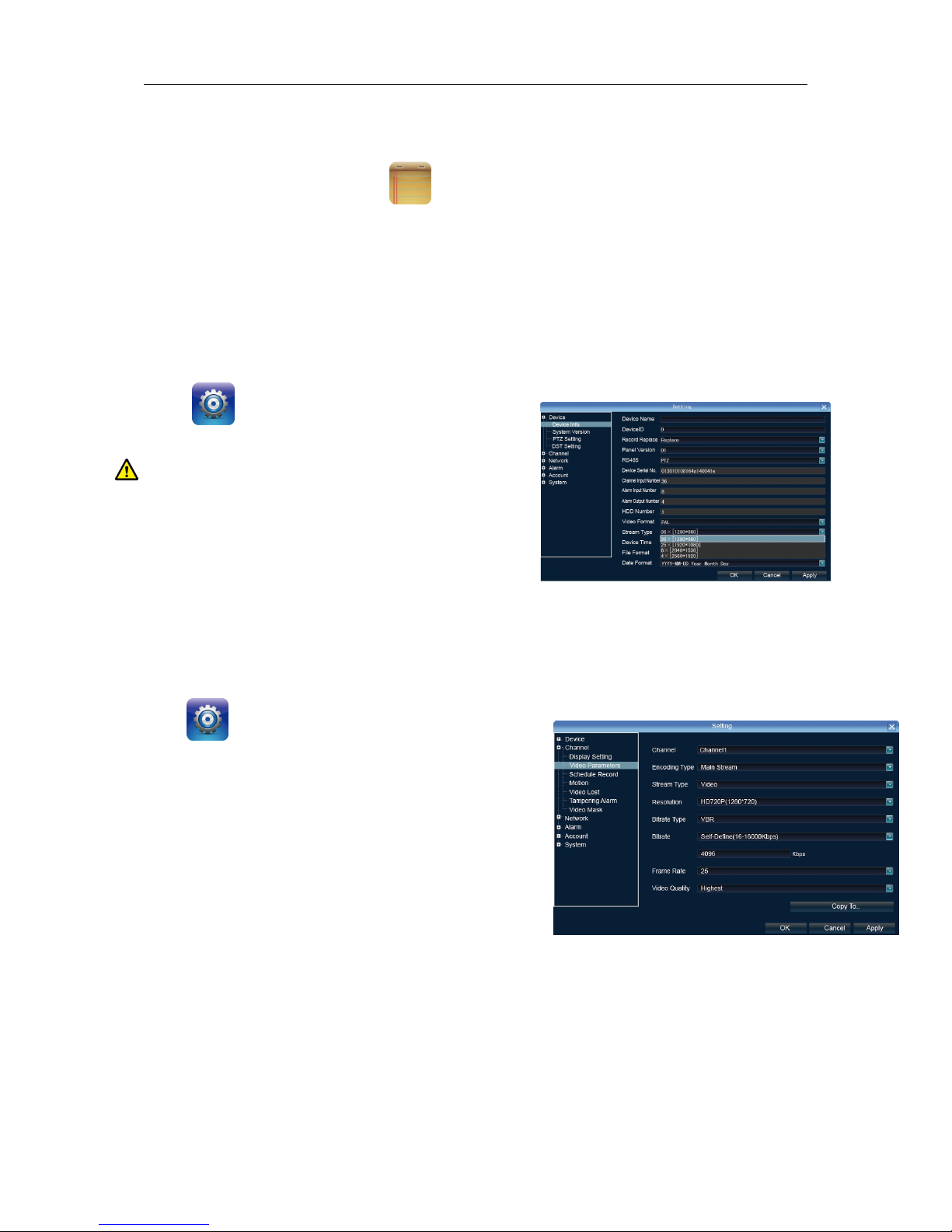
6.5 System Setting
6.5.1 Device Parameter
Click 【Setting】DeviceDevice info to check
device spec. information and time setting
Notice: Attention: select mode according the connected
IP camera channels and resolution, after change the
model,click save and reboot the device.
When the image is good in 9/16/25/26 screen modes, after
double click the image to zoom, the image is stuck or
become black screen change to 1080 mode can solve it.
Systerm version: check the system version and time, when do software update, need to check
version first to avoid updating failure and damage the device.
6.5.2 Channel Information
Click 【Setting】 ChannelVideo Parameters, to
adjust IP camera preview and recording resolution.
1) Encoding Type: Main Stream (Normal), Sub Stream, Main
Stream (Event) for selection
Main Stream:double click to show single image or full
screens image are main stream, also recording playback is
main stream.
Sub Stream : 9/16/25/36 screens display are using sub
stream, IE or mobile reviewing are sub stream also.
Main Stream (Event):motion detection and alarm trigger recording are using this
2) Stream Type:video, video & audio two type for selection. When connect with audio, please select
video & audio mode, or there is no audio when playback.
3) Resolution Ratio:NVR will get IP camera main stream and sub stream resolution automatically,
when the image is not good, can adjust from here according to necessory.
Page 11
SUNEYES MINI NVR Quick Start Manual
第 11 页 共 21 页
4) Bitrate Type:set variable bit rate and constant bit rate
5)Bitrate: set the bit rate upper limit for coding main stream are 1080P: 6000kbps, 720P: 4000kbps ;
set the bit rate upper limit for coding sub stream is 512-1024kbps
6)Frame Rate:suggest to set full frame 25/30
7)Video Quality: suggest to select highest
When all the IP cameras connected with NVR are same brand, after finish setting 1st channel, can click
Copy To to apply the setting to all channels, then click Save.
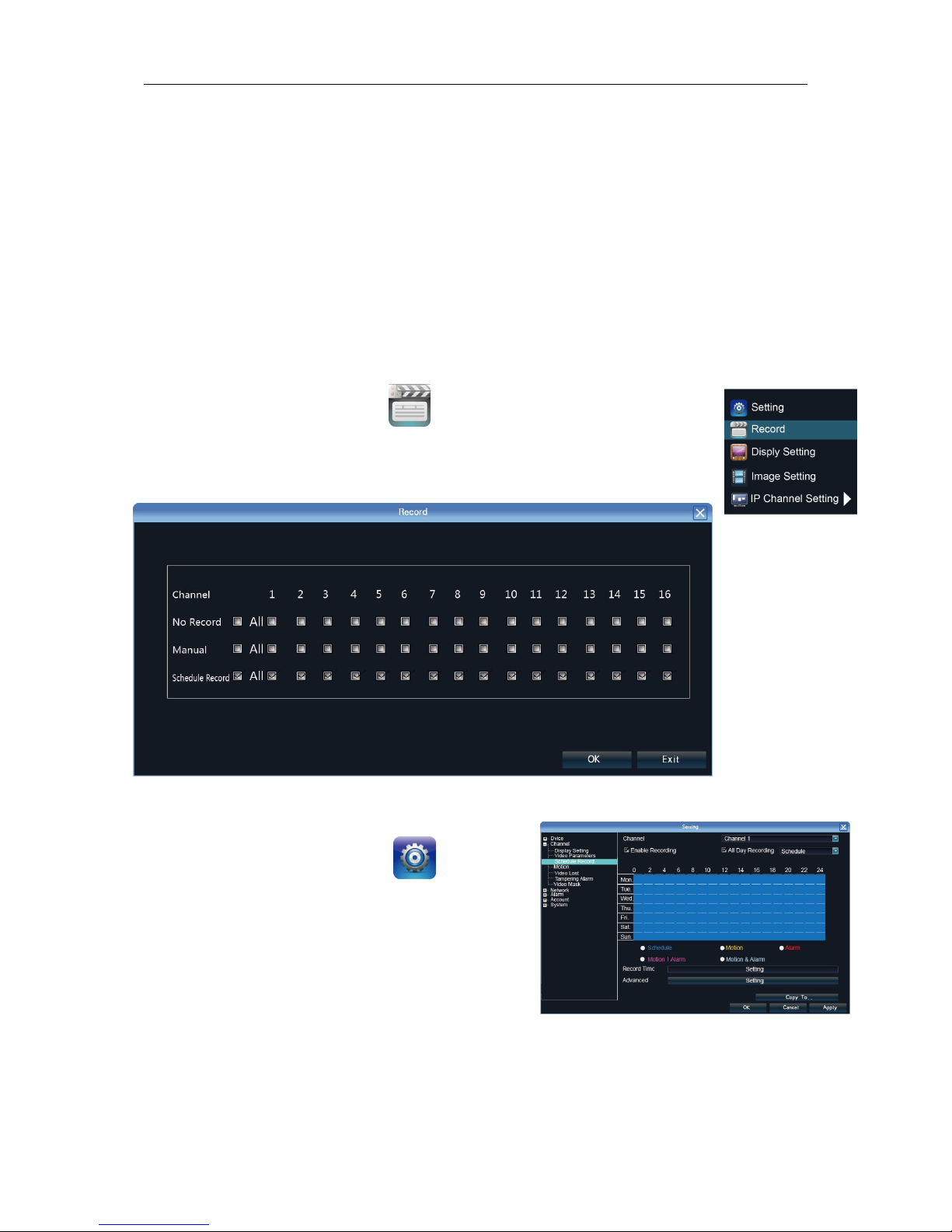
7.1 Recording
7.1.1 Manual Recording
Right click to bring main menu, click 【Record】to enter record setting.
Manual recording has the highest priority, after performing Manual,
the corresponding channel will begin recording.
7.1.2 Schedule Record
Right click to bring main menu, click
【Setting】ChannelSchedule Record, the default
setting is 24 hours recording, user can set the recording
plan according to the necessary and copy it to other
channels.
When NVR has set to have motion detection,
video mask alarm, etc linkage, system will triger
alarm video record of correspondent channels.
When channel setting is same, users can click “copy to”
to choose correspondent channels. Then click apply and set to save sucessfully.
Page 12
SUNEYES MINI NVR Quick Start Manual
第 12 页 共 21 页
Notice: If NVR stop recording in a regular time, please check schedule record status, the schedule
might be in wrong, please adjust them to manual record.
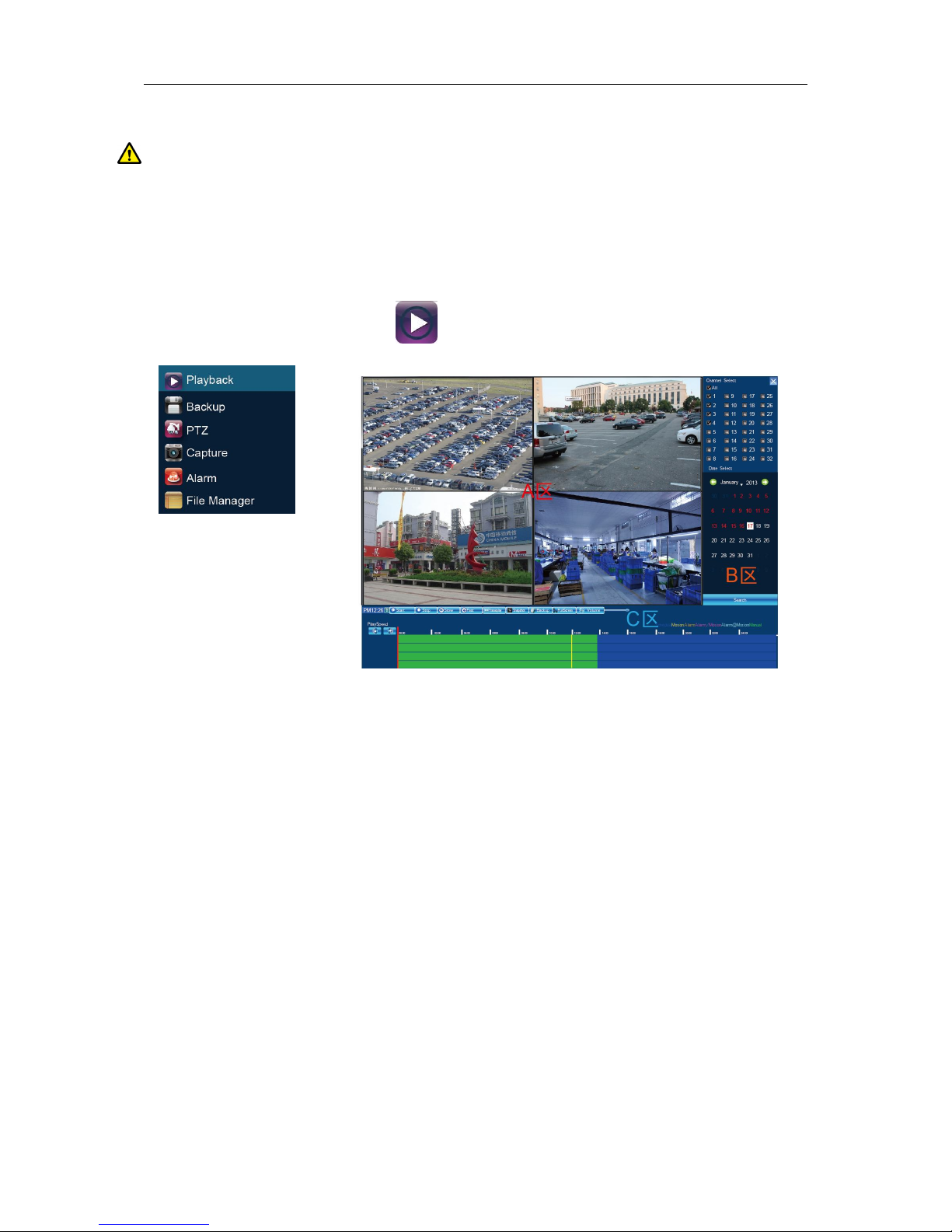
7.1.3 Playback
Right click to bring main menu, click 【playback】to open the menu:
Channel Select: select the channels that need do playback, system will find the required recording file.
The date that has recording is highlighted by red color in calendar
Date Select: select the playback date
Playback: after choosing the date, 24 hours color bar will show in C area. Different recording way will
show in different color. Adjust the time line by mouse roller between 2 hours, 1 hours, 30 minutes, 5
minutes and 1 minute. The playback time can be specified to second
1、Pause: pause the playback at present
2、Stop: stop the playback
3、Deceleration: decelerate playback speed(respectively 1/2, 1/4, 1/8, 1/16 times).
4、Acceleration: accelerate playback speed(respectively 2, 4, 8, 16 times).
5、Capture: capture pictures from random playback channels.
6、Backup:carry out record backup from random playback channels, which can backup record
accurately to second. Please check 7.1.3【Record Backup】
7、Mute:playback audio forbiddened.
Page 13
SUNEYES MINI NVR Quick Start Manual
第 13 页 共 21 页
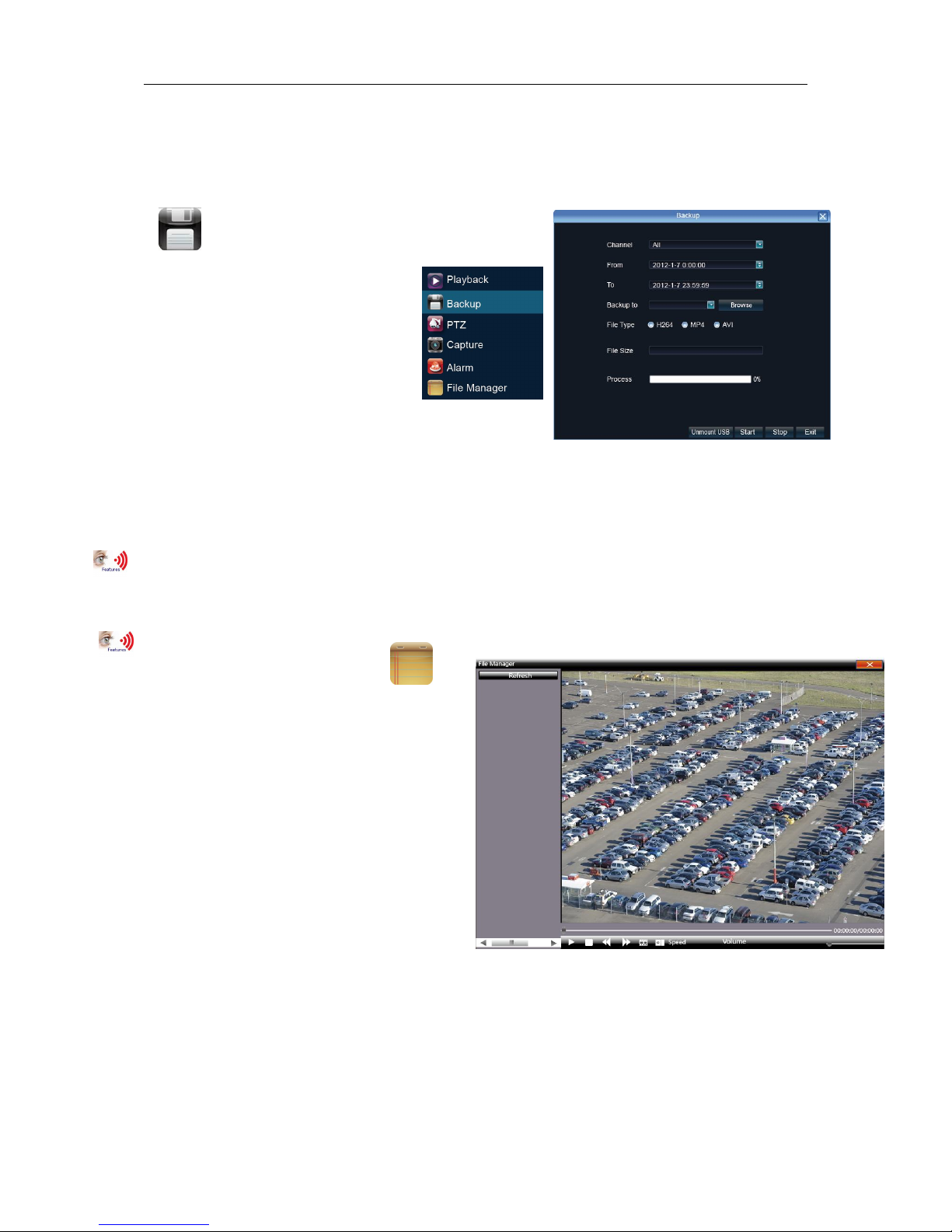
7.1.4 Record Backup
Before back up,please make sure the hard disk has been saved with video.
Playback Backup: click Back Up icon in area C of 7.2 Playback
Preview Backup: Right click bring main menu, click
【Backup】to enter the backup interface,
as right picture showsVideo backup best
way is to play back recorded video
firstly, then select the backup time
and channel, insert the USB memory
to backup.
Insert a USB external storage device, click Refresh to detect
USB devices. There are three backup file format: H.264, MP4, AVI.Recommend back up to MP4 format
which can use document management to check the backup file, and computer player to play.
Precise Backup: the mini.backup time can be one second.
Fast Backup: high-speed transmission, saving backup time;
7.1.5 File Manager
Right click to bring main menu, click
【File Manager】icon, the back up file
of external storage device and local
captured picture will list in the folder.
1) Check photo in the hard disk: select
date on calendar, if there was capture in that
day ,then it would be displayed in list form;if no
capture,then no display information.
2) Check the U disk and other mobile storage
devices: click Refresh ,then drop-down
to select U disk paths, the photos and videos in the disc will be displayed, double-click it to check.
You can capture also when you view the video, the captured photos are stored in the hard disc of that
very day.
7.2.1 User Management
Right mouse to Setting—User Management. Users can check current login users and add, delete, modify
Page 14
SUNEYES MINI NVR Quick Start Manual
第 14 页 共 21 页
users as well as configuring user right.
7.3.1 Log Query
Right mouse to click , then click “System management” and choose “Log query” as below:
Choose Log Style, start and over time;
Click query and will display all NVR operation or abnormal information;
Click export to export current log information.
7.3.2 Stream info
Right mouse to click , then click “System management” and choose “Stream info” as below:
Here users can check current IPC’s real time main stream, sub stream, main stream HDD space storage per
hour and sub stream HDD space storage per hour from left to right respectively.
7.3.3 HDD Setting
Right click ,click 【Setting】SystemHDD setting
Here you can check the mobile HDD connected currently or HDD statue of E-SATA connected and can
operate HDD formatting.
HDD linear drive file management:
NVR begins to write data from HDD’s zero track; after HDD is full in space, NVR restarts from zero track
for coverage of data, which leads to very less disk fragmentation and can effectively enhance the life of
the hard disk to improve the life of the hard disk at 2.5 times theorically.
In order to ensure a linear drive file management to better identify and write disk space
Recommend to format the HDD first before the recording, format the hard drive safe and fast, to end
with about 1-3 seconds.
7.3.4 System Upgrade
Right click mouse, click 【Setting】SystemUpdate,insert the USB storage device into the
NVR, click Browse to find the upgrade file, and click Upgrade.
Upgrade include:firmware upgrade,boot screen image upgrade,patch upgrade.
Except USB memory upgrade, it also support upgrade by network.
Note:when the NVR is upgrading,don’t perform any other operations or power off, otherwise NVR will
fail to enter the system ,and have to send back to factory for repairing.
After upgrading,the device need to be rebooted.
Page 15
SUNEYES MINI NVR Quick Start Manual
第 15 页 共 21 页
7.3.5 System Maintenance
System maintenance is devided into everyday, every week, once. After enable, users can choose
detailed maintenance time. It’s recommended to enable system maintenance to clear system cache to
ensure system fluency.
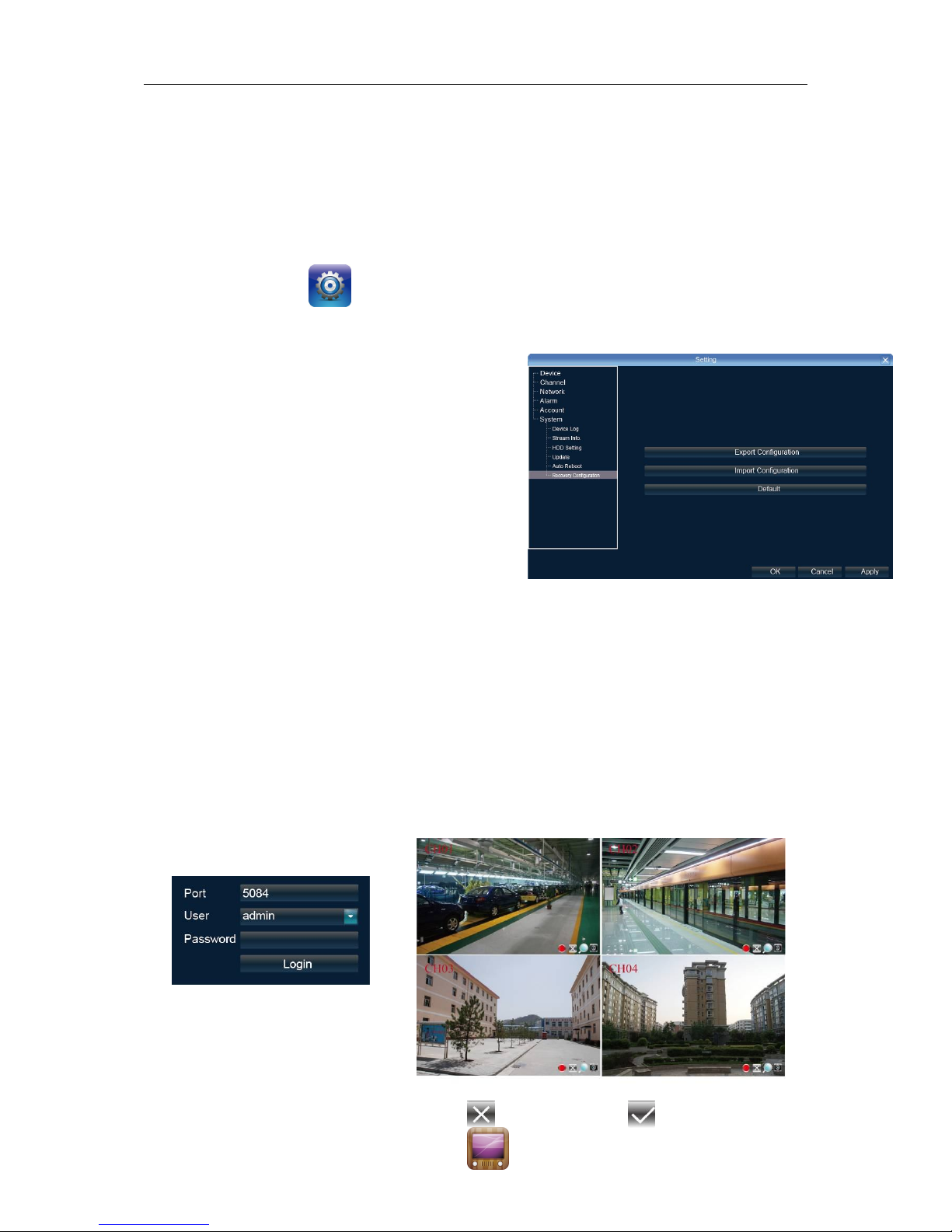
7.3.6 Import-Export Configuration
Right click mouse,click 【Setting】SystemRecovery Configuration。
The following two situations can use the Import and Export configuration:
1. NVR firmware upgrade or restore the default settings;
2. Several NVRs’ configuration are same but connect
different IP cameras in order to save the configuration
time
【Export Configuration】: Export equipment parameters ,
and save it in the assigned place of U disc;
【Import configuration】: Open the menu in the NVRs
that need the same configuration,import data of U disc
to copy the NVR conf iguration.
8.1 IE Viewing.
1.1.1 User Log In
1. Enter the domain+colon+Http port . or enter the static IP +colon +http port . For example, NVR’s IP
address is 192.168.1.189, HTTP port is 32, then type in the address bar: http://192.168.1.189:32.
Download the activex and close the IE browser before installation. After sucessfully installed, again
open the browser and type the IP address or domain name. Log in window appears and then type in
device port, username, password to connect sucessfully.
The operation of IE is same as in the local NVR.
Remark: open the preview, click the right bottom to let it change to or right click to Open
Page 16
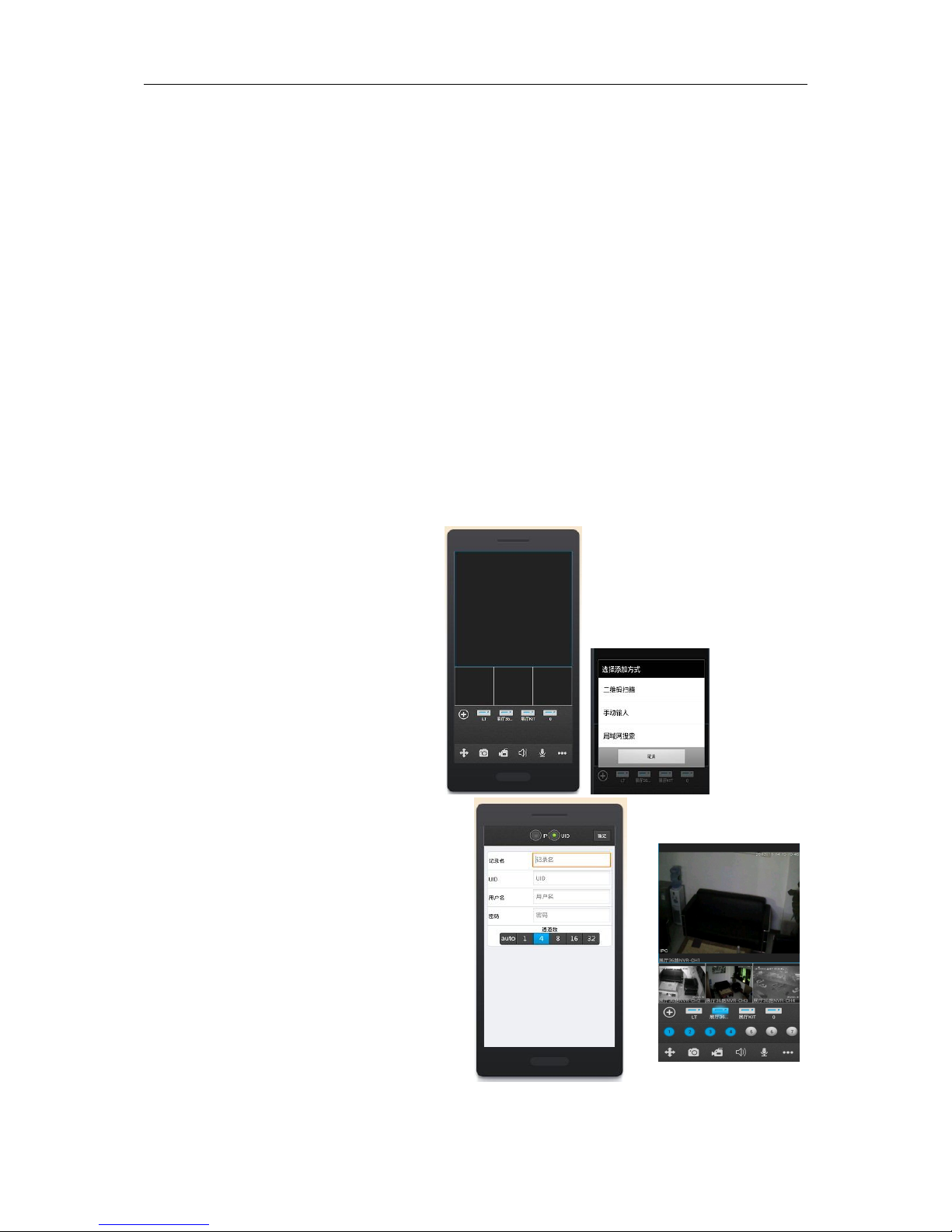
SUNEYES MINI NVR Quick Start Manual
第 16 页 共 21 页
All , the red point represent recording , and click to set the stream and switch of main stream
and sub stream.
This doesn't require for router setting, excluding of registering domain name.
9.1 P2P Cloud Function
P2P Cloud, simple and stable, doesn't require for router setting, excluding of registering domain
name.
Caution:
1: Network Architecture could not have second level router.
2: Make sure NVR has P2P functions and check if it has Icloud protocol (Setting-Network
Setting-Management Platform).
9.1.1 Goolink Mobile Client Setting
Open goolink mobile client(Client can be downloaded on different mobile apps platform by searching
“goolink”).
Click left side “+”,
If LAN has WIFI, Click
“LAN Search”
Normally We choose
“Manually Input ”.
Like right interface,
Click “UID”
Record Name: Must be filled but randomly.
UID: fill with NVR Serial No.
(Setting-Device Parameter-Device info)
Password: Default Null, no need to fill,
if you have changed password already,
be correctly filled following your own password.
Channel Number: Followed by NVR true channel
number, Minimum 1 channel and Maximum 32ch
After added successfully, if the middle line color is
blue in the rectangle icon, it means NVR online and
can link with video data.
Page 17
SUNEYES MINI NVR Quick Start Manual
第 17 页 共 21 页
9.1.2 IE End Setting
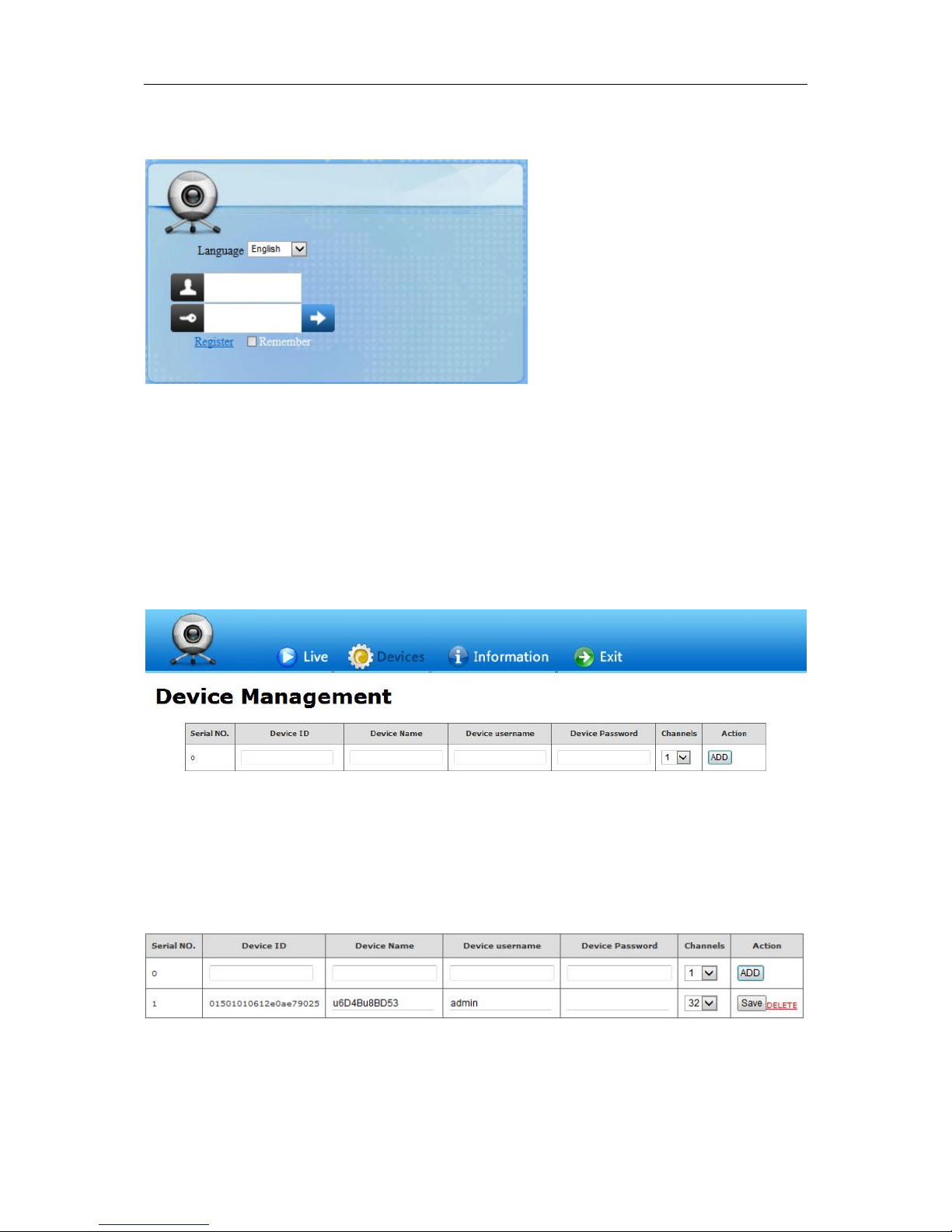
Open Website: www.goolink.org
Click “Register”, Username, password, snapshot save dir and
record video save dir setting randomly.
After entering into, remember to install activex.
Click “Device Management” to add device.
Device ID is NVR Serial No. and Device name randomly filled, Device username and password
followed your NVR username and password setting, see below.
Caution: if it says ID not exists when add it, pls contact our technician.
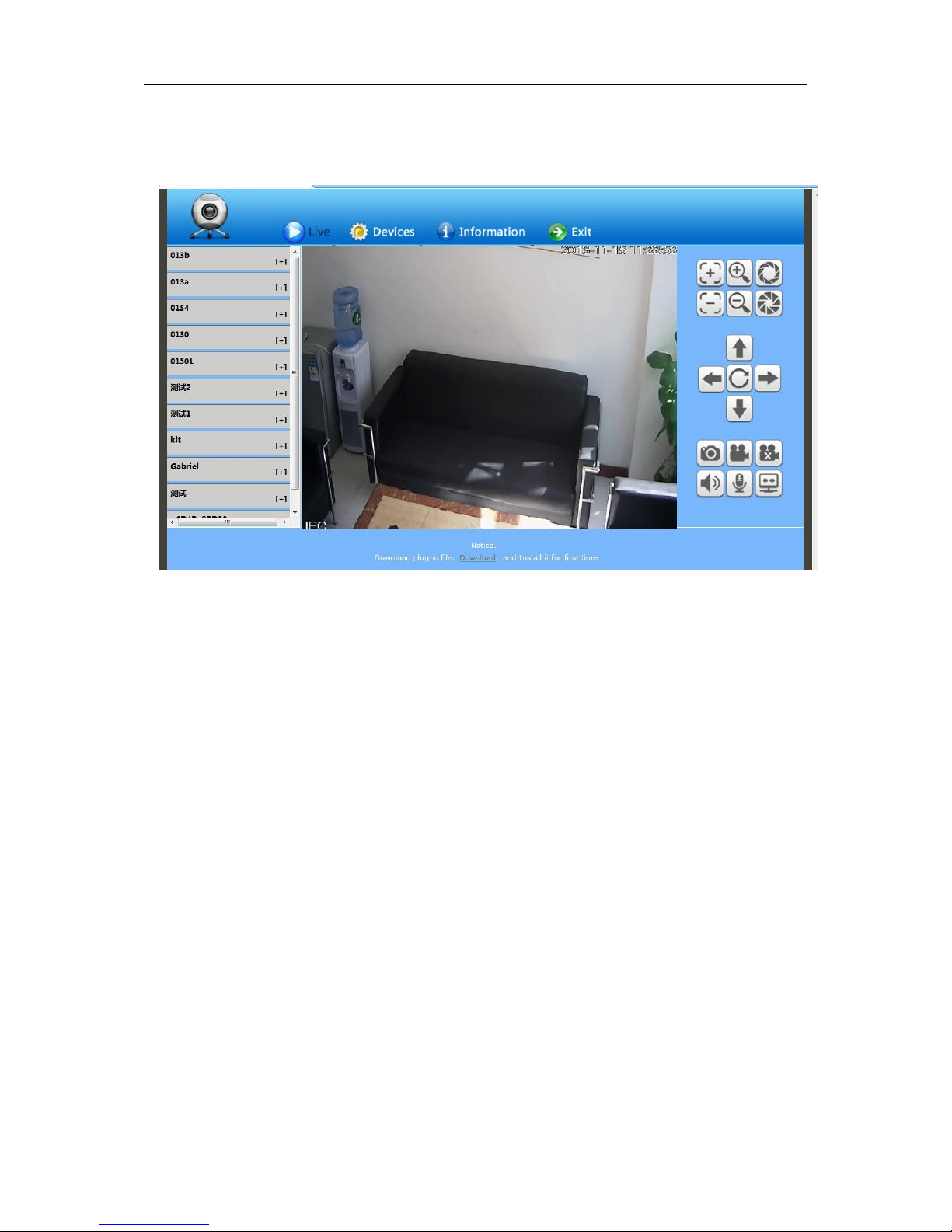
After added successfully, click “Live”. Click NVR name in the left list and click randomly channels for
Page 18
SUNEYES MINI NVR Quick Start Manual
第 18 页 共 21 页
preview.
Attachment: NVR Malfunction & Elimination
1. About Firmware Update
For access to some functions and requirements, NVR needs to update firmware.
Before update, users need to prepare as below:
1) To check Serial No.: Setting→Device→Device info;
2) To check Master Version: Setting→Device→System info;
3) Unplug network cable;
4) Restart NVR;
5) By providing Serial NO., Master Version, PCB and Rear Panel Pictures, users can get the
accurate update files;
Update Operation: Setting→System→Update, click “Browse”, choose U disk’s .update suffix
update file in root catalog, click “update”, during updating, please do not cut off electricity or carry
out other operation in case that update failure leads to repairing.
2. Image preview or playback abnormal, 4 kinds of ordinary situations as below,
1st, IP Camera IP address can be searched, multi-images sub stream and single image main
stream all cannot have image;
Page 19

SUNEYES MINI NVR Quick Start Manual
第 19 页 共 21 页
2nd, Single image main stream has image, multi-images sub stream is on black screen;
3rd, Multi-images sub stream has image, single image main stream is on black screen or still image
as well as black-screen playback;
4th, image or screen crashes
To choose mode is very important when NVR can be access to different brand and different
resolution IPC.
Above 4 kinds of malfunctions are very common in real utilization and this is all following the steps:
Setting→Device→Device info→Stream type.
The first 3 numerical values must be matched with IPC’s stream setting. IPC’s main stream, sub
stream and reference frame must be equal to or less than the numerical values of NVR’s stream
type. Stream type adjustment need to be saved and restart to make it effect.
The first numerical value of stream type “main” represents the IPC accessible channel numbers
and main stream resolution ratio; The second one “sub” is subs stream’s resolution ratio; The third
one “ref” is the reference frame IPC can get access to; The fourth one “play” is the playback
channel numbers under this kind of stream type.
Solution of 1st situation which IP address can be searched but without any images:
1) Adjustment of stream type, choose stream type with ref value for 4ref. To get access to
Ambarella solution IPC needs 4ref;
2) IPC’s username and password should be correctly filled in;
3) This IPC has not been butt joint or version outdated, which needs supplier’s confirmation for
butt joint and then update NVR firmware.
Solution of 2nd situation which single image main stream has image and multi-images sub stream
is on black screen:
1) Adjustment of stream type, choose stream type with sub stream of 720×576, please be aware
if main stream resolution ratio and IPC’s are matched;
2) By IPC’s IE(IPC IP address access) or PC Client, users need to adjust IPC’s sub stream for
resolution ratio of VGA or CIF;
3) To update NVR firmware.
Solution of 3rd situation which multi-images sub stream has image and single image main stream is
on black screen or still image as well as black-screen playback:
1) Adjustment of stream type to 1080P mode;
2) By IPC’s IE(IPC IP address access) or PC Client, users need to adjust IPC’s main stream with
resolution ratio for 960P or 720P;
Solution of 4th situation which image is crashed is same as 3rd situation; If the whole screen is
crashed, it may be connected with NVR hardware malfunction or lunk. Please check if monitor
resolution ratio is matched or exchange of another monitor and lunk.
3. Images cannot be all connected in full channel, image off or image sporadic
1) Stream data access exceeds NVR’s total network resource, 3M for main stream and 512K for
sub stream recommended;
2) NVR firmware outdated and needs to be updated with optimized network master version
3) Ethernet switch backplane bandwidth is deficient. NVR of more than 16 channels in number
needs to get access to a Gigabit Ethernet switch higher than 48G in Gbps.
4) Carefully check out IP address is conflicted or not. If there is device sharing the same IP
Page 20

SUNEYES MINI NVR Quick Start Manual
第 20 页 共 21 页
address with NVR local IP address in network, it happens to have image flickering every
second. Properly it may have such a phenomenon that image occurs in 1st channel and next
second in 3rd channel, then next second has no idea in which channel.
4. Audio Fails to Monitor
1) IP camera audio enable or not: check out and open up audio to see whether IP camera has
BYO pick-up via IE or IP camera BYO client app on PC;
2) Audio format: adjust audio format to G.711 via IE or IP camera BYO client app on PC;
3) NVR: Setting---Channel---Video Parameter, choose the corresponding channel and change
stream type to Video & Audio;
4) Whether Aout port on NVR rear panel gets access to speaker working properly.
5. New HDD Added but Video Still Recorded in Previous HDDs
1) Formatting all HDDs;
2) Shut down and unplug former HDDs, then only insert new HDD and after half an hour recording,
shut down and insert the former ones.
6. IE Access: Fail to Install Plug-in Without Image Out
NVR: Setting---Network---Network Setting, check out IP address, Remote Port, HTTP Port.
First to fix LAN access:
1) WinXP: Please install VC++2008 from Microsoft;
2) Win7 & Win8: Click “Start” to choose current login user as “Administrator”, tick Control
Panel---User Accounts and Family Safety---Change User Account Control Setting, then lower
down to “Never notify”. Open IE browser and press “Tools” to see “Internet
Options”---“Security”---“Custom Level”, adjust ActiveX controls and plugins to “Enable” or
“Prompt” and “Disable” “Binary and script behaviors” alone. Follow the same setting step in
“Local Intranet” and tick “OK”, restart IE browser. Finally press “Alt” to see “Tools” and tick
“Compability View Setting” to check “Display all websites in Compability View” . Click “OK”
and reopen IE browser.
3) Check whether PC had installed ActiveX in previous time. Close IE browser and go to
“Program Files[WinXP]” folder in C Disk, then delete “dvr_activex” whole folder, while deleting
“dvr_activex” folder in “Program Files(x86)[Win7&8]”, then install new activex.
4) After successfully installing activex, input NVR IP address on IE browser address bar and
login interface appeared. Port for NVR Remote Port as default is 5050 in port, admin in user
name and no password. Tick “login” and click right mouse to see “Open All” or tick the × to √ in
every screen right corner.
WAN Access:
Recommend to shut down NVR and close router’s UPNP, then do the port mapping. If open UPNP
without NVR shut down, it may have mapping conflict and NVR UPNP is default to be closed.
If users have static IP, it needs to map two rules in router, first is 5050-5053, related to NVR IP
address; second is 80(Strongly advised to alter), related to NVR IP address, then succeed to
finish port mapping.
Some Routers can only do the port mapping one by one, which needs to map 4 ports: 5000, 5051,
5052, 5053, plus HTTP port, otherwise it may occurs that user can get access to login interface
Page 21

SUNEYES MINI NVR Quick Start Manual
第 21 页 共 21 页
but fail to get image. For mobile access, user needs to plus 3 based on the remote port.
Open IE browser again and it can be access to input static IP address in bar. If you have changed
HTTP port from 80 to 88, you must input http://static IP:88 (colon : is English character)
If users don’t have static IP address, after port mapping, it needs to do dynamic domain name
blinding. Like 3322, Peanut Hull, No-IP, after succeed to register domain name on their websites,
tick NVR Setting---Network---DDNS Setting, and fill the username, password and domain name.
7. How to Apply P2P Cloud Surveillance?
1) To check whether your NVR has P2P, tick Setting---Network---Management Plat_ and check
whether there is Icloud protocol on the column. If not, NVR needs to be updated with firmware;
2) NVR’s network cable should be access to public network;
3) Smartphone is necessary to download software and install “goolink”, which can be found on
Android market and App store. For IE end P2P, open IE browser and input
http://www.goolink.org on address bar and then register an account. After successful
registeration, refresh http://www.goolink.org and after activex is successfully loaded, it will
have a black screen in the middle of the page. Now users turn to add device in device
management and device ID is from users’ NVR Series No. while device user is “admin” with
no password. Users can manually set up device name by them self. If users had changed
password already, pls fill in the right password. Channel number is according to the nvr users
at hand, which max supports 32 channels. After all this, tick “add” and go to see live preview.
4) After software installation, tick the left corner “+” button and choose the adding mode. If LAN
has WIFI, users can click “LAN Explore” while “manually input” is common used. Tick the
upward side “UID” and “record name”. “record name” can be randomly filled and “UID” is from
NVR’s Series No.(NVR---Device---Device info). Username is admin and no password if
default. If password changed, please type the right password. Channel number is determined
by the actual NVR channel number, which is 1 channel in minimum and 32 channels in
maxmum. After adding successfully, there is a line in the middle, if it is blue, it means device
online, which can normally output image.
8. How to Achieve Centralized Management?
For simple preview, user can use standalone version network video surveillance software, which
can be directly installed with compact size and manage NVR. For professional surveillance, user can
user system network version CMS centralized surveillance software, which is embedded with several
main module like Central Management Server, Platform Client Management Server, Storage Server
and Forwarder Server, etc. It can monitor mainstream DVR, NVR and achieve the central monitor
management of the different brand machines. For detail, please carefully view it on NVR CD disk.
9. How to Decode for TV Wall?
Via CMS central monitor software Client, user can configure decoder, which can decode NVR or
ONVIF protocol’s IP cameras. For detail, please carefully view it on Decode CD disk.
 Loading...