

Page 1
CYCLONE
CYCLONE
CYCLONE
CYCLONE 2
2
2
2
HD
HD
HD
HD HDMI
HDMI
HDMI
HDMI 1080p
1080p
1080p
1080p Up-Scaling
Up-Scaling
Up-Scaling
Up-Scaling
Enclosure
Enclosure
Enclosure
Enclosure M
M
M
M ultimedia
ultimedia
ultimedia
ultimedia Player
Player
Player
Player
U
U
U
U ser
ser
ser
ser M
M
M
M anual
anual
anual
anual
Page 2

Cyclone 2 Media Player Manual
Page 2 of 49 15 / 12 / 20 09
V1.2
15/12/09
15/12/09
15/12/09
15/12/09 V1.2
V1.2
V1.2
V1.2
Please
Please
Please
Please note
note
note
note manual
manual
manual
manual contents,
contents,
contents,
contents, specifications
specifications
specifications
specifications and
and
and
and product
product
product
product appearances
appearances
appearances
appearances
may
may
may
may change
change
change
change without
without
without
without notice.
notice.
notice.
notice.
Page 3

Cyclone 2 Media Player Manual
Page 3 of 49 15 / 12 / 20 09
V1.2
Contents
Contents
Contents
Contents Page
Page
Page
Page
1
1
1
1 SAFETY
SAFETY
SAFETY
SAFETY INSTRUCTIONS
INSTRUCTIONS
INSTRUCTIONS
INSTRUCTIONS
.
.
.
. .
.
.
. .
.
.
. .
.
.
. .
.
.
. .
.
.
. .
.
.
. .
.
.
. .
.
.
. .
.
.
. .
.
.
. .
.
.
. .
.
.
. .
.
.
. .
.
.
. .
.
.
. .
.
.
. .
.
.
. .
.
.
. .
.
.
. .
.
.
. .
.
.
. .
.
.
. .
.
.
. .
.
.
. .
.
.
. .
.
.
. .
.
.
. .
.
.
. .
.
.
. .
.
.
. .
.
.
. .
.
.
. .
.
.
. .
.
.
. .
.
.
. .
.
.
. .
.
.
. .
.
.
. .
.
.
. .
.
.
. .
.
.
. .
.
.
. .
.
.
. .
.
.
. .
.
.
. .
.
.
. .
.
.
. .
.
.
. .
.
.
. .
.
.
. .
.
.
. .
.
.
. .
.
.
. .
.
.
. .
.
.
. .
.
.
. .
.
.
. .
.
.
. .
.
.
. .
.
.
. .
.
.
. .
.
.
. .
.
.
. .
.
.
. .
.
.
. .
.
.
. .
.
.
. .
.
.
. .
.
.
. .
.
.
. .
.
.
. .
.
.
.
5
5
5
5
2
2
2
2 PRODUCT
PRODUCT
PRODUCT
PRODUCT OVERVIEW
OVERVIEW
OVERVIEW
OVERVIEW
.
.
.
. .
.
.
. .
.
.
. .
.
.
. .
.
.
. .
.
.
. .
.
.
. .
.
.
. .
.
.
. .
.
.
. .
.
.
. .
.
.
. .
.
.
. .
.
.
. .
.
.
. .
.
.
. .
.
.
. .
.
.
. .
.
.
. .
.
.
. .
.
.
. .
.
.
. .
.
.
. .
.
.
. .
.
.
. .
.
.
. .
.
.
. .
.
.
. .
.
.
. .
.
.
. .
.
.
. .
.
.
. .
.
.
. .
.
.
. .
.
.
. .
.
.
. .
.
.
. .
.
.
. .
.
.
. .
.
.
. .
.
.
. .
.
.
. .
.
.
. .
.
.
. .
.
.
. .
.
.
. .
.
.
. .
.
.
. .
.
.
. .
.
.
. .
.
.
. .
.
.
. .
.
.
. .
.
.
. .
.
.
. .
.
.
. .
.
.
. .
.
.
. .
.
.
. .
.
.
. .
.
.
. .
.
.
. .
.
.
. .
.
.
. .
.
.
. .
.
.
. .
.
.
. .
.
.
. .
.
.
. .
.
.
. .
.
.
. .
.
.
. .
.
.
. .
.
.
. .
.
.
. .
.
.
. .
.
.
.
7
7
7
7
2.1 F EA TURES . . . . . . . . . . . . . . . . . . . . . . . . . . . . . . . . . . . . . . . . . . . . . . . . . . . . . . . . . . . . . . . . . . . . . . . . . . . . . . . . . . . . . . . . . . . . . 7
2.2 F RONT
P
ANEL AND I NFRARED R EMOTE S ENSOR . . . . . . . . . . . . . . . . . . . . . . . . . . . . . . . . . . . . . 8
2.2.1 Explanation of the keys control . . . . . . . . . . . . . . . . . . . . . . . . . . . . . . . . . . . . . . . . . . . . . . . . . . . . . 8
2.3 R EMOTE C ONTROL O VERVIEW . . . . . . . . . . . . . . . . . . . . . . . . . . . . . . . . . . . . . . . . . . . . . . . . . . . . . . . . . . . . . . . 9
3
3
3
3 SETUP
SETUP
SETUP
SETUP
.
.
.
. .
.
.
. .
.
.
. .
.
.
. .
.
.
. .
.
.
. .
.
.
. .
.
.
. .
.
.
. .
.
.
. .
.
.
. .
.
.
. .
.
.
. .
.
.
. .
.
.
. .
.
.
. .
.
.
. .
.
.
. .
.
.
. .
.
.
. .
.
.
. .
.
.
. .
.
.
. .
.
.
. .
.
.
. .
.
.
. .
.
.
. .
.
.
. .
.
.
. .
.
.
. .
.
.
. .
.
.
. .
.
.
. .
.
.
. .
.
.
. .
.
.
. .
.
.
. .
.
.
. .
.
.
. .
.
.
. .
.
.
. .
.
.
. .
.
.
. .
.
.
. .
.
.
. .
.
.
. .
.
.
. .
.
.
. .
.
.
. .
.
.
. .
.
.
. .
.
.
. .
.
.
. .
.
.
. .
.
.
. .
.
.
. .
.
.
. .
.
.
. .
.
.
. .
.
.
. .
.
.
. .
.
.
. .
.
.
. .
.
.
. .
.
.
. .
.
.
. .
.
.
. .
.
.
. .
.
.
. .
.
.
. .
.
.
. .
.
.
. .
.
.
. .
.
.
. .
.
.
. .
.
.
. .
.
.
. .
.
.
. .
.
.
. .
.
.
. .
.
.
. .
.
.
. .
.
.
. .
.
.
. .
.
.
. .
.
.
. .
.
.
. .
.
.
. .
.
.
. .
.
.
. .
.
.
. .
.
.
. .
.
.
. .
.
.
. .
.
.
. .
.
.
. .
.
.
. .
.
.
. .
.
.
. .
.
.
. .
.
.
. .
.
.
.
11
11
11
11
3.1 R EMOTE CONTROL S ETUP . . . . . . . . . . . . . . . . . . . . . . . . . . . . . . . . . . . . . . . . . . . . . . . . . . . . . . . . . . . . . . . . . . . .
11
3.2 TV C ONNECTION S ETUP . . . . . . . . . . . . . . . . . . . . . . . . . . . . . . . . . . . . . . . . . . . . . . . . . . . . . . . . . . . . . . . . . . . . . . 12
3.2.1 Composite TV Connection Setup (Standard Definition) . . . . . . . . . . . . . 12
3.2.2 HDMI Connection Setup (High Definition) . . . . . . . . . . . . . . . . . . . . . . . . . . . . . . . . . . 13
3.2.3 PC Connection Setup . . . . . . . . . . . . . . . . . . . . . . . . . . . . . . . . . . . . . . . . . . . . . . . . . . . . . . . . . . . . . . . . . . 14
3.3 C ONNECTING P OWER . . . . . . . . . . . . . . . . . . . . . . . . . . . . . . . . . . . . . . . . . . . . . . . . . . . . . . . . . . . . . . . . . . . . . . . . . . . 15
3.4 S TARTUP P LA YER . . . . . . . . . . . . . . . . . . . . . . . . . . . . . . . . . . . . . . . . . . . . . . . . . . . . . . . . . . . . . . . . . . . . . . . . . . . . . . . . . 15
4
4
4
4 MAIN
MAIN
MAIN
MAIN MENU
MENU
MENU
MENU
.
.
.
. .
.
.
. .
.
.
. .
.
.
. .
.
.
. .
.
.
. .
.
.
. .
.
.
. .
.
.
. .
.
.
. .
.
.
. .
.
.
. .
.
.
. .
.
.
. .
.
.
. .
.
.
. .
.
.
. .
.
.
. .
.
.
. .
.
.
. .
.
.
. .
.
.
. .
.
.
. .
.
.
. .
.
.
. .
.
.
. .
.
.
. .
.
.
. .
.
.
. .
.
.
. .
.
.
. .
.
.
. .
.
.
. .
.
.
. .
.
.
. .
.
.
. .
.
.
. .
.
.
. .
.
.
. .
.
.
. .
.
.
. .
.
.
. .
.
.
. .
.
.
. .
.
.
. .
.
.
. .
.
.
. .
.
.
. .
.
.
. .
.
.
. .
.
.
. .
.
.
. .
.
.
. .
.
.
. .
.
.
. .
.
.
. .
.
.
. .
.
.
. .
.
.
. .
.
.
. .
.
.
. .
.
.
. .
.
.
. .
.
.
. .
.
.
. .
.
.
. .
.
.
. .
.
.
. .
.
.
. .
.
.
. .
.
.
. .
.
.
. .
.
.
. .
.
.
. .
.
.
. .
.
.
. .
.
.
. .
.
.
. .
.
.
. .
.
.
. .
.
.
. .
.
.
. .
.
.
. .
.
.
. .
.
.
. .
.
.
. .
.
.
. .
.
.
. .
.
.
. .
.
.
. .
.
.
. .
.
.
.
16
16
16
16
4.1 D ISPLAY AND S ELECTING S TORAGE D EVICES . . . . . . . . . . . . . . . . . . . . . . . . . . . . . . . . . . . . . . . . 17
5
5
5
5 PLAYING
PLAYING
PLAYING
PLAYING MOVIES
MOVIES
MOVIES
MOVIES
.
.
.
. .
.
.
. .
.
.
. .
.
.
. .
.
.
. .
.
.
. .
.
.
. .
.
.
. .
.
.
. .
.
.
. .
.
.
. .
.
.
. .
.
.
. .
.
.
. .
.
.
. .
.
.
. .
.
.
. .
.
.
. .
.
.
. .
.
.
. .
.
.
. .
.
.
. .
.
.
. .
.
.
. .
.
.
. .
.
.
. .
.
.
. .
.
.
. .
.
.
. .
.
.
. .
.
.
. .
.
.
. .
.
.
. .
.
.
. .
.
.
. .
.
.
. .
.
.
. .
.
.
. .
.
.
. .
.
.
. .
.
.
. .
.
.
. .
.
.
. .
.
.
. .
.
.
. .
.
.
. .
.
.
. .
.
.
. .
.
.
. .
.
.
. .
.
.
. .
.
.
. .
.
.
. .
.
.
. .
.
.
. .
.
.
. .
.
.
. .
.
.
. .
.
.
. .
.
.
. .
.
.
. .
.
.
. .
.
.
. .
.
.
. .
.
.
. .
.
.
. .
.
.
. .
.
.
. .
.
.
. .
.
.
. .
.
.
. .
.
.
. .
.
.
. .
.
.
. .
.
.
. .
.
.
. .
.
.
. .
.
.
. .
.
.
. .
.
.
. .
.
.
. .
.
.
. .
.
.
.
18
18
18
18
5.1
P
ARTITION D RIVES (USB DEVICE ONL Y ) . . . . . . . . . . . . . . . . . . . . . . . . . . . . . . . . . . . . . . . . . . . . . . . . 18
5.2 M OVIE M ENU . . . . . . . . . . . . . . . . . . . . . . . . . . . . . . . . . . . . . . . . . . . . . . . . . . . . . . . . . . . . . . . . . . . . . . . . . . . . . . . . . . . . . . . 19
5.3 M OVIE P LA YBACK O PTIONS . . . . . . . . . . . . . . . . . . . . . . . . . . . . . . . . . . . . . . . . . . . . . . . . . . . . . . . . . . . . . . . . . . 20
6
6
6
6 PLAYING
PLAYING
PLAYING
PLAYING MUSIC
MUSIC
MUSIC
MUSIC
.
.
.
. .
.
.
. .
.
.
. .
.
.
. .
.
.
. .
.
.
. .
.
.
. .
.
.
. .
.
.
. .
.
.
. .
.
.
. .
.
.
. .
.
.
. .
.
.
. .
.
.
. .
.
.
. .
.
.
. .
.
.
. .
.
.
. .
.
.
. .
.
.
. .
.
.
. .
.
.
. .
.
.
. .
.
.
. .
.
.
. .
.
.
. .
.
.
. .
.
.
. .
.
.
. .
.
.
. .
.
.
. .
.
.
. .
.
.
. .
.
.
. .
.
.
. .
.
.
. .
.
.
. .
.
.
. .
.
.
. .
.
.
. .
.
.
. .
.
.
. .
.
.
. .
.
.
. .
.
.
. .
.
.
. .
.
.
. .
.
.
. .
.
.
. .
.
.
. .
.
.
. .
.
.
. .
.
.
. .
.
.
. .
.
.
. .
.
.
. .
.
.
. .
.
.
. .
.
.
. .
.
.
. .
.
.
. .
.
.
. .
.
.
. .
.
.
. .
.
.
. .
.
.
. .
.
.
. .
.
.
. .
.
.
. .
.
.
. .
.
.
. .
.
.
. .
.
.
. .
.
.
. .
.
.
. .
.
.
. .
.
.
. .
.
.
. .
.
.
. .
.
.
. .
.
.
. .
.
.
. .
.
.
. .
.
.
.
22
22
22
22
6.1
P
ARTITION D RIVES (USB DEVICE ONL Y ) . . . . . . . . . . . . . . . . . . . . . . . . . . . . . . . . . . . . . . . . . . . . . . . . 22
6.2 M USIC M ENU . . . . . . . . . . . . . . . . . . . . . . . . . . . . . . . . . . . . . . . . . . . . . . . . . . . . . . . . . . . . . . . . . . . . . . . . . . . . . . . . . . . . . . . 23
6.3 M USIC P LAYBACK O PTIONS . . . . . . . . . . . . . . . . . . . . . . . . . . . . . . . . . . . . . . . . . . . . . . . . . . . . . . . . . . . . . . . . . . 24
7
7
7
7 PLAYING
PLAYING
PLAYING
PLAYING PHOTOS
PHOTOS
PHOTOS
PHOTOS
.
.
.
. .
.
.
. .
.
.
. .
.
.
. .
.
.
. .
.
.
. .
.
.
. .
.
.
. .
.
.
. .
.
.
. .
.
.
. .
.
.
. .
.
.
. .
.
.
. .
.
.
. .
.
.
. .
.
.
. .
.
.
. .
.
.
. .
.
.
. .
.
.
. .
.
.
. .
.
.
. .
.
.
. .
.
.
. .
.
.
. .
.
.
. .
.
.
. .
.
.
. .
.
.
. .
.
.
. .
.
.
. .
.
.
. .
.
.
. .
.
.
. .
.
.
. .
.
.
. .
.
.
. .
.
.
. .
.
.
. .
.
.
. .
.
.
. .
.
.
. .
.
.
. .
.
.
. .
.
.
. .
.
.
. .
.
.
. .
.
.
. .
.
.
. .
.
.
. .
.
.
. .
.
.
. .
.
.
. .
.
.
. .
.
.
. .
.
.
. .
.
.
. .
.
.
. .
.
.
. .
.
.
. .
.
.
. .
.
.
. .
.
.
. .
.
.
. .
.
.
. .
.
.
. .
.
.
. .
.
.
. .
.
.
. .
.
.
. .
.
.
. .
.
.
. .
.
.
. .
.
.
. .
.
.
. .
.
.
. .
.
.
. .
.
.
. .
.
.
. .
.
.
.
25
25
25
25
7.1
P
ARTITION D RIVES (USB DEVICE ONL Y ) . . . . . . . . . . . . . . . . . . . . . . . . . . . . . . . . . . . . . . . . . . . . . . . . 25
7.2 P HOTO P LA YBACK O PTIONS . . . . . . . . . . . . . . . . . . . . . . . . . . . . . . . . . . . . . . . . . . . . . . . . . . . . . . . . . . . . . . . . . 26
7.3 S LIDESHOW WITH B ACKGROUND M USIC . . . . . . . . . . . . . . . . . . . . . . . . . . . . . . . . . . . . . . . . . . . . . . . . 28
Page 4

Cyclone 2 Media Player Manual
Page 4 of 49 15 / 12 / 20 09
V1.2
8
8
8
8 SETUP
SETUP
SETUP
SETUP MENU
MENU
MENU
MENU
.
.
.
. .
.
.
. .
.
.
. .
.
.
. .
.
.
. .
.
.
. .
.
.
. .
.
.
. .
.
.
. .
.
.
. .
.
.
. .
.
.
. .
.
.
. .
.
.
. .
.
.
. .
.
.
. .
.
.
. .
.
.
. .
.
.
. .
.
.
. .
.
.
. .
.
.
. .
.
.
. .
.
.
. .
.
.
. .
.
.
. .
.
.
. .
.
.
. .
.
.
. .
.
.
. .
.
.
. .
.
.
. .
.
.
. .
.
.
. .
.
.
. .
.
.
. .
.
.
. .
.
.
. .
.
.
. .
.
.
. .
.
.
. .
.
.
. .
.
.
. .
.
.
. .
.
.
. .
.
.
. .
.
.
. .
.
.
. .
.
.
. .
.
.
. .
.
.
. .
.
.
. .
.
.
. .
.
.
. .
.
.
. .
.
.
. .
.
.
. .
.
.
. .
.
.
. .
.
.
. .
.
.
. .
.
.
. .
.
.
. .
.
.
. .
.
.
. .
.
.
. .
.
.
. .
.
.
. .
.
.
. .
.
.
. .
.
.
. .
.
.
. .
.
.
. .
.
.
. .
.
.
. .
.
.
. .
.
.
. .
.
.
. .
.
.
. .
.
.
. .
.
.
. .
.
.
. .
.
.
. .
.
.
. .
.
.
. .
.
.
. .
.
.
. .
.
.
. .
.
.
. .
.
.
.
30
30
30
30
8.1 S YSTEM S ETTING . . . . . . . . . . . . . . . . . . . . . . . . . . . . . . . . . . . . . . . . . . . . . . . . . . . . . . . . . . . . . . . . . . . . . . . . . . . . . . . . . 31
8.2 D ISPLAY S ETTING . . . . . . . . . . . . . . . . . . . . . . . . . . . . . . . . . . . . . . . . . . . . . . . . . . . . . . . . . . . . . . . . . . . . . . . . . . . . . . . . 34
8.3 M ENU S ETTING . . . . . . . . . . . . . . . . . . . . . . . . . . . . . . . . . . . . . . . . . . . . . . . . . . . . . . . . . . . . . . . . . . . . . . . . . . . . . . . . . . . . 36
8.4 S OUND S ETTING . . . . . . . . . . . . . . . . . . . . . . . . . . . . . . . . . . . . . . . . . . . . . . . . . . . . . . . . . . . . . . . . . . . . . . . . . . . . . . . . . . 37
9
9
9
9 EDIT
EDIT
EDIT
EDIT MENU
MENU
MENU
MENU
.
.
.
. .
.
.
. .
.
.
. .
.
.
. .
.
.
. .
.
.
. .
.
.
. .
.
.
. .
.
.
. .
.
.
. .
.
.
. .
.
.
. .
.
.
. .
.
.
. .
.
.
. .
.
.
. .
.
.
. .
.
.
. .
.
.
. .
.
.
. .
.
.
. .
.
.
. .
.
.
. .
.
.
. .
.
.
. .
.
.
. .
.
.
. .
.
.
. .
.
.
. .
.
.
. .
.
.
. .
.
.
. .
.
.
. .
.
.
. .
.
.
. .
.
.
. .
.
.
. .
.
.
. .
.
.
. .
.
.
. .
.
.
. .
.
.
. .
.
.
. .
.
.
. .
.
.
. .
.
.
. .
.
.
. .
.
.
. .
.
.
. .
.
.
. .
.
.
. .
.
.
. .
.
.
. .
.
.
. .
.
.
. .
.
.
. .
.
.
. .
.
.
. .
.
.
. .
.
.
. .
.
.
. .
.
.
. .
.
.
. .
.
.
. .
.
.
. .
.
.
. .
.
.
. .
.
.
. .
.
.
. .
.
.
. .
.
.
. .
.
.
. .
.
.
. .
.
.
. .
.
.
. .
.
.
. .
.
.
. .
.
.
. .
.
.
. .
.
.
. .
.
.
. .
.
.
. .
.
.
. .
.
.
. .
.
.
. .
.
.
. .
.
.
. .
.
.
. .
.
.
. .
.
.
. .
.
.
. .
.
.
. .
.
.
. .
.
.
.
39
39
39
39
9.1 C OPY M ENU . . . . . . . . . . . . . . . . . . . . . . . . . . . . . . . . . . . . . . . . . . . . . . . . . . . . . . . . . . . . . . . . . . . . . . . . . . . . . . . . . . . . . . . . 40
9.2 M OVE M ENU . . . . . . . . . . . . . . . . . . . . . . . . . . . . . . . . . . . . . . . . . . . . . . . . . . . . . . . . . . . . . . . . . . . . . . . . . . . . . . . . . . . . . . . . 42
9.3 D ELETE M ENU . . . . . . . . . . . . . . . . . . . . . . . . . . . . . . . . . . . . . . . . . . . . . . . . . . . . . . . . . . . . . . . . . . . . . . . . . . . . . . . . . . . . . 43
9.4 R EFORMAT M ENU . . . . . . . . . . . . . . . . . . . . . . . . . . . . . . . . . . . . . . . . . . . . . . . . . . . . . . . . . . . . . . . . . . . . . . . . . . . . . . . . 44
10
10
10
10 SPECIFICATIONS*
SPECIFICATIONS*
SPECIFICATIONS*
SPECIFICATIONS* +
+
+
+ CONTENTS
CONTENTS
CONTENTS
CONTENTS
.
.
.
. .
.
.
. .
.
.
. .
.
.
. .
.
.
. .
.
.
. .
.
.
. .
.
.
. .
.
.
. .
.
.
. .
.
.
. .
.
.
. .
.
.
. .
.
.
. .
.
.
. .
.
.
. .
.
.
. .
.
.
. .
.
.
. .
.
.
. .
.
.
. .
.
.
. .
.
.
. .
.
.
. .
.
.
. .
.
.
. .
.
.
. .
.
.
. .
.
.
. .
.
.
. .
.
.
. .
.
.
. .
.
.
. .
.
.
. .
.
.
. .
.
.
. .
.
.
. .
.
.
. .
.
.
. .
.
.
. .
.
.
. .
.
.
. .
.
.
. .
.
.
. .
.
.
. .
.
.
. .
.
.
. .
.
.
. .
.
.
. .
.
.
. .
.
.
. .
.
.
. .
.
.
. .
.
.
.
46
46
46
46
11
11
11
11
TROUBLESHOOTING
TROUBLESHOOTING
TROUBLESHOOTING
TROUBLESHOOTING
.
.
.
. .
.
.
. .
.
.
. .
.
.
. .
.
.
. .
.
.
. .
.
.
. .
.
.
. .
.
.
. .
.
.
. .
.
.
. .
.
.
. .
.
.
. .
.
.
. .
.
.
. .
.
.
. .
.
.
. .
.
.
. .
.
.
. .
.
.
. .
.
.
. .
.
.
. .
.
.
. .
.
.
. .
.
.
. .
.
.
. .
.
.
. .
.
.
. .
.
.
. .
.
.
. .
.
.
. .
.
.
. .
.
.
. .
.
.
. .
.
.
. .
.
.
. .
.
.
. .
.
.
. .
.
.
. .
.
.
. .
.
.
. .
.
.
. .
.
.
. .
.
.
. .
.
.
. .
.
.
. .
.
.
. .
.
.
. .
.
.
. .
.
.
. .
.
.
. .
.
.
. .
.
.
. .
.
.
. .
.
.
. .
.
.
. .
.
.
. .
.
.
. .
.
.
. .
.
.
. .
.
.
. .
.
.
. .
.
.
. .
.
.
. .
.
.
. .
.
.
. .
.
.
. .
.
.
. .
.
.
. .
.
.
. .
.
.
. .
.
.
. .
.
.
.
47
47
47
47
12
12
12
12 FREQUENTLY
FREQUENTLY
FREQUENTLY
FREQUENTLY ASKED
ASKED
ASKED
ASKED QUESTIONS
QUESTIONS
QUESTIONS
QUESTIONS
.
.
.
. .
.
.
. .
.
.
. .
.
.
. .
.
.
. .
.
.
. .
.
.
. .
.
.
. .
.
.
. .
.
.
. .
.
.
. .
.
.
. .
.
.
. .
.
.
. .
.
.
. .
.
.
. .
.
.
. .
.
.
. .
.
.
. .
.
.
. .
.
.
. .
.
.
. .
.
.
. .
.
.
. .
.
.
. .
.
.
. .
.
.
. .
.
.
. .
.
.
. .
.
.
. .
.
.
. .
.
.
. .
.
.
. .
.
.
. .
.
.
. .
.
.
. .
.
.
. .
.
.
. .
.
.
. .
.
.
. .
.
.
. .
.
.
. .
.
.
. .
.
.
. .
.
.
. .
.
.
. .
.
.
. .
.
.
. .
.
.
. .
.
.
.
49
49
49
49
Page 5

Cyclone 2 Media Player Manual
Page 5 of 49 15 / 12 / 20 09
V1.2
1
1
1
1 S
S
S
S afety
afety
afety
afety I
I
I
I nstruct
nstruct
nstruct
nstruct i
i
i
i ons
ons
ons
ons
READ THESE INSTRUCTIONS:
All safety and operating instructions should be read before this product is
used.
KEEP THESE INSTRUCTIONS:
These safety and operating instructions should be retained for future
references.
FOLLOW ALL INSTRUCTIONS:
All operating instructions should be followed.
AVOID USING PRODUCT NEAR WATER:
Do not use this product near water.
ALWAYS
ALWAYS
ALWAYS
ALWAYS
CLEAN
CLEAN
CLEAN
CLEAN WITH
WITH
WITH
WITH A
A
A
A DRY
DRY
DRY
DRY CLOTH:
CLOTH:
CLOTH:
CLOTH:
Clean using dry cloth only.
ONLY USE RECOMMENDED ACCESSORIES:
It is recommended to use manufacturer accessories only to avoid any
compatibility issues or damage to the product.
HEAT:
Do not install near a heat source.
POWER OUTAGE:
Avoid use of the product during electrical storms. Disconnect device when
not in use for long periods of time.
Page 6

Cyclone 2 Media Player Manual
Page 6 of 49 15 / 12 / 20 09
V1.2
SERVICING:
If product is or becomes defective please refer to a qualified service
technician for repair.
OPERATING
OPERATING
OPERATING
OPERATING TEMPERTURE:
TEMPERTURE:
TEMPERTURE:
TEMPERTURE:
Do not operate this device outside the temperature range of 5 degrees to 35
degrees.
HARDDRIVE AND OTHER MEDIA STORAGE DEVICES:
We will not be liable in anyway for damage as a consequence of loss or
recovery of data on the hard drive and other attached media storage.
Customers are recommended to backup data before using the media storage
unit.
We are not liable for compatibility issues with the media storage unit.
It is recommended that customers should buy a compatible storage media
unit for this player.
Page 7

Cyclone 2 Media Player Manual
Page 7 of 49 15 / 12 / 20 09
V1.2
2
2
2
2
Product
Product
Product
Product Overview
Overview
Overview
Overview
Thank you for purchasing the Sumvision Cyclone 2 Media Player. This
manual will provide you with instructions on how to setup and use your new
media player .
.
.
.
It can enhance and upscale standard movie video quality to 1080p resolution.
With the Cyclone 2 Media Player Adaptor you can just plug and play with
USB storage devices *
*
*
* and play your favourite media files directly to a TV via
HDMI or composite port.
2.1
2.1
2.1
2.1 Features
Features
Features
Features
• Plug and Play support for USB storage devices.
• Upscale playback of standard media files to 1080p resolution.
• Fast forward, rewind, zoom, pause, and repeat functions.
• USB support for enclosures, Card readers and Flash drives.
• USB storage file system supports FAT32 and NTFS.
• 3.5 ”
SATA
HDD file system supports FAT/FAT32 /NTFS (read only) .
• Upscale resolution to 480p/576p, 720p, 1080i, 1080p via HDMI
interface.
• Standard video output 480i/576i via composite interface
• Video format support: MPEG1/2/4(MPG, VOB,
AVI),
DivX(AVI),
Xvid(AVI), resolution
resolution
resolution
resolution up
up
up
up to
to
to
to 720
720
720
720 x
x
x
x 480
480
480
480 30fps
30fps
30fps
30fps /
/
/
/ 720
720
720
720 x
x
x
x 576
576
576
576 25fps.
25fps.
25fps.
25fps.
• Photo format support: JPEG, GIF and
BMP.
• Audio format support: MP3, WMA and OGG .
• Other format support: ISO (image format).
Page 8
Cyclone 2 Media Player Manual
Page 8 of 49 15 / 12 / 20 09
V1.2
2.2
2.2
2.2
2.2
Front
Front
Front
Front Panel
Panel
Panel
Panel and
and
and
and Infrared
Infrared
Infrared
Infrared Remote
Remote
Remote
Remote Sensor
Sensor
Sensor
Sensor
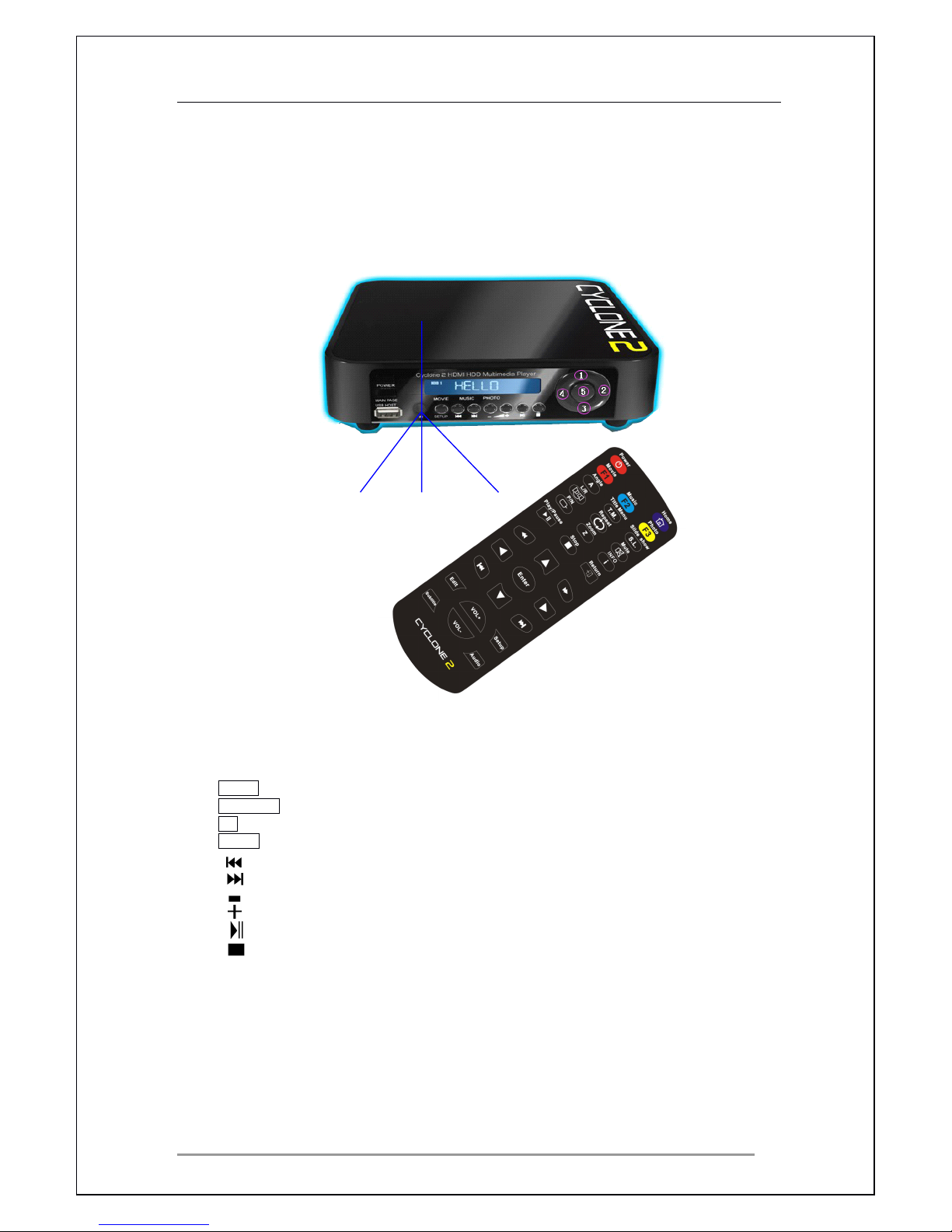
Point the remote control to the IR sensor on the front panel of the player.
The receiving angle is approximately +/- 30 degrees with a range of five
meters.
30 ° 30 °
Infrared Remote sensor window
2.2.1
2.2.1
2.2.1
2.2.1
Explanation
Explanation
Explanation
Explanation of
of
of
of the
the
the
the Keys
Keys
Keys
Keys Control
Control
Control
Control
POWER : P ress th is key to e nter or exit standby mode
MAIN PAGE : P ress this key to go to the main menu directly
IR :Infrared Remote sensor window
SETUP : P ress th is key to go to the setup menu
: P ress th is key to go to the next file
: P ress th is key to go to the p revious file
: P ress th is key to decrease the volume
: P ress th is key to increase the volume
: P ress th is key to play or pause
: P ress th is key to stop playback
① : P ress th is key to move cursor up
② : P ress th is key to move cursor right
③ : P ress th is key to move cursor down
④ : P ress th is key to move cursor left
⑤ : P ress th is key to play or pause/Confirmation the selection
•
Keep the remote control away from excessive moisture; do not drop it.
• Change the battery when the infrared signal is too weak.
Page 9
Cyclone 2 Media Player Manual
Page 9 of 49 15 / 12 / 20 09
V1.2
2.3
2.3
2.3
2.3
Remote
Remote
Remote
Remote Control
Control
Control
Control Overview
Overview
Overview
Overview
Page 10

Cyclone 2 Media Player Manual
Page 10 of 49 15 / 12 / 20 09
V1.2
1
1
1
1
P
P
P
P ower
ower
ower
ower key
key
key
key
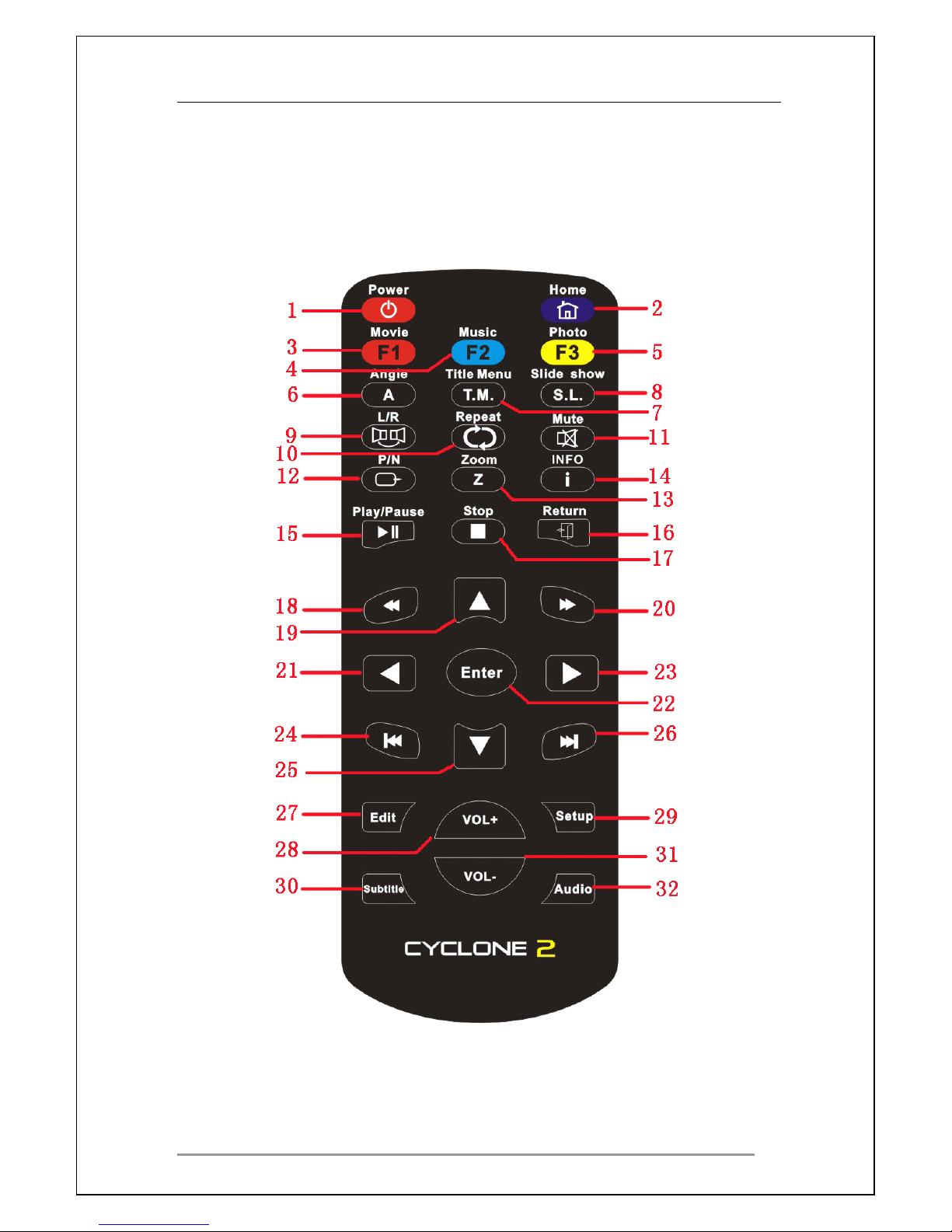
Power ON or OFF
2
2
2
2
H
H
H
H ome
ome
ome
ome key
key
key
key
Display the main menu screen
for movies, photos, music and settings as “ title
menu ” function in the DVD mode
3
3
3
3
M
M
M
M ovie
ovie
ovie
ovie key
key
key
key
Shortcut access movie menu
4
4
4
4
M
M
M
M usic
usic
usic
usic key
key
key
key
S hortcut access music menu
5
5
5
5
P
P
P
P hoto
hoto
hoto
hoto key
key
key
key
S hortcut access music menu
6
6
6
6
A
A
A
A ngle
ngle
ngle
ngle key
key
key
key
Change the angle of video when playing DVD file (if
file supports it)
7
7
7
7
T
T
T
T itle
itle
itle
itle menu
menu
menu
menu key
key
key
key
J ump to title menu when playing DVD file
8
8
8
8
S
S
S
S lide
lide
lide
lide show
show
show
show key
key
key
key
Press this button to switch on/off slide show
9
9
9
9
L/R
L/R
L/R
L/R key
key
key
key
Switch between left or right audio track and stereo.
10
10
10
10
R
R
R
R epeat
epeat
epeat
epeat key
key
key
key
Select the repeat mode of the file or files being
played.
11
11
11
11
M
M
M
M ute
ute
ute
ute key
key
key
key
Mute sound ON or OFF
12
12
12
12
P/N
P/N
P/N
P/N key
key
key
key
S witch between
PAL
, PAL60 and NTSC
13
13
13
13
Z
Z
Z
Z oom
oom
oom
oom key
key
key
key
Start or select zooming function
14
14
14
14
Information
Information
Information
Information key
key
key
key
Display the relevant information of the playing
device
15
15
15
15
Pl
Pl
Pl
Pl ay/pause
ay/pause
ay/pause
ay/pause key
key
key
key
Play or Pause the selected file
16
16
16
16
R
R
R
R eturn
eturn
eturn
eturn key
key
key
key
Leave the current mode r eturn to upper menu
17
17
17
17
S
S
S
S top
top
top
top key
key
key
key
Stop playback and in the karaoke mode jump to
next playing
18
18
18
18
F
F
F
F ast
ast
ast
ast forward
forward
forward
forward
Fast forward during playback
19
19
19
19
U
U
U
U p
p
p
p key
key
key
key
M ove cursor up
20
20
20
20
Rewind
Rewind
Rewind
Rewind key
key
key
key
Rewind during playback.
21
21
21
21
L
L
L
L eft
eft
eft
eft key
key
key
key
M ove cursor left
22
22
22
22
E
E
E
E nter
nter
nter
nter key
key
key
key
Executes the selected function
23
23
23
23
R
R
R
R ight
ight
ight
ight key
key
key
key
M ove cursor right
24
24
24
24
P
P
P
P revious
revious
revious
revious key
key
key
key
Jump back to previous chapter or file.
25
25
25
25
D
D
D
D own
own
own
own key
key
key
key
M ove cursor down
26
26
26
26
N
N
N
N ext
ext
ext
ext key
key
key
key
J ump back to next chapter or file
27
27
27
27
E
E
E
E dit
dit
dit
dit key
key
key
key
Shortcut access to edit menu
28
28
28
28
V
V
V
V
olume
olume
olume
olume +
+
+
+ key
key
key
key
Increase volume
29
29
29
29
S
S
S
S etup
etup
etup
etup key
key
key
key
S hortcut access setup menu
30
30
30
30
S
S
S
S ubtitle
ubtitle
ubtitle
ubtitle key
key
key
key
Selects subtitle options during video playback (if file
supports it).
31
31
31
31
V
V
V
V
olume
olume
olume
olume -
-
-
- key
key
key
key
Decrease volume
32
32
32
32
A
A
A
A udio
udio
udio
udio key
key
key
key
Switch the language during DVD playback (if file
supports it).
Page 11

Cyclone 2 Media Player Manual
Page 11 of 49 15 / 12 / 20 09
V1.2
3
3
3
3
Setup
Setup
Setup
Setup
3.1
3.1
3.1
3.1 Remote
Remote
Remote
Remote control
control
control
control Setup
Setup
Setup
Setup
Please remove the plastic strip from battery compartment.
Page 12
Cyclone 2 Media Player Manual
Page 12 of 49 15 / 12 / 20 09
V1.2
3.2
3.2
3.2
3.2
TV
TV
TV
TV Connection
Connection
Connection
Connection Setup
Setup
Setup
Setup
The following instructions show how to connect the Cyclone 2 to a
TV.
You
can connect the player either by using the composite cable supplied with the
Cyclone 2 or with a HDMI cable.
To
get the best image quality possible with the Cyclone 2 it is recommended
to connect the player to the TV with a HDMI cable. **
3.2.1
3.2.1
3.2.1
3.2.1
Composite
Composite
Composite
Composite TV
TV
TV
TV Connection
Connection
Connection
Connection Setup
Setup
Setup
Setup (Standard
(Standard
(Standard
(Standard Definition)
Definition)
Definition)
Definition)
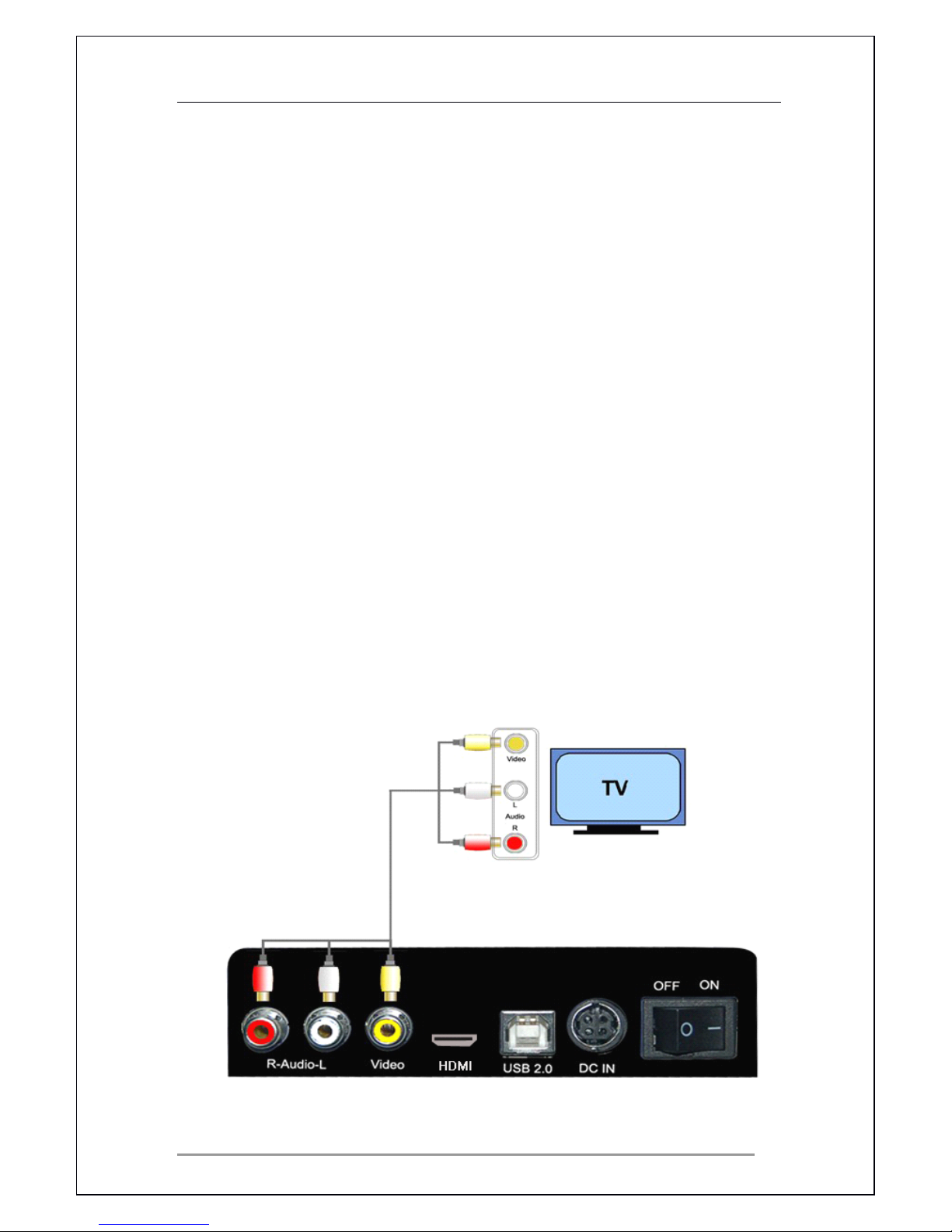
• The following instructions show how to connect the player to the TV
via composite cable.
• Using the cable supplied, plug the red, white and yellow connectors
into the matching ports of the player.
• At the other end repeat this process by plugging the red, white and
yellow connectors into the matching port on the
TV.
• If require select the appropriate TV mode connection.
Page 13
Cyclone 2 Media Player Manual
Page 13 of 49 15 / 12 / 20 09
V1.2
3.2.2
3.2.2
3.2.2
3.2.2
HDMI
HDMI
HDMI
HDMI Connection
Connection
Connection
Connection Setup
Setup
Setup
Setup (High
(High
(High
(High Definition)
Definition)
Definition)
Definition)
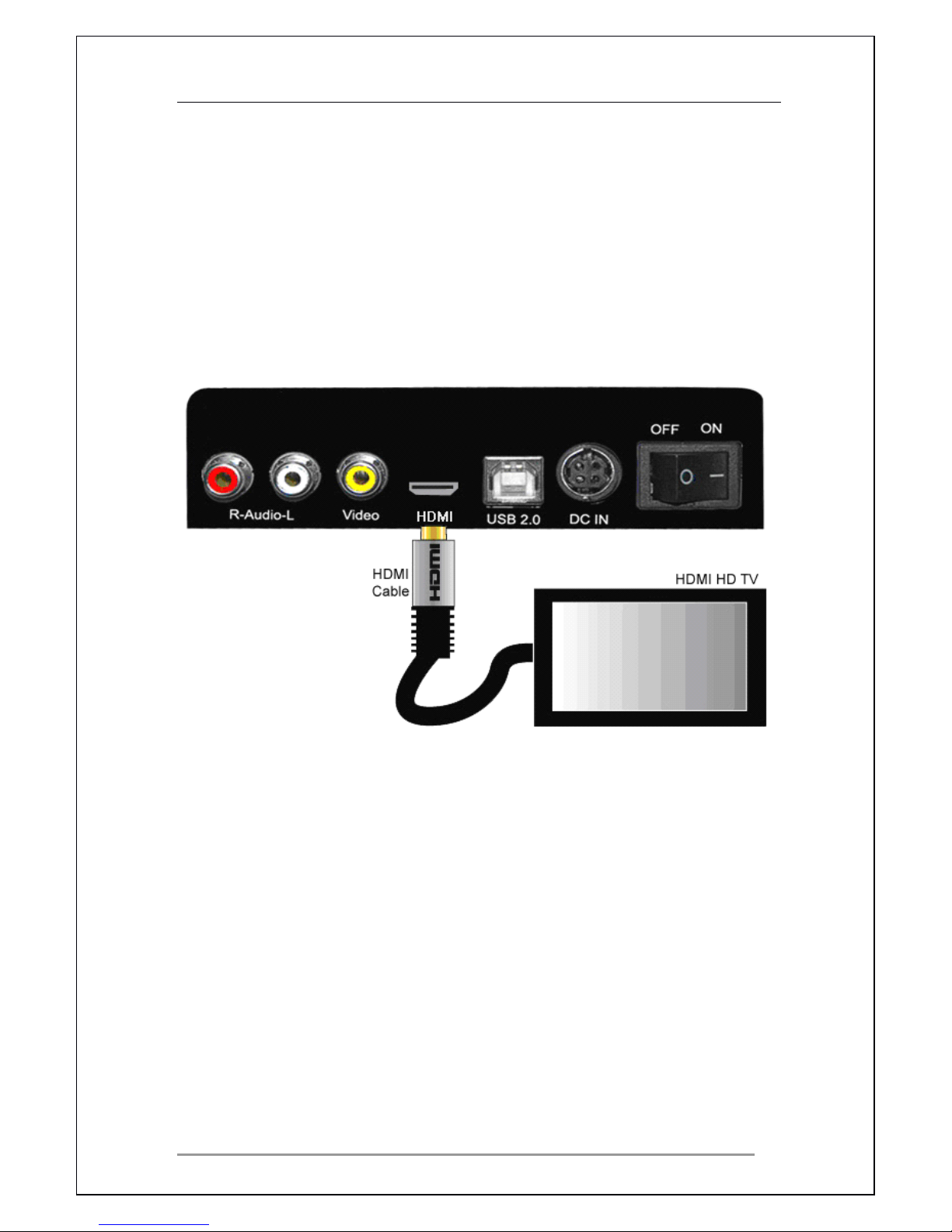
For high quality video and sound
it
is recommended to use the HDMI
interface. The HDMI port can provide resolutions of up to 1080p. *
Plug the HDMI cable ** into the HDMI port
at
the back of the Cyclone 2
At the other end of the cable, plug
it
into the TV HDMI port.
If required select the appropriate TV mode connection.
*
*
*
* Please
Please
Please
Please note
note
note
note the
the
the
the device
device
device
device can
can
can
can display
display
display
display 570p/720p/1080i
570p/720p/1080i
570p/720p/1080i
570p/720p/1080i and
and
and
and 1080p
1080p
1080p
1080p resolution
resolution
resolution
resolution but
but
but
but not
not
not
not all
all
all
all HDTV
HDTV
HDTV
HDTV ’
’
’
’ s
s
s
s
can
can
can
can support
support
support
support higher
higher
higher
higher resolutions;
resolutions;
resolutions;
resolutions; please
please
please
please consult
consult
consult
consult your
your
your
your TV
TV
TV
TV manual.
manual.
manual.
manual.
**
**
**
** Please
Please
Please
Please note
note
note
note the
the
the
the HDMI
HDMI
HDMI
HDMI cable
cable
cable
cable is
is
is
is not
not
not
not included
included
included
included with
with
with
with this
this
this
this product.
product.
product.
product.
Page 14
Cyclone 2 Media Player Manual
Page 14 of 49 15 / 12 / 20 09
V1.2
3.2.3
3.2.3
3.2.3
3.2.3
PC
PC
PC
PC Connection
Connection
Connection
Connection Setup
Setup
Setup
Setup
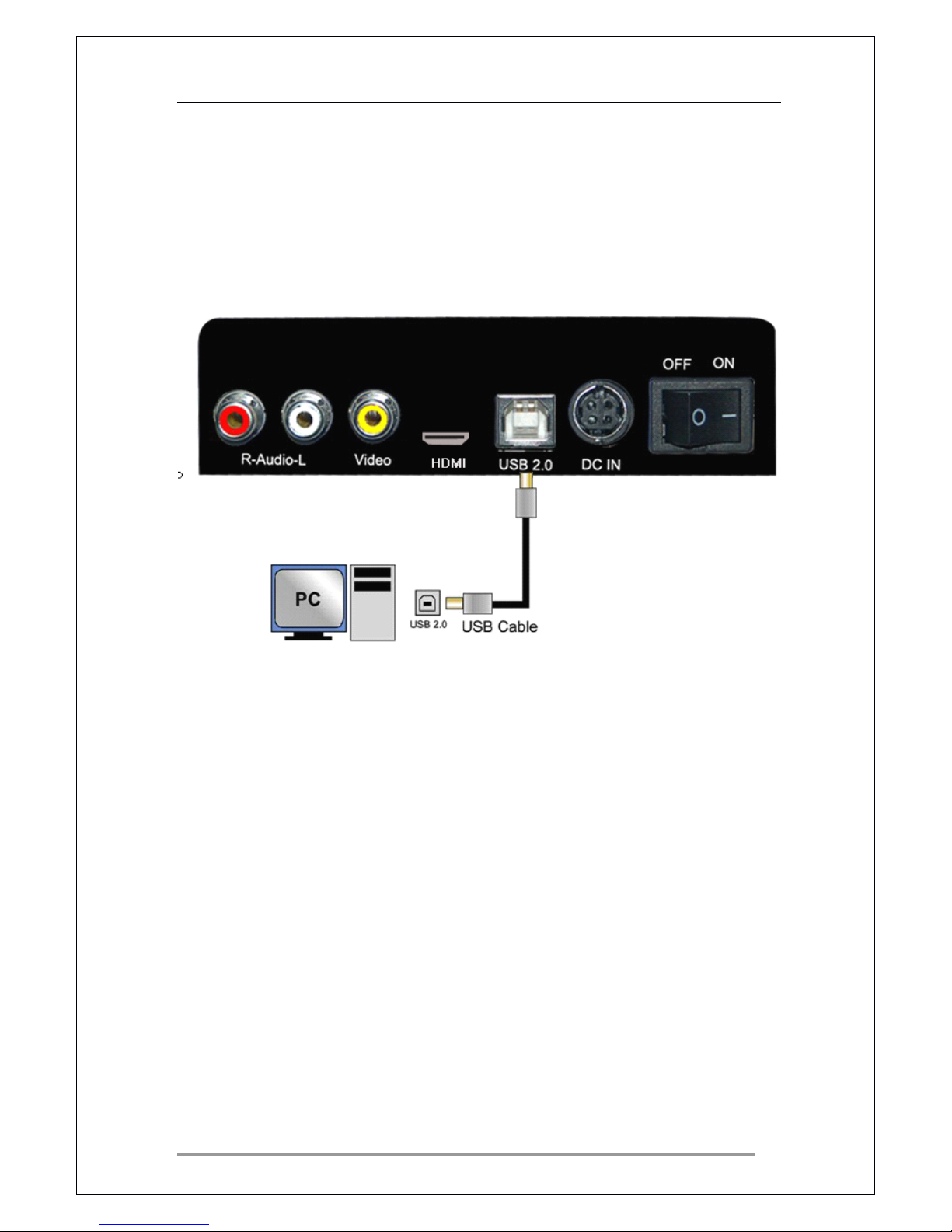
The Cyclone 2 can be used as an external hard drive for a PC. This process
does not require installation of any drivers.
The following instructions show how to connect the Cyclone 2 to a PC.
• Using the USB cable provided with the Cyclone
2,
connect one end to
the player and the other end into the PC USB Port.
• When the player is connected to the PC, a new hard drive volume will
be detected and shown in “ My Computer. ”
•
You
can now save data, movies, music and photos
The Cyclone 2 supports Windows 7 / XP / ME / 2000 / Vista / OSX and Linux.
Page 15
Cyclone 2 Media Player Manual
Page 15 of 49 15 / 12 / 20 09
V1.2
3.3
3.3
3.3
3.3
Connecting
Connecting
Connecting
Connecting Power
Power
Power
Power
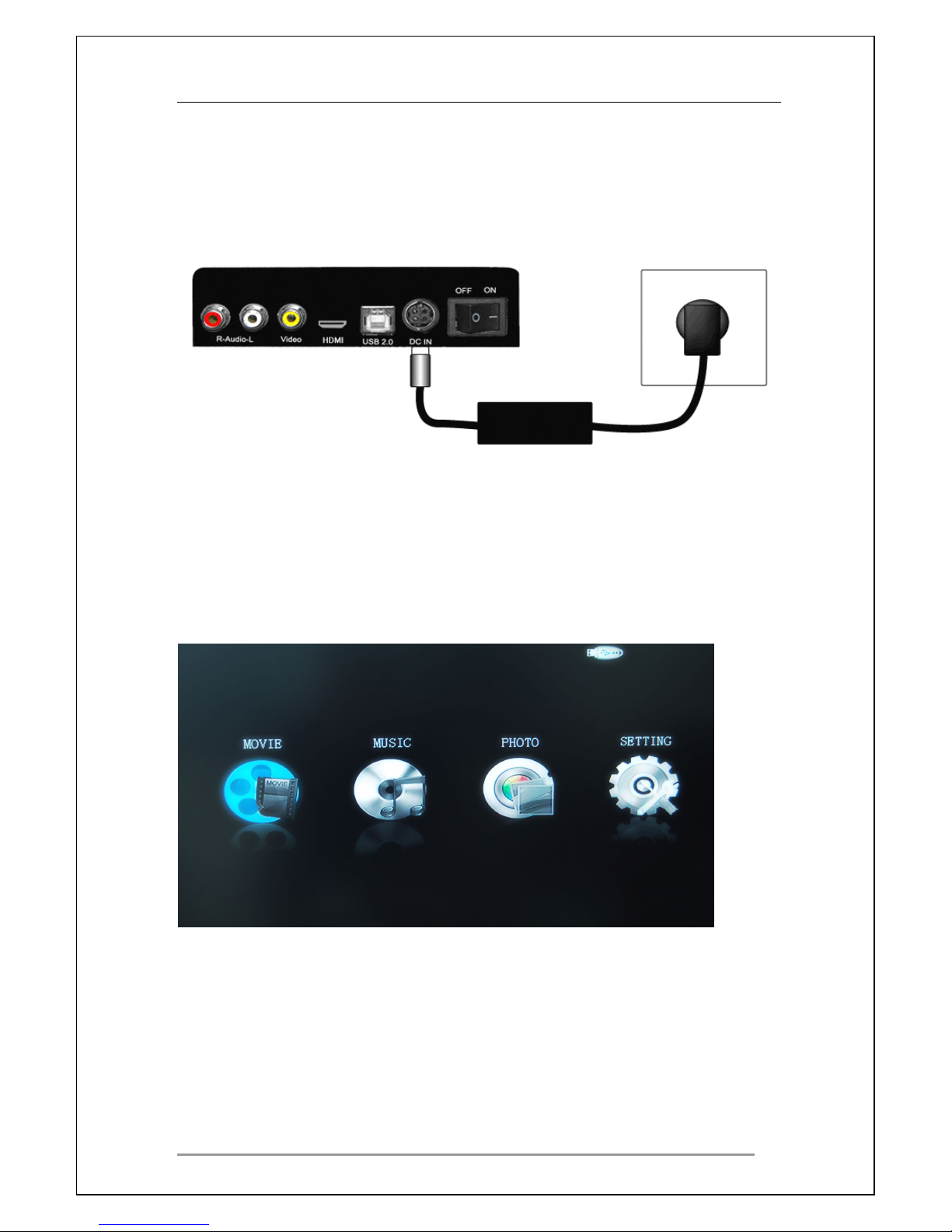
Connect the power supply unit cable to the Cyclone 2 connector, and to the
power socket.
3.4
3.4
3.4
3.4
Startup
Startup
Startup
Startup Player
Player
Player
Player
P ress the “
“
“
“ P
P
P
P ower
ower
ower
ower ”
”
”
” button on the front panel of player or on the remote
control to switch on. The LED on the front will light up blue .
The main menu should appear after a few seconds.
*
*
*
* Please
Please
Please
Please note
note
note
note if
if
if
if you
you
you
you have
have
have
have problems
problems
problems
problems with
with
with
with the
the
the
the main
main
main
main menu
menu
menu
menu display,
display,
display,
display, e.g.
e.g.
e.g.
e.g. the
the
the
the picture
picture
picture
picture is
is
is
is black
black
black
black and
and
and
and
white
white
white
white or
or
or
or the
the
the
the display
display
display
display is
is
is
is distorted,
distorted,
distorted,
distorted, please
please
please
please go
go
go
go to
to
to
to Setup
Setup
Setup
Setup menu
menu
menu
menu and
and
and
and adjust
adjust
adjust
adjust the
the
the
the Resolutions
Resolutions
Resolutions
Resolutions /
/
/
/ TV
TV
TV
TV
system
system
system
system /
/
/
/ TV
TV
TV
TV Type
Type
Type
Type options.
options.
options.
options.
Page 16
Cyclone 2 Media Player Manual
Page 16 of 49 15 / 12 / 20 09
V1.2
4
4
4
4
Main
Main
Main
Main Menu
Menu
Menu
Menu
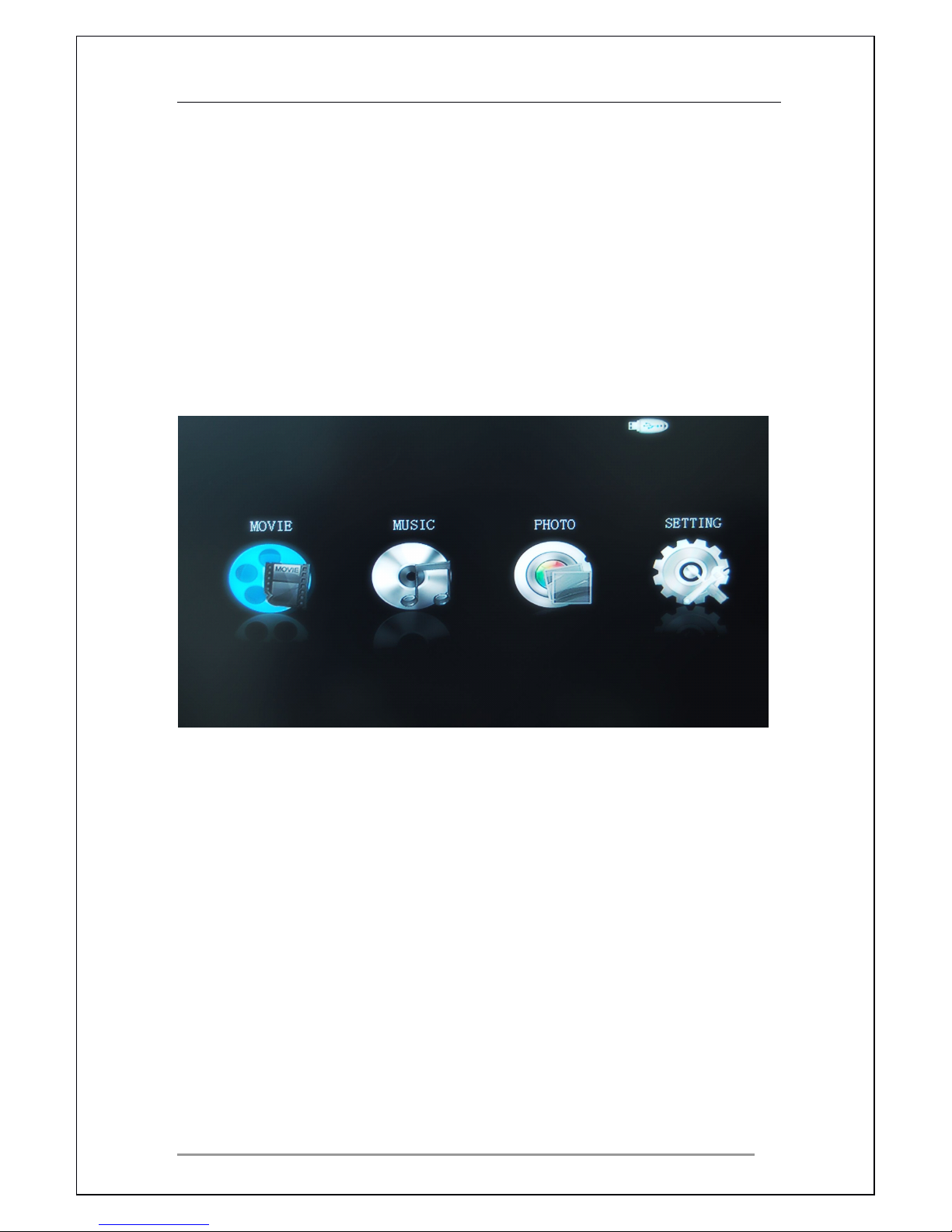
Cyclone 2 main menu appears when you first start up the player, or when you
press the HOME
HOME
HOME
HOME button on the remote control.
The main menu has four menu options for you to choose from.
1. Movie
2. Music
3. Photo
4. Setup
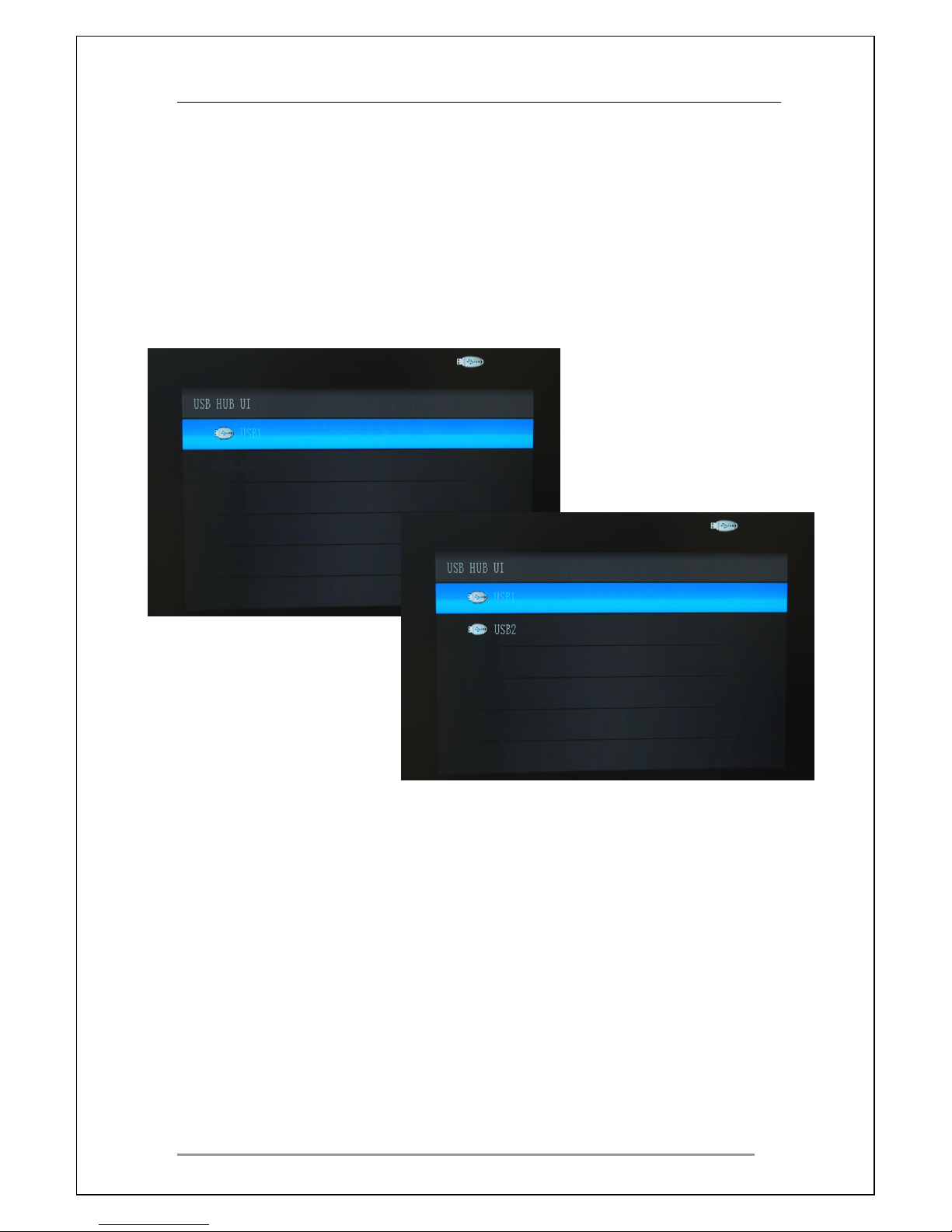
The icons shown on the top right corner of the main menu indicates that a
storage device is currently connected to the player.
Page 17
Cyclone 2 Media Player Manual
Page 17 of 49 15 / 12 / 20 09
V1.2
4.1
4.1
4.1
4.1
Display
Display
Display
Display and
and
and
and Selecting
Selecting
Selecting
Selecting Storage
Storage
Storage
Storage Devices
Devices
Devices
Devices
You
can remove and plug in different storage devices any time even when the
player is still on. The player’s plug in and play facility requires no restart or
shutdown to detect new devices.
Page 18
Cyclone 2 Media Player Manual
Page 18 of 49 15 / 12 / 20 09
V1.2
5
5
5
5
Playing
Playing
Playing
Playing Movies
Movies
Movies
Movies
On the main menu select the Movie menu icon and press ENTER
ENTER
ENTER
ENTER on the
remote control.
5.1
5.1
5.1
5.1 Partition
Partition
Partition
Partition Drives
Drives
Drives
Drives (USB
(USB
(USB
(USB device
device
device
device only)
only)
only)
only)
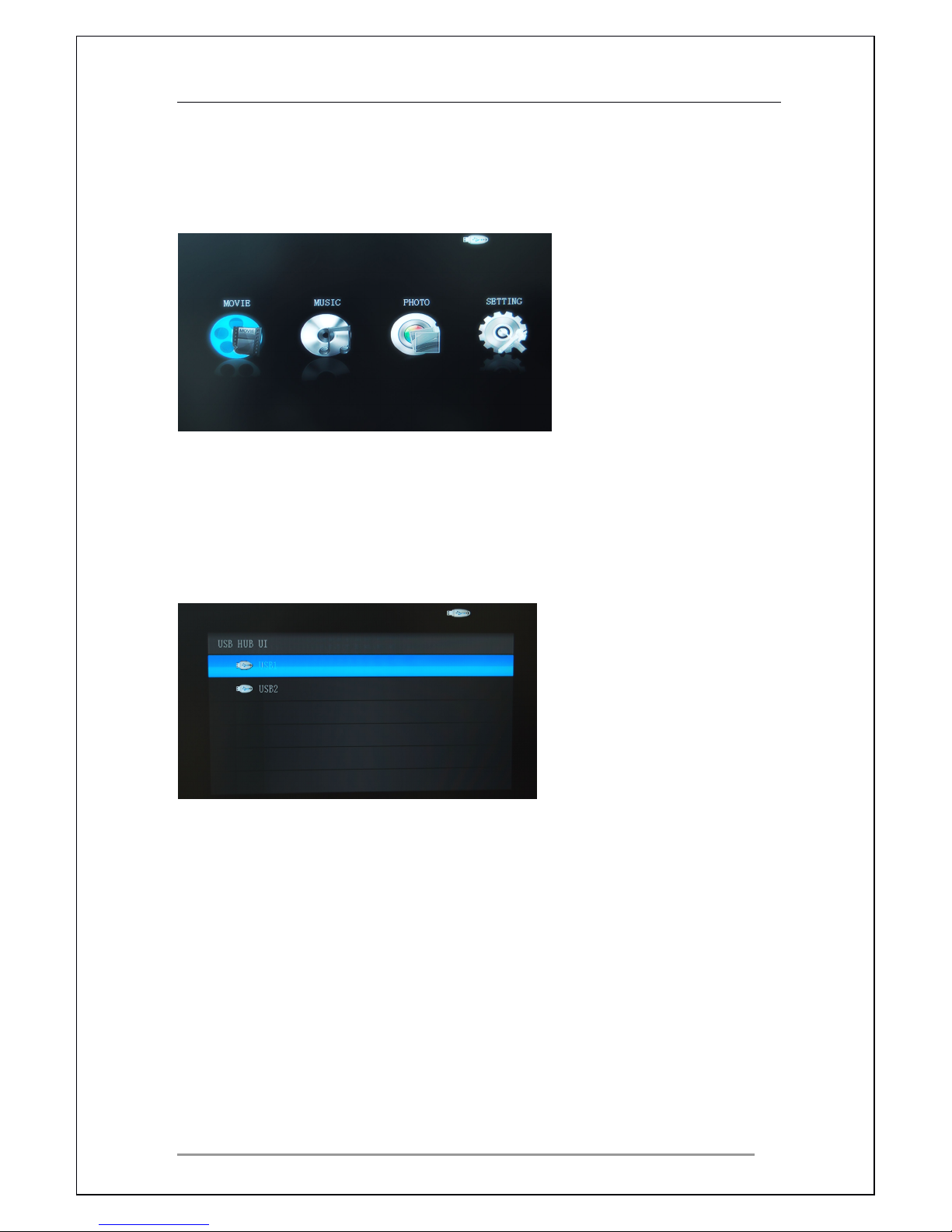
If the USB storage device i.e. hard drive enclosure has been partitioned, the
following menu will appear.
If you have no partition on your storage device please go to the next page.
Use the NAVIGA TION
NAVIGATION
NAVIGATION
NAVIGATION BUTTONS
BUTTONS
BUTTONS
BUTTONS to choose the partition and press ENTER
ENTER
ENTER
ENTER
to select it.
Page 19
Cyclone 2 Media Player Manual
Page 19 of 49 15 / 12 / 20 09
V1.2
5.2
5.2
5.2
5.2
Movie
Movie
Movie
Movie Menu
Menu
Menu
Menu
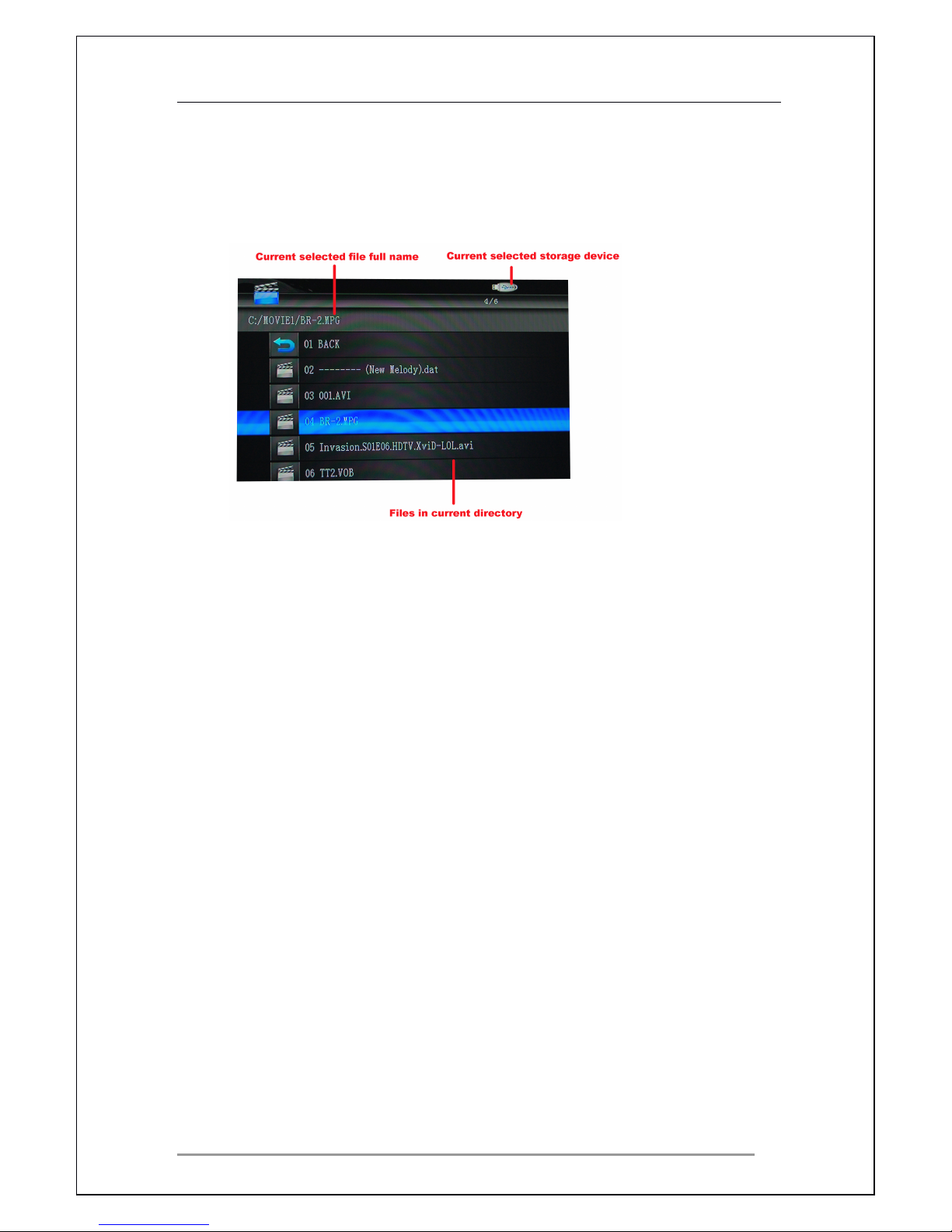
The Movies library menu will appear on screen as follows.
Select using the NAVIGATION
NAVIGATION
NAVIGATION
NAVIGATION BUTTONS
BUTTONS
BUTTONS
BUTTONS on the remote control the file you
required to play. Press ENTER
ENTER
ENTER
ENTER on the remote control to play the file. If files
have been stored in a folder, please navigate to the folder and press ENTER
ENTER
ENTER
ENTER
to open the folder.
You
can access this menu quickly by pressing the MOVIE
MOVIE
MOVIE
MOVIE MENU
MENU
MENU
MENU button on
the remote control.
Use the RETURN
RETURN
RETURN
RETURN button on the remote control to move up a folder if you ’ re
currently in a sub folder.
Page 20
Cyclone 2 Media Player Manual
Page 20 of 49 15 / 12 / 20 09
V1.2
5.3
5.3
5.3
5.3
Movie
Movie
Movie
Movie Playback
Playback
Playback
Playback Options
Options
Options
Options
During video playback, there are a number of options to choose from.
Here is a list of the playback options;
Press the NEXT
NEXT
NEXT
NEXT button to play the next file on the list.
Press the PREV
PREV
PREV
PREV button to play the previous file on the list.
Page 21
Cyclone 2 Media Player Manual
Page 21 of 49 15 / 12 / 20 09
V1.2
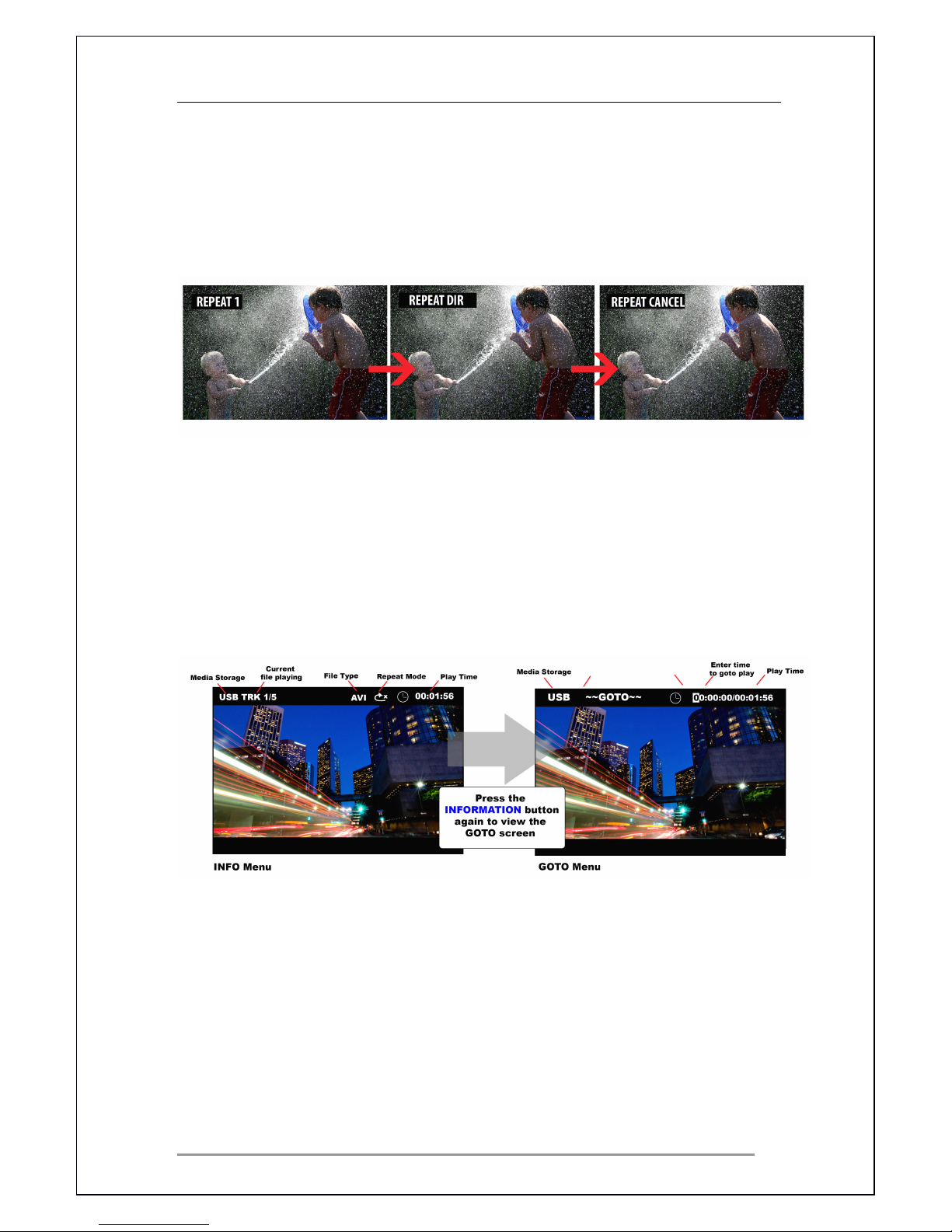
Repeatedly pressing the REPEAT
REPEAT
REPEAT
REPEAT button will cause the player to cycle
though several repeat options.
• Repeat 1: The file currently playing will continuously repeat.
• Repeat DIR: All files in current folder/directory will continuously repeat.
• Repeat CANCEL: Cancels all repeat operations.
Pressing the ZOOM
ZOOM
ZOOM
ZOOM button will go into zoom mode.
Video zoom levels: 2X, 4 X, 1/2X, 1/3X, 1/4X.
Pressing the L/R
L/R
L/R
L/R button during playback will let you select the following audio
options; L MONO / R MONO / MIX MONO or STEREO.
After pressing the INFORMATION
INFORMATION
INFORMATION
INFORMATION button, the following menu will appear
providing detailed information of the current file playing.
Press the INFORMATION
INFORMATION
INFORMATION
INFORMATION button again to view the GOTO screen.
Using the GOTO menu allows you to jump to any part of the video file, by
typing the required time.
Using the NAVIGATION
NAVIGATION
NAVIGATION
NAVIGATION buttons, please add the play time you would like to
start to play the video from. HR: MIN: SEC.
Pressing the SUBTITLE
SUBTITLE
SUBTITLE
SUBTITLE button during video playback will provide subtitle
options. Subtitles will only display if they are available with the current file
playing.
Page 22
Cyclone 2 Media Player Manual
Page 22 of 49 15 / 12 / 20 09
V1.2
6
6
6
6 Playing
Playing
Playing
Playing Music
Music
Music
Music
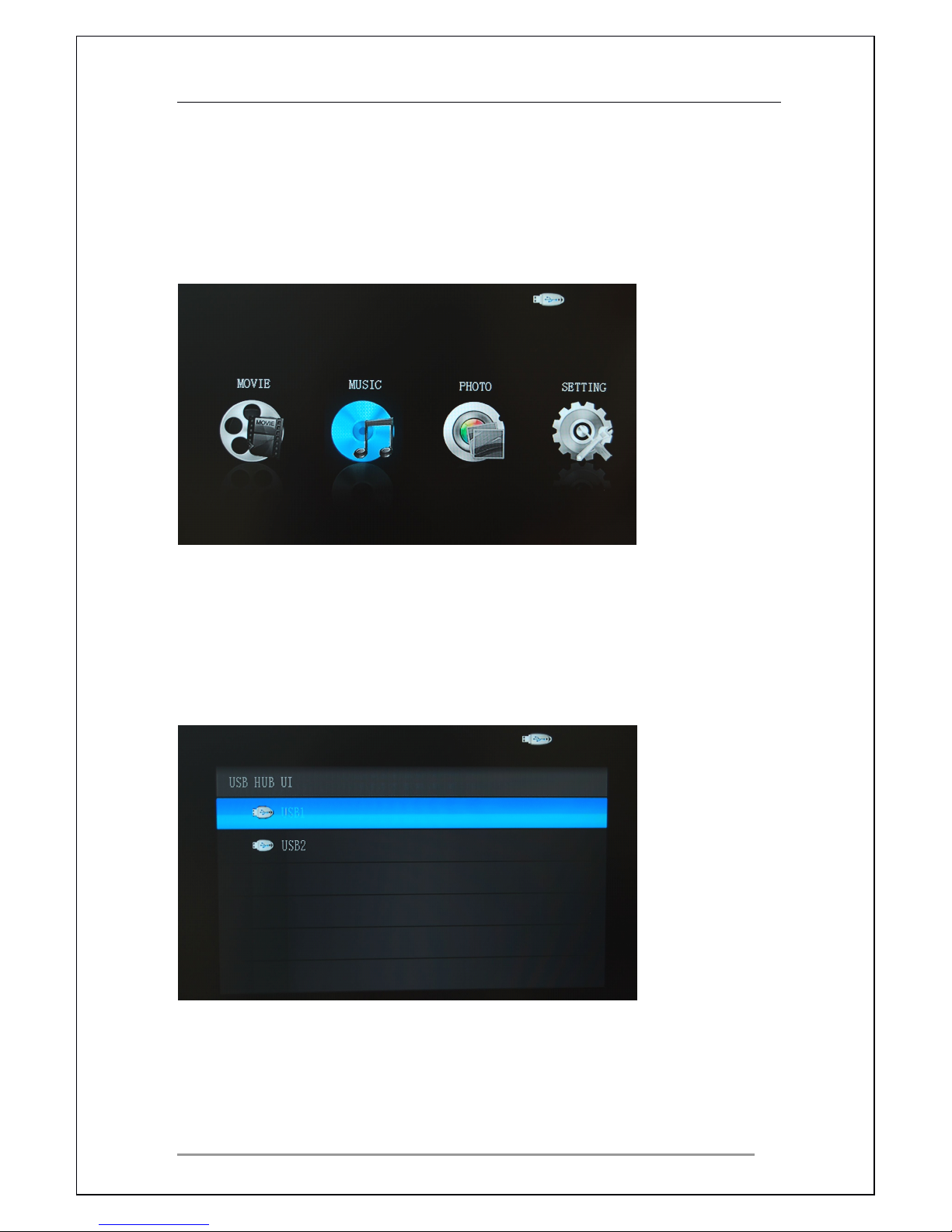
From the main menu navigate to the Music menu icon and press ENTER
ENTER
ENTER
ENTER on
the remote control.
6.1
6.1
6.1
6.1 Partition
Partition
Partition
Partition Drives
Drives
Drives
Drives (USB
(USB
(USB
(USB device
device
device
device only)
only)
only)
only)
If the USB storage device i.e. hard drive enclosure has been partitioned, the
following menu will appear.
If you have no partition on your storage device please go to next page.
Use the NAVIGA TION
NAVIGATION
NAVIGATION
NAVIGATION BUTTONS
BUTTONS
BUTTONS
BUTTONS to choose the partition and press ENTER
ENTER
ENTER
ENTER
to select it.
Page 23
Cyclone 2 Media Player Manual
Page 23 of 49 15 / 12 / 20 09
V1.2
6.2
6.2
6.2
6.2
Music
Music
Music
Music Menu
Menu
Menu
Menu
You
can access this menu quickly by pressing the MUSIC
MUSIC
MUSIC
MUSIC MENU
MENU
MENU
MENU button on
the remote control.
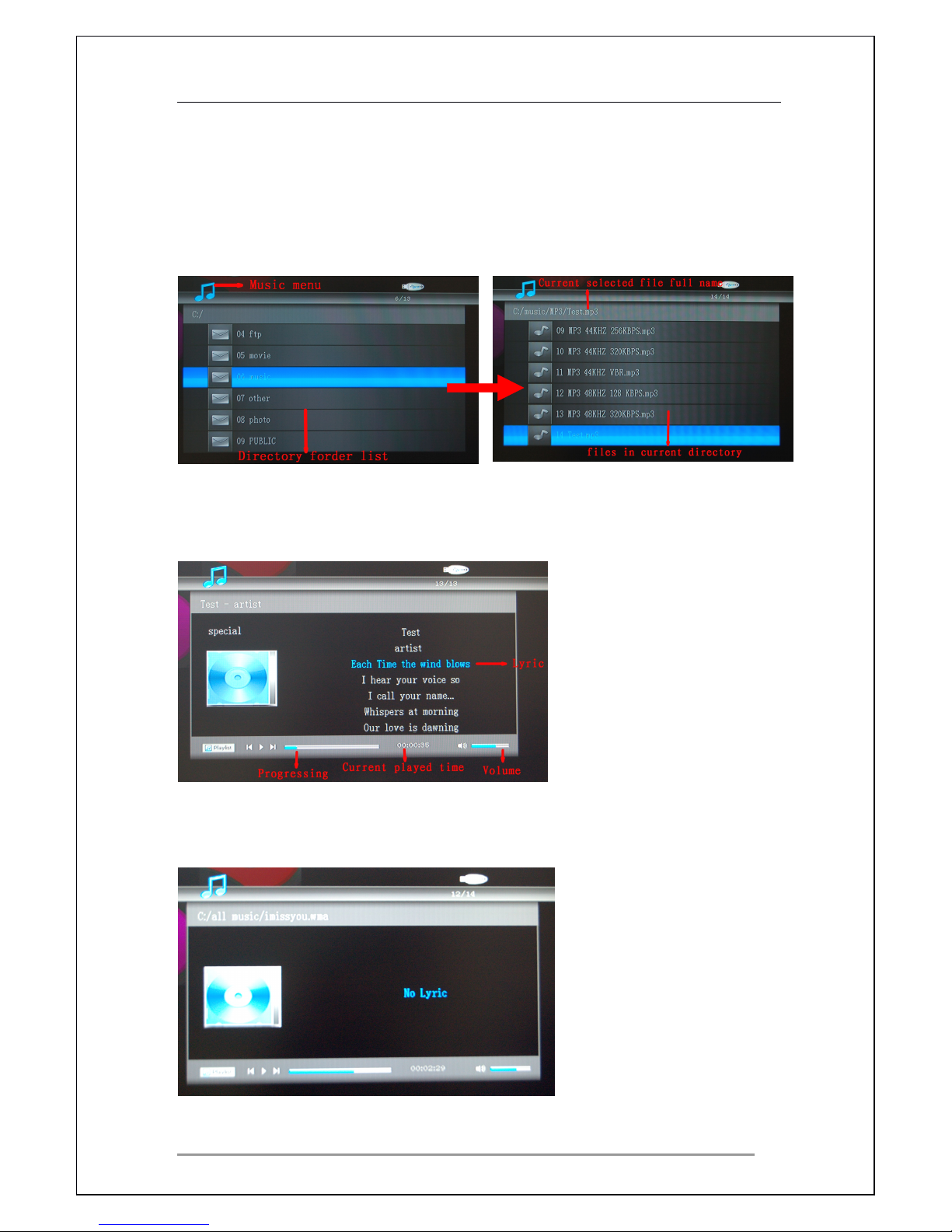
The Music library menu will appear on screen
Select files to play the following picture:
Please note that the music file and the LRC file must be stored in the same folder of the
storage device, otherwise the song lyrics will not display onscreen.
Page 24
Cyclone 2 Media Player Manual
Page 24 of 49 15 / 12 / 20 09
V1.2
Navigate using the NAVIGATION
NAVIGATION
NAVIGATION
NAVIGATION BUTTONS
BUTTONS
BUTTONS
BUTTONS on the remote control to the file
you wish to play. Press ENTER
ENTER
ENTER
ENTER on the remote control to play the file.
If files are stored in a folder, please navigate to the folder and press ENTER
ENTER
ENTER
ENTER
to open it.
Use the RETURN
RETURN
RETURN
RETURN button on the remote control to move up a folder if you are
currently in a sub folder.
6.3
6.3
6.3
6.3
Music
Music
Music
Music Playback
Playback
Playback
Playback Options
Options
Options
Options
During music playback, there are a number of options to choose from.
Here is a list of the playback options;
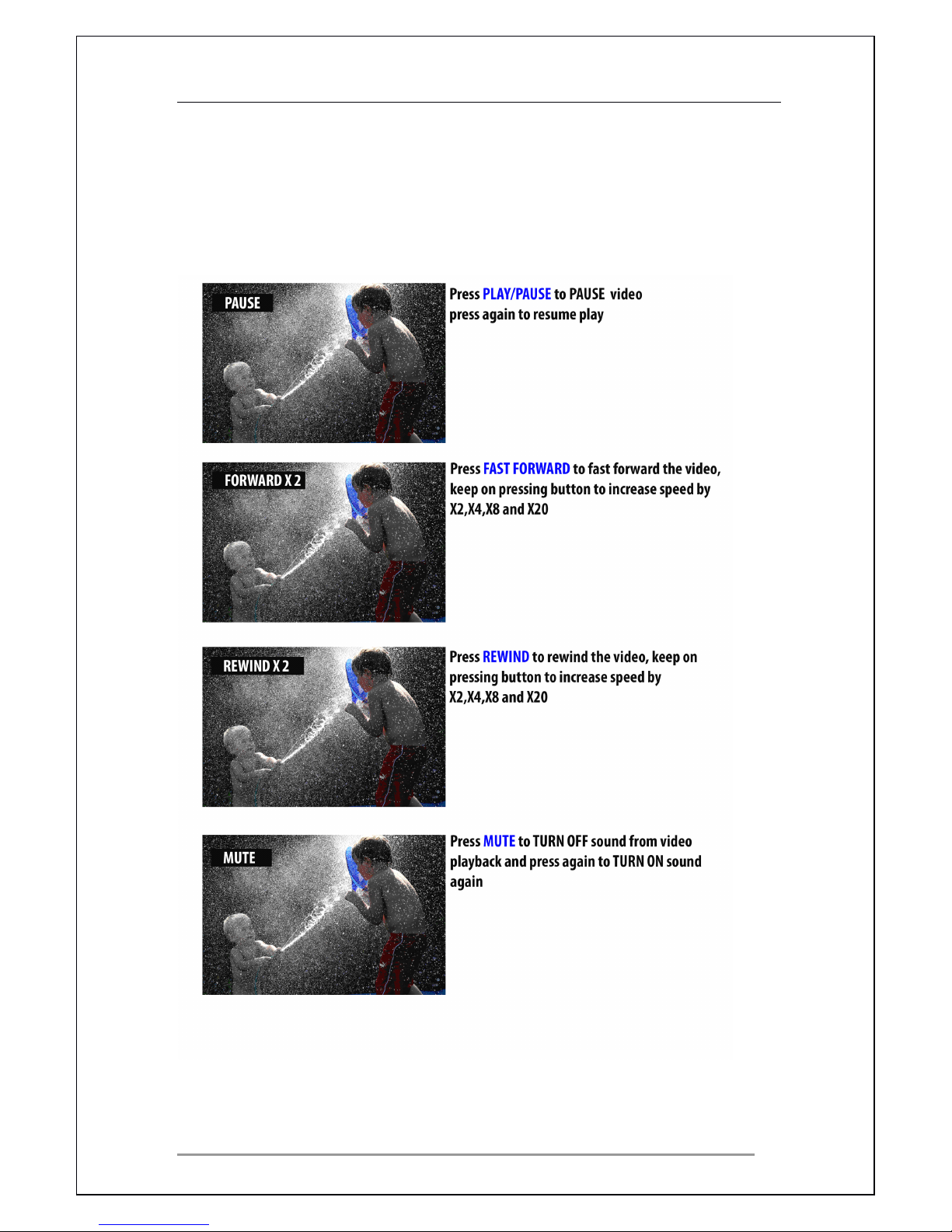
Press PLA Y/PAUSE
PLAY/PAUSE
PLAY/PAUSE
PLAY/PAUSE to P AUSE music, press again to resume play.
Press FAST
FAST
FAST
FAST FORWARD
FORWARD
FORWARD
FORWARD to fast forward the music, keep on pressing the
button to increase speed by X2, X4, X8 and X20.
Press REWIND
REWIND
REWIND
REWIND to rewind the music, keep on pressing the button to increase
speed by X2, X4, X8 and X20.
Press MUTE
MUTE
MUTE
MUTE to TURN OFF sound from music playback and press again to
TURN ON sound again.
Press the NEXT
NEXT
NEXT
NEXT button to play next file on the list.
Press the PREV
PREV
PREV
PREV button to play pervious file on the list.
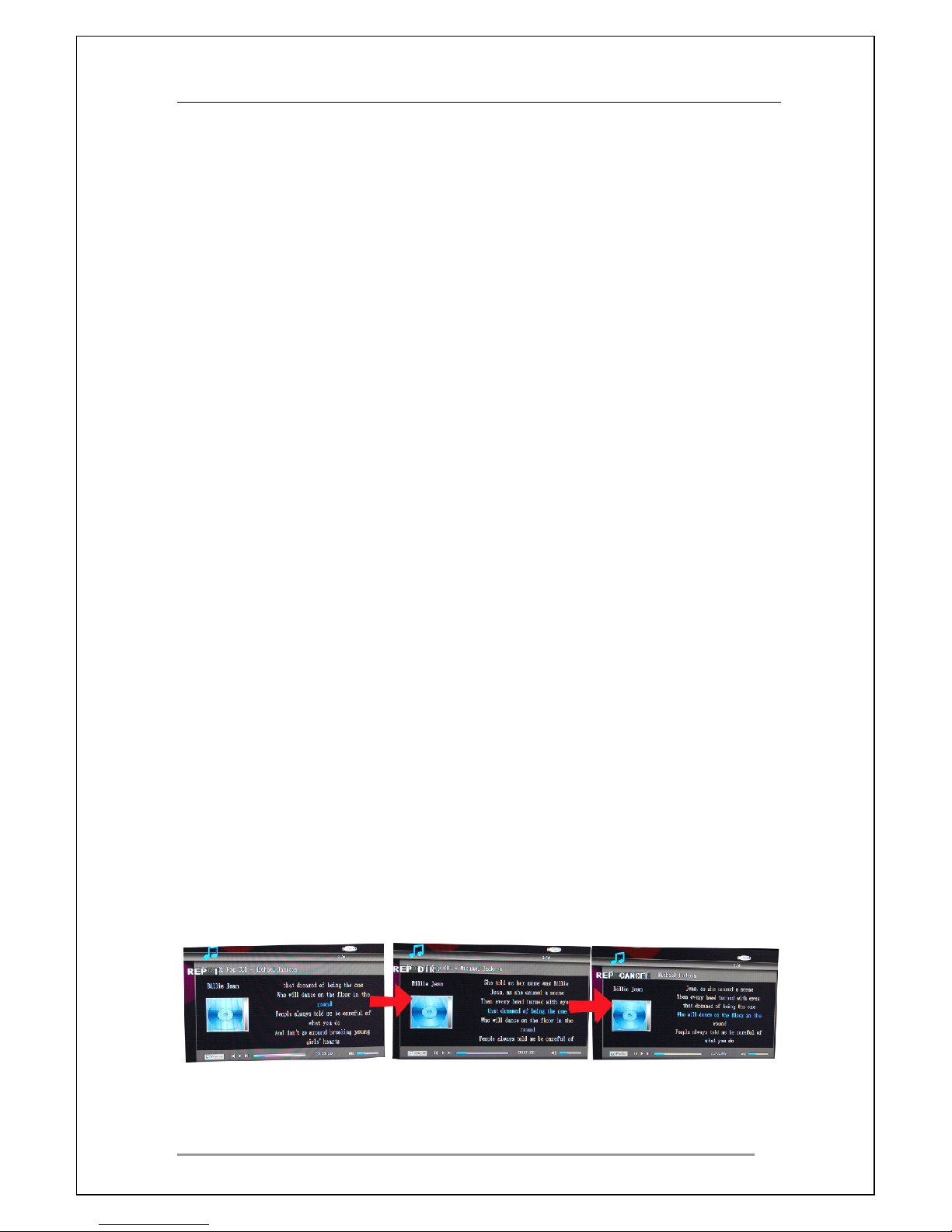
Repeatedly pressing the REPEAT
REPEAT
REPEAT
REPEAT button will cause the player to cycle
though several repeat options.
• Repeat 1: The file currently playing will continuously repeat.
• Repeat DIR: All files in current folder/directory will continuously repeat.
• Repeat CANCEL: Cancels all repeat operations
Page 25
Cyclone 2 Media Player Manual
Page 25 of 49 15 / 12 / 20 09
V1.2
7
7
7
7 Playing
Playing
Playing
Playing Photos
Photos
Photos
Photos
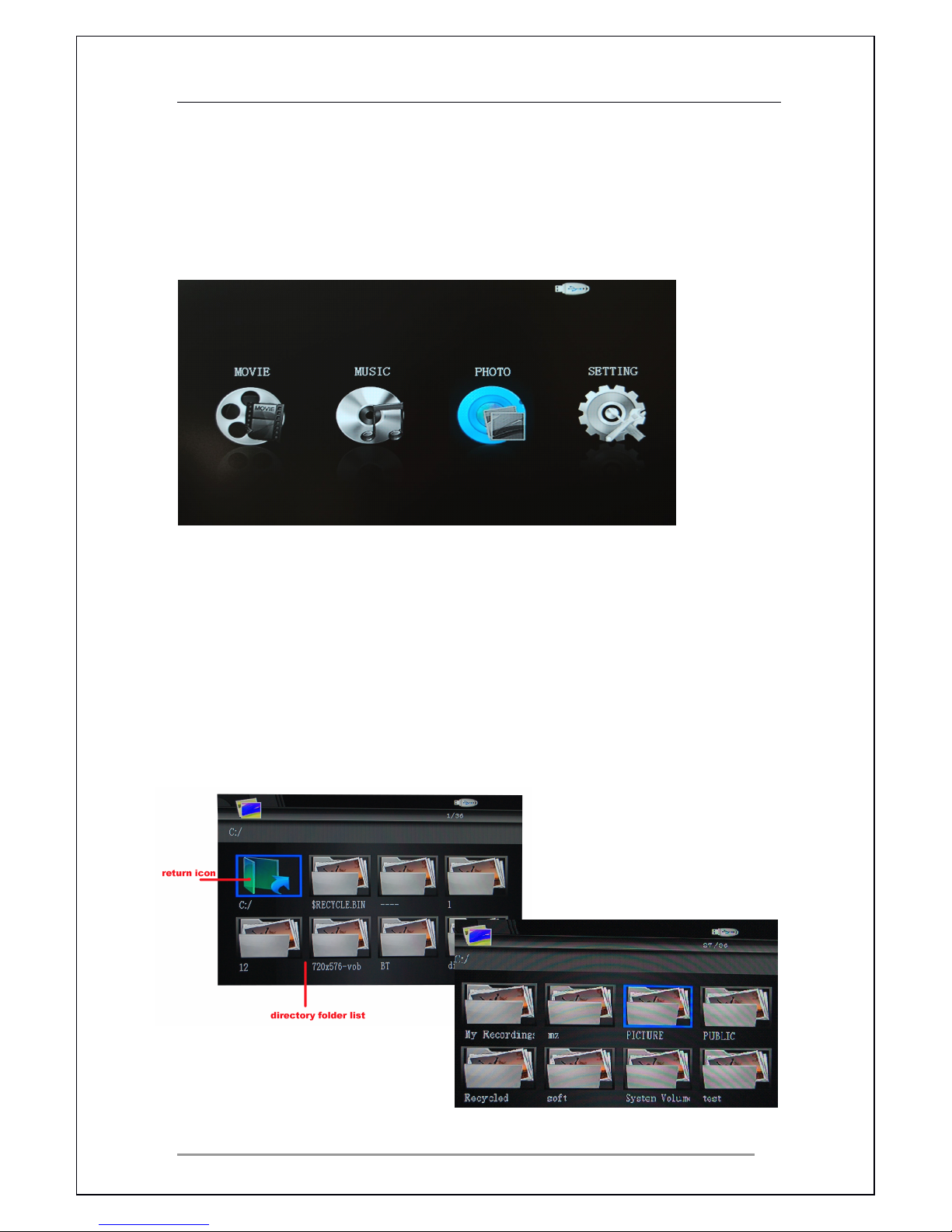
On the main menu navigate to the Photos menu icon and press ENTER
ENTER
ENTER
ENTER on
the remote control.
7.1
7.1
7.1
7.1 Partition
Partition
Partition
Partition Drives
Drives
Drives
Drives (USB
(USB
(USB
(USB device
device
device
device only)
only)
only)
only)
If the USB storage device i.e. hard drive enclosure has been partitioned, the
next menu will appear.
If you have no partition on your storage device please go to the next page.
Using the NAVIGATION
NAVIGATION
NAVIGATION
NAVIGATION BUTTONS
BUTTONS
BUTTONS
BUTTONS choose the partition and press ENTER
ENTER
ENTER
ENTER to
select it.
Page 26
Cyclone 2 Media Player Manual
Page 26 of 49 15 / 12 / 20 09
V1.2
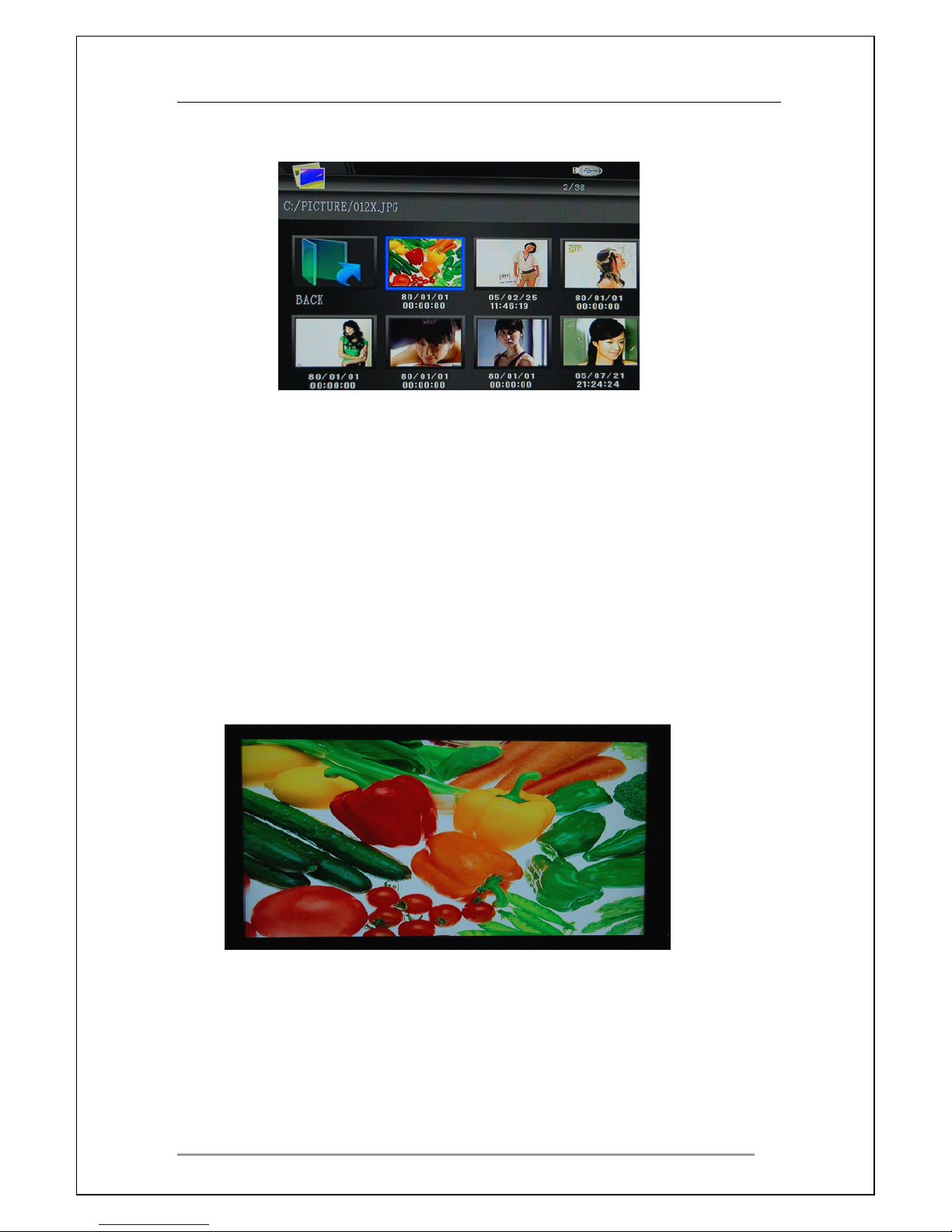
If files are stored in a folder, navigate to the folder and press ENTER
ENTER
ENTER
ENTER to open.
You
can shortcut to this menu quickly by pressing the PHOTOS
PHOTOS
PHOTOS
PHOTOS MENU
MENU
MENU
MENU button
on the remote control.
Navigate using the NAVIGATION
NAVIGATION
NAVIGATION
NAVIGATION BUTTONS
BUTTONS
BUTTONS
BUTTONS on the remote to the file you
wish to view and press ENTER
ENTER
ENTER
ENTER .
I f you want to return to the upper folder, use the NAVIGATION
NAVIGATION
NAVIGATION
NAVIGATION BUTTONS
BUTTONS
BUTTONS
BUTTONS on
the remote to select the BACK
BACK
BACK
BACK ICON
ICON
ICON
ICON in the file list and press the OK
OK
OK
OK button .
Alternatively press the return
return
return
return button on the remote control .
U se the NAVIGATION
NAVIGATION
NAVIGATION
NAVIGATION buttons
buttons
buttons
buttons on the remote to select any photo file you
wish to view.
7.2
7.2
7.2
7.2
Photo
Photo
Photo
Photo Playback
Playback
Playback
Playback Options
Options
Options
Options
During photo playback, there are a number of options available to use on the
remote control. Here is the list of options;
Page 27
Cyclone 2 Media Player Manual
Page 27 of 49 15 / 12 / 20 09
V1.2
Press the PLAY/PAUSE
PLAY/PAUSE
PLAY/PAUSE
PLAY/PAUSE button to PAUSE music, press again to resume play.
Press the NEXT
NEXT
NEXT
NEXT button to play the next file on the list.
Press the PREV
PREV
PREV
PREV button to play the pervious file on the list.
Press the NAVIGATION
NAVIGATION
NAVIGATION
NAVIGATION buttons to rotate or flip the photo.
• U se button to flip vertical one time .
• Use button to flip horizontal one time .
• U se button to rotate anticlockwise one time
at
90 degree s.
• U se button to rotate clockwise one time
at
90 degree s.
Pressing the ZOOM
ZOOM
ZOOM
ZOOM button will go into zoom mode.
Photo zoom levels: 2X, 3X , 4 X, 1/2X, 1/3X, 1/4X
Keep pressing the REPEAT
REPEAT
REPEAT
REPEAT button to cycle the various options.
• Repeat 1: The file currently playing will continuously repeat.
• Repeat DIR: All files in current folder/directory will continuously repeat.
• Repeat CANCEL: Cancels all repeat operations.
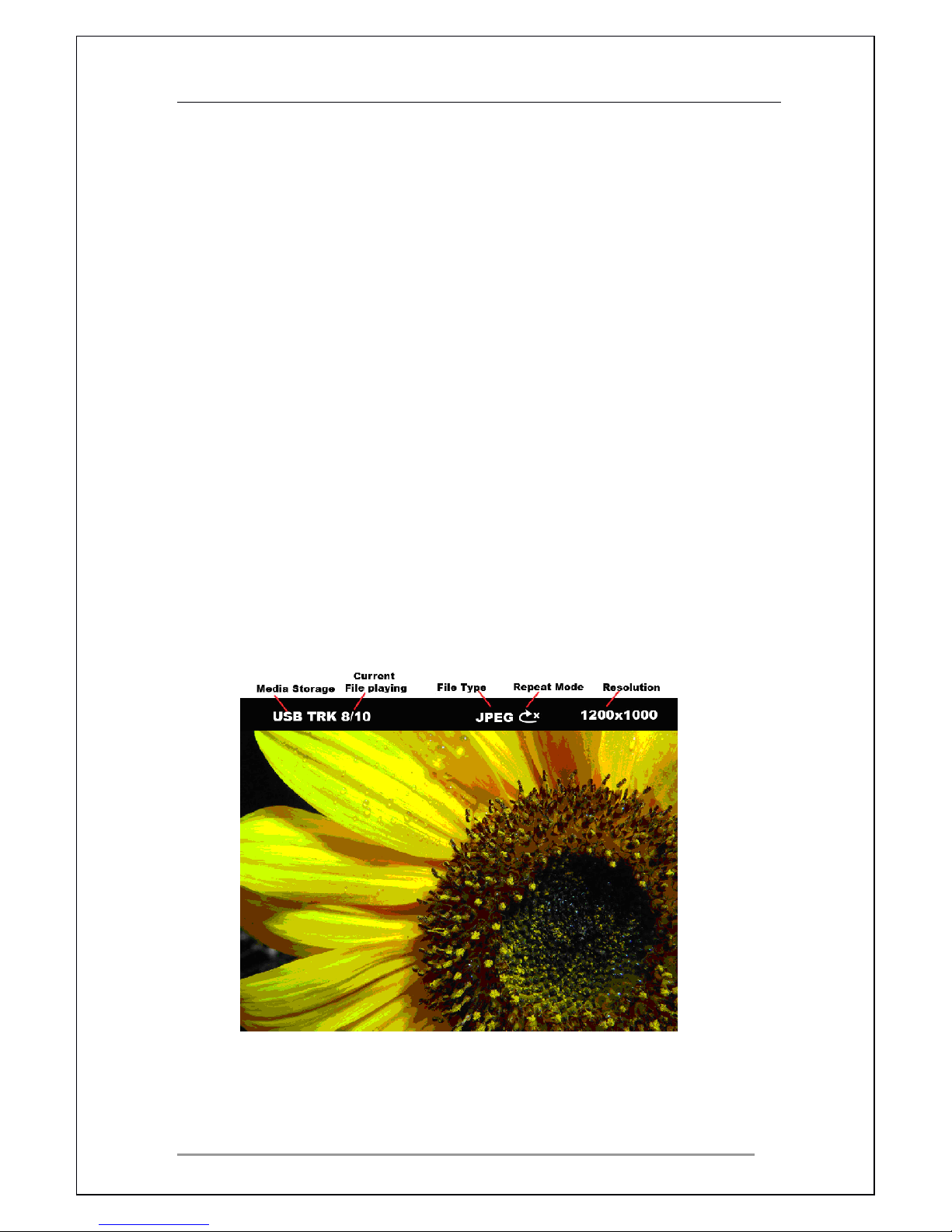
After pressing the INFORMATION
INFORMATION
INFORMATION
INFORMATION button the following menu will appear
providing detailed information of the current file playing.
Page 28
Cyclone 2 Media Player Manual
Page 28 of 49 15 / 12 / 20 09
V1.2
7.3
7.3
7.3
7.3
Slideshow
Slideshow
Slideshow
Slideshow with
with
with
with Background
Background
Background
Background Music
Music
Music
Music
On the main menu navigate to the Photos menu icon and press ENTER
ENTER
ENTER
ENTER on
the remote control. Alternatively us e the F3
F3
F3
F3 shortcut key o n the remote
control to enter the photos menu .
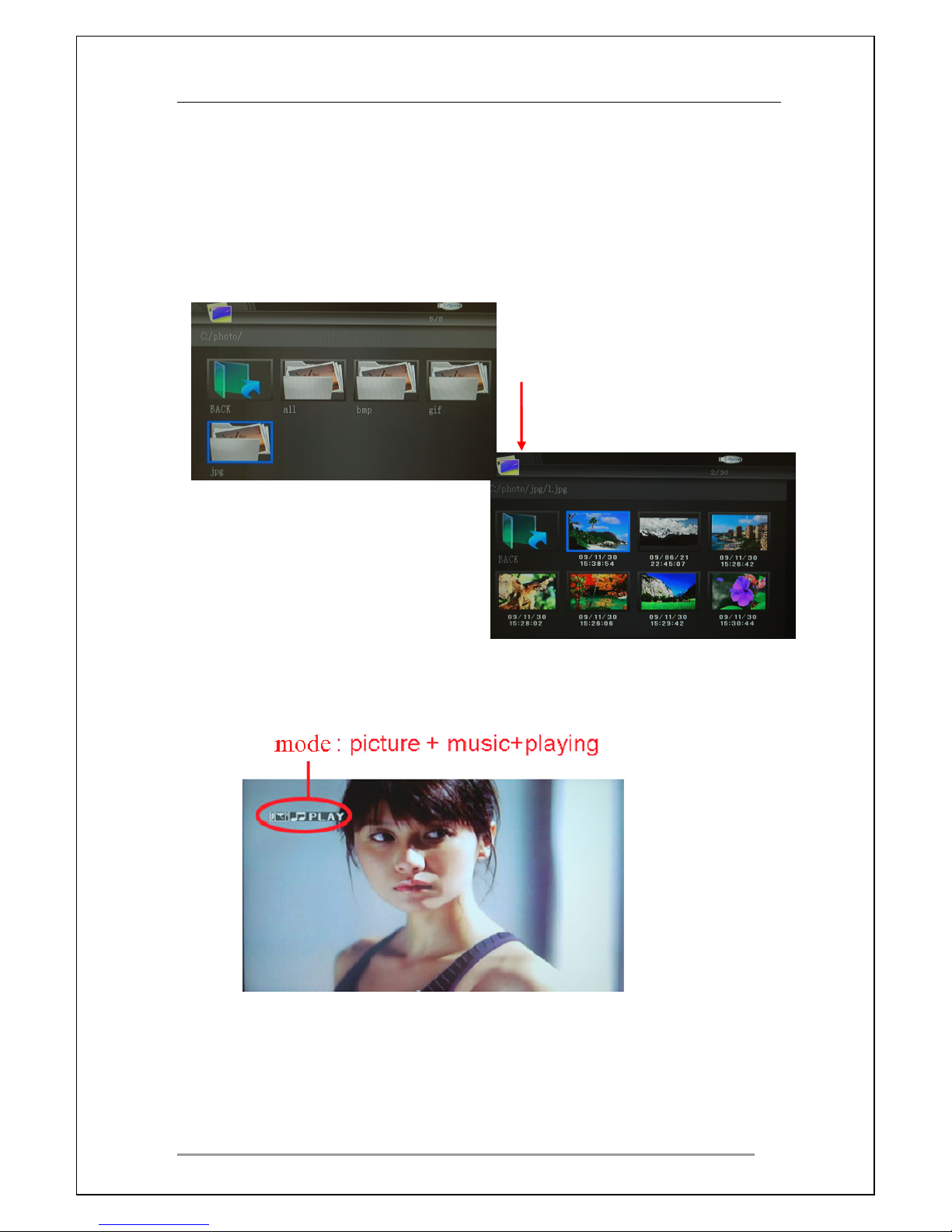
Once in the photo folder, press the S
S
S
S lide
lide
lide
lide show
show
show
show /Angle
/Angle
/Angle
/Angle button to play a
picture slide show and musi c.
A
play icon should be displayed in the top left
hand corner of the screen, indicating that the function has been activated.
Press the PLA Y/PAUSE
PLAY/PAUSE
PLAY/PAUSE
PLAY/PAUSE to PAUSE the slide show
,
press the button again to
resume play.
Press the MUTE
MUTE
MUTE
MUTE button to TURN OFF background music and press again to
TURN ON.
Page 29
Cyclone 2 Media Player Manual
Page 29 of 49 15 / 12 / 20 09
V1.2
Press the NEXT
NEXT
NEXT
NEXT button to play the next photo.
Press the PREV
PREV
PREV
PREV button to play the pervious photo.
P ress the stop
stop
stop
stop button to turn off the slide show . This action will only stop
the slideshow. Music will continue to play.
P ress the left
left
left
left or right
right
right
right button s to rotate the photo.
P ress the up
up
up
up or down
down
down
down button s to flip the photo
Pressing the ZOOM
ZOOM
ZOOM
ZOOM button will go into zoom mode.
Photo zoom levels: 2X, 3X, 4X , 1/2X, 1/3X, 1/4X
P ress ing the S
S
S
S lide/Angle
lide/Angle
lide/Angle
lide/Angle button again will switch off the slide show and
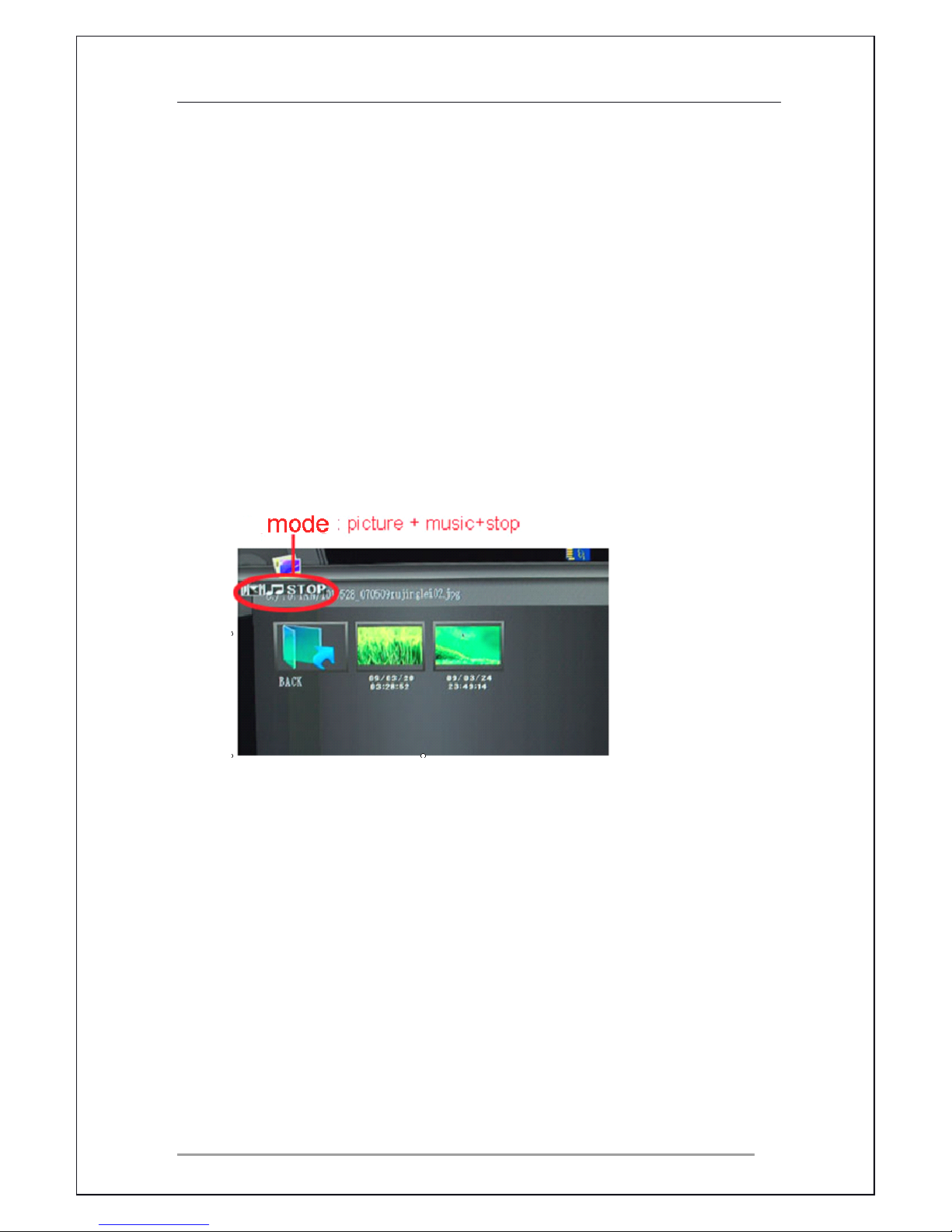
music playback. This will be indicated by a stop icon in the top left hand
corner of the screen, as shown in the picture below.
Please note that when using this method to play a slideshow with background music,
both pictures and music files must be store in the same folder.
Alternatively, go to the music menu and start playing music. Press the Photos Menu
button on the remote control. Start viewing the selected photos and you notice that
your selected music will still be playing in the background.
• Start playing the music.
• Press the PHOTOS
PHOTOS
PHOTOS
PHOTOS MENU
MENU
MENU
MENU button on the remote control to switch to
photo menu.
•
•
•
• Start playing the selected photos.
Page 30
Cyclone 2 Media Player Manual
Page 30 of 49 15 / 12 / 20 09
V1.2
8
8
8
8
Setup
Setup
Setup
Setup Menu
Menu
Menu
Menu
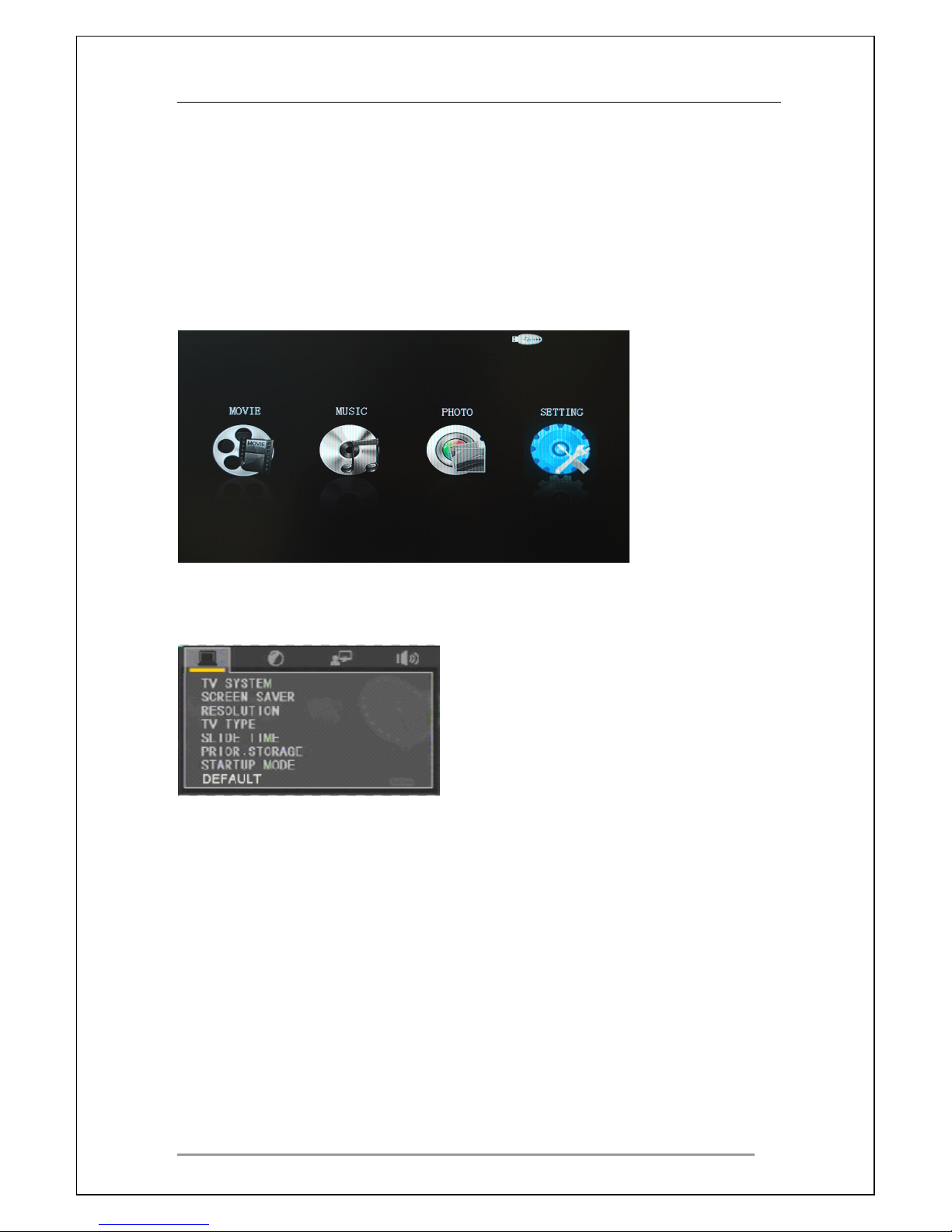
From the main menu navigate to the S ETTING menu icon and press ENTER
ENTER
ENTER
ENTER
on the remote control.
Please note you need to press the RETURN
RETURN
RETURN
RETURN button to exit the setting menu .
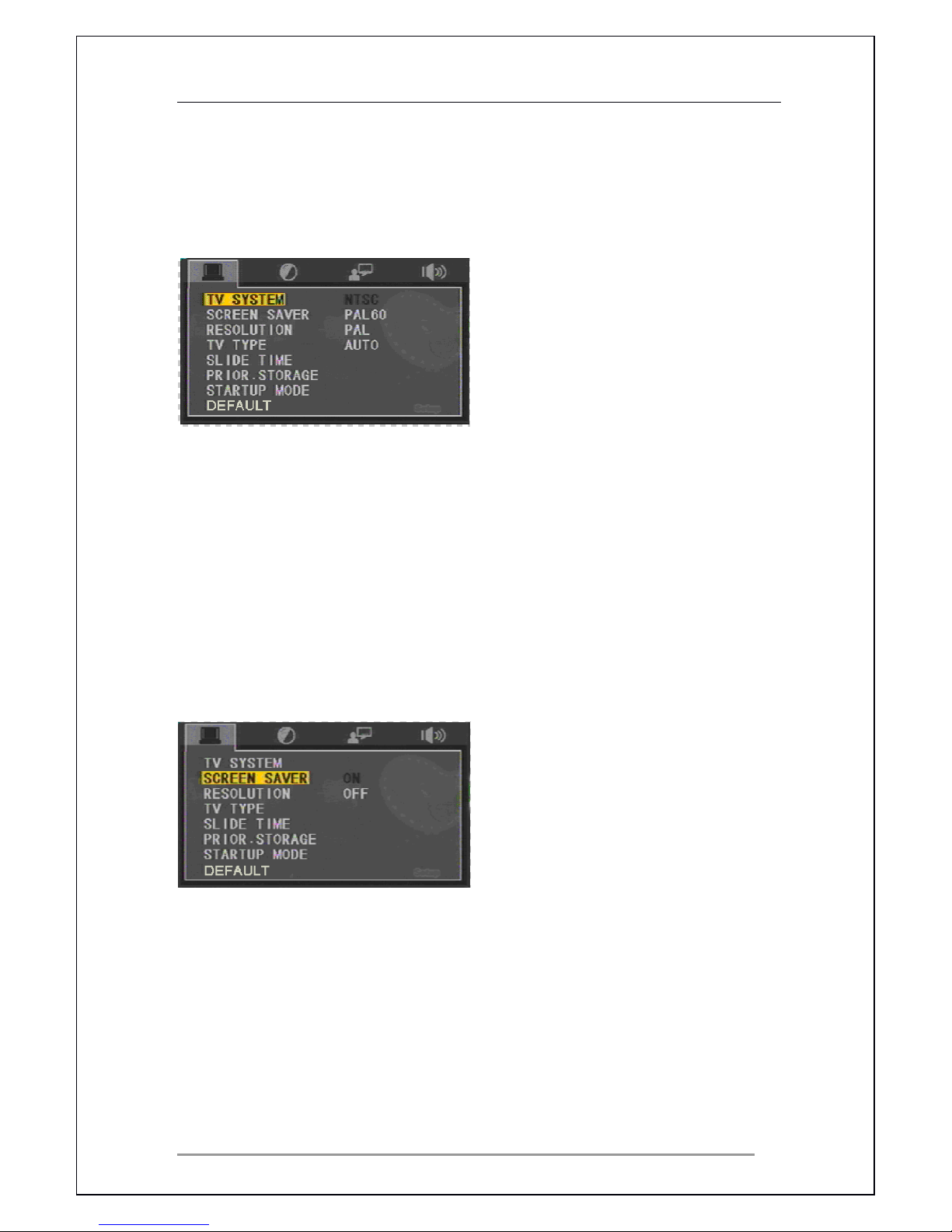
The setup menu will appear as shown below
There are 4 different category tabs
• System
• Display
• Menu
• Sound
Page 31
Cyclone 2 Media Player Manual
Page 31 of 49 15 / 12 / 20 09
V1.2
8.1
8.1
8.1
8.1
System
System
System
System Setting
Setting
Setting
Setting
Use the NAVIGATION
NAVIGATION
NAVIGATION
NAVIGATION buttons to select the required System menu options.
Press the ENTER
ENTER
ENTER
ENTER button to view the full options menu.
TV
TV
TV
TV System
System
System
System
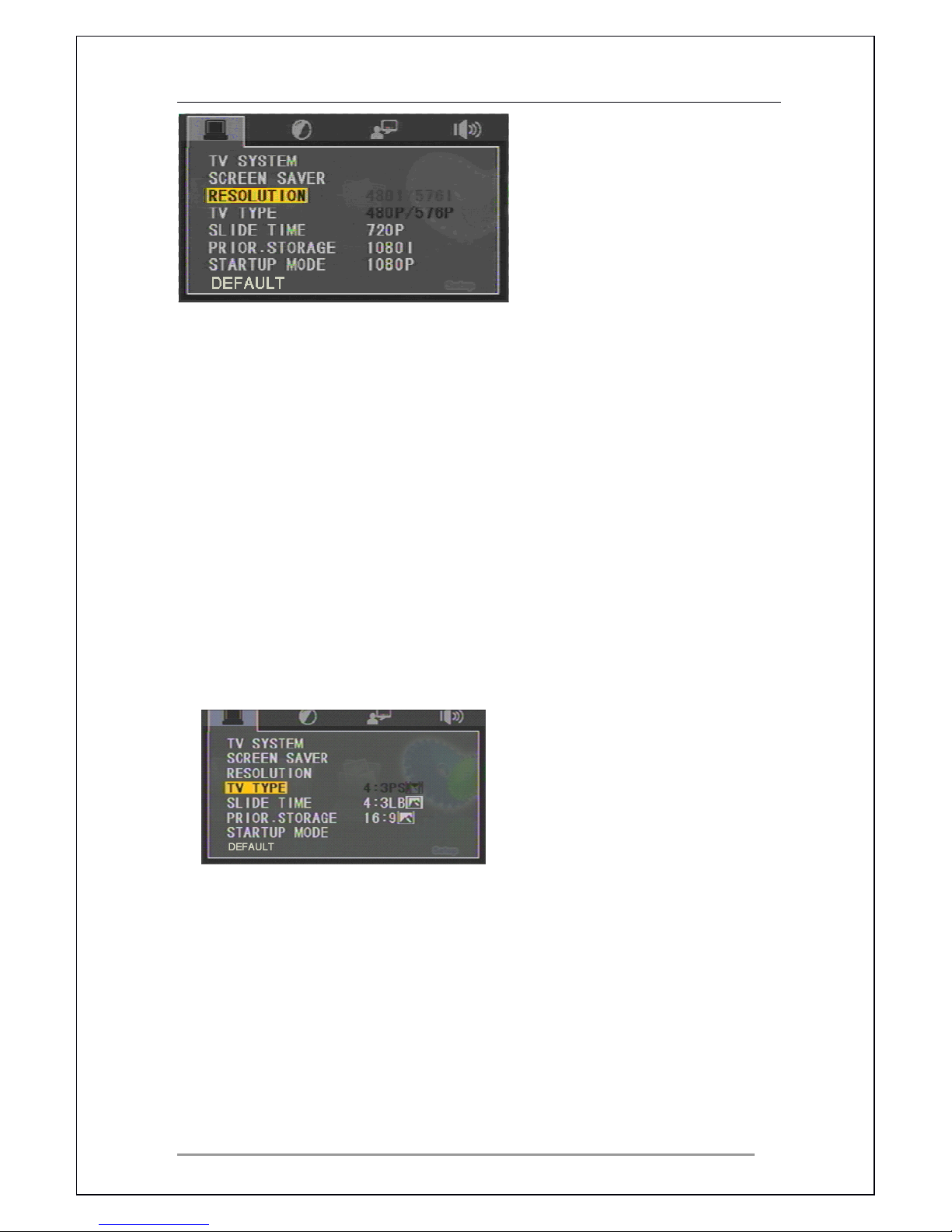
Depending on region, please select the correct system to meet the
requirements of your
TV.
•
NTSC (America and pacific countries)
•
PAL
60 (Europe 60Hz)
•
PAL
(Europe)
•
AUTO
The system default is set to PAL
.
.
.
.
Screen
Screen
Screen
Screen Saver
Saver
Saver
Saver
Turns the Cyclone 2 screensaver ON or OFF.
If the screensaver is set to ON, the player will start the screen saver after 1
minute of inactivity.
Resolution
Resolution
Resolution
Resolution
Page 32
Cyclone 2 Media Player Manual
Page 32 of 49 15 / 12 / 20 09
V1.2
Depending on the
TV,
please choose the correct resolution setting for your
TV
.
1.
480i/576i: Default resolution.
2.
The 480p/576p output is 480p ( 710.85 x 486 ) or 576p ( 702 x 576)
progressive scanning
3.
The 720p output is 1080 x 720 for progressive scanning.
4.
The 1080i output is 1920 x 1080 for interlaced scanning.
5.
The 1080p output is 1920 x 1080 for progressive scanning.
An SDTV is usually 480i/576i; HDTV can support 480p/576p, 720p, 1080i and
up to 1080p.
Aspect
Aspect
Aspect
Aspect Ratio
Ratio
Ratio
Ratio
•
Pan
Pan
Pan
Pan Scan
Scan
Scan
Scan 4:3
4:3
4:3
4:3 : Select this when connected to a standard 4:3 TV.
Crops a widescreen picture to 4:3 (edges maybe cut off).
•
Letter
Letter
Letter
Letter Box
Box
Box
Box 4:3
4:3
4:3
4:3 : Select this when a standard 4:3 TV is connected.
Playback of widescreen formats will have black borders on the top and
bottom of the screen.
• 16:9
16:9
16:9
16:9 : Select when connected to a 16:9 TV.
Slide
Slide
Slide
Slide Time
Time
Time
Time (Photo
(Photo
(Photo
(Photo menu
menu
menu
menu setting)
setting)
setting)
setting)
Page 33
Cyclone 2 Media Player Manual
Page 33 of 49 15 / 12 / 20 09
V1.2
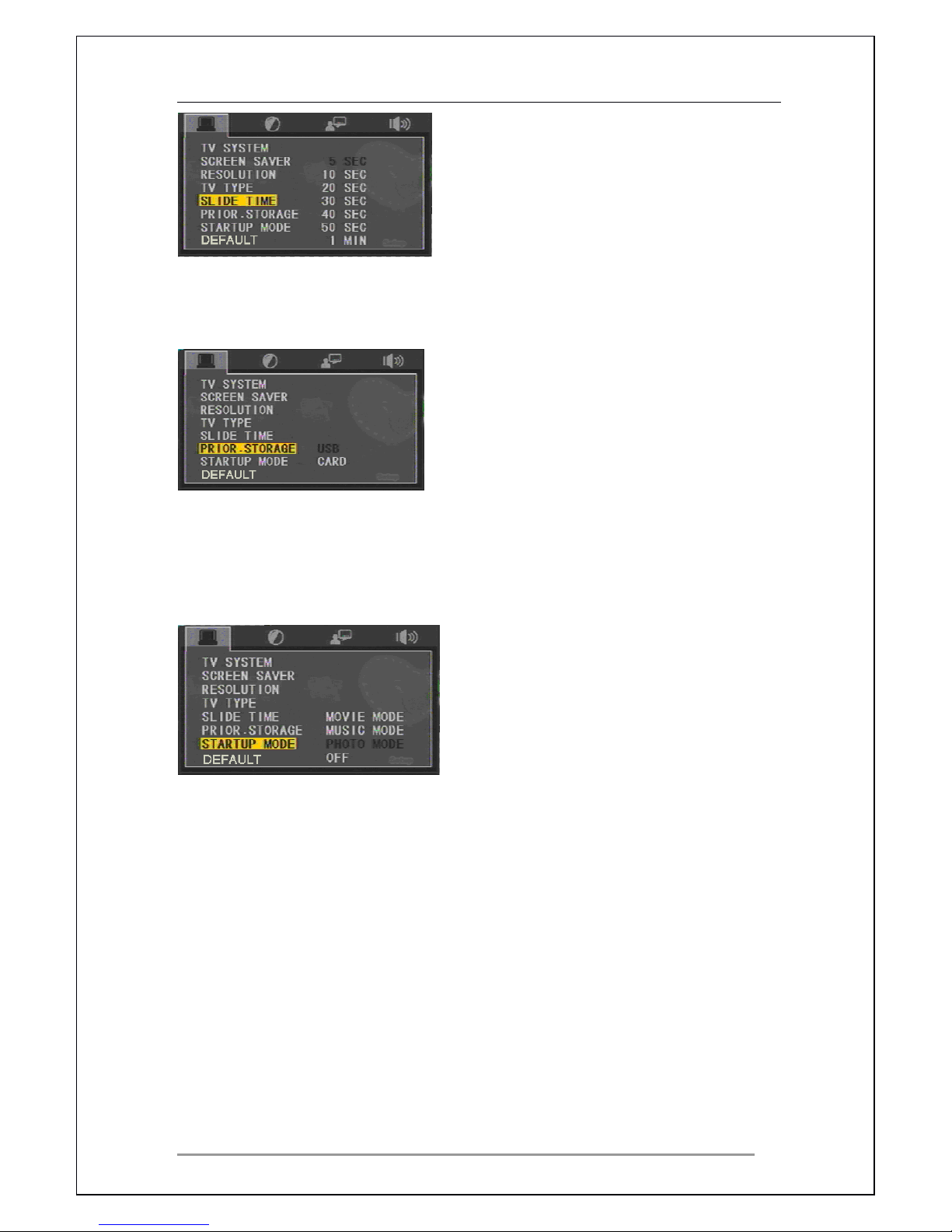
S elect interval time for photos to be displayed during a slide show.
Priority
Priority
Priority
Priority Storage
Storage
Storage
Storage
If both media storage devices are connected, this option allows selection of
priority between USB or CARD when the Cyclone 2 starts up.
Startup
Startup
Startup
Startup Mode
Mode
Mode
Mode
MOVIE MODE : I f there is no activity within 10 seconds after startup,the
system will switch to the movie menu and play the first file from the list.
MUSIC MODE : I f there is no activity within 10 seconds after startup,the
system will switch to the music menu and play the first file from the list.
PHOTO MODE : I f there is no activity within 10 seconds after startup,the
system will switch to the photo menu and play the first file from the list.
OFF: After power on, the system interface will stay on the main menu .
Default
Default
Default
Default
Page 34
Cyclone 2 Media Player Manual
Page 34 of 49 15 / 12 / 20 09
V1.2
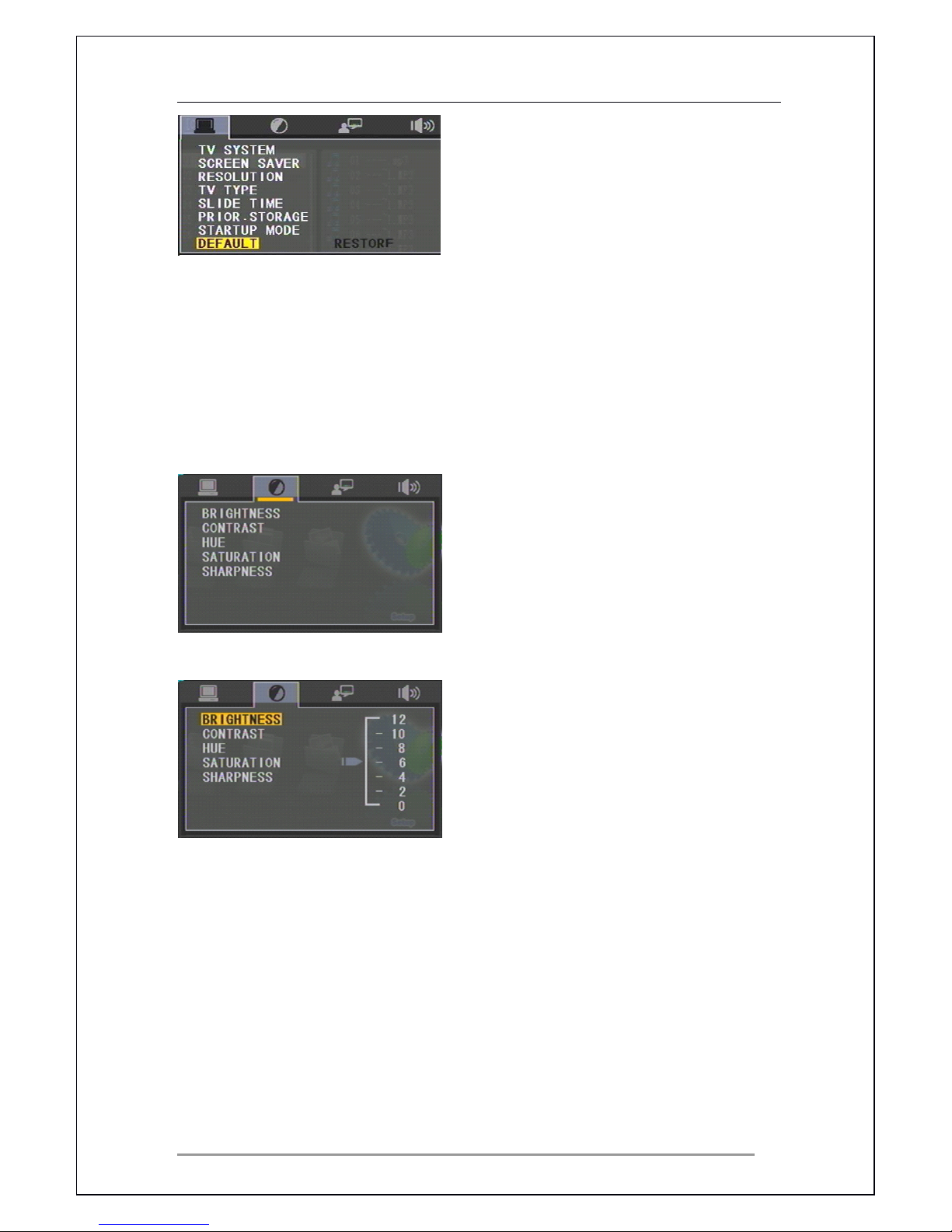
Select to restore to factory defaults settings.
8.2
8.2
8.2
8.2
Display
Display
Display
Display Setting
Setting
Setting
Setting
Use the NAVIGATION
NAVIGATION
NAVIGATION
NAVIGATION buttons to select the menu option you require. Press
the ENTER
ENTER
ENTER
ENTER button to view the full options menu.
Brightness
Brightness
Brightness
Brightness
Adjust the brightness on screen using the NAVIGATION
NAVIGATION
NAVIGATION
NAVIGATION buttons.
Page 35
Cyclone 2 Media Player Manual
Page 35 of 49 15 / 12 / 20 09
V1.2
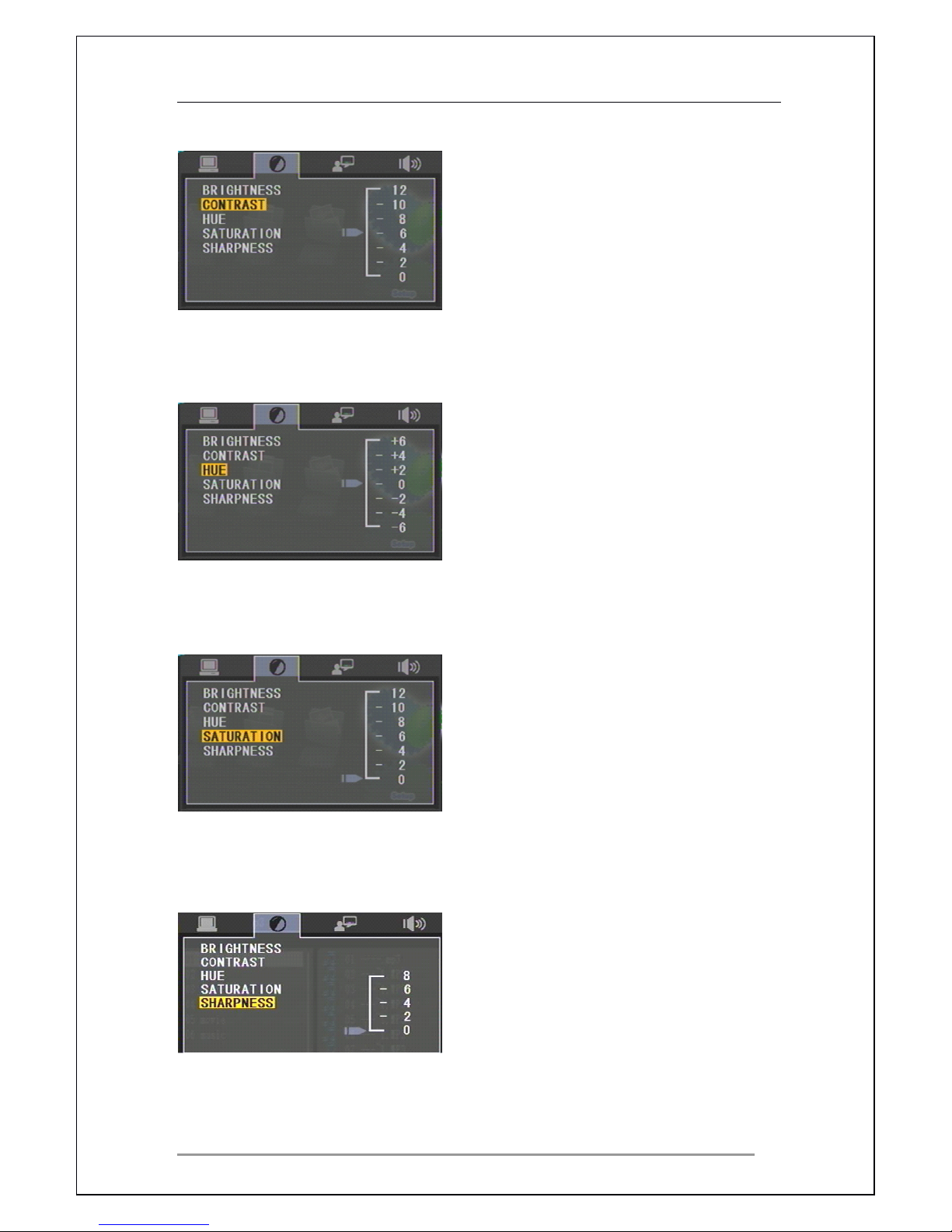
Contrast
Contrast
Contrast
Contrast
Adjust the contrast on screen using the NAVIGATION
NAVIGATION
NAVIGATION
NAVIGATION buttons.
Hue
Hue
Hue
Hue
Adjust the Hue on screen using the NAVIGATION
NAVIGATION
NAVIGATION
NAVIGATION buttons.
Saturation
Saturation
Saturation
Saturation
Adjust the saturation on screen using the NAVIGATION
NAVIGATION
NAVIGATION
NAVIGATION buttons.
Sharpness
Sharpness
Sharpness
Sharpness
Adjust the sharpness on screen using the NAVIGATION
NAVIGATION
NAVIGATION
NAVIGATION buttons.
Page 36
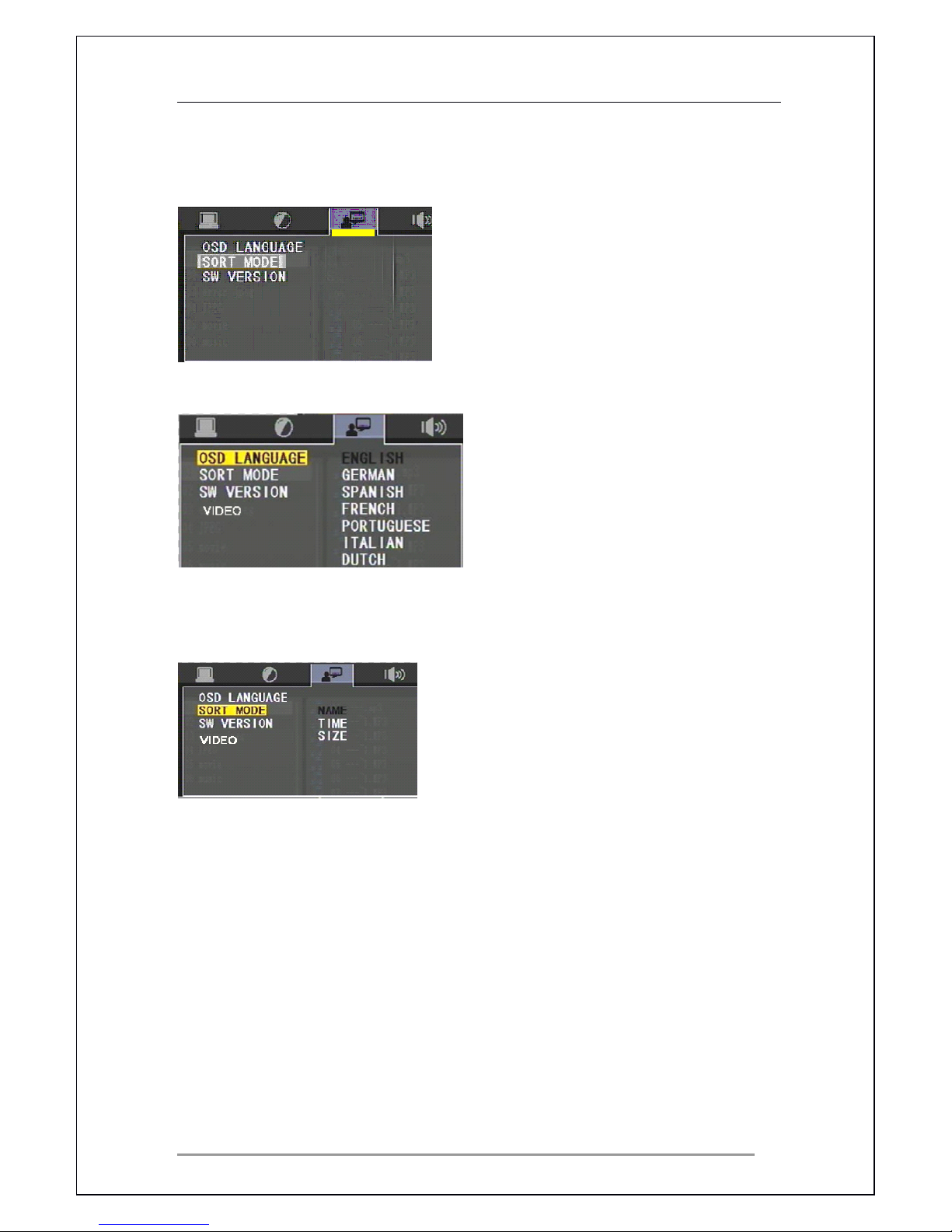
Cyclone 2 Media Player Manual
Page 36 of 49 15 / 12 / 20 09
V1.2
8.3
8.3
8.3
8.3
Menu
Menu
Menu
Menu Setting
Setting
Setting
Setting
Use the NAVIGATION
NAVIGATION
NAVIGATION
NAVIGATION buttons to select the menu option required. Press the
ENTER
ENTER
ENTER
ENTER button to view the full options menu.
Language
Language
Language
Language Setup
Setup
Setup
Setup
Select language for the menu system.
Sort
Sort
Sort
Sort Mode
Mode
Mode
Mode
For arranging files
in
the folder lists using the following methods.
NAME:
NAME:
NAME:
NAME: sort by name ( a to z) .
TIME:
TIME:
TIME:
TIME: sort by time ( sorted by last modified file )
SIZE:
SIZE:
SIZE:
SIZE: sort by size ( small est to large st )
Page 37
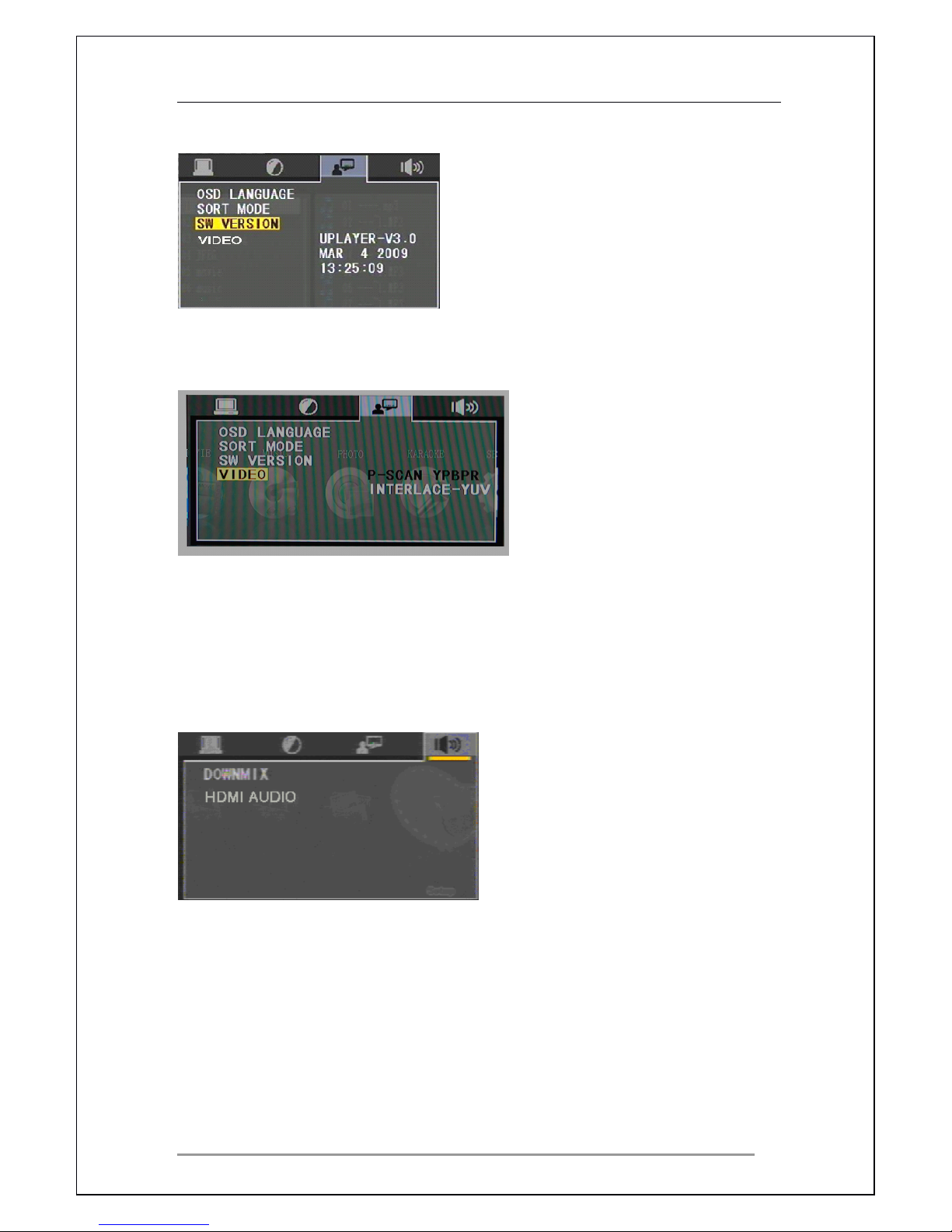
Cyclone 2 Media Player Manual
Page 37 of 49 15 / 12 / 20 09
V1.2
Firmware
Firmware
Firmware
Firmware Version
Version
Version
Version
Displays information about current firmware installed.
VIDEO
VIDEO
VIDEO
VIDEO
S elect video ou t put mode
8.4
8.4
8.4
8.4
Sound
Sound
Sound
Sound Setting
Setting
Setting
Setting
Use the NAVIGATION
NAVIGATION
NAVIGATION
NAVIGATION buttons to select the menu option required. Press the
ENTER
ENTER
ENTER
ENTER button to view the full options menu
Page 38
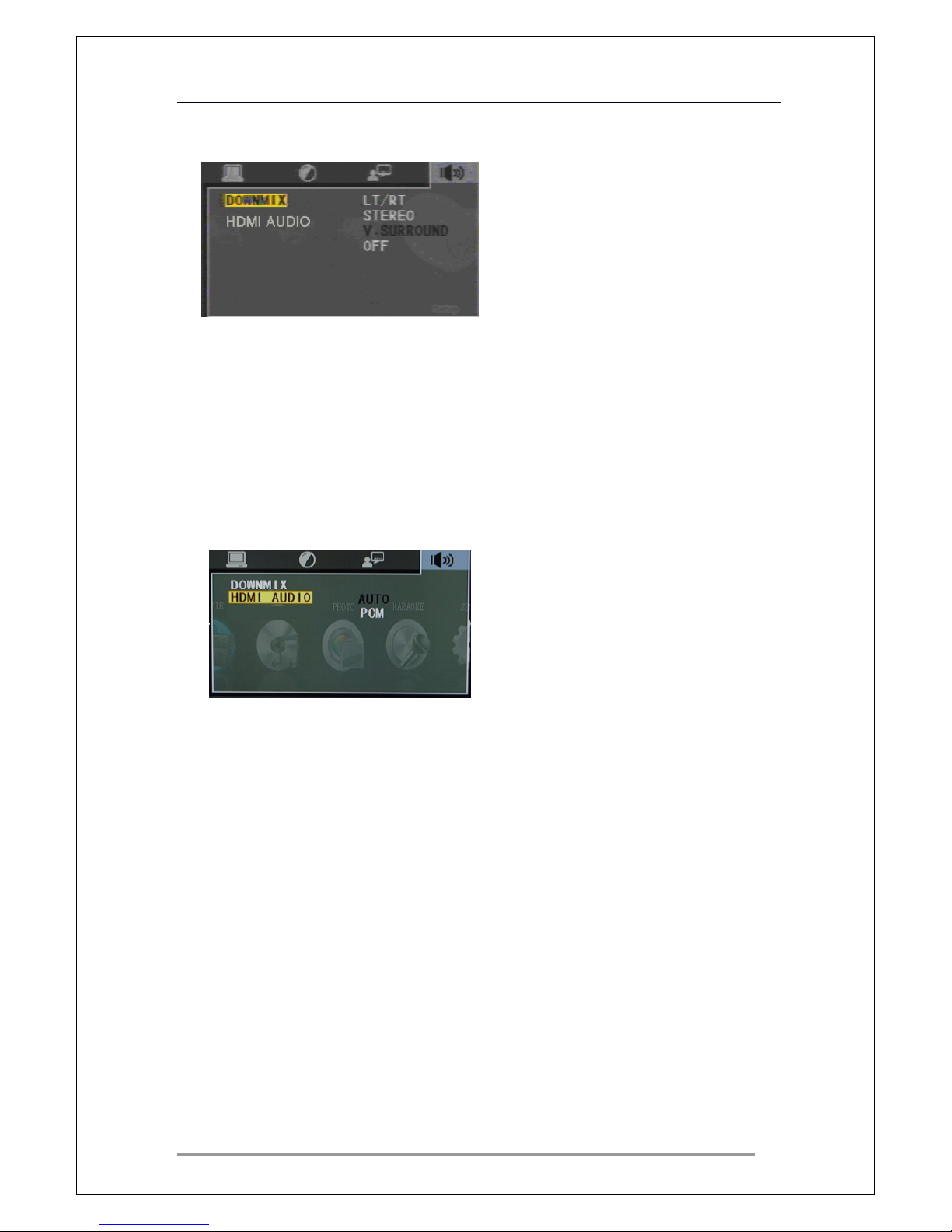
Cyclone 2 Media Player Manual
Page 38 of 49 15 / 12 / 20 09
V1.2
Down
Down
Down
Down Mix
Mix
Mix
Mix Mode:
Mode:
Mode:
Mode: Down mixes surround sound to 2-channel stereo.
•
LT/RT
LT/RT
LT/RT
LT/RT : If media supports Dolby PRO LOGIC output, select the LT/RT
option.
•
STEREO
STEREO
STEREO
STEREO : If audio output is 2-channel, please select STEREO.
•
V
V
V
V SURROUND
SURROUND
SURROUND
SURROUND : If media supports 5.1 surround sound,select
V.SURROUND.
HDMI
HDMI
HDMI
HDMI AUDIO
AUDIO
AUDIO
AUDIO
AUTO:
AUTO:
AUTO:
AUTO: if you selected the auto option, the player automatically selects
“ auto or PCM ”
PCM:
PCM:
PCM:
PCM: select s PCM mode (PCM is base-minus-one's complement )
Page 39
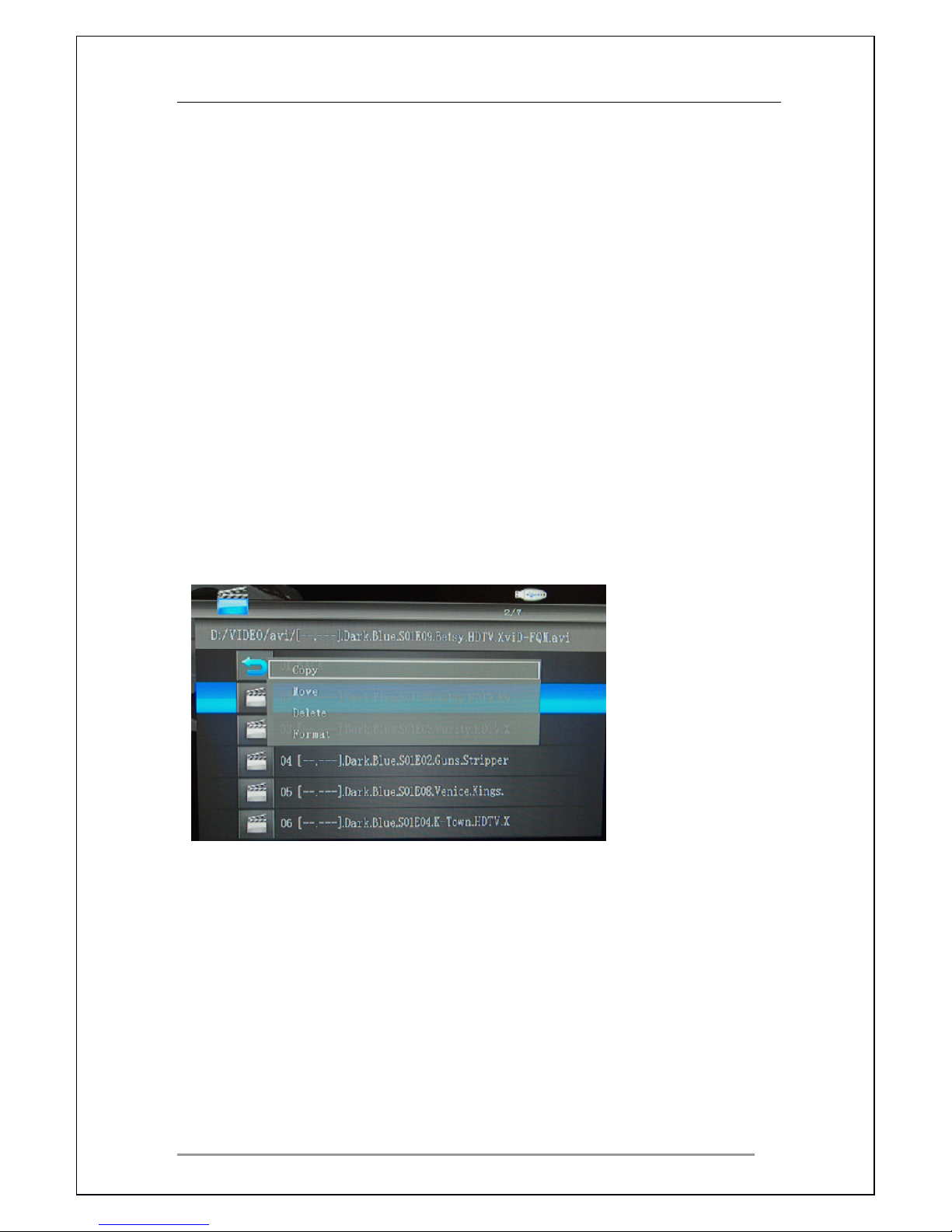
Cyclone 2 Media Player Manual
Page 39 of 49 15 / 12 / 20 09
V1.2
9
9
9
9
Edit
Edit
Edit
Edit Menu
Menu
Menu
Menu
The menu is used for editing media files and storage media.
Functions
Functions
Functions
Functions available
available
available
available *
*
*
* :
:
:
:
• COPY
COPY
COPY
COPY (Copies selected file from USB
USB
USB
USB or fol
fol
fol
fol d
d
d
d er
er
er
er )
• M
M
M
M ove
ove
ove
ove ( M ove s selected file )
• DELETE
DELETE
DELETE
DELETE (Deletes the selected file)
• FORMAT
FORMAT
FORMAT
FORMAT (Formats selected media storage
in
FA T32)
P
P
P
P lease
lease
lease
lease note:
note:
note:
note: FAT32
FAT32
FAT32
FAT32 supports
supports
supports
supports read
read
read
read and
and
and
and write
write
write
write
NTFS
NTFS
NTFS
NTFS only
only
only
only supports
supports
supports
supports read
read
read
read
To
access the Edit menu choose a file to edit or the media storage unit for
formatting.
Pressing the EDIT
EDIT
EDIT
EDIT button on the remote control and the following menu ** will
appear on screen.
*
*
*
* Please
Please
Please
Please note:
note:
note:
note: do
do
do
do not
not
not
not disconnect
disconnect
disconnect
disconnect or
or
or
or turn
turn
turn
turn off
off
off
off any
any
any
any storage
storage
storage
storage unit
unit
unit
unit when
when
when
when coping
coping
coping
coping ,
,
,
, deleting
deleting
deleting
deleting or
or
or
or
reformatting.
reformatting.
reformatting.
reformatting.
**
**
**
** Please
Please
Please
Please note
note
note
note the
the
the
the menu
menu
menu
menu will
will
will
will disappear
disappear
disappear
disappear after
after
after
after 10
10
10
10 seconds
seconds
seconds
seconds of
of
of
of inactivity.
inactivity.
inactivity.
inactivity.
9.1
9.1
9.1
9.1 Copy
Copy
Copy
Copy Menu
Menu
Menu
Menu
Use this menu to copy * media files from USB to USB or vice visa.
Page 40
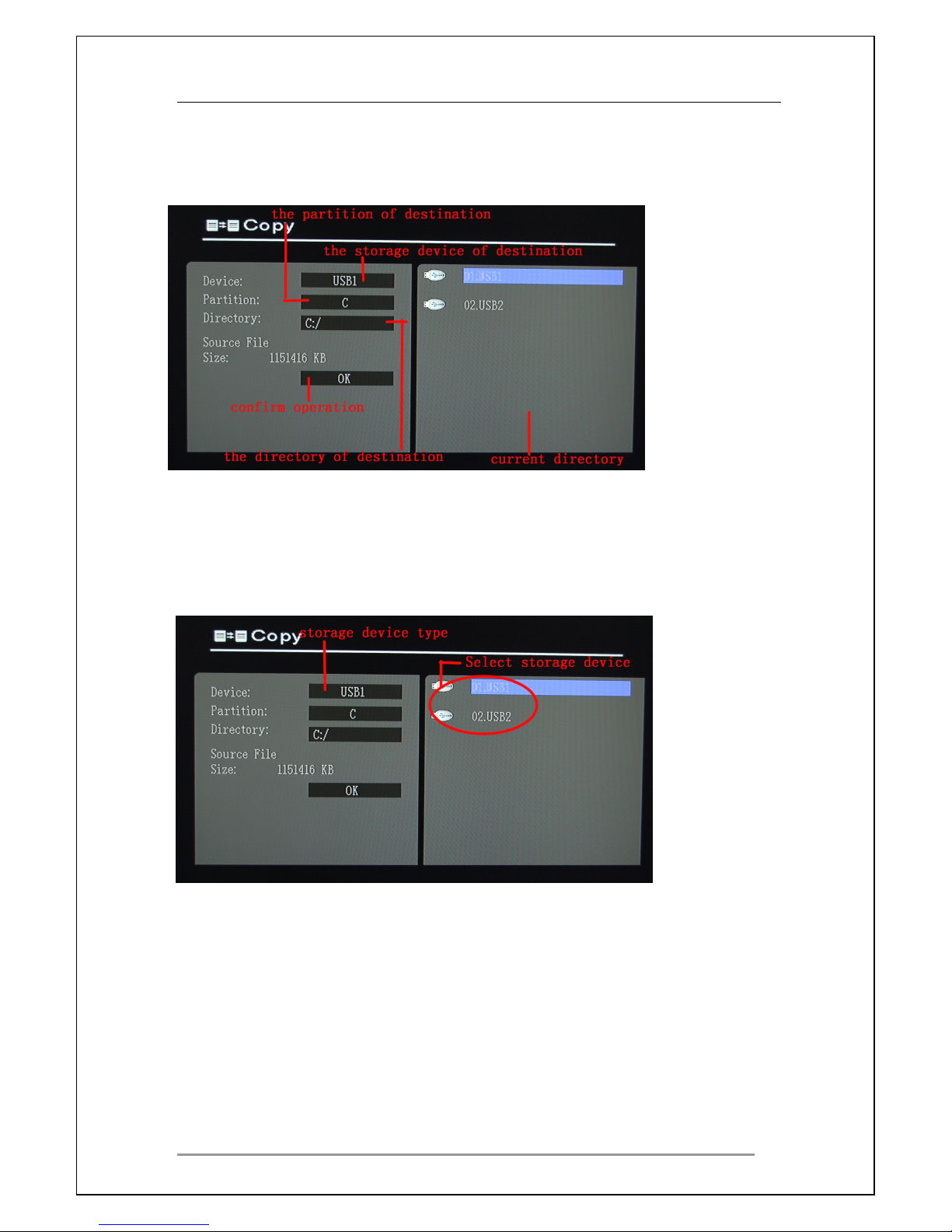
Cyclone 2 Media Player Manual
Page 40 of 49 15 / 12 / 20 09
V1.2
Select the copy menu using NAVIGATION
NAVIGATION
NAVIGATION
NAVIGATION buttons and press the ENTER
ENTER
ENTER
ENTER
button to view the following screen.
S elect storage device .
Device:
Device allows you to select the desired storage device you wish to copy to.
Press the RIGHT
RIGHT
RIGHT
RIGHT button on the remote control to highlight the desired device
and ENTER
ENTER
ENTER
ENTER to select it. Press the LEFT
LEFT
LEFT
LEFT button to return to the left side of
the screen.
Page 41
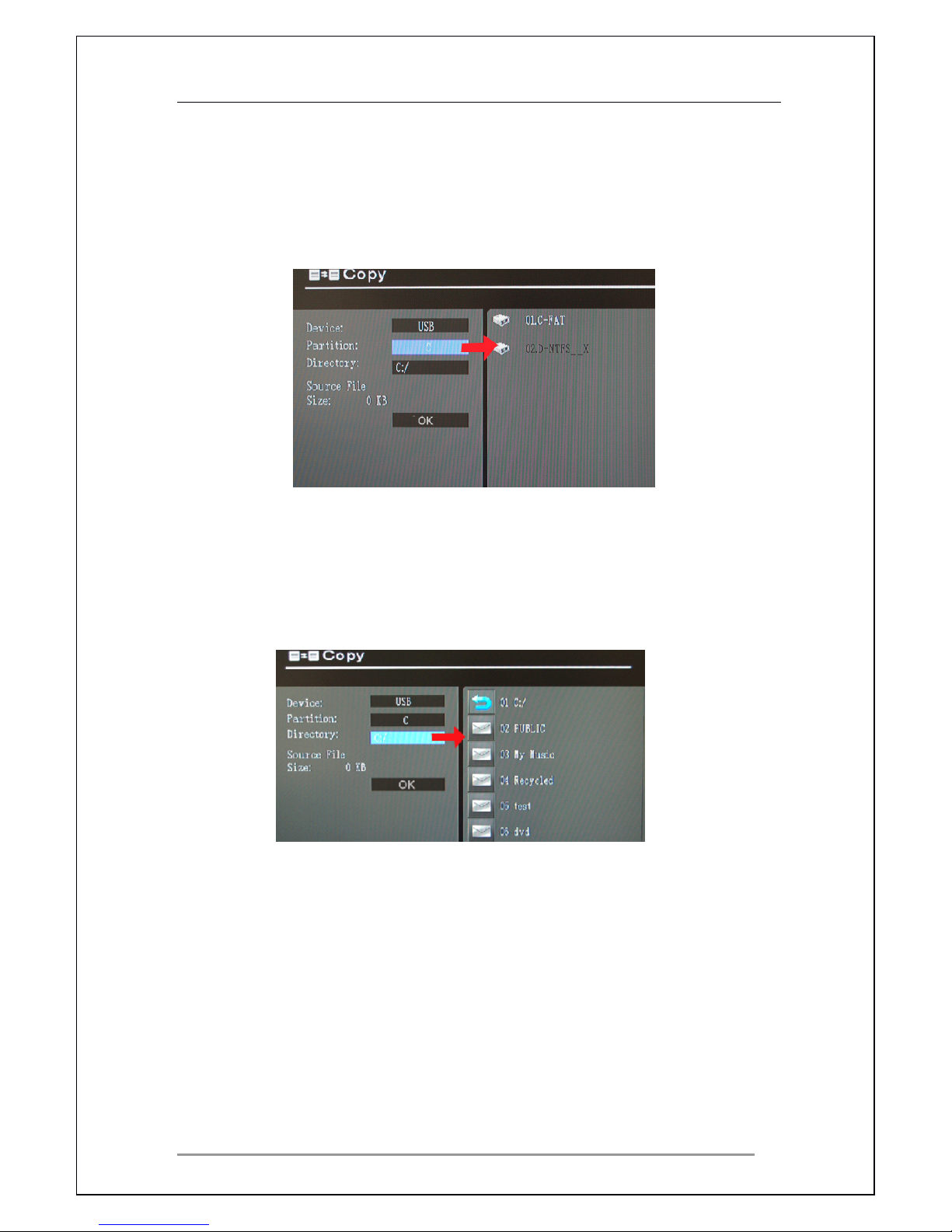
Cyclone 2 Media Player Manual
Page 41 of 49 15 / 12 / 20 09
V1.2
Partition:
Partition:
Partition:
Partition:
If your storage medium has more than one partition, this allows you to select
the desired partition you want to copy the file into. Press the RIGHT
RIGHT
RIGHT
RIGHT button on
the remote control to highlight the desired device and ENTER
ENTER
ENTER
ENTER to select it.
Press the LEFT
LEFT
LEFT
LEFT button to return to the left side of the screen.
Directory:
Directory:
Directory:
Directory:
This option allows you to select which folder you want to copy into. Press the
RIGHT
RIGHT
RIGHT
RIGHT button on the remote control to highlight the desired device and
ENTER
ENTER
ENTER
ENTER to select it. Press the LEFT
LEFT
LEFT
LEFT button to return to the left side of the
screen.
Page 42
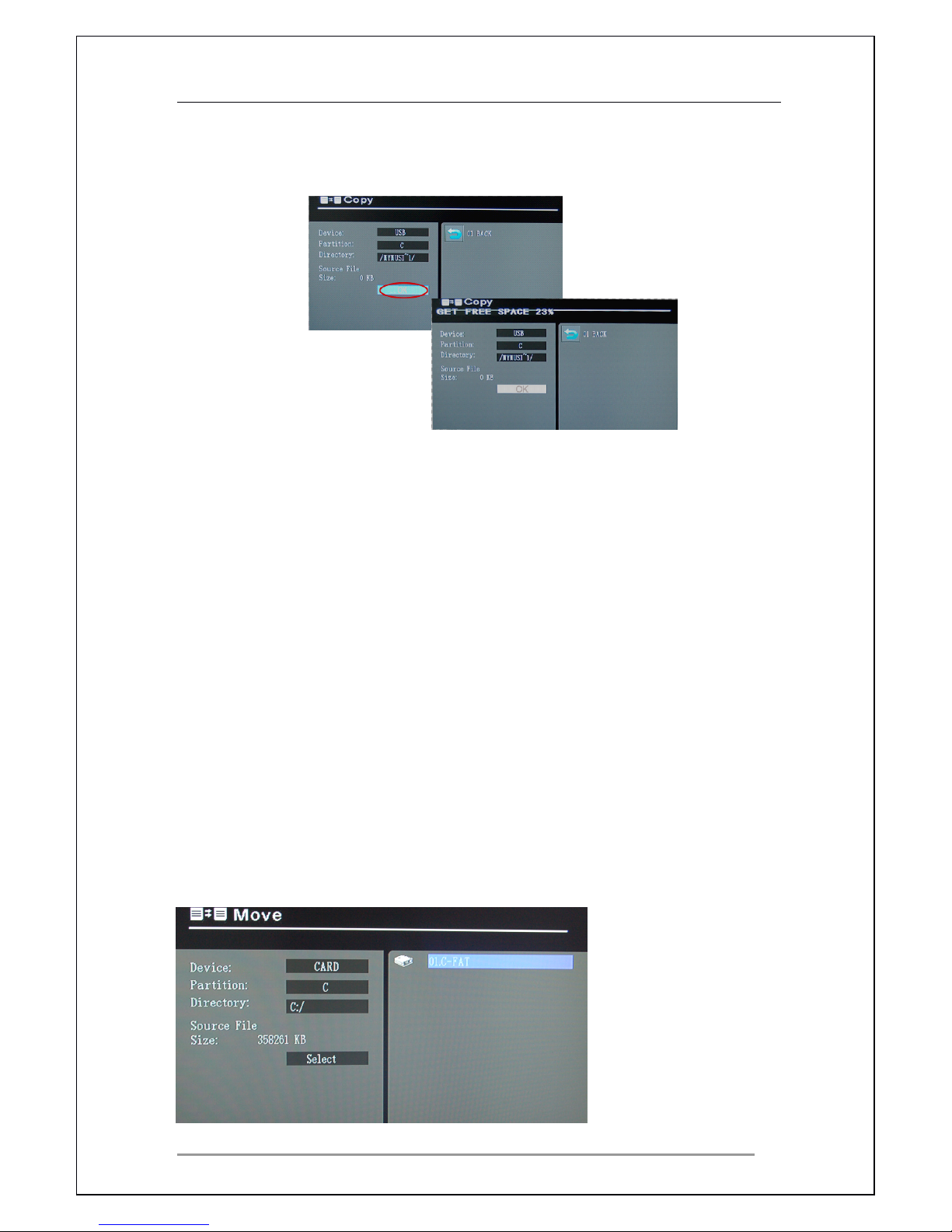
Cyclone 2 Media Player Manual
Page 42 of 49 15 / 12 / 20 09
V1.2
U sing the left
left
left
left button highlight the “
“
“
“ OK
OK
OK
OK ”
”
”
” icon and press the ENTER
ENTER
ENTER
ENTER button to
copy the file, like
in
the image below;
Depending on the file size,itmay take some time for the copy to complete.
*
*
*
* Please
Please
Please
Please note
note
note
note that
that
that
that the
the
the
the Cyclone
Cyclone
Cyclone
Cyclone 2
2
2
2 does
does
does
does not
not
not
not support
support
support
support copy
copy
copy
copy ing
ing
ing
ing to
to
to
to NTFS
NTFS
NTFS
NTFS formatted
formatted
formatted
formatted storage
storage
storage
storage devices.
devices.
devices.
devices.
P
P
P
P lease
lease
lease
lease note
note
note
note it
it
it
it can
can
can
can copy
copy
copy
copy a
a
a
a single
single
single
single file
file
file
file or
or
or
or a
a
a
a folder
folder
folder
folder (Pl
(Pl
(Pl
(Pl ea
ea
ea
ea s
s
s
s e
e
e
e make
make
make
make sure
sure
sure
sure no
no
no
no sub
sub
sub
sub folder
folder
folder
folder s
s
s
s are
are
are
are contained
contained
contained
contained
with
with
with
with in
in
in
in the
the
the
the folder
folder
folder
folder to
to
to
to be
be
be
be copied
copied
copied
copied )
)
)
)
Copy
Copy
Copy
Copy function
function
function
function only
only
only
only works
works
works
works for
for
for
for
FAT
FAT
FAT
FAT
or
or
or
or FA T32
FAT32
FAT32
FAT32 storage
storage
storage
storage devices.
devices.
devices.
devices.
9.2
9.2
9.2
9.2
Move
Move
Move
Move Menu
Menu
Menu
Menu
Use this menu to move * files from the attached storage device(s).
Select the move menu using the NAVIGATION
NAVIGATION
NAVIGATION
NAVIGATION buttons and press the ENTER
ENTER
ENTER
ENTER
button. This will bring up a window with the following options; Copy, Move,
Delete and Format. Select “
“
“
“ Move
Move
Move
Move ”
”
”
” and then press ENTER
ENTER
ENTER
ENTER on the remote
control.
This opens the following screen.
Page 43
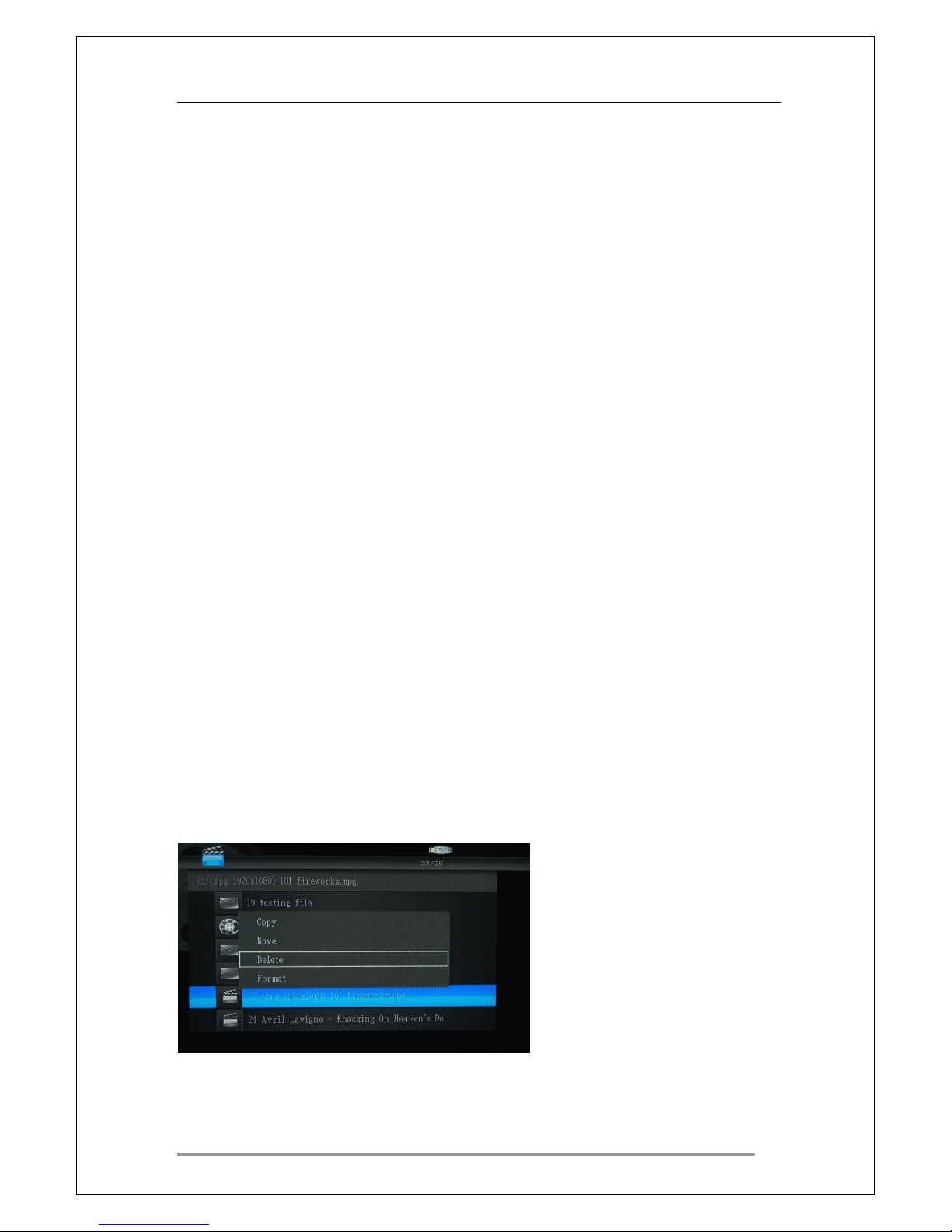
Cyclone 2 Media Player Manual
Page 43 of 49 15 / 12 / 20 09
V1.2
Device:
Device:
Device:
Device:
Device allows you to select the desired storage device you wish to move to.
Press the RIGHT
RIGHT
RIGHT
RIGHT button on the remote control to highlight the desired device
and ENTER
ENTER
ENTER
ENTER to select it. Press the LEFT
LEFT
LEFT
LEFT button to return to the left side of
the screen.
Partition:
Partition:
Partition:
Partition:
If your storage medium has more than one partition, this allows you to select
the desired partition you want to move the file into. Press the RIGHT
RIGHT
RIGHT
RIGHT button
on the remote control to highlight the desired device and ENTER
ENTER
ENTER
ENTER to select it.
Press the LEFT
LEFT
LEFT
LEFT button to return to the left side of the screen.
Directory:
Directory:
Directory:
Directory:
This option allows you to select which folder you want to move into. Press the
RIGHT
RIGHT
RIGHT
RIGHT button on the remote control to highlight the desired device and
ENTER
ENTER
ENTER
ENTER to select it. Press the LEFT
LEFT
LEFT
LEFT button to return to the left side of the
screen.
Once you are done select “
“
“
“ OK
OK
OK
OK ” and the Cyclone 2 will start to move the file.
*
*
*
* Please
Please
Please
Please note
note
note
note that
that
that
that the
the
the
the Cyclone
Cyclone
Cyclone
Cyclone 2
2
2
2 does
does
does
does not
not
not
not support
support
support
support moving
moving
moving
moving to
to
to
to NTFS
NTFS
NTFS
NTFS formatted
formatted
formatted
formatted storage
storage
storage
storage devices.
devices.
devices.
devices.
P
P
P
P lease
lease
lease
lease note
note
note
note it
it
it
it can
can
can
can move
move
move
move a
a
a
a single
single
single
single file
file
file
file or
or
or
or folder
folder
folder
folder s
s
s
s (Pl
(Pl
(Pl
(Pl ea
ea
ea
ea s
s
s
s e
e
e
e make
make
make
make sure
sure
sure
sure no
no
no
no sub
sub
sub
sub folder
folder
folder
folder s
s
s
s are
are
are
are contained
contained
contained
contained
within
within
within
within the
the
the
the folder
folder
folder
folder to
to
to
to be
be
be
be moved.
moved.
moved.
moved. )
)
)
)
The
The
The
The move
move
move
move function
function
function
function works
works
works
works in
in
in
in a
a
a
a similar
similar
similar
similar way
way
way
way to
to
to
to the
the
the
the windows
windows
windows
windows cutting
cutting
cutting
cutting function.
function.
function.
function.
9.3
9.3
9.3
9.3
Delete
Delete
Delete
Delete Menu
Menu
Menu
Menu
Use this menu to delete files from attached storage device(s).
Page 44
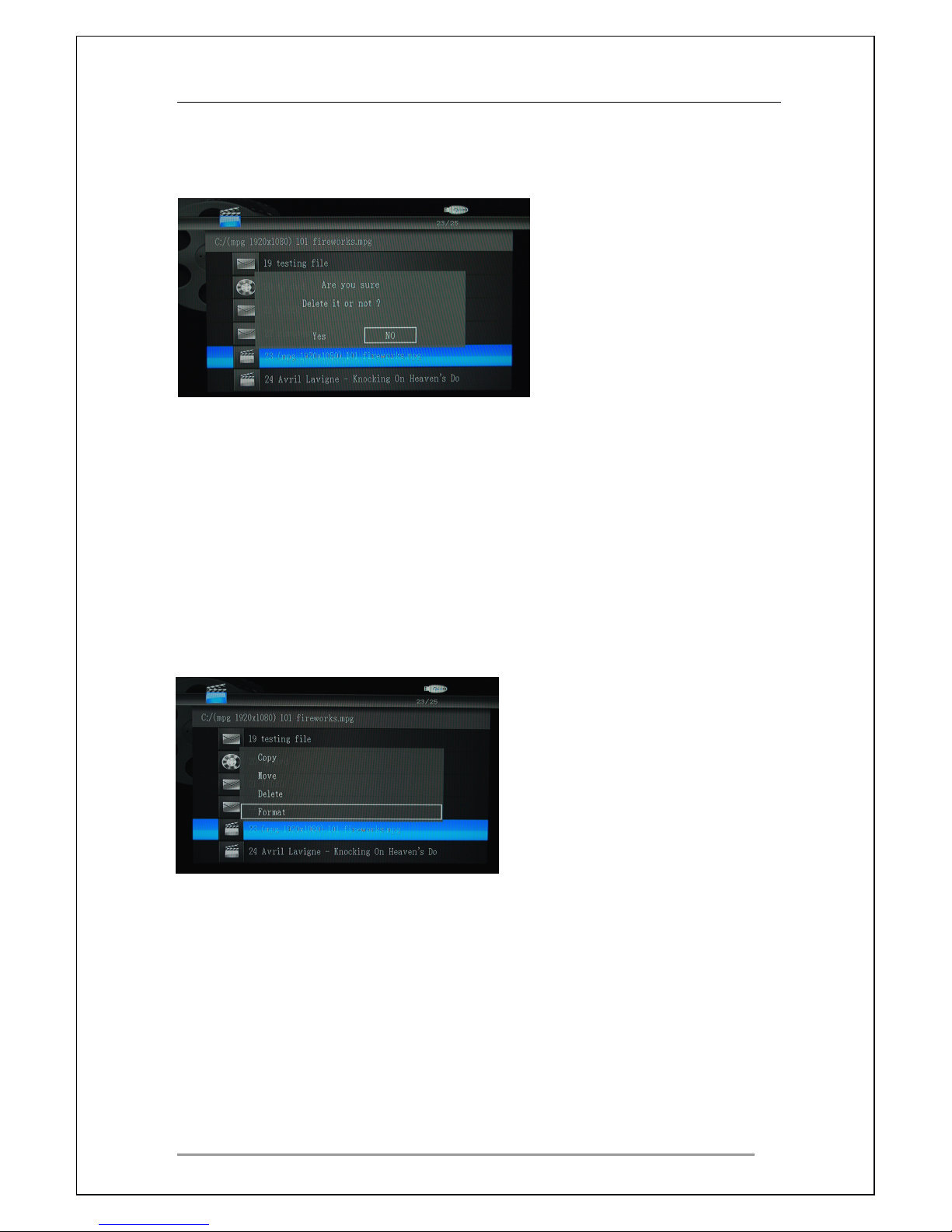
Cyclone 2 Media Player Manual
Page 44 of 49 15 / 12 / 20 09
V1.2
Select the delete menu using the NAVIGATION
NAVIGATION
NAVIGATION
NAVIGATION buttons and press the
ENTER
ENTER
ENTER
ENTER button to view the next screen.
Select YES
YES
YES
YES or NO
NO
NO
NO to confirm or cancel deletion of the file.
9.4
9.4
9.4
9.4
Reformat
Reformat
Reformat
Reformat Menu
Menu
Menu
Menu
Cyclone 2 can reformat * the storage media devices using the FAT32 file
system.
Select the Format menu using the NAVIGATION
NAVIGATION
NAVIGATION
NAVIGATION buttons and press the
ENTER
ENTER
ENTER
ENTER button to view the next screen.
Page 45
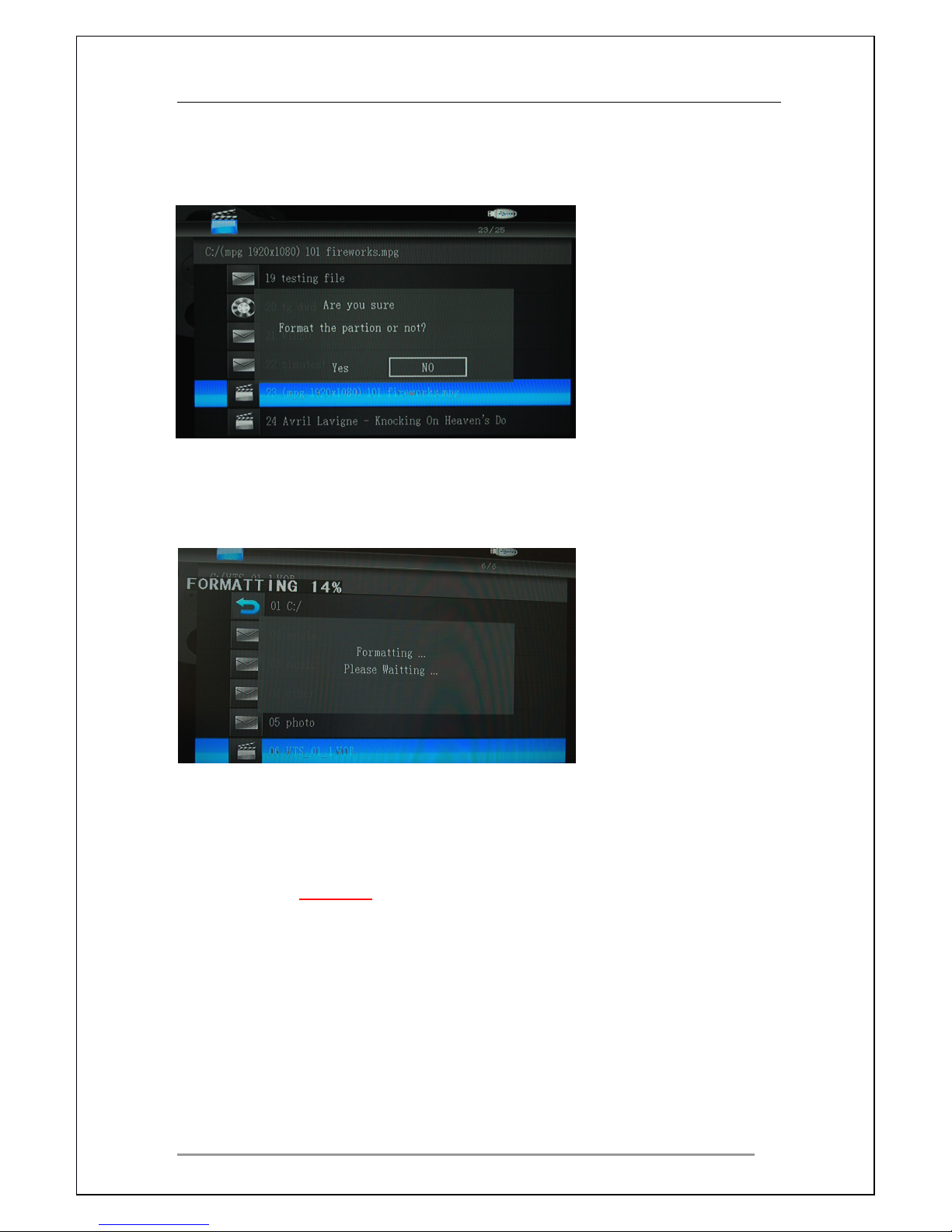
Cyclone 2 Media Player Manual
Page 45 of 49 15 / 12 / 20 09
V1.2
Select YES
YES
YES
YES or NO
NO
NO
NO to confirm or cancel formatting a partition of the storage
device .
Depending on the storage unit size,itmay take some time for formatting to be
completed.
Select NO
NO
NO
NO if you wish to exit from the formatting utility.
This utility can format whole disks or those with partitions.
*The
*The
*The
*The tool
tool
tool
tool can
can
can
can only
only
only
only REFORMAT
REFORMAT
REFORMAT
REFORMAT the
the
the
the storage
storage
storage
storage device
device
device
device it
it
it
it cannot
cannot
cannot
cannot format
format
format
format a
a
a
a new
new
new
new device
device
device
device which
which
which
which has
has
has
has no
no
no
no
file
file
file
file system.
system.
system.
system.
*Please
*Please
*Please
*Please note
note
note
note it
it
it
it is
is
is
is recommended
recommended
recommended
recommended to
to
to
to use
use
use
use the
the
the
the Windows
Windows
Windows
Windows format
format
format
format utility
utility
utility
utility to
to
to
to reformat
reformat
reformat
reformat storage
storage
storage
storage units
units
units
units
instead
instead
instead
instead of
of
of
of using
using
using
using this
this
this
this tool.
tool.
tool.
tool.
Page 46
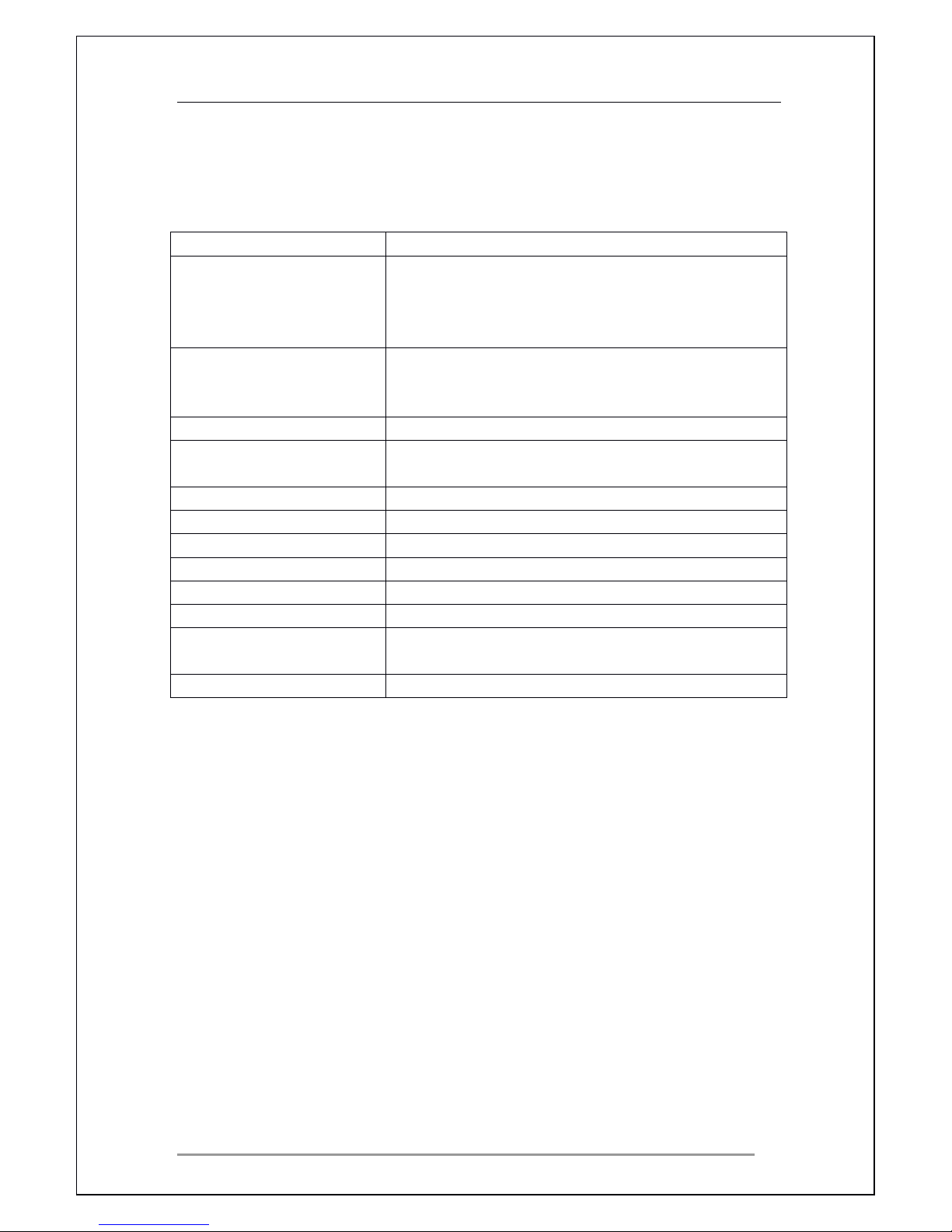
Cyclone 2 Media Player Manual
Page 46 of 49 15 / 12 / 20 09
V1.2
10
10
10
10 Specifications
Specifications
Specifications
Specifications *
*
*
* +
+
+
+ Contents
Contents
Contents
Contents
*
*
*
* Product
Product
Product
Product specifications
specifications
specifications
specifications are
are
are
are subject
subject
subject
subject to
to
to
to change
change
change
change without
without
without
without notice.
notice.
notice.
notice.
Contents
Contents
Contents
Contents
� 1 x Cyclone 2 Media Player
� 1 x DC adaptor
� 1 x AC cable
� 1 x Composite
AV
cable
� 1 x USB cable
� 1 x CD disk (manual & quick guide )
� 1 x Remote Control
� S crews and screwdriver
Product name:
Cyclone
Cyclone
Cyclone
Cyclone 2
2
2
2
Media storage support:
B
B
B
B uilt
uilt
uilt
uilt -in
-in
-in
-in S upport any 3.5 ”
SATA
HDD
USB
USB
USB
USB devices
devices
devices
devices with file systems:
FAT,
FA T32 and
NTFS* (*editing functions not supported on NTFS
formatted devices).
Video:
MPEG1/2/4(MPG,
MPEG1/2/4(MPG,
MPEG1/2/4(MPG,
MPEG1/2/4(MPG, VOB,
VOB,
VOB,
VOB, AVI),
AVI),
AVI),
AVI), DivX
DivX
DivX
DivX (avi),
(avi),
(avi),
(avi), XviD
XviD
XviD
XviD
(avi),
(avi),
(avi),
(avi), resolution up to 720 x 480 30fps / 720 x
576 25fps.
Audio:
MP3,WMA
MP3,WMA
MP3,WMA
MP3,WMA and
and
and
and OGG
OGG
OGG
OGG
Photo:
JPEG,
JPEG,
JPEG,
JPEG, BMP
BMP
BMP
BMP and
and
and
and GIF
GIF
GIF
GIF Support
Support
Support
Support 1080p
1080p
1080p
1080p when
when
when
when use
use
use
use
HDMI
HDMI
HDMI
HDMI output
output
output
output to
to
to
to TV
TV
TV
TV
Other format:
ISO
ISO
ISO
ISO supports
supports
supports
supports above
above
above
above media
media
media
media files
files
files
files
Subtitle:
SRT/SM
SRT/SM
SRT/SM
SRT/SM I
I
I
I /SSA/SUB
/SSA/SUB
/SSA/SUB
/SSA/SUB
Functions:
Playback,
Playback,
Playback,
Playback, copy,
copy,
copy,
copy, MOVE
MOVE
MOVE
MOVE delete
delete
delete
delete and
and
and
and reformat
reformat
reformat
reformat
Input Connections:
1x
1x
1x
1x USB2.0
USB2.0
USB2.0
USB2.0 and
and
and
and built
built
built
built -in
-in
-in
-in any
any
any
any 3.5
3.5
3.5
3.5 ”
”
”
”
SATA
SATA
SATA
SATA
HDD
HDD
HDD
HDD
Output Connections:
1x
1x
1x
1x HDMI
HDMI
HDMI
HDMI 1.3
1.3
1.3
1.3 and
and
and
and 1x
1x
1x
1x Composite(A/V)
Composite(A/V)
Composite(A/V)
Composite(A/V)
HDMI
Up
Up
Up
Up to
to
to
to 1080p
1080p
1080p
1080p
OS Language:
English,
English,
English,
English, German,
German,
German,
German, Spanish,
Spanish,
Spanish,
Spanish, French,
French,
French,
French,
Portuguese,
Portuguese,
Portuguese,
Portuguese, Italian
Italian
Italian
Italian and
and
and
and Dutch
Dutch
Dutch
Dutch
DC Power:
5V
5V
5V
5V -
-
-
- 2A
2A
2A
2A /12v-2A
/12v-2A
/12v-2A
/12v-2A
Page 47
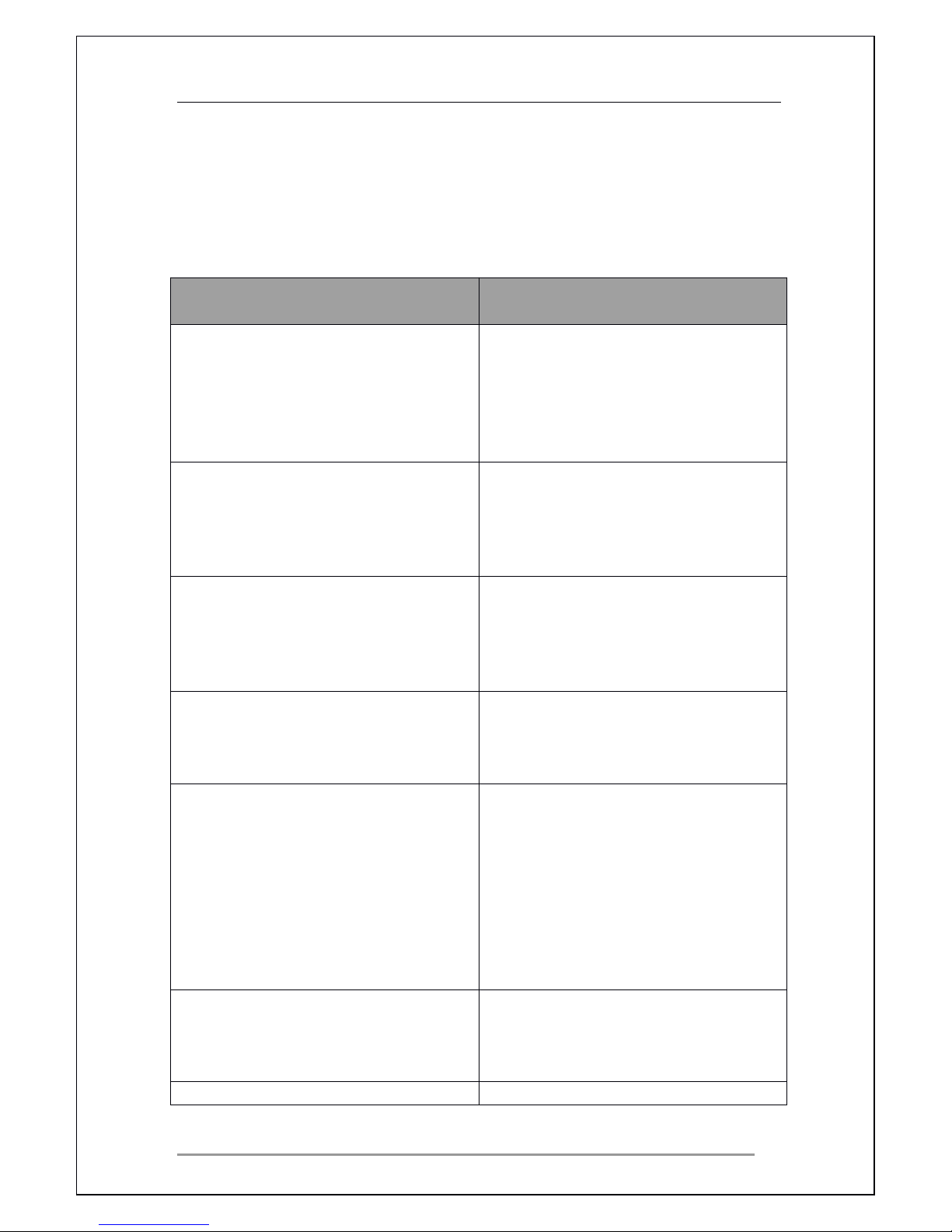
Cyclone 2 Media Player Manual
Page 47 of 49 15 / 12 / 20 09
V1.2
11
11
11
11 Troubleshooting
Troubleshooting
Troubleshooting
Troubleshooting
Problems
Solution
TV Screen is Blank and the media
player adaptor LED is off.
•
Check power adapter is ok
and connected.
•
Check interface cables are
connected correctly.
•
Turn TV on.
•
Turn Cyclone 2 on.
TV Screen is blank and the media
player LED is on.
•
Check interface cables are
correctly connected.
•
Turn TV on.
•
Check power adapters is ok
and connected.
Picture is black and white and
distorted.
•
Check interface cables are
correctly connected.
•
•
•
•
Go to setting menu and
change the resolution settings
and/or aspect ratio setting.
Picture does not display on the entire
screen
•
Press the TV Type button on
the remote control and select
the proper output mode to fit
the PAL or NTSC TV system.
Cyclone 2 Player keeps on asking if
my USB device needs to be
formatted.
•
Ensure you turn ON your
Cyclone 2 first before turning
ON the USB devices.
•
Check your USB device has
been formatted properly and
the format file system is
compatible with the Cyclone 2 ,
see
11
. Specifications.
•
Is USB device is faulty?
Cyclone 2 menu system keeps
hanging while accessing USB device.
•
Ensure you turn ON Cyclone 2
before turning ON USB
devices.
•
Is USB device is faulty?
No Sound.
•
Check TV volume and Cyclon
Page 48
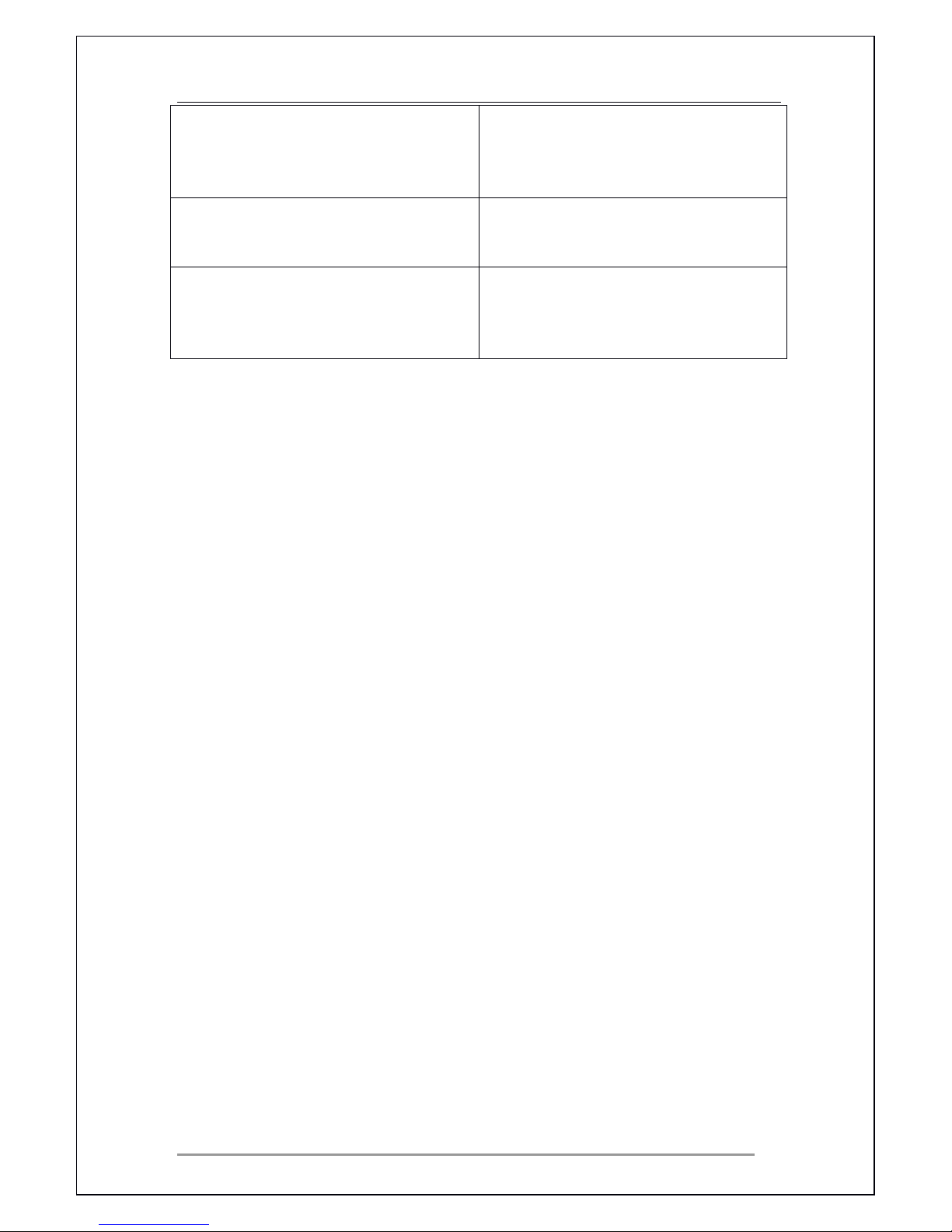
Cyclone 2 Media Player Manual
Page 48 of 49 15 / 12 / 20 09
V1.2
e 2 Player volume
•
When using Composite
connection check composite
audio is connected correctly.
Does not detect or play file.
•
Check if file is compatible with
the Cyclone 2 see
11
. Specifications.
Copying /moving does not work?
•
USB and HDD devices should
be formatted in
FAT
or FAT32.
NTFS is not supported by
copy /move functions.
Page 49
Cyclone 2 Media Player Manual
Page 49 of 49 15 / 12 / 20 09
V1.2
12
12
12
12 Frequently
Frequently
Frequently
Frequently Asked
Asked
Asked
Asked Questions
Questions
Questions
Questions
For firmware updates please check www.sum-vision.com.cn
All other brand names or trademarks are the properties of their respective owners
Question
Question
Question
Question
Answer
Answer
Answer
Answer
What kinds of storage
devices are compatible
with the Cyclone 2 ?
Any 3.5 ”
SATA
HDD, U Disk, USB Hard Drive
enclosures.
How do you save
multimedia files?
Move the multimedia files into U Disk or USB
Hard Drive enclosure .
Y
ou can also connect the player to a pc through
the supplied USB cable .
Does the Cyclone 2 have
inside storage?
The Cyclone 2 can have one built-in 3.5 ”
SATA
HDD to save multimedia files.
 Loading...