

Page 1
Mobile Viewing for iPhone
User Menu
1. System requires
Support Device iPhone or iPod 2.0 or greater is
required
Space Required >800 KB Free space
Software required iTunes(optional)
2. Install
1) Open your iPhone and click App Store.
2) Under search bar ,typing “Meye sun
Mobile Viewing Application
3) Click the Meye icon, The application begins to install on your iPhone.
3. Uninstall
Under your iPhone main menu,Press and hold the Meye icon for a few seconds,
you will see the Delete Button to uninstall the Meye.
for free, the file name is Meye.
”and click search button. Download the
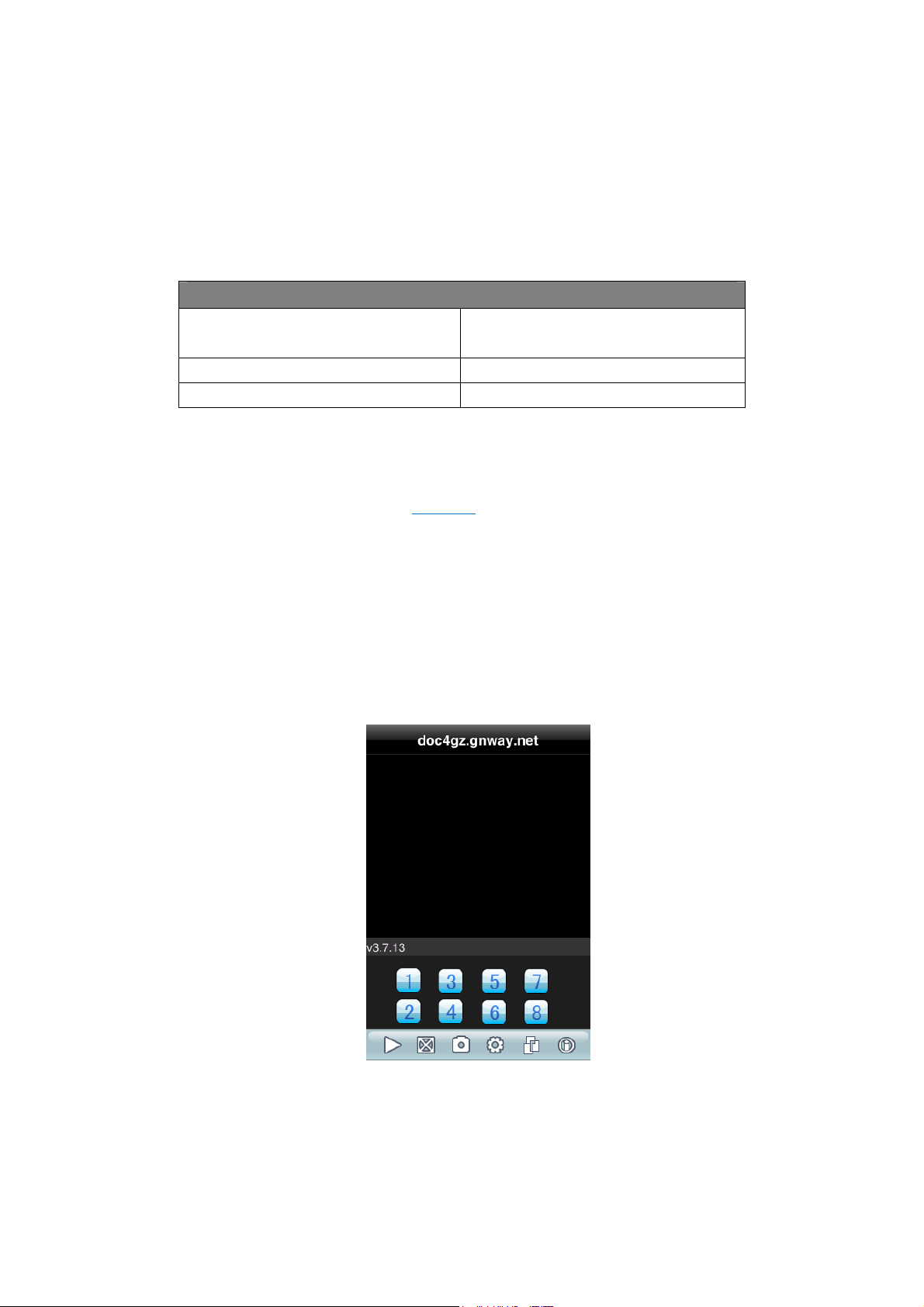
4. Main menu
Figure 1 Main menu
Page 2
Icon Function Description
Play Connecting to your cameras
Full Screen Switch full screen or window
Snap Shot Capture the image from your camera
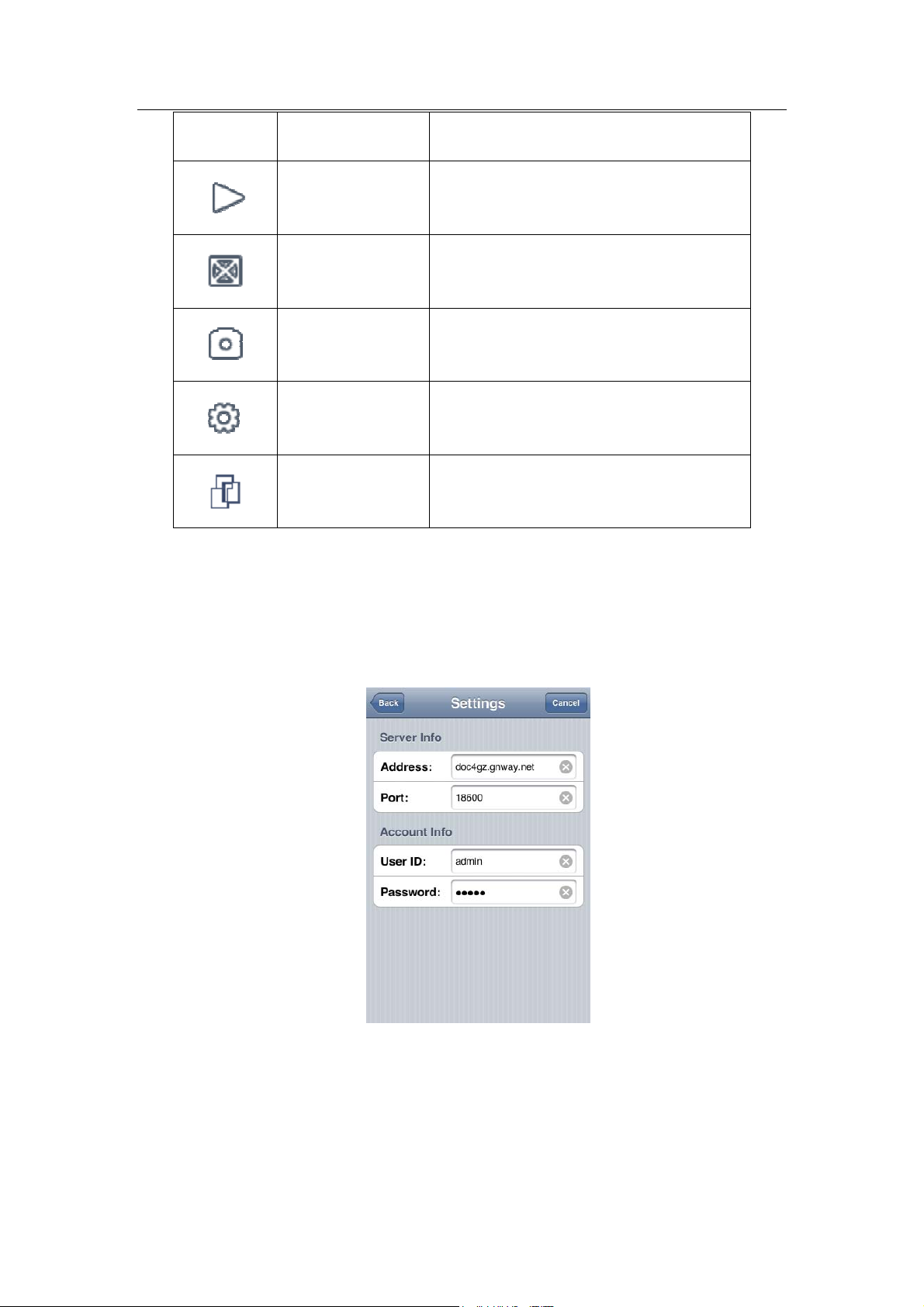
Settings
Setup your ip_address and port and your
account info
Next group Next channel group (1~4,5~8,9~12,13~16)
5. Connecting To Your Cameras
Once the application is installed on your phone, you can log in and access your system.
To use mobile viewing:
Figure 2 settings
1. From your iPhone, click the Meye icon.
2. Click Settings. In the Username field enter admin; in the Password field enter admin.
Page 3

3. Under Server info, enter the IP address of your system.
4. Under Port, enter the port number of your system.
NOTE: You can only view one channel at a time.
6. Click Back. And click play, The Mobile Viewer will connect automatically.
7. Use the Channel number Button to switch between cameras.
If you are having trouble connecting, please check the wireless network configuration on your
phone.
 Loading...