

Subaru STI (2014), BRZ (2014), Forester (2014), XV Crosstrek (2014), Impreza (2014) Navigation System Quick Reference Manual
...Page 1
About the Map SD Card
When driving using guidance from the navigation system, be sure to follow
the actual road signs and trafc regulations. If road signs and trafc regulations
are changed, the data on the map SD card may be out of date. Also, the
data on the map SD card does not take into account factors such as weather,
time zones, and occurrences such as differences in congestion situations
and temporary road closures due to construction work. Always give precedence
to road signs and trafc rules over instructions from the navigation system.
Not following the road signs and trafc rules could lead to injury or
trafc violations.
All information contained within this Navigation System Quick Reference Guide was
accurate at the time of publication. We reserve the right to change features, operation and/
or functionality of any vehicle specication at any time without incurring any obligation to
make the same or similar changes to products previously sold. Your Subaru dealer is the
best source for the most current information. For detailed operating and safety information,
please consult your Owner’s Manual.
MSA5B1416A
Printed in USA 09/13
Page 2
2014
BRZ, Forester, Impreza,
WRX & STI and XV Crosstrek
Navigation System
Quick Reference Guide
Page 3

Page 4

Page 5
Table of Contents
Safety
Navigation Introduction
Emergency Screen
Finding an Address
Finding a Point of Interest
Setting HOME as a Favorite
Notes
2
3
4 – 5
6 – 9
10 – 11
12 – 13
14
Page 6
2
Safety
Your Navigation System will assist you in reaching your destination and,
if used properly, can do so with speed and ease. To use the system as
safely as possible, follow all safety directions.
• Before attempting to use this system while driving, learn how to use it.
Make sure you read the entire Navigation System Owner’s Manual Supplement.
Do not allow others to use this system until they read the manual and understand
the instructions.
• You should program your destination and select your route only when your vehicle
is not moving. While driving, listen to the voice instructions as much as possible
and only glance at the screen briey and when it is safe to do so.
• The data in the system may occasionally be incomplete as road conditions and
driving restrictions (no left turns, road closures, etc.) change. Before you follow
system instructions, make sure to check whether you can comply with the
instructions legally and safely. Do not be distracted by the navigation screen.
Failure to keep your attention on the road could lead to an accident.
• The system cannot warn you of environmental or street hazards or the
availability of emergency systems. If you are unsure about the safety of
an area, don’t drive into it.
• Use this system only where it is legal to do so. Some states may have laws
prohibiting the use of video screens within the driver’s sight.
And remember, this system is never a substitute for the driver’s personal judgment.
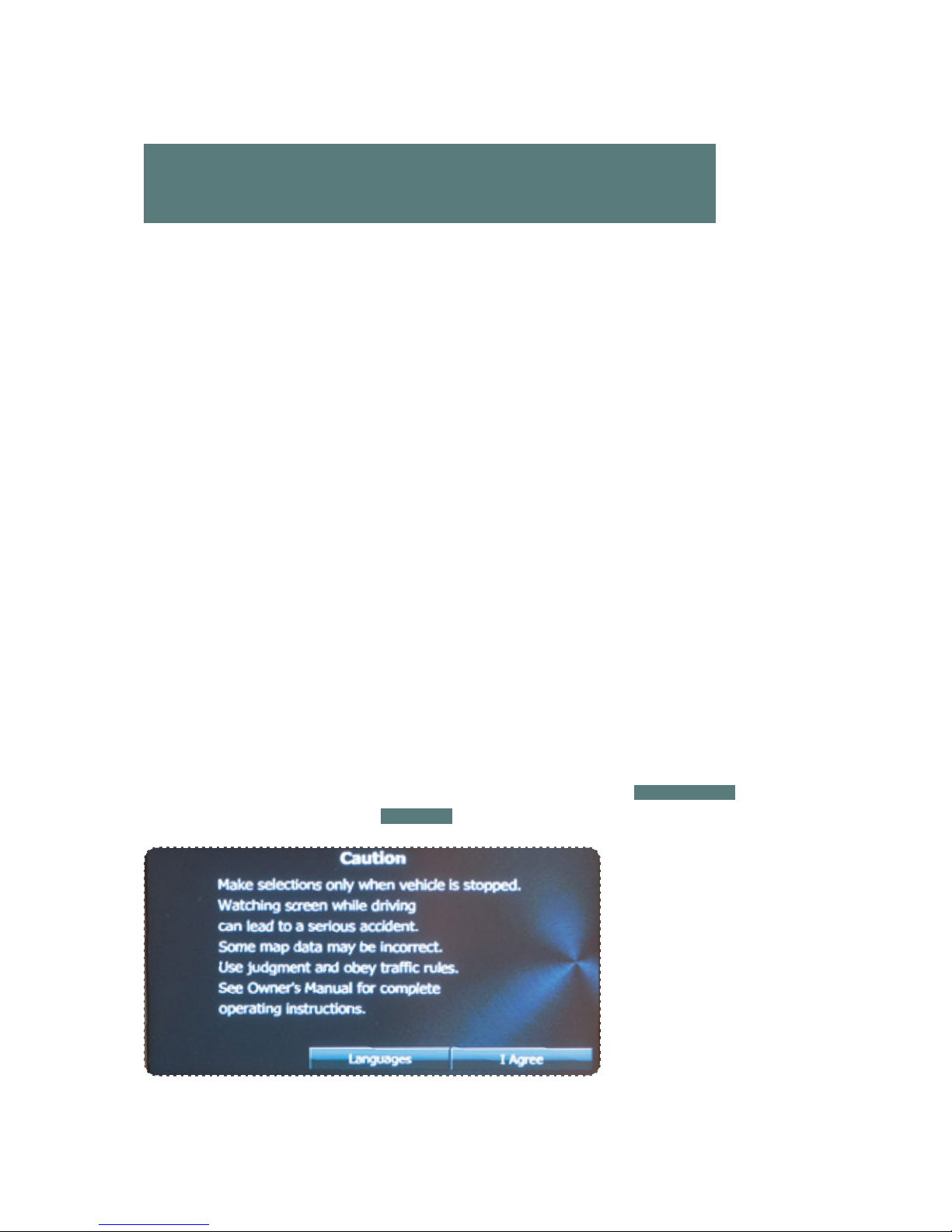
To start the Navigation System, start the engine and press the
map button. The
opening screen (Subaru Starlink™) will appear, followed by the CAUTION screen.
Read the instructions on the screen. If not previously selected, touch
LANGUAGES
to select a language. Then touch
I AGREE
when illuminated.
Page 7
3
Safety & Navigation
Information
Emergency
Screen
Finding an
Address
Finding a Point
of Interest
Setting HOME
as a Favorite
Safety &
Navigation
Introduction
Navigation Introduction
Your Navigation System helps you nd and store addresses, places and
attractions based on your map location and more. Prior to using the system,
be sure to read the entire Navigation System Owner’s Manual Supplement so
you have a complete understanding of the system. For your convenience, this
Quick Reference Guide is for regularly used features only.
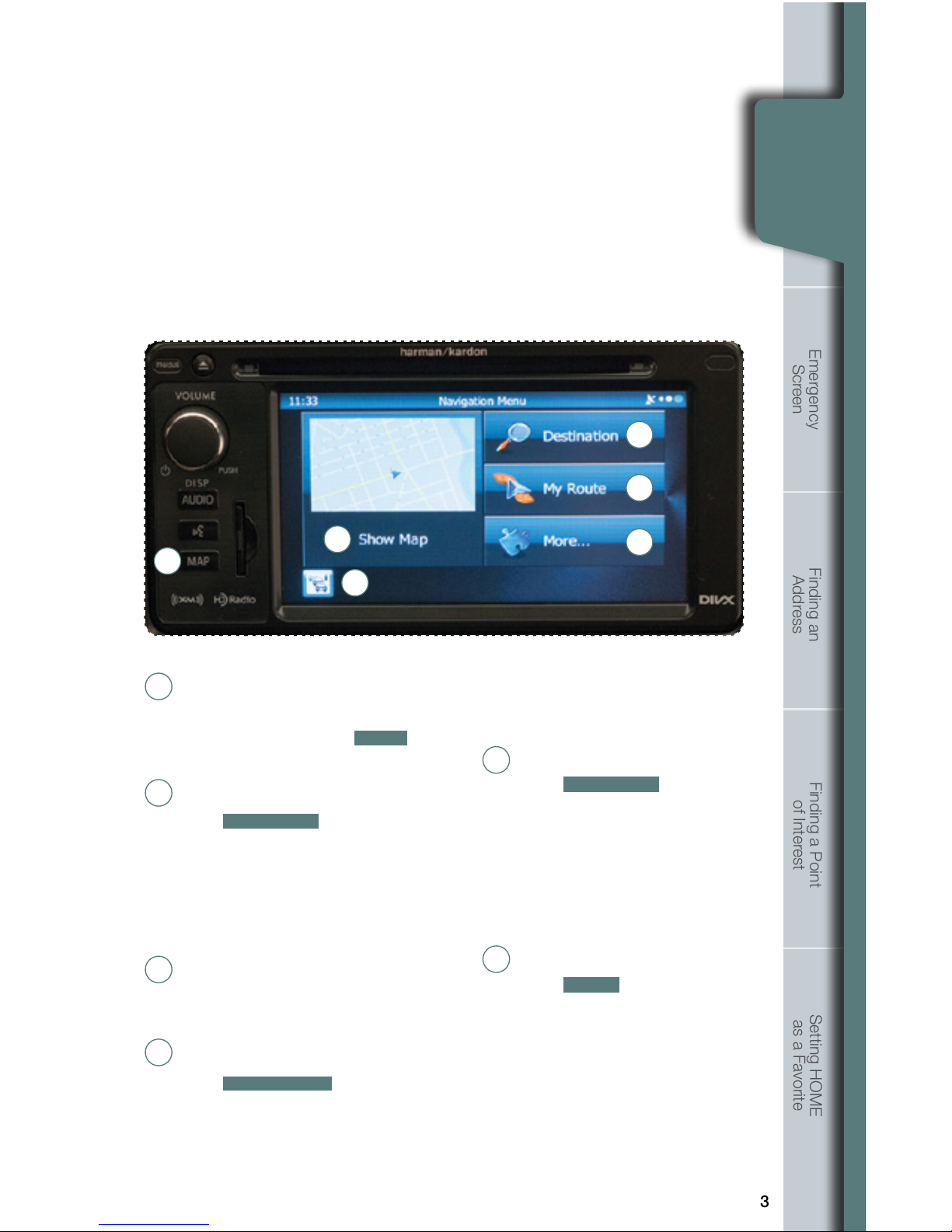
The control panel is your access to the Navigation System. Some of
the controls and functions cannot be used unless the vehicle is stationary.
Map Button
Press the map button to access the
map screen. Then touch
MENU
to
access the screen above.
Show Map
Touch
SHOW MAP
to access the map
screen and to start navigation on the
map. The map shows the current position,
recommended route if previously selected,
and reduces the surrounding area to
display on the map being used.
Trafc Summary
Touch to open the Trafc Summary screen.
XM Trafc
®
customer subscription required.
Destination
Touch
DESTINATION
, and then select which
method to use to reach your destination
by entering the address, selecting a
4
3
2
1
6
5
favorite place, selecting a position
on the map, or selecting from the
destination history list.
My Route
Touch
MY ROUTE
. You can
also perform various route related
functions such as editing or
canceling the route, adding way
points, selecting a different route,
avoiding a part of the route or
performing a navigation simulation.
More...
Touch
MORE
to select navigation
settings, get help, start a system
demo, or start various other
auxiliary applications.
1
2
4
3
5
6
Page 8
4
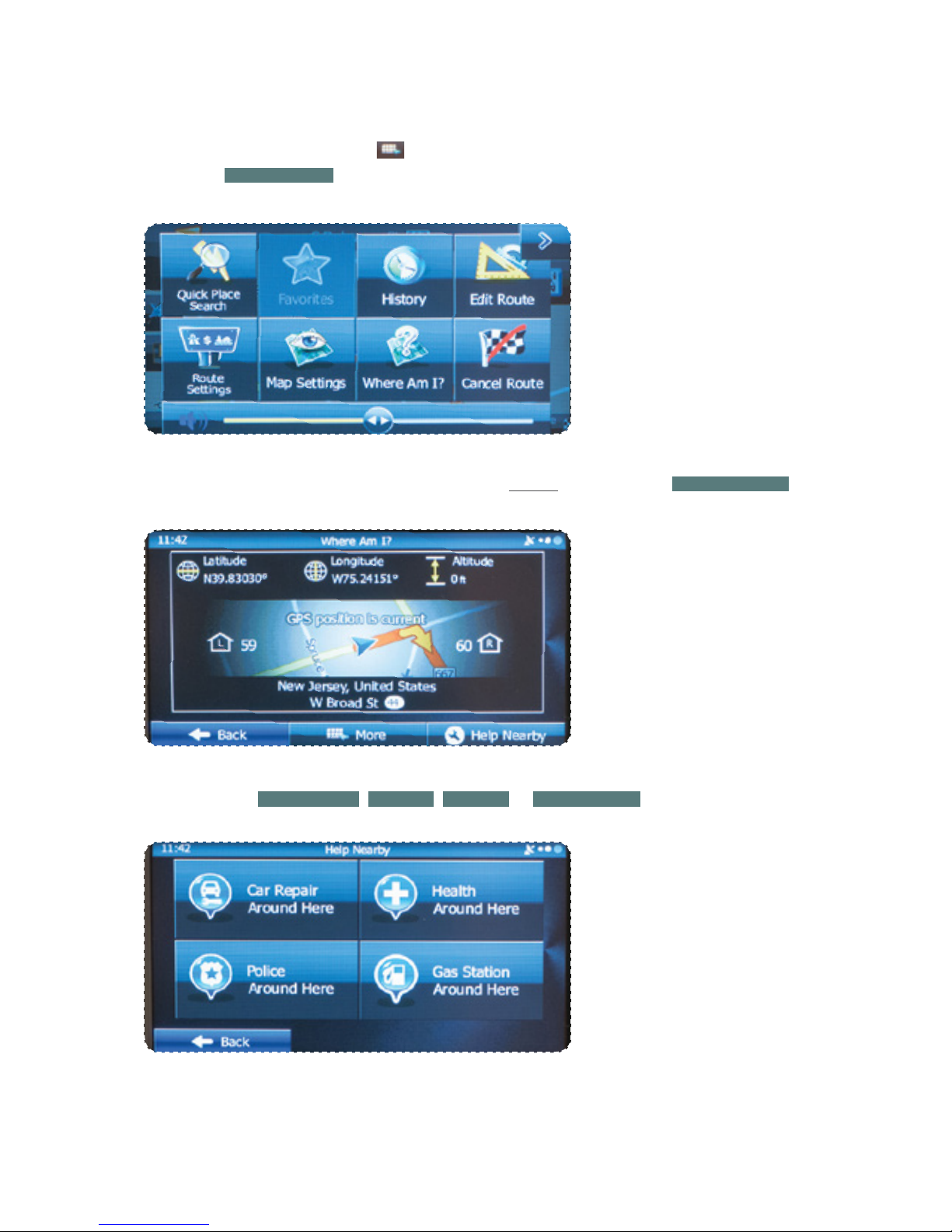
Emergency Screen (Where Am I?)
From the map screen, touch the icon at upper right corner of screen,
then touch
WHERE AM I?
.
Select between
CAR REPAIR, POLICE, HEALTH
or
GAS STATION
.
This screen shows the latitude and longitude of your current position. Touch
HELP NEARBY
.
Page 9
5
Safety & Navigation
Information
Emergency
Screen
Finding an
Address
Finding a Point
of Interest
Setting HOME
as a Favorite
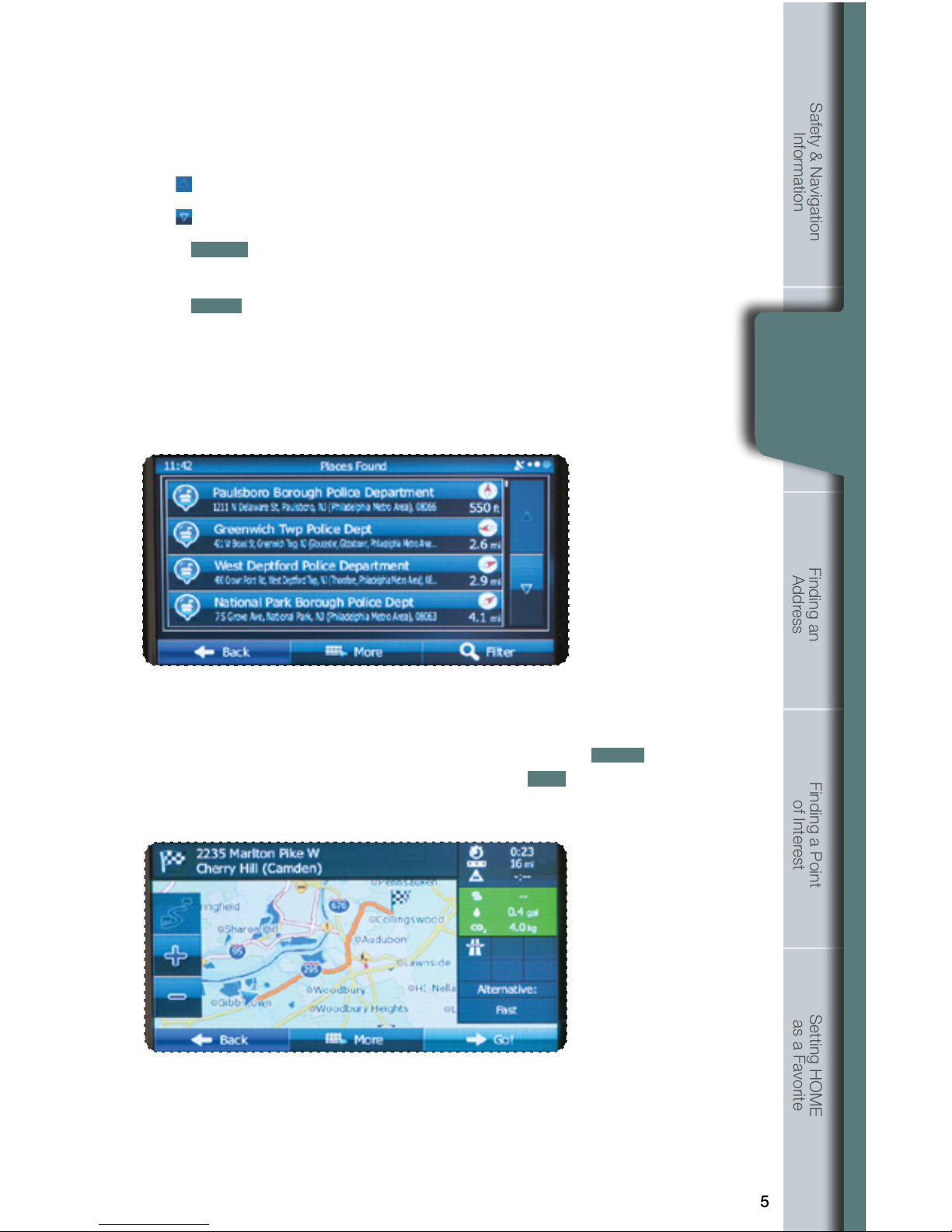
Find the item you want on the list, and then touch that item.
The name and address of the location are displayed in the black bar at the top of
the screen and the entire route is displayed on the map. Touch
MORE
to change
the route plan or to review route alternatives, or touch
GO!
to start navigation.
The screen now displays several options:
Use
to display the previous suggestion.
Use
to display the next suggestion.
Touch
FILTER
to help rene the search. A keyboard appears so
you can input a specic location, such as “Subaru”.
Touch
BACK
to return to the map.
Emergency
Screen
Page 10
6
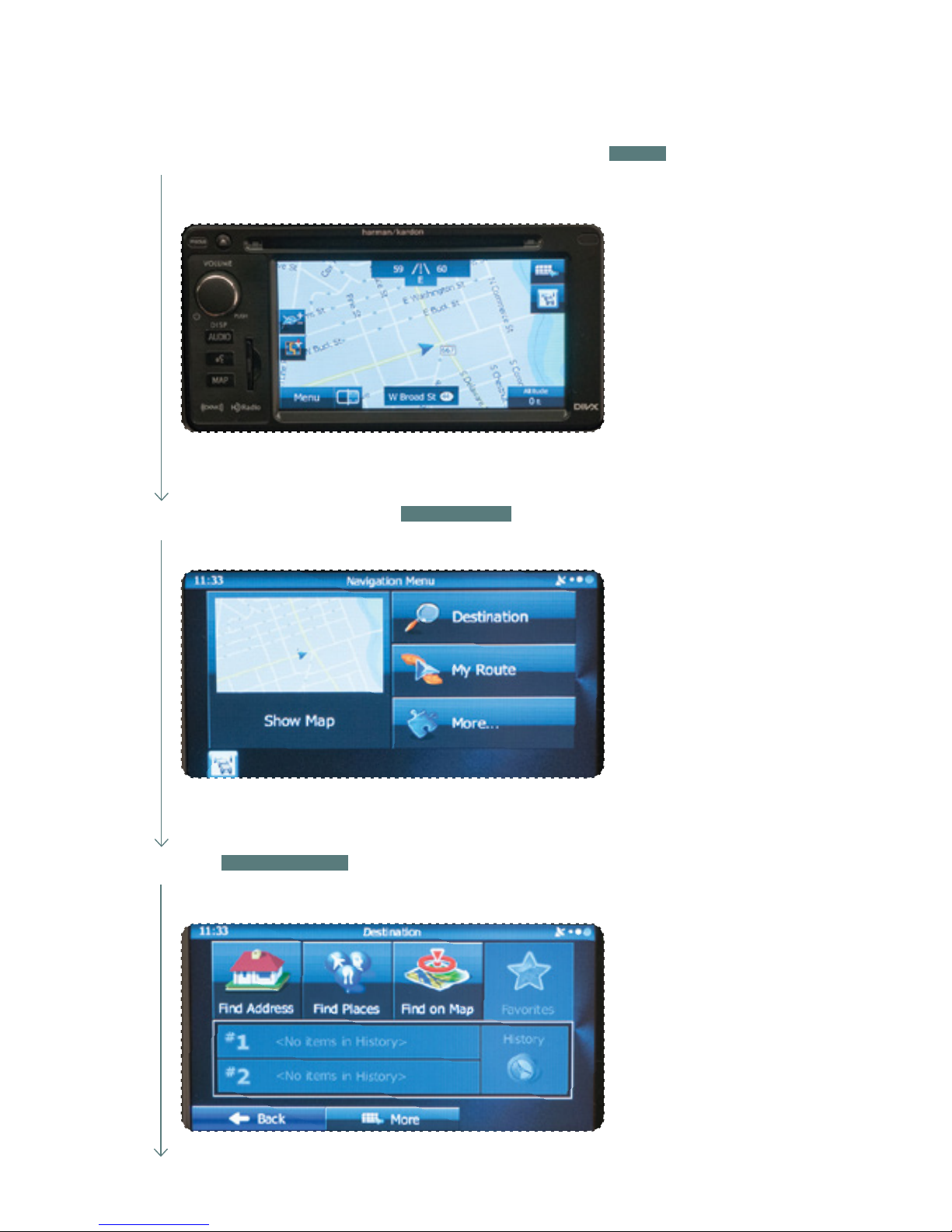
Finding an Address
1
2
Touch the map button to display the Map screen, then touch
MENU
to access the
navigation menu screen.
On the navigation menu, touch
DESTINATION
.
3
Touch
FIND ADDRESS
.
Page 11
7
Safety & Navigation
Information
Emergency
Screen
Finding an
Address
Finding a Point
of Interest
Setting HOME
as a Favorite
4
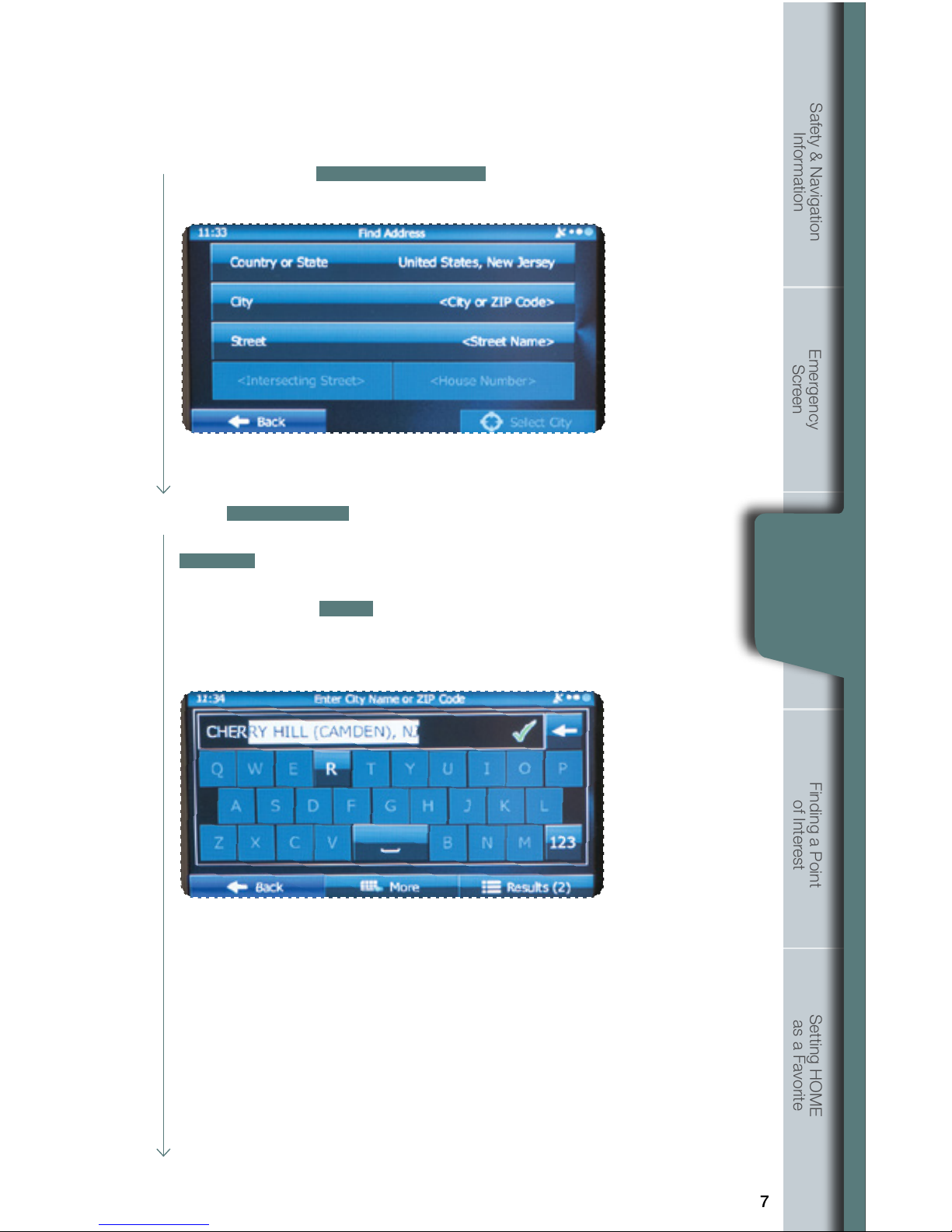
By default, the country and state for your current position are displayed.
If necessary, touch
COUNTRY OR STATE
, a keyboard appears and then
enter the rst few letters of the country name.
Finding an
Address
5
Touch
CITY/ZIP CODE
. A keyboard appears. Type the city name or
input the city zip code, if known. As you type the city name, touch
RESULTS
at the lower right of the screen and a list appears with
possible city choices. Scroll to nd the city name. When the correct
city is found, touch
DONE
and the city name is automatically
transferred to the address screen.
Page 12
8
Finding an Address
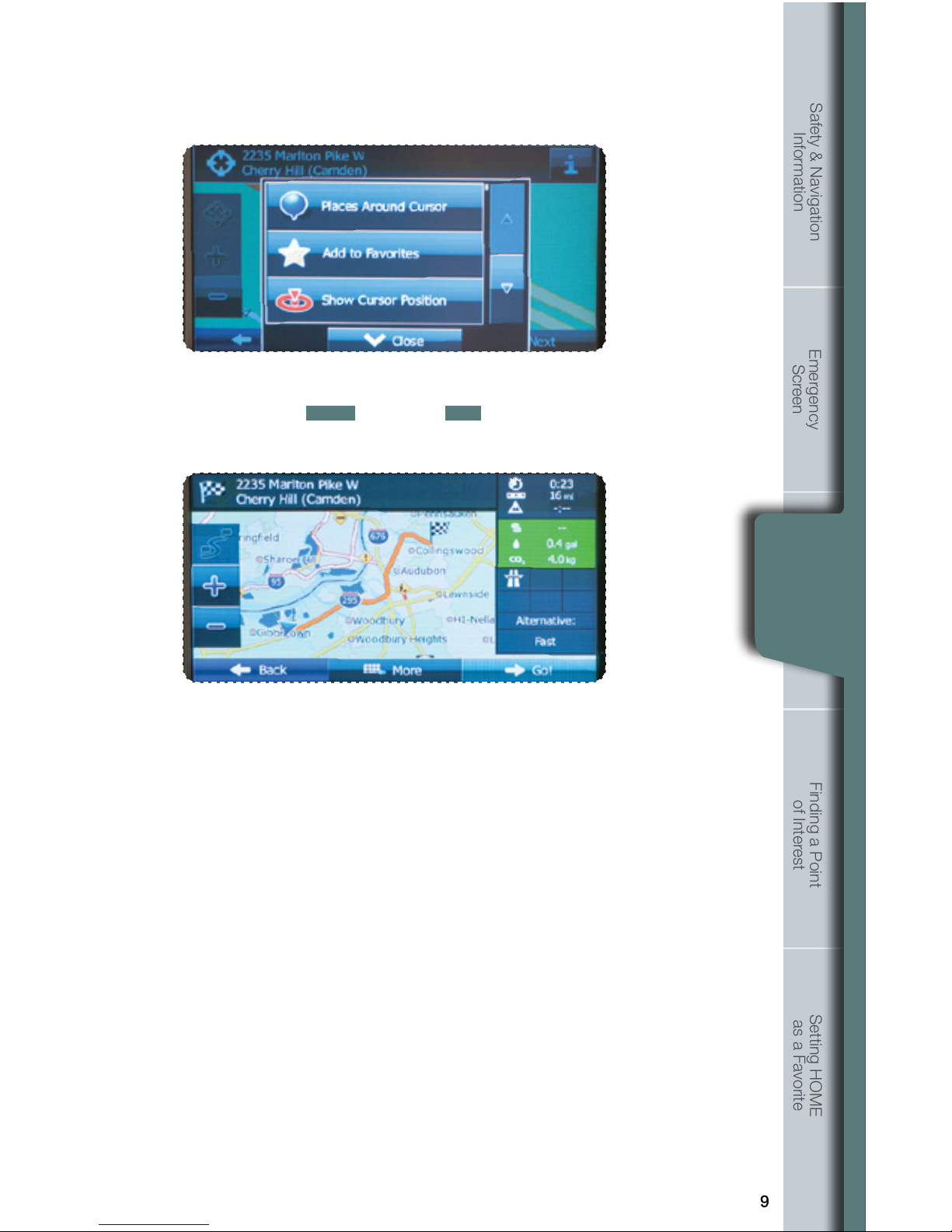
Note: If the destination will be used frequently, you can save it to favorites
as follows, before touching
NEXT
. Touch
MORE
, and then touch
ADD TO FAVORITES
. A keyboard appears with the destination address. You
can store that address or type a name for that address. Touch the arrow to the
right of the address. This clears the address from only the screen so that you
can give the address a name. After inputting the name, then touch
DONE
.
6
7
8
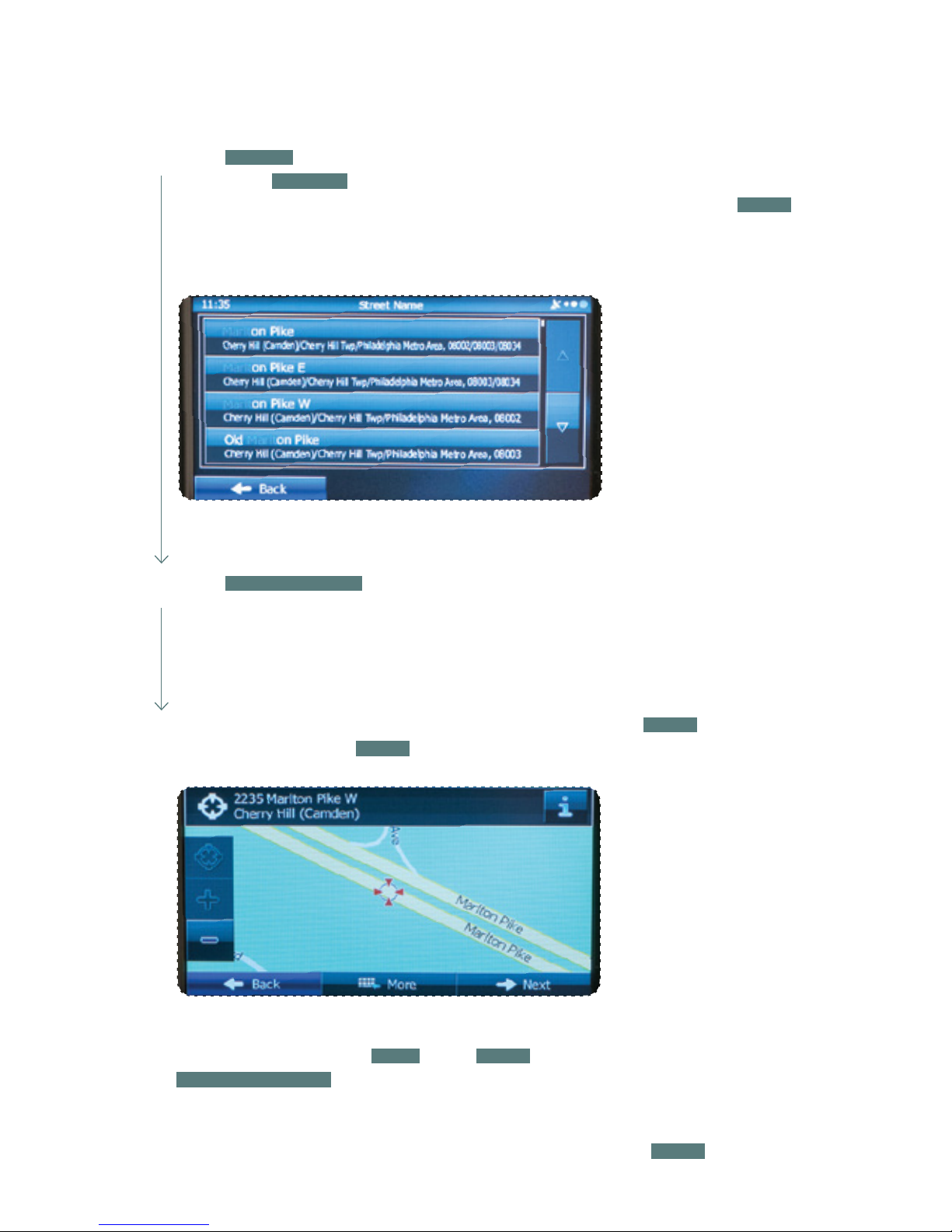
Touch
STREET
. A keyboard appears. Then type the street name. As you type the street
name, touch
RESULTS
at the lower right of the screen and a list appears with possible
choices. Scroll to nd the street name. When the correct street is found, touch
DONE
and the street name is automatically transferred to the address screen. Note: For streets
that are preceded by a direction such as North, South, etc., type the street name rst.
Touch
HOUSE NUMBER
. A keyboard appears. Then type the house number.
Touch DONE and the house number is automatically transferred to the address
screen. Note: If the house number is not found, the center of the street is selected
as the destination.
The map is displayed with the selected point at the center. Touch
NEXT
to set
the destination, or touch
BACK
to select another destination.
Page 13
9
Safety & Navigation
Information
Emergency
Screen
Finding an
Address
Finding a Point
of Interest
Setting HOME
as a Favorite
Finding an
Address
You are automatically returned to the map with the destination now set as
a favorite. Touch
NEXT
, then touch
GO!
. The map screen appears with
the route. Start driving following the navigation.
Page 14
10
Finding a Point of Interest
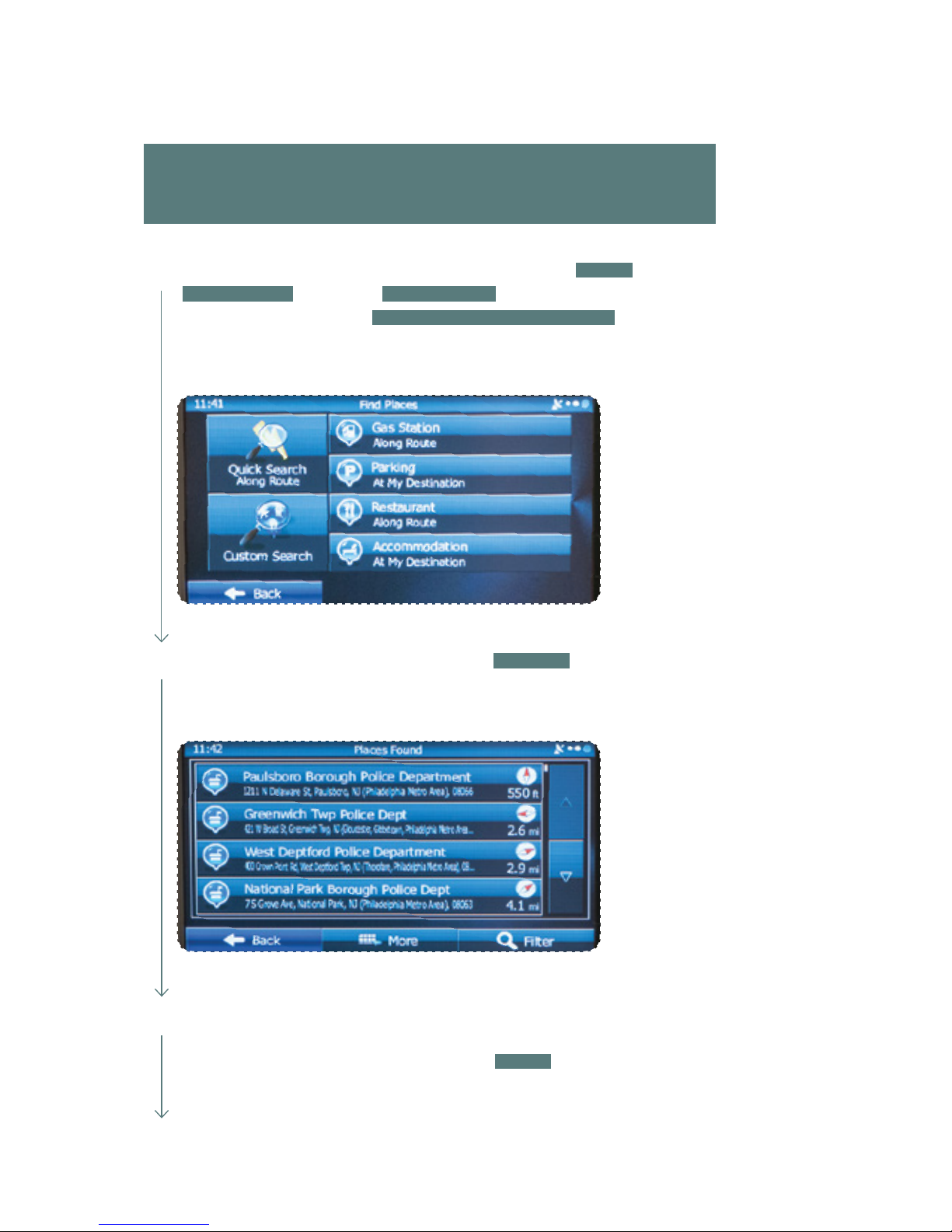
You can also find addresses by using Find Places. You can use this in
the event you do not have a specific address but can refer to a specific
place, such as a gas station, restaurant, accommodation, etc.
1
Touch the map button to display the map screen. Touch
MENU
, touch
DESTINATION
, then touch
FIND PLACES
. You can select from the four preset
categories shown or touch
QUICK SEARCH AROUND HERE
. A keyboard appears
for you to enter the name of a specic location.
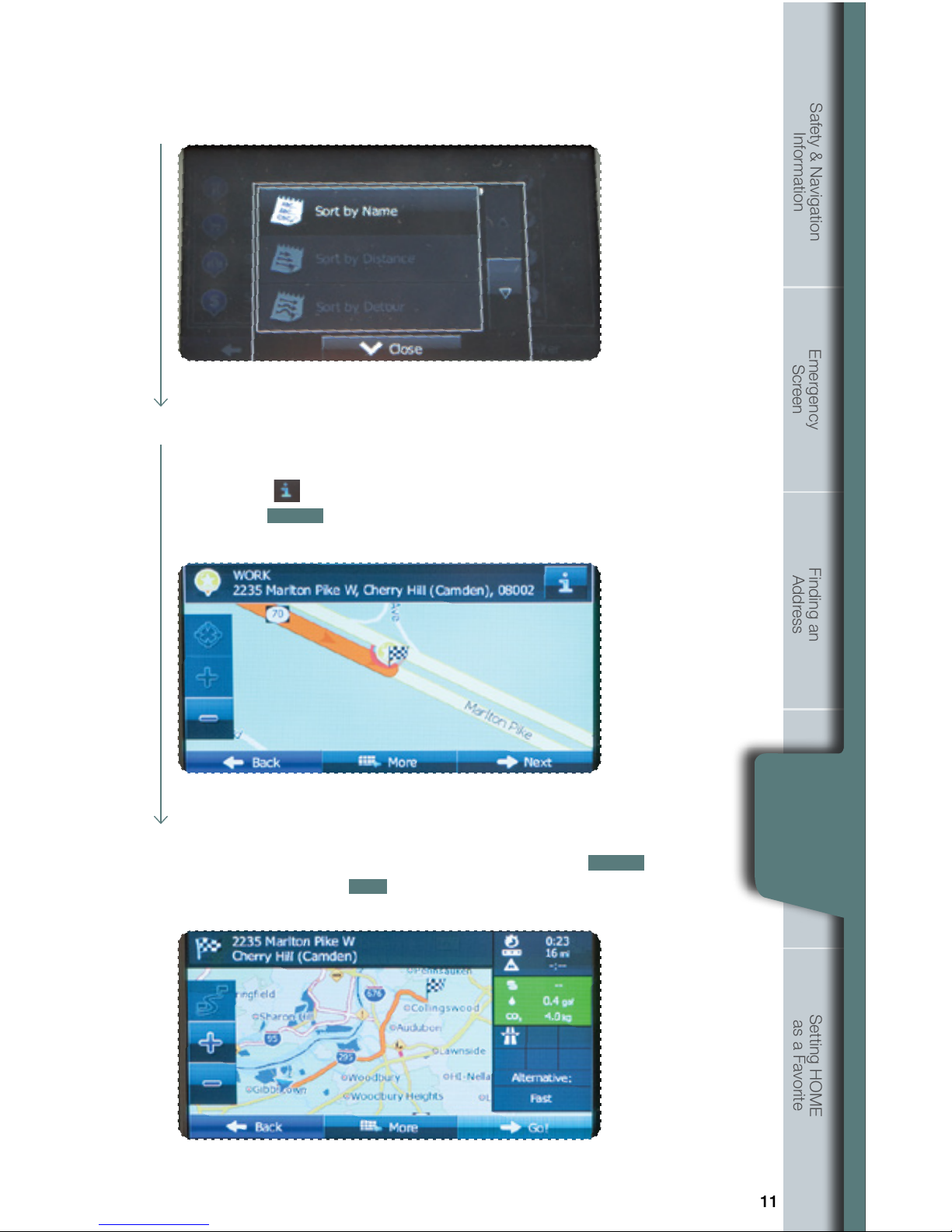
You can display locations on the list in name order, in order of the distance from the
current position or previously conrmed position. If you want to change the order in
which entries are presented in the list, touch
MORE
at the lower center of the screen
and select the style that you want.
3
2
After entering the rst few characters, touch
RESULTS
at the lower right of the
screen to view a list of names of characters you entered.
Page 15
11
Safety & Navigation
Information
Emergency
Screen
Finding an
Address
Finding a Point
of Interest
Setting HOME
as a Favorite
Finding a Point
of Interest
4
5
After a summary of the route plan is displayed, the entire route is displayed
on the map. The route is researched automatically. Touch
MORE
to change
the route plan, or touch
GO!
to start navigation.
Find the item you want on the list, and then touch that item. The map is
displayed with the selected point at the center. The name and address
of the location are displayed in the black bar at the top of the screen.
Note: Touch
to display the longitude and latitude about the selected
spot. Touch
BACK
to return to the map.
Page 16
12
Setting HOME as a Favorite
1
Follow steps 1 through 8 on pages 6–9 (Finding an Address) of this guide.
2
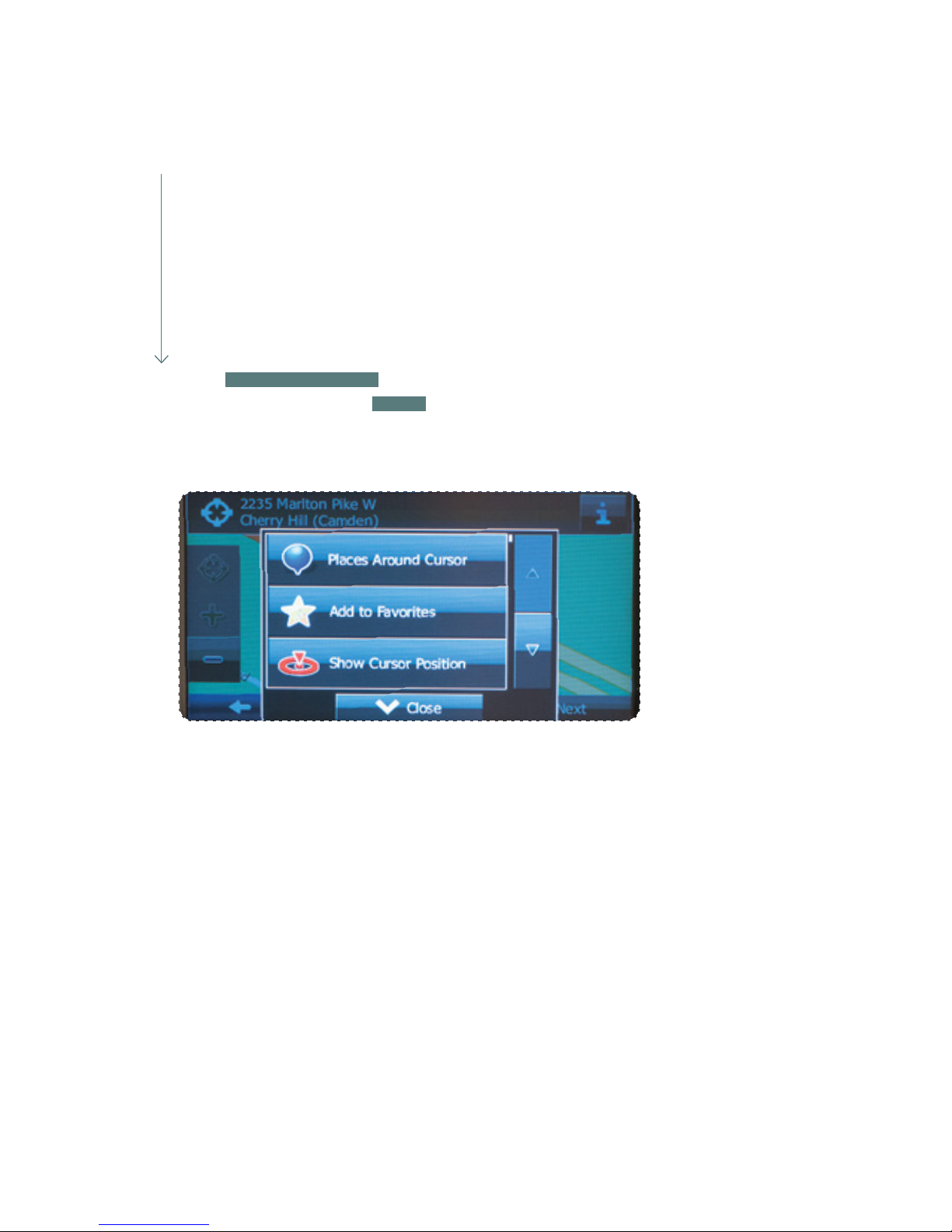
Touch
ADD TO FAVORITES
a keyboard will appear. Enter the name HOME for the
destination and then touch
DONE
. You are automatically returned to the map with
the destination set. Start driving following the navigation.
Page 17
13
Safety & Navigation
Information
Emergency
Screen
Finding an
Address
Finding a Point
of Interest
Setting HOME
as a Favorite
Choosing HOME from the Destination List
Setting HOME
as a Favorite
1
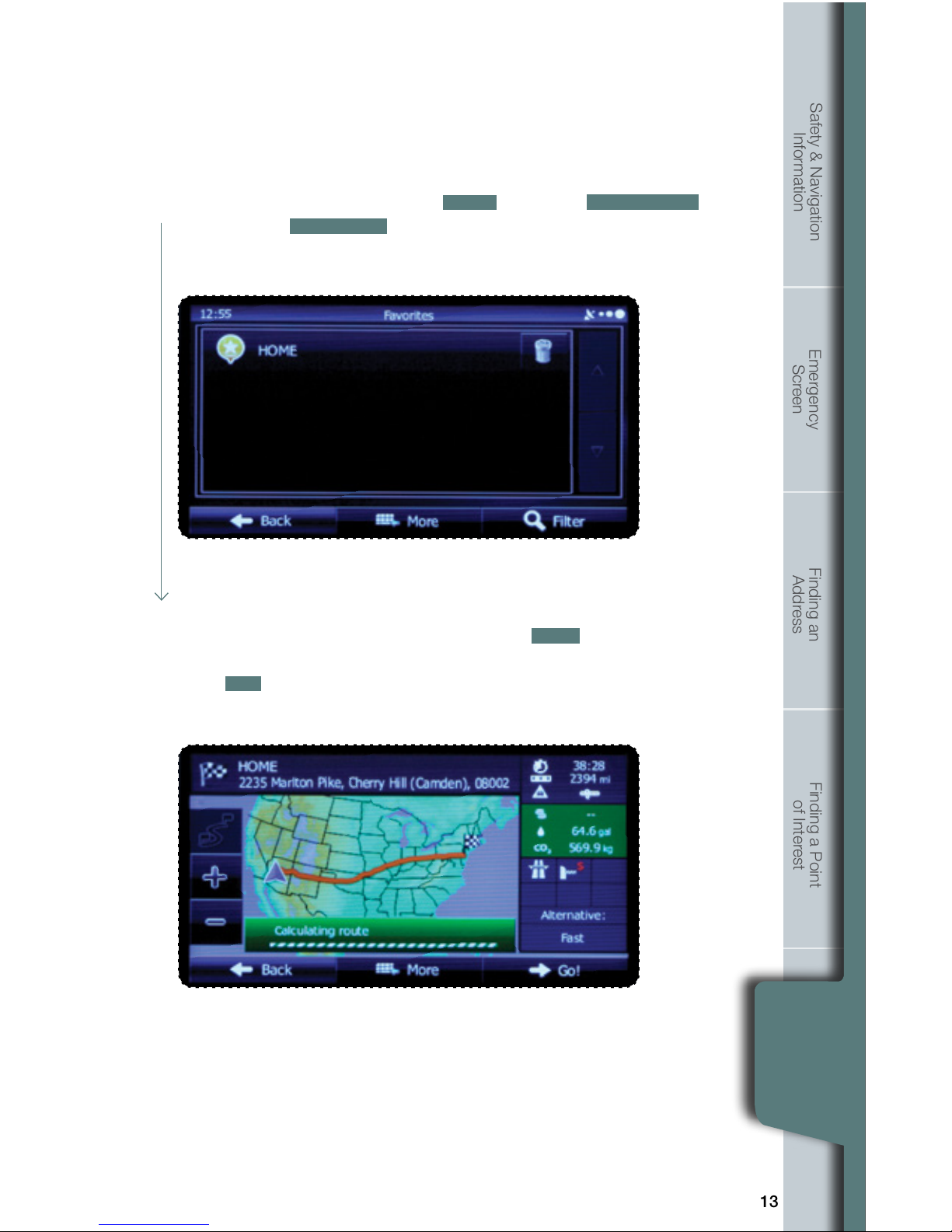
If the Map screen is displayed, touch
MENU
, then touch
DESTINATION
and then touch
FAVORITES
. The destination list is displayed.
2
Touch HOME to select it as the destination. The map is displayed in
full-screen mode with HOME at the center. Touch
NEXT
. After a summary
of the route plan is displayed, the entire route is displayed on the map.
Touch
GO!
to start navigation.
Page 18

Notes
14
Page 19

Notes
15
Page 20

Notes
16
 Loading...