

Page 1
2016
Love. It’s what makes a Subaru, a Subaru.
SUBARU STARLINK
™
your subaru connected
Quick Reference Guide
Page 2

Table of Contents
2 Controls
3 Bluetooth Basics
4–8 Hands-free Calling —
SUBARU STARLINK™
6.2" Multimedia
• Pairing Your Cell Phone and Calling
9–13 Hands-free Calling —
SUBARU STARLINK™
7.0" Multimedia Plus and
7.0" Multimedia Navigation
• Pairing Your Cell Phone and Calling
14–23 Navigation —
SUBARU STARLINK
™
7.0" Multimedia Navigation
• Safety
• Introduction
• Finding an Address
• Finding a Point of Interest
• Setting HOME
24 Connected Services
Page 3
2
SUBARU STARLINK
™
NOTE: This section only covers the buttons
on the STARLINK system faceplate. Your
vehicle has one of the systems listed below:
• 6.2" Multimedia
• 7.0" Multimedia Plus
• 7.0" Multimedia Navigation
Though they appear slightly different, these
buttons work the same for all three systems.
Radio Functions
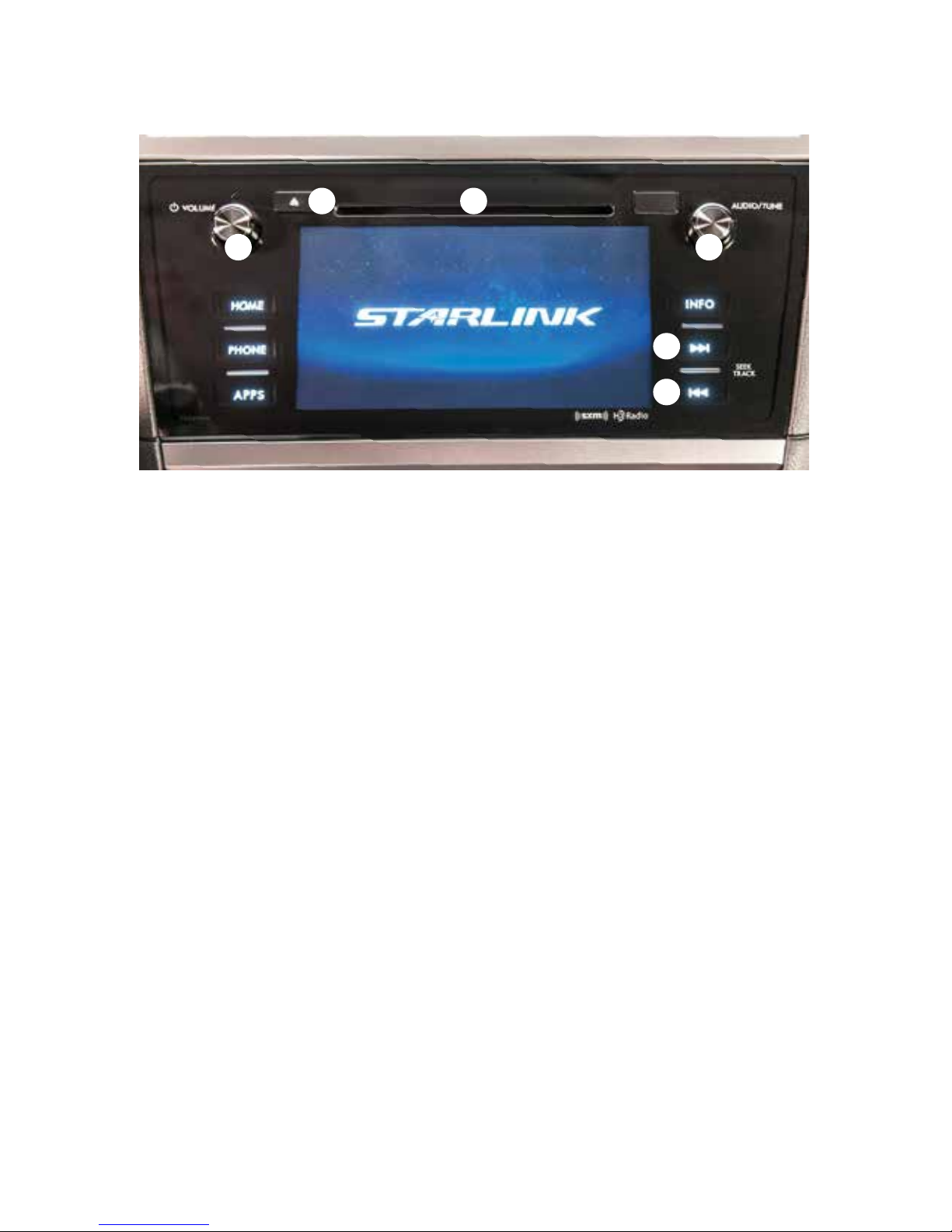
1. Power/Volume Control
Press the power/volume control knob
for on or off; rotate the knob to control
the volume.
2. Audio Source
Press the “AUDIO” button to display the
audio screen. Touch the audio source
you want to hear. When there are two
pages, use the arrows to change
the page.
Sound Settings
While in an audio operations screen,
touch the “Sound” key. You will be able
to adjust EQ and sound position.
3. Seek
Press to select the next or previous
radio frequency.
CD Player Functions
4. Load
Insert a disc into the slot. The CD will
automatically be drawn in and will begin
play at the rst track.
5. Eject
Press the button to eject the disc.
6. Track
Press to select the next or
previous track.
*For more detailed information, please refer
to the Owner’s Manual or the Navigation
System Owner’s Manual.
1
4
3
6
5
2
Controls
Page 4

Controls and Bluetooth Basics Navigation — 7.0" Hands-free Calling — 6.2" Hands-free Calling — 7.0"
3
Bluetooth Basics
• The hands-free system may
not operate properly under
the following conditions:
o The cell phone is turned off.
o The cell phone is not connected
to the hands-free system.
o The cell phone is not in
the phone call area.
o The battery of the cell
phone has run down.
o The cell phone is behind the
seat or in the glove box.
o A metal material covers or
touches the cell phone.
• Depending on the type of cell
phone that is used, the screen
on the cell phone may remain
illuminated while the ignition switch
is in the “ON” position. If this occurs,
consult your cell phone manual to
adjust the cell phone settings.
• Depending on the setting of the cell
phone, the dial lock function may
be activated after making a call.
Deactivate the automatic dial lock
function of the cell phone before
using the hands-free system. Do not
perform this operation while driving.
• Depending on the type of cell
phone that is used, operation
and sound volume may vary.
• Depending on the type of cell phone
that is used, not all phone functions
may be compatible with your vehicle.
• When the ignition switch is turned
to the “LOCK/OFF” position during
a call, the call may be disconnected
or continued on the cell phone,
depending on the type of cell phone
that is used. Note that operation of
the cell phone may be necessary if the
call is continued on the cell phone.
• Do not speak at the same time as
the other party during a call. If you
and the other party speak at the
same time, it may be difcult for
the other party to hear your voice
and vice versa. This is normal.
• The receiver sound volume should
be set as low as possible. Otherwise,
the party you are calling may notice
an undesirable echo sound.
• Speak clearly and loudly.
• Your voice may be difcult to
hear by the receiving party under
the following conditions:
o Driving on a rough road.
o Driving at a high speed.
o Driving with a window open.
o When air from the ventilator blows
directly toward the microphone.
o When the sound coming
from the ventilator is loud.
o When the cell phone is positioned
too closely to the microphone.
• The sound quality may degrade
due to the inuence of the cell
phone that is connected to the
system or the circumstances
of the Bluetooth network.
• When another Bluetooth device is
simultaneously connected, noise
may be heard in the voice coming
from the hands-free phone.
Controls and Bluetooth Basics
Page 5
4
Pairing Your Cell Phone
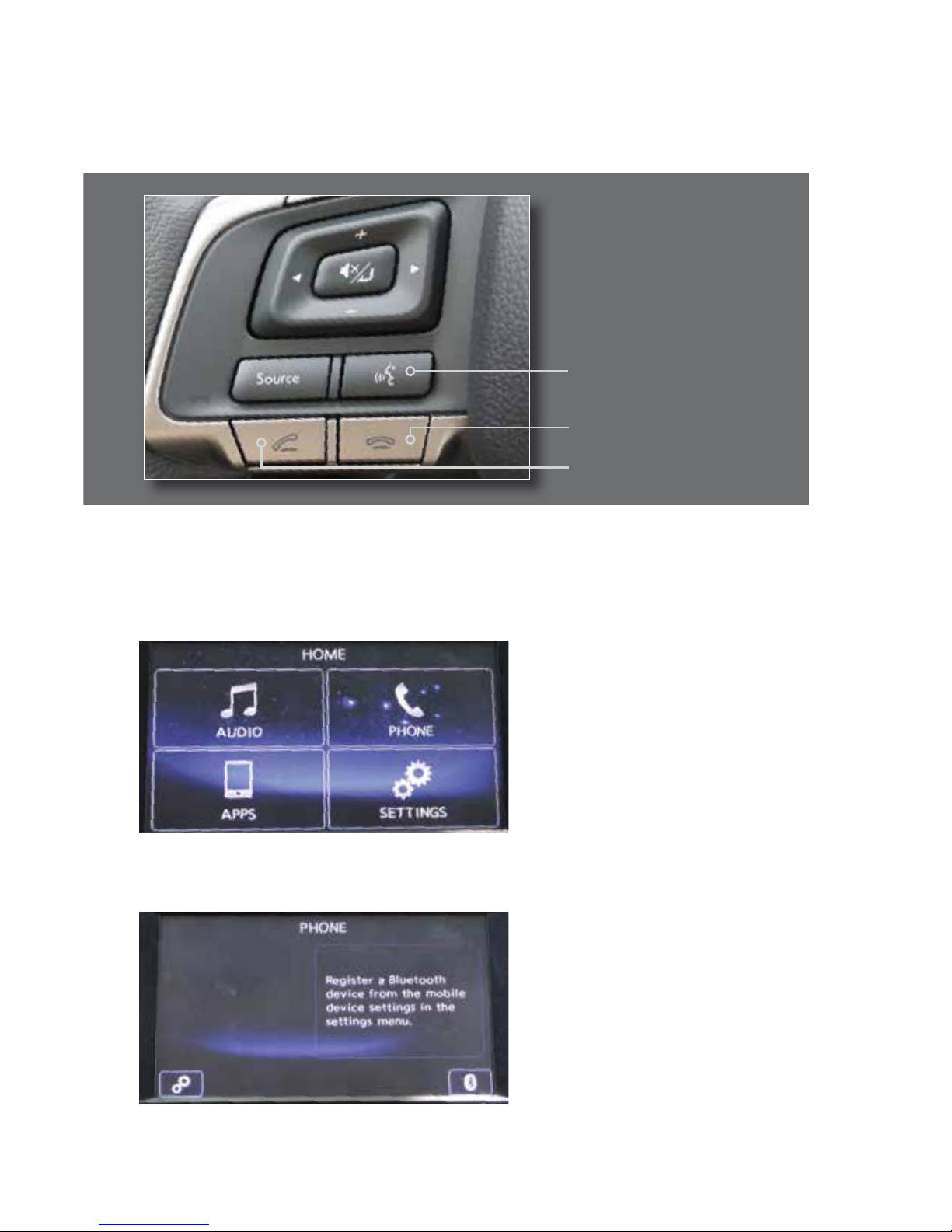
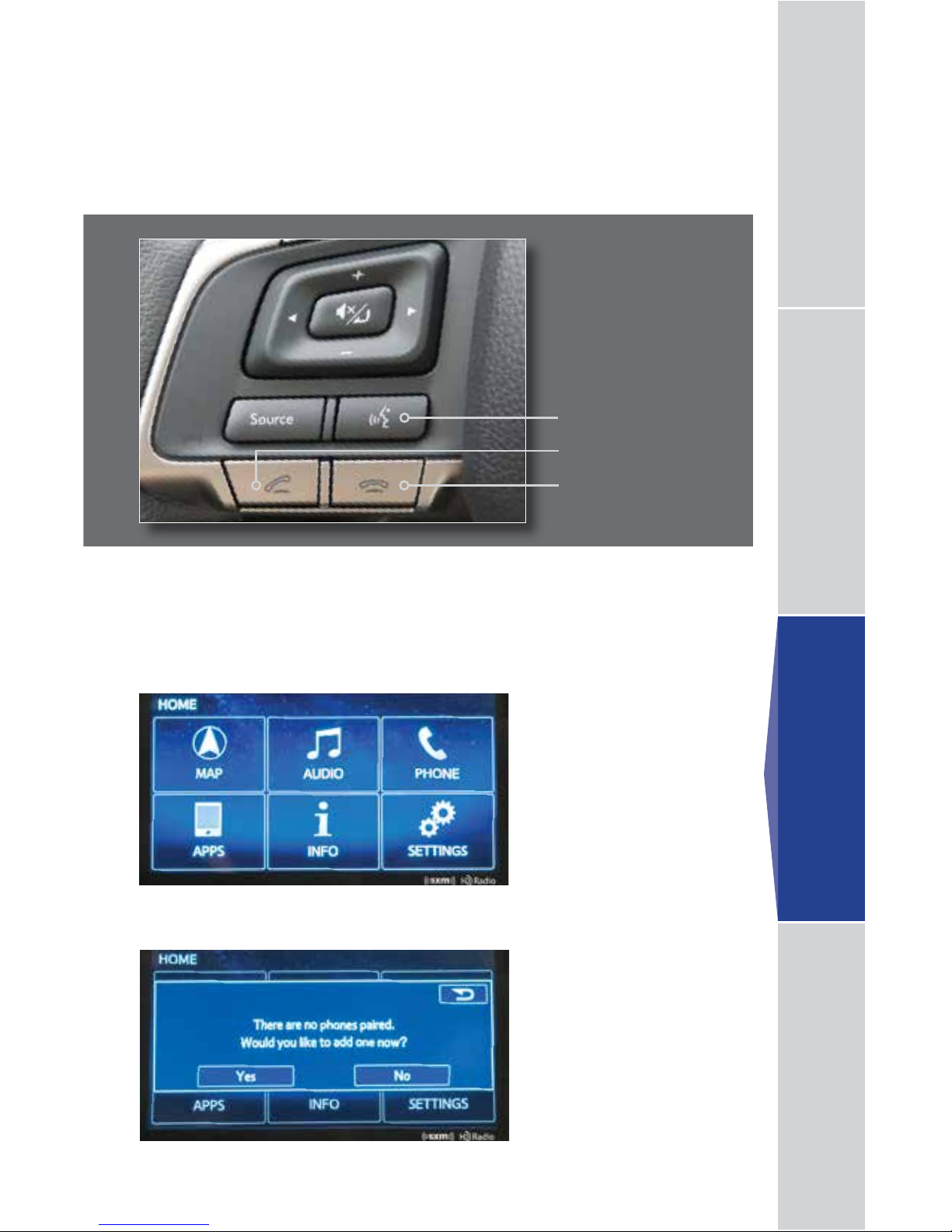
Press the
home button
on the audio system panel, then touch the “PHONE” soft
key on the touch screen.
Touch the “Bluetooth” soft key at the lower right-hand corner of the screen.
Hands-free Calling —
6.2" Multimedia
phone off hook button
phone
on hook button
talk
button
IMPORTANT:
These buttons will be
referenced throughout
this section.
Page 6
Controls and Bluetooth Basics Navigation — 7.0" Hands-free Calling — 6.2" Hands-free Calling — 7.0"
5
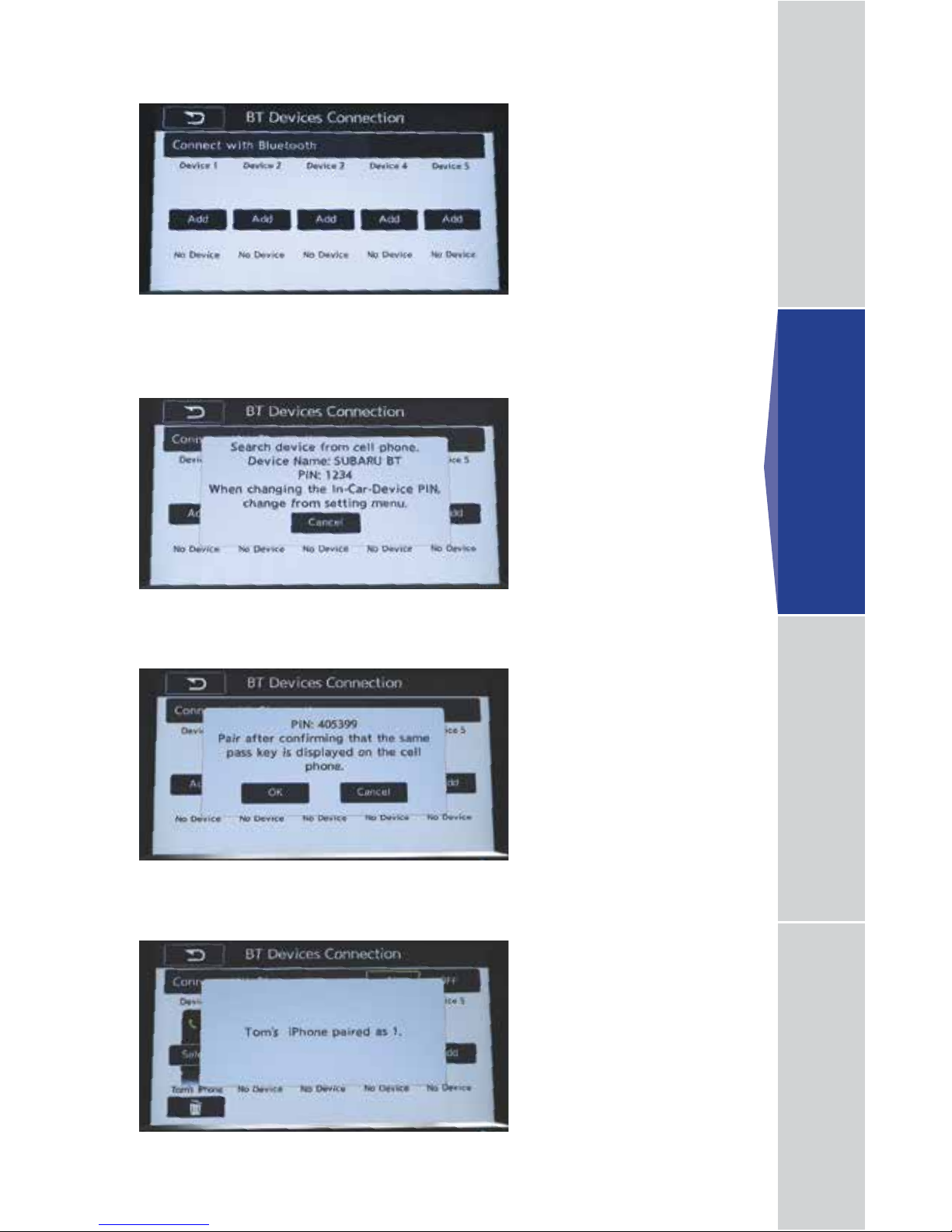
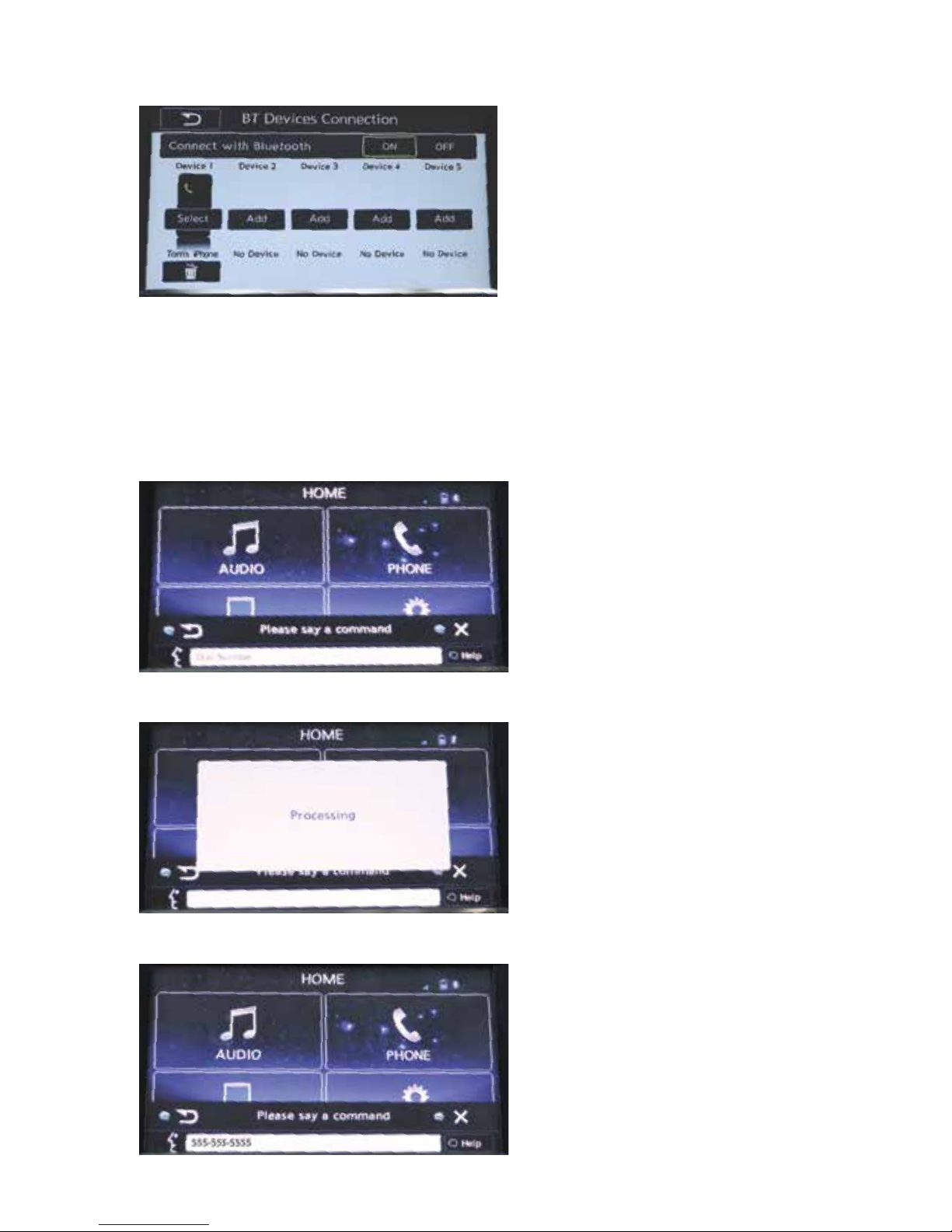
For pairing the rst phone under “Device 1,” touch the “Add” soft key.
The system will wait for a connection request from your phone.
Touch the “OK” soft key.
The screen will conrm when pairing is complete.
Hands-free Calling — 6.2"
Page 7
6
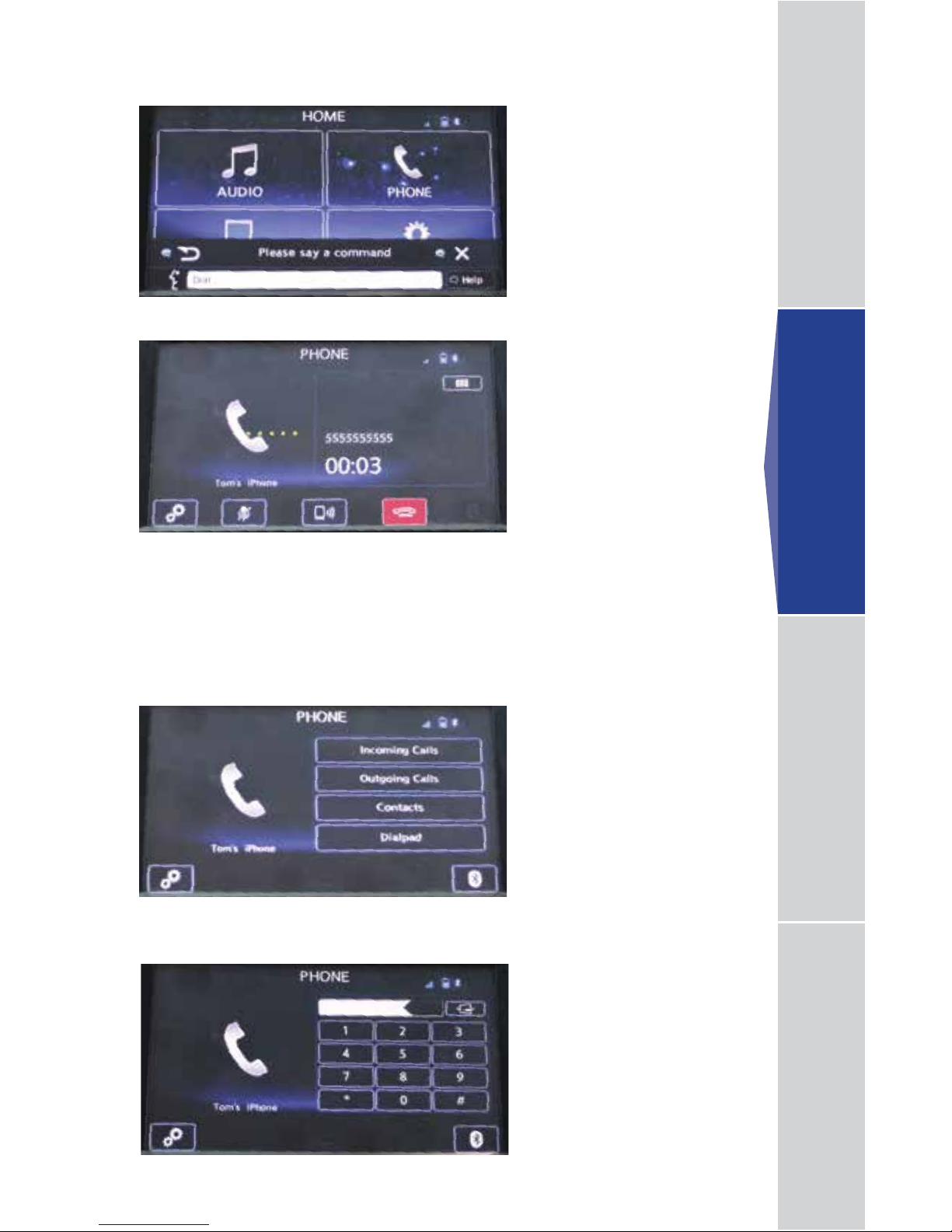
The system will process the command.
Say the phone number.
Making a Call
NOTE: This system is designed primarily for voice command operation. However, manual
input is also recognized.
For voice command operation, follow the steps below:
Press the
talk button
, then say, “Dial number.”
Your phone now appears in the connection screen.
Page 8
Controls and Bluetooth Basics Navigation — 7.0" Hands-free Calling — 6.2" Hands-free Calling — 7.0"
7
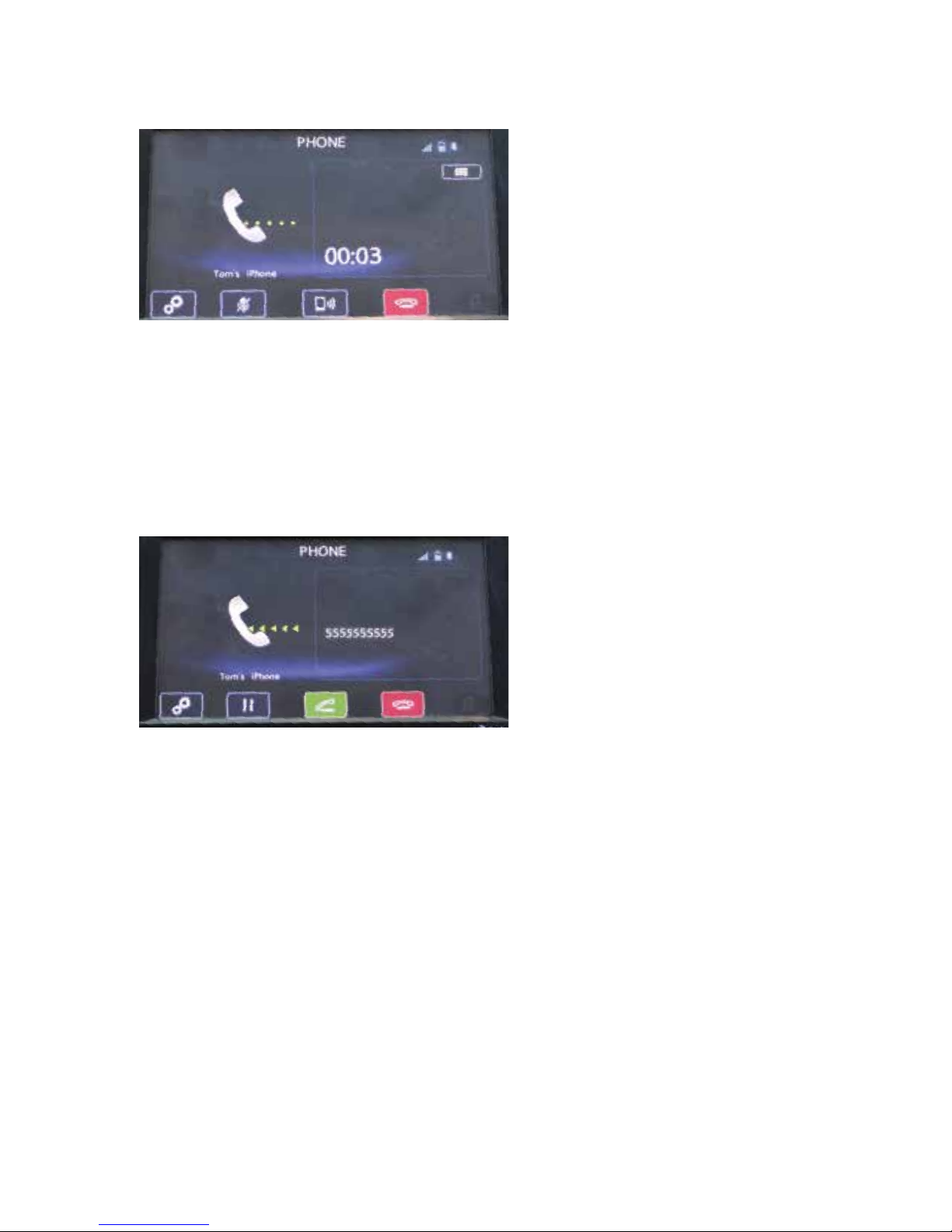
For manual input operation, follow the steps below:
Press the
home button
on the audio system panel, then touch the “Phone” soft key
on the touch screen. Select the desired tab to call from, then select the number.
Say, “Dial.”
If you select “Dialpad,” type the number you want to call.
NOTE: This operation cannot be performed while driving.
To end the call, press the
phone on hook button
or touch the red “phone on hook”
soft key. For more information on voice command operation, please consult the
vehicle Owner’s Manual.
The system will place the call.
Hands-free Calling — 6.2"
Page 9
8
Receiving a Call
When a call comes in, you will be notied. If the audio system is on, the audio system will
mute and a voice prompt will inform you. Press the
phone off hook button
to accept the call.
• If you want to put the call on hold (only if your cell phone has this function), press the
phone on hook button
.
• If you want to decline the incoming call (only if your cell phone has this function), press and
hold the
phone on hook button
.
• If you want to adjust the volume of the call, use the
plus
or
minus switch
on the steering
wheel. If you want to end the call, press the
phone on hook button
.
Press the
phone o ff hook button
or the green “phone off hook” soft key. The system will place
the call.
To end the call, press the
phone o n hook b utton
or touch the red “phone on hook” soft key.
For more information on manual operation, please consult the vehicle Owner’s Manual.
Page 10
Controls and Bluetooth Basics Navigation — 7.0" Hands-free Calling — 6.2" Hands-free Calling — 7.0"
9
Pairing Your Cell Phone
Press the
home button
on the audio system panel, then touch the “PHONE” soft
key on the touch screen.
Touch “Yes.”
Hands-free Calling —
7.0" Multimedia Plus and
7.0" Multimedia Navigation
phone off hook button
phone
on hook button
talk
button
IMPORTANT:
These buttons
will be referenced
throughout this guide.
Hands-free Calling — 7.0"
Page 11
10
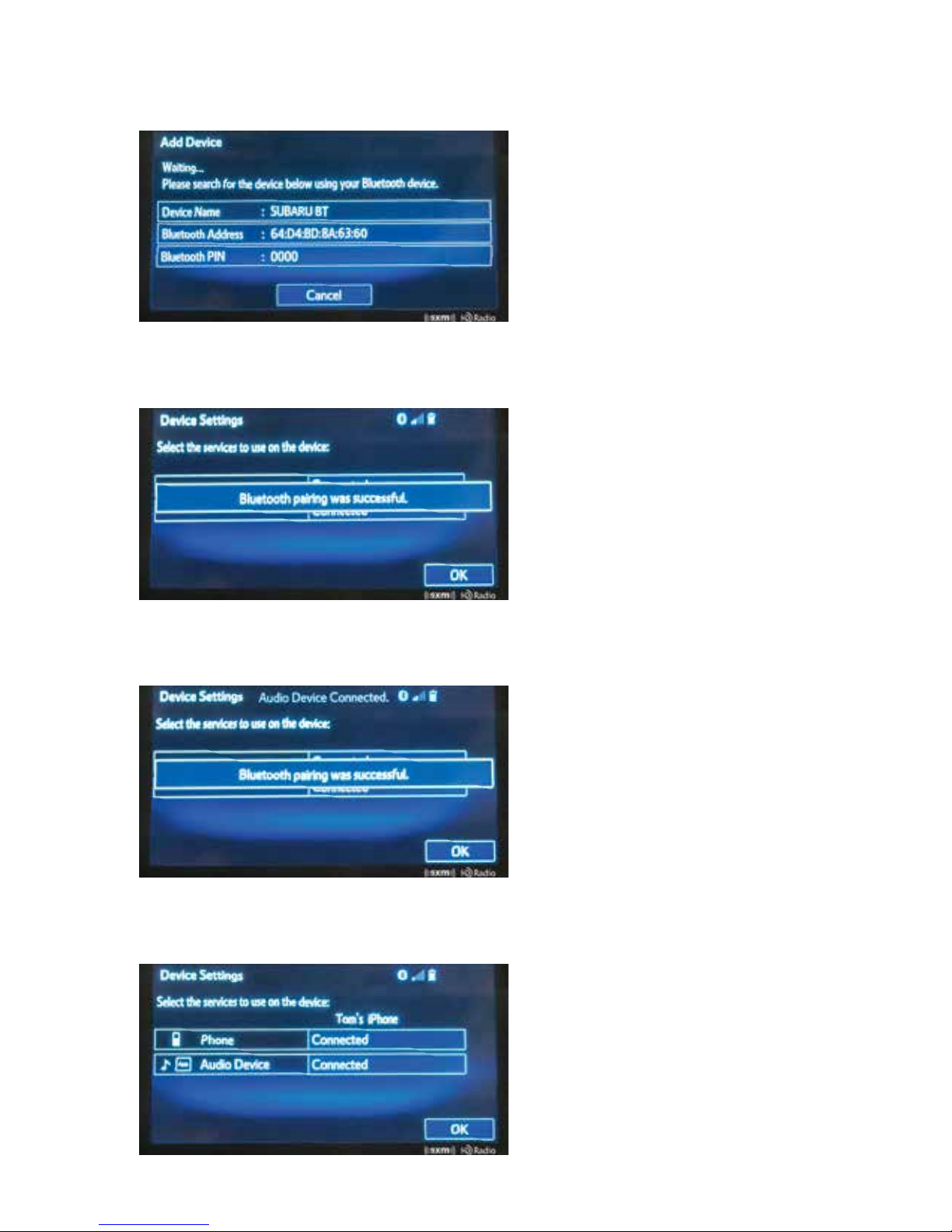
A Bluetooth PIN will appear on the screen. Put your phone into Bluetooth pairing
mode and register your phone to the vehicle system using the PIN provided.
The system waits for connection requests coming from the registered device.
When the connection status changes to “Connected,” touch “OK.”
Check that the screen is displayed when pairing is successful.
Page 12
Controls and Bluetooth Basics Navigation — 7.0" Hands-free Calling — 6.2" Hands-free Calling — 7.0"
11
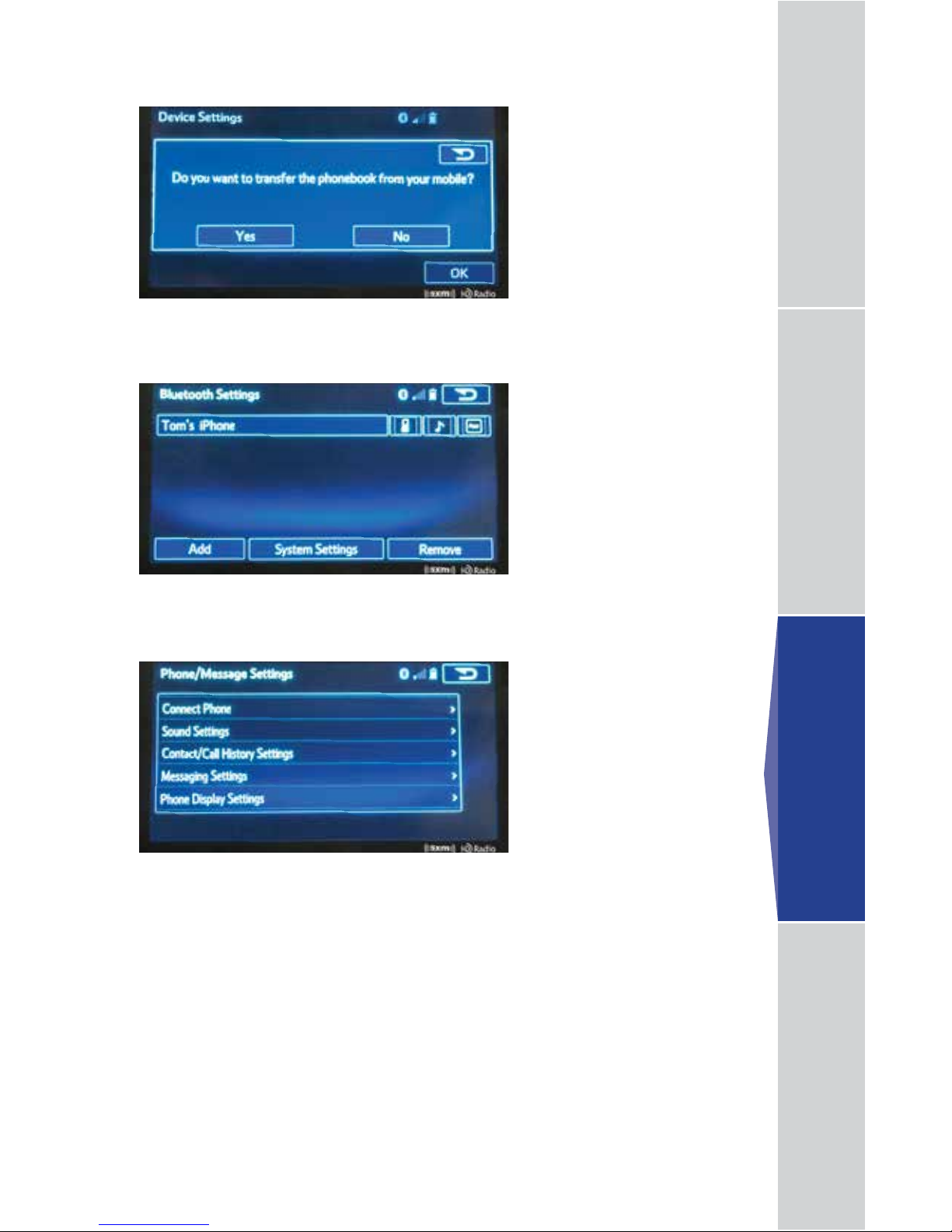
If you want to transfer your device’s phonebook, touch “Yes.”
From here, you can access the different system settings.
Please consult the Navigation System Owner’s Manual for more detailed information.
Touch “System Settings” to access the settings menu.
Hands-free Calling — 7.0"
Page 13
12
NOTE: This system is designed primarily for voice command operation. However, manual
input is also recognized.
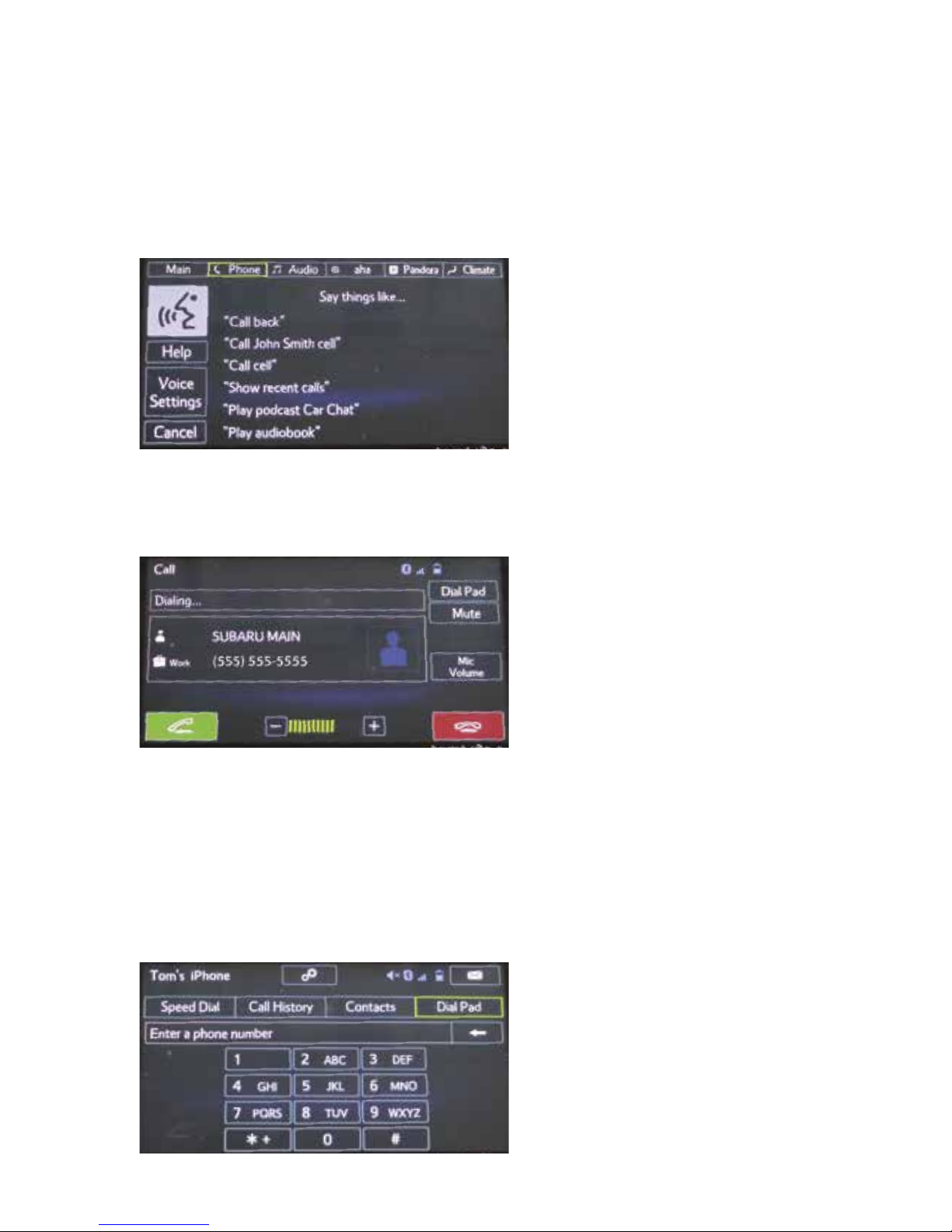
For voice command operation, follow the steps below:
Making a Call
Press the
talk button
, then say, “Call a number.”
Say, “Call,” followed by the phone number.
When the conrmation screen appears, say, “Yes,” or press the
phone off hook button
.
The system will place the call.
To end the call, press the
phone on hook button
or touch the red “phone on hook” soft key.
For more information on voice operation, please consult the Navigation System Owner’s Manual.
For manual input operation, follow the steps below:
Press the
home button
, then touch the “PHONE” soft key. Select the desired tab to call from,
then select the number.
If you select “Dial Pad,” type the number you want to call.
NOTE: This operation cannot be performed while driving.
Page 14
Controls and Bluetooth Basics Navigation — 7.0" Hands-free Calling — 6.2" Hands-free Calling — 7.0"
13
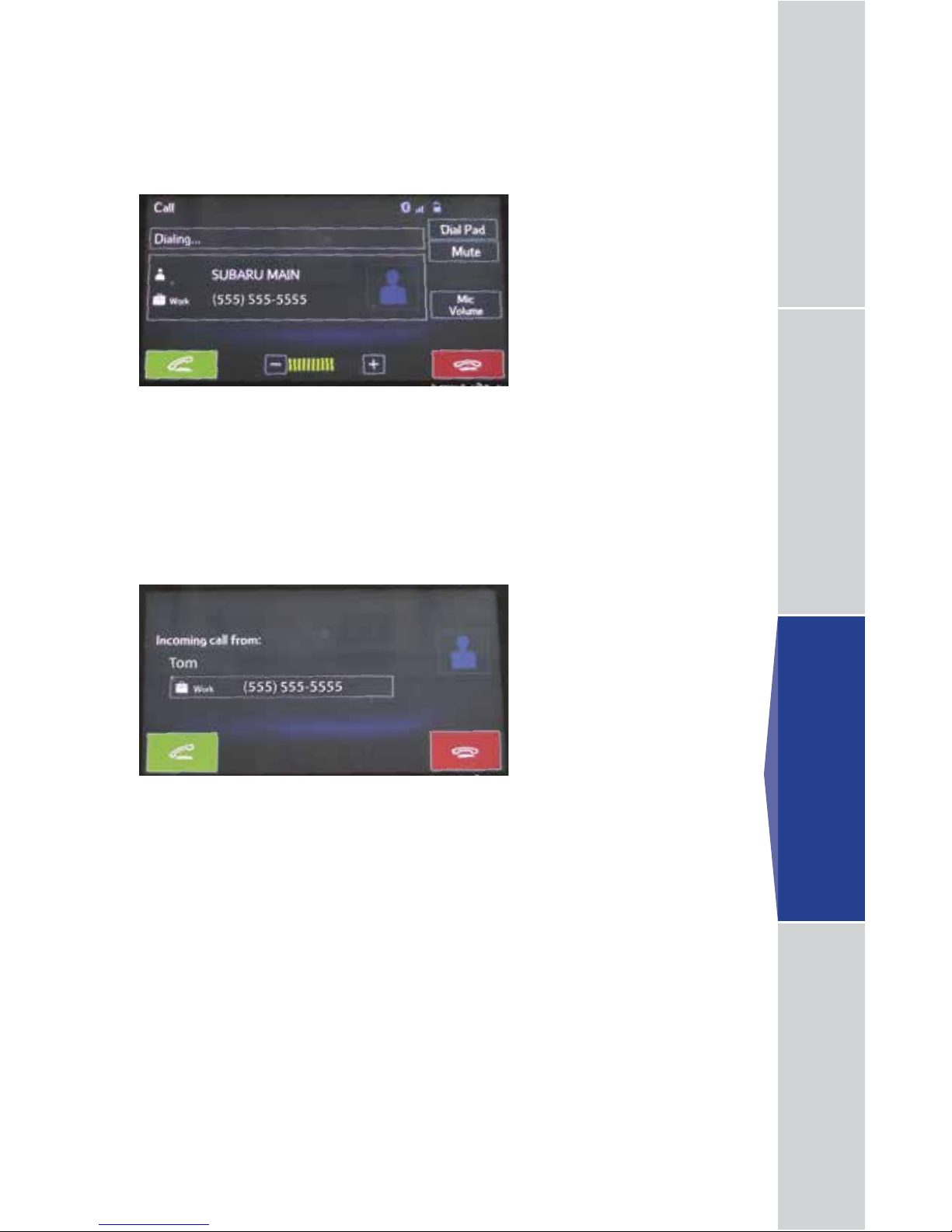
Receiving a Call
• If you want to put the call on hold (only if your cell phone has this function), press
the
phone on hook button
.
• If you want to decline the incoming call (only if your cell phone has this function),
press and hold the
phone on hook button
.
• If you want to adjust the volume of the call, use the
plus
or
minus switch
on the
steering wheel. If you want to end the call, press the
phone on hook button
.
Press the
phone off hook button
or the green “Phone off hook” soft key. The
system will place the call.
To end the call, press the
phone on hook button
or touch the red “phone on hook”
soft key.
For more information on manual operation, please consult the Navigation System
Owner’s Manual.
Hands-free Calling — 7.0"
Page 15
14
Navigation —
7.0" Multimedia Navigation
Your Navigation System will assist you in reaching your destination and, if used
properly, can do so with speed and ease. To use the system as safely as possible,
follow all safety directions.
Safety
• Before attempting to use this system while driving, make sure you read the
entire Navigation System Owner’s Manual Supplement. Do not allow others to use
this system until they also read the manual and understand the instructions.
• You should program your destination and select your route only when your vehicle is not
moving. While driving, listen to the voice instructions as much as possible and only glance
at the screen briey and when it is safe to do so.
• The data in the system may occasionally be incomplete as road conditions and driving
restrictions (no left turns, road closures, etc.) change. Before you follow system instructions,
make sure to check whether you can comply with the instructions legally and safely. Do not
be distracted by the navigation screen. Failure to keep your attention on the road could lead
to an accident.
• The system cannot warn you of environmental or street hazards or the availability of
emergency systems. If you are unsure about the safety of an area, do not drive into it.
• Use this system only where it is legal to do so. Some states may have laws prohibiting the
use of video screens within the driver’s sight.
And remember, this system is never a substitute for the driver’s personal judgment.
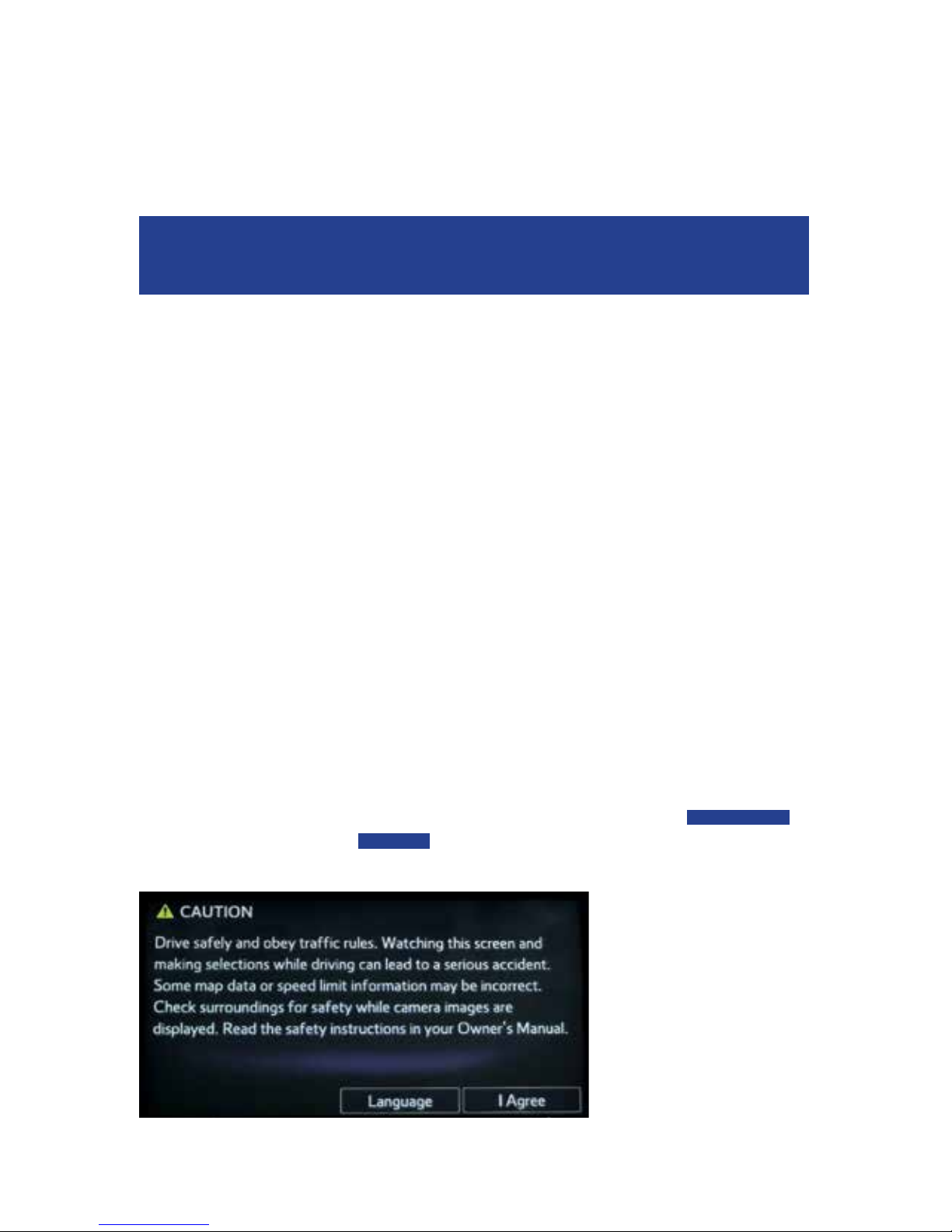
To start the Navigation System, start the engine and press the
map button
on the audio
system panel. The opening screen (Subaru Starlink
™
) will appear, followed by the CAUTION
screen. Read the instructions on the screen. If not previously selected, touch
LANGUAGES
to
select a language. Then touch
I AGREE
when illuminated.
Page 16
Controls and Bluetooth Basics Navigation — 7.0" Hands-free Calling — 6.2" Hands-free Calling — 7.0"
15
Introduction
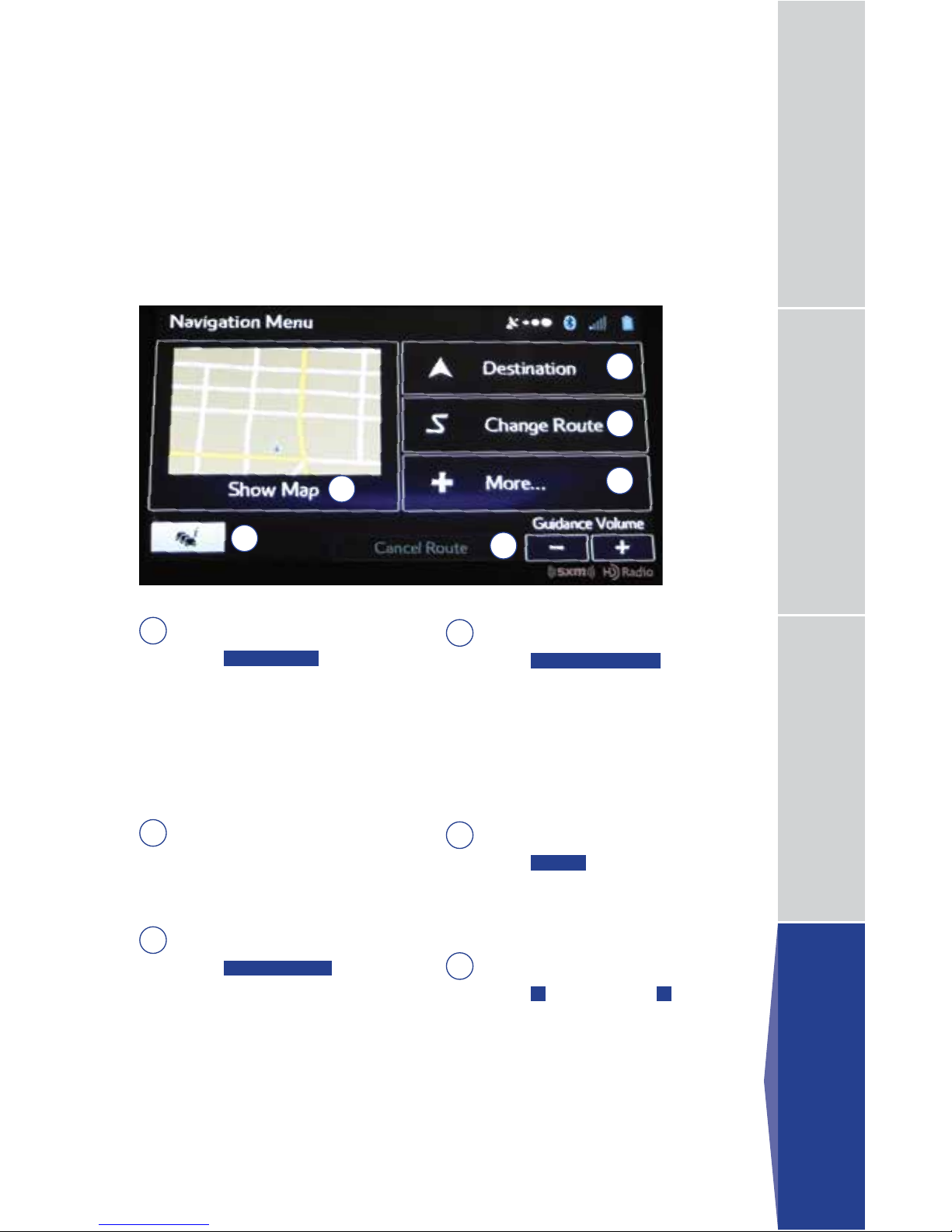
1
2
3
6
4
5
1
Show Map
Touch
SHOW MAP
to access the
map screen and to start navigation
on the map. The map shows the
current position, recommended
route if previously selected, and
reduces the surrounding area to
display on the map being used.
2
Trafc Summary
Touch to open the Trafc Summary
screen. XM Trafc
®
customer
subscription required.
3
Destination
Touch
DESTINATION
, and then
select which method to use to
reach your destination by entering
the address, selecting a favorite
place, selecting a position on
the map, or selecting from the
destination history list.
4
Change Route
Touch
CHANGE ROUTE
. You
can also perform various route
related functions such as editing
or canceling the route, adding way
points, selecting a different route,
avoiding a part of the route or
performing a navigation simulation.
5
More...
Touch
MORE
to select navigation
settings, get help, start a system
demo, or start various other
auxiliary applications.
6
Guidance Volume
Touch + to increase, or - to
decrease, the guidance volume.
Your Navigation System helps you nd and store addresses as well as places and
attractions based on your map location. Prior to using the system, be sure to read
the entire Navigation System Owner’s Manual Supplement so you have a complete
understanding of the system. For your convenience, this Quick Reference Guide
offers a quick guide for regularly used features.
Your control panel is your access to the Navigation System. Some of
the controls and functions cannot be used unless the vehicle is stationary.
Navigation — 7.0"
Page 17
16
Finding an Address
1
2
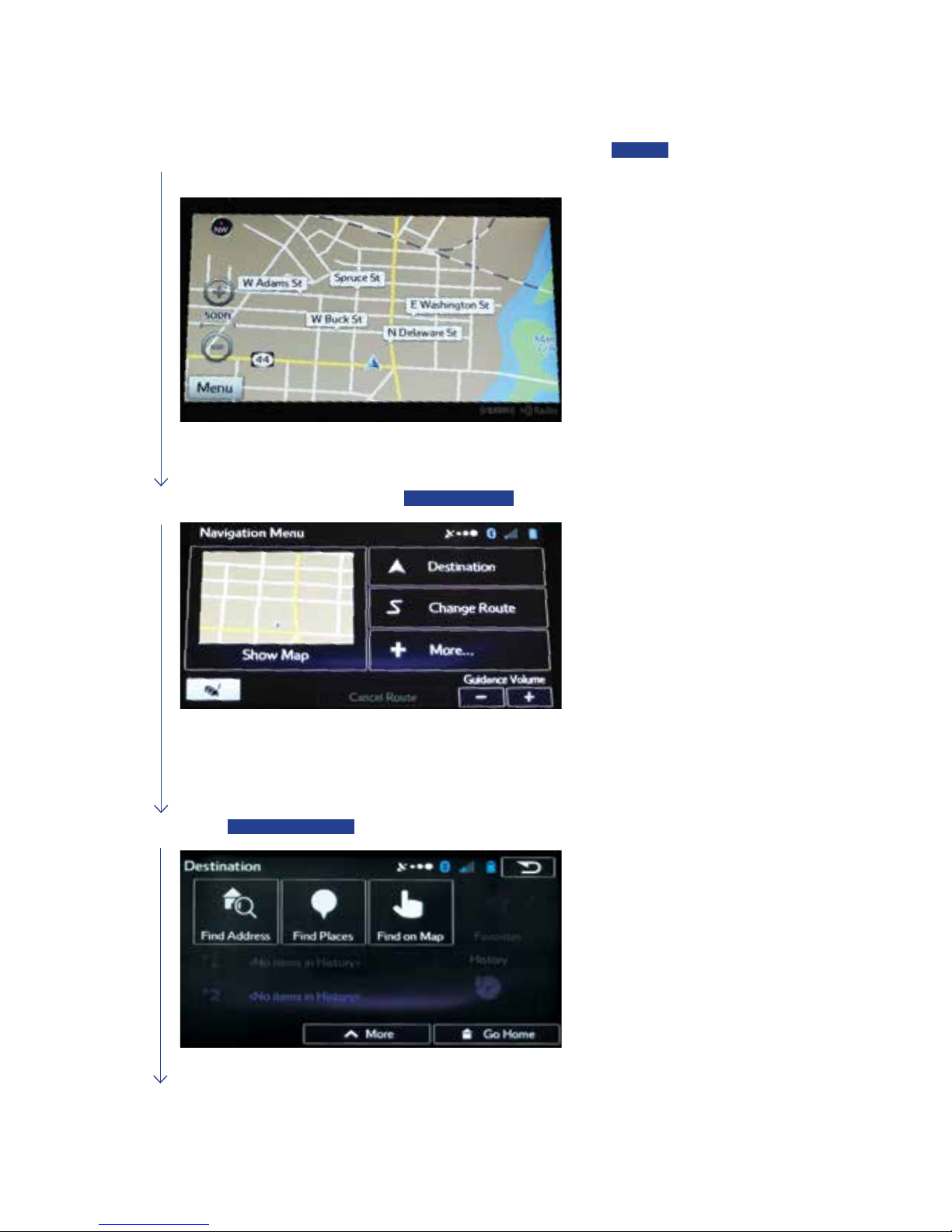
Touch the
map button
to display the map screen, then touch
MENU
to
access the navigation menu screen.
On the navigation menu, touch
DESTINATION
.
3
Touch
FIND ADDRESS
.
Page 18
Controls and Bluetooth Basics Navigation — 7.0" Hands-free Calling — 6.2" Hands-free Calling — 7.0"
17
4
By default, the country and state for your current position are displayed.
If you are traveling to a destination other than the state or province you are
in, touch
COUNTRY OR STATE/PROVINCE
to select the desired country or
state/province. When the keyboard appears, type the state or province. As
you type, a list of choices appears. Touch the line with the correct state or
province and it is automatically transferred to the address screen.
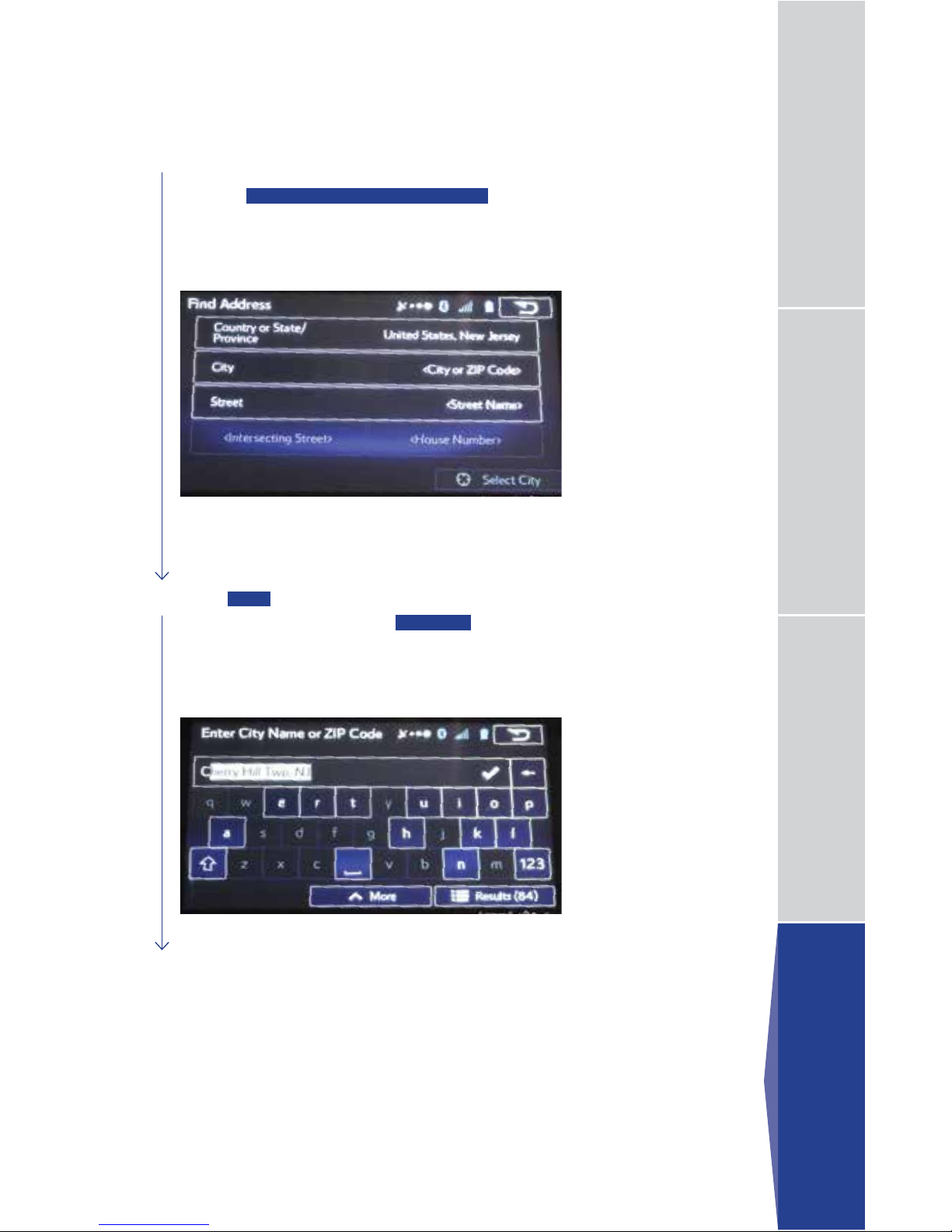
5
Touch
CITY
. When the keyboard appears, type the city or ZIP code. As
you type the city name, touch
RESULTS
at the lower right of the screen
and a list appears with possible city choices. Touch the up/down arrows to
the right to scroll until you nd the city name. Touch the line with the correct
city and it is automatically transferred to the address screen.
Navigation — 7.0"
Page 19
18
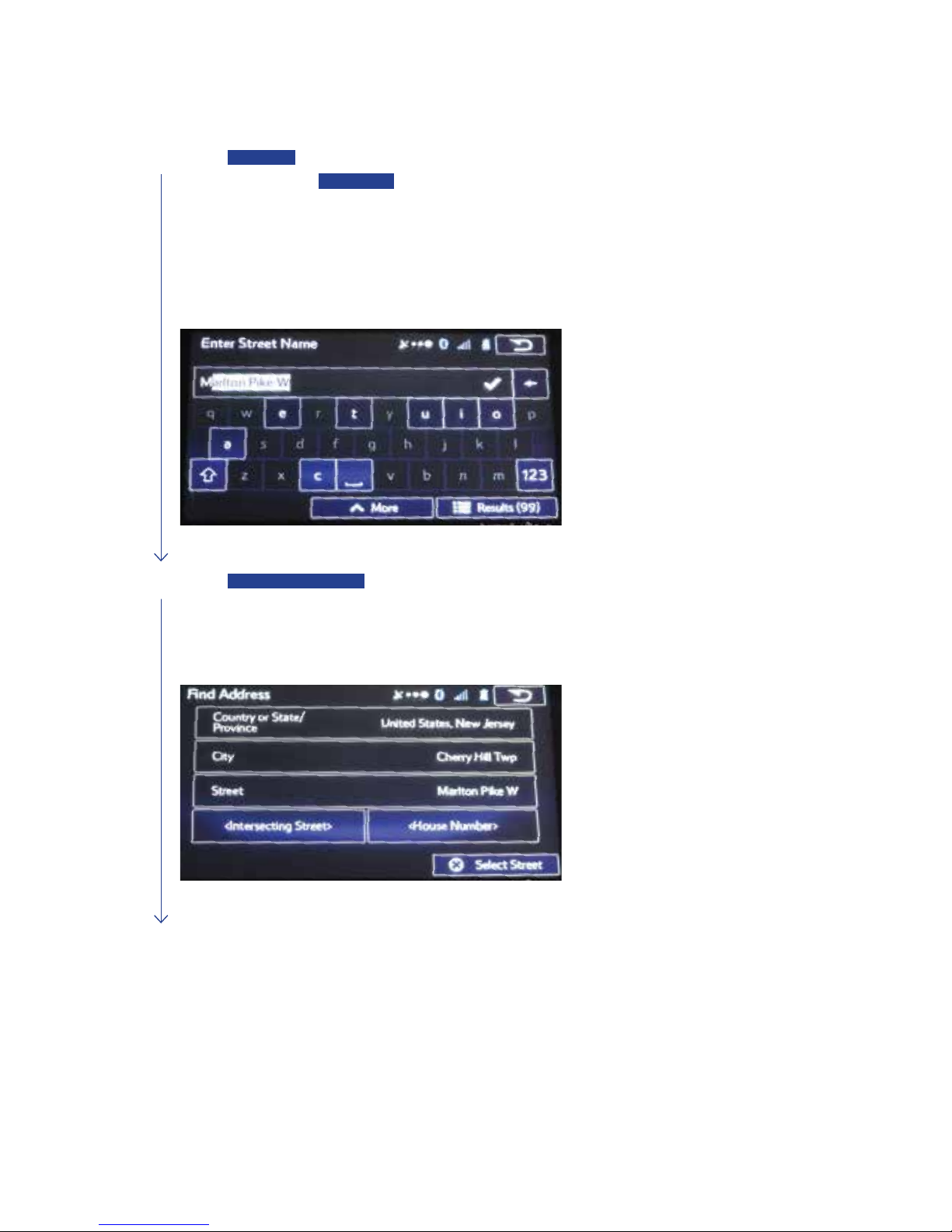
6
Touch
STREET
. When the keyboard appears, type the street name. As you type the
street name, touch
RESULTS
at the lower right of the screen and a list appears with
possible choices. Touch the up/down arrows to the right to scroll until you nd the street
name. Touch the line with the correct street name and it is automatically transferred to
the address screen.
NOTE: For streets that are preceded by a direction such as North, South, etc.,
type the street name rst.
7
Touch
HOUSE NUMBER
. When the keyboard appears, type the house number.
The house number is automatically transferred to the address screen.
NOTE: If the house number is not found, the center of the street is selected
as the destination.
Page 20
Controls and Bluetooth Basics Navigation — 7.0" Hands-free Calling — 6.2" Hands-free Calling — 7.0"
19
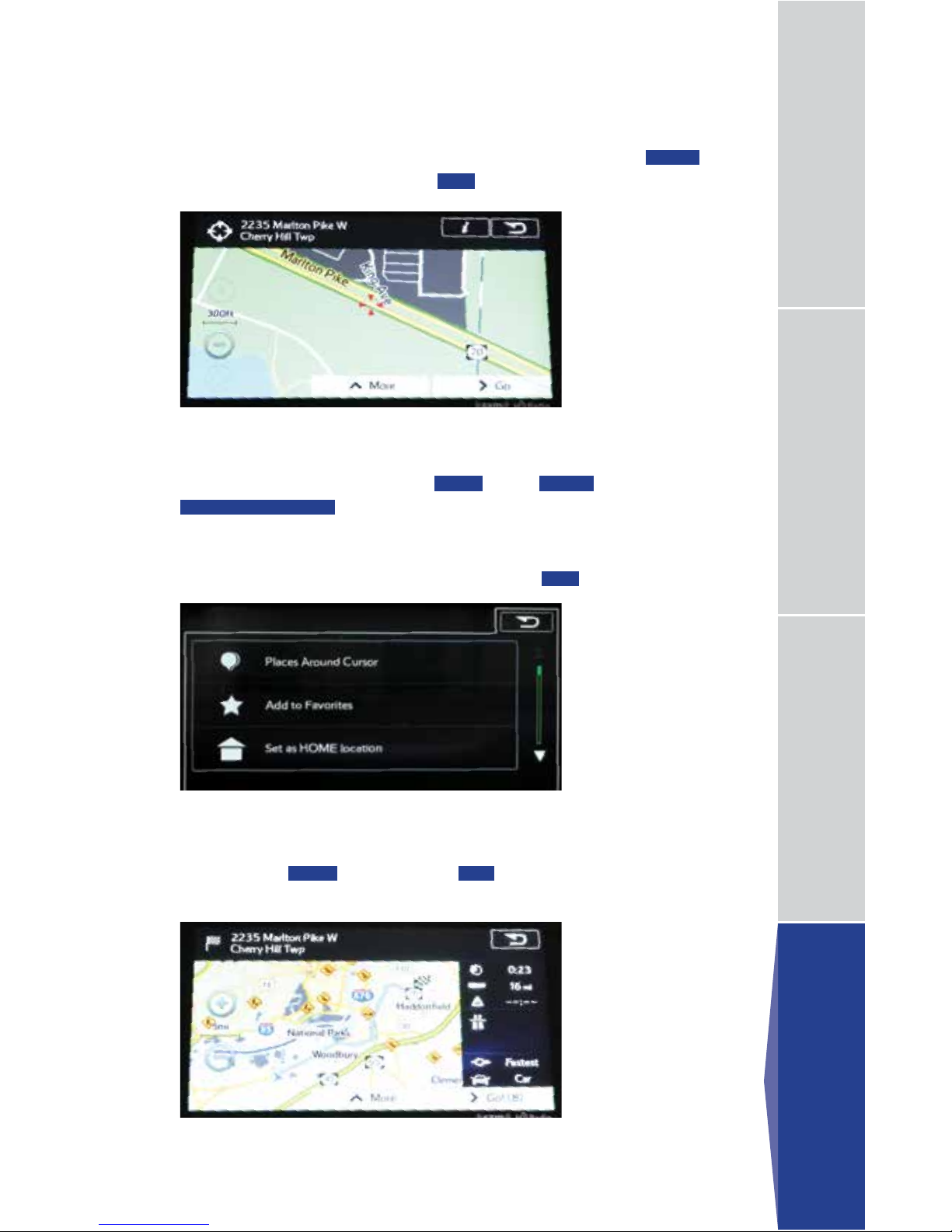
8
The map is displayed with the selected point at the center. Touch
NEXT
when a route has been set or touch
GO!
to start route guidance.
You are automatically returned to the map with the destination now set as a
favorite. Touch
NEXT
, and then touch
GO!
. The map screen appears with
the route. Start driving following the navigation.
NOTE: If the destination will be used frequently, you can save it to
favorites as follows before touching
NEXT
. Touch
MORE
, and then touch
ADD TO FAVORITES
. A keyboard appears with the destination address.
You can store that address or type a name for that address. Touch the arrow
to the right of the address. This clears the address from only the screen so
that you can give the address a name. Then touch
OK!
.
Navigation — 7.0"
Page 21
20
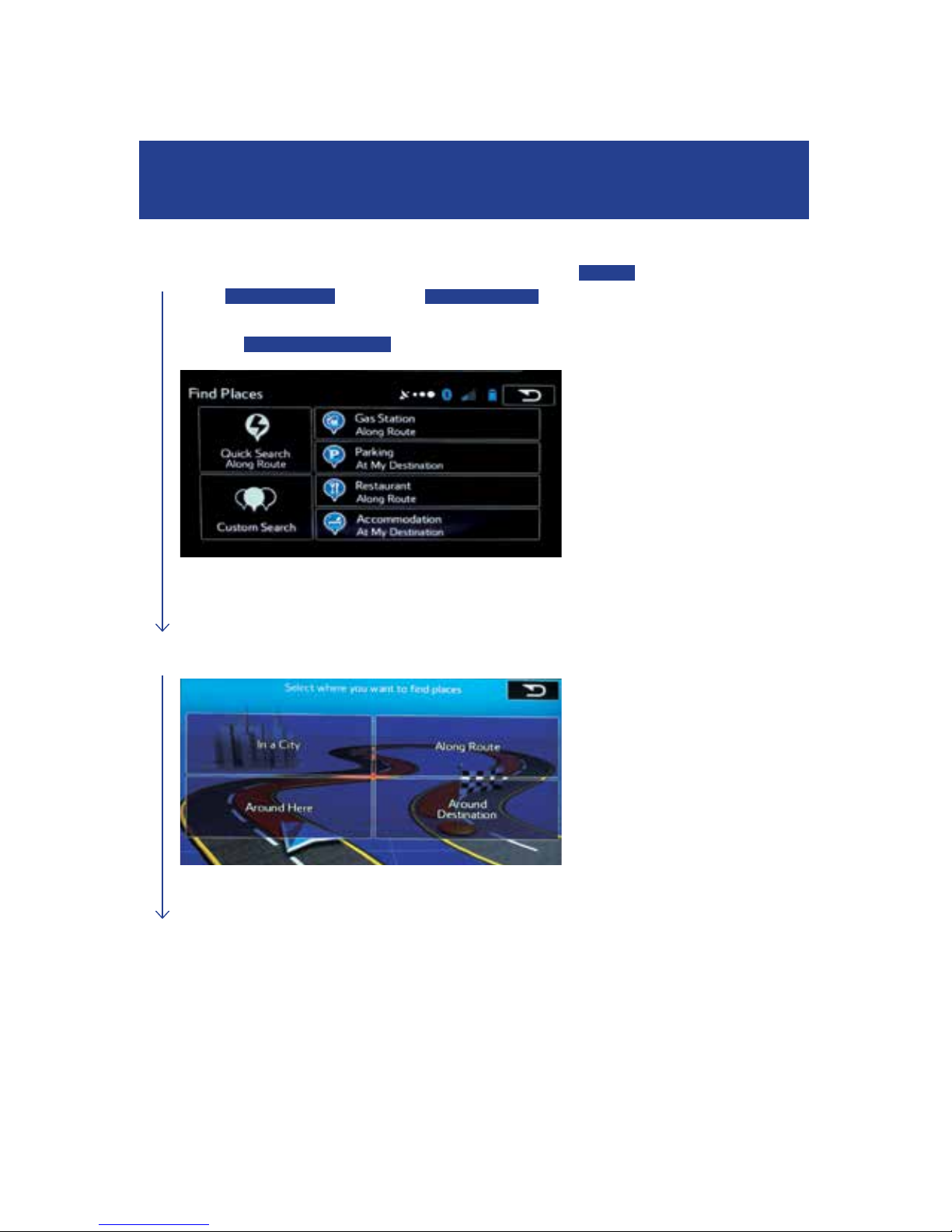
You can also find addresses by using Find Places. You can use this in the event
you do not have a specific address but can refer to a specific place, such as a gas
station, restaurant, accommodation, etc.
Finding a Point of Interest
1
Touch the
map button
to display the map screen. Touch
MENU
,
touch
DESTINATION
, then touch
FIND PLACES
. You can select
from the four preset categories shown on the right side of the screen
or touch
CUSTOM SEARCH
.
2
Choose where you want to nd places.
Page 22
Controls and Bluetooth Basics Navigation — 7.0" Hands-free Calling — 6.2" Hands-free Calling — 7.0"
21
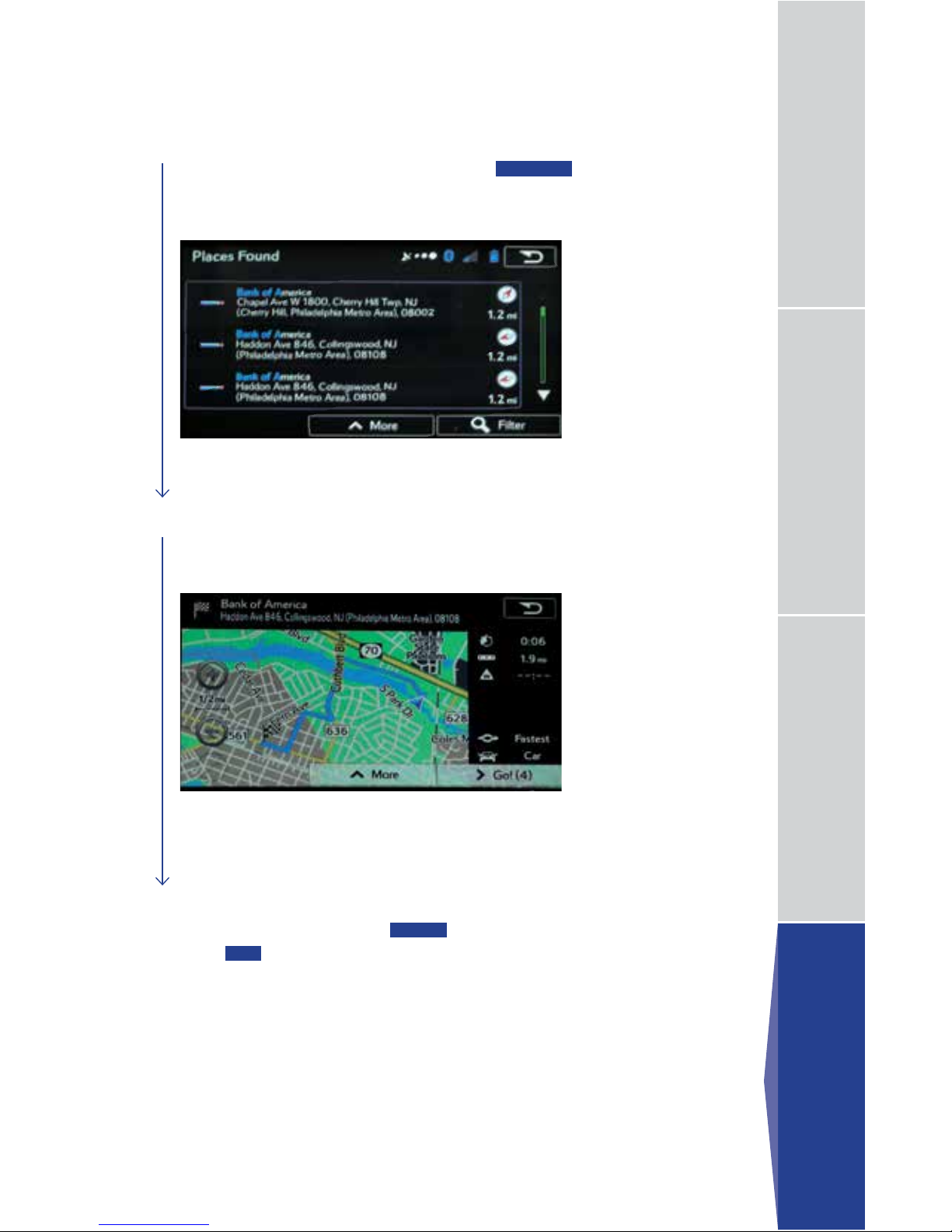
4
Find the item you want on the list, and then touch that item. The map is
displayed with the selected point at the center. The name and address
of the location are displayed in the black bar at the top of the screen.
3
A keyboard appears for you to enter the name of a specic location.
After entering the rst few characters, touch
RESULTS
at the lower
right of the screen to view a list of names that include the characters
you entered.
5
The route is researched automatically, and then the entire route is
displayed on the map. Touch
MORE
to change the route plan, or
touch
GO!
to start navigation.
Navigation — 7.0"
Page 23
22
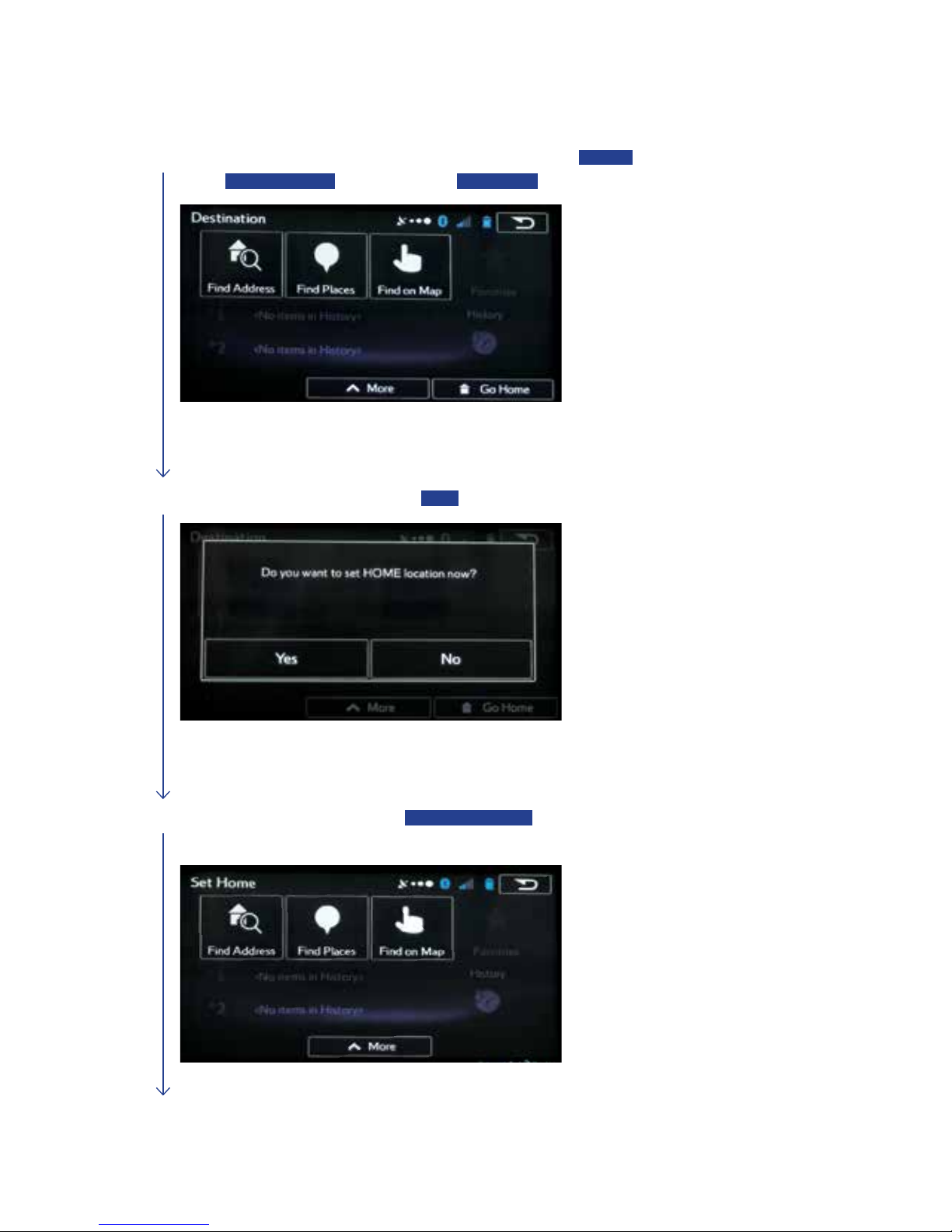
Setting HOME
1
Touch the
map button
to display the map screen. Touch
MENU
,
touch
DESTINATION
, and then touch
GO HOME
.
2
At the conrmation screen, touch
YES
.
3
At the Set Home screen, touch
FIND ADDRESS
. Follow the
steps 3 through 7 on pages 16–18 (Finding an Address) of this guide.
Page 24
Controls and Bluetooth Basics Navigation — 7.0" Hands-free Calling — 6.2" Hands-free Calling — 7.0"
23
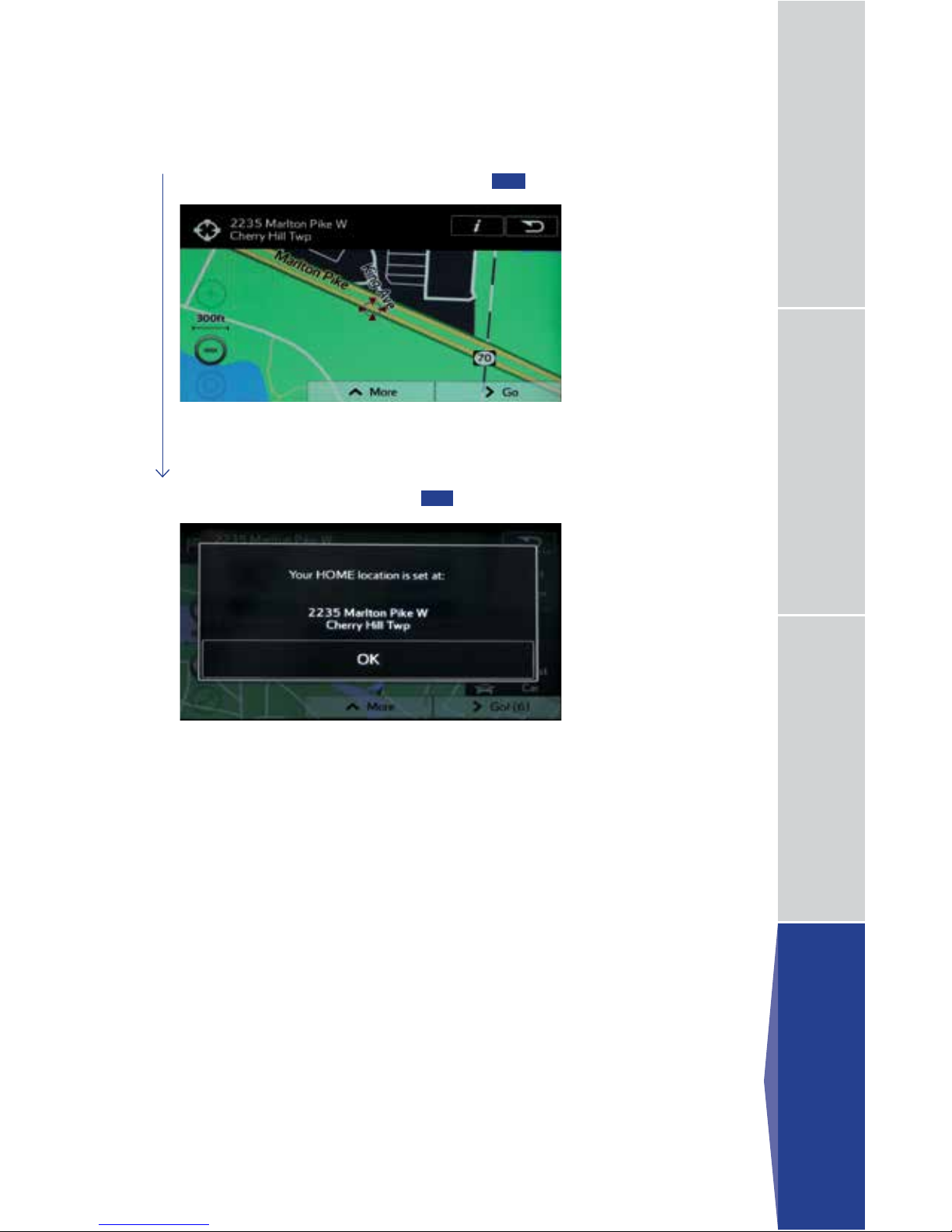
4
The address is displayed in the black bar at the top of the screen.
The location is centered on the map. Touch
GO
.
5
At the conrmation screen, touch
OK
.
Navigation — 7.0"
Page 25
Connected Services
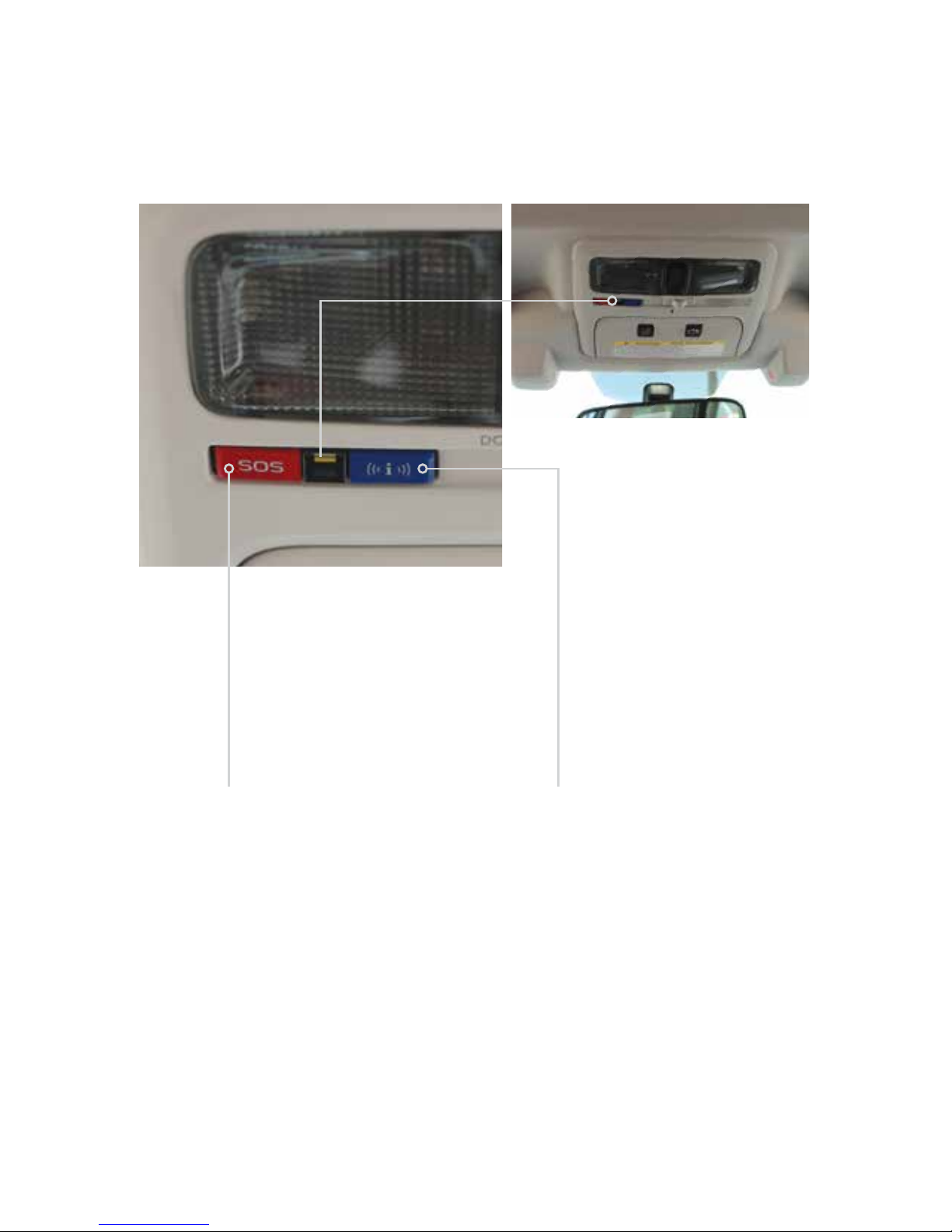
24
Enhanced Roadside Assistance
Press to connect with Subaru’s
Roadside Assistance Provider.
Subscription required.
Press and hold the button
for about two seconds
to cancel the call.
SOS Emergency Assistance
Press to connect with a
STARLINK Customer Care
Advisor. Subscription required.
Press and hold the button
for about two seconds
to cancel the call.
Page 26
About the Map SD Card
When driving using guidance from the navigation system, be sure to follow the
actual road signs and trafc regulations. If road signs and trafc regulations are
changed, the data on the map SD card may be out of date. Also, the data on the
map SD card does not take into account factors such as weather, time zones,
and occurrences such as differences in congestion situations and temporary road
closures due to construction work. Always give precedence to road signs and trafc
rules over instructions from the navigation system.
Not following the road signs and trafc rules could lead to injury or trafc violations.
All information contained within this Quick Reference Guide was accurate at the time of
publication. We reserve the right to change features, operation and/or functionality of any vehicle
specication at any time without incurring any obligation to make the same or similar changes to
products previously sold. Your Subaru retailer is the best source for the most current information.
For detailed operating and safety information, please consult your Owner’s Manual.
MSA5B1611A
Issued June 2015
Printed in USA 06/15
 Loading...