

Page 1
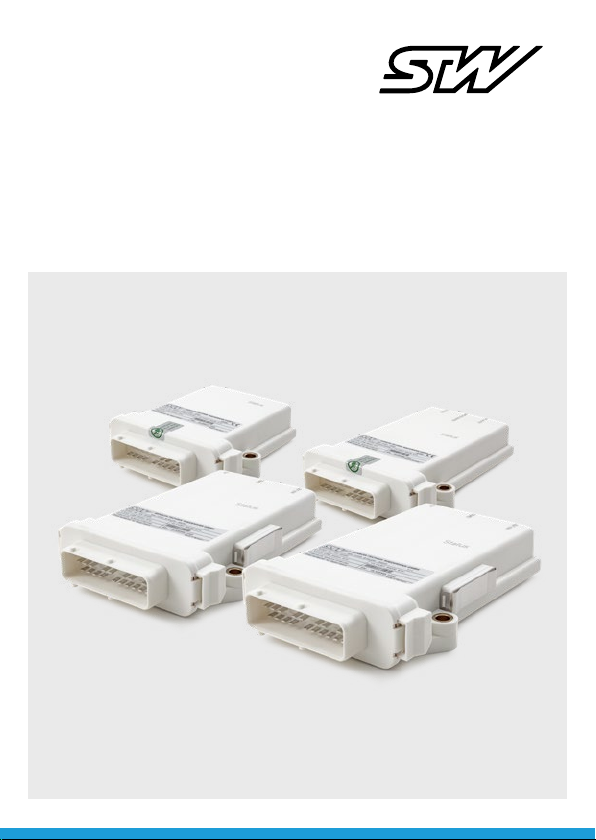
SHORT INSTRUCTION
Starting up TCG data modules
with MACHINES.cloud
Page 2
1
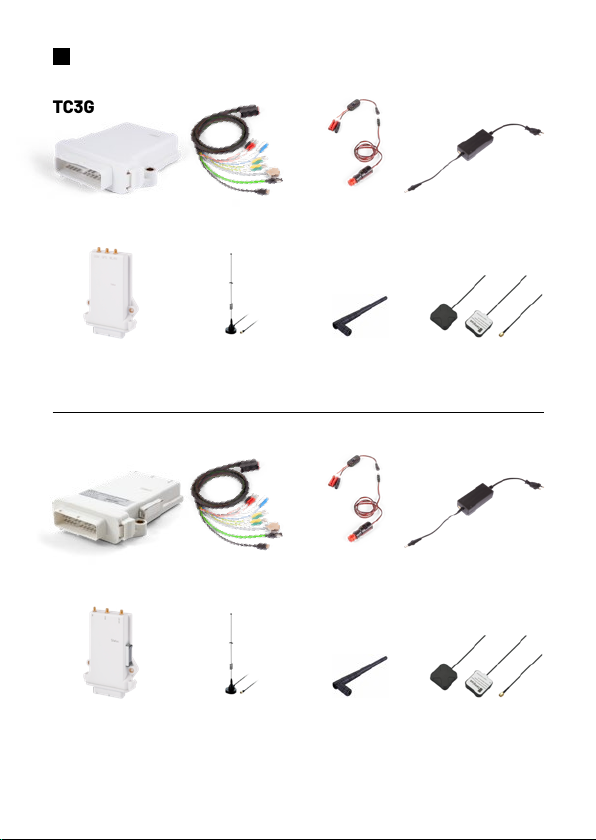
Check the scope of delivery
TC3G
1
TCGi Breakout cables
Cable harn ess
adapter
Optional:
TCGe
2G/3G/4G Wi-Fi/Bluetooth GPS/GLONASS
Conn ect the ante nnas to the SM A plugs on th e TCGe.
TCG-4
TCG-4i Breakout cables
Optional:
TCG-4e
2G/3G/4G Wi-Fi/Bluetooth GPS/GLONASS
Conn ect the ante nnas to the SM A plugs on th e TCGe.
Cable harn ess
adapter
Power supply
Power supply
1
Only with standard loan kit
Page 3
2
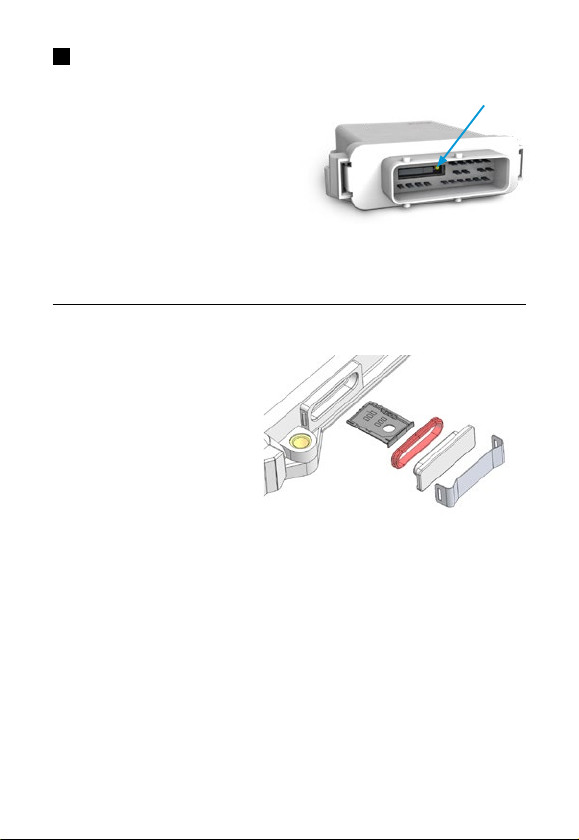
Insert SIM card
into a TC3G
1. Press the yellow button beside the
card tray
2. Pull out the SIM card tray
3. Place the SIM card into the tray (for
micro SIM cards or smaller cards a
corresponding adapter is required)
4. Slide the SIM card tray back in carefully
into a TCG-4
1. Remove the metal clip with a
flat screwdriver
2. Remove the SIM card slot
cover
3. Press the yellow button next
to the SIM card holder and
pull out the SIM card tray
4. Place the SIM card into the
tray (for micro SIM cards or
smaller cards a corresponding adapter is required)
5. Slide the SIM card tray back in carefully
6. Reassemble the SIM card slot cover and metal clip
Page 4

3
Starting up TCG
1. Supply the TCG with power:
a. Set the power supply to 12 V
b. Connect the TCG to the breakout cables
c. Connect the breakout cables to the cable harness adapter
d. Connect the power supply unit to the cable harness adapter
e. ATTENTION: Select the correct power supply output connectors
f. ATTENTION: Check the polarity of the power supply output connectors
2. Switch on the cable harness adapter
3. Wait for the status LED of the TCG
ATTENTION: For (optimal) GPS and GSM reception, the TCG must be posi-
tioned outside buildings
Page 5

4
Status detection by LED light
Read y for use no Internet
Yellow
Blue
Pink
Green
Flashing
Red
flashing
5
Establish a connection with MACHINES.insight
1. Connect your smartphone, tablet or PC to the TCG Wi-Fi network
2. Example network names:
TC1-“serial number“, TC3G-“serial number“ or TCG4-“serial number“
3. Password of the loan variant: see label on the TCG
4. Password of the standard variant:
TC1: “darth_vader“, TC3G: “darth_vader“ or TCG-4: “digitalization!“
5. Open address “192.168.201.1“ in your browser
6. Click on “Login“ in the left menu bar
7. Login data: Username: admin
Passwort: admin
acce ss; GPS not active
or no GP S reception
No Internet acce ss;
GPS active
Inter net acces s avail able;
GPS not active or no
GPS reception
Inter net acces s
av ailable; G PS active
Data traff ic via CAN
Erro r signal (se e
operating instructions)
TCG ha s booted and
none of the other
states are ac tive
After booting the
TCG, it m ay take a few
minu tes for a GPS
sign al to be recei ved
or for In ternet access
to be established
The fl ashing can
occu r with all co lors
A rest art of the TCG
is recommended
Page 6
6
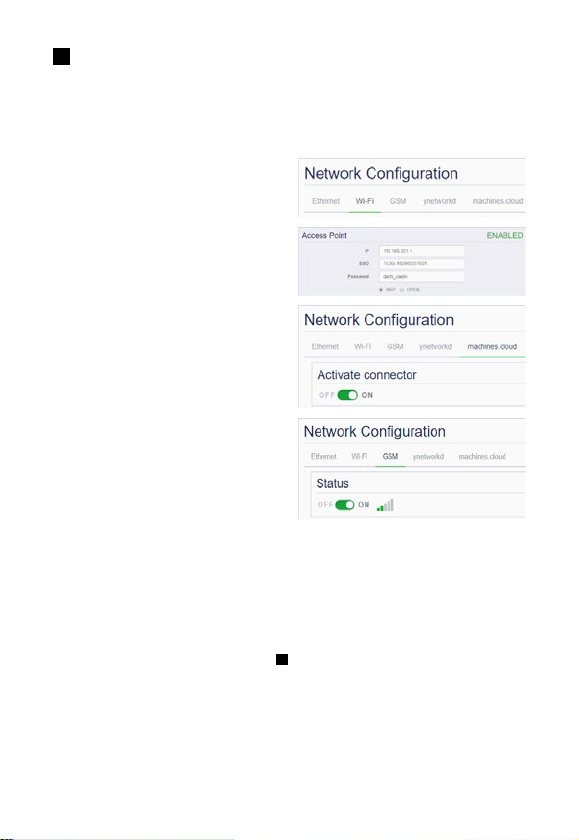
Configure MACHINES.insight
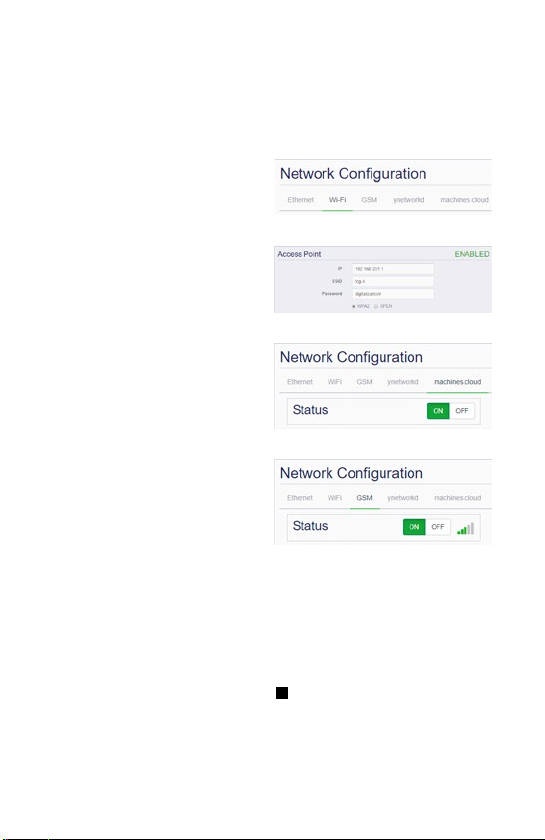
TC3G
1. Select “System“ in the left menu bar
2. Switch to “Wi-Fi“ within “Network
Configuration“
3. The right field “Access Point“ must
be activated
4. Change the password for Wi-Fi
access
5. Click on “Save“
6. Switch to “machines.cloud“ within
the “Network Configuration“
7. Switch the “Activate connector” to
“ON“
8. Click on “Save“
9. Switch to “GSM“ within “Network
Configuration“
10. Does the SIM card already have a
PIN? Set the PIN switch in the
GSM window to “Yes“ and enter the
PIN
11. Set “Status” to “ON“
12. Click on “Save“ and restart the TCG (switch off/on the cable harness
adapter)
Attention: With M2M SIM cards further configurations
are necessary, see
7
Page 7
6
MACHINES.insight konfigurieren
TCG-4
1. Select “System“ in the left menu bar
2. Switch to “Wi-Fi“ within “Network Configuration“
3. The right field “Access Point“
must be activated
4. Change the password for Wi-Fi
access
5. Click on “Save changes on
device!“
6. Switch to
“machines.cloud“ within the
“Network Configuration“
7. Switch the “Activate connector”
to “ON“
8. Click on “Save changes on
device!“
9. Switch to “GSM“ within “Network
Configuration“
10. Set “Status” to “ON“
11. Does the SIM card already have a PIN? Set the PIN switch in the GSM
window to “ON“ and enter the PIN
12. Click on “Save changes on device!“ and restart the TCG (Click on
“Restart device!“ or switch off/on the switch on the cable harness
adapter)
Attention: With M2M SIM cards further configurations
are necessary, see
7
Page 8
7
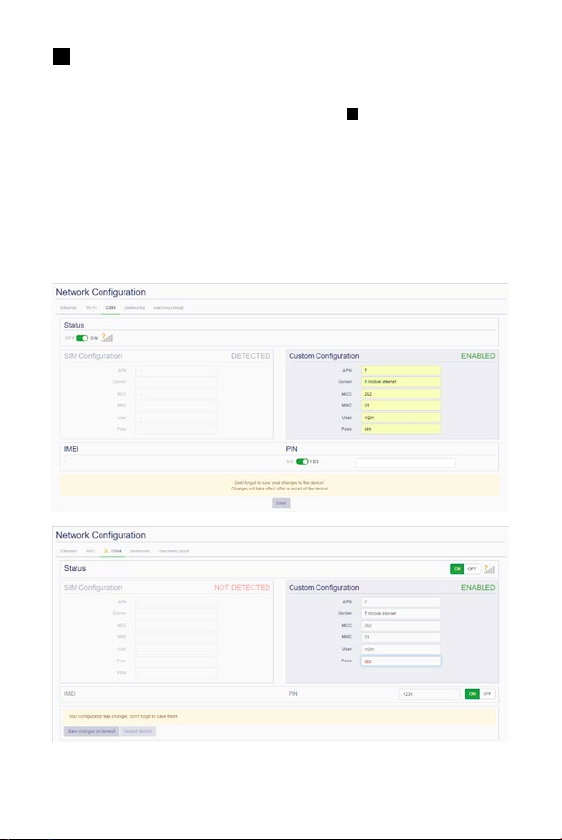
Configure a M2M SIM card (only necessary for M2M
SIM cards)
1. Login as “admin“ in MACHINES.insight (see 5)
2. Navigate to “System“ “Network Configuration“ “GSM“
3. Select the “Custom Configuration“ field on the right
4. Enter M2M parameters (source: SIM card provider)
5. Click on “Save“ or “Save changes on device!“ and restart the TCG (Click
on “Restart device!“ or switch off/on the switch on the cable harness
adapter)
Page 9
8
Registration in MACHINES.cloud and first steps
1. Open the e-mail from [email protected] with the link to the
cloud (recommended browser: Google Chrome)
2. Click on the link and change your password on the web page
3. Log in with the new access data
User name: tenantname_admin
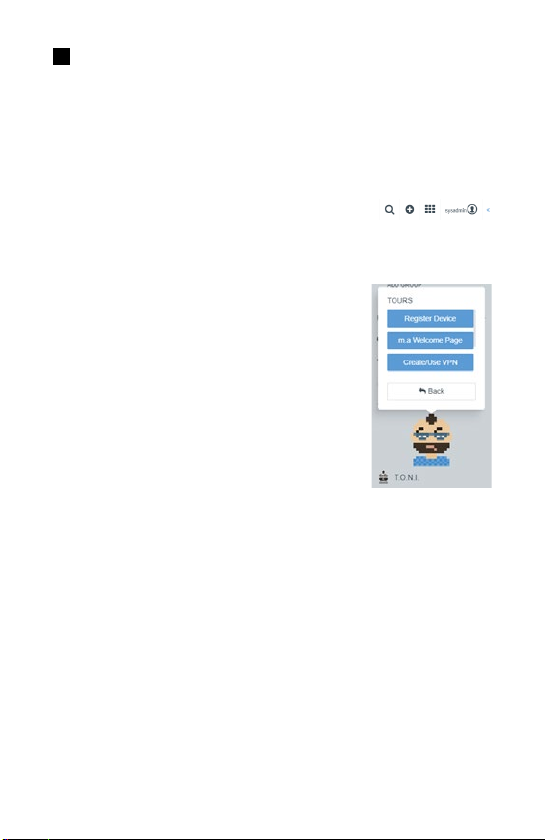
4. Top right click on “<<“
2
5. In the area of “Help & Support” click on “T.O.N.I.“
and then on “Show
Tours”
6. The following tours are available:
a. Register Device
b. m.a Welcome Page
c. Create / Use VPN
d. Track Evaluation
e. Data Explorer
f. Codesys Gateway
2
Trusted Online Navigation Instructor
Page 10
Further Information
Video Tutorials:
German: youtu.be/UTl4E_I39sE
English: youtu.be/dJcDs7t28yw
All Manuals and Tutorials here:
stw-digitalization.com
Passwort: connectivity
T.O.N.I. Tours:
Available in MACHINES.cloud and MACHINES.access
Top right click on “<<“
Sensor-Technik Wiedemann GmbH (STW)
Am Bärenwald 6
87600 Kaufbeuren
Telephone: +49 8341 9505-0
www.stw-mm.com
 Loading...