

Page 1
The Street Hopper Bluetooth Portable Speaker System with rechargeable battery will stream your
favorite music for hours, from any Bluetooth device, SD Card or USB.
Street Hopper gives you a full Multi-Color LED light show, with a variation of programmed light
displays. All controlled via the front panel, remote control or Discolor Dj App.
The Discolor Dj free app is available from Android/Apple App Stores. The Discolor DJ app gives you
full control of the Street Hopper features via bluetooth connection. Control the source, volume and
EQ levels. Change the LED lighting to any color and lignt profile to set the mood. Choose and
playback music from your music library, or the USB/SD. The Street Hopper portable design and go
anywhere with anything feature,like the Microphone input and Guitar input for those plug and play
times.
Page 2
Interface Index
fig.6
fig.7
6
Song 1
Song 2
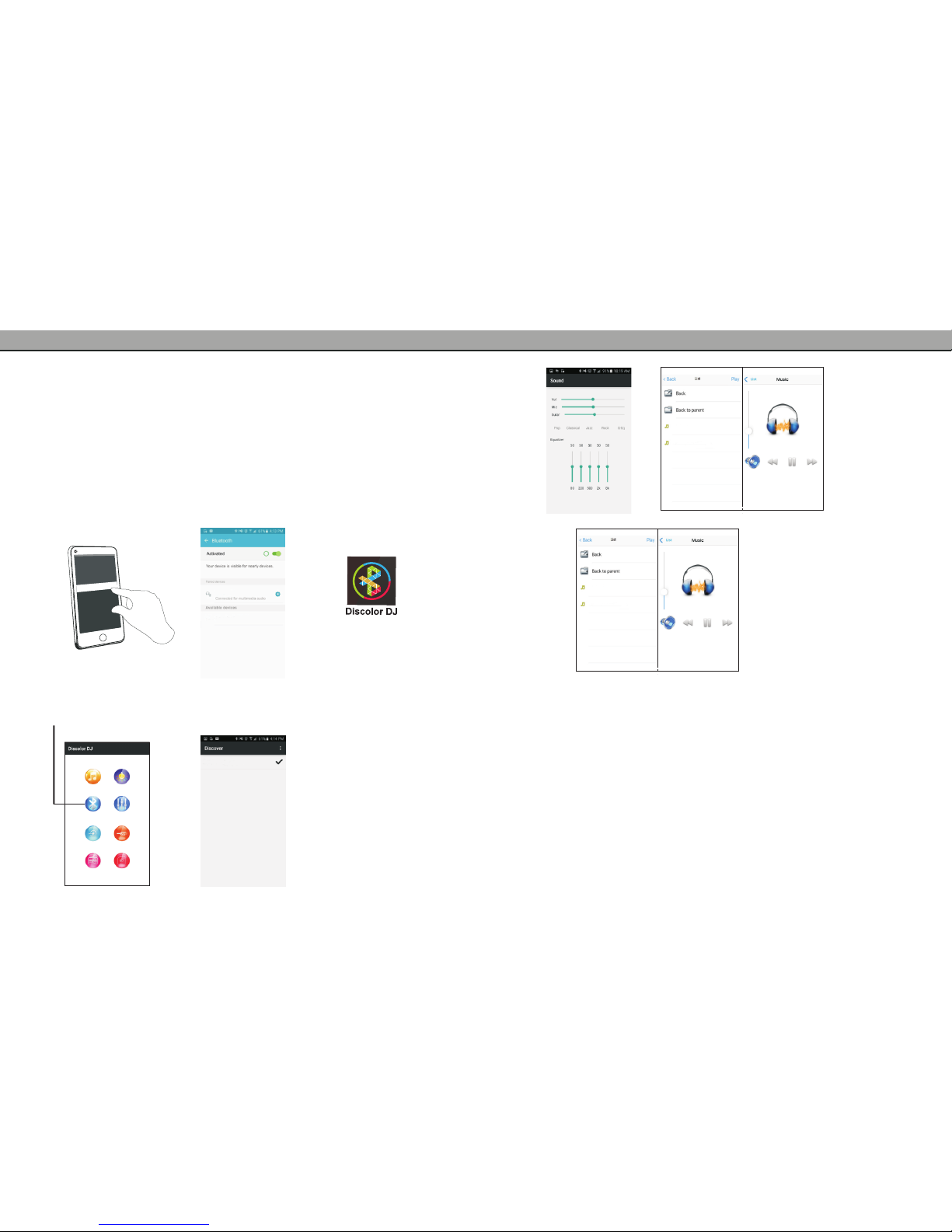
There is two different ways to connect the Bluetooth feature for STREET HOPPER 8.
Bluetooth direct connect from the STREET HOPPER 8, or Bluetooth connect via
the Discolor Dj App.
Note:The STREET HOPPER 8 can be connected to both Bluetooth direct and the
Discolor Dj App at the same time. Bluetooth direct will be used to playback any
music media and apps, such as Pandora, You Tube, your music player etc. All
control of the music media will be controlled through their prospected app controls.
For Bluetooth connect from the Discolor Dj App you will have full remote control
of the STREET HOPPER 8 features, playback controls, volume & EQ as well as
lighting control.
1. Turn on Bluetooth via your device settings,
locate and pair to STREET HOPPER 8.
2. Verify that your device is connected to
the STREET HOPPER 8device.
3. Download the FREE Discolor DJ App in
your App Store and install it.
4. Now activate your application and
select Bluetooth symbol.
5. Select STREET HOPPER 8 APP
to connect via the applicatiom.
NOTE: This is a sample interface, the interface may vary
depending on your certain device.
Conectividad App/Bluetooth
1
STREET HOPPER 8 APP
STREET HOPPER 8STREET HOPPER 8
STREET HOPPER 8
Song 1
Song 2
fig.8
FCC Statement
Changes or modifications not expressly approved by the party responsible for
compliance could void the user's authority to operate the equipment.
This equipment has been tested and found to comply with the limits for a Class
B digital device, pursuant to Part 15 of the FCC Rules. These limits are
designed to provide reasonable protection against harmful interference in a
residential installation. This equipment generates uses and can radiate radio
frequency energy and, if not installed and used in accordance with the
instructions, may cause harmful interference to radio communications.
However, there is no guarantee that interference will not occur in a particular
installation. If this equipment does cause harmful interference to radio or
television reception, which can be determined by turning the equipment off
and on, the user is encouraged to try to correct the interference by one or more
of the following measures:
-- Reorient or relocate the receiving antenna.
-- Increase the separation between the equipment and receiver.
-- Connect the equipment into an outlet on a circuit different from that to which
the receiver is connected.
-- Consult the dealer or an experienced radio/TV technician for help
This device complies with part 15 of the FCC rules. Operation is subject to the
following two conditions
(1)this device may not cause harmful interference, and (2) this device must
accept any interference received, including interference that may cause
undesired operation.
Page 3
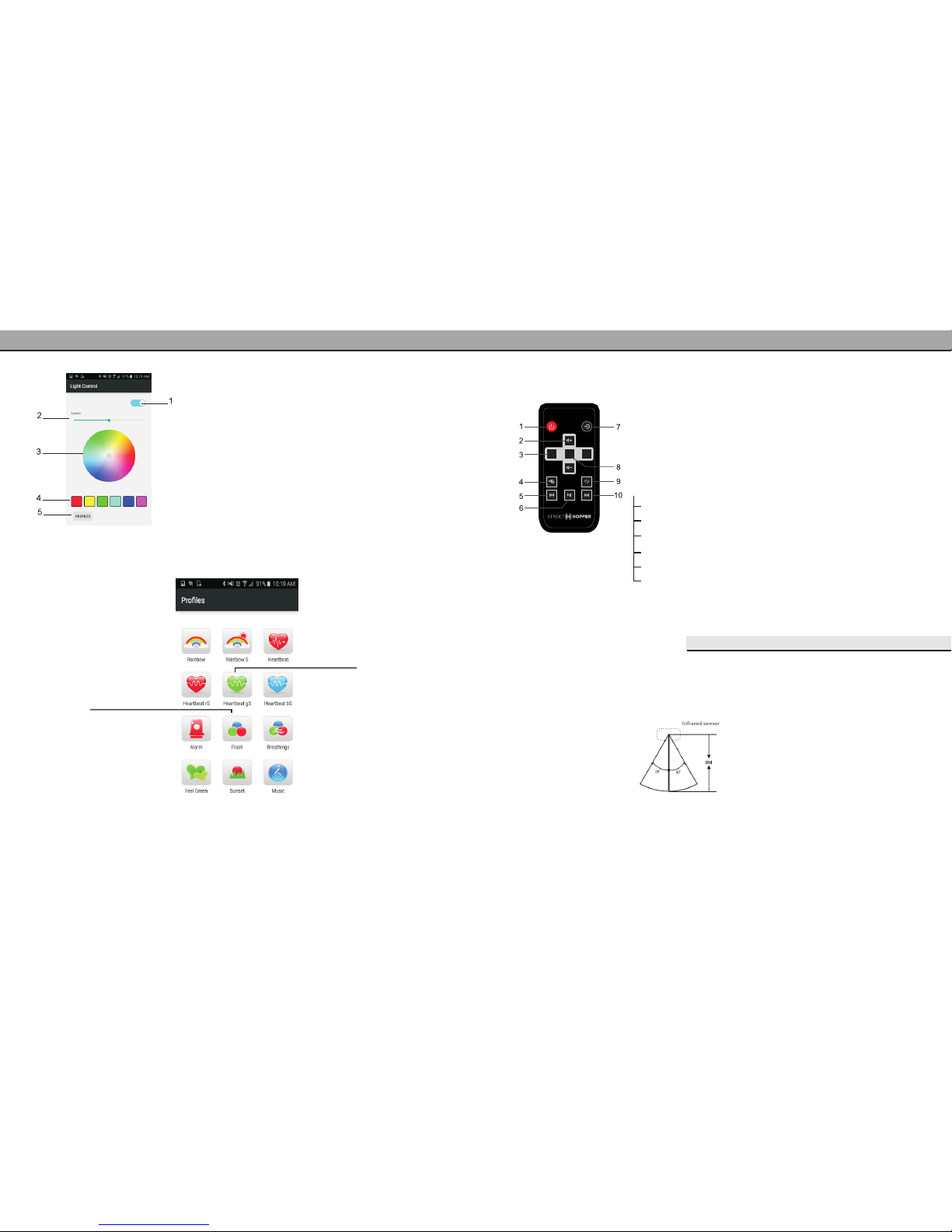
Note:
There should not be an obstruction
between the unit and remote control
Remote Control Range of Operation
Remote Control Fuctions
2
Interface Index
fig.5.1
Rainbow
mixes colors of
a rainbow
Heartbeat rS
glows red to simulate
slow heartbeat
Alarm
simulates an alarm
with red & blue lights
Feel Green
mixes colors in different
green hues
Heartbeat
glows red simulating
a heartbeat
Heartbeat bS
glows blue to simulate
a slow heartbeat
Breathings
color mixing simulating slow
breathing
Music
combines different colors to
the rhythm of your music
Sunset
mixes color in
light tones
Flash
mixes colors to
simulate a strobe
light
Heartbeat gS
glows green to simulate
a slow heartbeat
Rainbow s
mixes colors of a rainbow
slowly
1. Active Illumination You can enable or disable
the illumination
2.Lumin controls the intensity of illumination
3.Color Wheel Here you can select colors directly
and change the pitch by dragging it to any part
4. Fixed Colors Control 6 different color tones
5. Profiles Access lighting profiles fig.5.1
fig.5
5
TREBLE-9 to +9........control treble levels
MICROPHONE VOLUME 0 to 16........control microphone volume
GUITAR VOLUME 0 to 16...............control guitar volume
ECHO 0 to 16............control echo levels
LIGHT MODE 1 to 12.................control different lighting levels
BASS -9 to +9.........control bass levels
+
-
MENU
1.Stand By(Unit will be put in a sleep mode)
2.Master Volume + Up / - Down
3.Function +/- (By clicking, you can browse in menu
functions. Increase/Decrease bass, treble, volume control
and microphone)
4. Mute Button
5. Previous
6. Play / Pause
7. Input(SD/USB/LINE IN/Bluetooth)
8. Menu(Use +/- to adjust menu selections)
9. Repeat Button
10. Next Button
Page 4
- +
FUNCTION
- +
VOLUME
MIC GUITAR
LINE IN
DC 13.5V
POWER
MENU
SD
USB
OUTPUT 5V 1A
SOURCE
APP:
Discolor DJ
Panel
* Note: For optimal performance, charge battery for a period of 8 hours
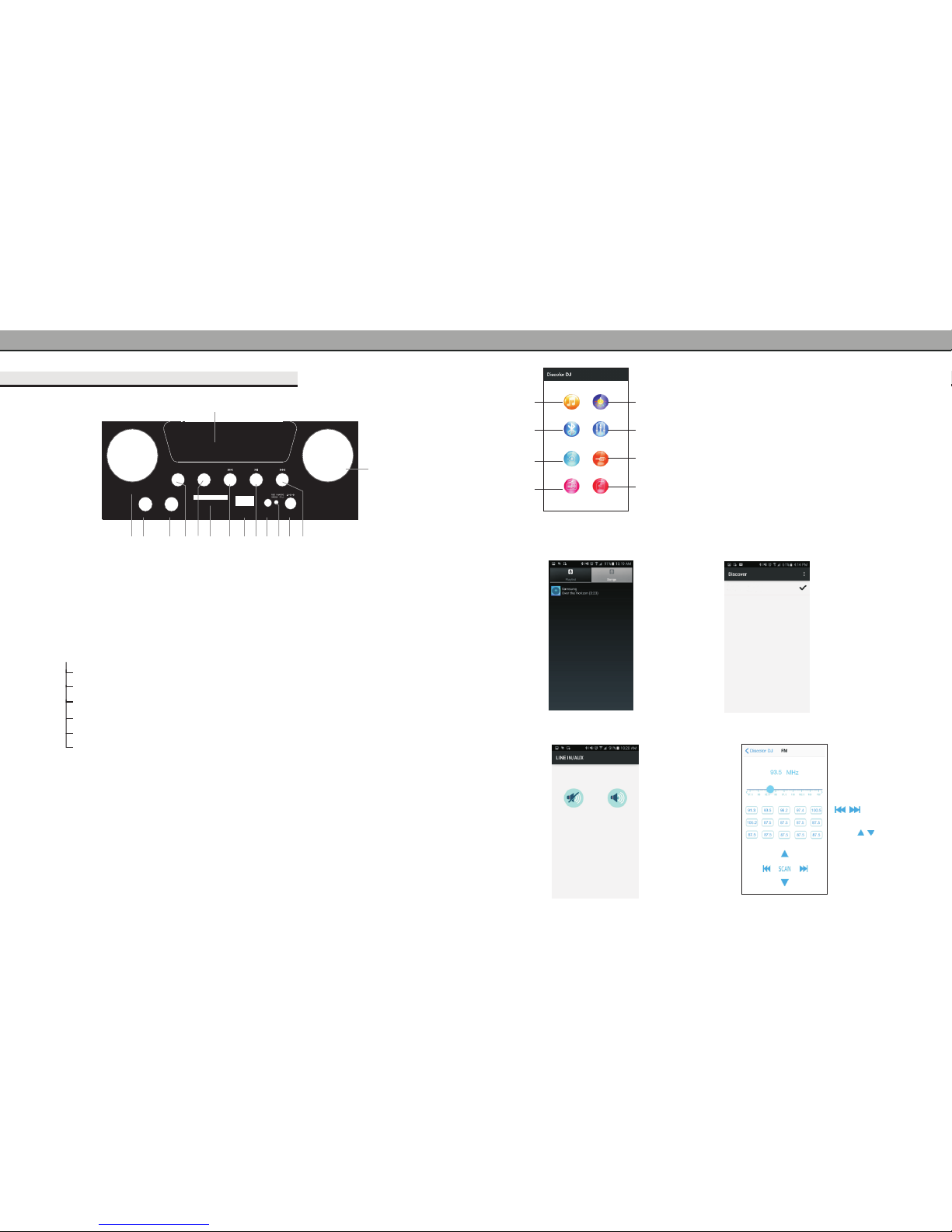
Control Panel Functions
3
1
2 3 4 7 9 1112 13
14
5 6 8 107
1. LED Panel Function Display
2. Function -/+ (Turning The Knob You Can Browse the Menu Functions,
Increase/Decrease Bass, Treble, Volume and Microphone Level)
3. Mic Input
4. Guitar Input
5. Power/SOURCE: Switch
functions by pressing button, Holding this button for 3 seconds will tum off the
unit.
6. Menu change from one function to another
7. SD/USB(USB 5V 1A)
8. Previous Song
9. Play /Pause
10. Line In
11. Charge Indicating LED
Red, indicates Charging
Green indicates charging is complete
12. DC 13.5V - Charger Input
13. Next Song
14. Volume -/+: Adjusts main volume
POWER/USB/LINE IN/BLUETOOTH/FM:
TREBLE-9 to +9........control treble levels
MICROPHONE VOLUME 0 to 16........control microphone volume
GUITAR VOLUME 0 to 16...............control guitar volume
ECHO 0 to 16............control echo levels
LIGHT MODE 1 to 12.................control different lighting levels
BASS -9 to +9.........control bass levels
fig.1
Interface Index
1
2
3
4
5
6
7
1. Music Selection Choose from songs you
have on your device fig.1
2. Bluetooth Connect to the Street Hopper unit via
Bluetooth fig.2
3.L ine In/AUX Mute fig.3
4 fig.4
5. Light Profiles Control different lighting profiles
& customize your Street Hopper unit fig.5
6.Equalizer Control equalizer levels & microphone/
guitar volume fig.6
7. USB control music from USB Card fig.7
8.SD control music from SD card fig.8
.FM Radio
fig.3
-Mute
fig.2
-Bluetooth
Synchronizing your app
with the Street Hopper
Unit
Mute line in/aux input
when connected
Press enter into FM
radio mode, press
SCAN to enter into
radio program auto
matic scan.Press
for radio
program manual
scan, Top and
bottom trimming,
slide around to
adjust radio frequency
between 87.5MHz~
108.0MHz.
fig.4
4
8
STREET HOPPER 8 APP
 Loading...