

Page 1
CContents
STORMBLUE AV-700
Contens
4
STORMBLUE AV-700
5
Safety Instructions
Precautions in use
Mechanical Parts
6
Presentations of each part and its function
7
PC connecting USB port cable
Recharge
8
File Upload & Download
Disc Format
9
Disconnection from PC
Using Reset Button
Use of Transcoder
10
12
Using the Main Options Menu When in Play
Mode
13
MENU Description
Display
15
Firmware Upgrade
MODE Description
16
Play
Technical Details
18
Trouble Shooting
19
Hardware Warranty
20
www.stormblue.co.kr
Page 2
STORMBLUE AV-700
STORMBLUE AV-700
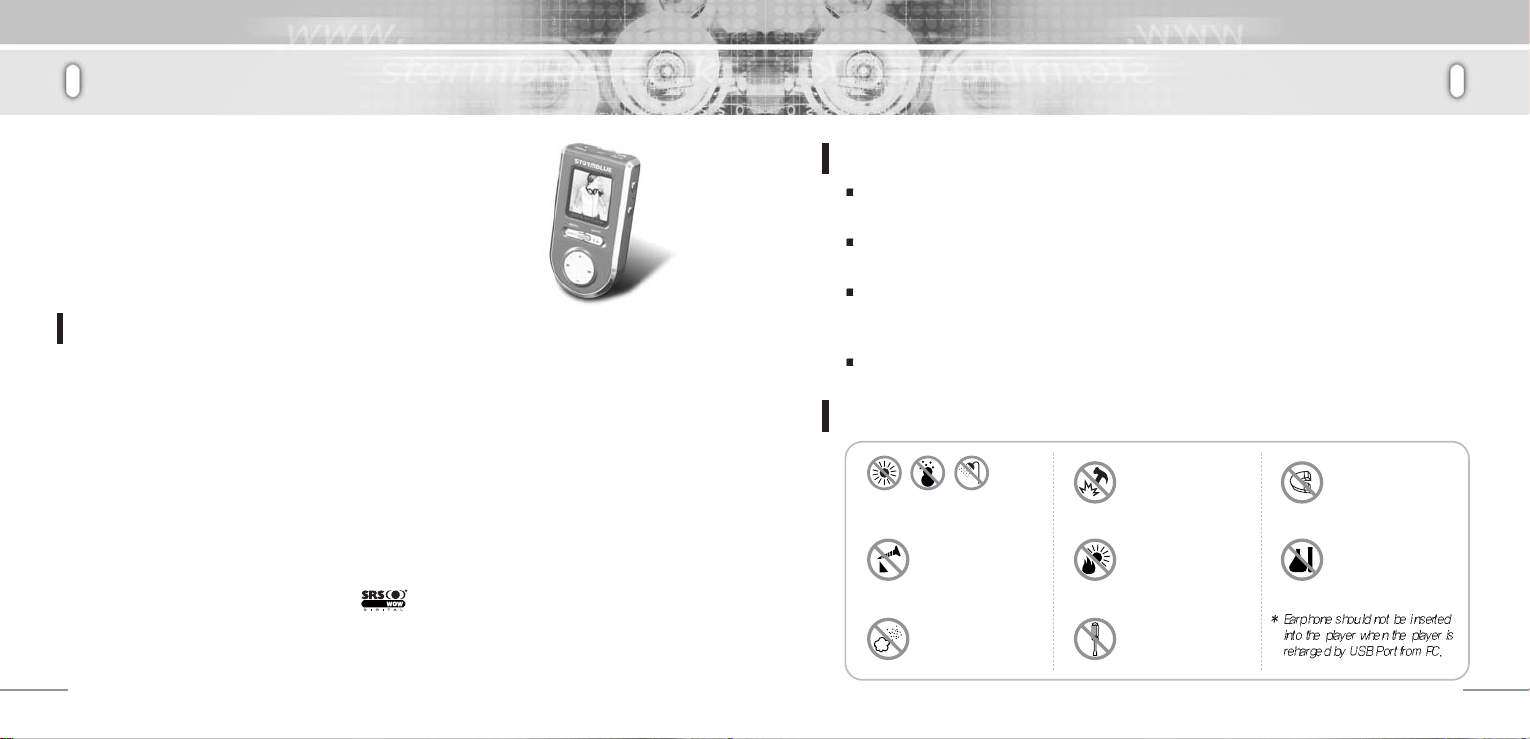
Digital Audio Player [STORMBLUE AV-700]
Thank you for purchasing AV-700 from STORMBLUE.
AV-700, developed and produced by STORMBLUE and boasting its
aesthetic design, is a portable multimedia player which enables users
to enjoy both video clips and music.
Visit our website at www.stormblue.co.kr to get more details and
download the latest palmware.
Features of AV-700
1) Images and video clips are supported by 260,000-color
2) Hi-speed USB 2.0
3) Rechargeable lithium polymer battery
(Over 15 hours of playback time for music files)
4) Powerful and natural sound. Hi-fidelity audio output (25mW+25mW)
5) FM Tuner and Preset user-defined recording scheduler (Auto channel saving)
6) Voice recording via built-in and external microphone
7) Digital Rights Management (MS-DRM, X-Sync DRM)
8) Direct Encoding
9) Digital watch and alarm
10) 45 different languages are supported
11) SRS wow 3D effect. ( is a trademark of SRS Labs, Inc.
SRS WOW technology is incorporated under license from SRS Labs, Inc.)
12) Easy-to-use and convenient Graphic User Interface (GUI)
13) Lyric display (Automatic and manual)
14) User’s EQ (5Band)
4
Cautions
Safety Instructions
Do not shake or apply heavy shocks on the product. It might be the cause fo malfunction or
damaged.
Avoid contacting the product with water. This may cause serous damage to the product. If the
player gets wet, wipe with a soft towel or rag as soon as possible.
When using your headphones/earphones. Do not wear earphones while driving an automobile,
bicycle, or motorcycle. Not only it is dangerous but also it is illegal in some jurisdictions.
Listerning to the player at large volume level for extended periods result in damaging your ears.
Turn on the ;oayer before you plug in the USB port.
To maintain good performance
Do not place any
magnetic device near
the product.
Do not use thinner,
alcohol, or benzene
when cleaning the
product.
5
Avoid high or cold temperature
and moisture.
Do ot have other
different thing in the
product.
Aviod placing the
product under high
moisture or dust level.
Do not drop or cause
impact upon the
product.
Aviod direct sunlight,
high temperature from
heation device.
Never disassemble,
repair or rebuid.
Page 3
STORMBLUE AV-700
STORMBLUE AV-700
Prouduct introduction
Mechanical Parts USB Connection to your PC
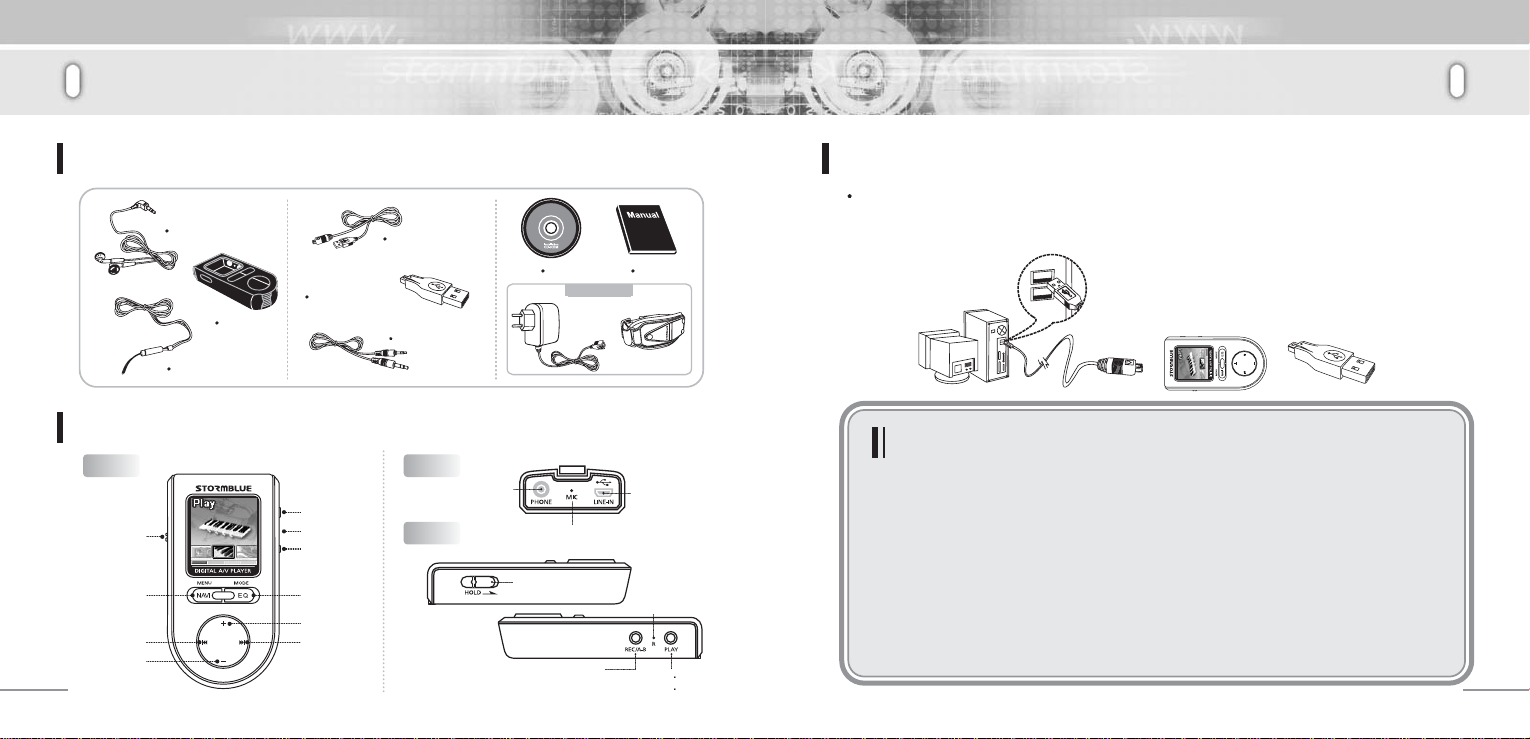
Power on AV-700, before connecting it to your PC. Using the supplied USB extension cable, you
Earphone
Neck Strap
Carrying
Case
USB Jack/Case
USB Cable
Encoding Cable
Presentations of each part and its function
Front
Hold
(long)MENU
(short)Navigation
Down
6
Play/Power
Reset
Record
A-B (Repeat)
MODE(long)
EQ(short)
Up
ForwardReward
Top
Side
Earphone
CD
Optional
USB Adaptor
HOLD KEY
Recording/
A-B repeat/Return
Menual
Arm Band
Line-in
Microphone
Reset Button
ON OFF/
Play Pasue
can connect the player directly to the USB port on your computer. (DO NOT insert the earphone
into your player when it is connected to PC.)
Cautions!
Cautions for Windows 98 or Windows 98SE Users!
When you are a user of either Windows 98 or Windows 98SE, you must install a
required driver.
If you fail to install it, your computer will not be able to recognize the player as
an external USB drive.
Users of Windows Me/2000/XP do not have to install drivers.
- Put the supplied installation CD into the CD ROM drive.
- Please visit our website at www.stormblue.co.kr to download the drivers for Windows
98 or Windows 98SE.
PC connecting USB port cable
AV-700
USB Jack/Case
7
Page 4
STORMBLUE AV-700
STORMBLUE AV-700
Using the Main Options Menu
Recharge
Connect AV-700 to USB port of PC to charge battery.
You do not have to power the player on before connection.
When the power off: It takes about 90 minutes to get the battery full charged
When the power on: It takes about 3 hours to get the battery full charged
File Upload/Download
Turn on the player and connect it to of your PC usb port.
Open Windows Explorer to select the newly-displayed portable disc file(AV-700).
Make new folders in the portable disc to arrange music files.
Any files including music can be copied or moved from PC to target folders in the portable disc.
You can also copy or move files without a folder to the root directory in the portable disc.
Disc Format
After selecting AV-700 portable disc, click the right mouse button and select ‘Format’ from
displayed menu.
Caution: Formating will erase all saved files. Do not forget to back up important files before
formating the portable disc.
Using the Main Options Menu
USB Disconnection from your PC
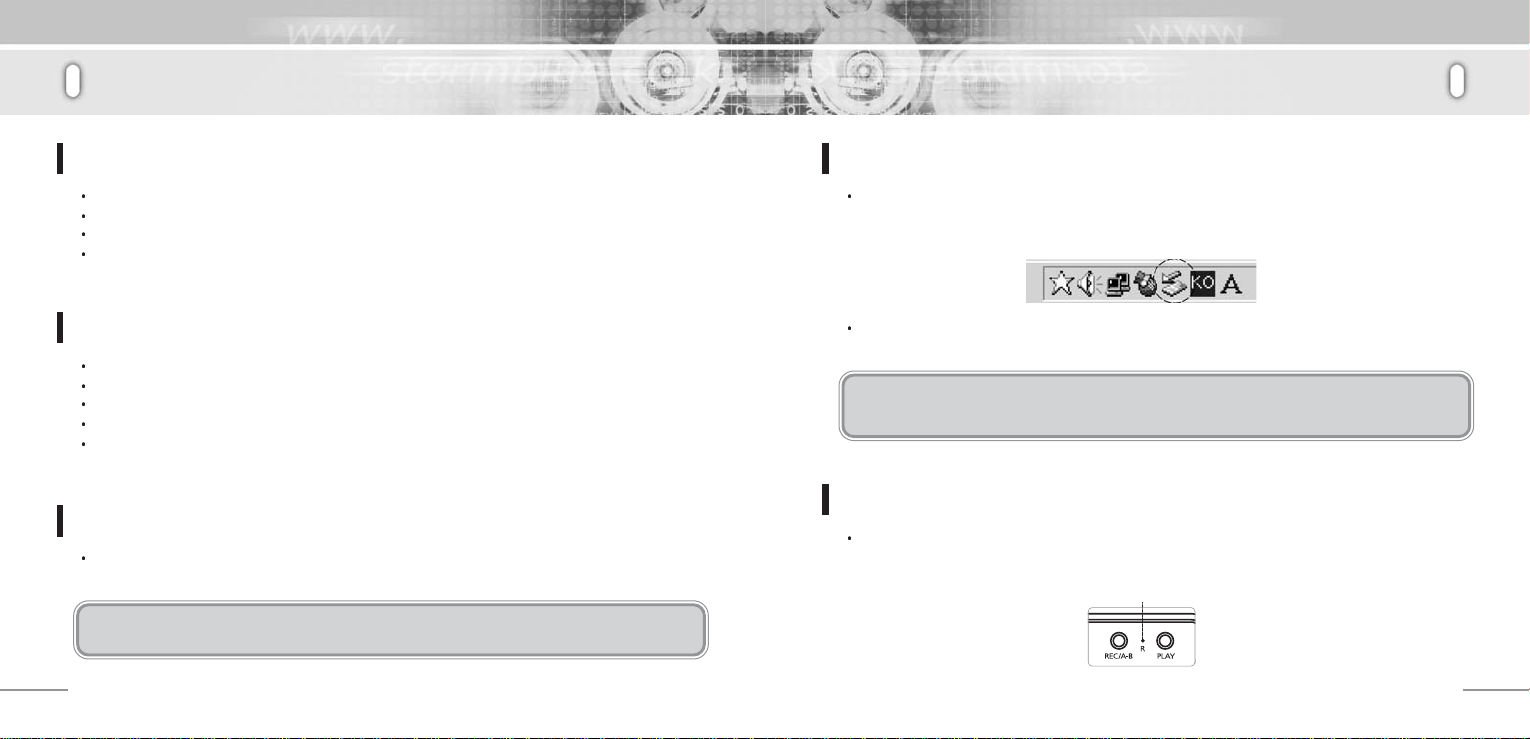
Before disconnection, DO NOT forget to double-click the green arrow icon on the system tray
which is seen at the right-bottom of your PC screen. In a dialogue box displayed, you can click
the ‘Stop’ button for disconnection.
A new dialogue box will be displayed, then click the ‘Yes’ button before safely unplugging your
portable disc from the PC.
Caution: Unplugging without following the procedure above may cause a fatal error in PC or
AV-700.
Using Reset Button
When the player would not power on or show any response, press the ‘Reset’ button. The player
will be forcefully powered off. (Data in memory will be protected)
Reset Button
8
9
Page 5
STORMBLUE AV-700
STORMBLUE AV-700
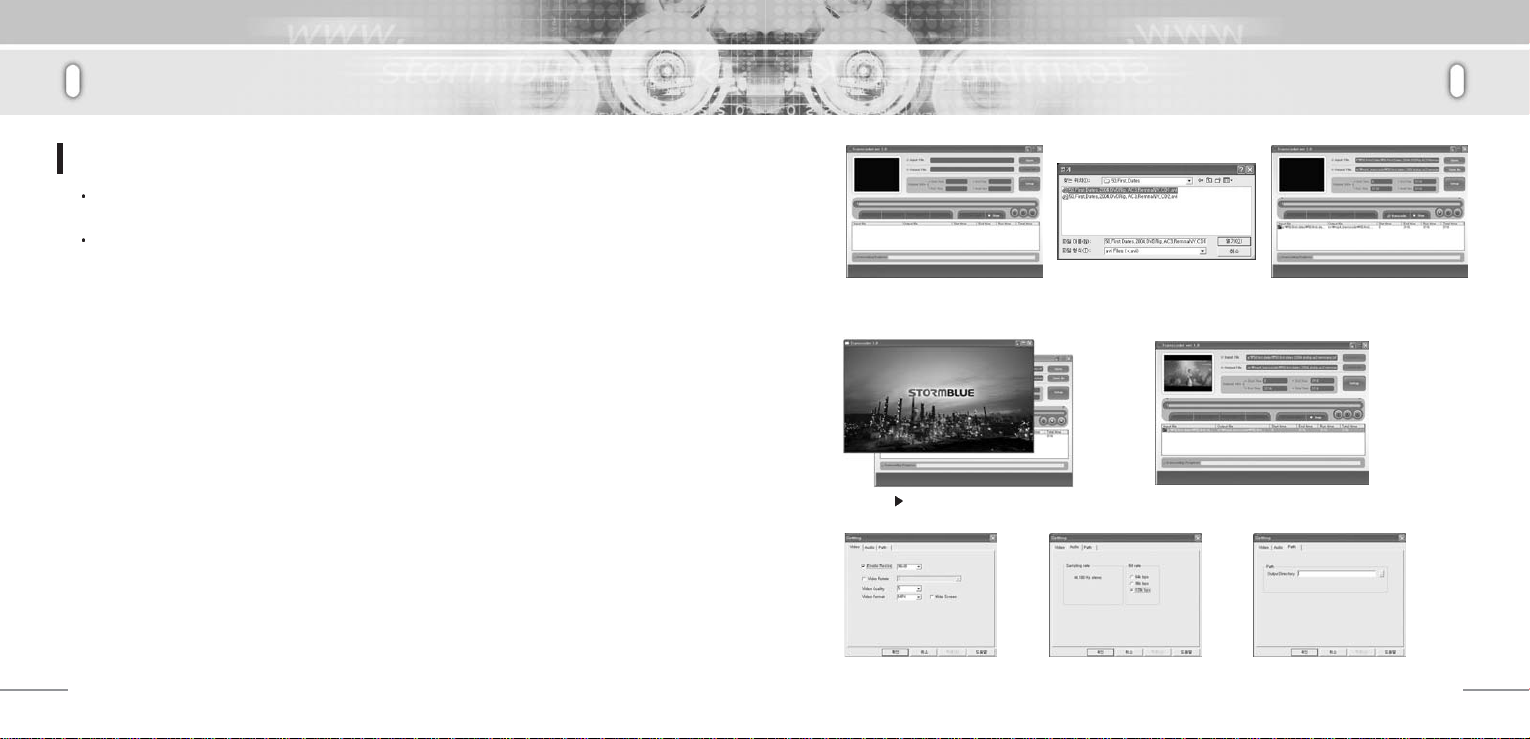
Using Transcoder(Making Movie Files)
TRANSCODER
Transcoder will transform AV-700 video clips players into movie files that can be replayed.
Install transcoder program
1) Put program CD in the CD Rom Drive
2) Enter the ‘transcoder Folder’
3) Install the program by double-click on the setup file
1. PC System Requirements
- PENTIUM 3 / WINDOWS 98/ME plus
- DIRECTX 9.0 / WMV 9.0 plus
- Integrated Codec must be installed in advance.
2. Eligible Formats
- RAW, AVI, FORMAT/DIVX, FORMAT/MICROSOFT, WMV FORMAT
3. Install necessary codecs (3 codecs below must be installed)
- Direct X : install 9.0 version or later version. Visit www.microsoft.com/windows/directx/default.sapx
and enter download center menu.
- WMV9 : Visit above site and enter download center menu. Download and install windows media
player version 9.0 or later version.
(No need to install if your current version is later than 9.0 version)
- Integrated code : Visit www.free-codecs.com and download 'K-lite codec pack' and install it.
10
Using Transcoder(Making Movie Files)
1. When pressing the ‘Transcoder’
button, you will get the main display
like the image below.
4. Press ‘ ’button to replay the selected video
clips. (You can skip this step)
* Adjust the size and image quality
of the transformed video clips.
2. Press ‘Open’ button to open
transformable video clips files.
* Adjust the sound effect of the
transformed video clips.
3. Press ‘Save as’button to select the
target folder for the transformed files.
5. Click the ‘Transcoder’ button to create the image
above and transform the selected file.
* Selected the target folder where
the transformed file will be saved.
11
Page 6
STORMBLUE AV-700
STORMBLUE AV-700
Detailed Informaiton on Product Menu
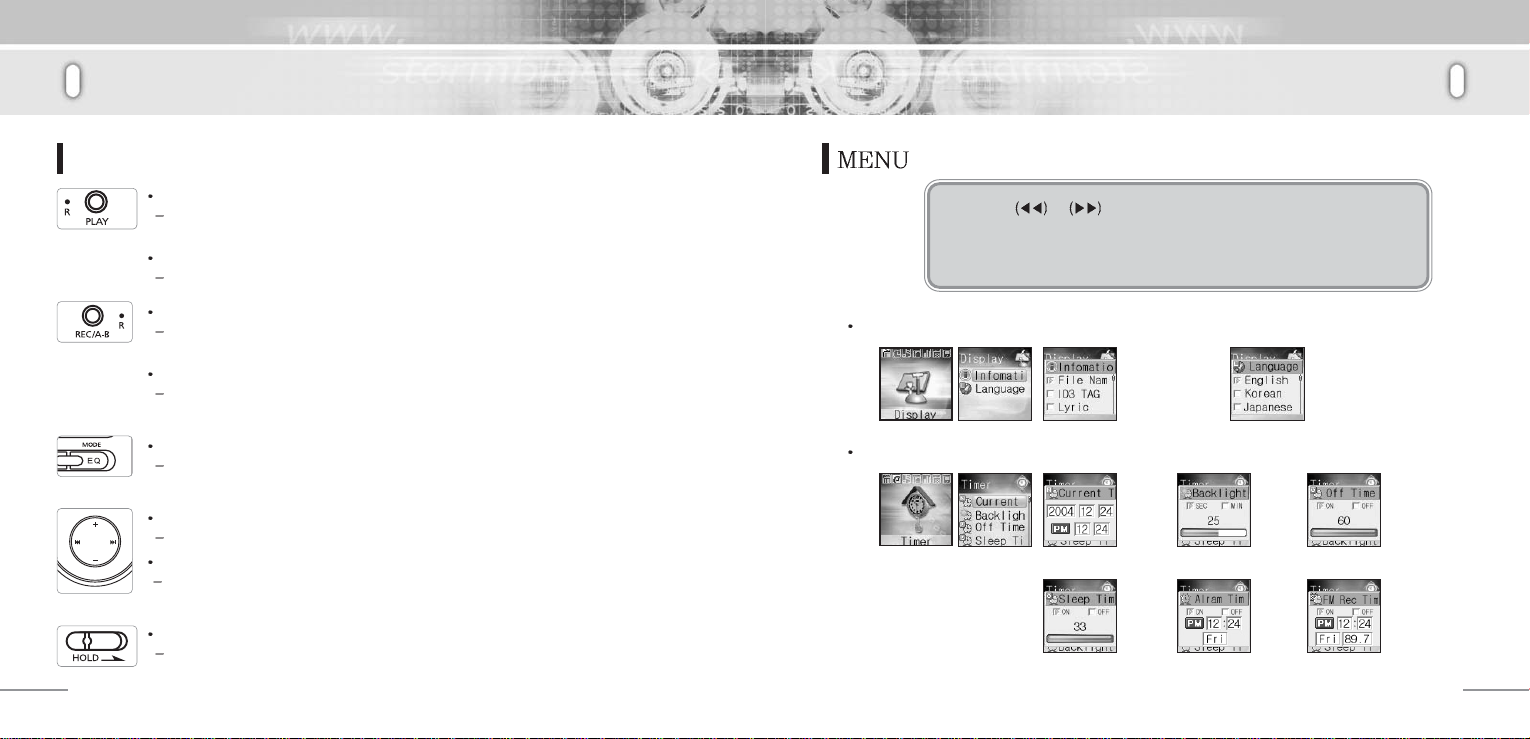
Using the Main Options Menu When in Play Mode
Turning the Power On/Off
To power the unit on, press the ‘Play’ button a few seconds. To turn it off, press the
same button again.
Play/Pause
You can play or pause a track by promptly clicking the ‘Play/Pause’ button.
Repeat mode
By shortly clicking the ‘REC/A-B’ button, you can scroll through various repeat mode
options.
Deleting Files
With a track selected, you can press the ‘REC/A-B’ button a few seconds to delete
the file.
Mode & Equalizer
By using the ‘Mode/EQ’ button, you can scroll through and select from the Equalizer
settings.
Volume Control
You can adjust the volume using the ‘(+)/(-)’ button.
Rewind/Forward
To fast forward/rewind a track, press the ‘Rewind/Forward’ button a few seconds. To
jump up to the next or previous song, shortly click the same button.
Lock/Hold Key
When moving in the direction of arrow sign, the button will not operate.
12
Detailed Informaiton on Product Menu
- The Menu will be displayed when pressing and holding the ‘Menu/NAVI’ button.
By using or buttons, you can scroll through each menu.
Use the ‘(+)’ or ‘(-)’ button to move to submenus and use the ‘Play’
button to return to the previous stage.
Use the ‘Navi’ button to select menu or enter the menu.
Display Set
Infomation
Selection for
displaying song
information
Timer
Current Time setting Backlight off time setting Off Time setting
Sleep Time setting Alram Time setting FM Recording
Language
Selection
reservation setting
13
Page 7
STORMBLUE AV-700
STORMBLUE AV-700
Detailed Informaiton on Product Menu
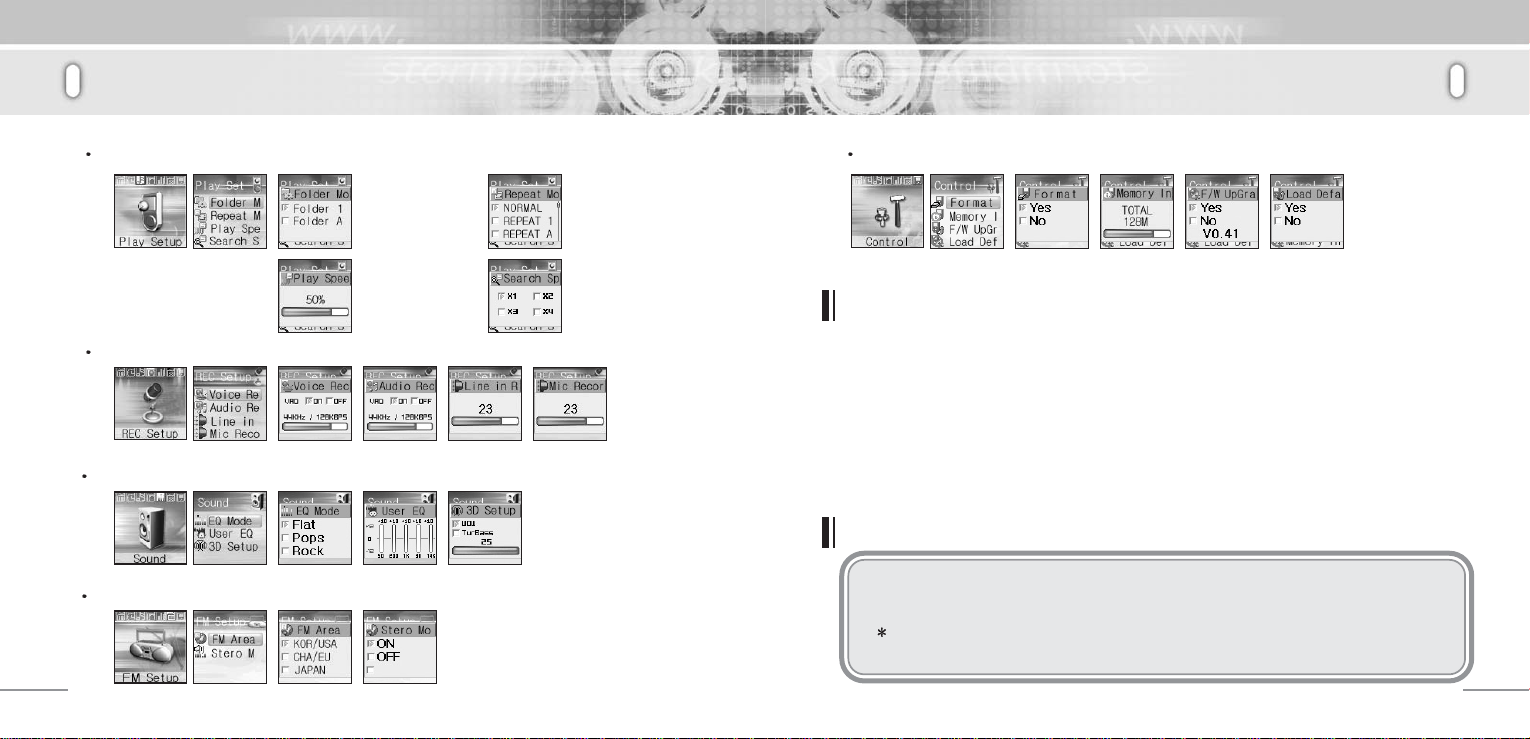
Play Setup
Folder Mode
Folder 1 : to replay song in
the current folder
Folder all : to replay song
in every folder in the player
Play Speed
Adjust the speed to replay
song
REC Setup
Sound
FM Setup
Repeat Mode
Search Speed
Adjust the speed to rewind
or wind forward fast.
Detailed Informaiton on Product Menu
Control
Format
Firmware Upgrade
AV-700 provides firmware upgrade services for more convenient quality
improvement.
1. Download upgraded files from the STORMBLUE website at www.stormblue.co.kr
2. Connect the player to the USB port of your computer and copy it from PC into the folder of
‘Config’ in the player.
3. Disconnect the player from the USB port. (When disconnected, the player will be automatically
turned off) Power the player on again and press the ‘MENU/NAVI’ button a few seconds
4. Enter control munu and F/W upgrade menu. Select ‘yes’ and then it upgrade F/W by itself.
Cautions!
Check the firmware version of your player.
-Firmware upgrade is applicable only when higher versions are available.
When you make a firmware upgrade, make sure the battery has to be charged
enough. (one-third or more)
Memory
Information
Firmware
UpGrade
Load
Default
14
15
Page 8
STORMBLUE AV-700
STORMBLUE AV-700
Detailed Informaiton on Product Menu
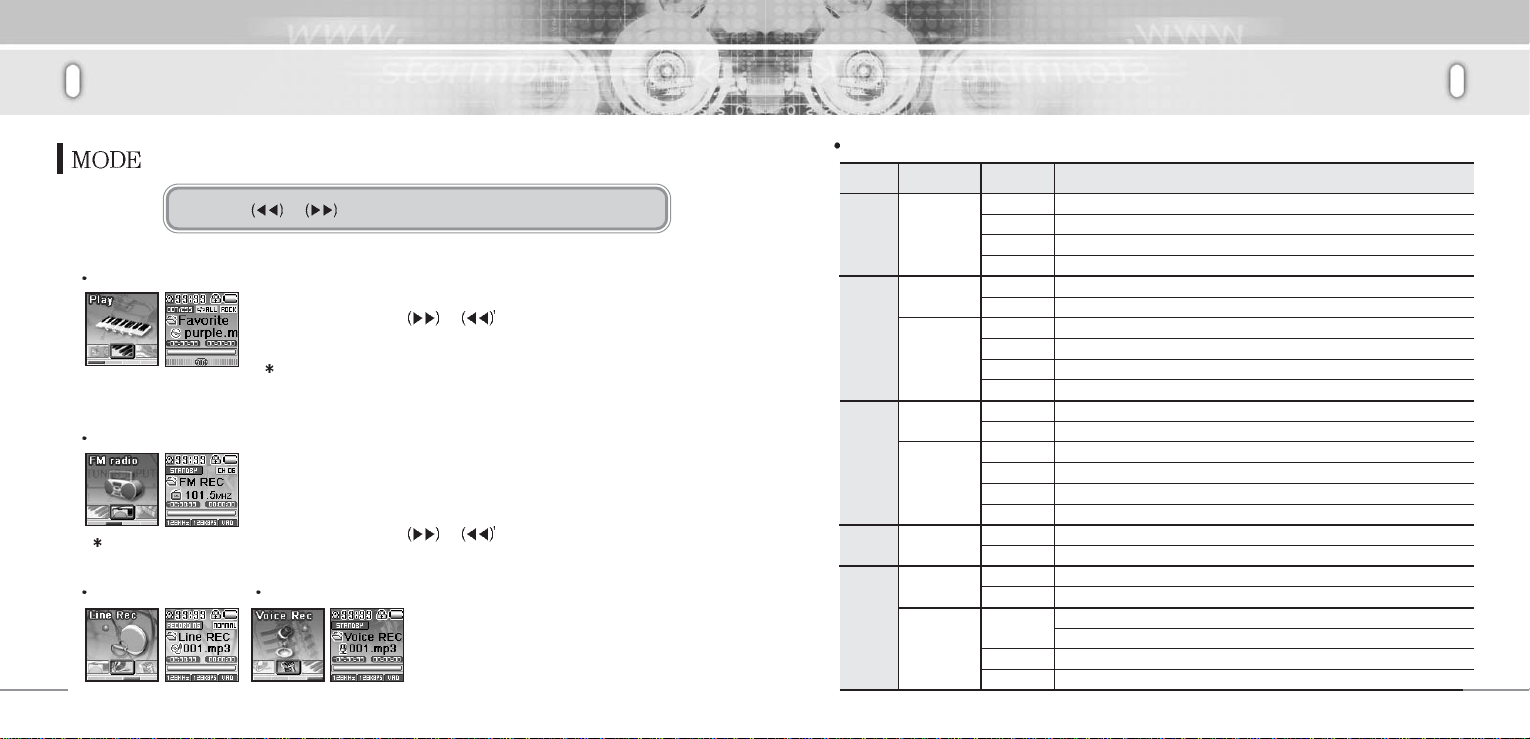
- The Menu will be displayed when pressing the ‘Mode button.
By using or buttons, you can scroll through each menu.
Play Mode
- Click the ‘MENU/NAVI’ button to play a selected file.
- By using the ‘FF/REW
previous file.
In the same way you can play all kinds of files (Video clips,
music, images, recorded voices, data from external devices)
FM radio Mode
17page
Line Rec Mode
16
- Shortly click the ‘Play’ button to pause or mute.
- Click the ‘MENU/NAVI’ button to select ‘Scan/Preset’ mode.
- Press the ‘REC/A-B’ button a few seconds for recording and shortly
click the same button to save the frequency.
- By using the ‘FF/REW or button, you can adjust
frequencies.
Voice Rec Mode
- Shortly click the ‘REC/A-B’ button to start or
stop recording.
- Click the ‘Play’ button to activate
pause/replay function.
or button, you can select the next or
Detailed Informaiton on Product Menu
Details on Product Menus
Keys Mode Functions
Pressing time
Activates the Mute function
Deactivates the Mute function
Recording is temporarily paused.
REC
Recording is resumed.
Automatically searches for the whole radio stations in increasing order (Auto Scan)
Scan
Searches for stations available one by one. (in increasing order)
Save
Stops searching for radio stations.
Increases frequencies one step.
Scan
Selects the stations saved in memory.
Preset
Searches for stations available one by one. (in decreasing order)
Save
Automatically searches for the whole radio stations in decreasing order (Auto Scan)
Scan
Searches for stations available one by one. (in decreasing order)
Save
Stops searching for radio stations.
Decreases frequencies one step.
Scan
Selects the stations saved in memory.
Preset
Searches for the stations available one by one. (in decreasing order)
Save
Preset Mode will be in operation
Scan
Scan Mode will be in operation
Preset
Start recording
Stop recording
REC
Auto Memory Scan is activated.
Preset
(A maximum of 20 stations can be saved after a auto scan)
Save Mode is activated to save the searched stations.
Scan
Saves the stations into a selected memory.
Save
Play
FF
REW
MENU/
NAVI
AB/
REC
Shortly
Over 1 sec.
Shortly
Over 1 sec.
Shortly
Shortly
Over 1 sec.
Shortly
Mute Off
Mute On
REC Pause
Auto Scan
AutoScan
REC Ready
17
Page 9
STORMBLUE AV-700
STORMBLUE AV-700
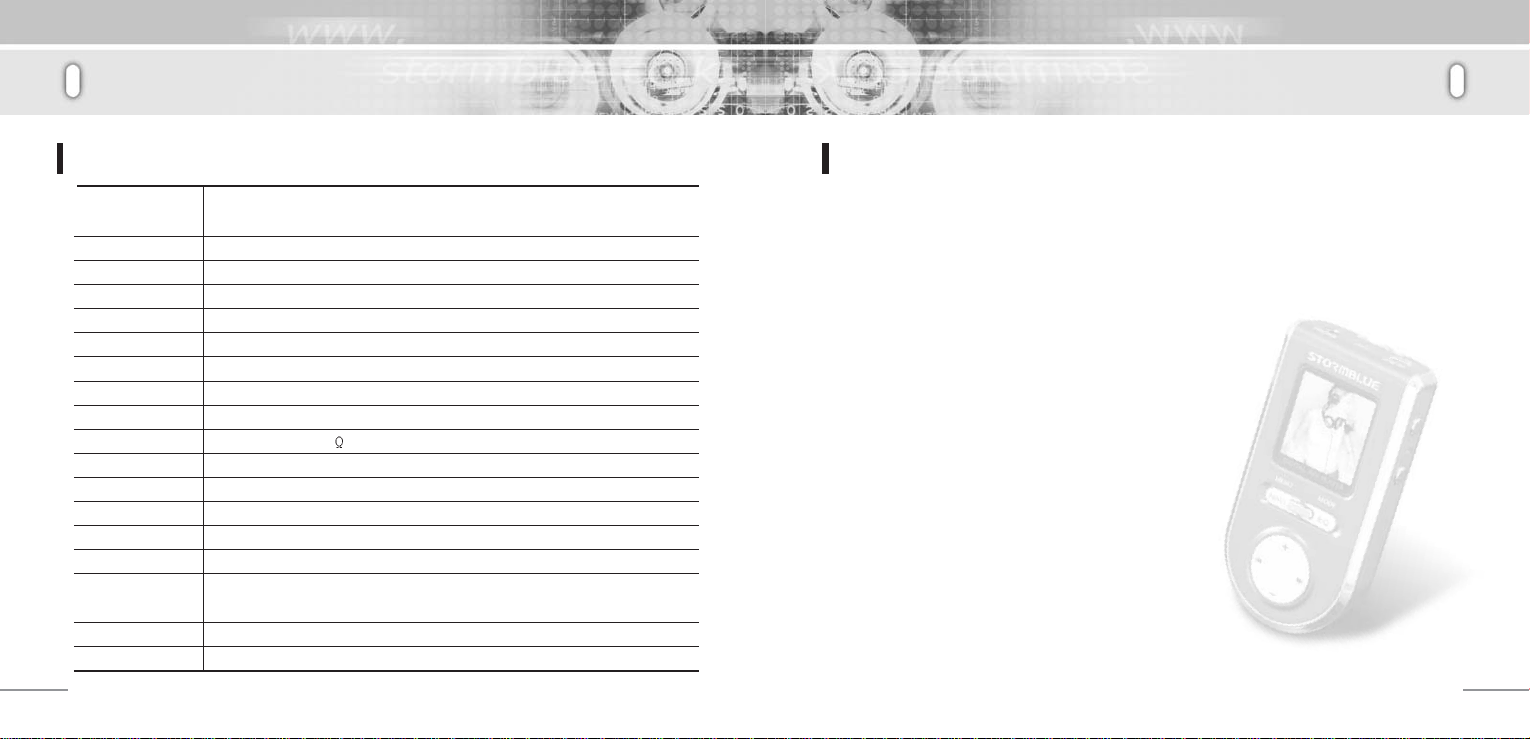
Technical Details
Specifications
File Support
Memory
PC interface
Speed
Power
Charging time
Buttons
Display
S/N
Sound outpput
Frequenc
Play time
FM frequency
Recording time
EQ
OS support
size
Weight
MPEG 1/2/2.5 Audio Layer 3 (8Kbps ~ 320Kbps) (8Khz ~ 48Khz) / TXT /JPEG
WMA (20Kbps ~ 320Kbps) (8Khz ~ 48Khz) / VBR / OGG Vorbis(Q1~Q10)
256MB, 512MB, 1GB
HIGH SPEED USB2.0
UP Load 11MB, Down Load 8MB
Builtin Li-poly battery (700mA)
90minutes
Play/Pause, REC(A-B), HOLD, MENU(NAV), MODE(EQ), Vol+/-, FF, REW
260,000 Color OLED 96*96 DOT
90dBA
25mW + 25mW (16
20Hz ~ 20Khz
15hours (in standard condition)
76.0Mhz ~ 108.0Mhz
About 35hours (512MB)
POP, ROCK, CLASSIC, VOCAL, LIVE, D-BASS, FLAT, USER EQ, SRS WOW
Windows98/se/ME/2000/XP/2003/LINUX2.4 or later version
Mac 8.6 or later version
69 * 33 * 16 (mm)
40g (including battery)
)
Information
Trouble Shooting
1. The Player does not power on.
- Lock is in the HOLD position? (Release the hold)
- The batteries are exhausted? (Recharge the batteries)
- Click the Reset Button and initialize the player.
2. No sound is heard from player or distortion is heard during playback.
- Check whether VOLUME is set to “0”
- Make sure that there are MP3 files in the memory.
- Check whether plug is dirty.
- Corrupted MP3 or WMA files may make a static noise and the sound may cut off.
Try with other files.
3. Characters on LED are abnormal.
- Check the language is setting to “English” in MENU.
4. FM Radio does not work.
- Adjust the position of the player and earphones.
(The earphones works as antenna, they must plugged in for best reception)
- Turn off the power of other eletric devices near the player.
5. Failed download.
- Make sure the USB Cable is connected properly.
- Check the condition of the battery.
6. The player works abnormally or does not play.
- Click the Reset button and initalize the player.
18
19
Page 10
STORMBLUE AV-700
Warranty
Warranty Memo.
1. This product has been manufactured under strict quality and control inspections.
2. If the product breaks down during normal usage, our dealer or service center will fix the
product for the period free listed in the warranty as below.
3. A service free may apply after the warranty period or in case of the following.
-Of the problem was caused by the customer’s misuse.
-If any internal modification was done by the customer.
4. We do not reissue warranty certificate. Please store it in a sage space.
Product
Model Name
Name
Customer
Purchaser
Date of Purchase
Period of Warranty
Address
Tel
Name
Address
Tel
Month Day Year
STORMBLUE AV-700
For more warranty information and RMA service, please visit our web-site at http://www.stormblue.co.kr
20
21
Page 11

Note:
This equipment has been tested and found to comply with the limits for
a class B digital device, pursuant to Part 15 of the FCC Rules.
These limits are designed to provide reasonable protection against
harmful interference in a residential installation. This equipment
generates, uses and can radiate radio frequency energy and if not
installed and used in accordance with the instructions, may cause
harmful interference to radio communications. However, there is no
guarantee that interference will
not occur in a particular installation. If this equipment does cause
harmful interference to radio or television reception, which can be
determined by turning the equipment off and on, the user is encouraged
to try to correct the interference by one or more of the following
measures:
-Reorient or relocate the receiving antenna
-Increase the separation between the equipment and receiver
This device complies with Part 15 of the FCC Rules. Operation is
subject to the following two conditions: (1) this device may not cause
harmful interference, and (2) this device must accept any interference
received, including interference that may cause undesired operation.
**CAUTION: Changes or modifications not expressly approved by the
party responsible for compliance could void the user's authority to
operate the equipment.
-Connect the equipment into an outlet on a circuit different from that to
which the receiver is
connected
-Consult the dealer or an experienced radio/TV technician for help.
1
 Loading...