

Page 1
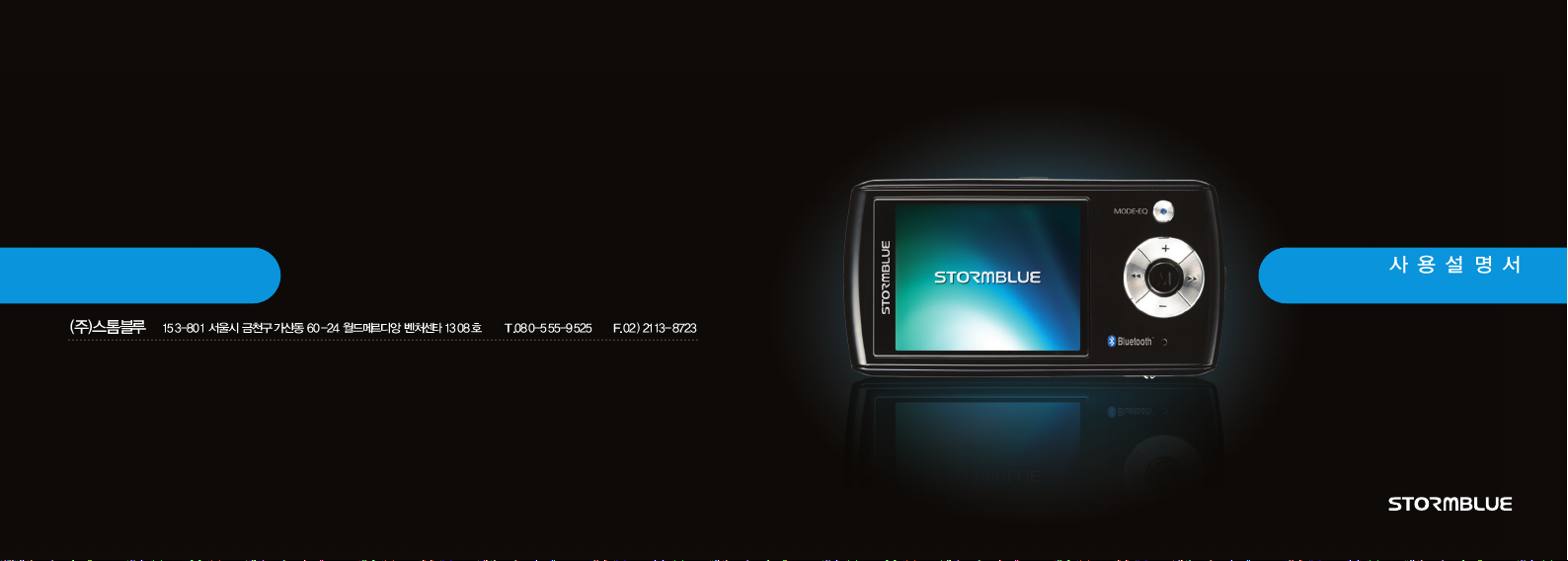
www.stormblue.co.kr
STORMBLUE CO., LTD.
Rm 1308, World Meridian Venture Center, 60-24, Gasan-dong, Guemchon-Cu, Seoul, 153-801, Korea
Tel. 82-2-2113-8745 Fax. 82-2-2113-8723
A9
+
User Manual
[VER-2.0]
Page 2
Page 3
A9
+
Safety instructions
Safety instructions
A9
+
Cautions!
Do not shake or apply heavy shocks on the product.
It might be the cause of malfunction or damaged.
Avoid contacting the product with water.
This may cause serious damage to the product. If the player gets wet,
wipe with a soft towel or rag as soon as possible.
When using your headphones/earphones.
Do not wear earphones while driving an automobile, bicycle, or motorcycle.
Not only it is dangerous but also it is illegal in some jurisdictions.
Listening to the music by earphones at large volume level for extended
periods of time may result in damaging your ears.
You must not newly make any file to CONFIG folder of the player.
STORMBLUE 02
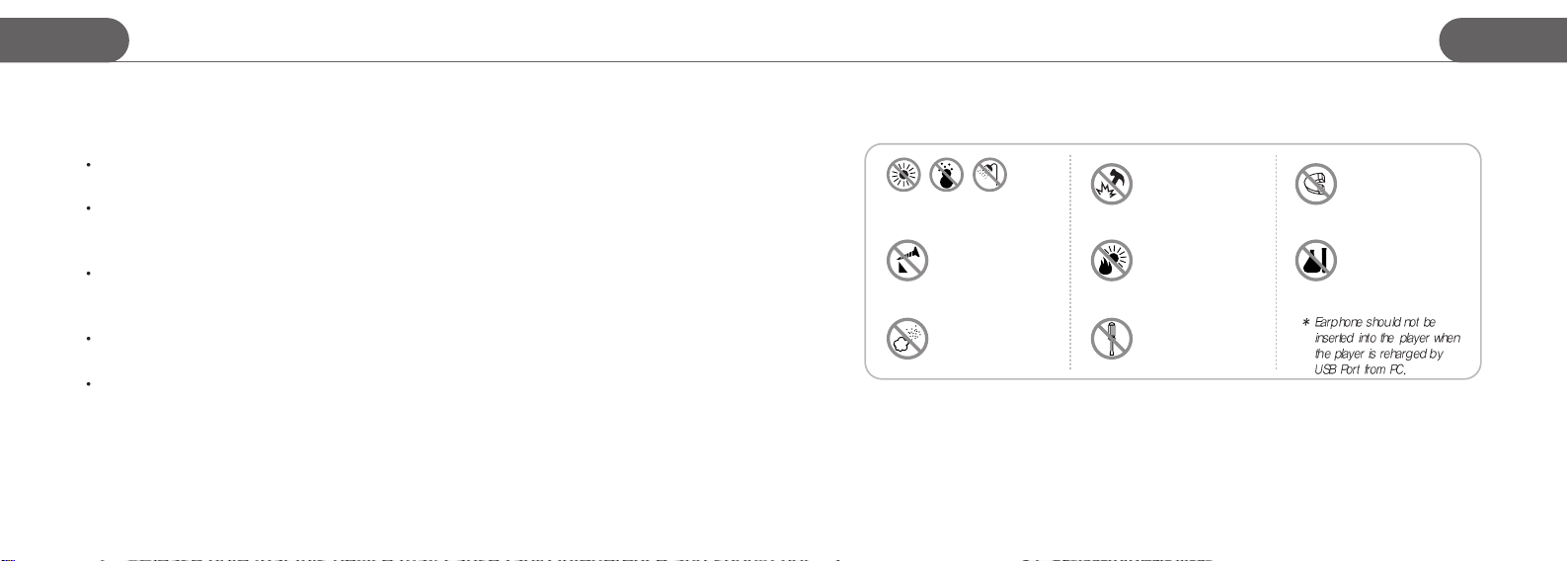
To maintain good performance
Avoid high or low temperature
and moisture.
Do not have other
different things in the
product.
Avoid placing the
product under high
moisture or dust level
Do not drop and impact
the product.
Avoid direct sunlight,
high temperature from
heating device.
Never disassemble,
repair or rebuild
Do not place any
magnetic device near
the product.
Do not use thinner,
alcohol, or benzene
when cleaning the
product
03 STORMBLUE
Page 4
+
A9
Accessories Description of each part of the player
Appearance of player
Appearance of player
A9
+
Accessories could be changed without notice in advance to increase the performance or quality of the product.
STORMBLUE 04
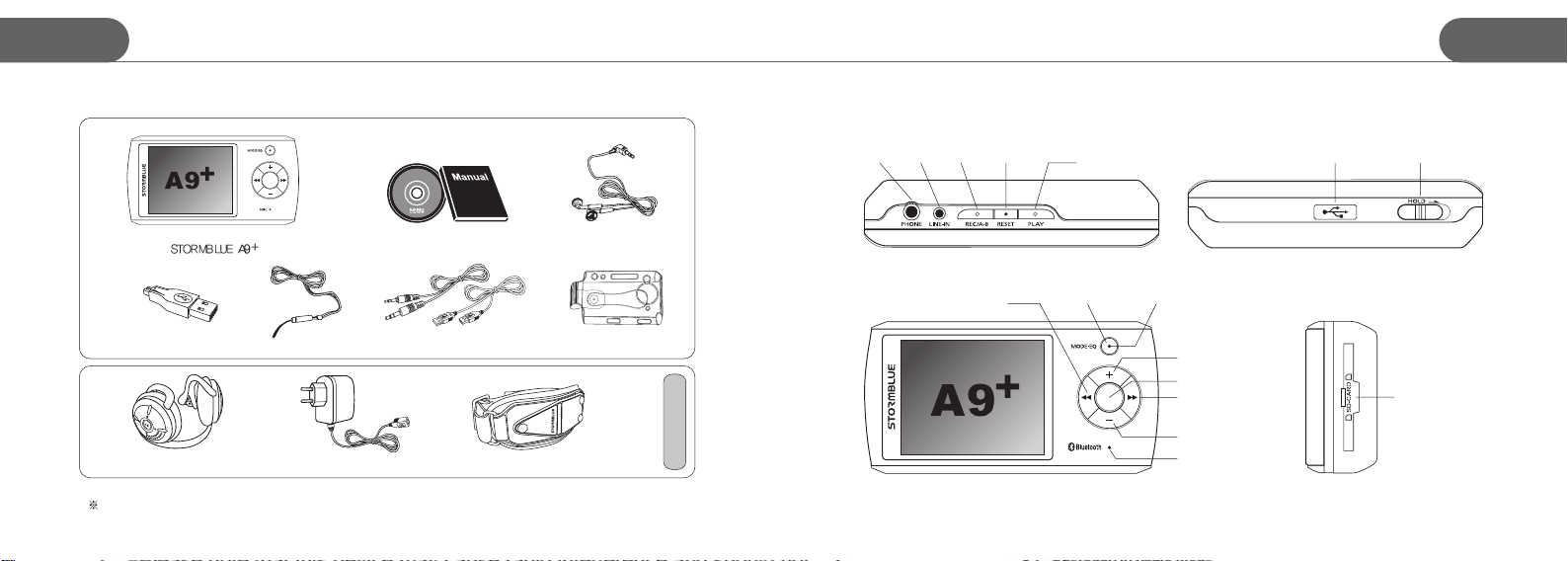
Installation CD, User manual Earphones
Neck strap Encoding cable, USB extension cable Carrying caseUSB Gender
Bluetooth stereo headset USB Adaptor Arm Band
Optional
REC/A-BLine-inEarphones
Rewind
Reset
Power/Play
Mode/EQ LED
USB Conector
Up
Menu/Navigation
Forward SD card slot
Down
Microphone
Hold key
05 STORMBLUE
Page 5
A9
+
Preparation to use the player
Preparation to use the player
A9
+
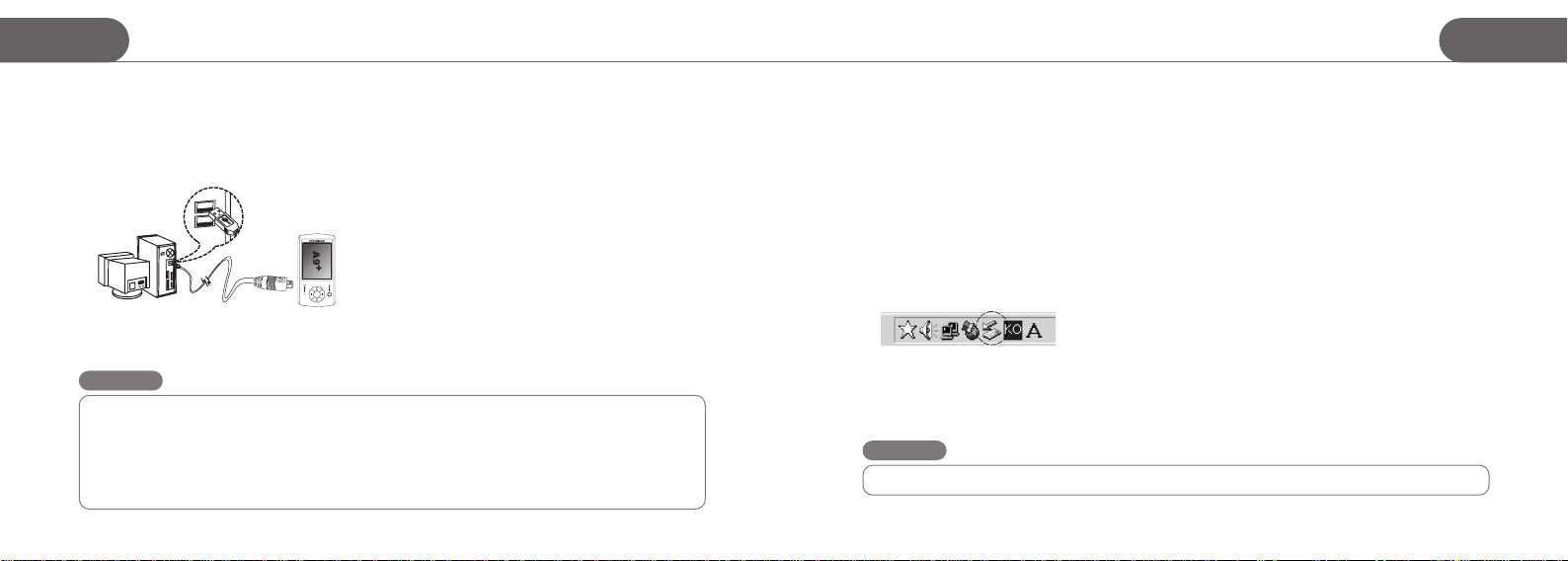
Connecting MP3 player to your PC
1. You can connect the player to your PC by included USB cable. Pick up the included USB extention cable and
connect it to the USB port of your PC.
2. Plug USB extension cable in the USB port of MP3 player and Plug the other side of the USB Minijack in the Female
USB port of the extension cable.
3. Turn on the player by push and hold the power button. Then, a removable disk will appear in your PC when you open
windows explorer.
4. Earphone should not be inserted into the Player when the player is connected to PC
Caution
For users whose OS version is Windows 98 or Windows 98SE
The Driver for Window 98 and 98SE must be installed in your PC before you connect this player to your PC if you
use Windows 98 or 98SE OS. Do not install the driver if your OS is Windows ME/2000/XP.
- Insert the provided program CD to the CD Rom drive in your PC.
- Enter Win98 driver folder and Run the Driver for Win98/SE OS.
- You can visit our website www.stormblue.biz to download the driver for Windows 98/SE
STORMBLUE 06
File upload/Download
The player should be turned on in advance before you plug it in the USB port
a. Open Windows Explorer and select the removable disk newly created.
b. You can just copy/move files from your PC to the removable disk.
c. You can create many folders in the removable disk to sort out music files.
d. Just copy or move any files including music files from your PC to a certain folder in your removable disk.
You must not newly make any files to the CONFIG folder of the removable disk.
e. You can delete/rename any files stored in the removable disk in the same way as you do in the PC.
Disconnecting the player from your PC
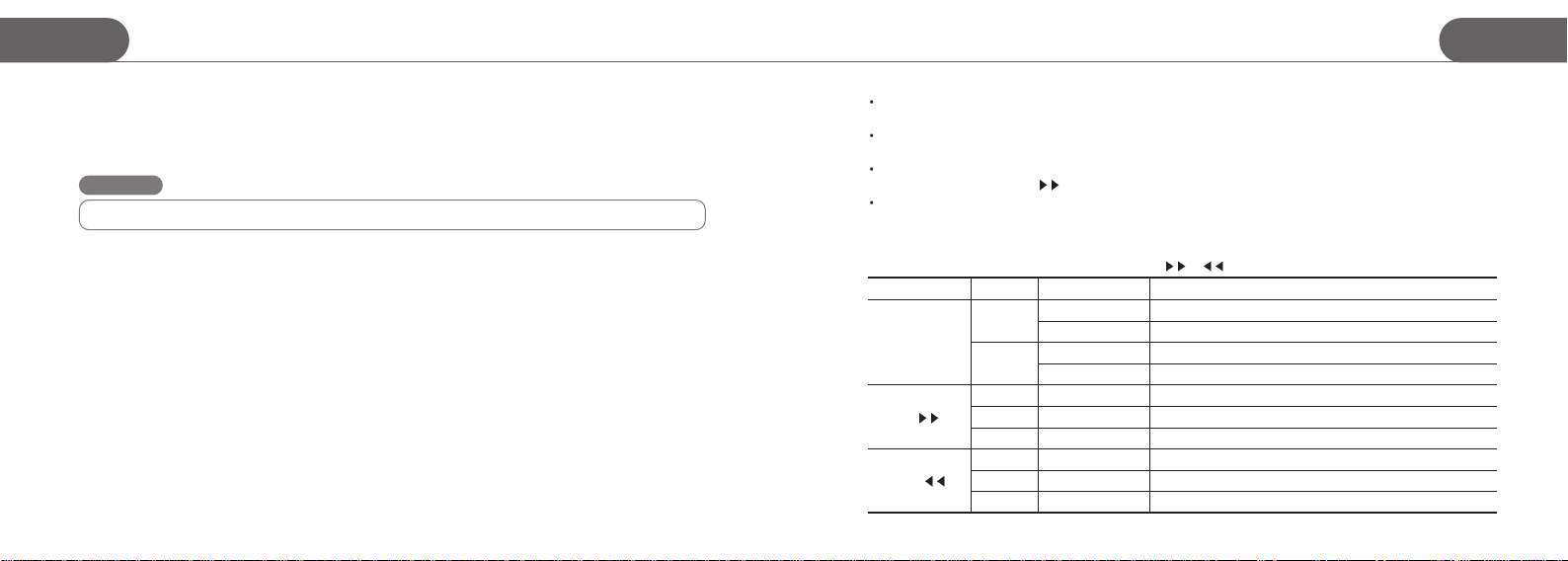
a. Before unplugging the player from the PC, make sure to double click the Green Arrow icon on the task bar on the right
bottom of the PC screen.
b. When the dialogue box is displayed on the monitor, Click the stop button to stop USB Mass Storage Device.
c. When a new dialogue box appears, click “OK ” to clearly remove the removable disk from your PC.
d. If you use Windows 98 or 98SE, first open windows explorer. Click the removable disk by right button of the mouse
and pop-up menu will appear. Then, you can proceed to disconnect the player accordingly.
Caution
Fatal error may occur in the PC or the player if you remove the player without completing above procedures.
07 STORMBLUE
Page 6
A9
+
Preparation to use the player
Operation of the Player
A9
+
Format the player
a. Open Windows Explorer and click the removable disk by the right button of the mouse.
b. Click the format menu by the left button of the mouse.
Caution
Format function will delete all files in the player. Backup all the important data before formatting the removable disk.
Charging the player
Just connect the player to the USB port when your PC is turned on. Then the charging lamp will be turned on. You don’t
need to turn on the player before connecting to the USB port if you only want to charge the player. When fully charged, the
charging LED will be turned off.
When the player is turned off. : The player is fully charged within 1.5 ~ 2 hours.
When the player is turned on. : The player is fully charged within 4 to 5 hours.
STORMBLUE 08
To enter the Mode menu, click and hold the mode Mode button. To select the Mode and get out of the Mode menu, click
Menu button.
To play music files, select Audio play mode. To play video files, select moive play mode. In the same way, photo view
mode is for image file like JPG and TEXT view mode is for playing TEXT file.
Just click Menu button to enter navigation mode. In navigation mode, you can display any file such as music file, video
file, text and image file by click
Copy or move files from your PC to proper folder of the player. Video files to movie folder, TXT files to document folder
and image files to photo folder.
or PLAY button when the cursor is over the file you want to play.
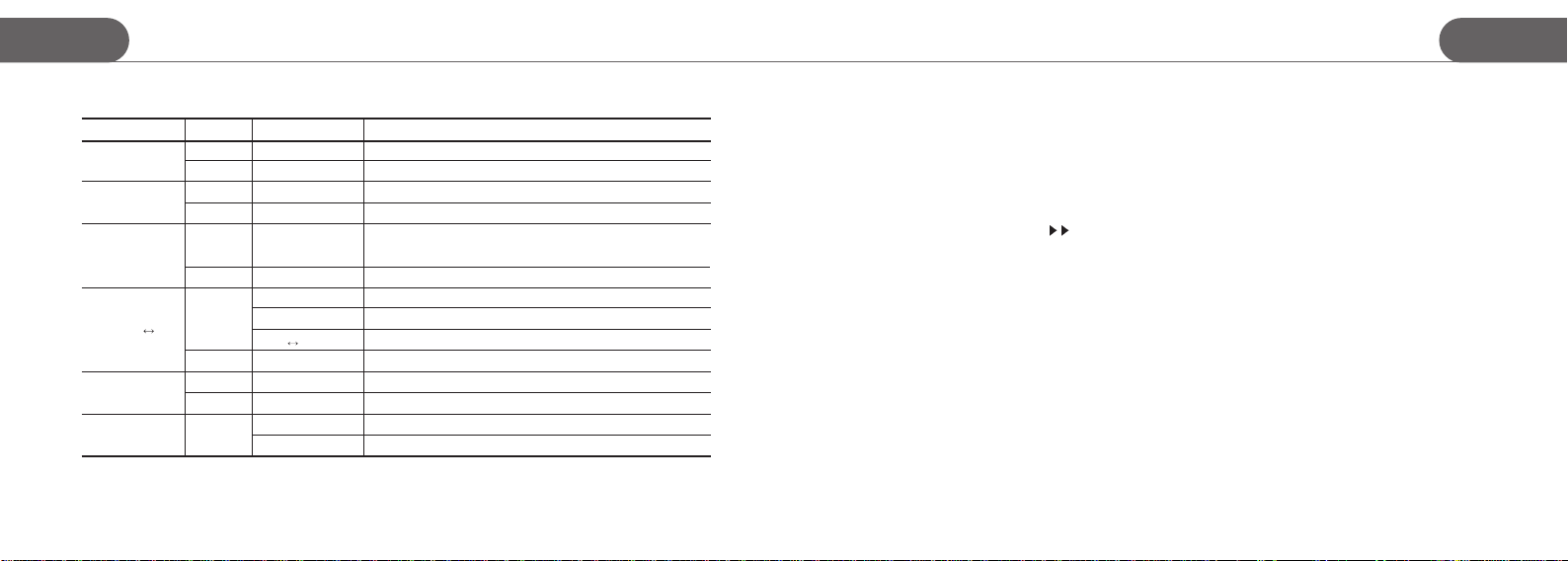
Operation in Playback mode
Click and hold Mode button and move to Audio play mode by or button. Then, click Menu button to select the mode.
Button
PLAY
FF
REW
Click
shortly
shortly
shortly
shortly
shortly
Present Status Operation when clicked
long
long Playback
long
Power OFF Turn on
Power on
Playback
Playback / Pausing
Navigation mode
Playback
Playback / Pausing
Navigation mode
Turn off
Playback of music and movie files.
Pause
Foward fast
Playback of the Next file
Go to the subfolder
Rewind fast
Playback of the previous file
Go to the Previous folder
09 STORMBLUE
Page 7
A9
+
Operation of the Player
Operation of the Player
A9
+
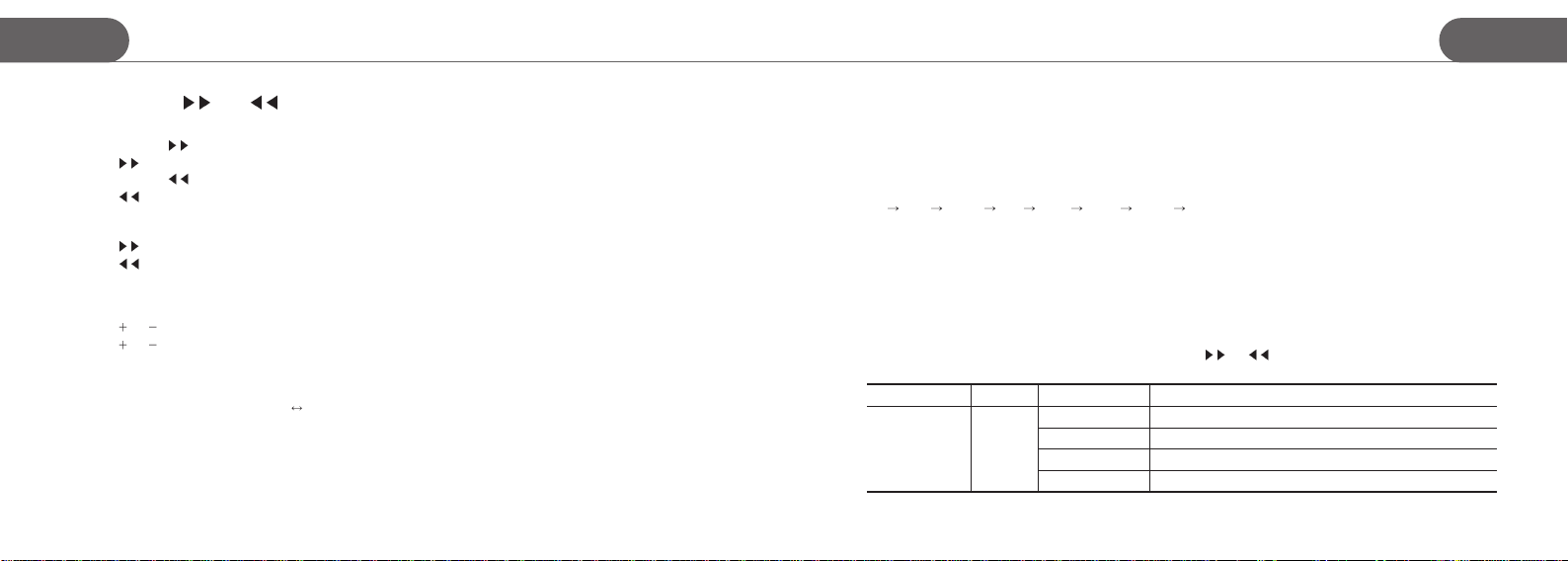
Operation in Playback mode
Button
+(Up)
- (Down)
MODE/EQ
REC/A
Menu/Navi
Hold
STORMBLUE 10
long/short
long/short
B
Click
shortly
shortly
shortly
shortly
shortly Playback
push
Present Status Operation when clicked
Playback
Navigation mode
Playback
Navigation mode
Playback
long
long
long
Power on
Playback Start A-B repeat function marking A point
Playback
A
B repeat
Navigation mode
Playback/Pausing
Hold Off
Hold On Activate all button
Volume up
File serach
Volume down
File serach
Switching EQ
(Flat-POP-Rock-Live-Classic-Vocal-Dbass-User EQ)
Enter Mode menu
Start A-B repeat function marking B point
Finish A-B repeat
File Copy, Delete, Cancel
Enter Navagation mode
Enter menu
Deactivate all button
Power On / Power Off
- Push and hold the Power/Play button to turn on the player.
- Do the same to turn off the player
Playback / Pause
- When powered on, just click Power/Play button
- You can replay music file by click
- In this same way, you can also run text files and JPG image files.
- If you power off the player during playback of the music file and turn it on again, just click the Power/Play button.
Then, it resumes the music file from the last point of playback.
button when the cursor is over the very file in Navigation mode
Photo & Text file display
- Image display function only support JPG file. Just copy jpg files from your PC to the player.
- Text display function only support TXT file. Just copy TXT files from your PC to the player.
- To display TXT files and JPG files, click Play button in navigation mode when the cursor is placed over the file to display.
- To see the TXT file writen in local languages, you first have to set up the language option at your language.
11 STORMBLUE
Page 8
A9
+
Operation of the Player
Operation of the Player
A9
+
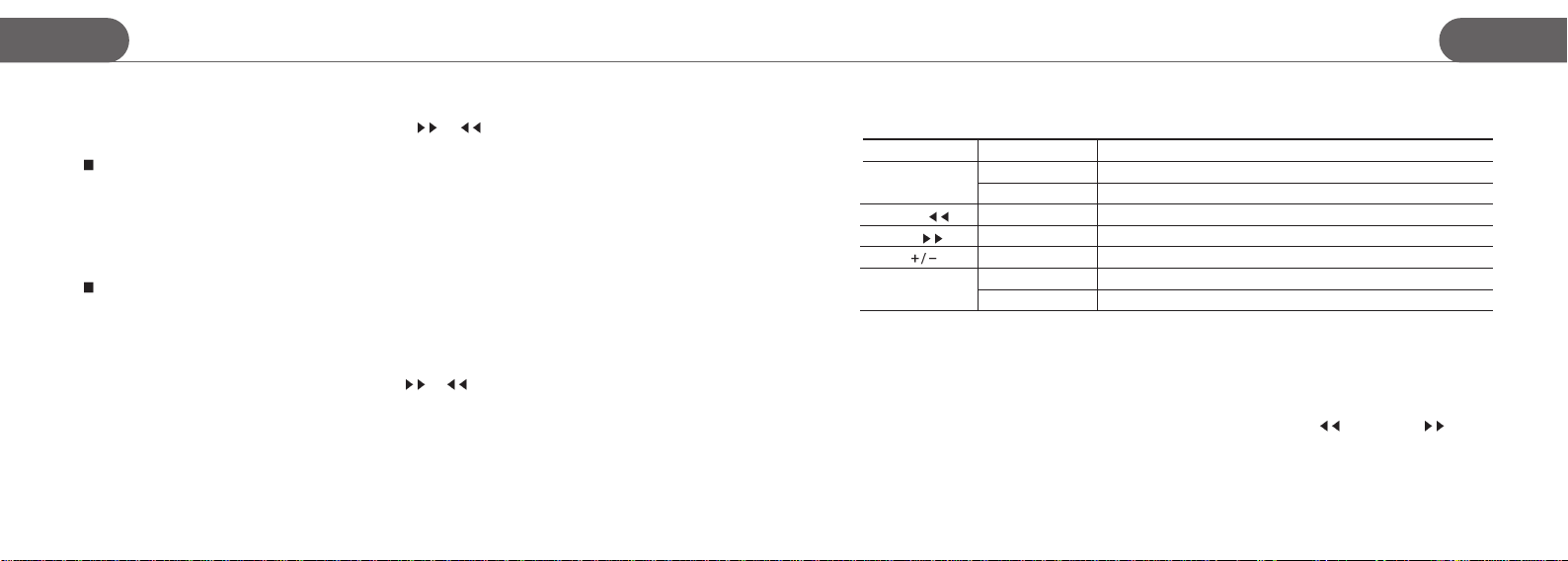
FF and REW ( and )
During playback of music and movie files
- Push and hold
- Click
- Push and hold
- Click
[ When running a JPG image or TXT file ]
- Click button, then it will run the next file.
- Click
button, then it will forward the current file fast.
button, then it will replay or move to the next file.
button, then it will rewind the current file fast.
button, then it will replay or move to the previous file.
button, then it will run the previous file.
Volume control and File Navigation
- Click or button to increase or decrease the volume level.
or button to move up and down cruising on the file in the Navigation mode.
- Click
A-B Repeat
- When replaying music file, click REC/A B button to mark the start point of the repeat
- Then, click the same button in a few moment to mark the ending point of the repeat. Then, the repeat will start.
- To finish A-B repeat, just click the same button again.
STORMBLUE 12
Hold
- Push this button in the direction of the arrow. It disables all the button to avoid unintentional operation
Changing EQ
During playback, just click MODE/EQ button and EQ will be switched sequentially.
POP ROCK Live Class Vocal DBass USER
Flat
Reset
- When your player suddenly get halted for some reason, push the reset button with a sharply-ended instrument like pin or
clip and It will reset the player by force. Then, turn on your player.
- Reset is different from Format and all data is safe after reset
Operation in Radio mode
- Click and hold Mode button and move to FM radio mode by or button. Then, click Menu button to select
the mode.
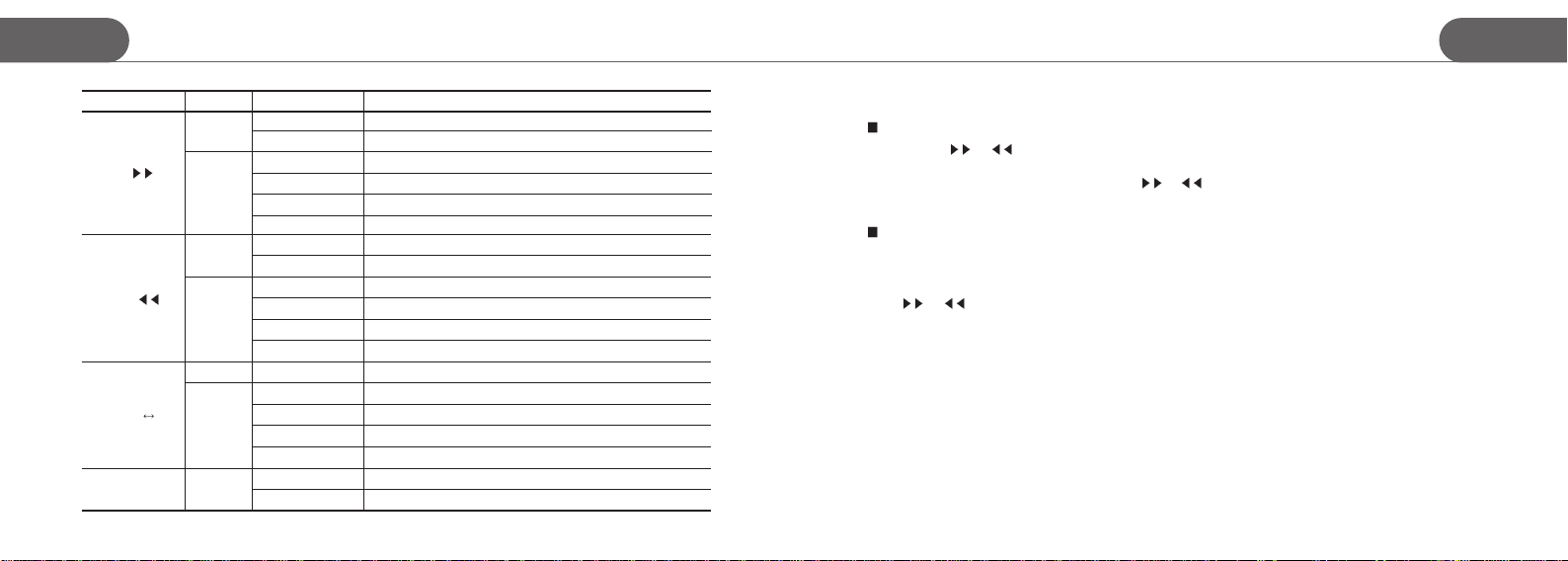
Button
PLAY
Click
short
Present status Operation when clicked
Mute OFF Mute ON
Mute ON
Recording
REC Pause
Mute OFF
Pausing the current recording
Restart the paused recording
13 STORMBLUE
Page 9
A9
+
Operation of the Player
Operation of the Player
A9
+
REW
REC/A B
Menu/Navi
STORMBLUE 14
Button
FF
Click
Long
Short
Long
Short
Long
short
Short
Present status Operation when clicked
Scan
Save
Auto Scan
Scan Increase the frequency by 1step
Preset Move to next station saved
Save
Scan Move to the next station decreasing Frequency
Scan-Save
Auto Scan
Scan
Preset
Scan-Save
REC/Ready
REC Finish recording
Preset Auto Memory Scan start and up to 20 stations can be registered.
Scan
Scan saving
Scan
Preset
Move to the next station increasing Frequency
Increase the register address to save current satation
Stop searching for other station
Increase the register address to save current station
Decrease the register address to save current satation
Stop searching for other station
Decrease the frequency by 1step
Move to next station saved
Decrease the register address to save current station
Start recording
Turn to the Save mode to save the selected station
Save the selected station
Turn to Preset mode
Turn to Scan mode
Scan mode and save the each station manually
The default of FM radio is set in Scan mode.
- Click and hold or button to move to next station.
- To save the current station, click REC/A-B button and the register address for the station will appear
- The address can be changed up and down by click
- After you adjust the address, click REC/A-B button again to save the station.
or button.
Preset mode and save all station automatically
- You can switch to Preset mode after you save at least one radio station in Scan mode.
- Click Navi/Menu button to switch to Preset mode.
- Click REC/A-B button to automatically search for all available station and it will be saved automatically up to 20 stations.
- Click
or button to move to next station.
Mute
- To mute FM radio, click Play button. To resume FM radio, click the same button again.
FM recording
- Listening FM radio, click hold on REC/A-B button to record the current broadcast.
- To finish the recording, just click the same button.
- To pause and resume the recording, click the PLAY button.
- Recorded file is found in FMREC folder in Navigation mode.
15 STORMBLUE
Page 10
A9
+
Operation of the Player
Operation of the Player
A9
+
Operation in Line-in Recording
Click and hold Mode button and move to Line in REC mode by or button. Then, click Menu button to select the
mode.
Dubbing CD track to MP3 player
- Connect your MP3 player and other sound resources like CD player with included encoding cable.
- Press and hold EQ/Mode
- Click play button of the CD player and REC button of MP3 player simultaneously.
- To finish dubbing, click REC button of MP3 player again.
- To pause and resume the recording, click PLAY button sequentially.
Use CD sync function
- With CD sync function turned on in setup menu, you can dub all track of CD into each WMA file at once.
- When you dub your Cassette tape to MP3 player, make sure to deactivate CD sync option.
Operation in Voice Recording
Click and hold Mode button and move to Voice REC mode by or button.
Then, click Menu button to select the mode.
- Click REC button to start recording. To finish recording click the same button again.
- To pause and resume the recording, click PLAY button sequentially.
- Recorded file is found in Voice folder in Navigation mode.
STORMBLUE 16
Navigation mode
To enter navigation mode, just click the menu button
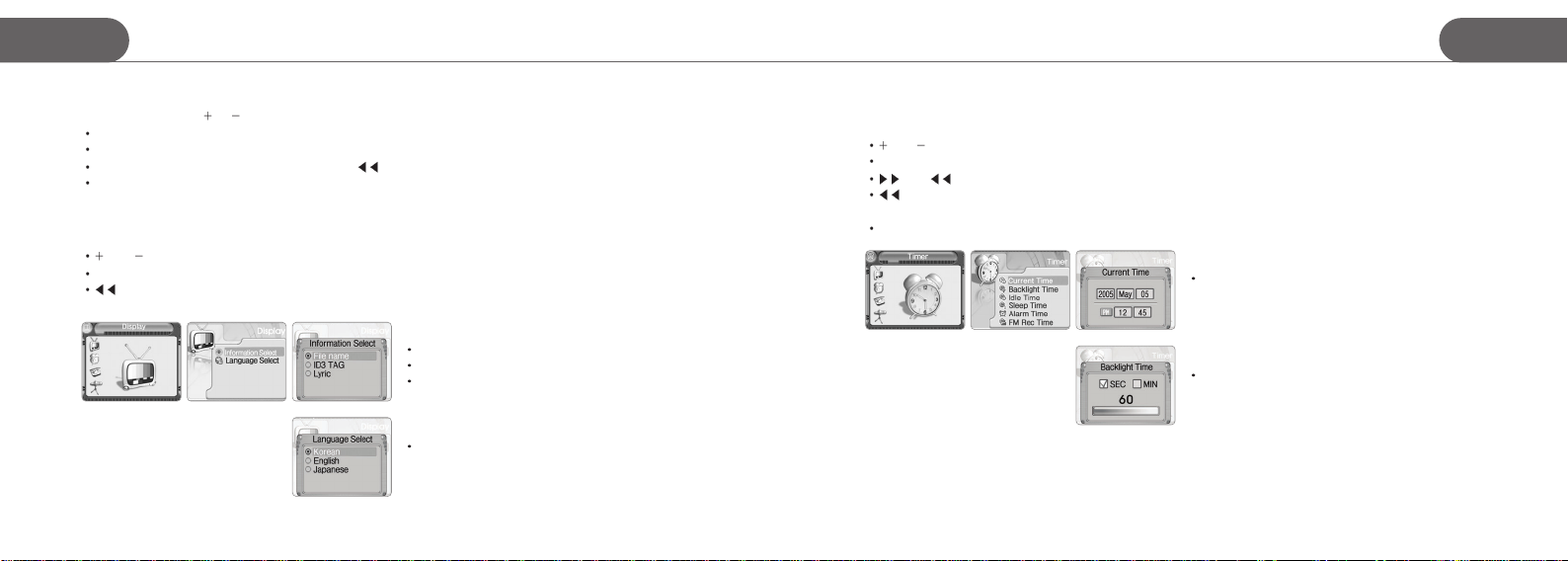
Button
Menu
REW ( )
FF (
REC
)
Click
Short
Long
Short
Short
Short
Short
Long
Operation when clicked
Run the file selected
Move to setup mode
Move to the upper folder
Move to the sub folder
Moving cursor
Cancel and return
Copy file, delete file
File copy between SD card and the player / Delete file
A9+support external SD card.
- Put SD card into the SD card slot and ‘external’ folder will be created
- Click Menu button to enter navigation mode.
- Enter a certain folder and move the cursor on the file you want to copy Click and hold REC button
- When the dialog box appears, you can choose file copy or delete function using REW(
- To select and run copy or delete function, Click Menu button.
- Files are copied to ‘copied folder’ Find the ‘copied’ folder in Navigation mode
) buttton or FF ( ) button
17 STORMBLUE
Page 11
A9
+
Setup Menu
Setup Menu
A9
+
This chapter is to set up all option of the player. Click and hold Menu button to enter Setup menu.
Move to each Setup by
To enter submenu, click Menu button
To select options in submenu and go back to the previous menu at once, also click Menu button
To go back to the initial stage of Setup menu, click button.
To completely get out of the Setup menu, Click and hold the Menu button.
or button and click Menu button to enter the selected setup menu.
Display Setup
The function of Button in this Setup
and : up and down of the cursor
Menu button : Enter the submenu / Select (finish) the option in submenu and go back to the previous stage
button : Go back to the initial stage. After getting back to the initial stage, click and hold Menu button to completely
get out of the Setup menu.
Information
File name : display the file name of the song going on.
ID3 tag : display the ID3 tag of the song going on
Lyric : display the lyric of the song going on manually or
automatically
Language select
Select language at your preference
STORMBLUE 18
Time Setup
The function of Button in this Setup
and : up and down of the cursor / Adjust the figure (number) / Switch AM and PM
Menu button : Enter the submenu / Select (finish) the option in submenu and go back to the previous stage
and : Move to the next column
button : Go back to the initial stage / After getting back to the initial stage, click and hold Menu button to completely
Mode button : Switch On and Off
get out of the Setup menu.
Current Time
Adjust the current time
Backlight Time
Adjust the time during which the backlight is on if there is no click
on any button.
19 STORMBLUE
Page 12
A9
+
Setup Menu
Setup Menu
A9
+
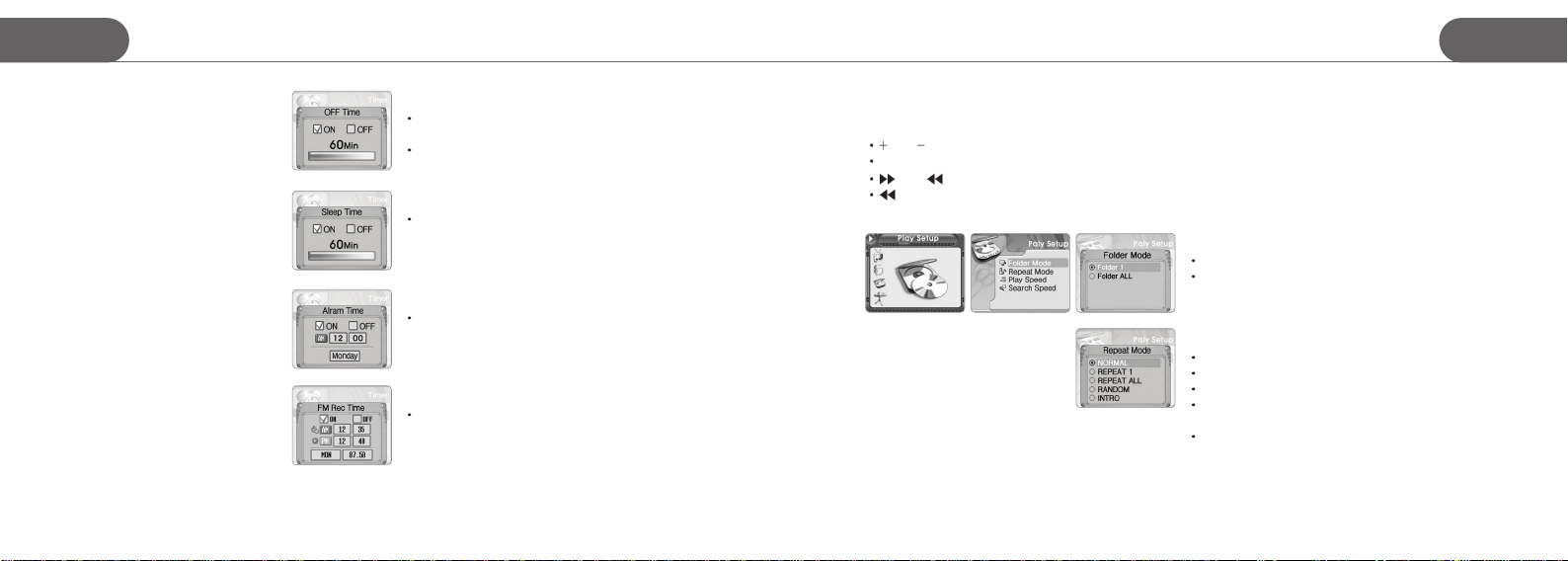
Time Setup
STORMBLUE 20
Off Time
Adjust the time after which the player is turned off if there is no
click on any button.
This setup doesn’t work if there is any file going on or the player is
in FM mode.
Sleep Time
Adjust the time after which the player is turned off.
Alarm Time
Adjust the time on which you want to wake up or get noticed
FM REC Time
Adjust the time for automatic recording of the designated station.
You have to adjust starting time and finishing time as well as a
day of the week and the radio station.
Play Setup
The function of Button in this Setup
and : up and down of the cursor
Menu button : Enter the submenu / Select (finish) the option in submenu and go back to the previous stage
and : Increase or decrease the percentage in play speed setup / Move to the next column in search speed setup/
button : Go back to the initial stage. After getting back to the initial stage, click and hold Menu button to completely
get out of the Setup menu.
Folder mode
Folder1 : replay the songs in the current folder
Folder all : replay songs in all folder in the player
Repeat mode
Normal : no repeat
Repeat 1 : repeat the current songs going on
Repeat all : repeat all songs in the current directory or all directory
Random : replay all songs in the current directory or all directory at
random
Intro : replay only the introductory part of the songs for overview.
21 STORMBLUE
Page 13
A9
+
Setup Menu
Setup Menu
A9
+
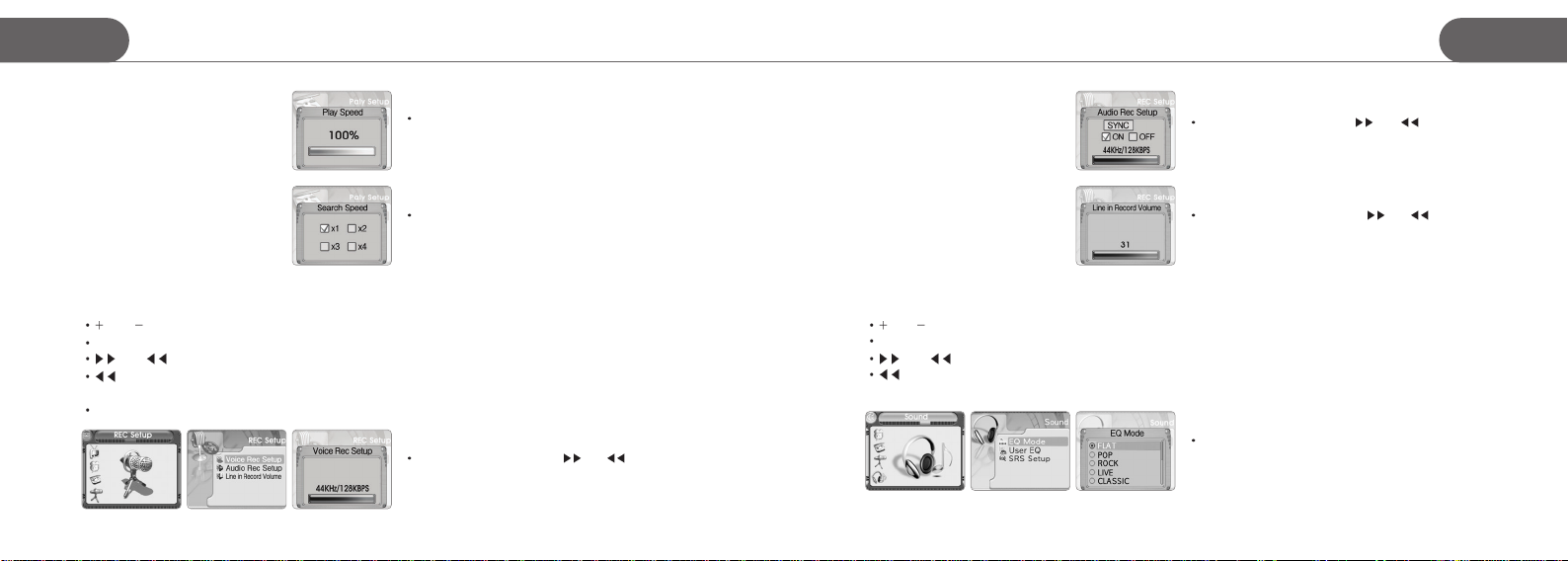
Play Setup
Play speed
Adjust the playback speed by percentage. The default is at 100%
Search speed
Adjust the search speed for forwarding fast and rewinding of
songs.
Recording Setup
The function of Button in this Setup
and : up and down of the cursor
Menu button : Enter the submenu / Select (finish) the option in submenu and go back to the previous stage
and : Increase or decrease the recording level
button : Go back to the initial stage. After getting back to the initial stage, click and hold Menu button to completely
Mode button : Switch On and Off in audio REC setup.
STORMBLUE 22
get out of the Setup menu.
Voice REC Setup
Adjust quality of the recording by and button
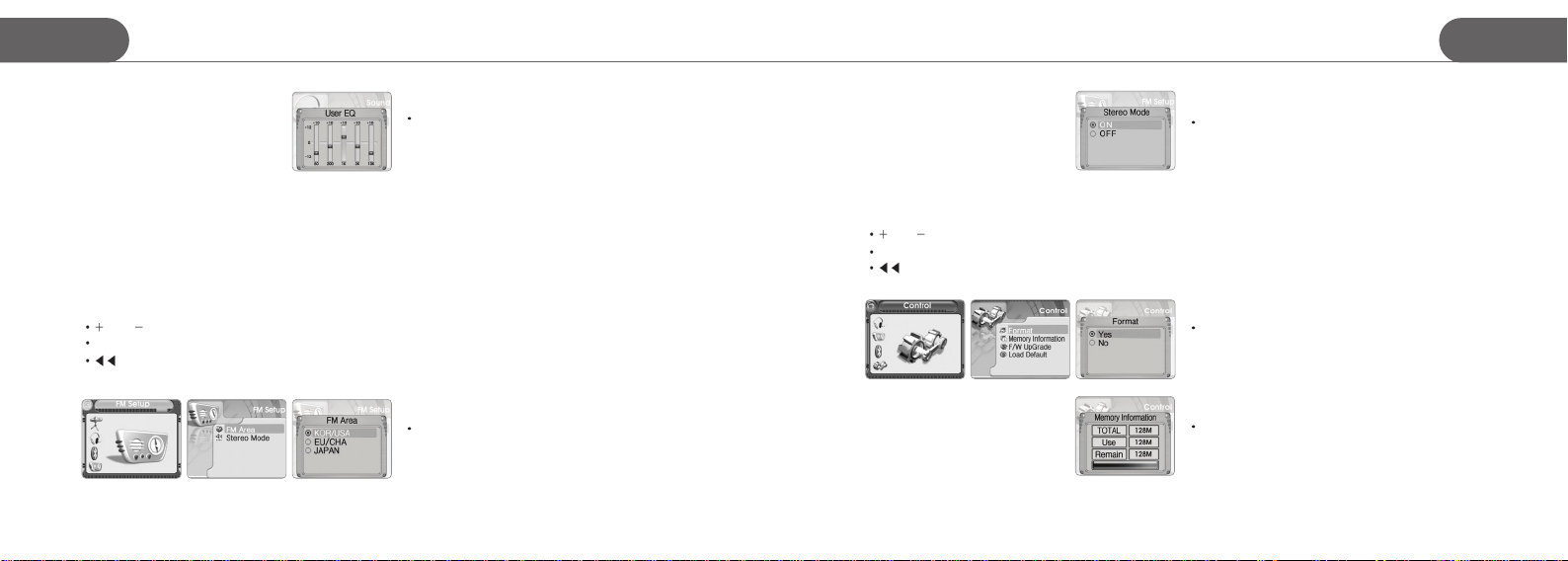
Audio Recording Setup
Audio REC setup
Adjust quality of the recording by and button. Switch on
and off for CD sync function. CD sync is a function to dub all track in
CD into respective WMA file.
Line in REC Volume Setup
Adjust the volume of the recording by and button
Sound Setup
The function of Button in this Setup
and : Up and down of the cursor / Adjust the EQ level in User EQ / Switch WOW and Trubass in SRS setup /
Menu button : Enter the submenu / Select (finish) the option in submenu and go back to the previous stage
and : Move to next EQ column in User EQ / Adjust the level of SRS and Trubass in SRS setup
button : Go back to the initial stage. After getting back to the initial stage, click and hold Menu button to completely
get out of the Setup menu.
EQ mode
Select EQ at your preference.
23 STORMBLUE
Page 14
A9
+
Setup Menu Setup Menu
A9
+
Sound Setup FM radio Setup
FM radio Setup
The function of Button in this Setup
and : Up and down of the cursor
Menu button : Enter the submenu / Select (finish) the option in submenu and go back to the previous stage
button : Go back to the initial stage. After getting back to the initial stage, click and hold Menu button to completely
get out of the Setup menu.
STORMBLUE 24
User EQ
Make your own EQ setup
Control Setup
The function of Button in this Setup
Menu button : Enter the submenu / Select (finish) the option in submenu and go back to the previous stage
FM area
Select the correct area for FM broadcast for your nation.
Stereo mode
Switch mono and stereo.
and : Up and down of the cursor
button : Go back to the initial stage. After getting back to the initial stage, click and hold Menu button to completely
get out of the Setup menu.
Format
This menu will format your player and all files will be deleted.
Memory information
Show the current status of memory use.
25 STORMBLUE
Page 15
A9
+
Setup Menu
Setup Menu
A9
+
Control Setup
STORMBLUE 26
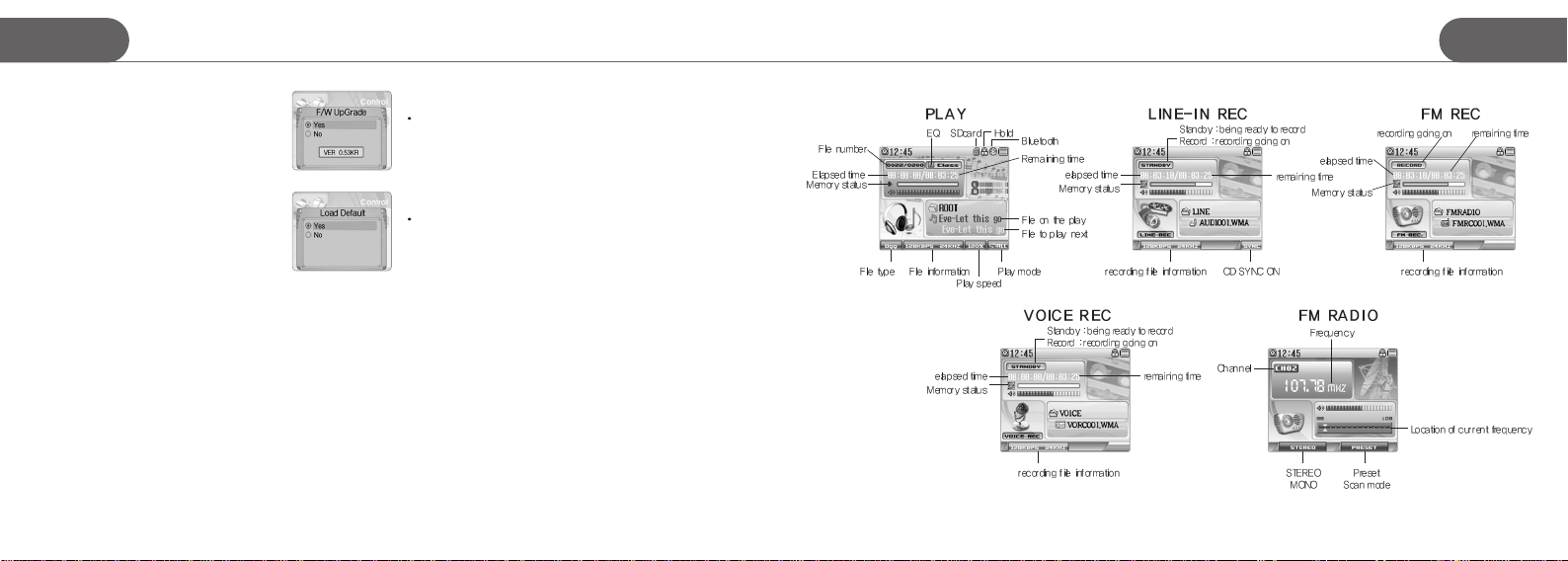
Firmware upgrade
See the firmware upgrade part
Load default
This will change all setup to the status of factory setup.
This function doesn’t delete any file.
27 STORMBLUE
Page 16
A9
+
Manual for Transcoder program Manual for Transcoder program
A9
+
Manual for Transcoder program
Transcoder program is to compress certain movie files such as AVI, MPG, WMV, ASF as well into a special format for
this player so as to replay those video files in this player.
Install transcoder program
1. Put included program CD in the CD Rom Drive of your PC
2. Enter the ‘transcoder Folder’
3. Install the program by double-click on the setup file
PC System Requirements
- PENTIUM 3 / WINDOWS 98/ME plus
- DIRECTX 9.0 / WMV 9.0 plus must be installed in your PC
- Integrated Codec must be installed in your PC.
Available Format
- RAW, AVI, MICROSOFT WMV, DAT, MPG, ASF...
- Some files in above format may not be compressed by Transcoder program.
Necessary Codec to be installed (3 codecs mentioned below must be installed)
Direct X : install 9.0 version or later version.
Visit www.microsoft.com/windows/directx/default.sapx and enter download center menu
Download Direct X and install it.
- WMV9 : Visit above site and enter download center menu. Download and install windows media player version 9.0 or
later version. (No need to install if your current version of windows media player is later than 9.0 version)
- Integrated codec : Visit www.free-codecs.com and download a latest version of ‘K-lite codec pack’ and install it.
STORMBLUE 28
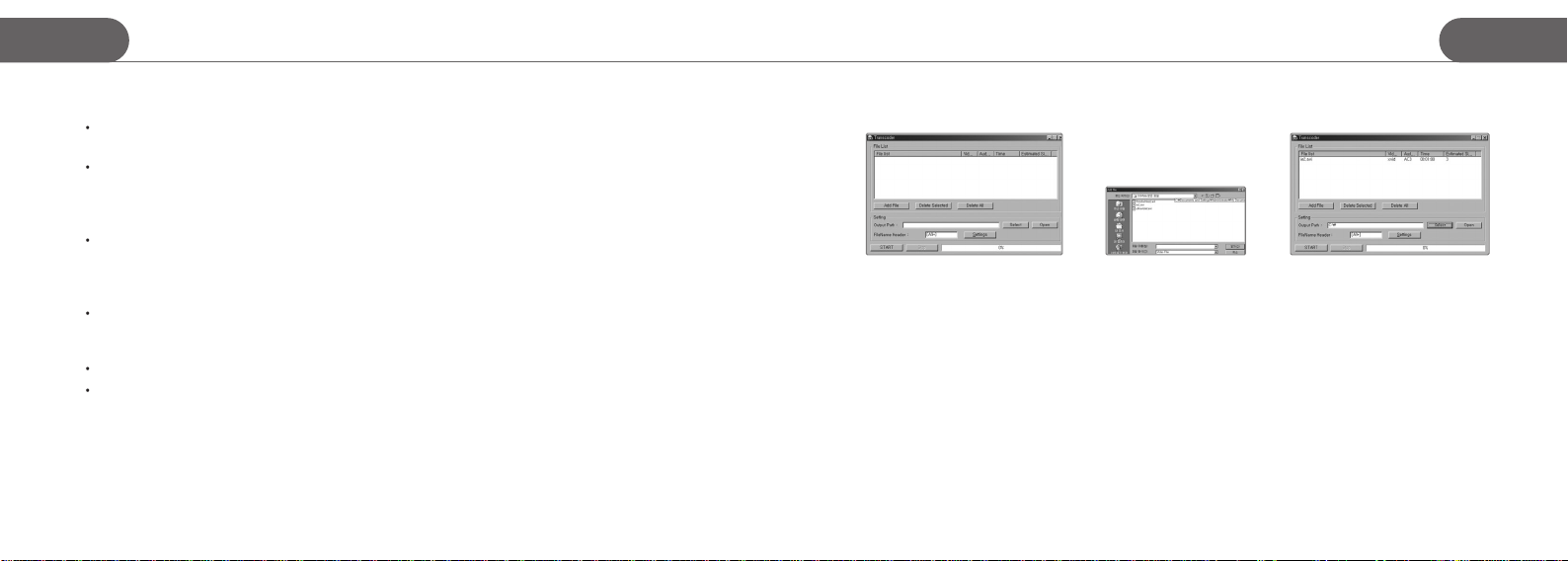
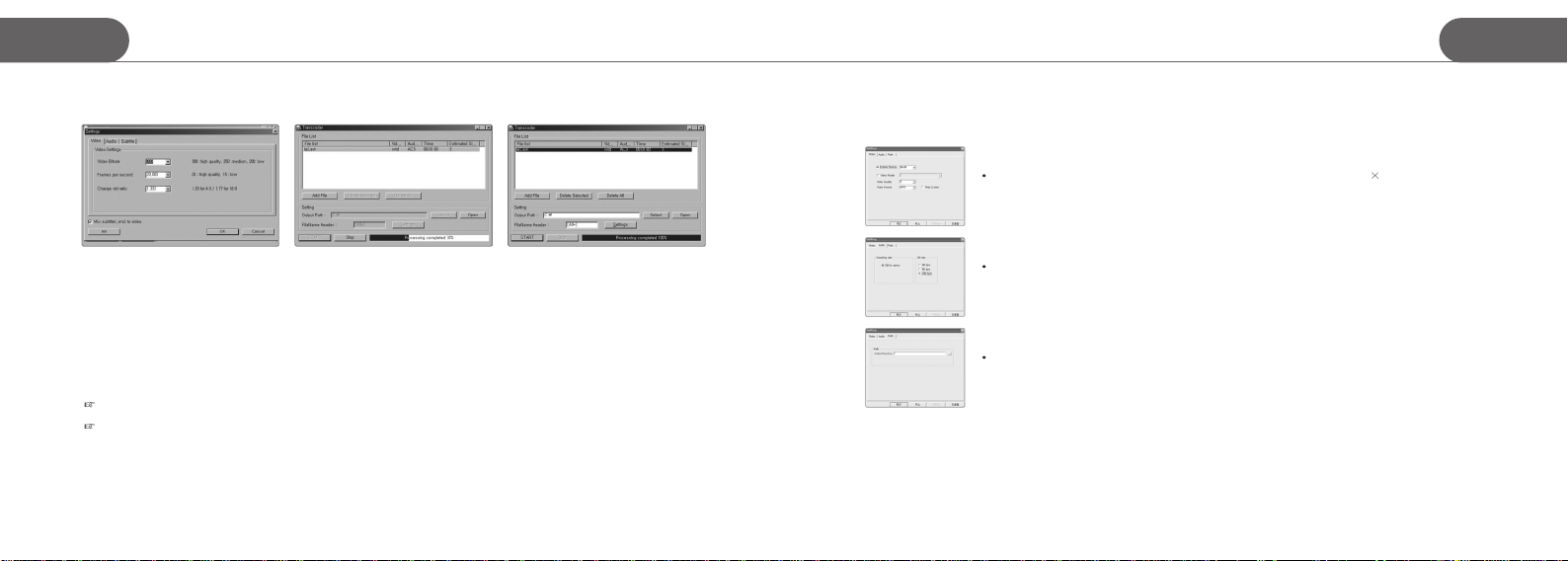
Transcoding video files
1. Click the icon of “Transcoder” and see the
main picture as below.
2. Press the “Add File” button
and open the file is available
to be converted. Or drag and
drop the Movie file to the file
list.
3. To change the Folder be saved the
transcoded file, press the “Select” button
and point the location.
If you specify the “File name header”, be
added when the transcoded file will be
saved automatically.
29 STORMBLUE
Page 17
A9
+
Manual for Transcoder program
Manual for Transcoder program
Setup Transcoder program
Click ‘Setup’ button
Video
Adjust the size and image quality of Transcoding video files. The maximum size is 220 176.
A9
+
4. Press the “Settings” button and adjust
the setting in connection with Video
/Audio/Caption.
More details, see the instruction beside
of setting menu.
Be saved the transcoded file as XXX.AVI.
If copy the transcoded file to the Movie folder or Root, be able to play the file same as music one.
STORMBLUE 30
5. Press the “Start” button and be started
the progress of transcoding. (To be
showed the progress of states for
transcoding as blue bar)
6. If show the “Processing completed
100%”, were able to play the file be
transcoded by A9+normally.
Audio
Adjust the sound quality of Transcoding files.
Path
Designate the folder in which to save the transcoding files.
31 STORMBLUE
Page 18
A9
+
Using Bluetooth function
Using Bluetooth function
A9
+
Bluetooth is optional function and this section is only for A9+Bluetooth model
Using Bluetooth function
The function of Button in this Setup
and : up and down of the cursor
Menu button : Enter the submenu / Select (finish) the option in submenu and go back to the previous stage
button :
Go back to the initial stage. After getting back to the initial stage, click and hold Menu button to completely get out of the Setup menu.
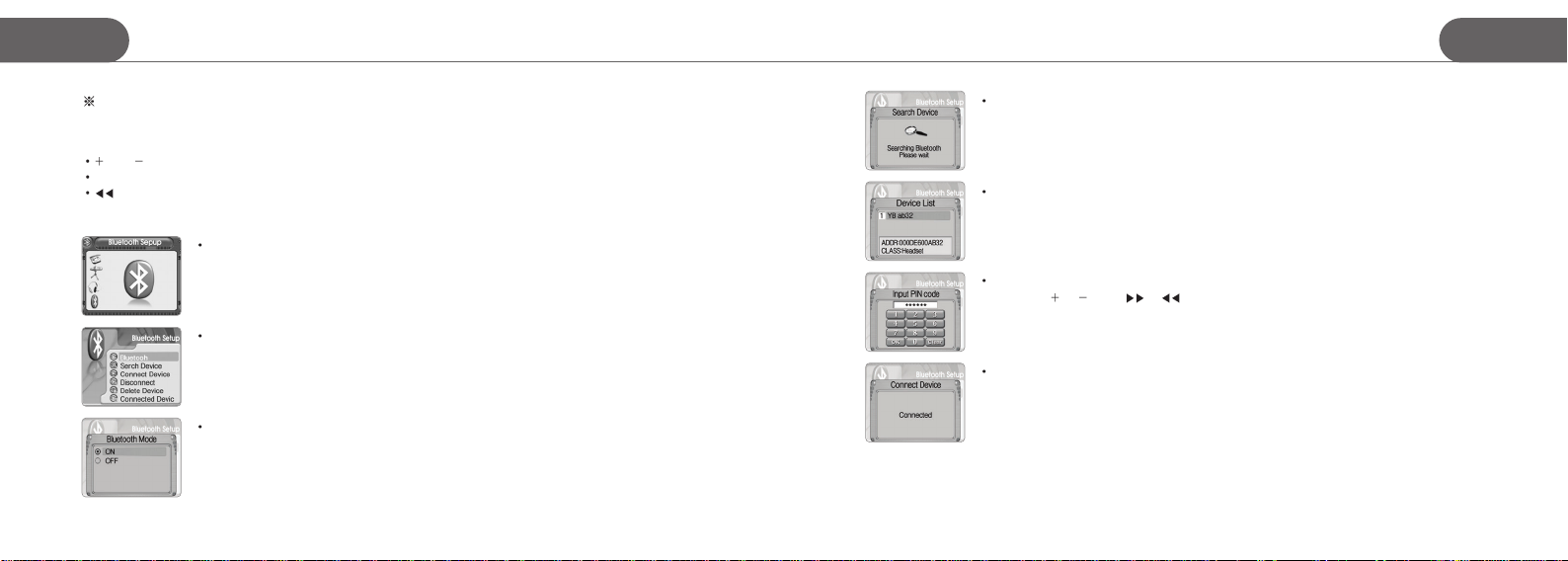
[The first stage to connect Bluetooth equipment]
Move to the Bluetooth setup menu
Click Menu button to enter subment
Place the cursor at ON and click Menu button again to initialize the Bluetooth.
To connect the Bluetooth headphones or speakers, they must be turned on and ready to be connected.
STORMBLUE 32
Select ‘search device’ menu to automatically find and register the bluetooth headphones or speaker.
If there are any bluetooth equipments already registered, use ‘connect device menu’ to connect them
quickly.
Password must be input to register any bluetooth product. There is the password of the connecting device in its
manual. Use
After finishing to input password, move the cursor to ‘OK’ button and click Menu button to complete this process.
When connected or failed to connected, it display the message.
or button, or button to choose numbers and click Menu button to input the number.
33 STORMBLUE
Page 19
A9
+
Firmware upgradeUsing Bluetooth function
A9
+
[Bluetooth instructions]
1. There could be radio(electric wave) interference between bluetooth equipment and other device such as
industrial equipments, medical equipments and microwave ovens which use similar range of frequency. It
can not be avoided technically.
2. Stand at least 5m away from wireless LAN area to use bluetooth without radio interference
3. The available range of bluetooth is basically 10m and it will be disconnected if it gets away more distantly.
The range can be changed depending on the circumstance of the place. Some high obstacles like
partitions, corner of the wall affects the radio acceptance causing noise to the wireless sound transmission.
4. Touch on the antenna part of bluetooth can cause some noise and malfunction.
5. When registering bluetooth equipment to the player, do not place them far.
STORMBLUE 34
Firmware upgrade
1) Please, keep up with new firmware released on our website at www.stormblue.biz
2) Download a updated firmware file from the STORMBLUE website and unzip the file if the file format is zip file.
3) Turn on the player and connect it to the USB port of your computer and then a removable disk will appear. Copy the
firmware file to Config folder of the player
4) Safely remove the removable disk and pull the player off the USB port. (When disconnected, the player will be
automatically turned off).
5) Power on the player and click and hold the ‘Menu’ button to enter menu mode.
6) Enter control menu and enter F/W upgrade menu by clicking Menu button. Click ‘yes’ by Menu button and then it
upgrade F/W by itself.
Caution!
Check the current firmware version of your player. Firmware upgrade will be implemented only for higher version
of firmware.
When you make a firmware upgrade, make sure the battery has been charged enough.
(The remaining battery must be over one-third of battery full)
35 STORMBLUE
Page 20
+
A9
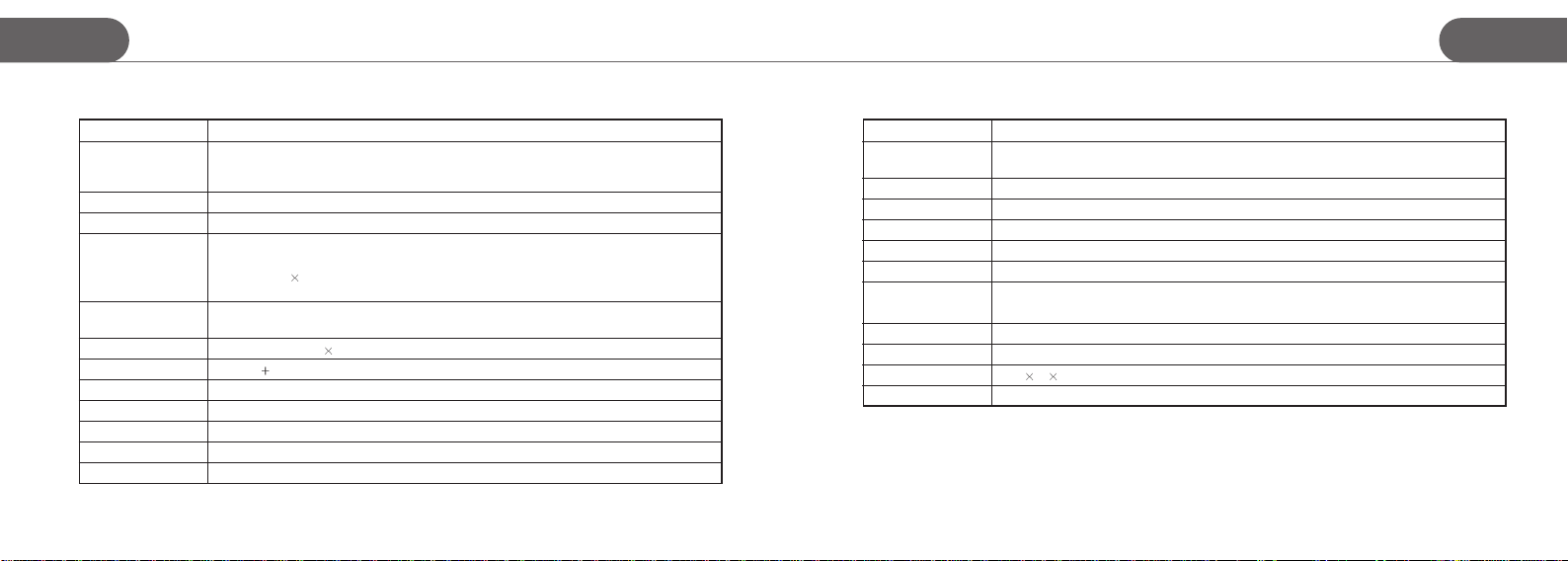
Specifications about MP3 part
ITEM
Audio Format
Audio Encoding
Recording time
Video Format
Image
Display
Sound
Battery
File System
Capacity
Extendable slot
Playback Time
Specifications Specifications
MPEG1,2,2.5 Layer3(8~320Kbps, VBR), WMA Version 9 (32 ~ 320Kbps)
Ogg Vorbis (Q1 - Q10)
ID3 Tag Ver1.0/ 1.1/ 2.0 Support
WMA (32Kbps - 128Kbps)
Max 35 hours with 512MB
Support MPEG4 Simple Profile.
Support AVI file format with .mp4 extension.
Support 220
Support Windows Tool program, which is released transdcoder.
Text View
JPEG (ISO/ IEC 10918-1, Annex F - Sequential DCT-based mode of operation.)
2.0” TFT LCD (220
23mW
1050mA Li-poly battery (charging time : 140 minutes)
FAT12, FAT16, FAT32
1GB ~4GB
For SD card
MP3 Play time : 39 hours, LCD off (11 hours with movie files)
176, 20 frames.
176)
23mW sound output / S/ N ratio : 90dB
Contents
ITEM
PC Interface
Support OS
Audio
EQ
Copyright Protection
FM Radio
Audio post processing
Firmware Upgrade
Music Management
Dimension
Lyric Support
Contents
USB 2.0 : Mass Storage Class
Speed : Up Load 5 Mbps / Down Load 4Mbps
Windows98 / 98SE / ME / 2000 / XP / 2003
Headphone Out, Line-In, Bluetooth TX (Option)
POP, Rock, Classic, Vocal, Live, D-bass, Flat, 5 Band User EQ
WMA Portable Device DRM (WMA PD DRM), MarkAny DRM (XSync)
FM Tuner (20Preset) / World wide channel support
Equalizer (Normal, Pop, Rock, Live, Classic, Vocal, Dbass, User)
Firmware Upgradeable
Play List( M3U )
43 19mm (70g)
84
Automatic & Manual (Media Sync)
A9
+
STORMBLUE 36
37 STORMBLUE
Page 21

A9
+
Specifications Bluetooth Trouble Shooting
A9
+
Specifications about Bluetooth part
ITEM
Bluetooth version
Radio frequency range
Radio power
Radio power class
RX sensitivity
Radio Range
Security
Profile
STORMBLUE 38
Version 2.0 Specification compliant
2.402GHZ~2.480GHZ
0.01mW (average RF on whole 79 channel)
Class 2
-82.0dBm
up to 10m
Level 3 (Link level)
A2DP (source), AVRCP (target)
Contents
When you connects the player and a Bluetooth headphone, please refer to manuals of the player and the
headphone. But, if you encounter problems while your using the player, this section will help guide you on
how to solve them.
1. Before you use the player Bluetooth, you must set Bluetooth mode to “On” in Bluetooth Menu.
- Also a Bluetooth headphone to use must be turned on.
2. The player can’t search a Bluetooth stereo headphone to use
- Ensure that the headphone is stereo type. the player support only stereo type, not mono type.
- Check if the has been set to discoverable mode or pairable mode. the player searches headphones only in these modes.
3. The player fails to register a Bluetooth stereo headphone
- Check if the headphone has been set to pairable mode. the player registers headphones only in this mode.
- Ensure that PIN code is right. PIN code must be the same as the headphone’s.
4. The player can’t connect to a Bluetooth stereo headphone
- Ensure that the player registered the headphone. Before connection, the player must register the headphone.
- If the player and the headphone are paired already, re-register the headphone. Registered information can be deleted
in two devices.
- Check the battery status. If the battery is too low, the player can’t connect to the headphone normally.
39 STORMBLUE
Page 22

A9
+
A9+Trouble shootingBluetooth Trouble Shooting
A9
+
5. No sound in a Bluetooth stereo headphone
- Ensure that the player and the headphone are connected.
- Ensure that the player plays music.
- Check the volume of the headphone
- Check the battery status. If the battery is too low, the player can’t transfer music to the headphone normally.
6. Volume control doesn’t work when using Bluetooth headphone
- You must use the volume button on the Bluetooth headset to adjust the volume of the player
- The volume key of the player is available anly when using normal earphones
7. You don’t know what’s wrong
- If you operate the player and a headphone as manuals but you can’t listen to no sound at the headphone and you
don’t know what’s wrong, try to do next :
Turn off the headphone and on again. Also, set Bluetooth of the player to Off mode and to On mode again. And repeat
as manuals.
- If you repeat but you can’t listen to no sound, please contact to us, StormBlue.
STORMBLUE 40
1. The Player does not power on
- Lock is in the HOLD position? (Release the hold)
- The batteries are exhausted? (Recharge the batteries)
- Click the Reset Button and initialize the player
2. No sound is heard from player or distortion is heard during playback
- Check whether VOLUME is set to “0”.
- Make sure that there are MP3 files in the memory
- Check whether plug is dirty.
- Corrupted MP3 or WMA files may make a static noise and the sound may cut off. Try with other files.
3. Characters on LCD are abnormal
- Check the language is setting at “English” in MENU
4. FM Radio does not work
- Adjust the position of the player and earphones.
(The earphones works as antenna, they must plugged in for best reception)
- Turn off the power of other electric devices near the player.
5. Failed download
- Make sure the USB Cable is connected properly.
- Check the condition of the battery.
6. The player works abnormally or does not play
- Click the Reset button and initialize the player.
41 STORMBLUE
Page 23
+
A9
1) This product has been manufactured under strict quality and control inspections.
2) If the product breaks down during normal usage, our dealer/or service center will fix the product for the period free
listed in the warranty as below.
3) A service fee may apply after the warranty period or in case of the following.
- If the problem was caused by the customer’s misuse.
- If any internal modification was done by the customer.
4) We do not reissue warranty certificate. Please store it in a safe space.
Warranty
Product
Model Name
Name
Customer
Purchaser
Date of Purchase
Period of Warranty
For more information about Customer support, please visit our web-site at www.stormblue.co.kr
STORMBLUE 42
Address
Tel
Name
Address
Tel
Month Day Year
Bluetooth MP4 Player A9
+
Page 24
 Loading...