

Page 1
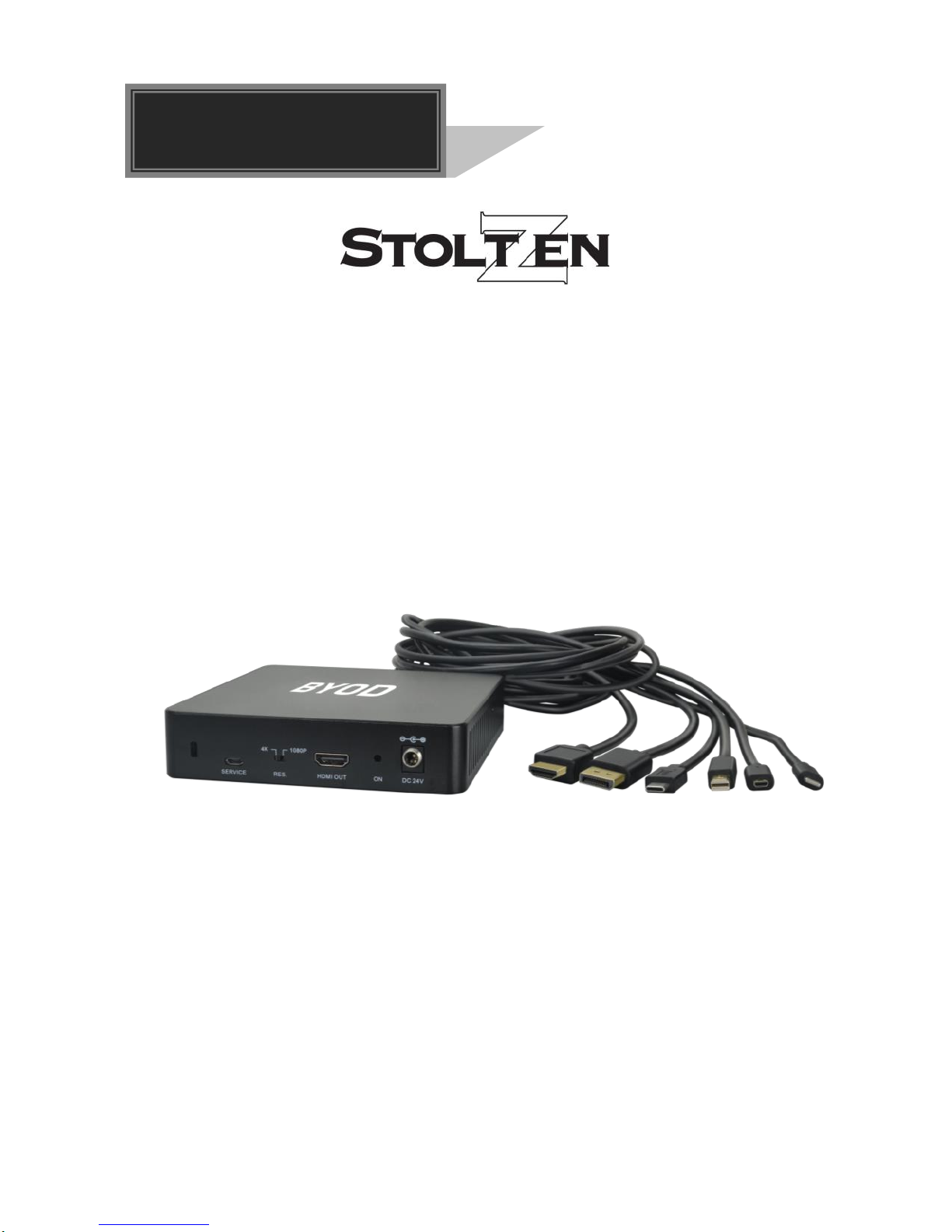
BYOD
Multiformat Presentation Switcher
All Rights Reserved
Version: BYOD_2018V1.2
User Manual
Page 2
Stoltzen Multiformat Presentation Switcher
Preface
Read this user manual carefully before using the product. Pictures are shown in this
manual for reference only. Different models and specifications are subject to real
product.
This manual is only for operation instruction, please contact the local distributor for
maintenance assistance. The functions described in this version were updated till March,
2018. In the constant effort to improve the product, we reserve the right to make
functions or parameters changes without notice or obligation. Please refer to the dealers
for the latest details.
FCC Statement
This equipment generates, uses and can radiate radio frequency energy and, if not
installed and used in accordance with the instructions, may cause harmful interference
to radio communications. It has been tested and found to comply with the limits for a
Class B digital device, pursuant to part 15 of the FCC Rules. These limits are designed
to provide reasonable protection against harmful interference in a commercial
installation.
Operation of this equipment in a residential area is likely to cause interference, in which
case the user at their own expense will be required to take whatever measures may be
necessary to correct the interference.
Any changes or modifications not expressly approved by the manufacture would void
the user’s authority to operate the equipment.
Page 3

Stoltzen Multiformat Presentation Switcher
SAFETY PRECAUTIONS
To insure the best from the product, please read all instructions carefully before using
the device. Save this manual for further reference.
⚫ Unpack the equipment carefully and save the original box and packing material for
possible future shipment.
⚫ Follow basic safety precautions to reduce the risk of fire, electrical shock and injury
to persons.
⚫ Do not dismantle the housing or modify the module. It may result in electrical shock
or burn.
⚫ Using supplies or parts not meeting the products’ specifications may cause damage,
deterioration or malfunction.
⚫ Refer all servicing to qualified service personnel.
⚫ To prevent fire or shock hazard, do not expose the unit to rain, moisture or install this
product near water.
⚫ Do not put any heavy items on the extension cable in case of extrusion.
⚫ Do not remove the housing of the device as opening or removing housing may
expose you to dangerous voltage or other hazards.
⚫ Install the device in a place with fine ventilation to avoid damage caused by
overheat.
⚫ Keep the module away from liquids.
⚫ Spillage into the housing may result in fire, electrical shock, or equipment damage. If
an object or liquid falls or spills on to the housing, unplug the module immediately.
⚫ Do not twist or pull by force ends of the optical cable. It can cause malfunction.
⚫ Do not use liquid or aerosol cleaners to clean this unit. Always unplug the power to
the device before cleaning.
⚫ Unplug the power cord when left unused for a long period of time.
⚫ Information on disposal for scrapped devices: do not burn or mix with general
household waste, please treat them as normal electrical wastes.
Page 4

Stoltzen Multiformat Presentation Switcher
Table of Contents
1. Introduction ............................................................................................................... 1
1.1. Introduction to BYOD ........................................................................................... 1
1.2. Features ............................................................................................................... 1
1.3. Package List ......................................................................................................... 1
2. Specification ............................................................................................................. 2
3. Panel Description ..................................................................................................... 3
3.1. Front Panel ................................ ........................................................................... 3
3.2. Rear Panel ........................................................................................................... 4
4. System Connection .................................................................................................. 5
4.1. Usage Precaution ................................................................................................. 5
4.2. Bracket Installation ............................................................................................... 5
4.3. System Diagram ................................................................................................... 7
4.4. System Operation................................................................................................. 8
5. Panel Drawing ........................................................................................................... 9
6. Troubleshooting & Maintenance ........................................................................... 10
7. Customer Service ................................................................................................... 11
Page 5

Stoltzen Multiformat Presentation Switcher
1
1. Introduction
1.1. Introduction to BYOD
The Stoltzen BYOD is a Multiformat Presentation Switcher converting AV signal from
Lightning, USB-C, MINI DP, DP, HDMI type-A and HDMI type-D to HDMI.
The BYOD is a green low energy consumption product which has a various application
in different places, such as classroom, small meeting room, lecture hall, and etc.
1.2. Features
⚫ Supports Lightning, USB-C, MINI DP, DP, HDMI type-A, and HDMI type-D input
signals to be converted to HDMI signals.
⚫ Auto-detects the input signal, the last connected signal source will be switched to the
output automatically.
⚫ Starts to scan from Lightning to HDMI type-D and switch the first detected source to
the output.
⚫ Supports HDMI, DP and USB input video resolution up to 4Kx2K@30 Hz.
⚫ Supports HDMI output video resolutions up to 4Kx2K@30Hz 4:4:4.
⚫ The Lightning device can be powered over the Lightning cable.
1.3. Package List
⚫ 1 x BYOD
⚫ 1 x Power Adapter (24V DC, 1.25A)
⚫ 1 x Mounting Bracket
⚫ 1 x USB-A to Micro-USB Cable
⚫ 1 x User Manual
Note: Please contact your distributor immediately if any damage or defect in the
components is found.
Page 6
Stoltzen Multiformat Presentation Switcher
2
2. Specification
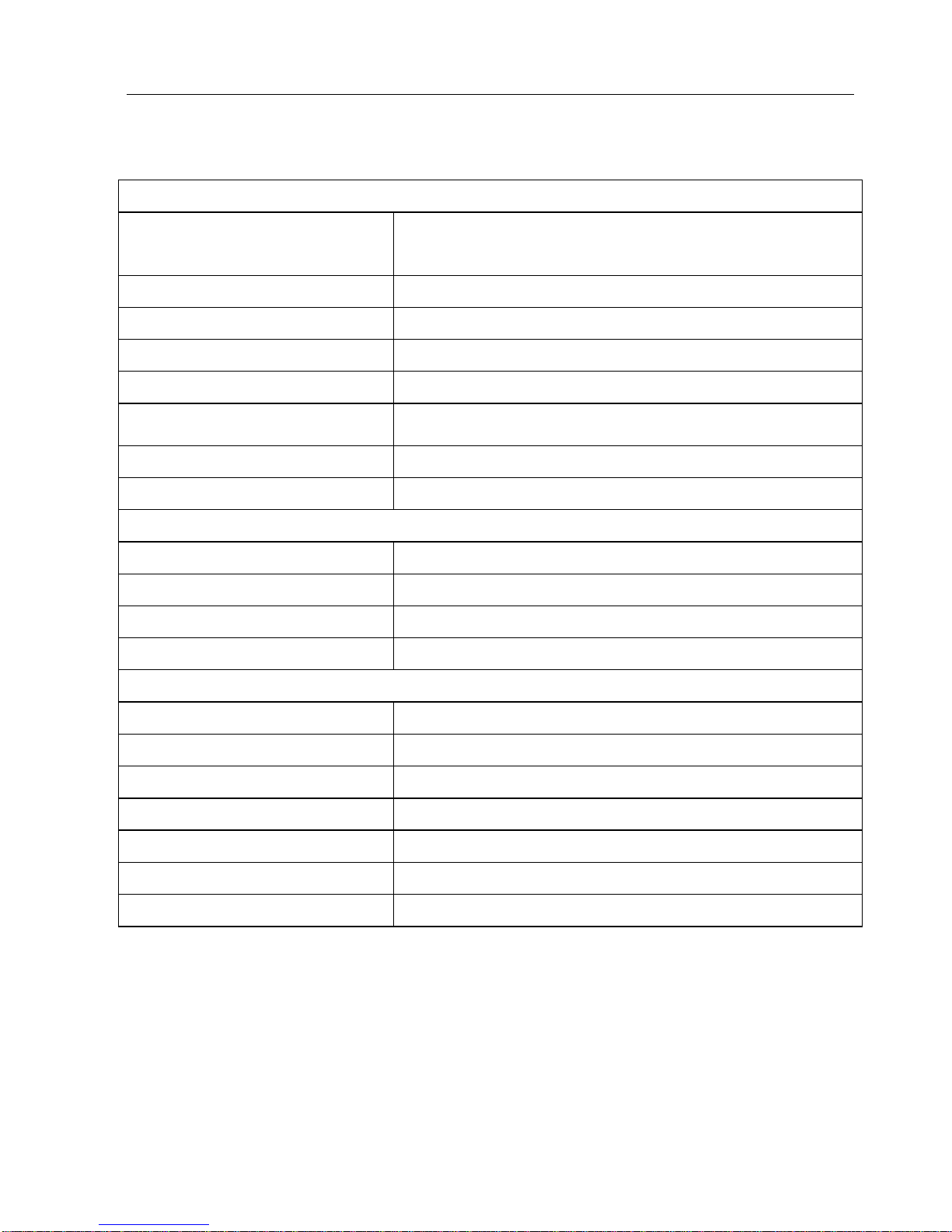
Input
Connector Type
(1) Lighting; (1) USB Type-C; (1) Mini DP; (1) DP;
(1) HDMI Type-A; (1) HDMI Type-D
Lighting Video Resolution
Up to 1080P@60Hz
USB-C Video Resolution
Up to 4Kx2K@30Hz
DP Video Resolution
Up to 4Kx2K@30Hz
HDMI Video Resolution
Up to 4Kx2K@30Hz
HDMI Standard
HDMI1.4
HDCP Compliant
HDCP2.2
Video Bandwidth
10.2 Gbps
Output
Connector Type
HDMI Type-A
HDMI Standard
HDMI1.4
HDCP Compliant
HDCP1.4
Video Resolution
Up to 4Kx2K@30Hz 4:4:4
General
Operation Temperature
-10 ~ +55℃
Storage Temperature
-25 ~ +70℃
Relative Humidity
10% ~ 90%
Input Power
24V DC 1.25A
AC Adapter Input Power
100 ~ 240V AC, 50/60 Hz
Dimension (W*H*D)
135mm x 135mm x 30mm; Cable Length:1.3m
Net Weight
770g (Including cables)
Page 7
Stoltzen Multiformat Presentation Switcher
3
3. Panel Description
3.1. Front Panel
HDMI AUSB - C DP full sized HDMI type-D
1
2
3
4
5 6
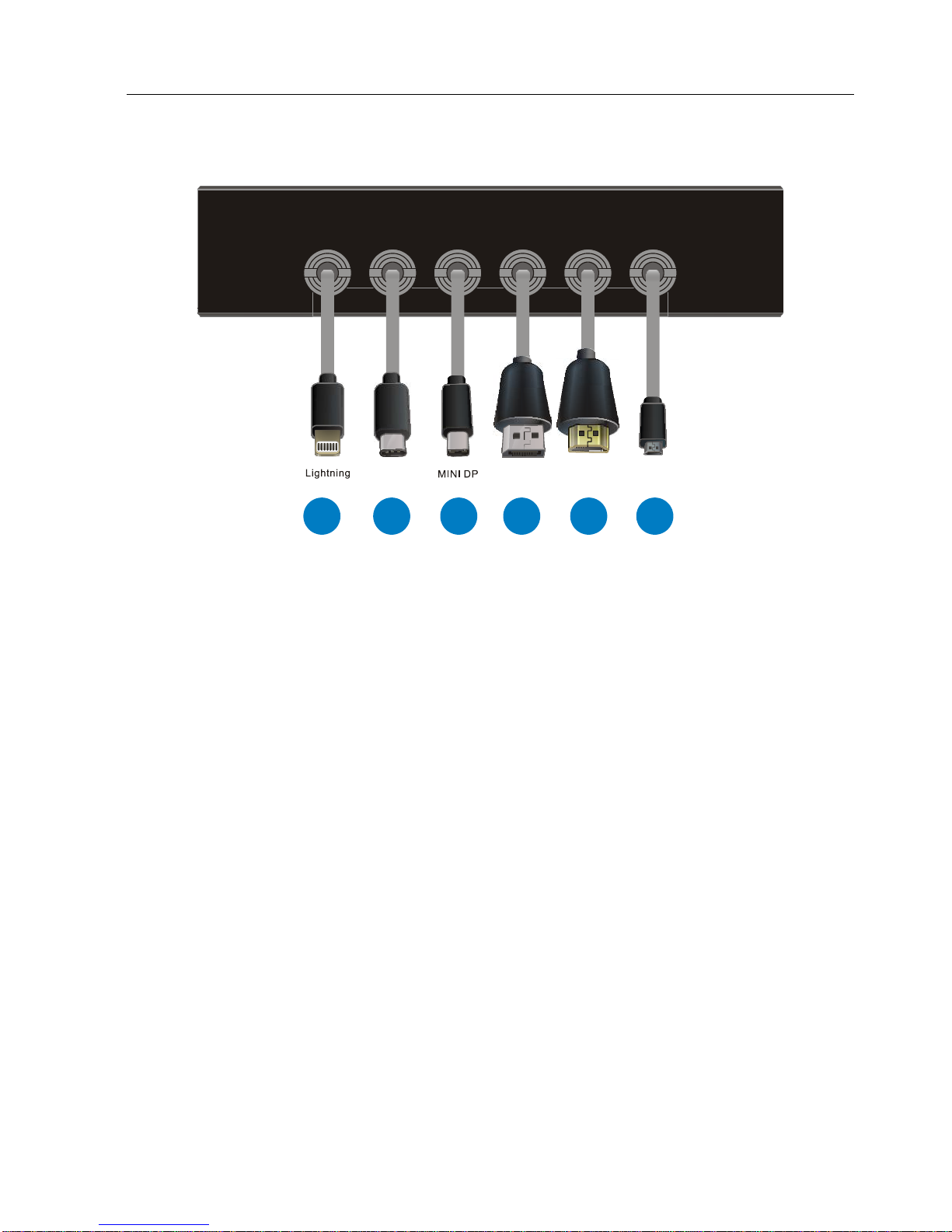
① Lightning port for connecting iOS device, such as iPhone or iPad with charging
capability.
② USB-C port for connecting MacBook, Chromebook or other devices with SlimPort
output.
③ Mini DP port for connecting Mac MINI or other devices with Mini DP output.
④ DP port for connecting devices with DP output.
⑤ HDMI type-A port for connecting devices with HDMI type-A output.
⑥ HDMI type-D port for connecting devices with HDMI type-D output.
Page 8
Stoltzen Multiformat Presentation Switcher
4
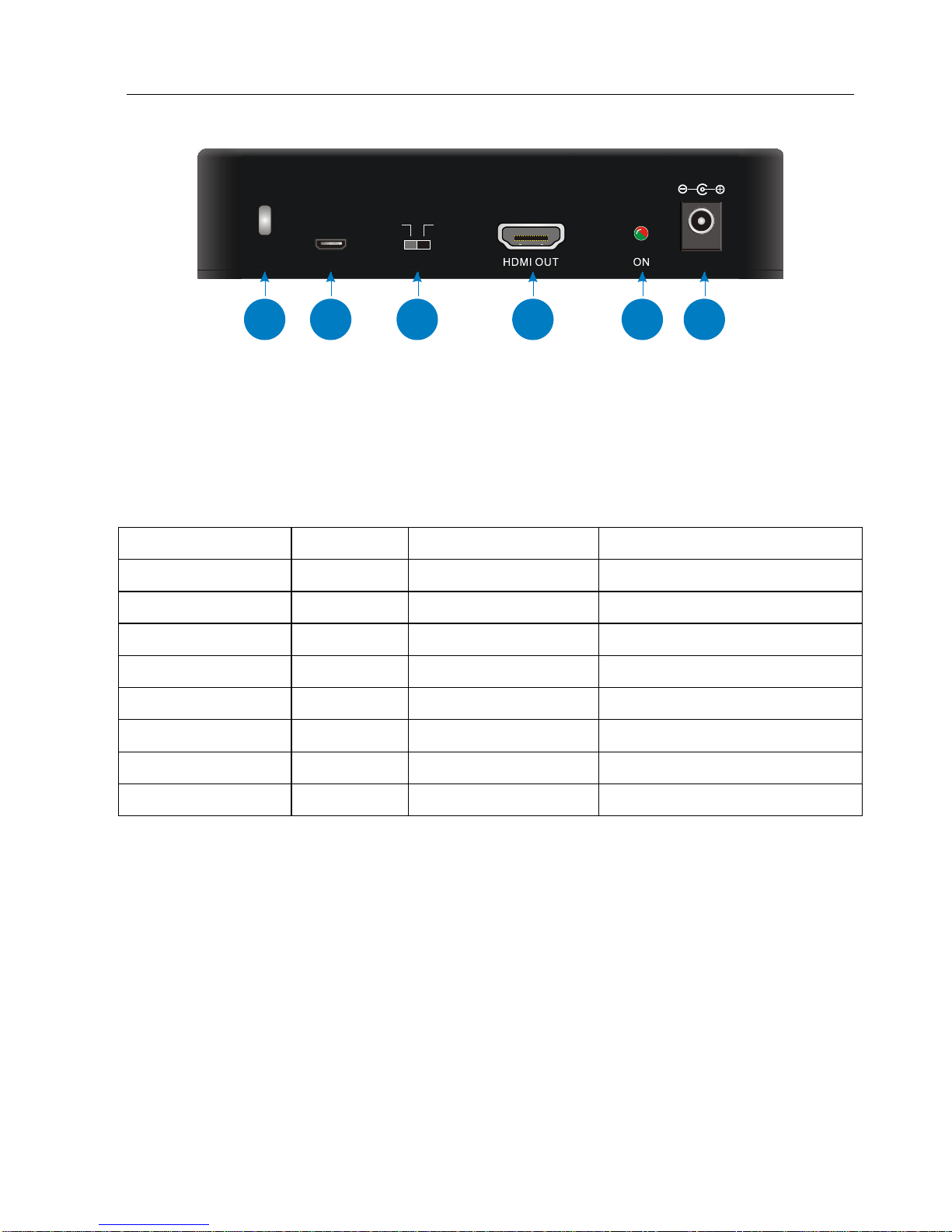
3.2. Rear Panel
1080P
RES.
4K
SERVICE
DC 24V
1
2
3
4
5
6
① Security lock slot for installing Kensington lock.
② Micro USB port for firmware updating.
③ Dip switch for setting the HDMI output resolution as 4K or 1080P base on the EDID
of connected display and source.
EDID of Display
Source
DIP Switch Status
HDMI Output Resolution
4K
1080P
1080P
1080P
4K
4K
1080P
1080P
4K
1080P
4K
4K
4K
4K
4K
4K
1080P
1080P
1080P
1080P
1080P
1080P
4K
1080P
1080P
4K
4K
1080P
1080P
4K
1080P
1080P
④ HDMI connector for connecting with display.
⑤ The bicolor indicator:
⚫ Red when DC power source is connected.
⚫ Green when valid signal source detected.
⑥ Power port for 24V DC 1.25A power adapter.
Note: Pictures for reference only, subject to our existing products.
Page 9
Stoltzen Multiformat Presentation Switcher
5
4. System Connection
4.1. Usage Precaution
⚫ Verify all components and accessories included before installation.
⚫ System should be installed in a clean environment with proper temperature and
humidity.
⚫ All of the power switches, plugs, sockets and power cords should be insulated and
safe.
4.2. Bracket Installation
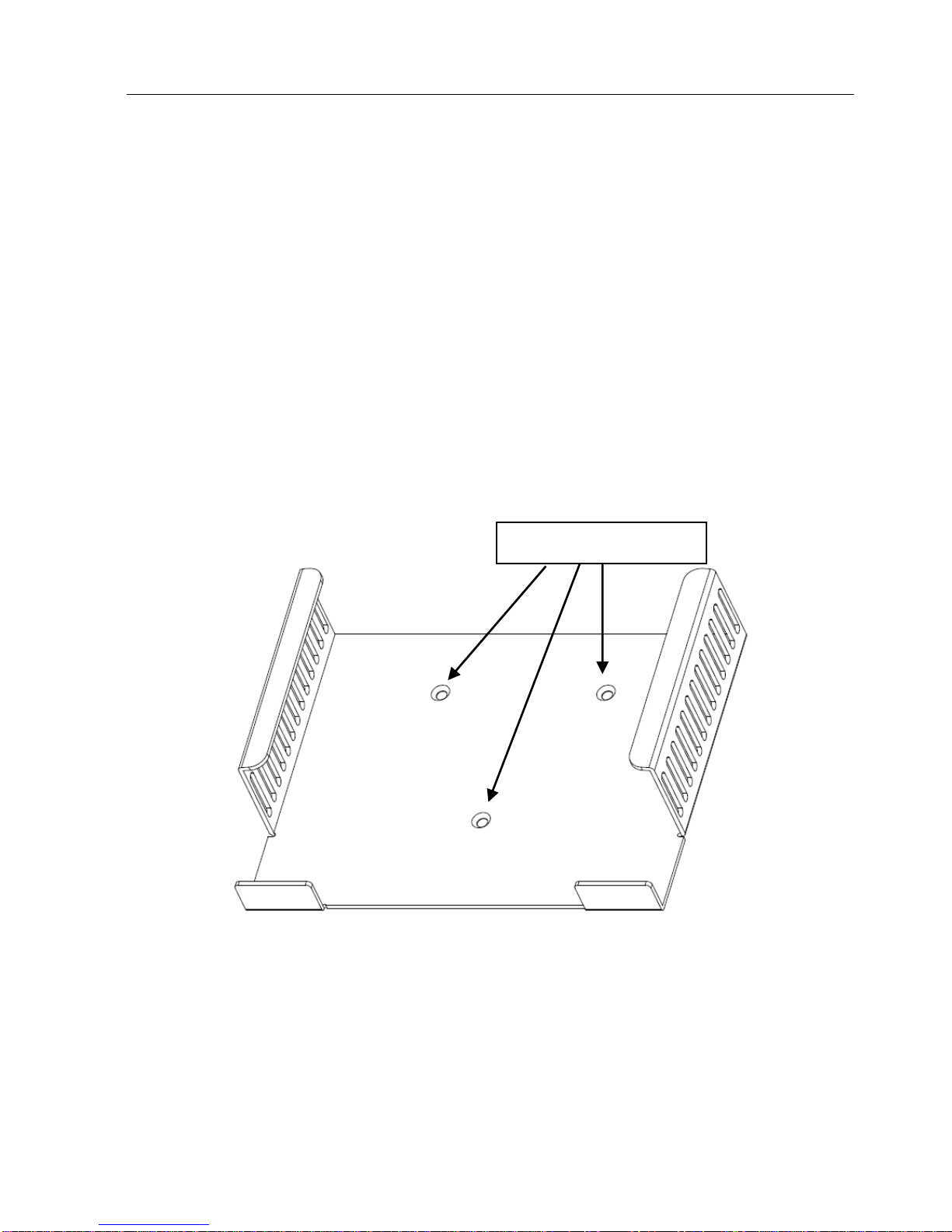
If the BYOD will be permanently mounted to a surface, the included bracket can be can
be mounted to lock the unit according the below procedures.
① Taking out the bracket and self-tapping screws from the package.
② Fixing the bracket to a surface by using three self-tapping screws.
Self-tapping screws
Page 10
Stoltzen Multiformat Presentation Switcher
6
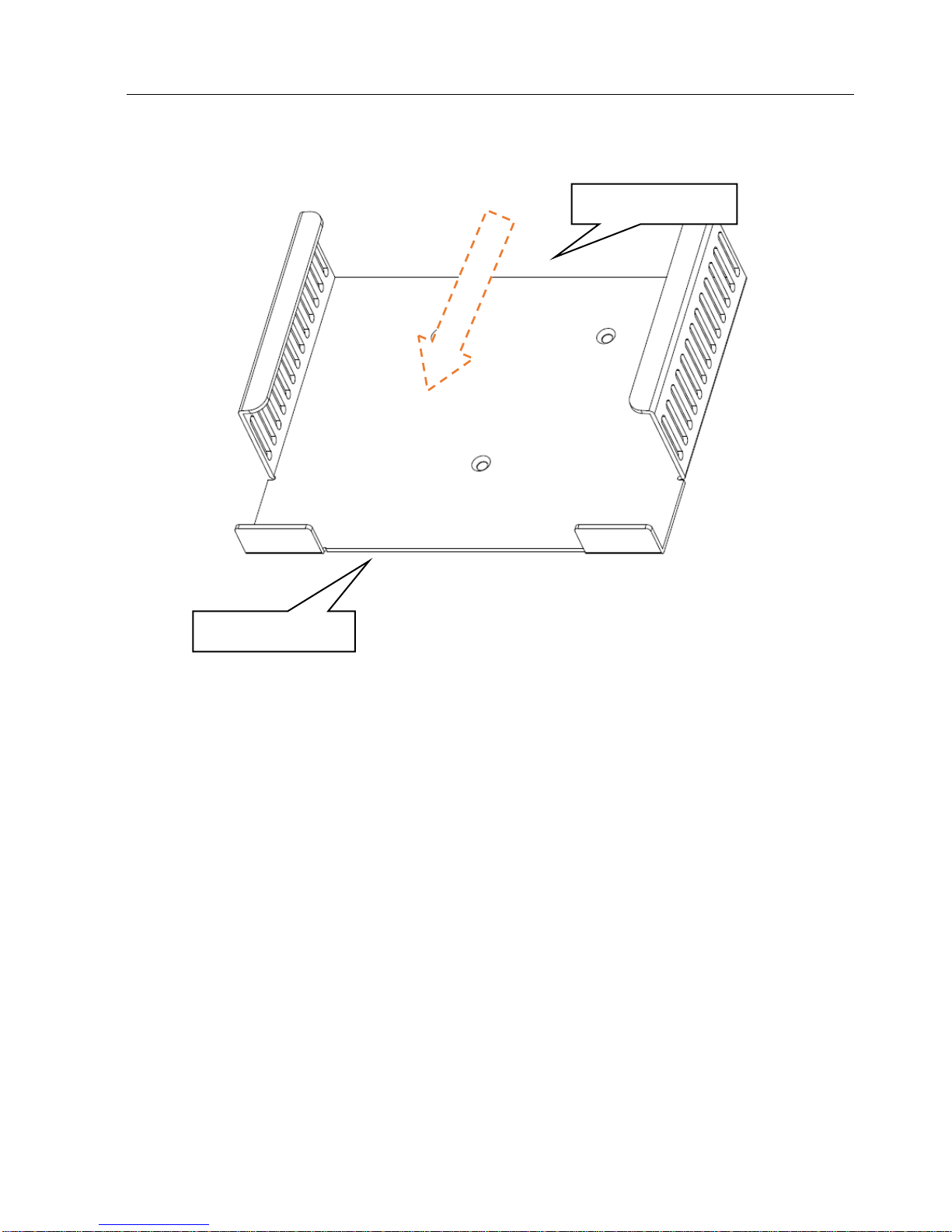
③ According the below installing direction arrow to insert the BYOD to bracket.
Front Panel
Rear Panel
Page 11
Stoltzen Multiformat Presentation Switcher
7
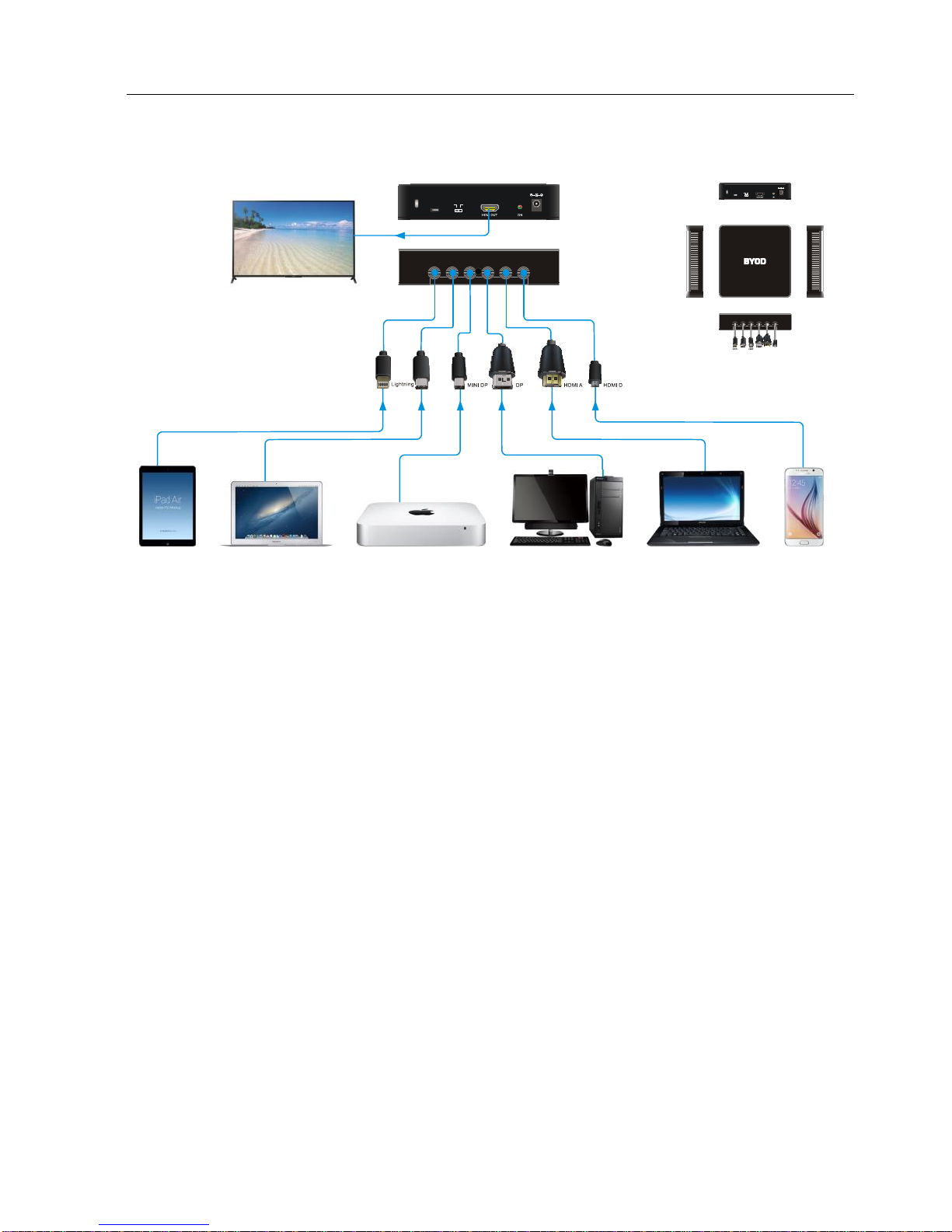
4.3. System Diagram
HDMI AUSB - C DP full sized HDMI type-D
1080P
RES.
4K
SERVICE
DC 24V
USB- C
Cellphone/PAD
iPad MacBook Mac Mini
PC Graphics card Laptop
TV
1080P
RES.4KSERVICE
DC 24V
Preview
Page 12
Stoltzen Multiformat Presentation Switcher
8
4.4. System Operation
① Connect TV to the HDMI output on the rear panel.
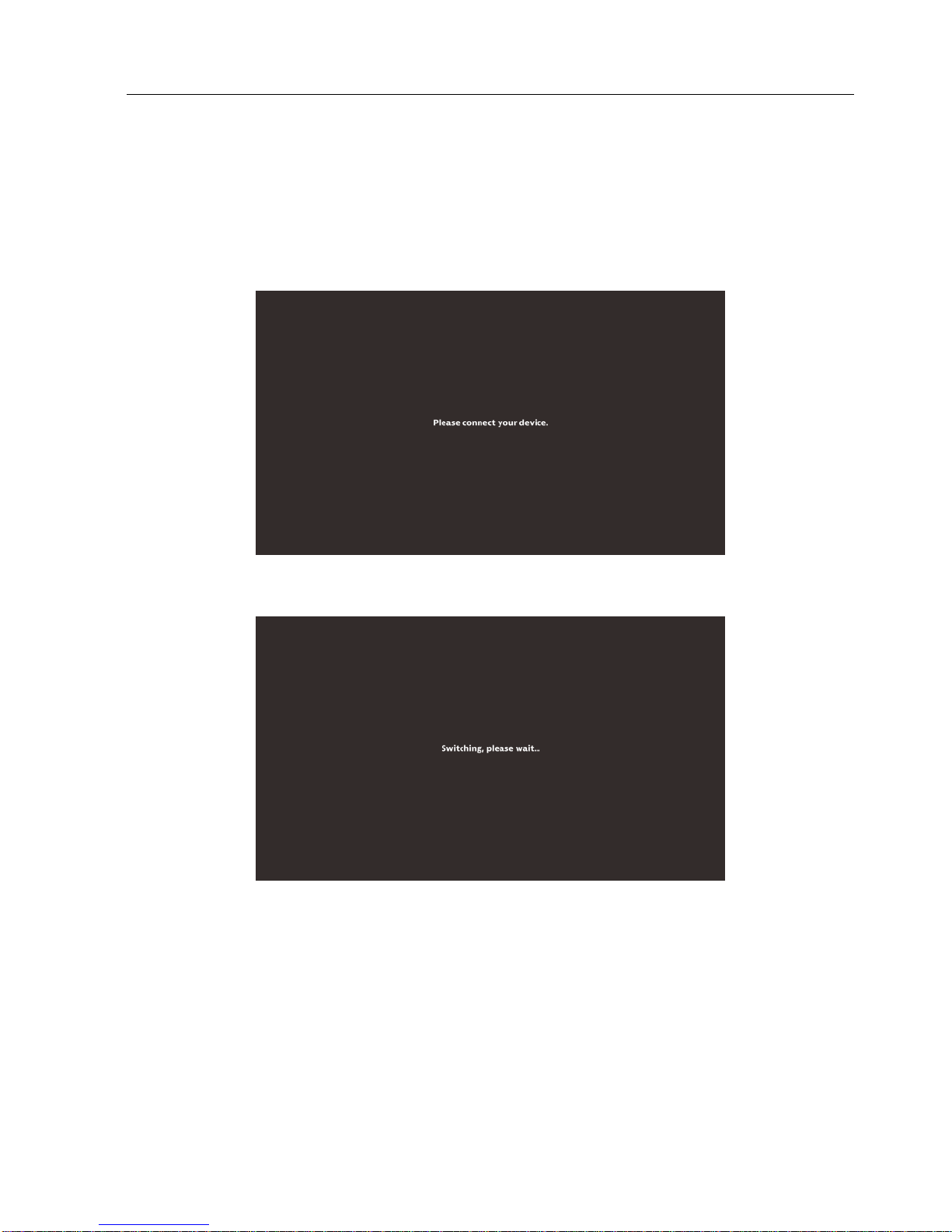
② Power on TV and the switcher, and then the TV will show “Please connect your
device”. If the switcher doesn’t detect any source within 10 minutes, it will
automatically turn off TMDS.
③ If the switcher is back to work or detect source input, it will auto turn on TMDS, and
the TV will show “Switching, please wait”.
Note:
⚫ System Diagram shown in this manual are for reference only.
⚫ The last connected source will be automatically switched to output.
⚫ Start to scan from 1 (Lightning) to 6 (HDMI type-D) and switch the first detected
signal source to the output only if there is no active source.
Page 13
Stoltzen Multiformat Presentation Switcher
9
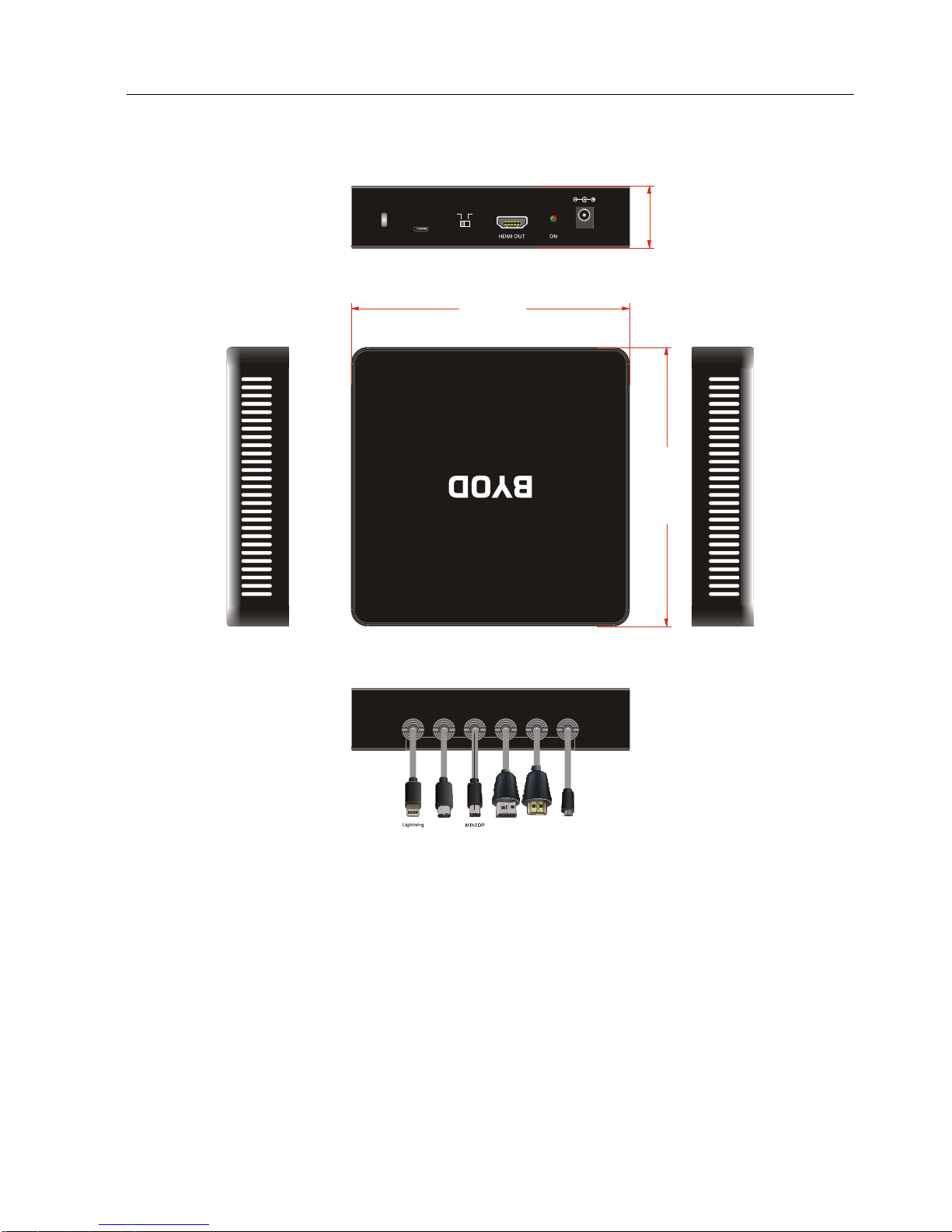
5. Panel Drawing
1080 P
RES.
4K
SERVI CE
DC 24V
HDMI AUSB - C DP full s ized HDMI t ype-D
135.00 mm
135.00 mm
30.00 mm
Page 14
Stoltzen Multiformat Presentation Switcher
10
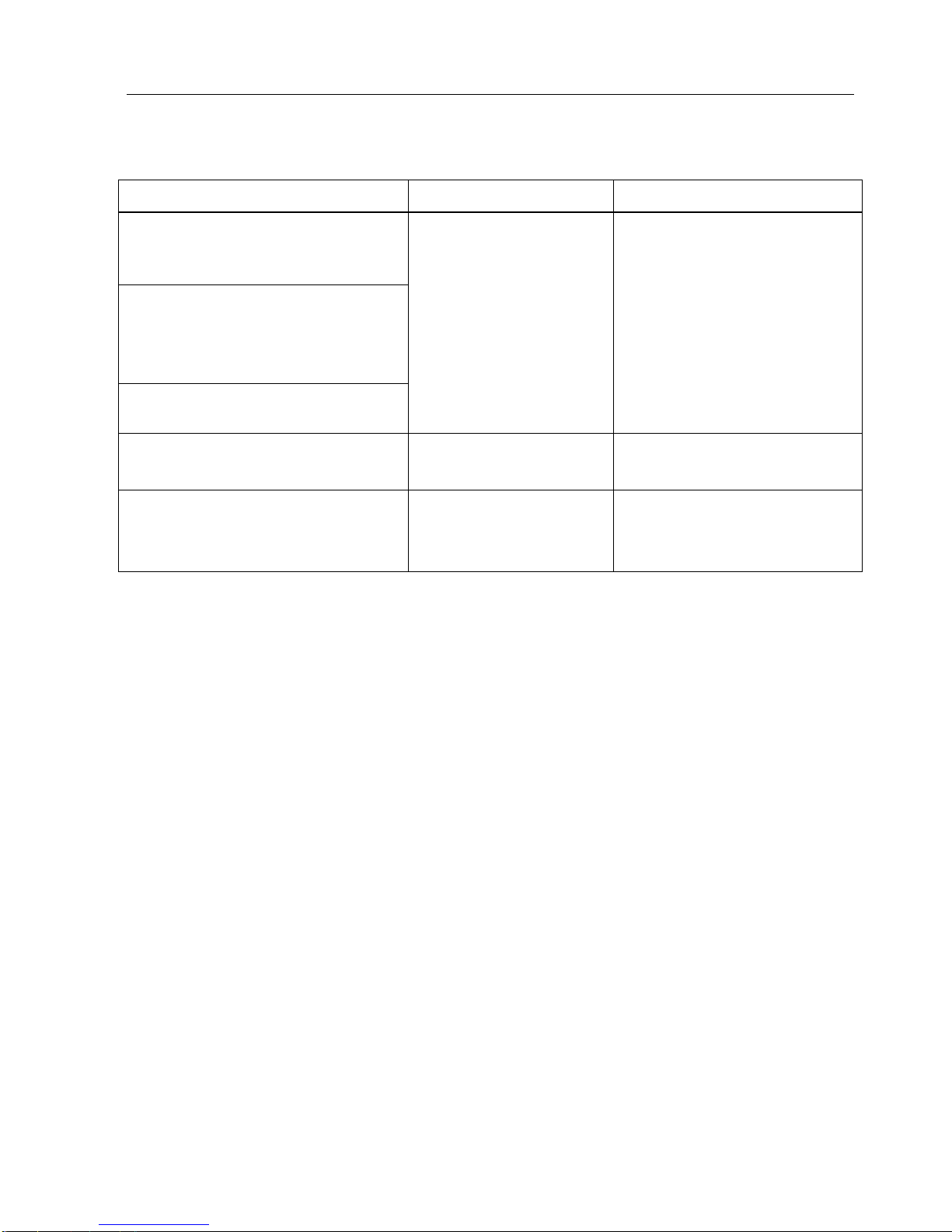
6. Troubleshooting & Maintenance
Problems
Potential Causes
Solutions
Color loss or no video signal
output in HDMI display.
The connecting
cables may not be
connected correctly,
or it may be broken.
Check whether the cables
are broken or connected
correctly and in working
condition.
No HDMI signal output in the
device while local HDMI input is
in normal working state.
Output image with snowflake.
POWER indicator doesn’t work
or no respond to any operation.
Loose or failed power
cord connection.
Ensure the power cord
connection is good.
Static becomes stronger when
connecting the video
connectors.
Bad grounding.
Check the grounding and
make sure it is connected
well.
Note: If your problem still remaining after following the above troubleshooting steps,
please contact your local dealer or distributor for further assistance.
Page 15

Stoltzen Multiformat Presentation Switcher
11
7. Customer Service
The return of a product to our Customer Service implies the full agreement of the terms
and conditions hereinafter. There terms and conditions may be changed without prior
notice.
1) Warranty
The limited warranty period of the product is fixed three years.
2) Scope
These terms and conditions of Customer Service apply to the customer service
provided for the products or any other items sold by authorized distributor only.
3) Warranty Exclusions
⚫ Warranty expiration.
⚫ Factory applied serial number has been altered or removed from the product.
⚫ Damage, deterioration or malfunction caused by:
✓ Normal wear and tear.
✓ Use of supplies or parts not meeting our specifications.
✓ No certificate or invoice as the proof of warranty.
✓ The product model showed on the warranty card does not match with the
model of the product for repairing or had been altered.
✓ Damage caused by force majeure.
✓ Servicing not authorized by distributor.
✓ Any other causes which does not relate to a product defect.
⚫ Shipping fees, installation or labor charges for installation or setup of the product.
4) Documentation
Customer Service will accept defective product(s) in the scope of warranty coverage
at the sole condition that the defeat has been clearly defined, and upon reception of
the documents or copy of invoice, indicating the date of purchase, the type of
product, the serial number, and the name of distributor.
Remarks: For further assistance or solutions, please contact your local distributor.
 Loading...