

Page 1
BlueHDP+USB
User Guide
Release r01
Page 2

BlueHDP+USB
User Guide
Release r01 www.stollmann.de Page 2 of 14
Table of contents
1 Introduction ....................................................................................................... 3
1.1 Product description ....................................................................................... 3
1.2 Content ......................................................................................................... 3
1.2.1 LED ..................................................................................................... 4
1.2.2 Label ................................................................................................... 5
2 Installation ......................................................................................................... 6
2.1 Procedure of Installation ............................................................................... 6
3 Usage of the BlueHDP+USB with Continua Enabling Software Library (CESL) . 7
3.1 Requirements ............................................................................................... 7
3.2 Test Setup .................................................................................................... 7
3.3 Procedure of Installation ............................................................................... 8
3.4 Using the CESL Manager with BlueHDP+USB ............................................. 8
3.5 Using the CESL Agent with BlueDev+P25/G2/HDP .................................... 11
4 Firmware Upgrade ........................................................................................... 12
4.1 Stollmann BlueHDP+USB Serial Module Updater ....................................... 12
4.2 Troubleshooting .......................................................................................... 13
5 History ............................................................................................................. 14
Page 3

BlueHDP+USB
User Guide
Release r01 www.stollmann.de Page 3 of 14
1 Introduction
We are very pleased to see that you have purchased a Stollmann product and
would like to express our appreciation.
This documentation is valid for the following product: BlueHDP+USB
Software version 1.402 or later
1.1 Product description
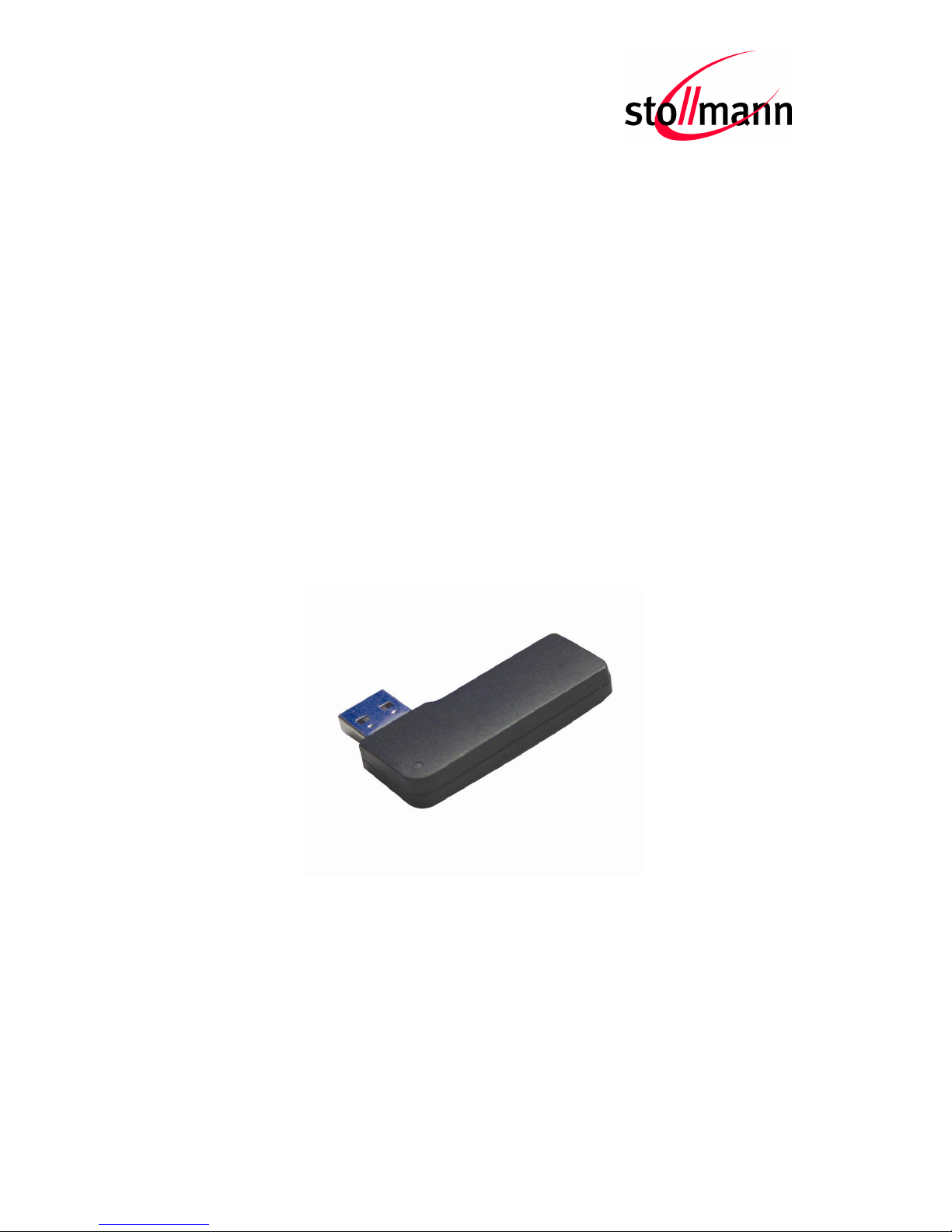
BlueHDP+USB is an active Bluetooth USB dongle. The complete Stollmann
Bluetooth stack is running in the dongle.
The following Bluetooth profiles are supported:
- HDP
- DID
- SPP
1.2 Content
This package contains the following part:
BlueHDP+USB
Page 4
BlueHDP+USB
User Guide
Release r01 www.stollmann.de Page 4 of 14
1.2.1 LED
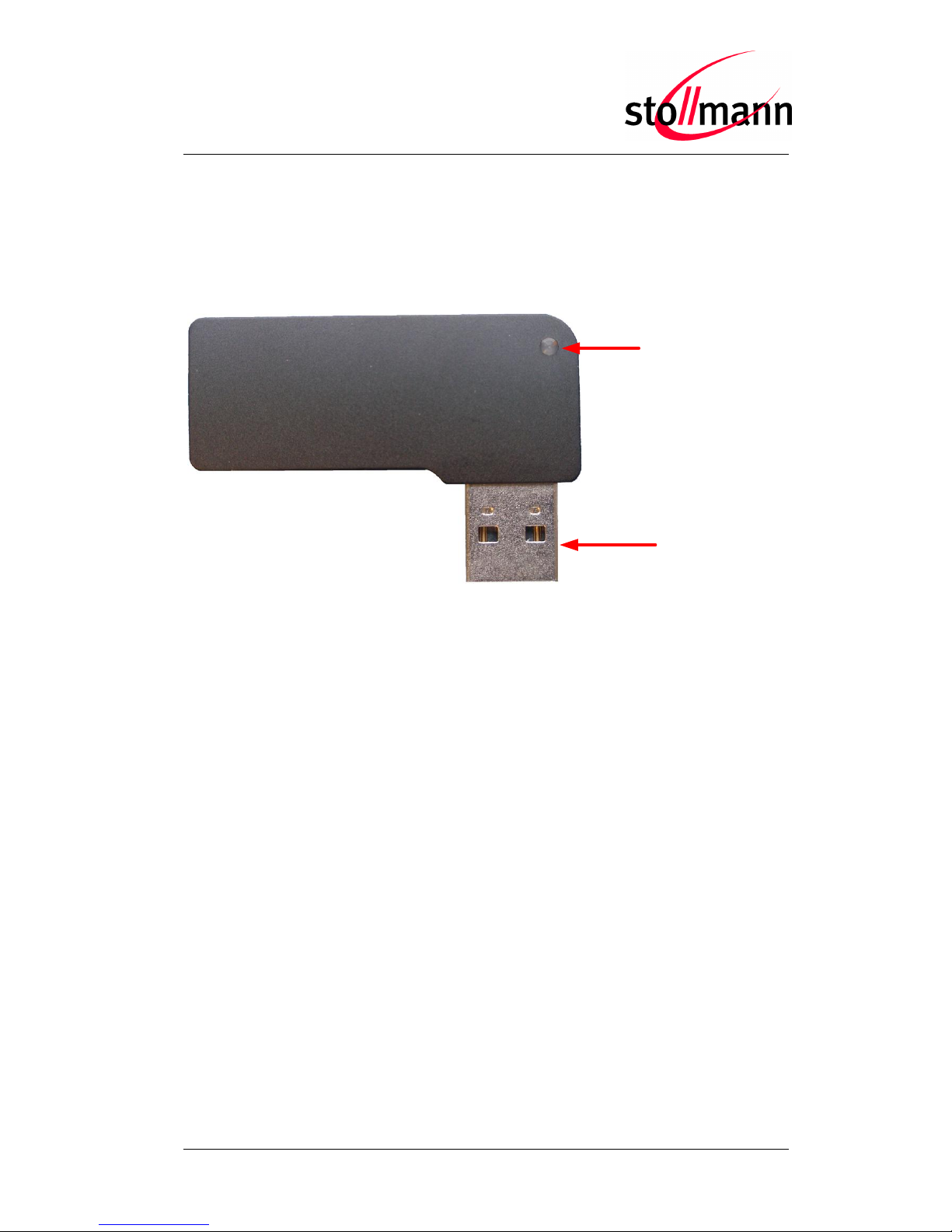
The BlueHDP+USB have an LED on the front side.
LED (green)
USB
Connector
The green LED indicates that the BlueHDP+USB is powered correct from the USB
port of the host system. There is no other functionality of the LED.
Page 5
BlueHDP+USB
User Guide
Release r01 www.stollmann.de Page 5 of 14
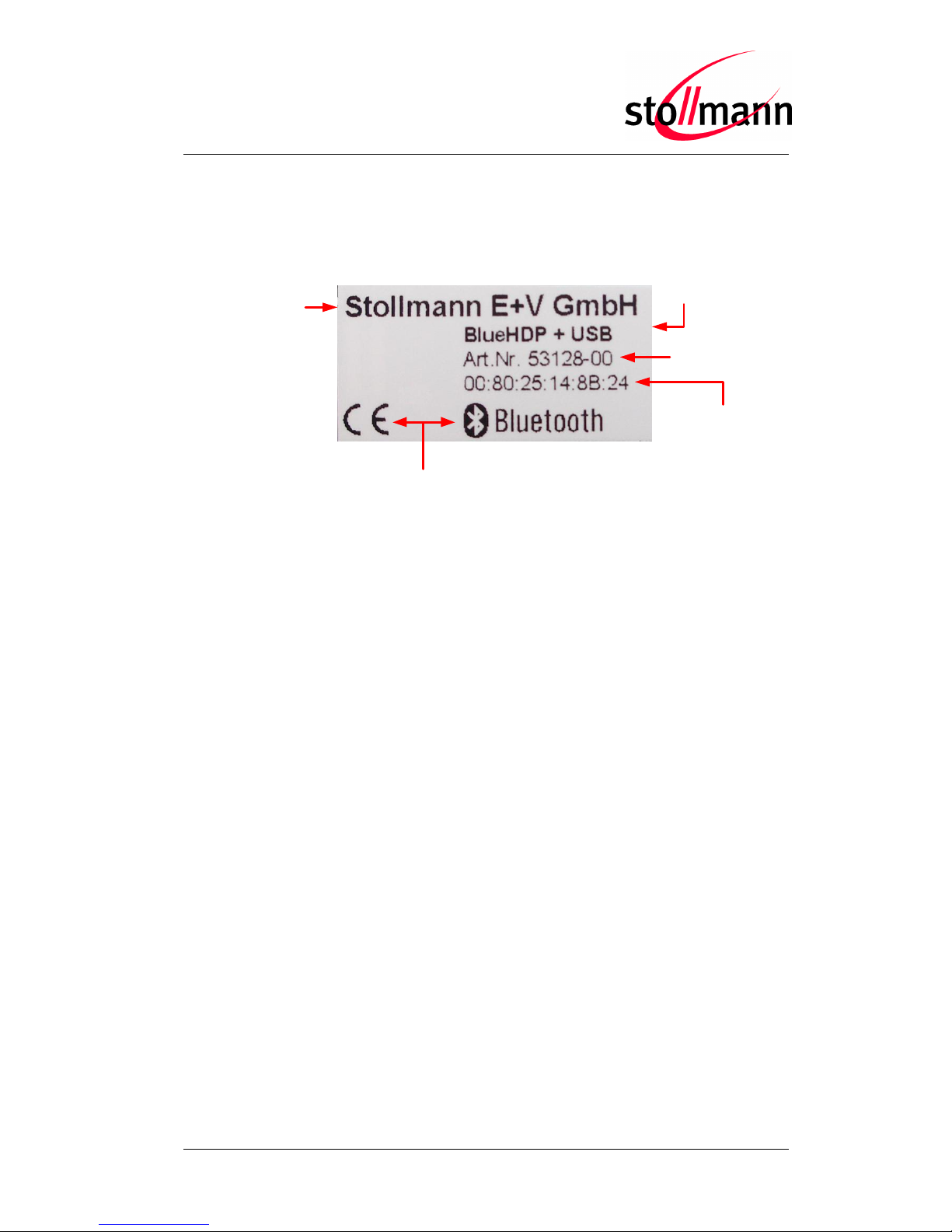
1.2.2 Label
Manufacturer
CE and Bluetooth
Qualification
Product
Name
Part Number
Bluetooth
Address
Page 6
BlueHDP+USB
User Guide
Release r01 www.stollmann.de Page 6 of 14
2 Installation
2.1 Procedure of Installation
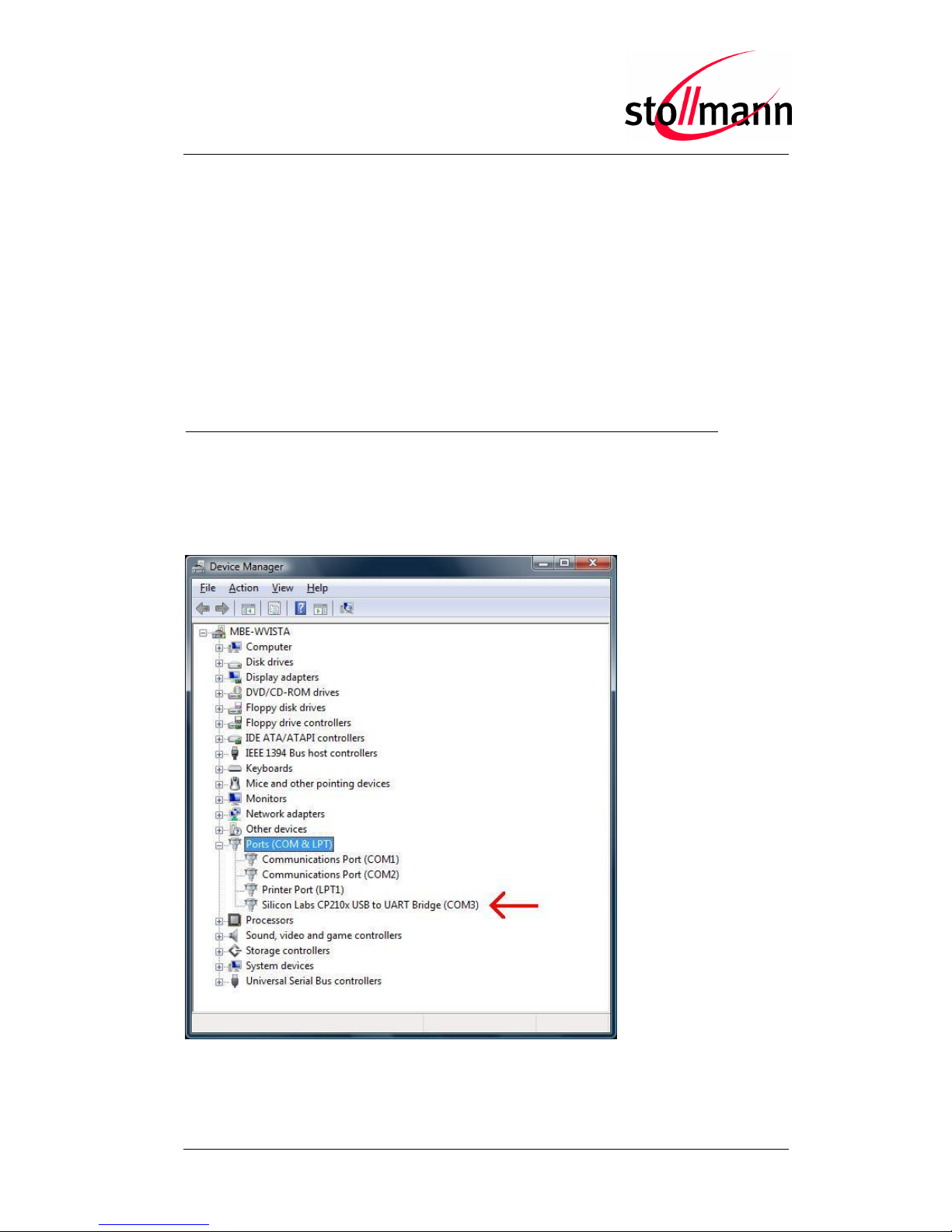
Connect the BlueHDP+USB to a PC USB port and install the Silabs USB to UART
Bridge driver (can be downloaded at
http://www.silabs.com/products/mcu/pages/usbtouartbridgevcpdrivers.aspx).
Find a new COM port in the device manager called “Silicon Labs CP210x USB to
UART Bridge”.
Now the BlueHDP+USB is ready to operate at the assigned COM port.
Page 7
BlueHDP+USB
User Guide
Release r01 www.stollmann.de Page 7 of 14
3 Usage of the BlueHDP+USB with Continua Enabling
Software Library (CESL)
3.1 Requirements
- BlueHDP+USB with software version 1.402 or later
- CESL binary setup with software version 1.5 or later
- PC with Windows XP, Vista or 7 operating system
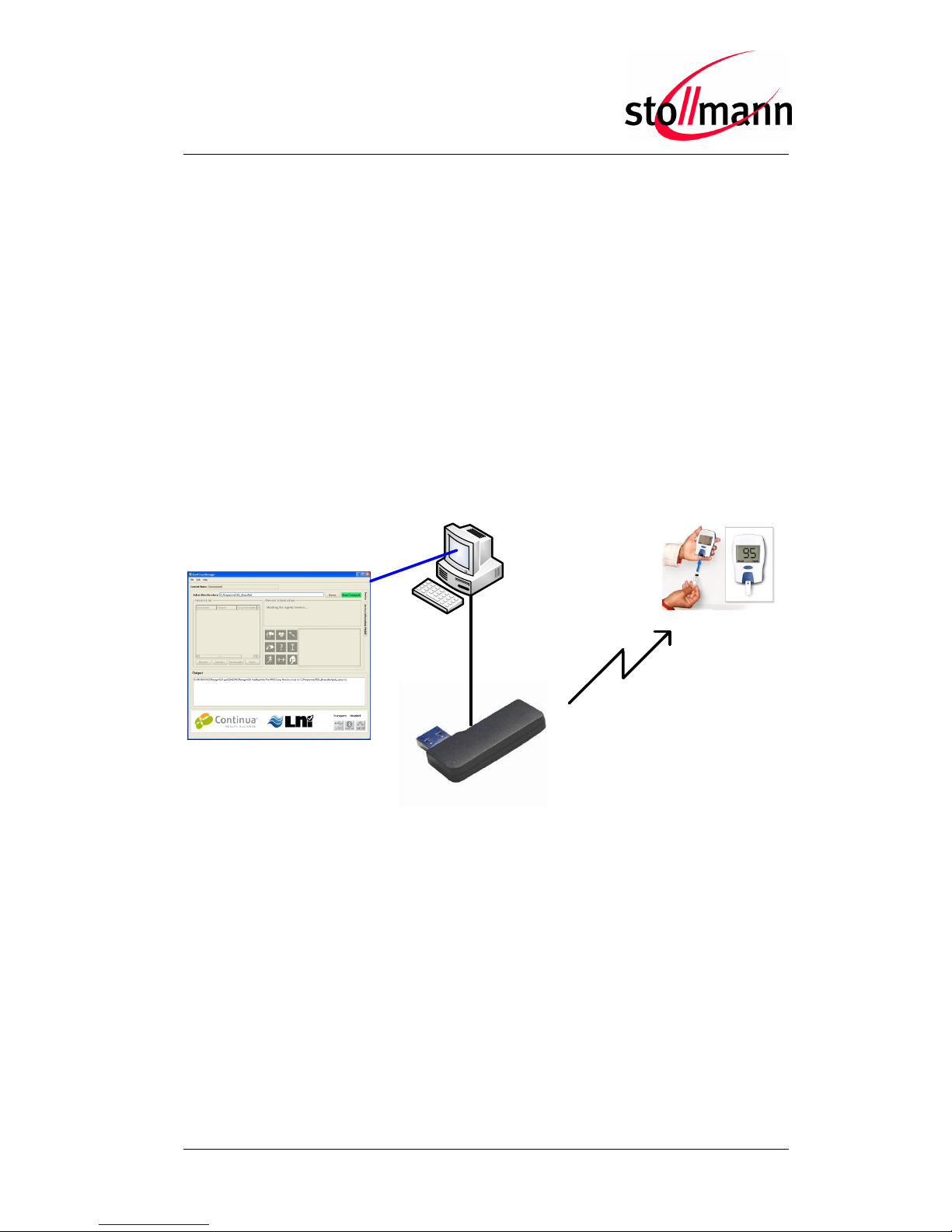
3.2 Test Setup
USB
Bluetooth
HDP Device
CESL Manager
Stollmann
BlueHDP+USB
Page 8

BlueHDP+USB
User Guide
Release r01 www.stollmann.de Page 8 of 14
3.3 Procedure of Installation
To operate with BlueHDP+USB and CESL binary software please install the
following software:
- BlueHDP+USB with Silabs USB to UART Bridge CP210x
- CESL binary setup v1.5 or later
After correct installation of BlueHDP+USB with Silabs USB to UART Bridge CP210x
please install the CESL binary software and follow the instructions.
3.4 Using the CESL Manager with BlueHDP+USB
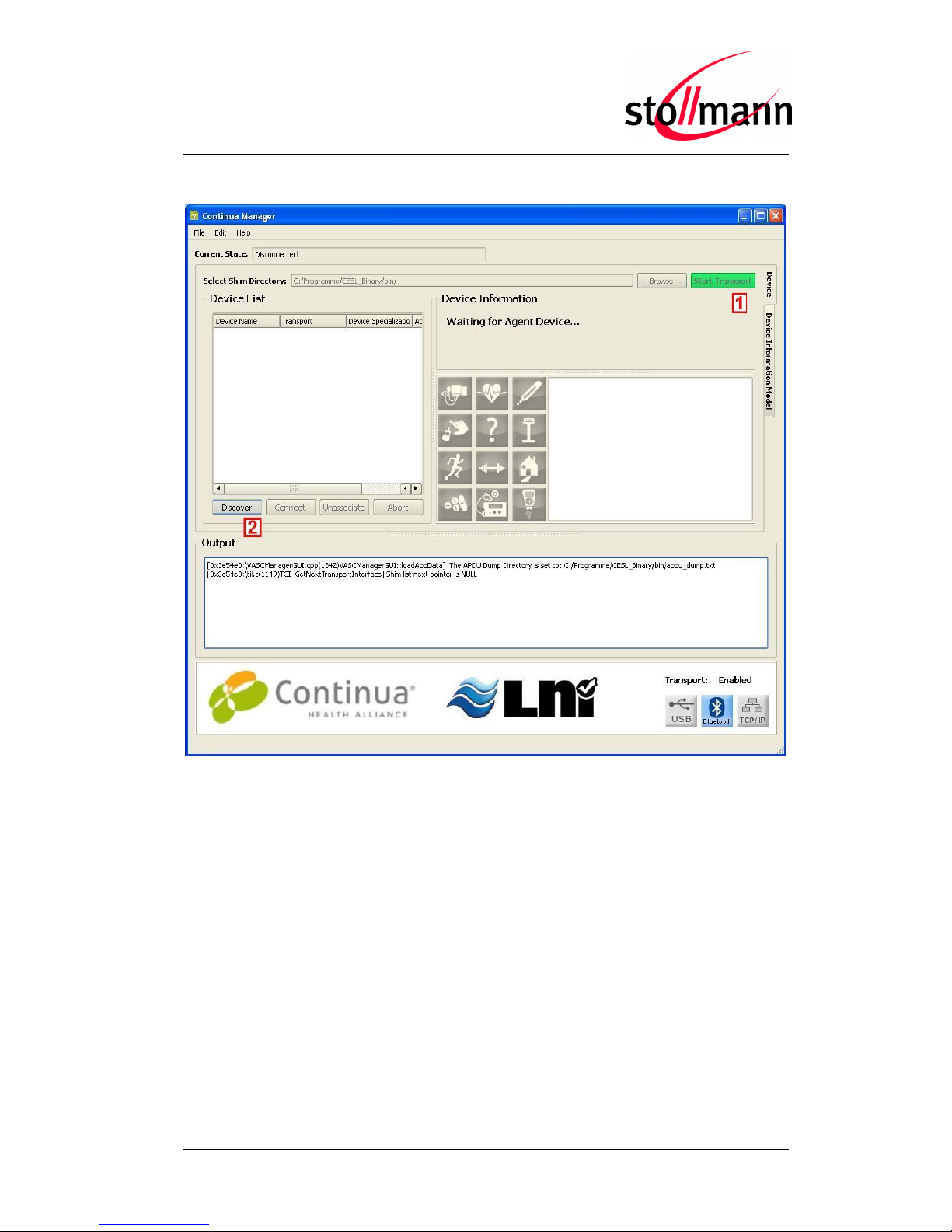
Start the “Continua Manager GUI” application and modify the following parameters
in the “Edit” section:
- “Transport Settings” --> disable USB & TCP Transport
- “Transport Settings” --> enable Bluetooth Transport with according
COM-Port of BlueHDP+USB
- “WAN” --> disable Delivery to WAN Bridge
Now press “Start Transport” (1) to initialize the connected BlueHDP+USB and push
“Discover” (2) to start the device discovery of HDP Bluetooth devices in your area.
Page 9
BlueHDP+USB
User Guide
Release r01 www.stollmann.de Page 9 of 14
Page 10
BlueHDP+USB
User Guide
Release r01 www.stollmann.de Page 10 of 14
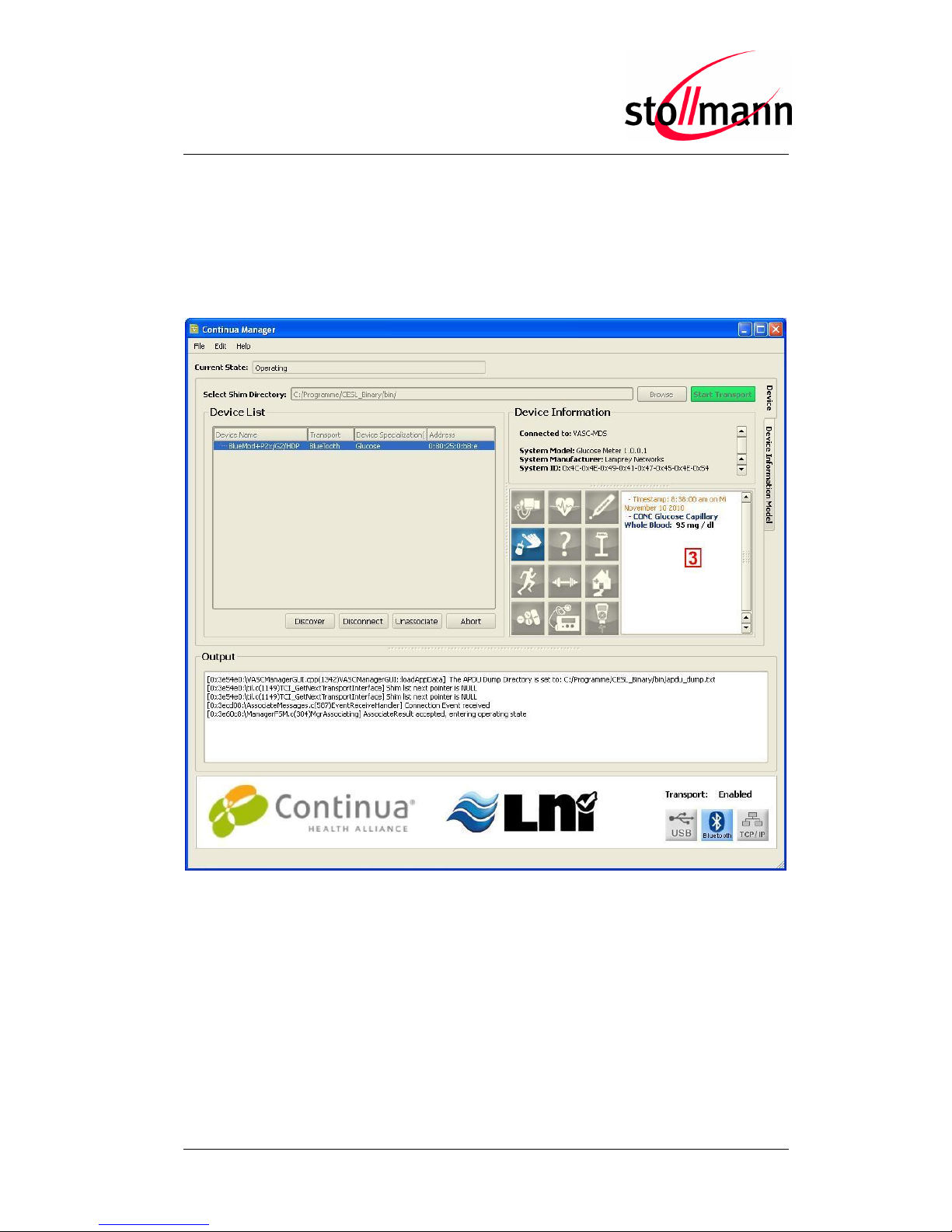
If the remote HDP device is listed in the “Device List” box, press “Connect” to
initialize the connection process.
Now both devices are connected and ready to transfer data (3).
Page 11
BlueHDP+USB
User Guide
Release r01 www.stollmann.de Page 11 of 14
3.5 Using the CESL Agent with BlueDev+P25/G2/HDP
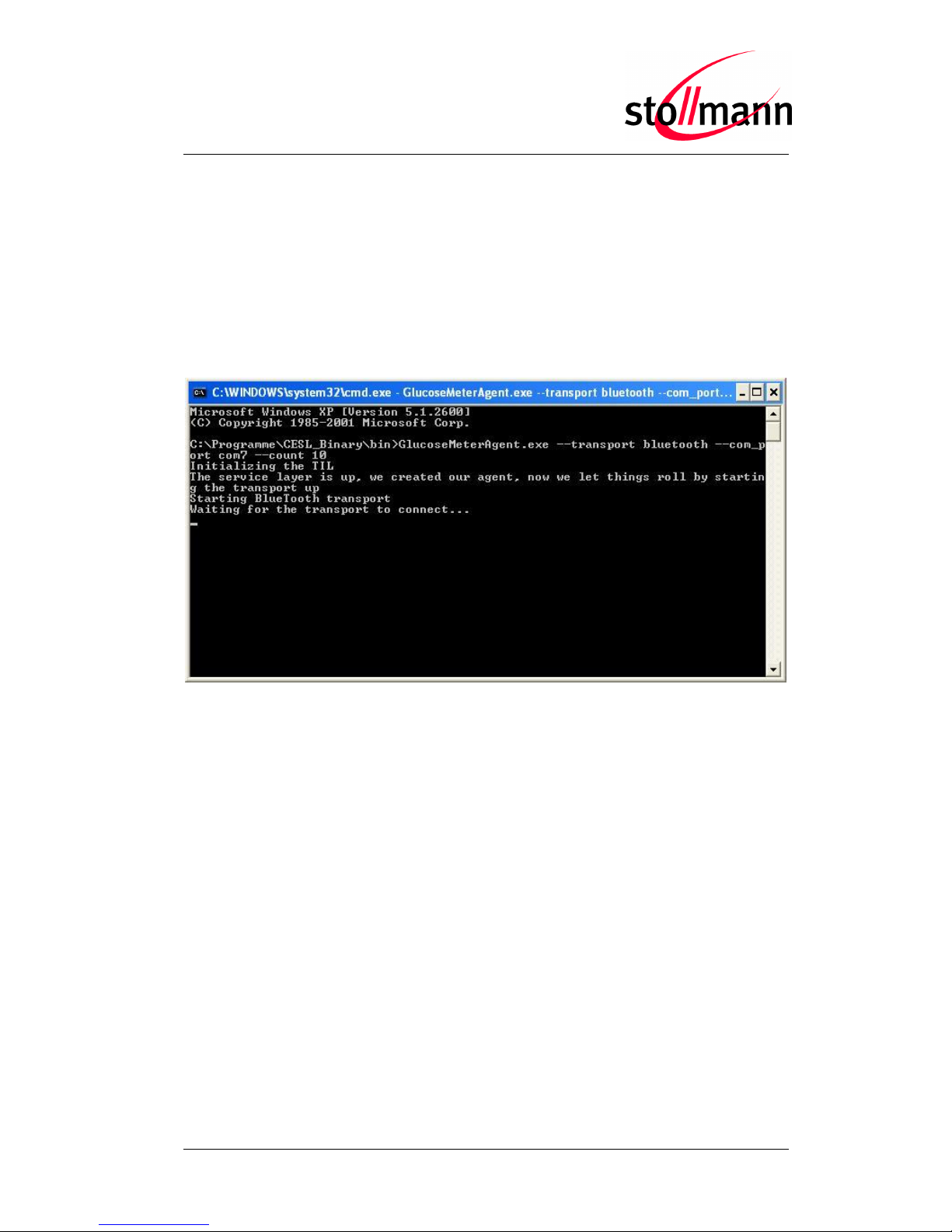
Open a command shell from the program directory of the CESL application folder
(usually “C:\Programme\CESL_Binary\bin”) and start a CESL Agent using the
command line (for example: “GlucoseMeterAgent.exe –transport Bluetooth –
com_port com7 –count 10”)
Now the CESL Agent is ready to receive an incoming HDP Bluetooth connection
from another HDP device.
Page 12
BlueHDP+USB
User Guide
Release r01 www.stollmann.de Page 12 of 14
4 Firmware Upgrade
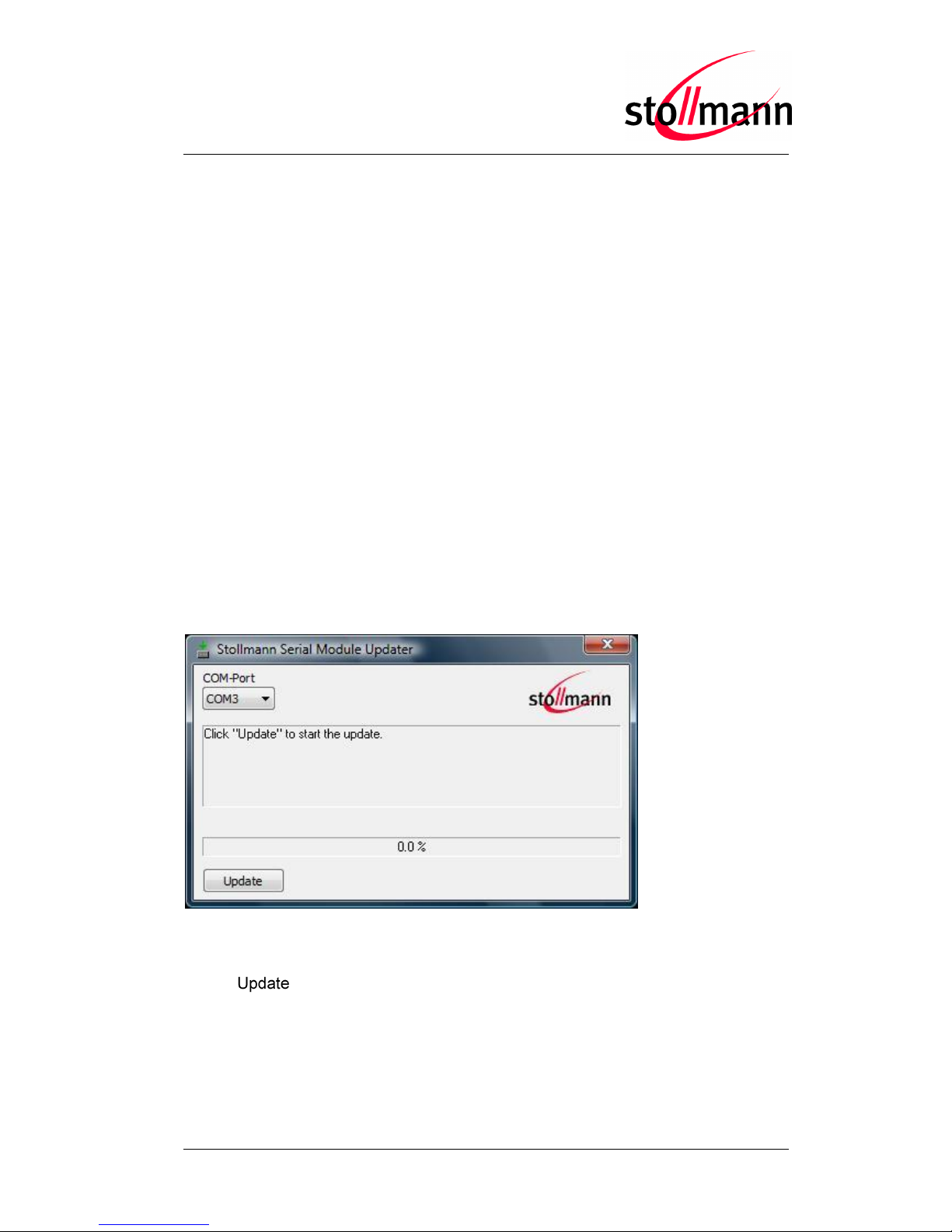
Stollmann provides a tool for uploading firmware into a BlueHDP+USB via serial
interface. The file name of the executable program consists of version and patch
information.
For example a firmware version 1.404 will result in the executable file
“P25G2_HDP_1_404_Setup_SR.exe”.
4.1 Stollmann BlueHDP+USB Serial Module Updater
Stollmann BlueHDP+USB Serial Module Updater serves as a tool for uploading a
firmware file into a BlueHDP+USB.
The program requires a PC with at least one free COM port and Windows XP,
Windows Vista or Windows 7 as operating system.
The upload is processed via the serial port the device is attached to.
- COM-Port
The COM port the device is attached to
-
Starts the update procedure
Page 13
BlueHDP+USB
User Guide
Release r01 www.stollmann.de Page 13 of 14
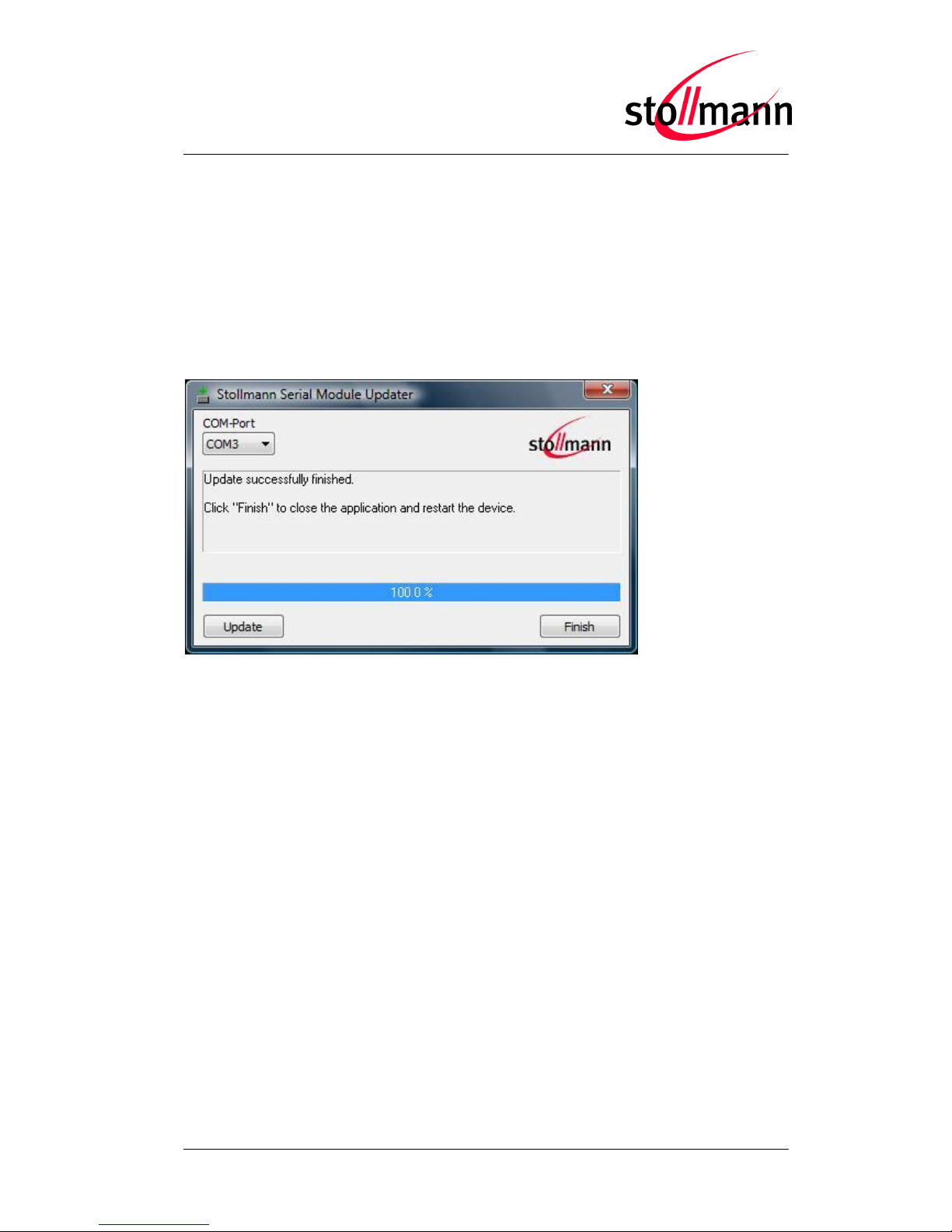
Press the „Update“ button to start the firmware update process.
Please wait while the update is being processed.
After the successful firmware update press the „Finish“ button and restart the
device.
4.2 Troubleshooting
Update won’t start when using Stollmann BlueHDP+USB Updater
Check if the right COM port is selected and make sure the port is not used by other
applications running.
Update process has been interrupted by power loss / Cable replacement on
COM port
Redo the update by restarting the Stollmann BlueHDP+USB Updater.
Firmware won’t start after serial update
Power cycle the module. If the module is still not answering to any commands, redo
the update with the Stollmann BlueHDP+USB Updater.
Page 14
BlueHDP+USB
User Guide
Release r01 www.stollmann.de Page 14 of 14
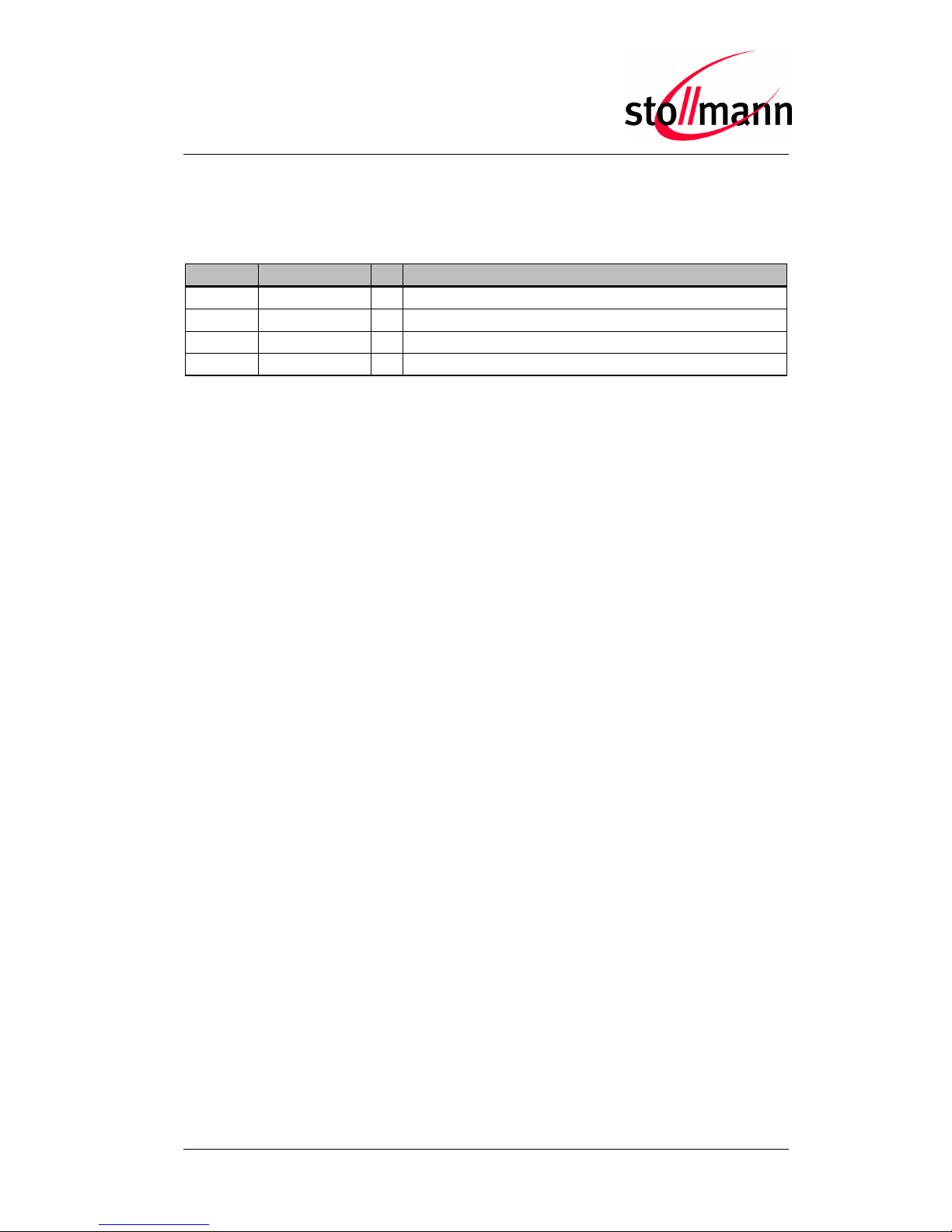
5 History
Version
Release Date
By
Change description
r01d01
21.10.2010
fh
First draft
r01
16.02.2011
Mb
First release
Stollmann Entwicklungs- und Vertriebs-GmbH
Mendelssohnstraße 15 D
22761 Hamburg
Germany
Phone: +49 (0)40 890 88-0
Fax: +49 (0)40 890 88-444
E-mail: [email protected]
www.stollmann.de
Page 15

Regulatory Statements to be included in the Users Guide for Sputnik
USA-Federal Communications Commission (FCC)
This device complies with part 15 of the FCC Rules. Operation is subject to the following
two conditions: (1) This device may not cause harmful interference, and (2) this device
must accept any interference received, including interference that may cause undesired
operation.
This equipment has been tested and f o un d t o compl y wit h the limits for a Class B digital
device, pursuant to Part 15 of FCC Rule s. These limits are designed to provide reasonable
protection against harmful interference in a residential installation. This equipment
generates, uses, and can radiate radio frequency energy. If not installed and used in
accordance with the instructions, it may cause harmful interference to radio
communications. However, there is no guarantee that interference will not occur in a
particular installation.
If this equipment does cause harmful interference to radio or television reception, which
can be determined by tuning the equipment off and on, the user is encouraged to try and
correct the interference by one or more of the following measures:
-Reorient or relocate the receiving antenna
-Increase the distance between the equipment and the receiver.
-Connect the equipment to outlet on a circuit different from that to which the receiver is
connected.
-Consult the dealer or an experienced radio/TV technician for help.
Any changes or modifications not expressly approved by the party responsible for
compliance could void the user’s authority to operate the equipment.
Caution: Exposure to Radio Frequency Radiation.
To comply with FCC RF exposure compliance requirements, for mobile configurations, a
separation distance of at least 20 cm must be maintained between the antenna of this device and
all persons.
This device must not be co-located or operating in conjunction with any other antenna or
transmitter.
 Loading...